This guide will walk you through the process of submitting a help request for technical support.
Go to portal.adlsassist.com
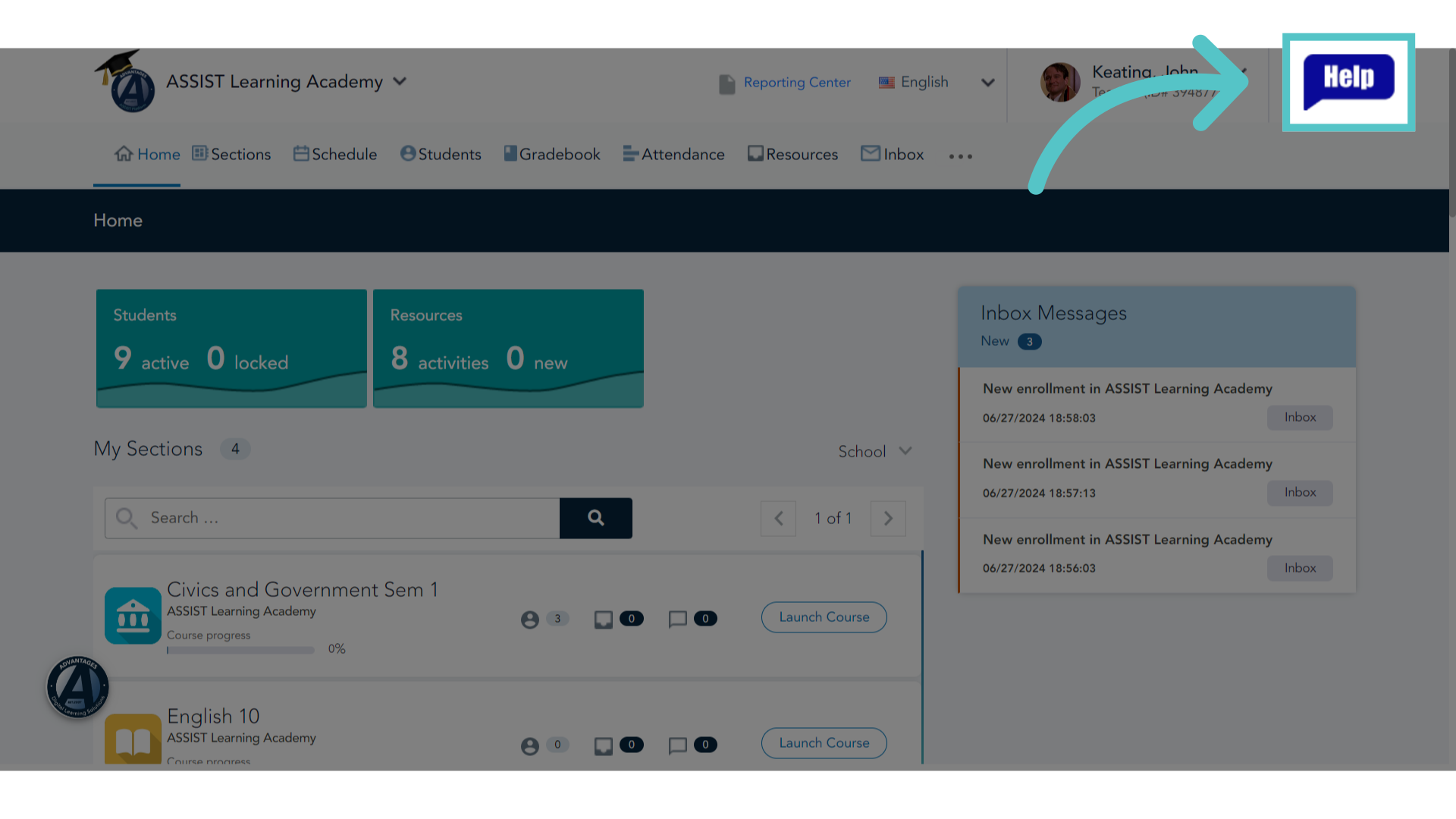
1. Click Help
All users have access to our Help Center. Click the blue Help icon in the top right corner of your ASSIST portal.
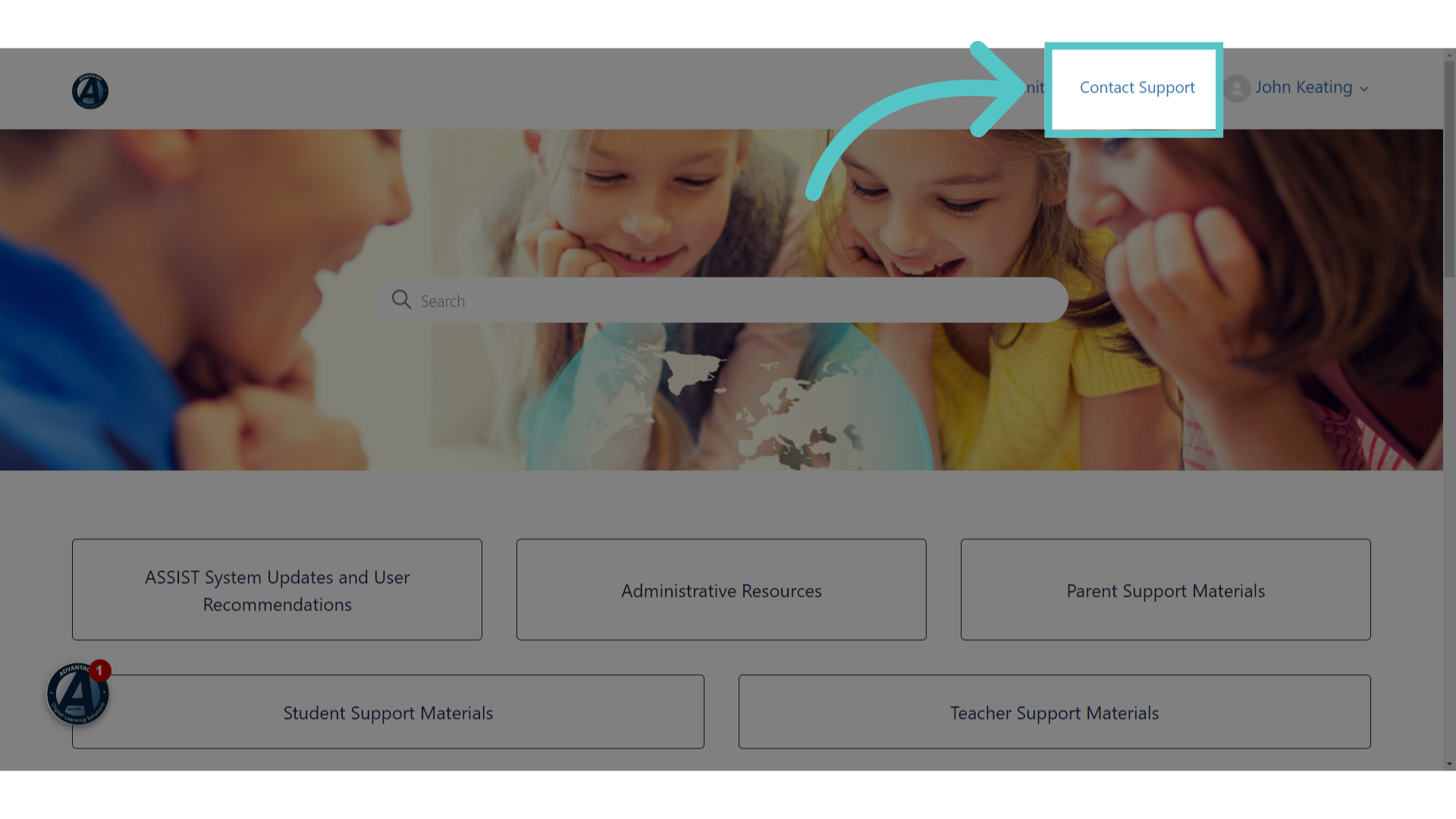
2. Click "Contact Support"
Select the "Contact Support" option found at the top of our Help Center screen.
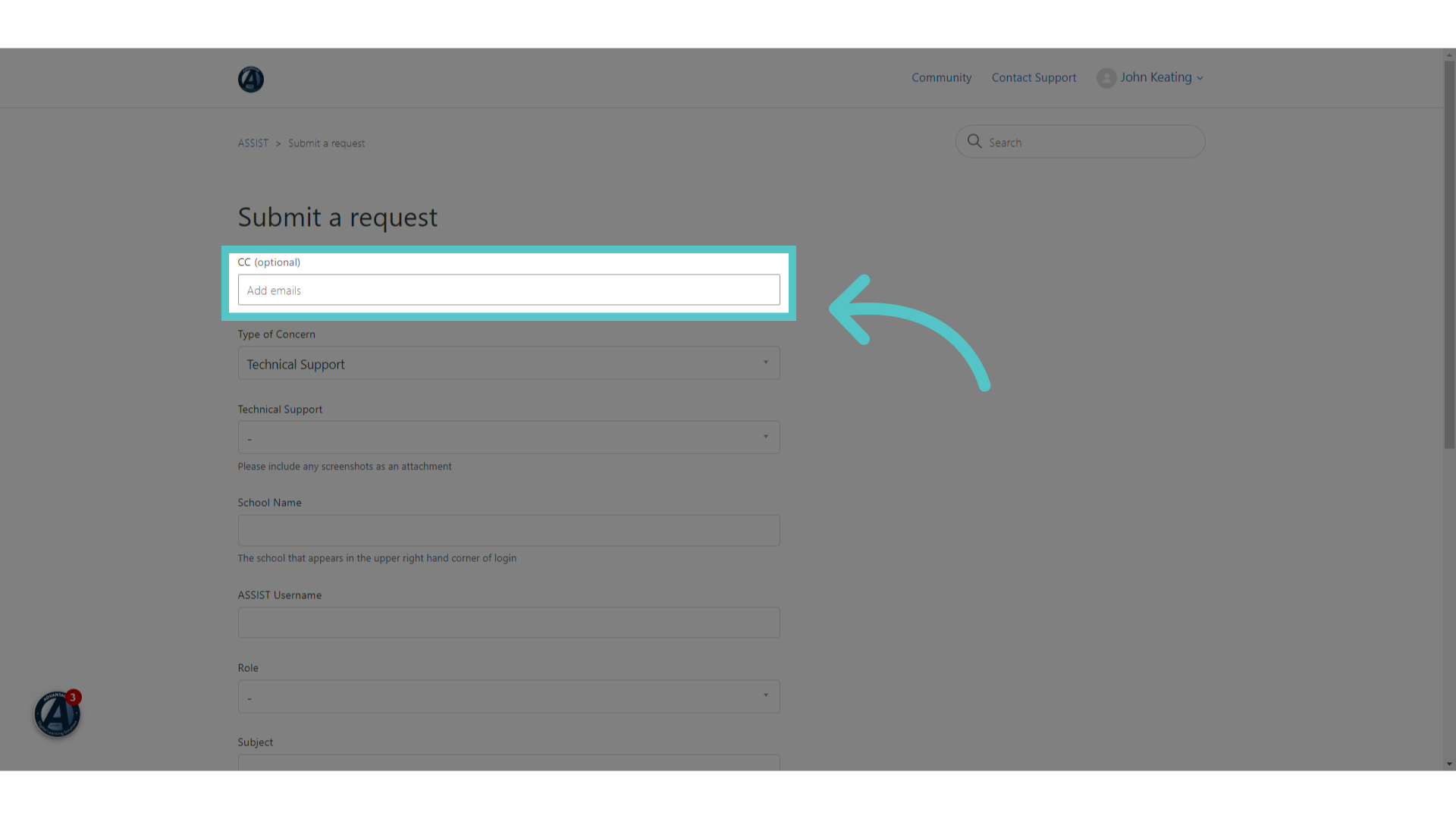
3. CC your School Success Manager
Please copy your school success manager at Advantages by entering their email address in the top field.
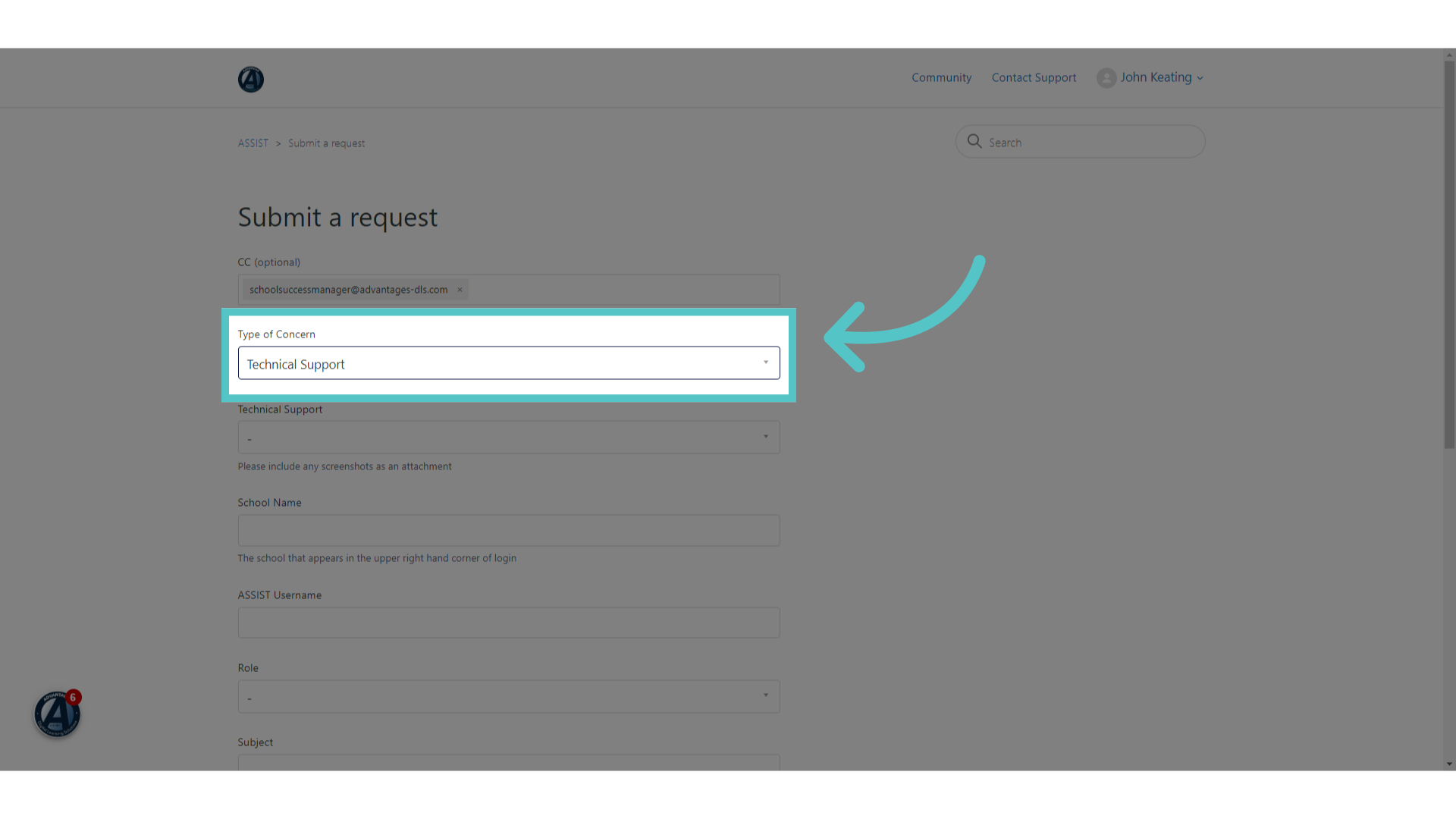
4. Click "Technical Support"
Choose "Technical Support" as the type of concern being submitted. All non-technical concerns can be sent to your School Success Manager directly.
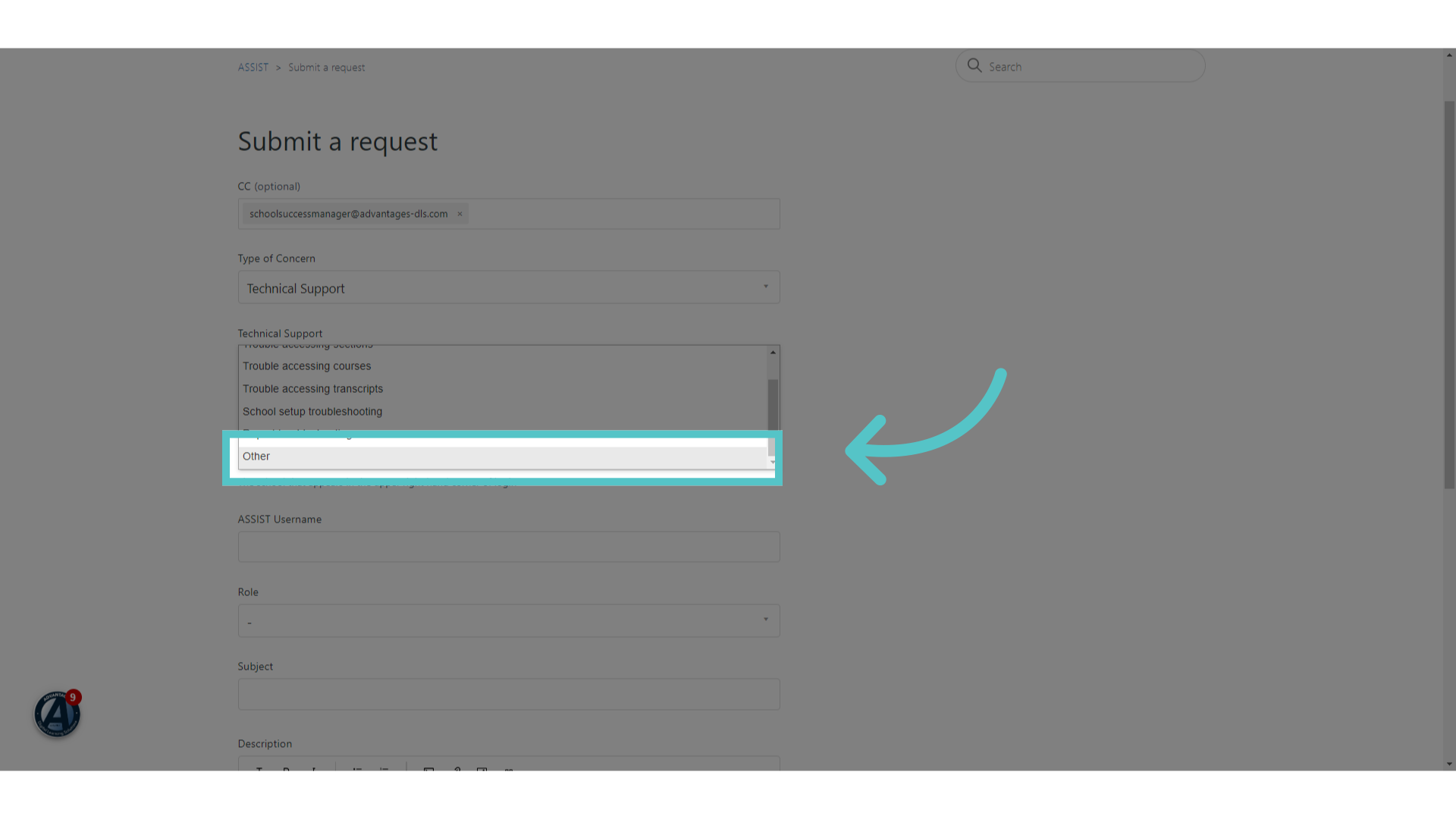
5. Select issue
Select the type of technical issue you are experiencing. Select "other" if you do not see your issue listed.
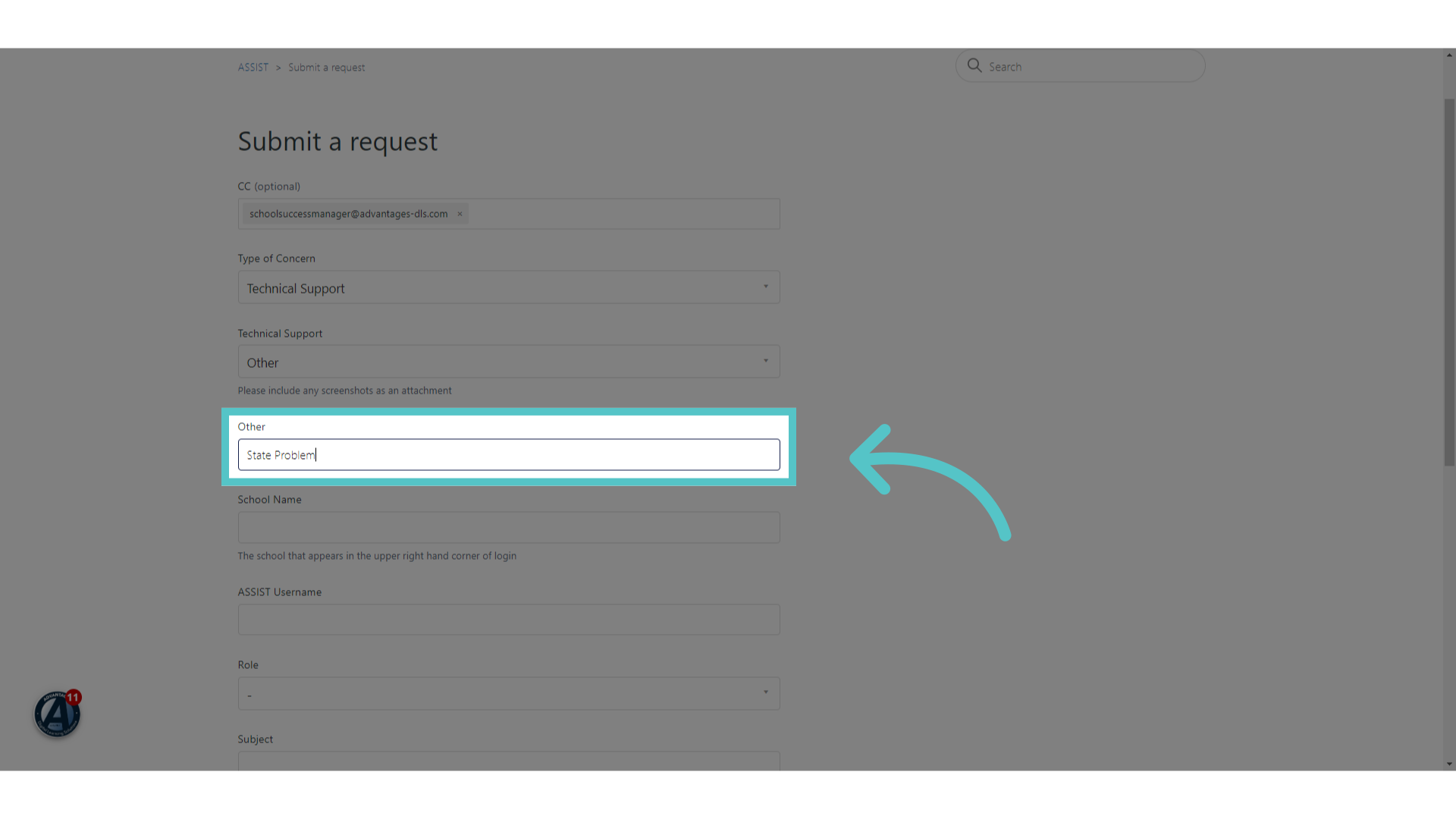
6. Label the Problem
If choosing "other" be sure to label your problem in the field.
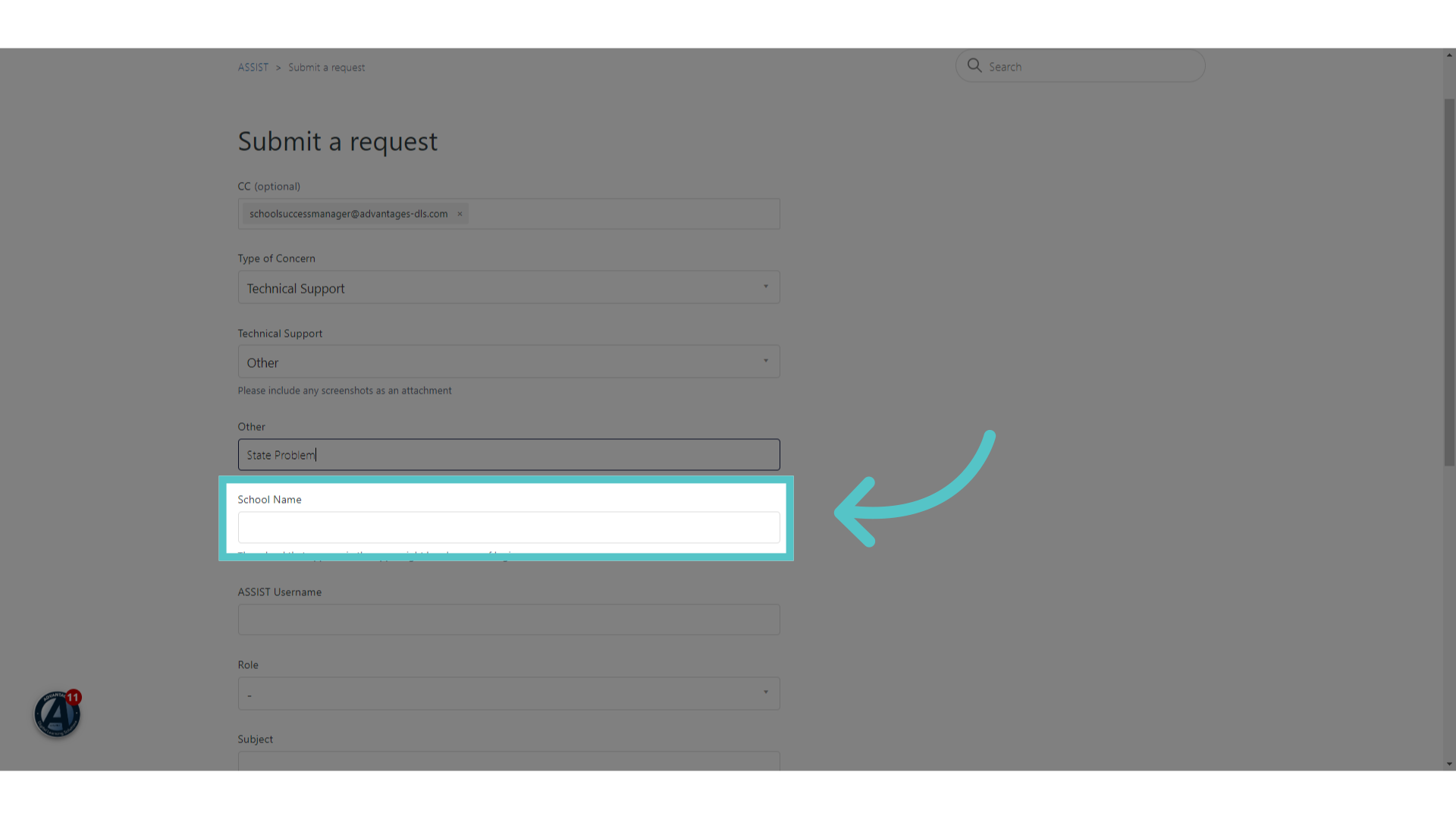
7. Enter "School Name"
Enter the name of your school.
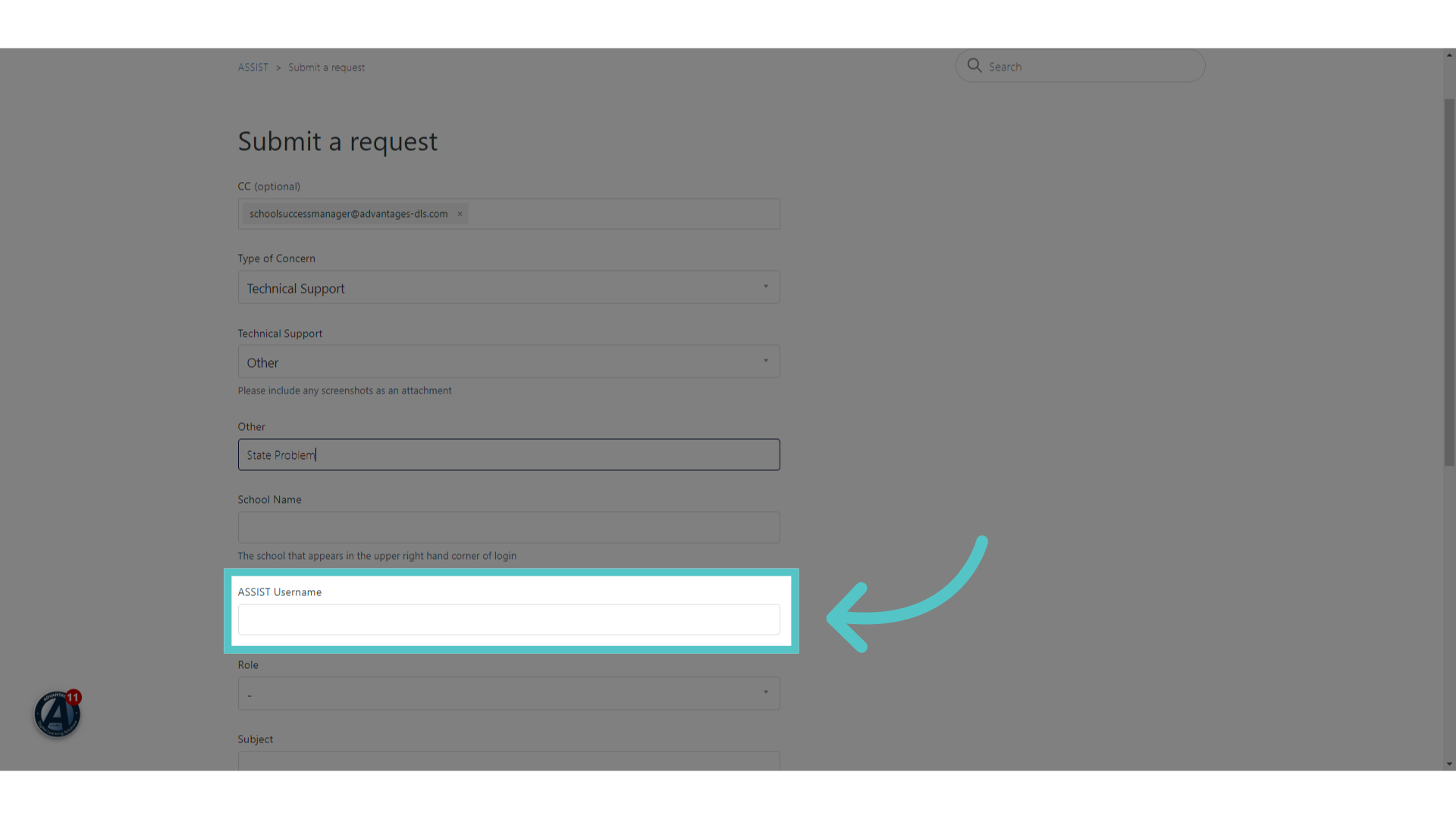
8. Enter "ASSIST Username"
Enter your ASSIST username.
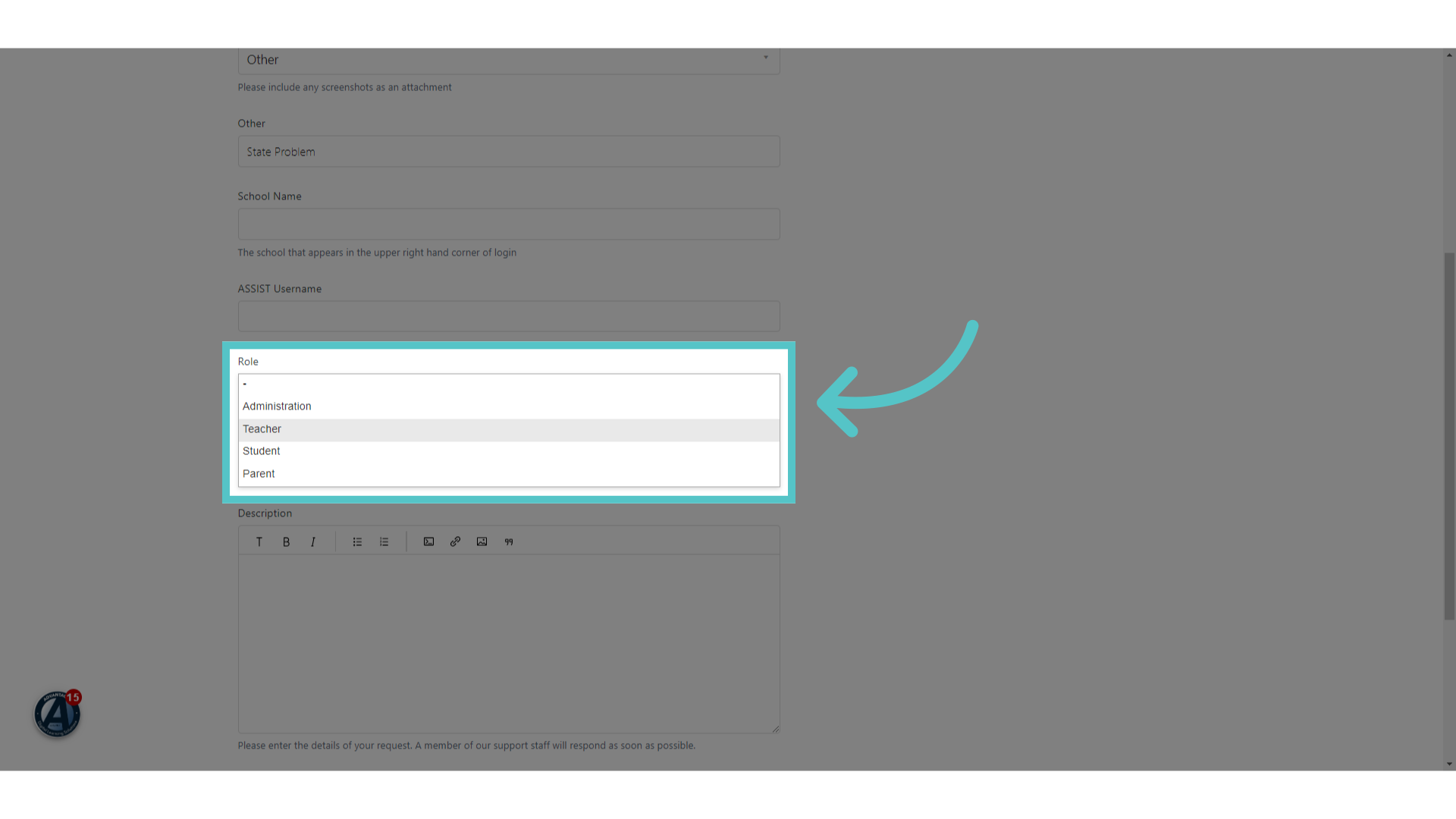
9. Select Role
Select your role at the school. Choose teacher, administrator, parent, or student.
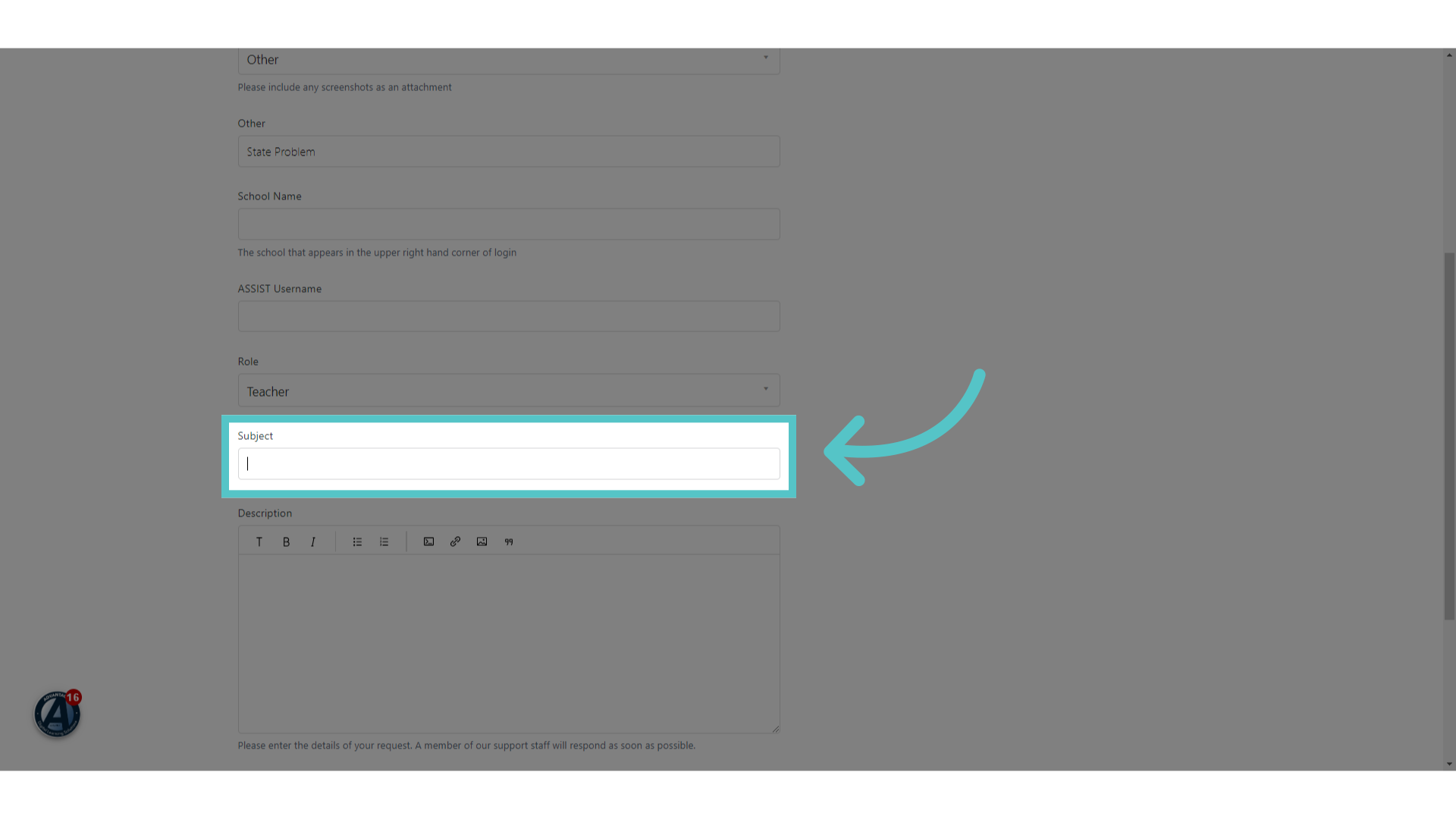
10. Enter Subject
Begin your message with a clear subject line. State the problem in a few words.
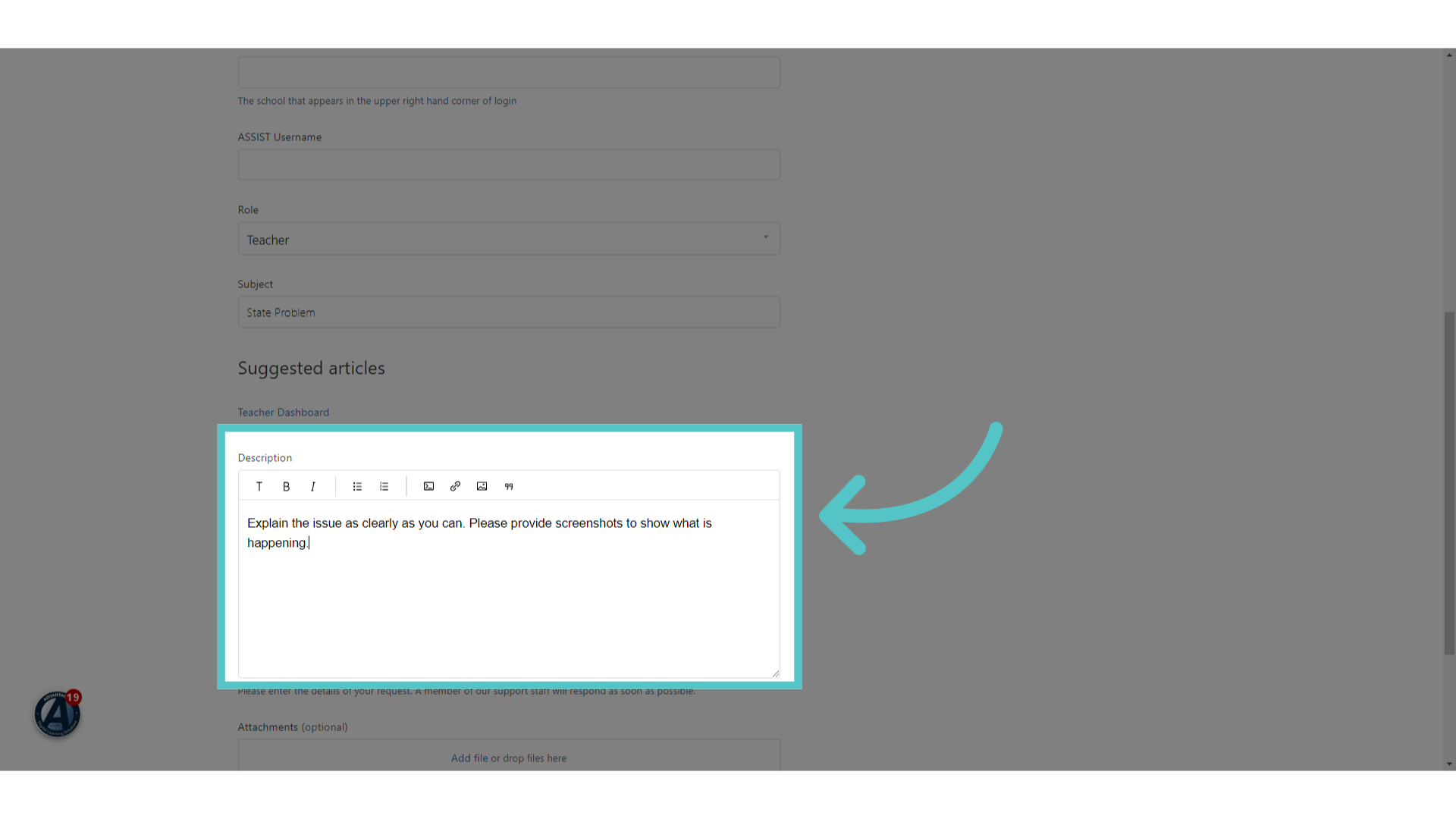
11. Describe the Issue
Provide a detailed explanation of the platform issue. Include the name of any user or courses or sections being affected. Our tech team appreciates any specific information that you can add.
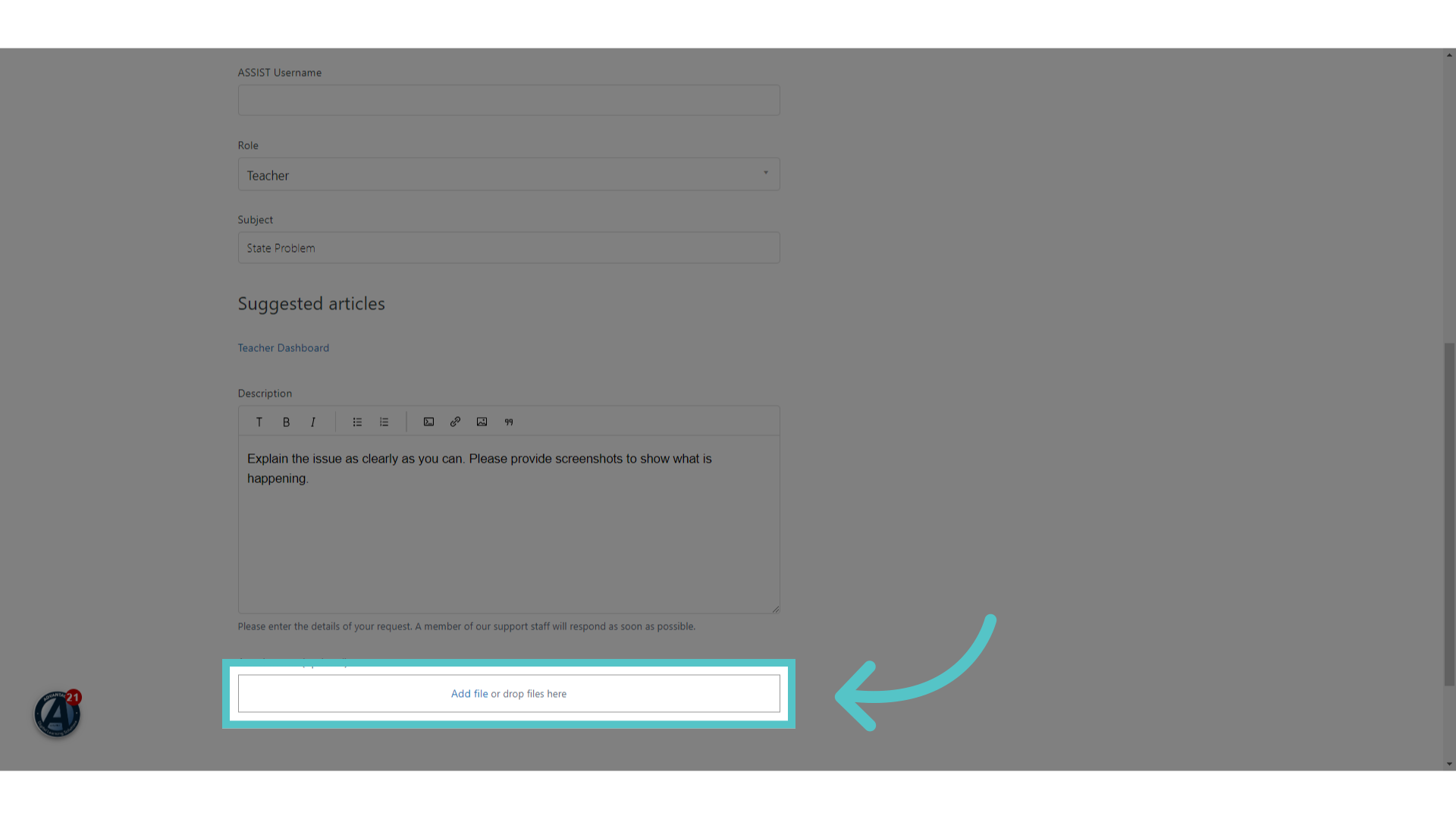
12. Attachments
You can add screenshots in the message or add them as file attachments. These are very helpful to our tech team. Please include images of your issue whenever possible.
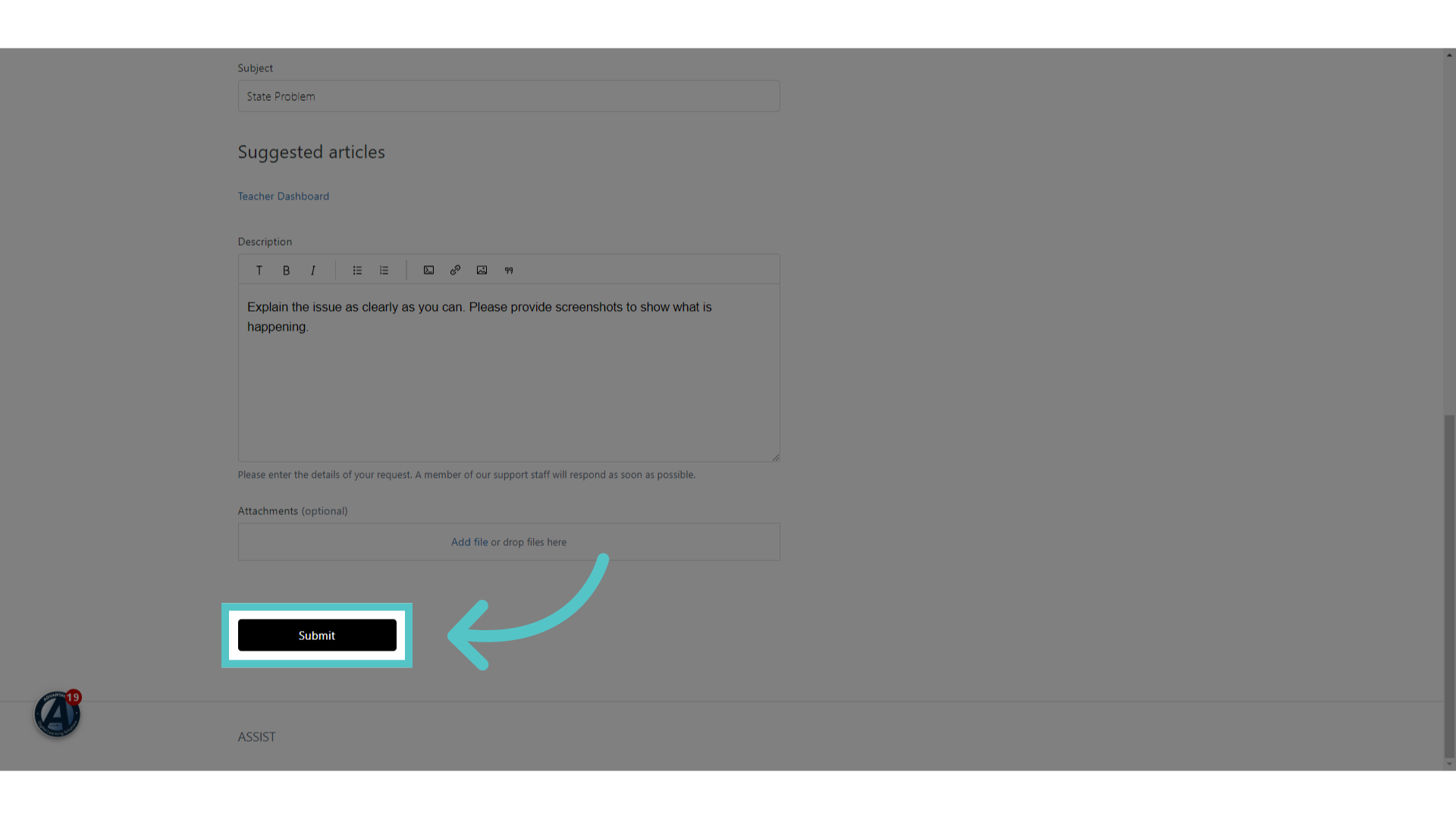
13. Click "Submit"
Click on the "Submit" button to send your Help request directly to the Advantages tech team. They will review your message and send a response as soon as possible.
If you have any trouble submitting a Help Request, please reach out to your School Success Manager for assistance.