Expand to Full Screen for Best Viewing
This tutorial guides you through submitting large assignment files in Apex. Files over 7 MB will need special submission in Apex.
Go to www.apexvs.com
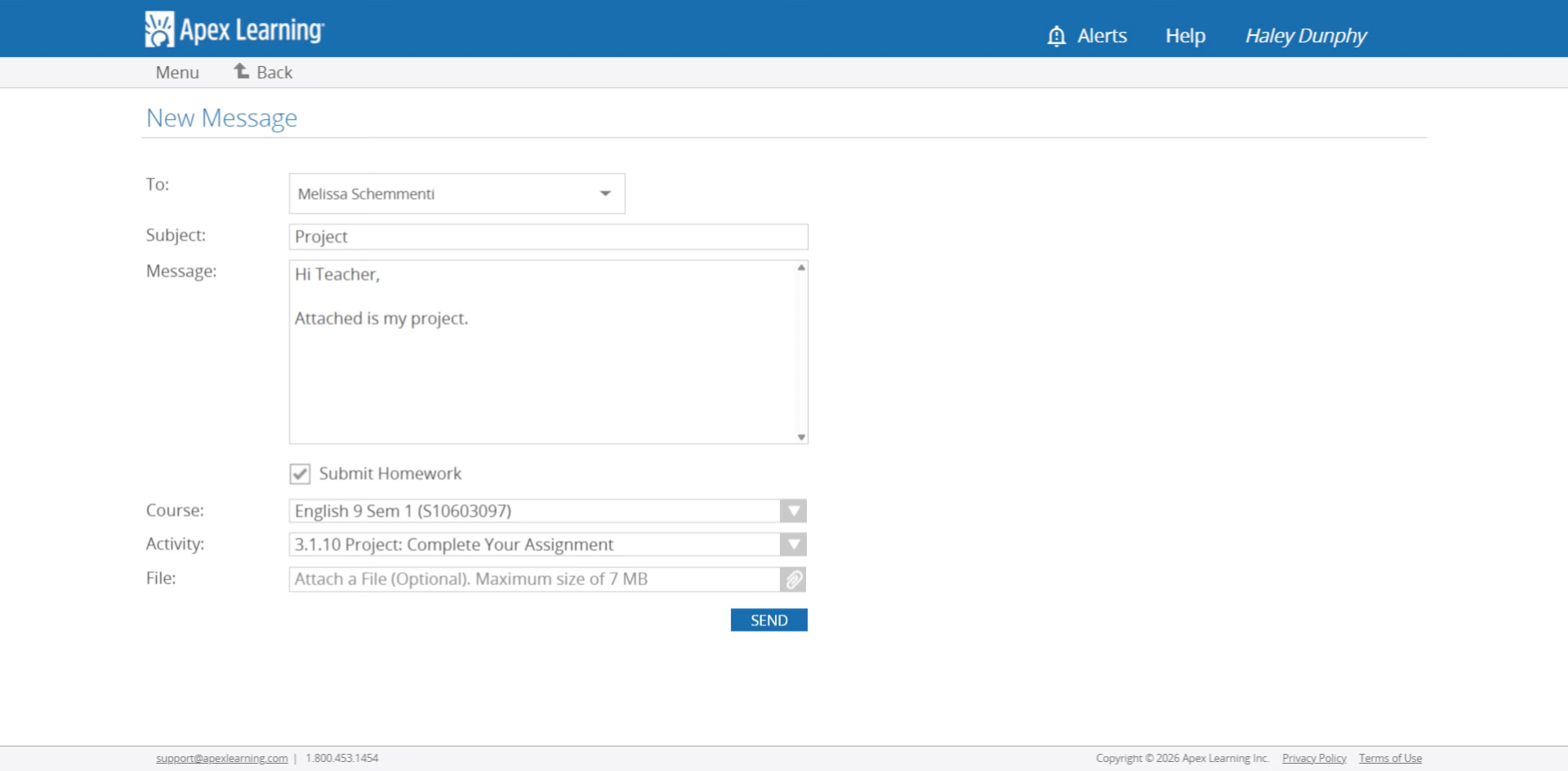
1. Compose Assignment Message
Compose your assignment submission message in Apex.
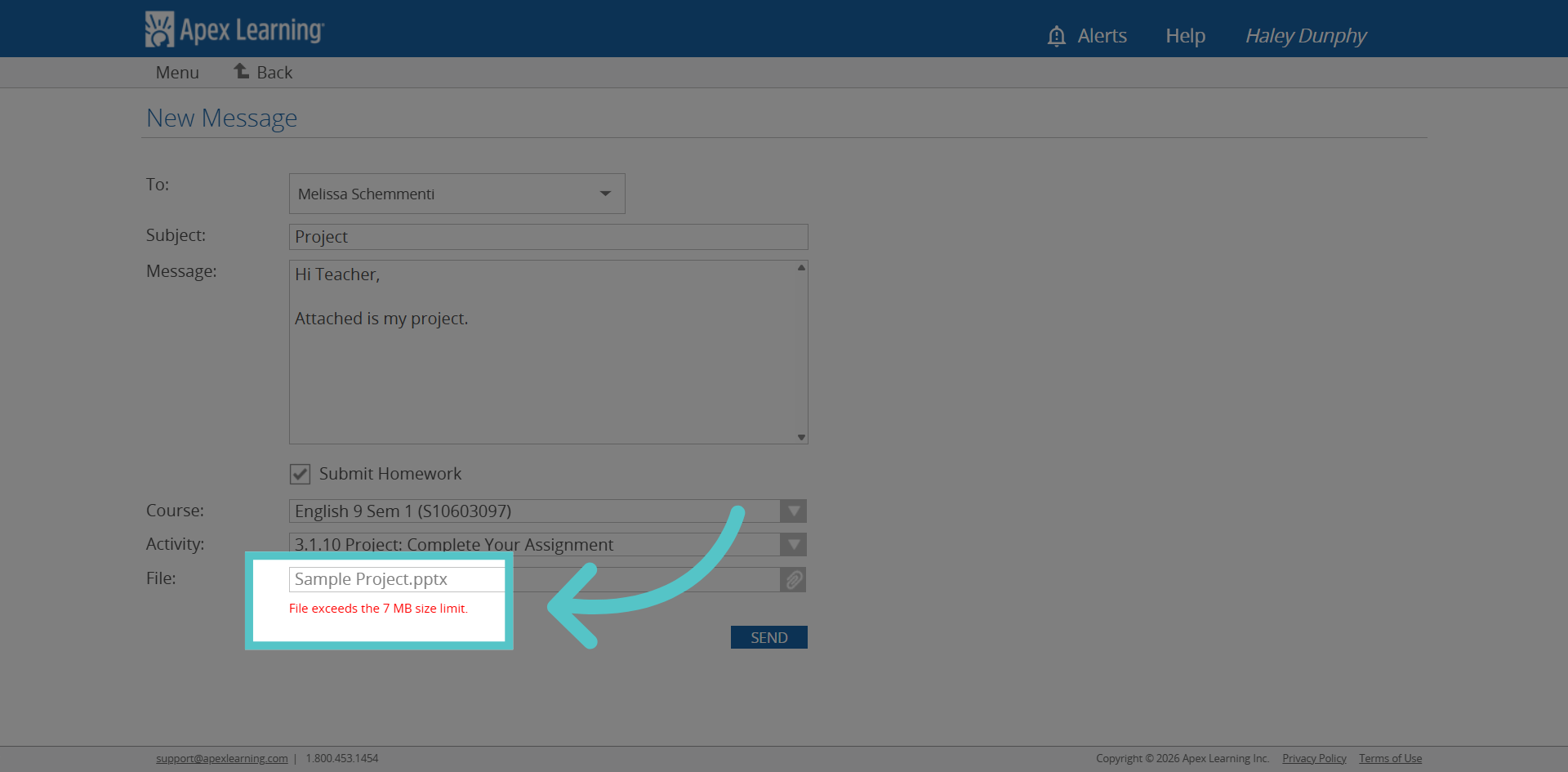
2. File Too Large
When attaching the assignment file, Apex will alert you if it exceeds the file limit. This assignment will not send.
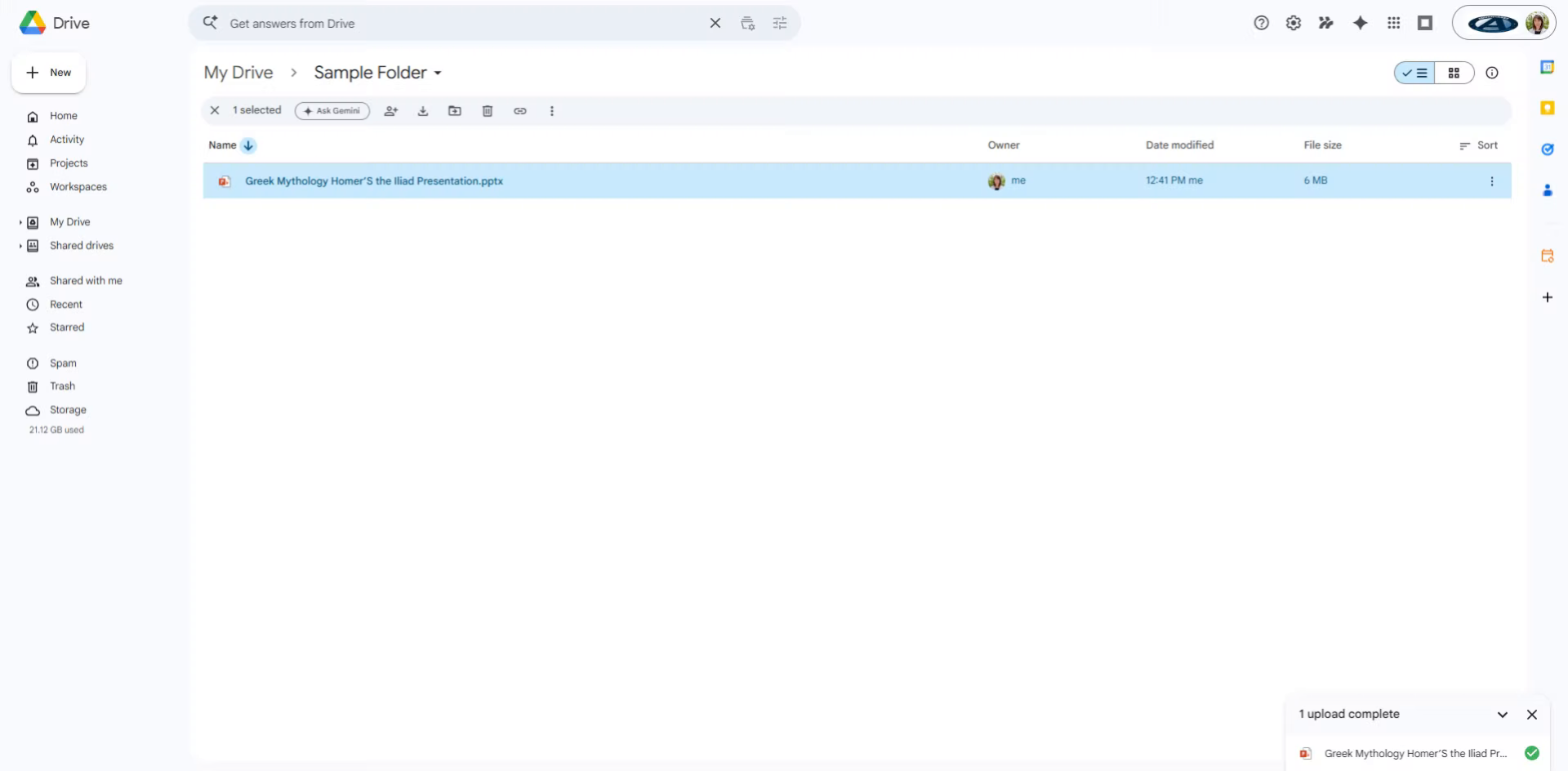
3. Saved File
Access your saved assignment file. It may be in Google Docs, as seen here, or saved in another location
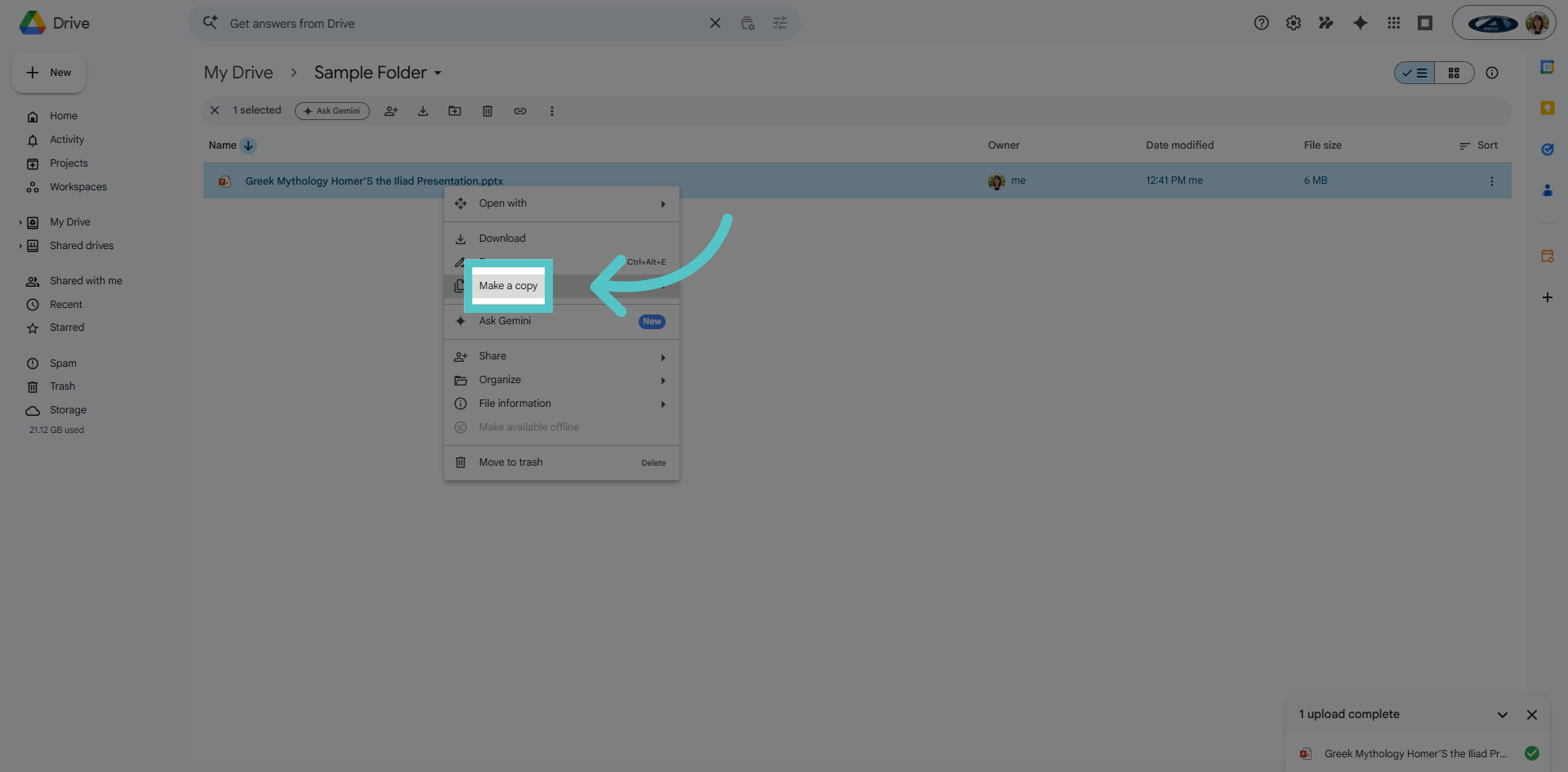
4. Create Copy
This assignment will need to be split into two files. Click "Make a copy" to duplicate the assignment.
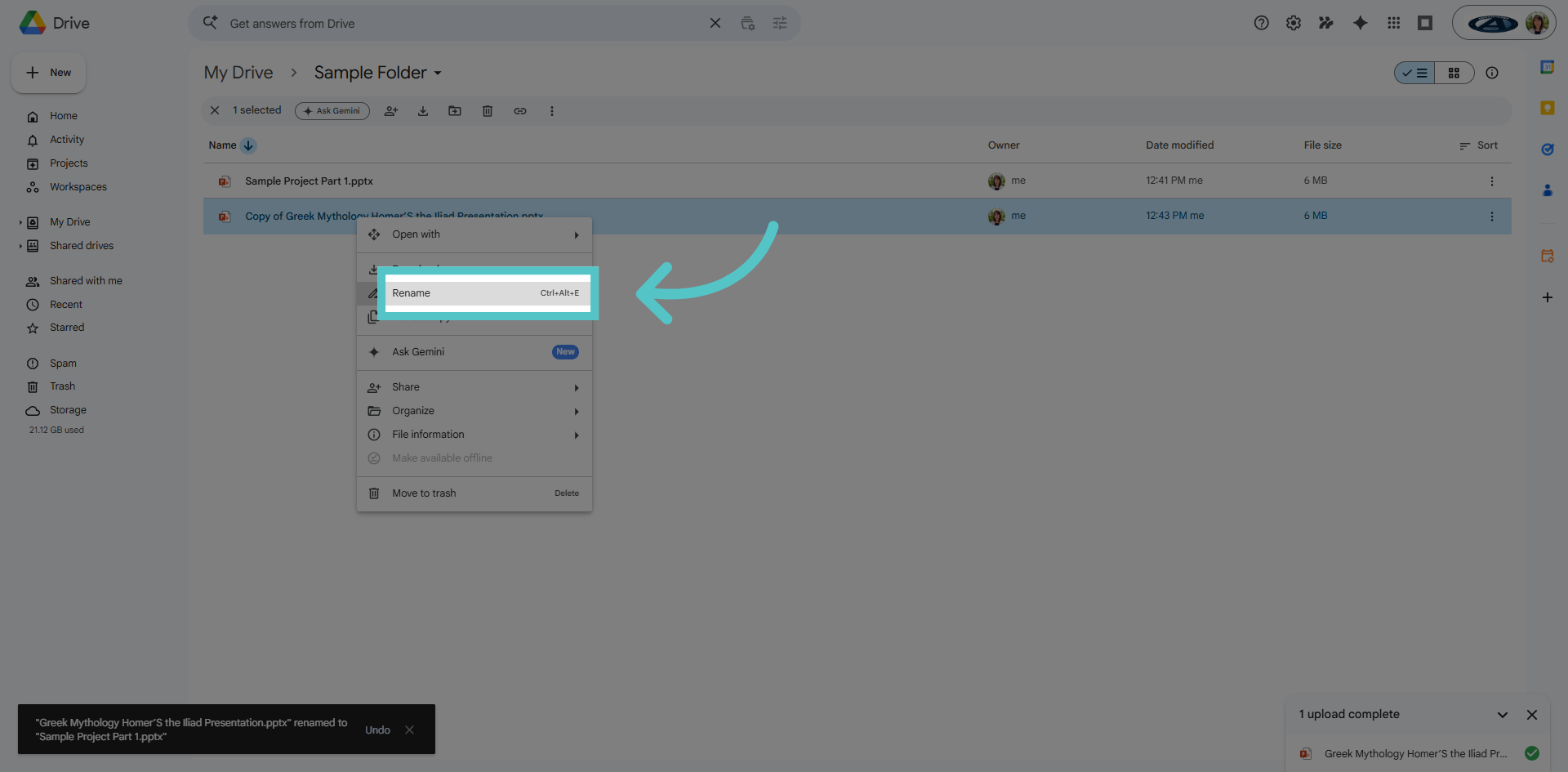
5. Rename
Rename each file with "Part 1" and Part 2."
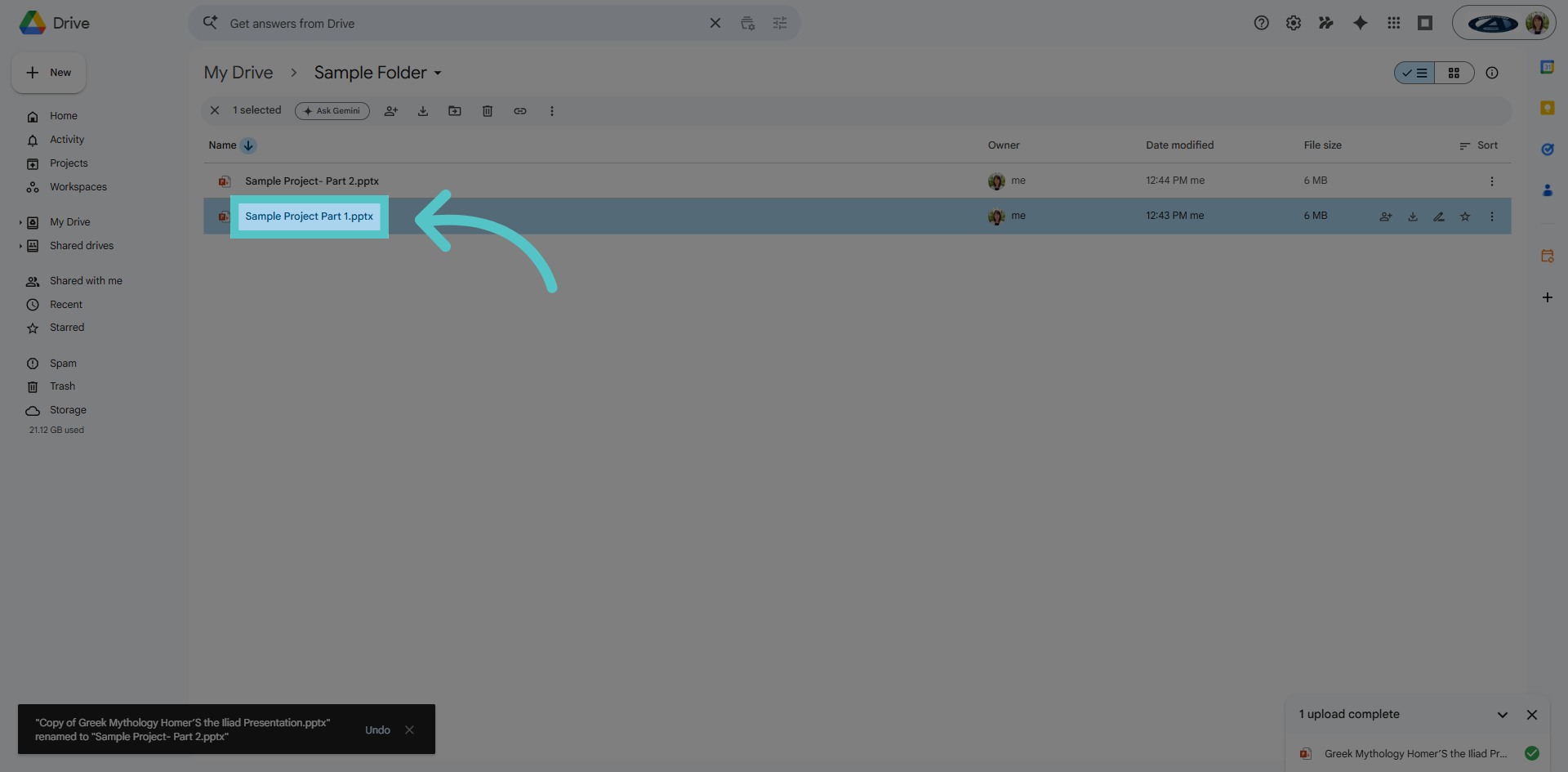
6. Open Part 1
Open the file named Part 1.
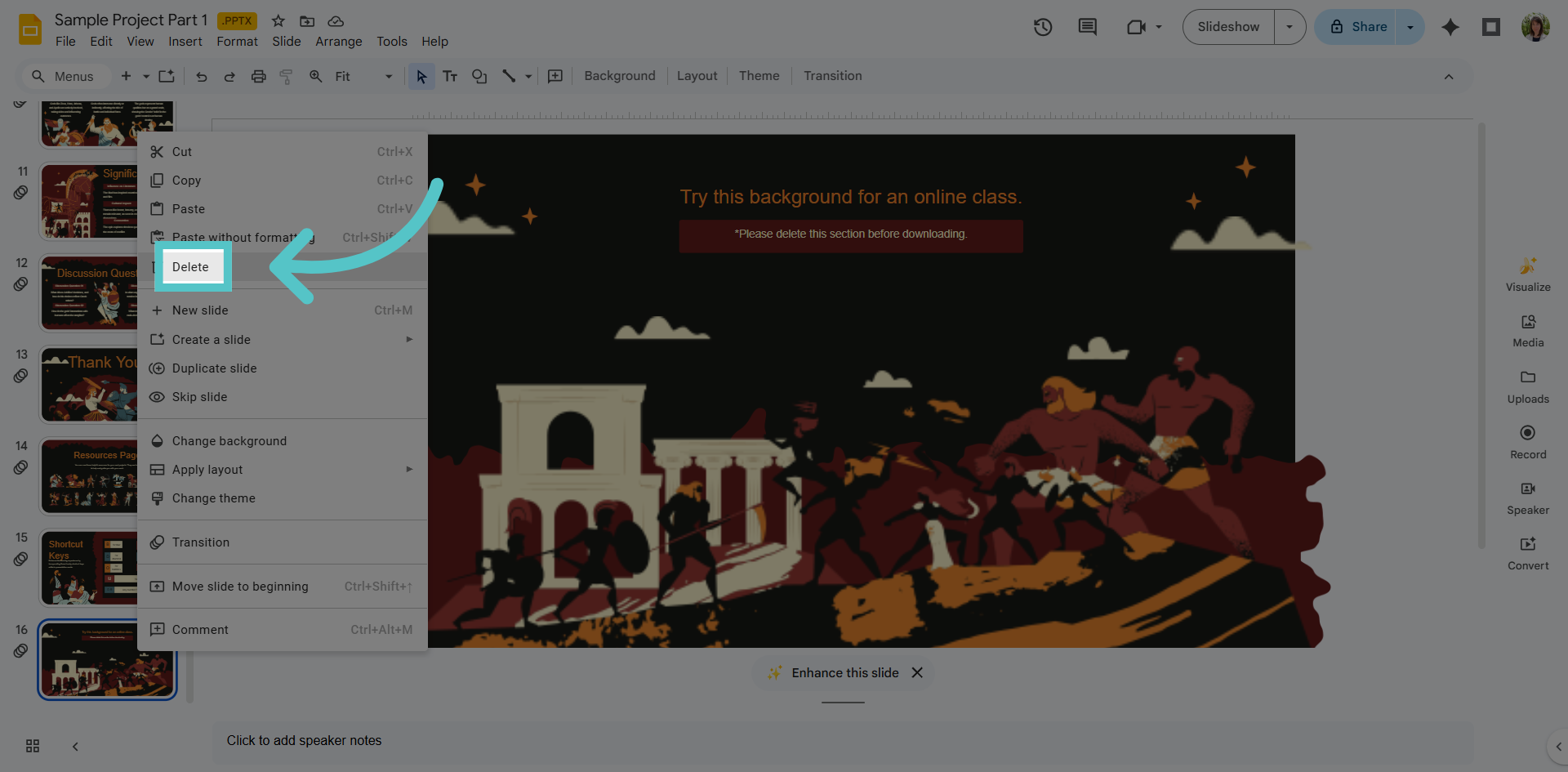
7. Delete Half
Delete the second half of the assignment. This may mean deleting slides, images, or text. Save only the first half of the assignment.
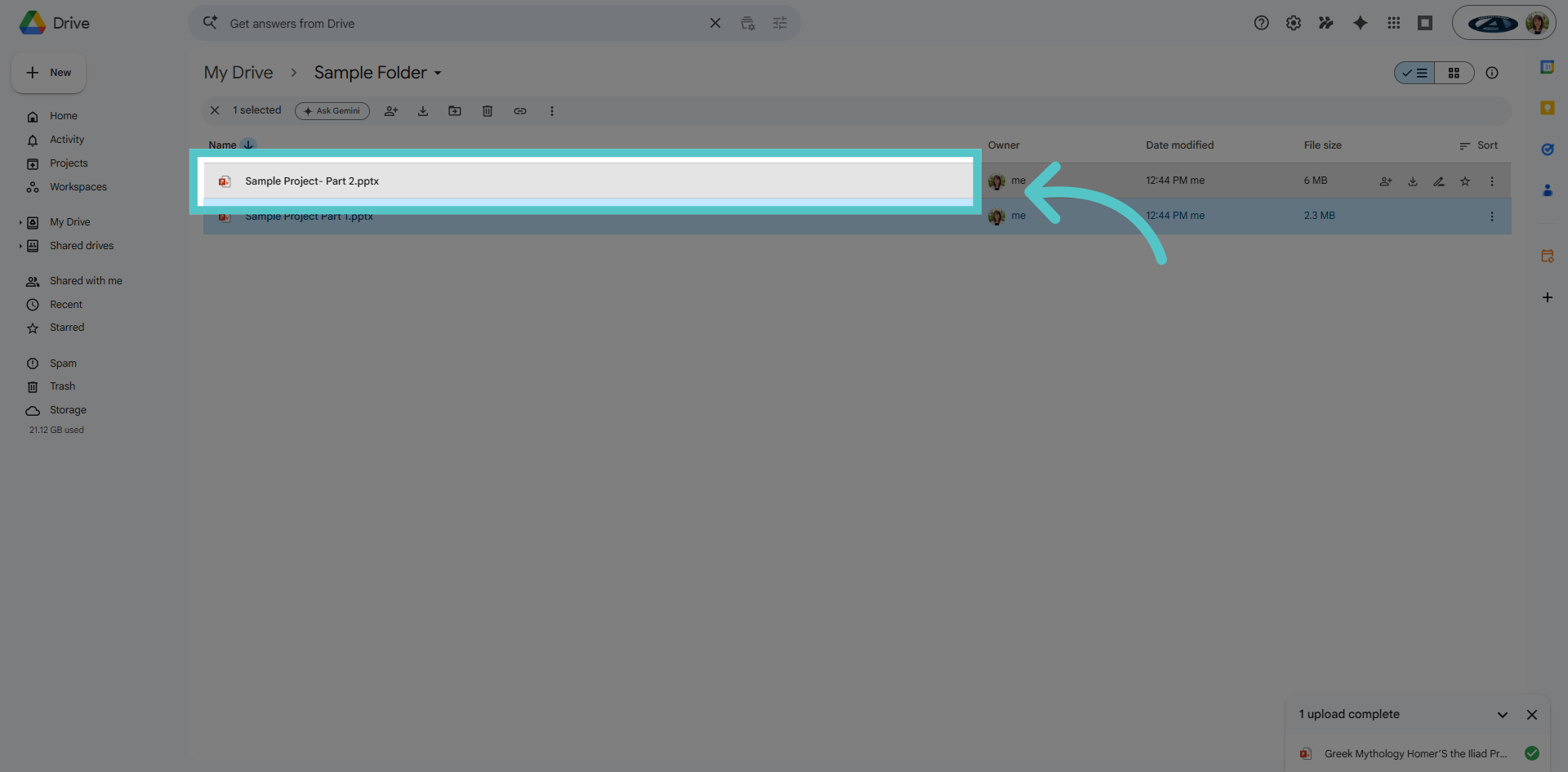
8. Open Part 2
Open the second file, Part 2 of the project.
9. Delete Half
Delete the first half of the assignment. This may mean deleting slides, images, or text. Save only the information that was not saved in Part 1.

10. Save Both to Device
Now the assignment is saved as two smaller files. Save these files to your device to upload to Apex
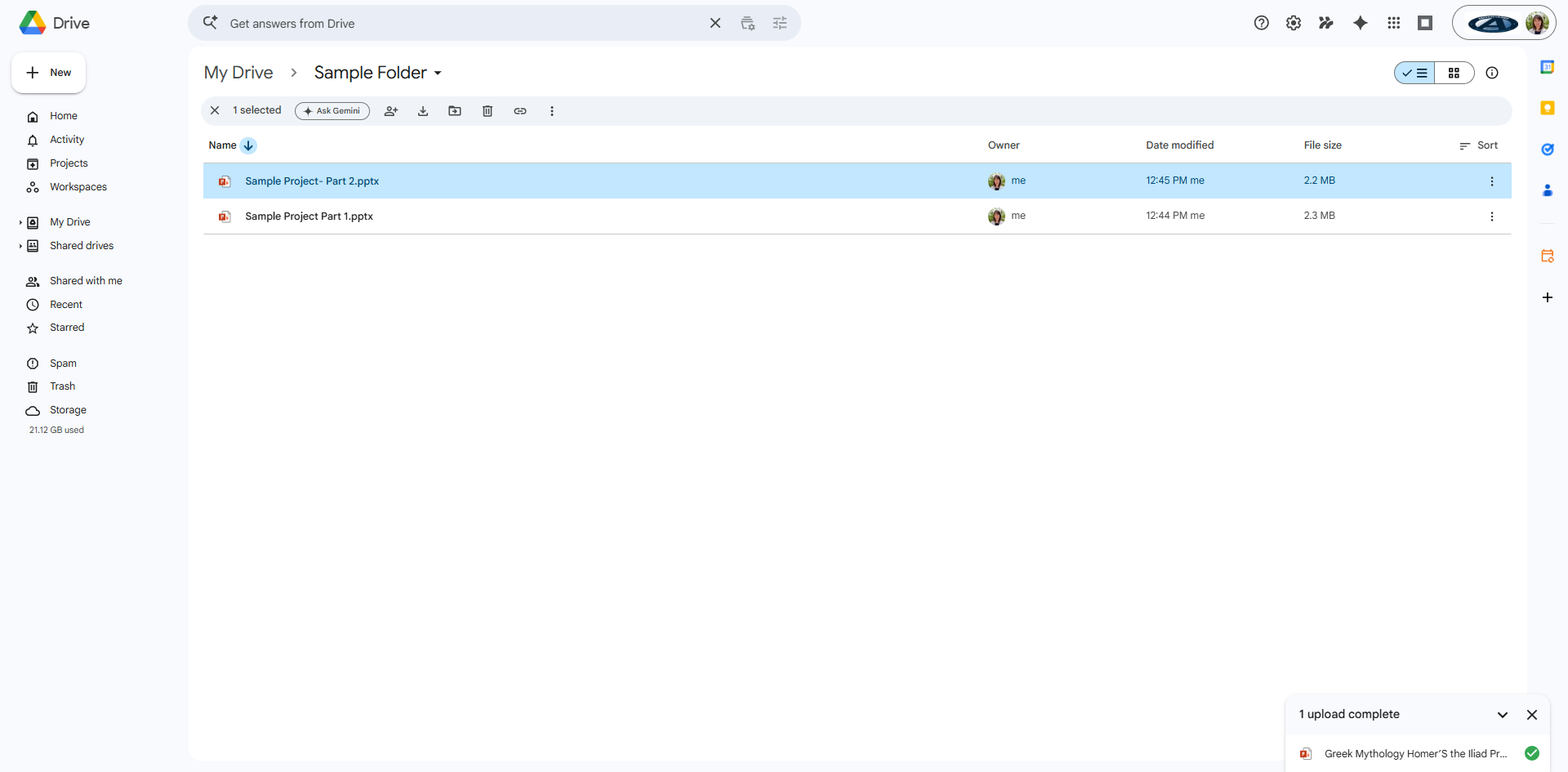
11. Split File
Return to your Apex submission message and upload part 1 of your assignment
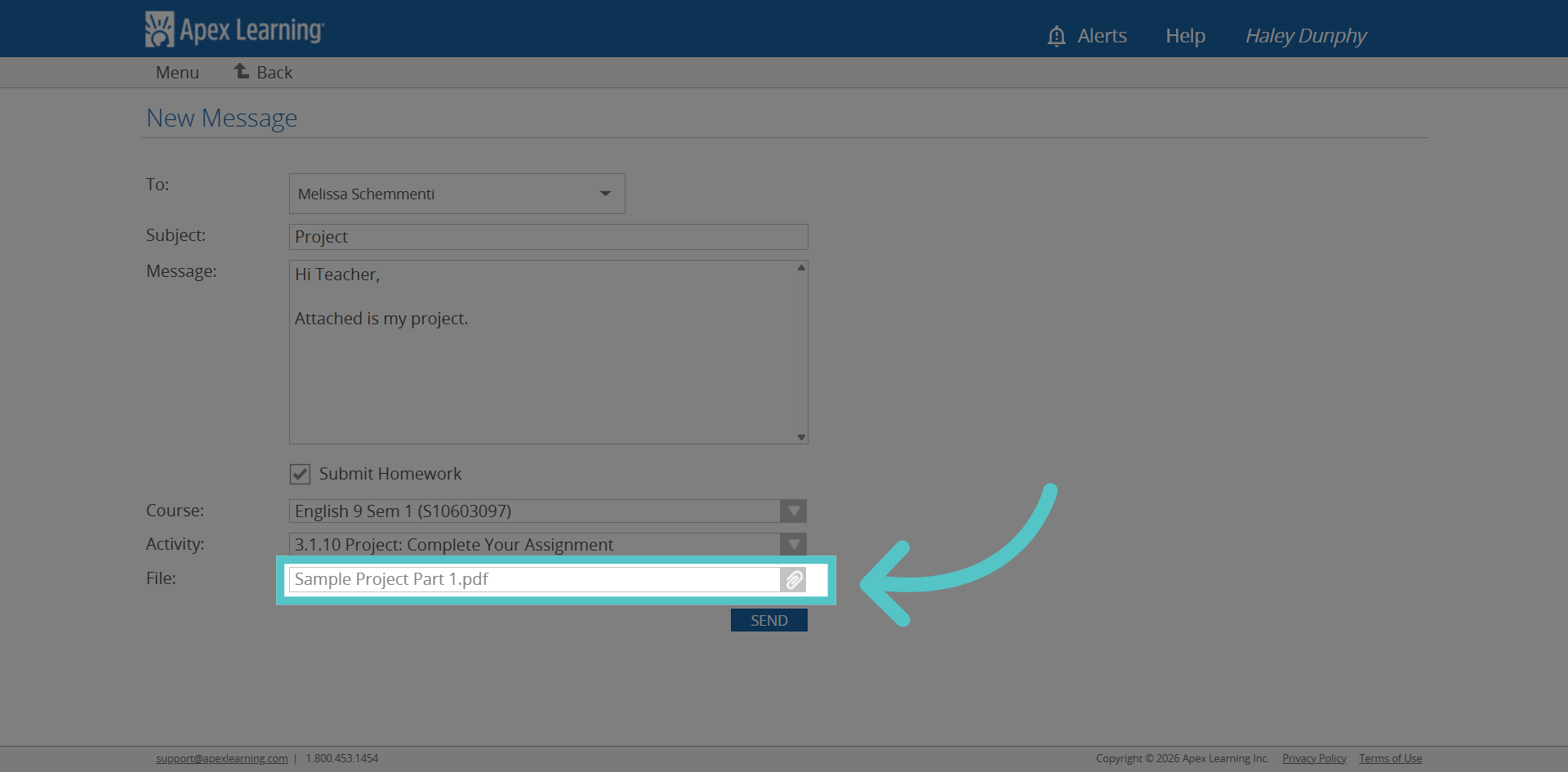
12. Send Project Part 1
Click "SEND" to submit the first part of your project along with your message.
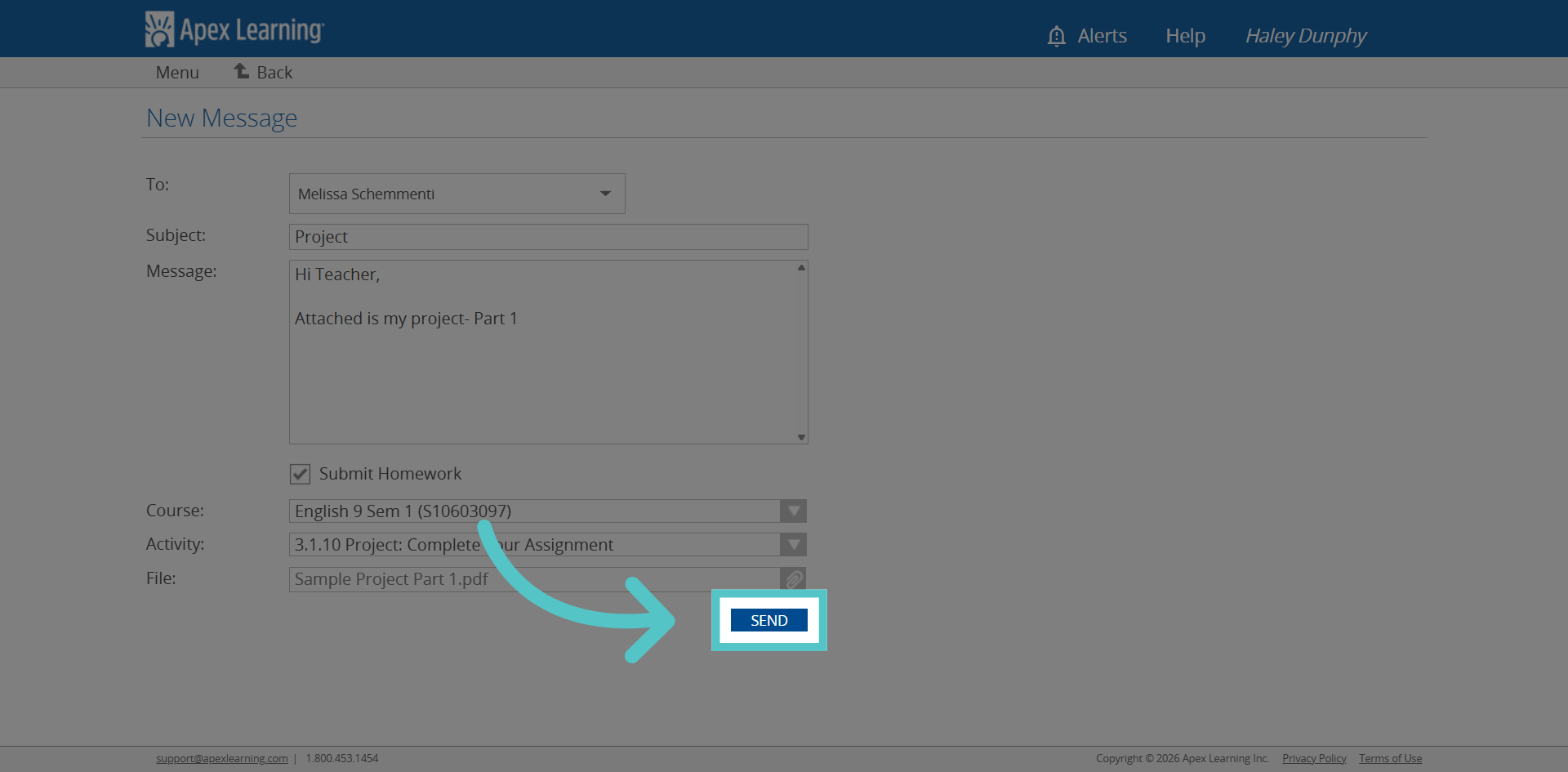
13. Start New Submission
Click "NEW" to begin a new project submission process.
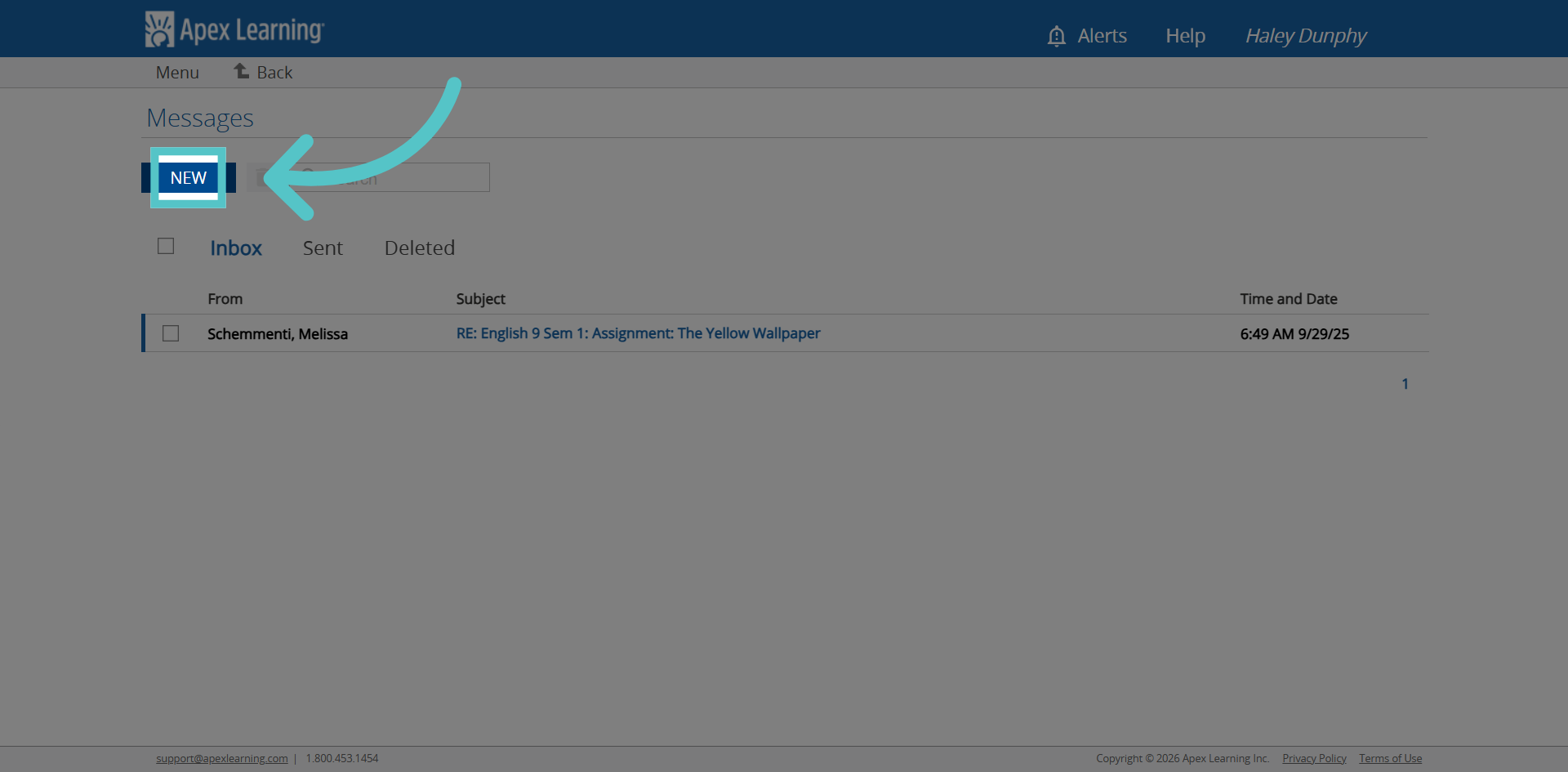
14. Submit Part 2
Create a new message for the same activity submission. This time, attach Part 2.
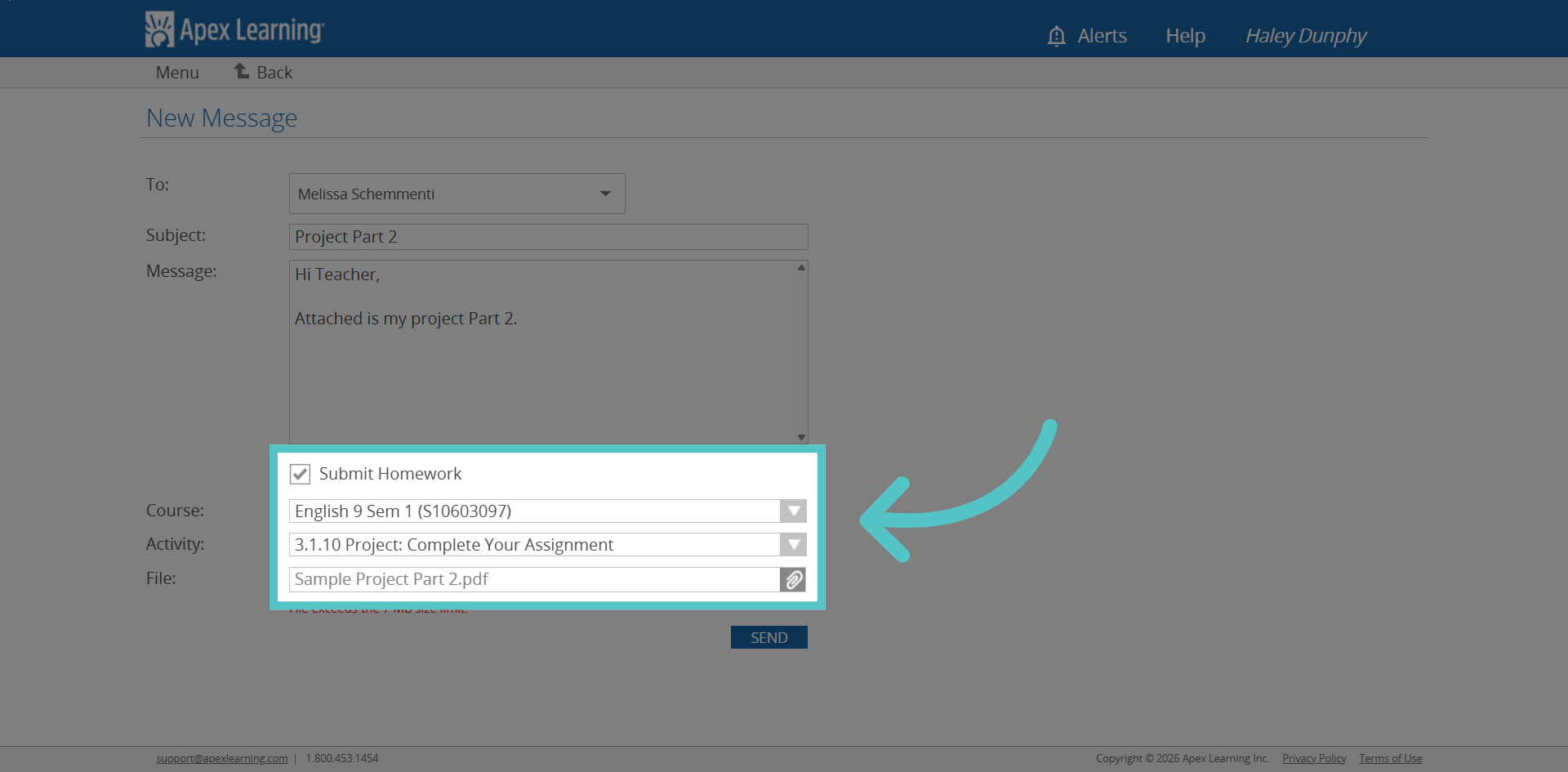
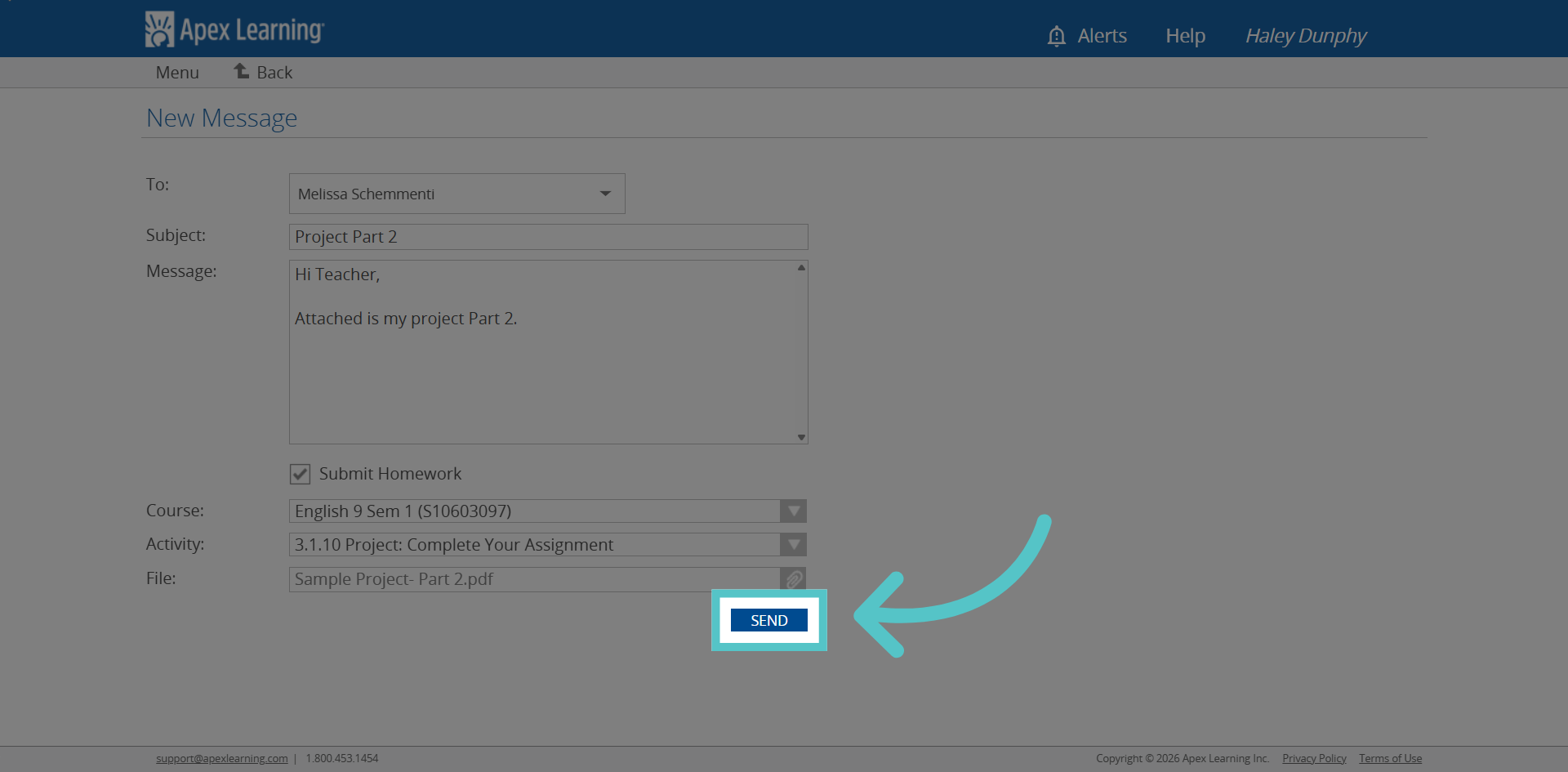
15. Send Final Submission
Click "SEND" to send your final project submission with all attachments and messages.
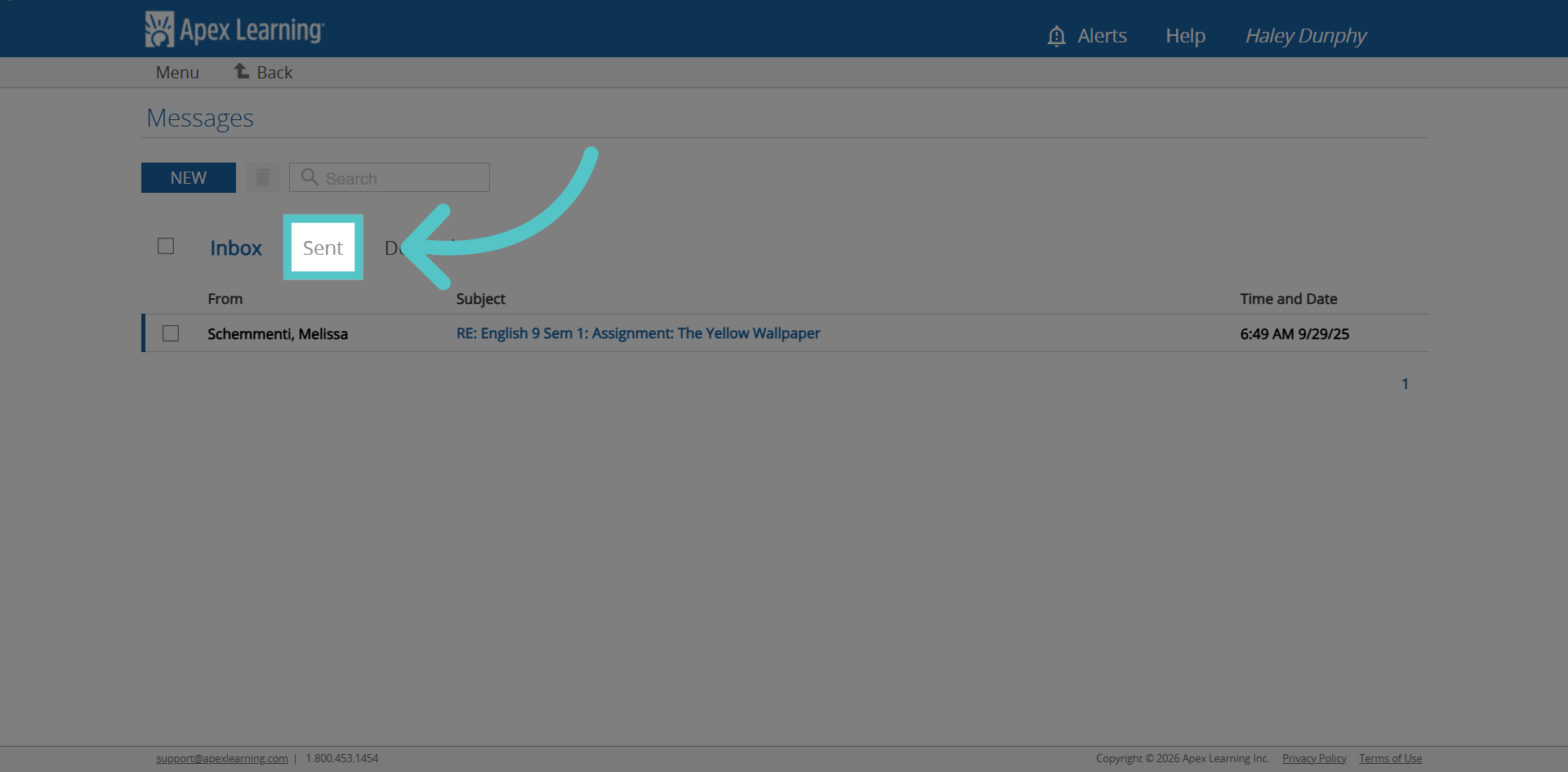
16. View Sent Confirmation
Click "Sent" to view confirmation that your submission has been successfully sent.
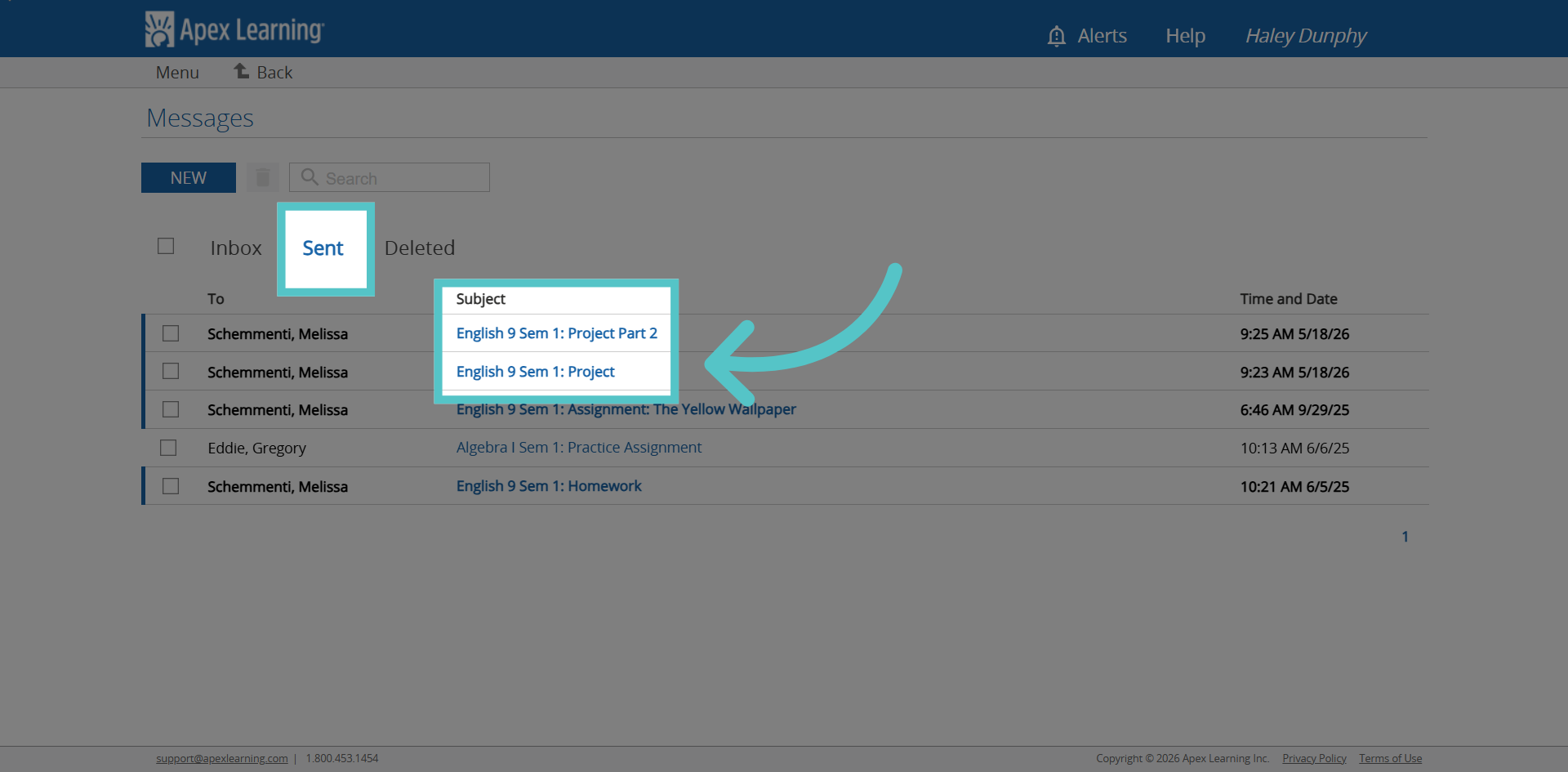
17. Sent
Both messages will appear in your "Sent Messages" list in Apex. The full activity has been submitted.
If you have any questions about the information in this tutorial, please contact your dedicated school success manager for additional support.