Expand to Full Screen for Best Viewing
Teacher Icon Menus in Lincoln Learning.
1. Important Points:
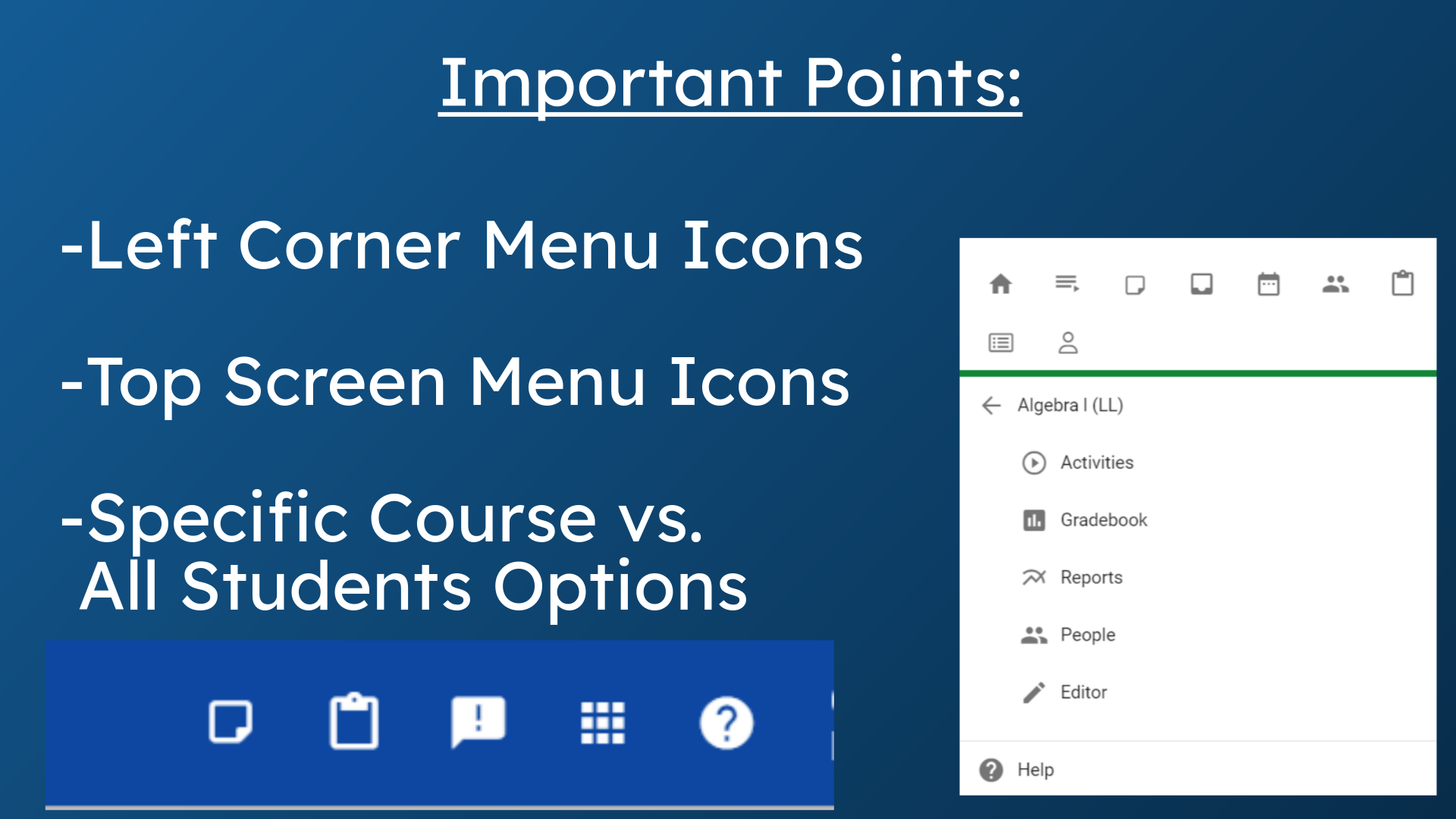
This video will review the icons found in the top left corner menus of the Teacher platform, as well as the icons found in the blue bar at the top of Teacher Homepages. Some icons refer to specific courses, others will lead to information for all students in all a teacher's courses.
2. Notes
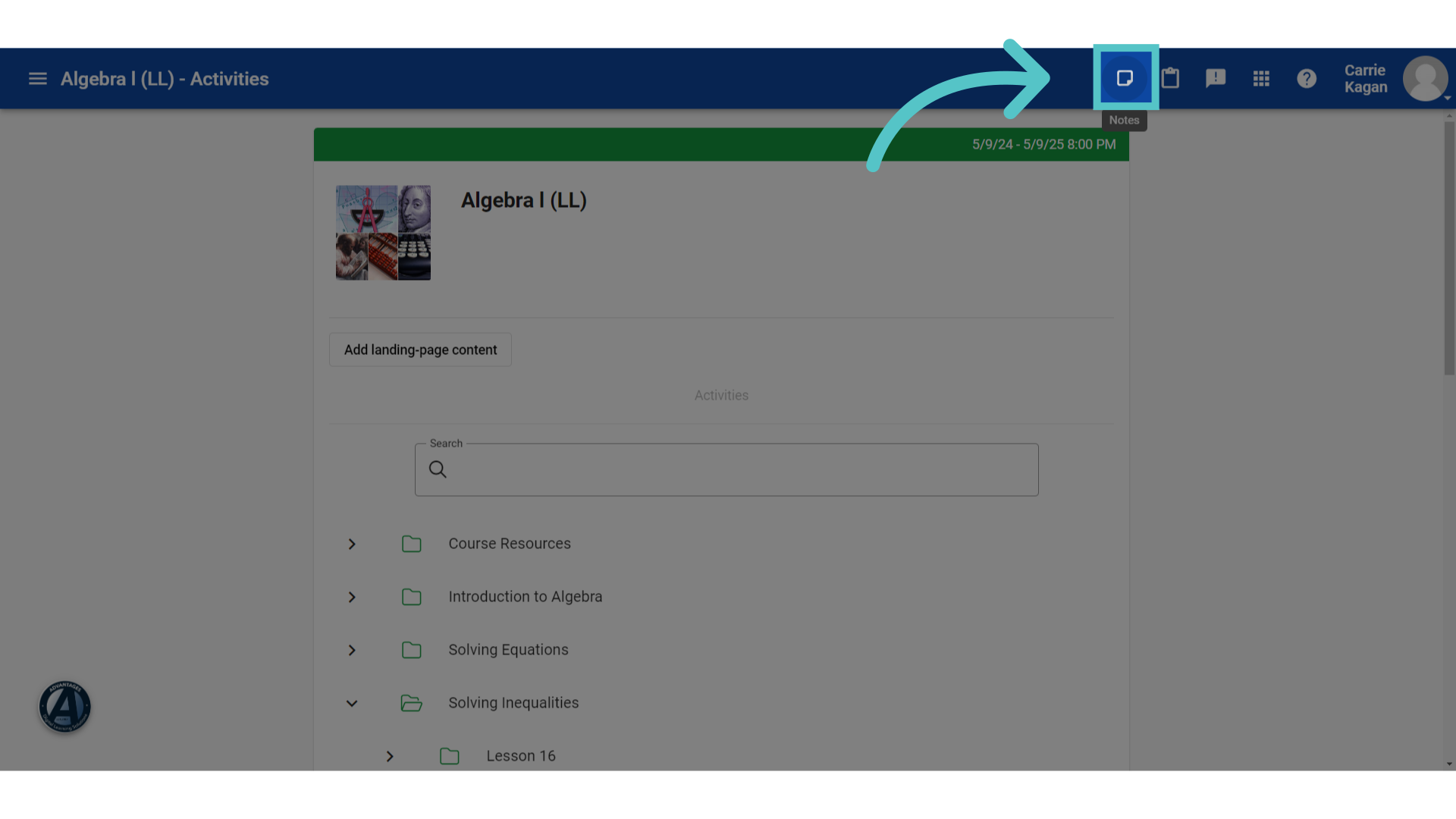
The first icon in the blue bar at the top of a course page is for taking notes.
3. Click here
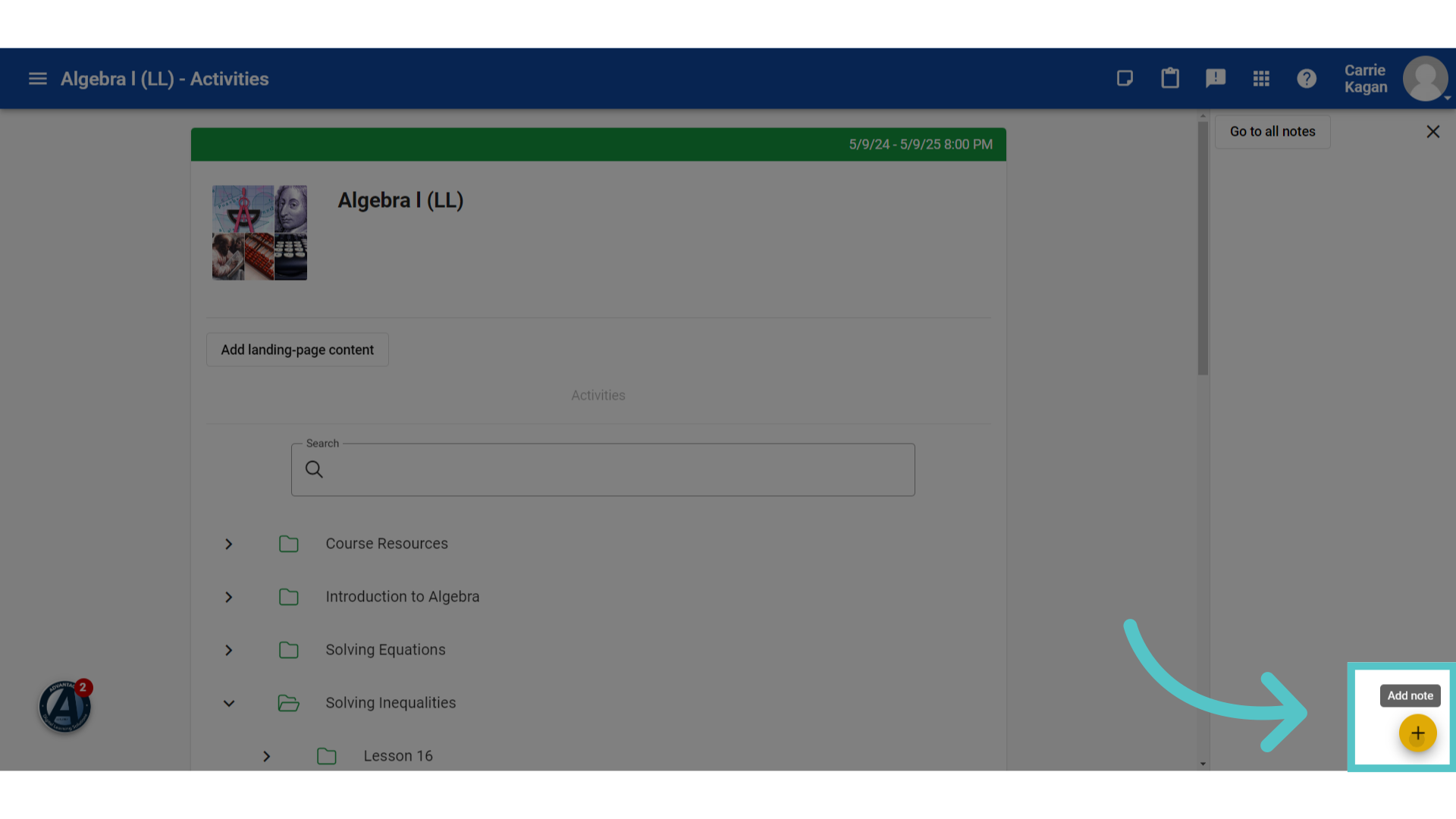
Clicking the plus sign will open a field for notetaking in the right side margin. General notes for the entire course can be taken here. This icon will also be available at the top of lesson pages to take notes about specific activities. Teacher notes can only be seen by the teacher. Students will not see these notes.
4. Announcements
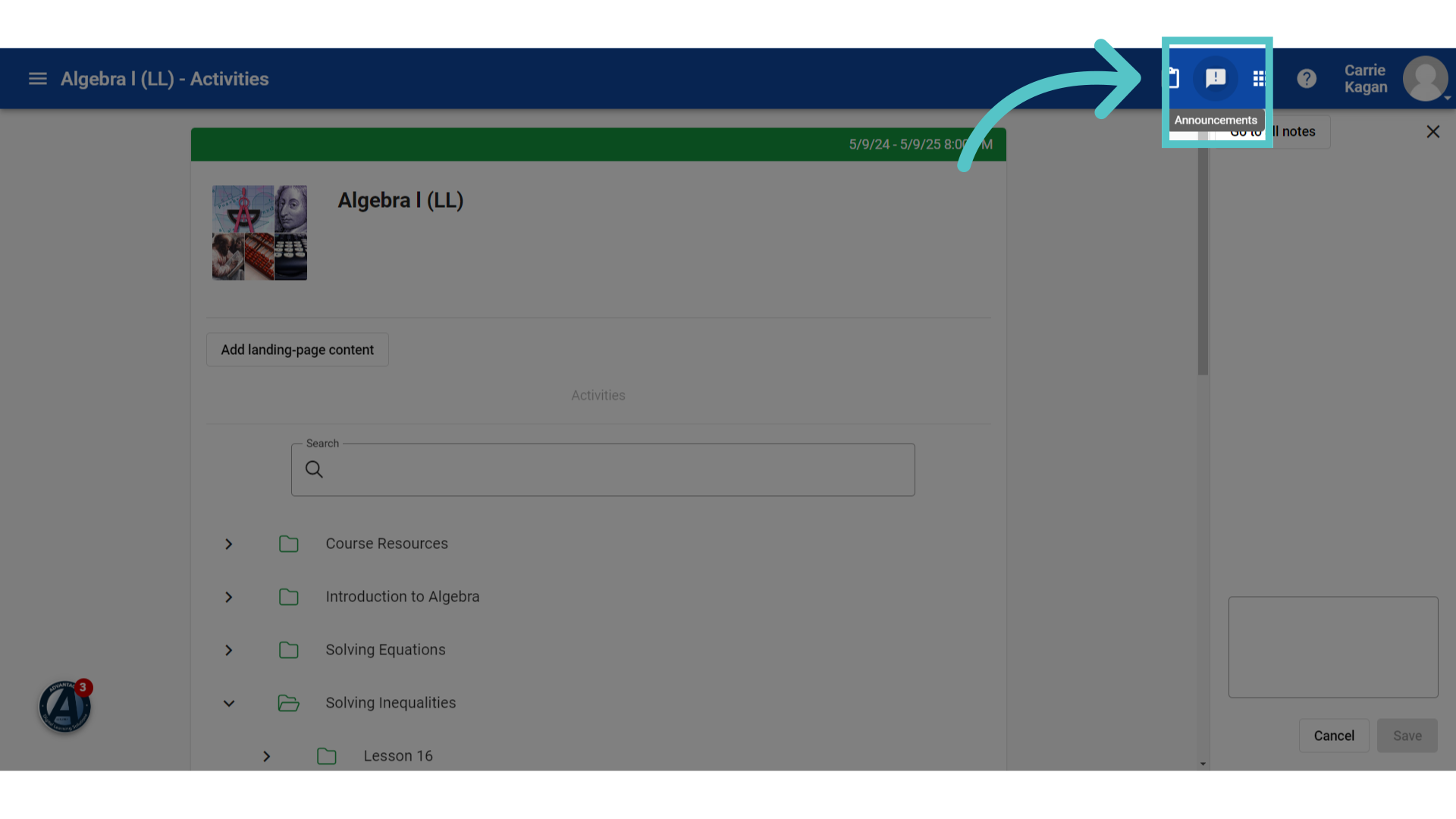
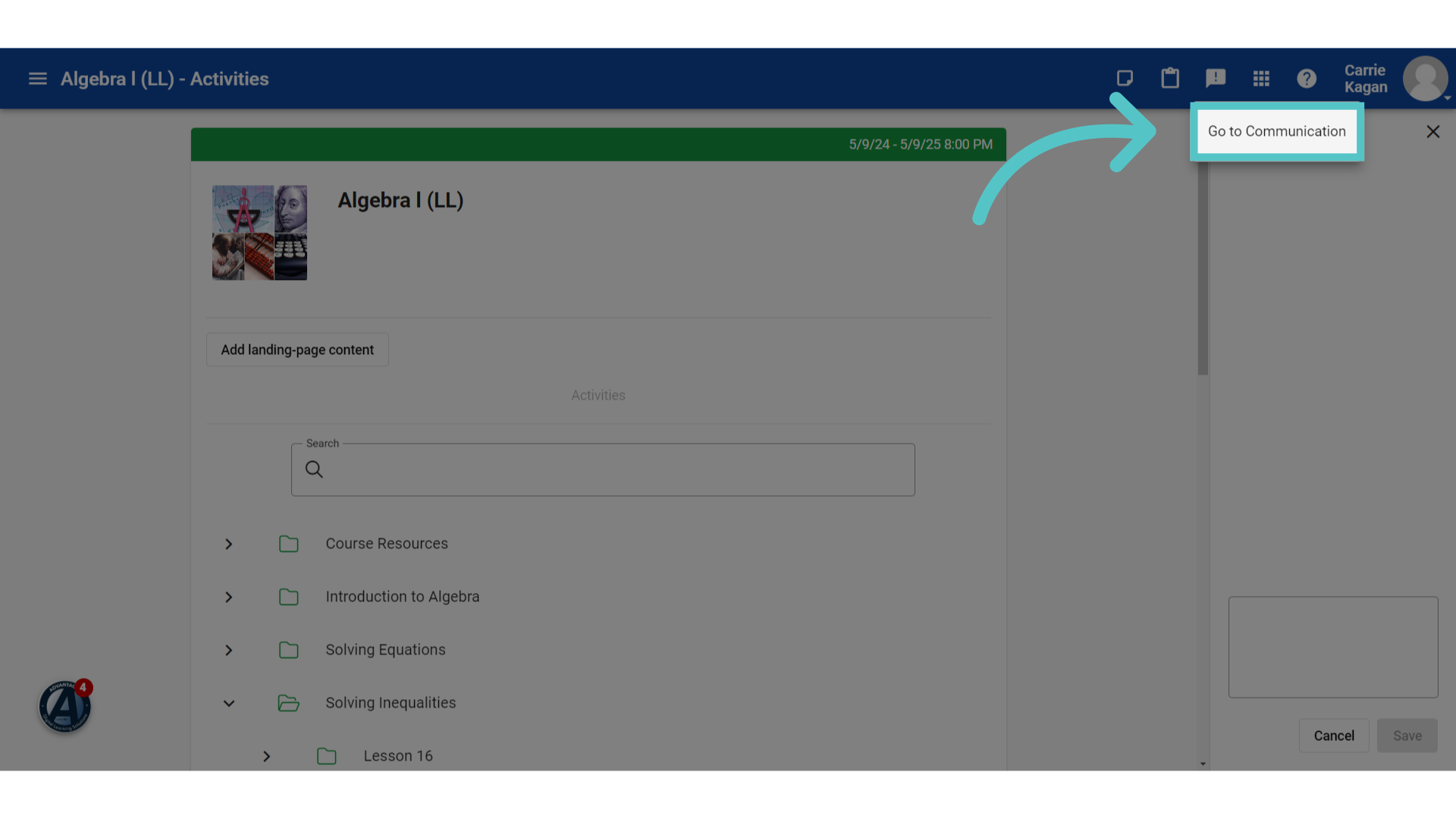
Next is the "announcements" icon. If there is an exclamation mark in the icon, then announcements have been posted for this course. Students will see the exclamation mark if teachers have posted announcements.
5. Click "Go to Communication"
Clicking the Announcements icon allows the option to "Go to Communication." This is where announcements are posted and where teachers can add new announcements.
6. Help
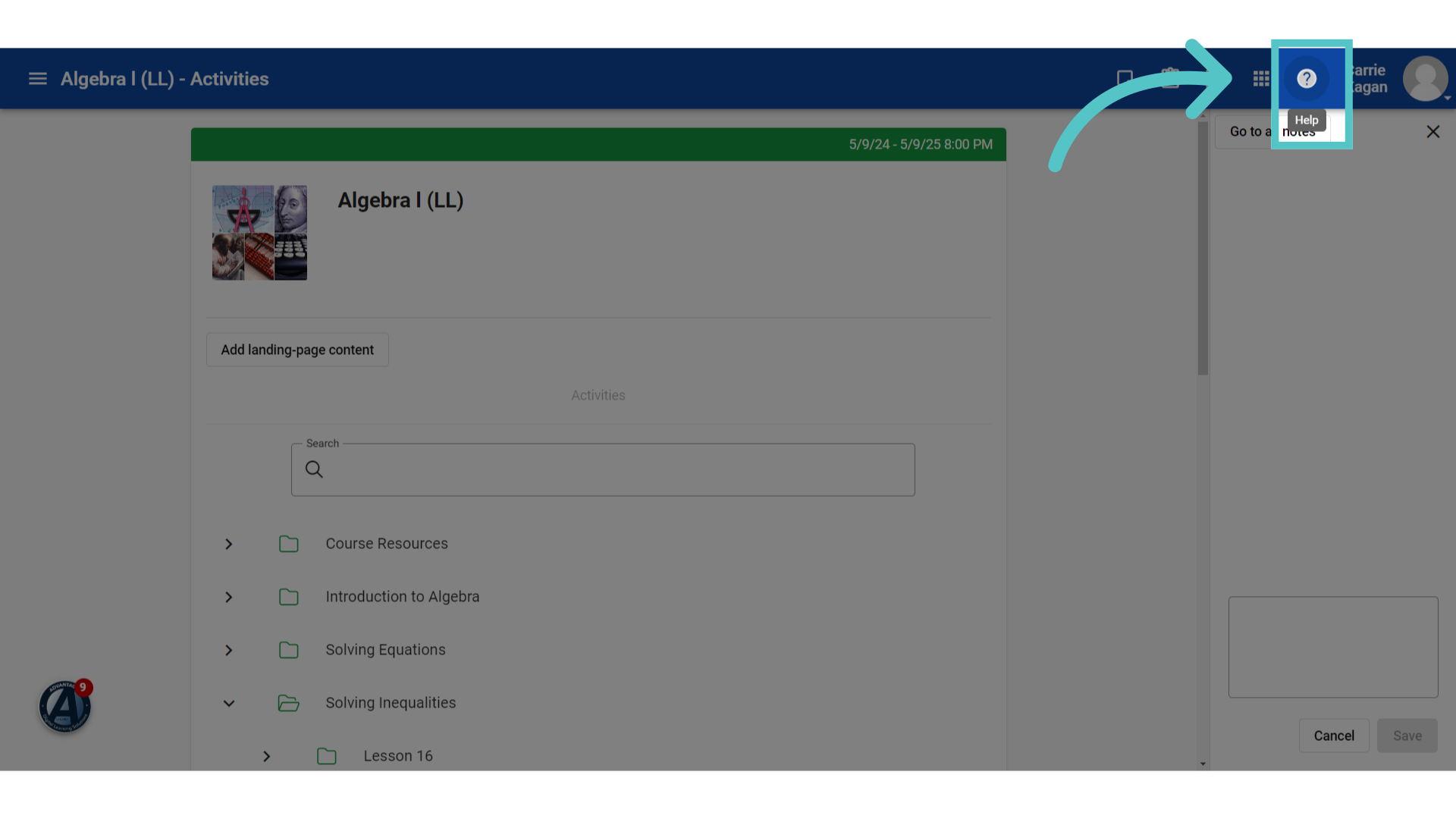
The question mark icon is the Lincoln Learning Help feature. You can request information using key words.
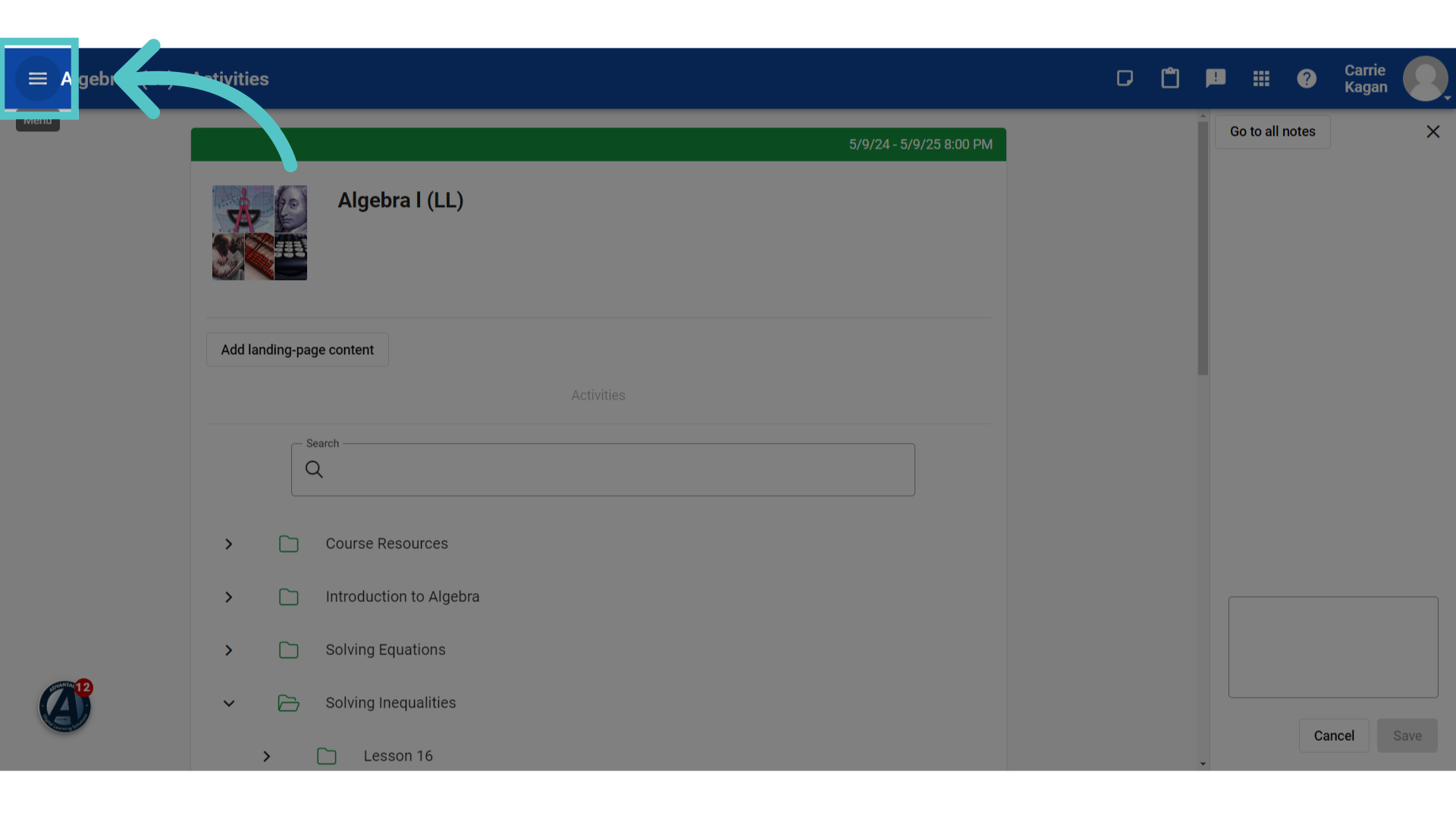
7. Three-Line Icon
In the top left corner is a three-line icon. This will open more menu options for teachers.
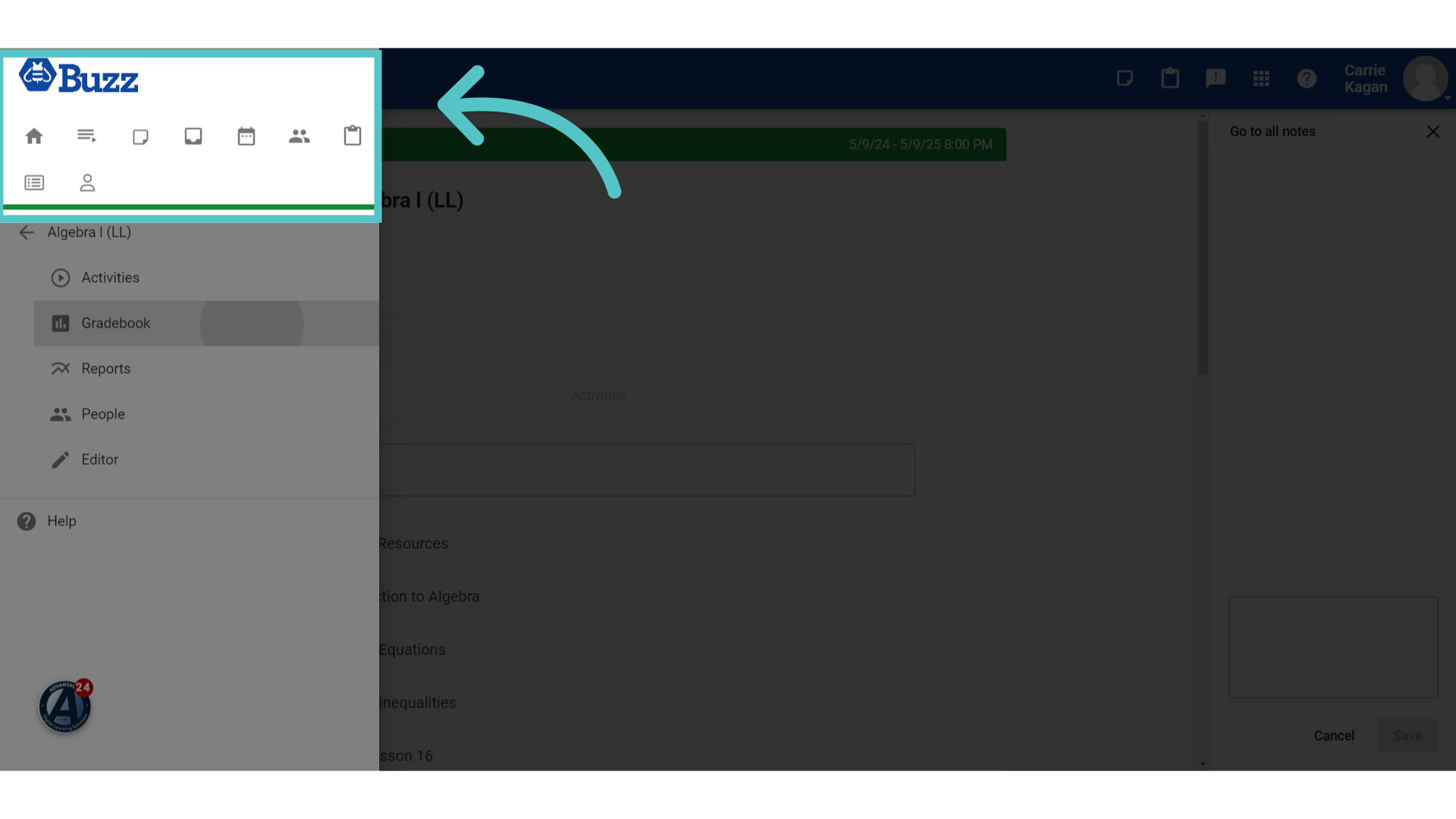
8. All Students/Courses
The icons at the top of the expanded menu will apply to information across all courses that a teacher has.
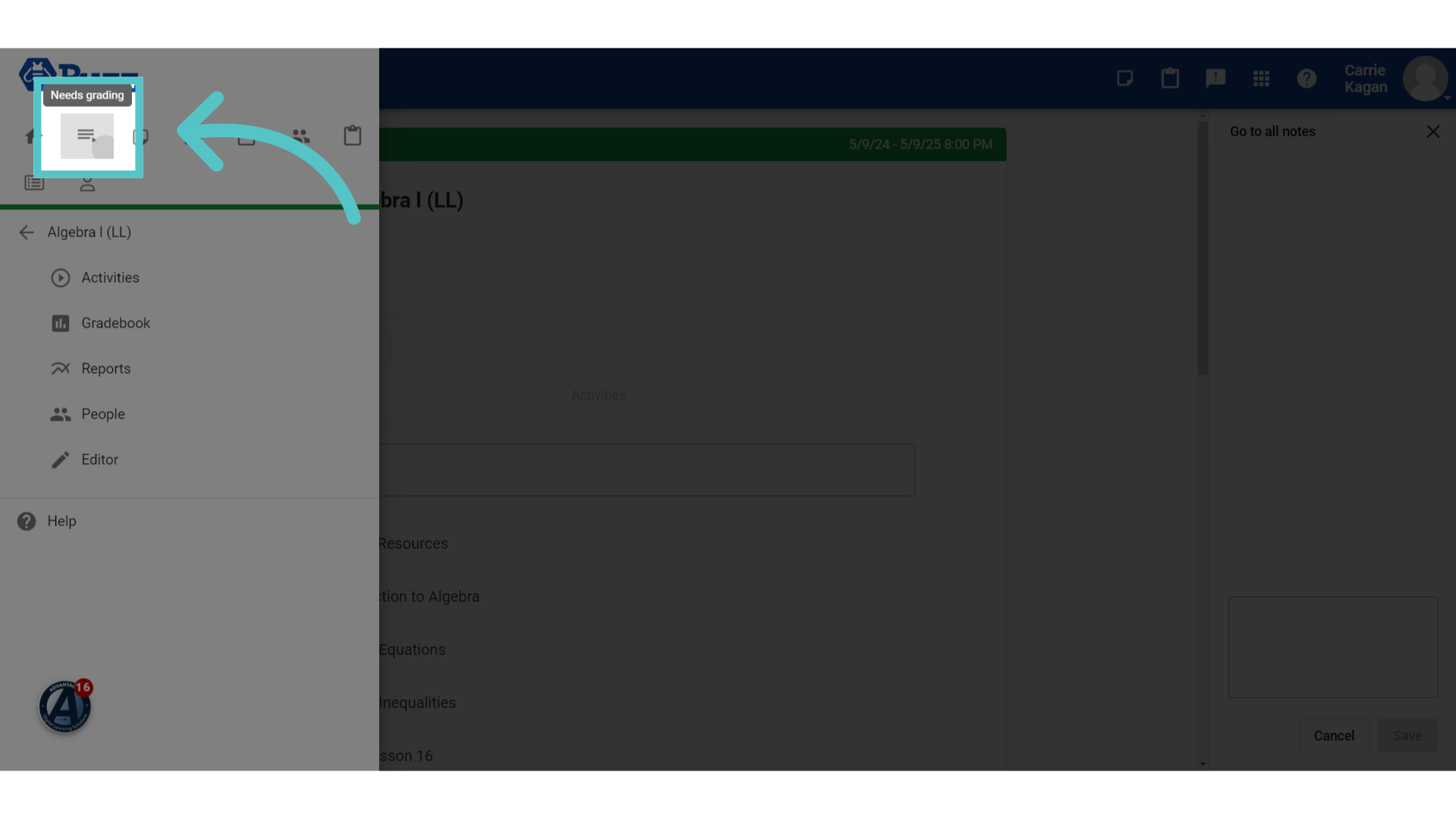
9. Needs Grading
Clicking the "Needs Grading" icon will take a teacher to their gradebook editor. All submitted student work that needs teacher review, in all courses taught, will be available for grading.
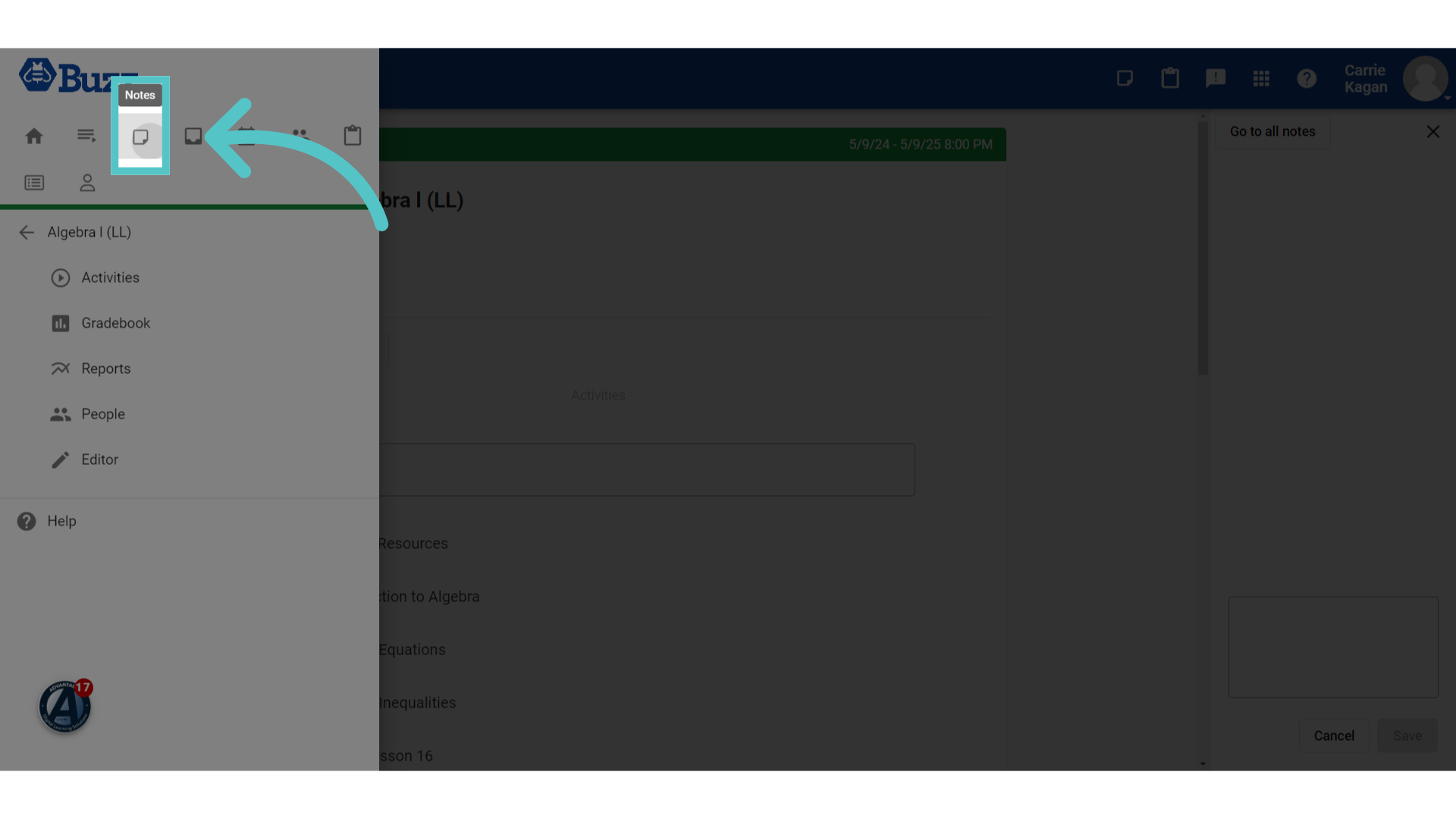
10. Notes for ALL Courses
Clicking the "Notes" icon will open a list of all course notes taken by the teacher. The course or activity will be listed with the notes for reference.
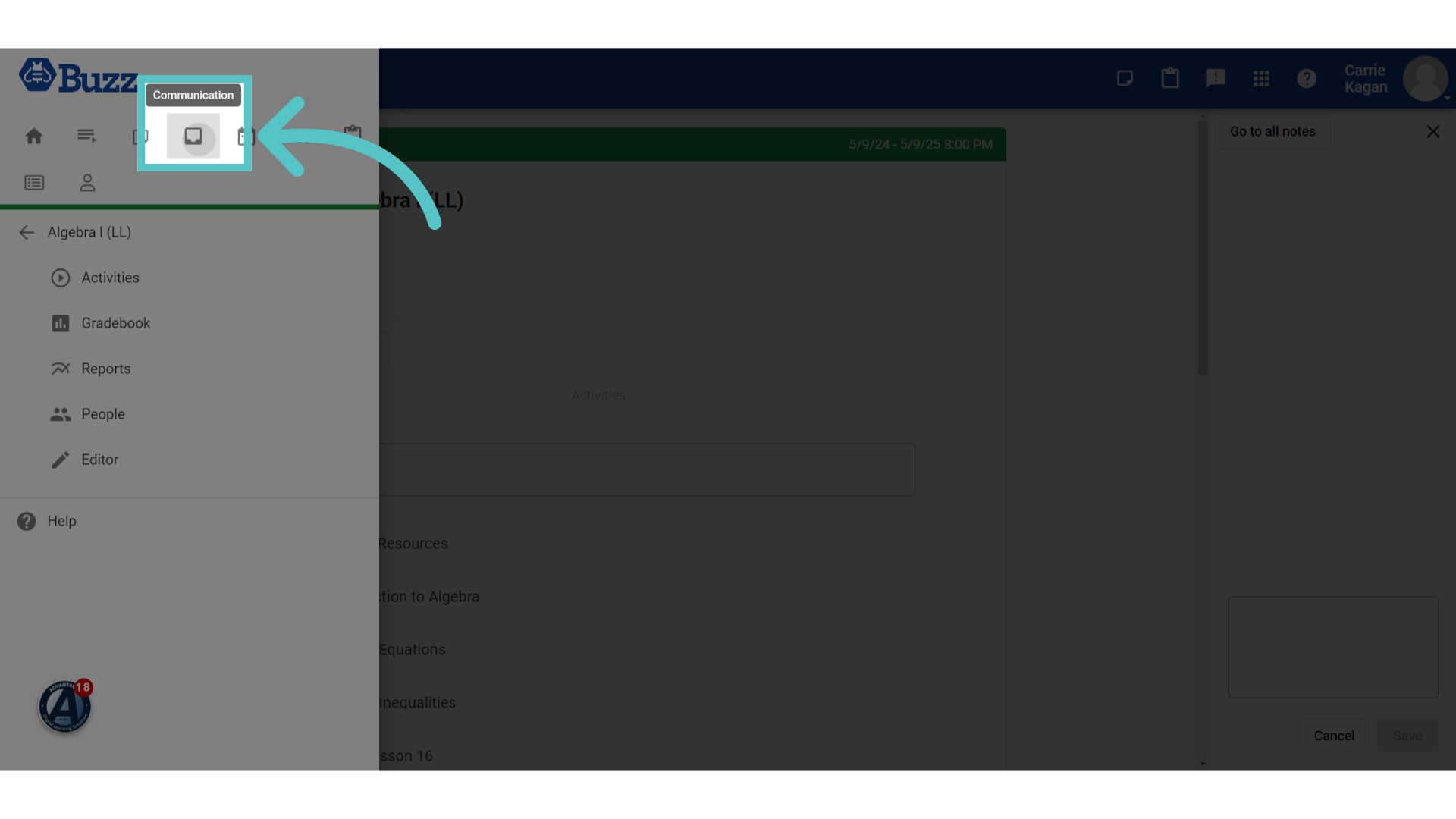
11. Communication
Clicking the "Communication" icon is another way to access announcements that have been posted for all courses. Teachers can also post an announcement for any course from here.
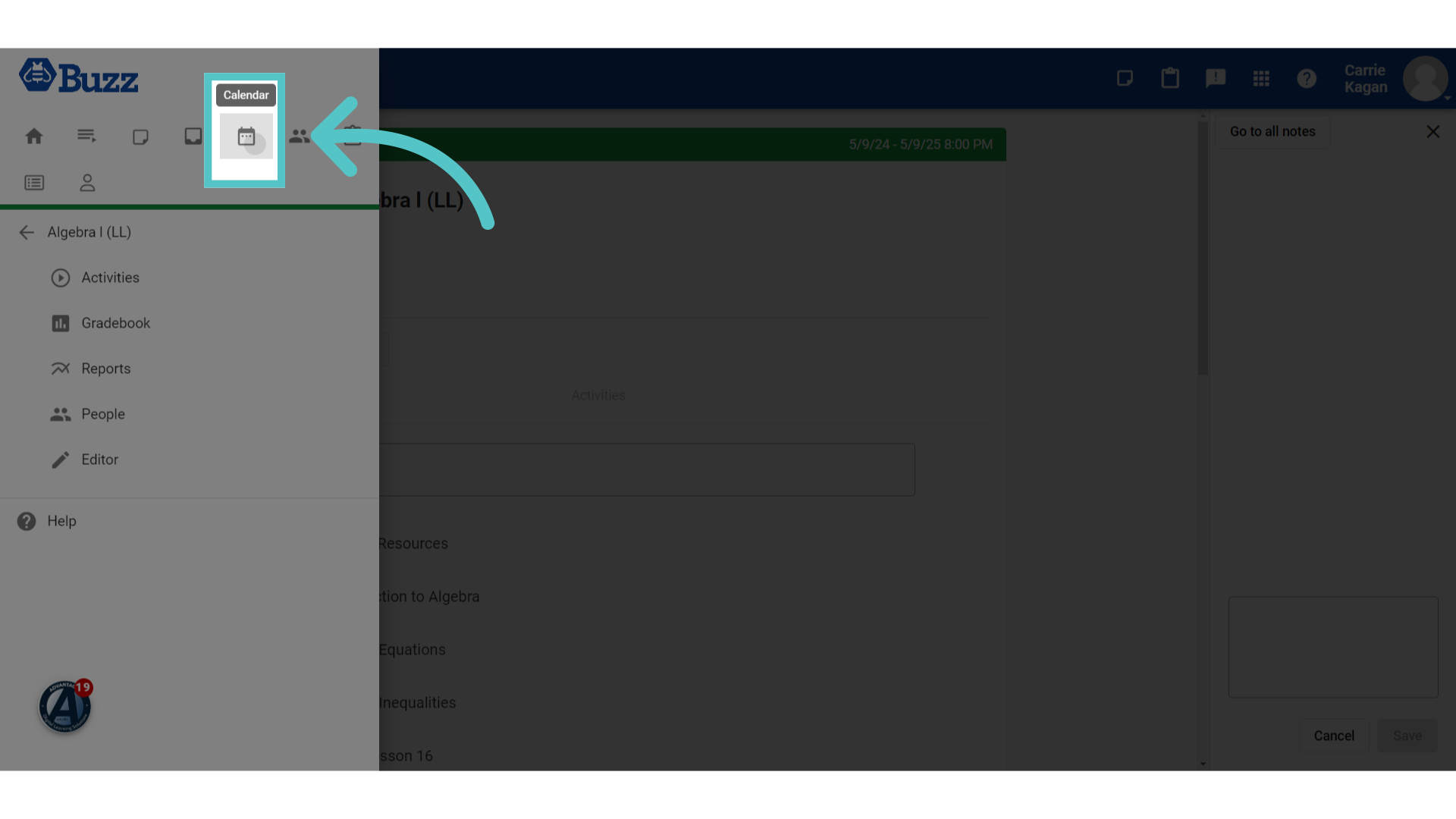
12. Calendar
Clicking the calendar icon opens the Lincoln Learning calendar, showing the scheduled due dates for all activities in all courses. Teachers can filter to see specific course schedules once the calendar is opened.
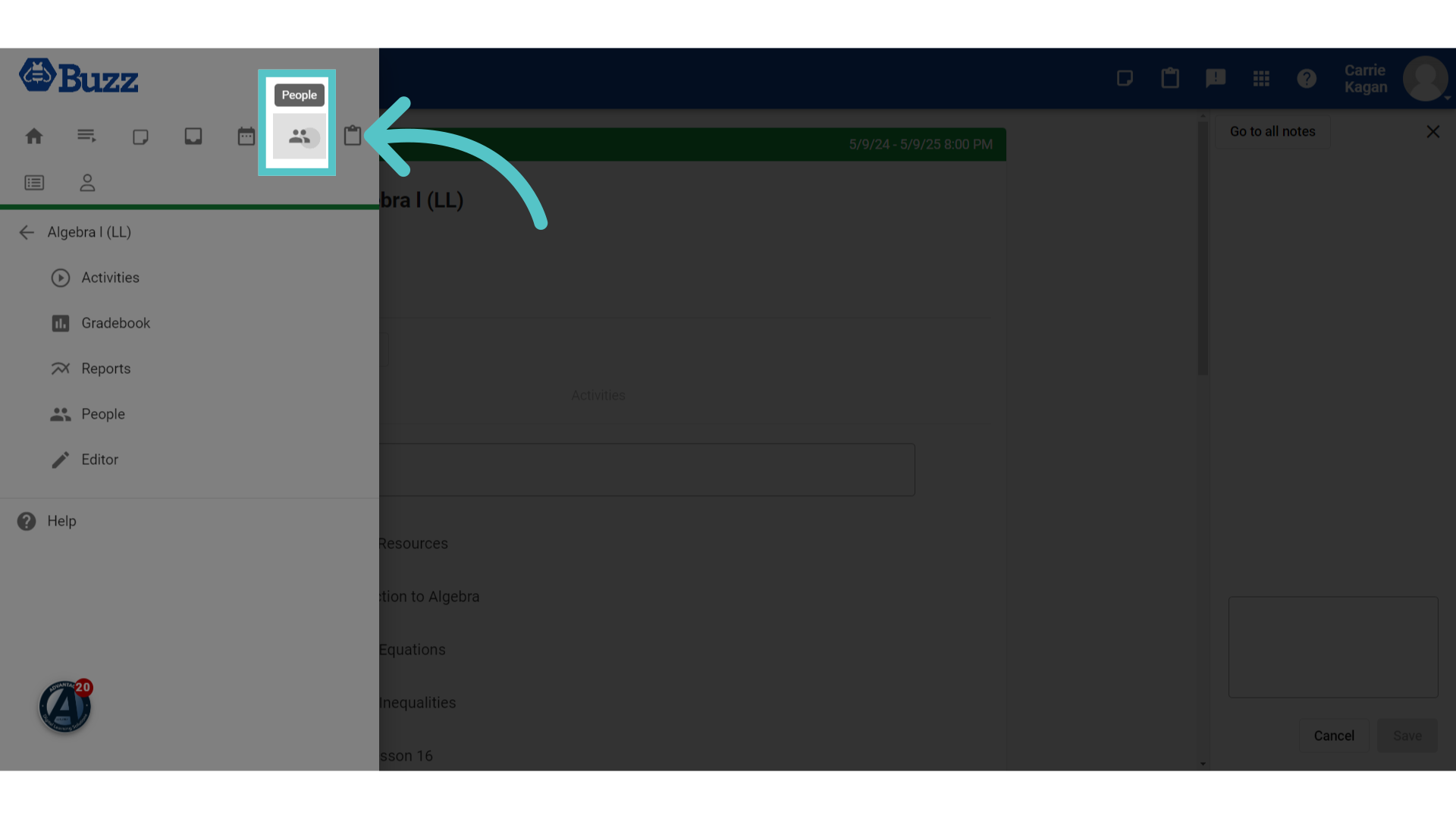
13. ALL People
Clicking the "People" icon in the top menu will open a list of all students, in all courses, and their progress details. Teachers can check student activity, pace, and overall success.
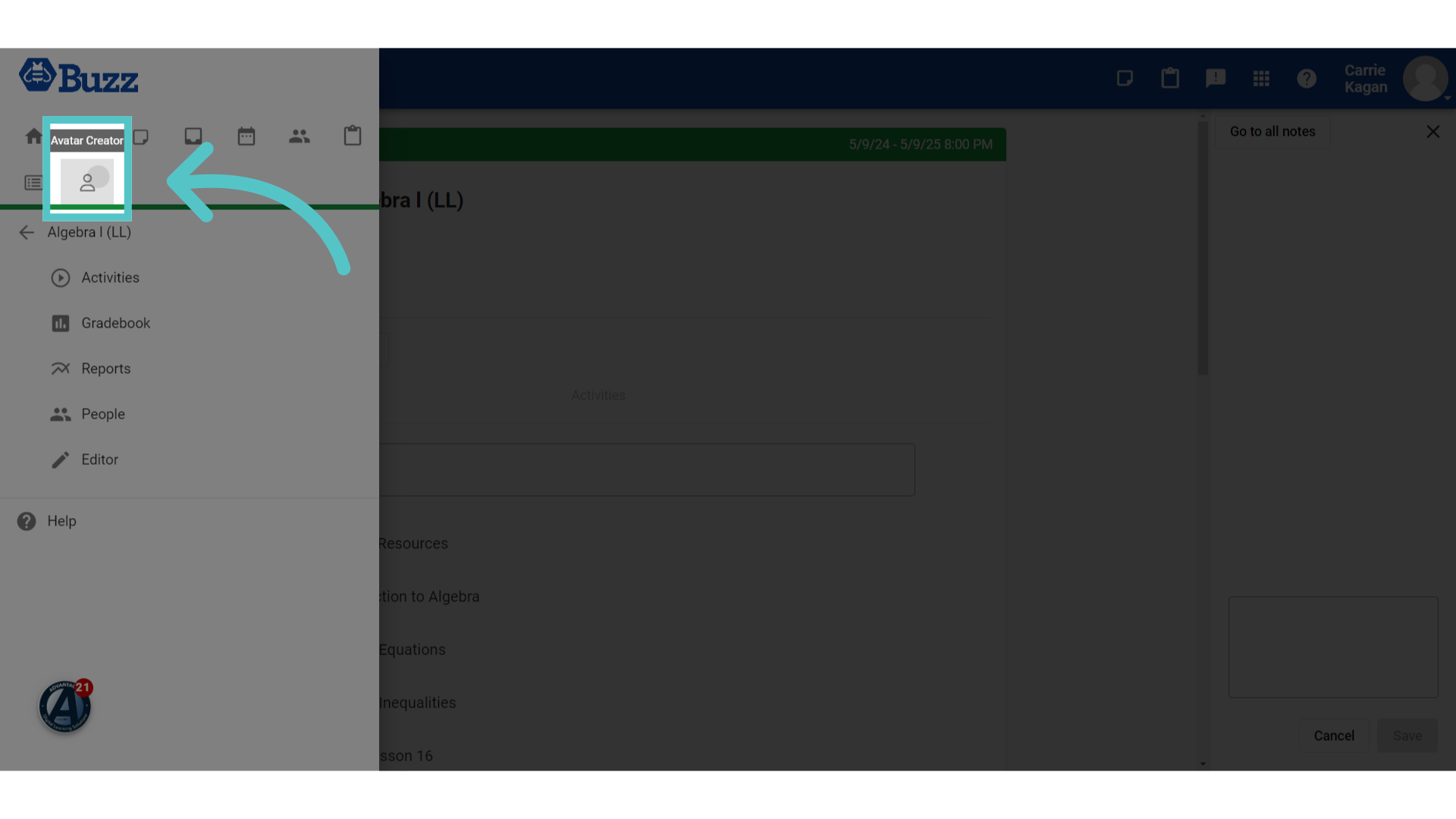
14. Avatar
Clicking the "Avatar Creator" icon allows teachers to customize an avatar visible to all students.
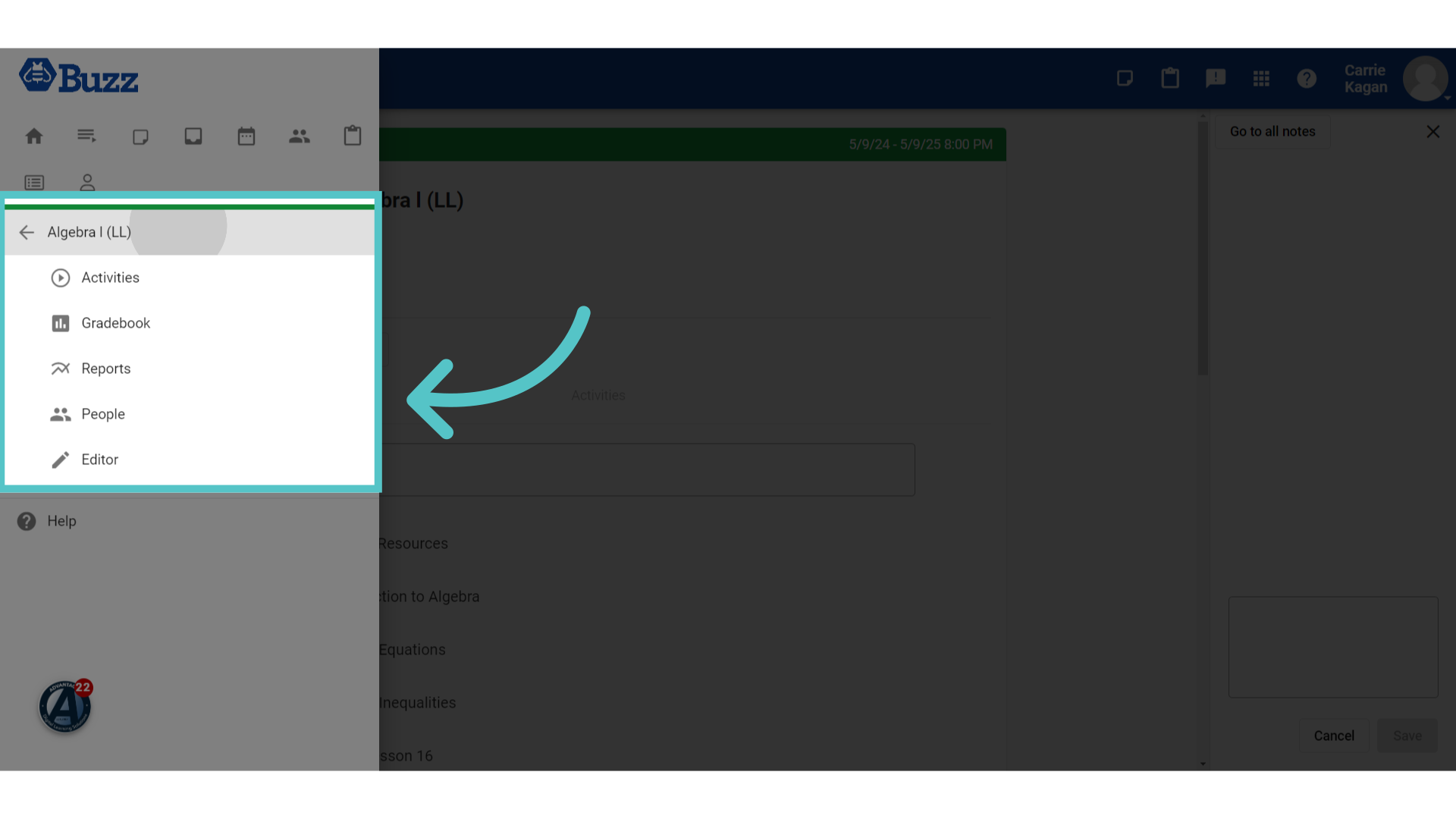
15. Course Specific Icons
Icons below a course heading will lead to information specific only to that course. These icons will show information as it relates to the Algebra 1 class only.
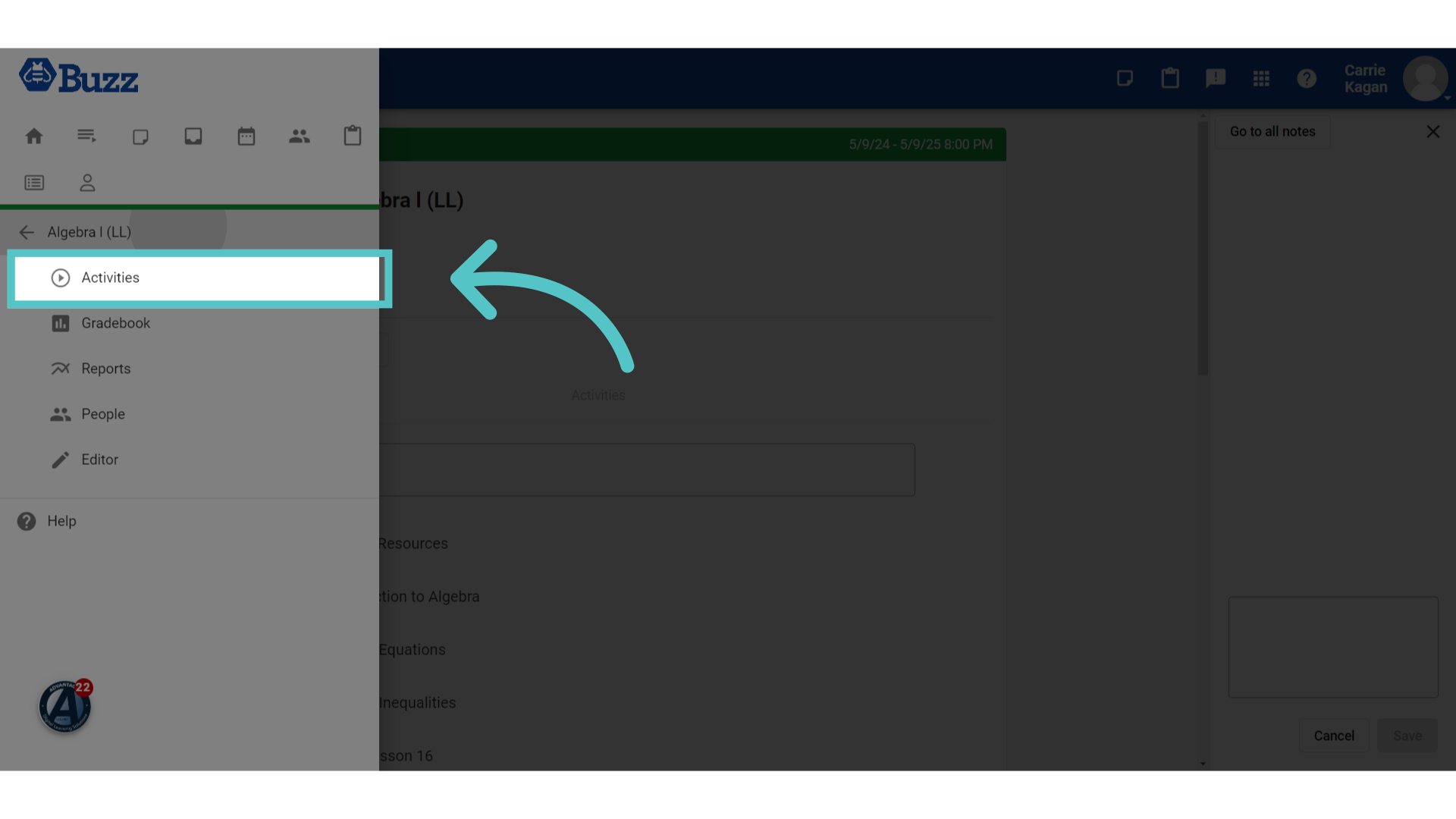
16. Activities
Clicking the Activities icon will open the curriculum list for the course in an expandable menu. Teachers can access any learning object from here.
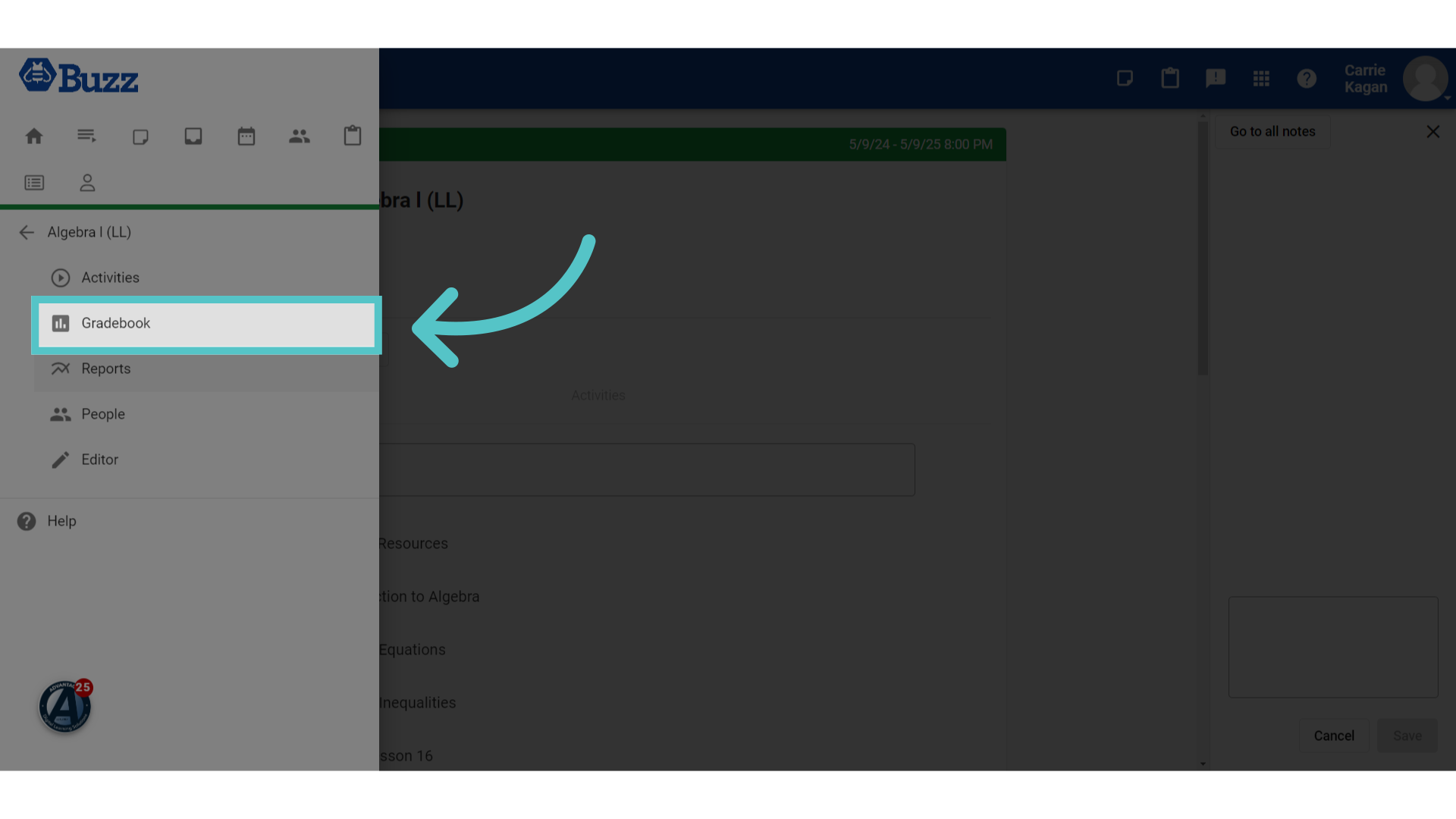
17. Gradebook
Clicking the Gradebook Icon opens the gradebook for the course.
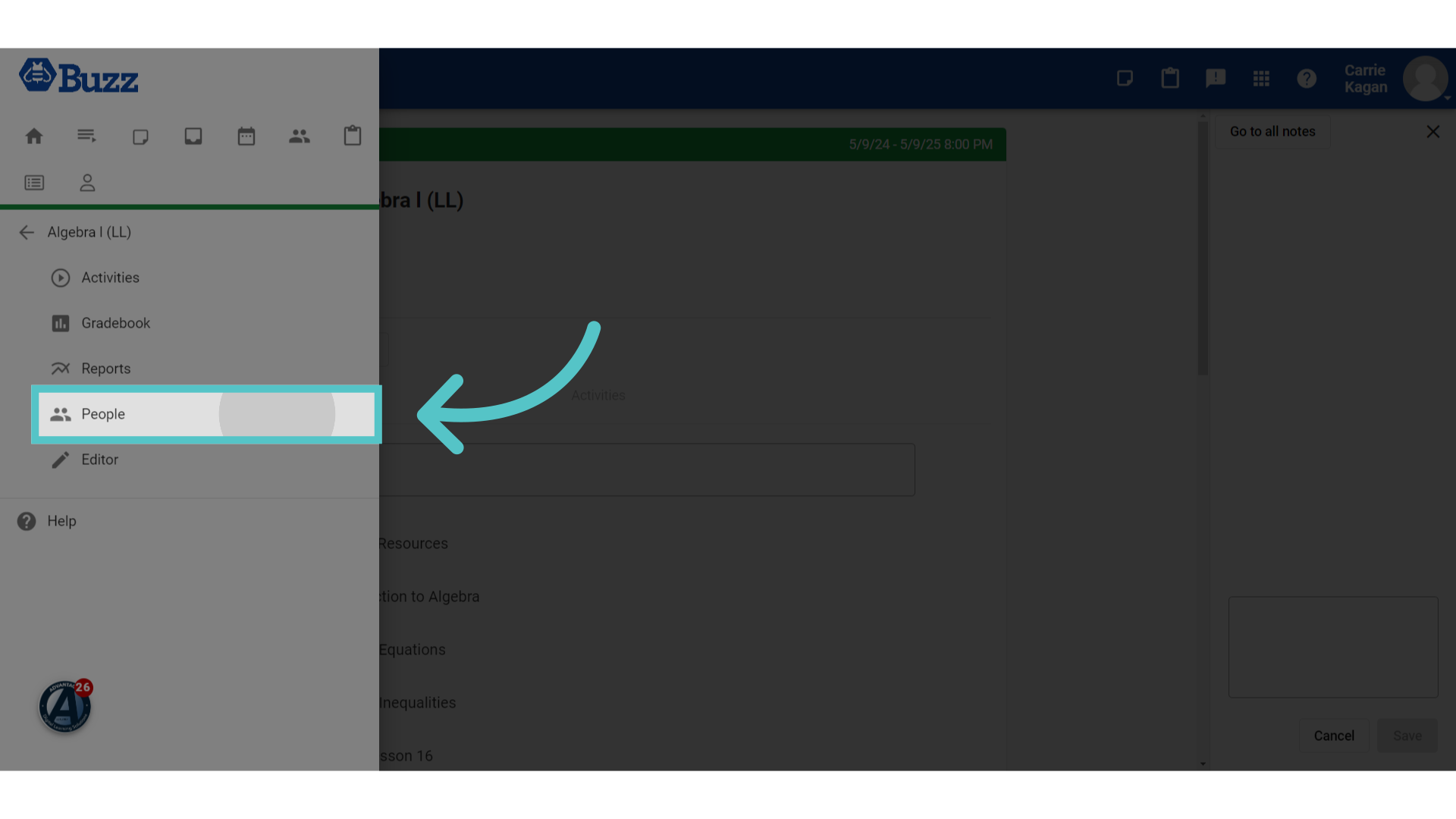
18. Course People
Clicking this people icon will open the list of students enrolled in this course only. This will show pace, performance, and activity.
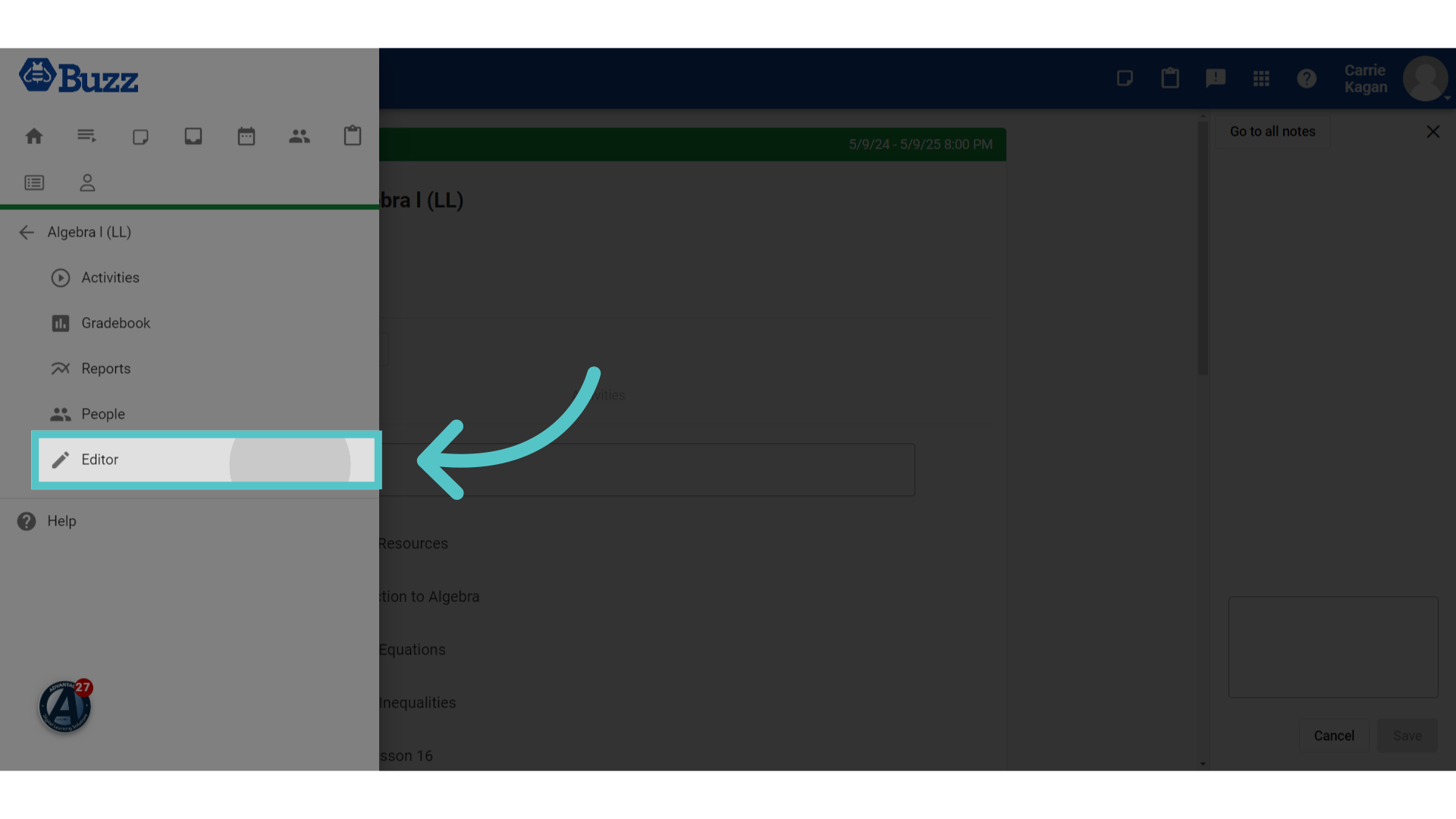
19. Editor
Clicking the "Editor" icon will open the course editor, allowing teachers to make changes or additions to the course content.
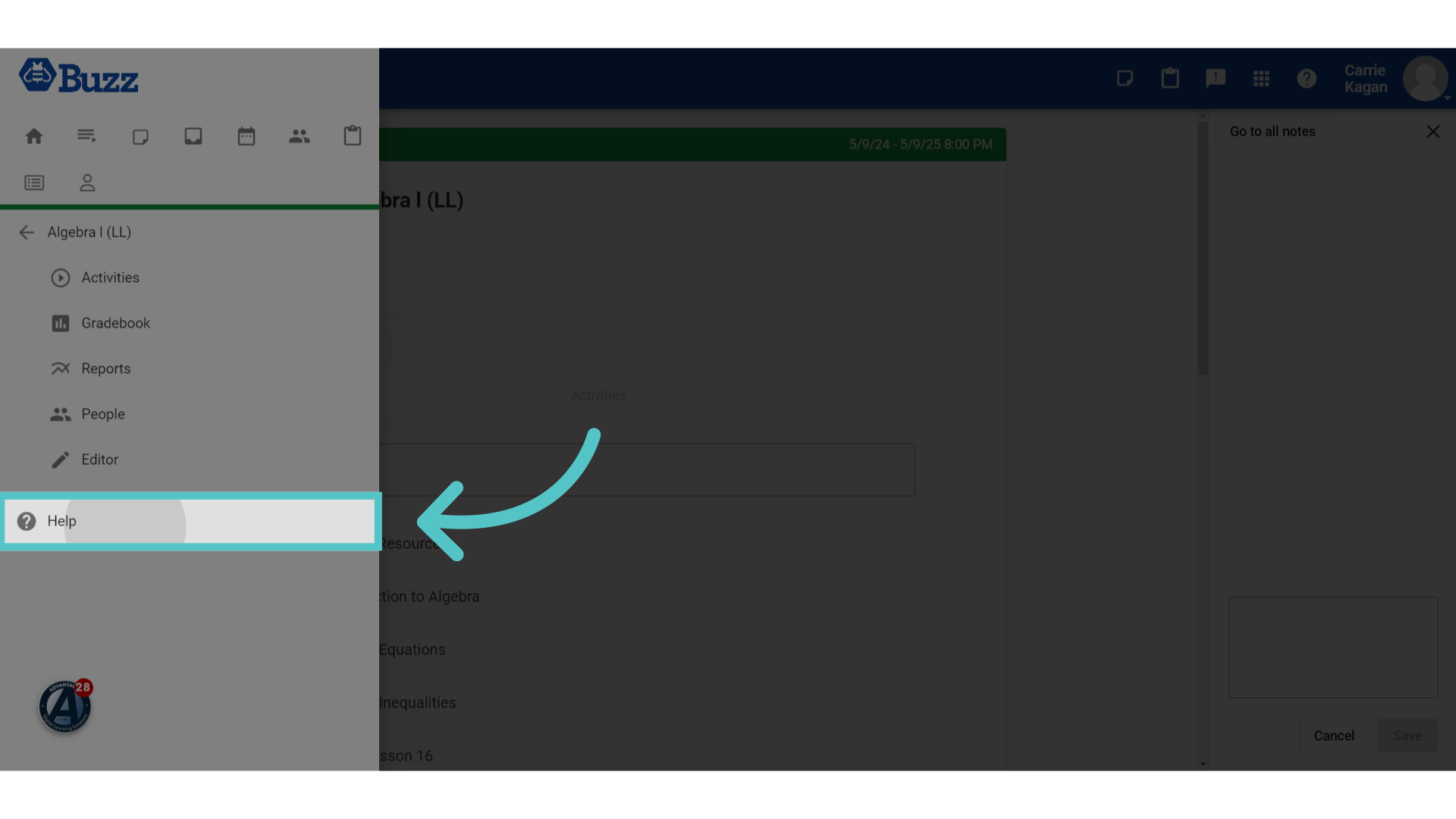
20. Help
A Lincoln Learning Help feature is also found in this menu.
If you have any questions about the information in this tutorial, please click "Contact Support" to submit a help request.
Contact Support