Expand to Full Screen for Best Viewing
This Guide will show the process for students to message their teachers or administrators in ASSIST.
Go to portal.adlsassist.com
1. Access Inbox
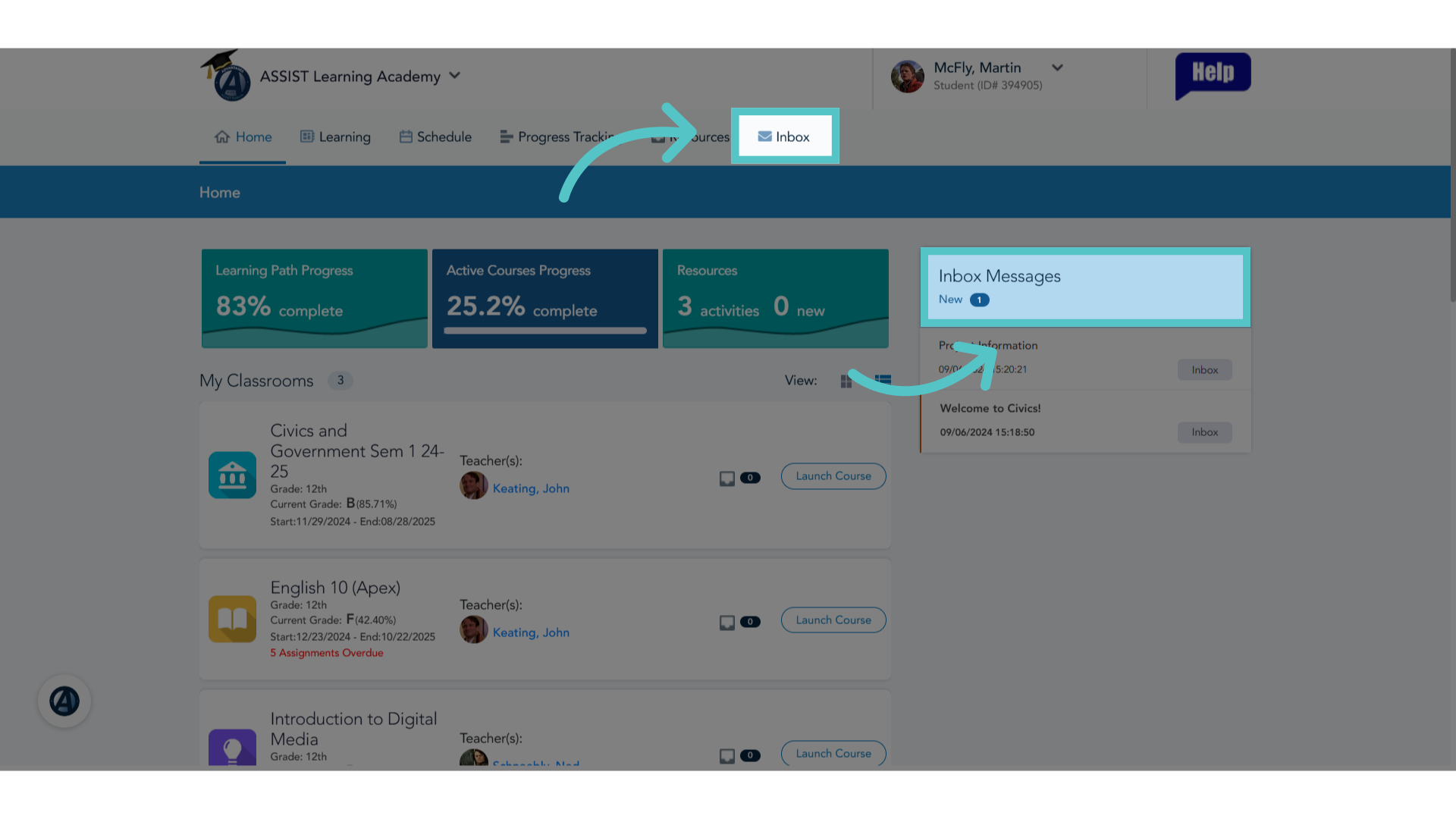
The Inbox Tab is available at the top of any page in ASSIST. Click the tab, or click the heading "Inbox Messages" in the blue box on the homepage. These both lead to the messaging feature.
2. Click "New Message"
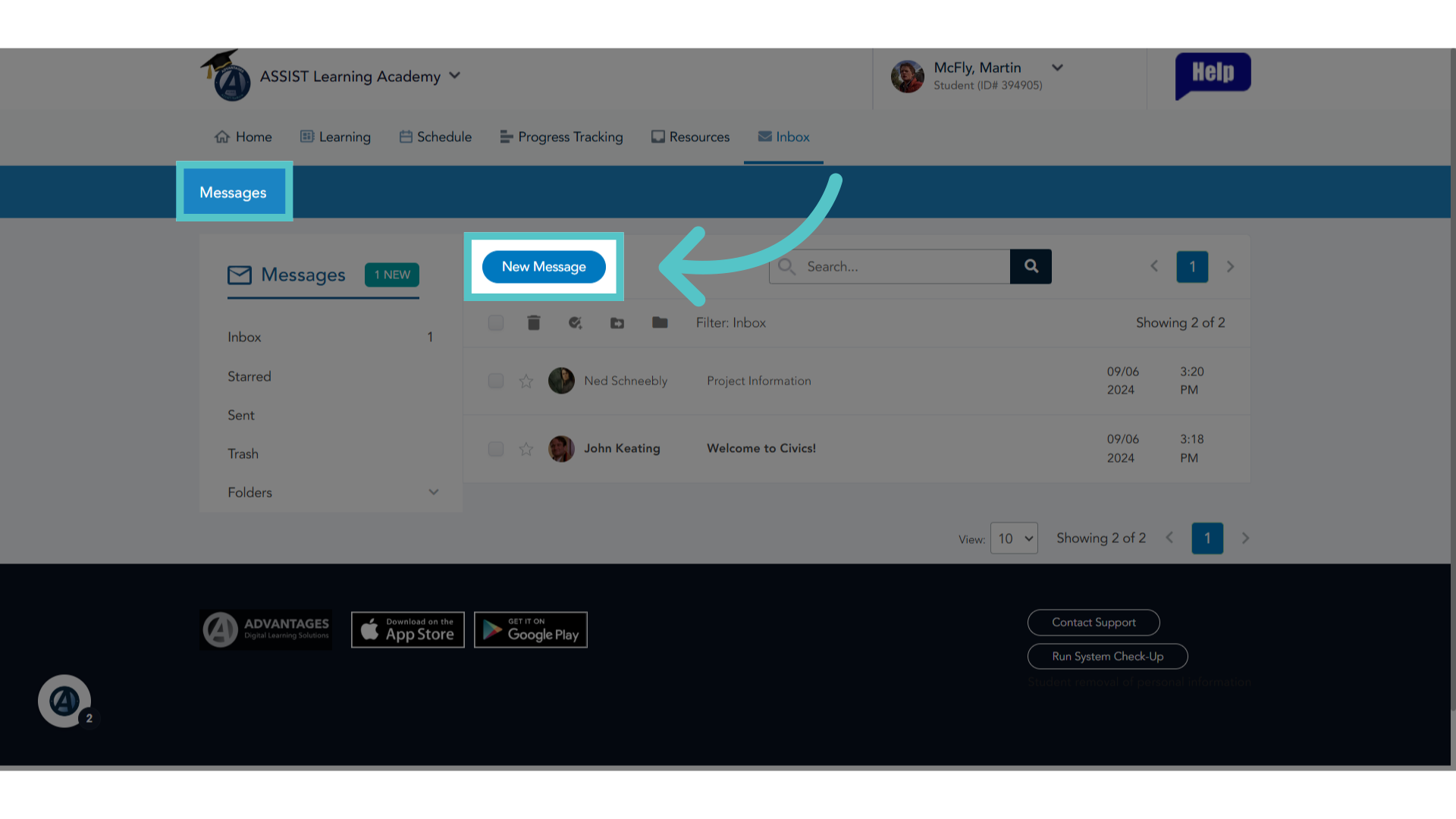
On the Messages Page, click the "New Message" button to draft a message.
3. Choose Type
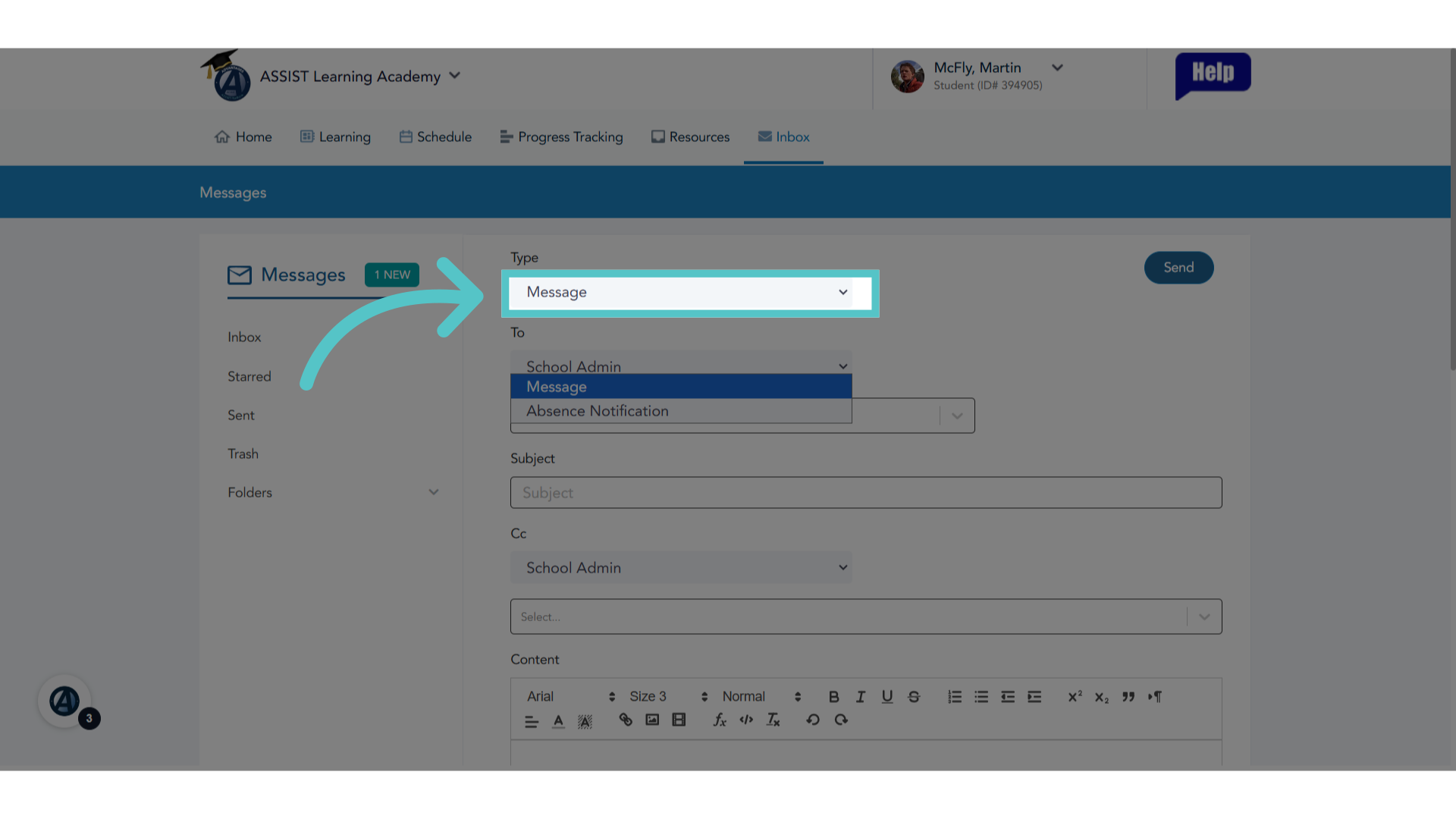
Select the type of message being sent. Students can choose a standard message or an absence notification. An absence notification will provide the option to enter start and end date for the student absence.
4. Choose Recipient
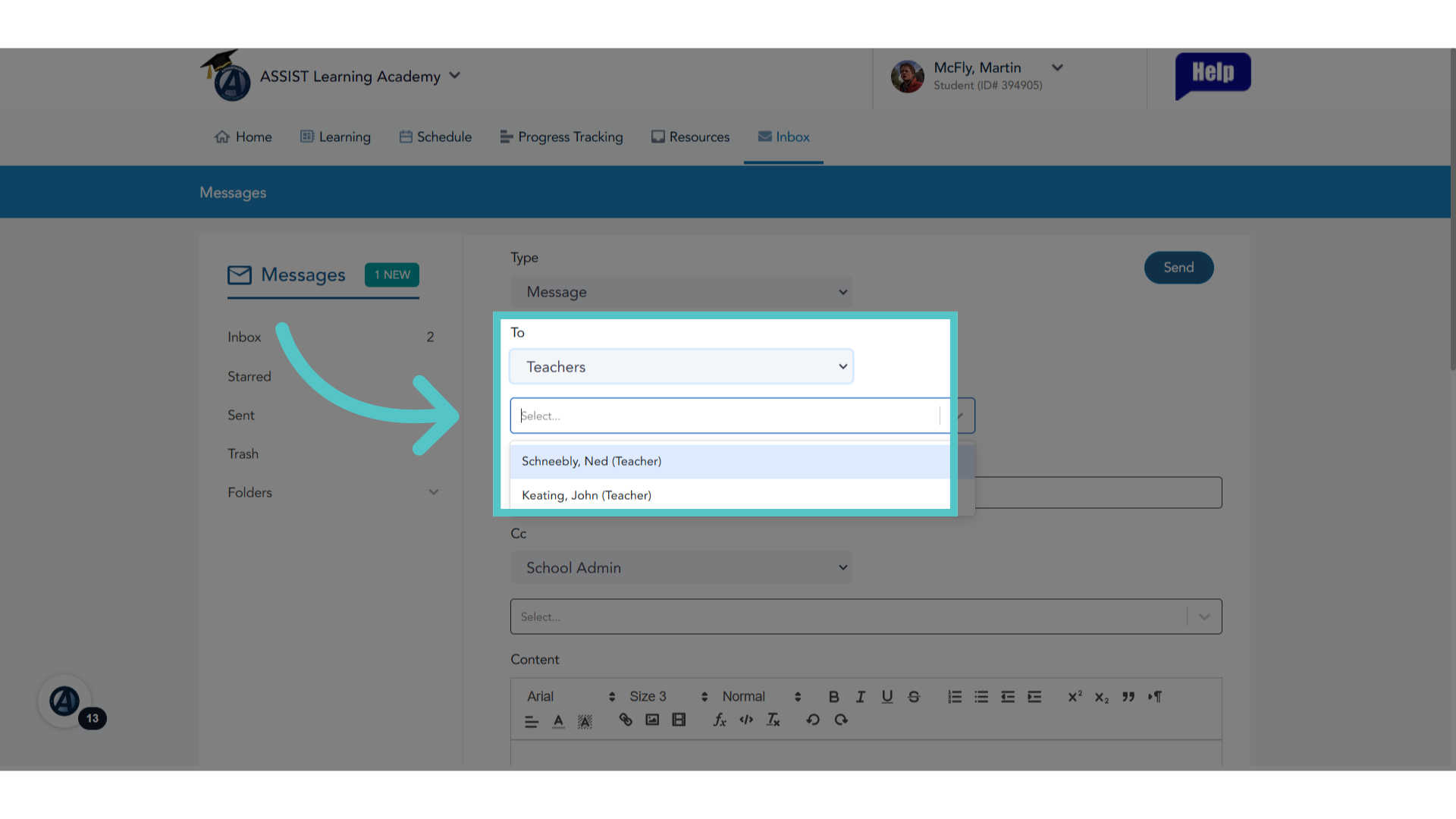
Select to send the message to either teachers or adminisrators. Then select the specific teacher or administrator to receive your message. More than one name can be selected.
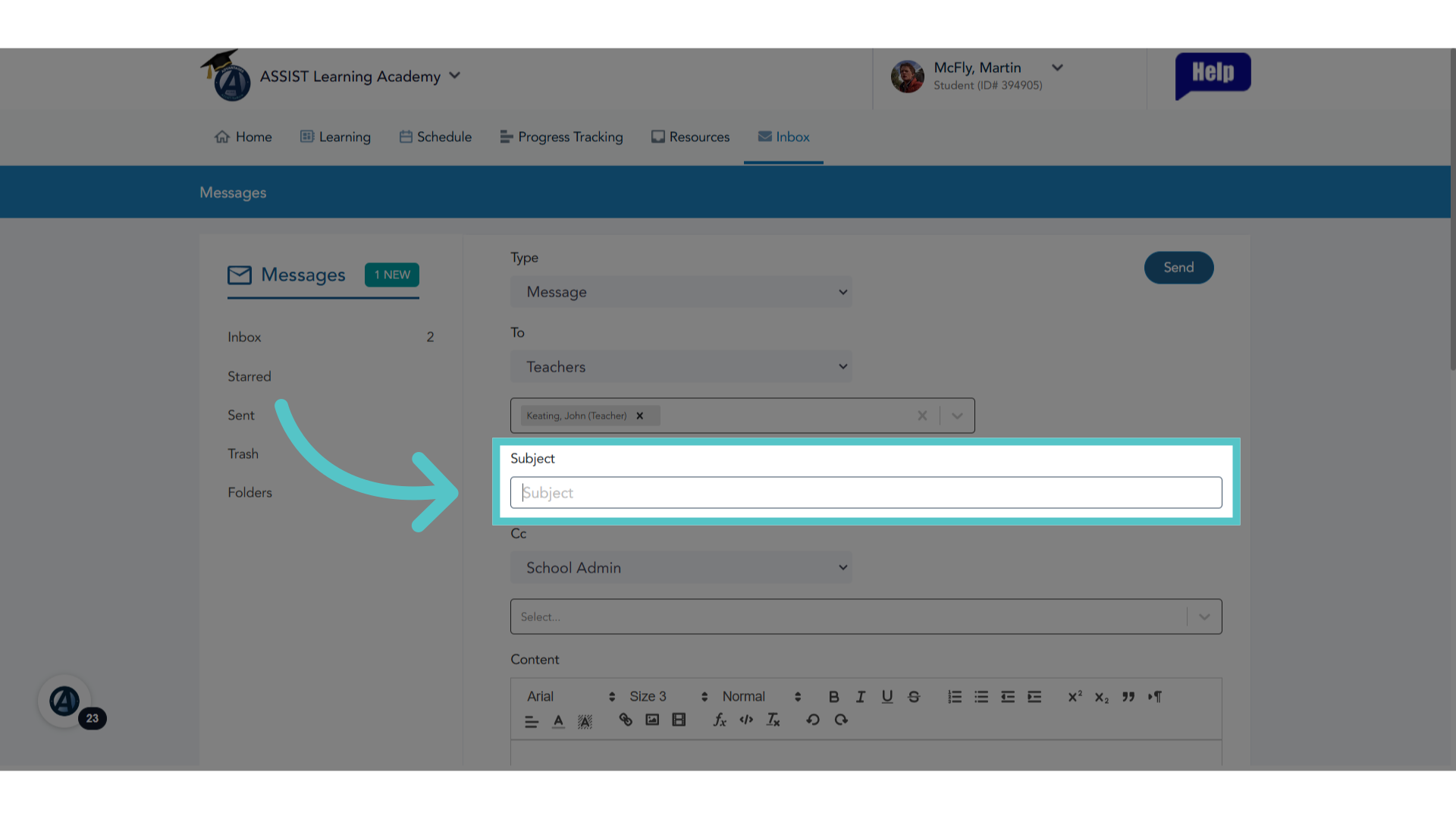
5. Enter "Subject"
Enter a subject for the message.
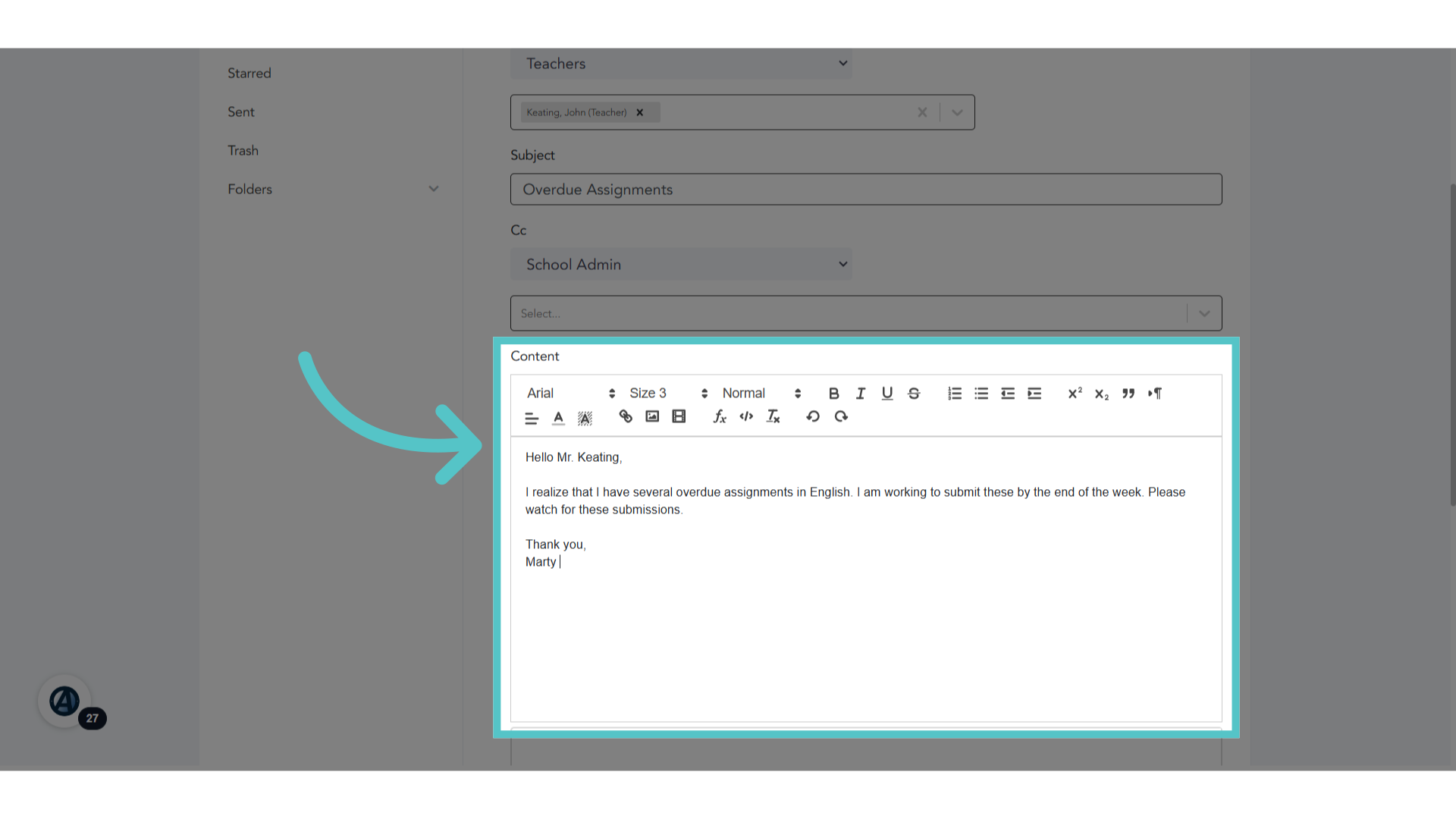
6. Enter Message Text
Compose the message in the open content field. Images or links can be added.
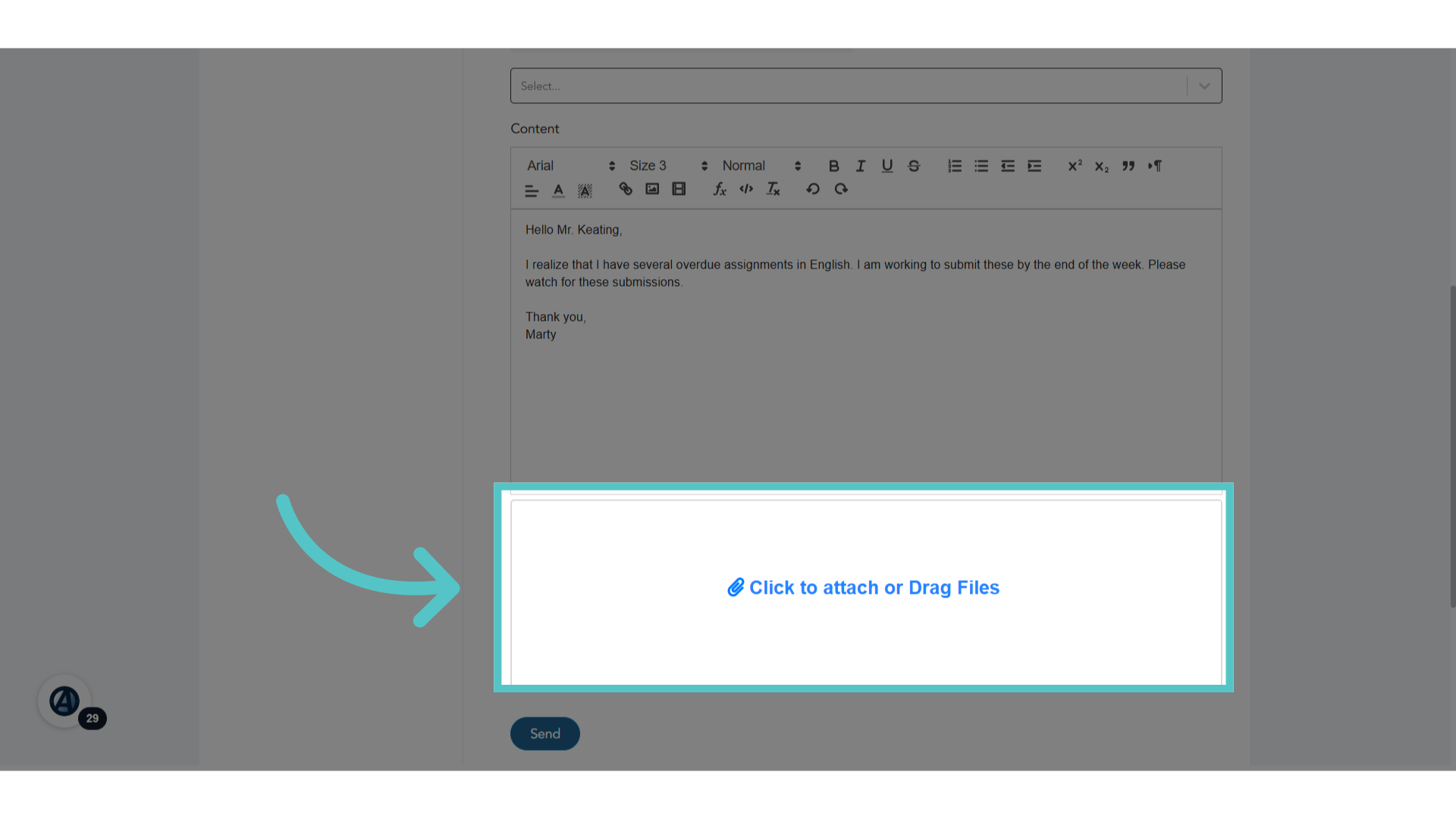
7. Attachments
Files can be attached by clicking the box to upload them, or by dragging and dropping them into the attachment space.
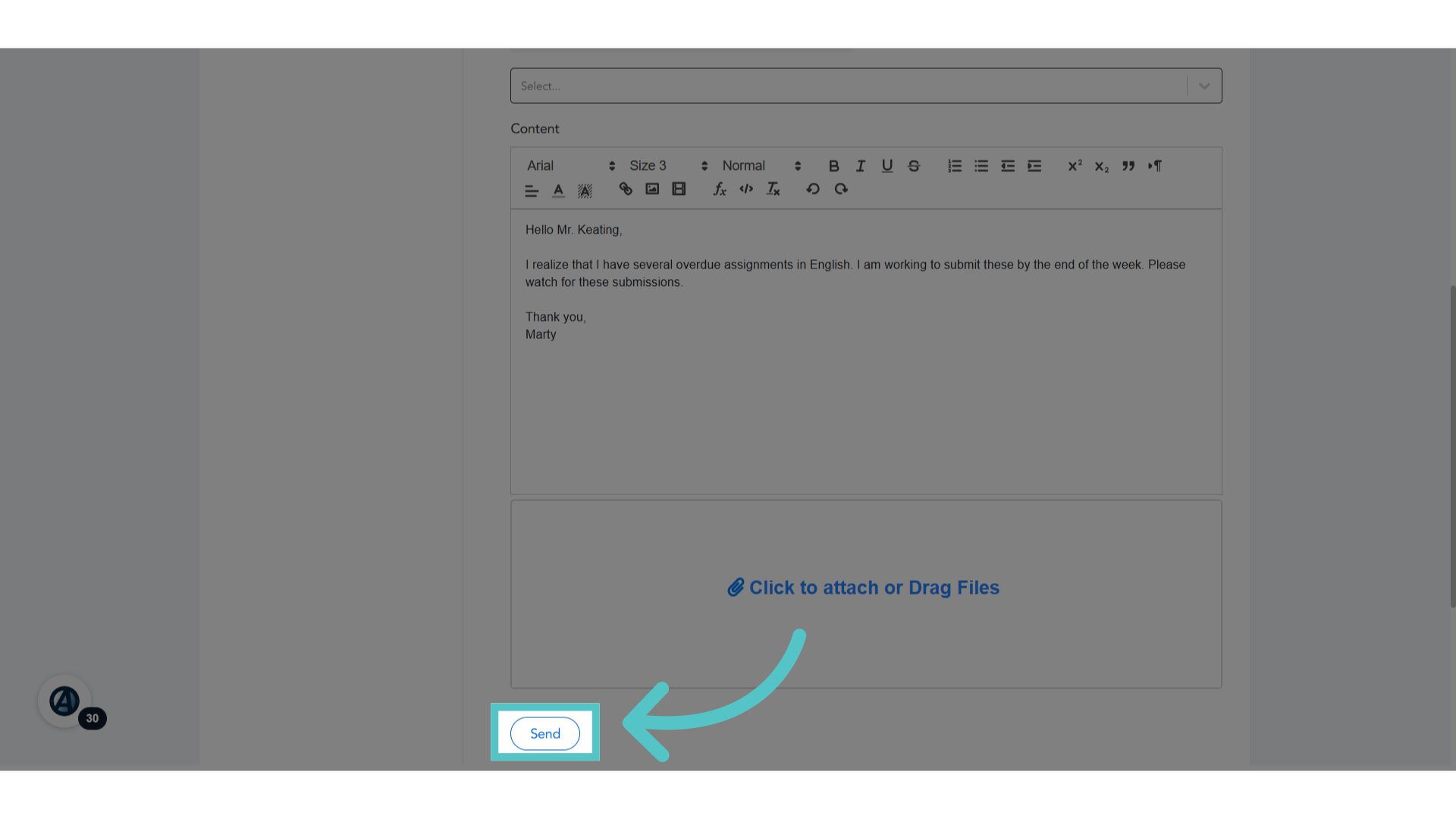
8. Click "Send"
Send the composed message.
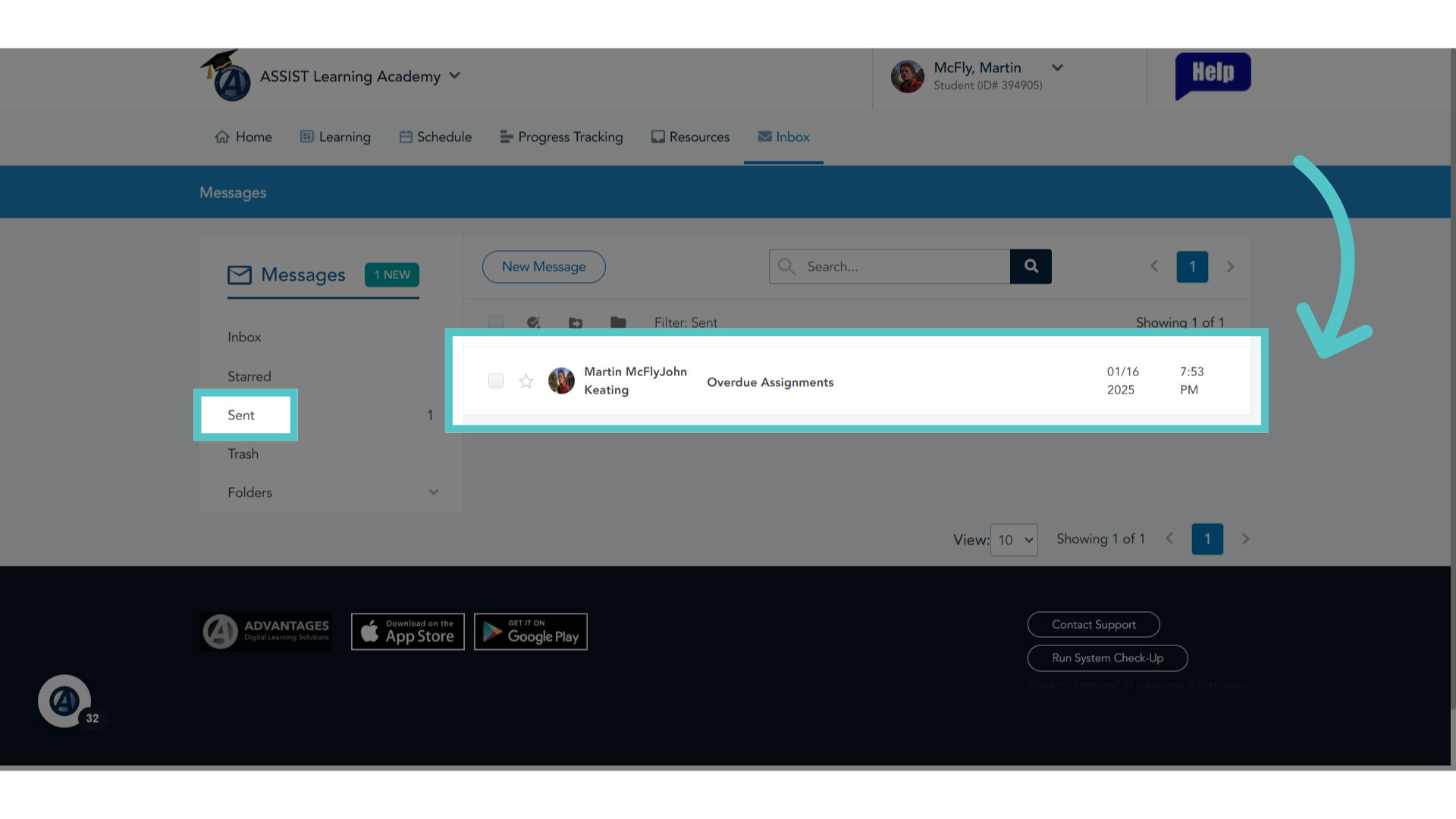
9. Message Sent and Saved
The message is now saved to the "Sent" folder for reference.
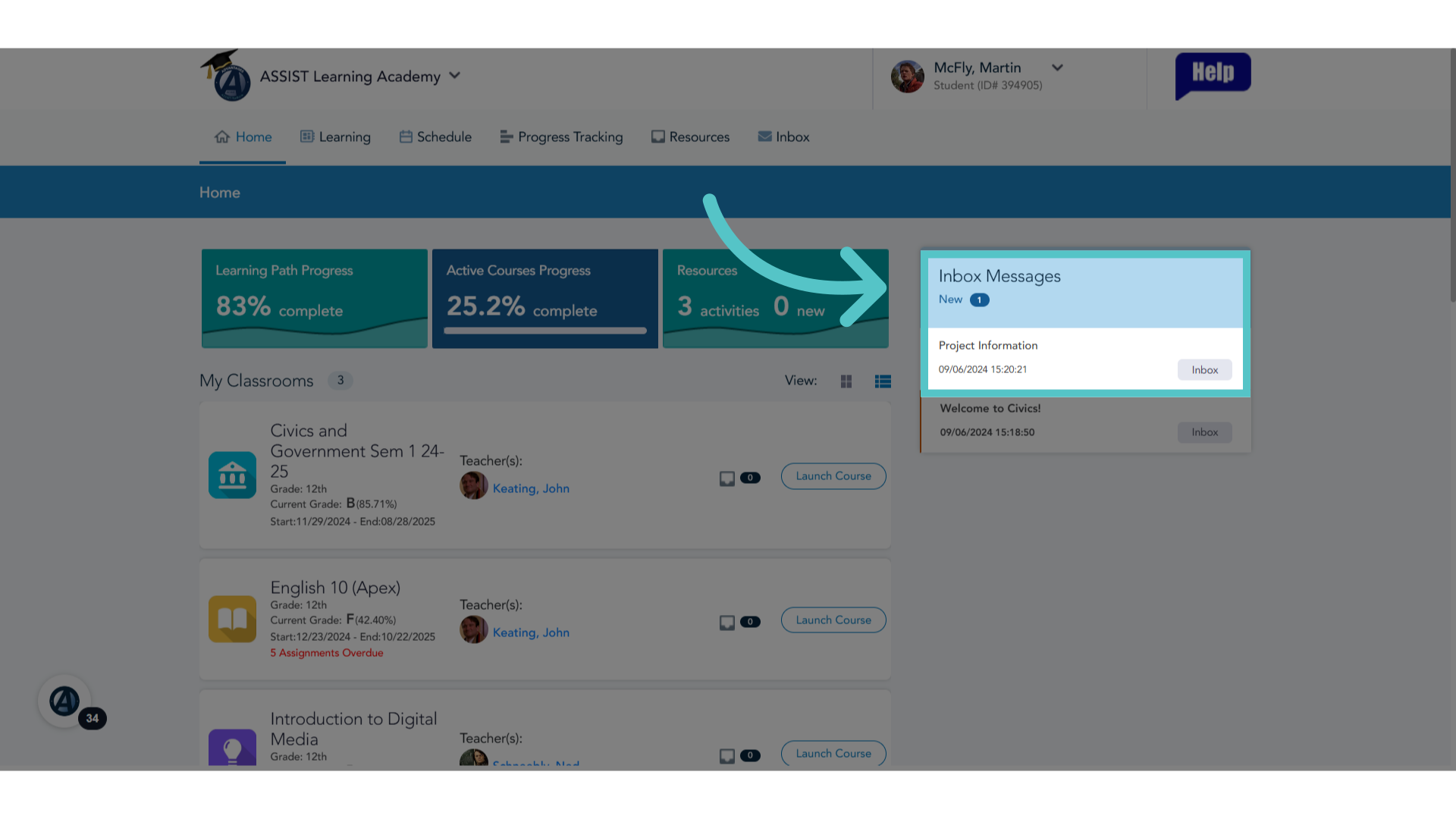
10. Inbox Preview
Responses will appear in the Inbox preview on the student homepage.
If you have any questions about the information in this tutorial, please click "Contact Support" to submit a help request. Contact Support