Expand to Full Screen for Best Viewing
Students can monitor their course progress through the ASSIST portal. This guide will show how to check on assignment due dates, grading updates, and overall completion in the student portal.
Go to portal.adlsassist.com
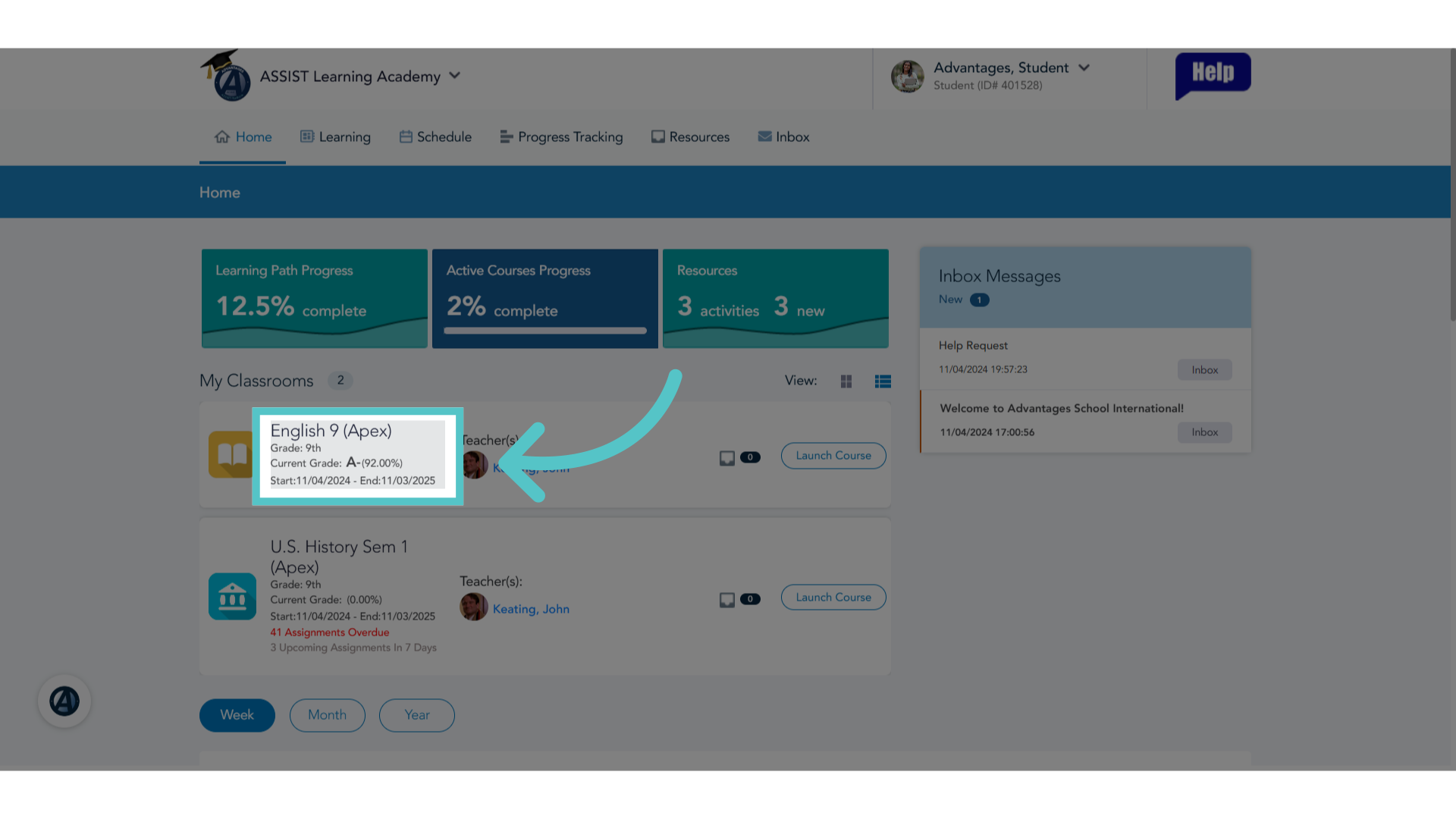
1. Course Grade to Date
Students will find their current Grade-to-Date for each enrollment on their ASSIST homepage.
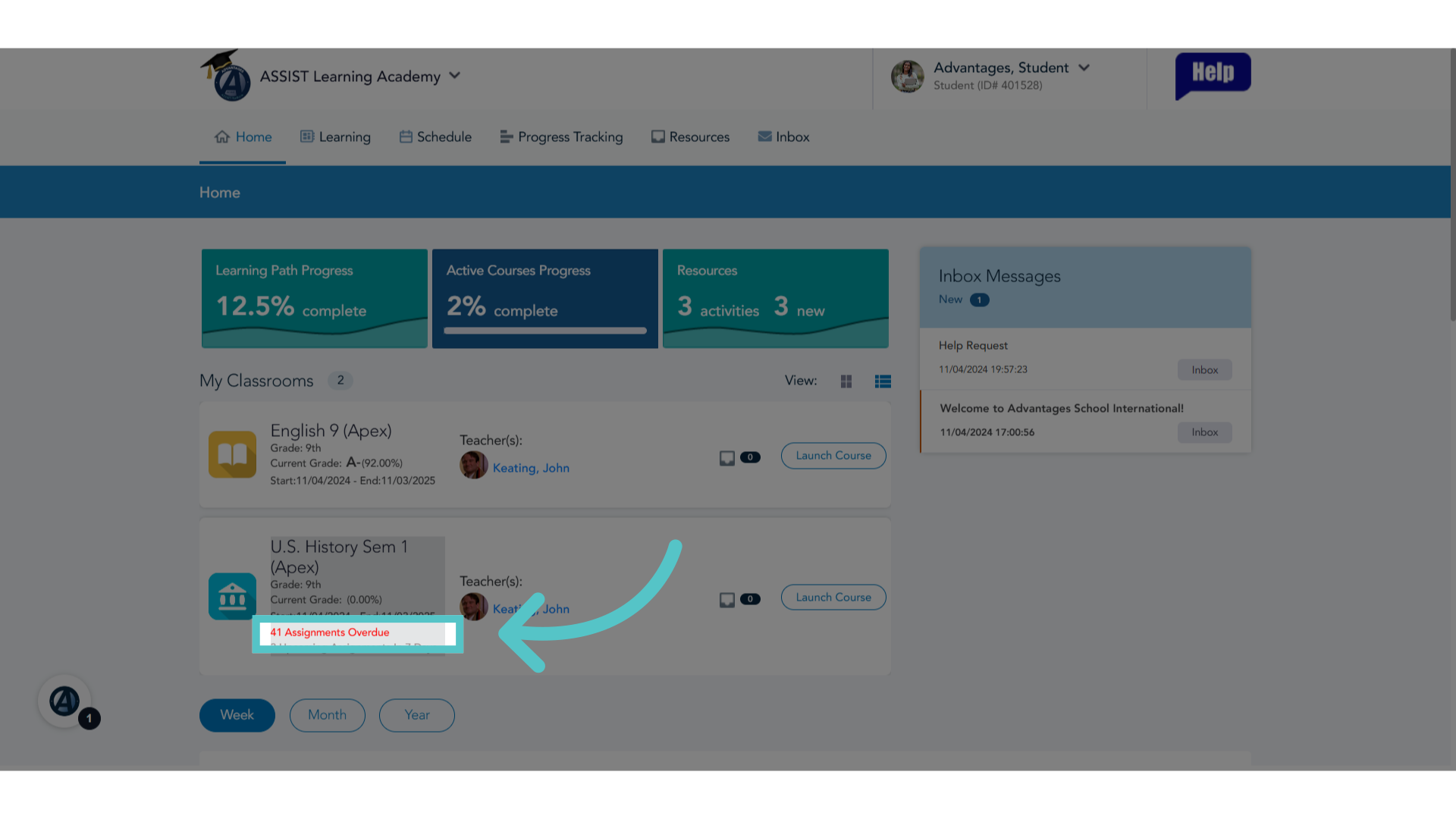
2. Overdue Assignments
The number of overdue assignments for a course, if there are any, will be noted in red on the homepage.
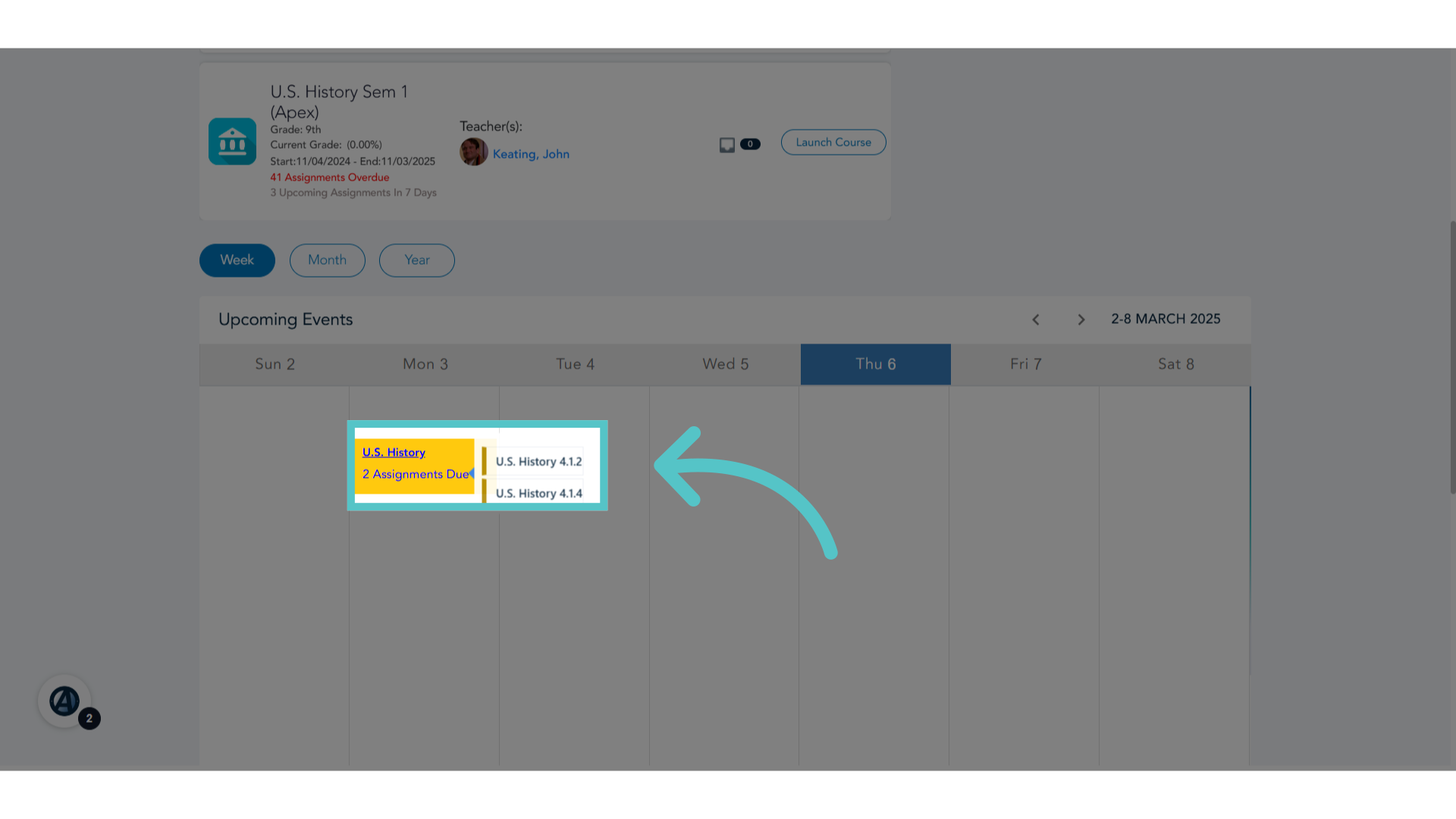
3. Assignments Due
The homepage calendar will show asignments due for each course enrollment. Hover the mouse arrow over the yellow box to reveal the specific activities that are due.
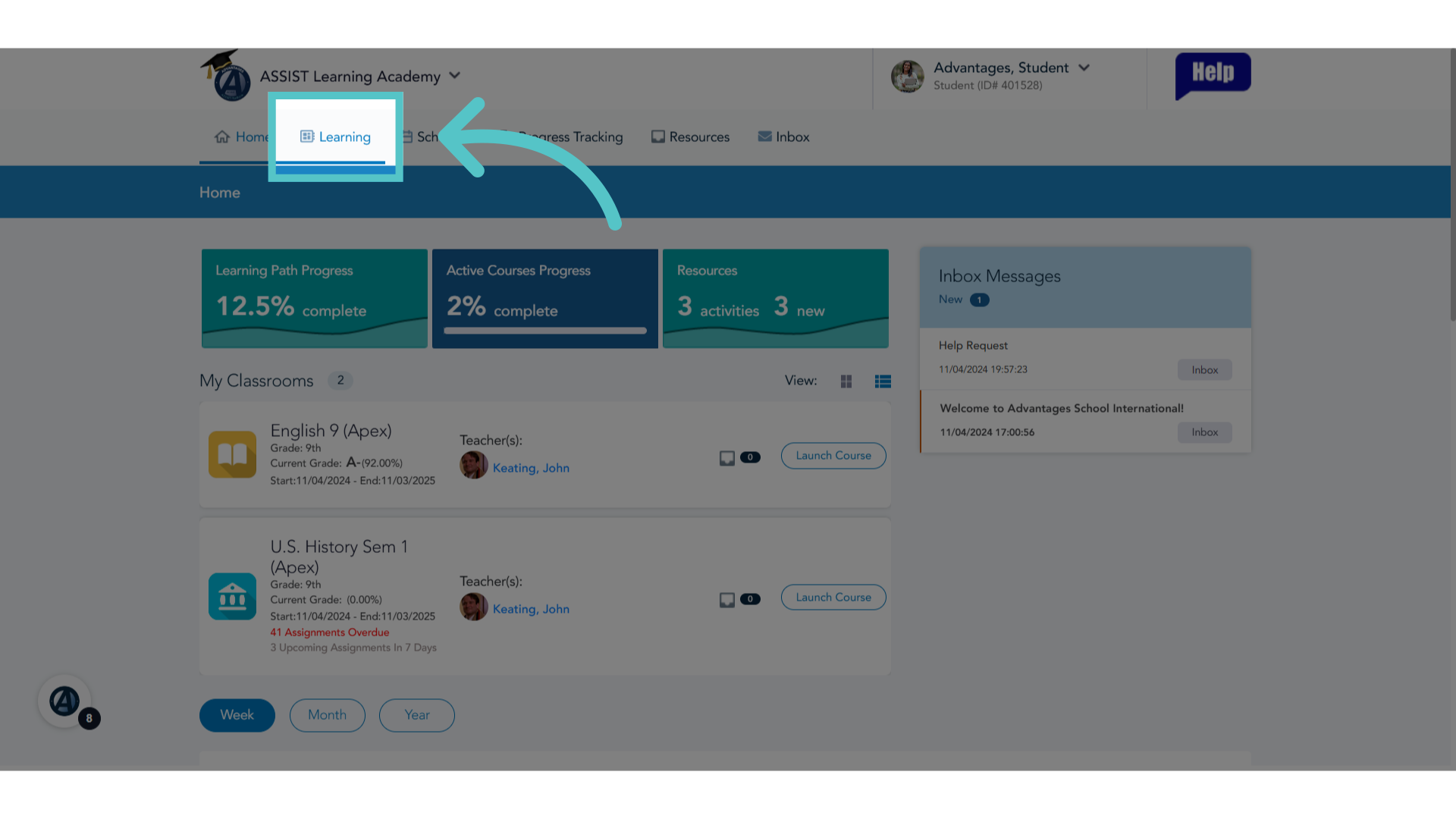
4. Click "Learning"
To see more information about progress in a section, click the "Learning" tab.
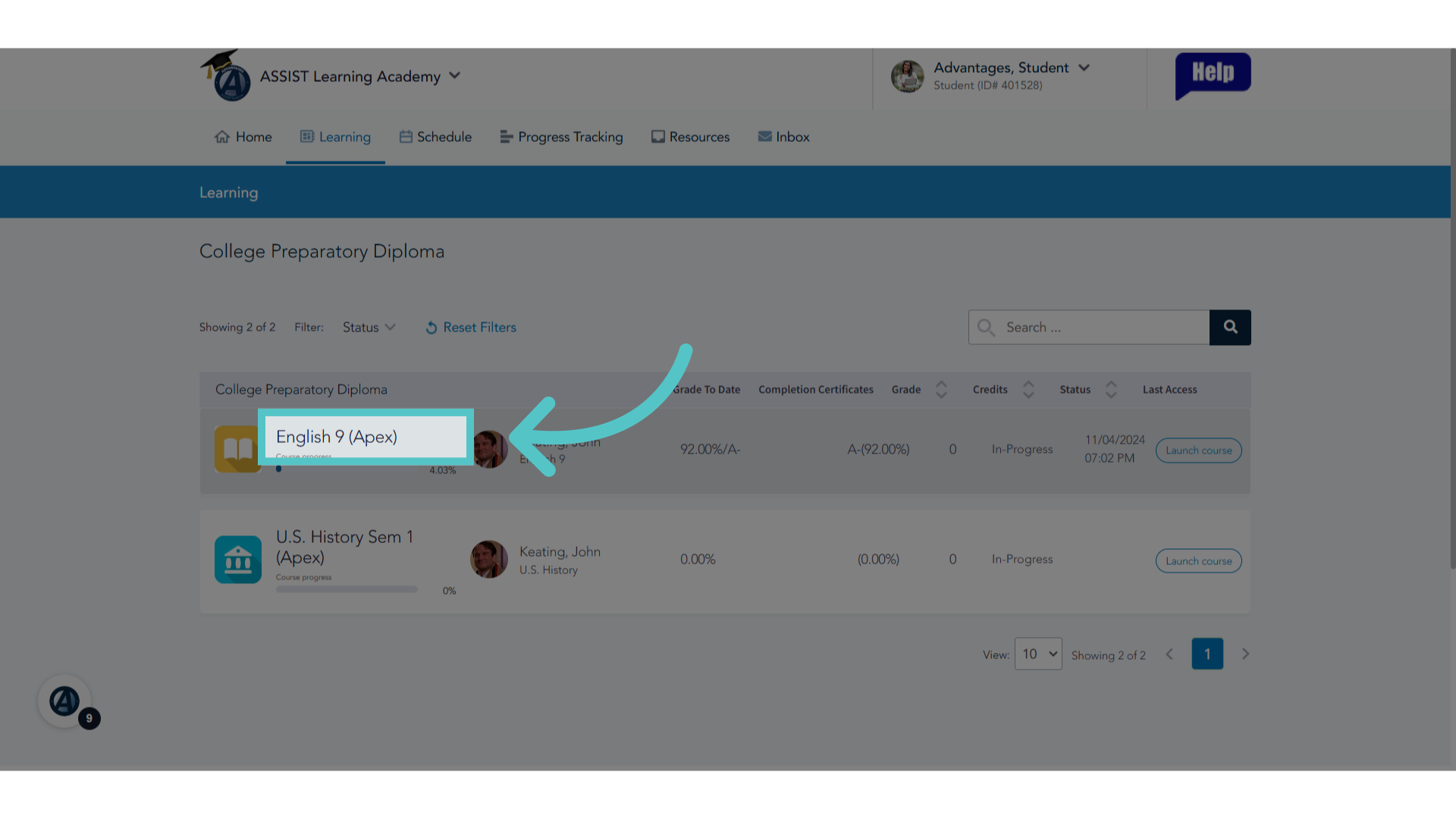
5. Click Section
Click the section name to open a page dedicated to student course information.
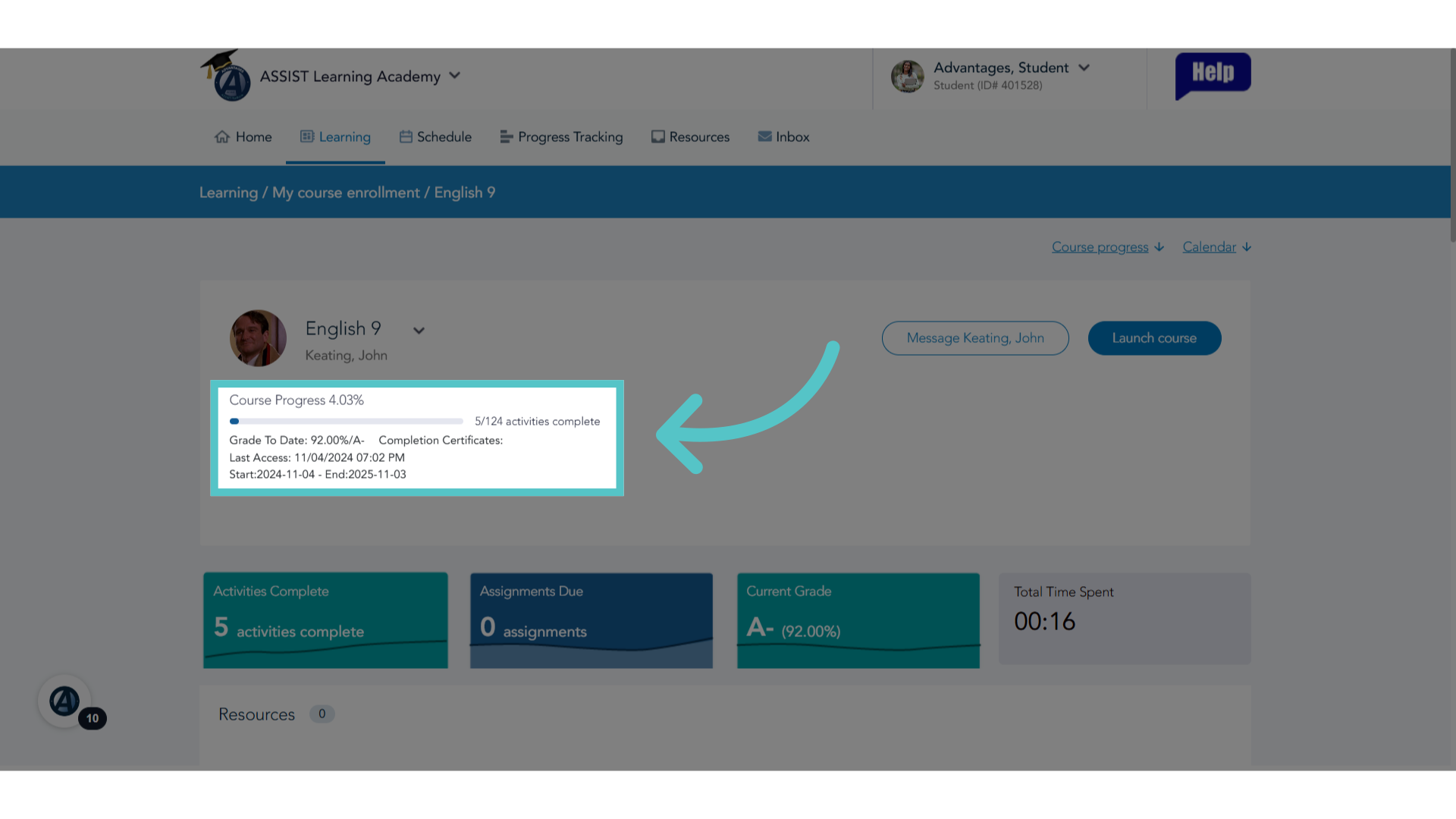
6. Progress Overview
A progress bar will indicate how much of the course has been completed. A student's last access date, start date, and end date are also listed.
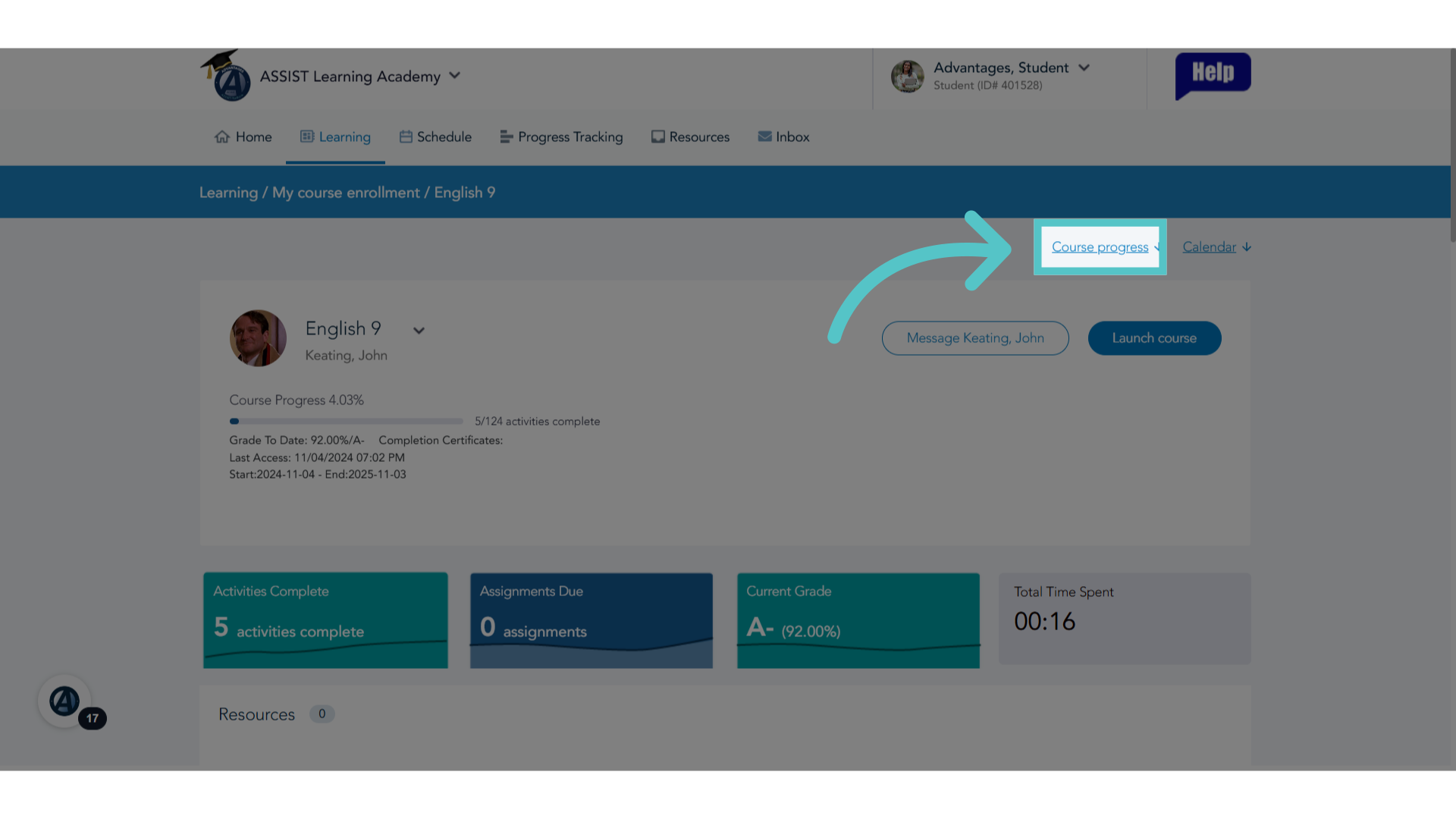
7. Click "Course progress"
Click the "Course progress" link, or scroll down the page, to see detailed information for student progress in every activity in the course curriculum.
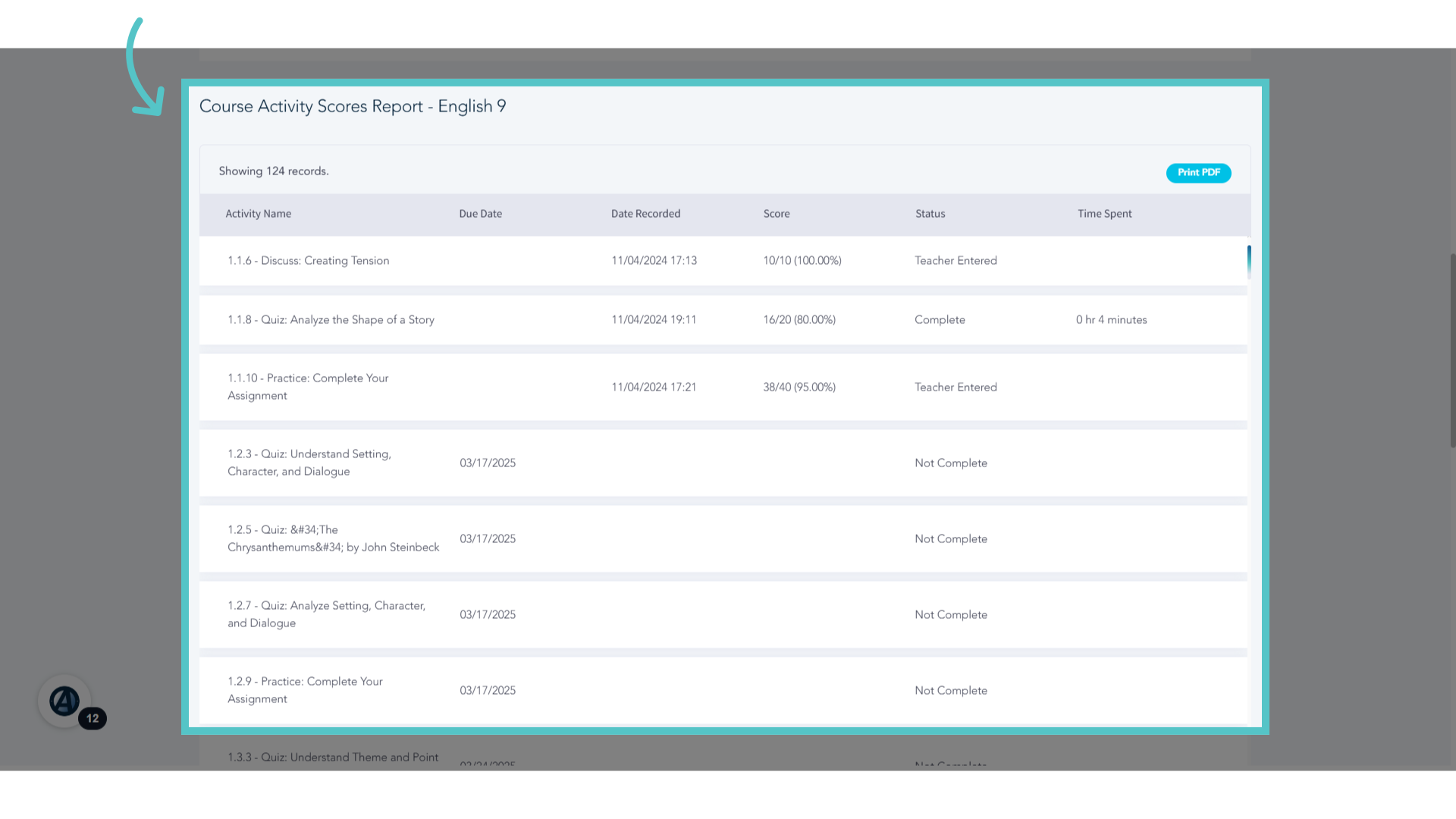
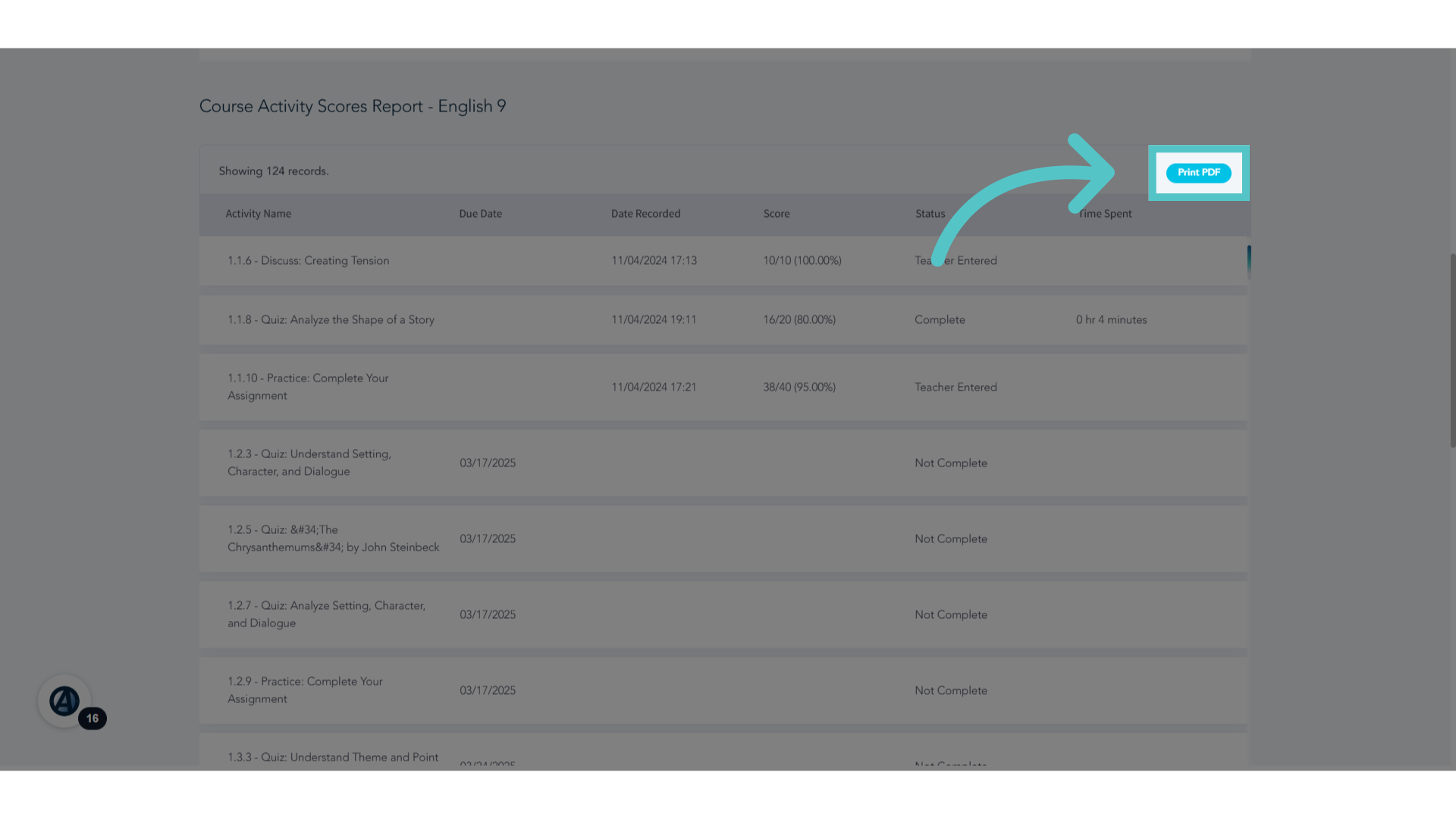
8. Course Activity Scores Report
The Course Activities Scores Report will show each activity, the scheduled due date, and the grade earned. Students can see updated scores, overdue assignments, and upcoming due dates in this list.
9. Click "Print PDF"
This liset of activities and due date timeline can be printed for reference. Teachers and parents also have this view in ASSIST.
If you have any questions about the information in this tutorial, please click "Contact Support" to submit a help request. Contact Support