1. Student's "To-Do" list
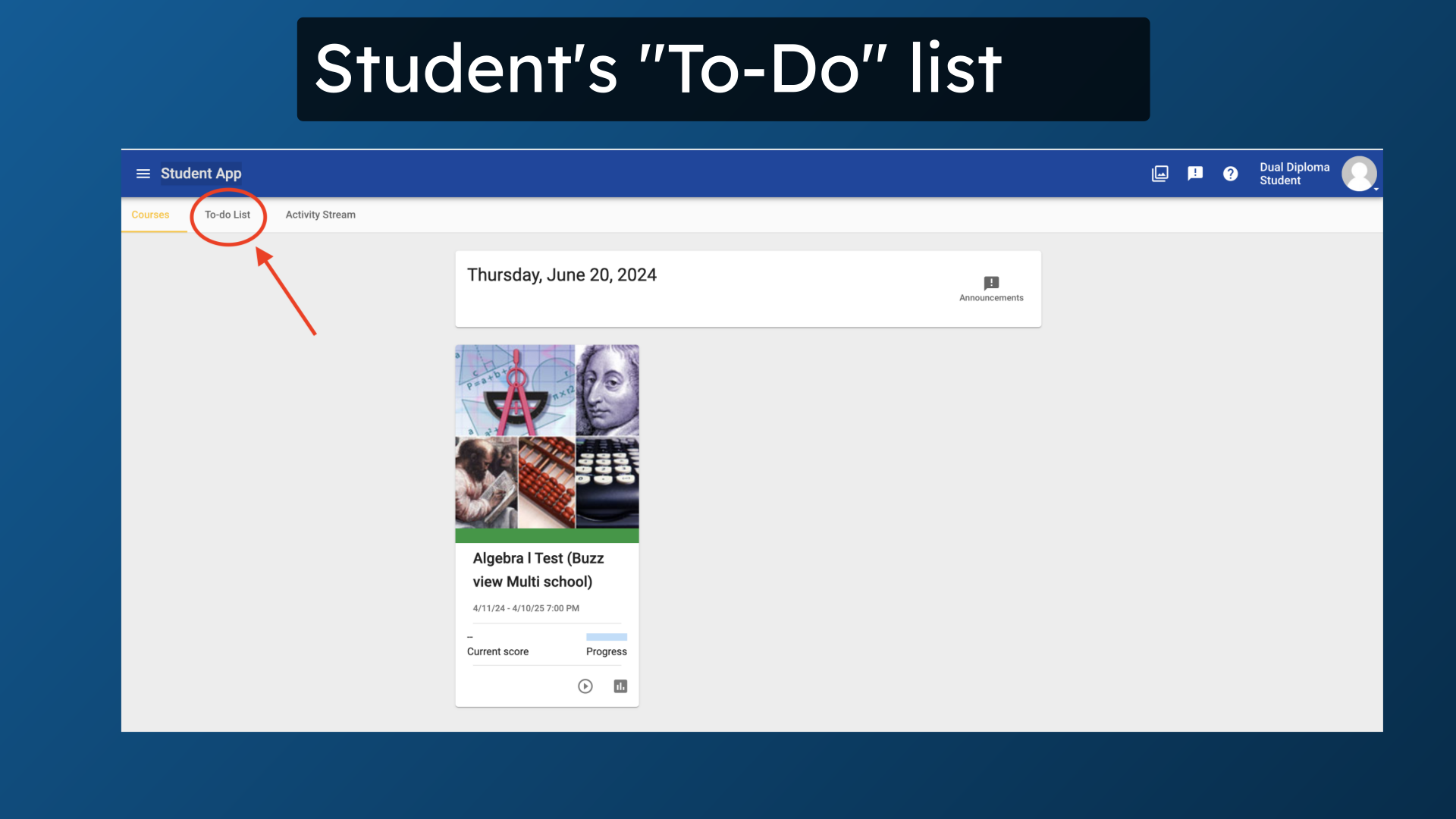
After signing into the Buzz homepage, you will see a tab on the top left showing your To-Do list. The To-Do list is a convenient tool that you can use to quickly find your upcoming, or overdue gradable assignments. You should always complete your lesson activities before taking the lesson's assessment. The following slides will show you how to access your To-Do list, and other important information regarding this feature.
2. Click "To-do List"
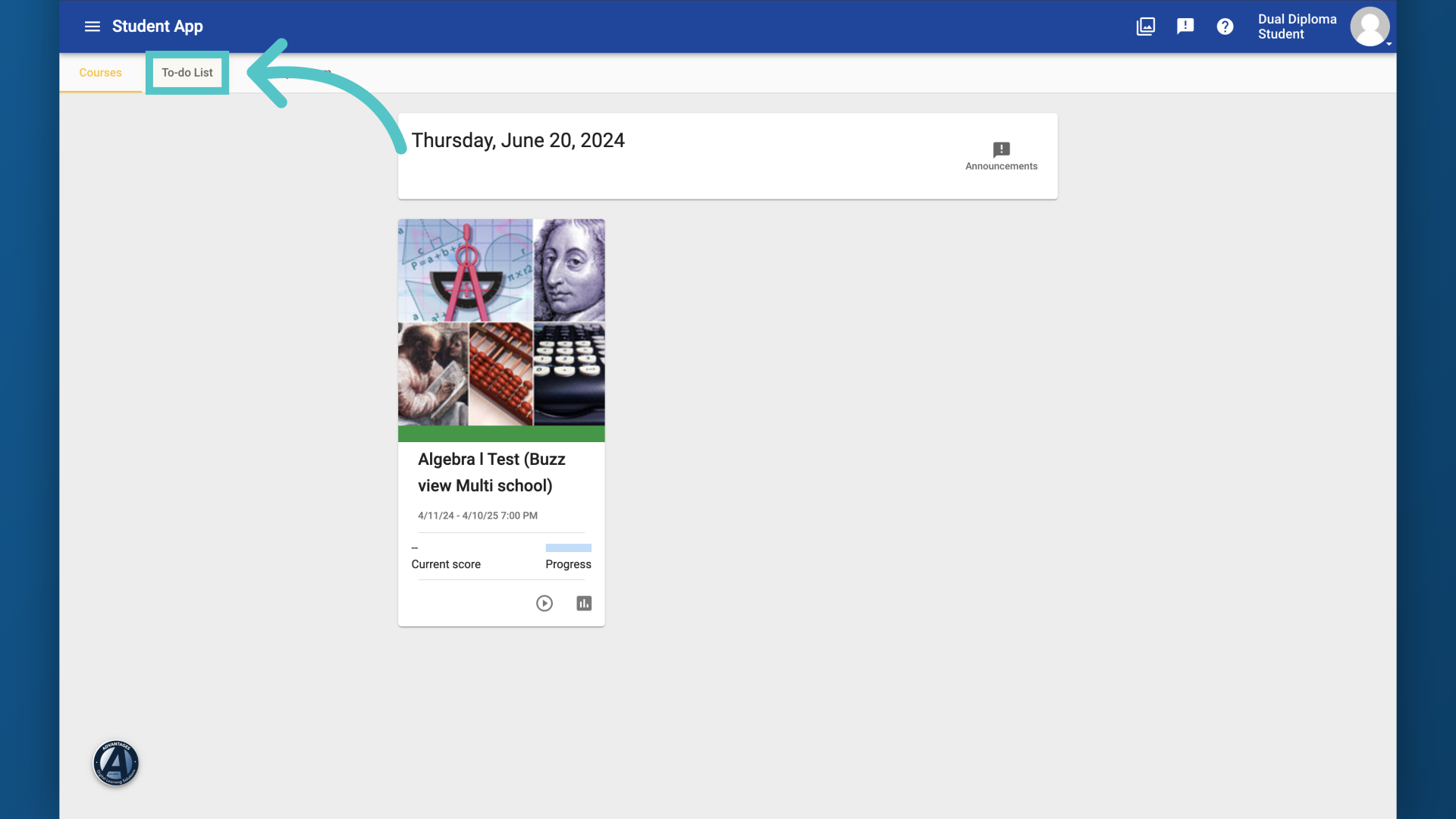
From the top left, access the "To-do List."
3. Choose an Assessment
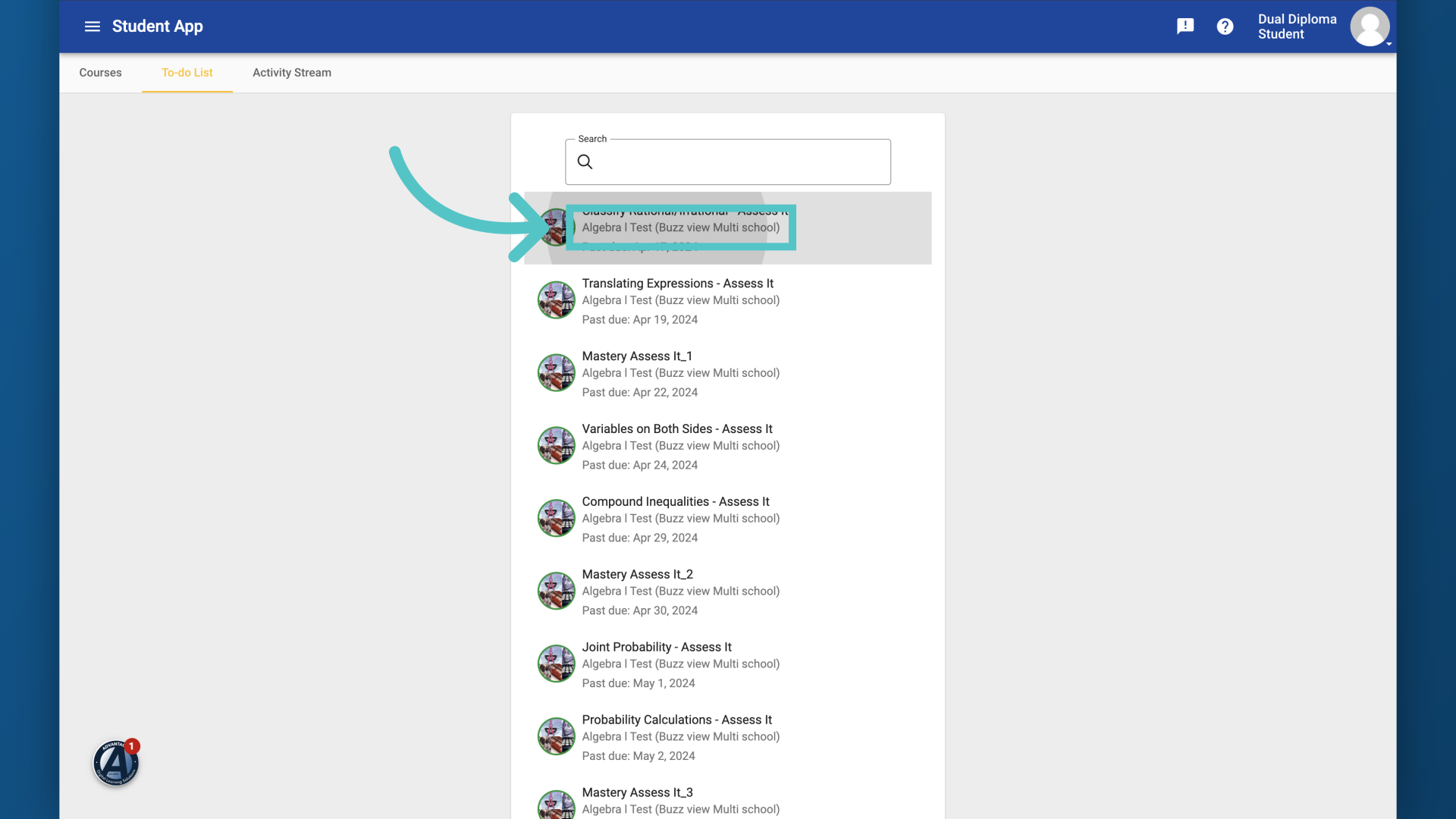
Choose an assessment that you are prepared to complete. Remember, you will only have one attempt for each assessment. All retries are by teacher request only.
4. Click "Start"
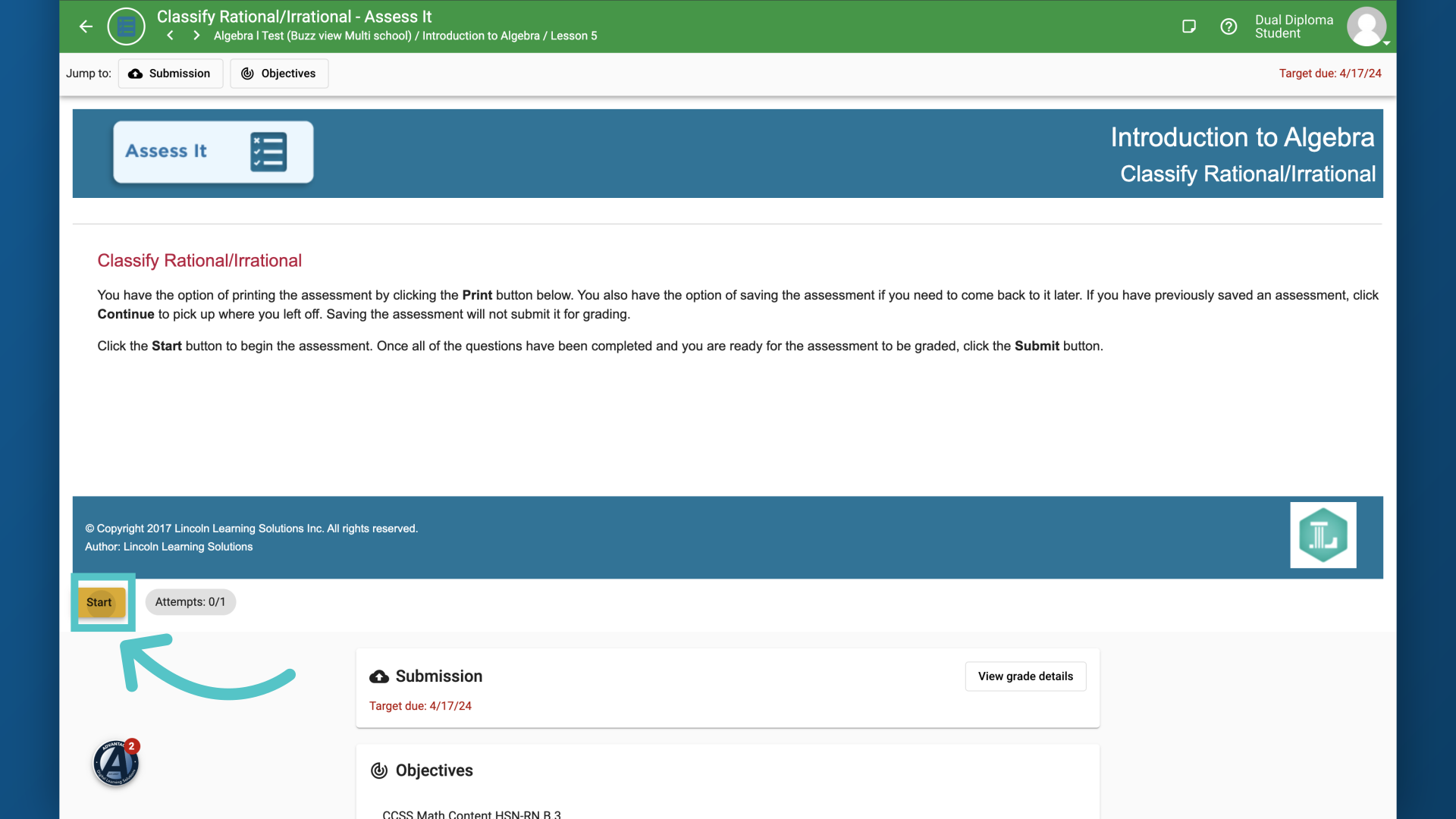
Begin the test or activity.
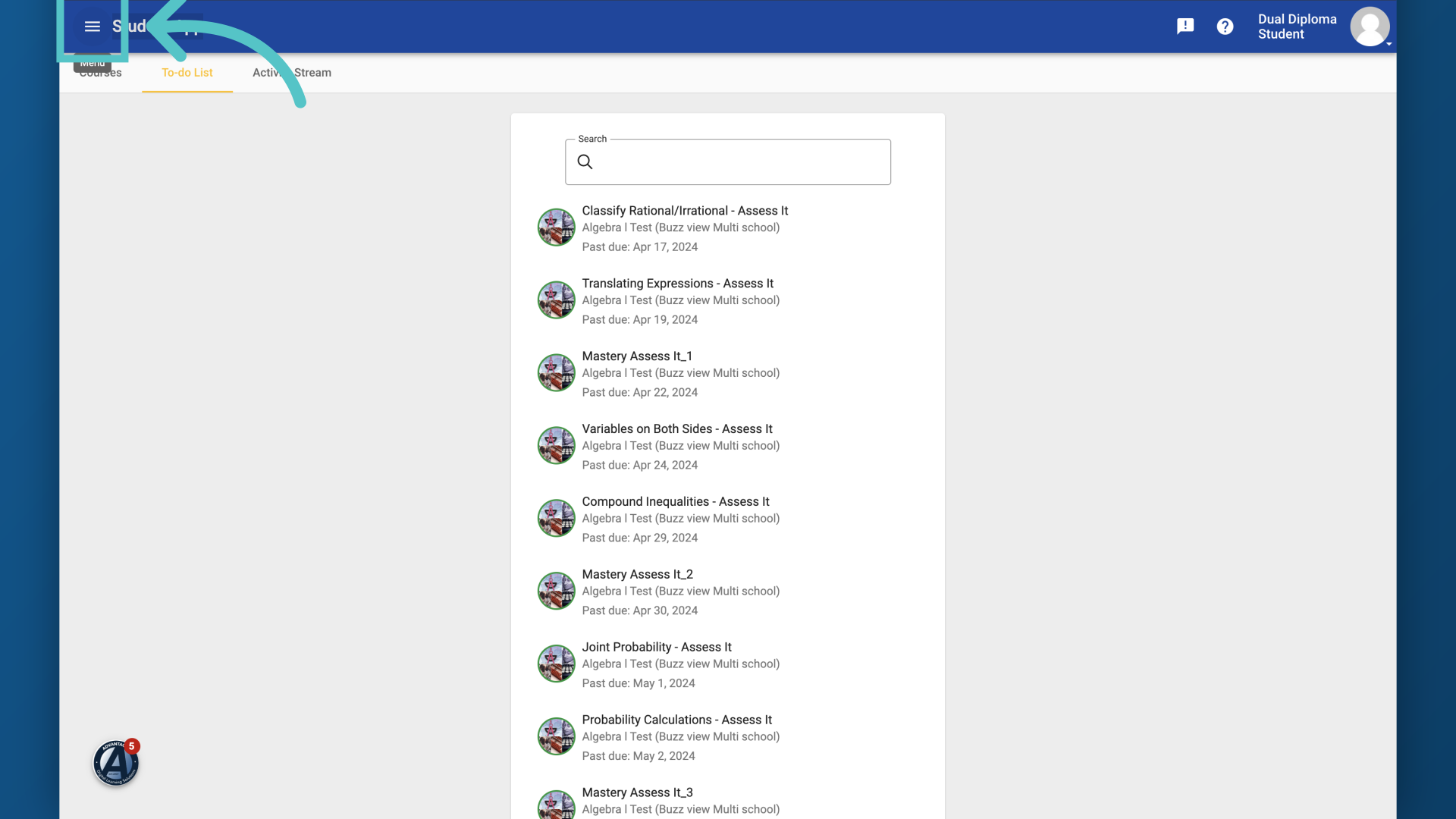
5. Select the three line menu
When you have completed the assessment, you will have the option to return to the course homepage by clicking the three lines on the top left of the screen.
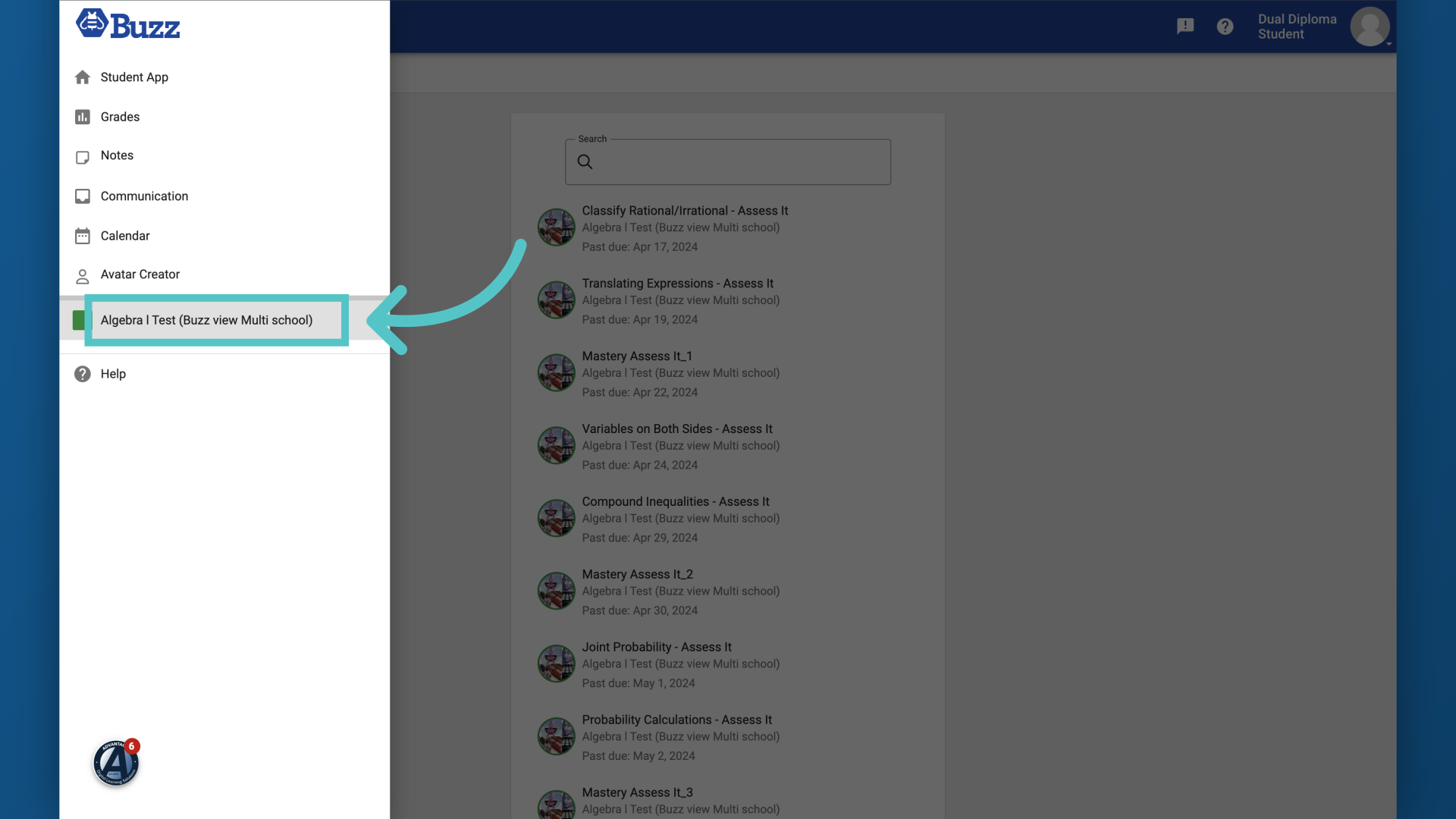
6. Choose your course
Choose the course you would like to continue to work in from the list in the slide-out menu.
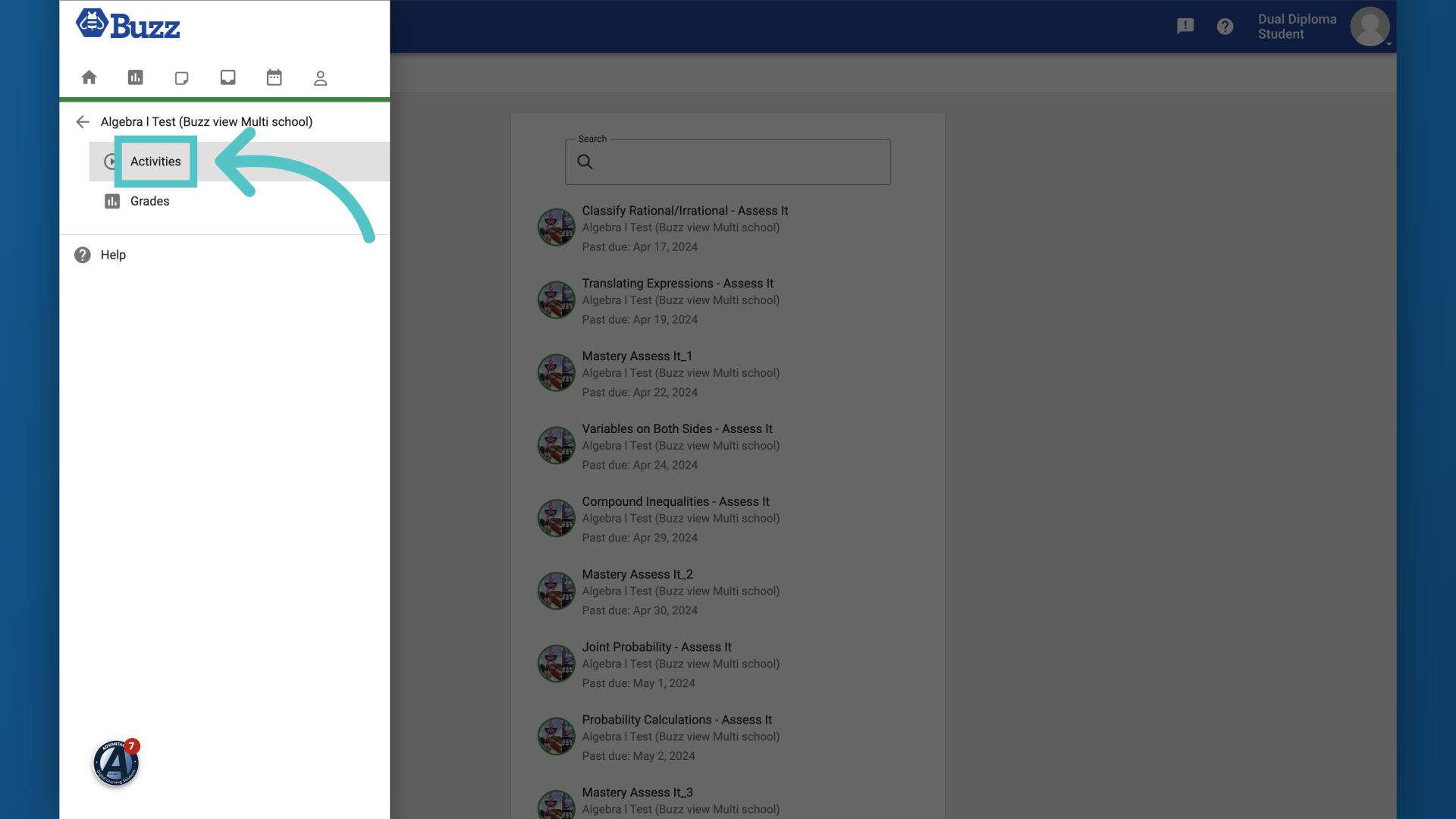
7. Click "Activities"
Navigate to the Activities section to review your course work.
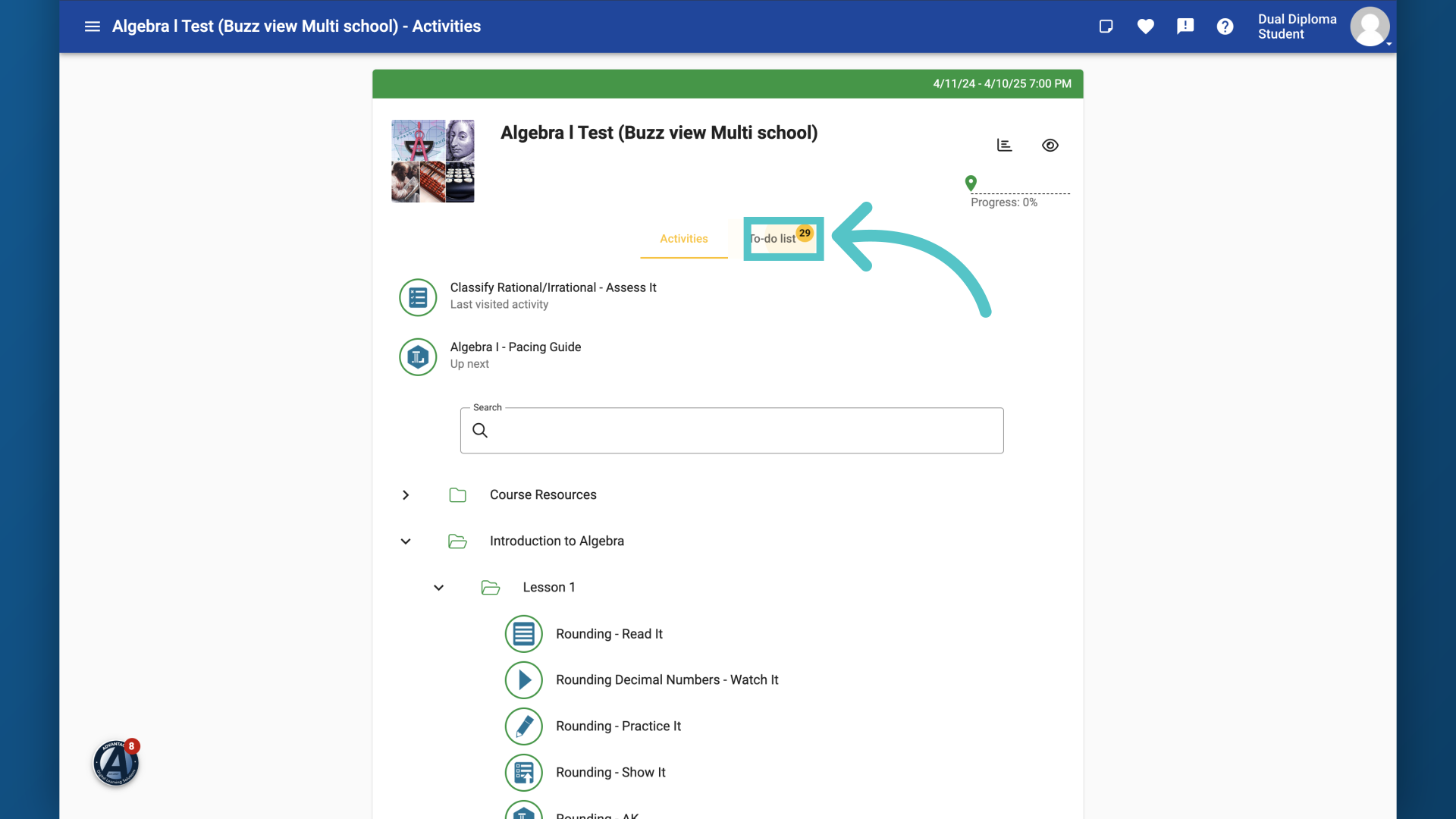
8. View your course To-Do list
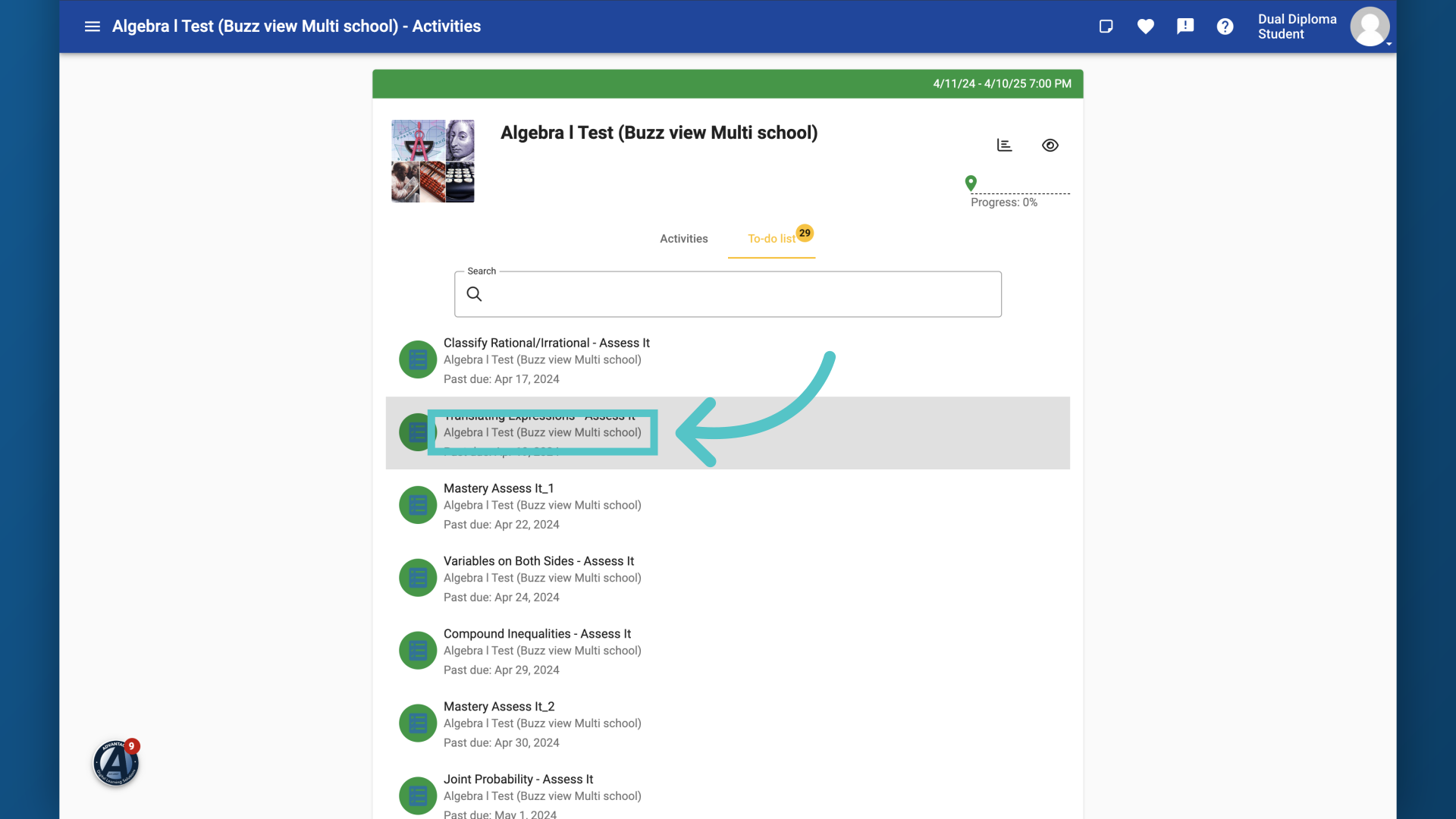
You also have the option to view the To-Do list from the top of your course page.
9. Choose an Assignment
To find out the due date for an assessment, first select the assignment.
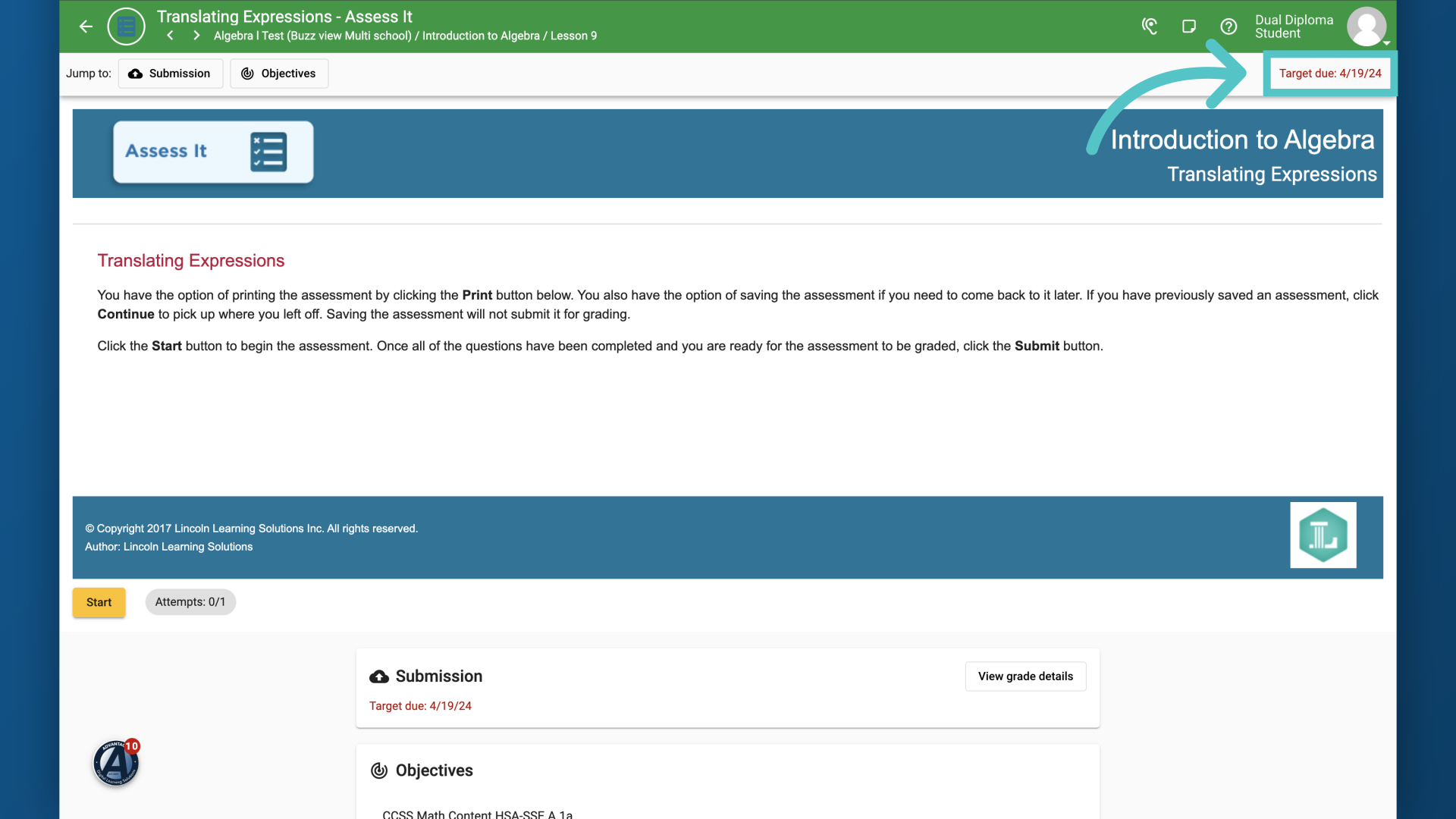
10. View Due Date HERE:
The due date for any assignment will be shown on the top right of the assignment's starting page.
This guide reviewed the steps to find assessments using the To-Do list feature. If you have further questions, please contact your Advantages Success Manager, or submit a help ticket in ASSIST. Thank you.