Expand to Full Screen for Best Viewing
This guide will demonstrate how to submit student work for teacher grading in Lincoln Learning.
Go to assist-learning-school.agilixbuzz.com
1. Access Course
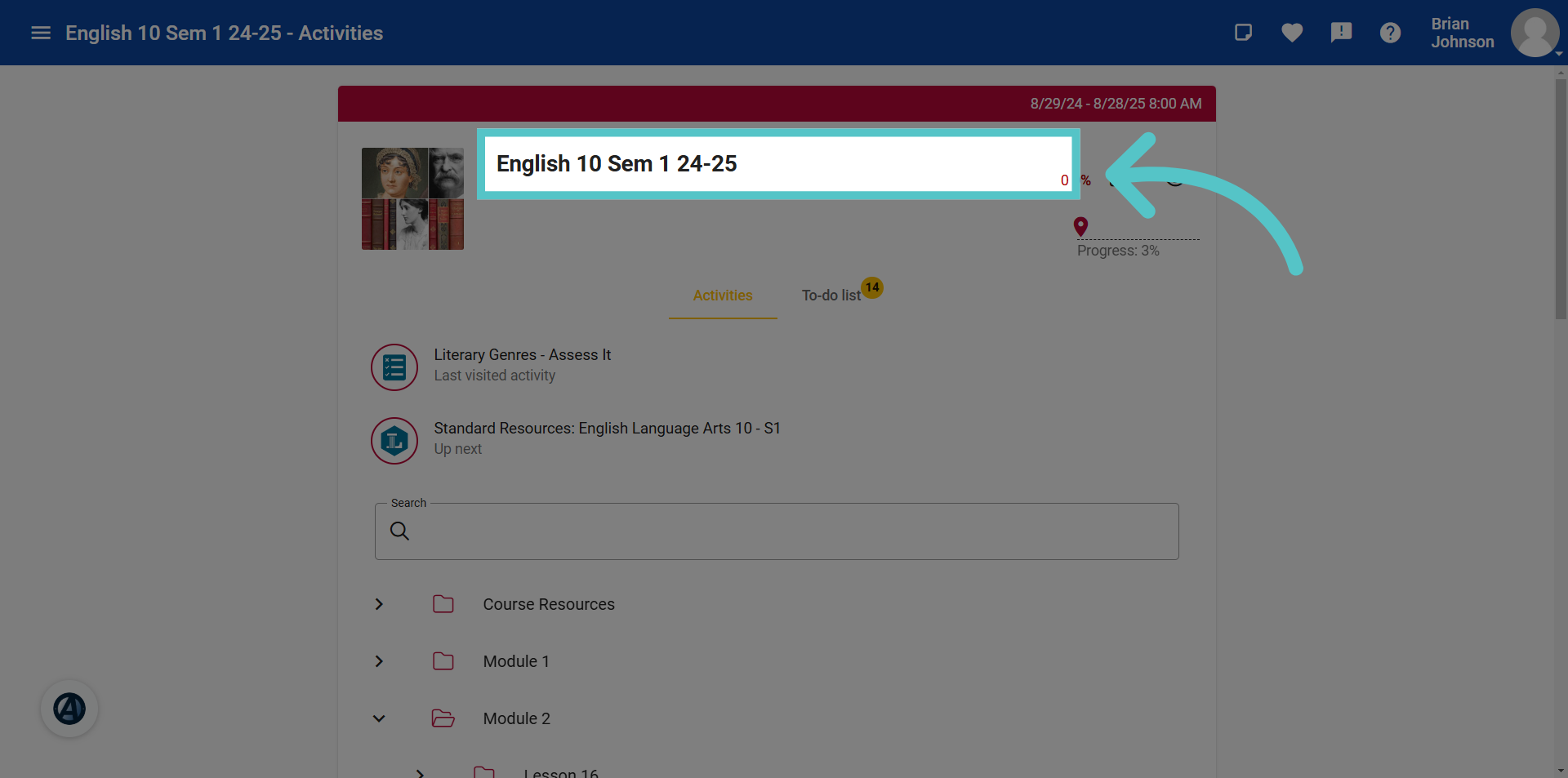
Begin by opening your Lincoln Learning course.
2. Assess It
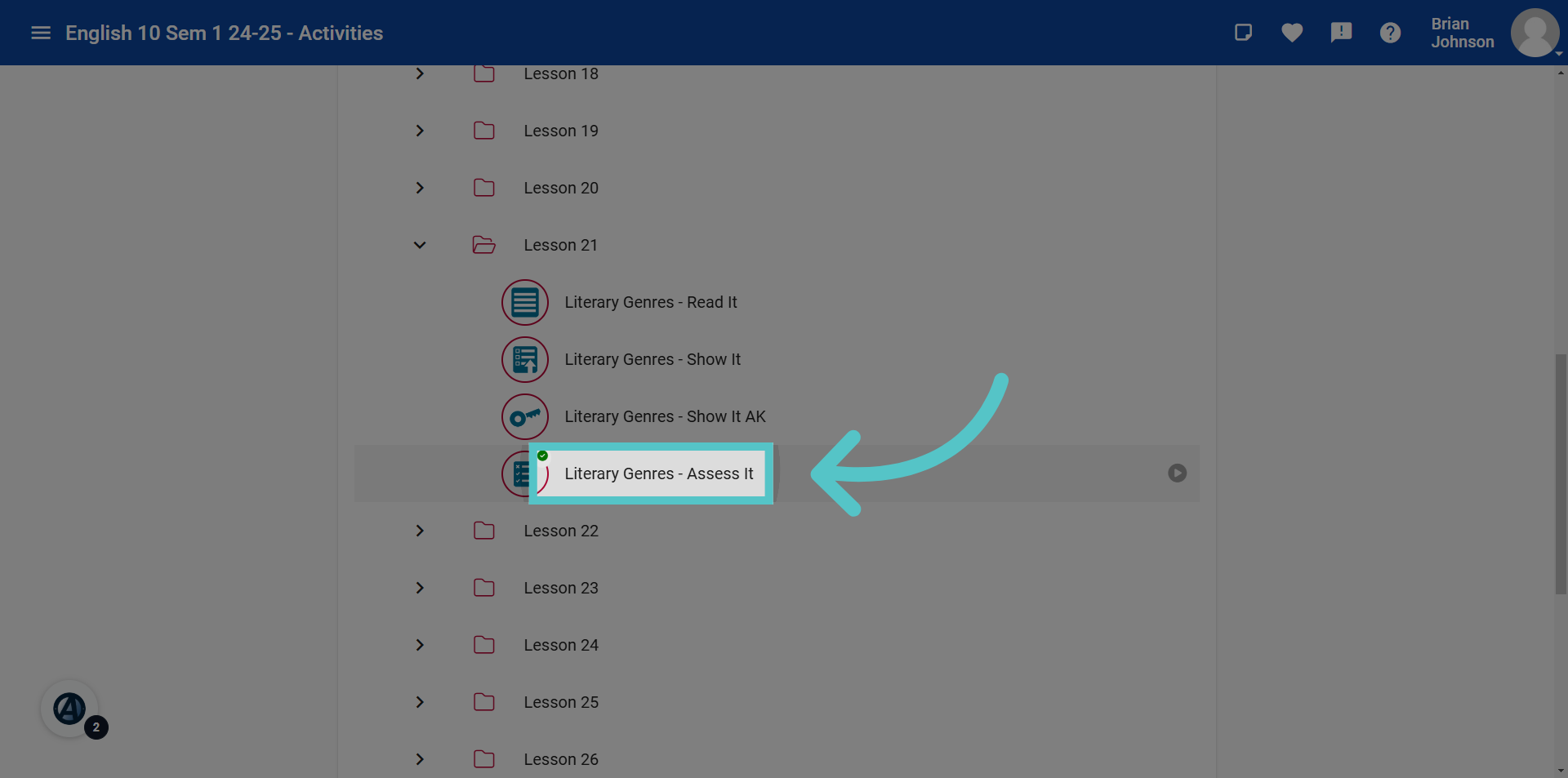
Assess Its are activities that require student submissions for teacher review. Open the Assess It activity.
3. Instructions
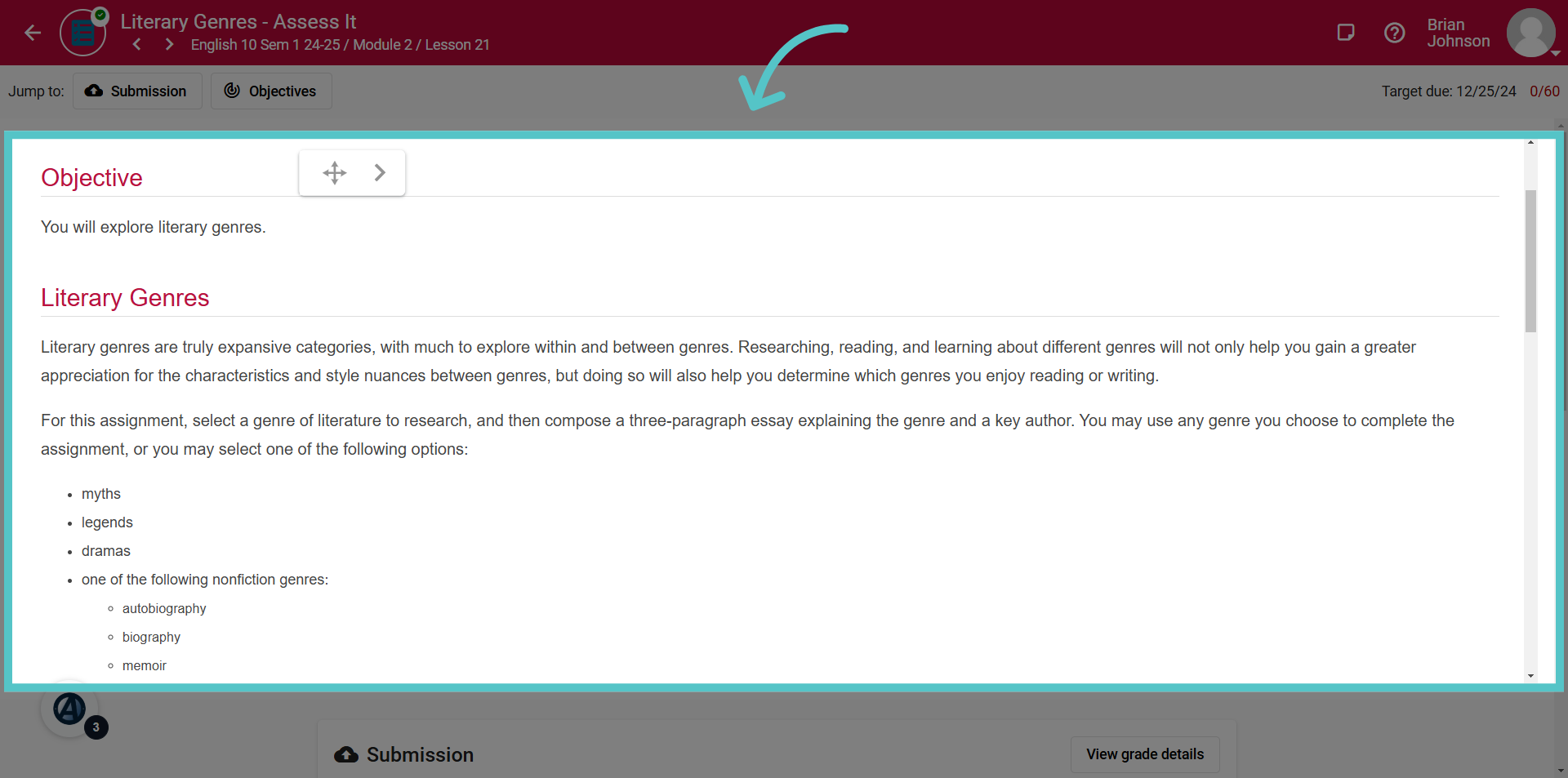
A learning objective and full activity instructions will be provided.
4. Rubric
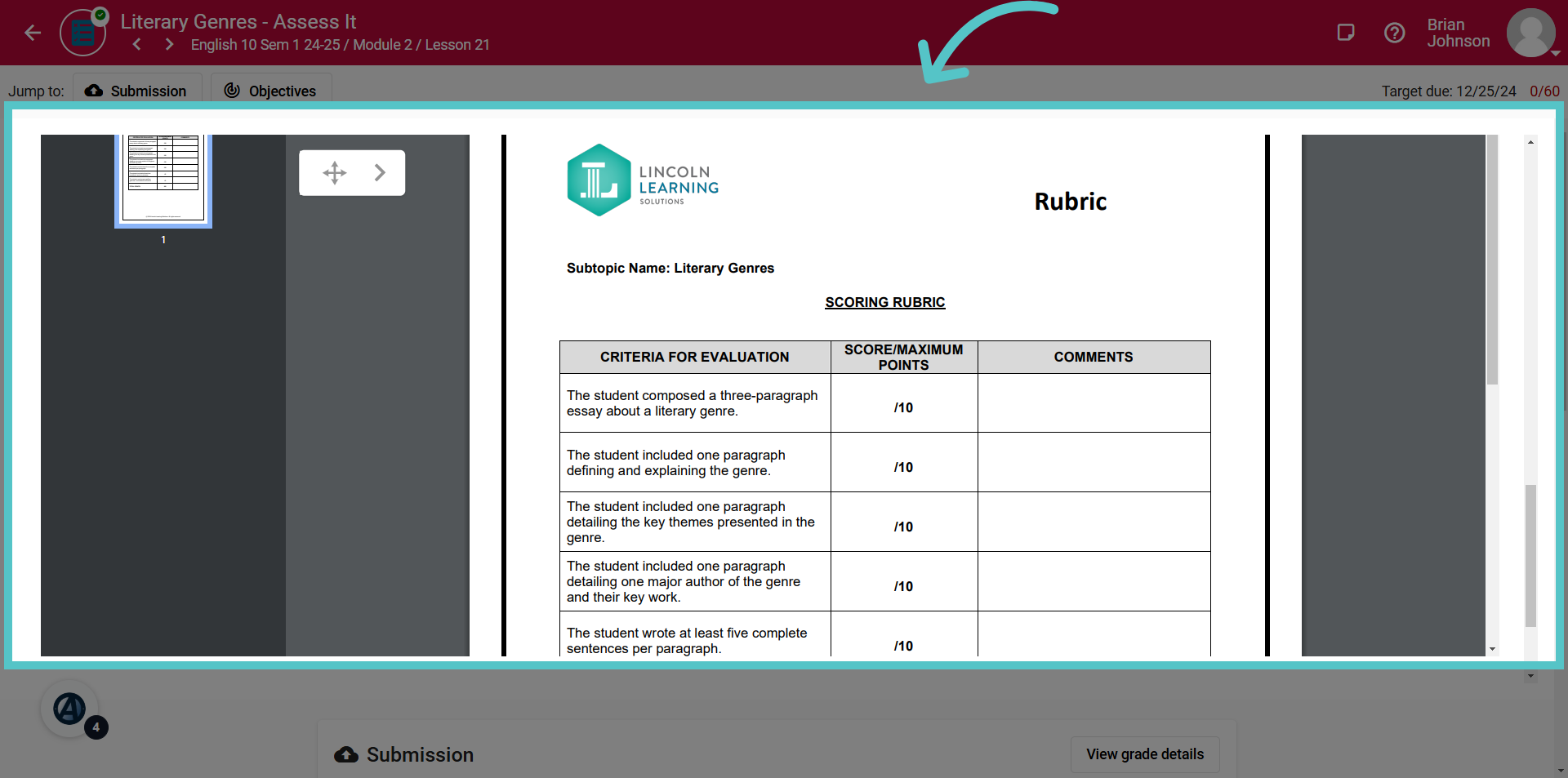
A scoring rubric is also provided for student reference.
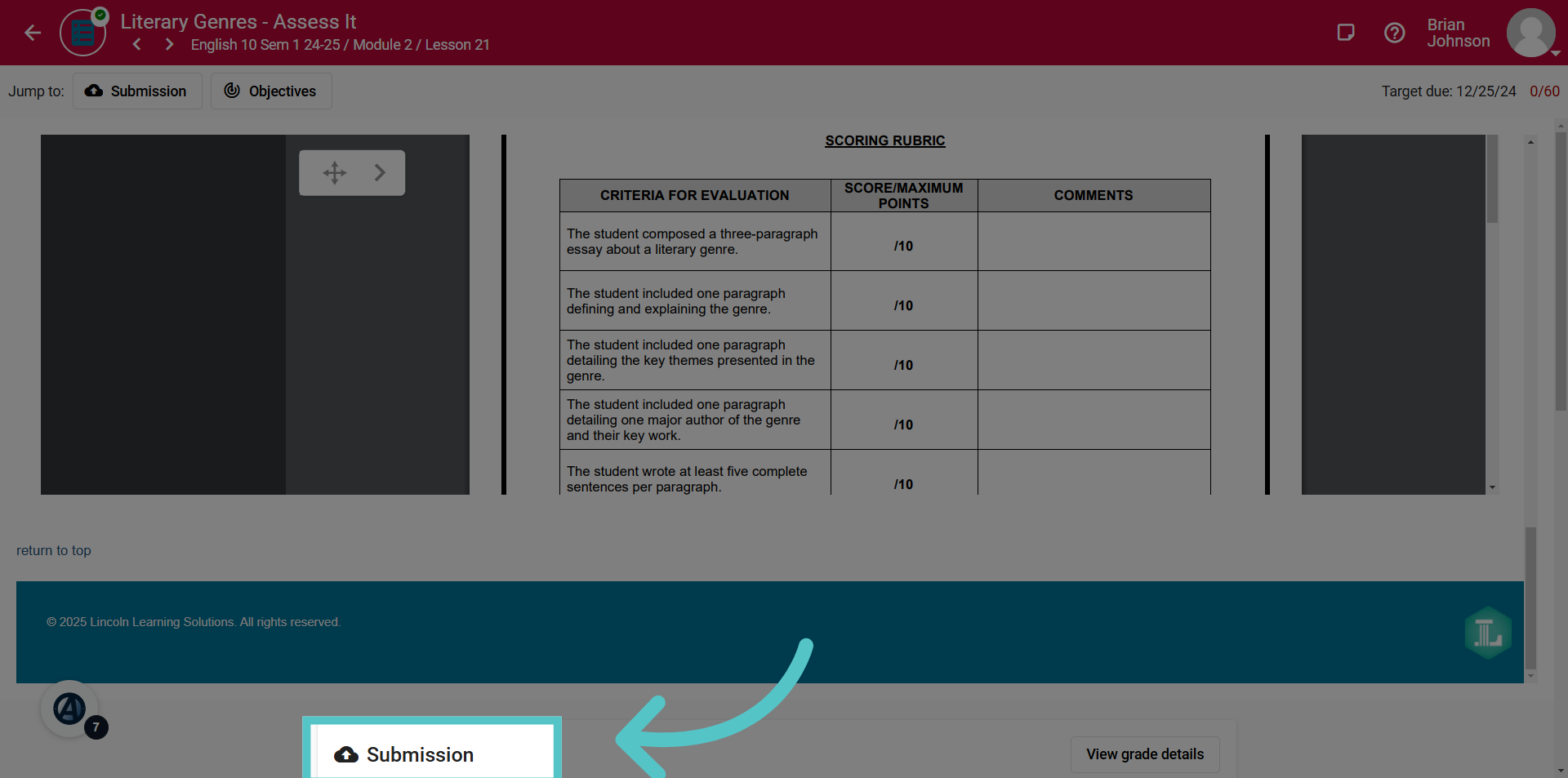
5. Click Submission
Students will find the submission section below the Rubric pdf.
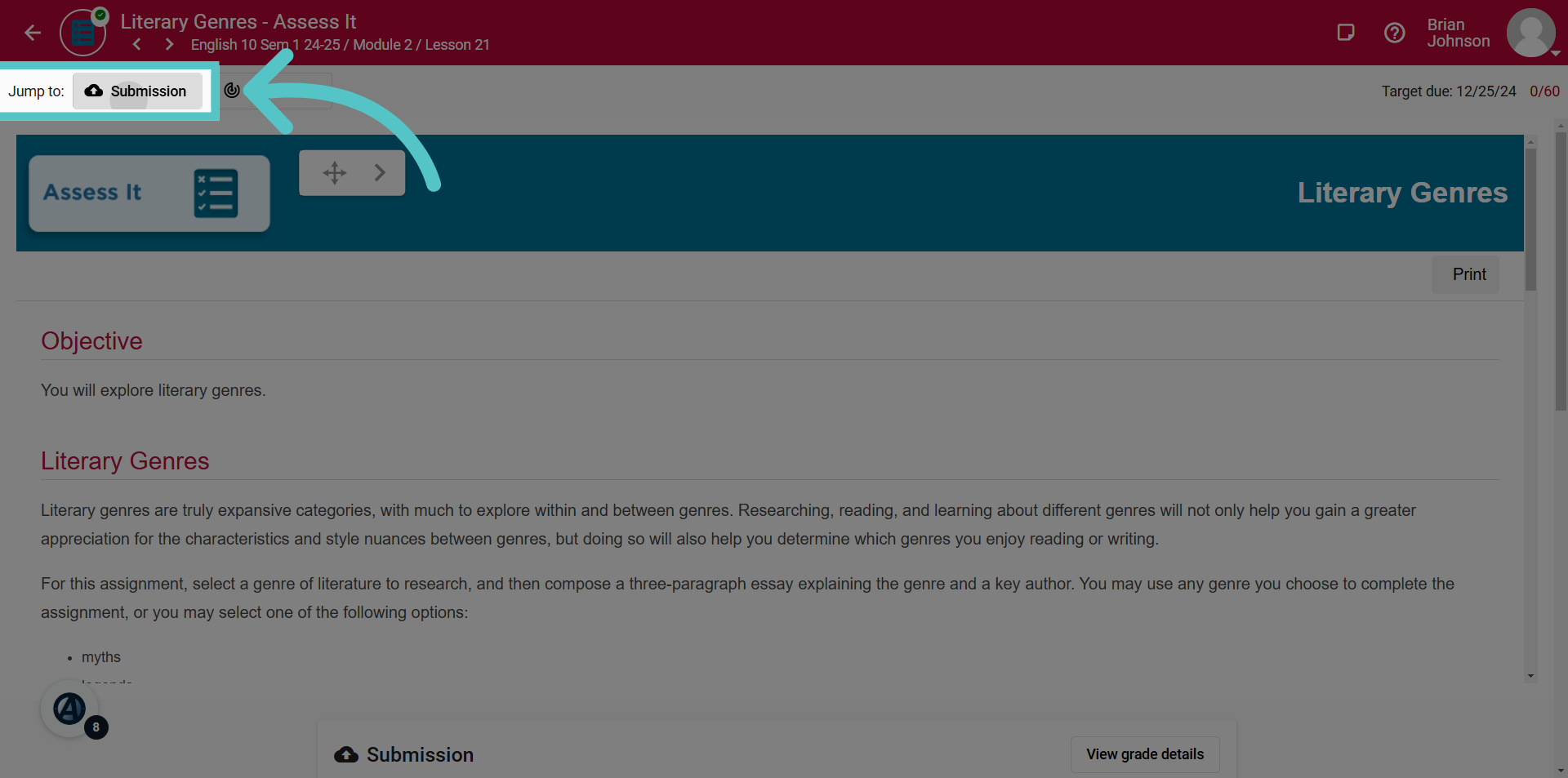
6. Submission Quick Link
There is also a quick link to the submission section at the top of the activity page. Click here to be taken to the submission section.
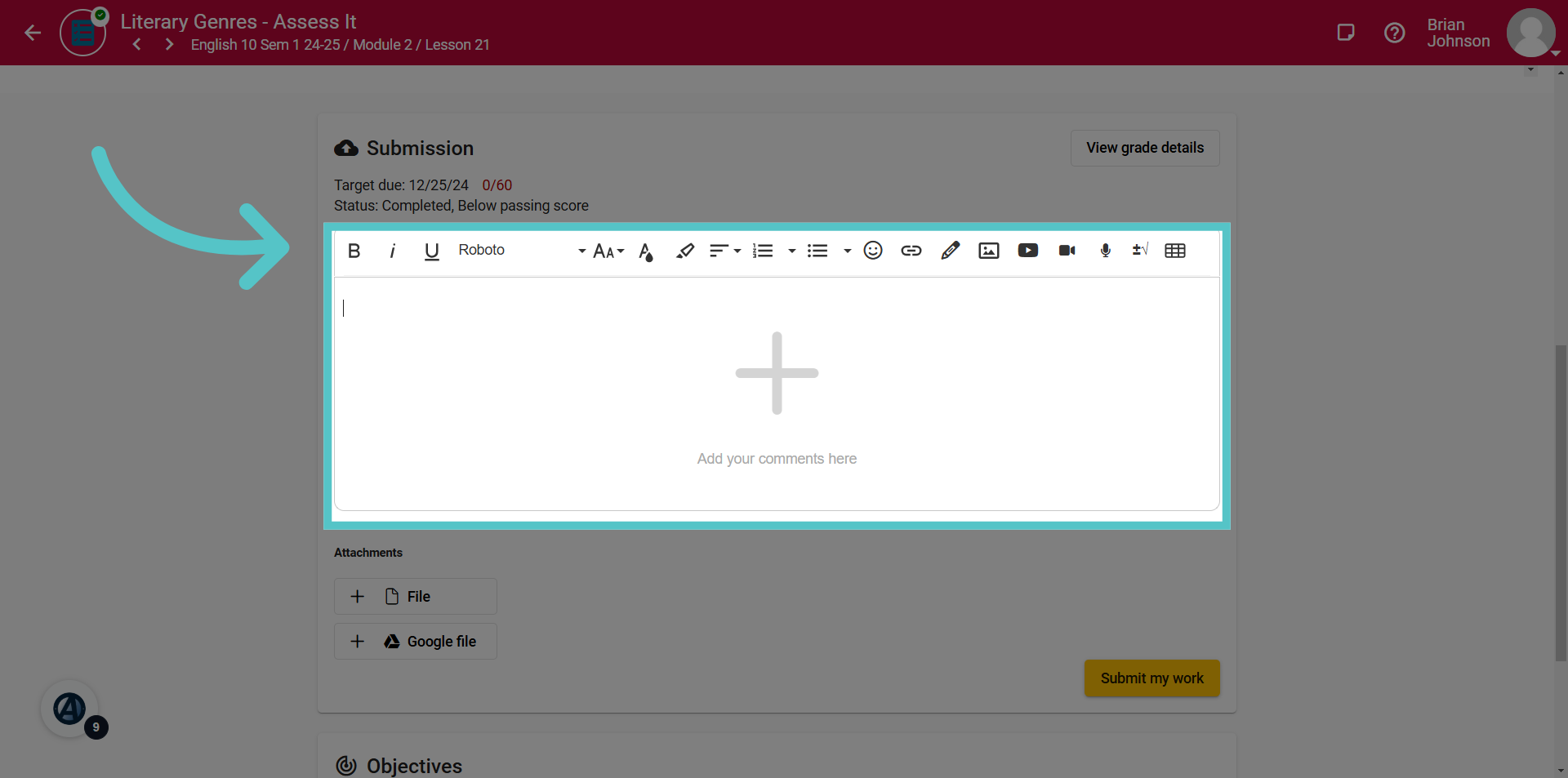
7. Message Box
Activities can be submitted in several ways. If a response field is available, students can type responses in the box. Editing options include images, video, and audio responses, as well as links and tables.
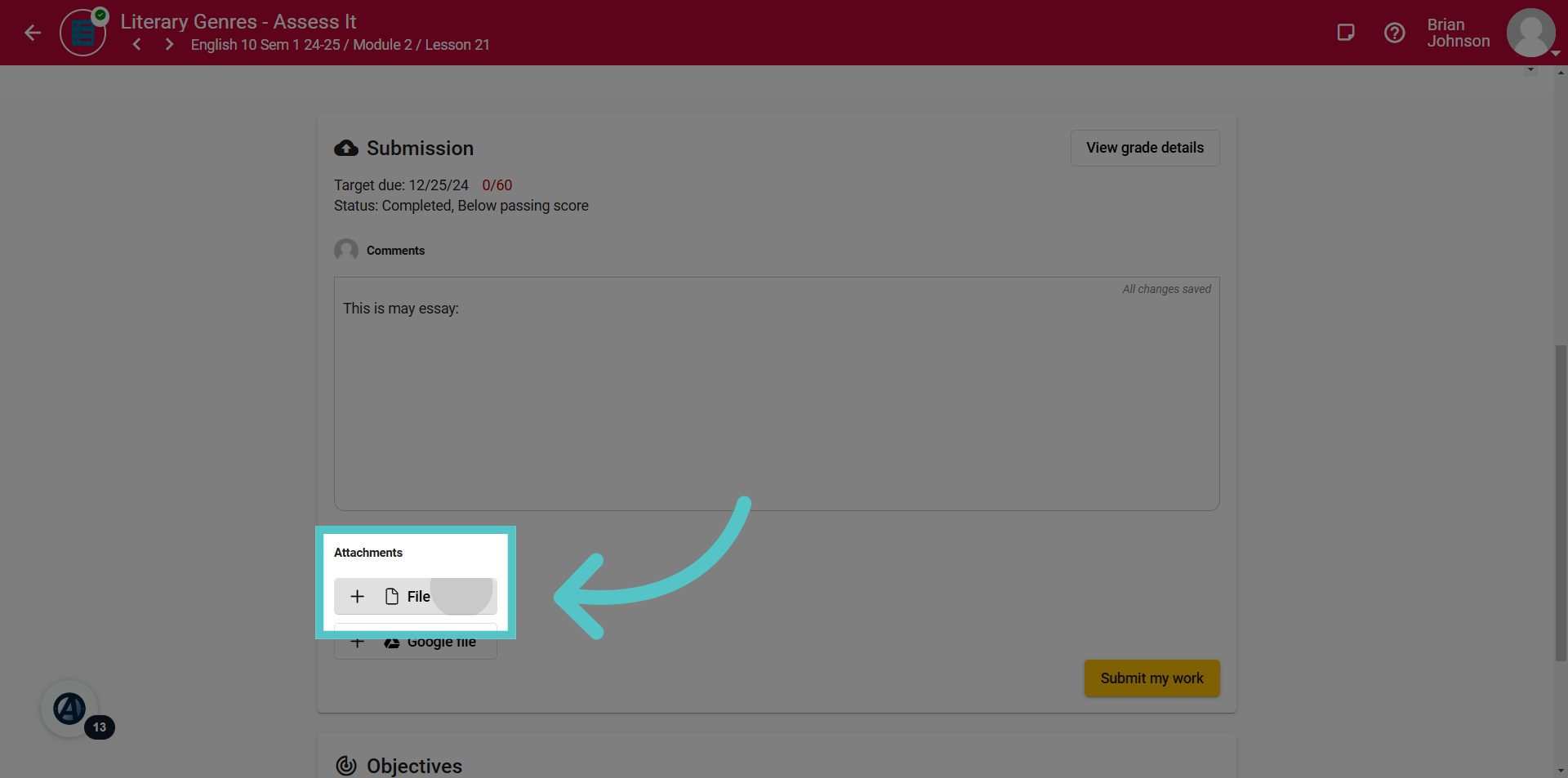
8. Upload File
Students may also have the option to upload a file from their computer. Click the file button to attach a file.
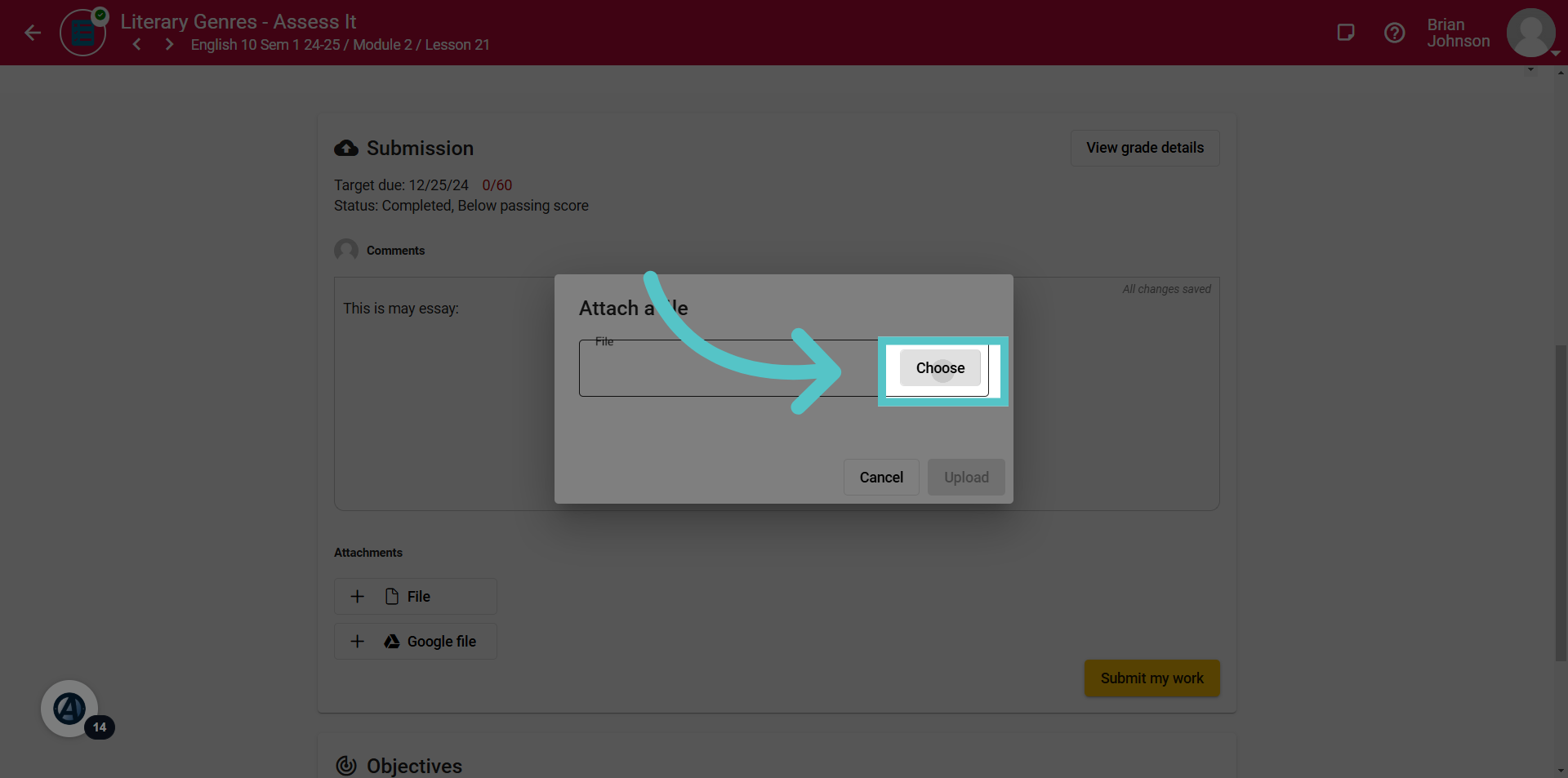
9. Click "Choose"
Select the "Choose" option to search for a file to upload.
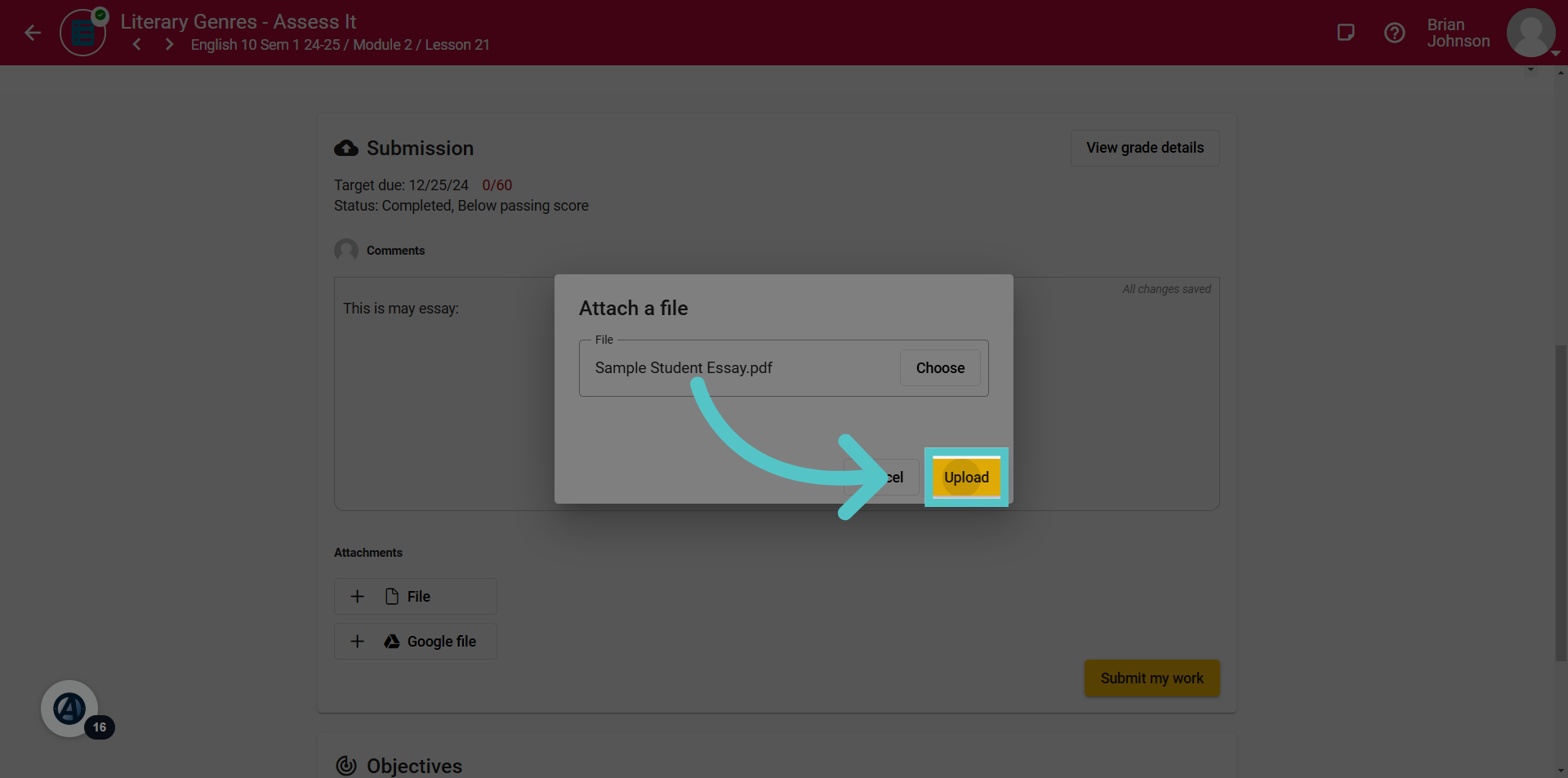
10. Click "Upload"
Select a file, and click "Upload" to attach it to the Submission section.
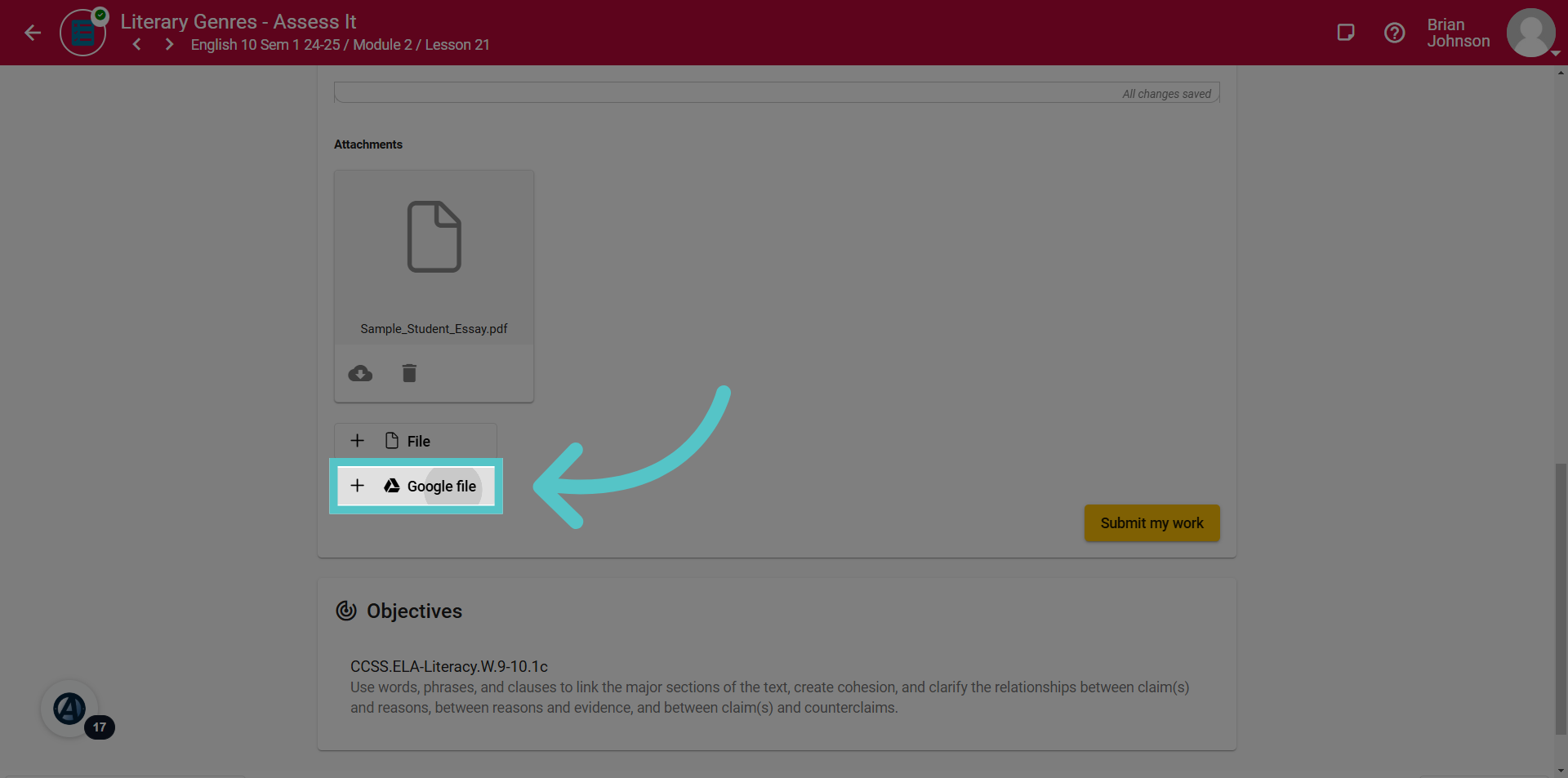
11. Click "Google file"
Students may also be able to attach a Google File. Click the Google File button and choose a file from Google Drive.
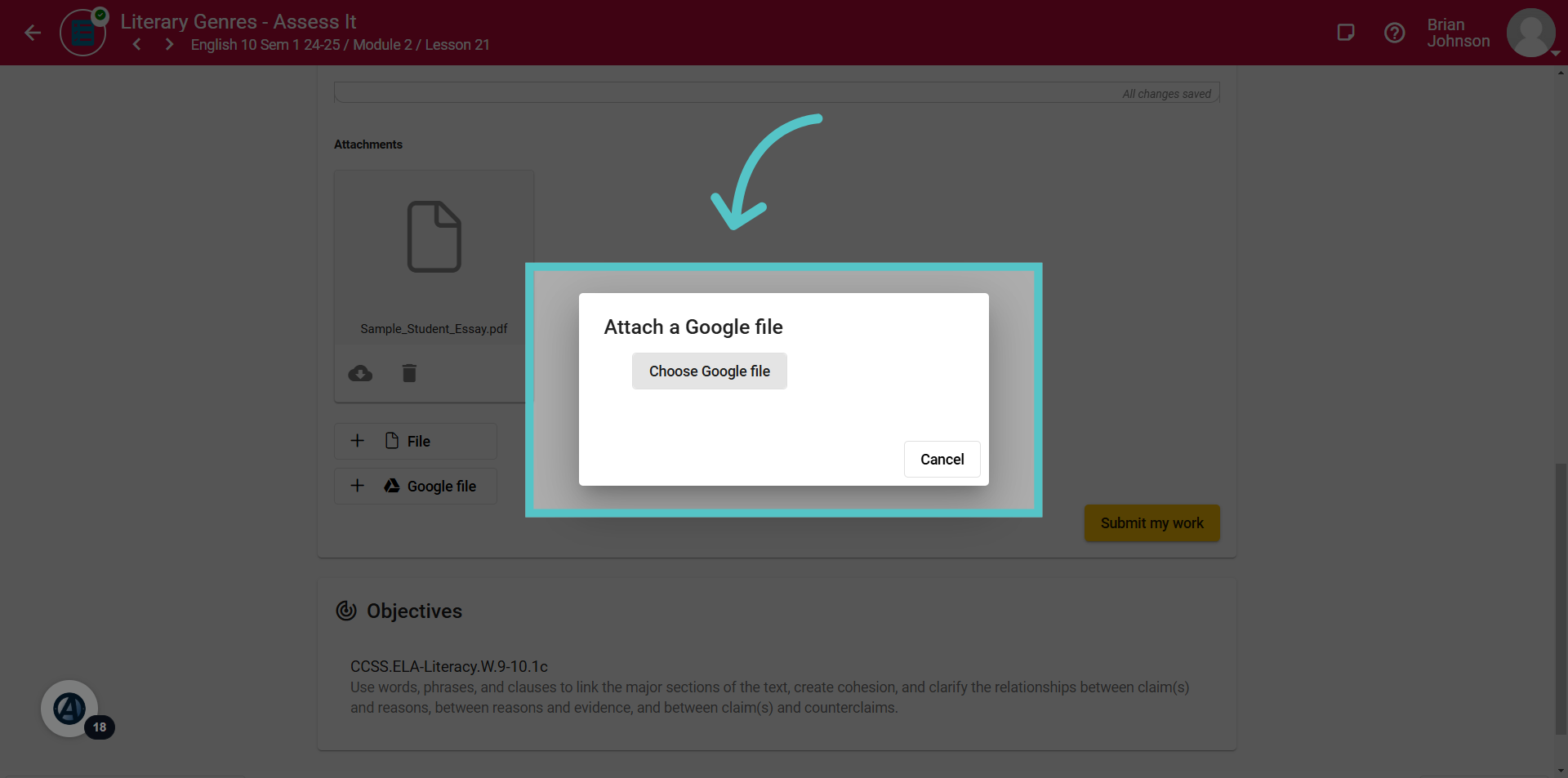
12. Search Drive
Select the "Choose Google file" option.
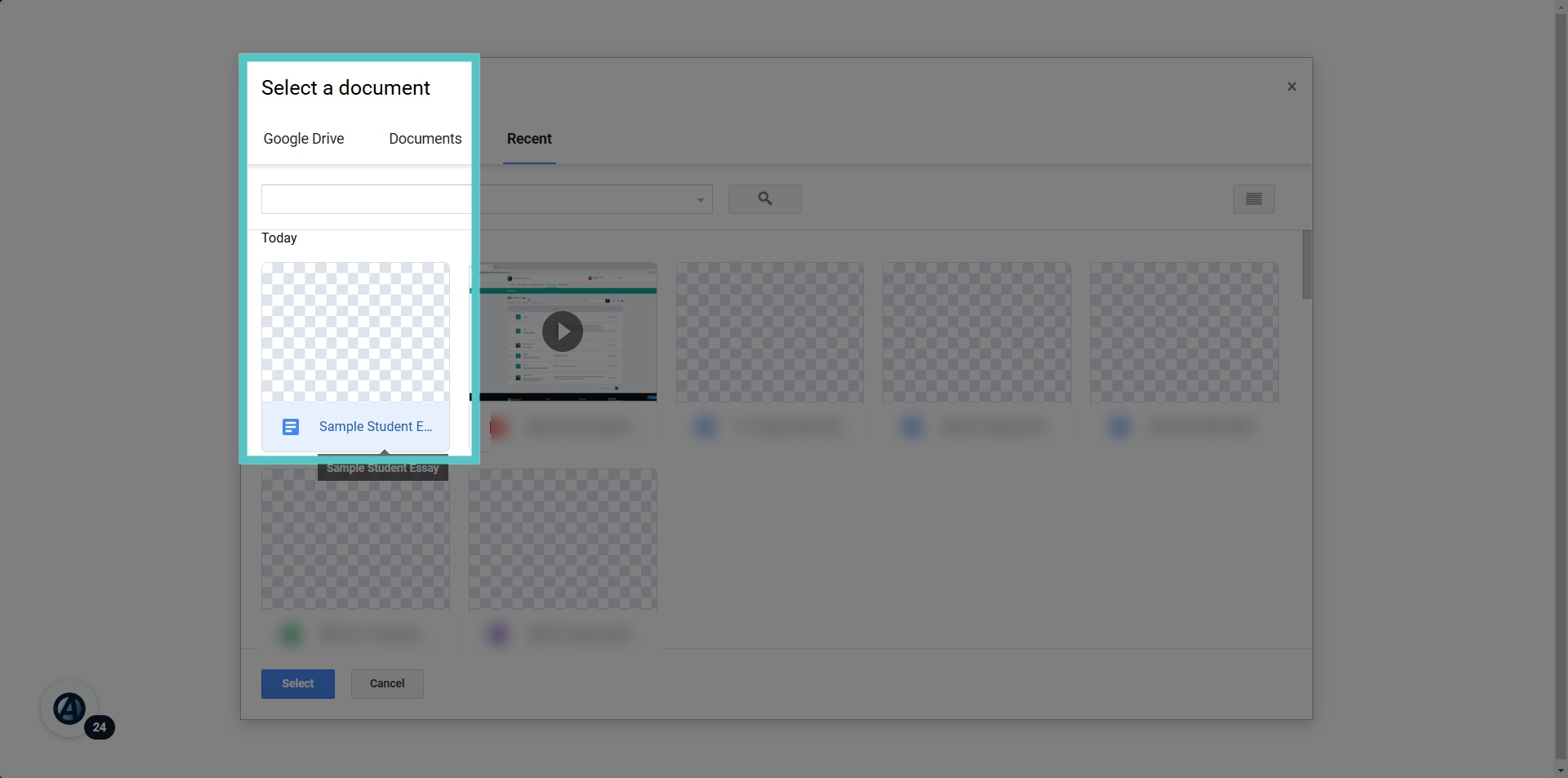
13. Click "Sample Student Essay"
Select the file to be attached to the submission section.
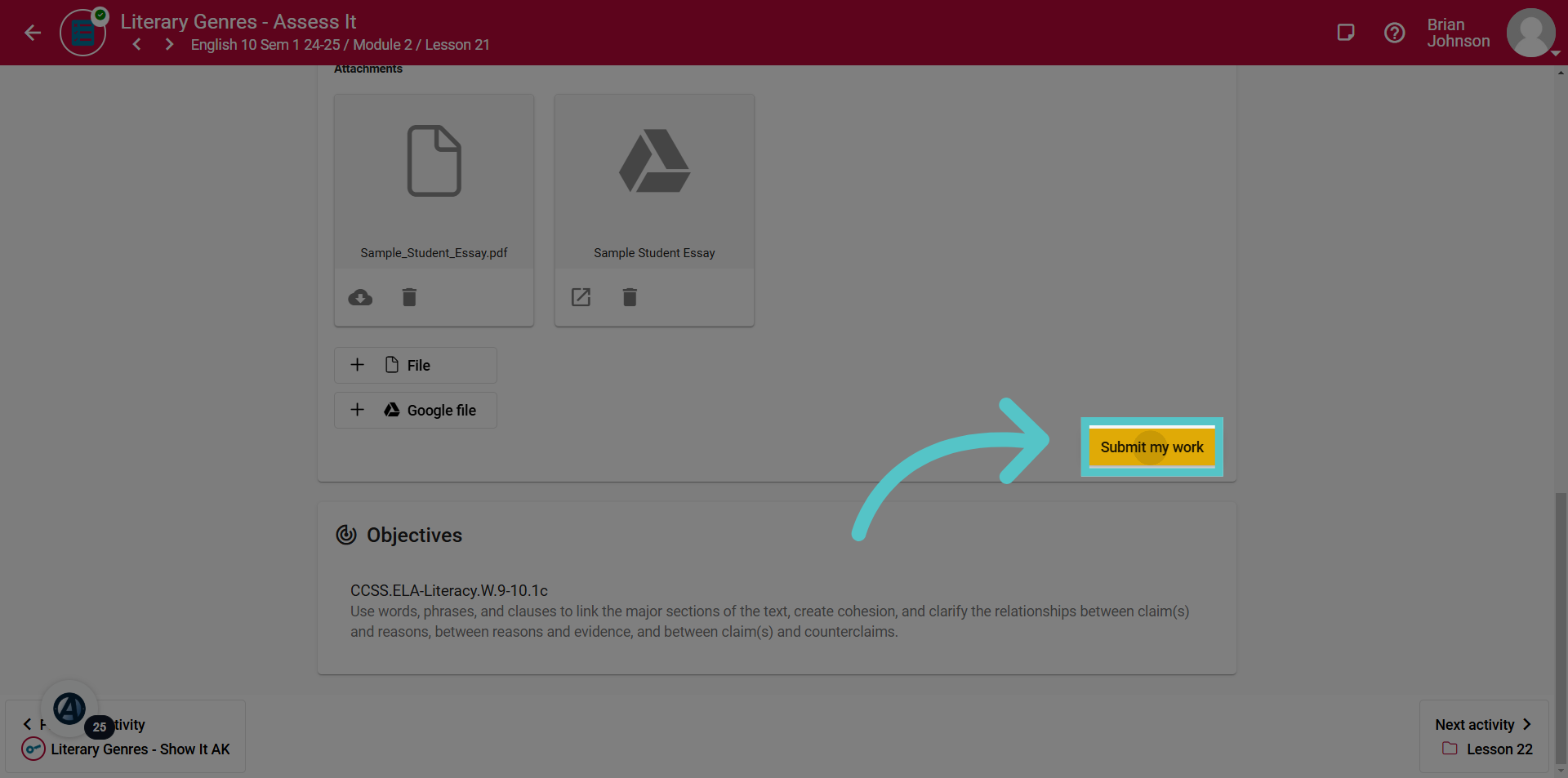
14. Click "Submit my work"
When work has been added to the submission section, click the "Submit my work" button to officially submit it for teacher review. If you leave this page without clicking "Submit my work," the work will be saved here, but teachers will not be able to access it.
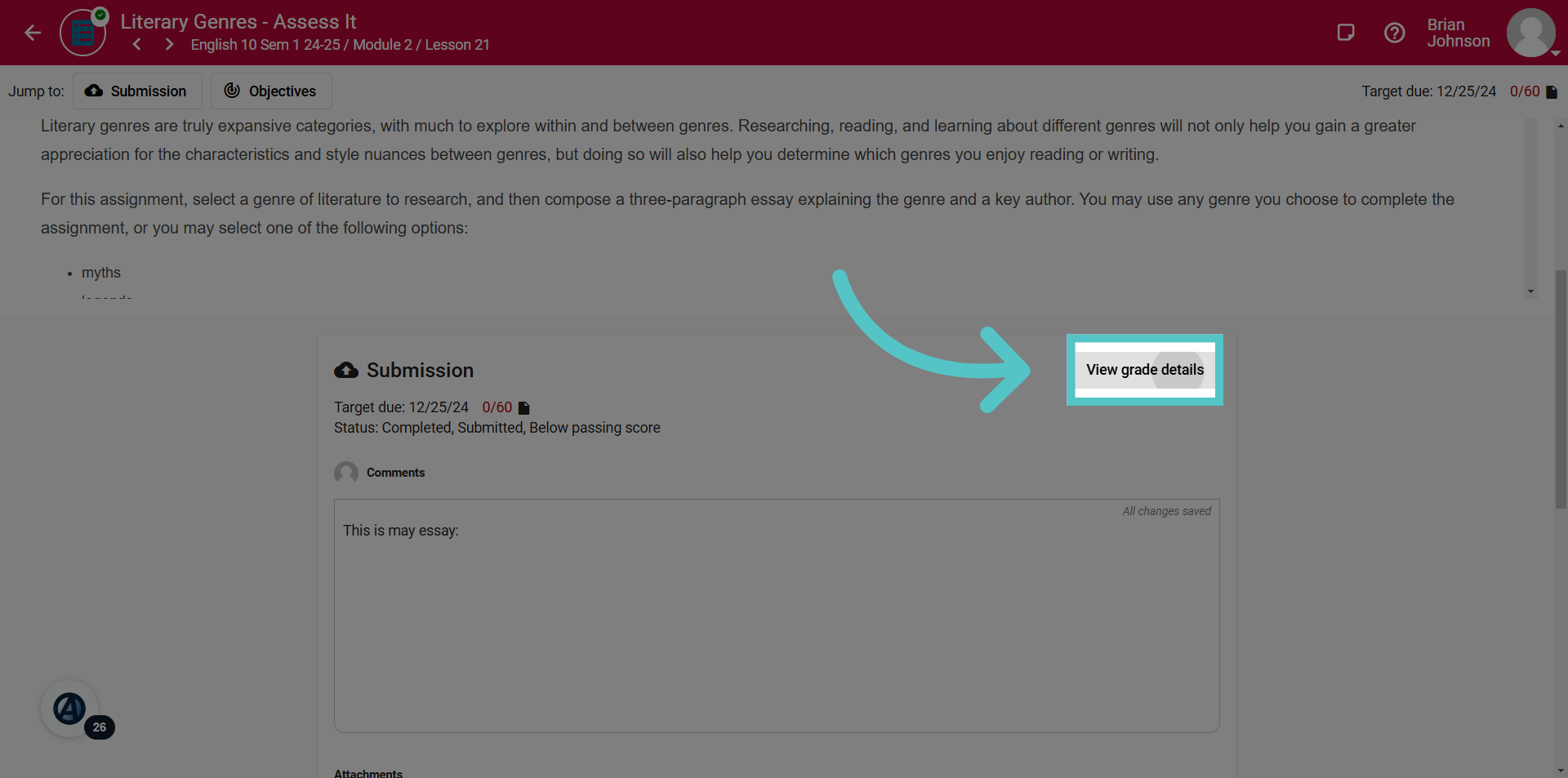
15. Click "View grade details"
Students can also review teacher feedback from this space. Click "View grade details" to check for a grade and message from the teacher.
If you have any questions about the information in this tutorial, please click "Contact Support" to submit a help request. Contact Support