Expand to Full Screen for Best Viewing
This tutorial guides you through the complete process of submitting Worksheetzone activities in Lincoln Learning.
1. Worksheetzone
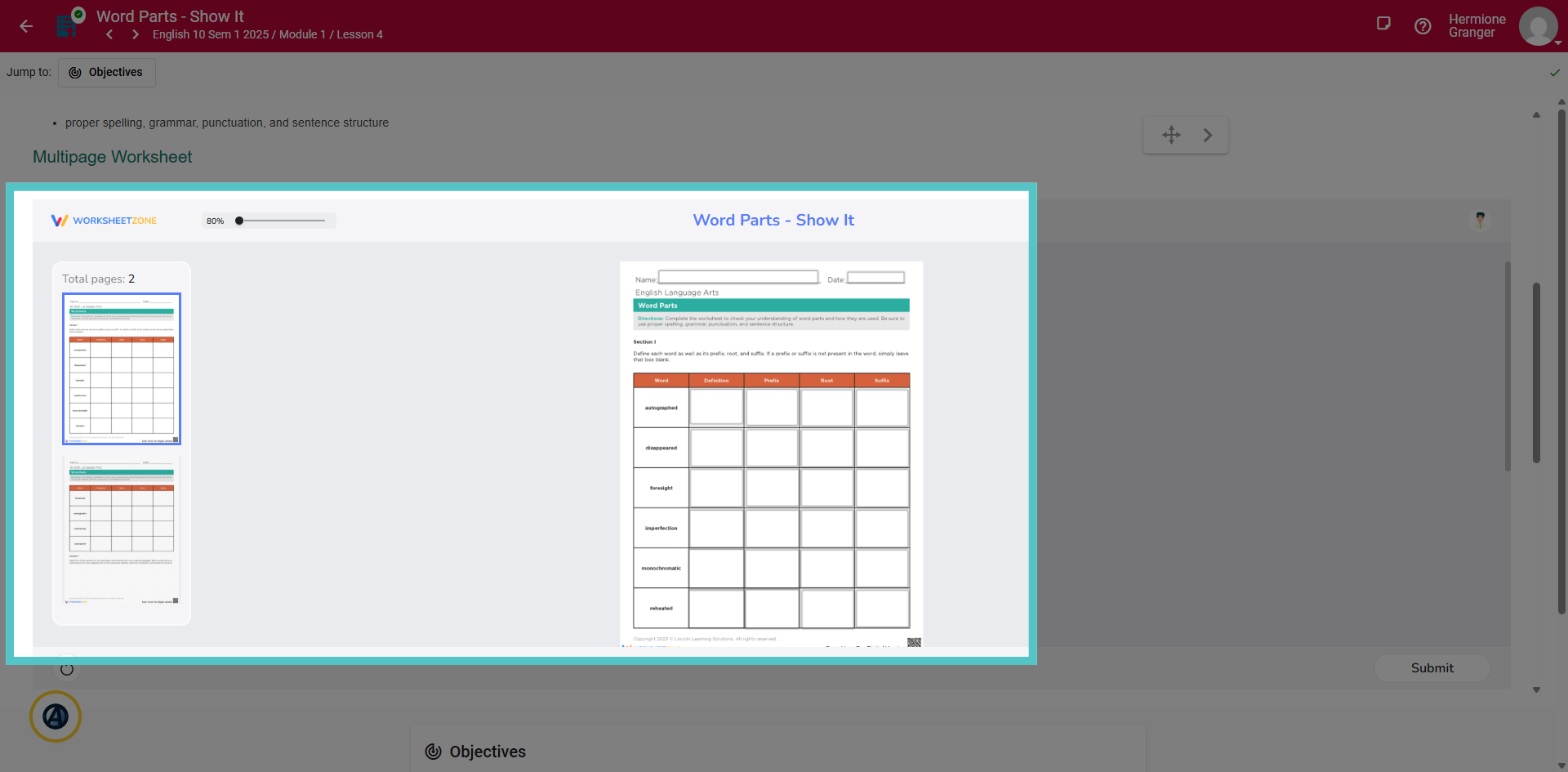
Many learning objects contain interactive Worksheetzone worksheets.
2. Increase Size
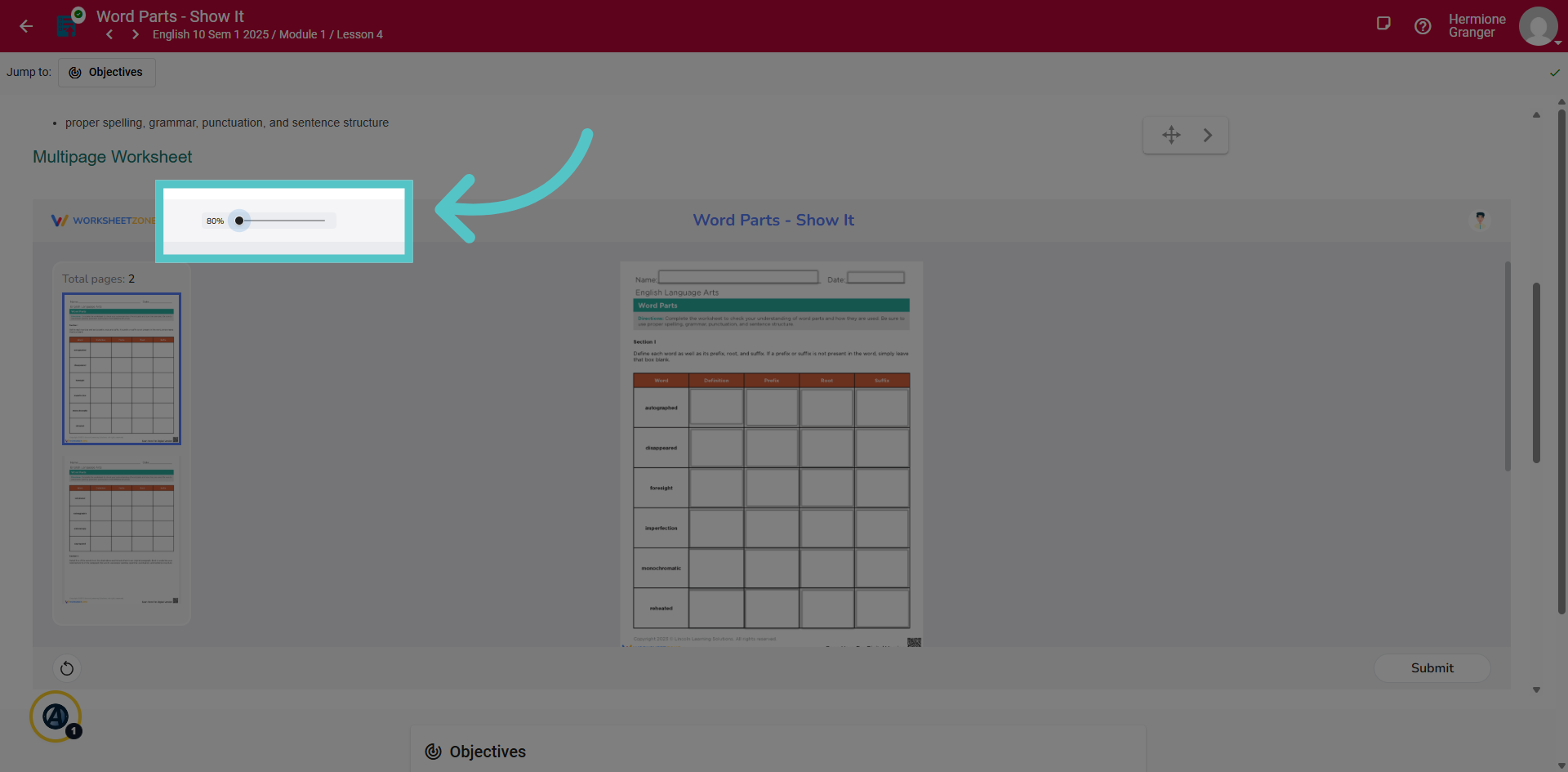
Click and slide the black circle to increase the size of your document page. This will make it easier to interact with. If the document becomes blurry, zoom in on your browser tab as well.
3. Enter Responses
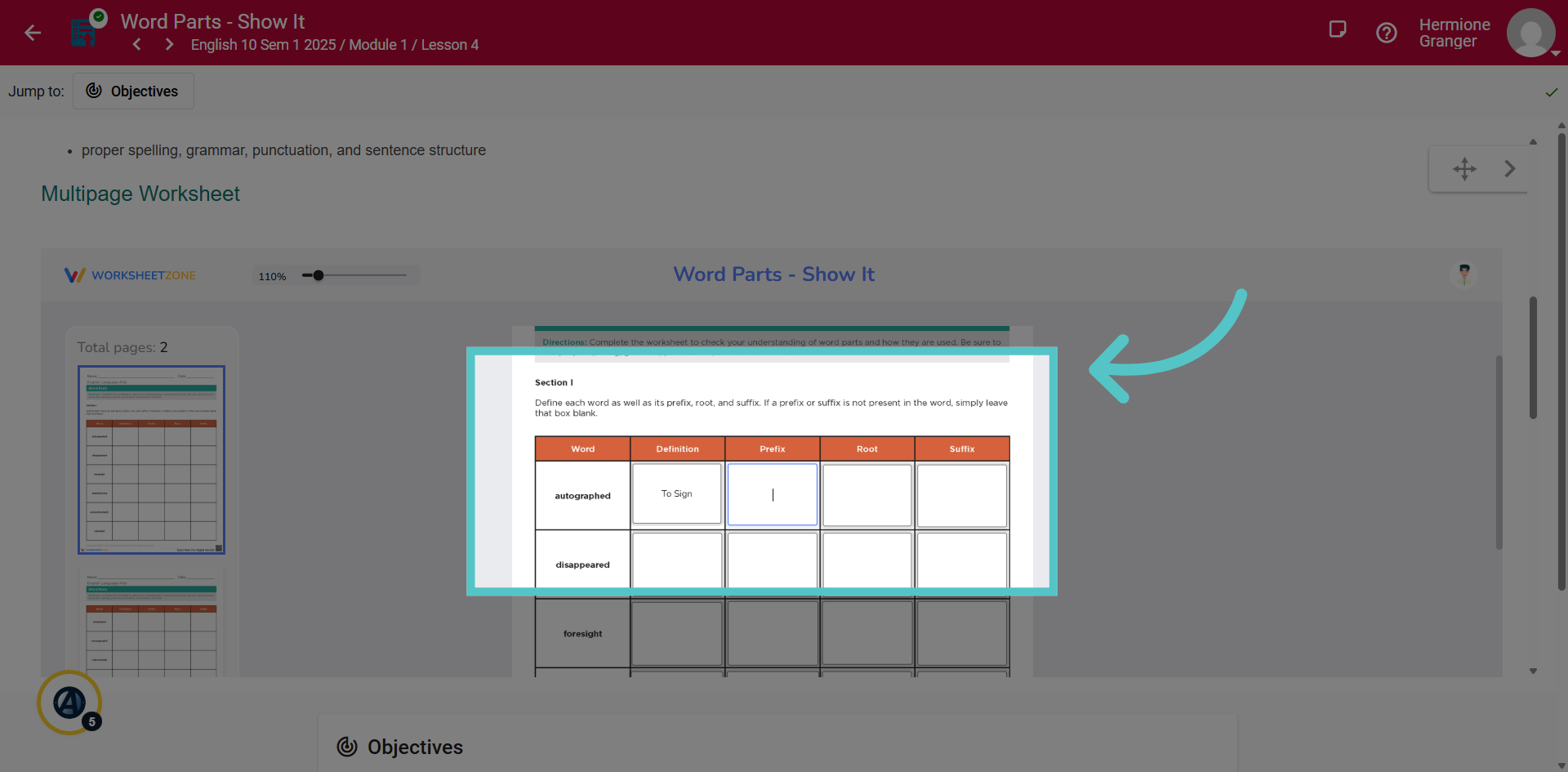
Enter responses directly onto the worksheet.
4. Click "Submit"
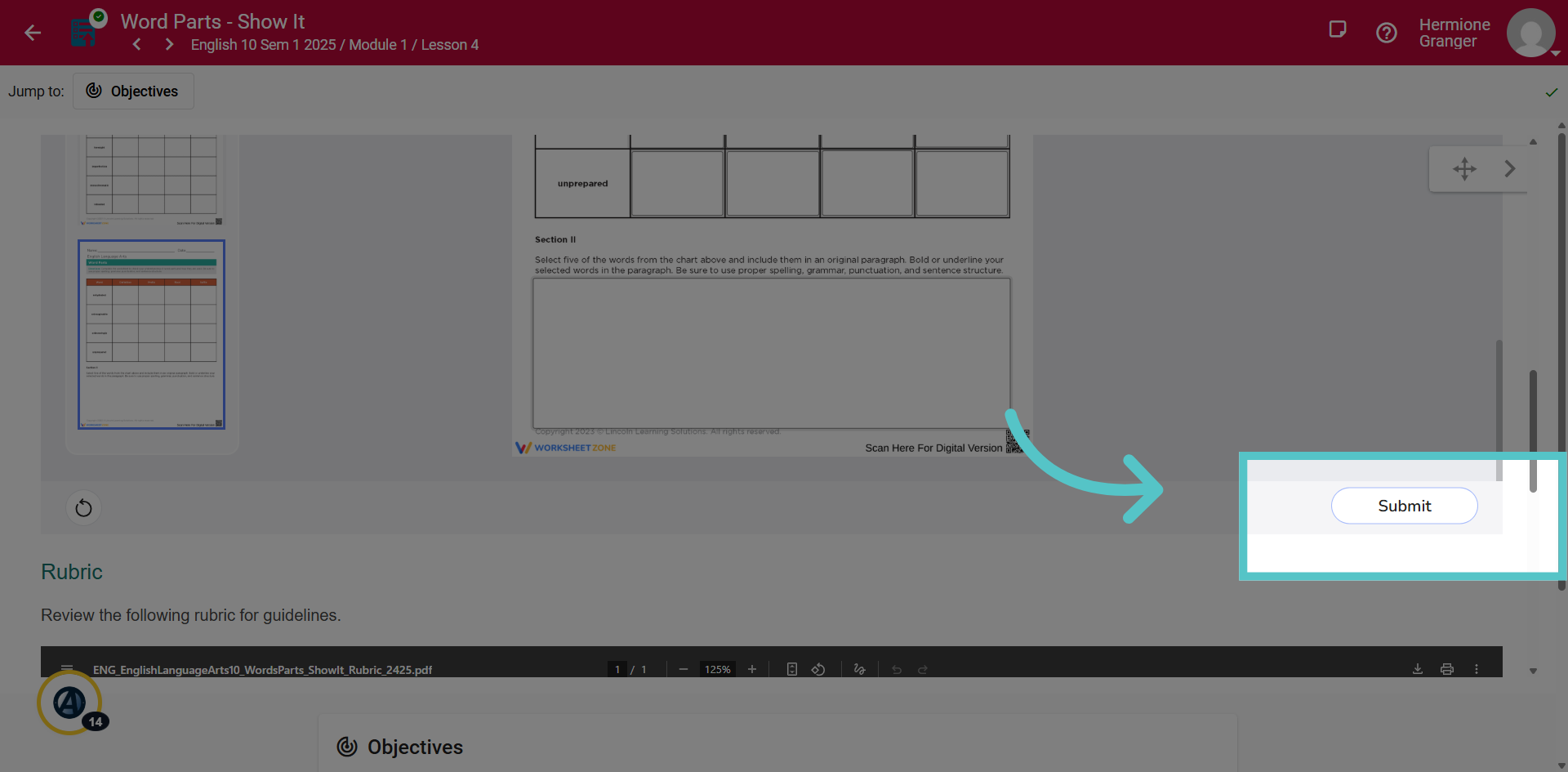
Click the Submit button at the bottom of the Worksheetzone to save your worksheet and responses. This will not submit your work to your teacher
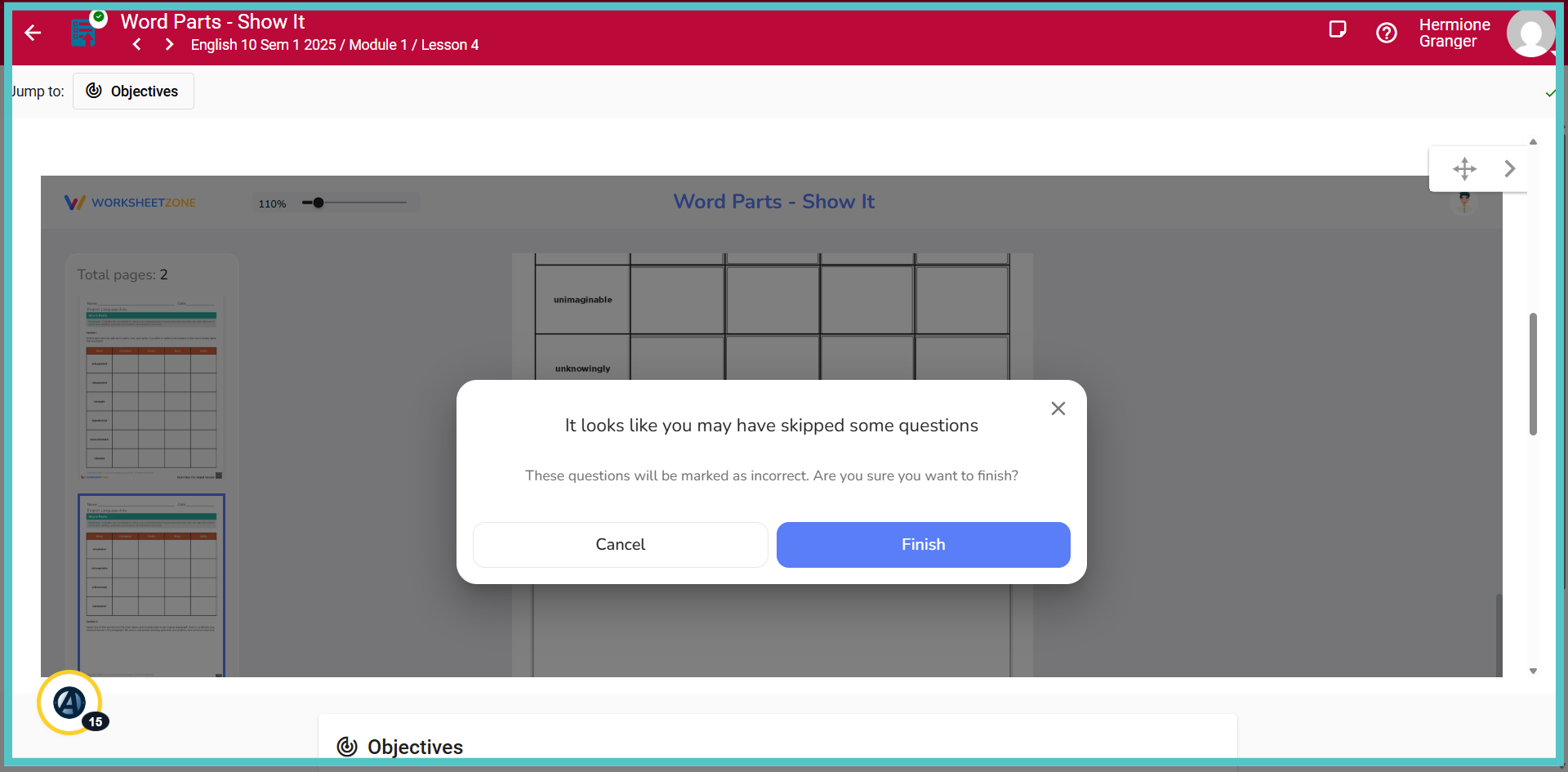
5. Click "Finish"
A warning will appear if any responses have been left blank.
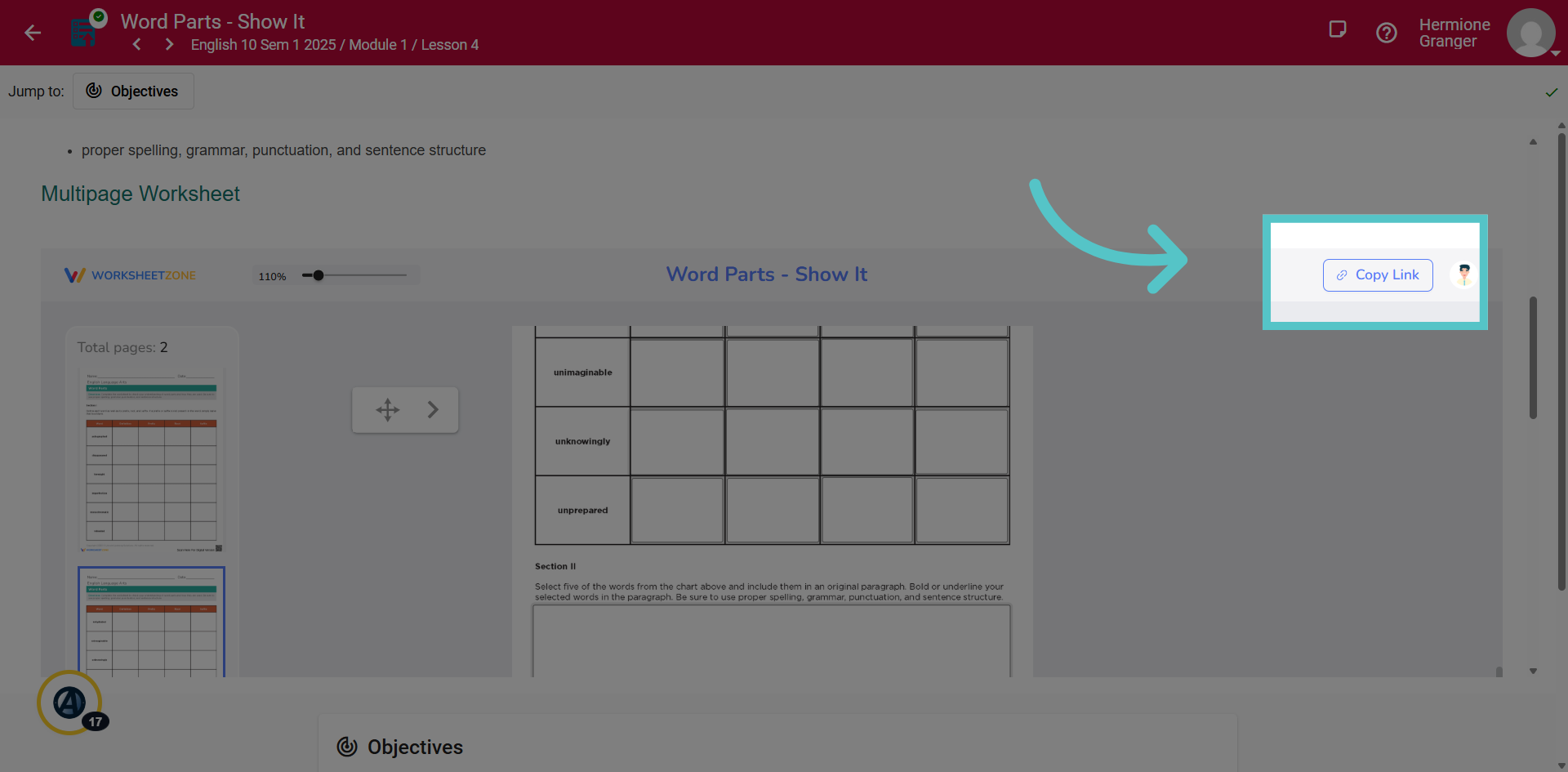
6. Click "Copy Link"
Saved worksheets will show a copy link button. Click this to copy a link to your completed worksheet.
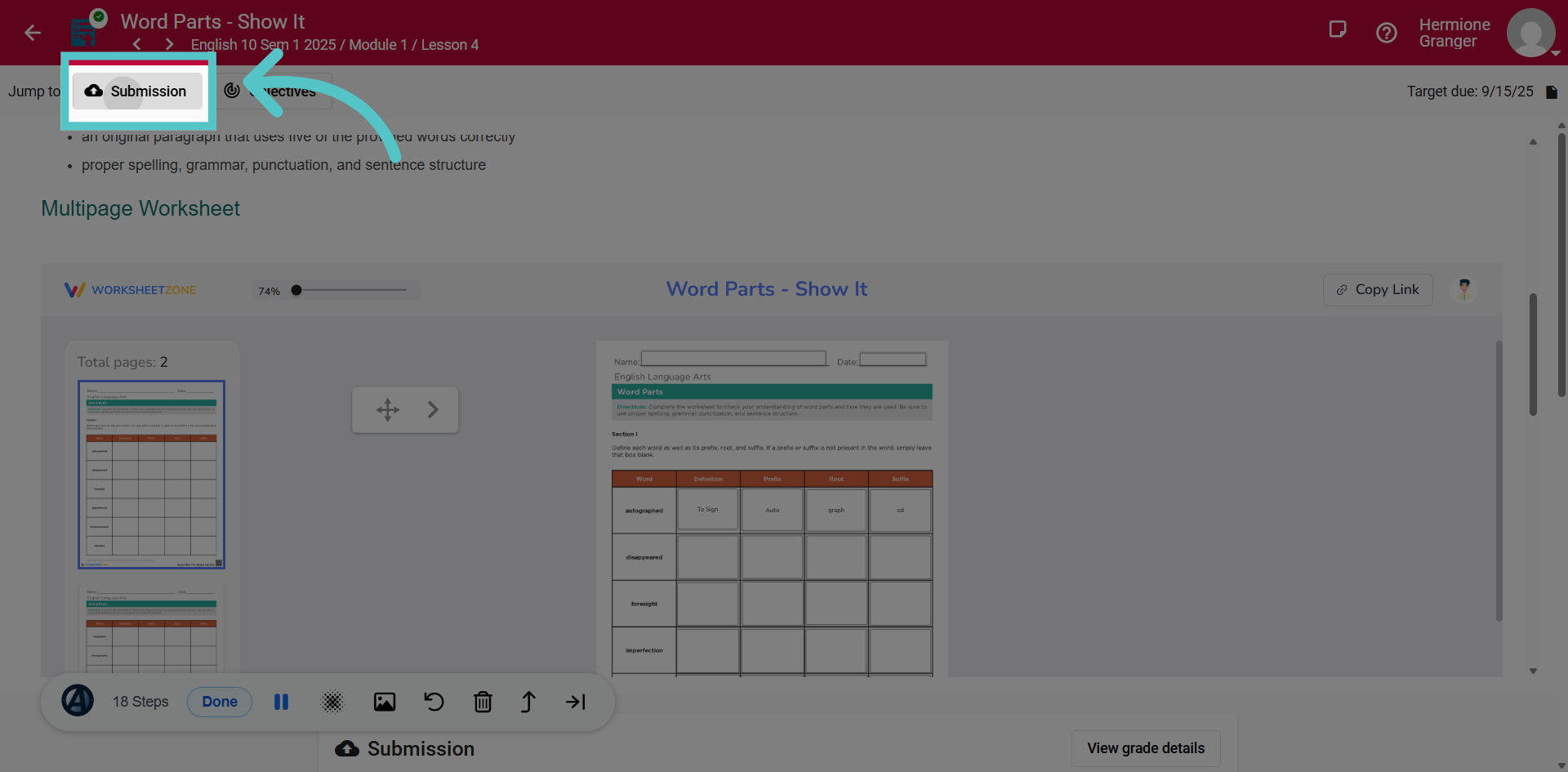
7. Click "Submission"
Access the submission space of the Lincoln Learning activity.
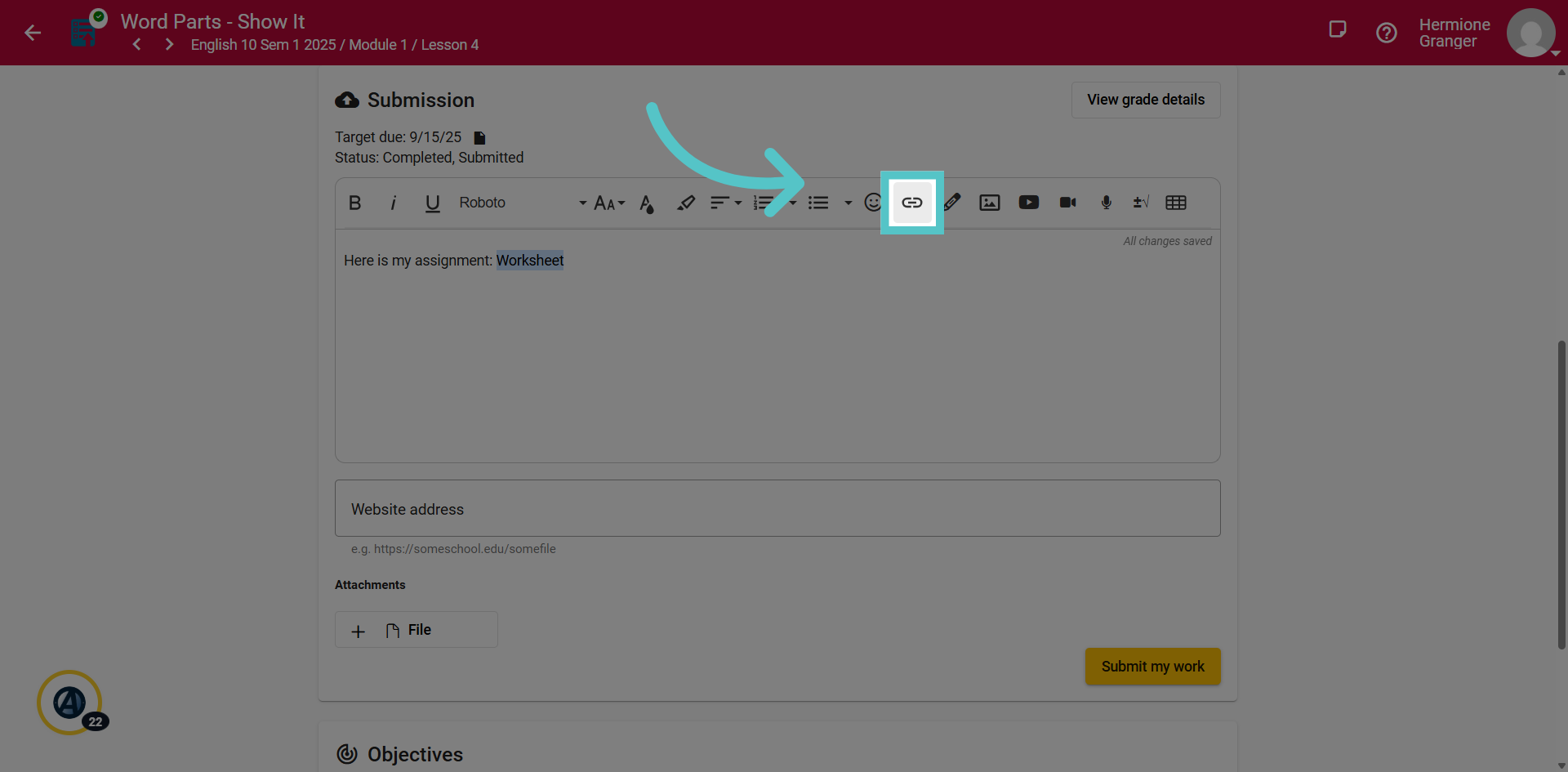
8. Link Worksheet
To send the worksheet link to the teacher, use the link icon to embed it into your comments.
9. Hyperlink
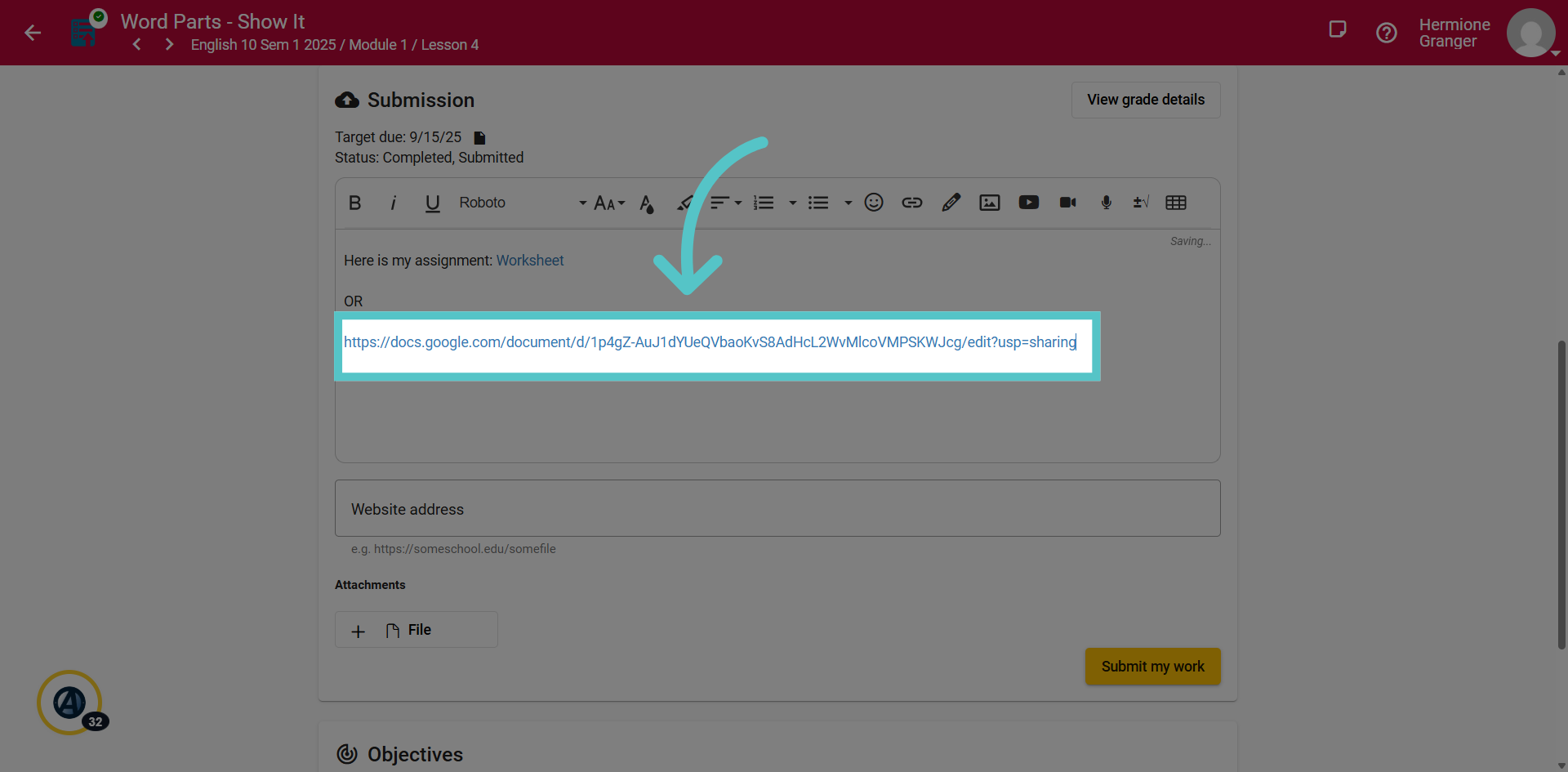
Or, paste the entire hyperlink into the comments box.
10. Enter Web Address
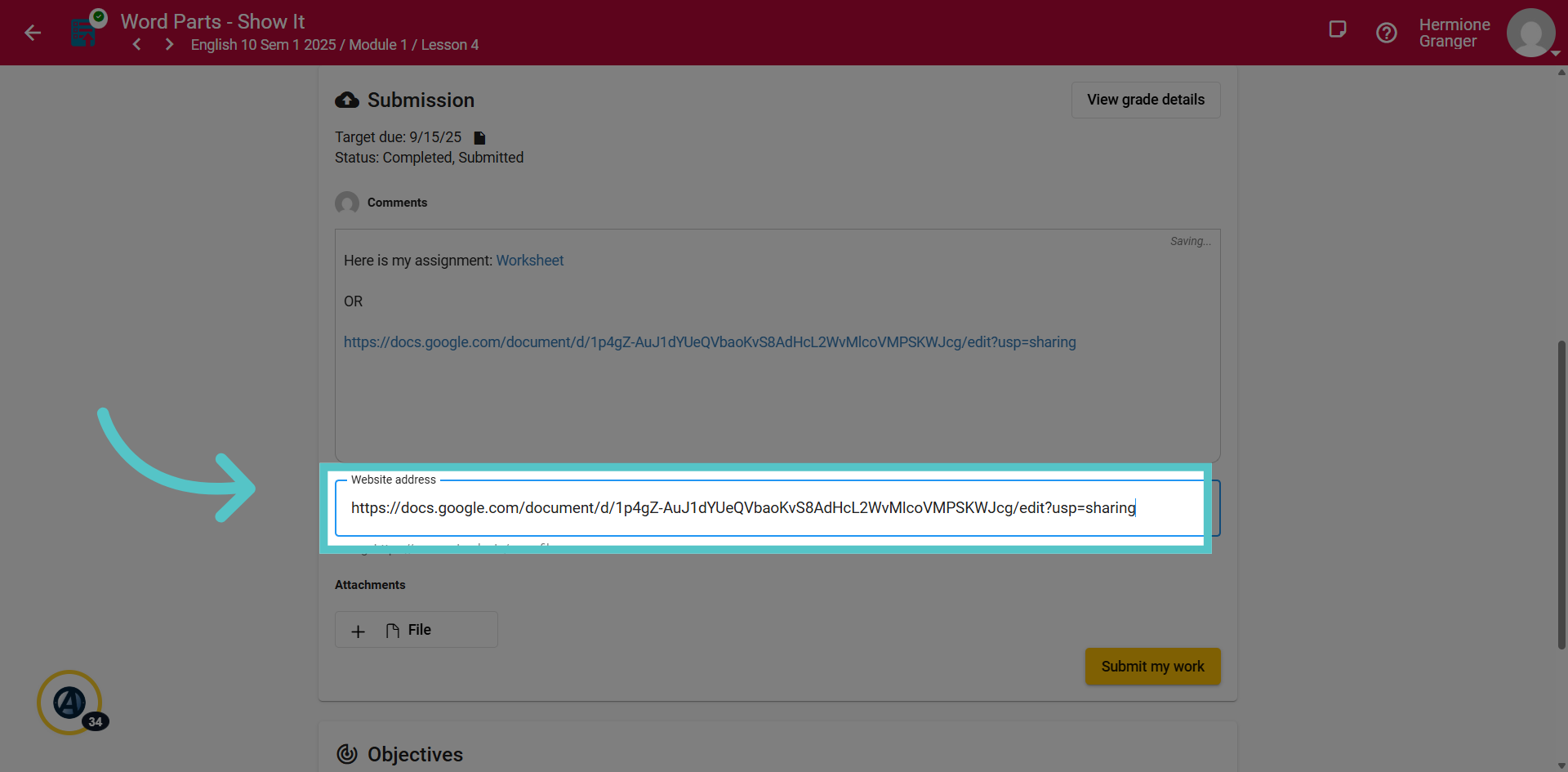
Some submission spaces may show the option to add a website address. The worksheet link can also be pasted into this field.
11. Click "Submit my work"
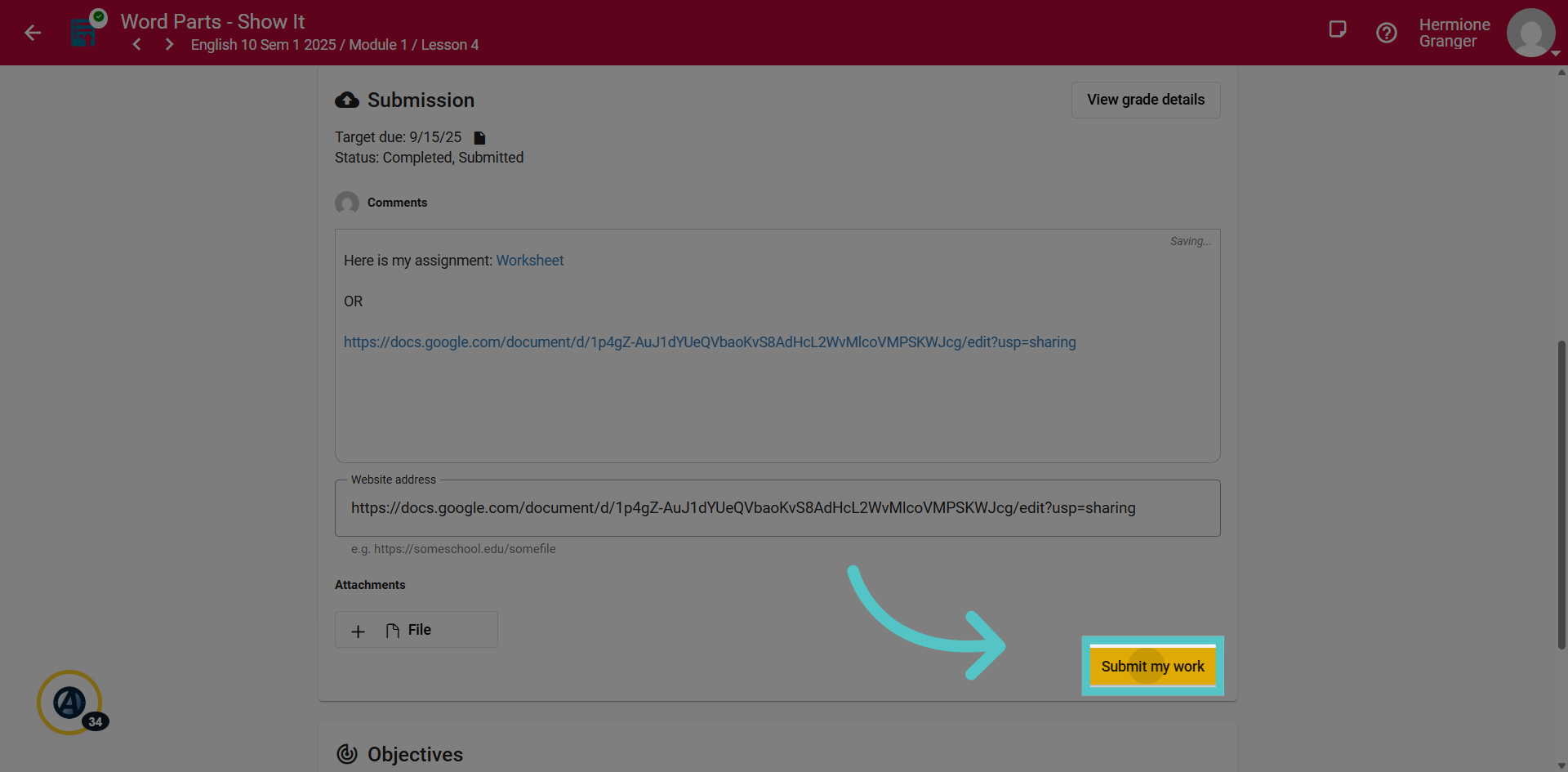
After adding the worksheet link in one of these ways, click "Submit My Work" to send the completed assignment to the teacher. Now your work is visible to the teacher.
If you have any questions about the information in this tutorial, please contact your dedicated school success manager for additional support.