Expand to Full Screen for Best Viewing
This guide will walk you through the process of accessing grade reports in ASSIST.
Go to portal.adlsassist.com
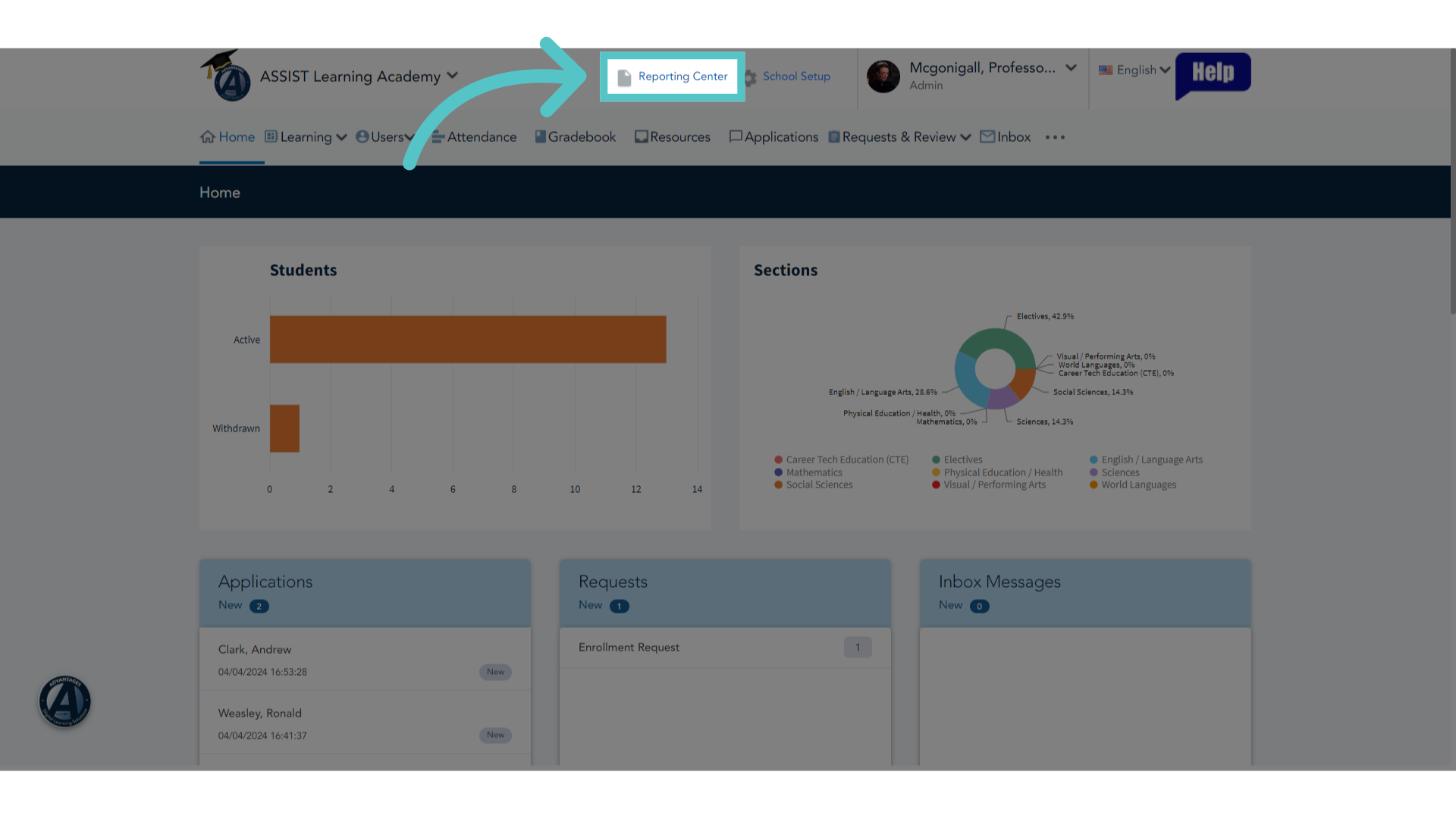
1. Click "Reporting Center"
Access the Reporting Center at the top of your ASSIST portal.
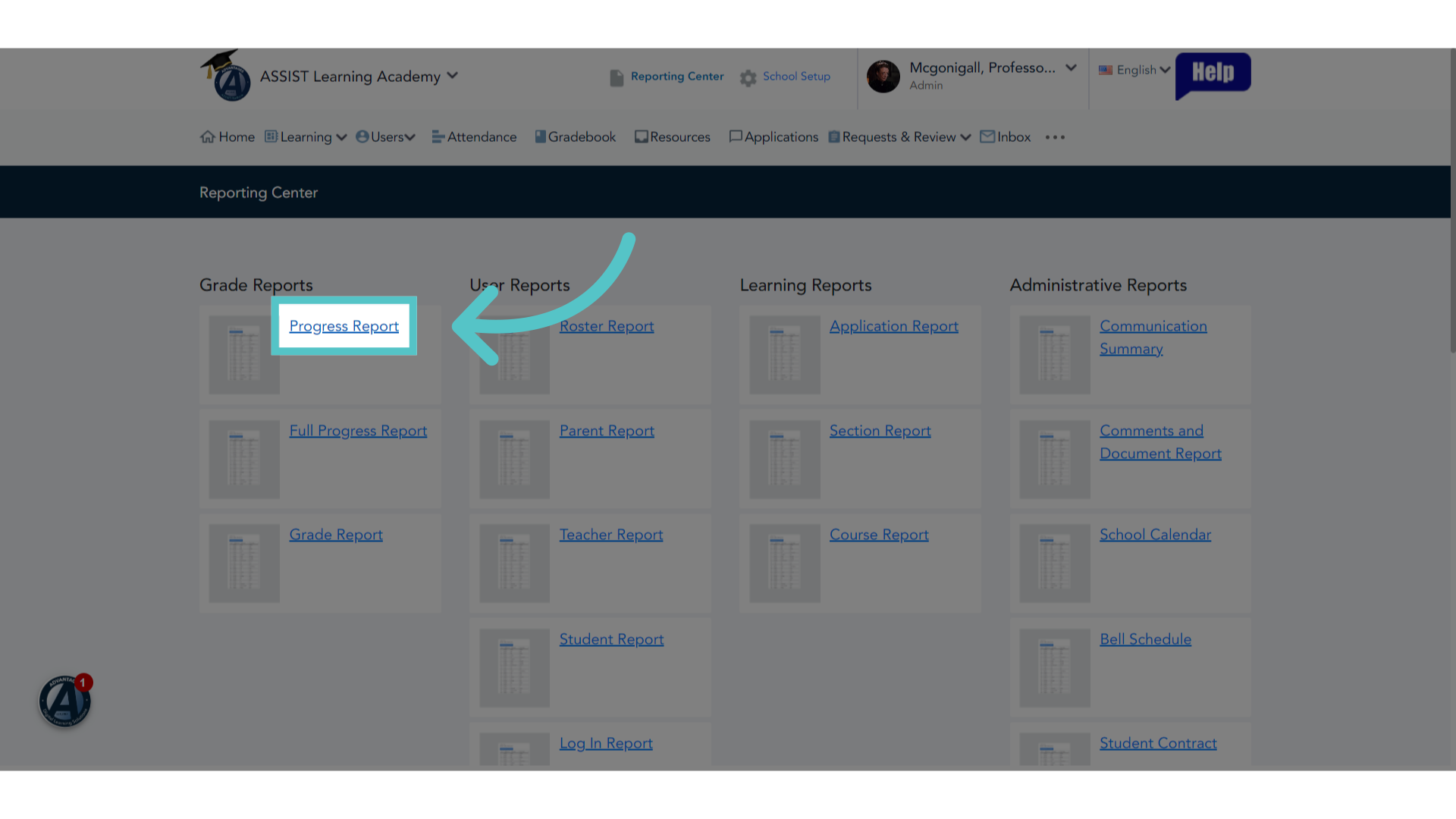
2. Click "Progress Report"
Select the "Progress Report" option listed under Grade Reports.
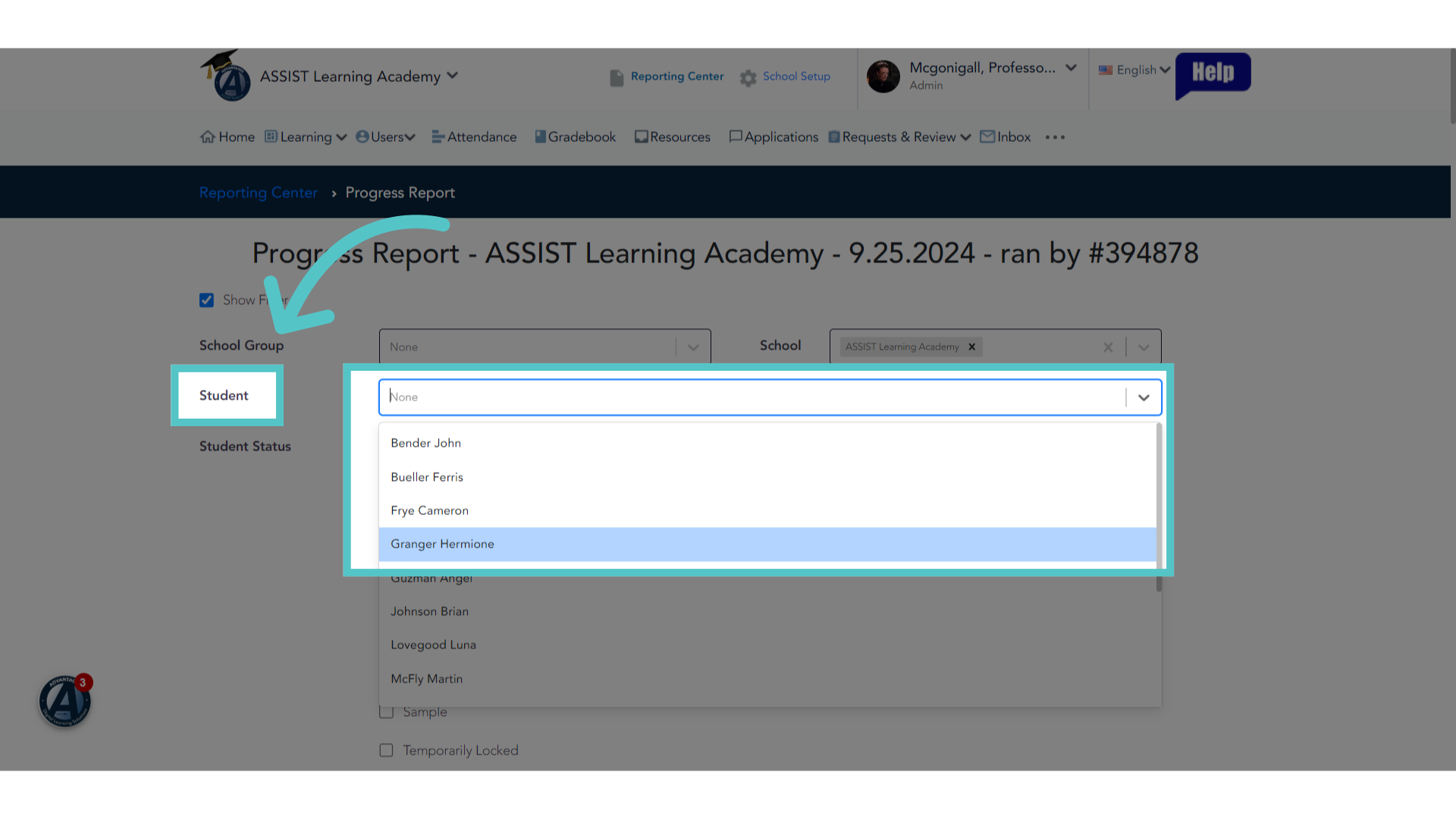
3. Select Student
Select a specific student to see the grade report.
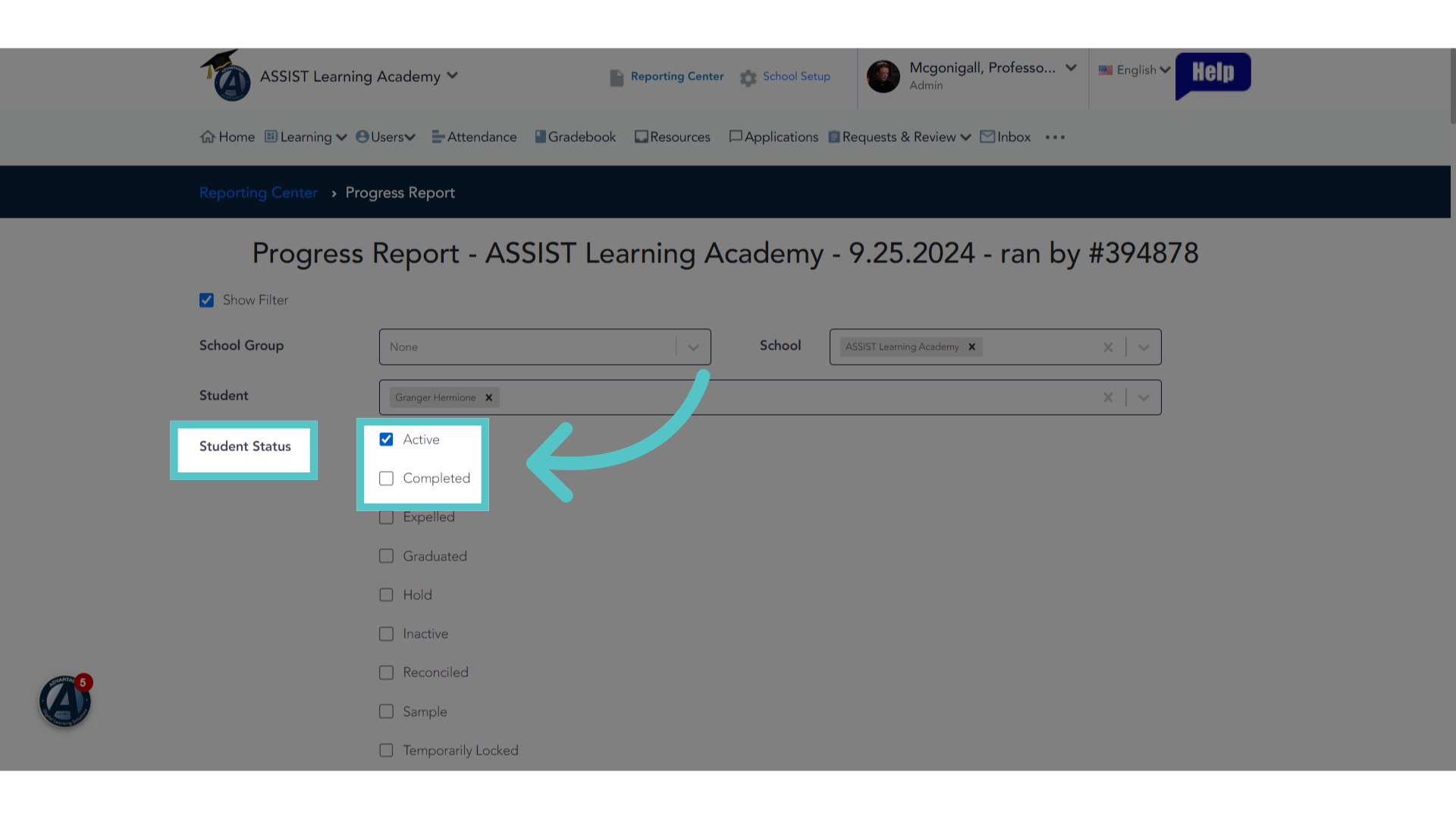
4. Filter Status
Or run a grade report for all students of a certain status, such as all active students.
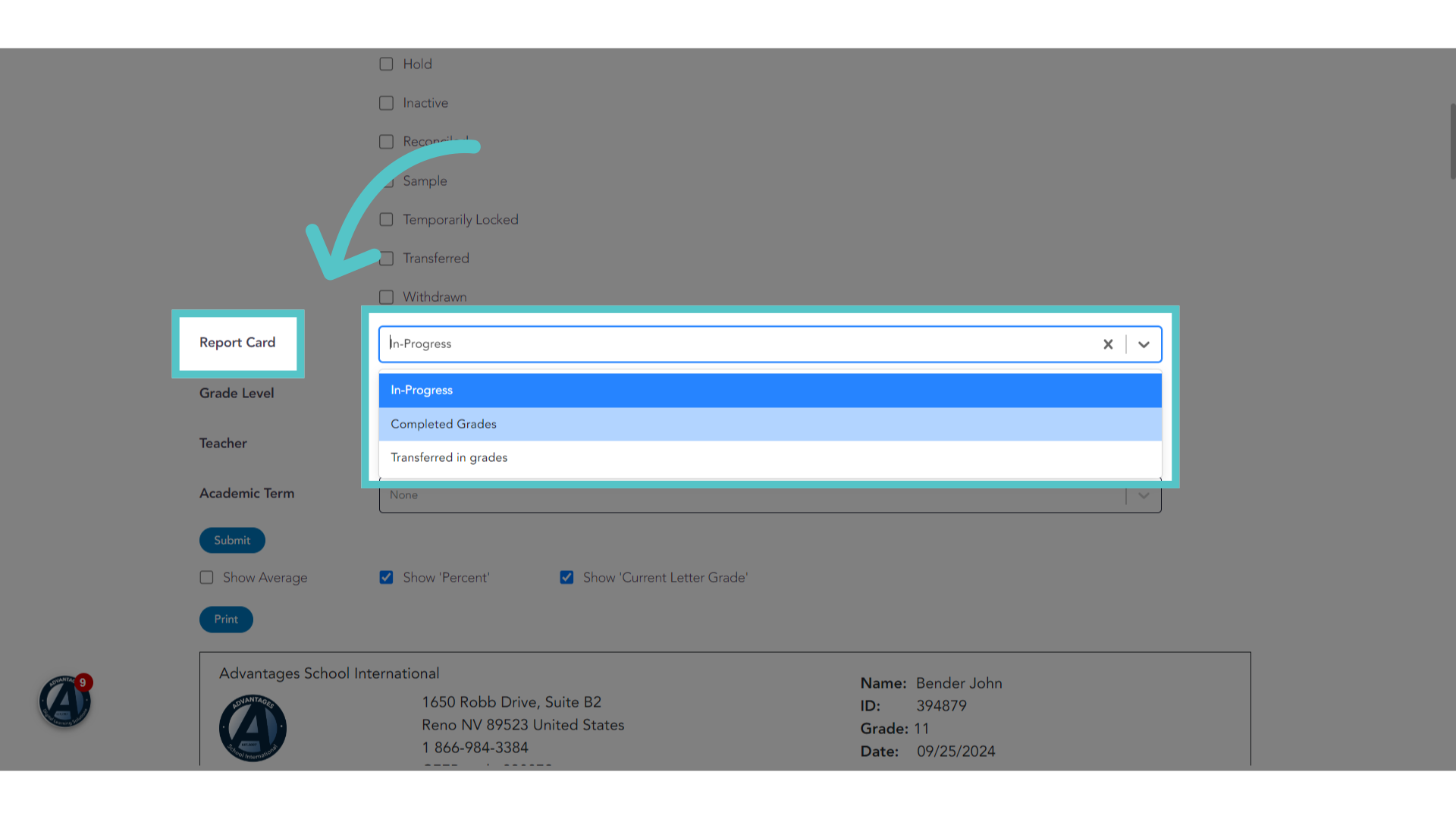
5. Choose Grades
Choose to view progress reports for, "in-progress" grades. Or select the "completed grades" option to view final grade report cards.
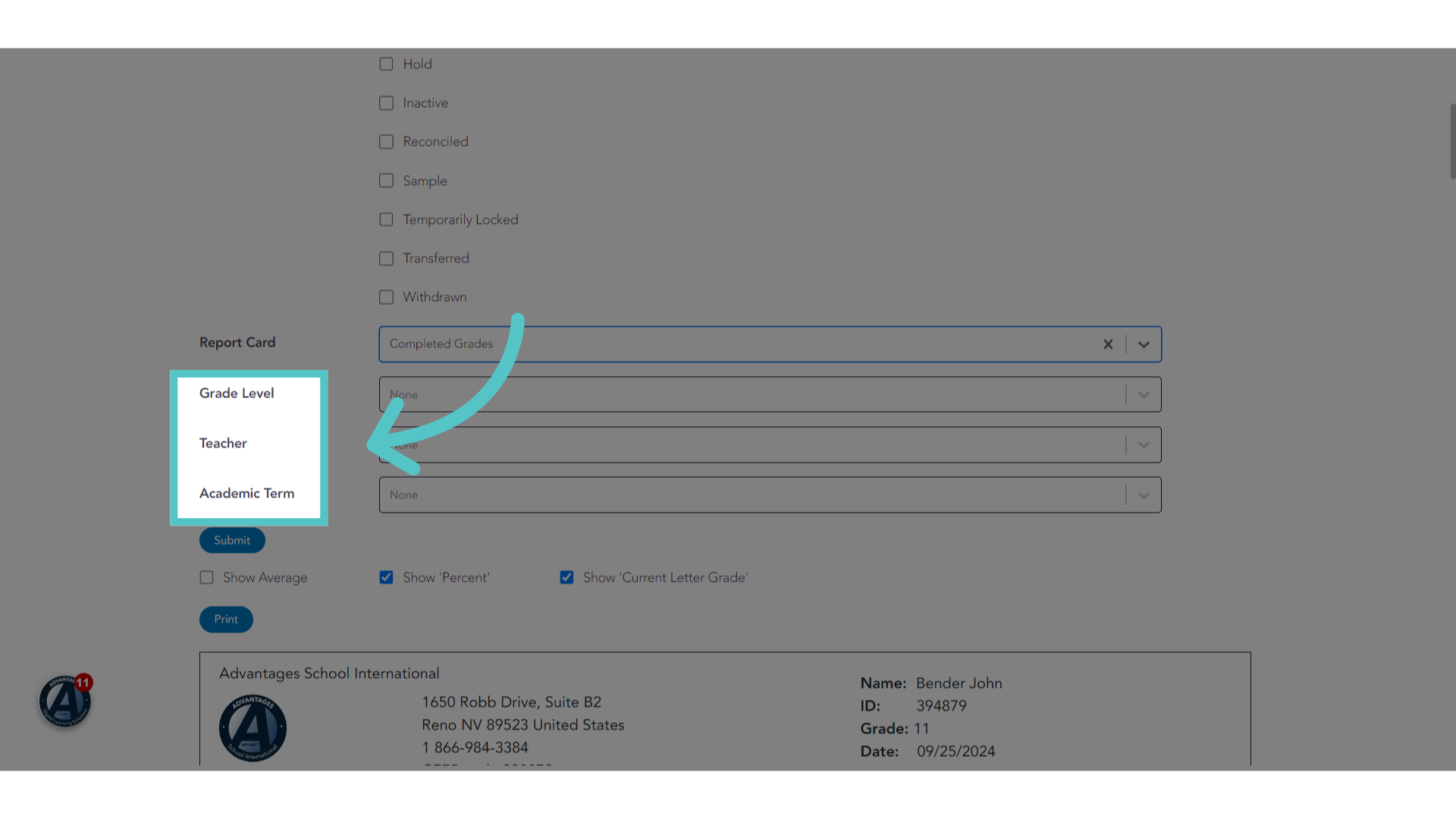
6. Additional Filters
Grade reports can be run for students in a specific grade level, or who have a specific teacher, or for all students with a grade for a specific academic term. These are all optional filters.
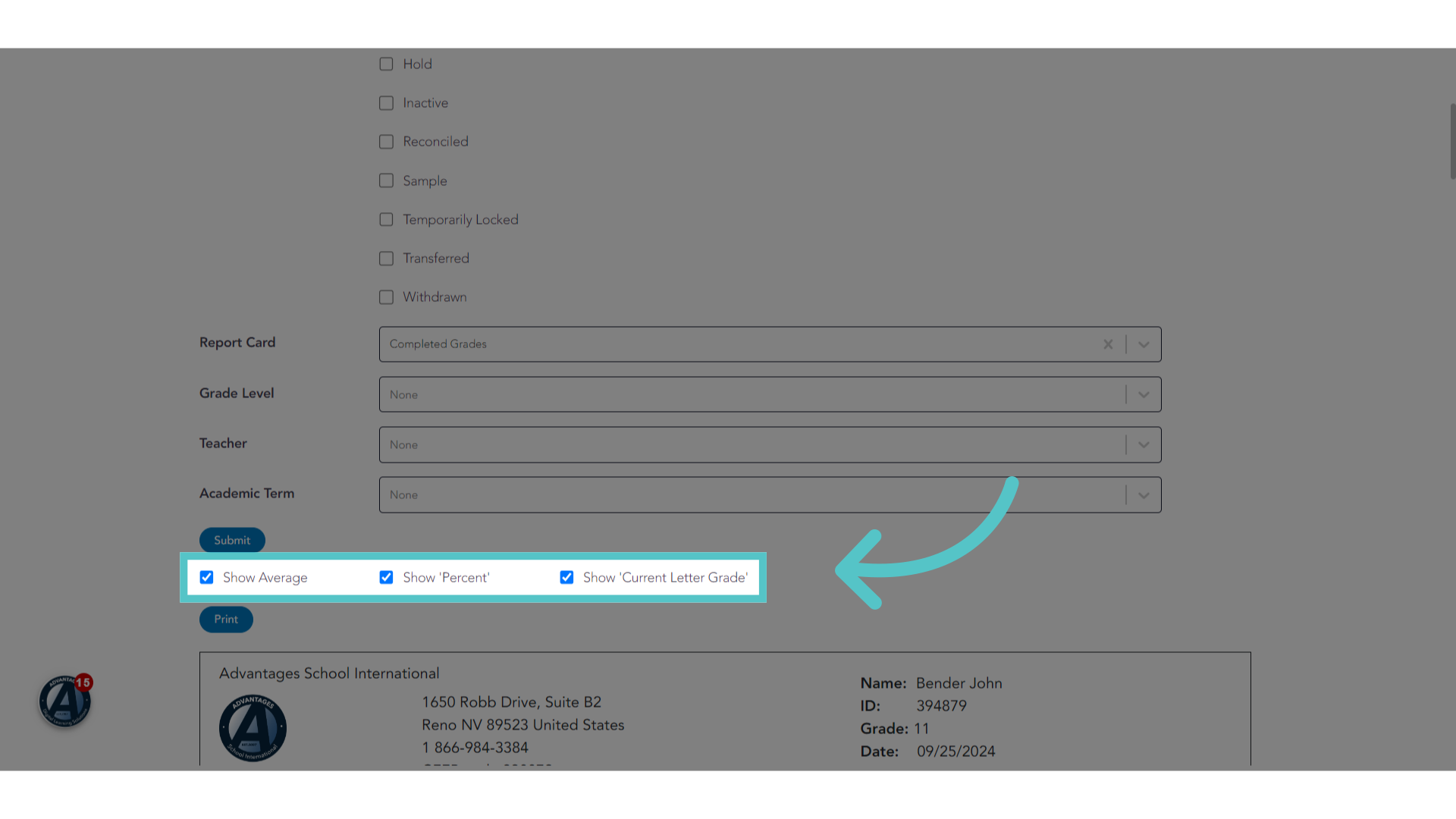
7. Select Metrics
Select the metrics to show on the grade report. Grades can be shown numerically, or as letters, or both.
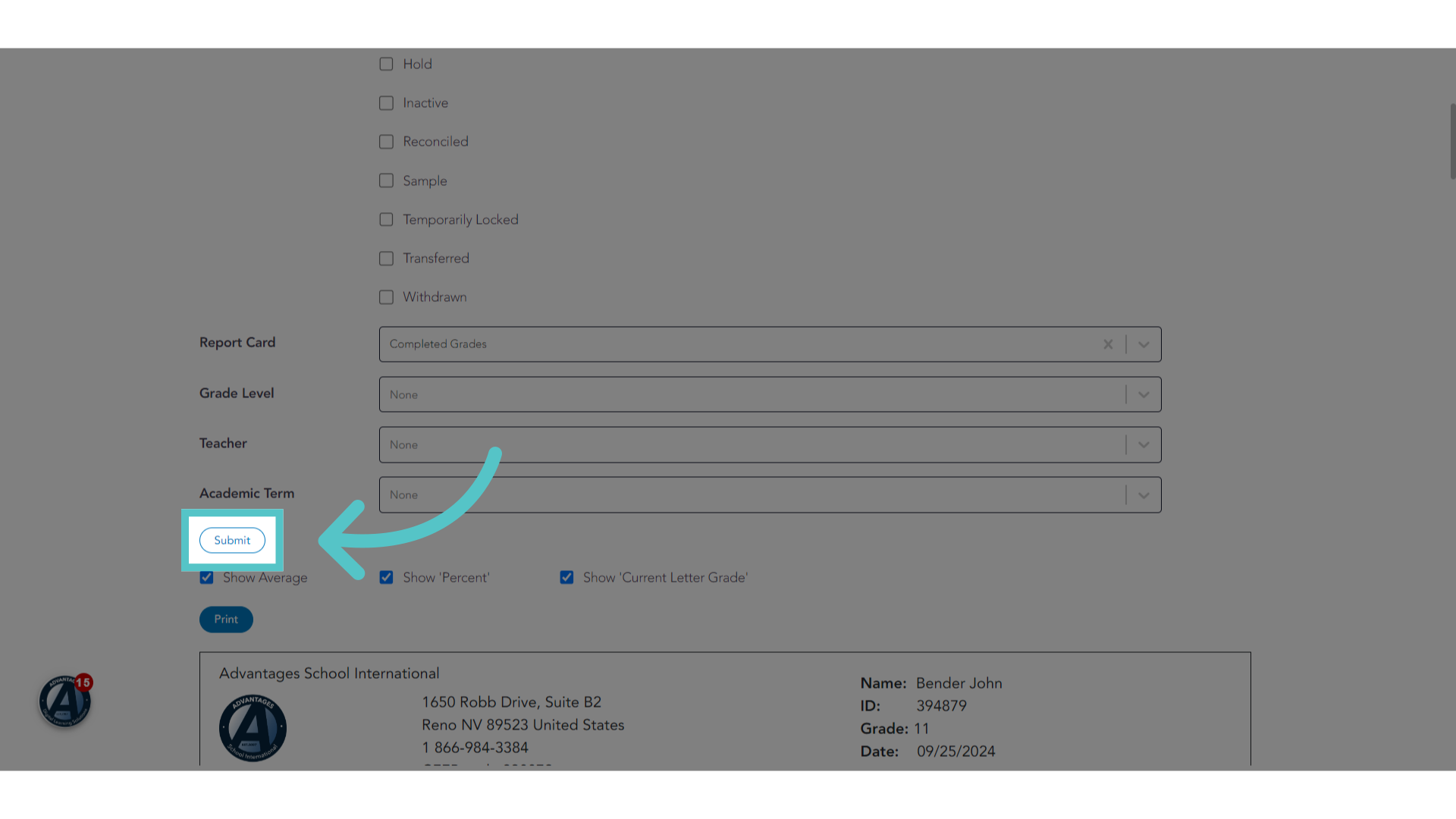
8. Click "Submit"
Click "Submit" to generate the grade reports.
9. Click "85.32%"
Scroll down to view the Grade Reports based on your customizations.
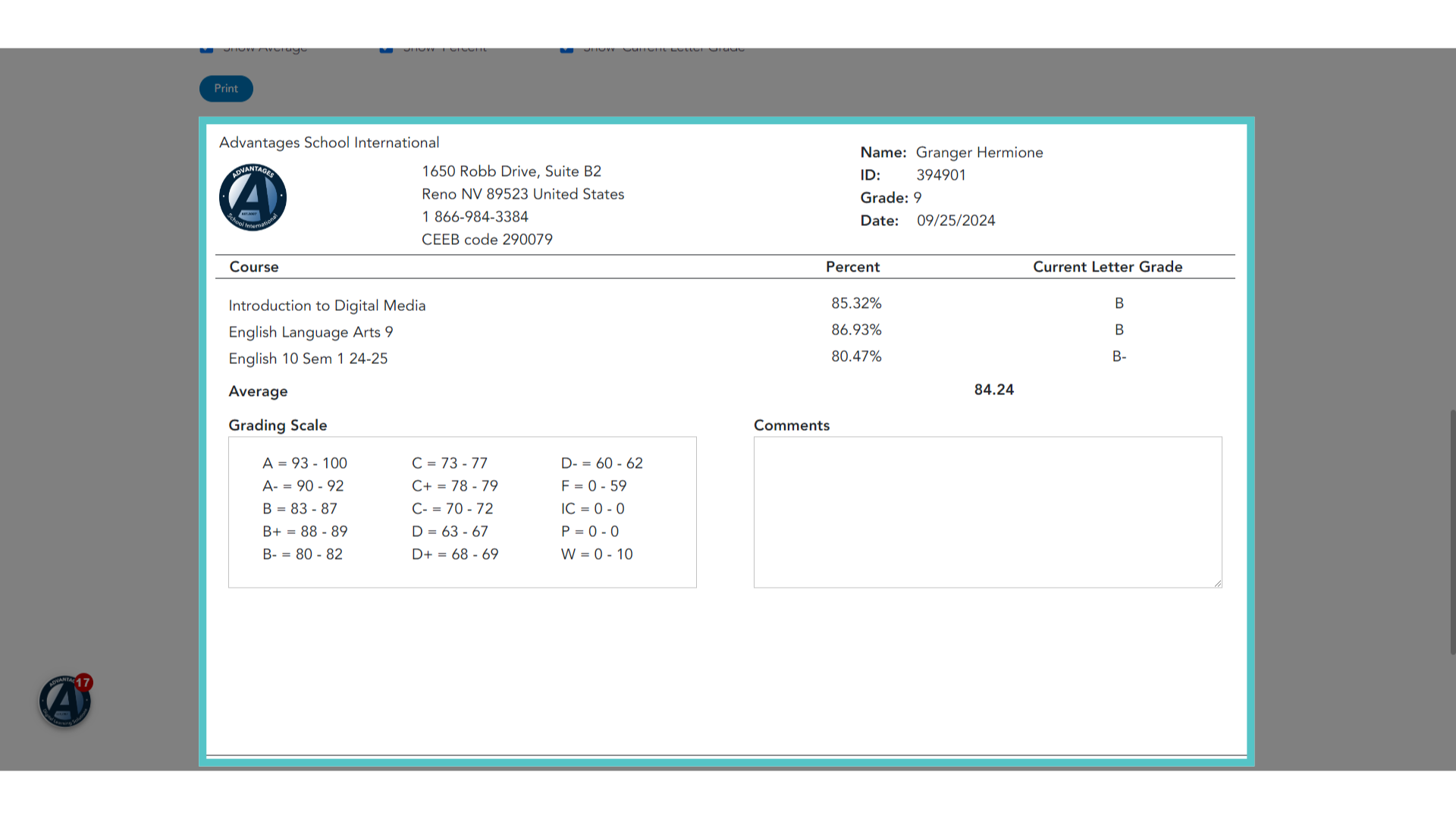
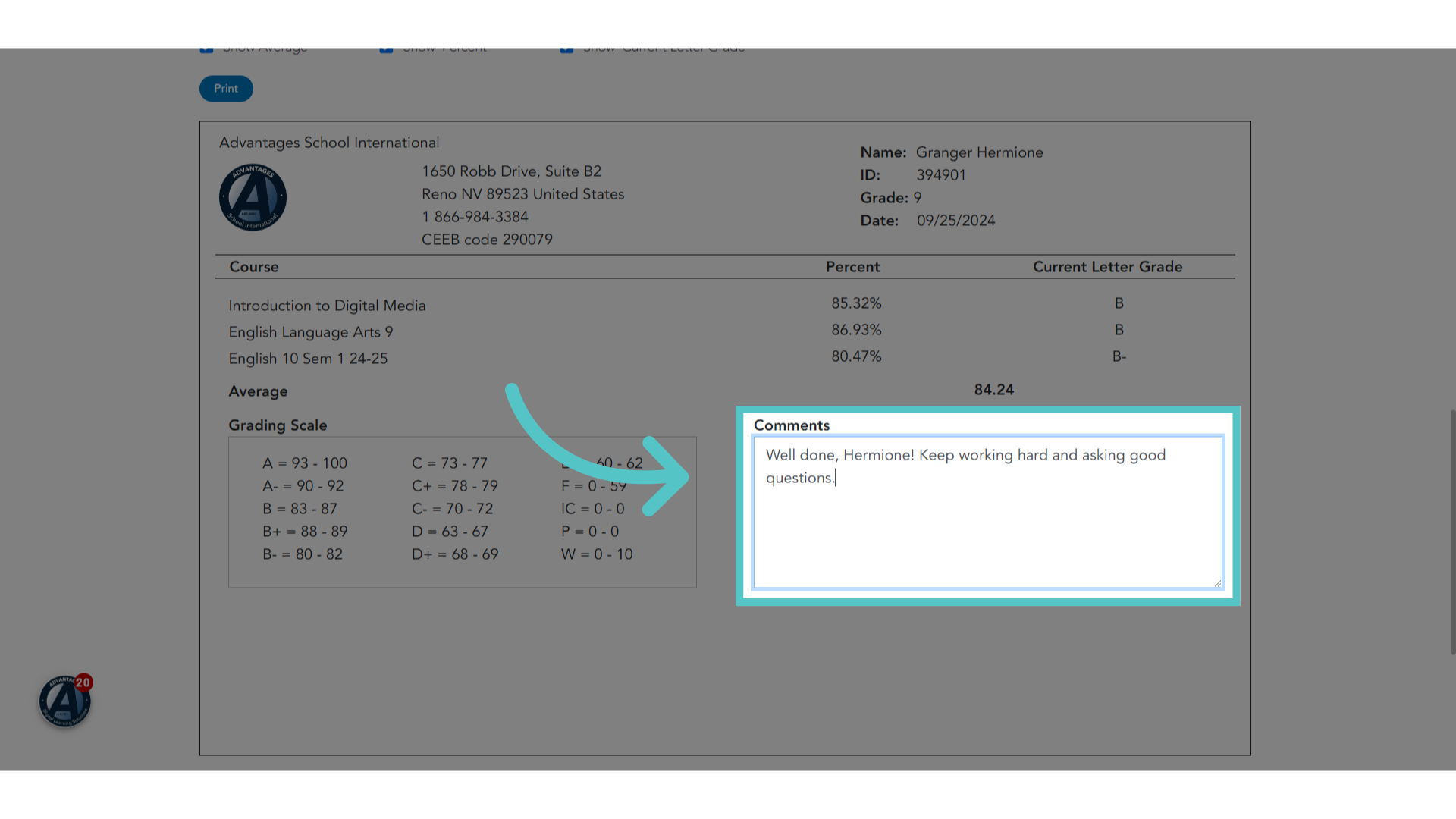
10. Add Comments
Personalized comments can be typed into the comment box on each grade report.
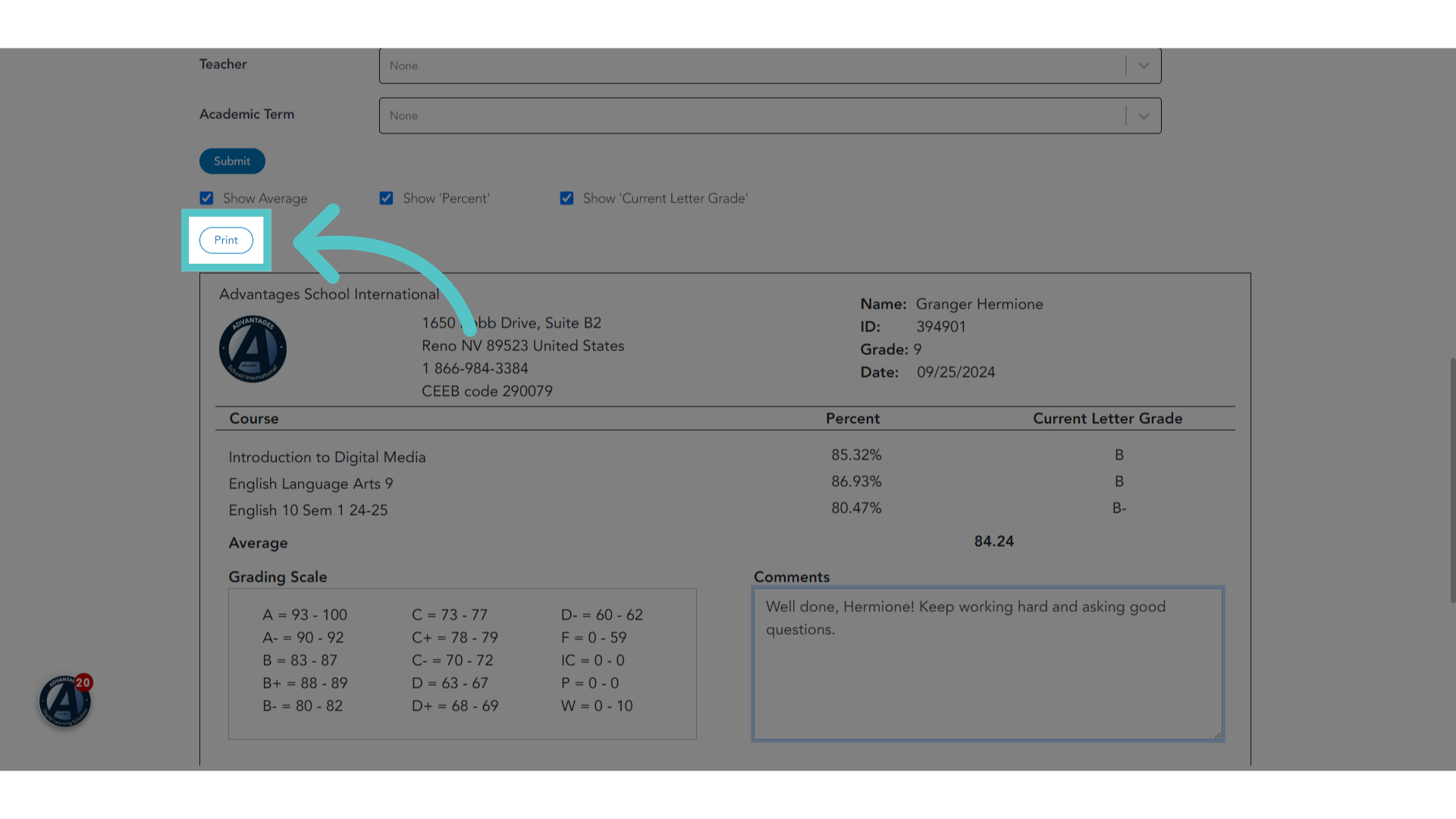
11. Click "Print"
To download or print the grade reports, click the "Print" button. Two grade reports fit on one page. These can be printed or downloaded as PDFs.
If you have any questions about the information in this tutorial, please click "Contact Support" to submit a help request.
Contact Support