Expand to Full Screen for Best Viewing
This tutorial explains how to add a mentor for Lincoln Learning students using the ASSIST platform
Go to portal.adlsassist.com
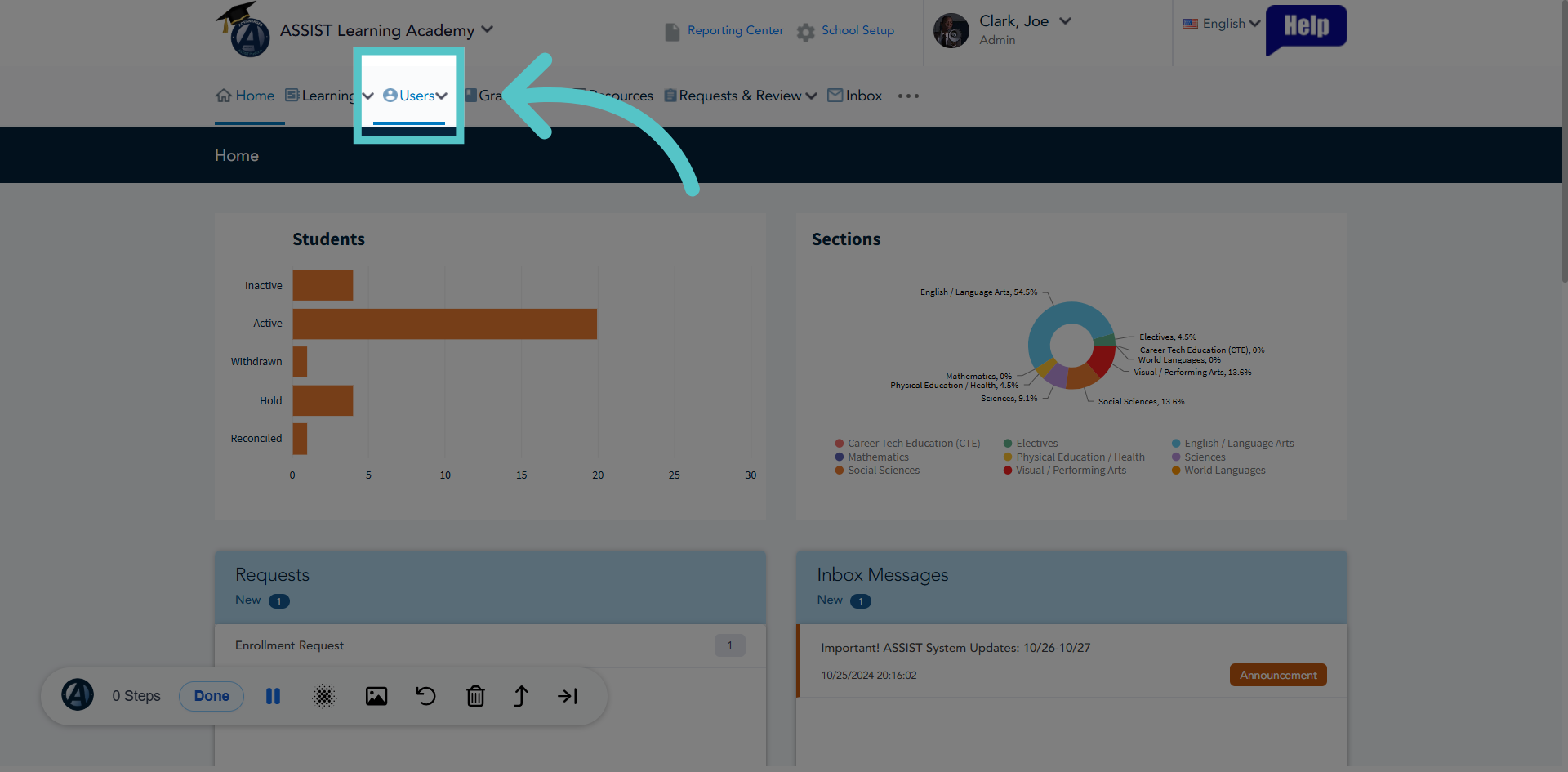
1. Navigate to Users Section
As an administrator, click the Users tab.
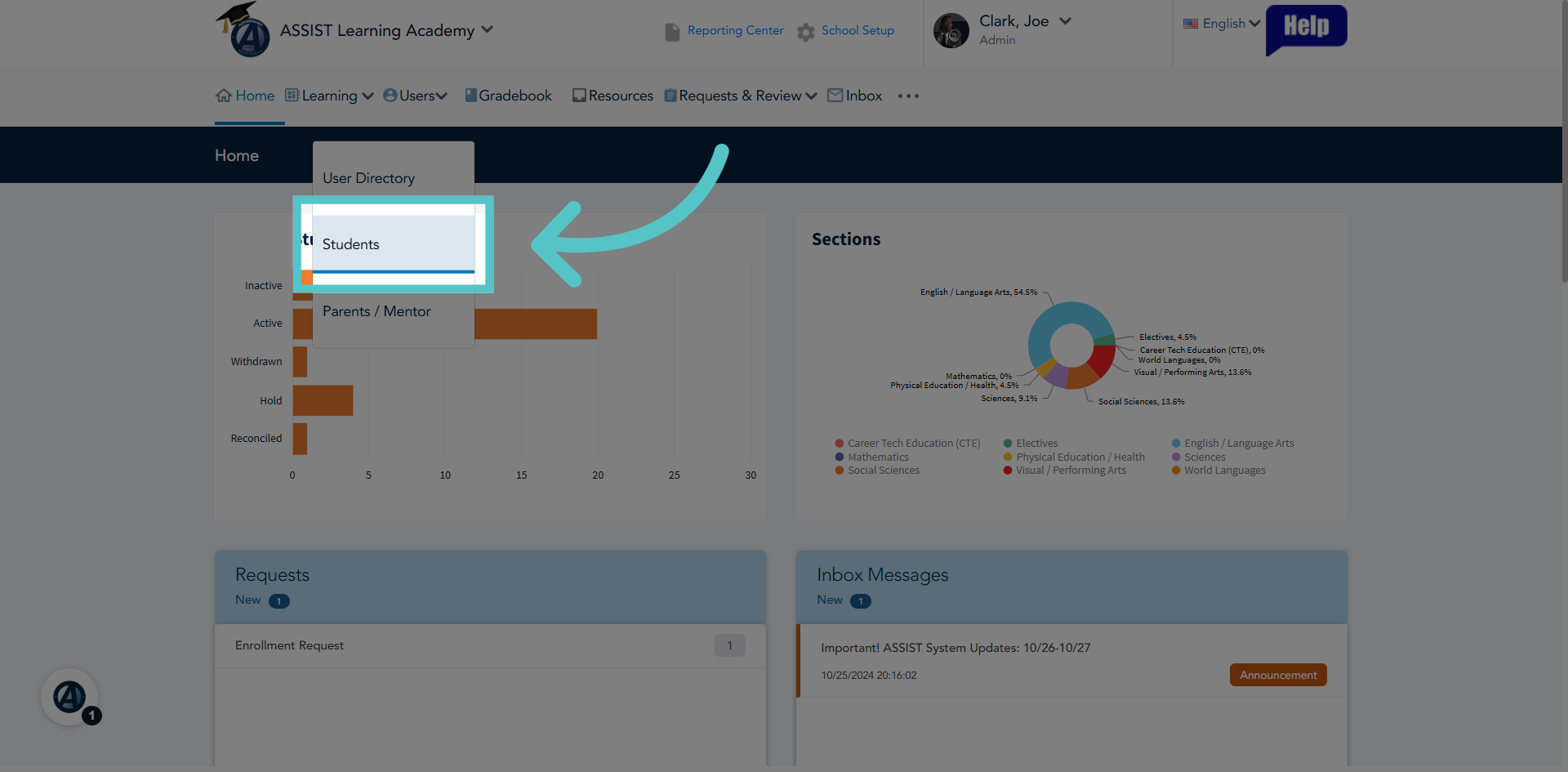
2. Select Students Category
Click the Students option to view the list of students available in the system.
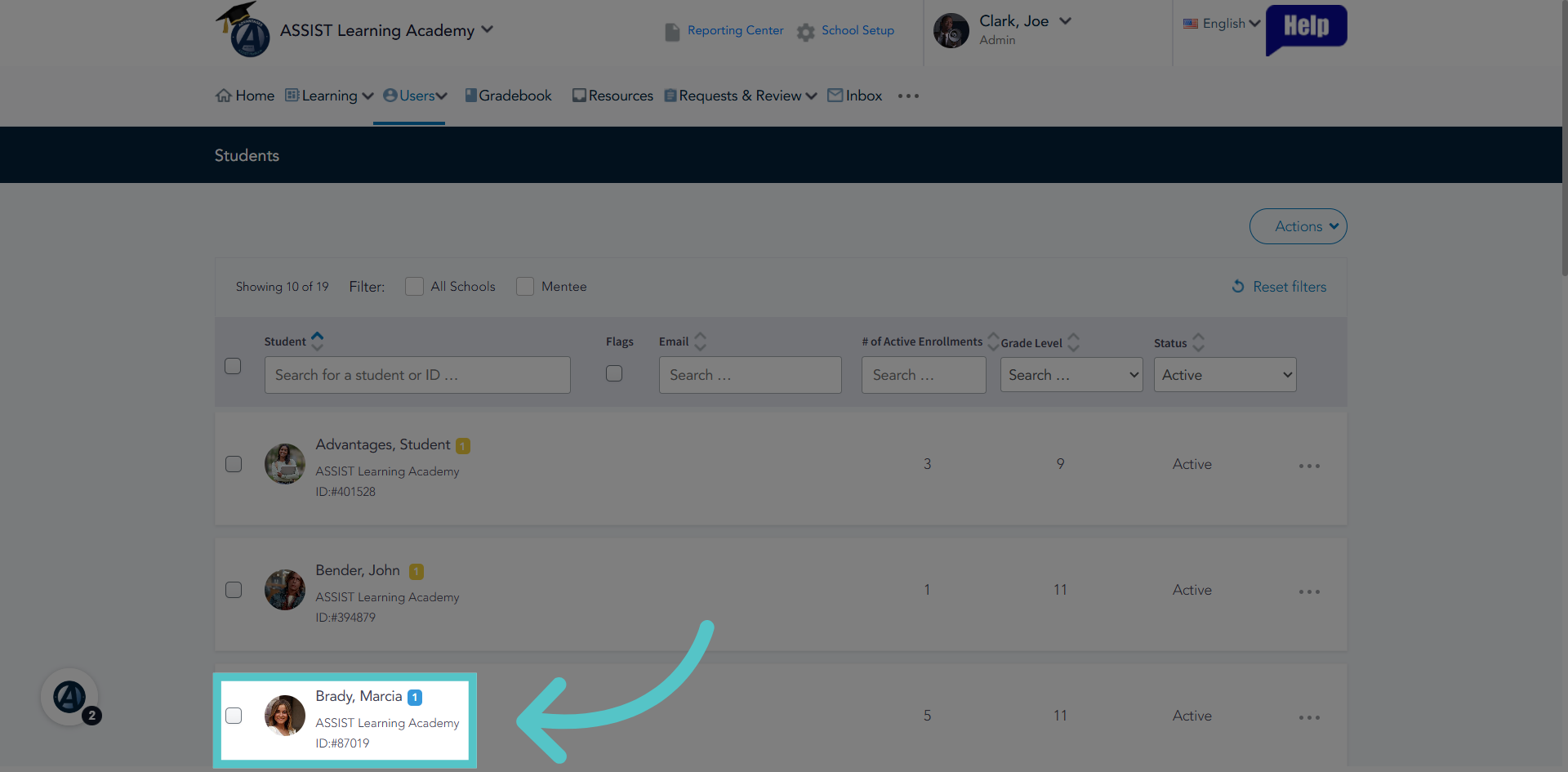
3. Select Student File
Select a student from to list to open their file and add a mentor.
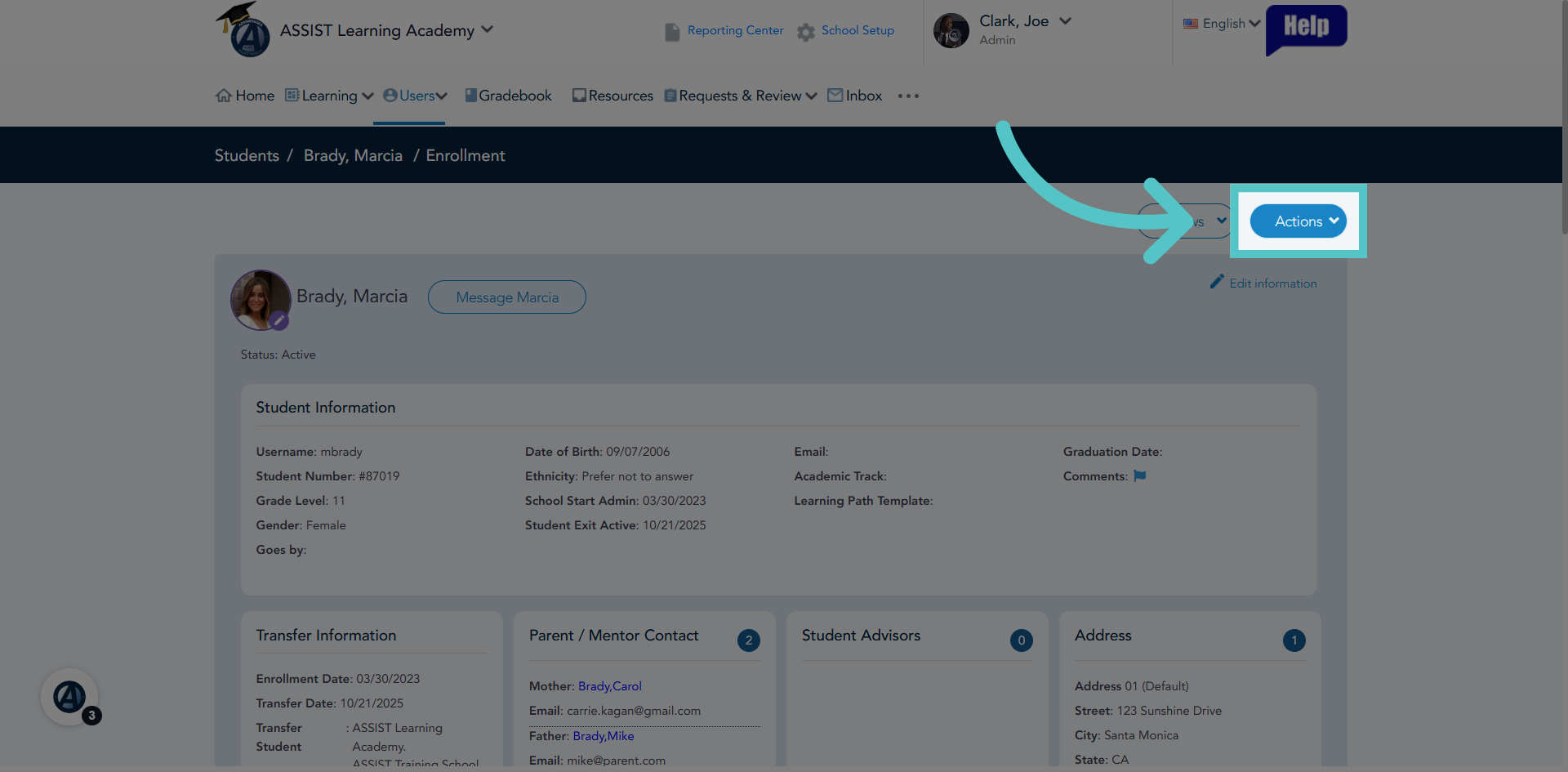
4. Access Actions Menu
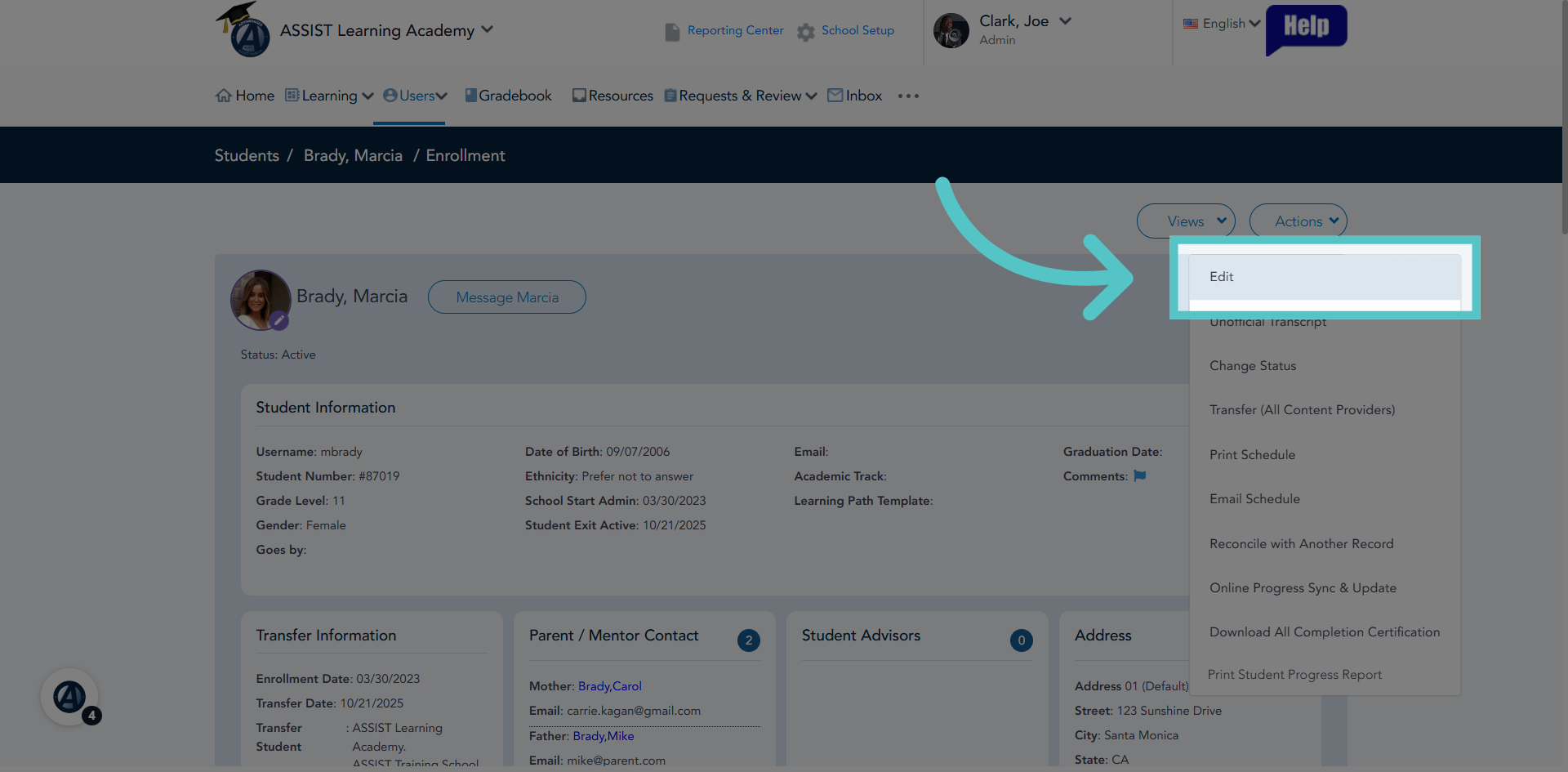
Click the Actions button to make changes to the file.
5. Choose Edit Option
Click 'Edit' to add a Mentor to the student record.
6. Select Link Parent Feature
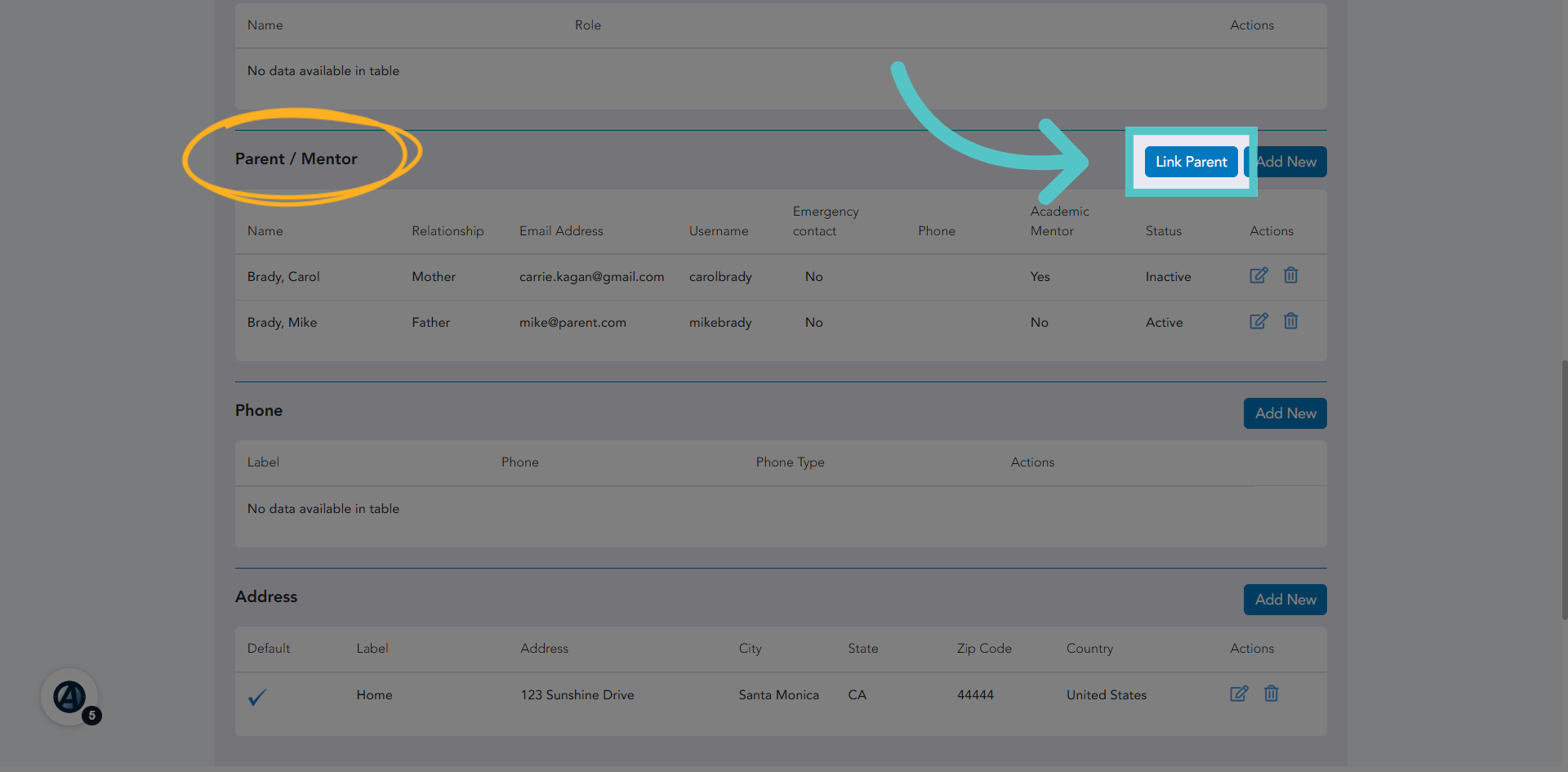
Scroll down to the Parent/Mentor section of the file page. Click 'Link Parent' to begin associating a mentor with the student.
7. Search Mentor Name
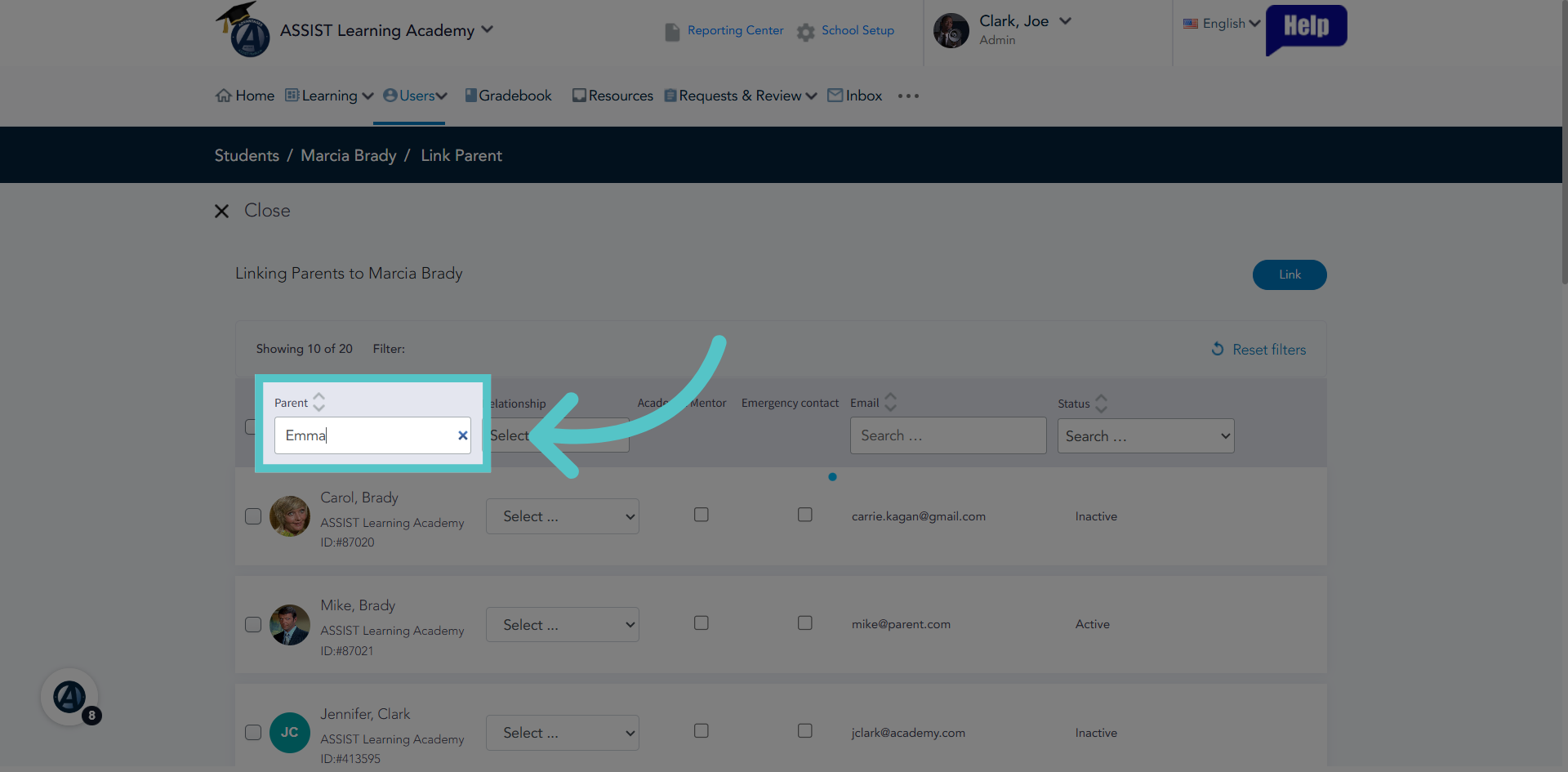
Use the search field to quickly find the mentor in the list.
8. Select and Link
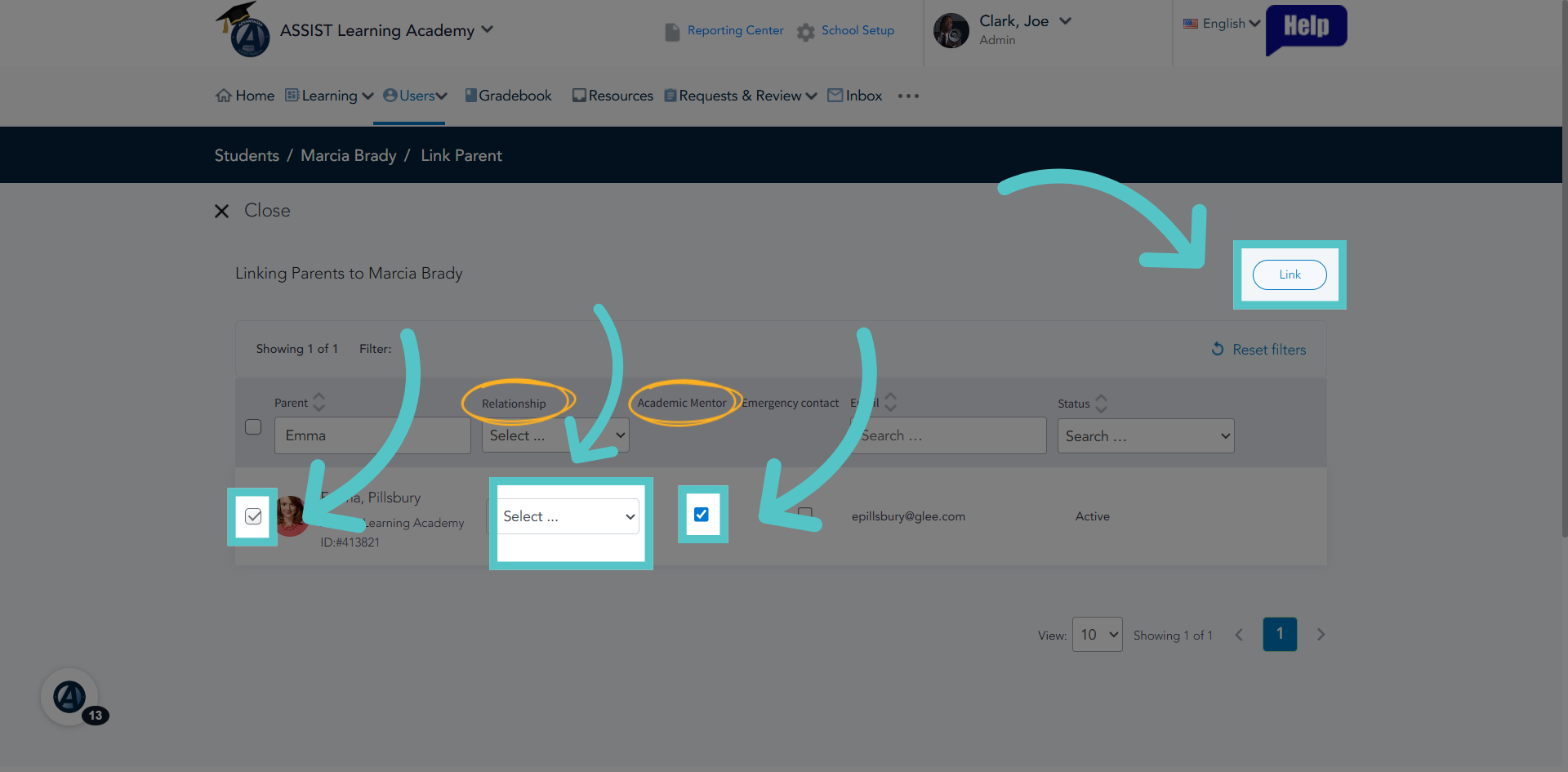
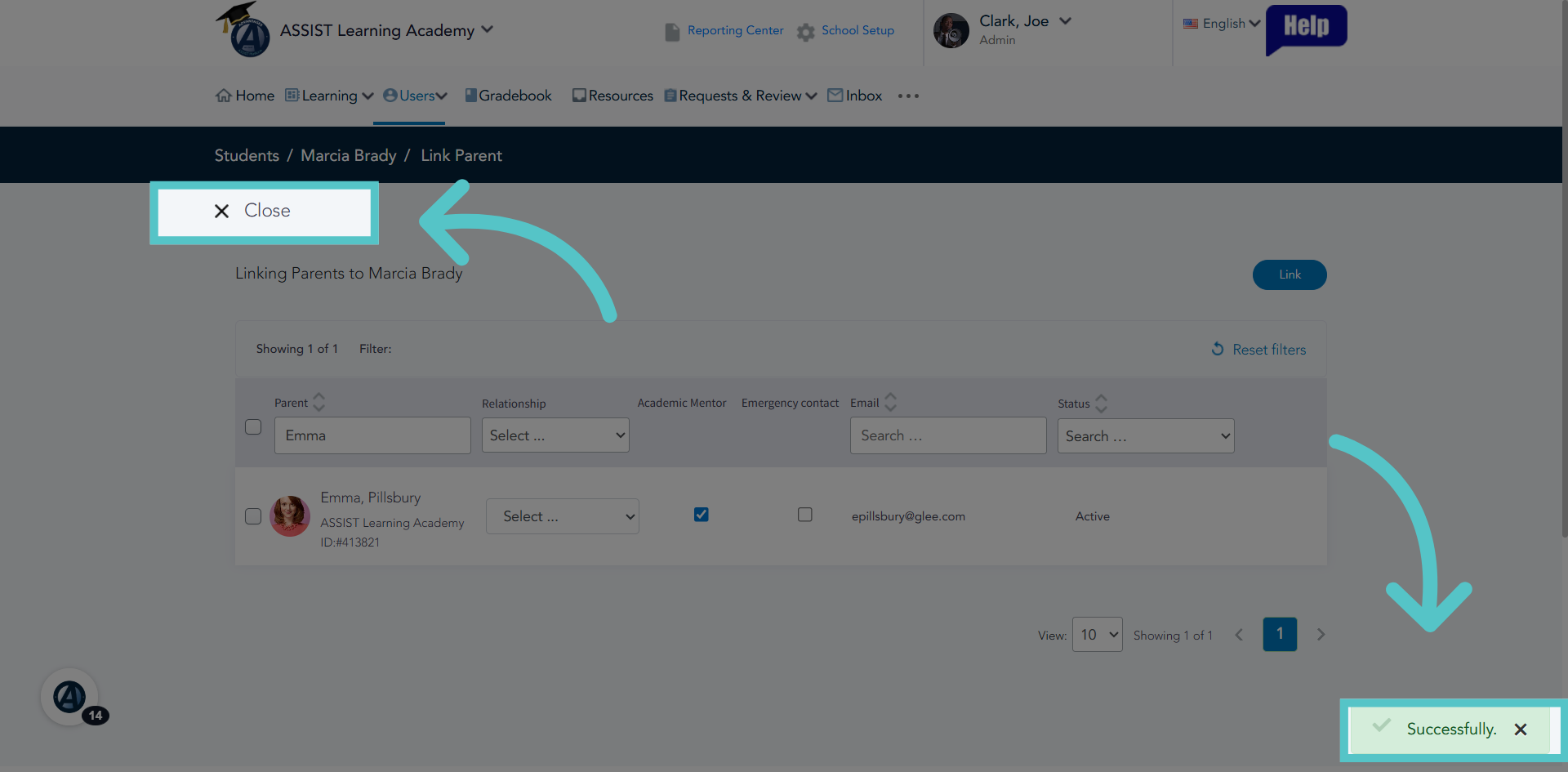
Check the box next to the Mentor's name. Select 'Mentor' as the relationship to the student. Check the box to indicate the person as an 'Academic Mentor.' Click the Link button to establish the connection between the mentor and student.
9. Acknowledge Success Message
When you receive the 'Successfully' notification, you can close the editing window.
10. Added to File
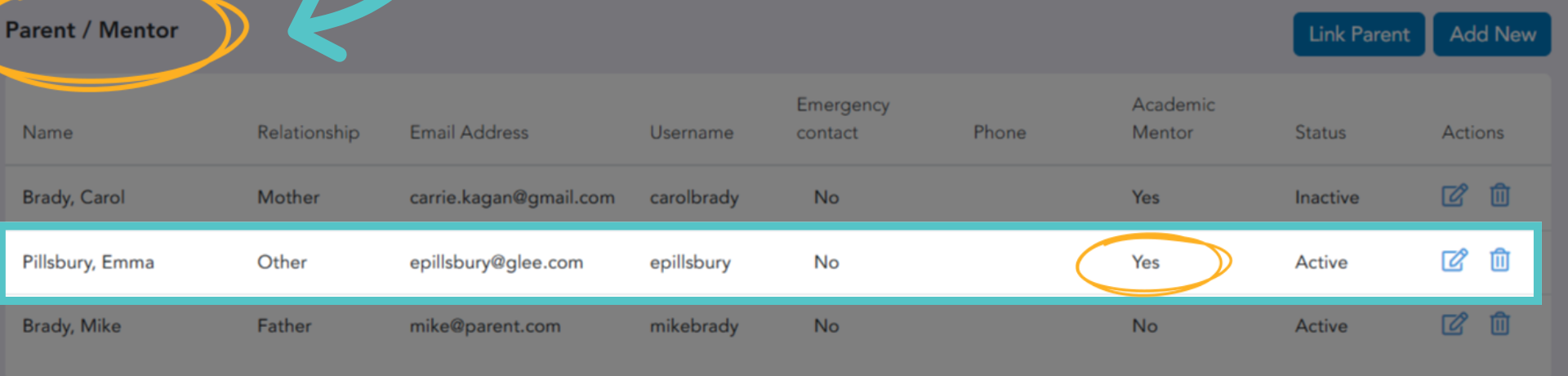
Confirm that the mentor now shows in the Parent/Mentor section of the student file page.
11. Return to Previous Screen
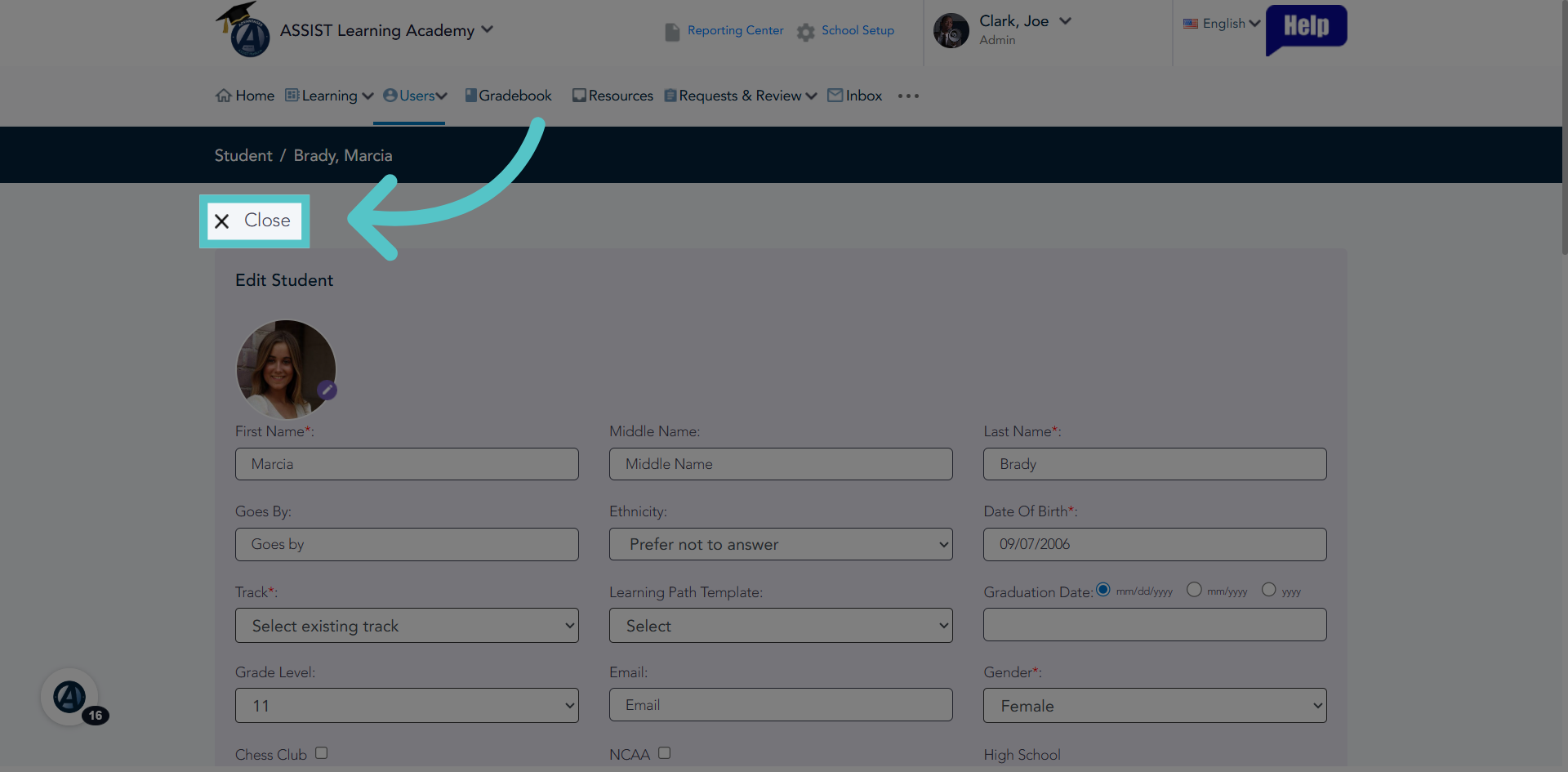
Close the editable file page.
12. Mentor Added
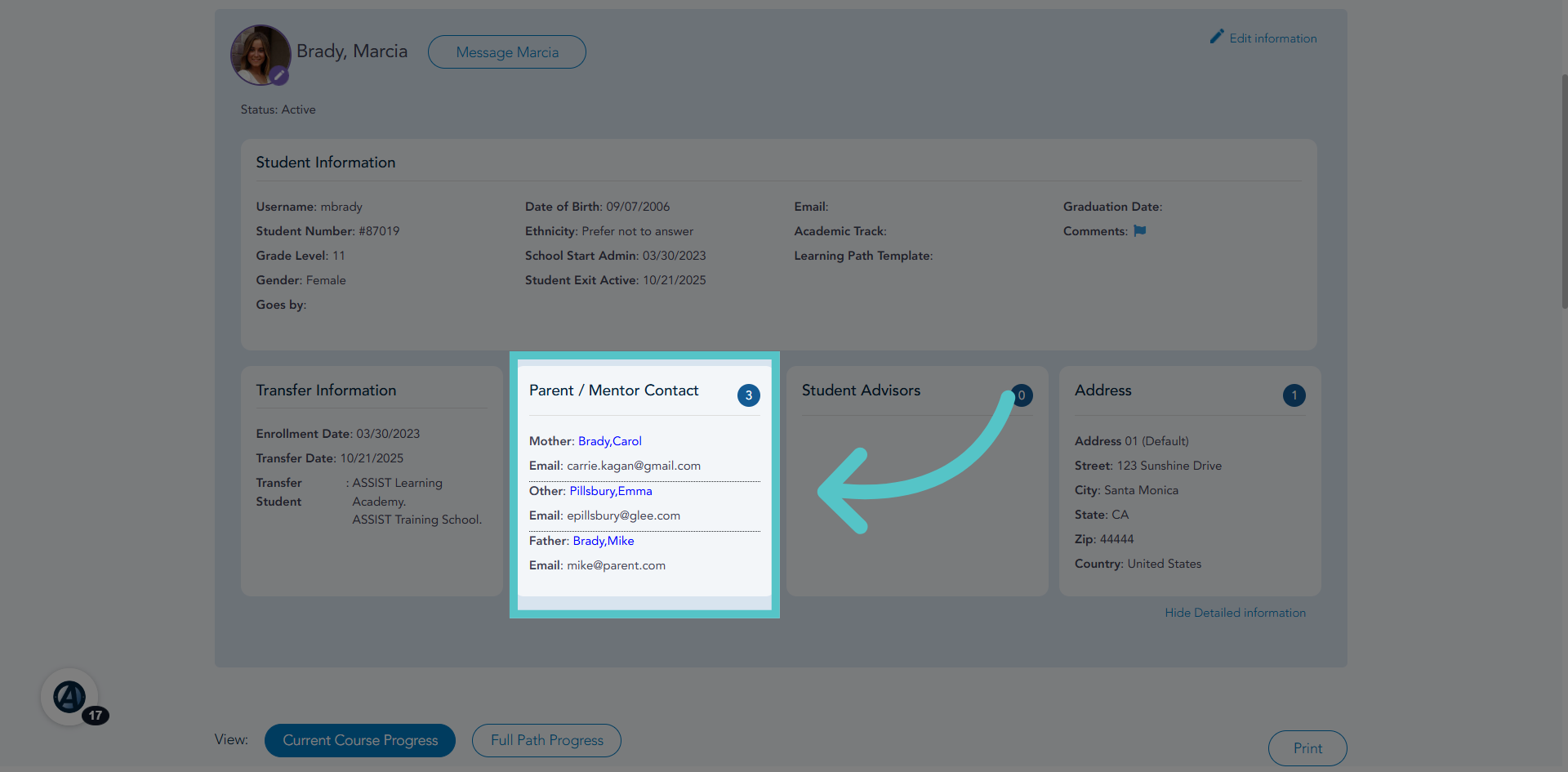
A student's assigned mentor will always show on their file page in the Parent/Mentor section.
If you have any questions about the information in this tutorial, please contact your dedicated school success manager for additional support.