Expand to Full Screen for Best Viewing
This tutorial guides you through grading student work submitted in the Apex platform.
Go to portal.adlsassist.com
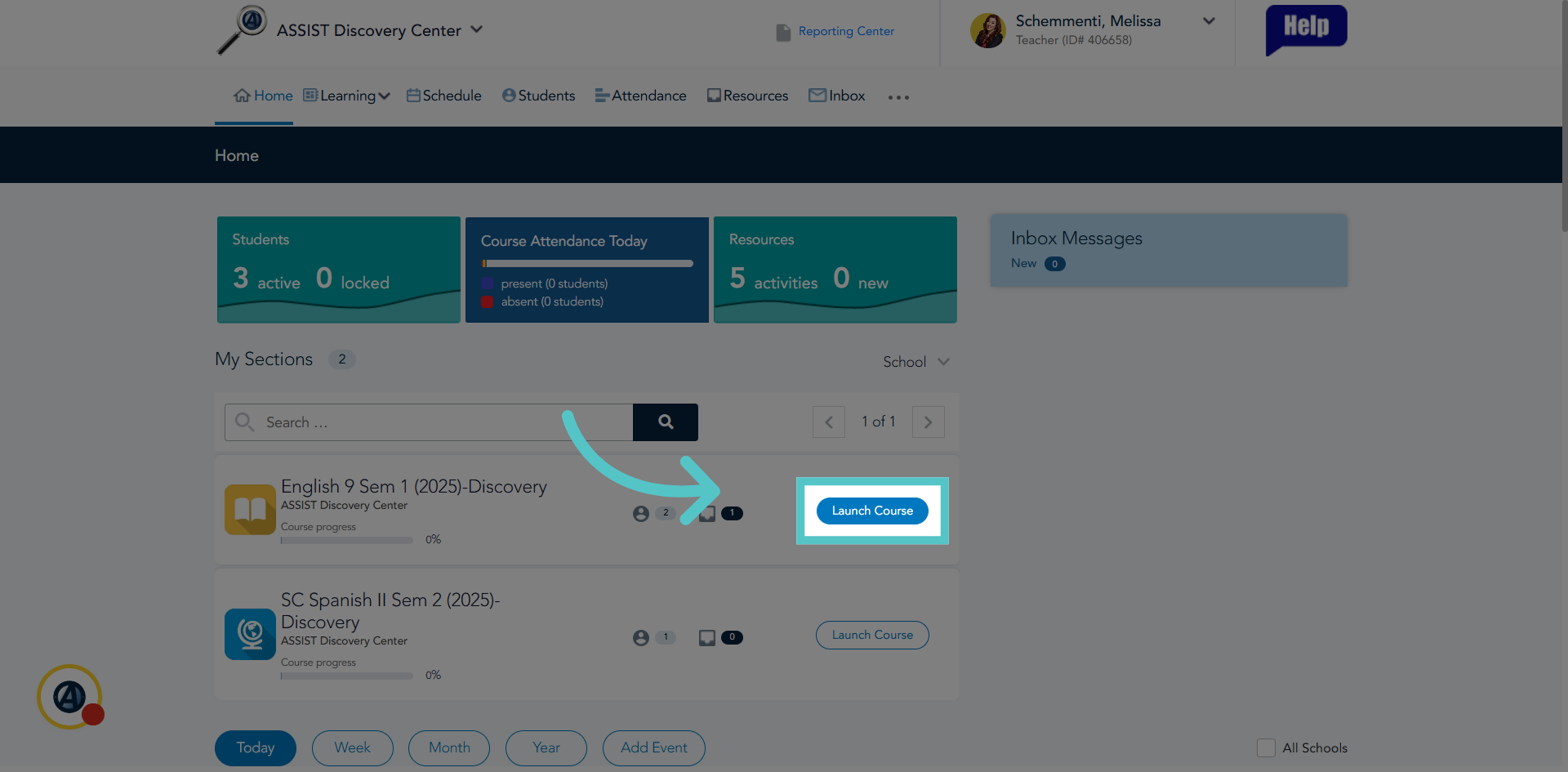
1. Click "Launch Course"
Click the "Launch Course" button to open the Apex platform. All student work is submitted and graded in Apex.
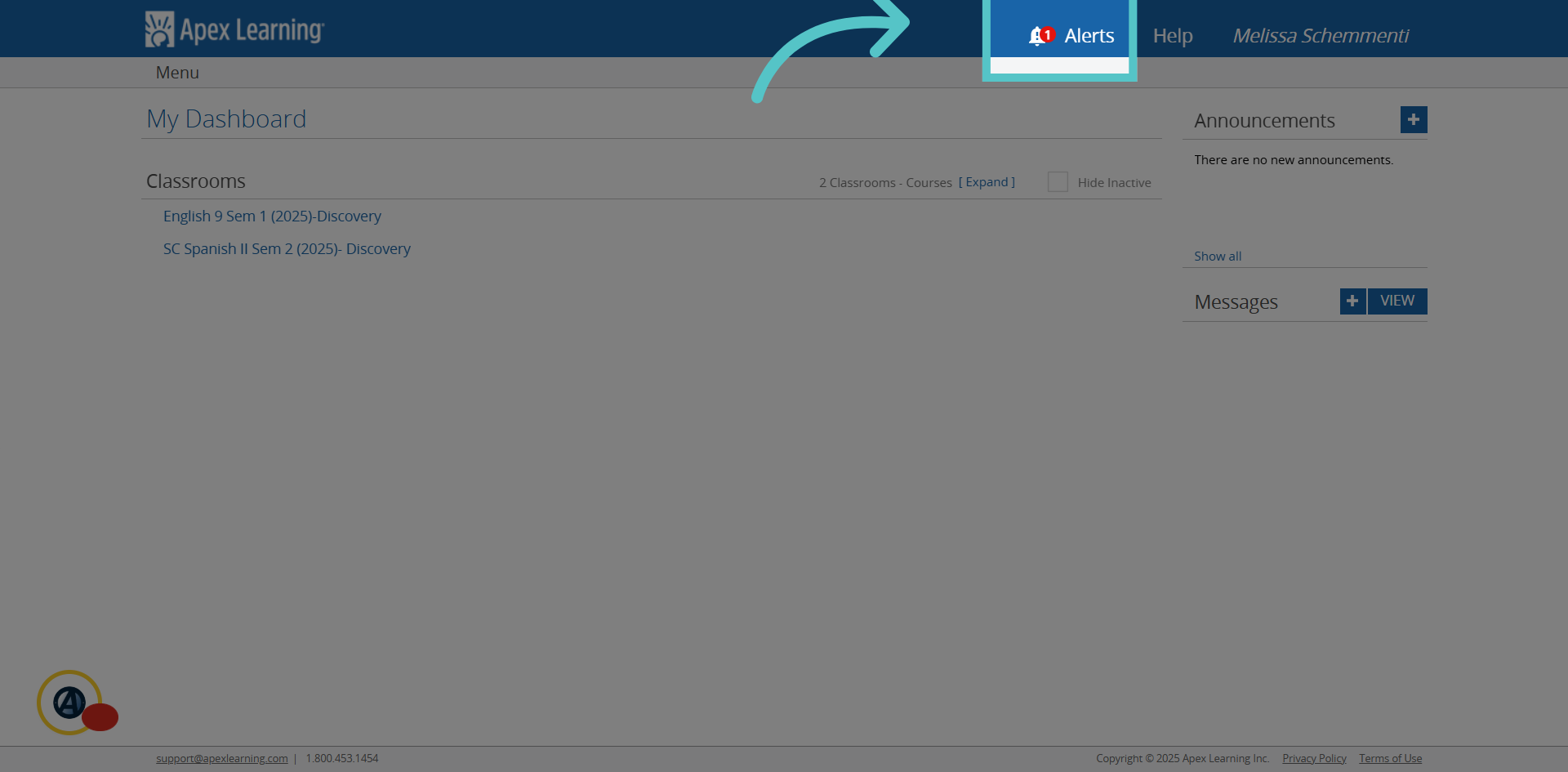
2. New Submission Alert
If students have submitted assignments for teacher review, there will be a red circle on the Alerts icon. The number will indicate how many new submissions are ready to be graded.
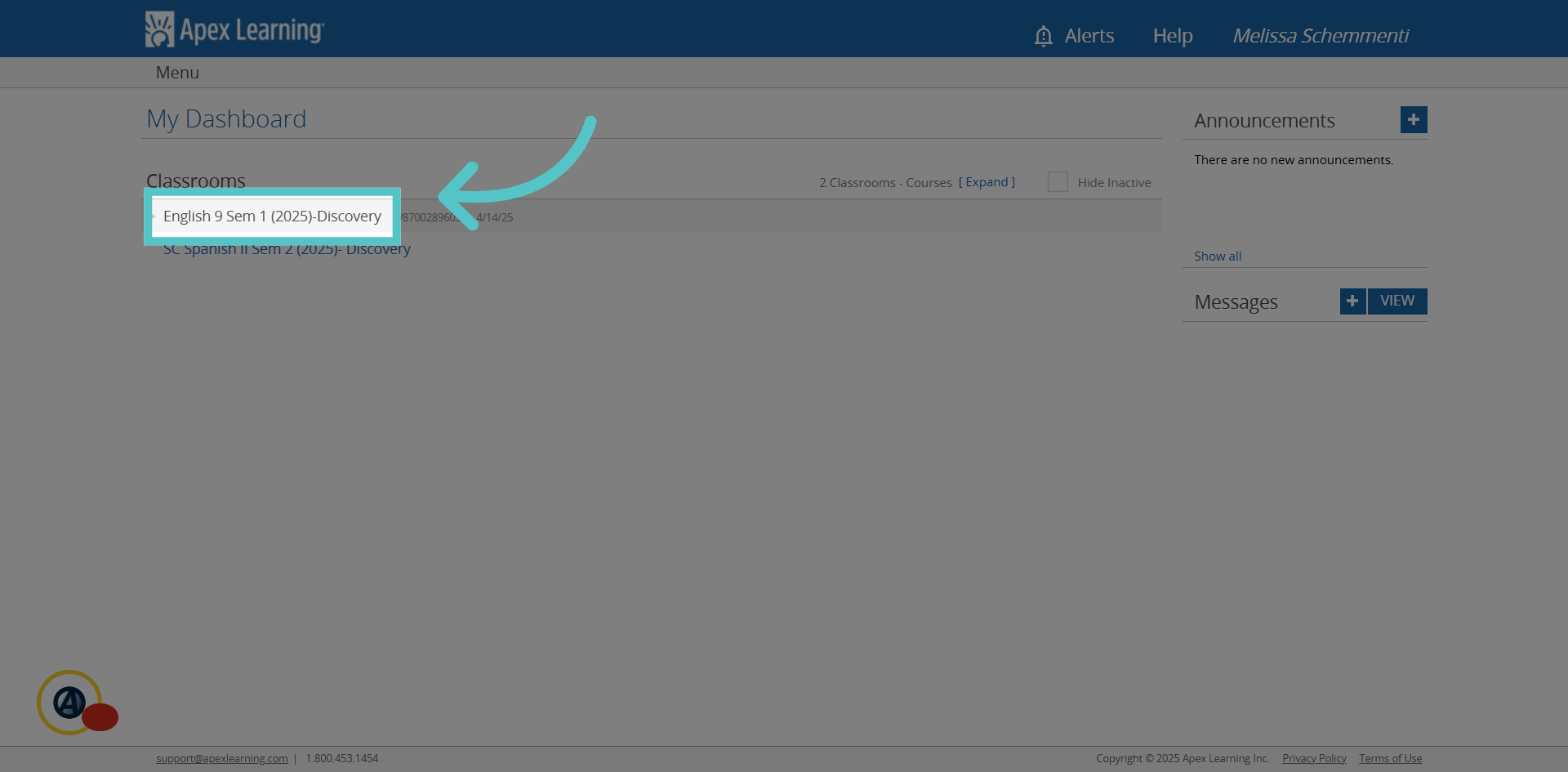
3. Course Dropdown
Click the name of the course to reveal the dropdown menu.
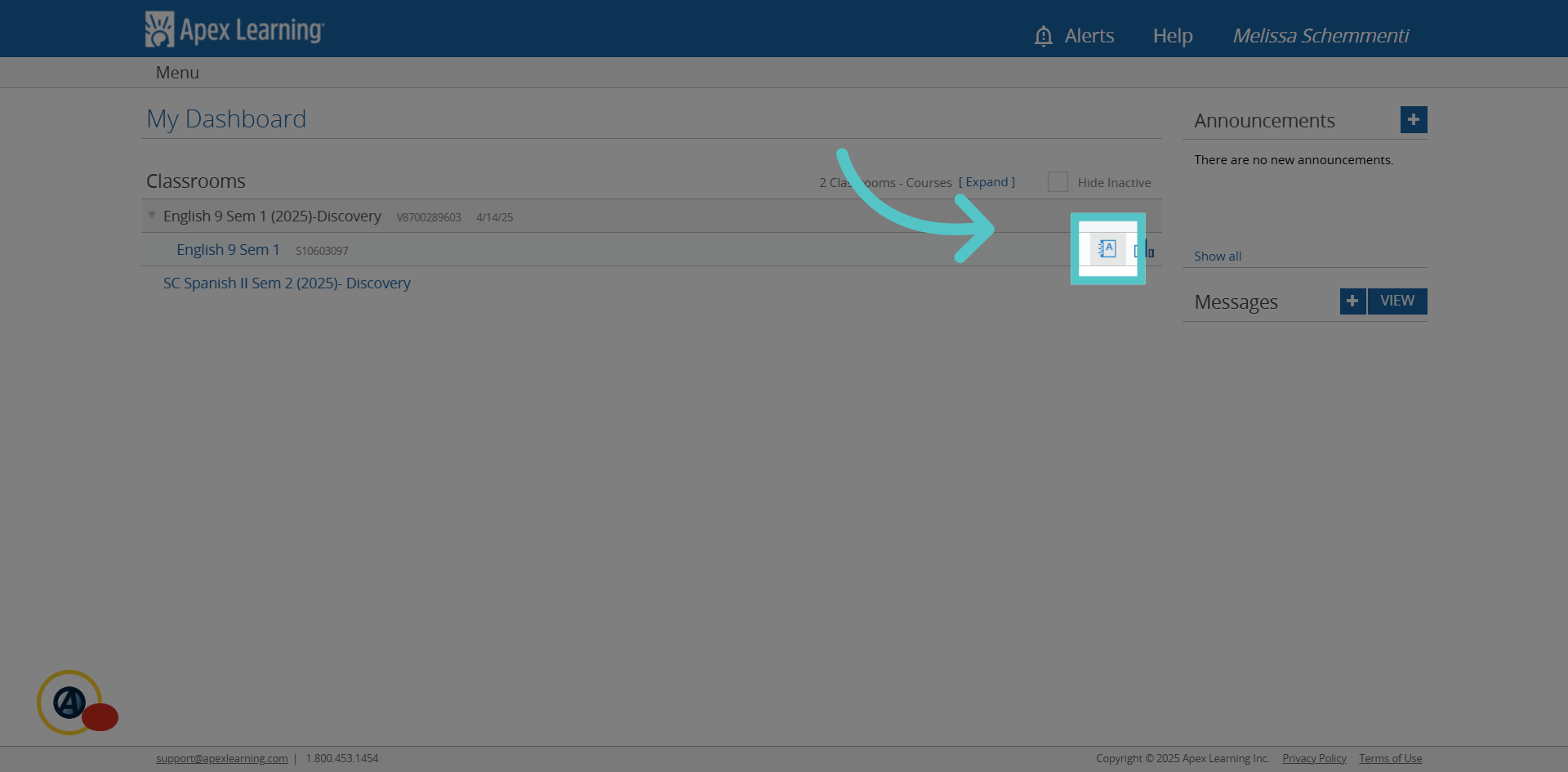
4. Click Gradebook
Click the gradebook icon for the course.
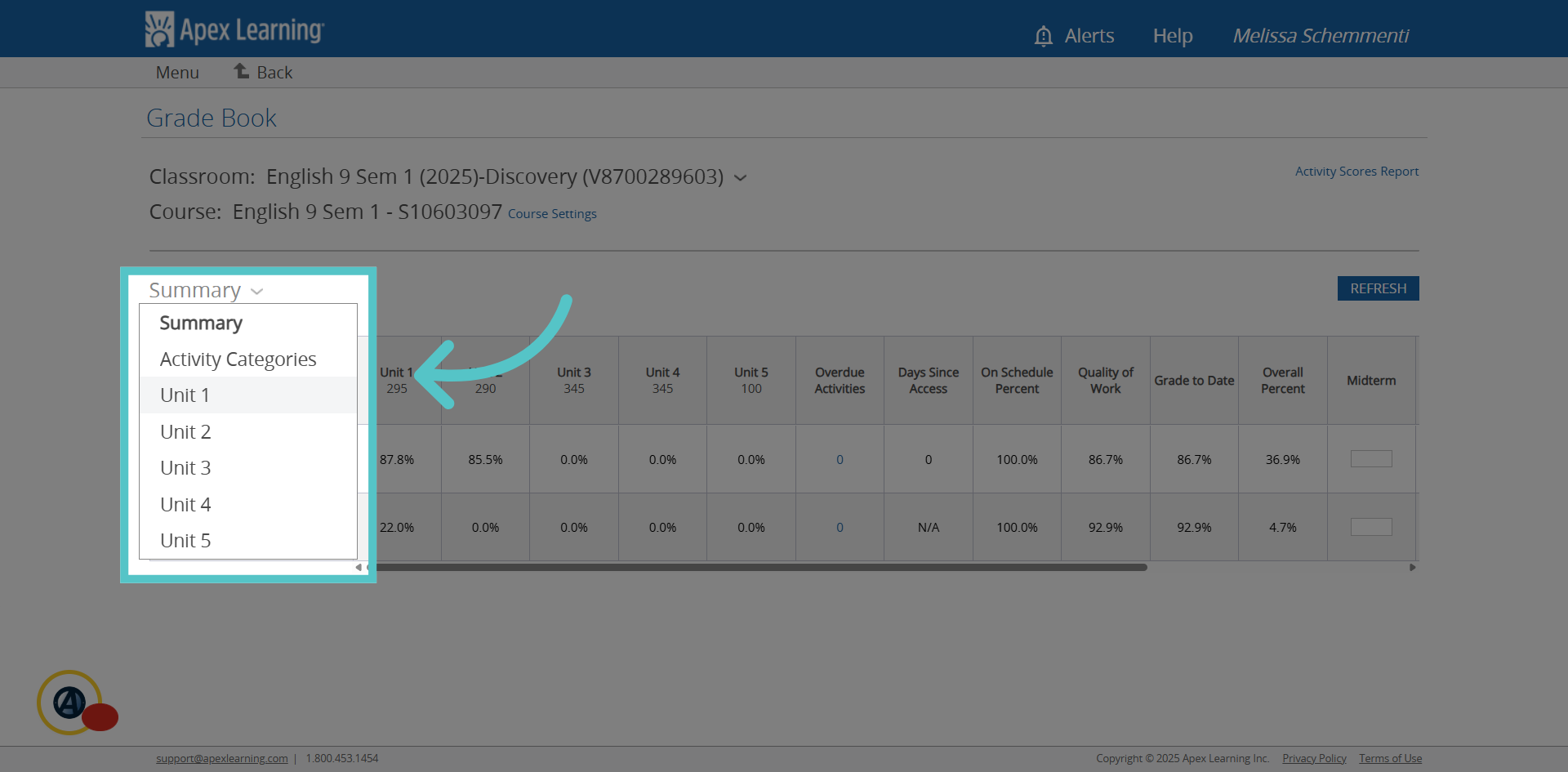
5. Select Unit
Select the Unit where work should be submitted
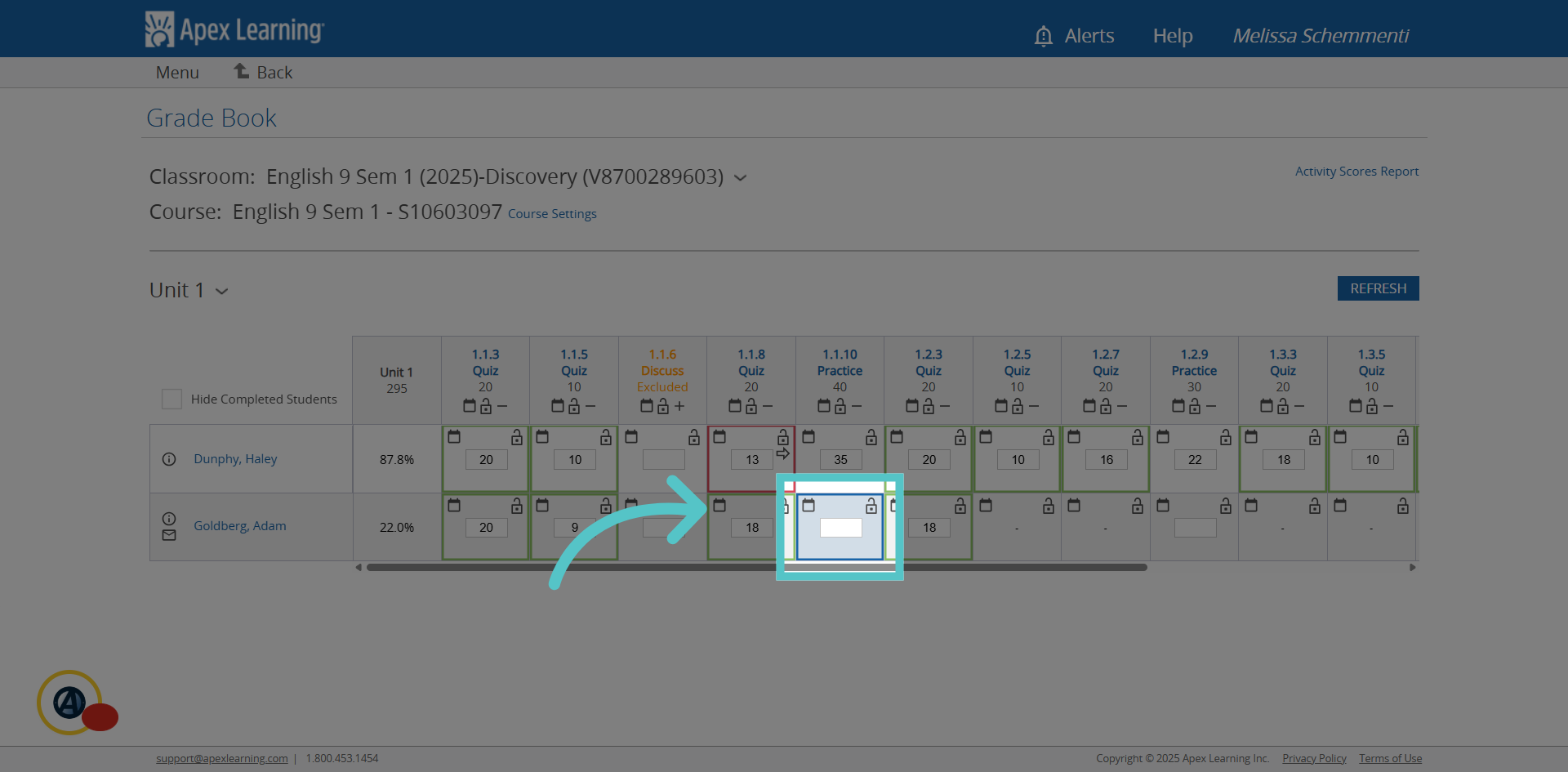
6. Blue Boxes
Blue shaded boxes in the gradebook indicate items that have been submitted for teacher grading. Double click in the scoring space to open the details for this submission
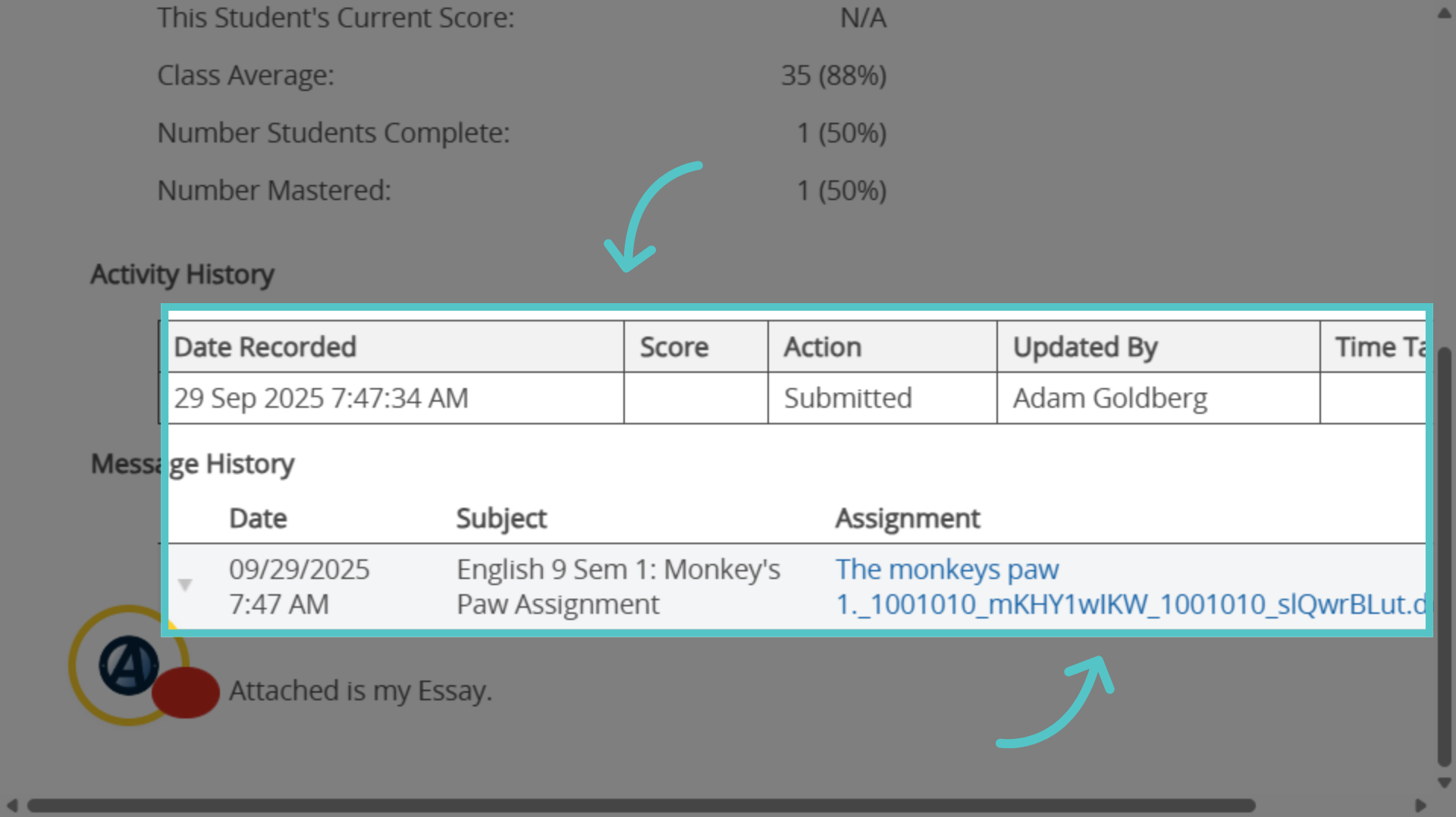
7. Assignment Details
A new window will open to show when the activity was submitted. The attached student file will be linked. You can open the student work from here
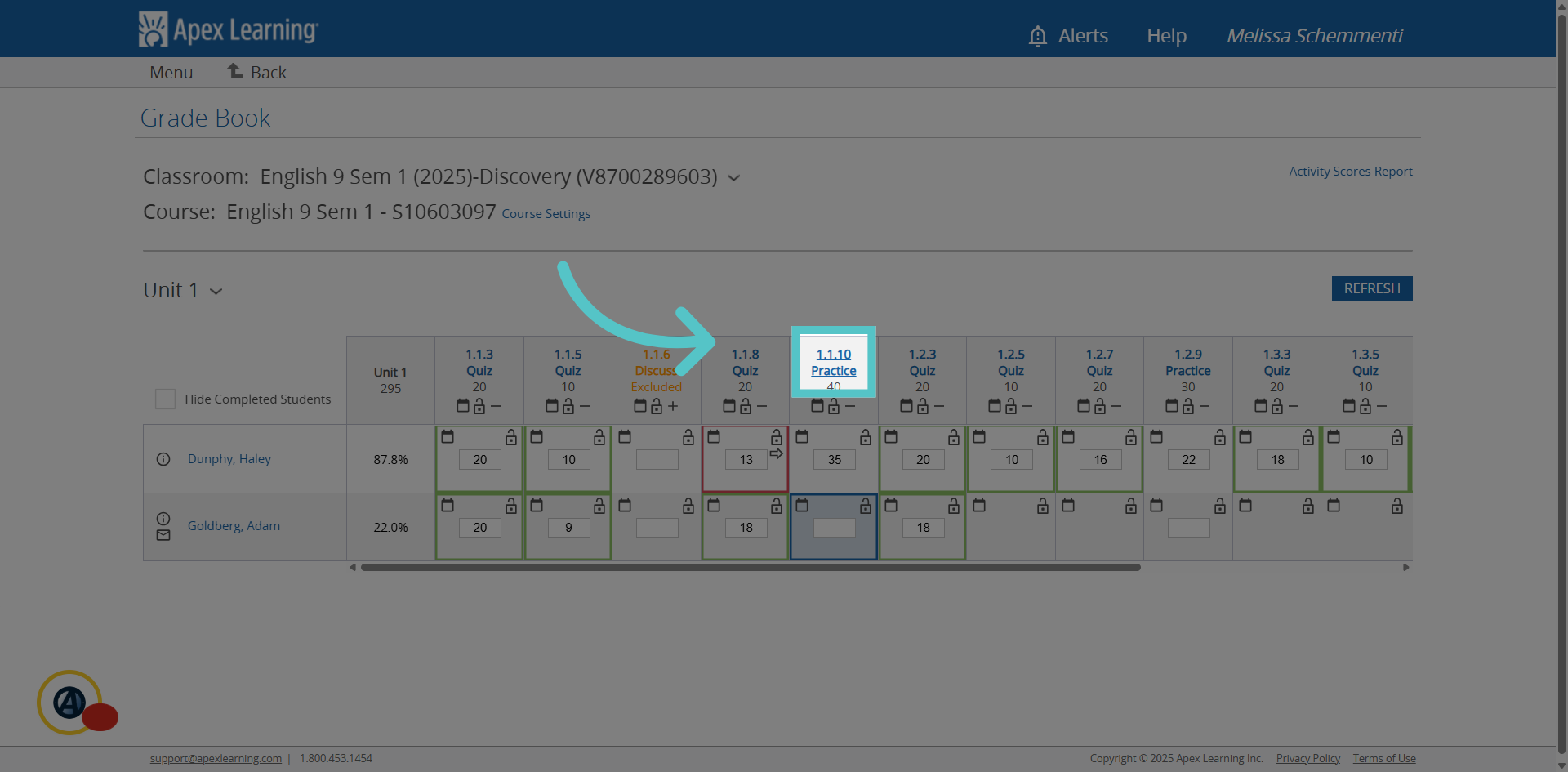
8. Assignment Link
To review the assignment criteria, click the link provided right from the gradebook. Each heading in the top row is a link to open the exact page in the digital textbook for the activity.
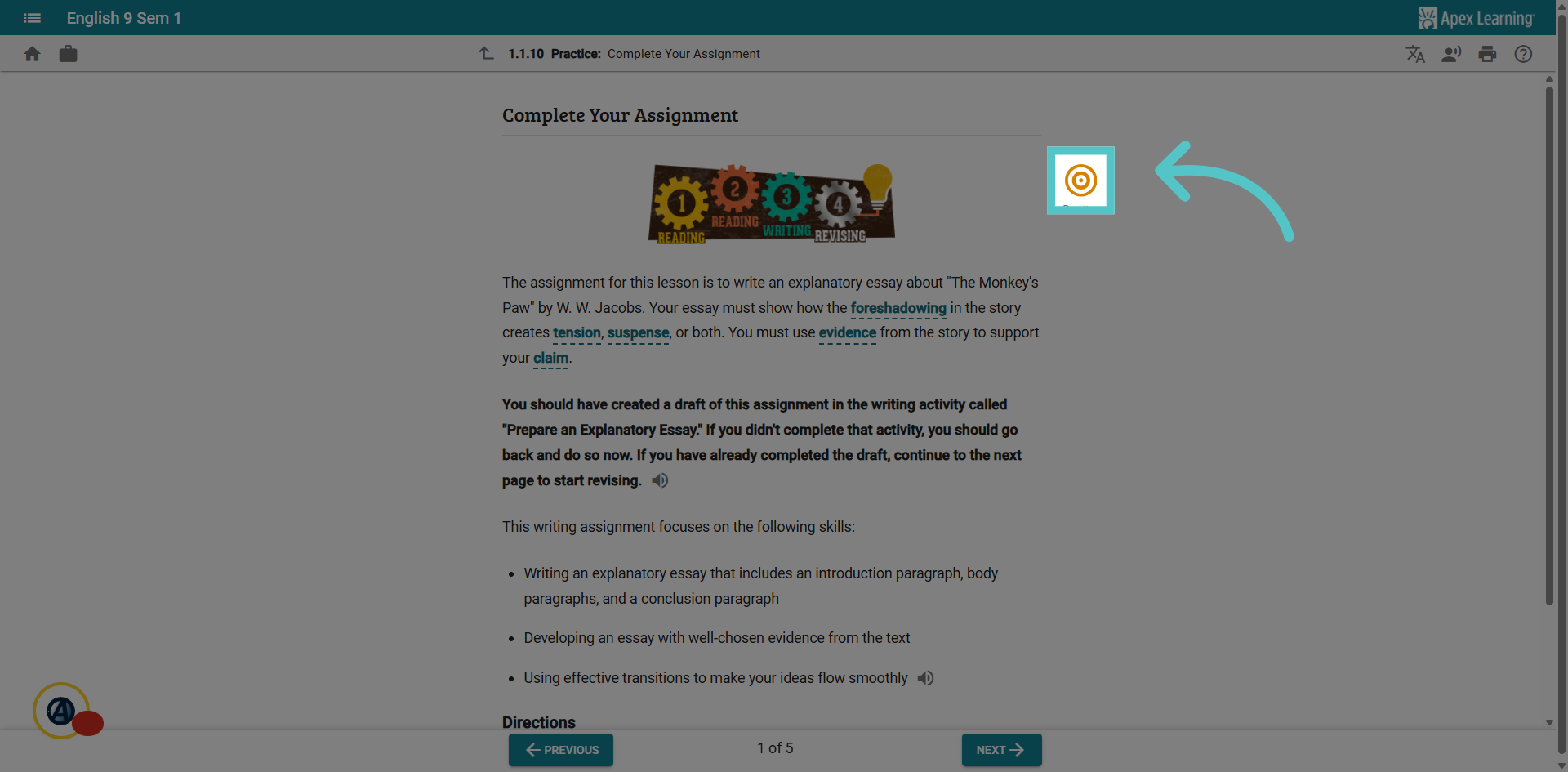
9. Target
Click the target icon to open the practice assignment and access the answer key.
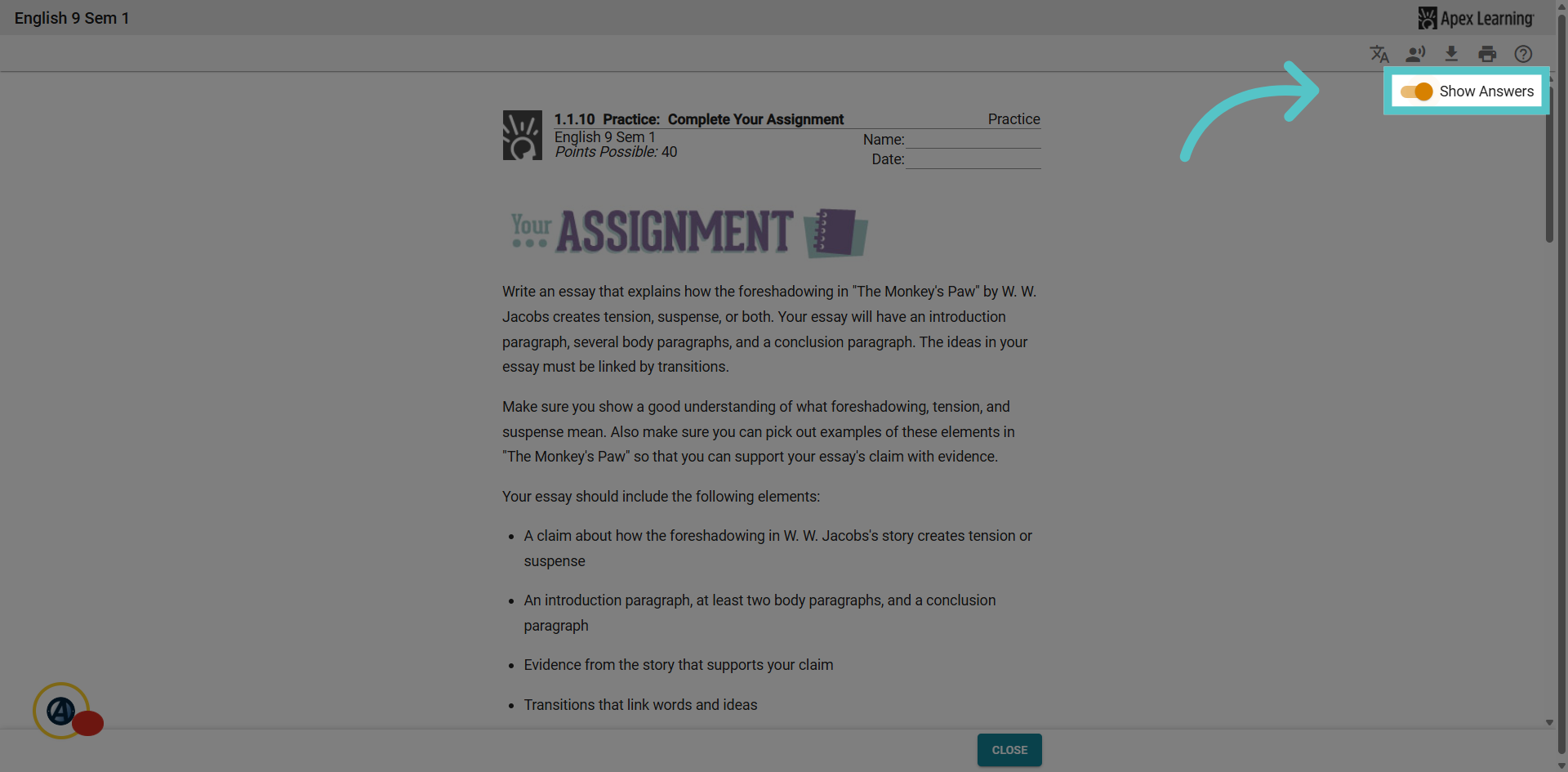
10. Show Answers
Click the "Show answers" button in the top right corner to see sample responses and correct answers. Students do not have this button.
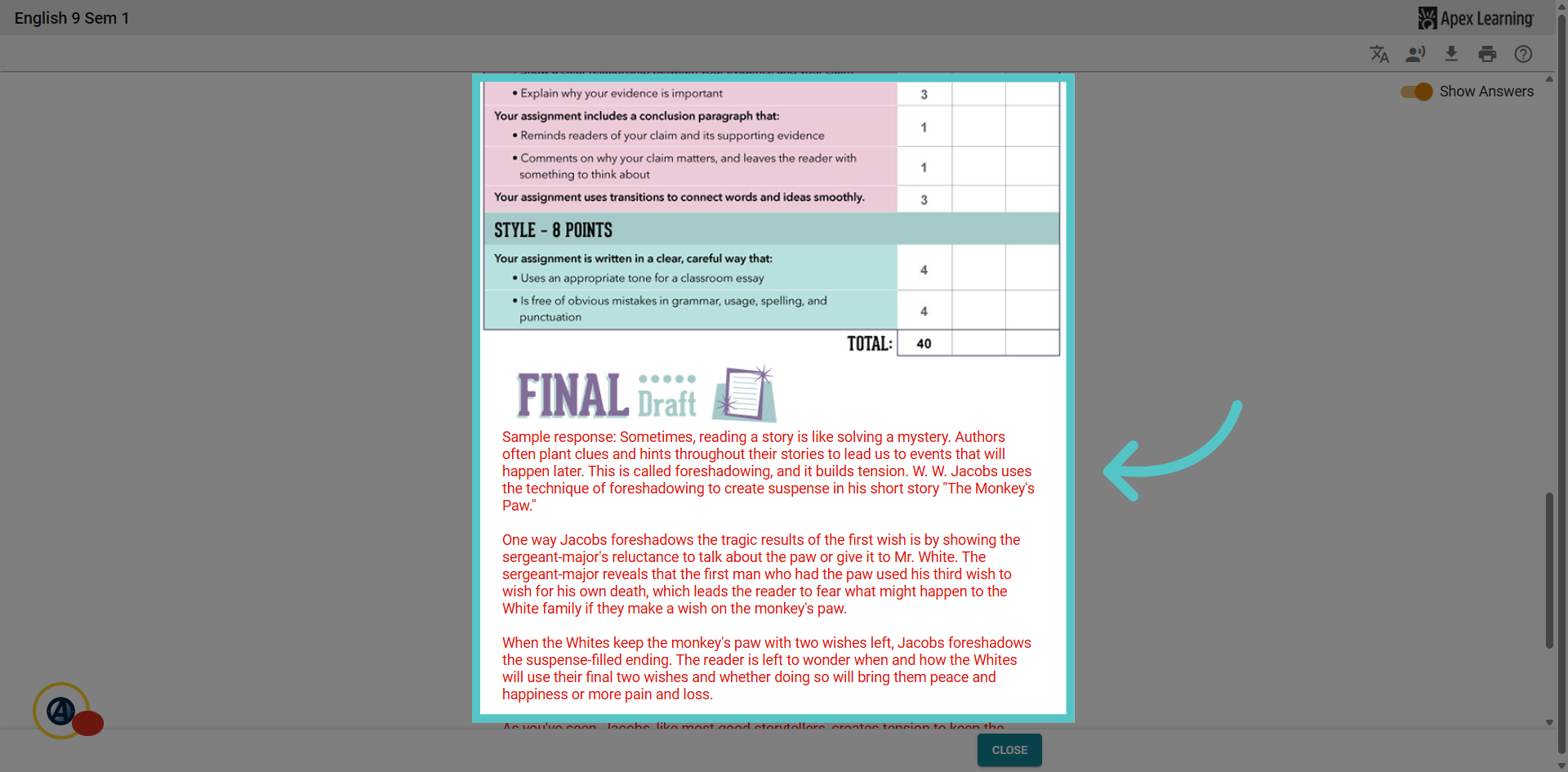
11. Grading Support
As you scroll down the page, a rubric will be available to help with scoring. Students have this same reference. They know what the criteria are. Additionally, teachers will see a sample response or an answer key to guide scoring and feedback.
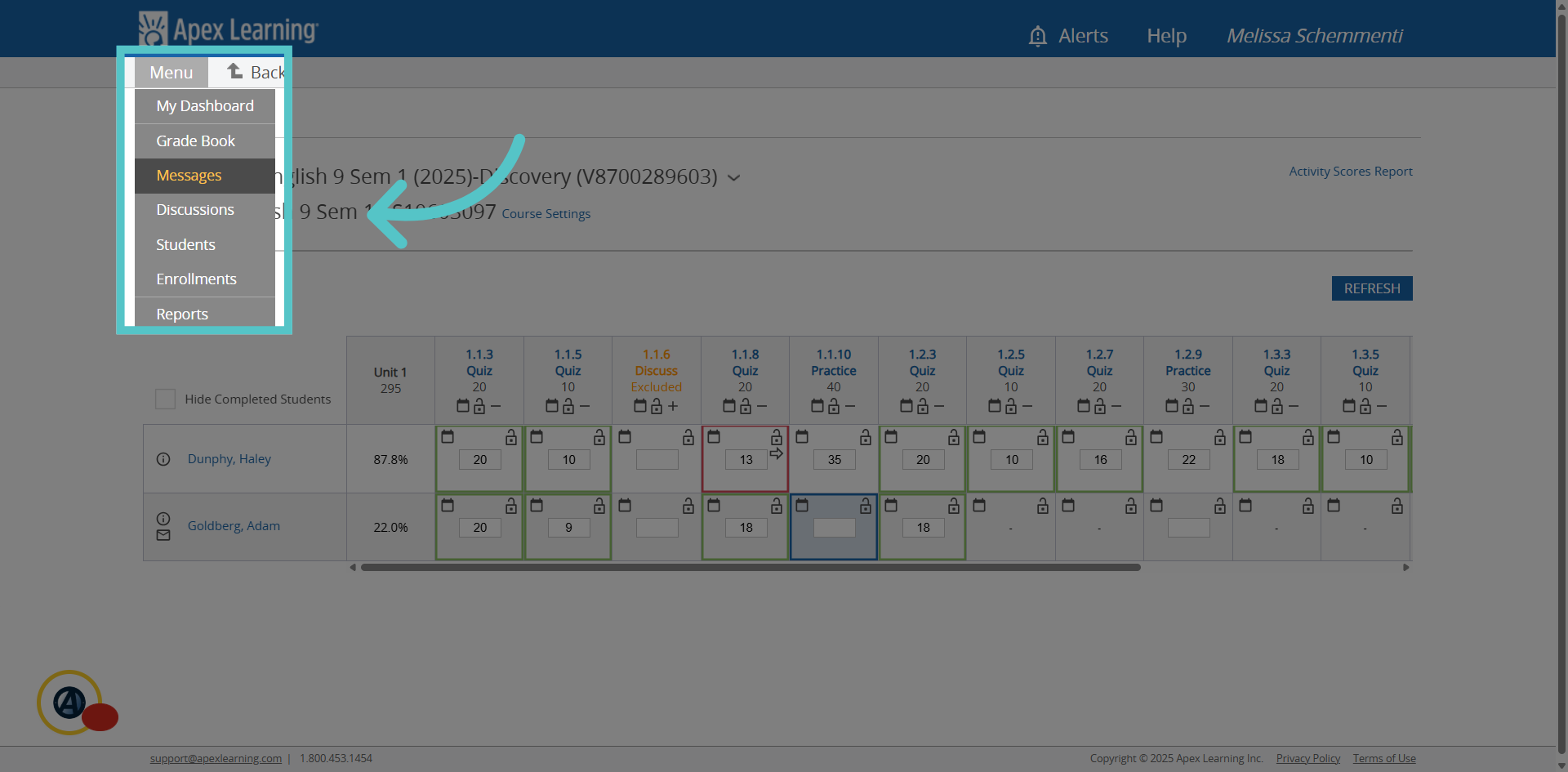
12. Messages
Once you have reviewed the attached student work using the scoring support, return to the gradebook tab. Select "Messages" from the top corner Menu. This is how you will provide feedback to your student.
13. Assignment
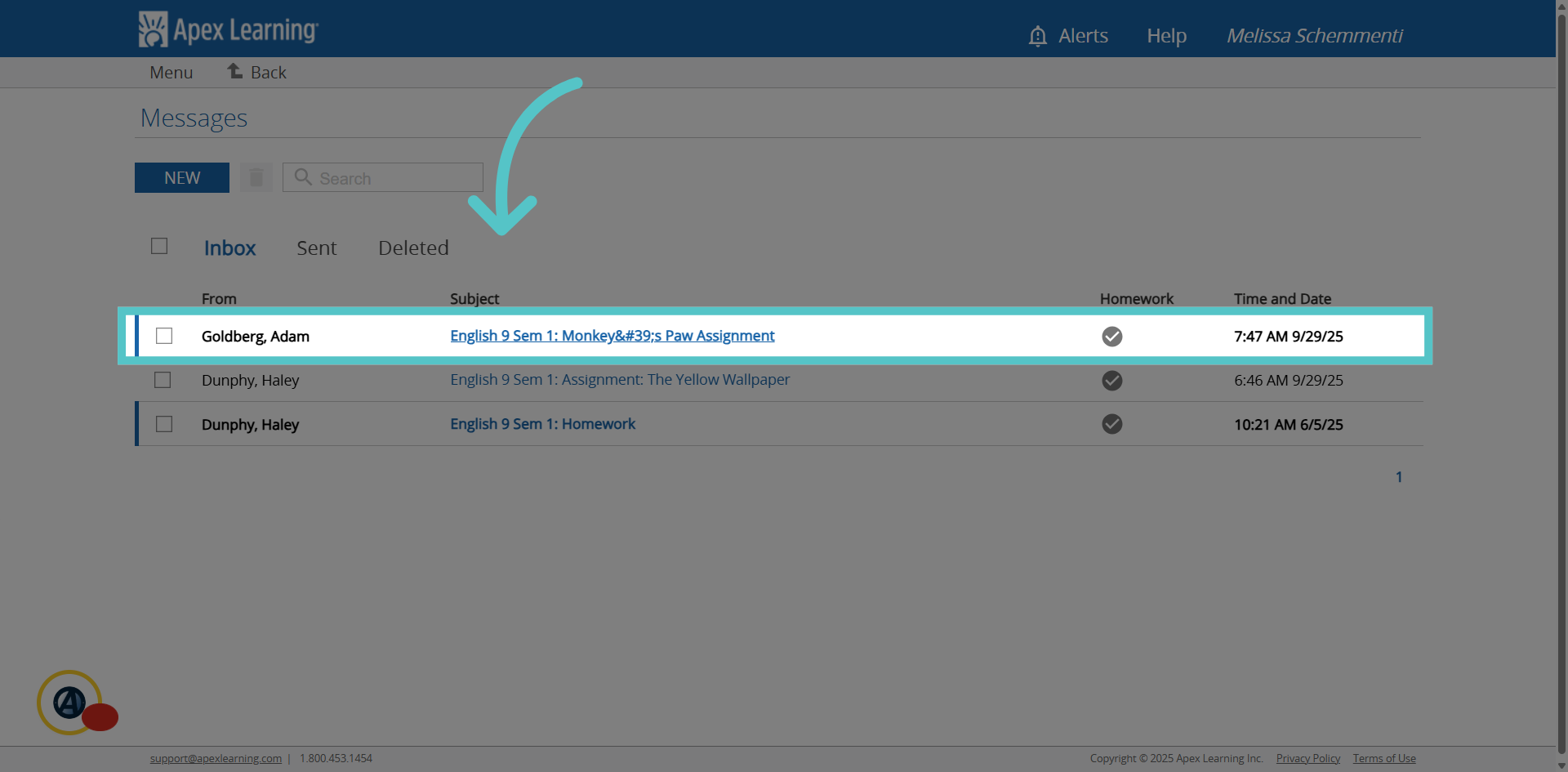
All student work appears in your Apex Messages. Open the assignment message
14. Click "GRADE / REPLY"
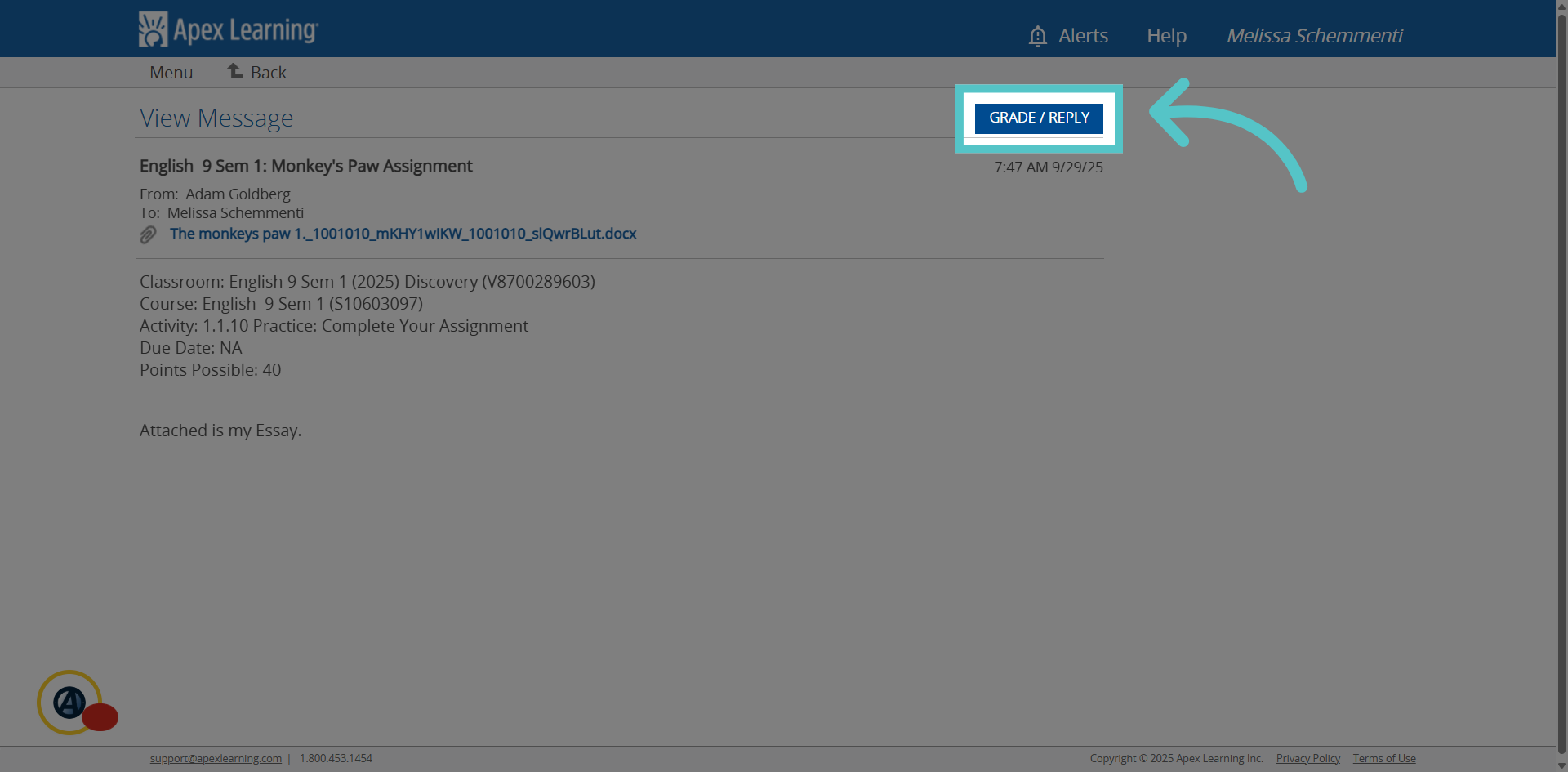
The details and assignment link are also listed in the message from the student. This is the same information from the blue box earlier. Select the option to 'grade/reply' in the top right.
15. Click "SEND"
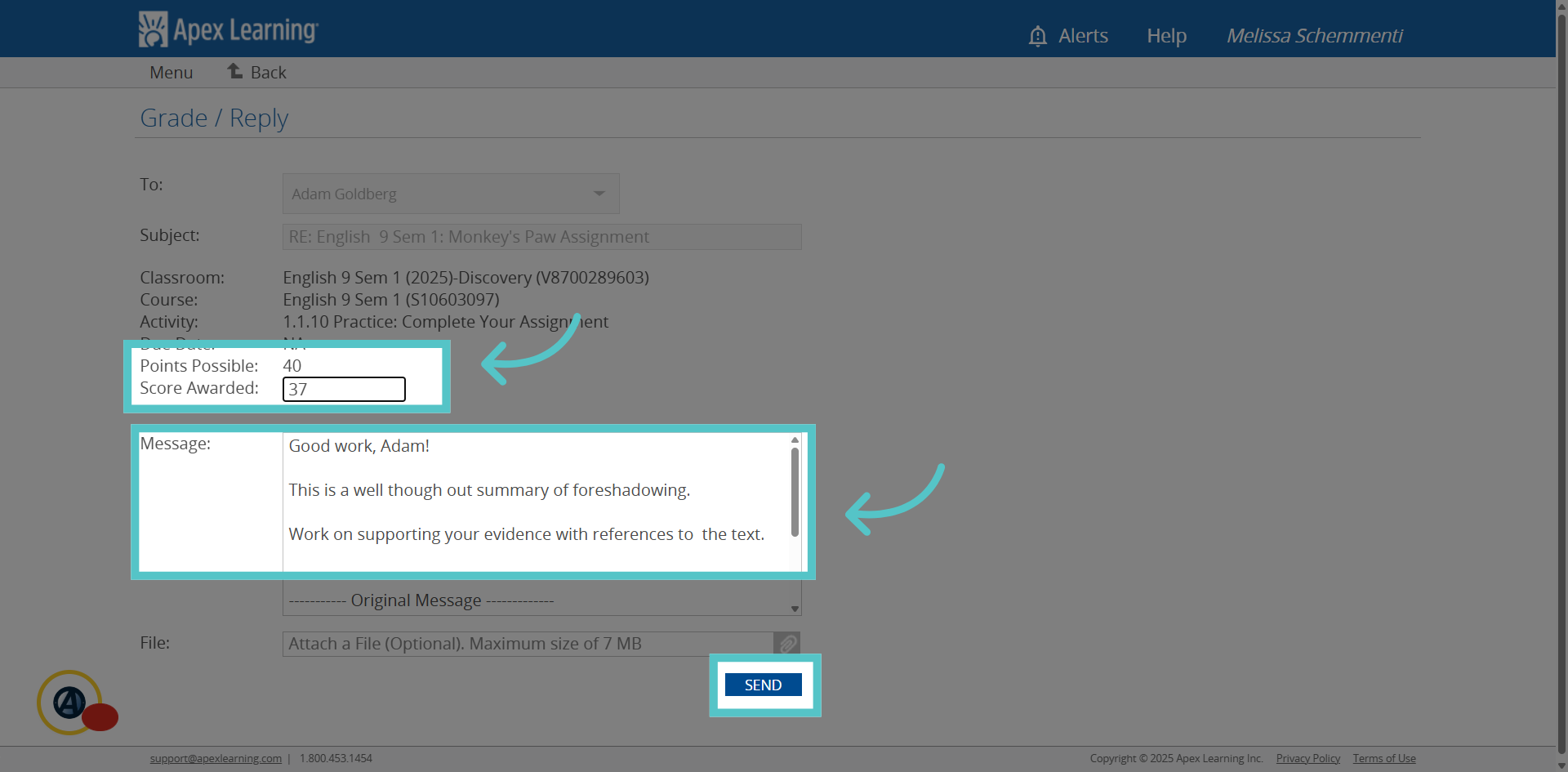
This opens a teacher response message. Enter the points awarded for the assignment. Type personalized feedback into the message space. Click send.
16. Graded
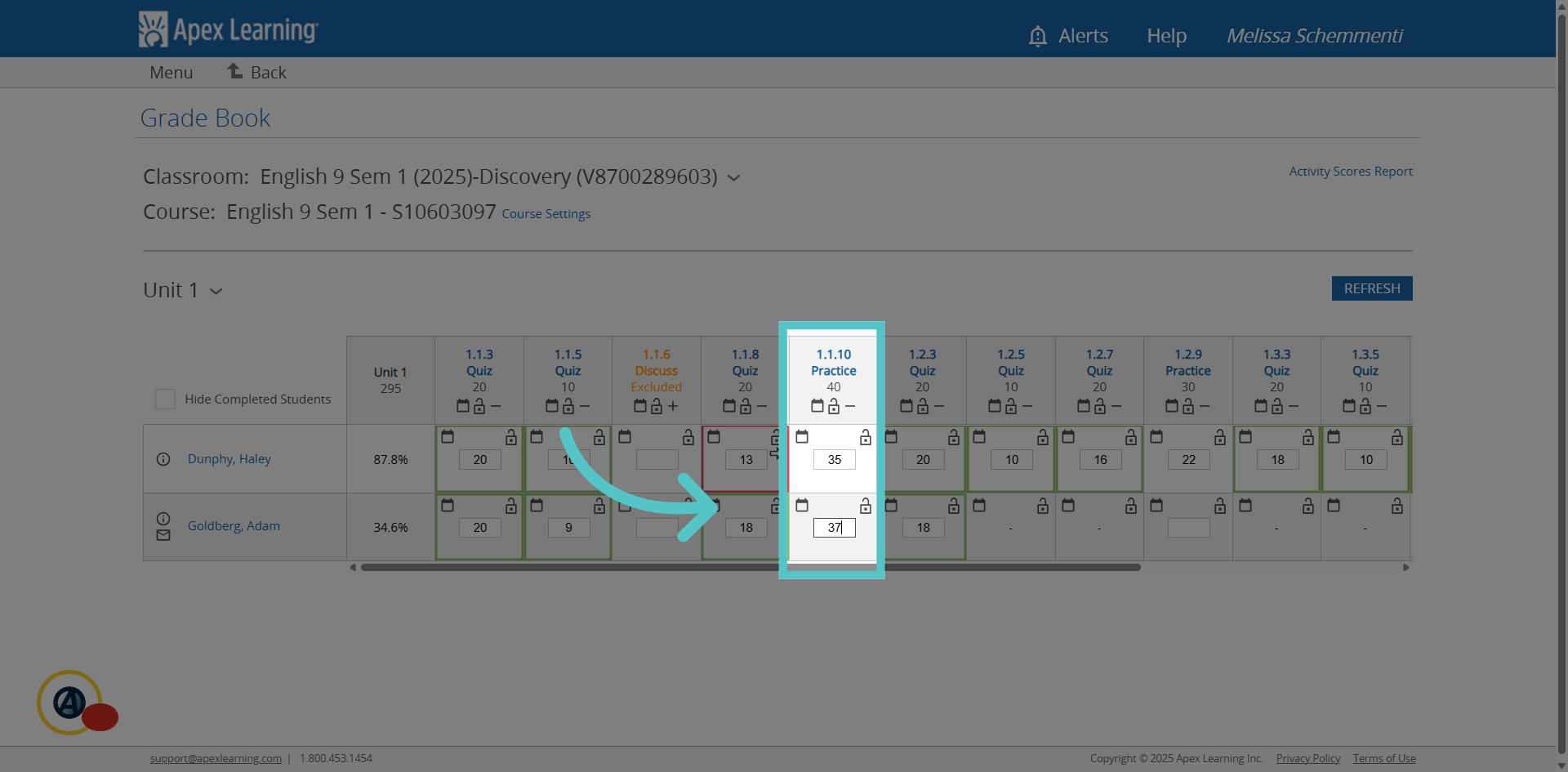
When you return to the gradebook, you will see that the point value awarded has been automaticlly entered into the gradebook. The box is no longer shaded blue. Your feedback can also be viewed by double clicking on the score and opening the activity details.
If you have any questions about the information in this tutorial, please contact your dedicated school success manager for additional support.