Expand to Full Screen for Best Viewing
This tutorial guides you through managing exclusions within the Apex course content.
Go to portal.adlsassist.com
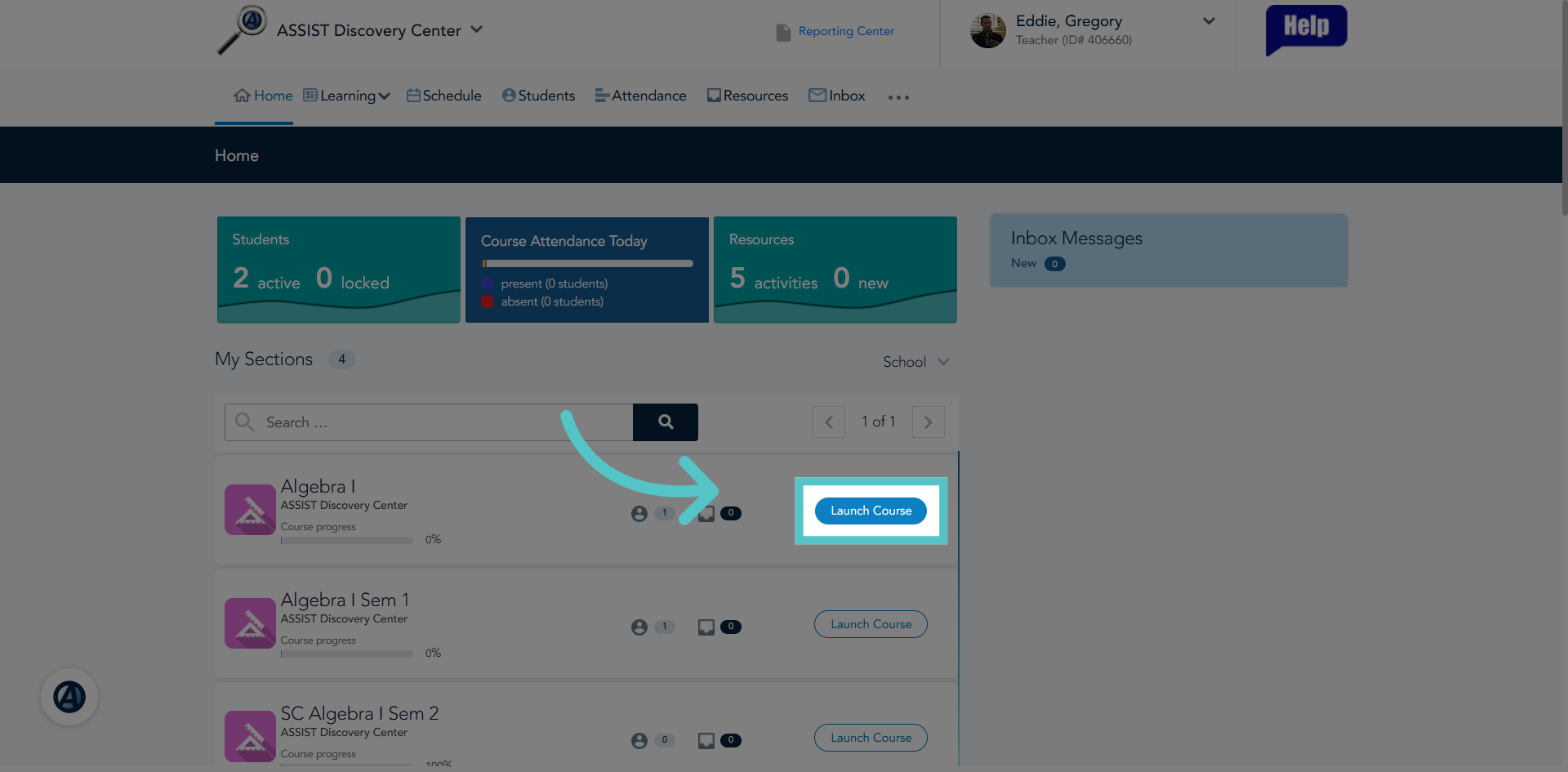
1. Launch Course Application
Log into ASSIST as a teacher and click "launch course" to access the curriculum in Apex.
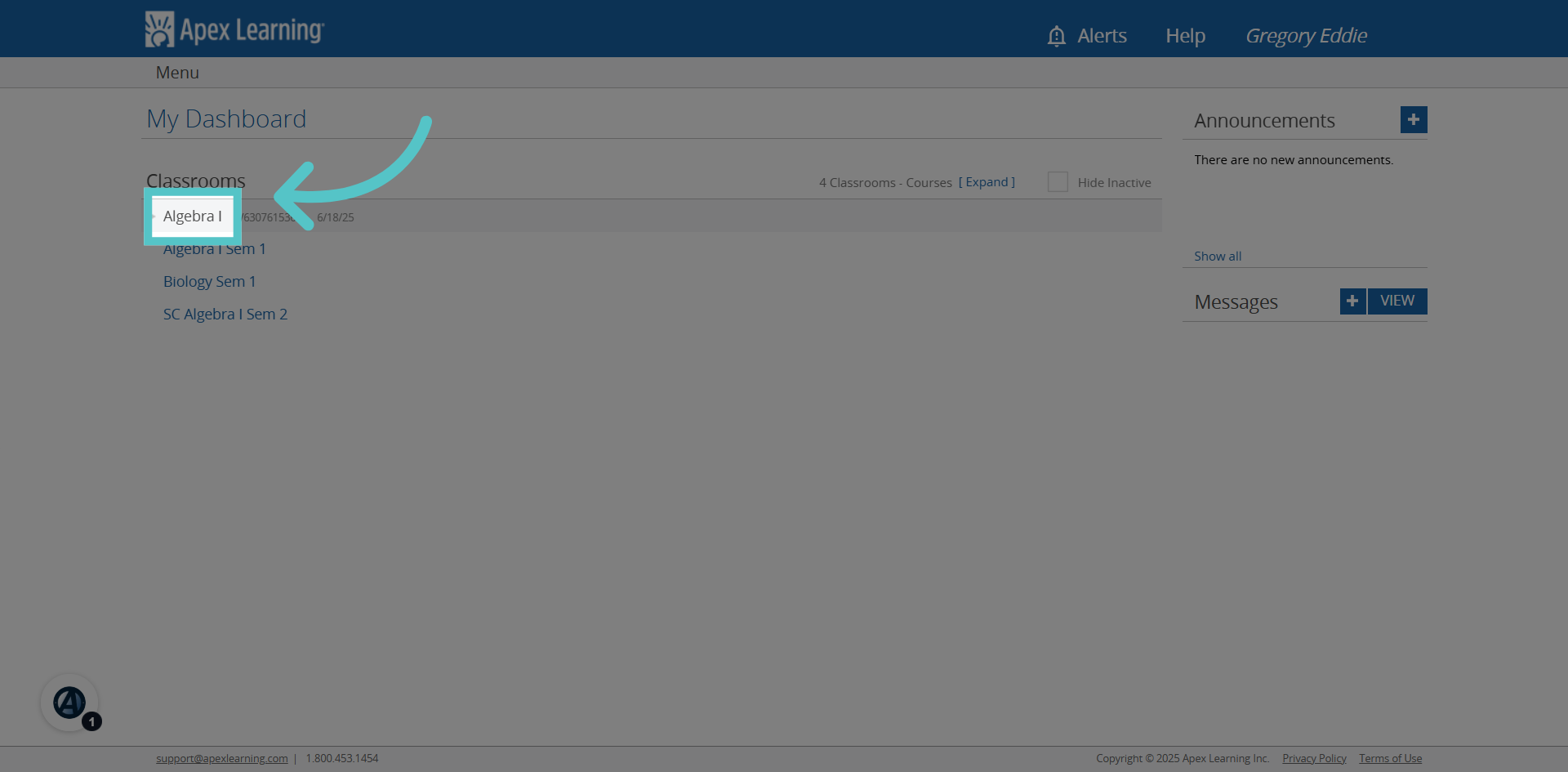
2. Select Course
Click the course name on the Apex dashboard.
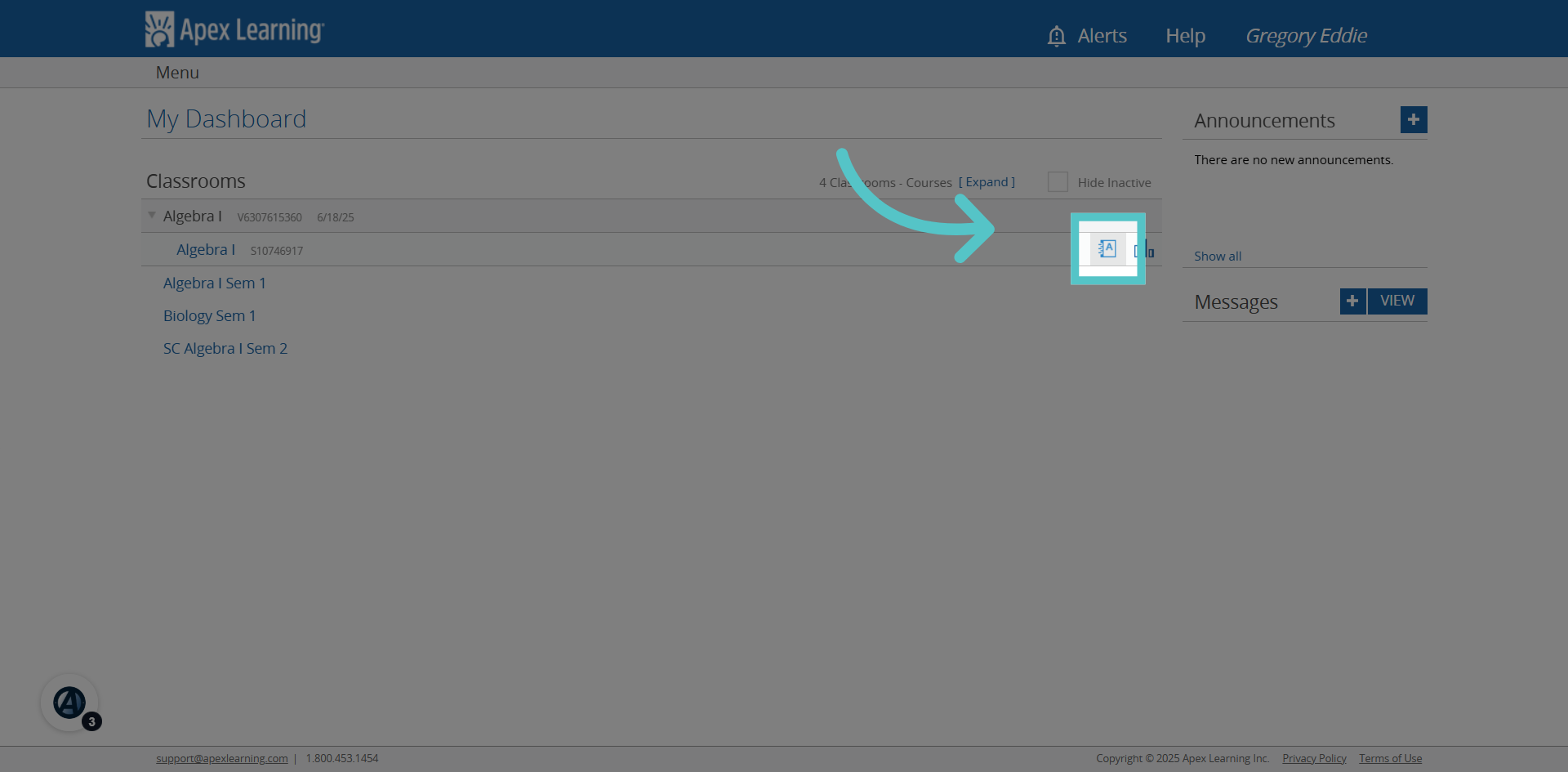
3. Access Course Gradebook
Click the gradebook icon to open the course gradebook. All exclusions are managed within the gradebook.
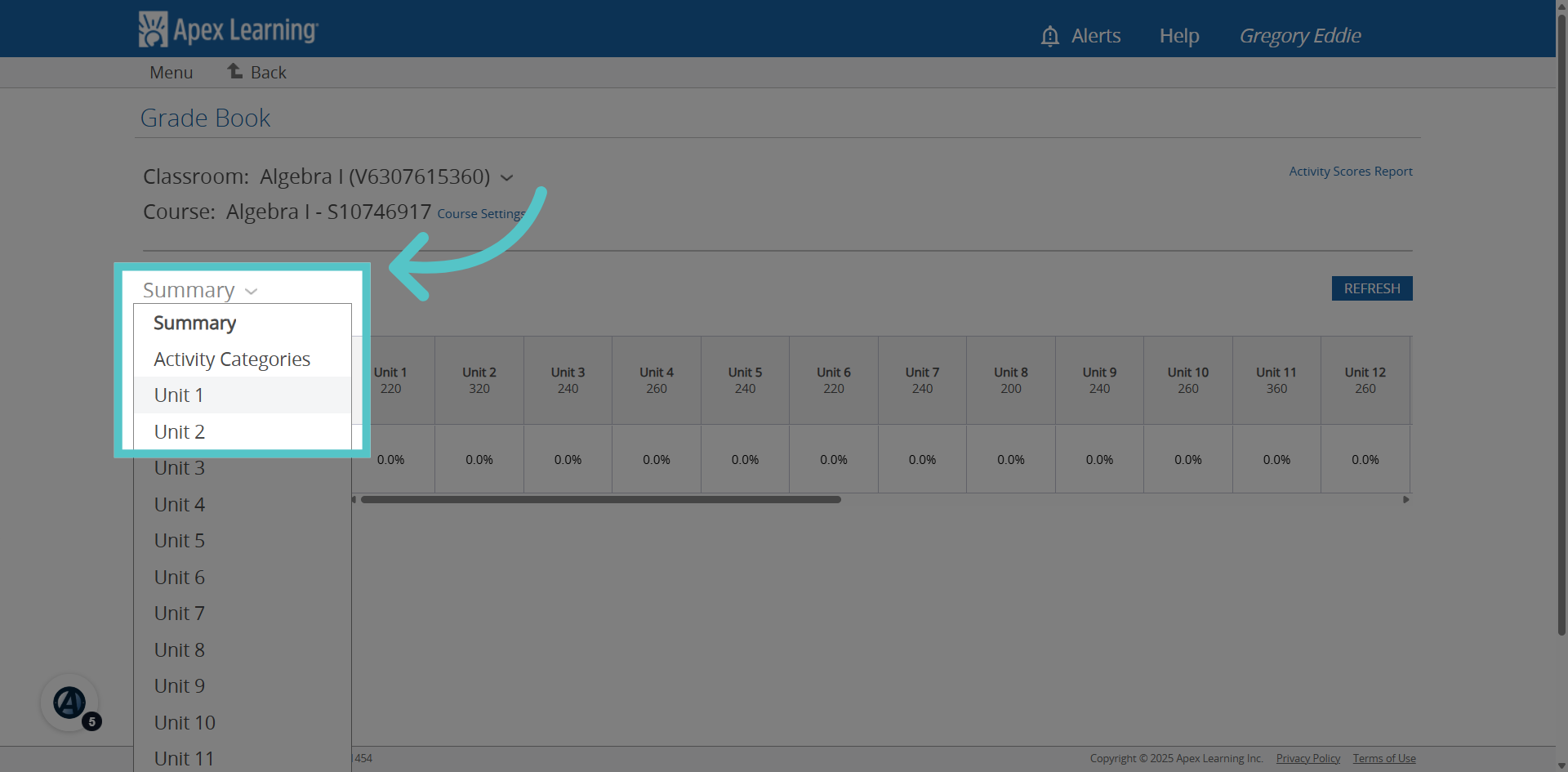
4. Select Unit
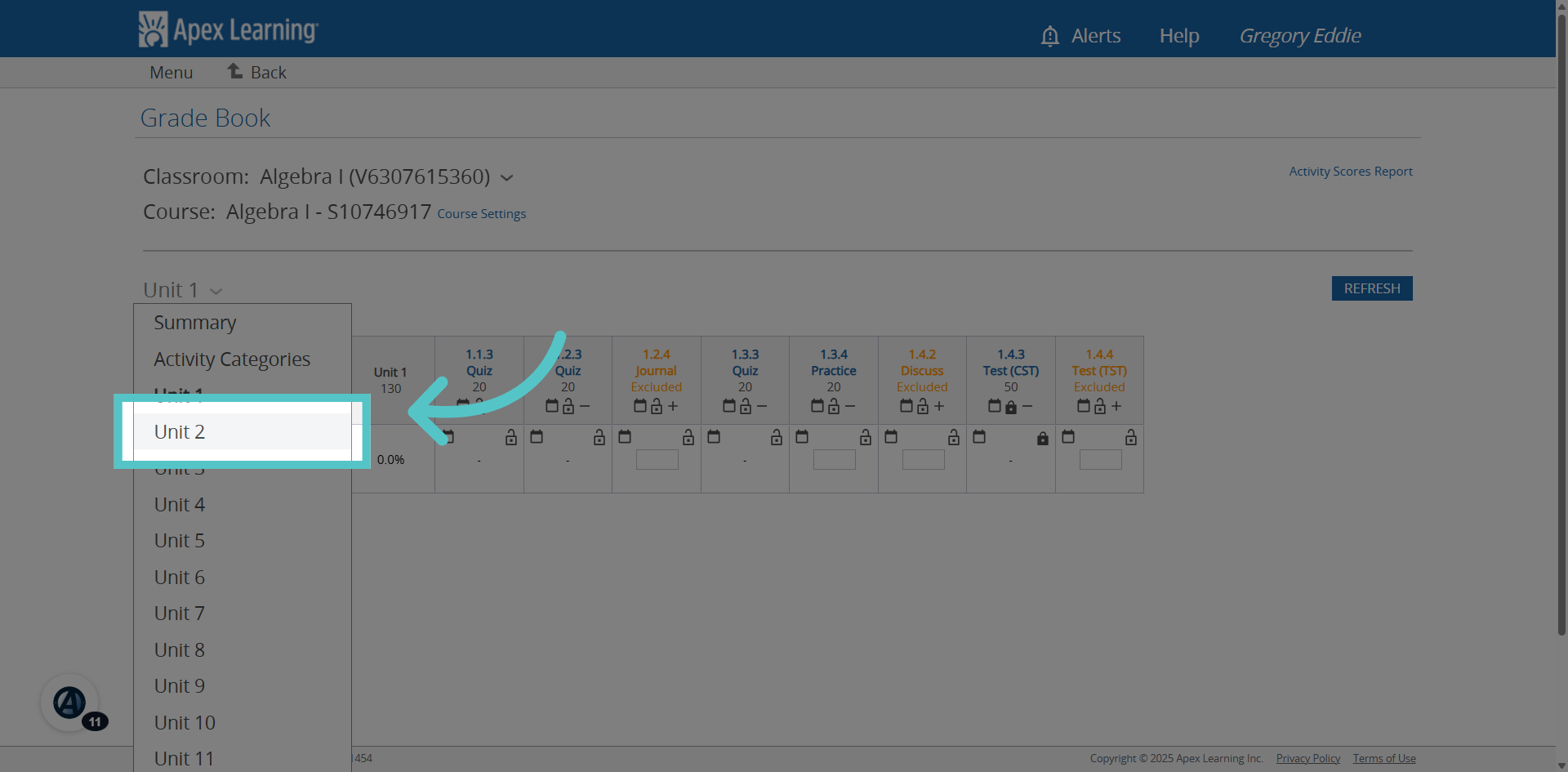
Exclusions are made one at a time from each unit. Select a unit from the dropdown menu.
5. Permitted Exclusions
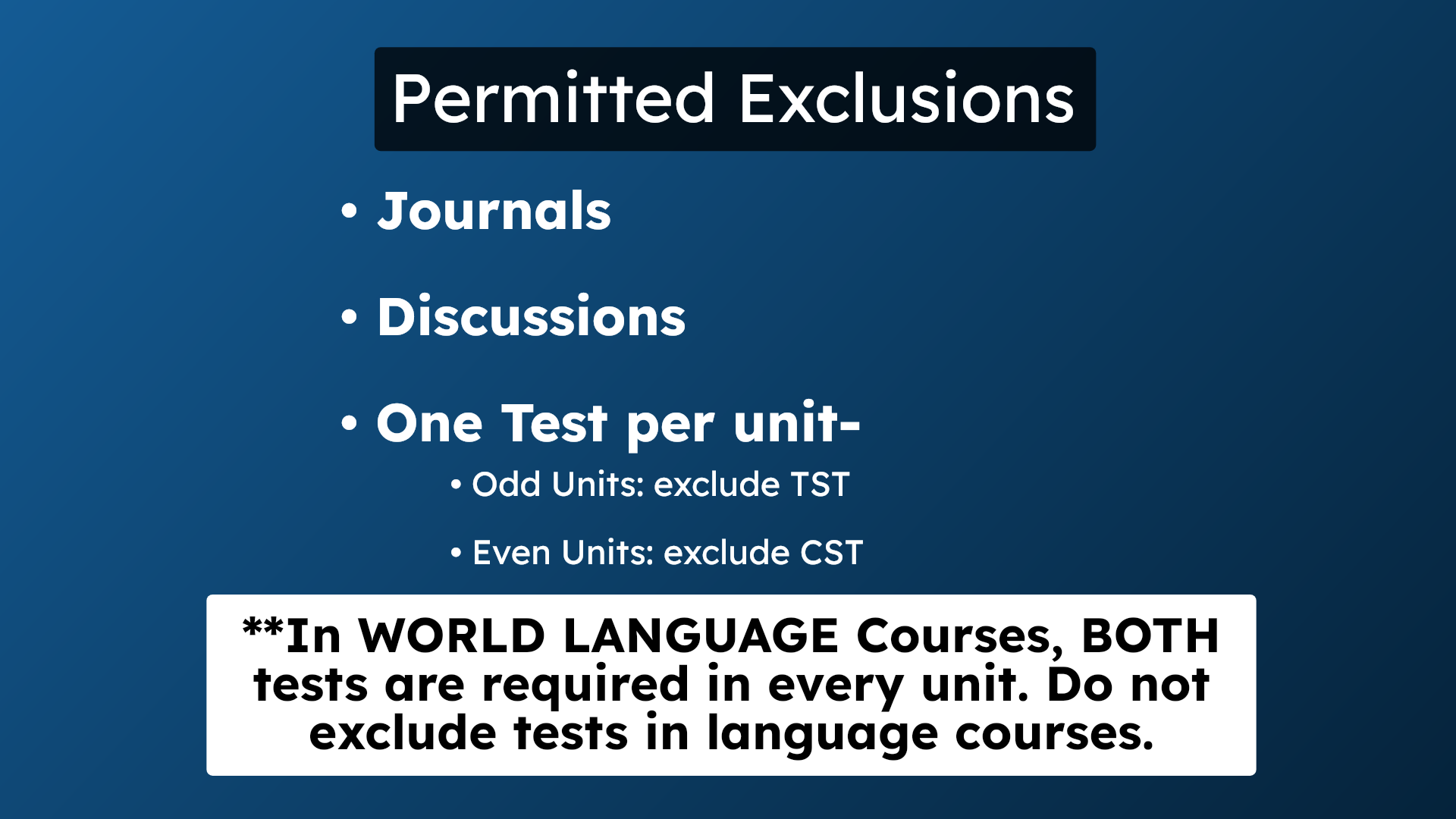
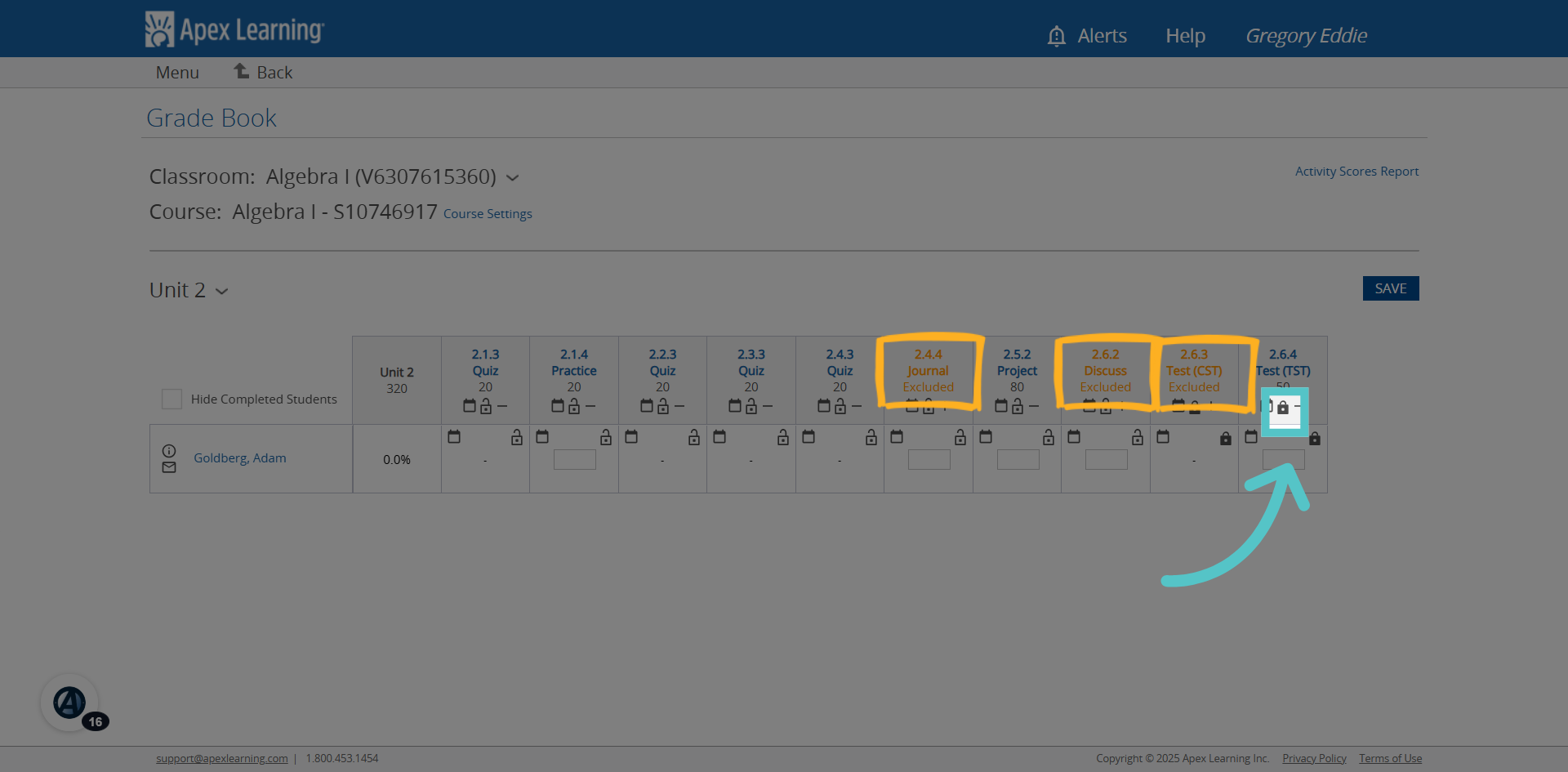
In Apex courses, only journals, discussions, and one test per unit can be excluded from the curriculum. When excluding tests, be sure to alternate the excluded test format each unit. In odd units, exclude the teacher scored test (TST). In even units, exclude the computer scored test (CST). In World Language courses, do not exclude any tests.
6. Exclude
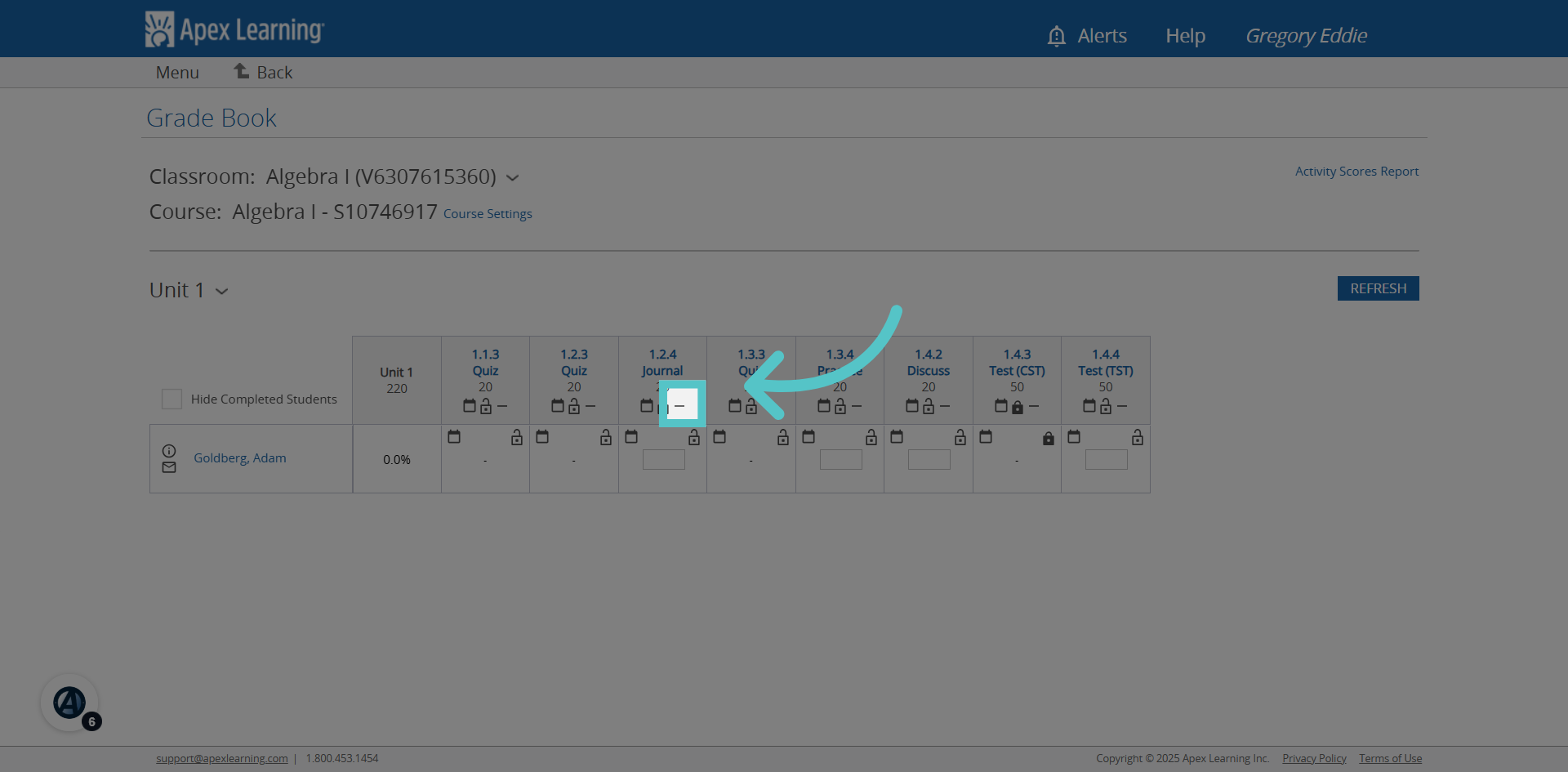
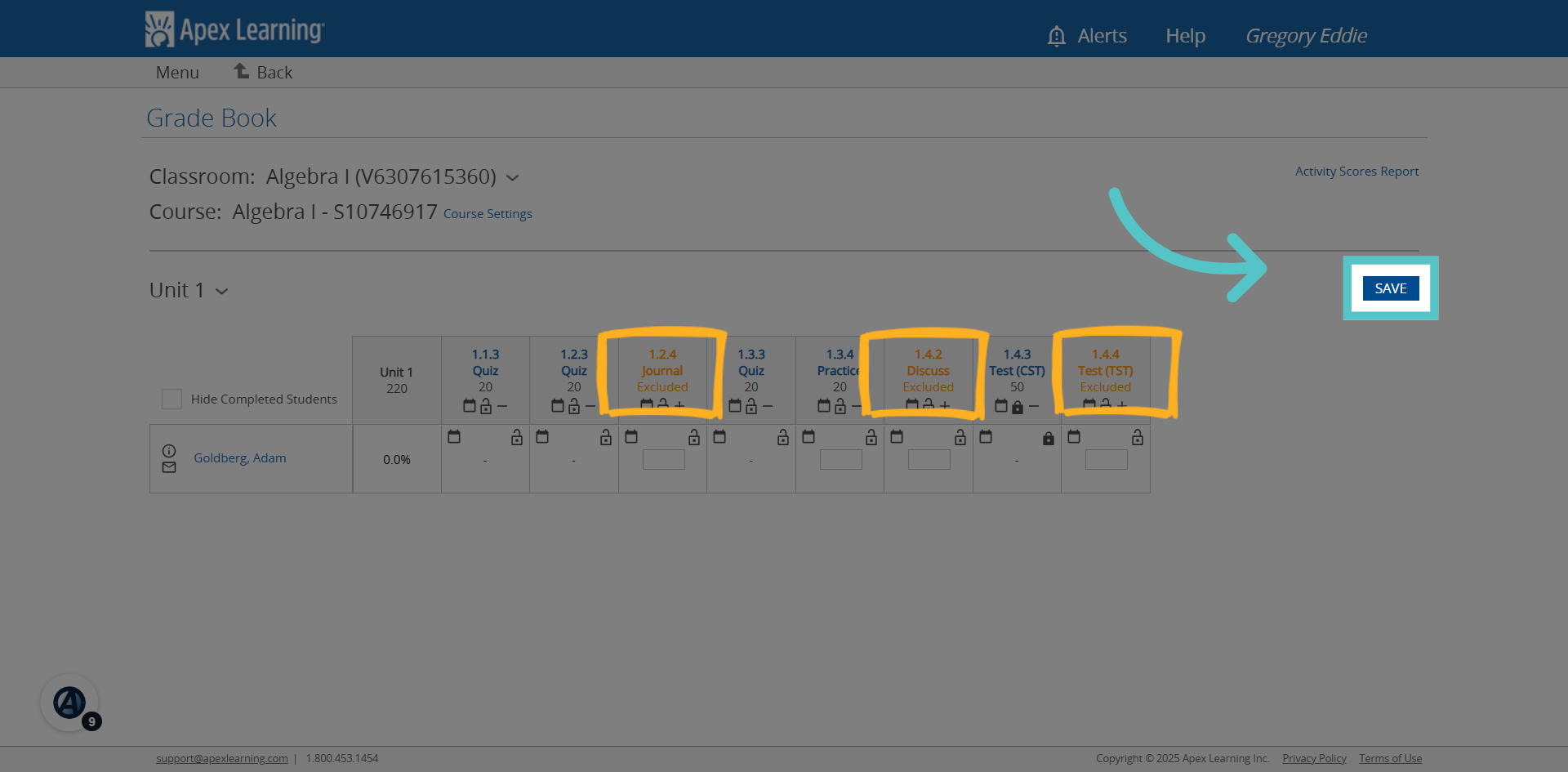
Scan the unit activity headings for permitted exclusions. Click the minus icon in the heading box to exclude activites.
7. Repeat
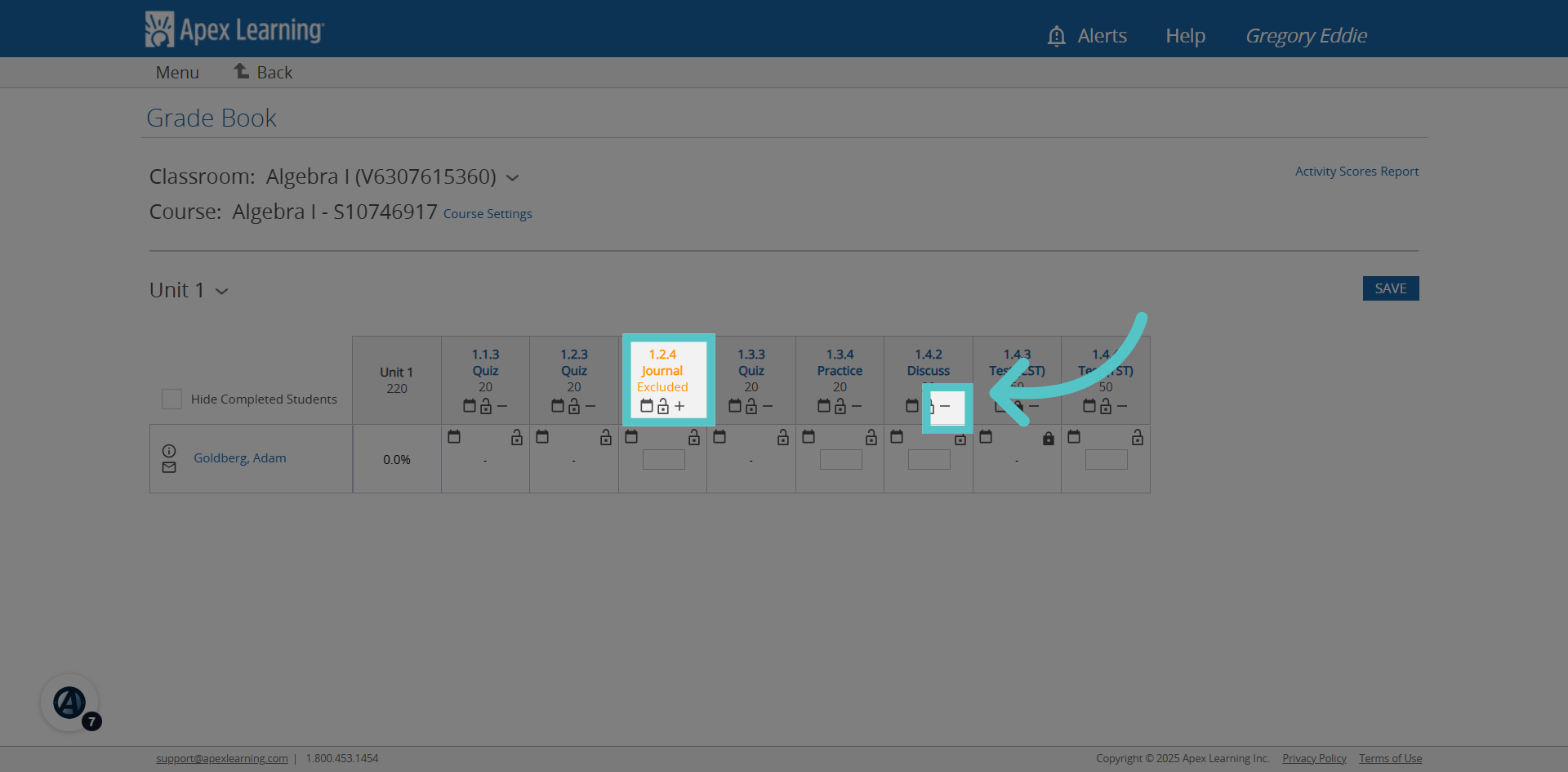
Activity headings will turn orange and say 'excluded' once the minus icon is clicked. Repeat with additional activites in the unit as permitted.
8. Test
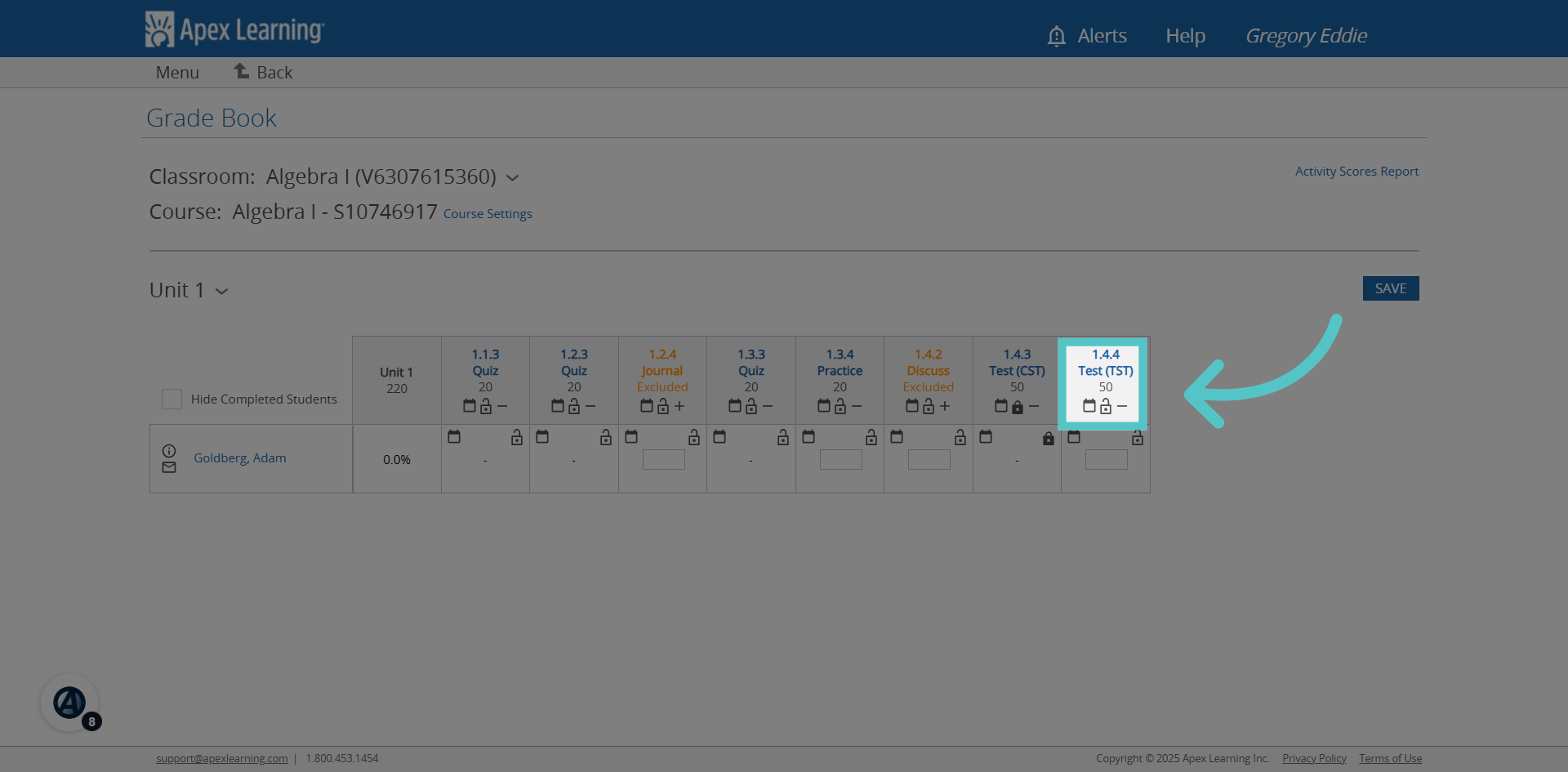
At the end of the unit, exclude one test. In odd units, exclude the TST.
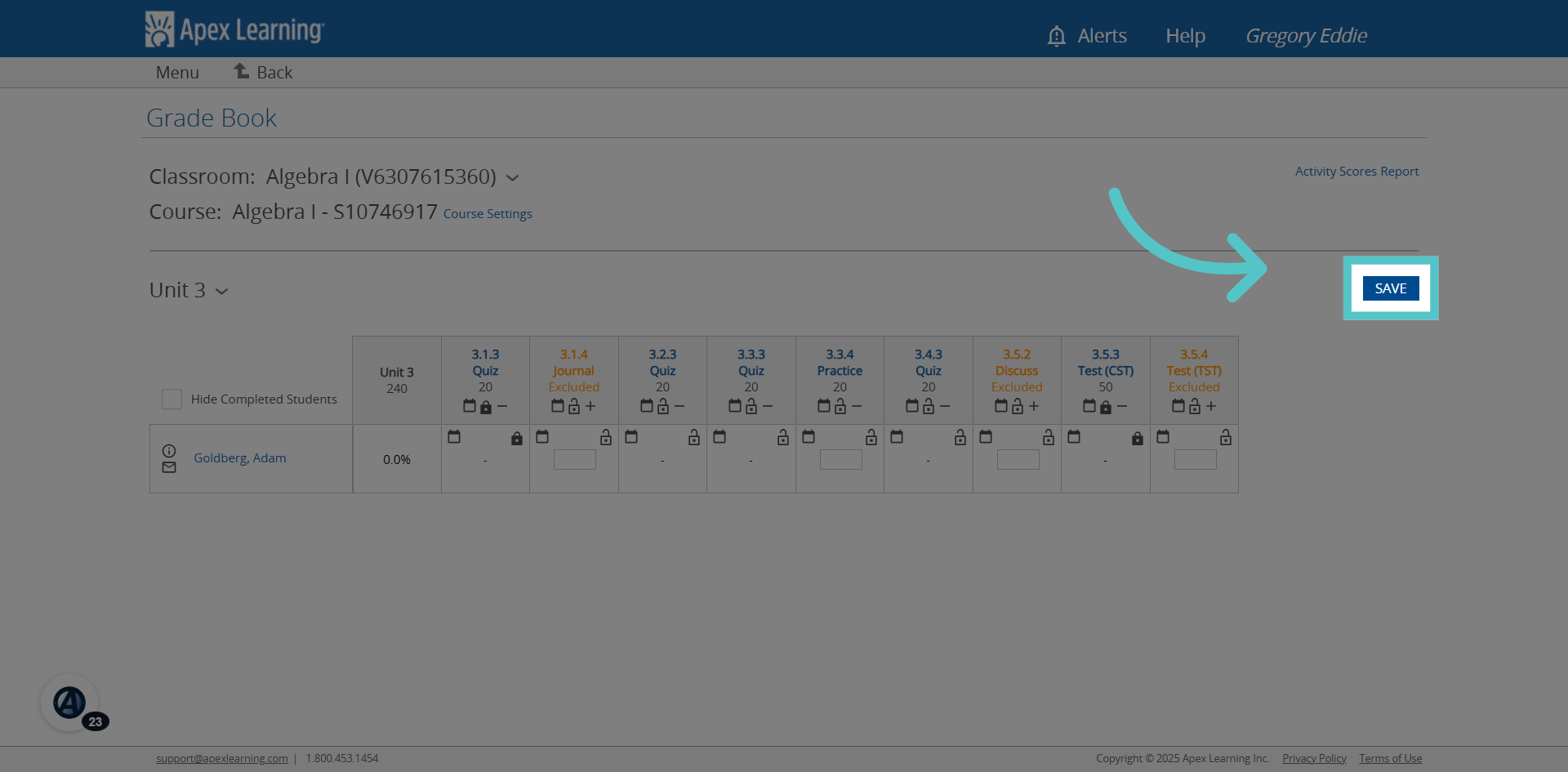
9. Save
Click "SAVE" to apply and save all changes to the unit.
10. Select Next Unit
Click the next unit in the course to proceed with managing exclusions.
11. TST
It is recommended that the assigned test remain locked until the teacher permits access. When excluding a CST, be sure to lock the TST before saving.
12. Additional Lock
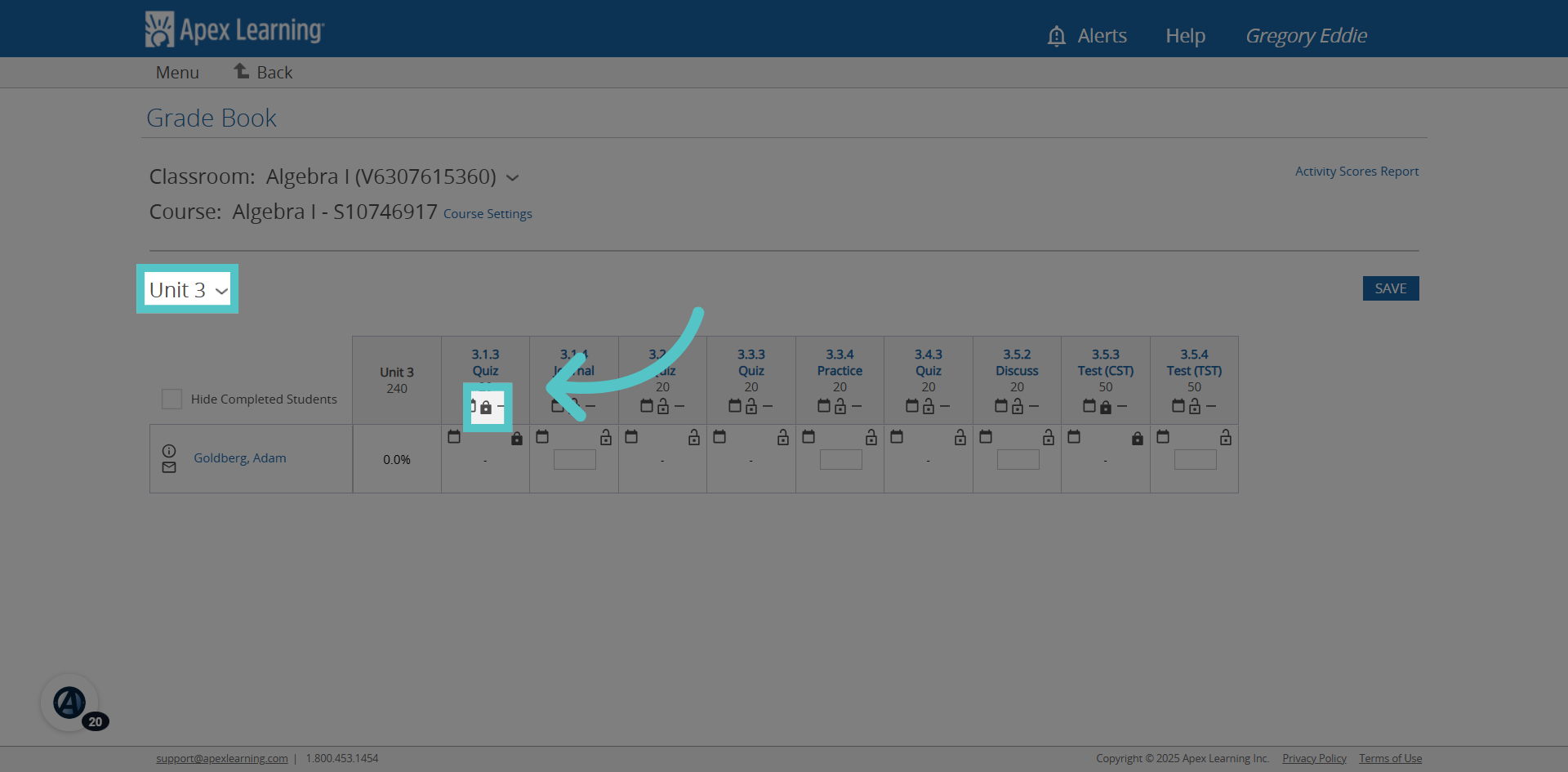
It is also recommended that the first activity in the next unit after a TST be locked. This prevents the student from moving on in the next unit before submitting the teacher scored test.
13. Continue Excluding
Continue to exclude journals, discussions, and tests as permitted in each unit of the Apex gradebook. Be sure to save changes on each unit page.
If you have any questions about the information in this tutorial, please contact your dedicated school success manager for additional support.