Expand to Full Screen for Best Viewing
This tutorial guides you through accesssing unofficial transcript, and requesting official student transcripts using the ASSIST parent platform.
Go to portal.adlsassist.com
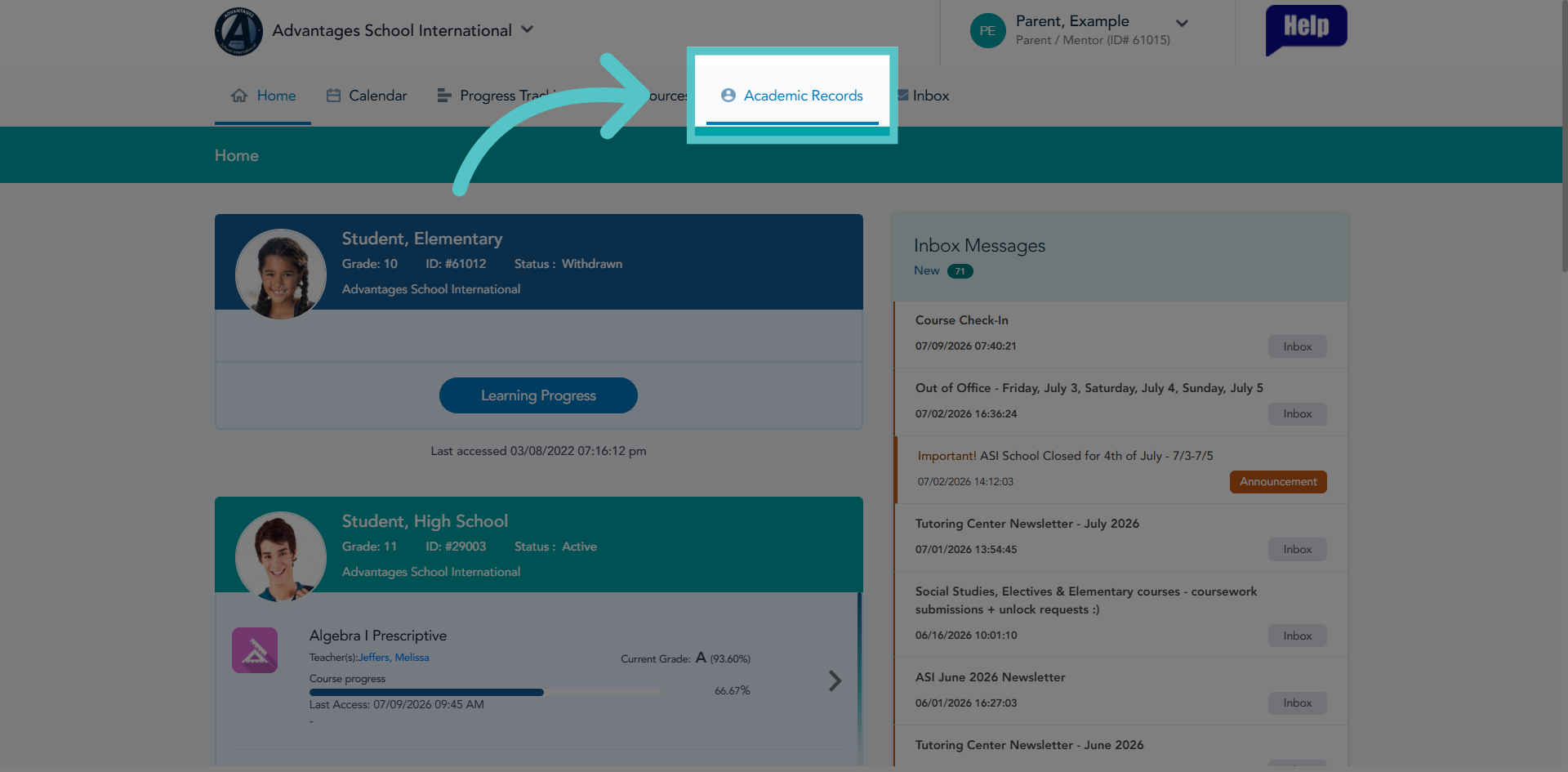
1. Access Academic Records Section
Click "Academic Records" tab to open your students' file in ASSIST.
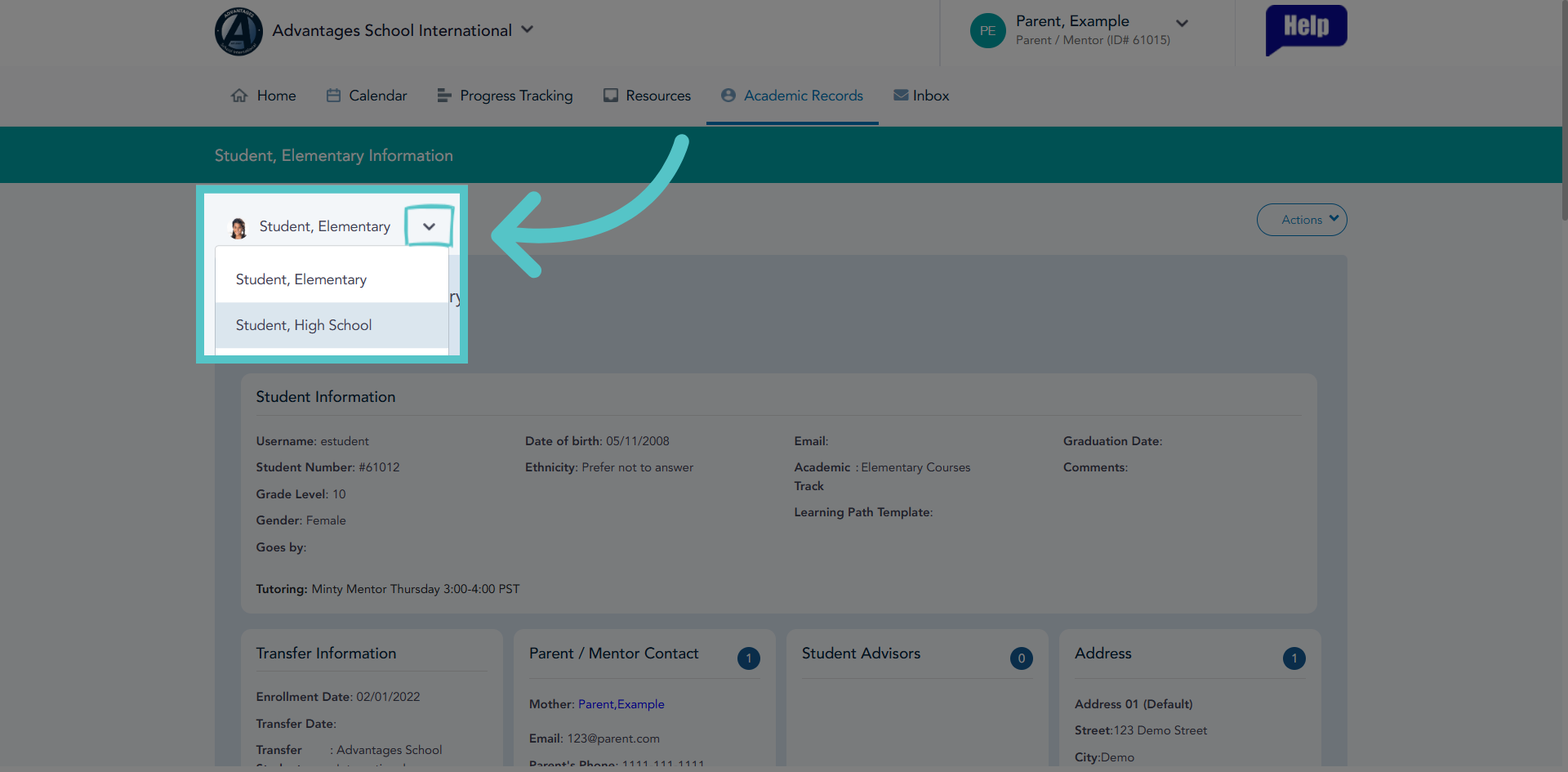
2. Select Student Record
If you have more than one student working with A-S-I, select the student file using the dropdown menu next to the student name.
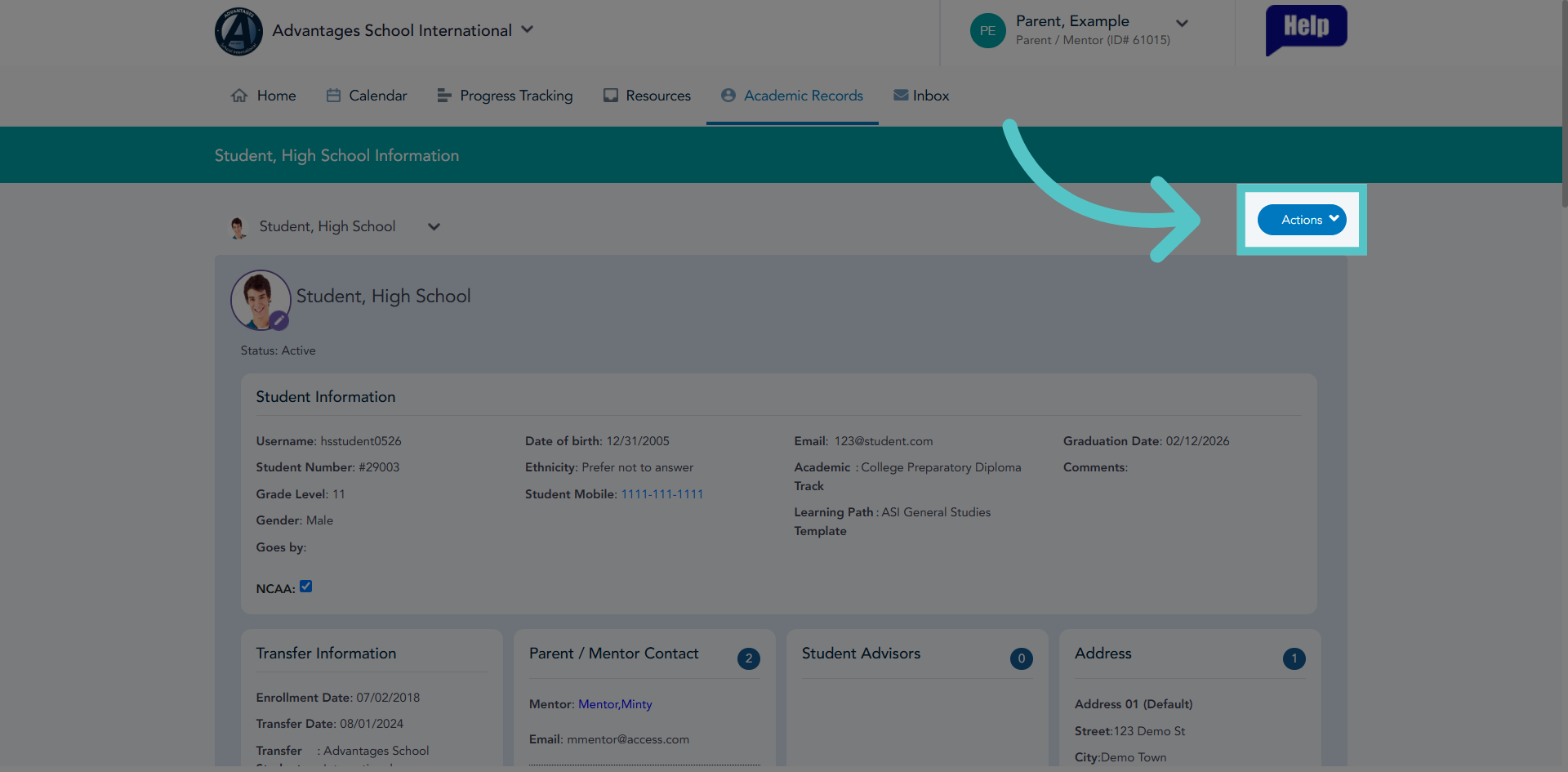
3. Open Actions Menu
Click "Actions" to reveal available options related to the selected student record.
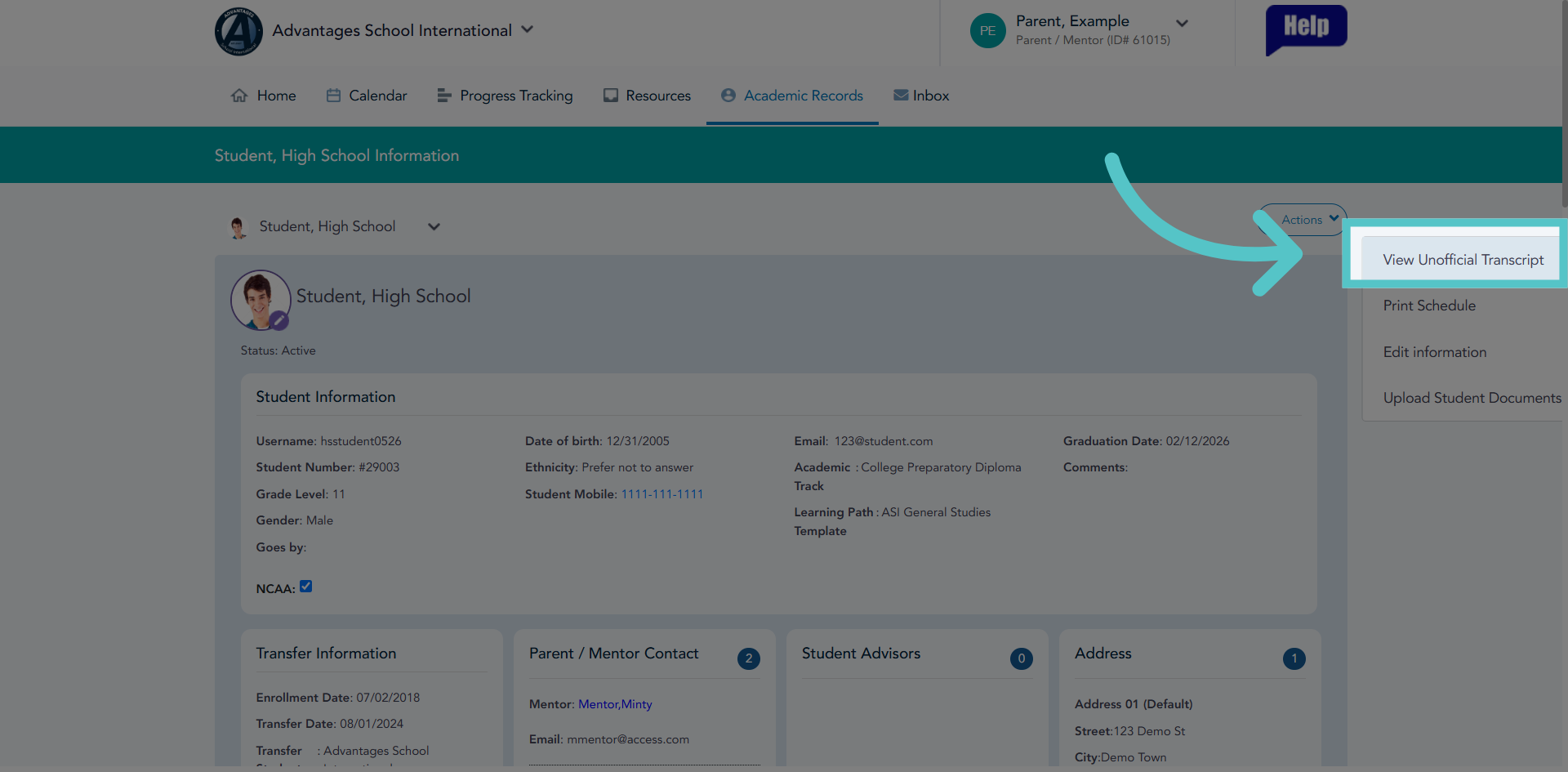
4. View Unofficial Transcript
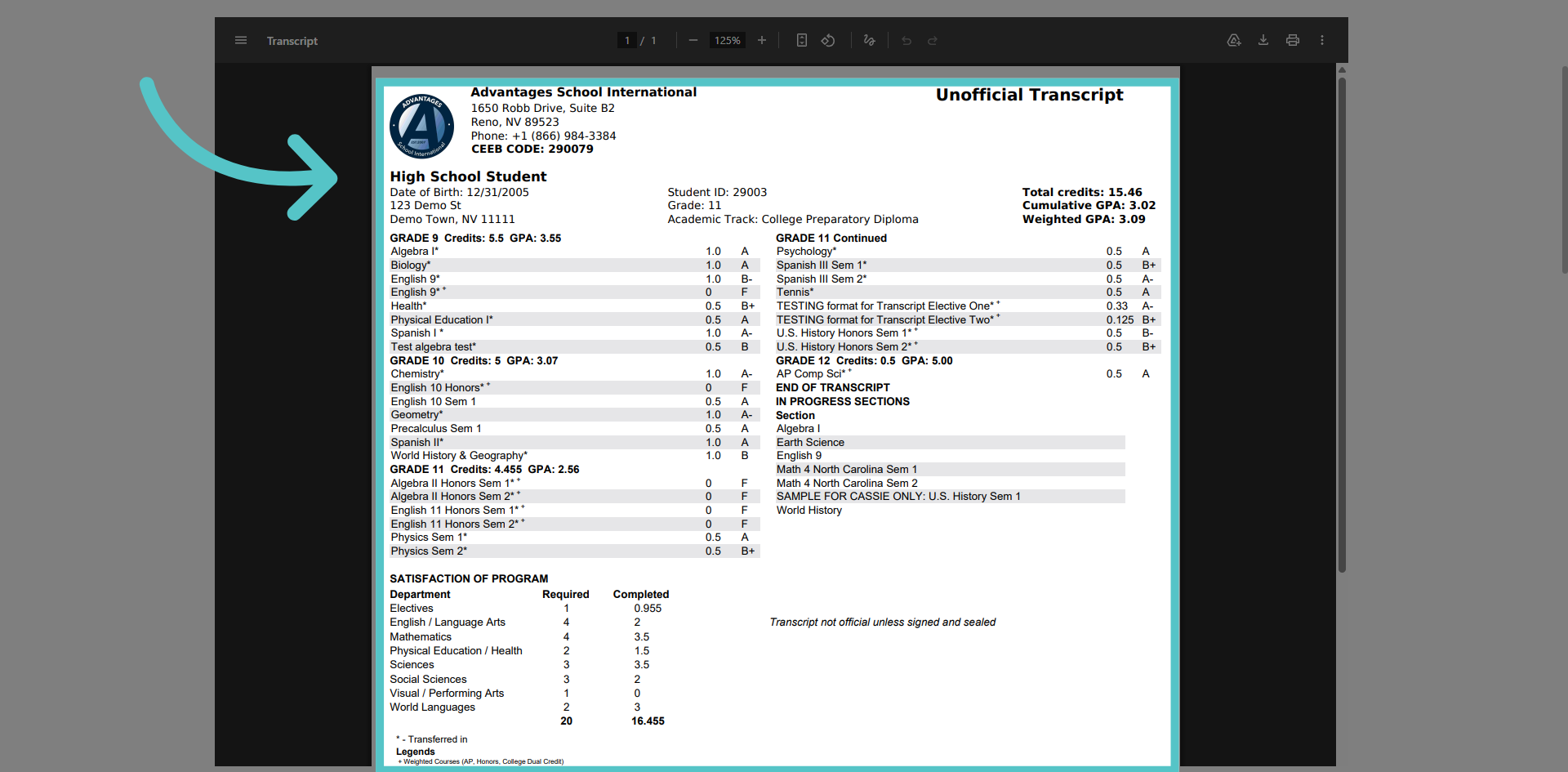
Click "View Unofficial Transcript" to review the student's academic transcript before requesting the official copy.
5. Review Carefully
Review the student transcript carefully to ensure that the record accurately reflects student progress.
6. Initiate Official Transcript Request
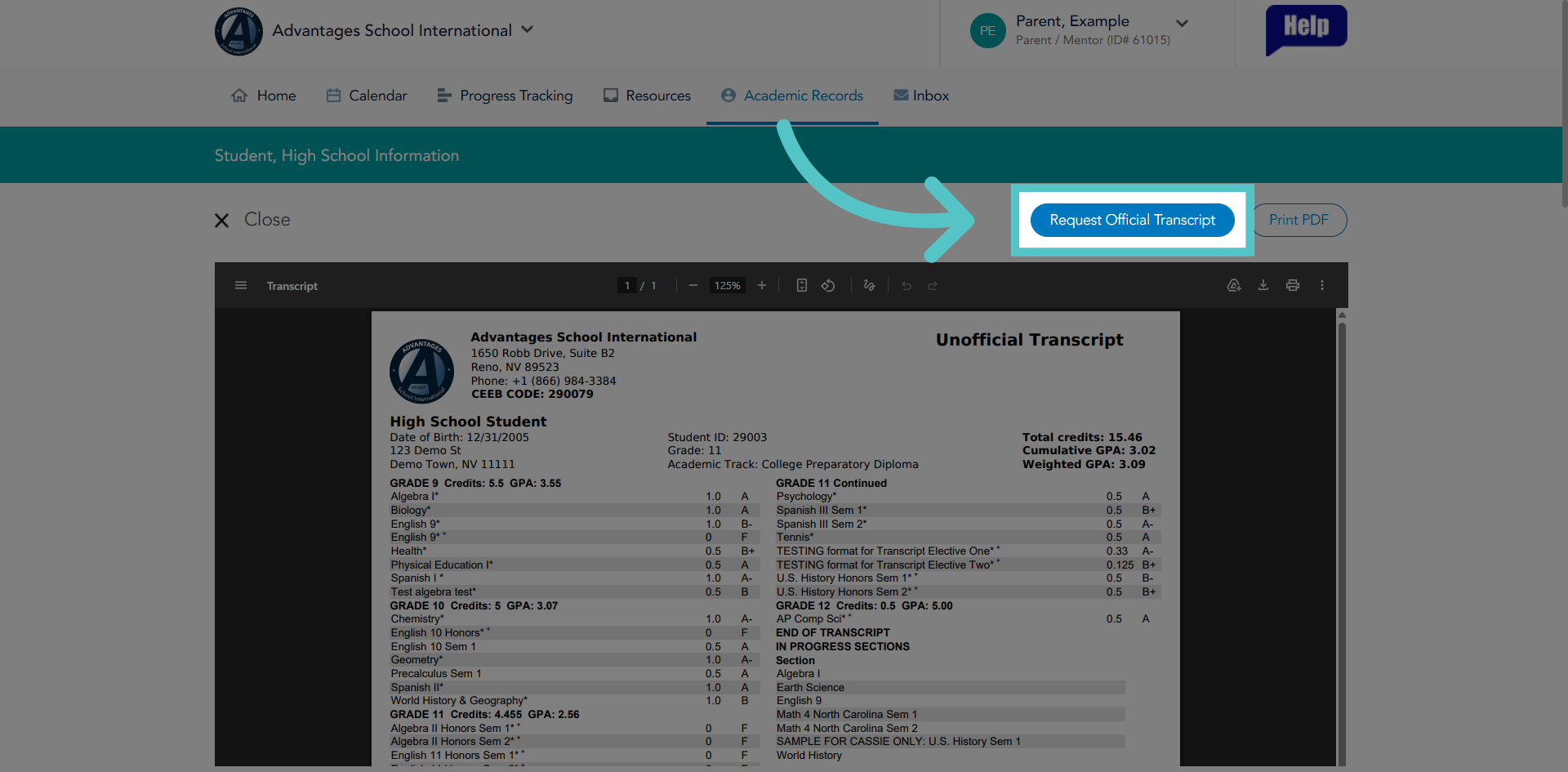
You can print the Unofficial transcript or you can click "Request Official Transcript" to start the process of ordering the official student transcript.
7. Confirm Official Transcript Request
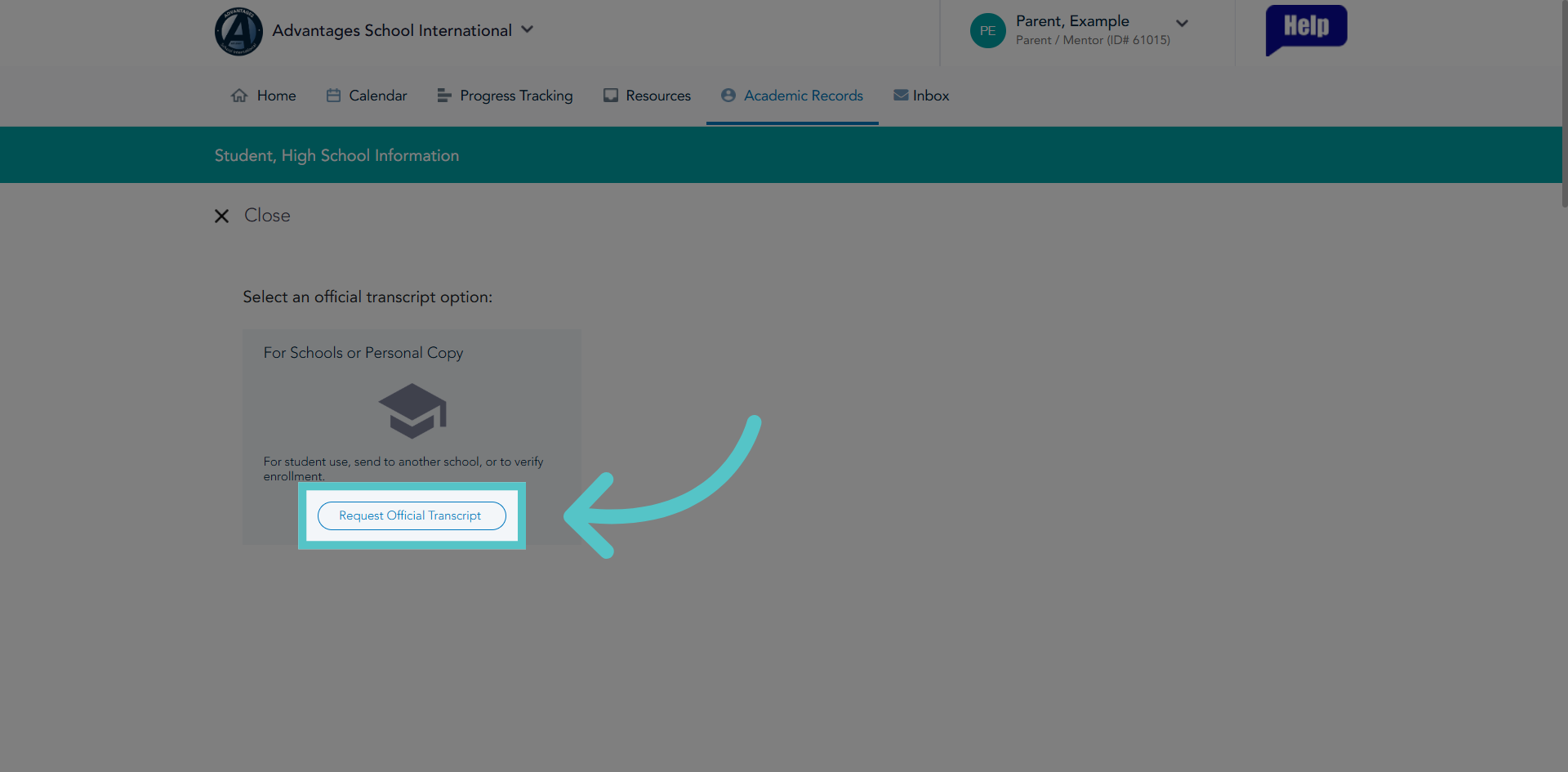
Click "Request Official Transcript" again to confirm and proceed with the transcript order submission.
8. Complete Order Form
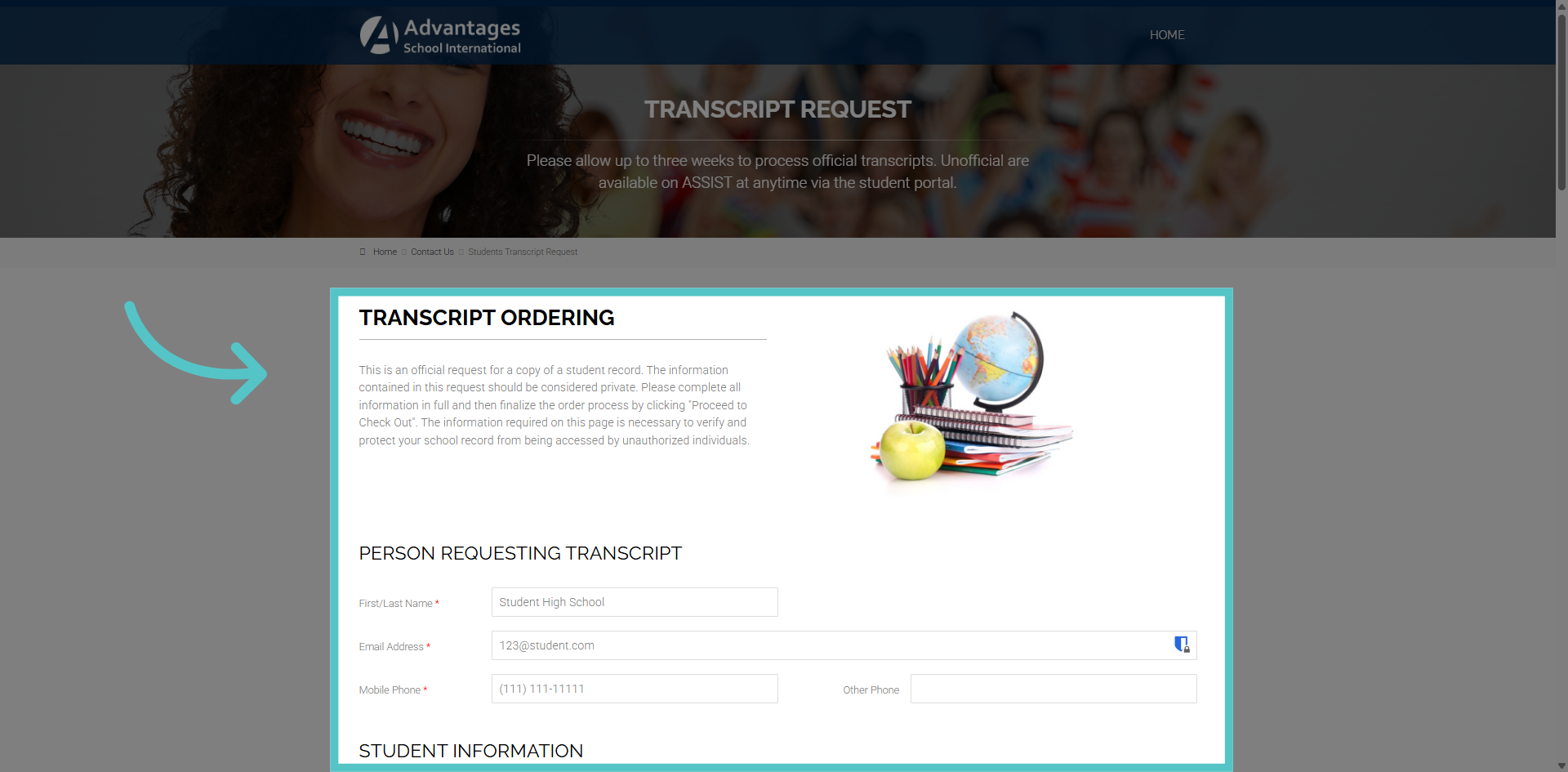
Complete the Transcript Order form with all requested information.
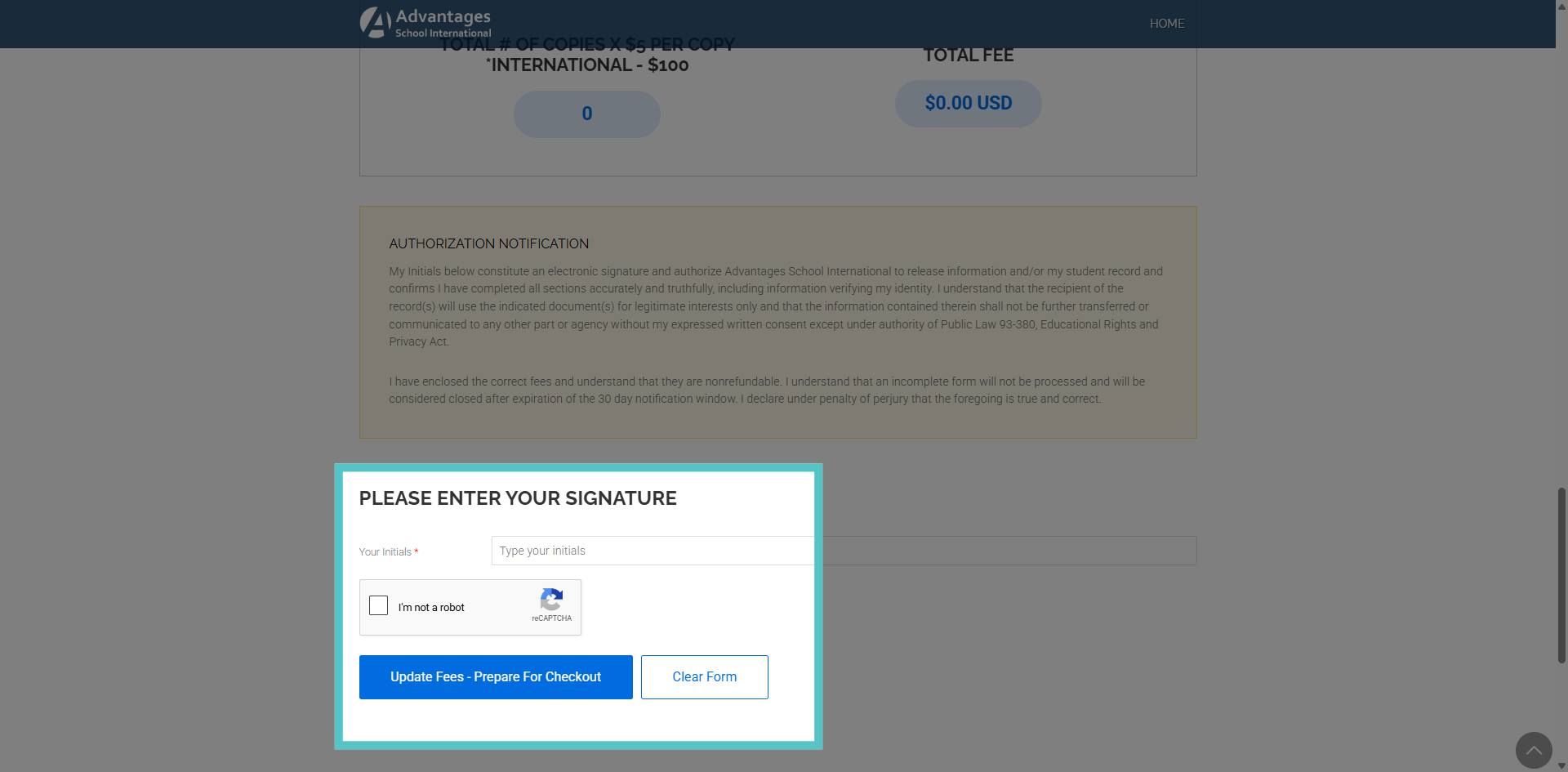
9. Finalize Form
Be sure to scroll all the way to the bottom to include your signature and check the box "I'm not a robot" to authorize processing of the transcript. This request will be sent to our A-S-I Registrar.
If you have any questions about the information in this tutorial, please contact your dedicated school success manager for additional support.