Expand to Full Screen for Best Viewing
This tutorial shows how to see your child's full path progress towards fulfilling diploma requirements. This view tracks all completed courses and shows all credits still needed for graduation
1. Access Progress Tracking
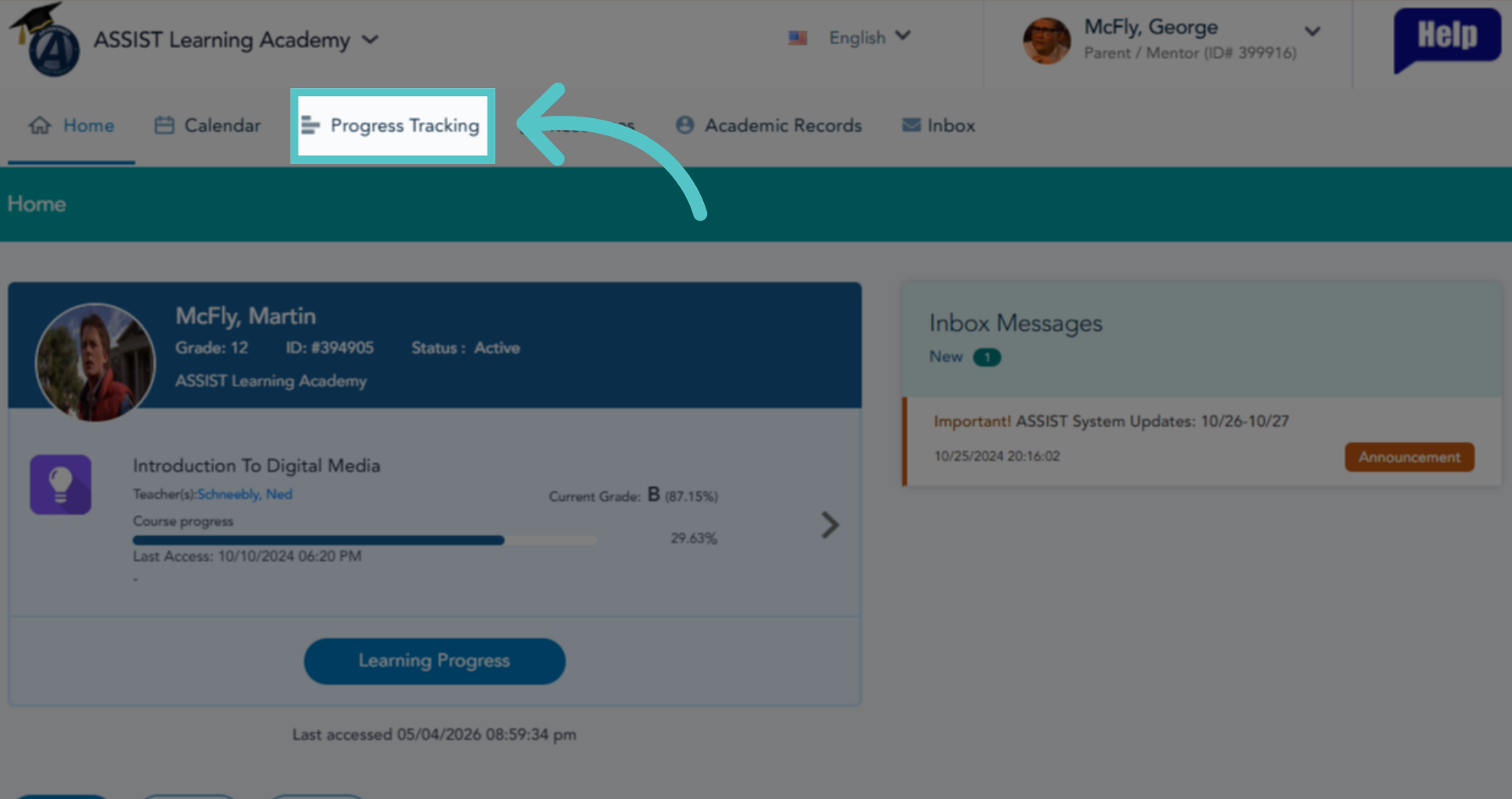
Click "Progress Tracking" to open the progress overview section in ASSIST.
2. Full Path
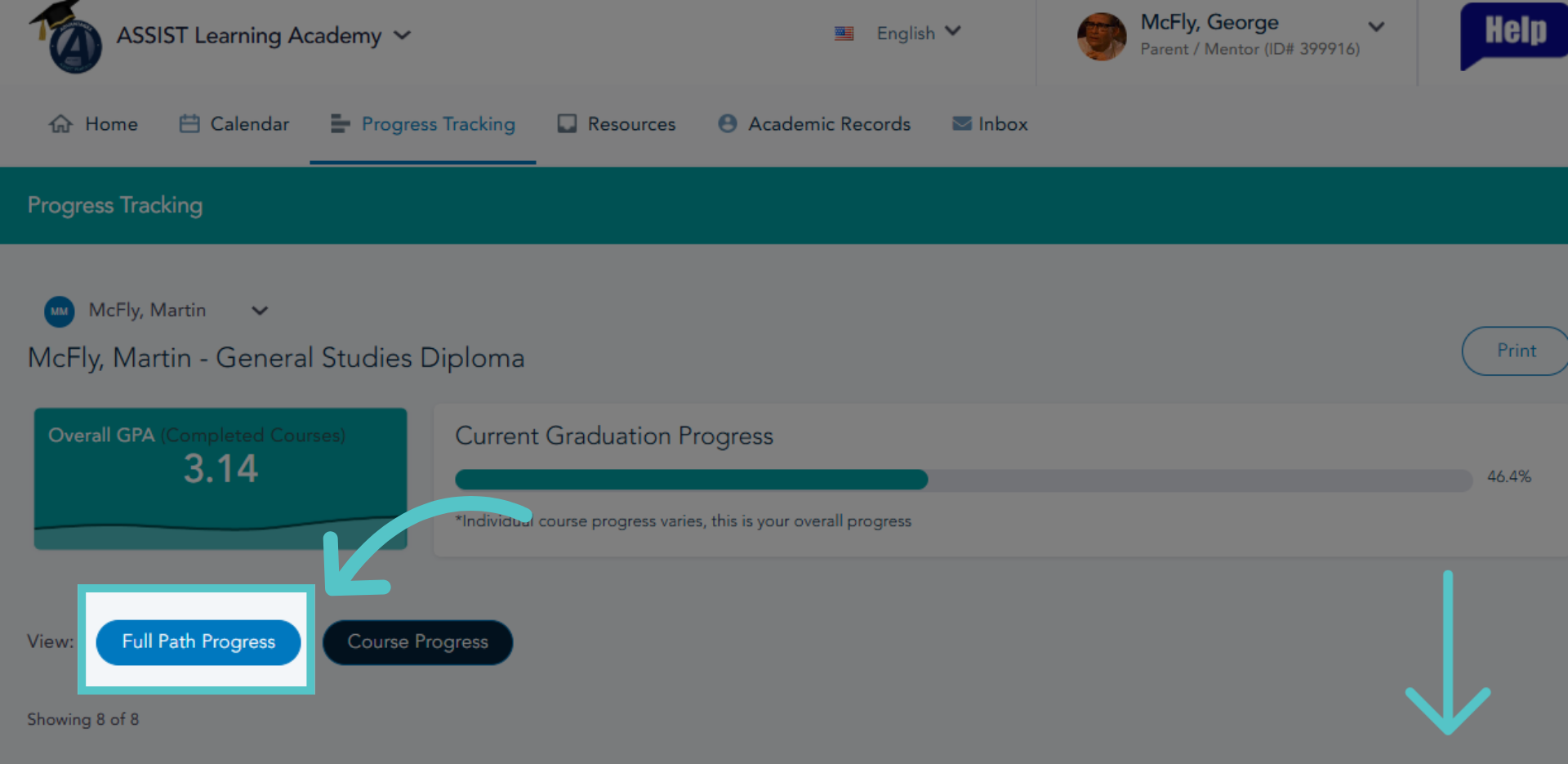
Click "Full Path Progress" and scroll down to view detailed progress on assigned learning paths.
3. Required Departments
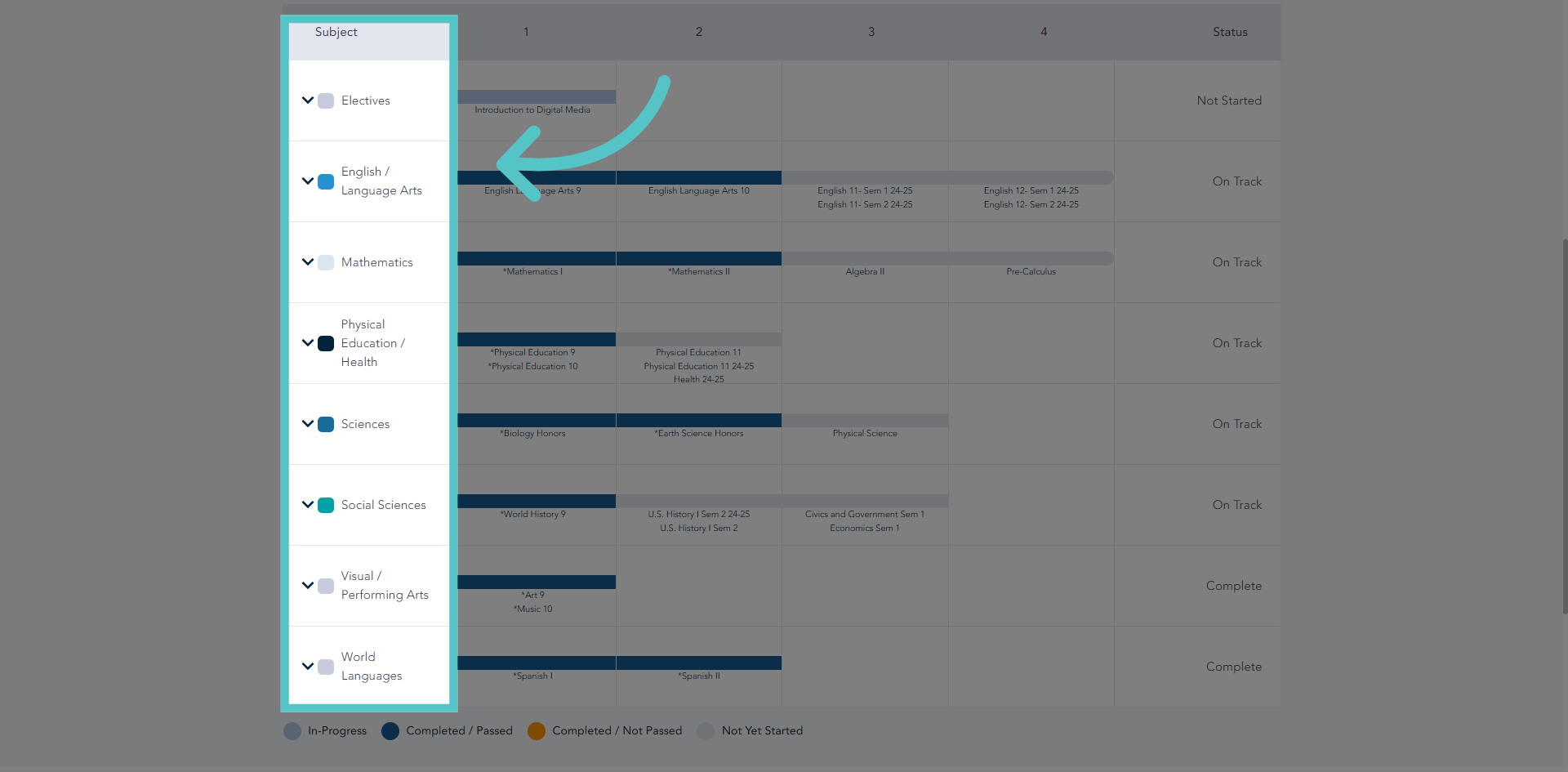
All required departments will be listed in the left column of the chart.
4. Years
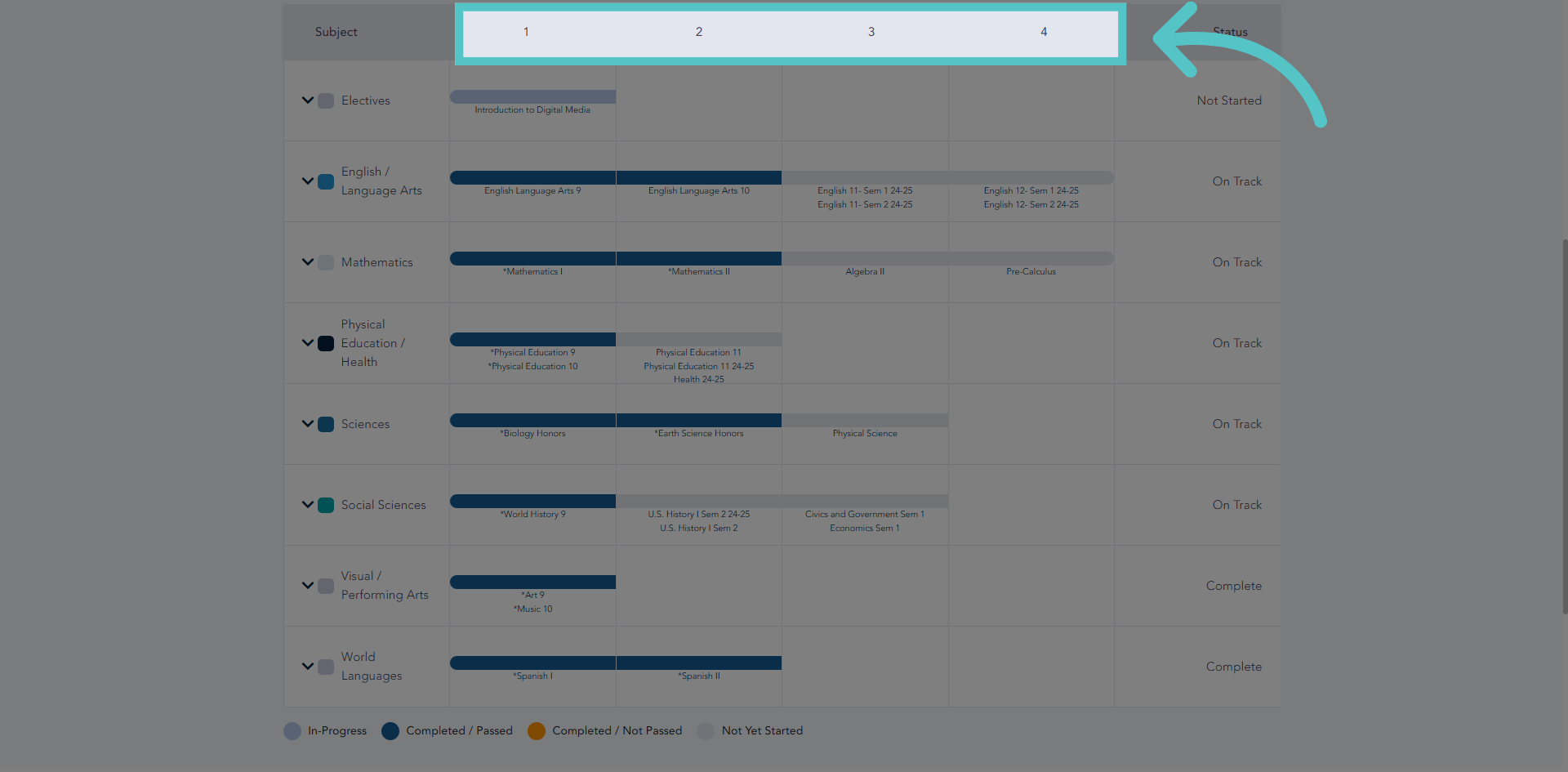
The columns are then numbered 1 through 4 to indicate the four years of high school. Any courses taken in the first year of high school (typically grade 9) will show in column number 1
5. Progress Key
Each progress bar is color coded to indicate course status. For example, light blue bars indicate courses in progress. Dark blue bars indicate courses that have been completed and passed.
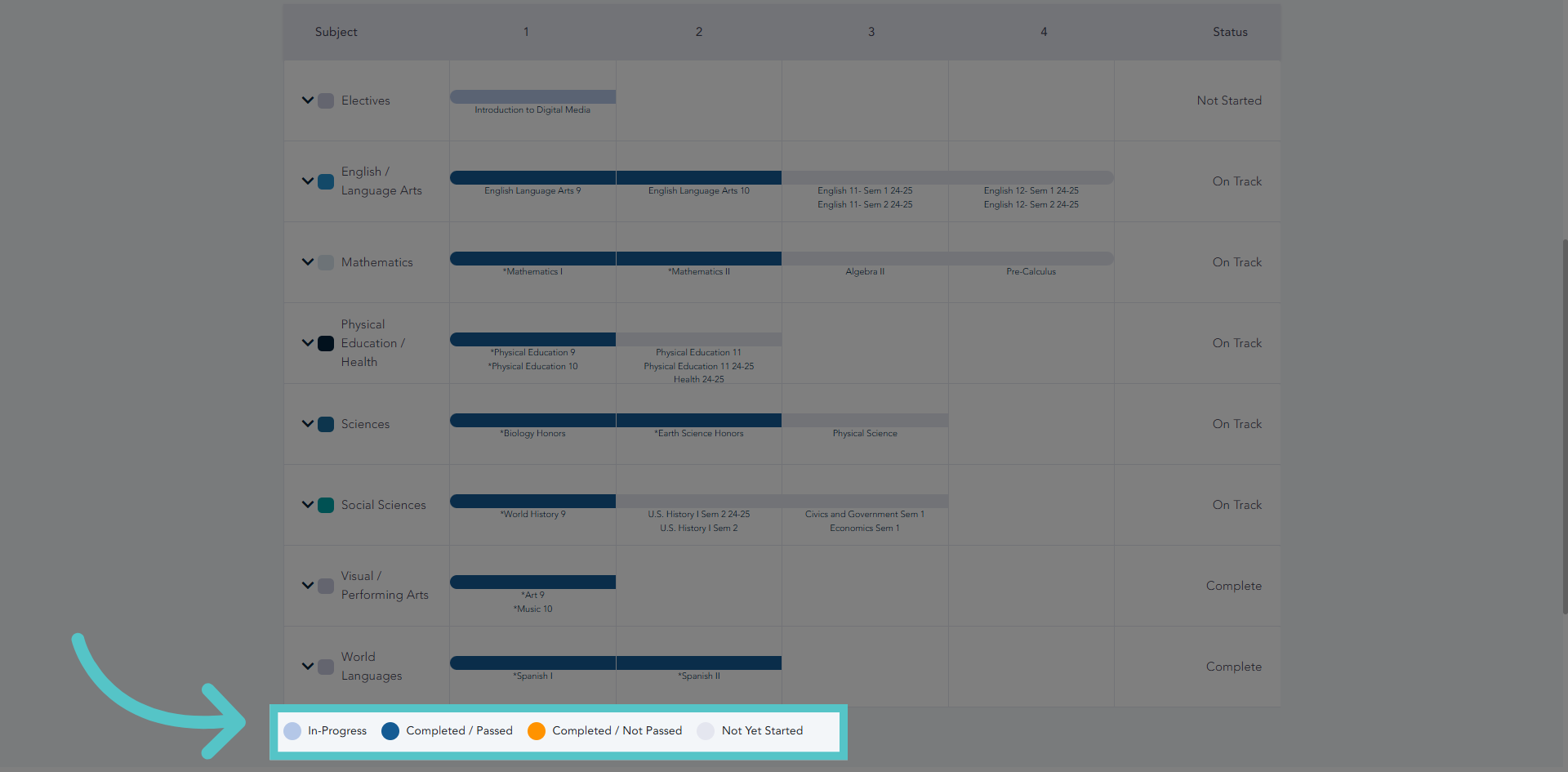
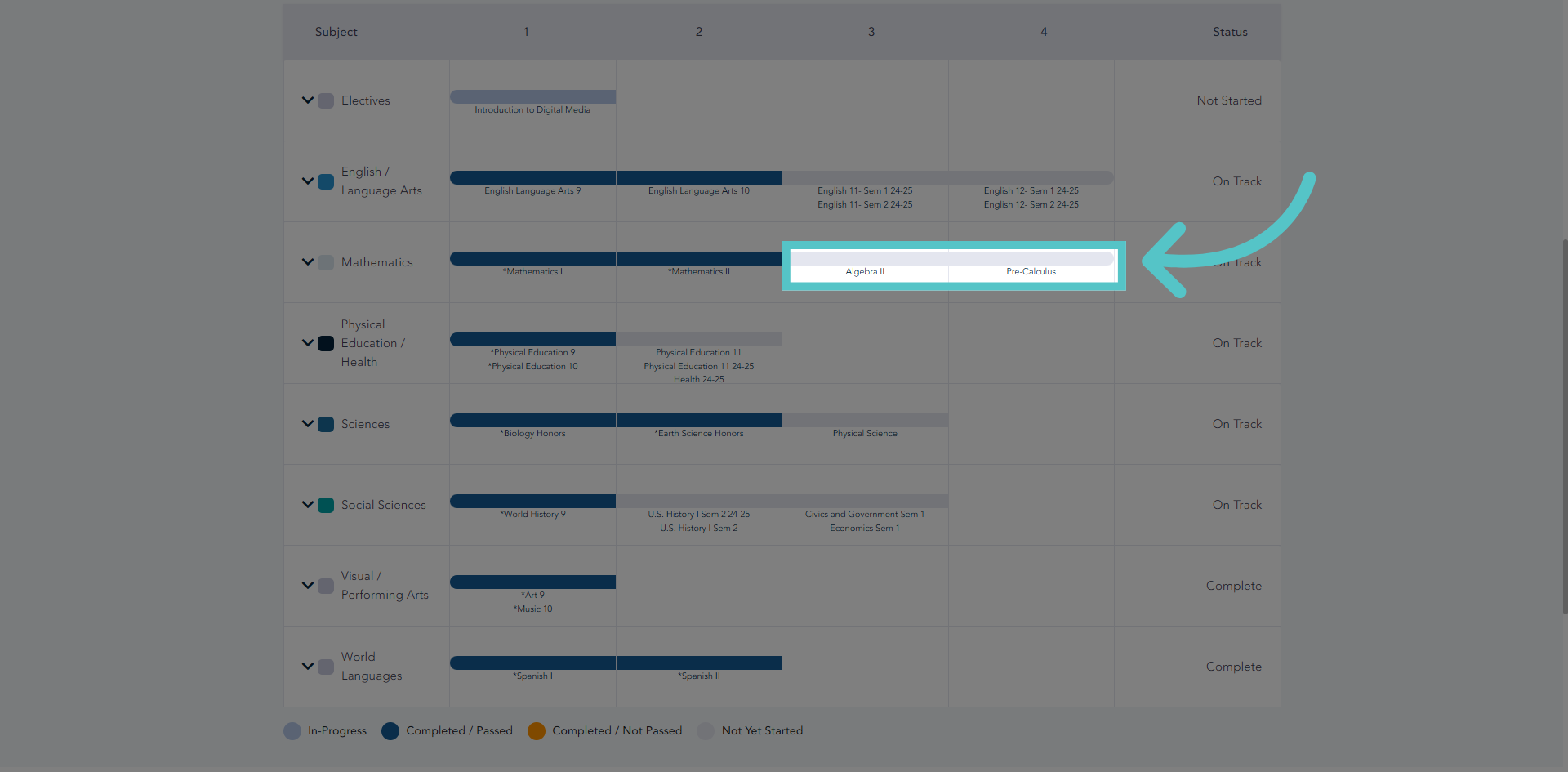
6. Gray Bars
Gray bars indicate course credits that have not yet been taken, but are required.
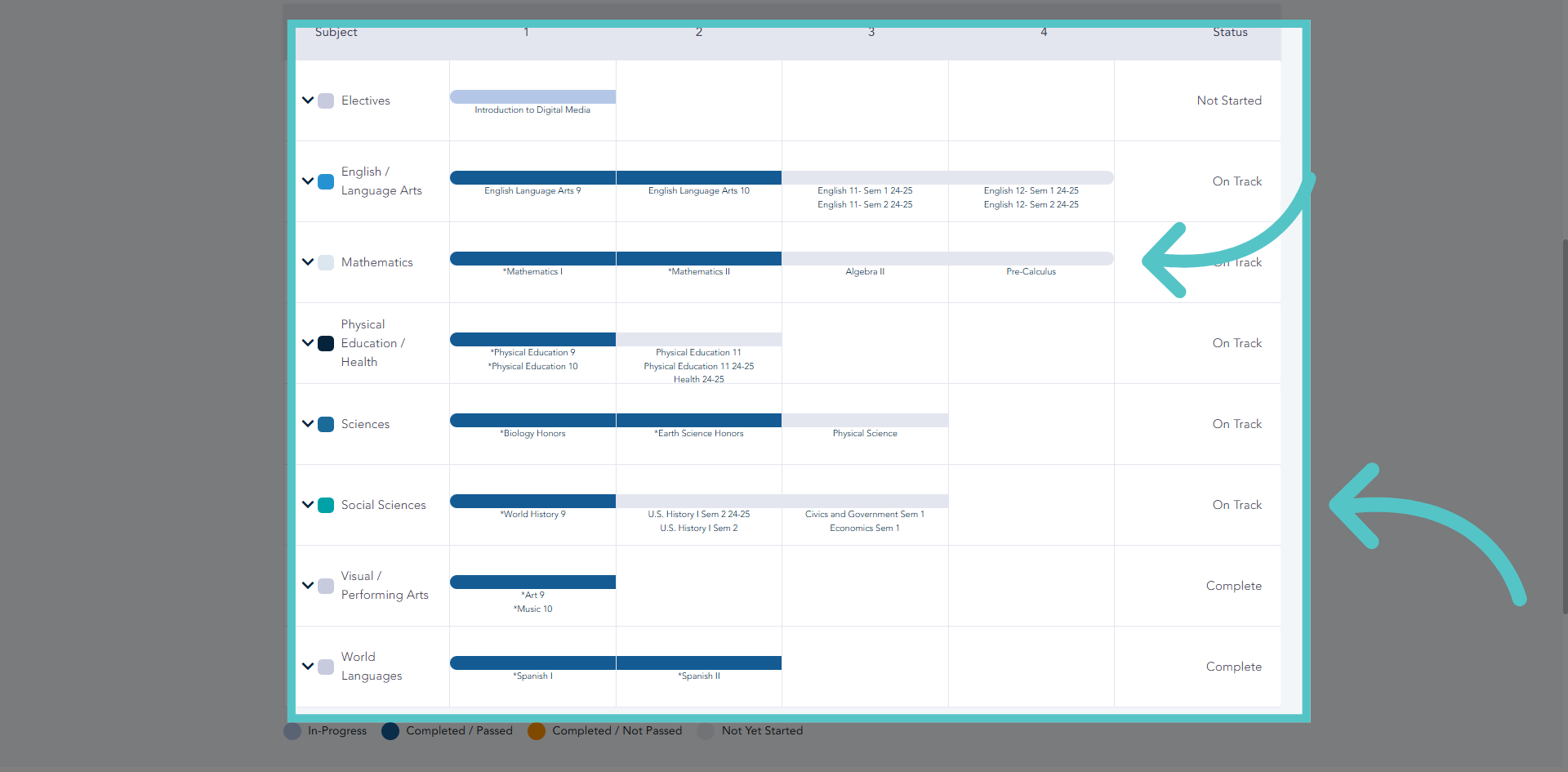
7. Path Completion
Students are ready for graduation when all bars on the charted path are dark blue. Any bar that is not dark blue indicates a requirement that needs to be fulfilled for a diploma.
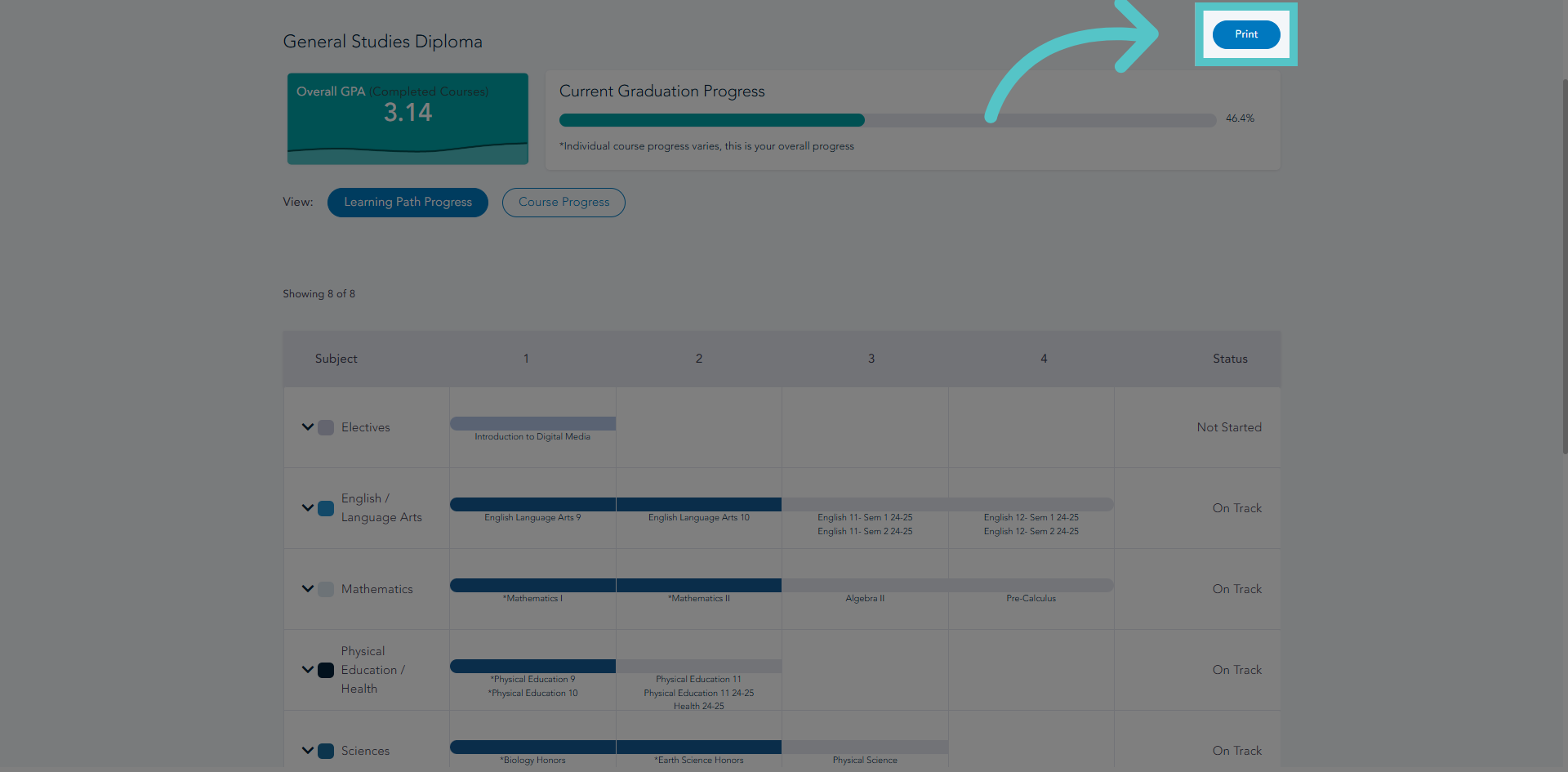
8. Print Path Progress
This entire charted path can be printed or saved as a PDF to share.
If you have any questions about the information in this tutorial, please contact your dedicated school success manager for additional support.