Expand to Full Screen for Best Viewing
Excusing Activities in Lincoln Learning
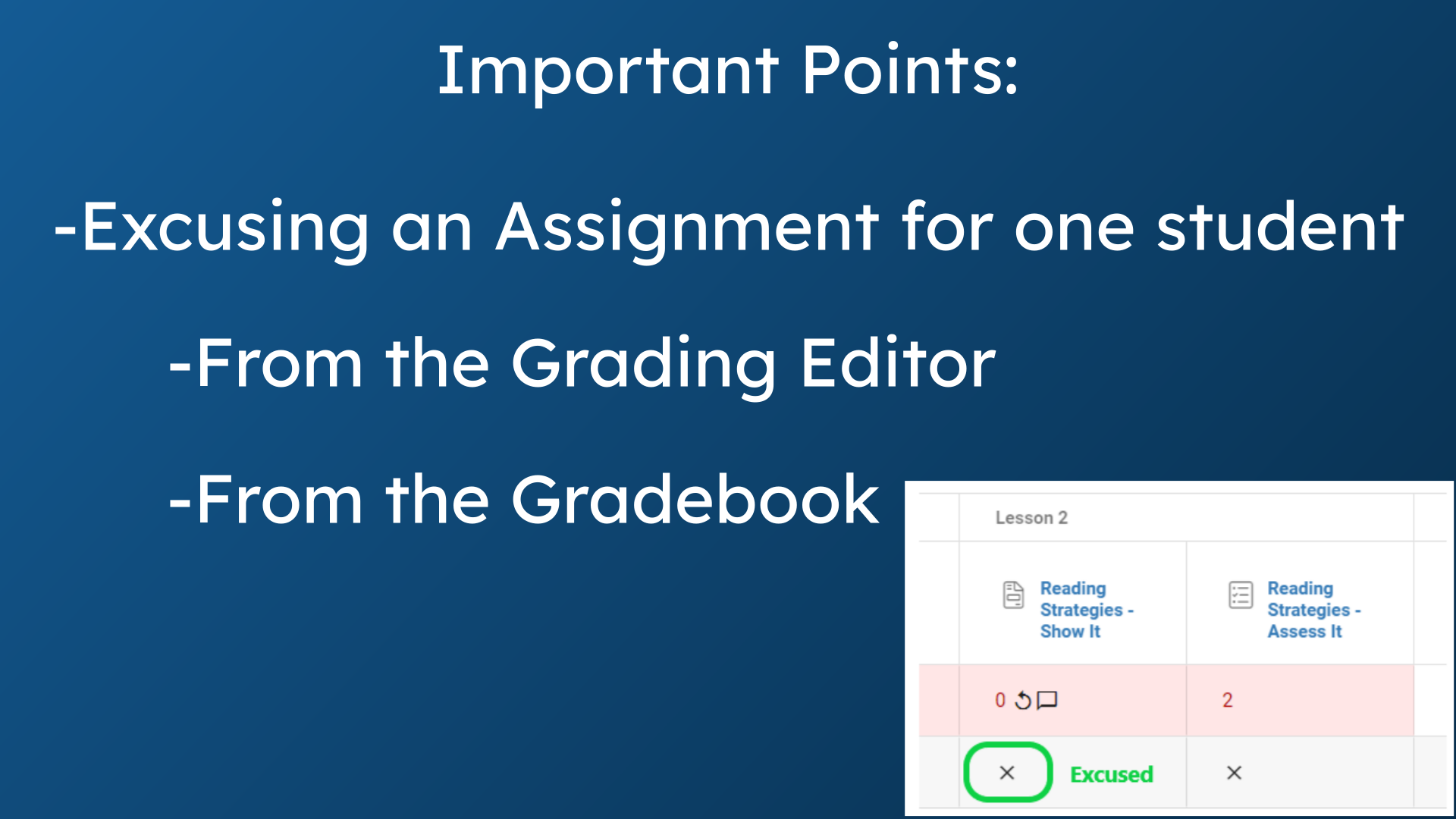
1. Important Points:
Sometimes teachers want to excuse a student from completing an assignment, although it will count for other students. This can be done from the grading editor or from the course gradebook.
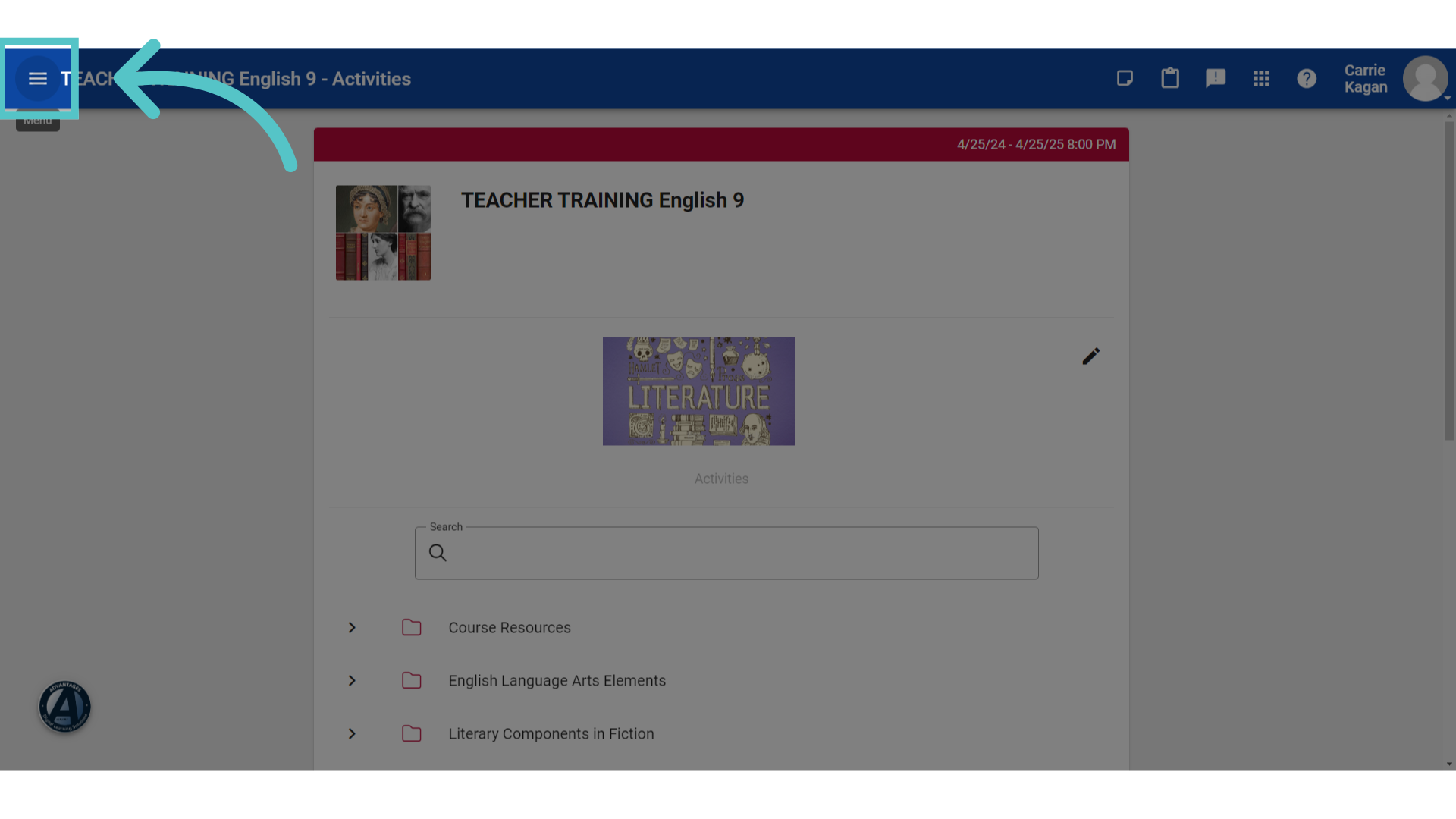
2. Three-line Menu
Open your course menu options using the three line menu in the top left corner of your course.
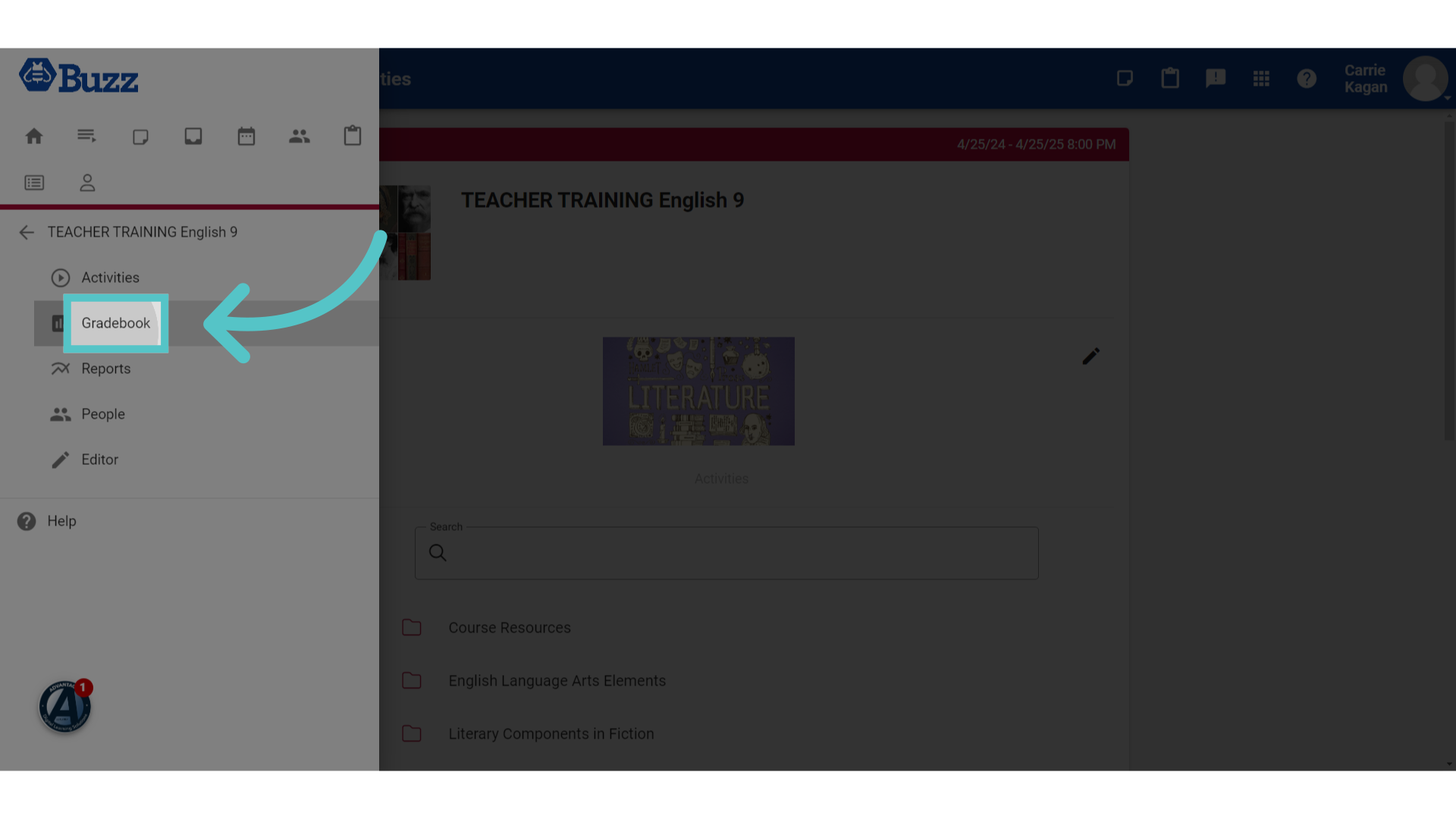
3. Click "Gradebook"
Access the "Gradebook" feature by selecting it from the menu.
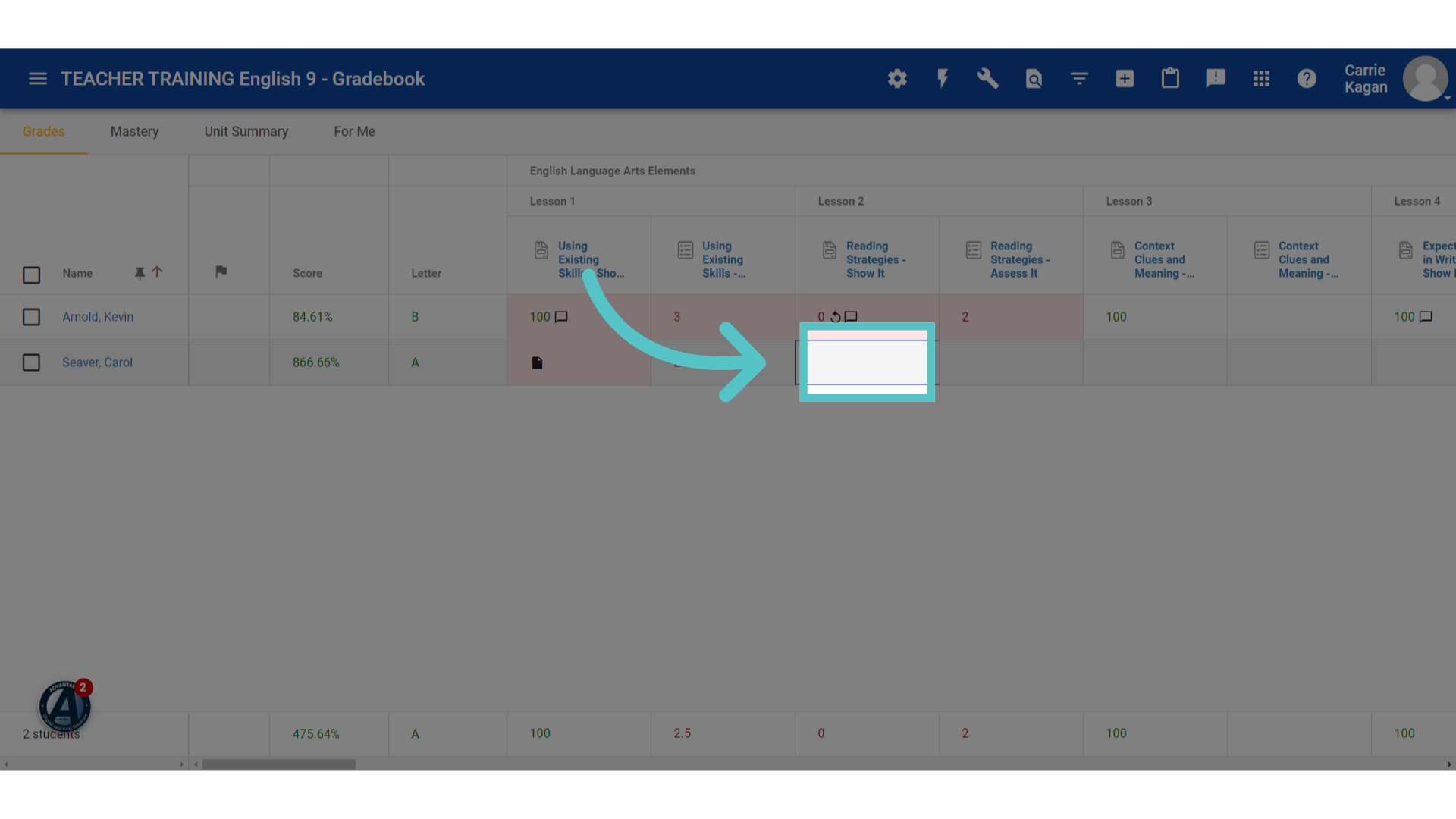
4. Click here
Click the box in the gradebook for the student and activity that needs to be excused. This will open the grading editor for that activity.
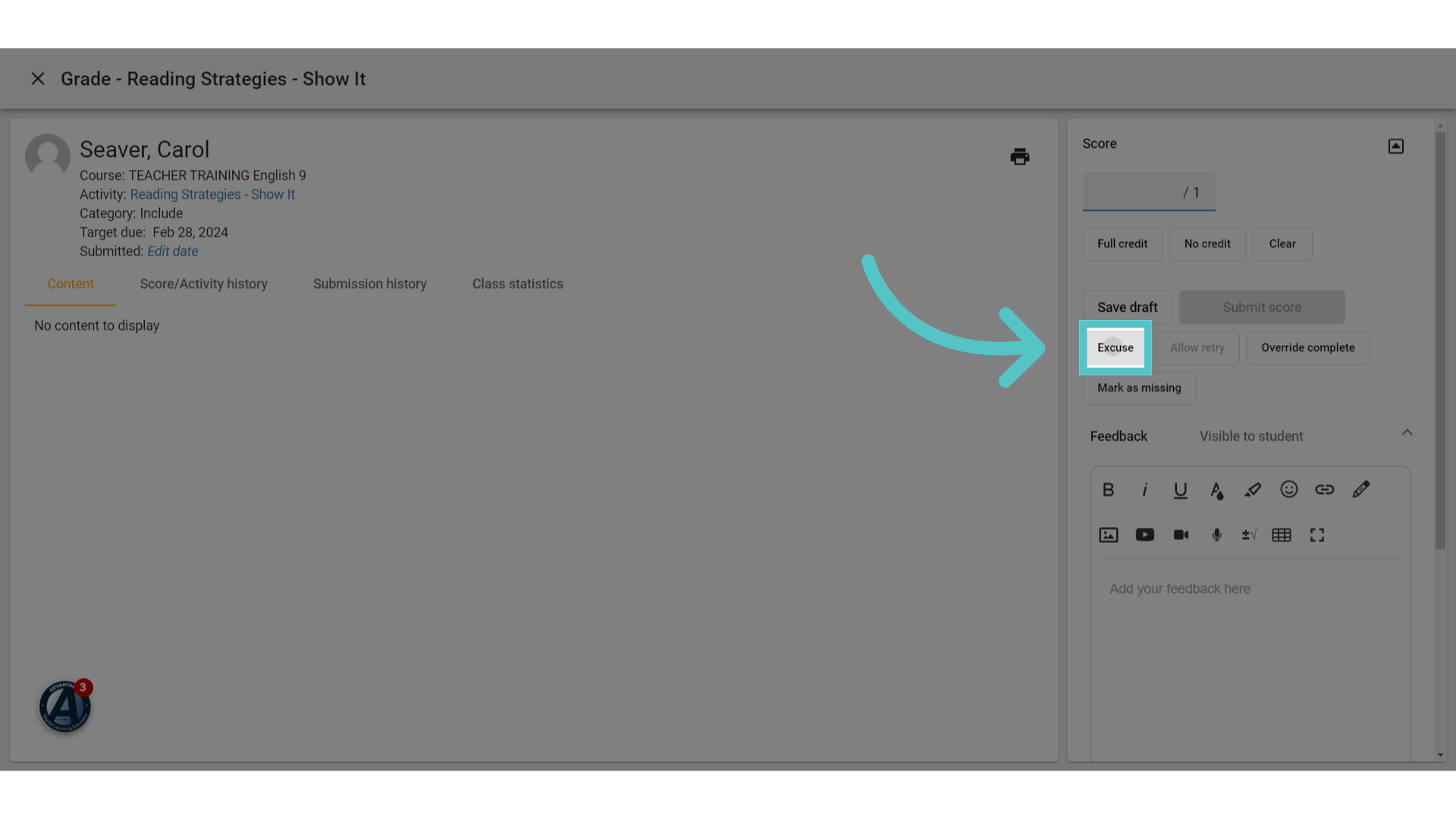
5. Click "Excuse"
This will show the student has not submitted the activity. Click the "Excuse" button to remove it from the students required work.
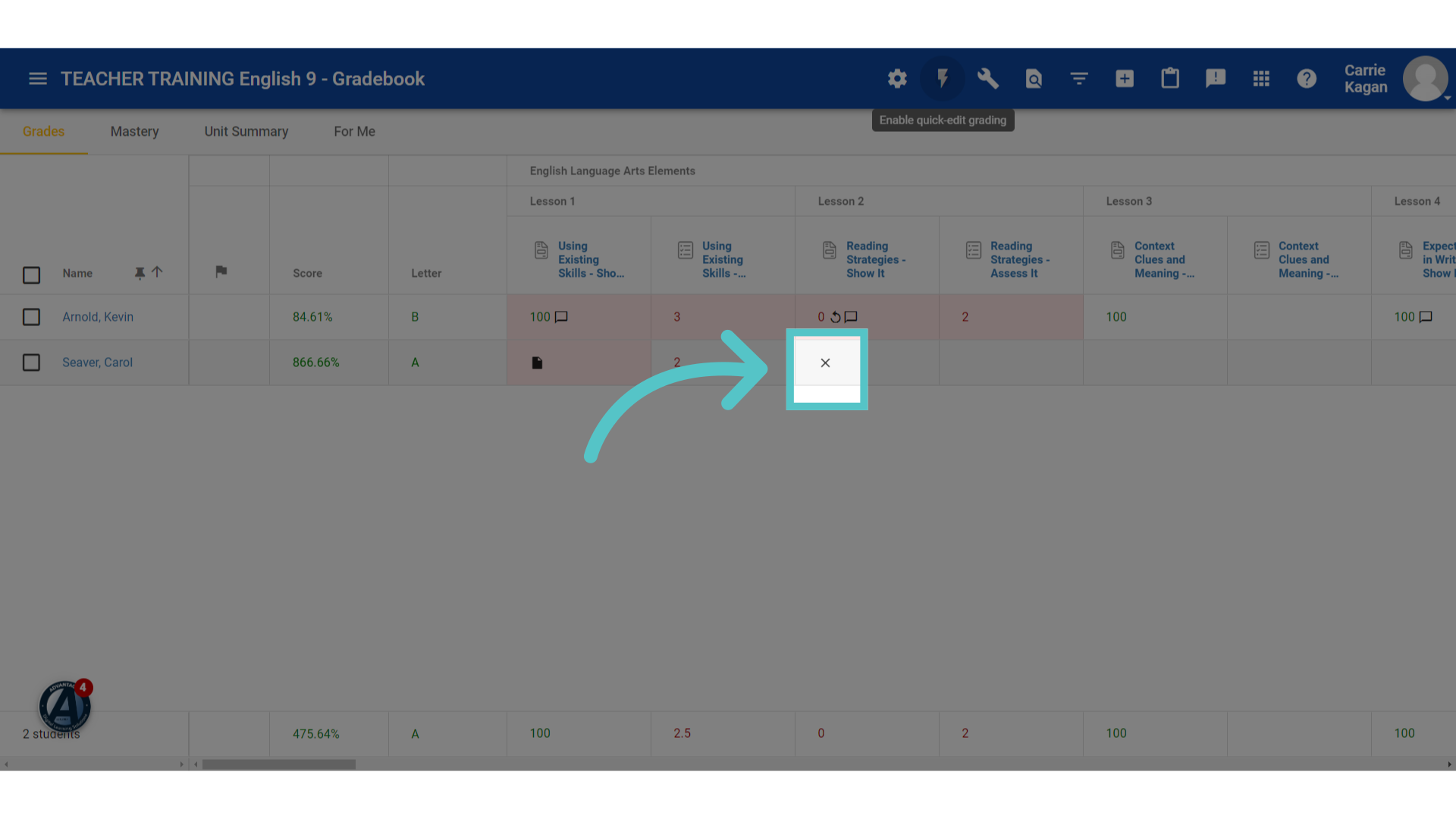
6. Excused
An "X" will appear in the gradebook, indicating that the student was excused from this activity. This activity will not be counted towards this student's final grade.
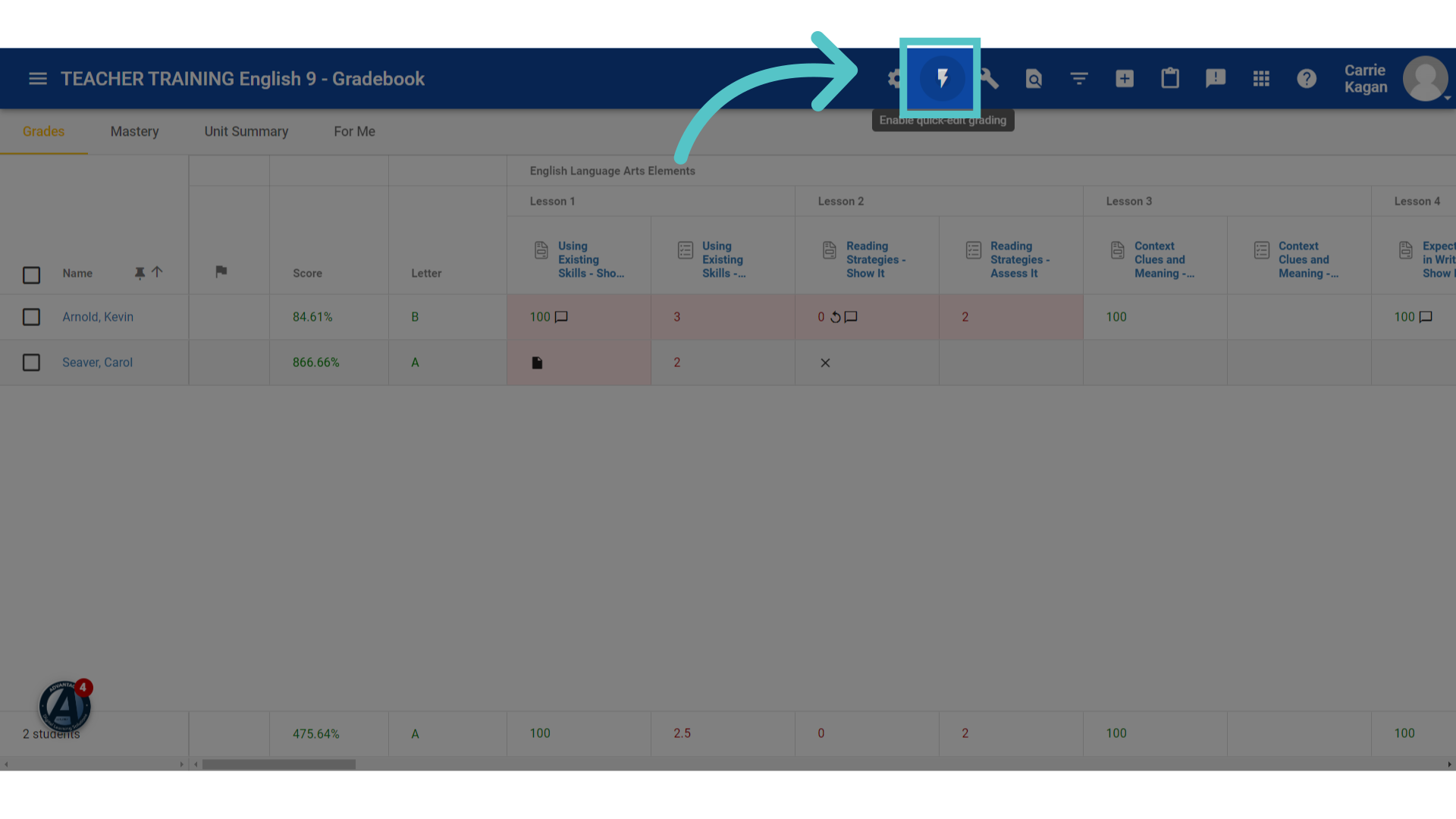
7. Quick Editor
Alternatively, teachers can click the lightening bolt icon at the top of the gradebook. This is the option for quick gradebook editing.
8. Click here
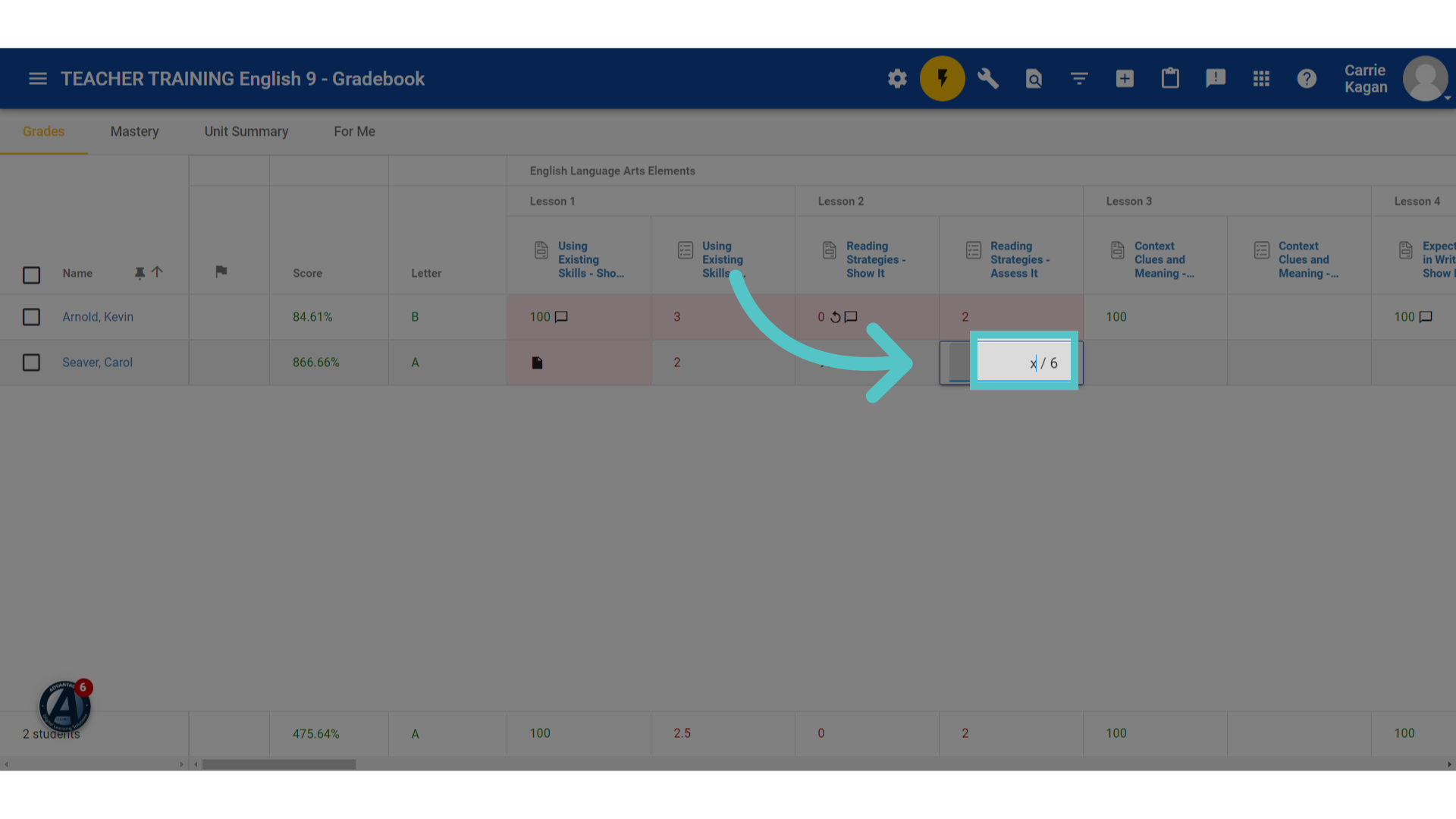
Click the box in the gradebook for the student and activity that needs to be excused.
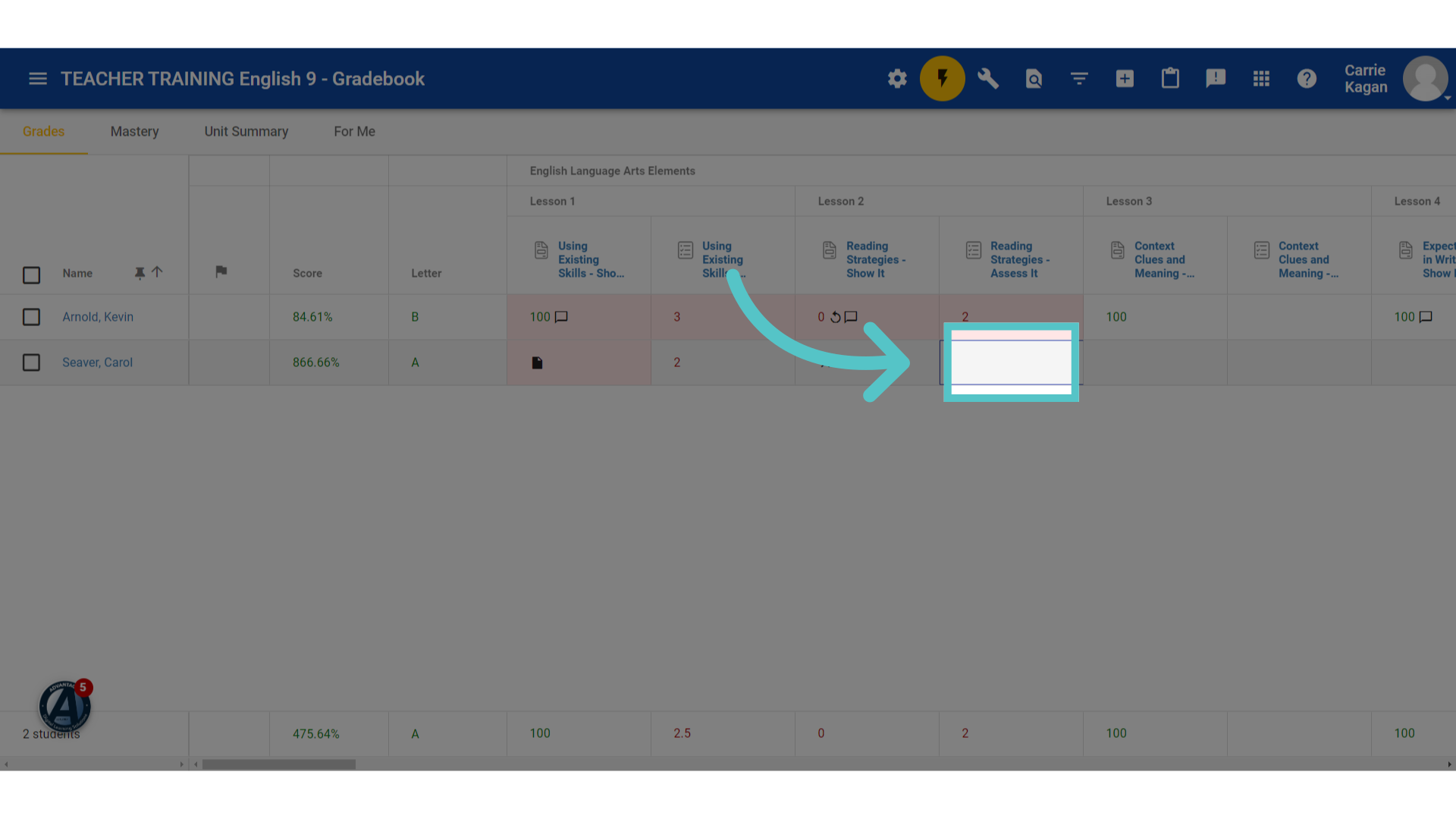
9. Fill "x"
Teachers can enter point values directly this way. To excuse an activity, type an X instead of a point value. Click enter to record the excused mark.
If you have any questions about the information in this tutorial, please click "Contact Support" to submit a help request.
Contact Support