Expand to Full Screen for Best Viewing
This tutorial will review the process for grading student work in Lincoln Learning.
Go to assist-learning-school.agilixbuzz.com
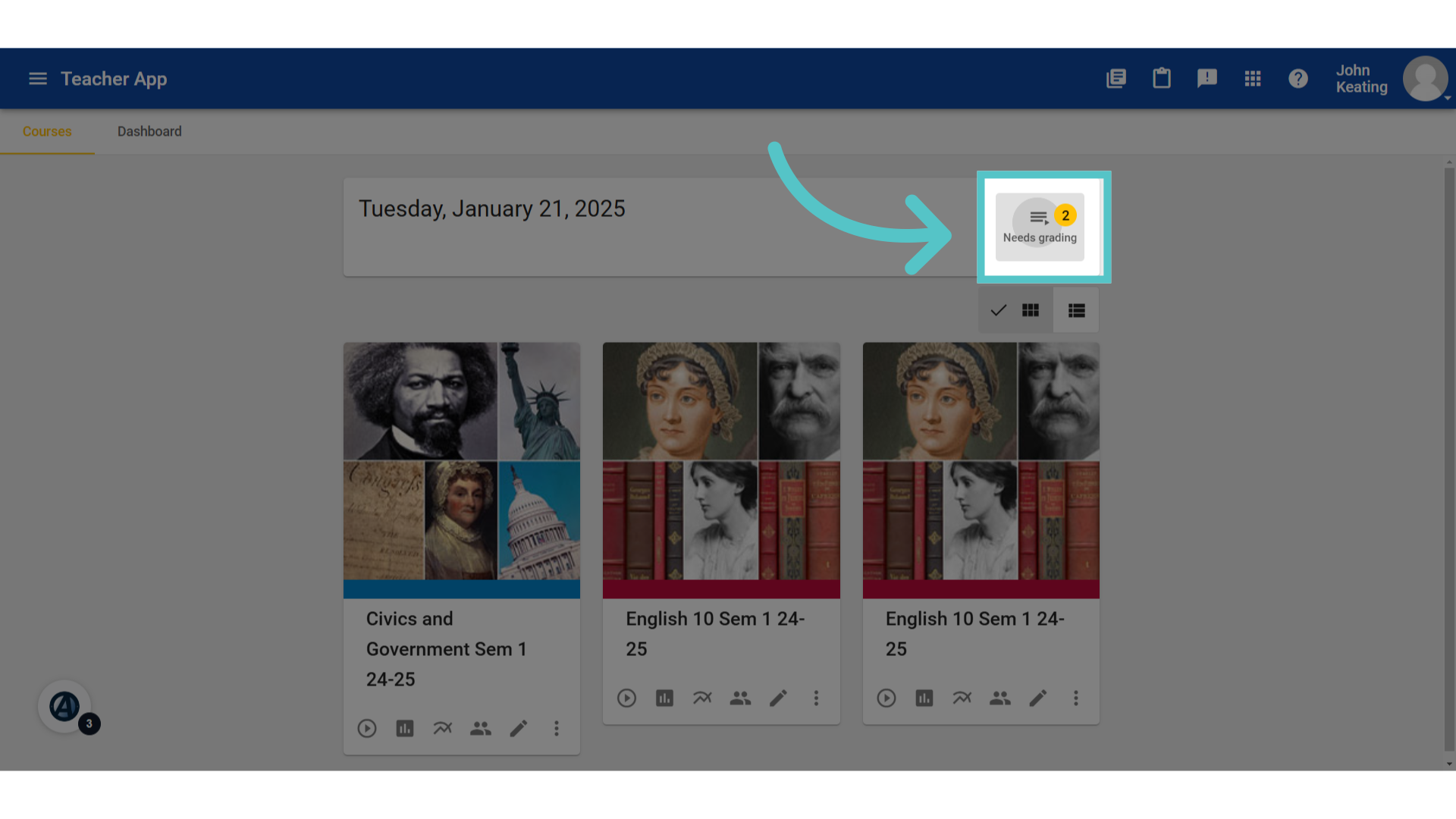
1. Click "Needs grading"
If student work has been submitted for teacher review, teachers will see a notification in the top right corner of the teacher homepage. Click "Needs grading" to access the grade editor and review the submitted assignments.
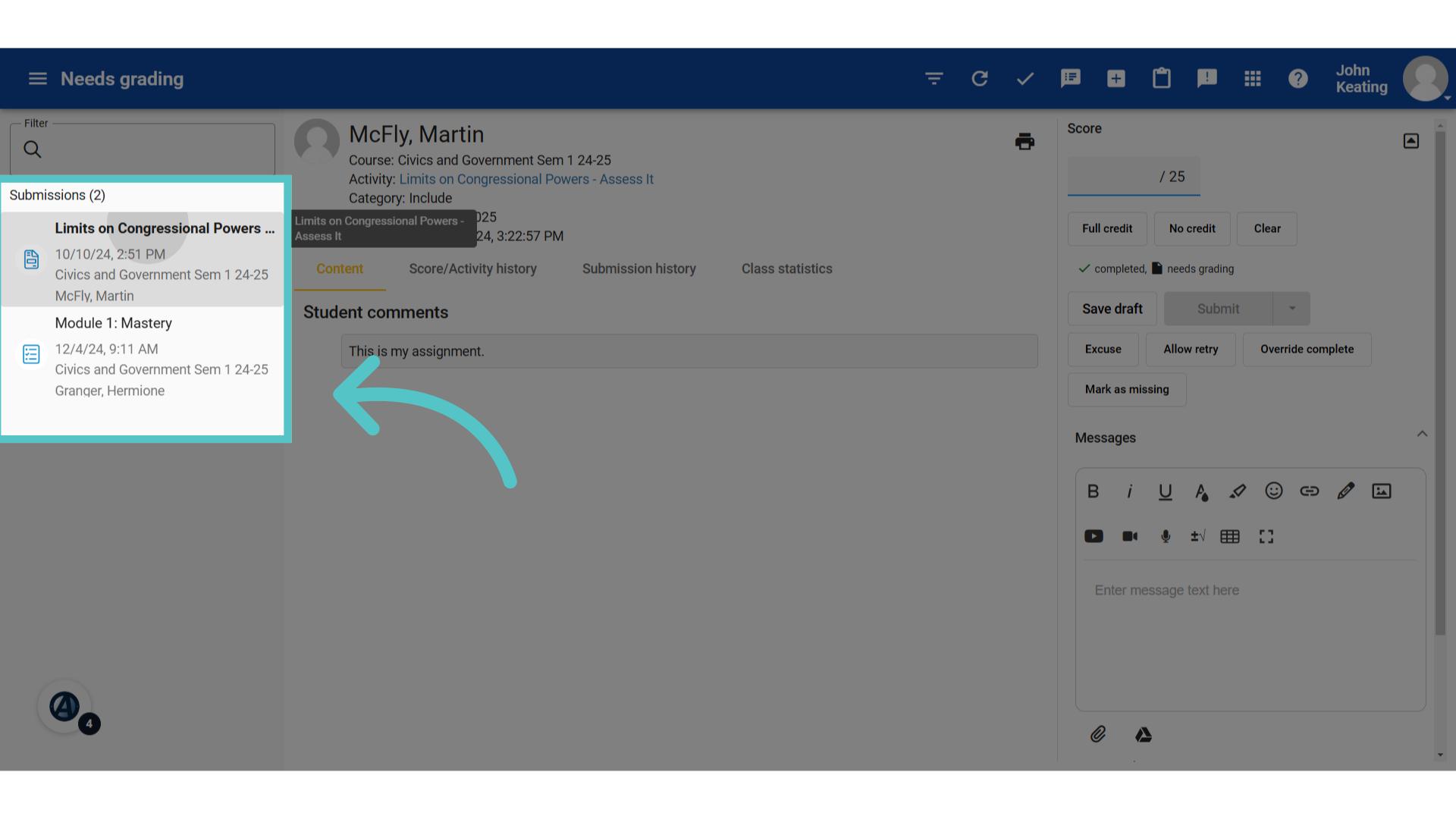
2. Submitted Assignments
This will open the Grade Editor. All submitted assignments will be listed in the left column. The assignments will be listed in the order of submission, with the assignment that has been waiting the longest at the very top.
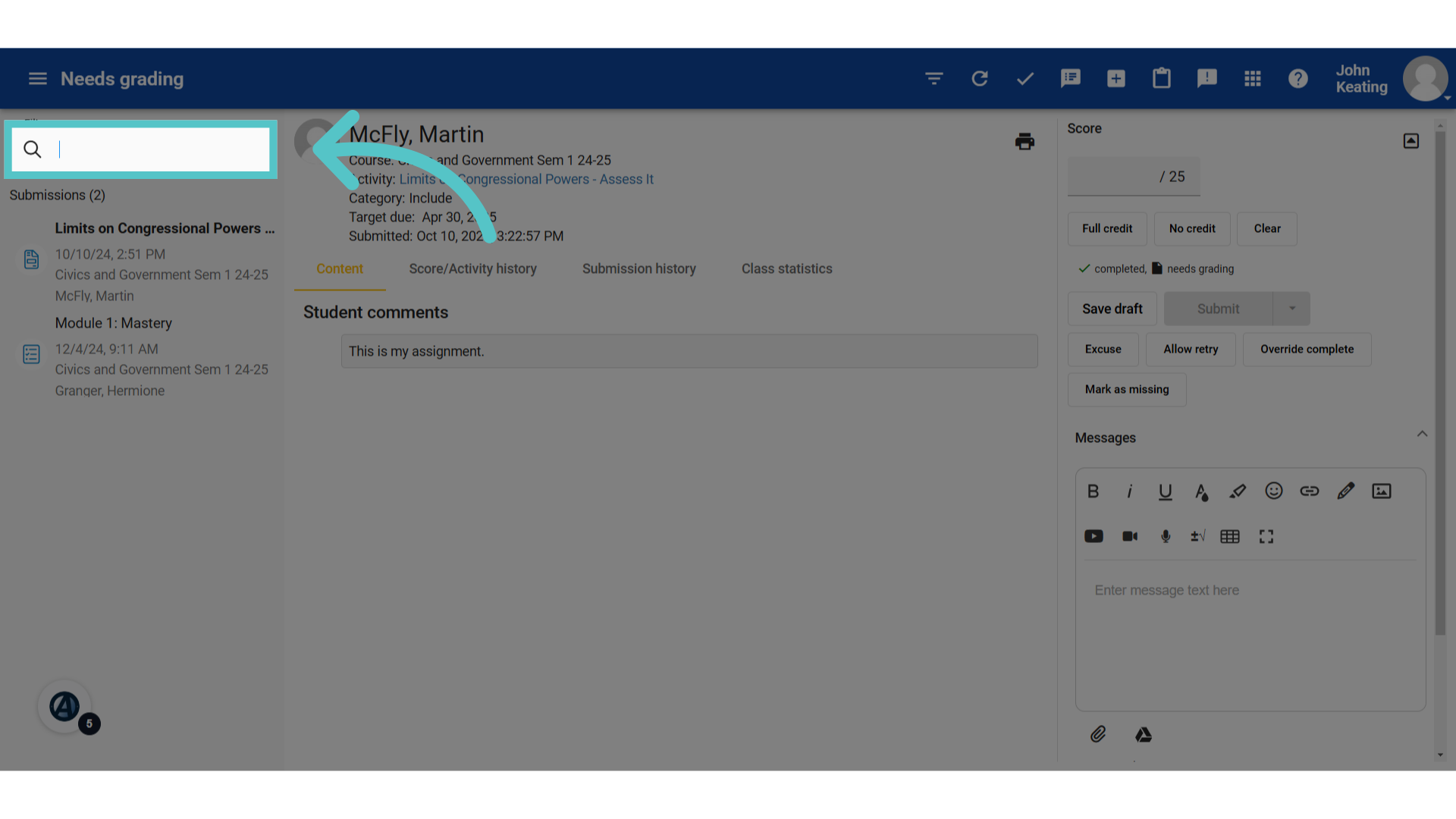
3. Search
Teachers can find work submitted by a specific student, or find a specific activity to review using the search bar.
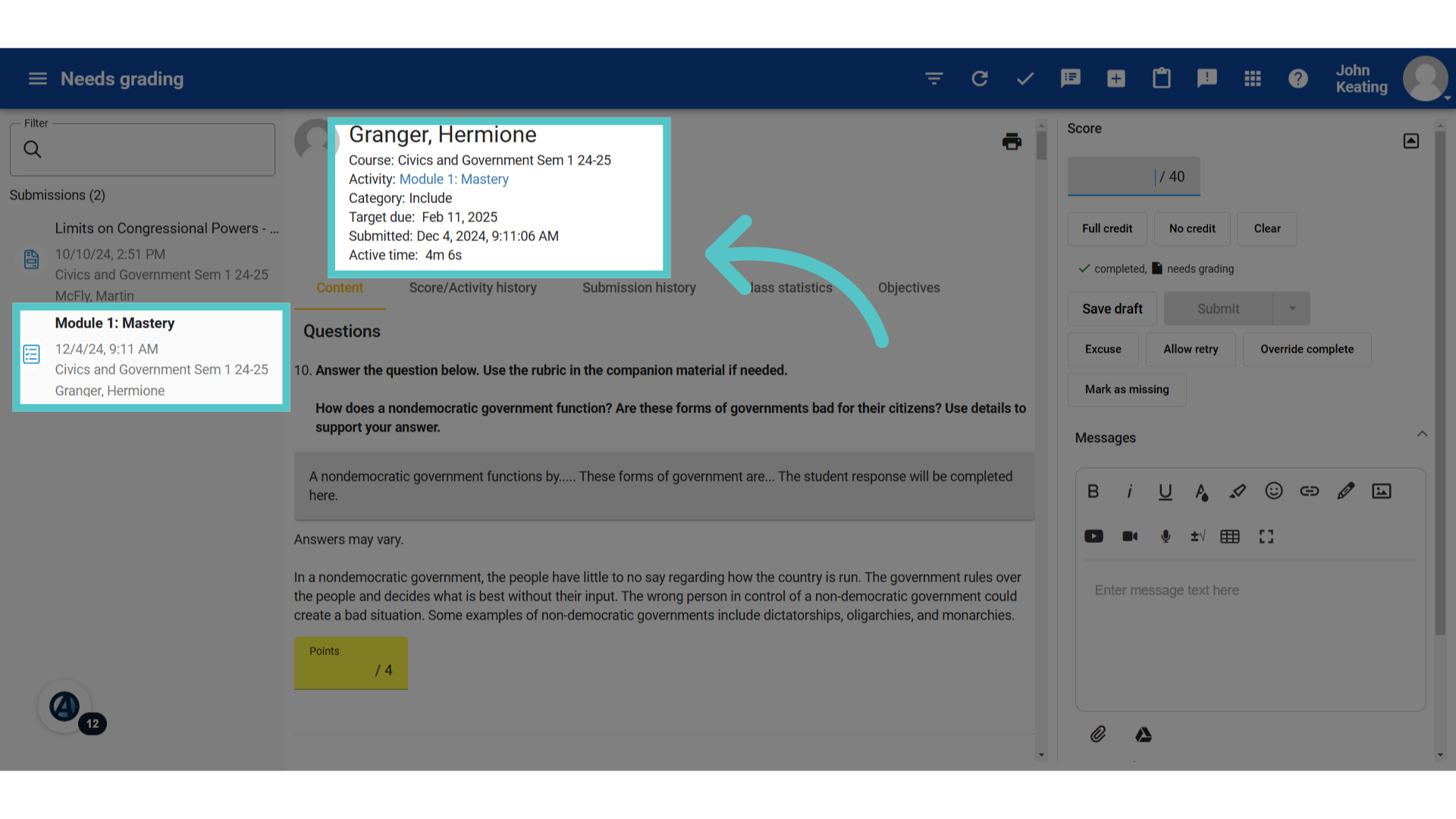
4. Assignment Details
Click the activity for review to see the student work appear in the center section of the screen. This is the grading area. Assignment details, including a link to the activity page, will appear at the top.
5. Questions
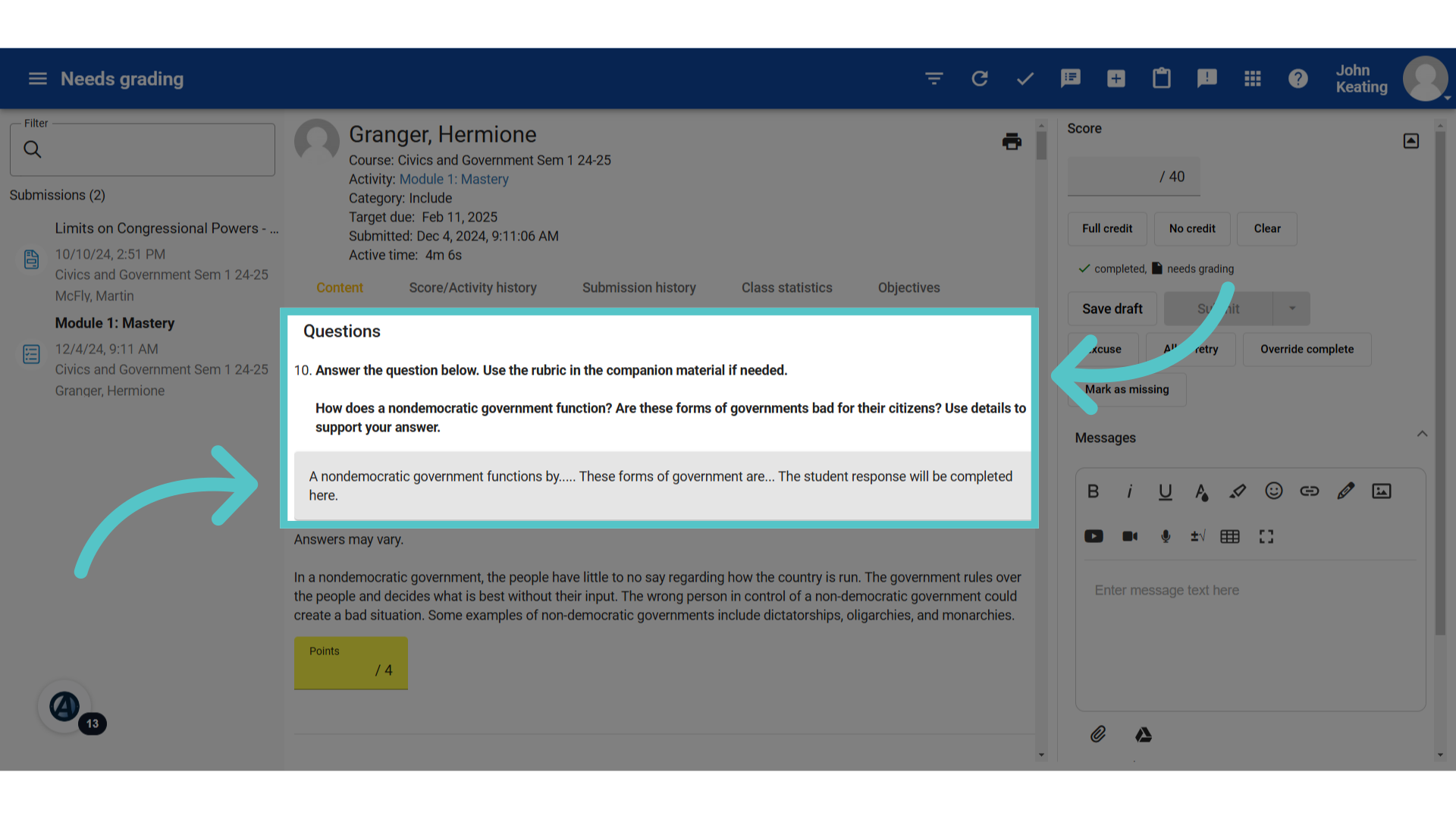
All of the questions and answers for the activity will be listed. Questions that need teacher review are listed first, no matter what number question they are. Here, question number 10 is listed first because it requires teacher grading. Student answers will show in the gray box under the question.
6. Answer Key
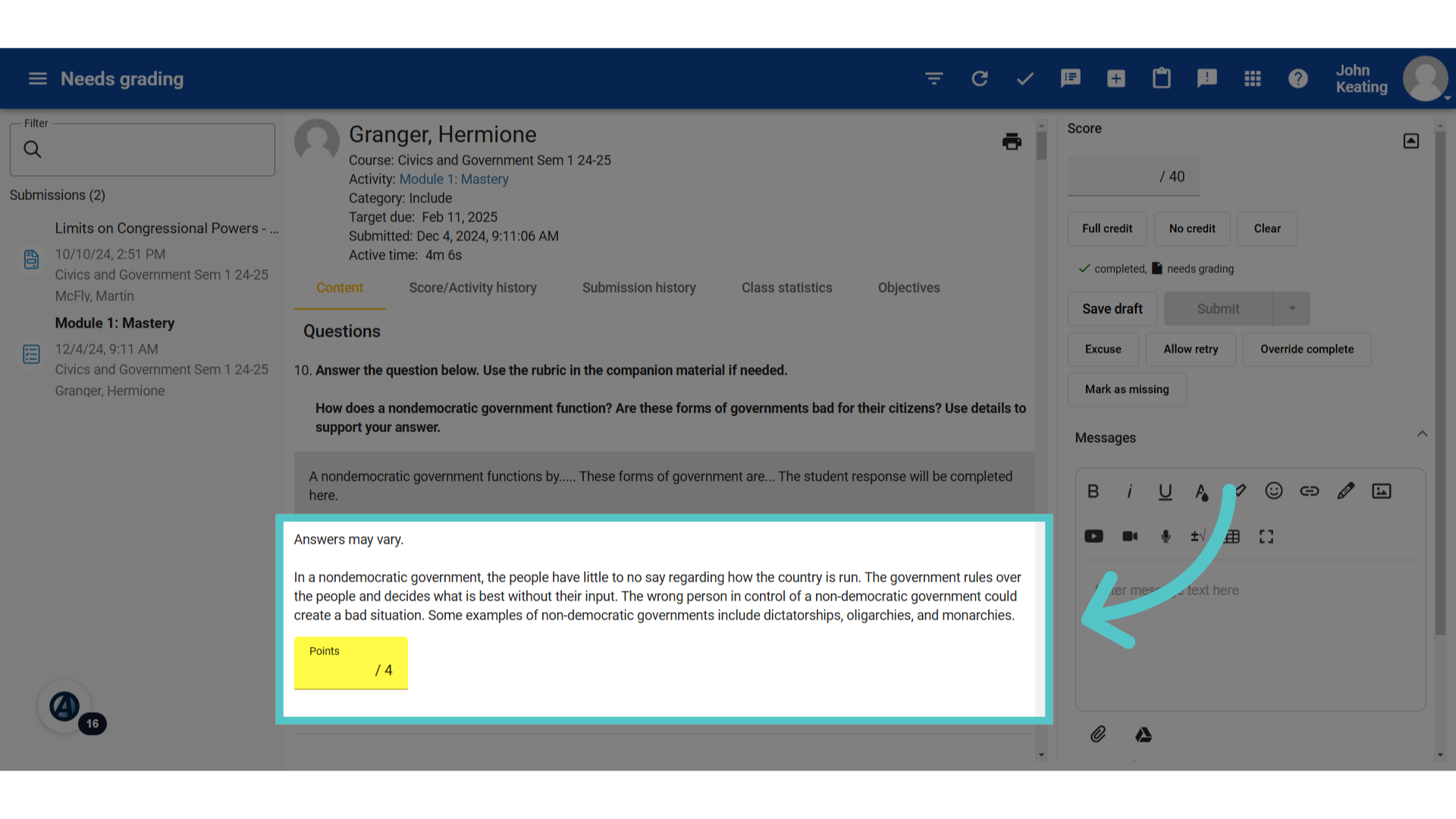
Underneath the gray box with the student answer, is the answer key. A sample response will be provided for written response questions. Teachers can enter the points awarded in the yellow box.
7. Rubric
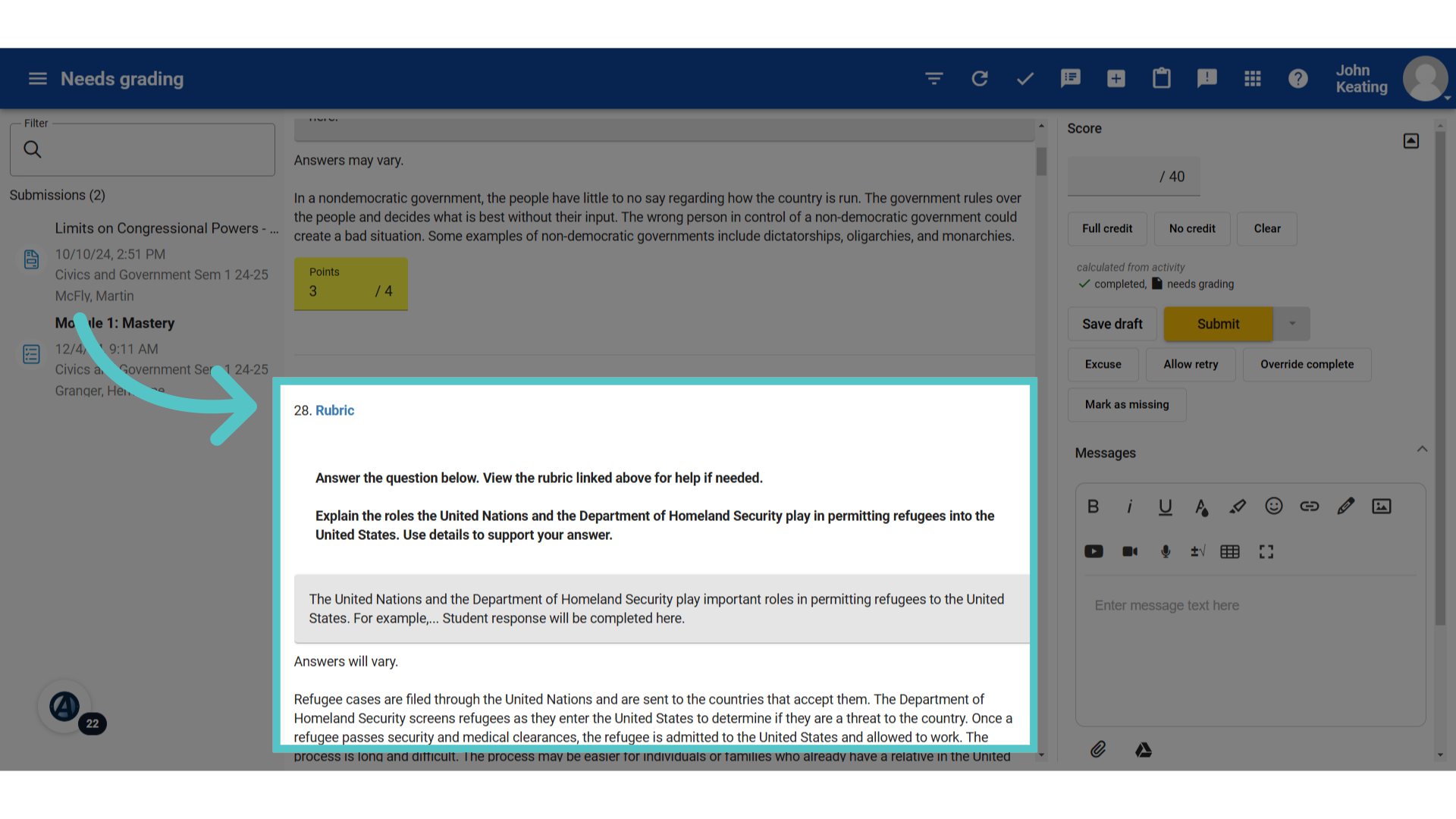
Some questions will provide the link to open a rubric to assist with scoring.
8. Computer Graded
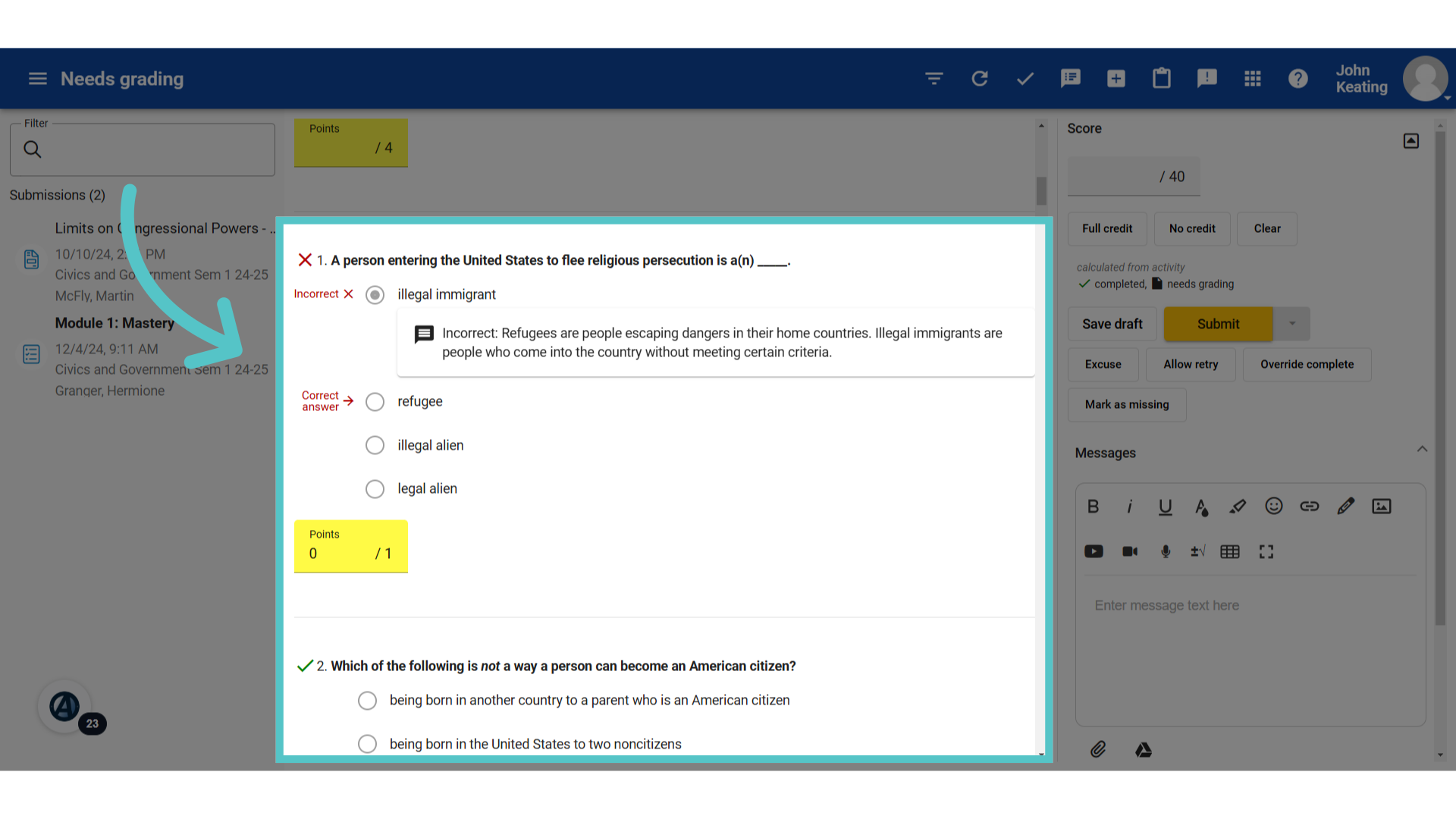
After the questions requiring teacher review will be all of the computer-scored questions. Teachers can view all student responses to see where mistakes were made.
9. Score
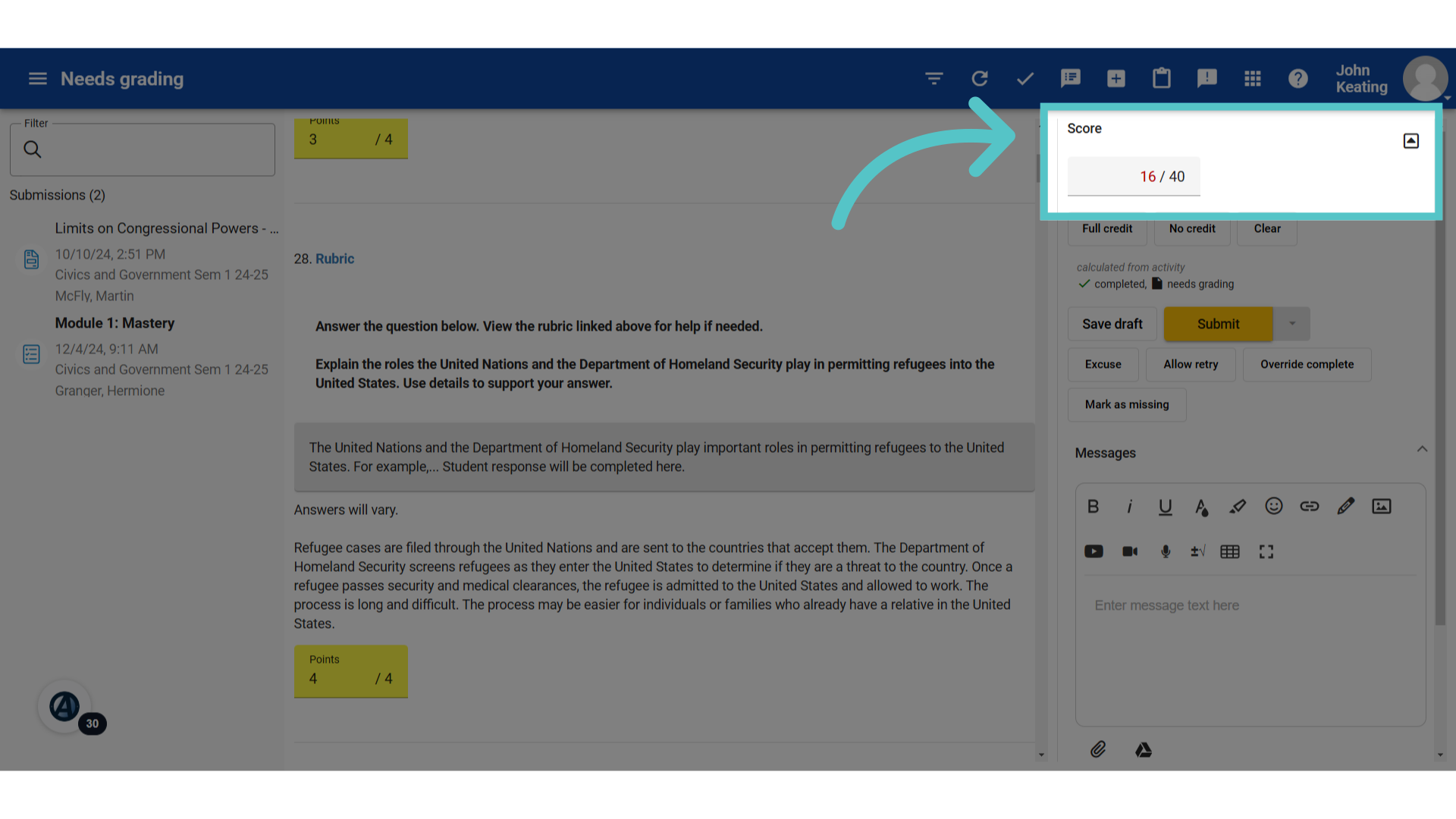
The right side of the screen is the feedback section. Once points have been entered for all the questions, the total score appears in the top field.
10. Auto Feedback
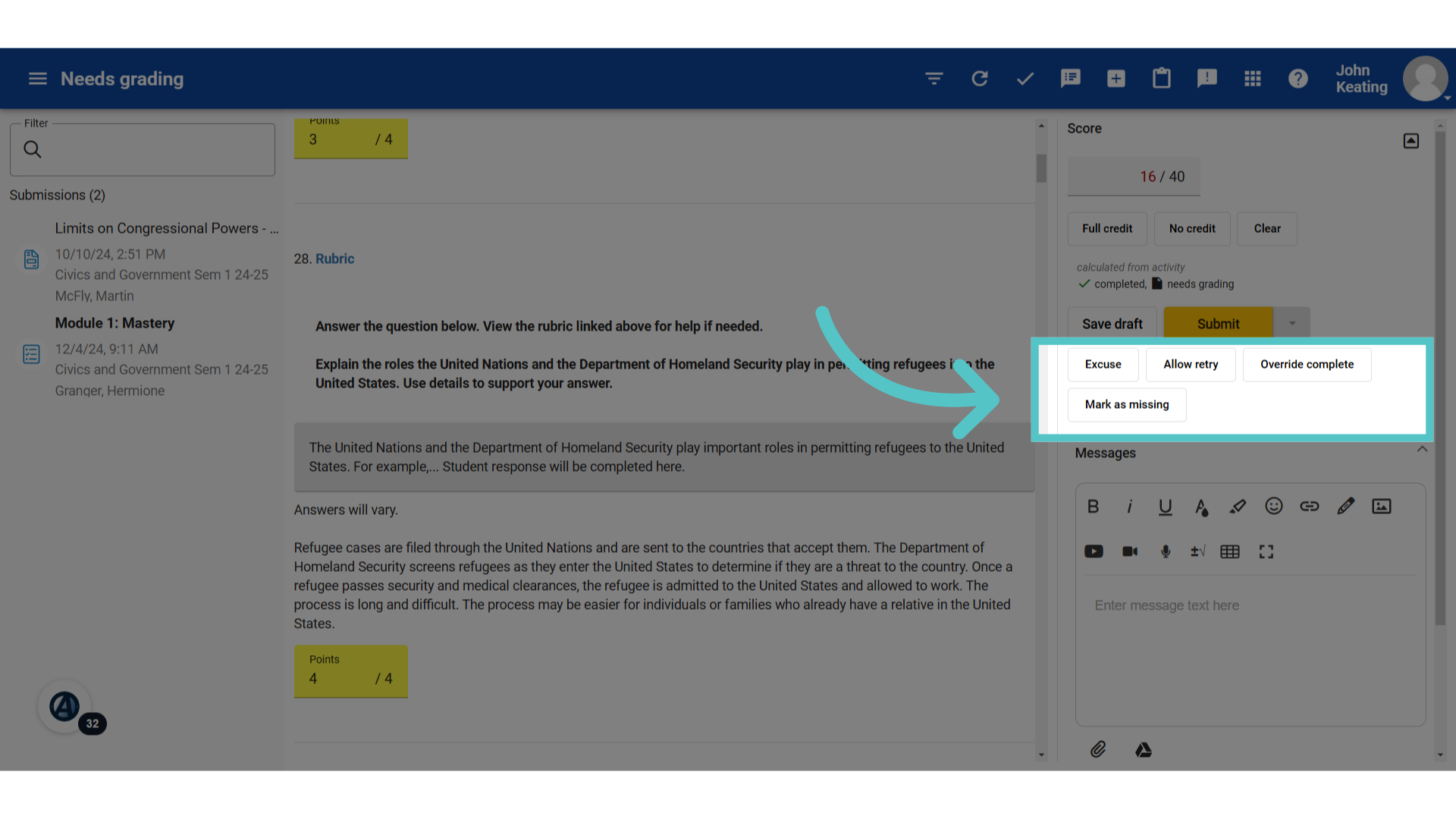
Teachers can mark activities with the automated notes: Excuse, Allow Retry, or Missing. These notes will appear in the gradebook for reference.
11. Personalize Feedback
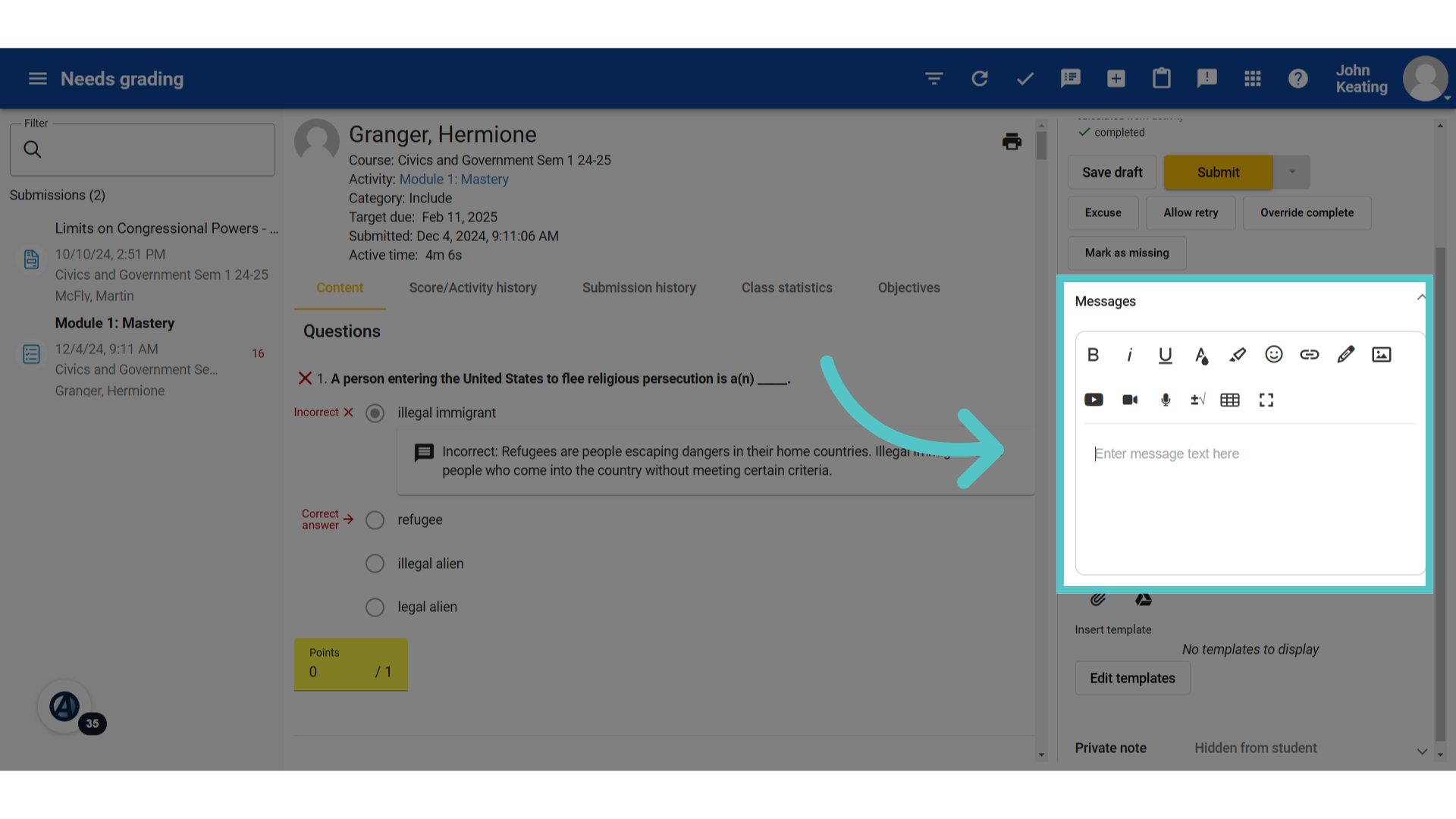
The messages field provides space for teachers to personalize feedback for students. Teachers can type comments, suggestions, and encouragement for students to review. There are also options to record voice messages, add videos, attach images, or insert emojis.
12. Save or Submit
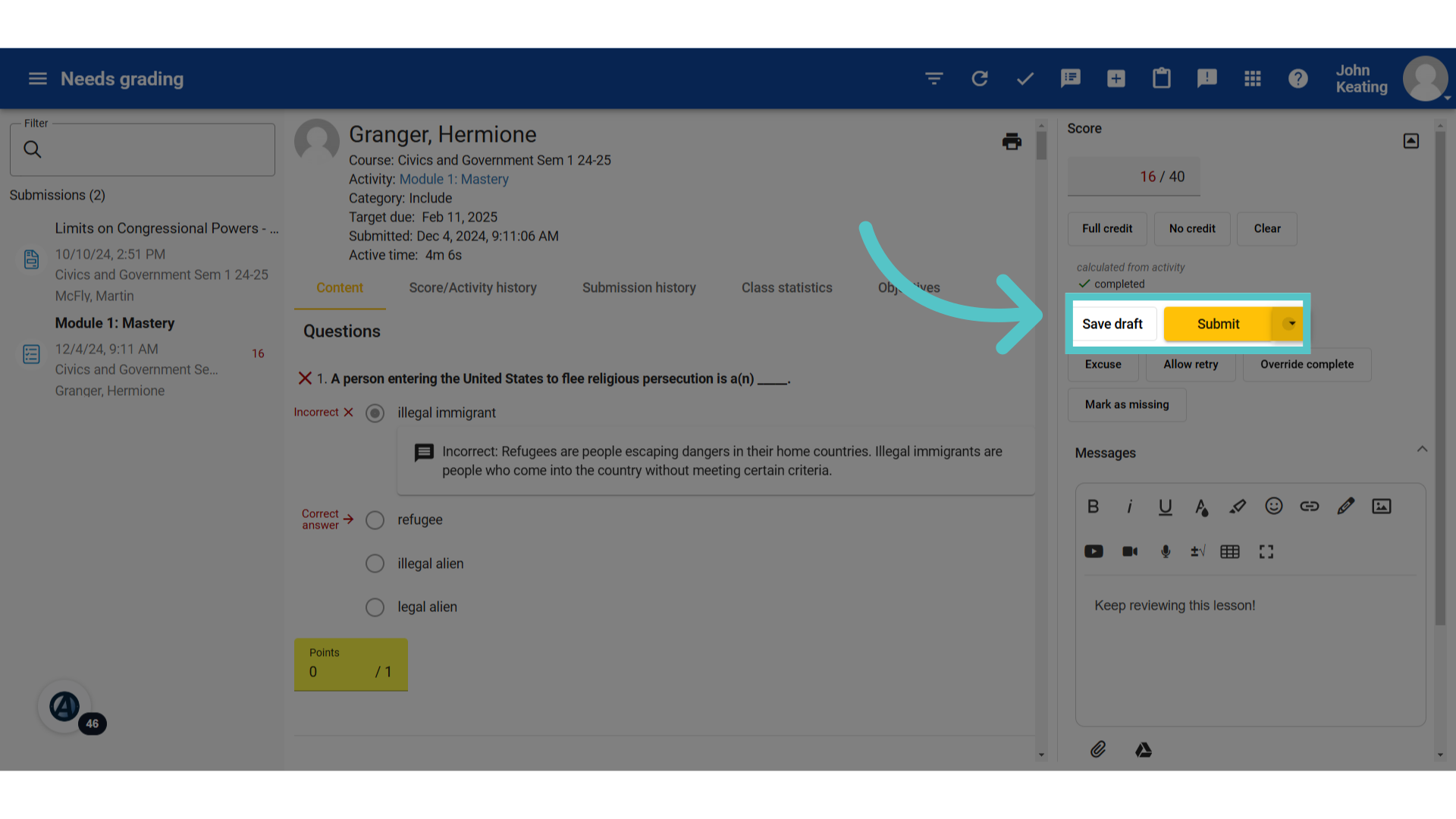
If teacher grading is interrupted, teachers can save their progress and return to finish grading at a later time. Once grading is finished, click "submit" to automatically record the score in the gradebook and give students access to view feedback.
If you have any questions about the information in this tutorial, please click "Contact Support" to submit a help request. Contact Support