Expand to Full Screen for Best Viewing
Progress Monitoring in Lincoln Learning
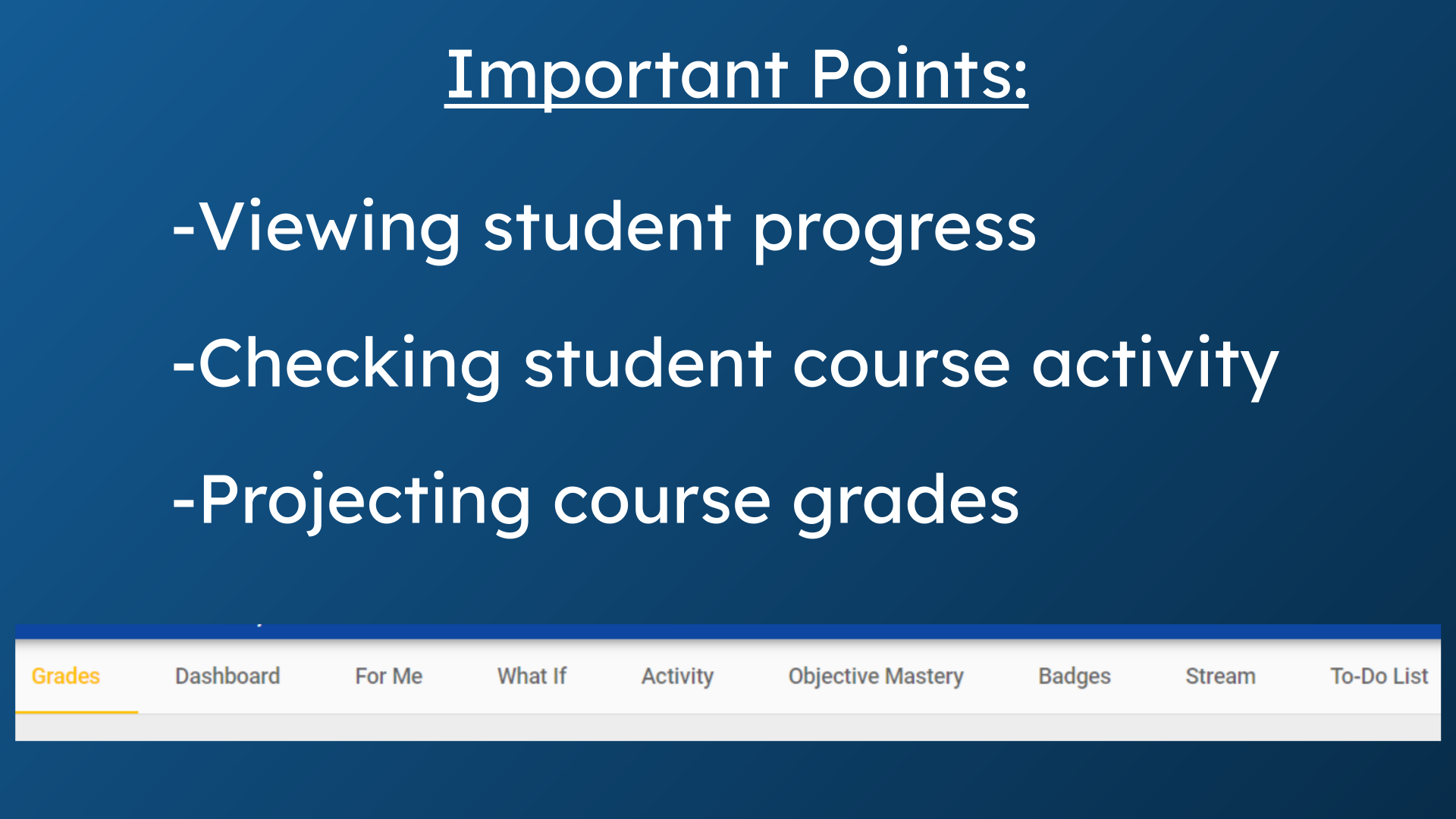
1. Important Points:
Teachers can login to monitor the progress of students individually, or of an entire class. Teachers can view each student's course activity and make projections about course grades.
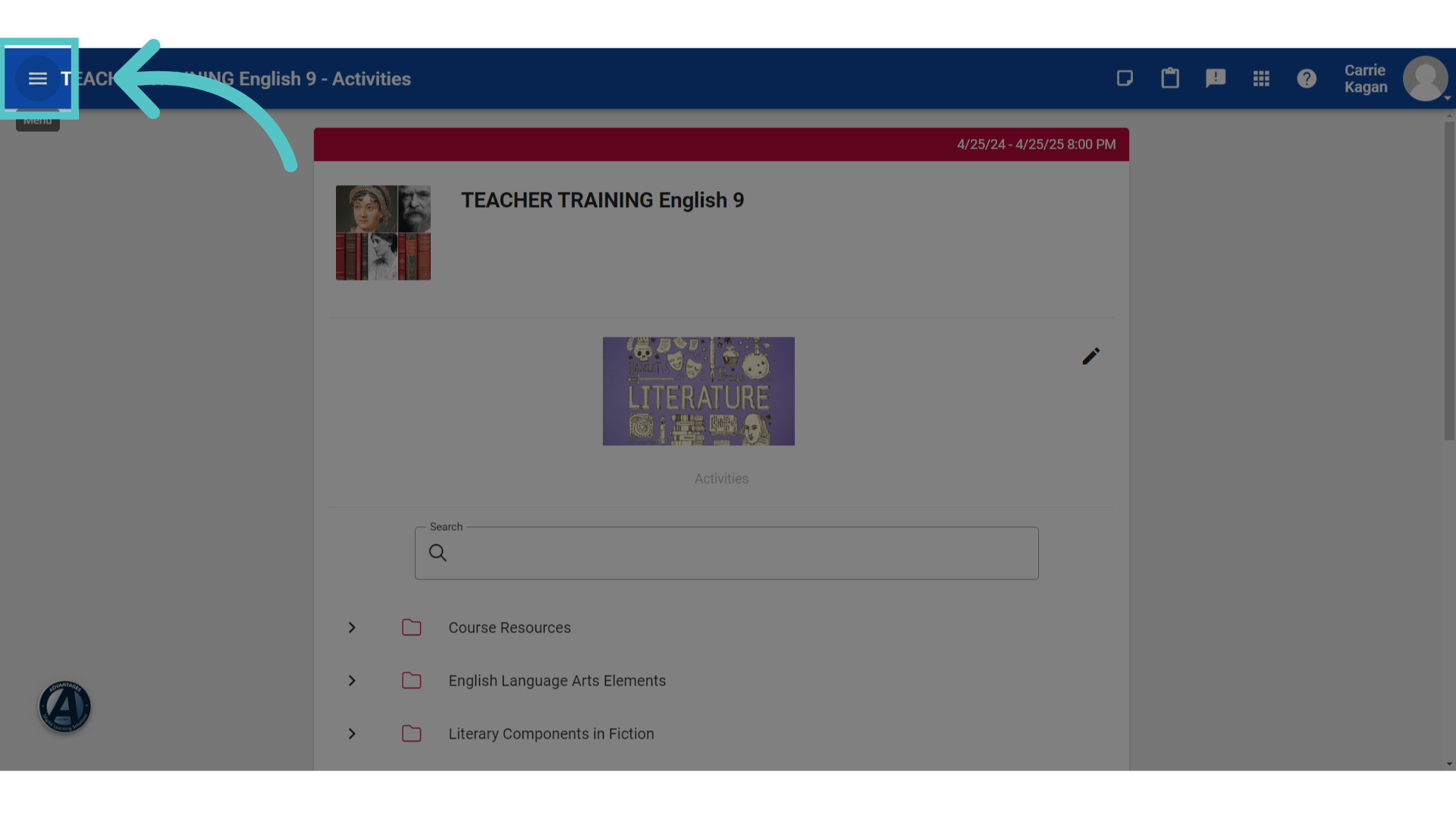
2. Three-line Menu
To begin, expand the three line menu found in the top left corner of the course homepage.
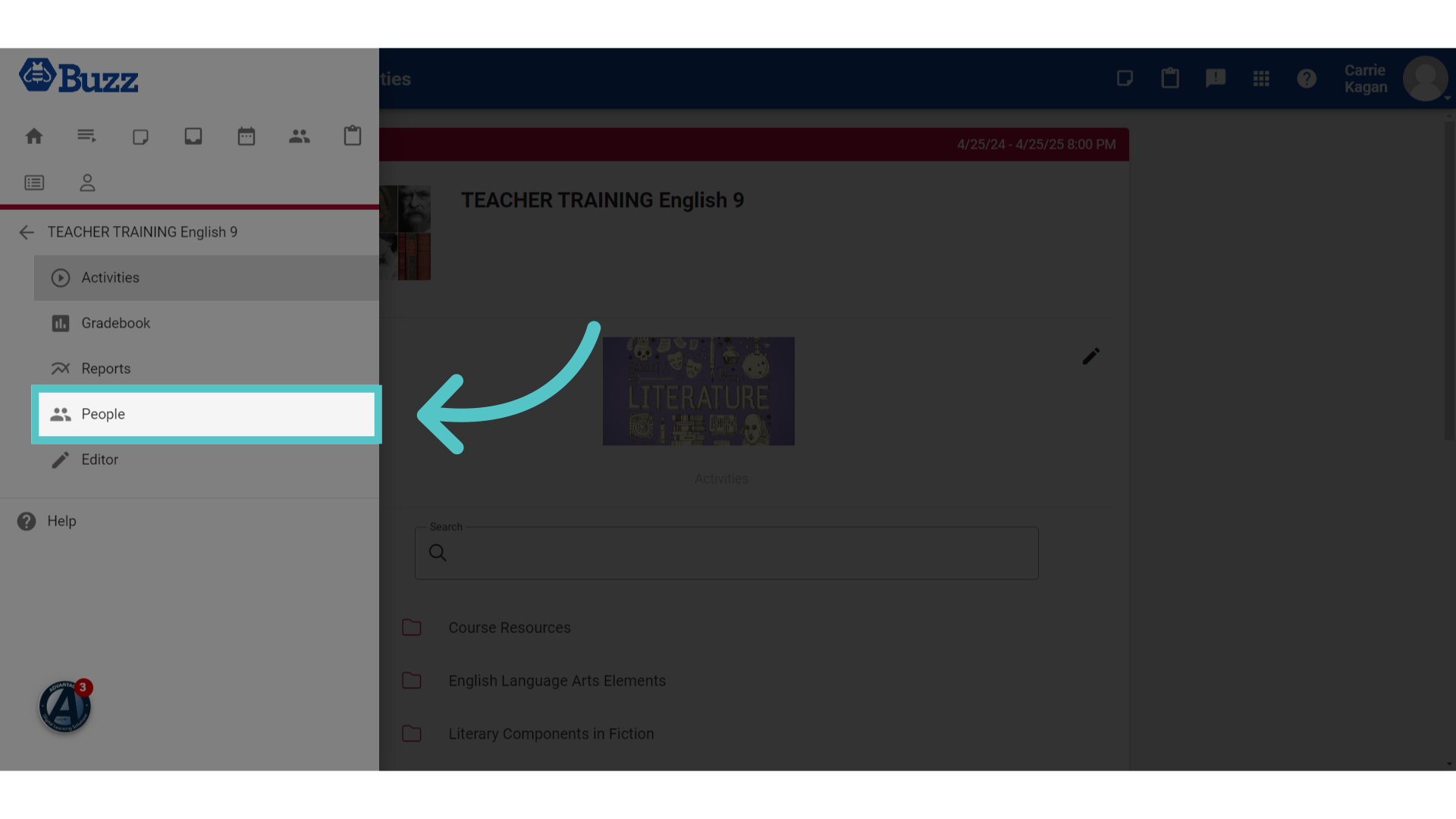
3. Click "People"
Select the 'People' option found underneath the course heading.
4. Students
This will open the roster of students enrolled in the course. Several metrics will show for each student, including course progress, pace, and performance.
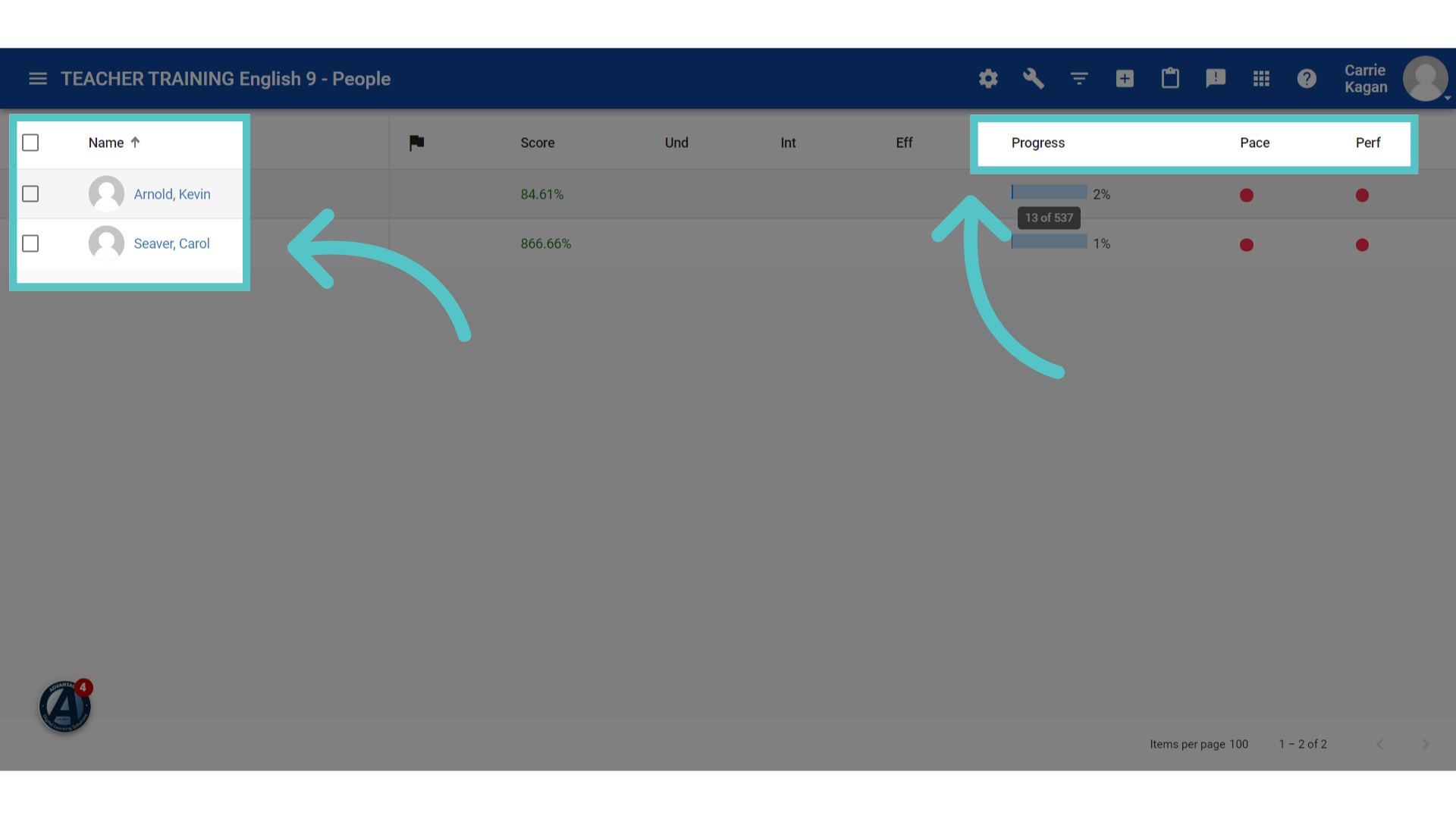
5. Indicators
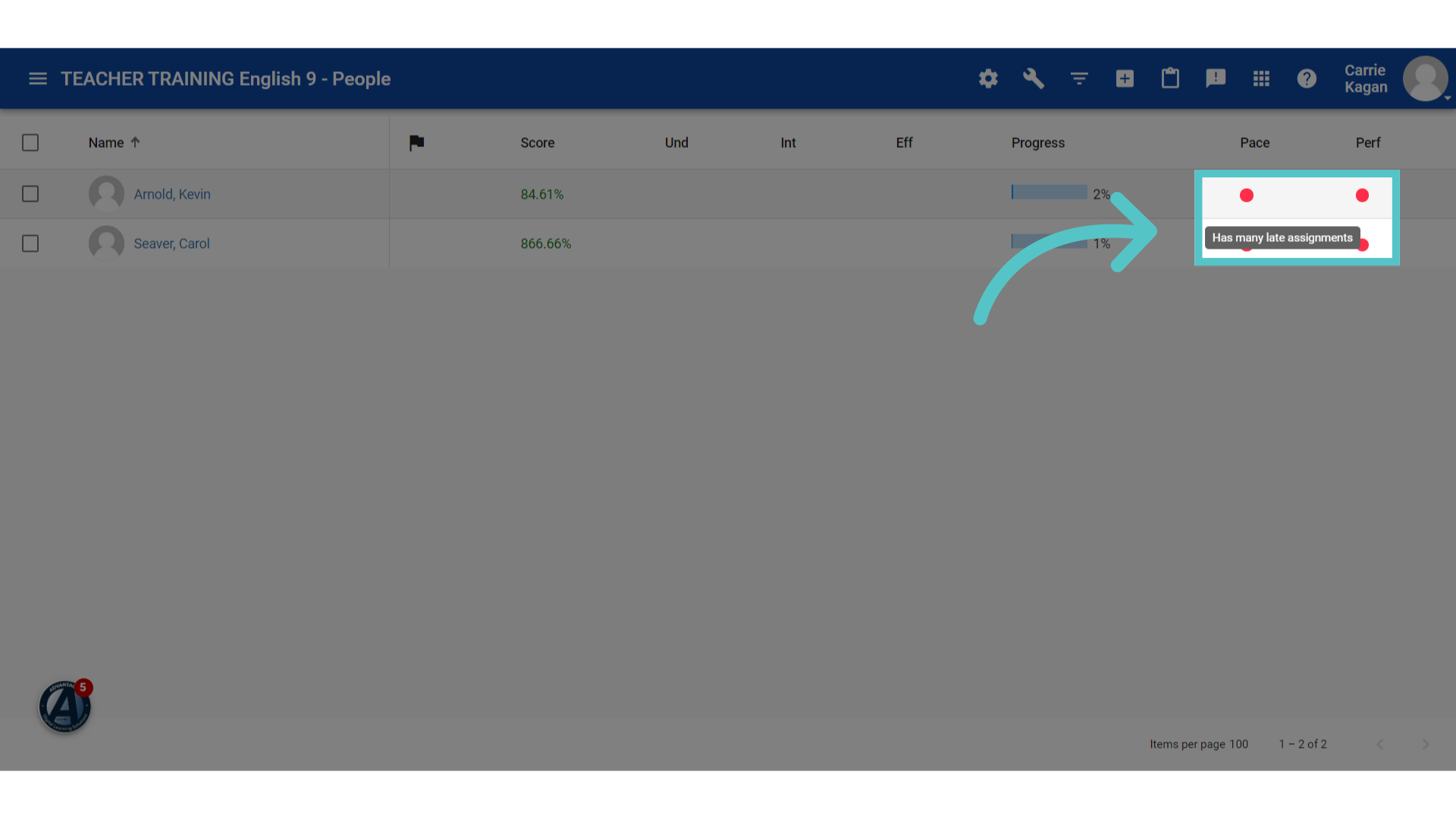
Colored circles will show to indicate concerns. Green circles indicate that students are working as expected. Yellow circles indicate that students may be falling a bit behind. Red circles indicate concerns for more significant challenges.
6. Settings
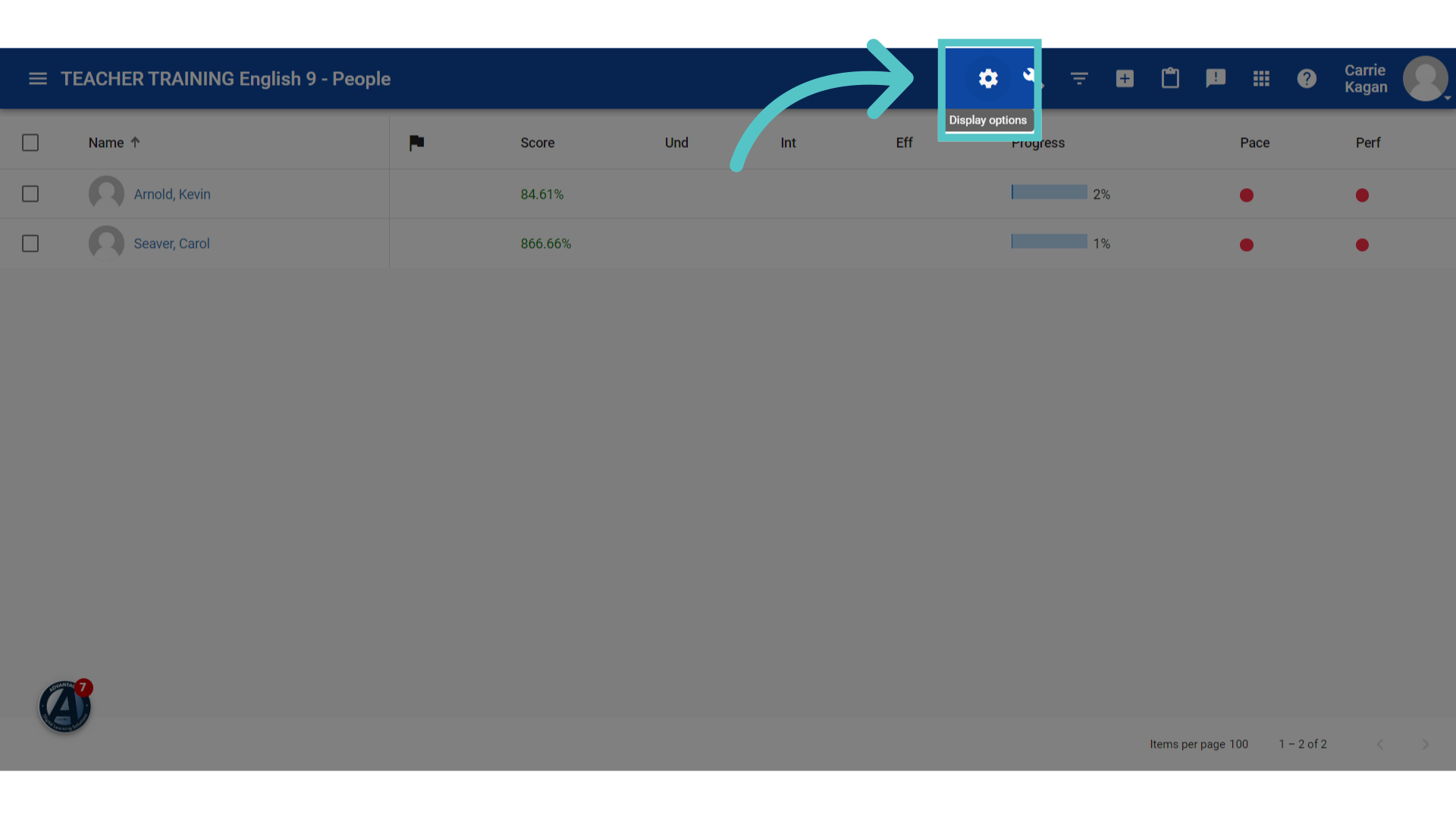
Teachers can use the settings icon to customize the display options. There are many metrics that teachers can choose to view for their students.
7. Check
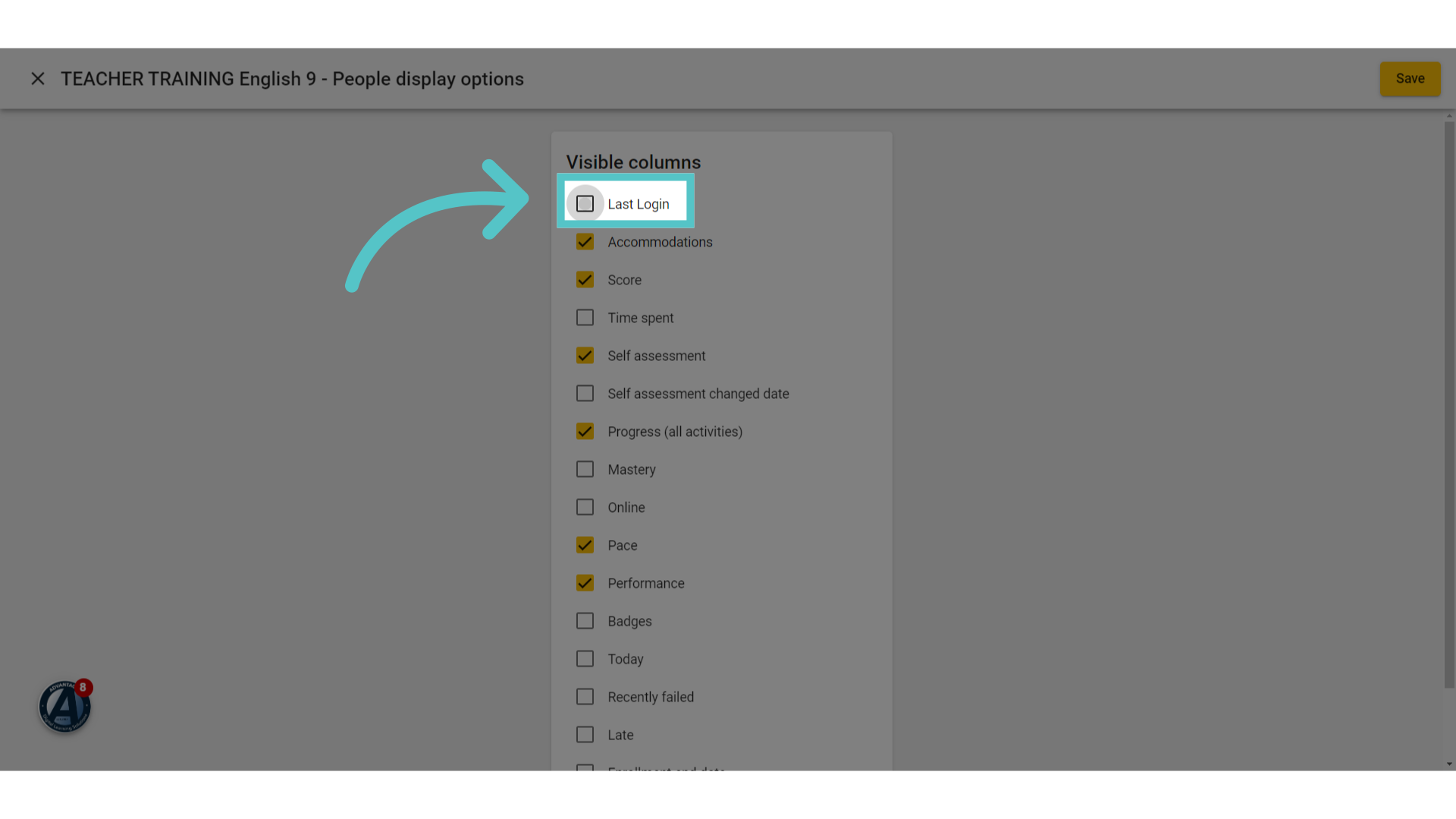
Checking the box next to a metric creates a new column visible on the roster page. Checking this box will show when a student last logged into the course. Teachers can check, or uncheck, any metric to customize their progress monitoring view.
8. Click "Save"
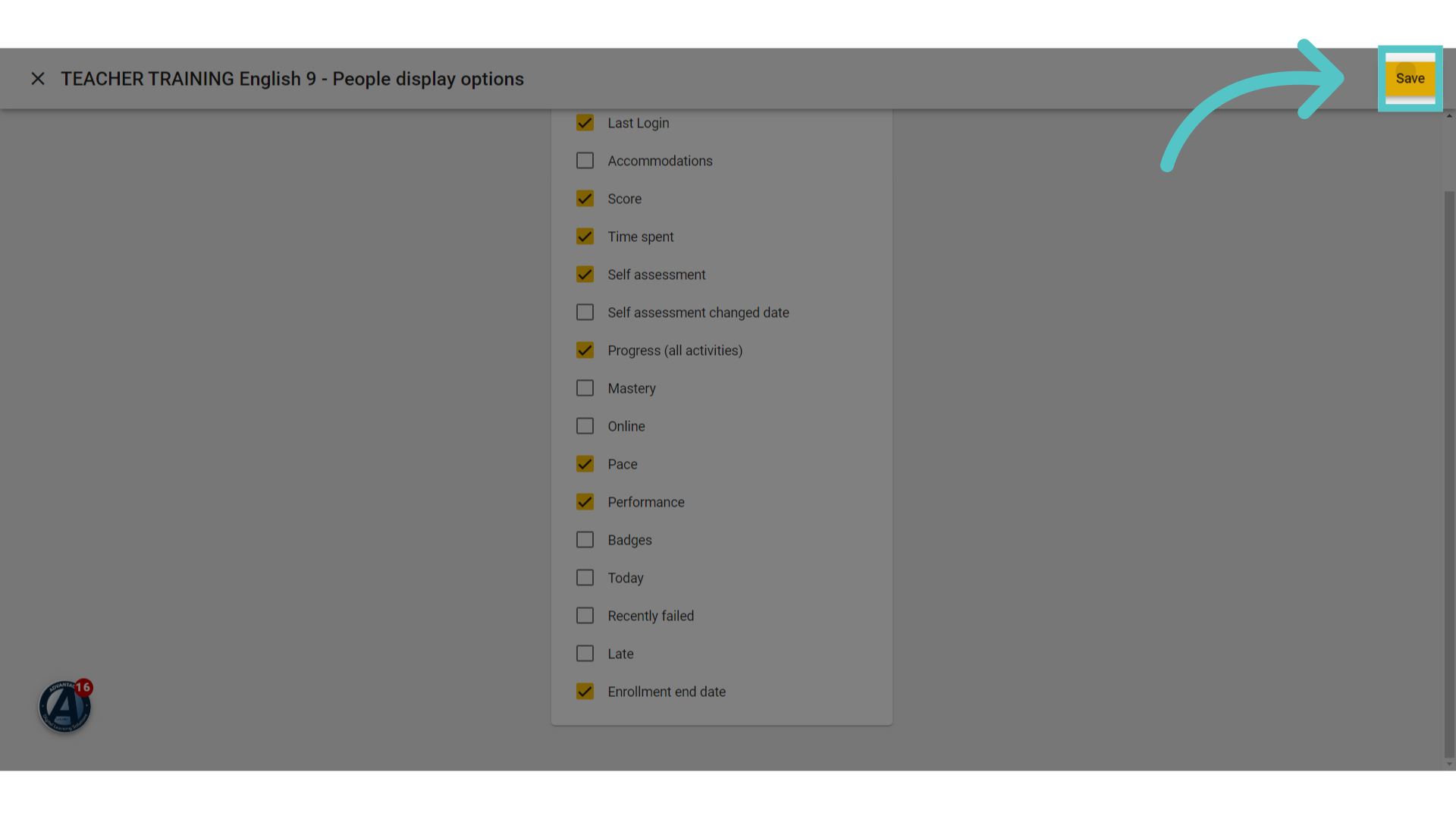
Save the changes made.
9. New Metrics
The selected metrics will now appear as columns with student data.
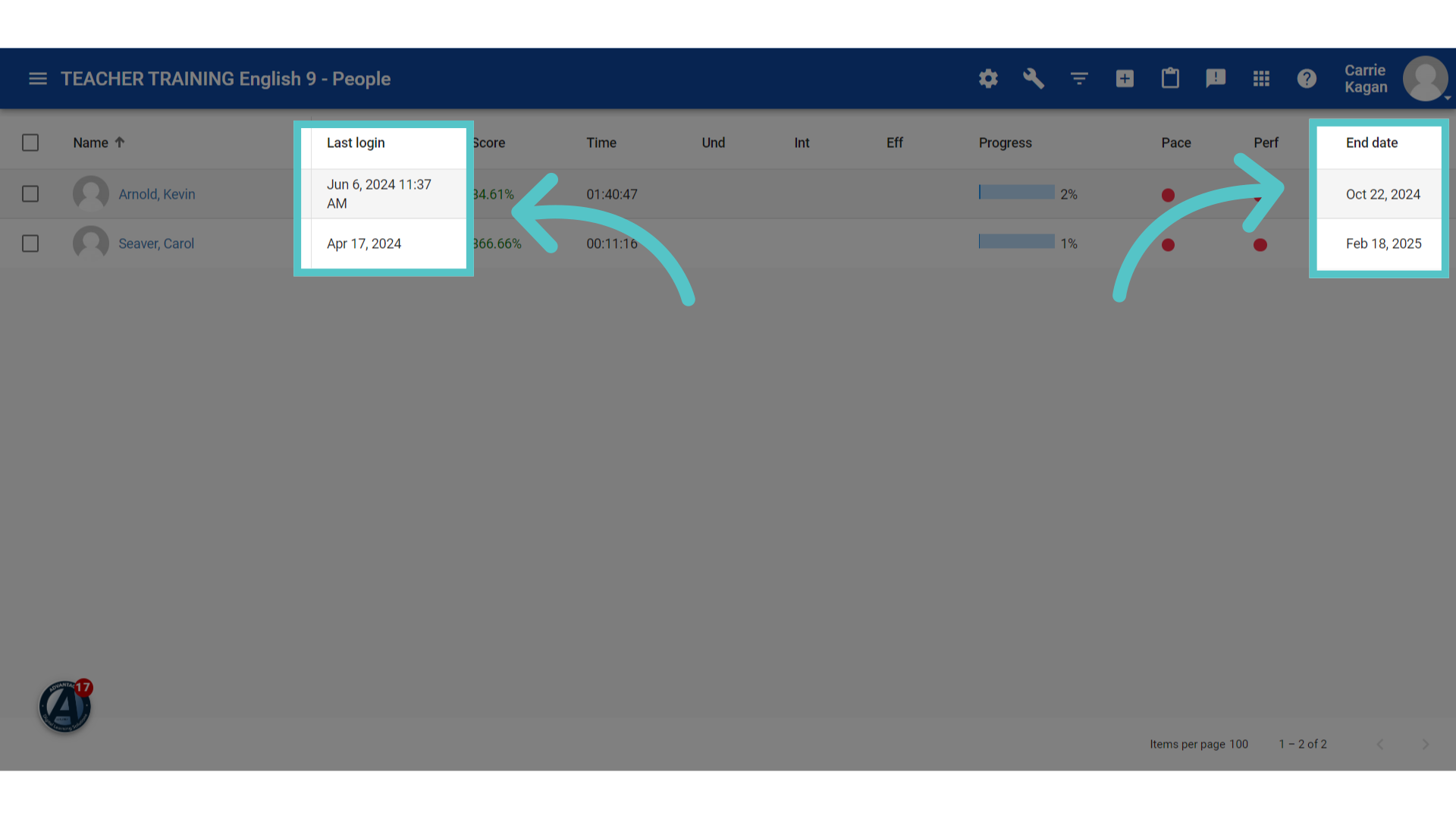
10. Click Student Name
Click an individual student name to look more closely at his or her course activity.
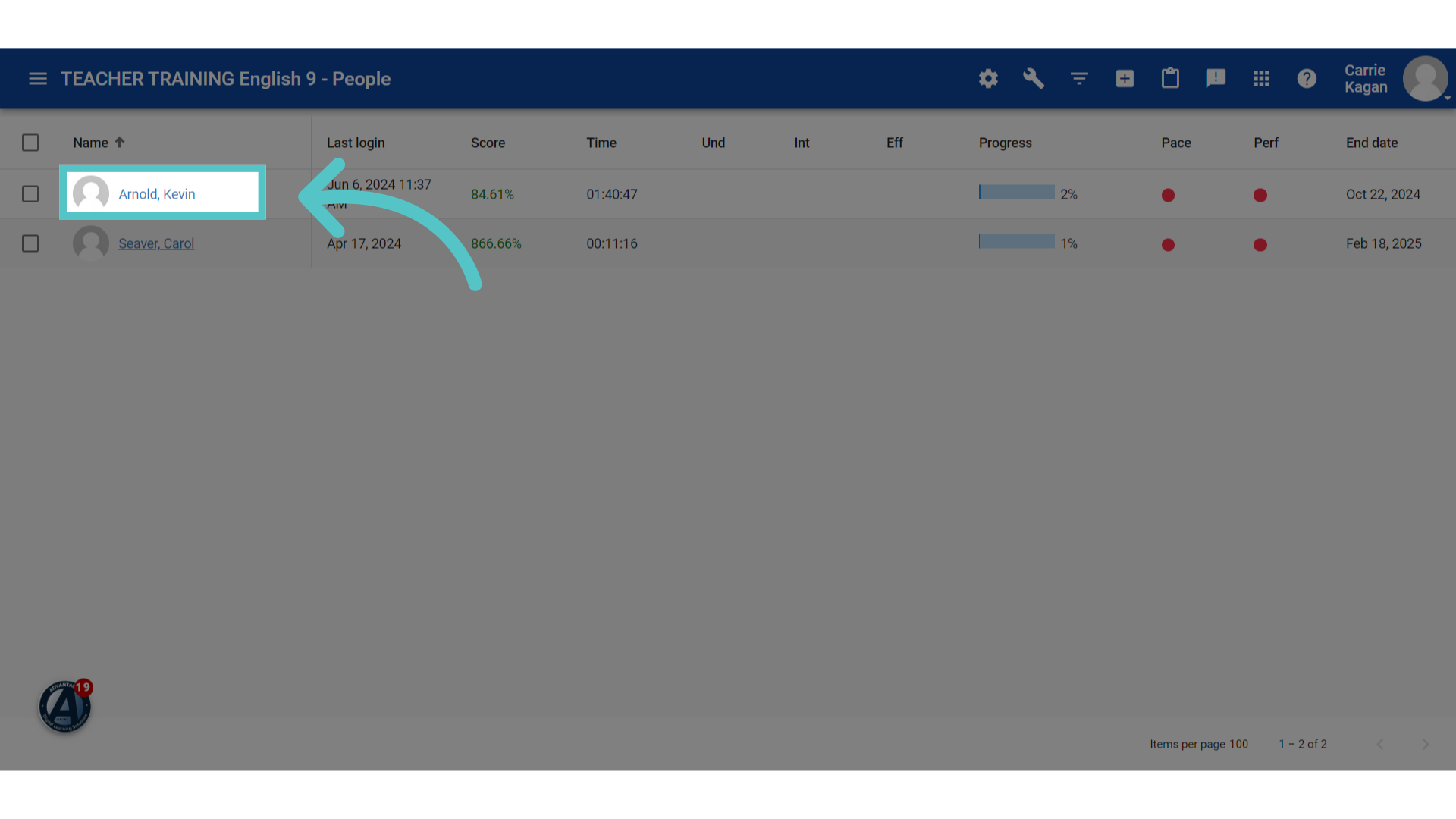
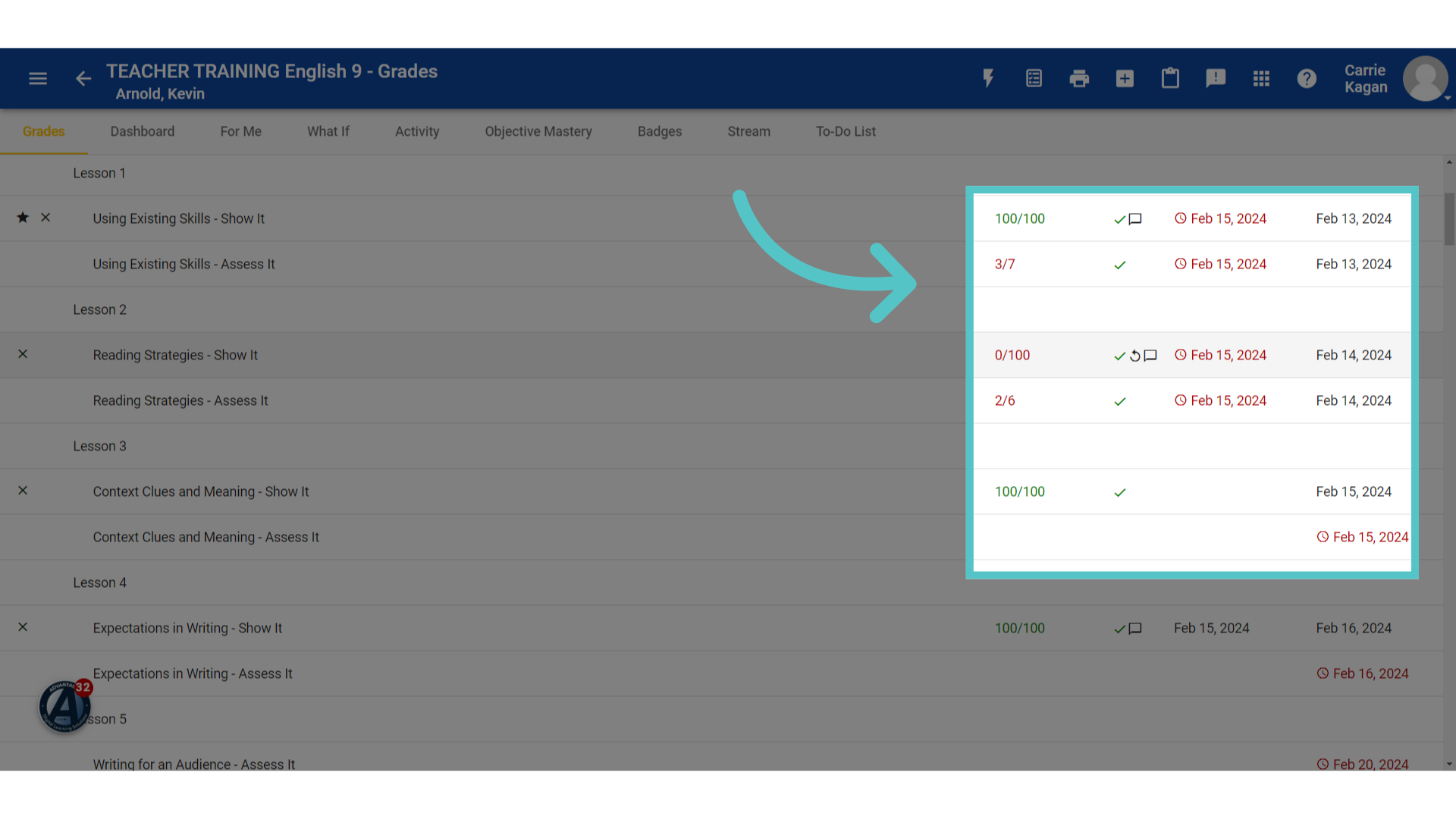
11. Individual Grade Report
This will show the student's individual gradebook page. Teachers can see what has been submitted and when. All gradebook icons will appear on this page. Teachers can access student assignments from here as well, by clicking on the activity.
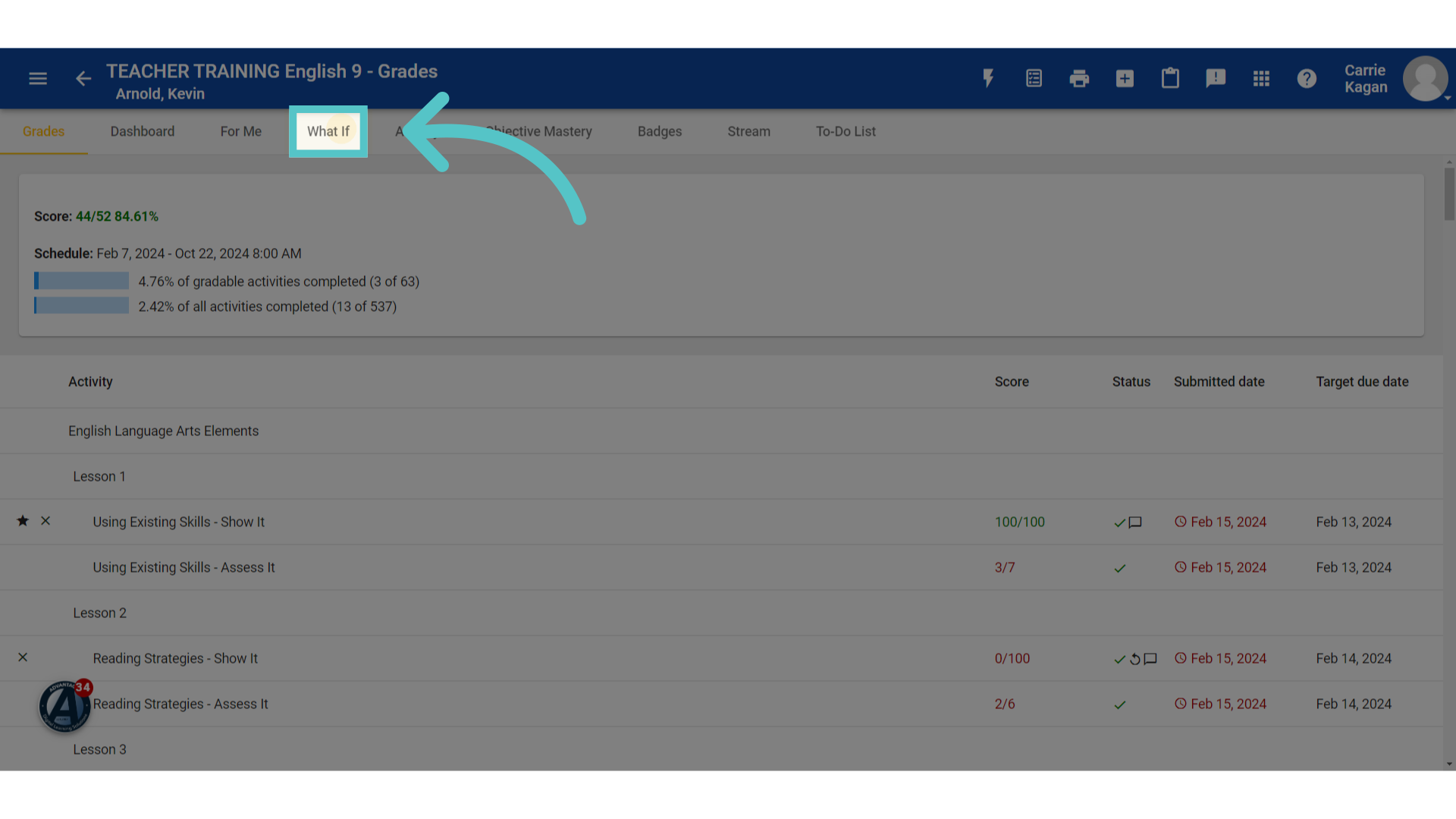
12. Click "What If"
Selecting the 'What If' option allows teachers to project possible grades for students.
13. Enter Possible Grade
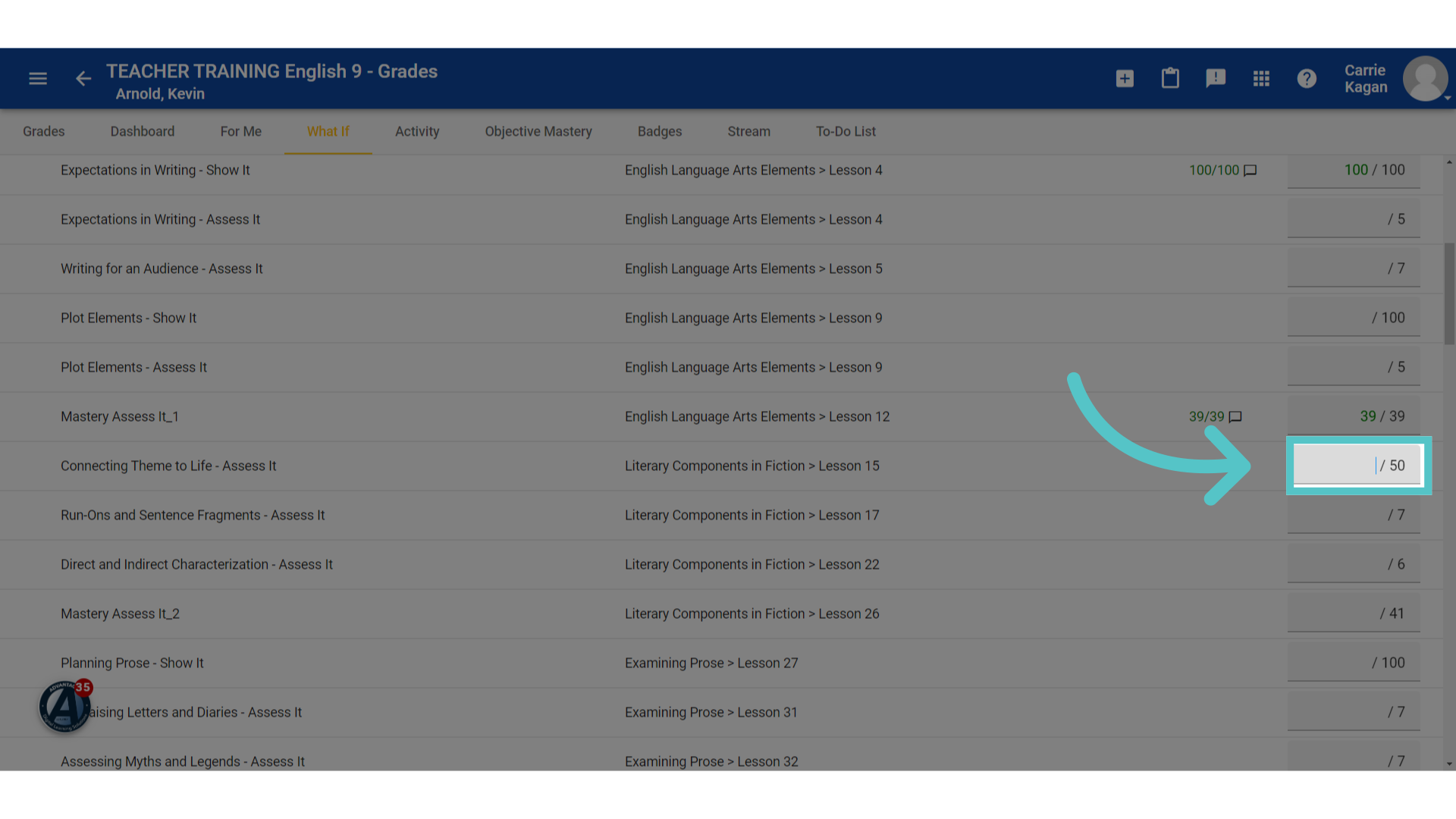
The list of course activities will appear and teachers can input anticipated grades to see how possible scores may affect a course average.
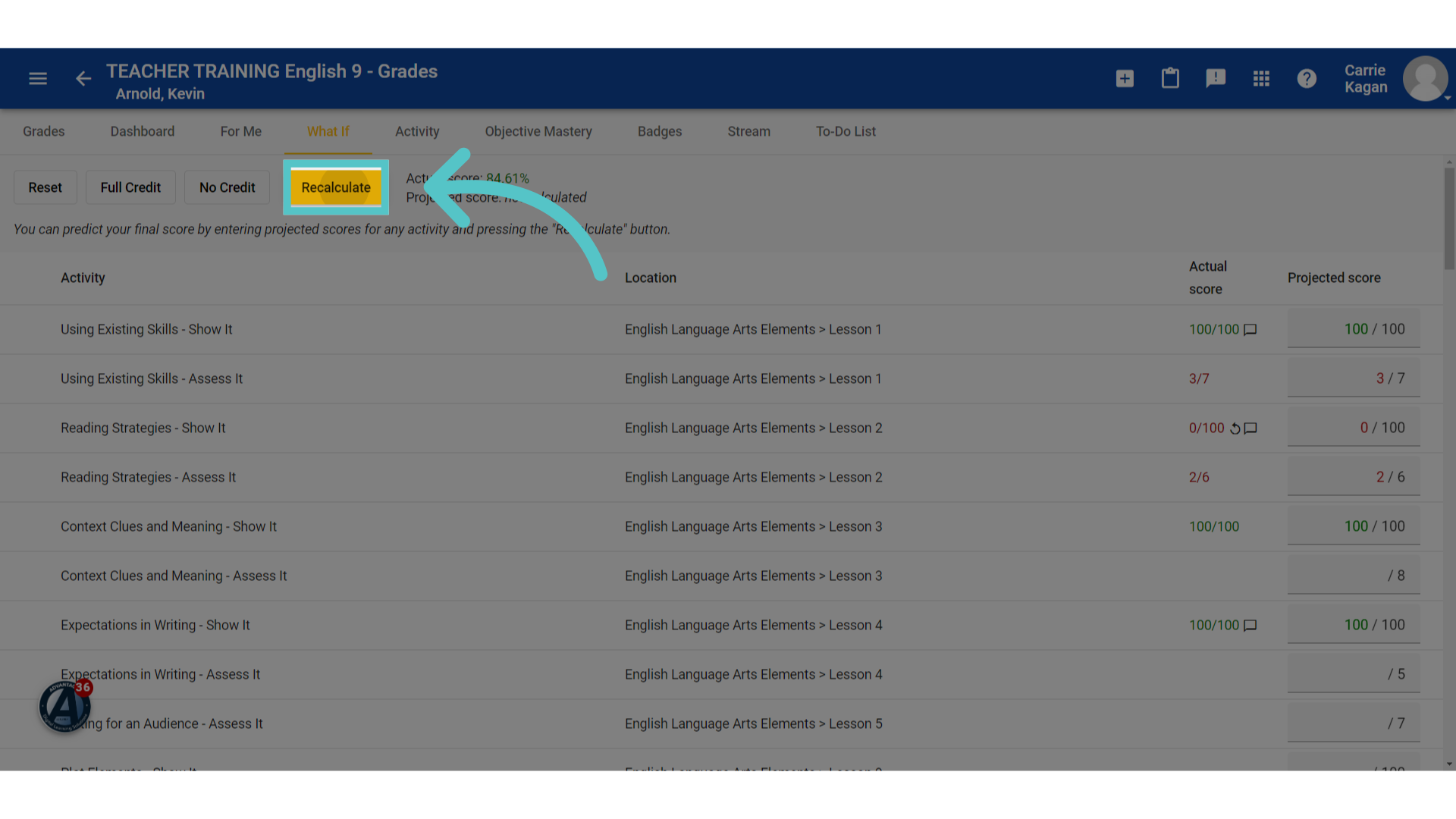
14. Click "Recalculate"
Choose 'Recalculate' to see how the course grade will change if this score is earned.
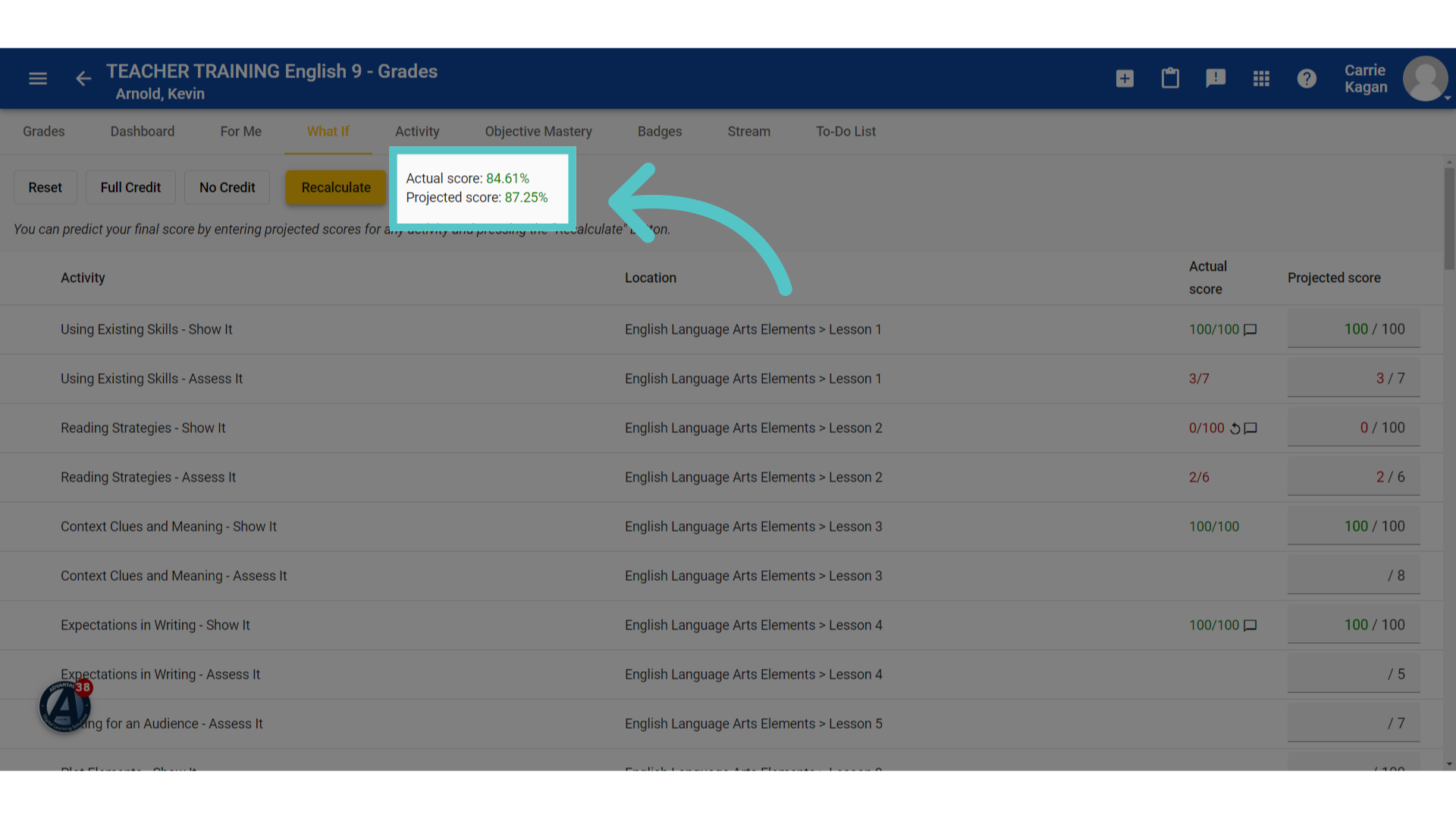
15. Projected score
The student's "actual score" will show, as well as the student's newly projected score if the entered points are earned.
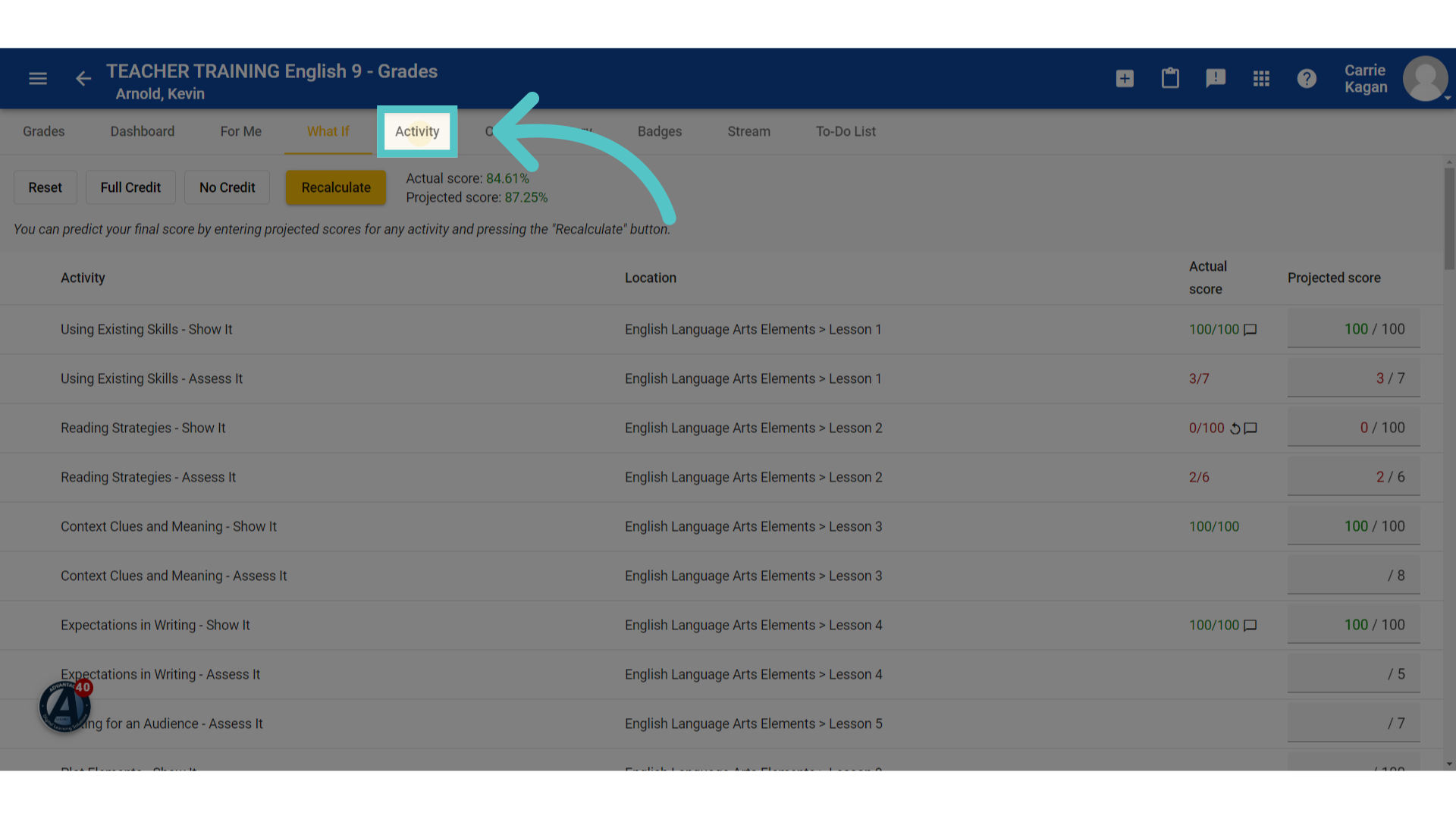
16. Click "Activity"
Select the 'Activity' tab to see how a student has spent time on the platform.
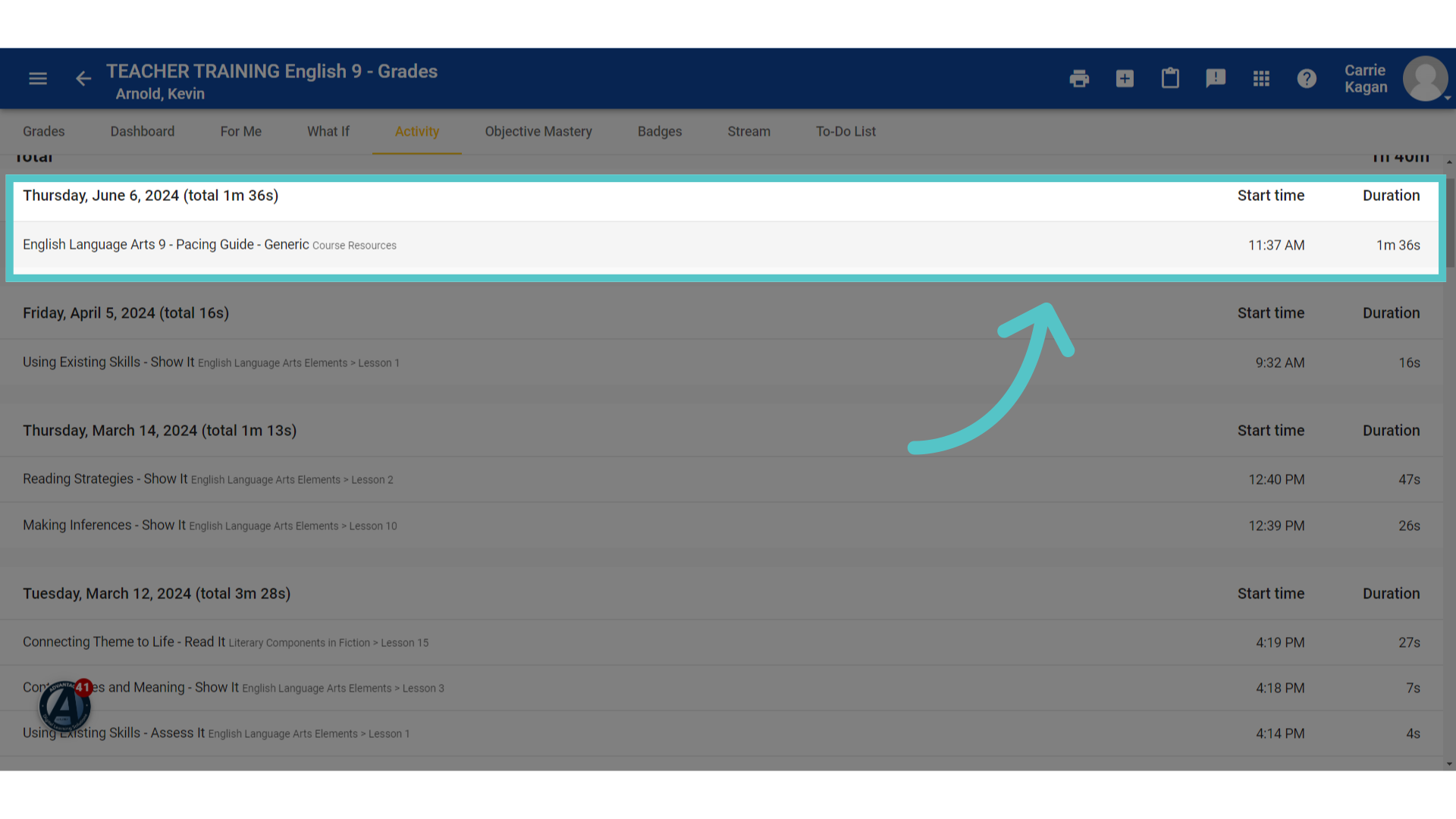
17. Details
This will show a student's activity for each day logged into the course. Each activity that the student accessed will be listed, along with the time it was started and how long the student spent viewing it.
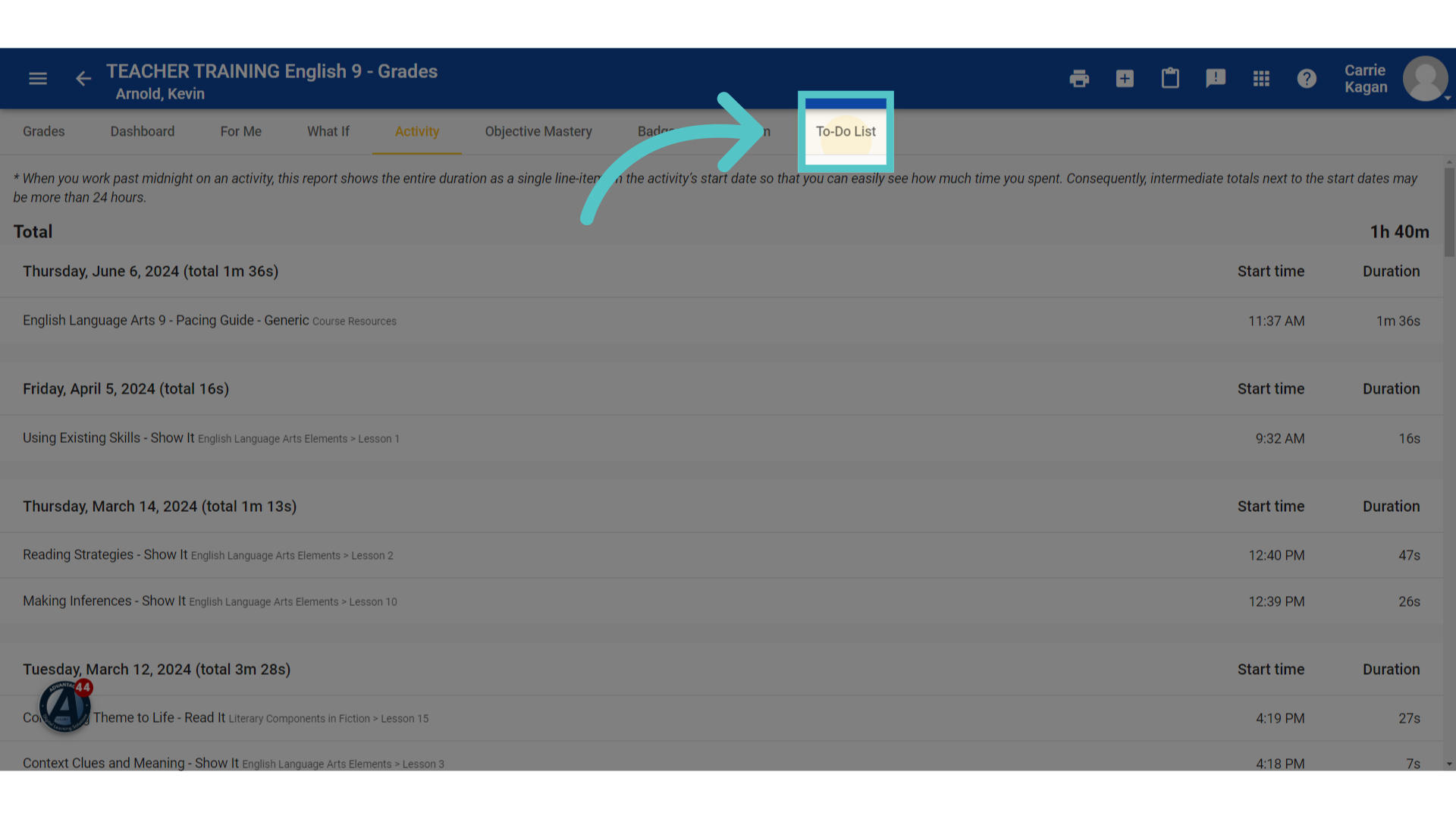
18. Click "To-Do List"
The 'To-Do List' option will show the course activities with upcoming or past due dates.
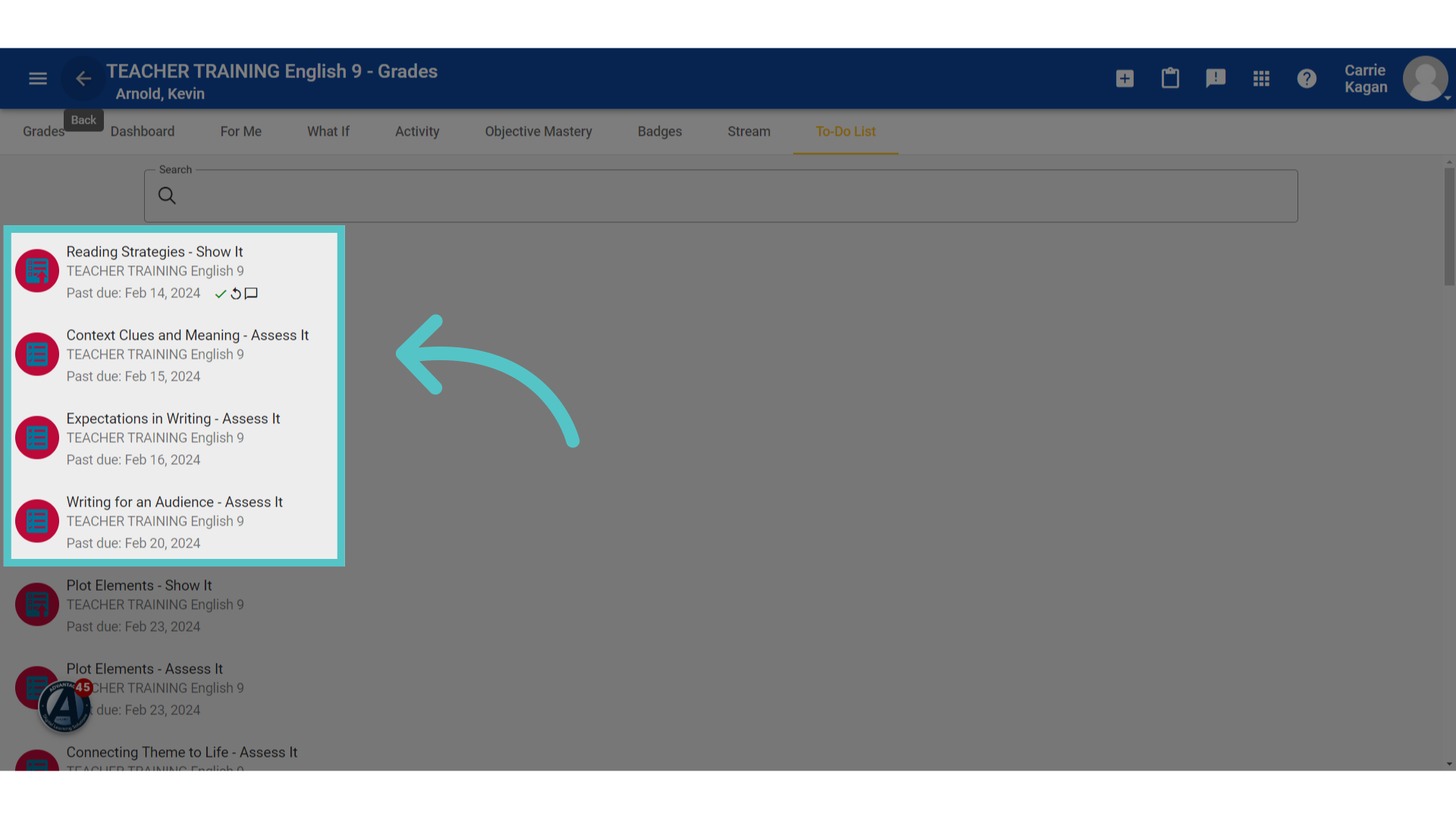
19. Due
This same list appears for the student, in his or her "to do list" when logging into the course.
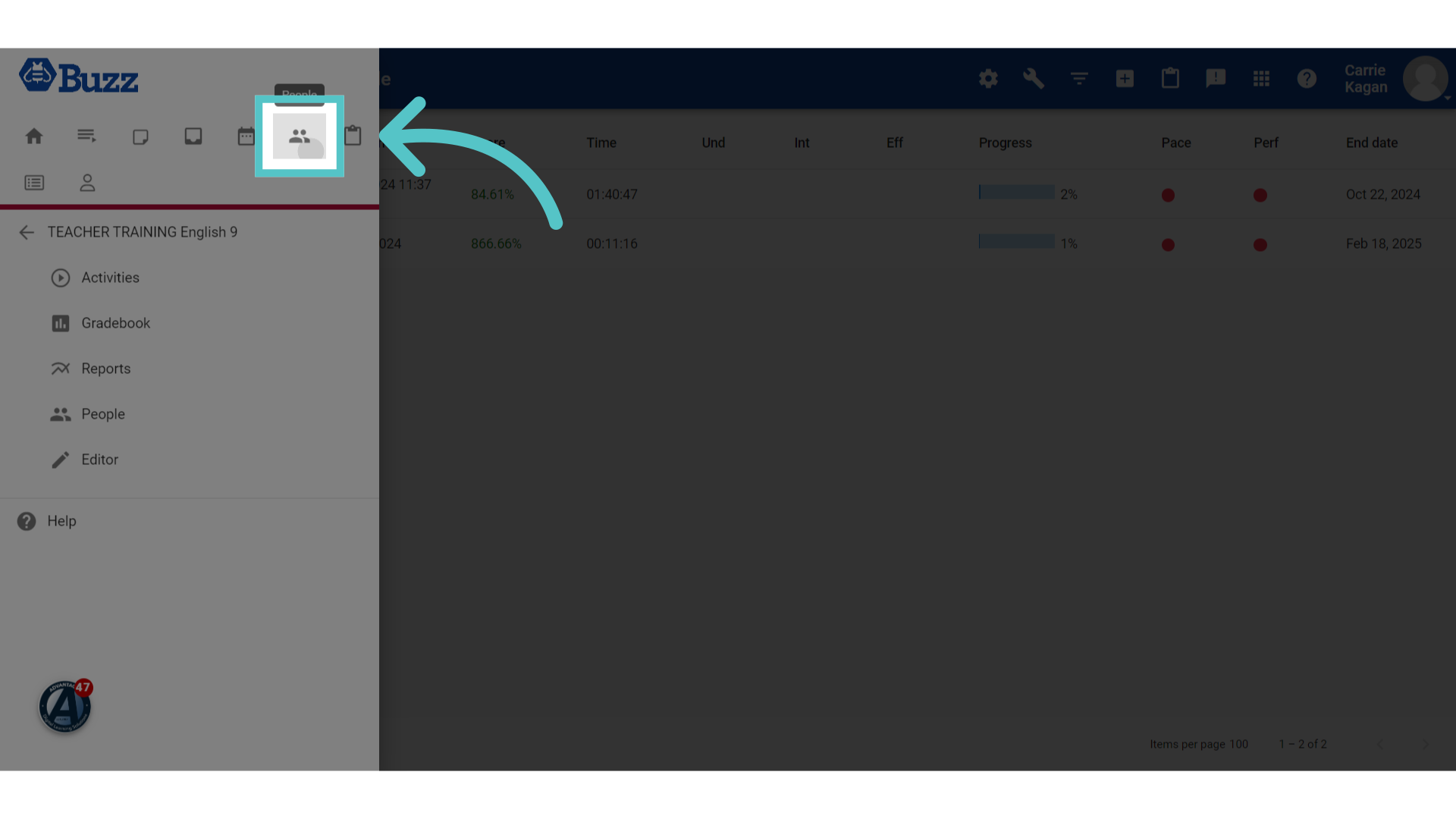
20. Click "People"
Teachers can view this roster for all students, in all courses, by clicking the People icon at the top of the three-line menu in the top left corner.
If you have any questions about the information in this tutorial, please click "Contact Support" to submit a help request.
Contact Support