Expand to Full Screen for best viewing
This tutorial will walk through the process of entering final grades in Lincoln Learning.
1. Course Gradebook
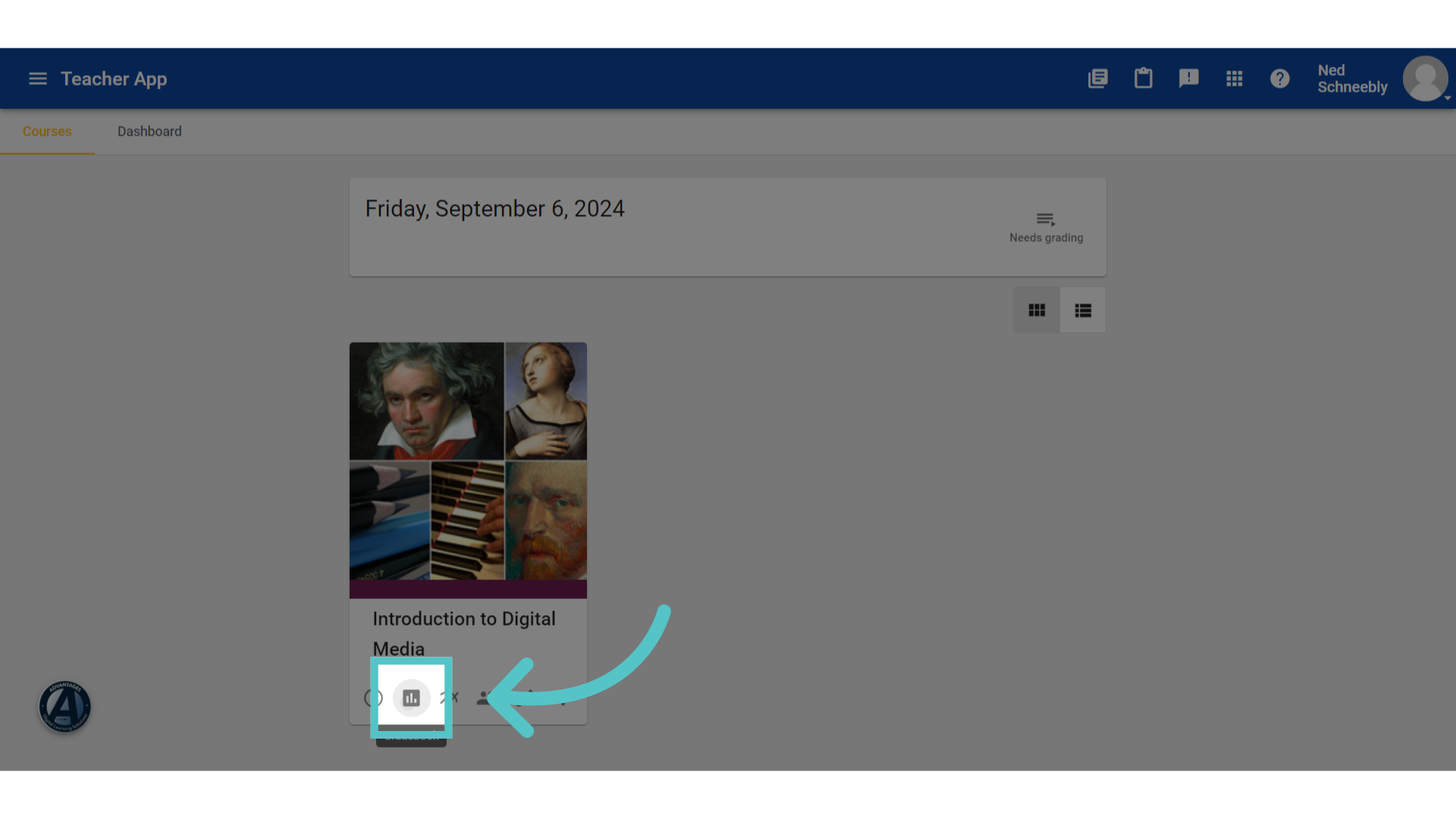
First, navigate to your Course Gradebook.
2. Student Record
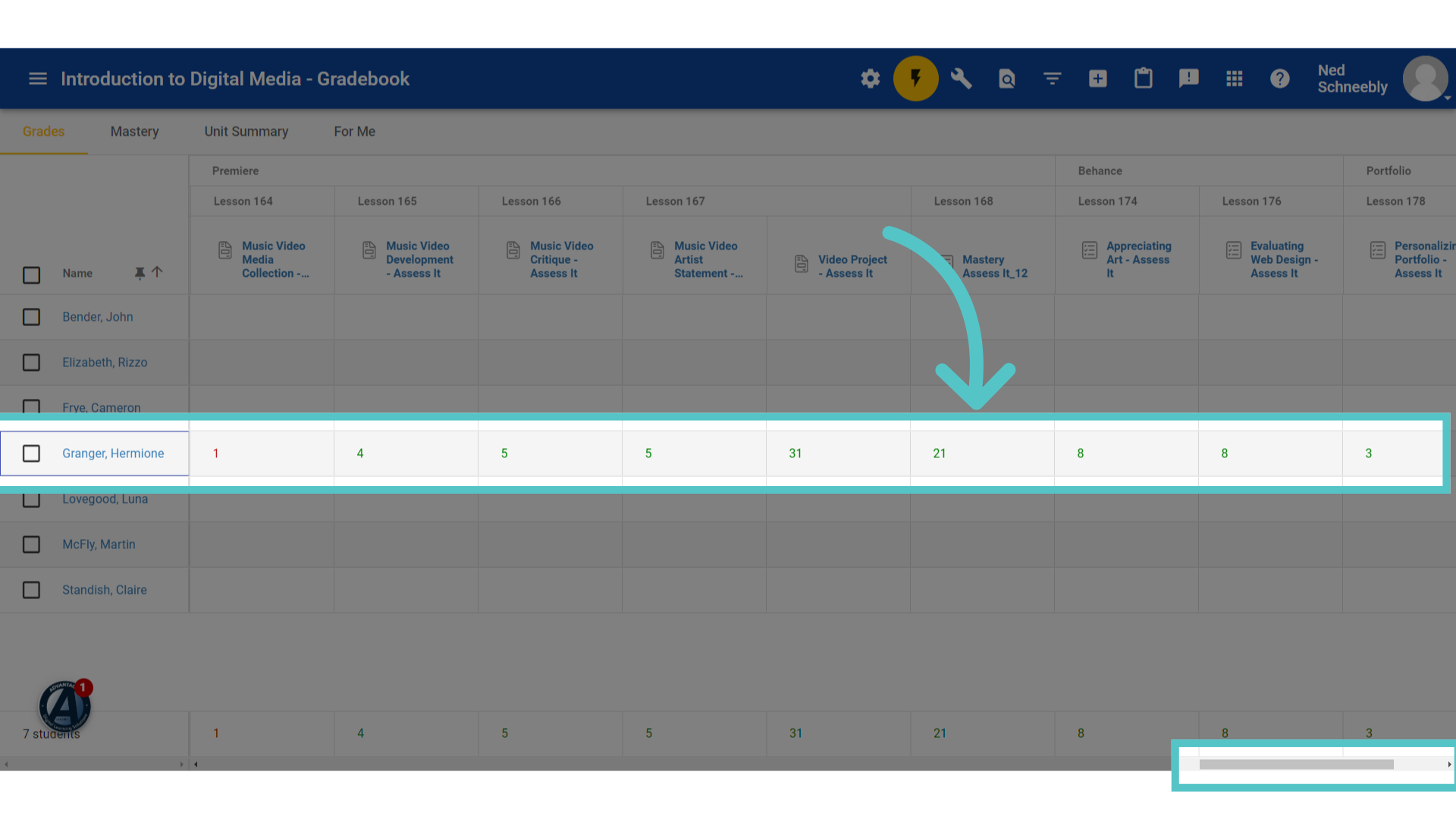
Review the student's gradebook record to make sure that all activities have been submitted and scored. Use the scroll bar at the bottom of the gradebook to view the entire course. Students should complete any missing work before final grades are entered.
3. Tools
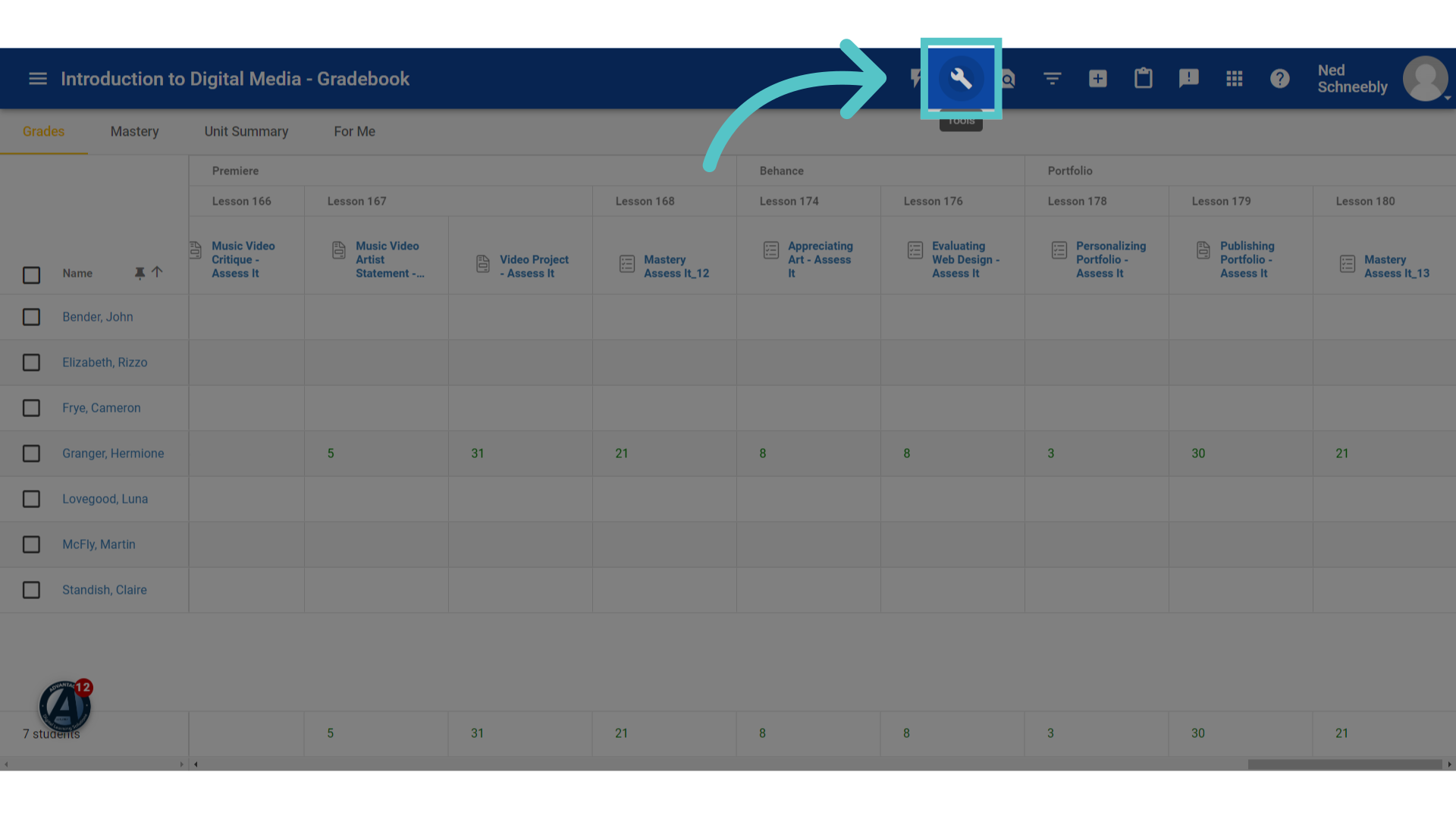
Click on the tools icon at the top of the gradebook.
4. Click "Go to final grades"
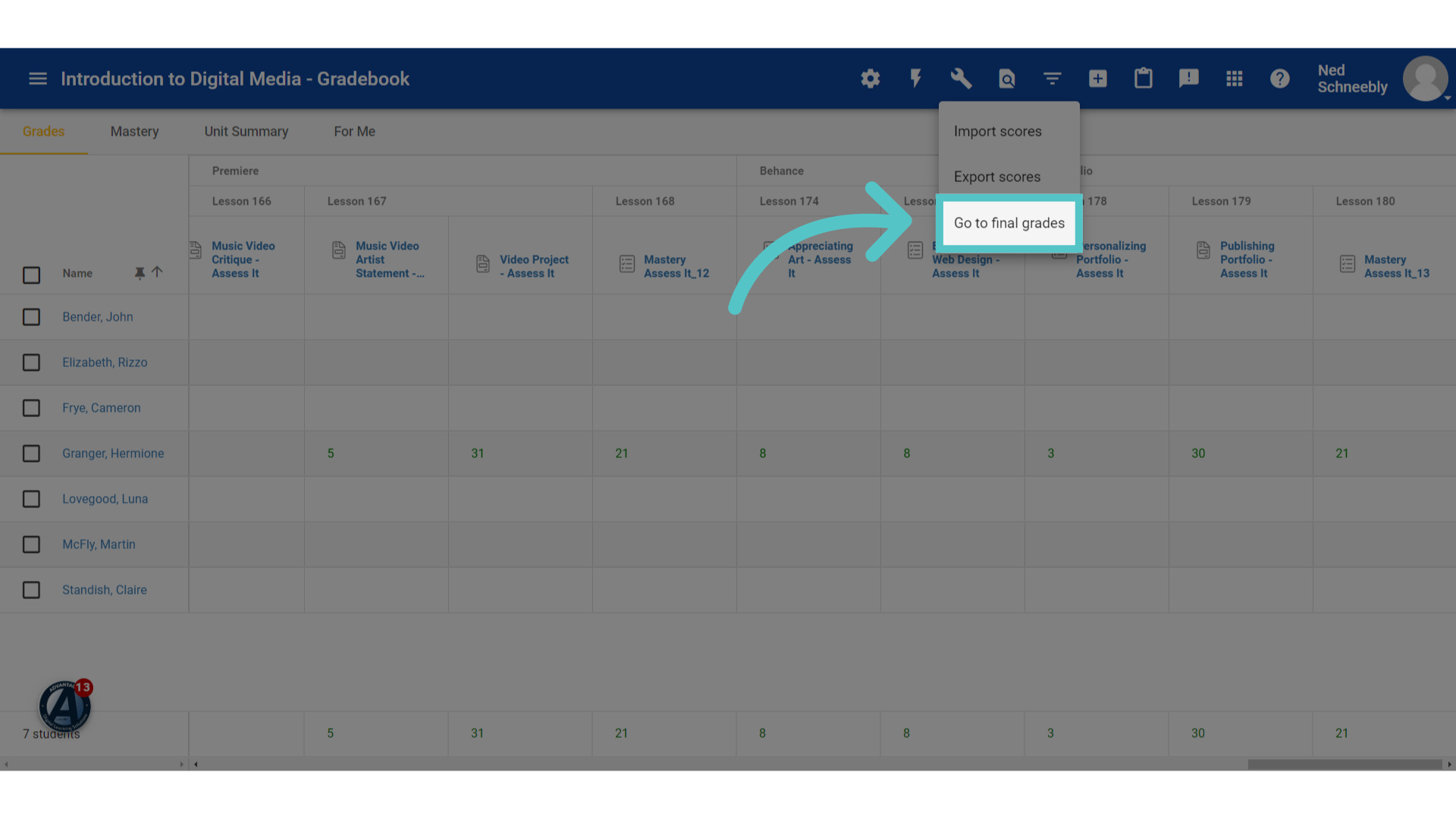
Select "Go to final grades."
5. Final Grade
The student's final grade will be listed as a percentage and a letter.
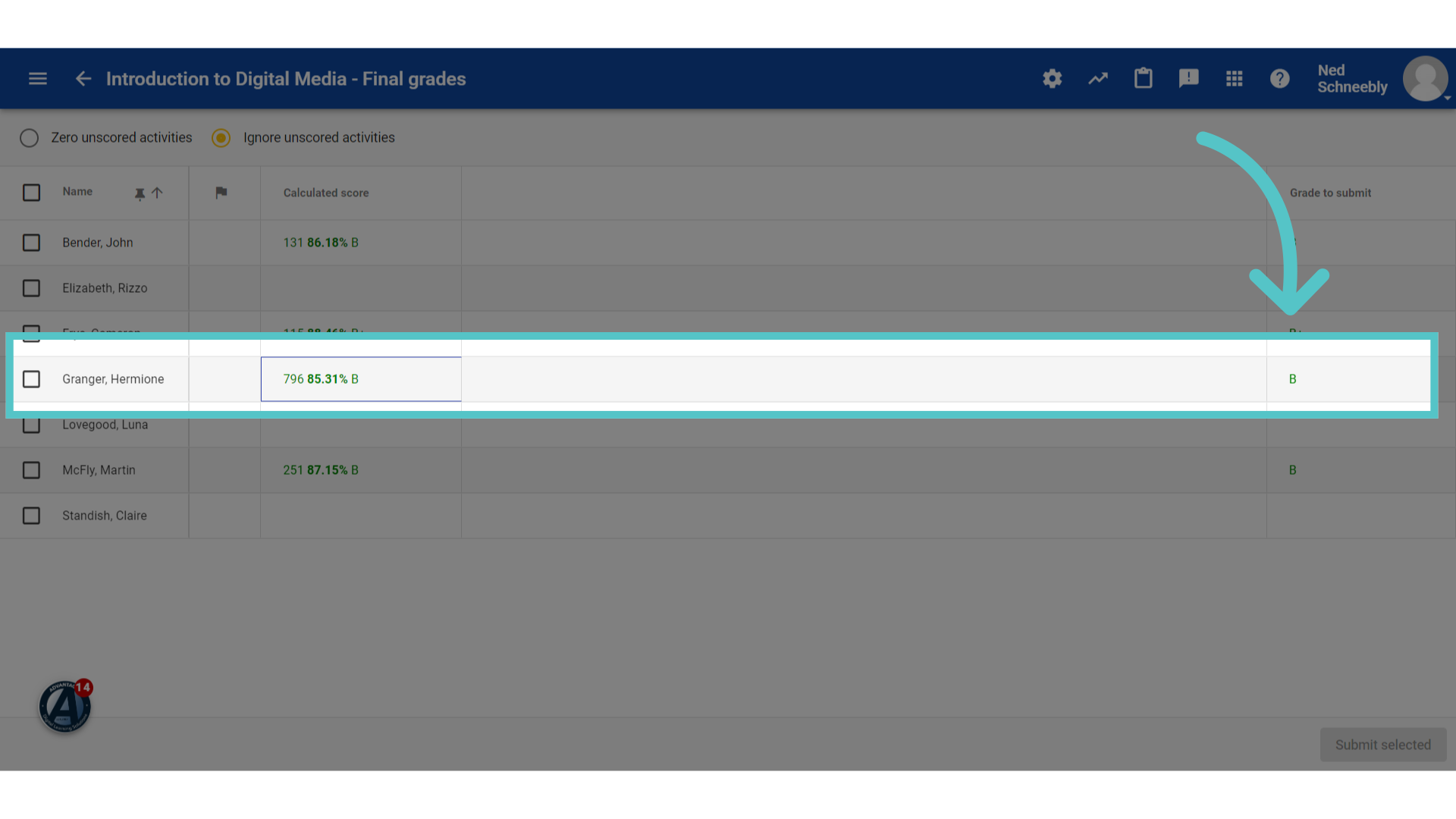
6. Zero
Above the student list, select the option to "zero unscored activities." The student's final grade should not change because all activities should be scored. If the grade changes, please return to the gradebook view to identify missing grades.
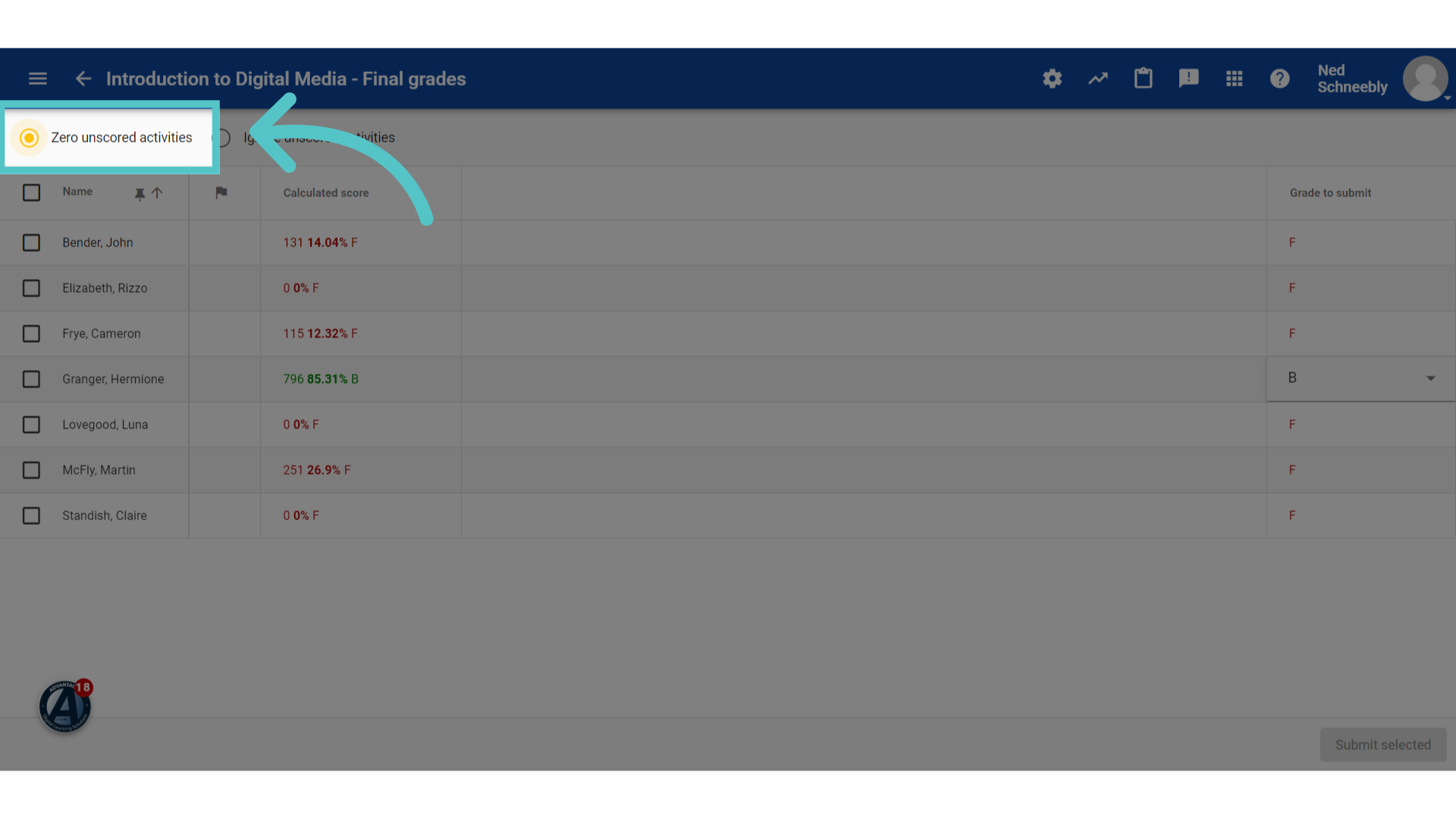
7. Edit
Letter grades are based on the standard U.S. Grading Scale. If a percentage grade can be rounded up to a different letter grade, teachers can select the updated grade from the dropdown menu.
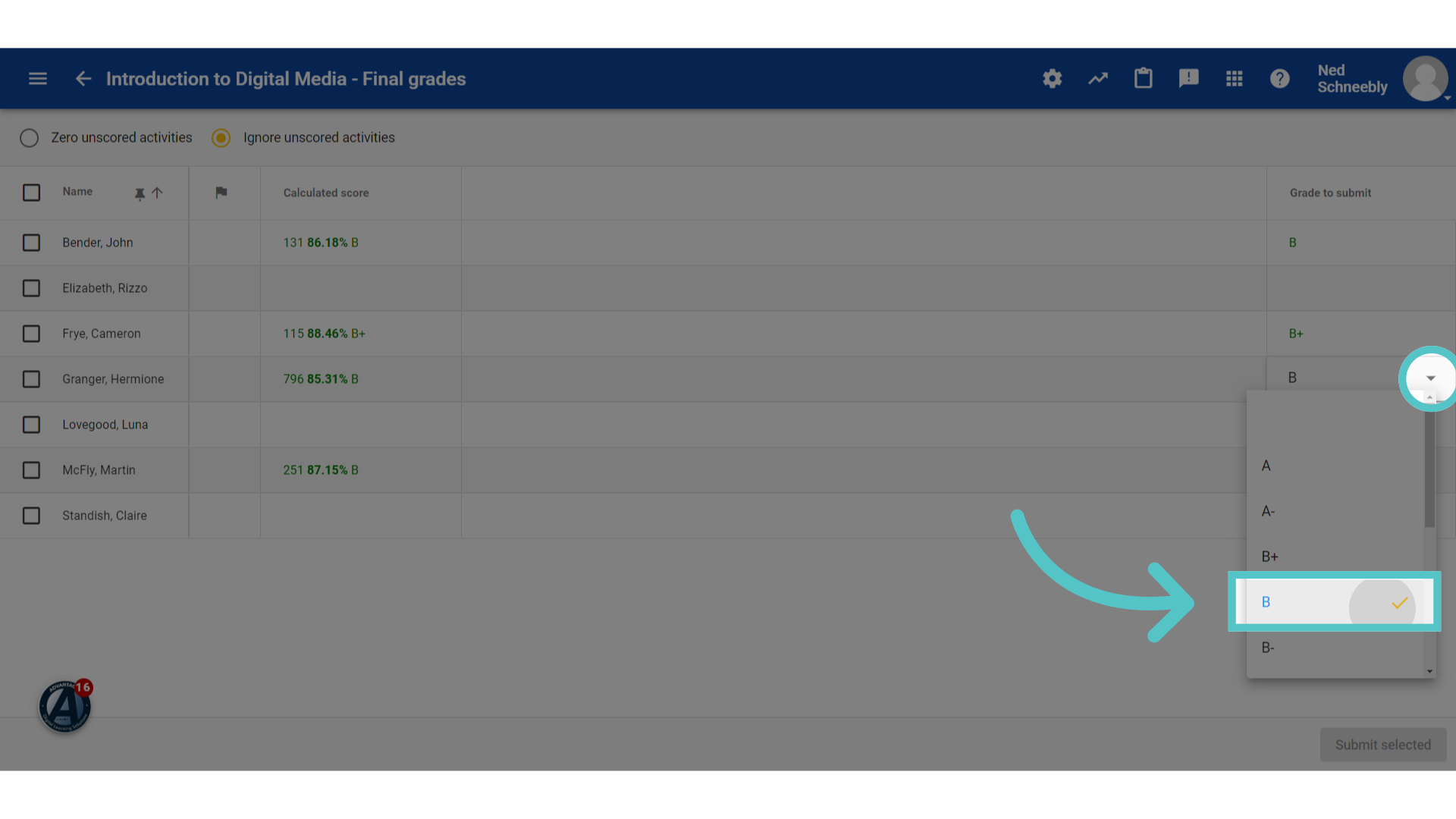
8. Check box
Check the box next to the completed student's name. You can select more than one.
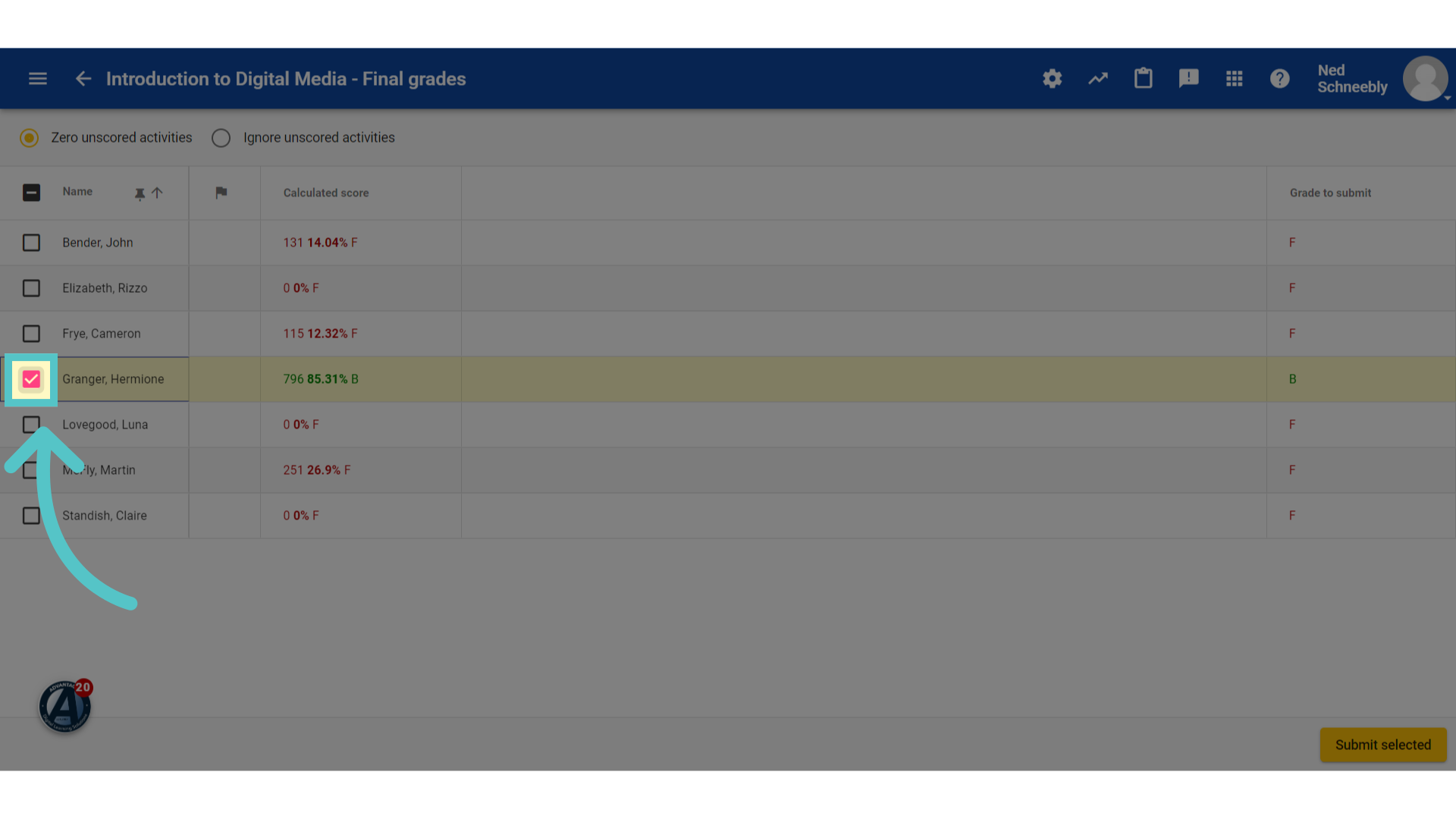
9. Submit
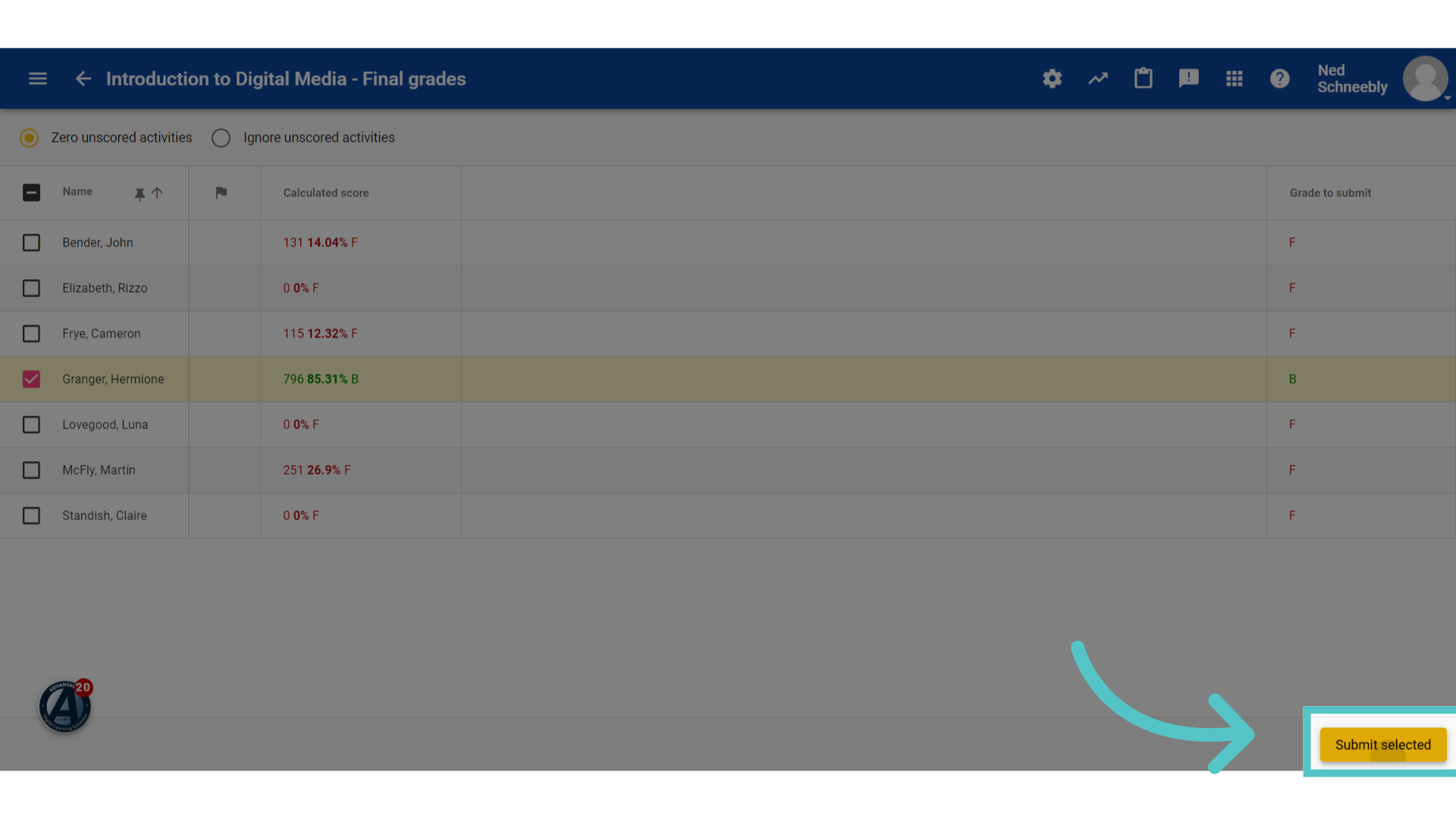
Submit the selected final grades by clicking the button in the bottom right corner.
10. Confirm
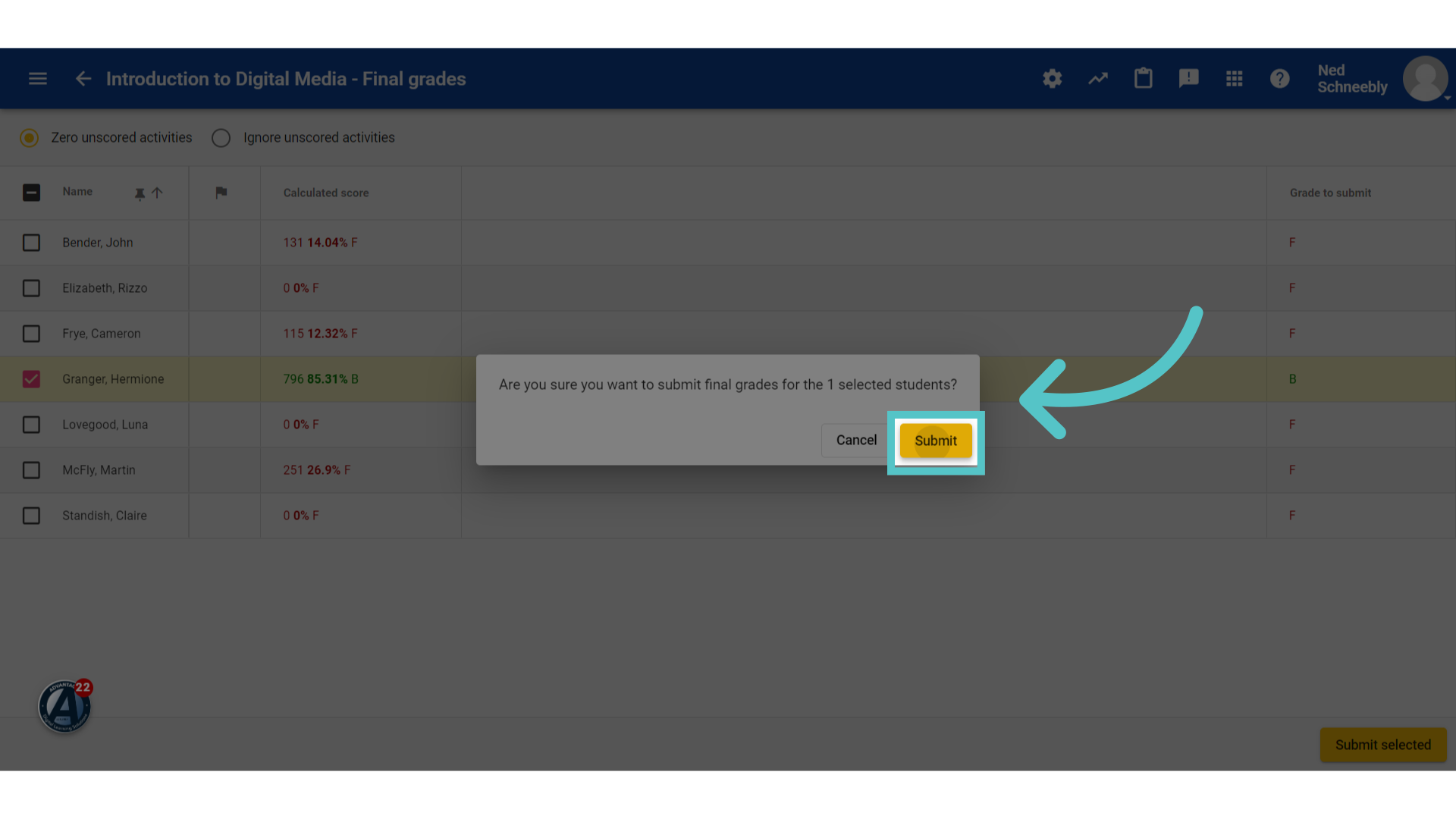
Confirm the final grade submission. The student's final grade will be recorded in ASSIST. This will complete the student enrollment and the student will no longer have access to the course.
11. Check
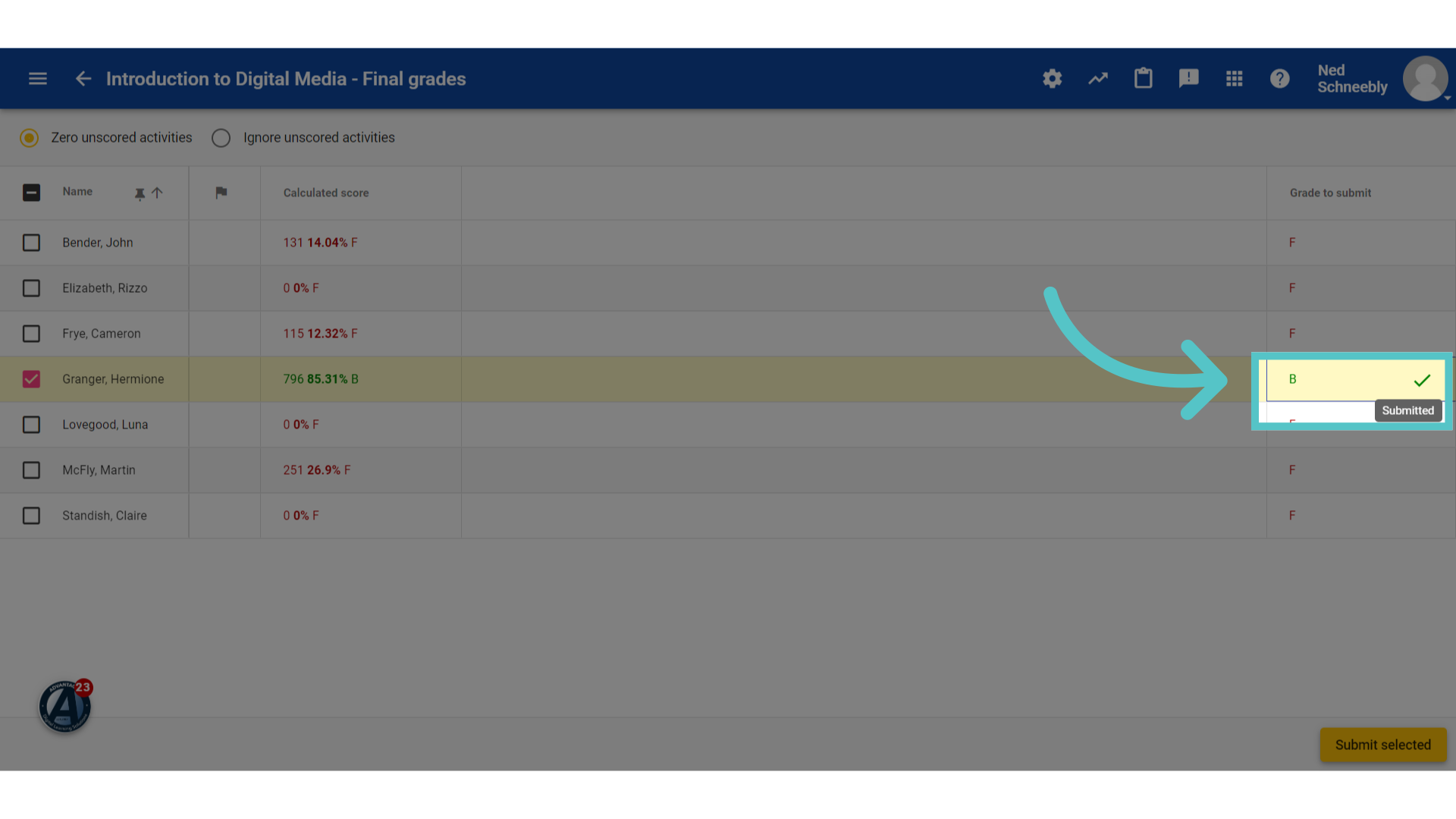
A green check mark will appear next to final grades that have been submitted.
If you have any questions about the information in this tutorial, please click "Contact Support" to submit a help request.
Contact Support