Expand to Full Screen for best viewing
Restore "Launch Course" Button
1. Important Points
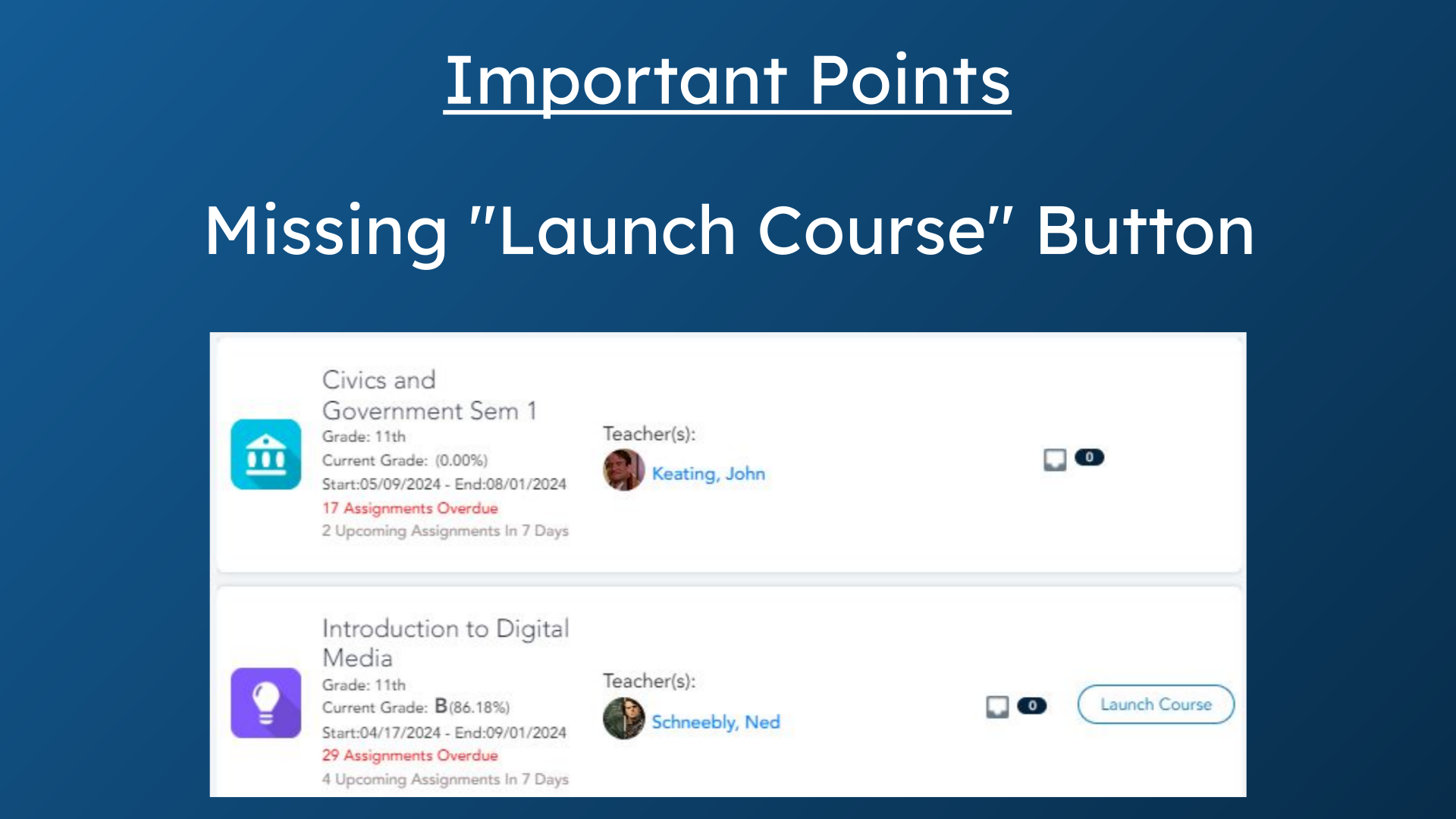
Students may report that they no longer have the "Launch Course" button for a course on their portal. Administrators can restore access to this feature.
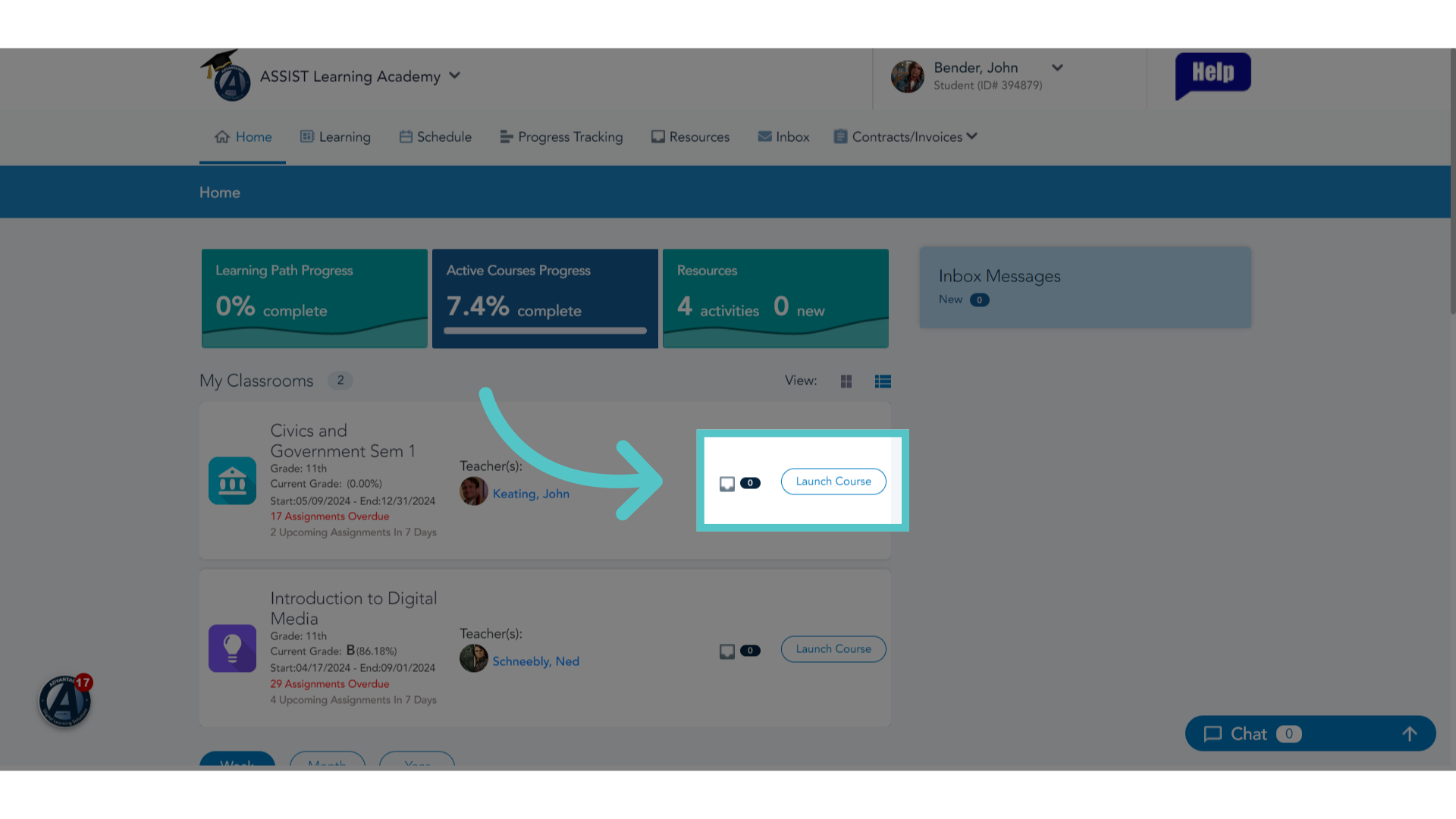
2. Missing
This is the student portal. The course is showing, but the student is missing the "Launch Course" option and can, therefore, no longer access the course content.
3. Admin Login
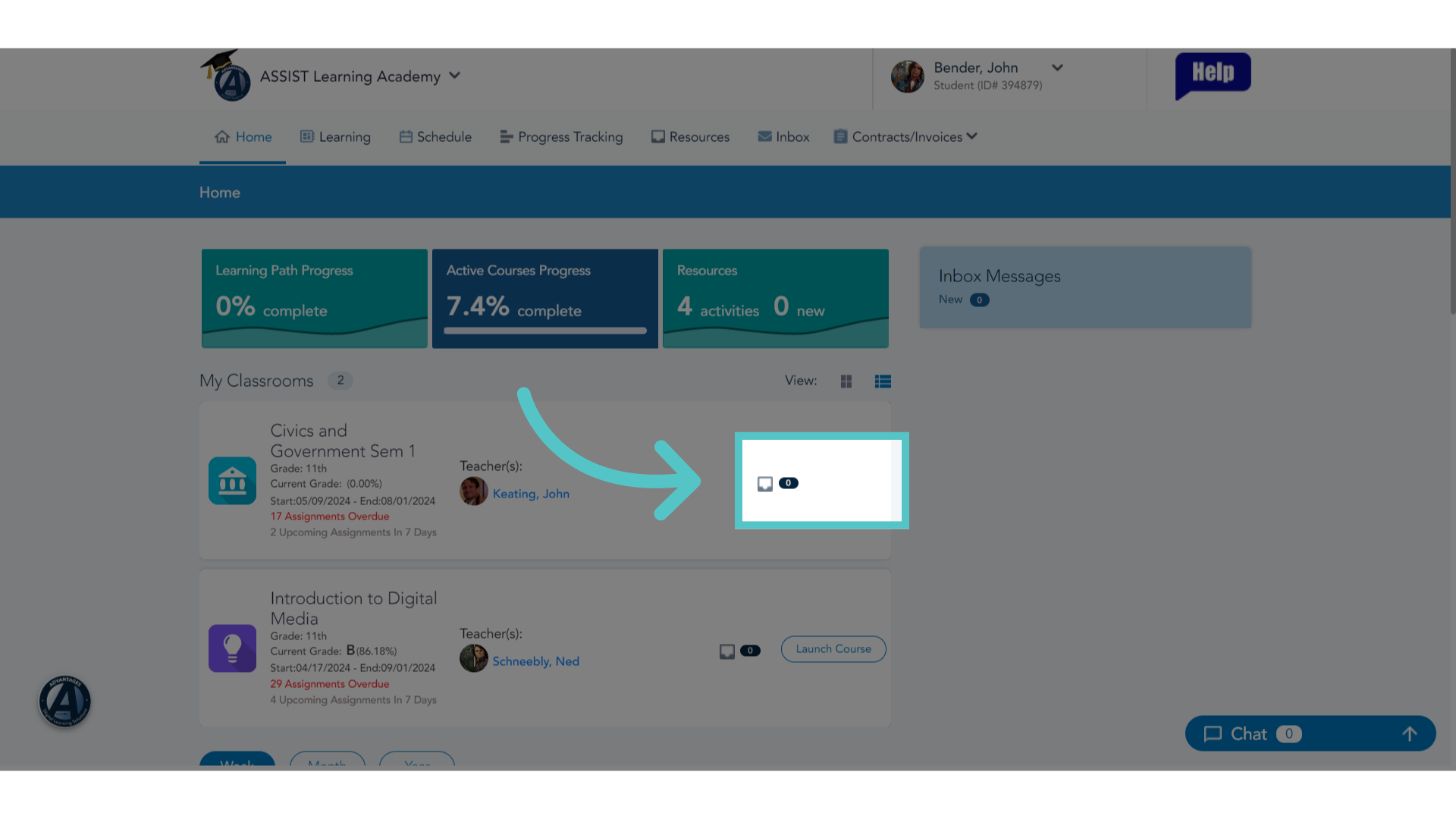
Any school administrator can restore the student's access to the course.
4. Click "Users"
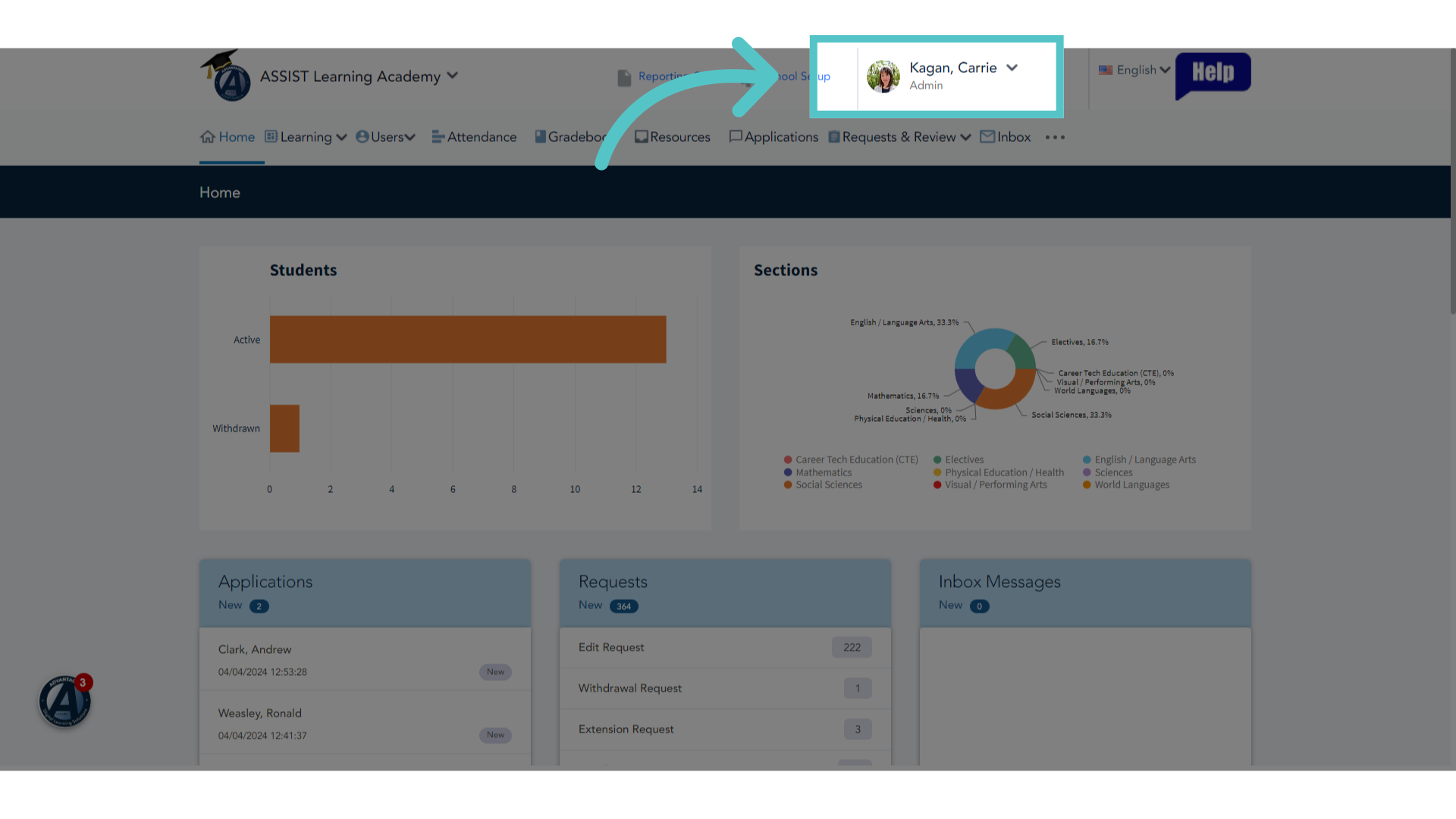
Access the "Users" tab.
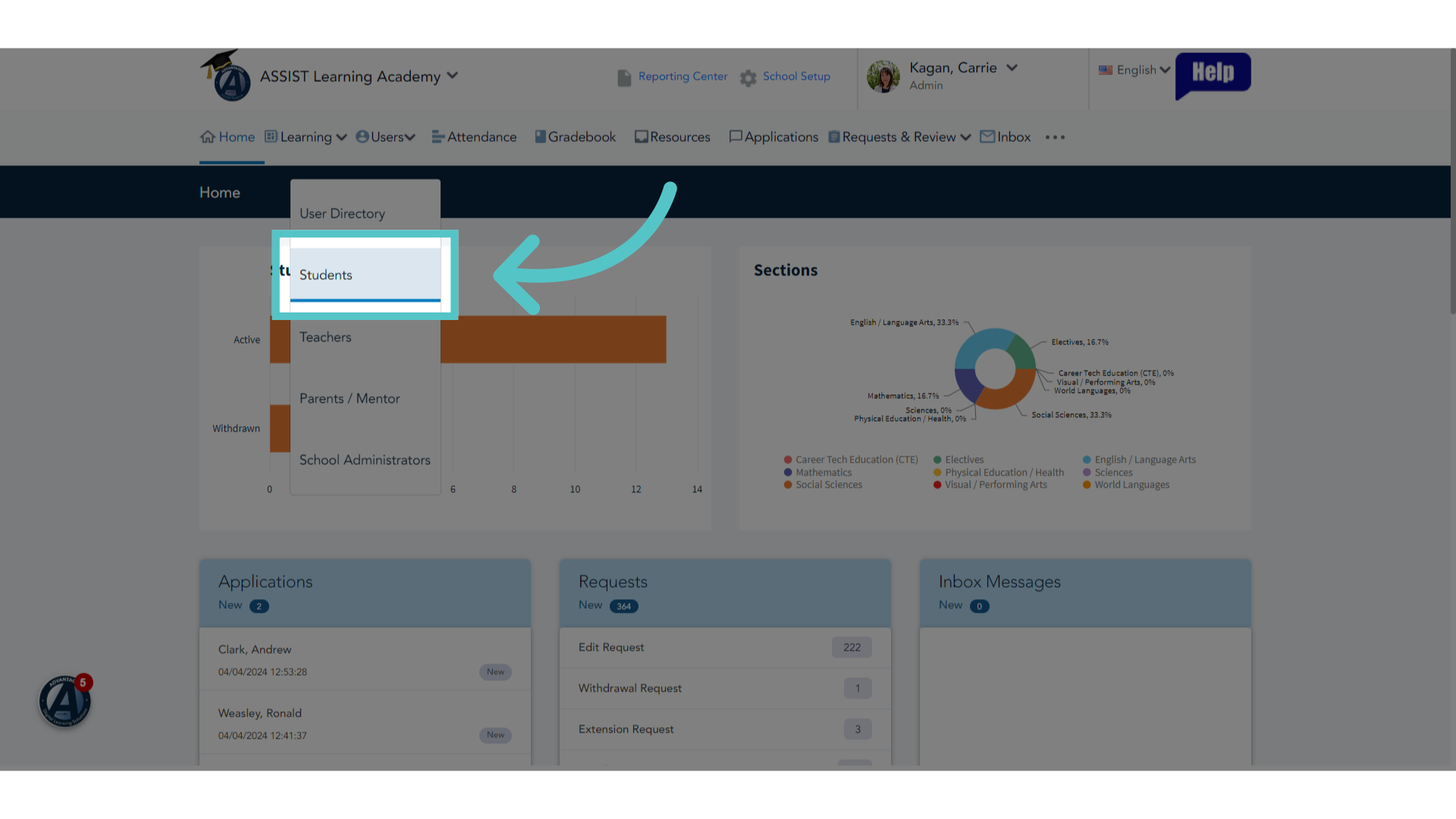
5. Click "Students"
Navigate to the "Students" section.
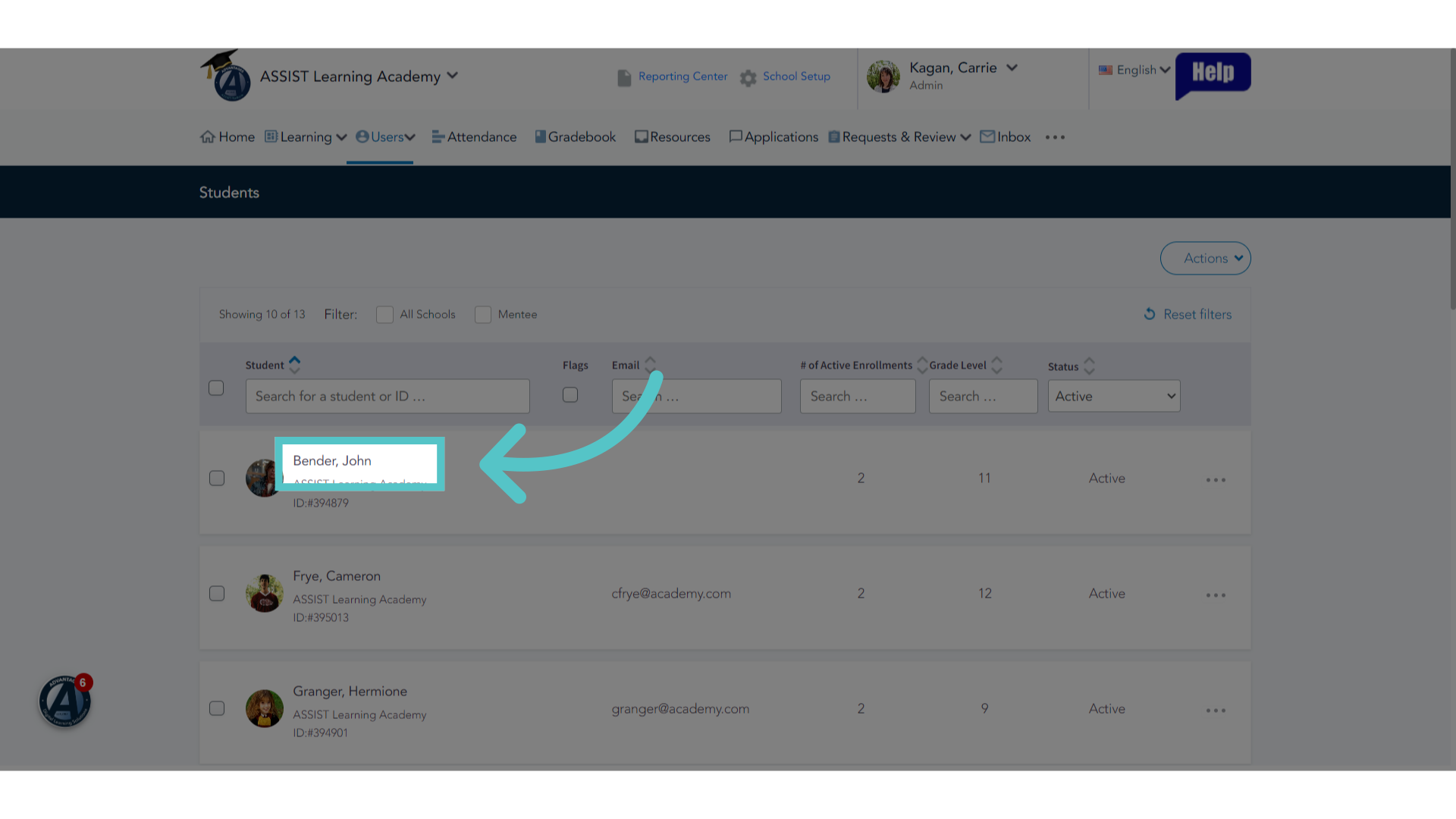
6. Click the Student Name
Choose the specified user.
7. Three Dot Menu
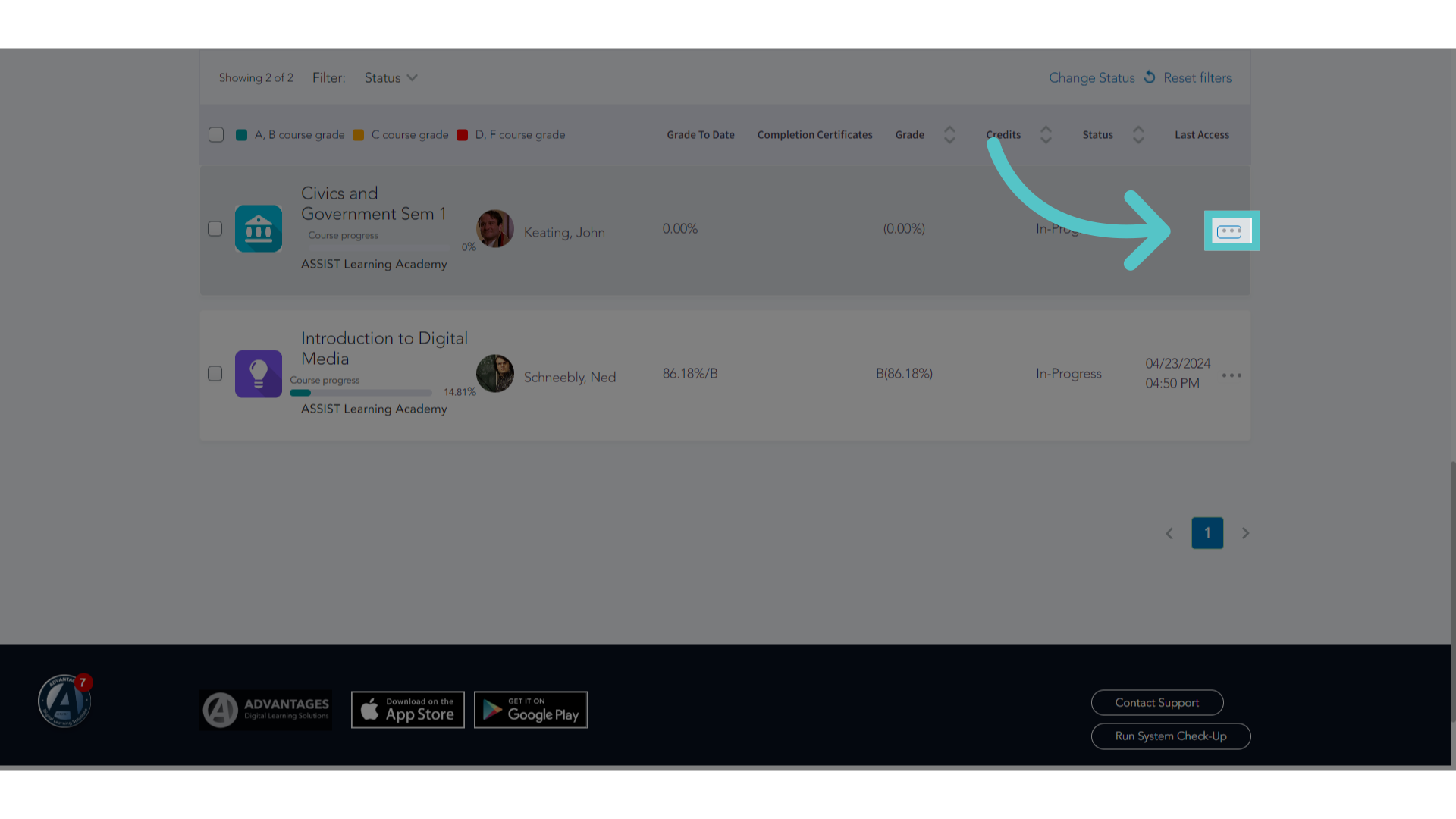
Scroll to the bottom of the student file page. Each enrollment will be listed. Click the three dots to the far right of the enrollment that is missing the "Launch Course" button.
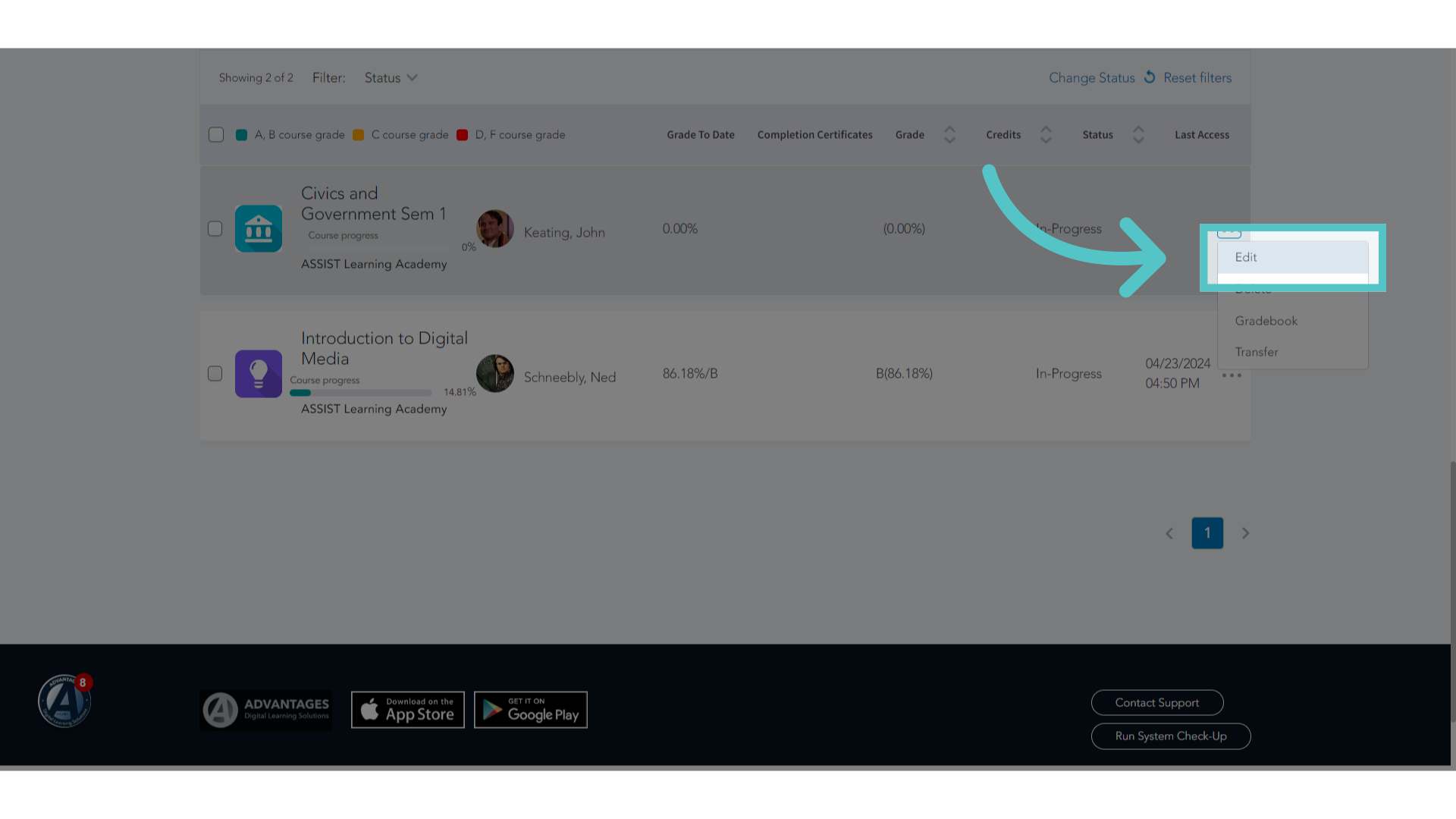
8. Click "Edit"
Select the "Edit" option.
9. End Date
If the Launch Course Button has disappeared, it is because the enrollment has expired. The end date has passed.
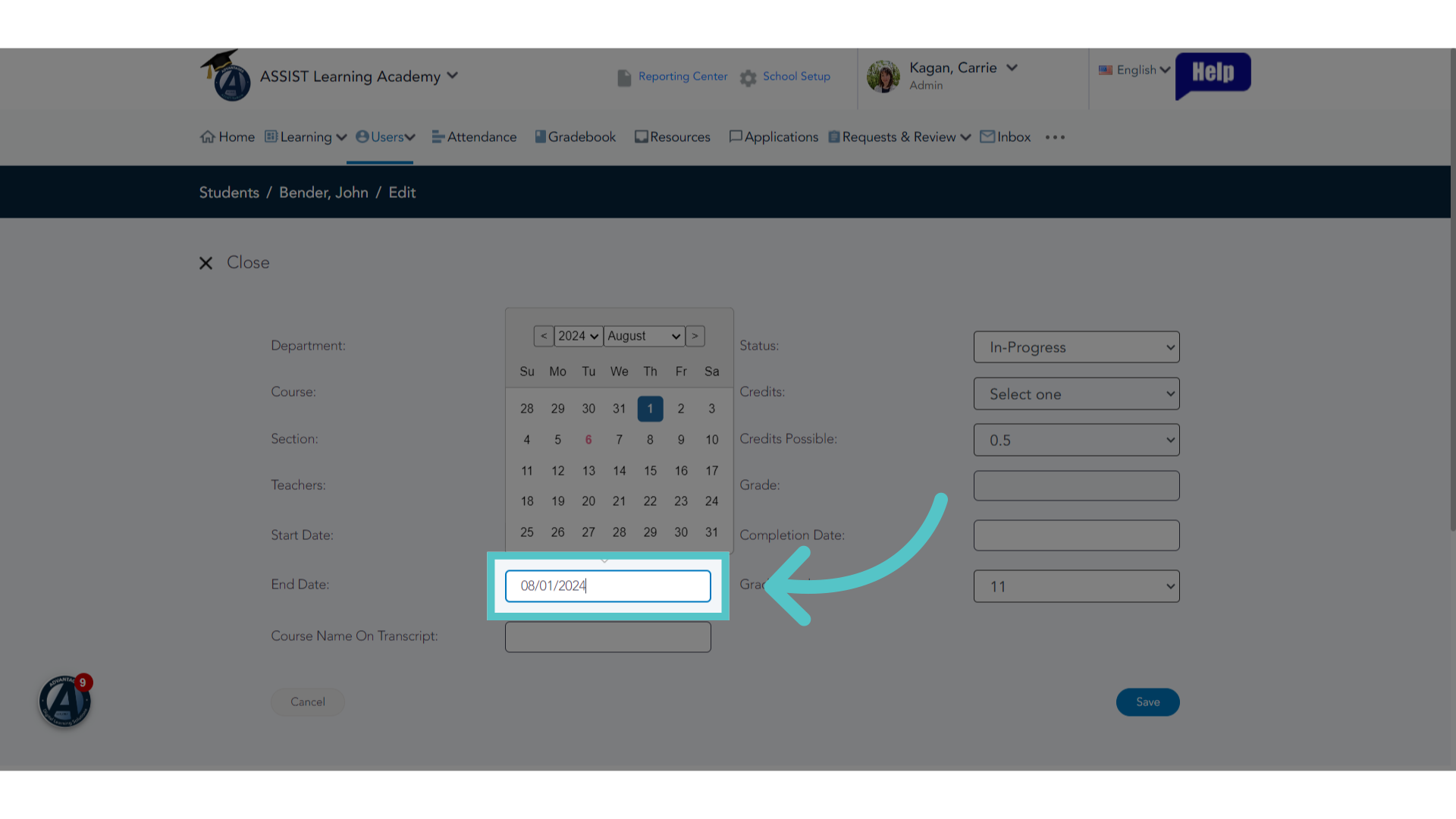
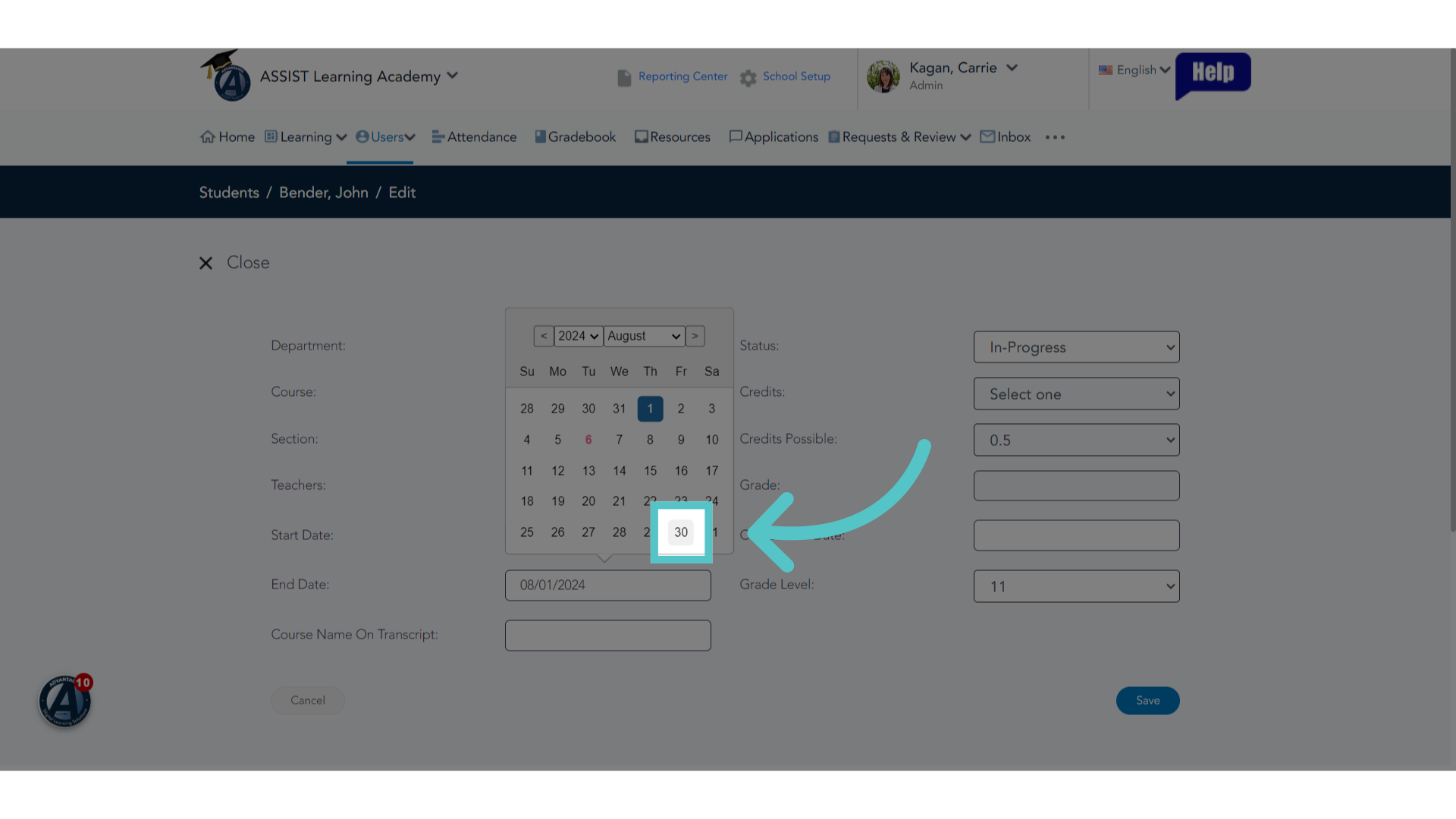
10. Reset End Date
Reset the end date for the course to a reasonable future date.
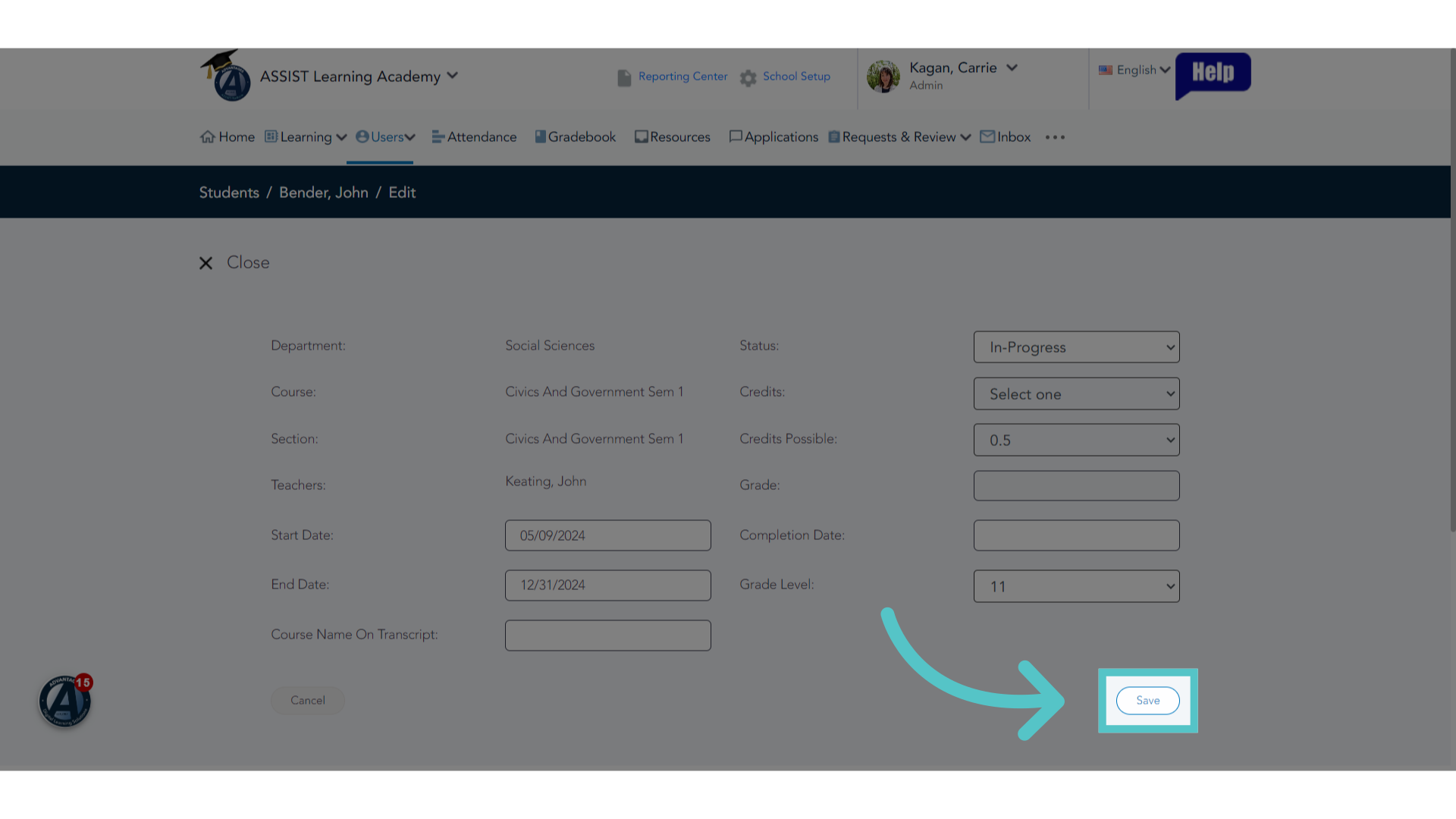
11. Click "Save"
Click on the "Save" button.
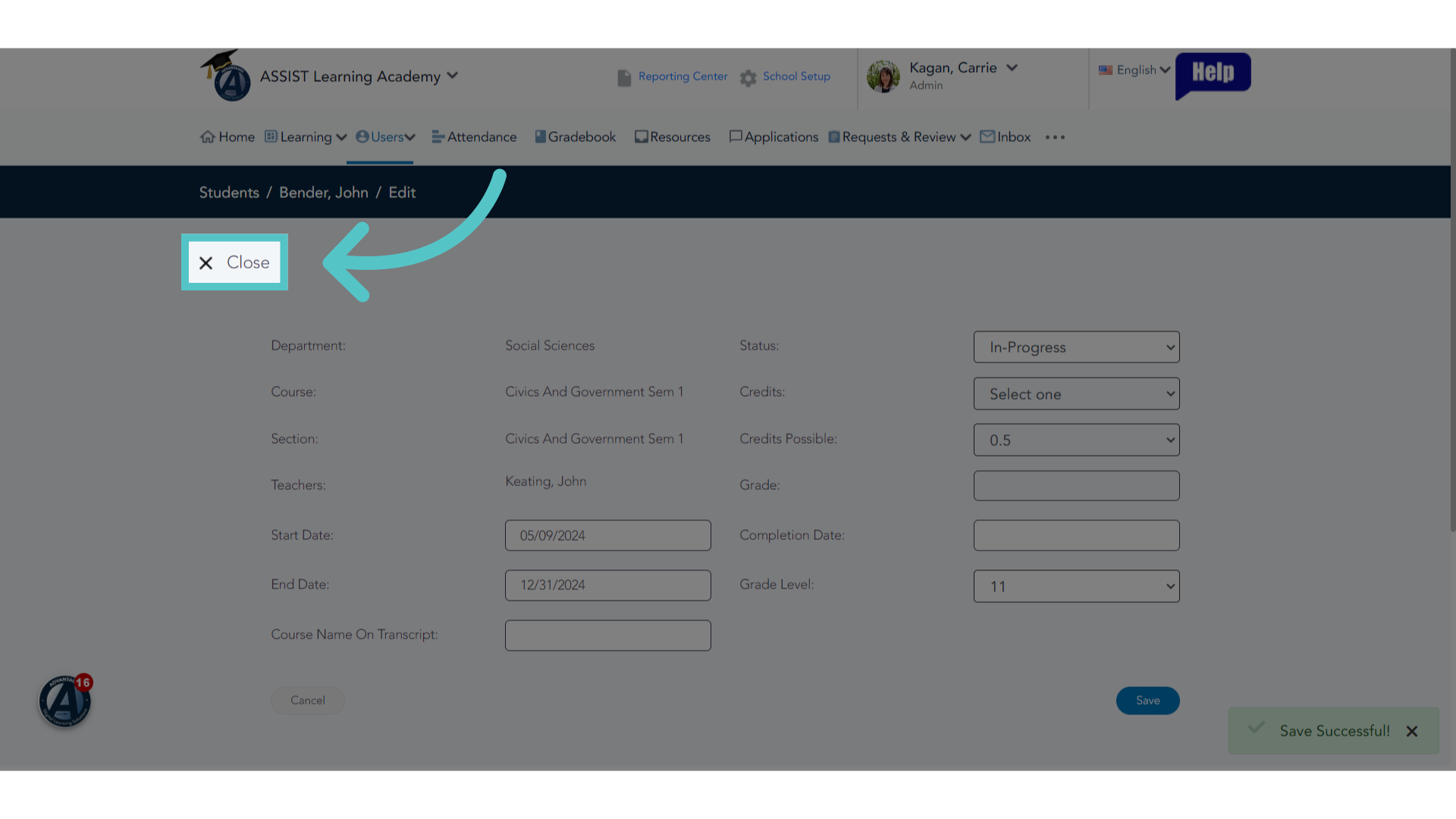
12. Click "Close"
Select the "Close" option.
13. Restored
The "Launch Course" button has now been restored on the student portal. Progress has been saved and students can continue where they left off.
If you have any questions about the information in this tutorial, please click "Contact Support" to submit a help request.
Contact Support