Expand to Full Screen for Best Viewing
This tutorial guides you through managing enrollment requests within ASSIST.
Go to portal.adlsassist.com
1. Requests Tile
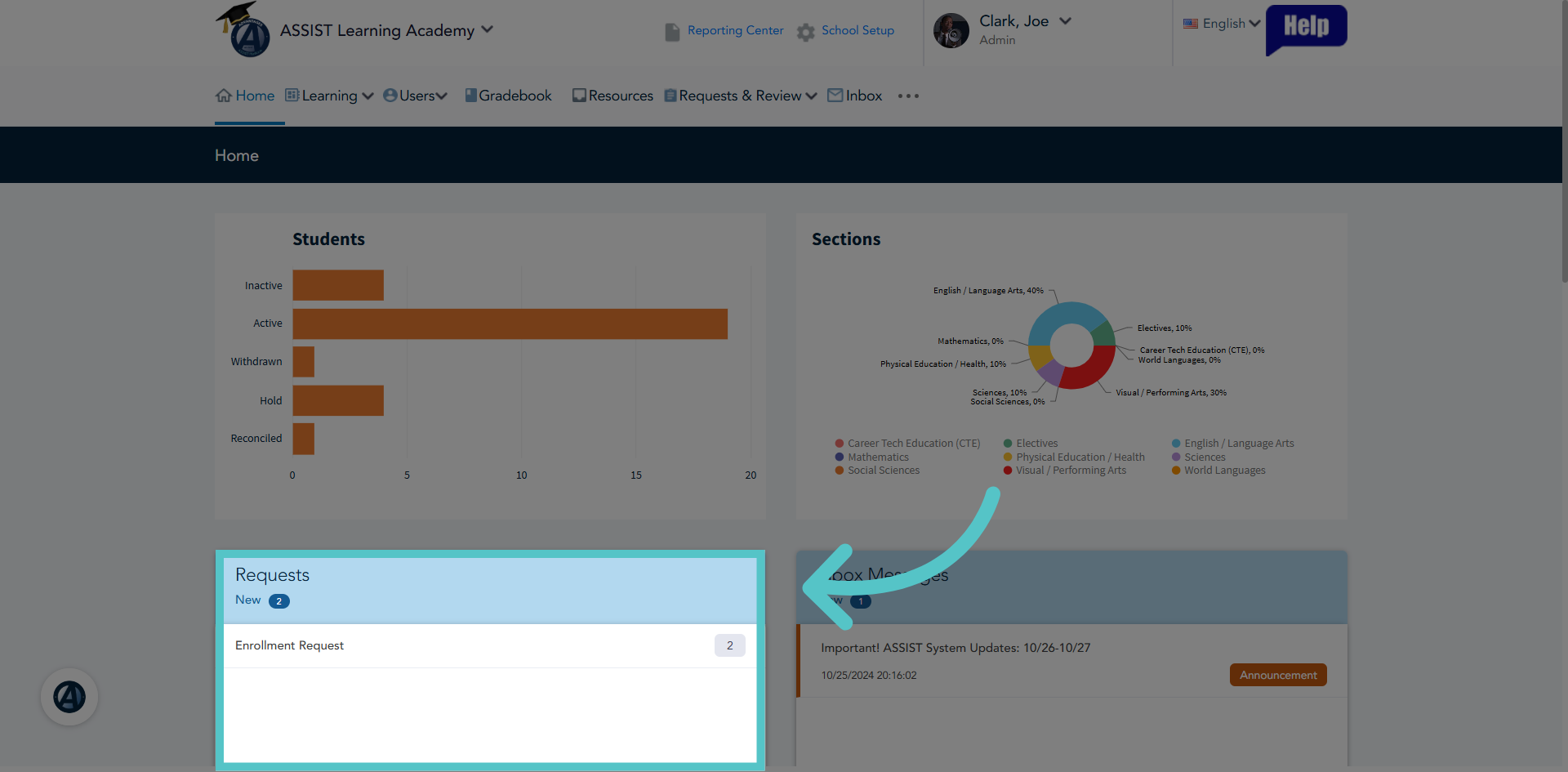
All enrollment requests will be found in the Requests tile on your Administrator homepage. If you are a multi-school coordinator, then the number of all enrollment requests for all schools will show.
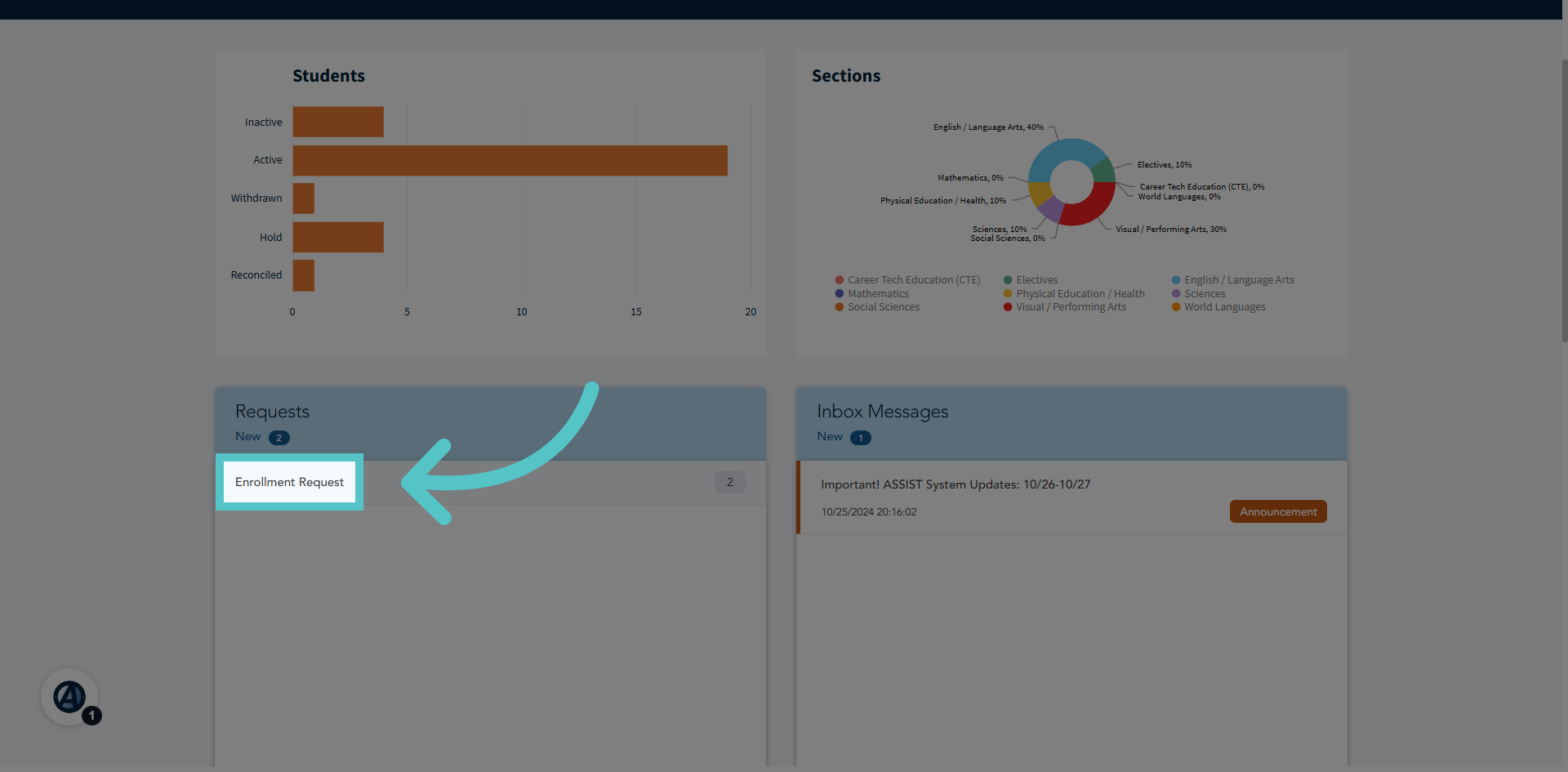
2. Select Enrollment Request
Click Enrollment Request to view pending enrollment submissions.
3. All Schools
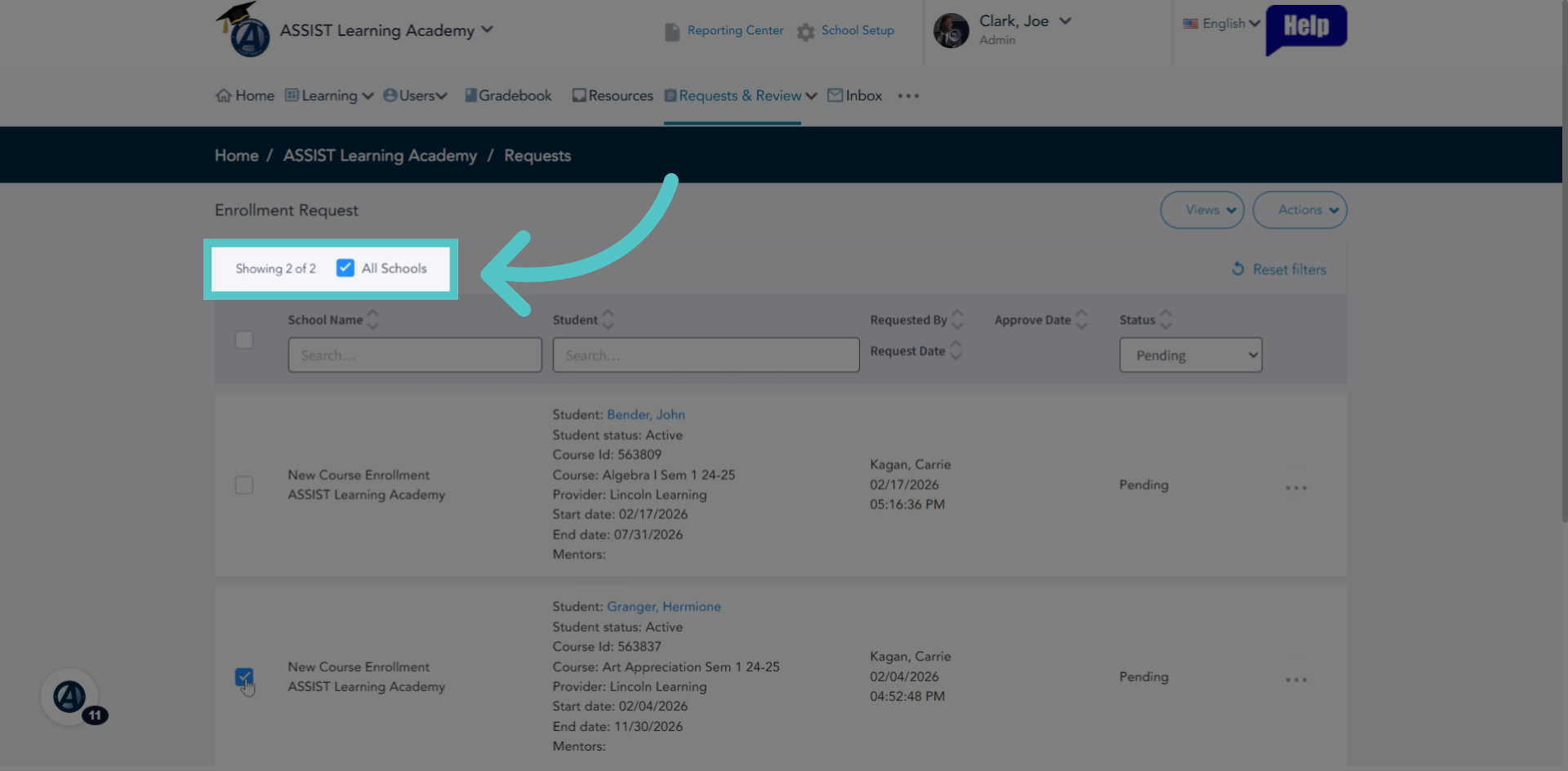
If the "All Schools" box is checked, the enrollments requested at all of your schools will show. You can uncheck the box to see only enrollment requests for this school platform.
4. Status
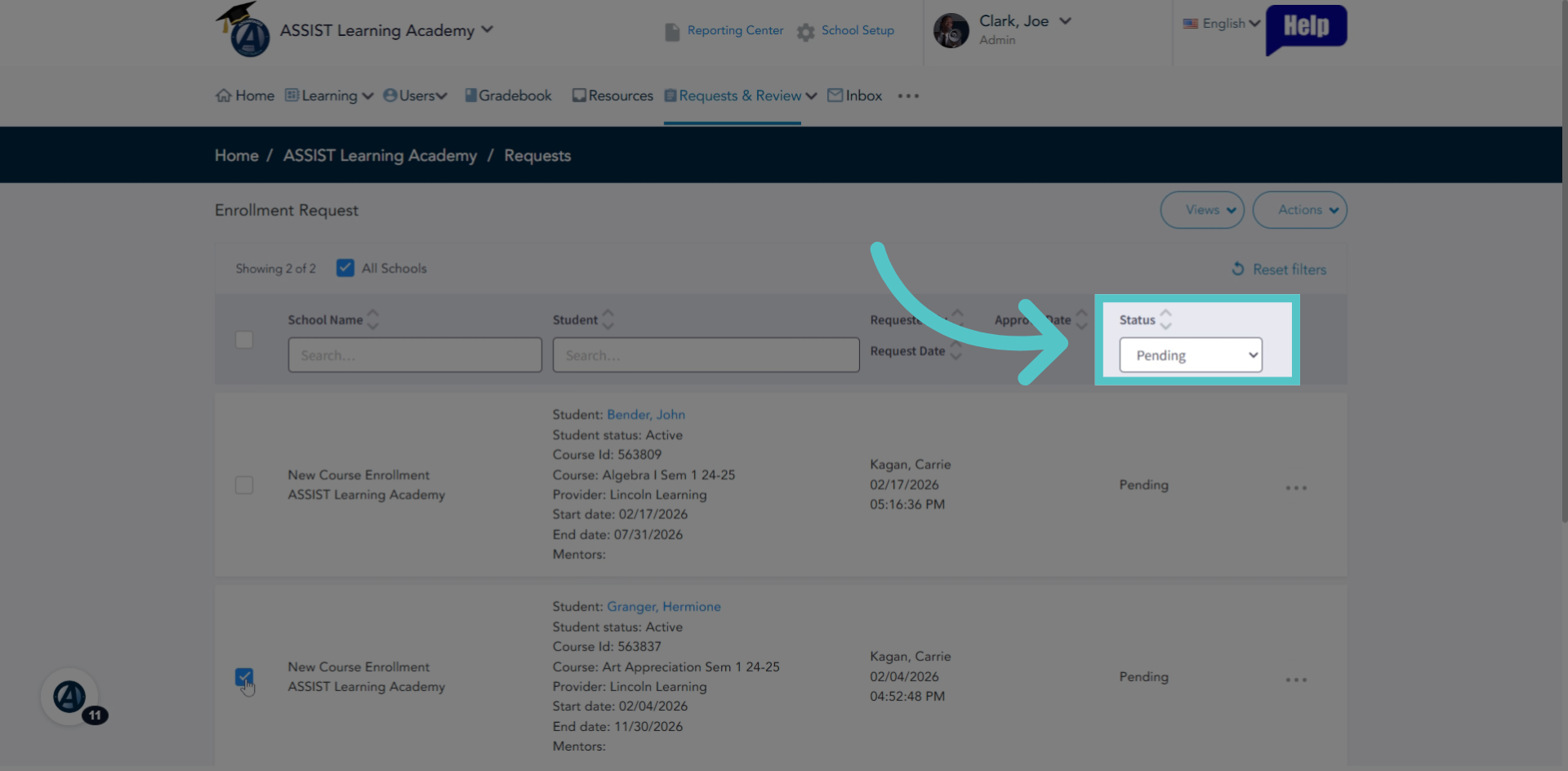
Pending enrollment requests will automatically be listed. You can change the filter to view previously approved or rejected requests as well.
5. Details
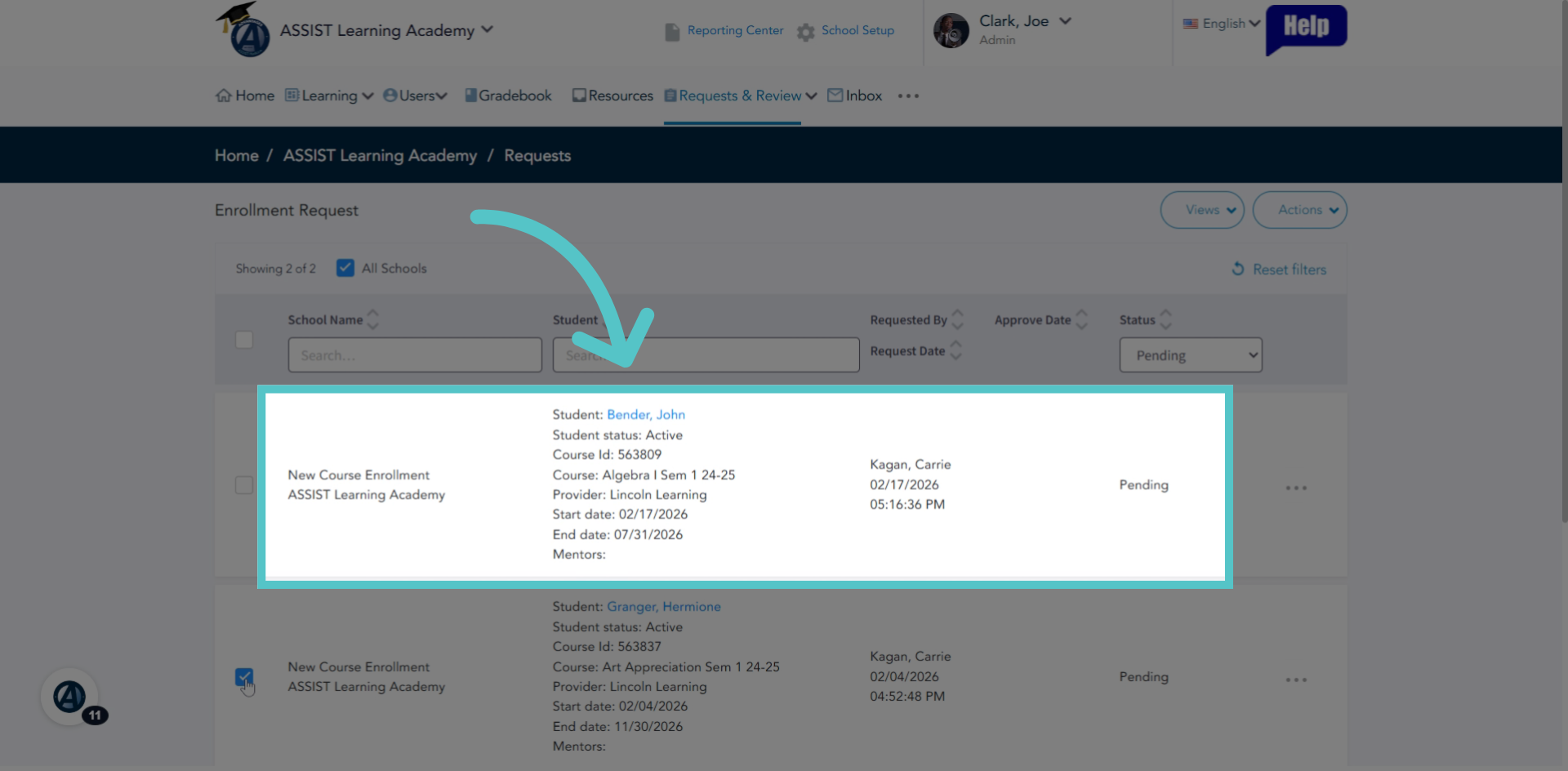
Details of each request will be listed, including the school, student name, and course requested.
6. Checkbox Method
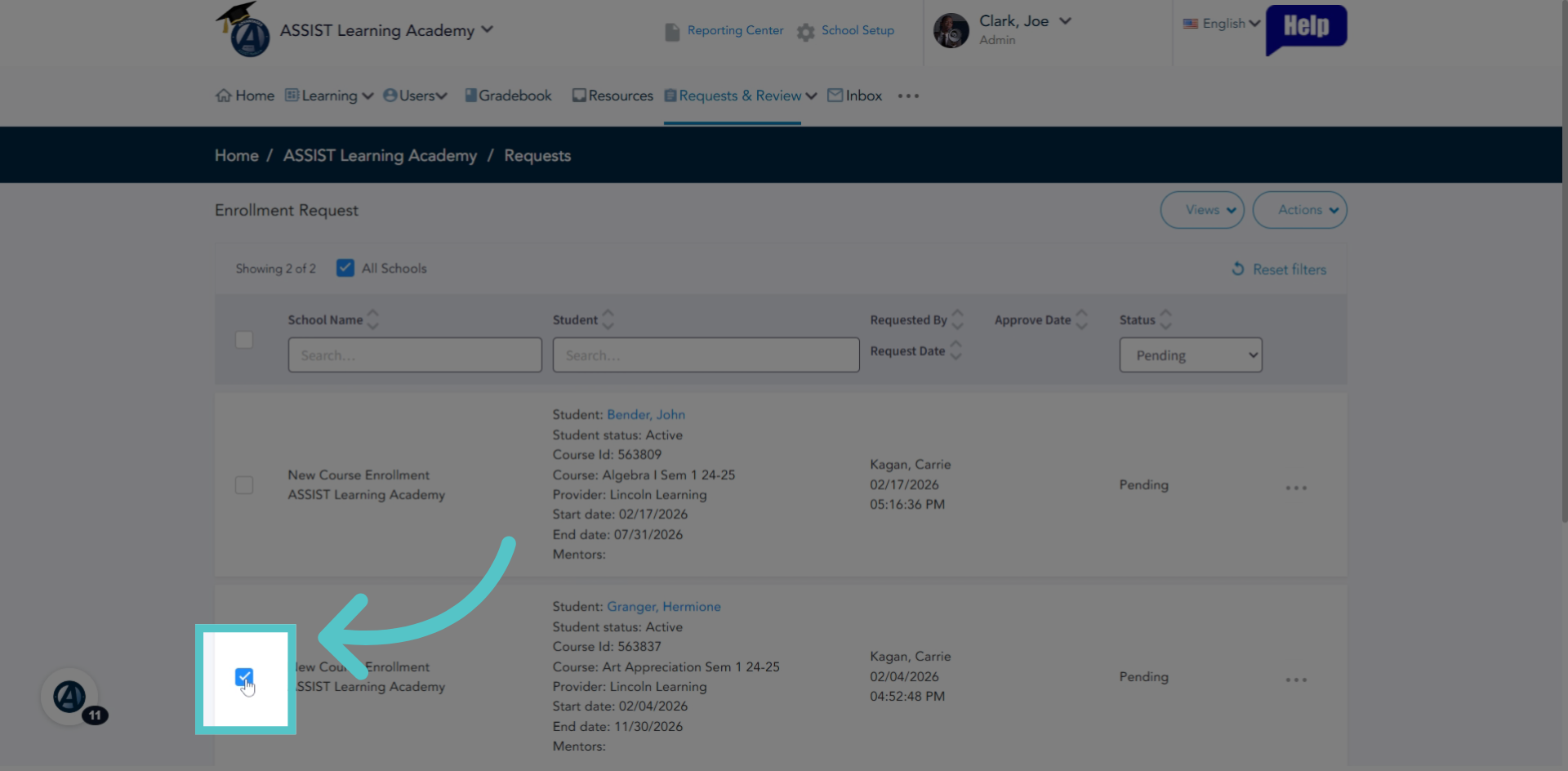
To quickly manage enrollment requests, or to manage multiple requests at once, check the box the left of the requests.
7. Actions
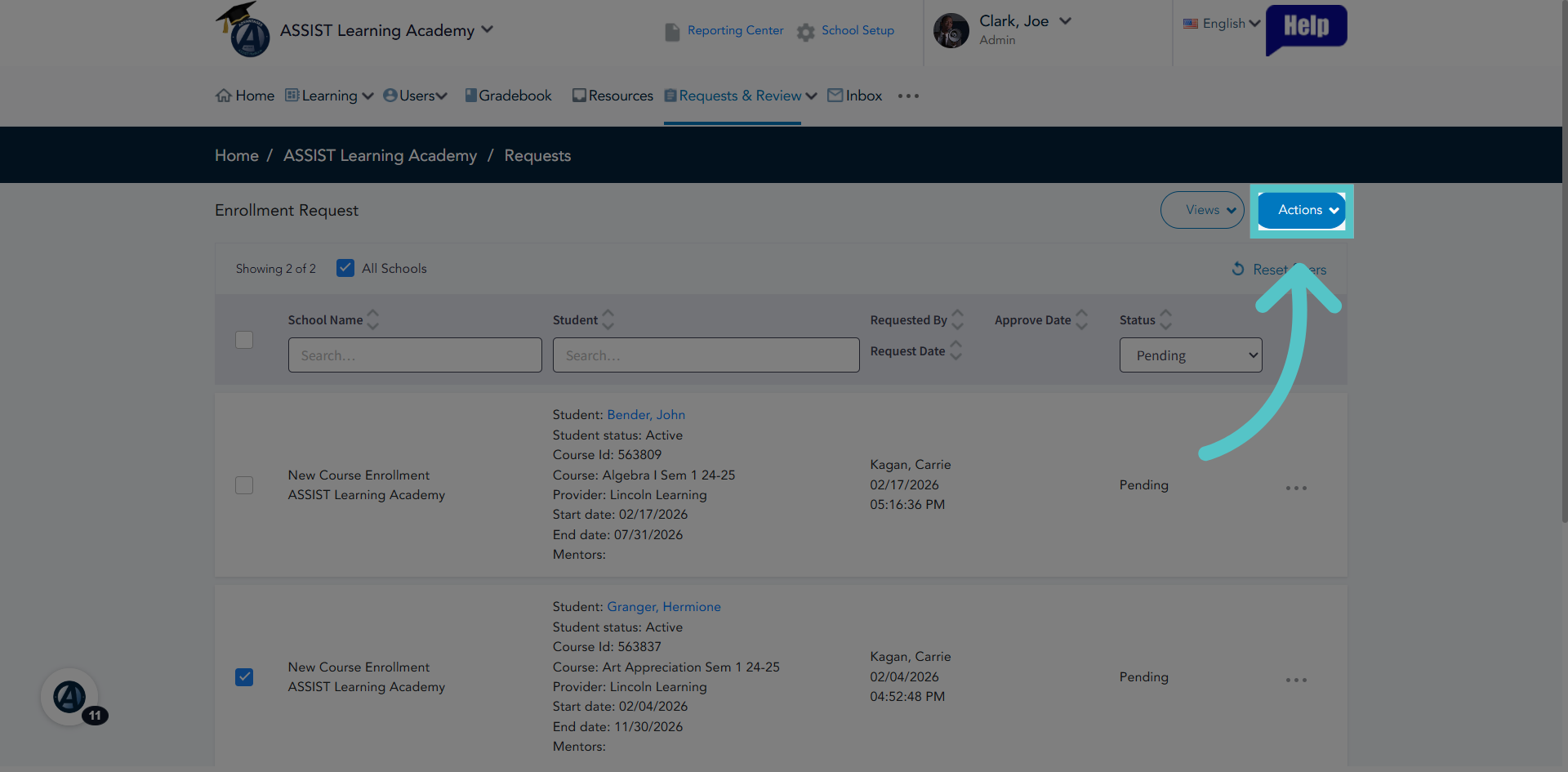
Click the Actions button to manage the selected enrollments.
8. Select Action
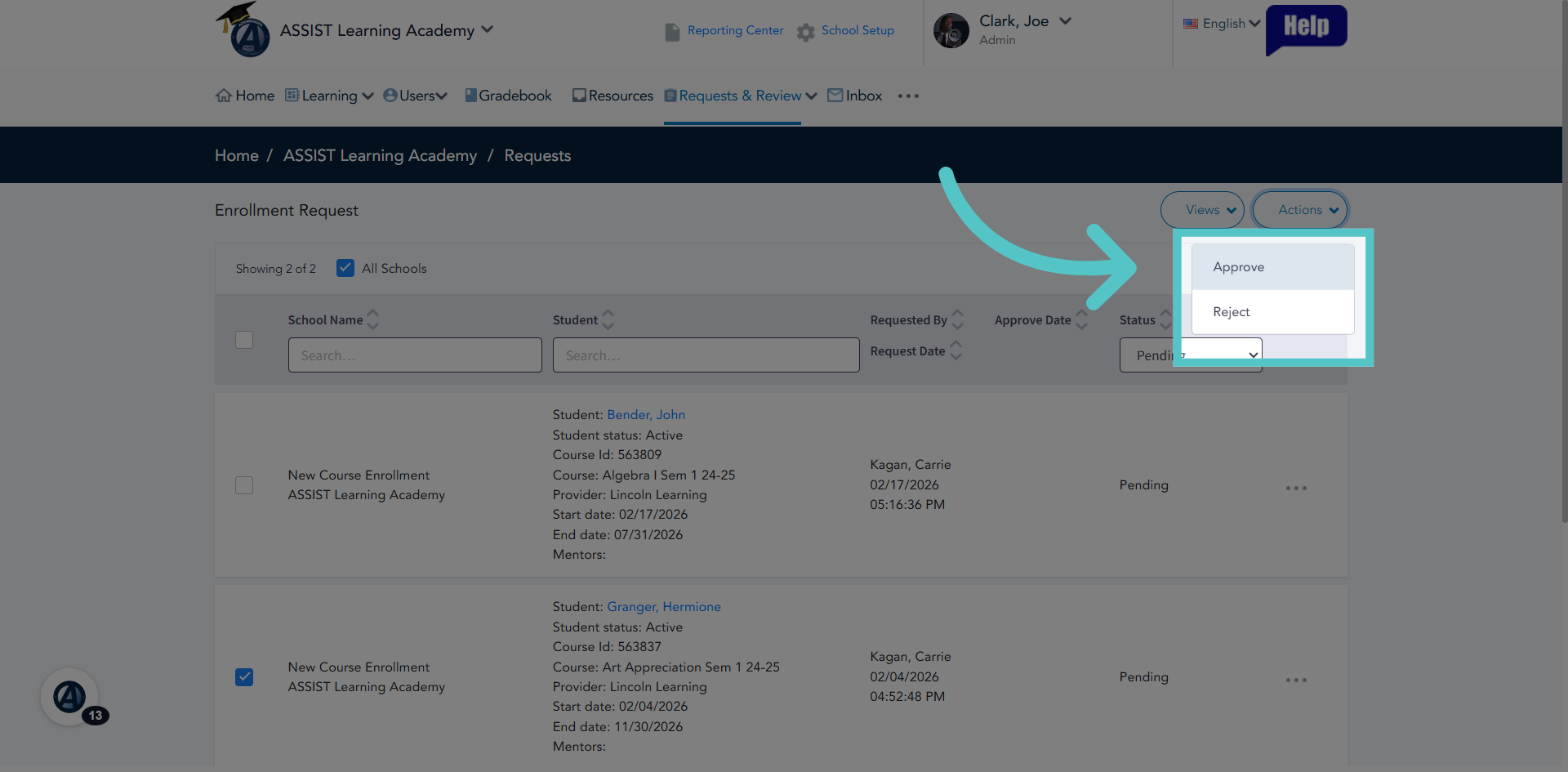
Choose to approve or reject all selected enrollments.
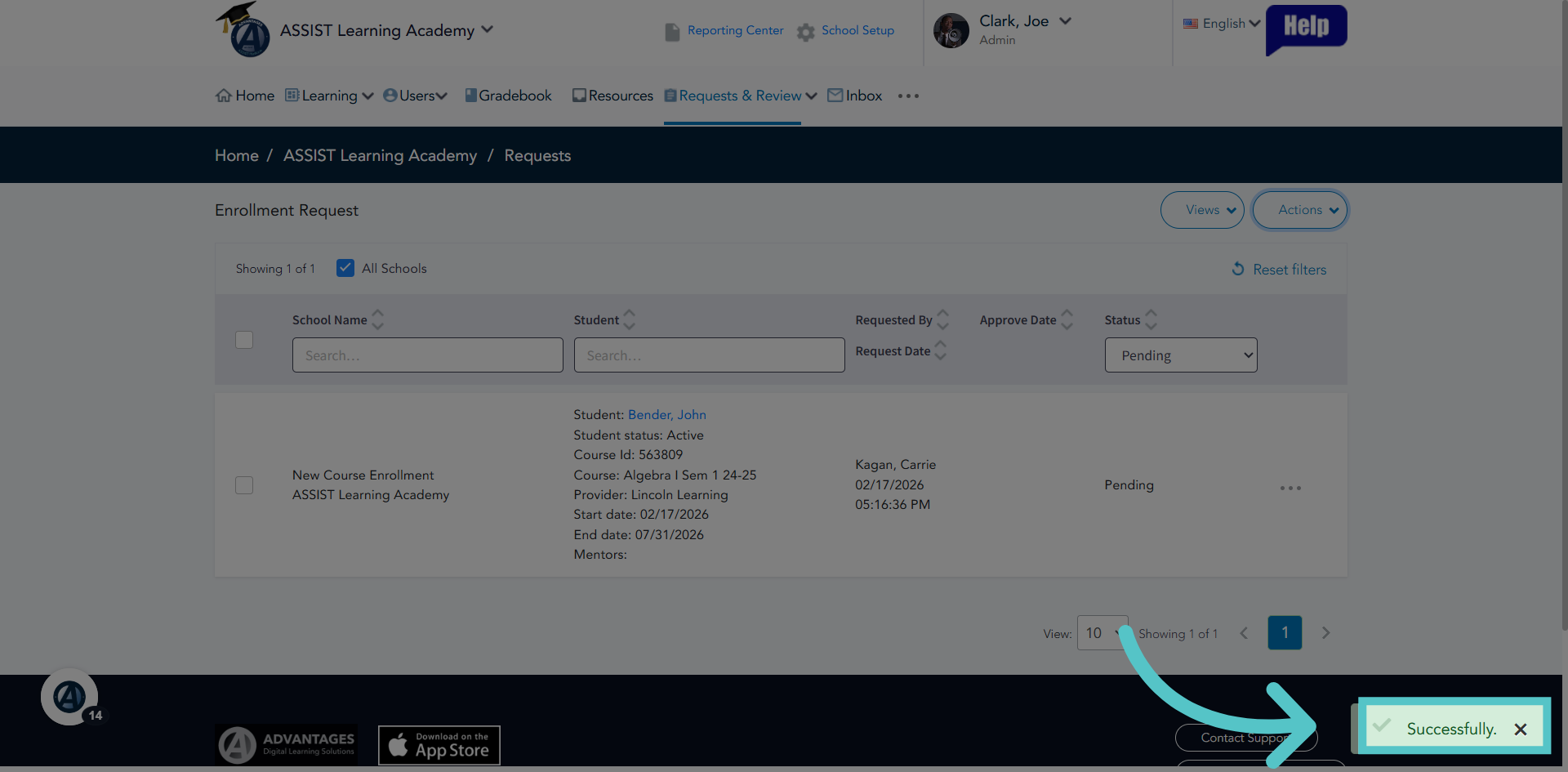
9. Successful
ASSIST will notify you when the enrollments have been successfully managed. They will disappear from the "Pending" list.
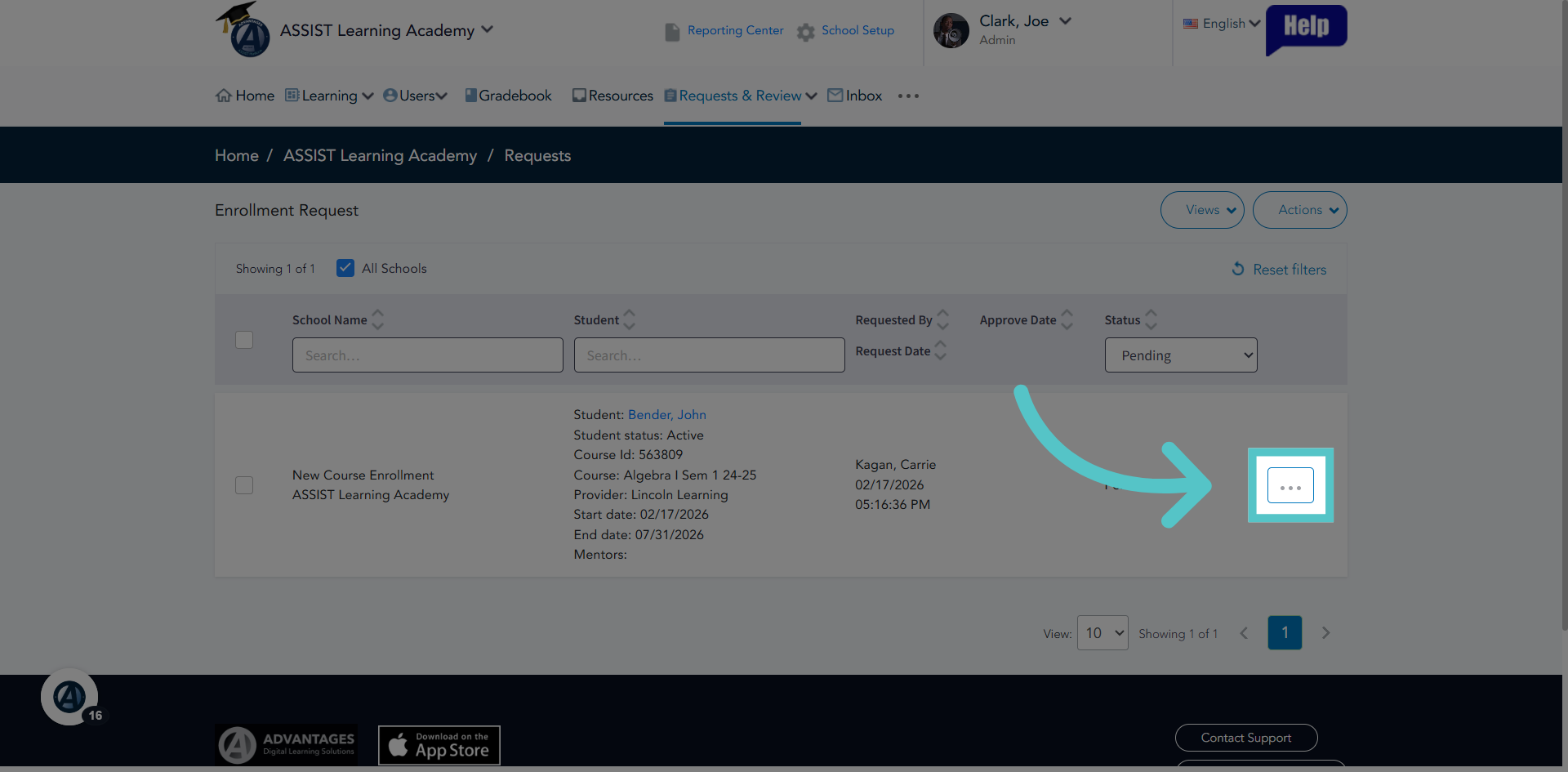
10. Individual Management
To manage enrollment requests individually, click the three dots to the right of the request.
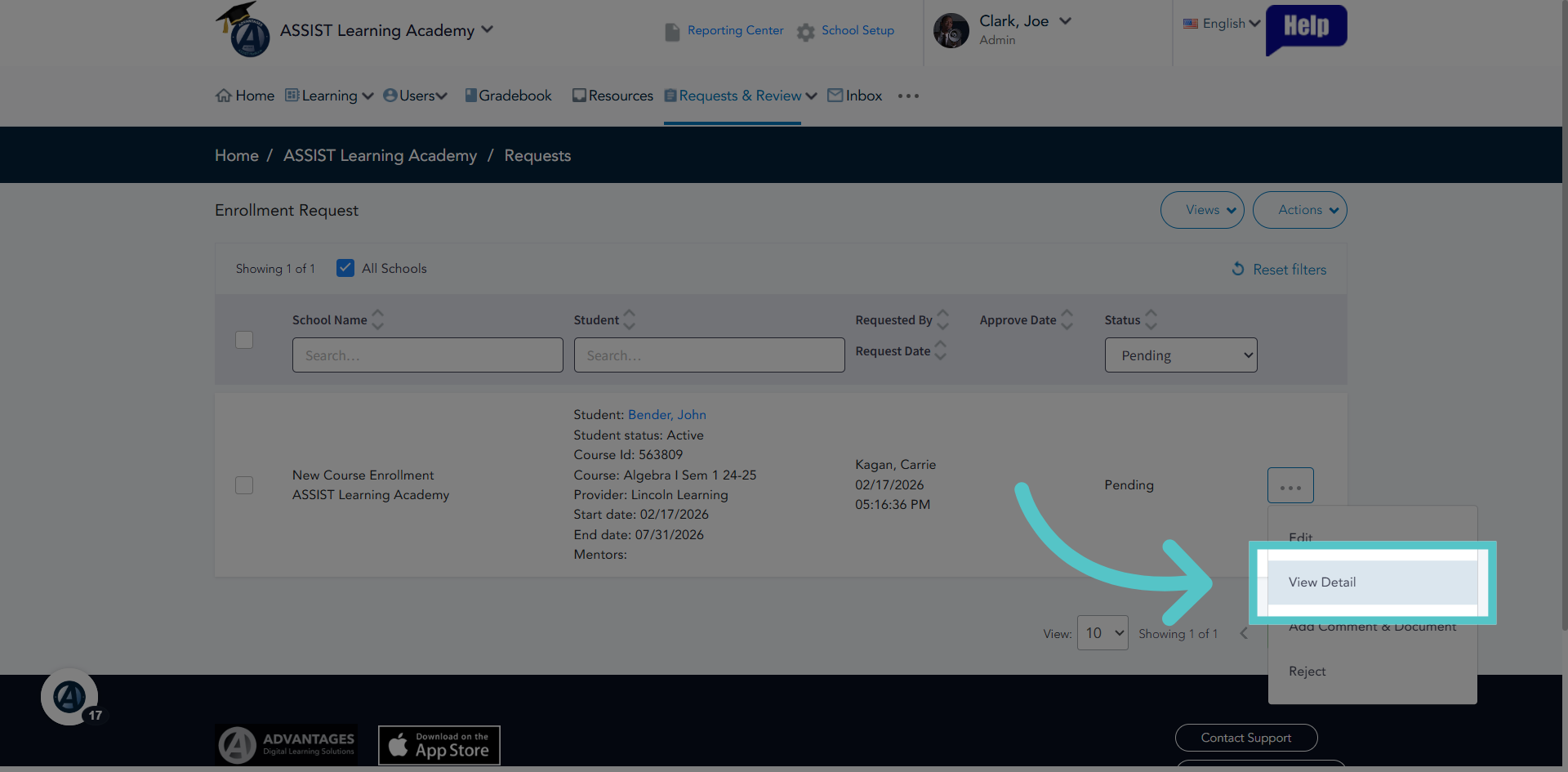
11. View Enrollment Details
Click View Detail to examine the full enrollment information.
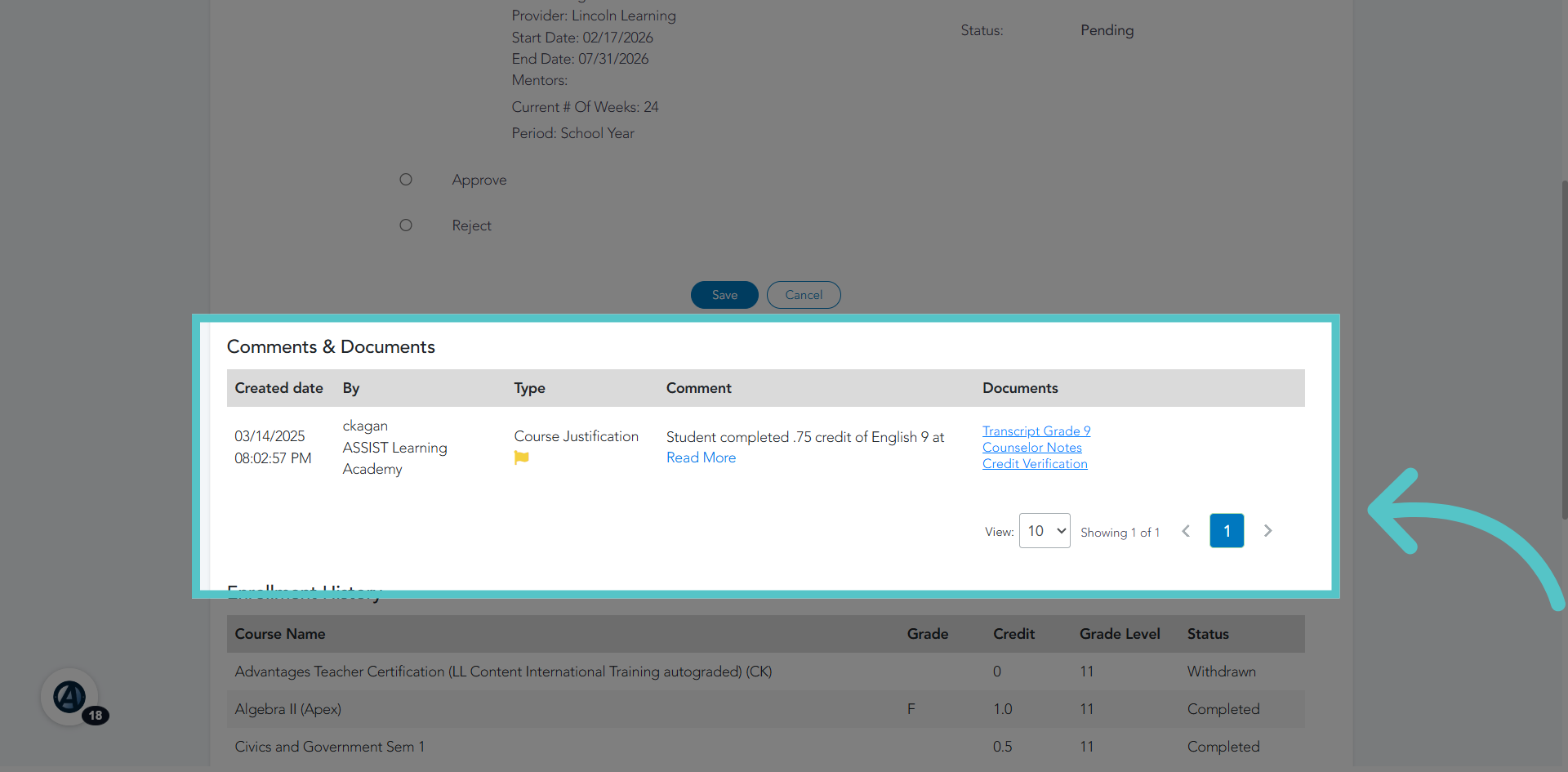
12. Review Comments and Documents
This page allows you to view parts of the student file, including comments and documents that have been added.
13. Check Enrollment History
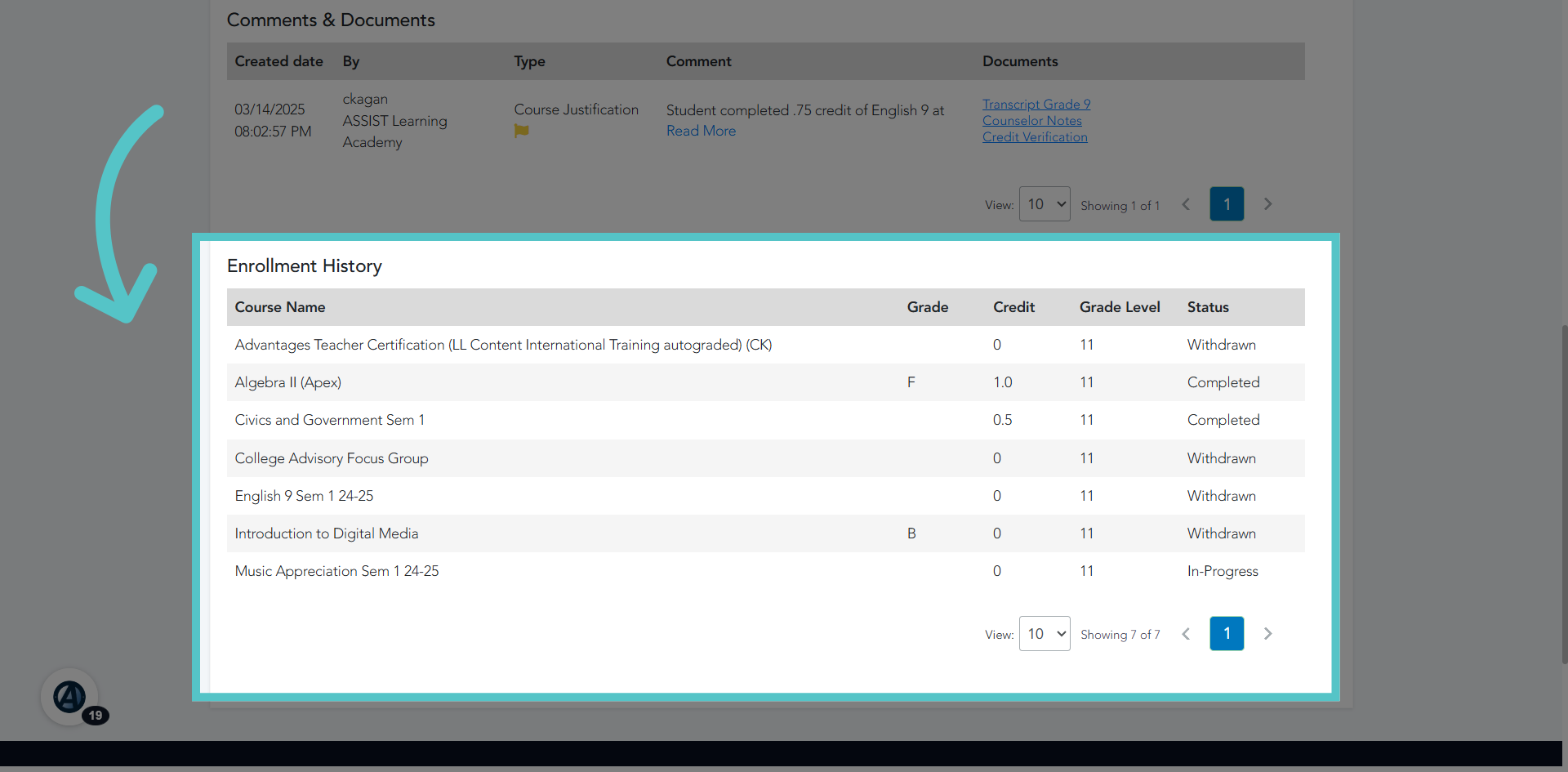
You can also view a student's entire enrollment history in ASSIST.
14. Manage Enrollment
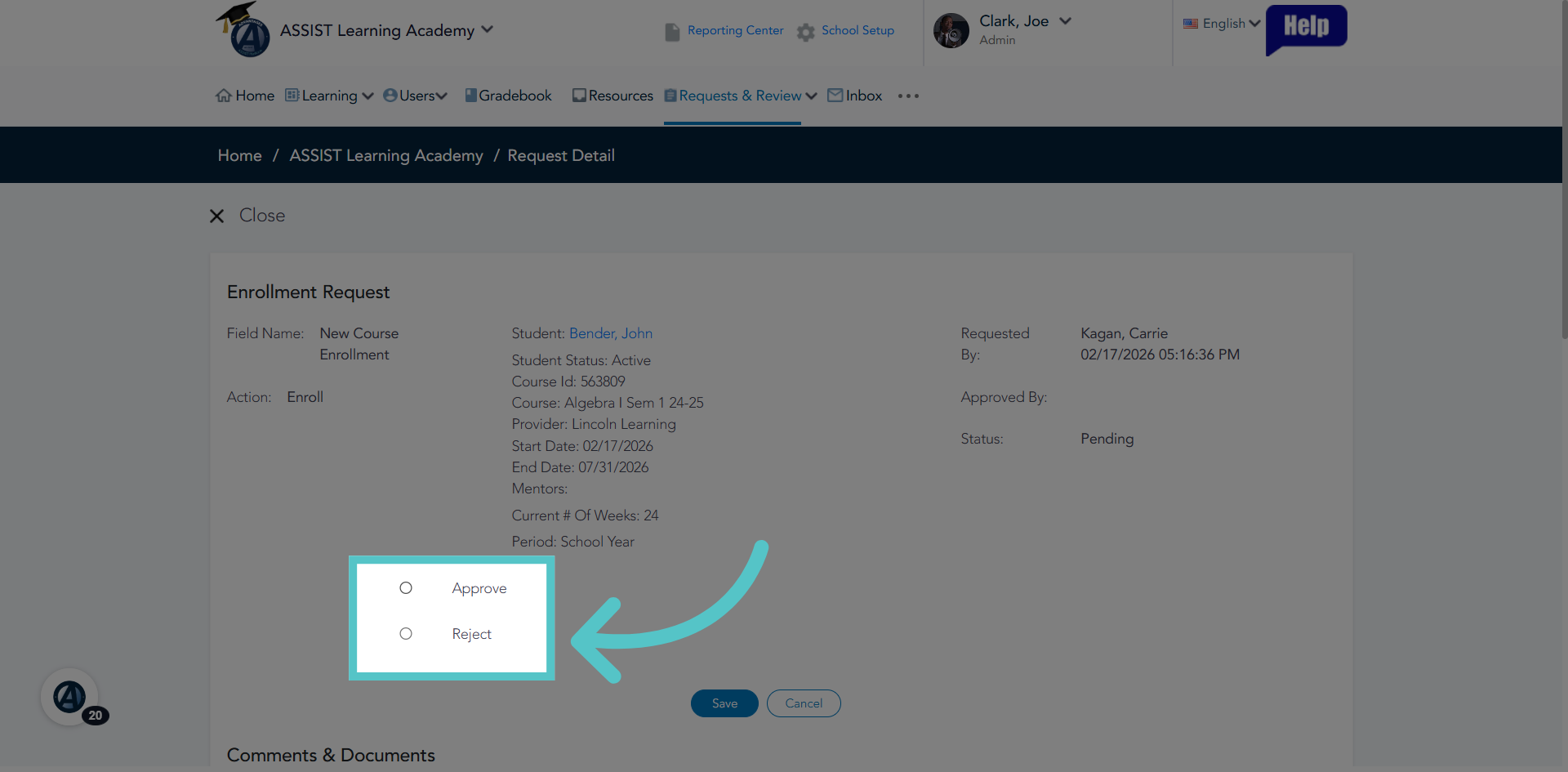
Under the pending enrollment details, you can select to approve or reject the enrollment.
15. Approve
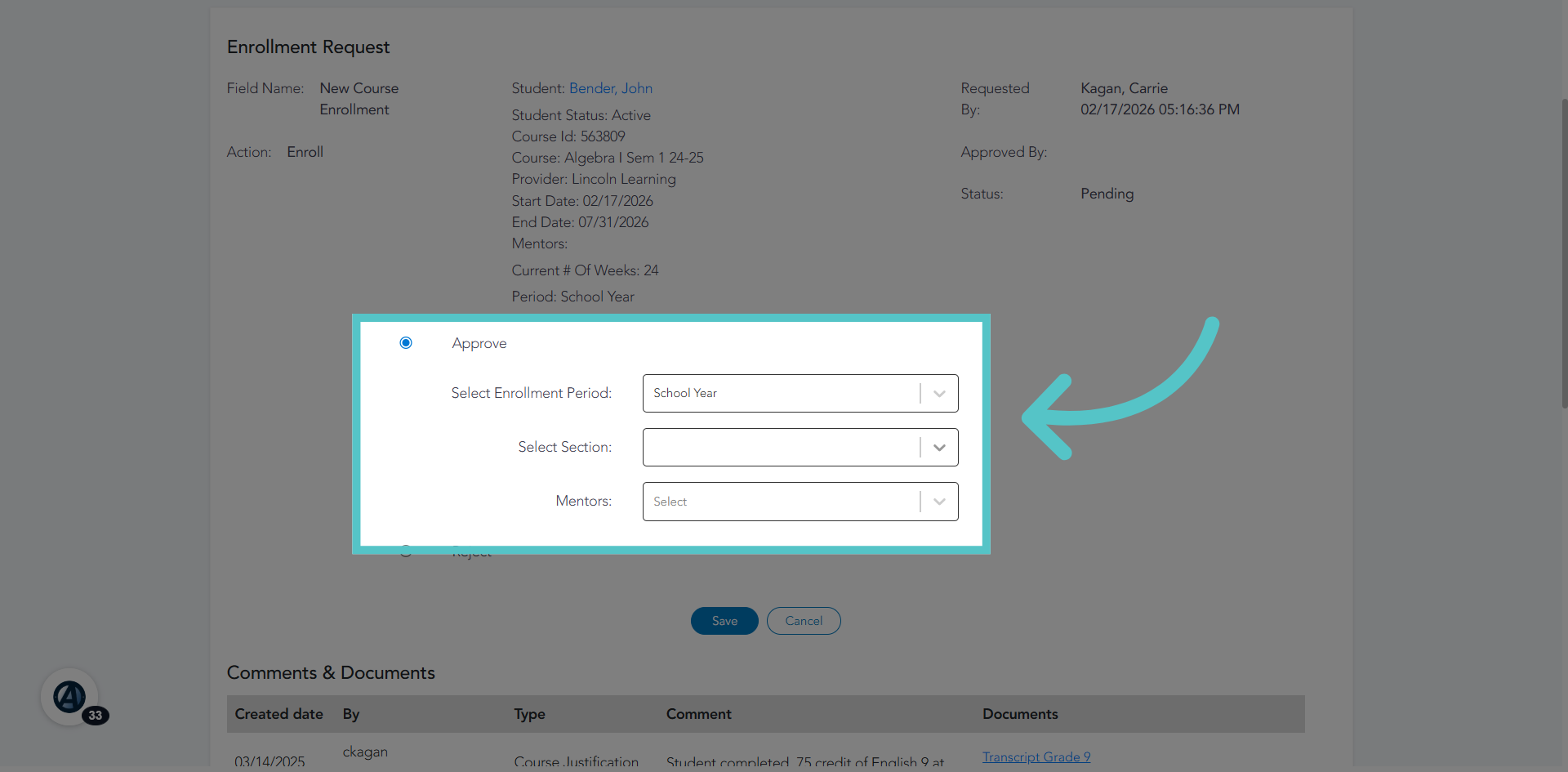
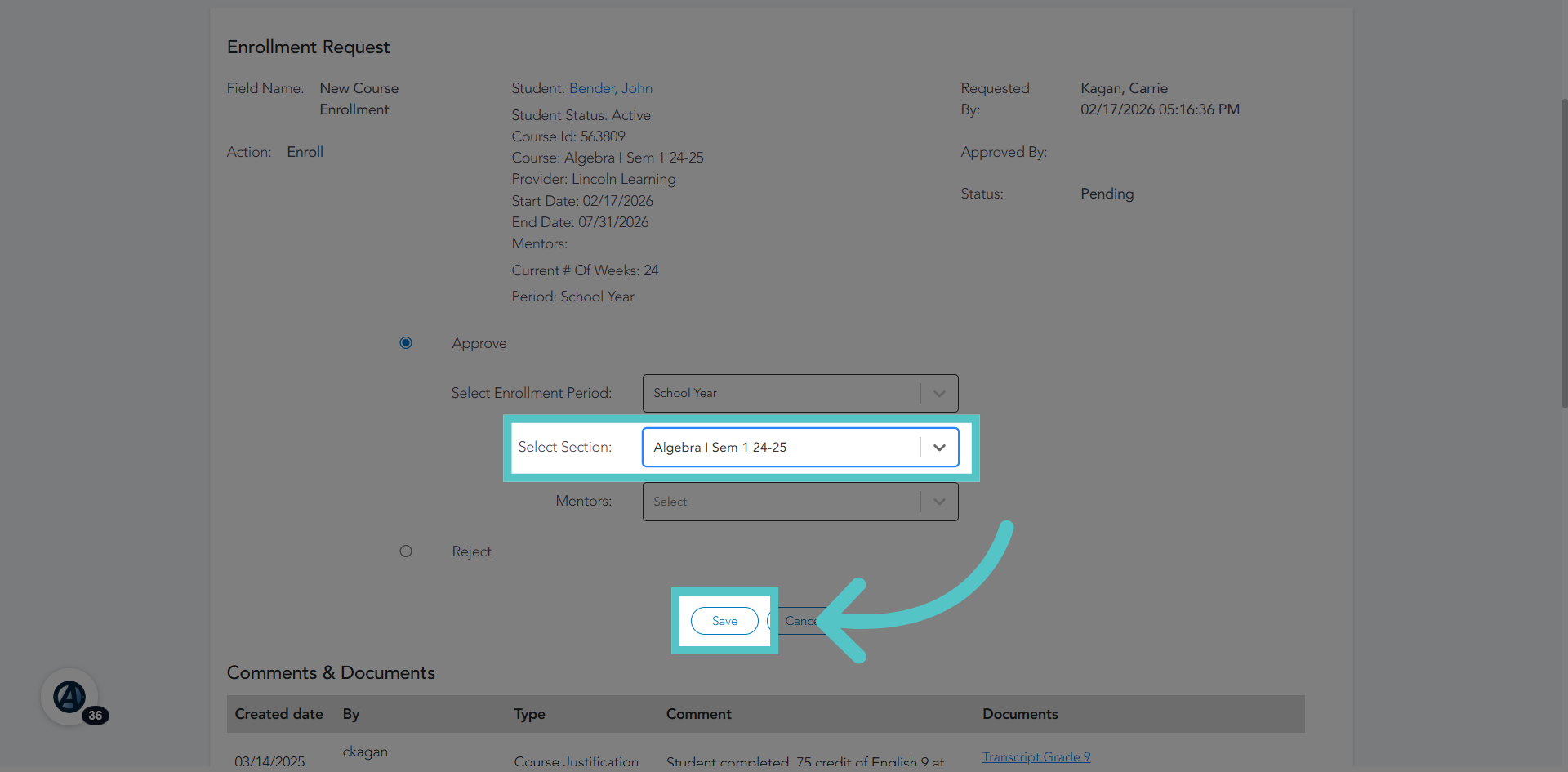
When approving enrollments, you will be asked to select the section the student should be enrolled in. Administrators at the school should have opened a section of the course for the enrollment.
16. No Section
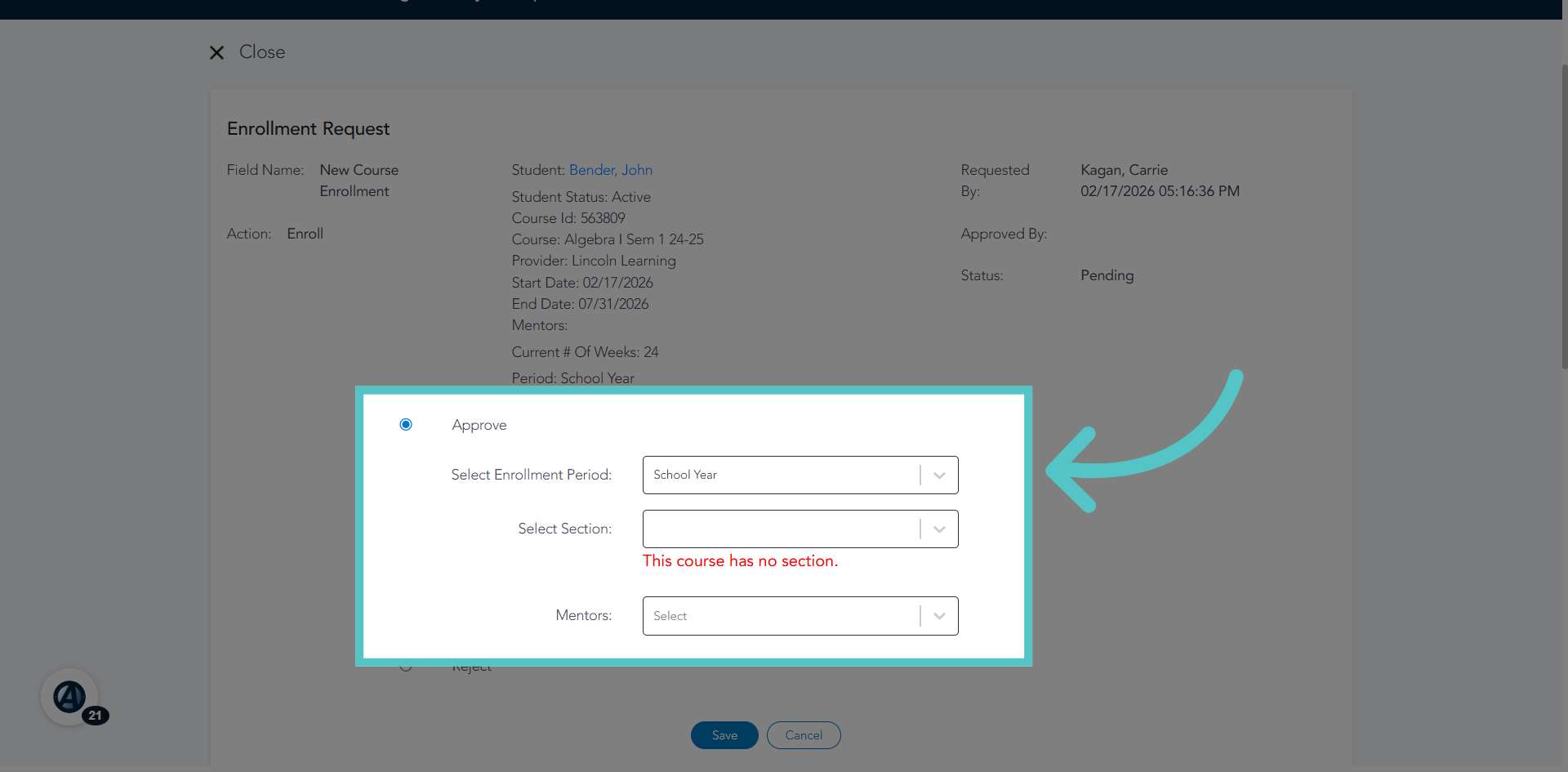
ASSIST will alert you if there is no section open for this student to be added to. In this case, the enrollment cannot be approved. The school administrator must open a section of the course before an enrollment can be approved. Click the link below for a quick tutorial on opening new sections. Open New Section
17. Save Enrollment Section
Select a section for the student enrollment. A mentor can also be added, if your schools assigns mentors. This is optional. Save the enrollment approval.
18. Close Enrollment Window
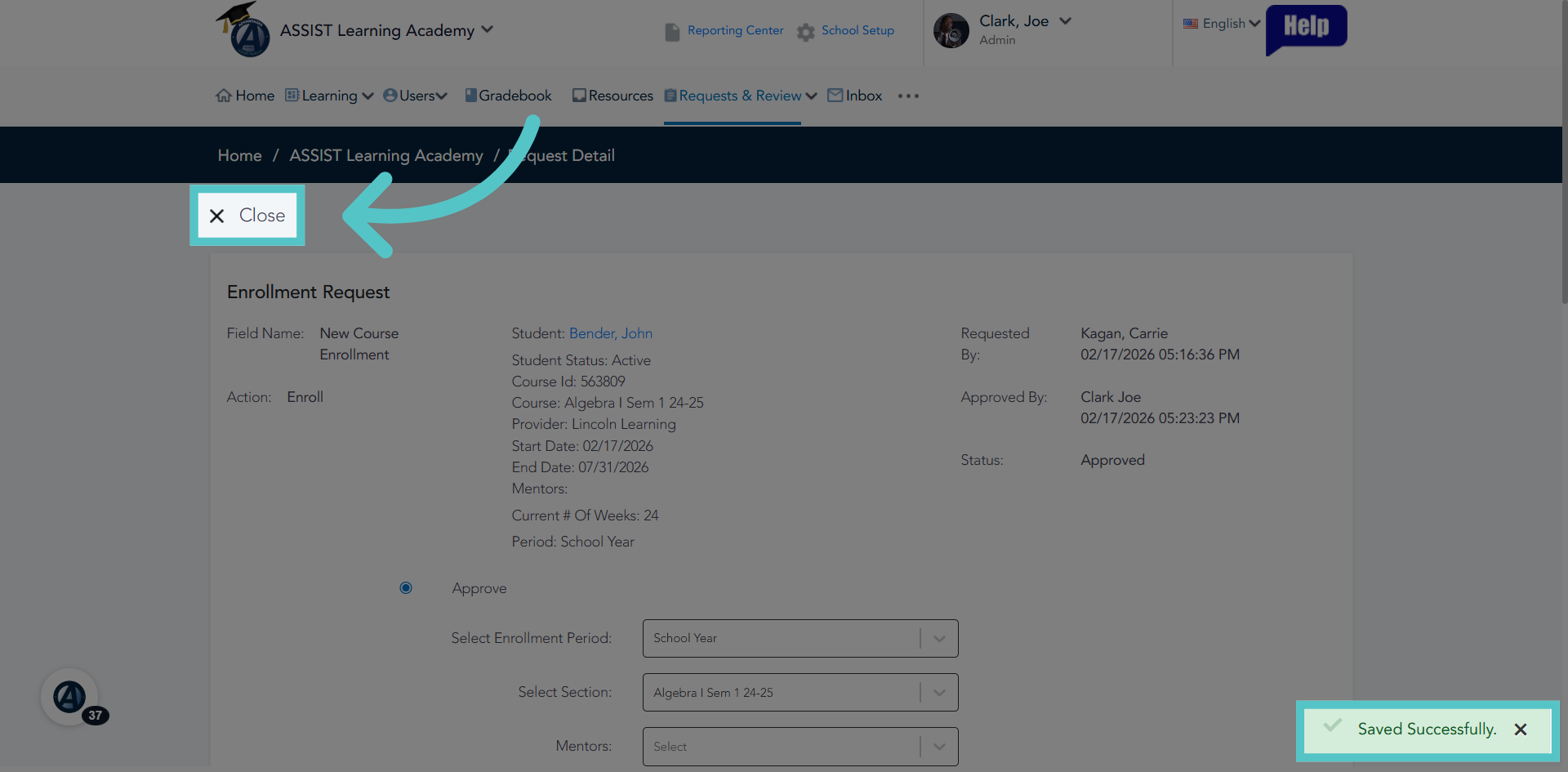
Close the enrollment window when saved successfully. Students will have access to their courses immediately upon approval
If you have any questions about the information in this tutorial, please contact your dedicated school success manager for additional support.