Expand to Full Screen for Best Viewing
This guide will walk you through the two step process of requesting student enrollment.
Go to portal.adlsassist.com
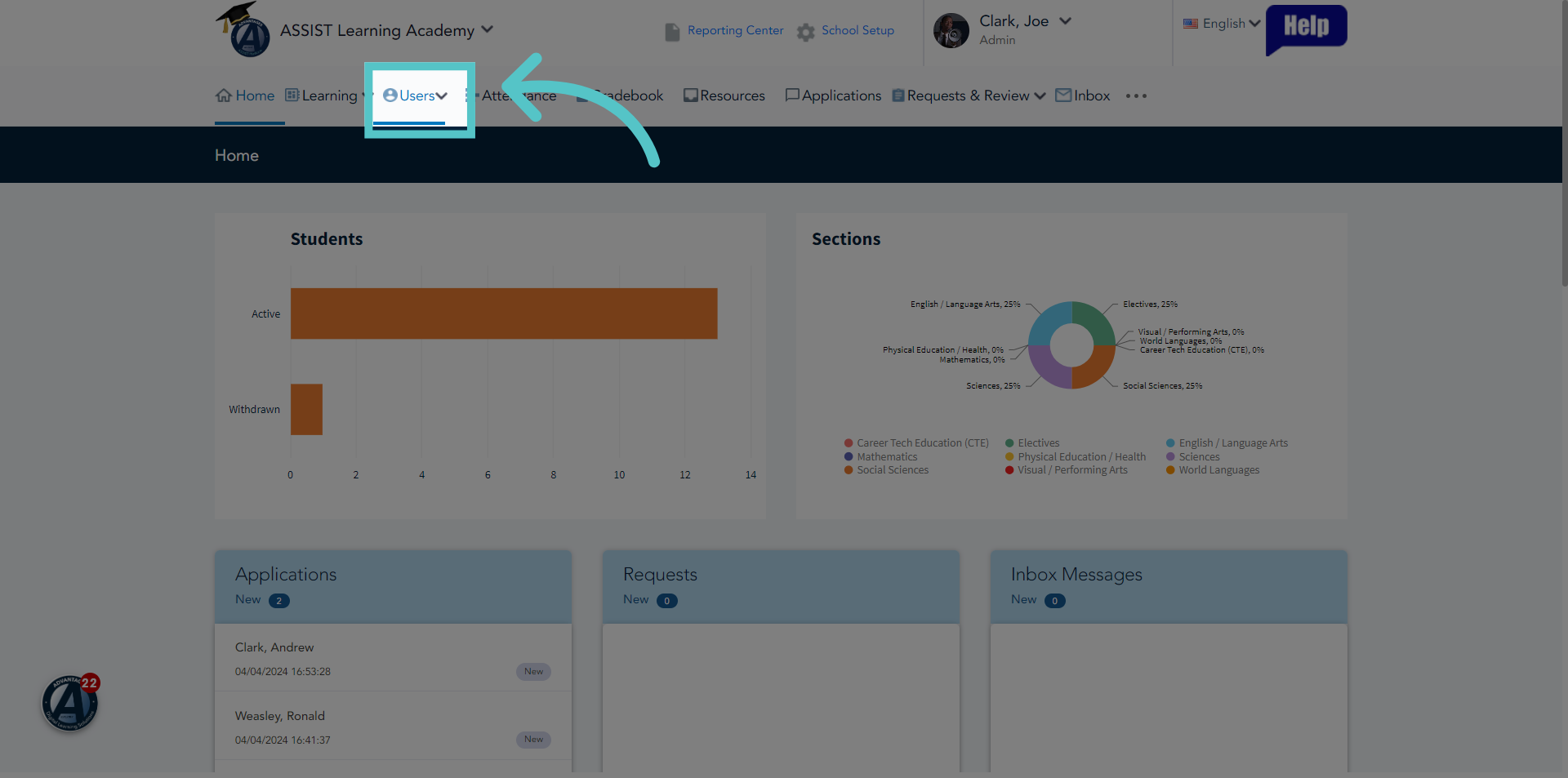
1. Click "Users"
Click the "Users" tab.
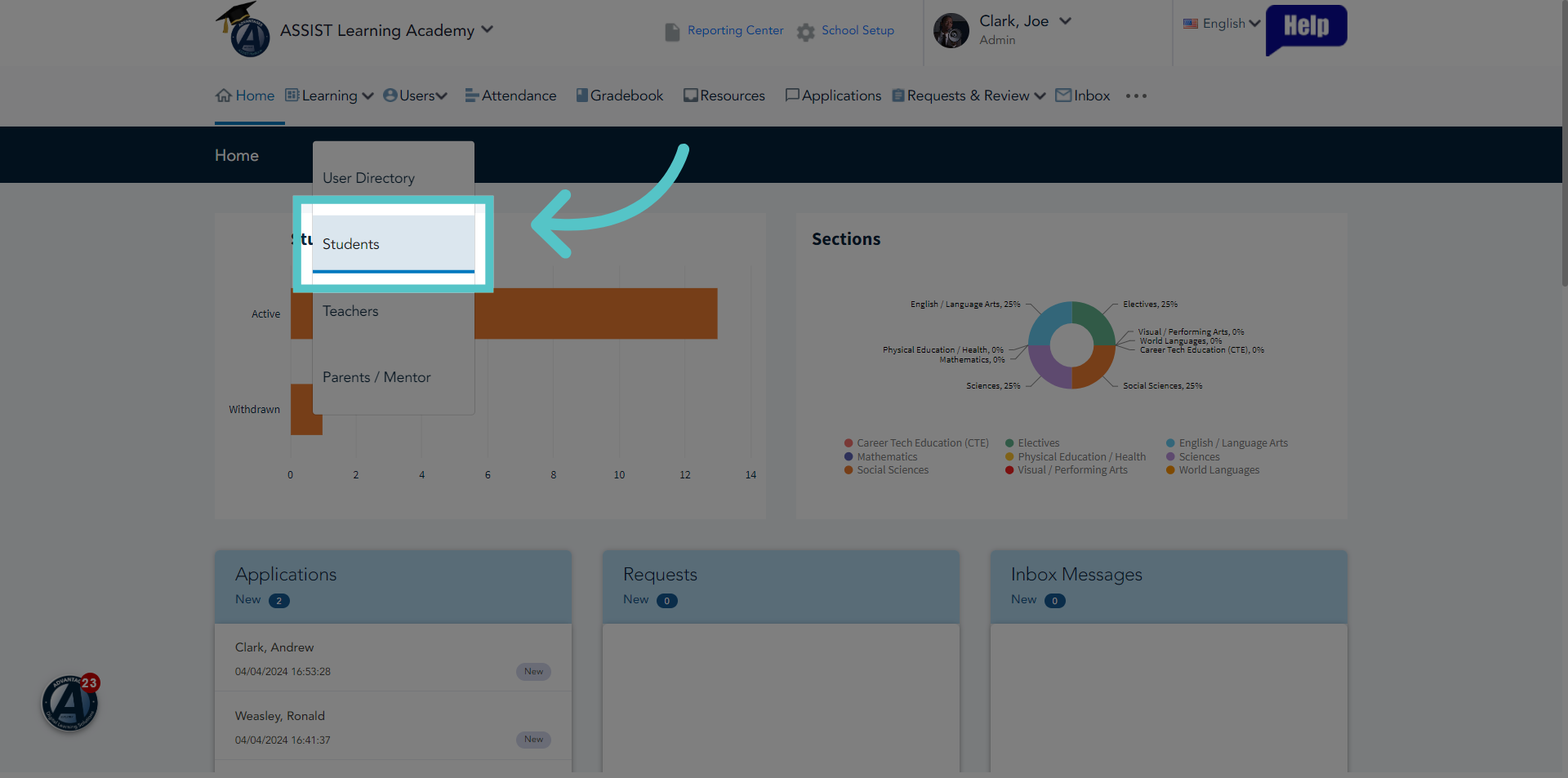
2. Click "Students"
Select "Students."
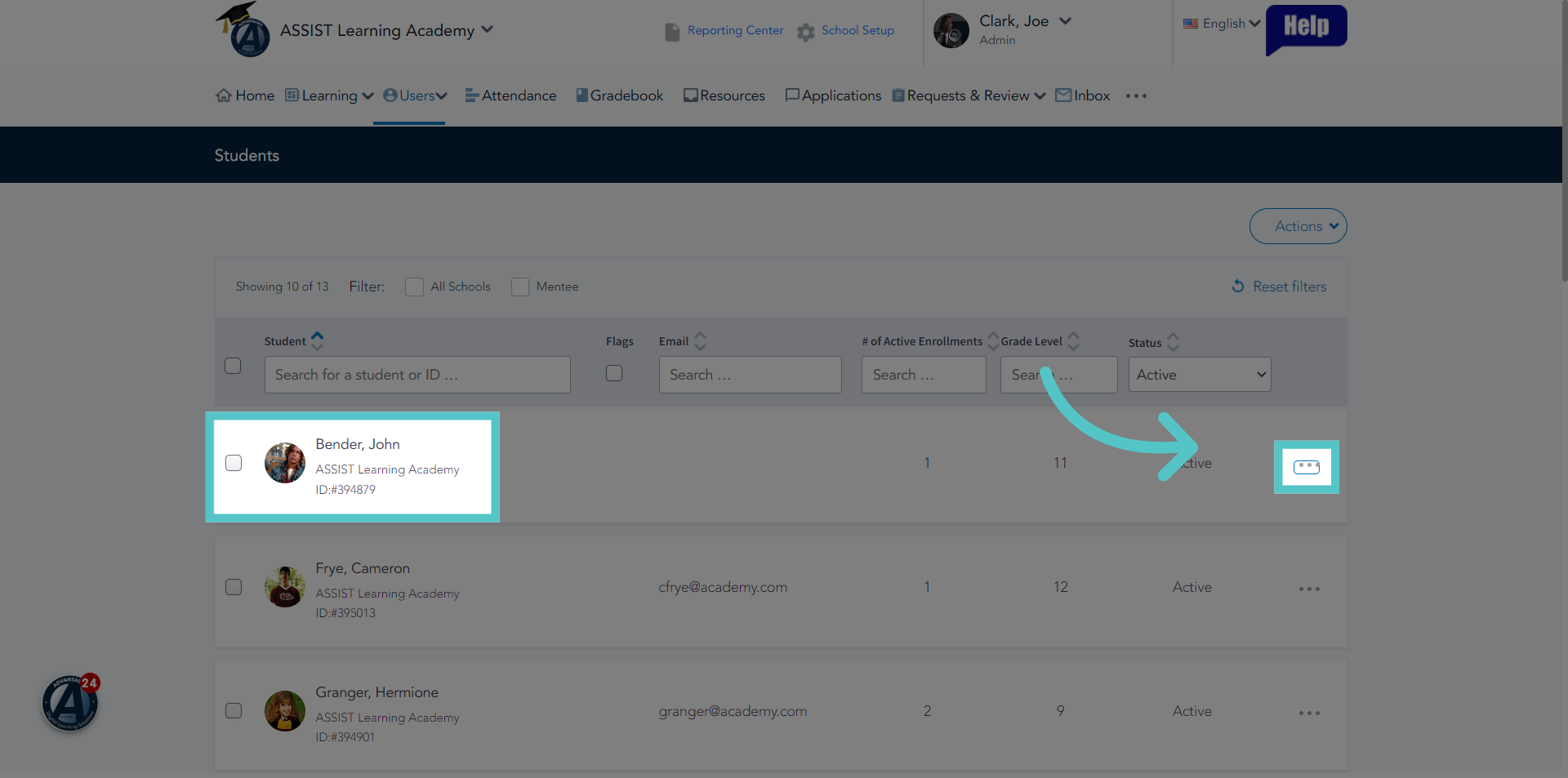
3. Click here
For each student requesting an enrollment, click the three dot menu to the far right of the student name.
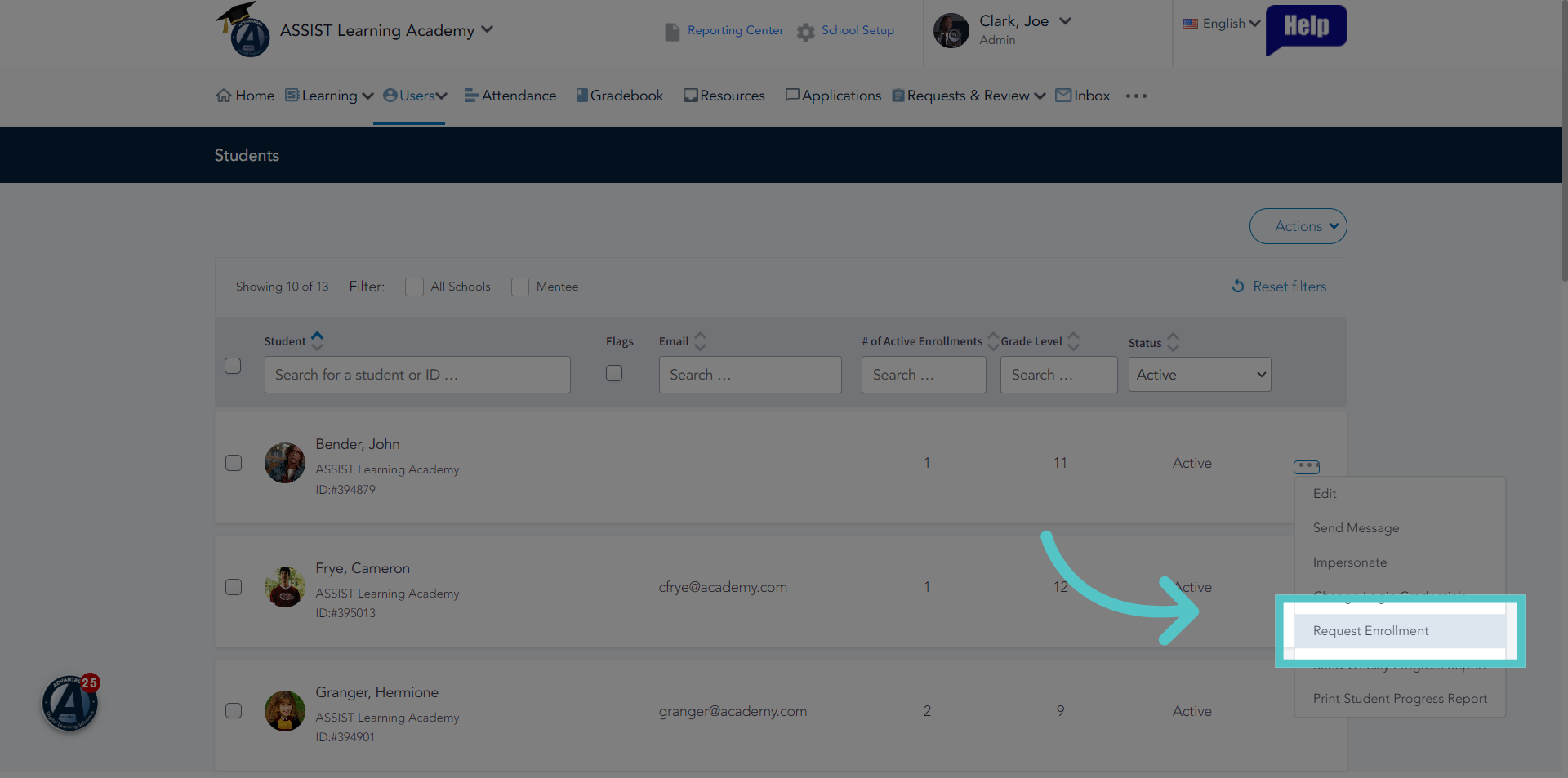
4. Click "Request Enrollment"
Select "Request Enrollment" from the menu choices.
5. Enter Enrollment Information
Enter enrollment information for each required field. Enrollments can only be requested for courses that have sections set up on the platfor. Be sure to set up sections before requesting enrollments.
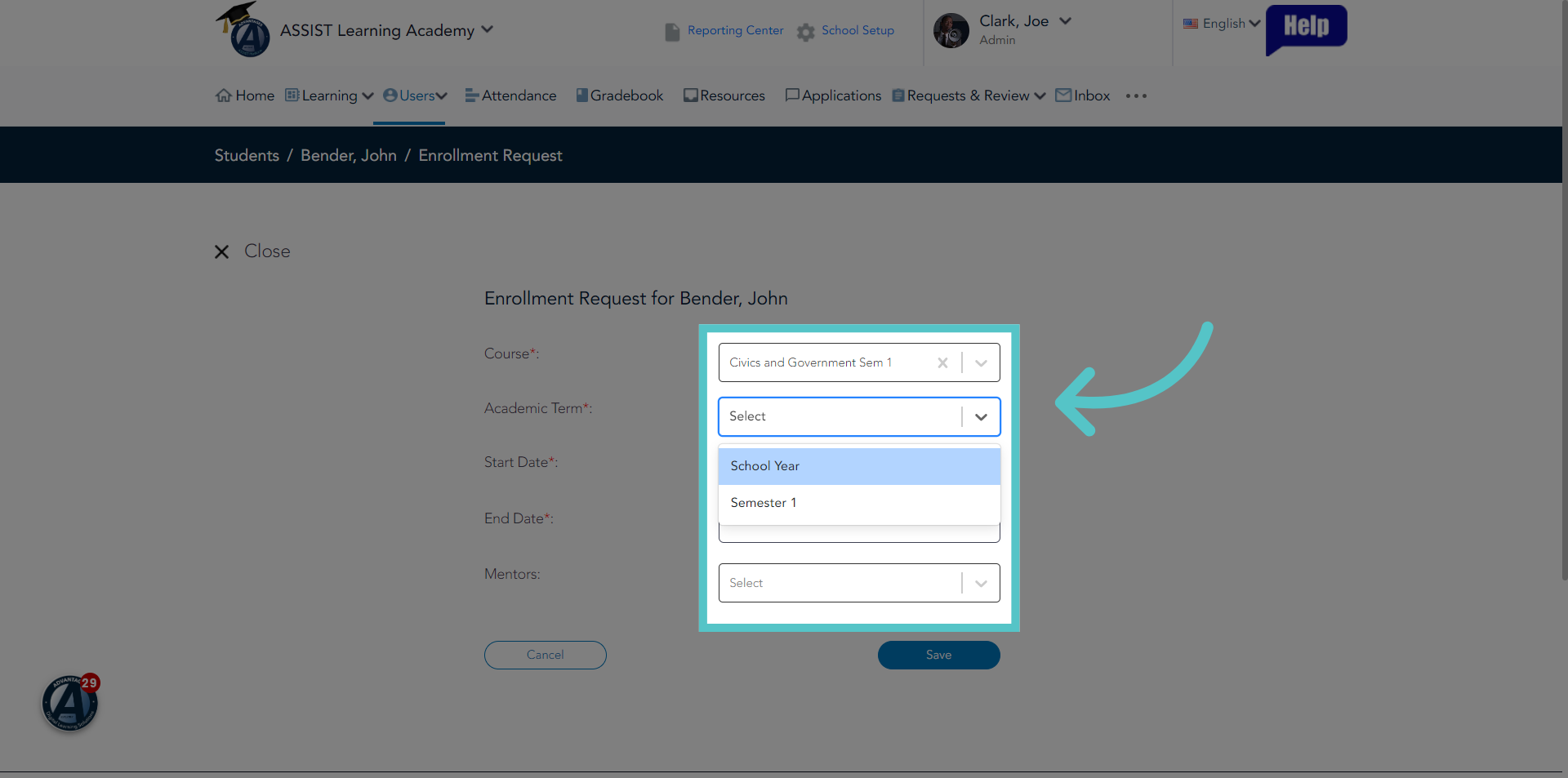
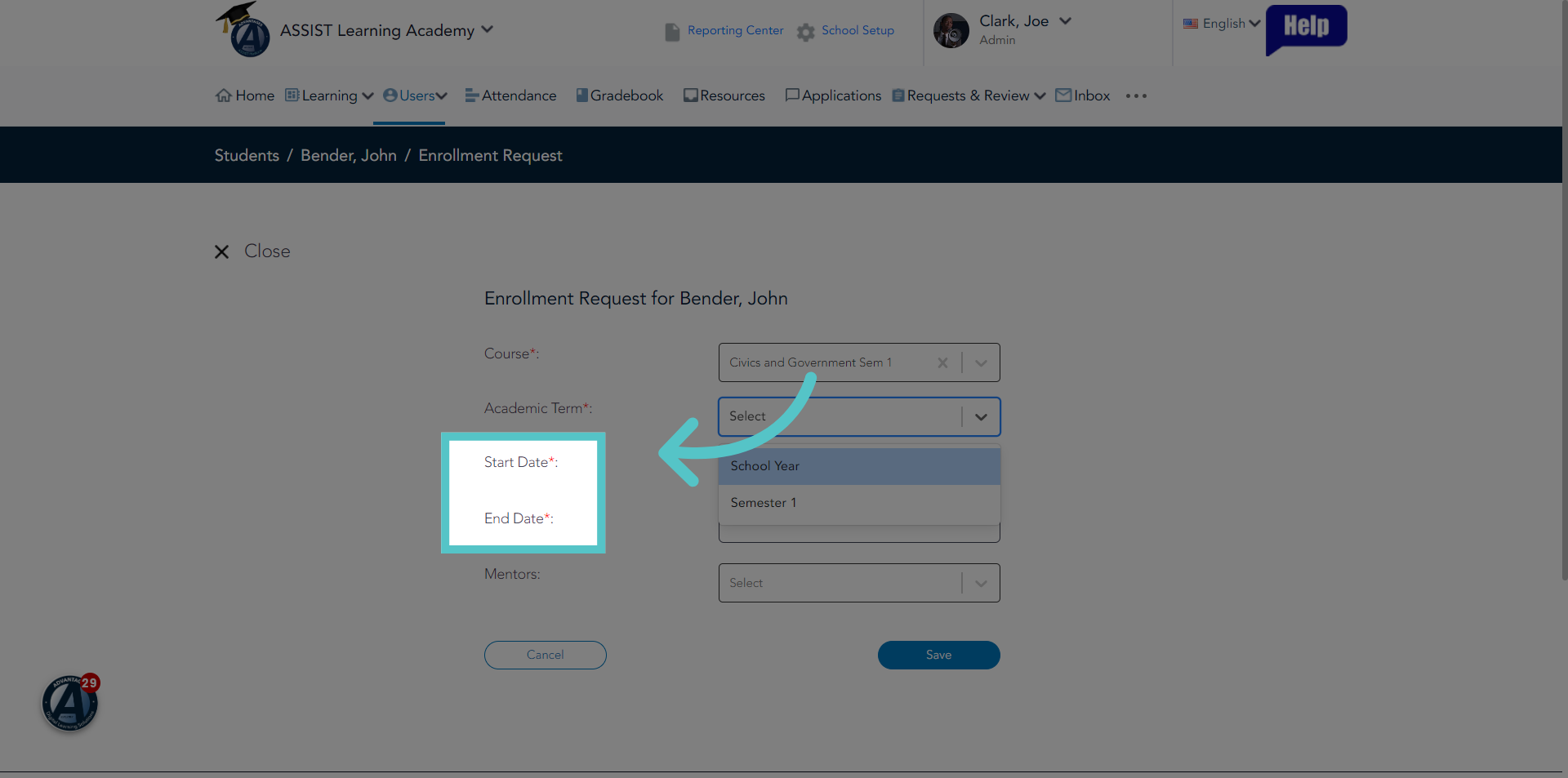
6. Enter Course Timeframe
Enter the date that students will first access the course. Enter the end date when students should be finished with the course. All due dates in the course will be paced between these two dates.
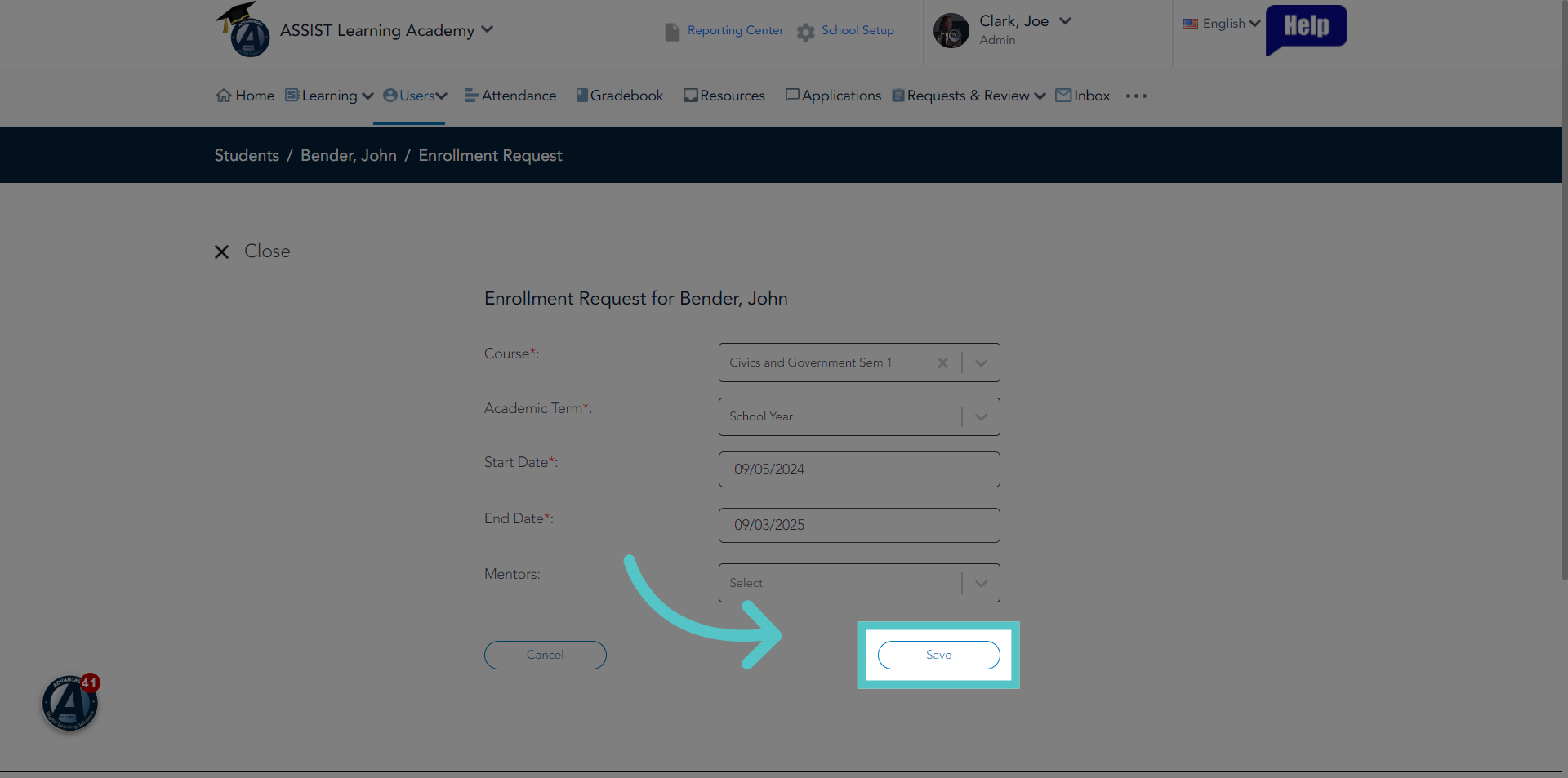
7. Click "Save"
Save the changes.
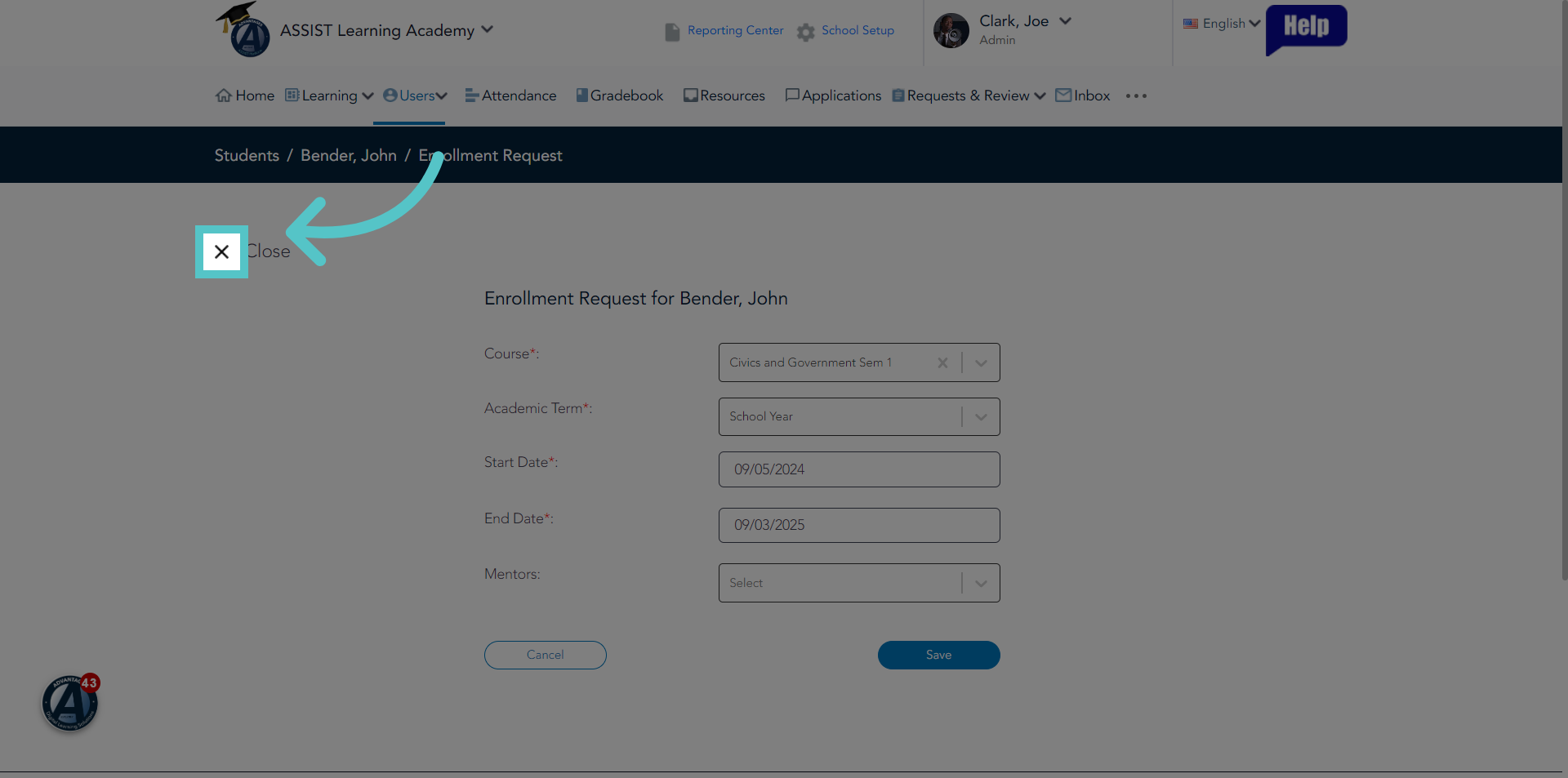
8. Close
Close the enrollment window.
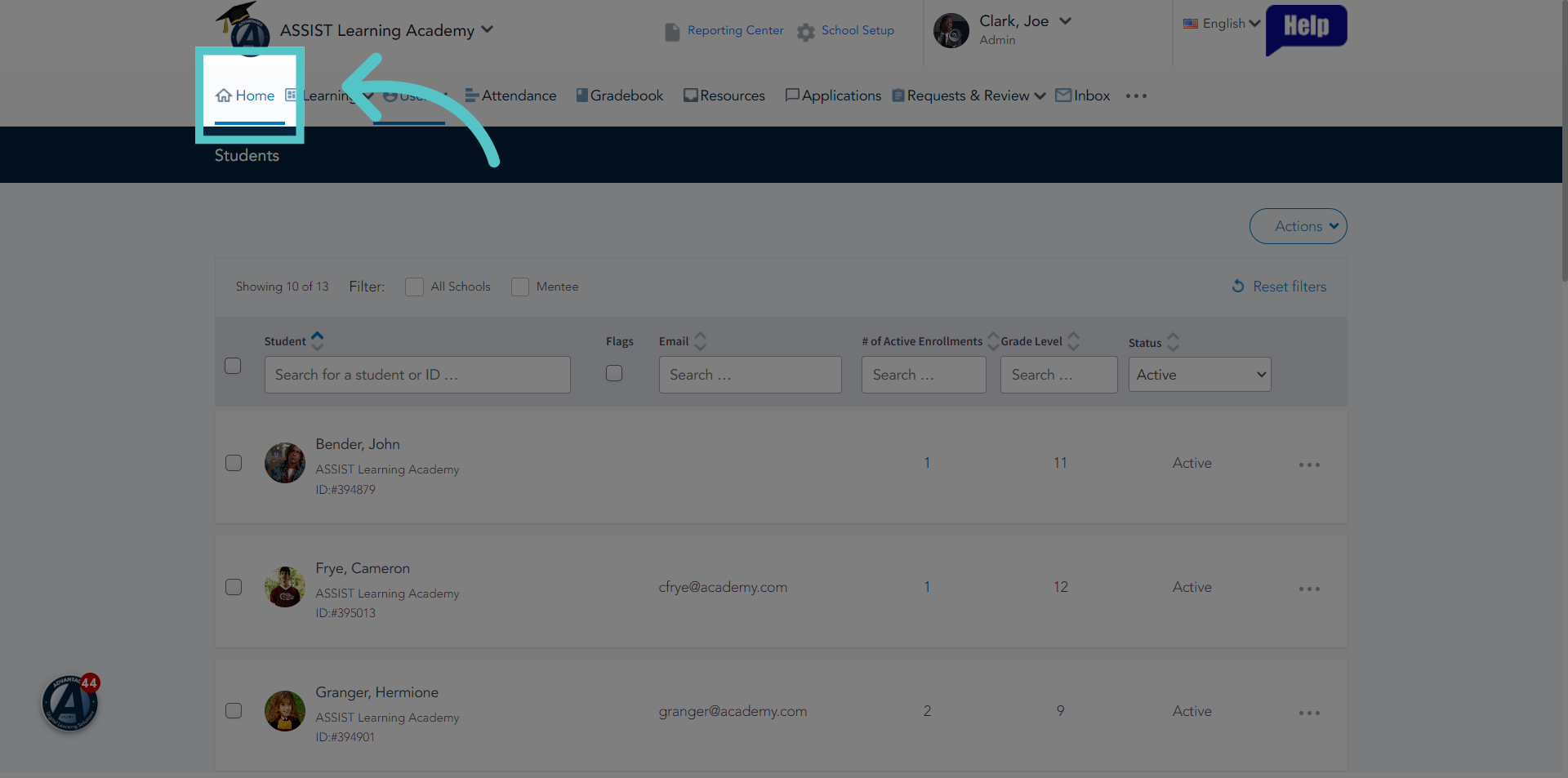
9. Click "Home"
Return to the homepage.
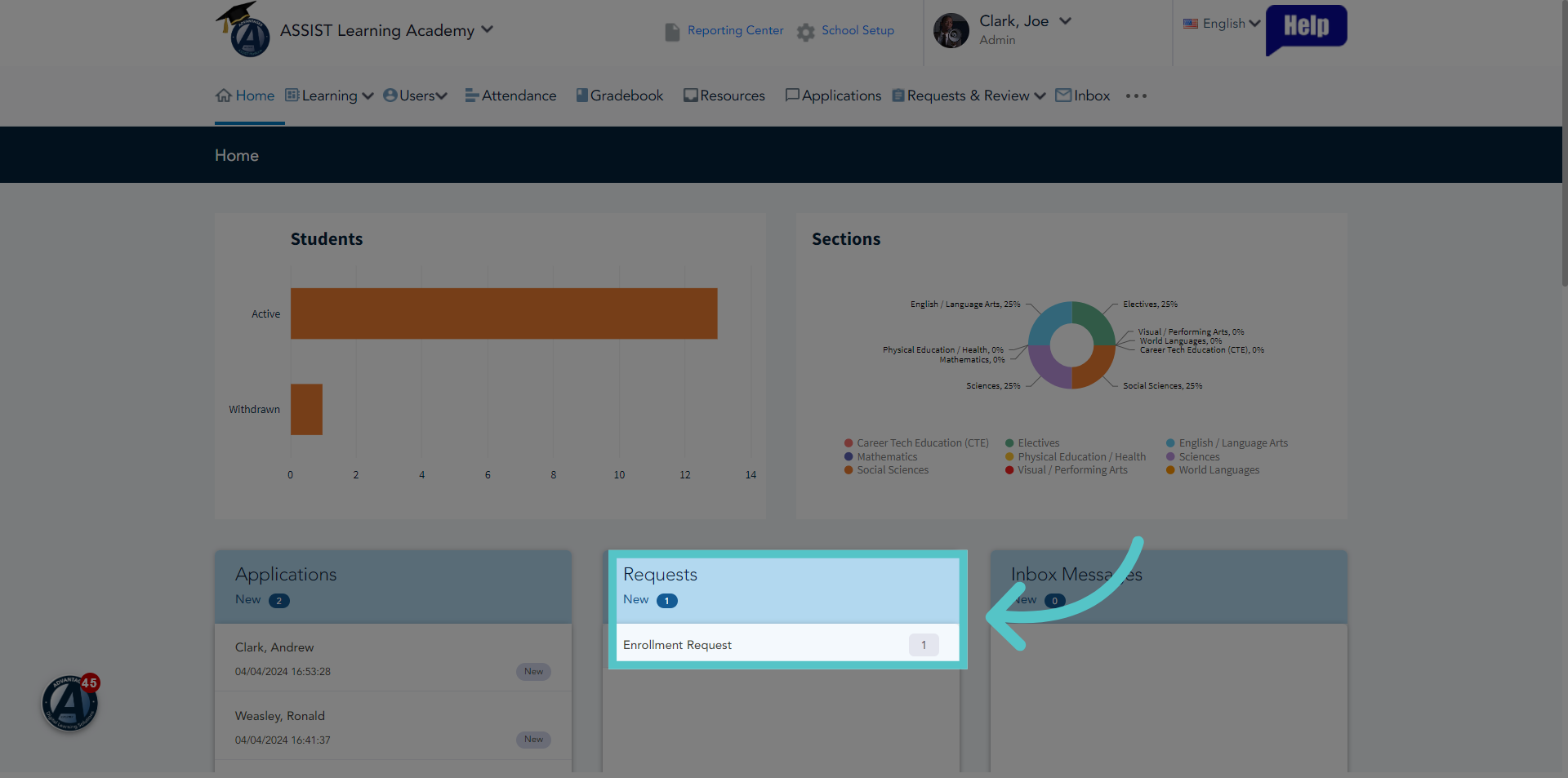
10. Click "Enrollment Request"
Enrollment Requests will show on your ASSIST Homepage in the Requests box. Click "Enrollment Request" to see the complete list of pending requests.
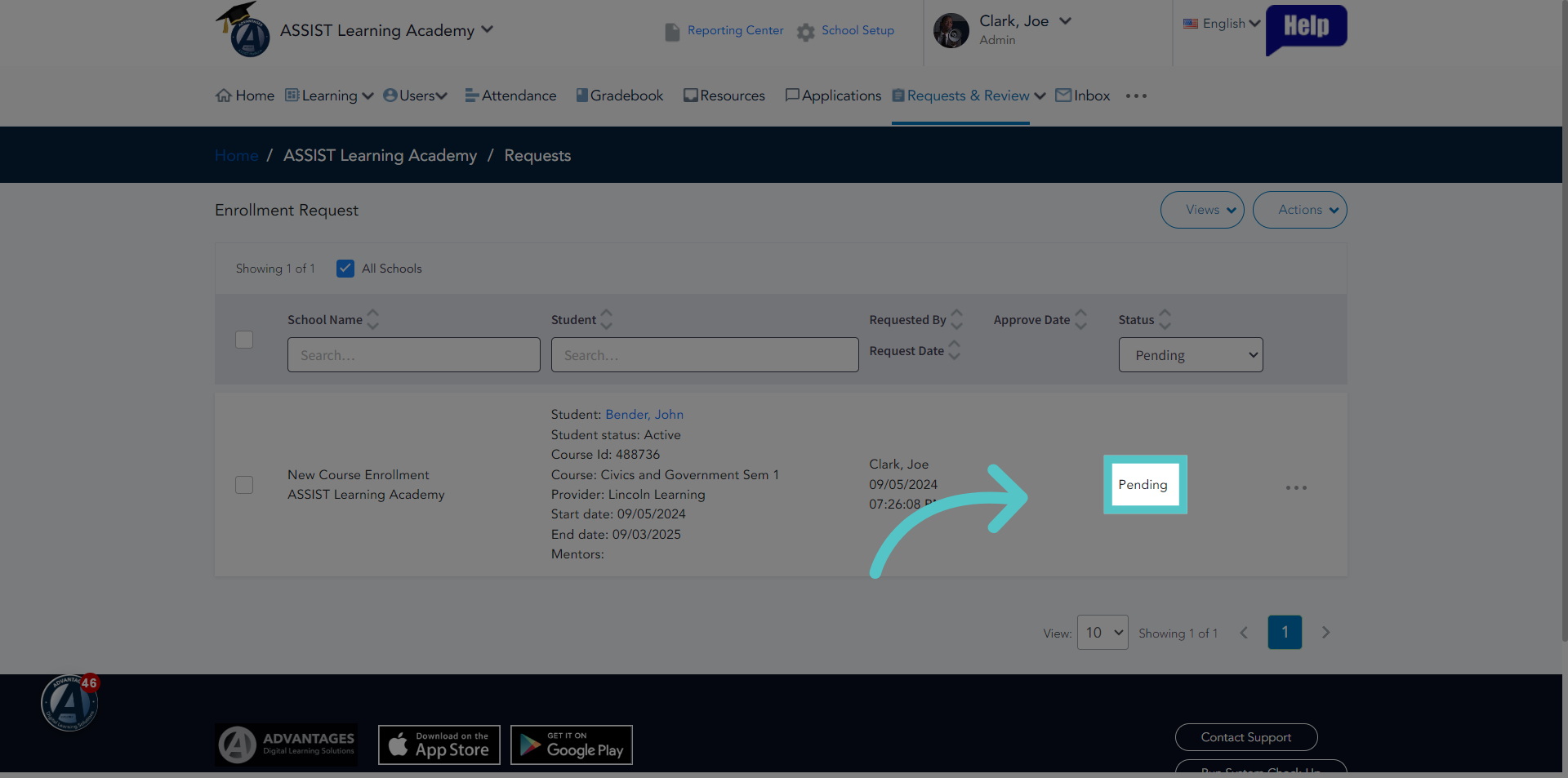
11. Pending
Your School Success Manager has received a notification of an enrollment request at your school. When Santiana approves the enrollment, your Success Manager will permit the student's access to the course.
If you have any questions about the information in this tutorial, please click "Contact Support" to submit a help request.
Contact Support