Expand to Full Screen for best viewing
Access and Print Course Completion Certificates as administrators.
Go to portal.adlsassist.com
1. Click "Users"
Navigate to the Users section.
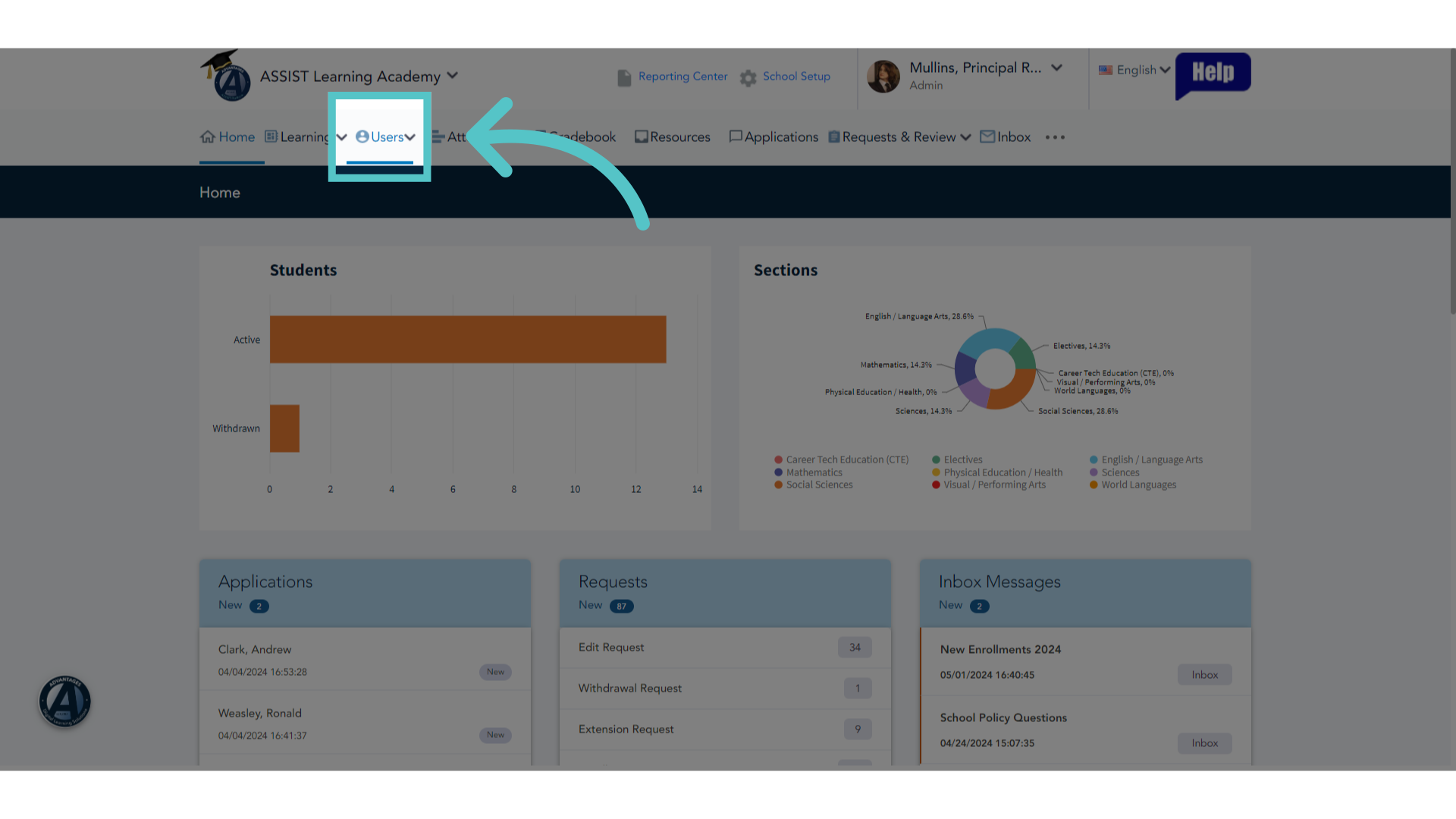
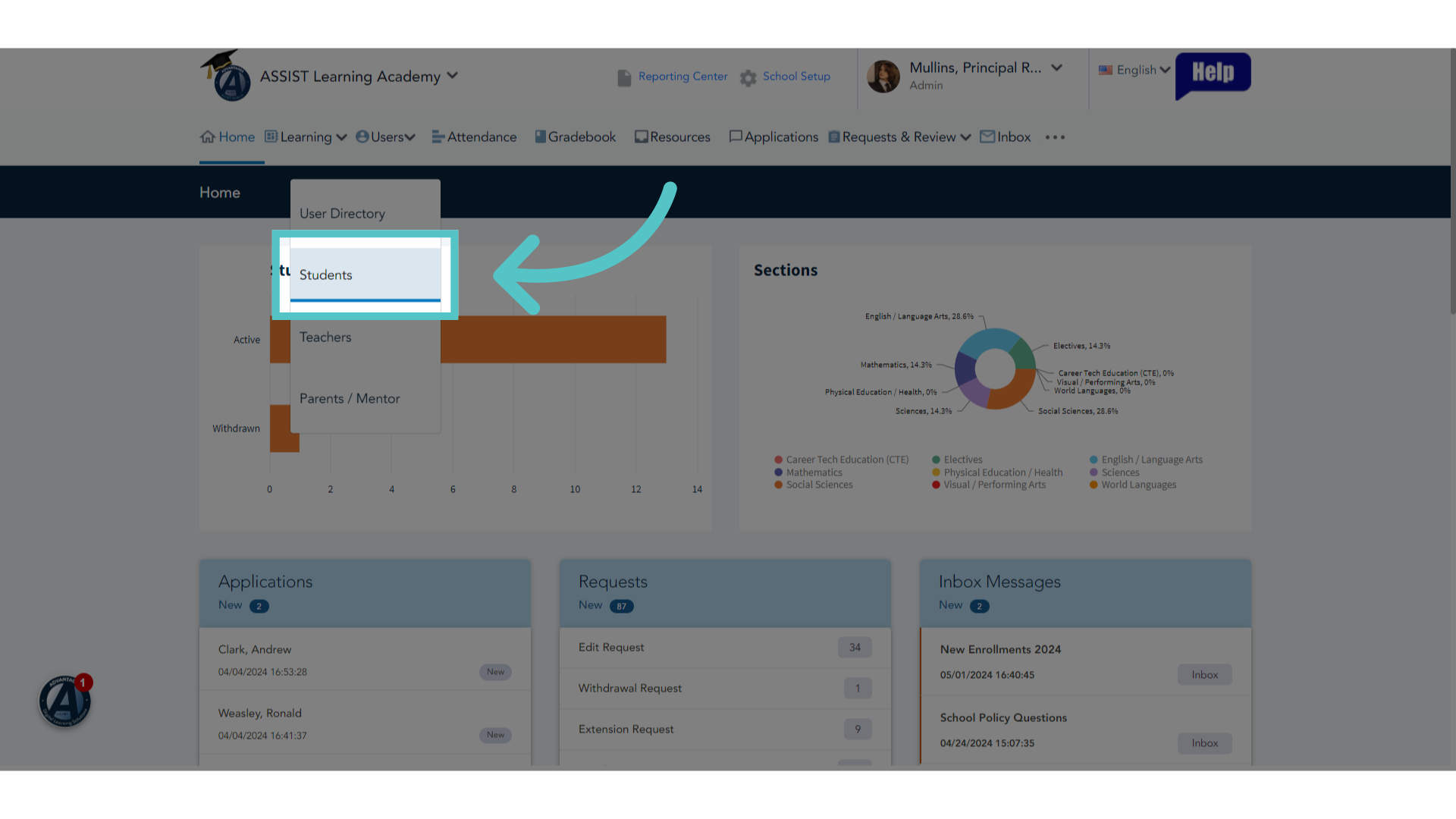
2. Click "Students"
Select the Students option.
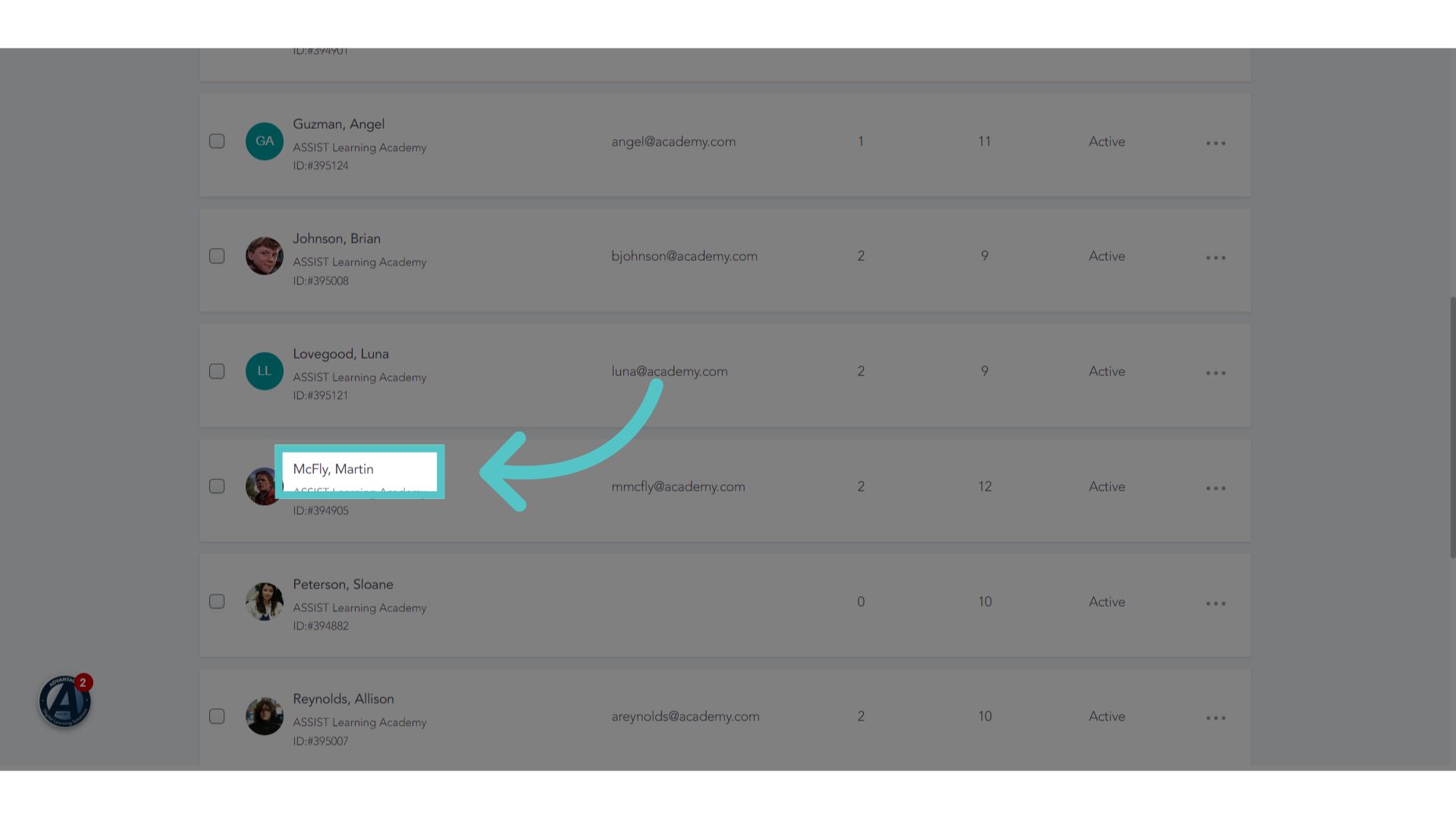
3. Click Student Name
Locate and click on the student name to open the student record.
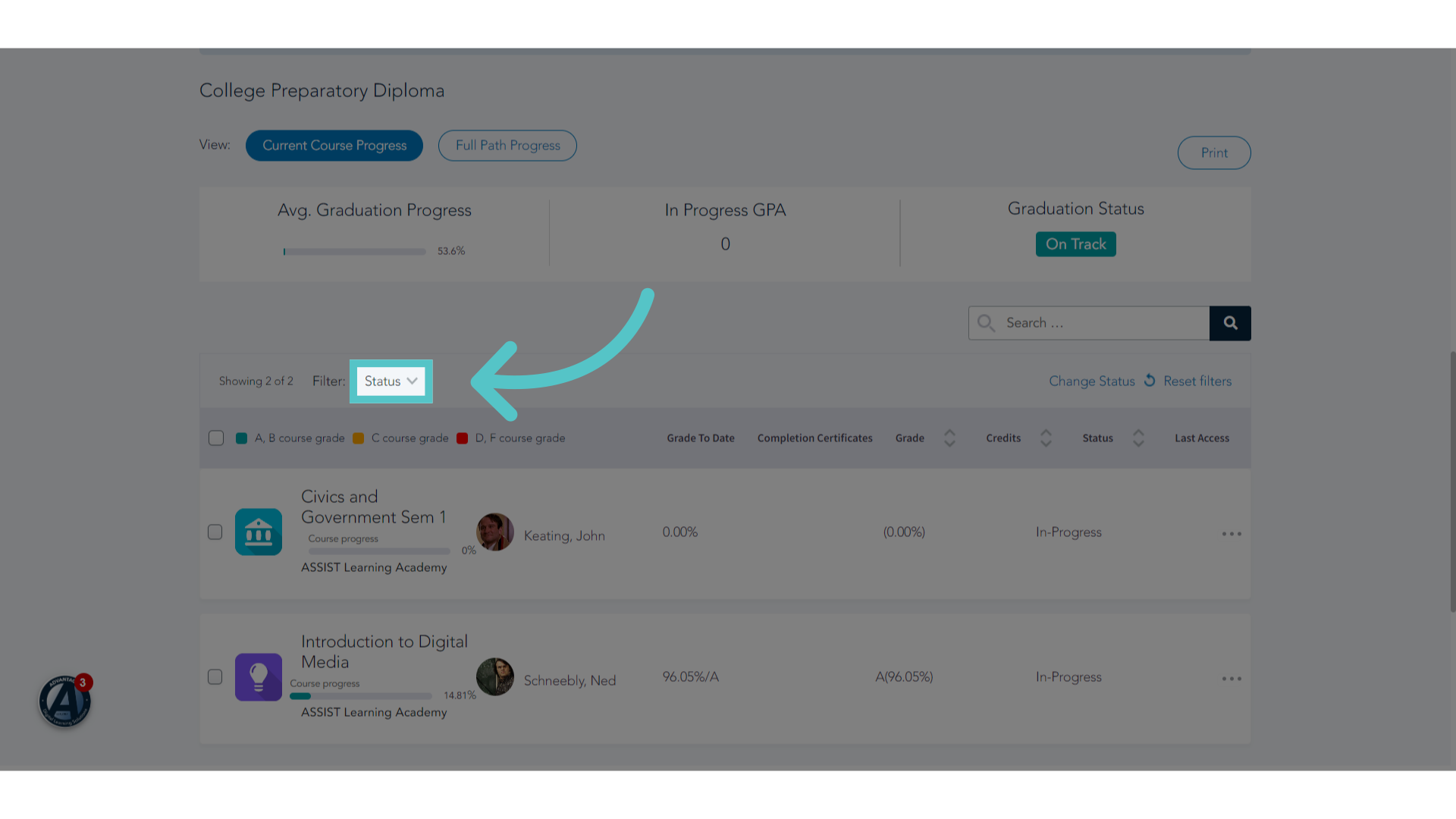
4. Click status menu
Proceed by clicking on the status dropdown menu located above the student's enrollments.
5. Click "Completed- This School"
Select the box for "completed-this school."
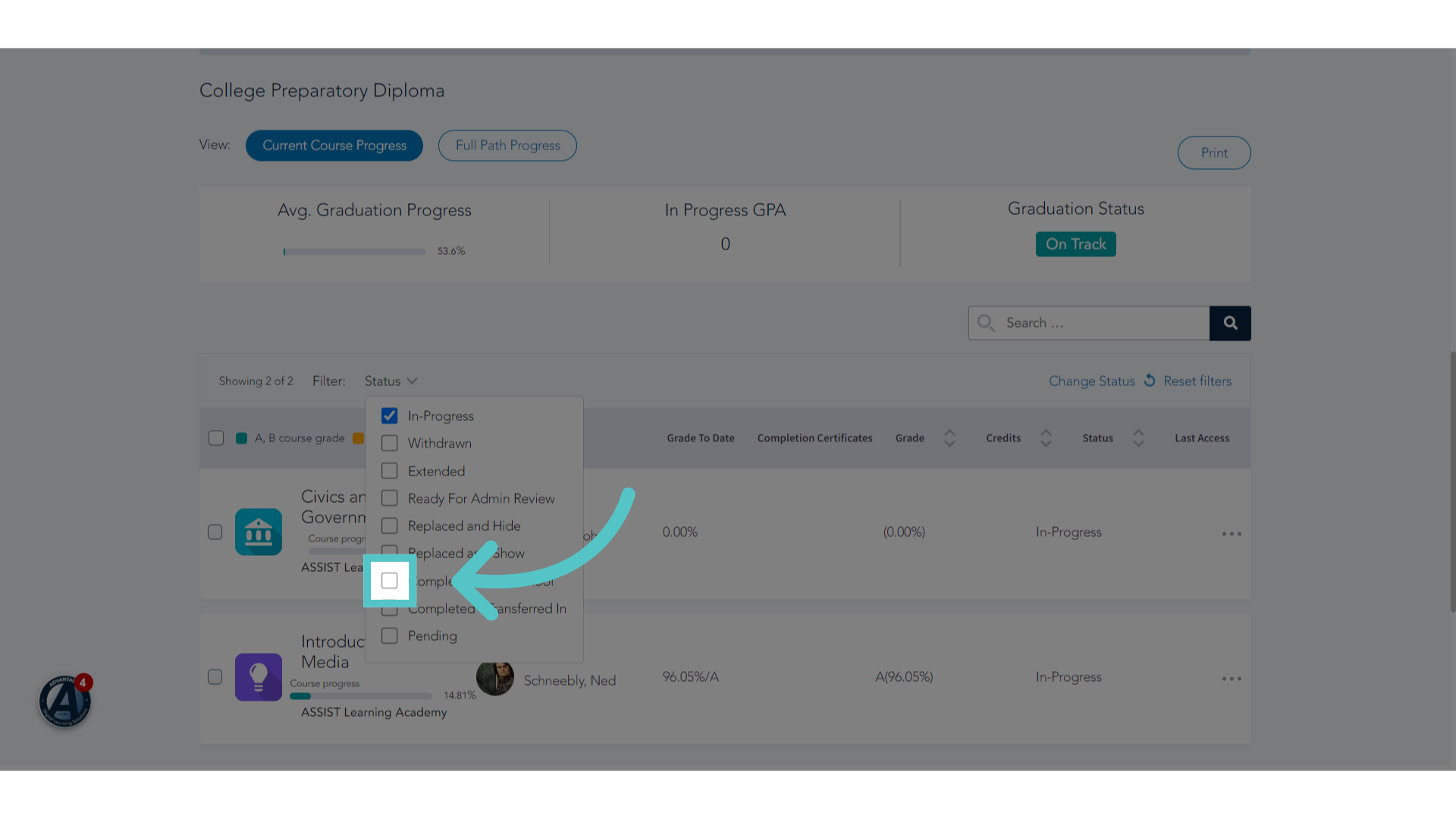
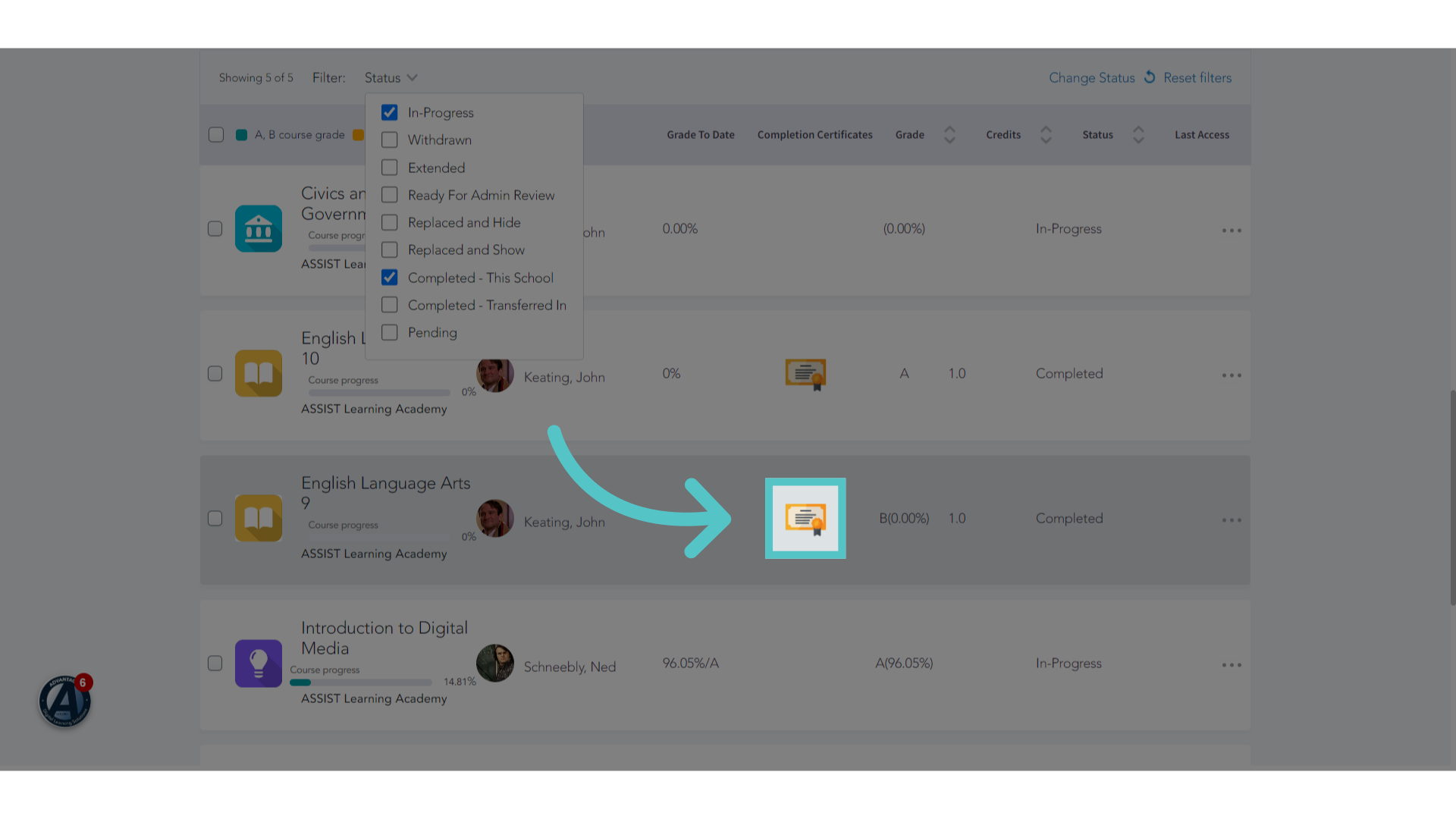
6. Click here
All completed courses will appear with a clickable icon for the completion certificate.
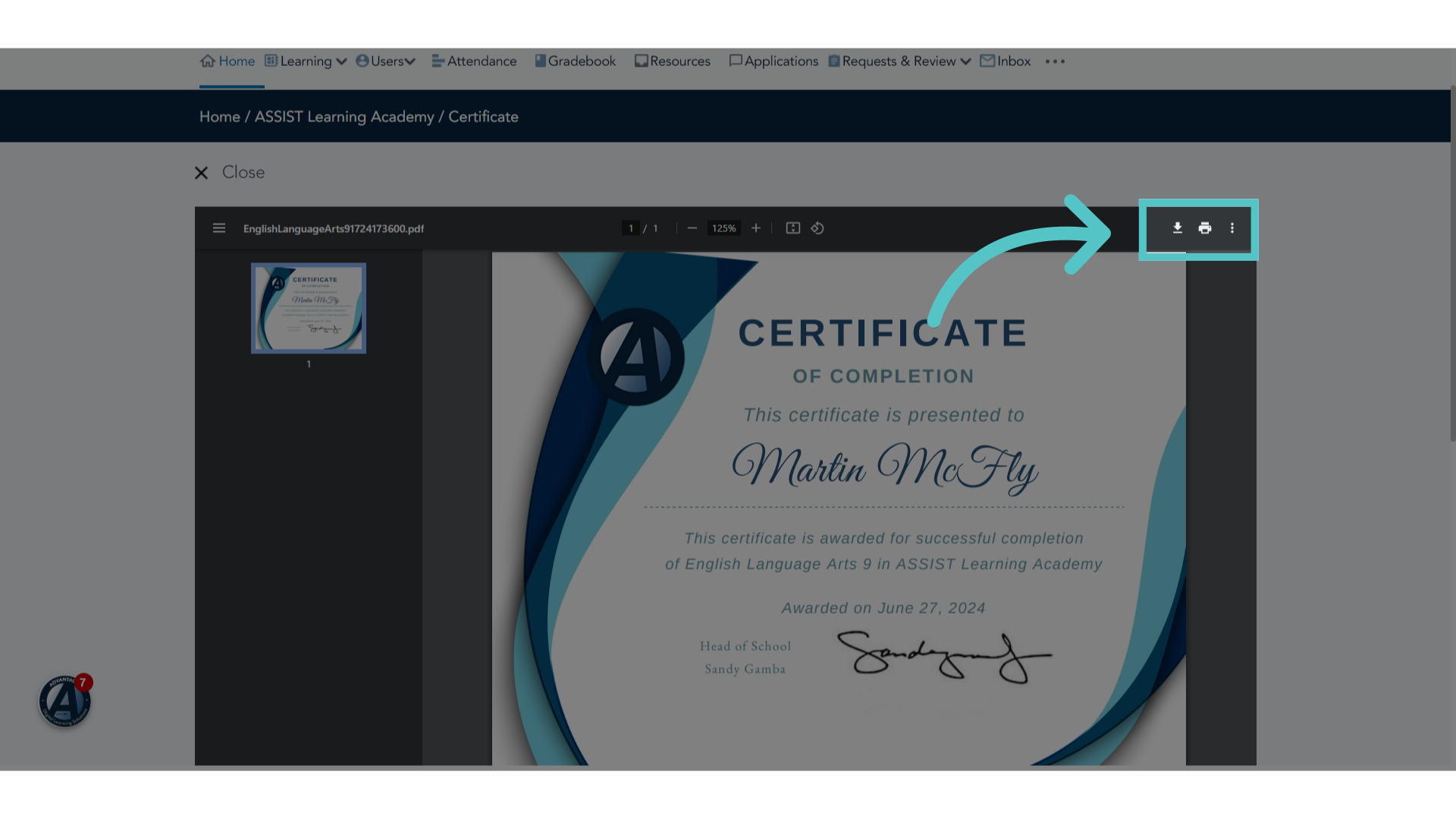
7. Download or Print
The document can be downloaded or printed.
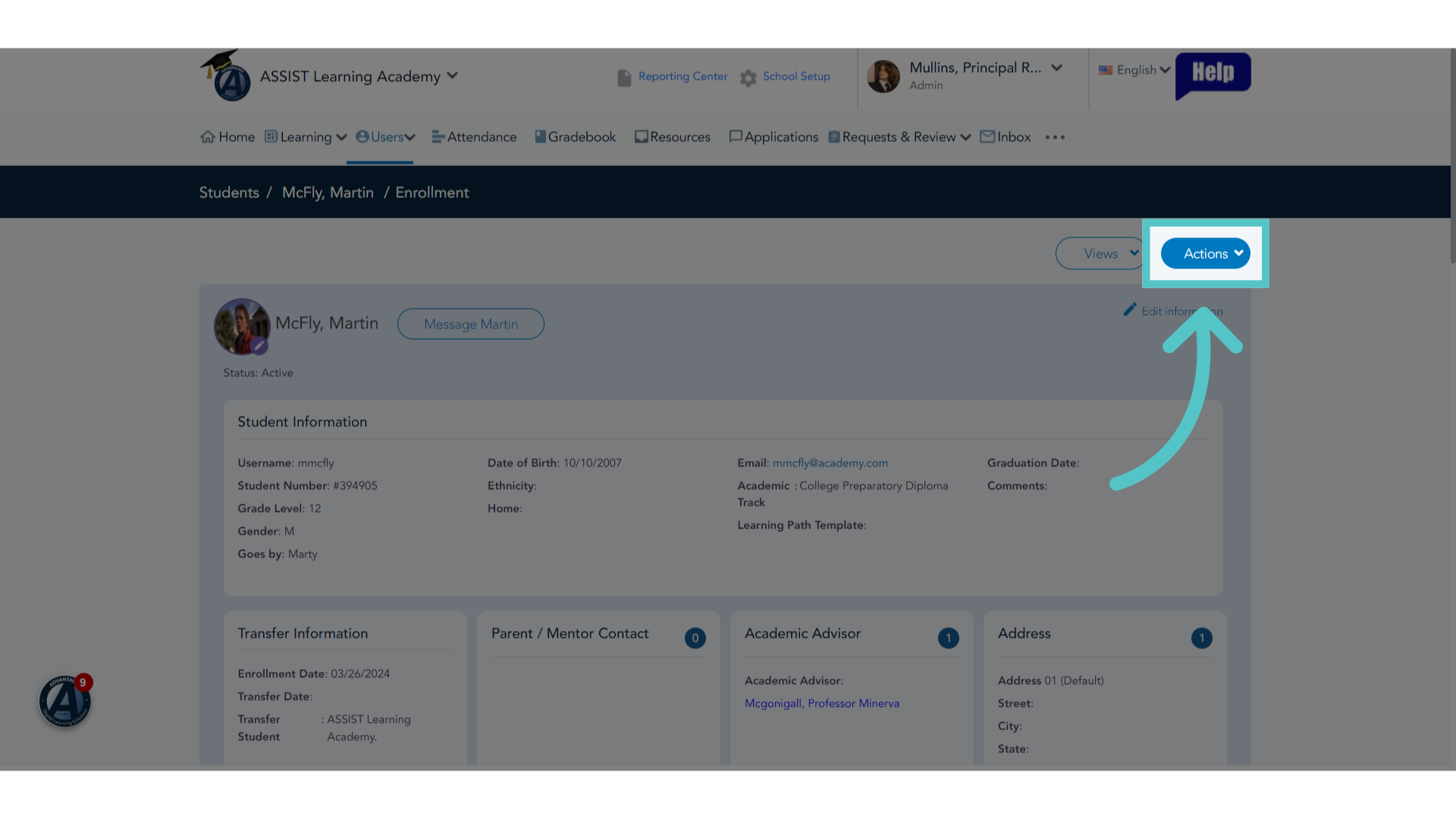
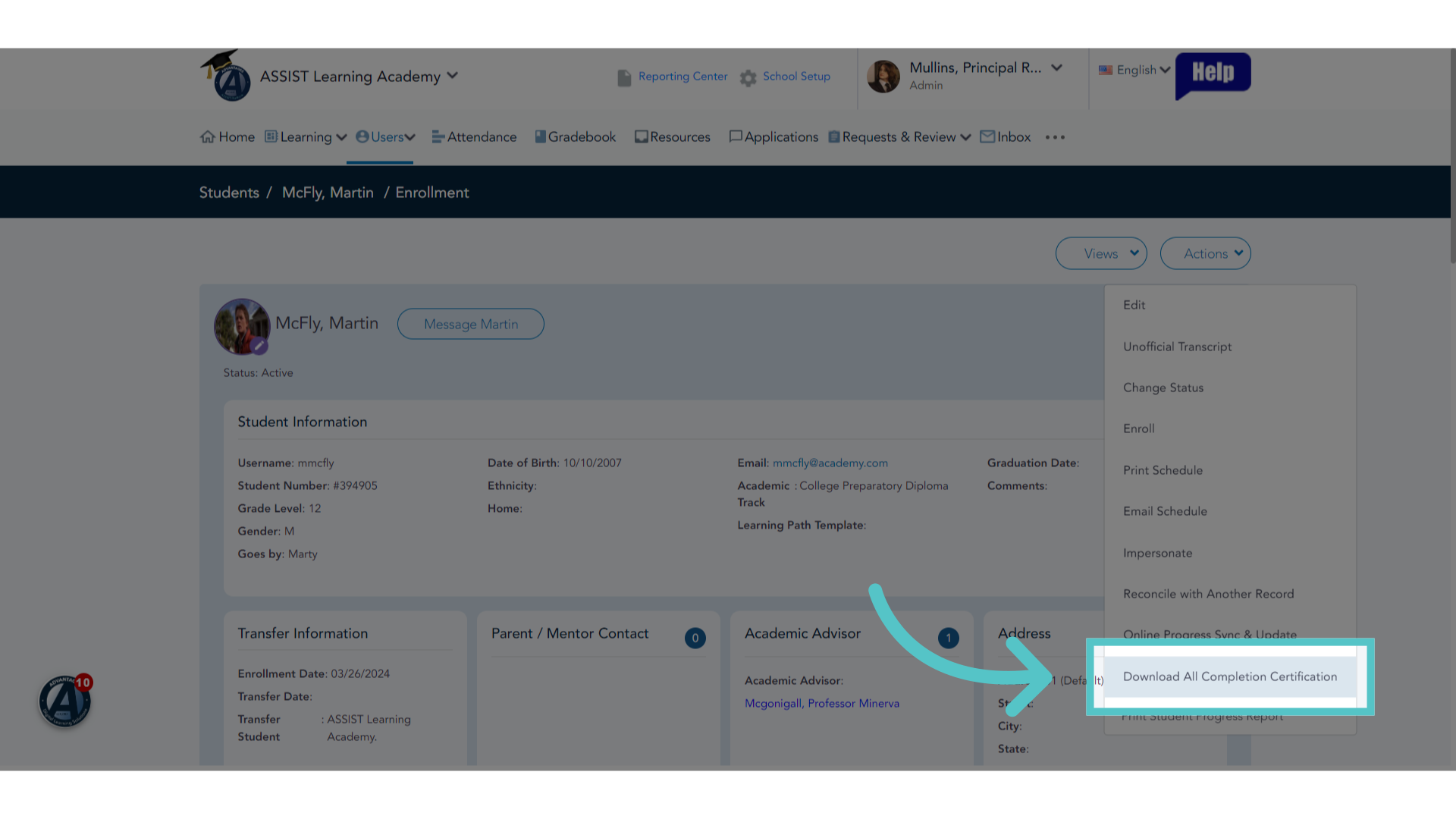
8. Click "Actions"
All Completion certificates can be downloaded at once from the student page. Navigate to the Actions menu.
9. Click "Download All Completion Certification"
Select the option to download all completion certificates.
If you have any questions about the information in this tutorial, please click "Contact Support" to submit a help request.
Contact Support