Expand to Full Screen for Best Viewing
Course credit values can be adjusted for students earning partial credit in a course.
Go to portal.adlsassist.com
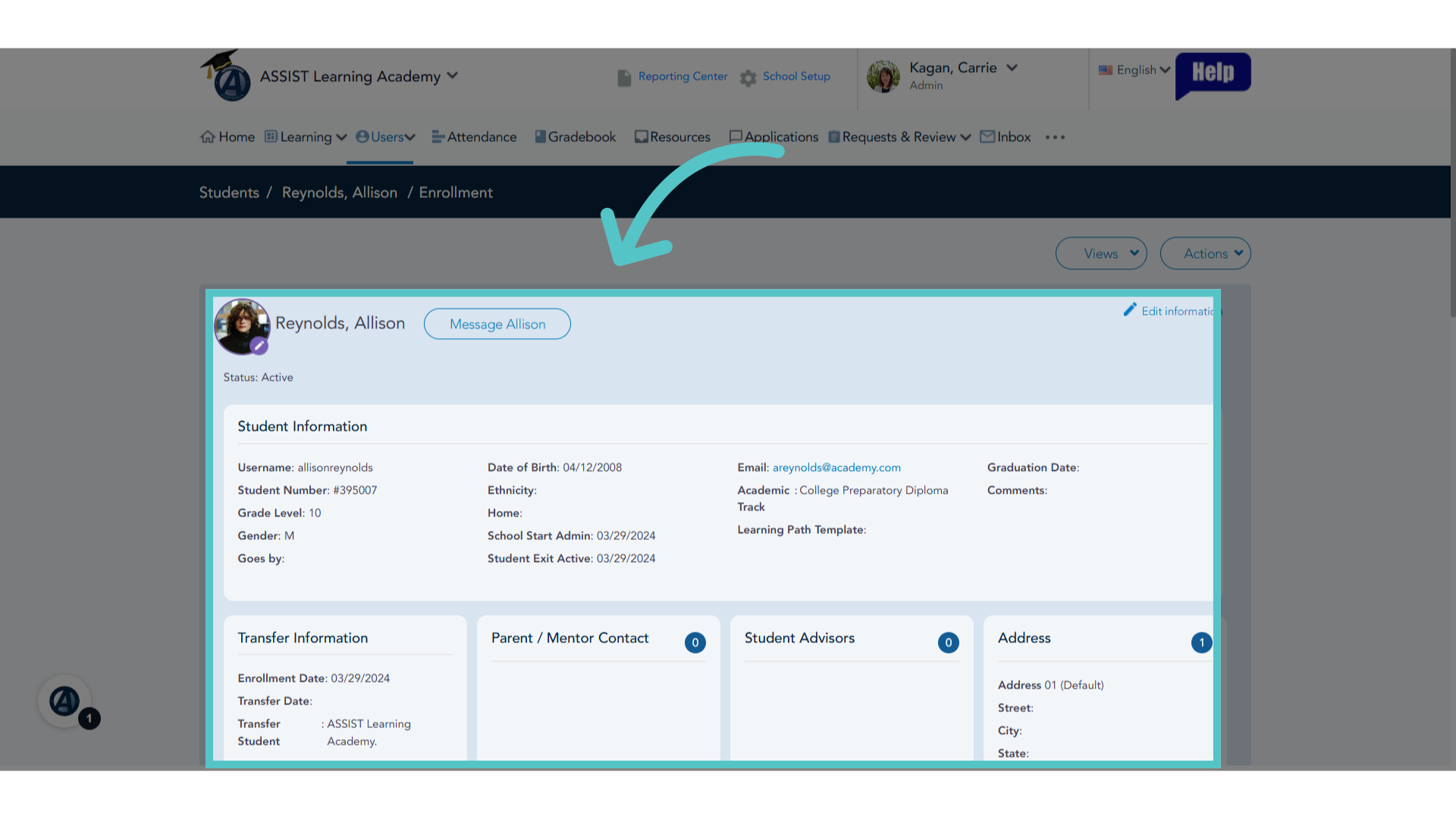
1. Student Page
Open the Student Page in ASSIST.
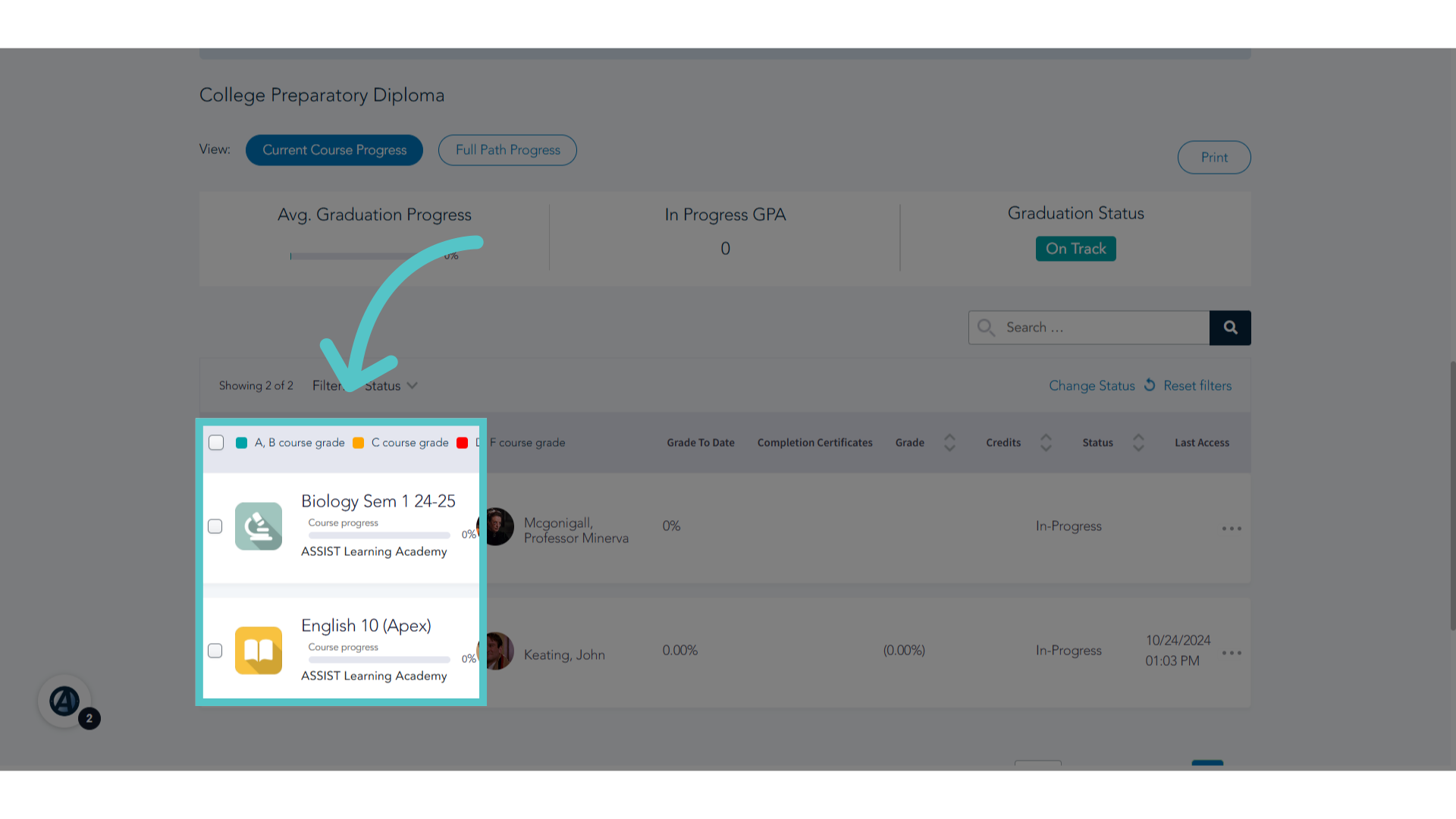
2. Enrollments
Scroll to the bottom of the student page to see the student's course enrollments.
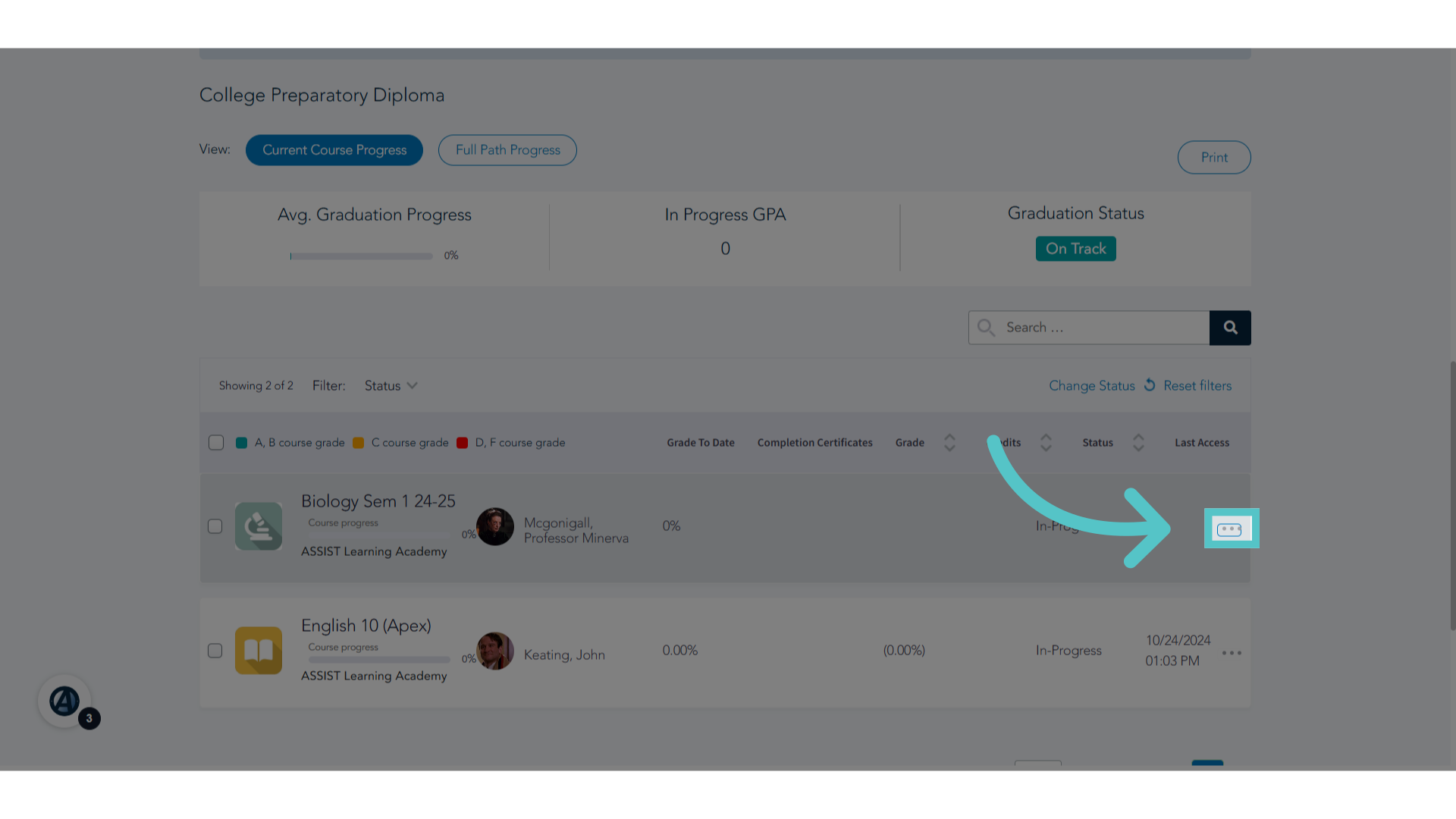
3. Three Dots
Click the three dots to the far right of the course to be edited.
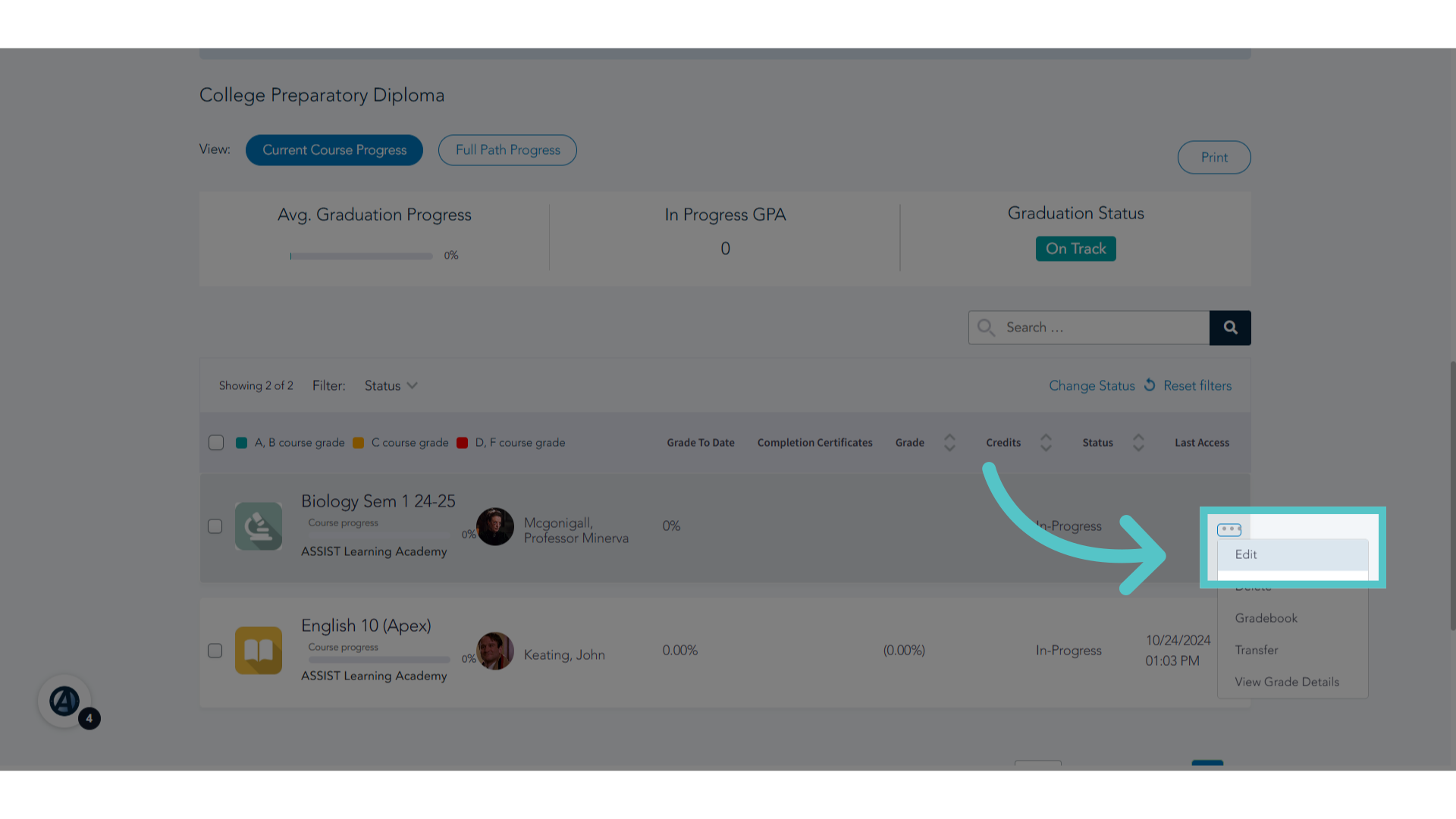
4. Click "Edit"
Select "Edit" from the dropdown menu.
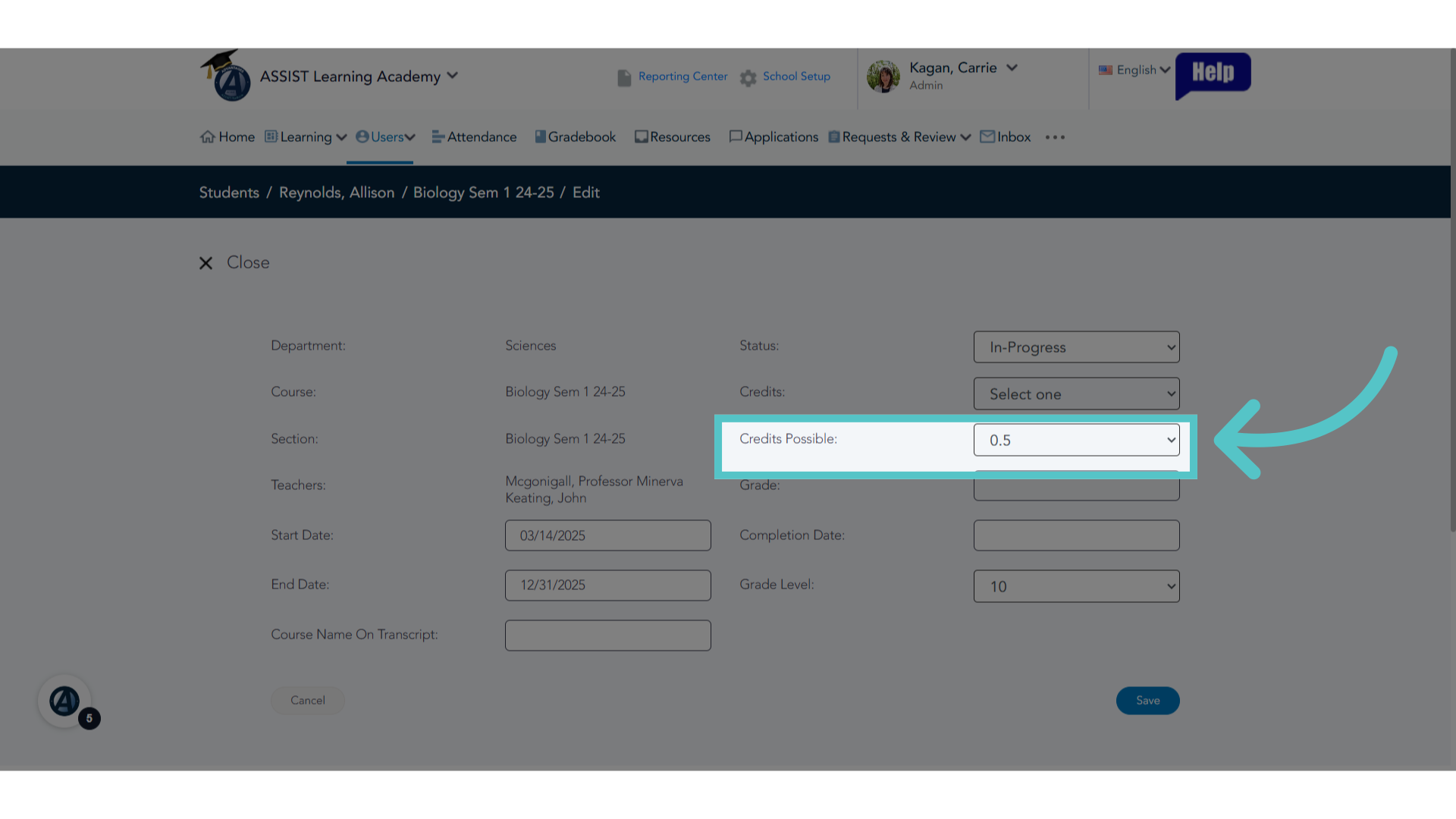
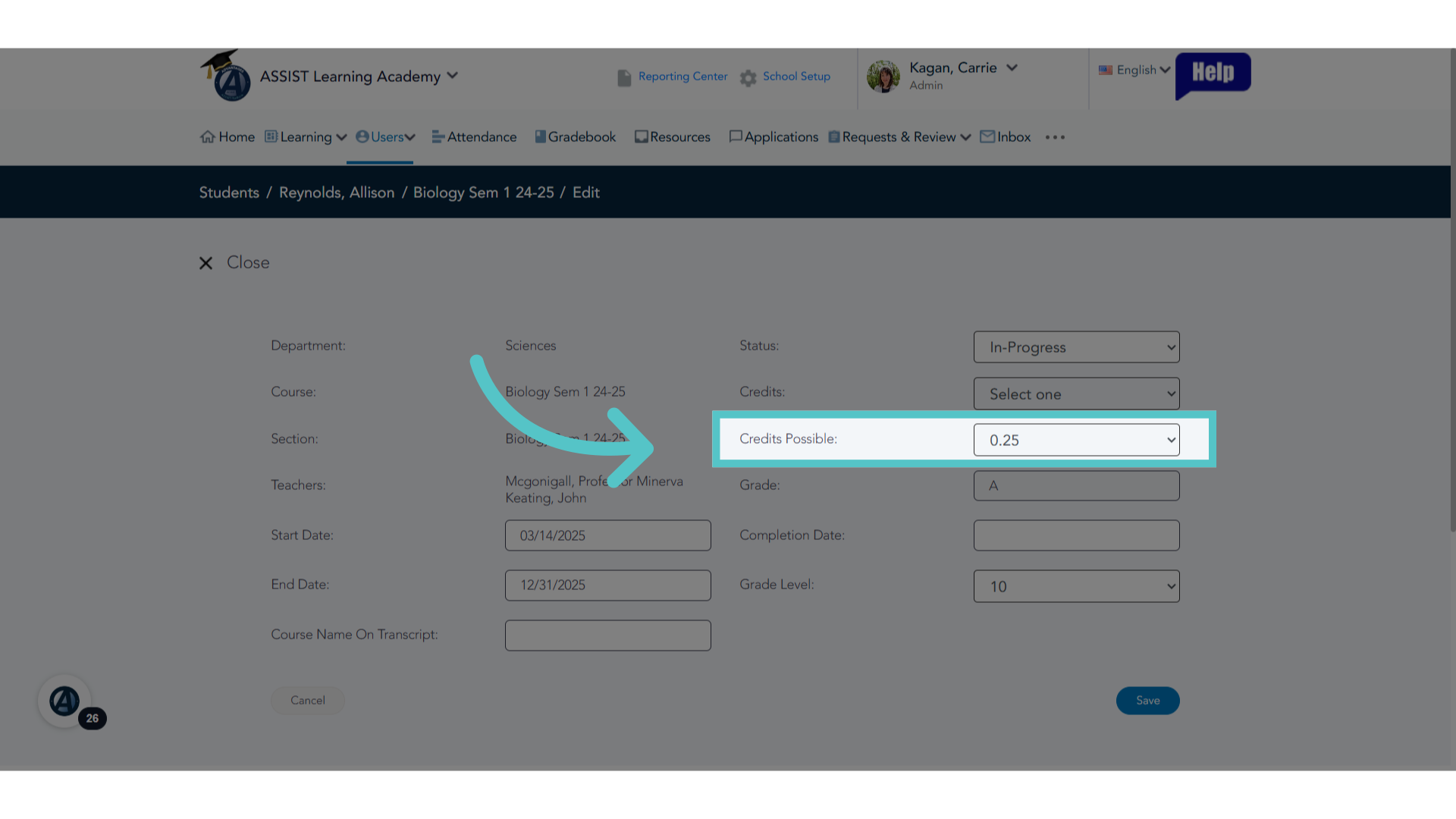
5. Credits Possible
Details for the student enrollment will appear; however, not all fields can be changed. The "Credits Possible" field canot be edited for an "in Progress" Course.
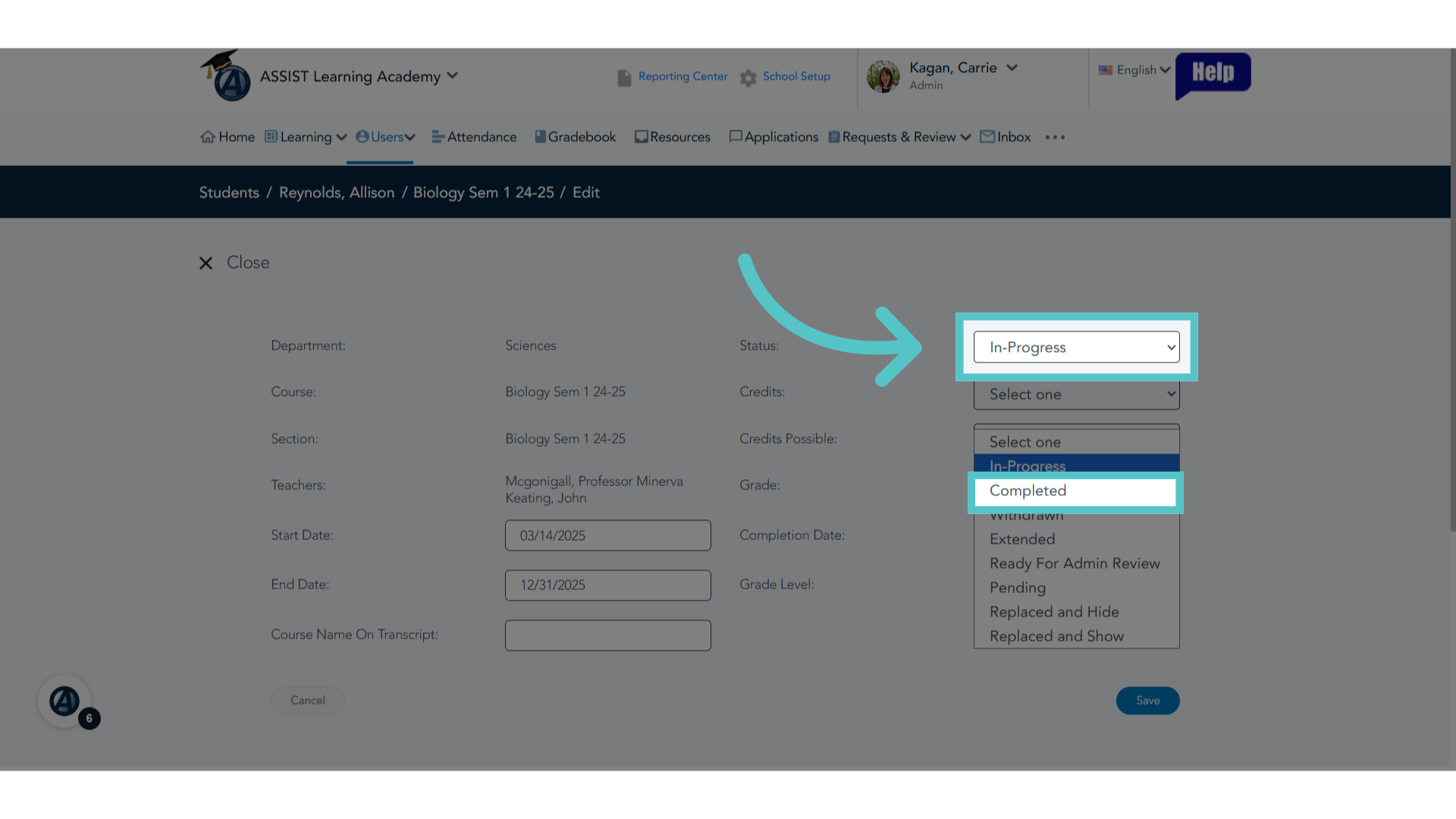
6. Change Status
Change the Enrollment Status to "Completed."
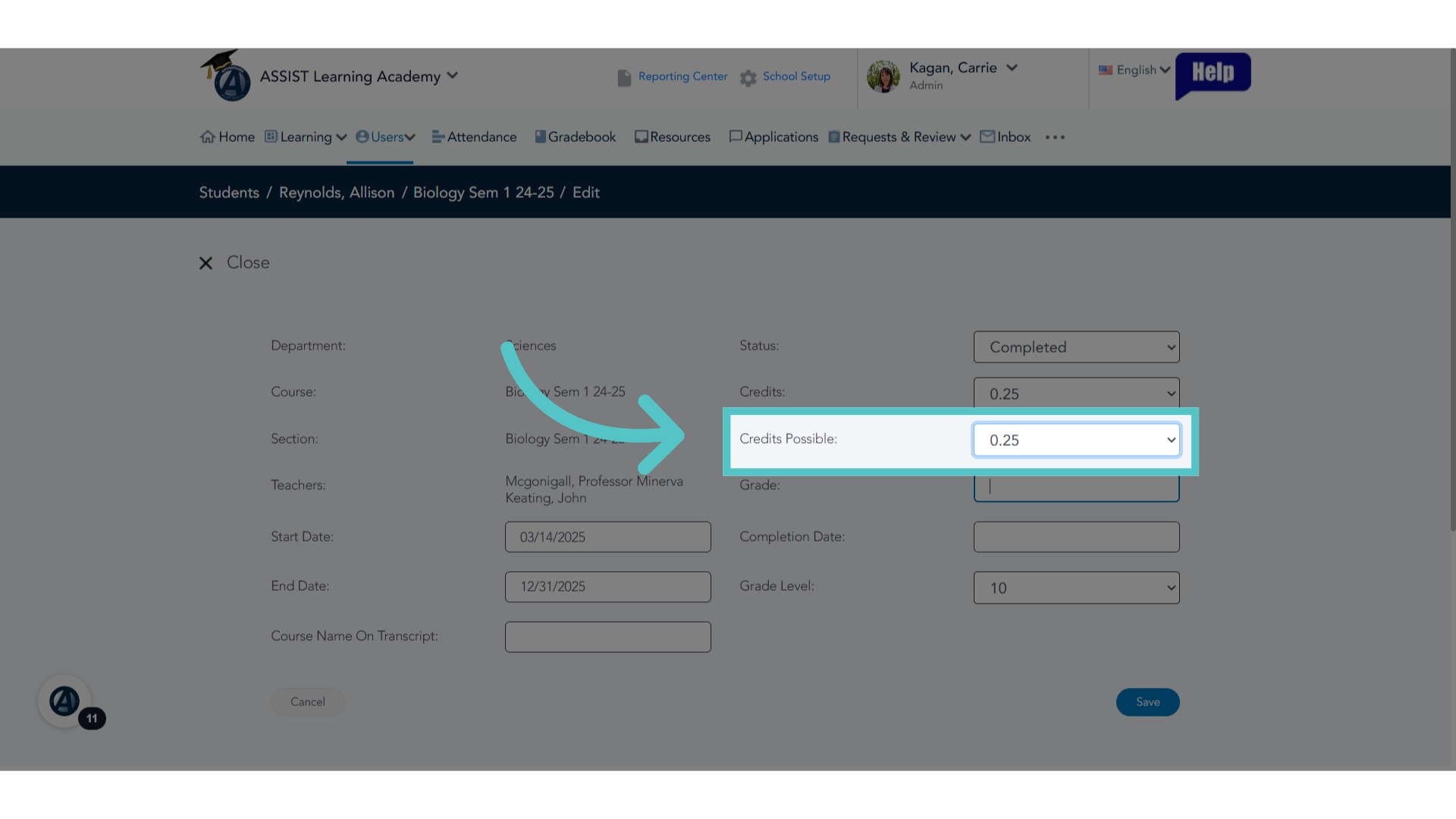
7. Credits Possible
The "Credits Possible" field can now be changed. Set the credit value that the student will be earning for this enrollment.
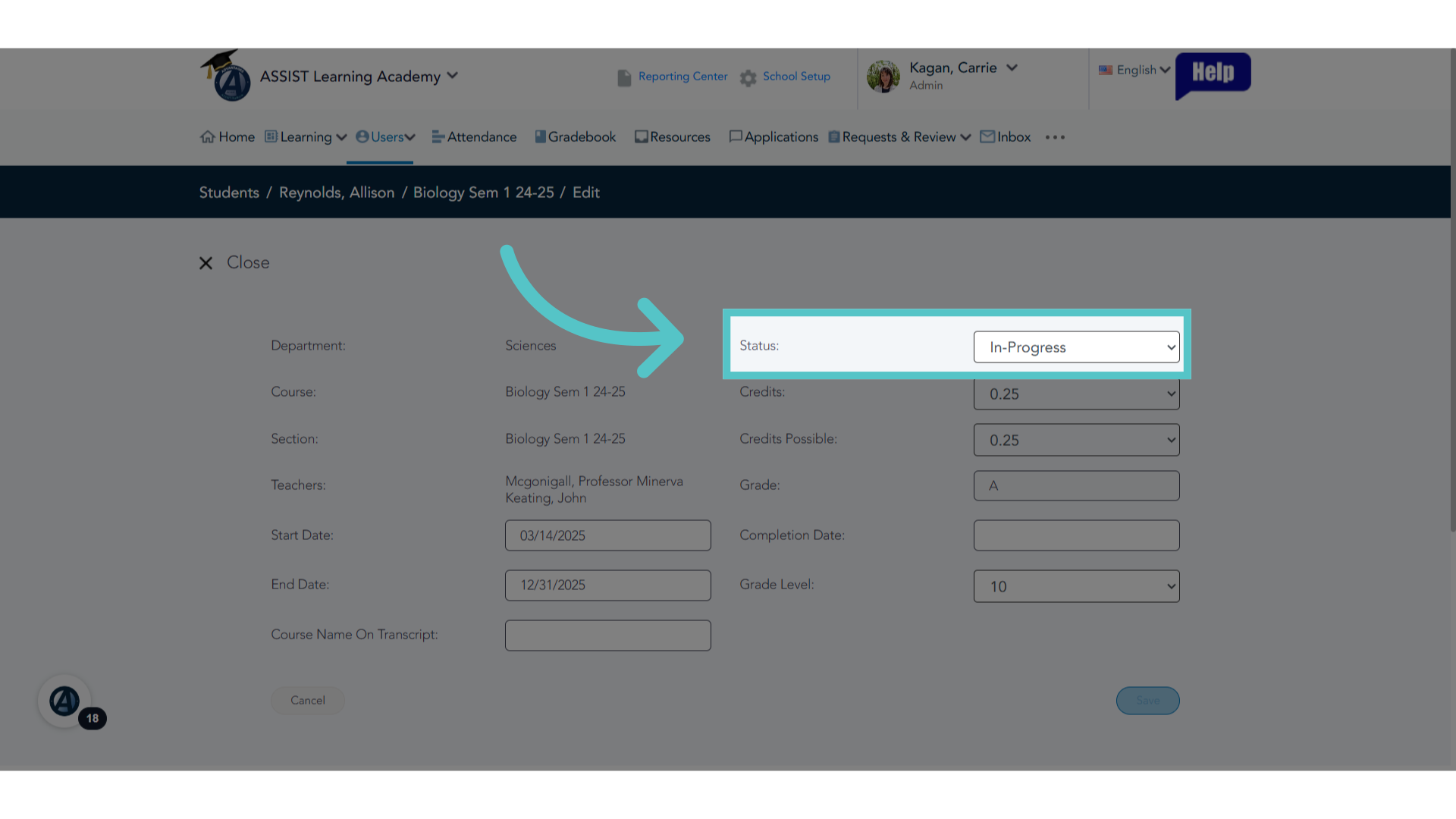
8. Edit Status
Now that the credit values have been changed, edit the status back to "In-Progress."
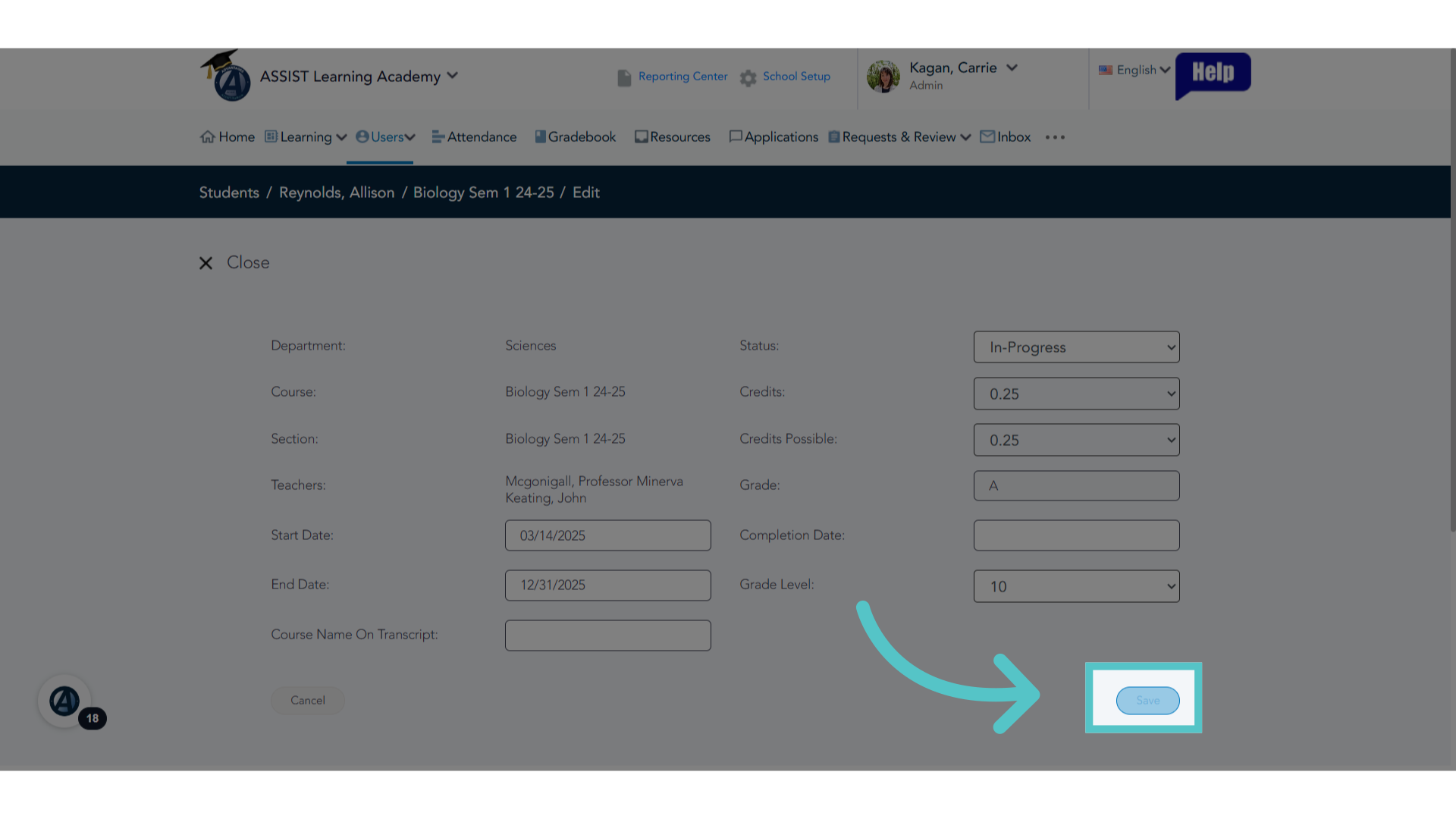
9. Save
Now, save the changes.
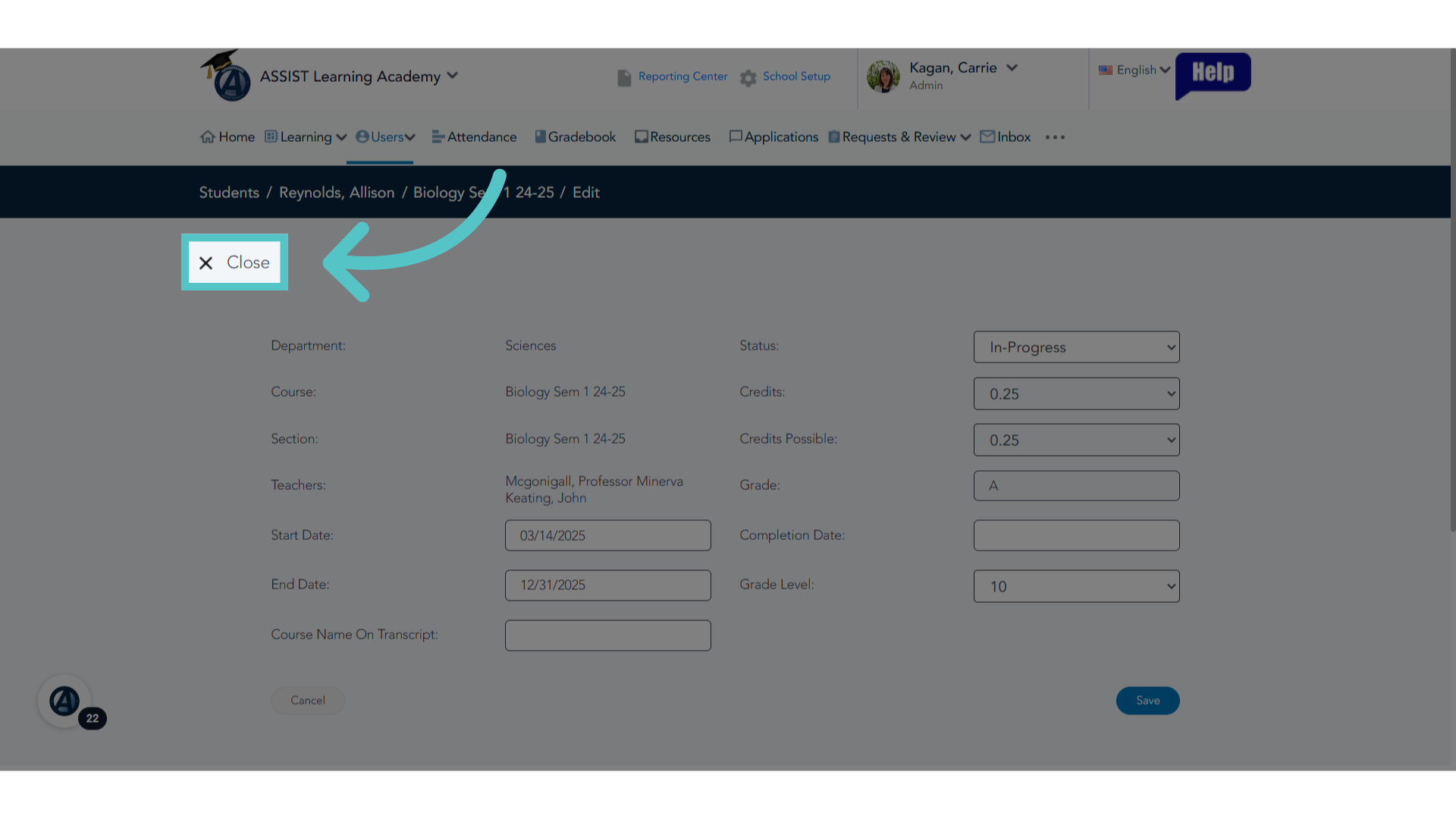
10. Click "Close"
Close the editing window.
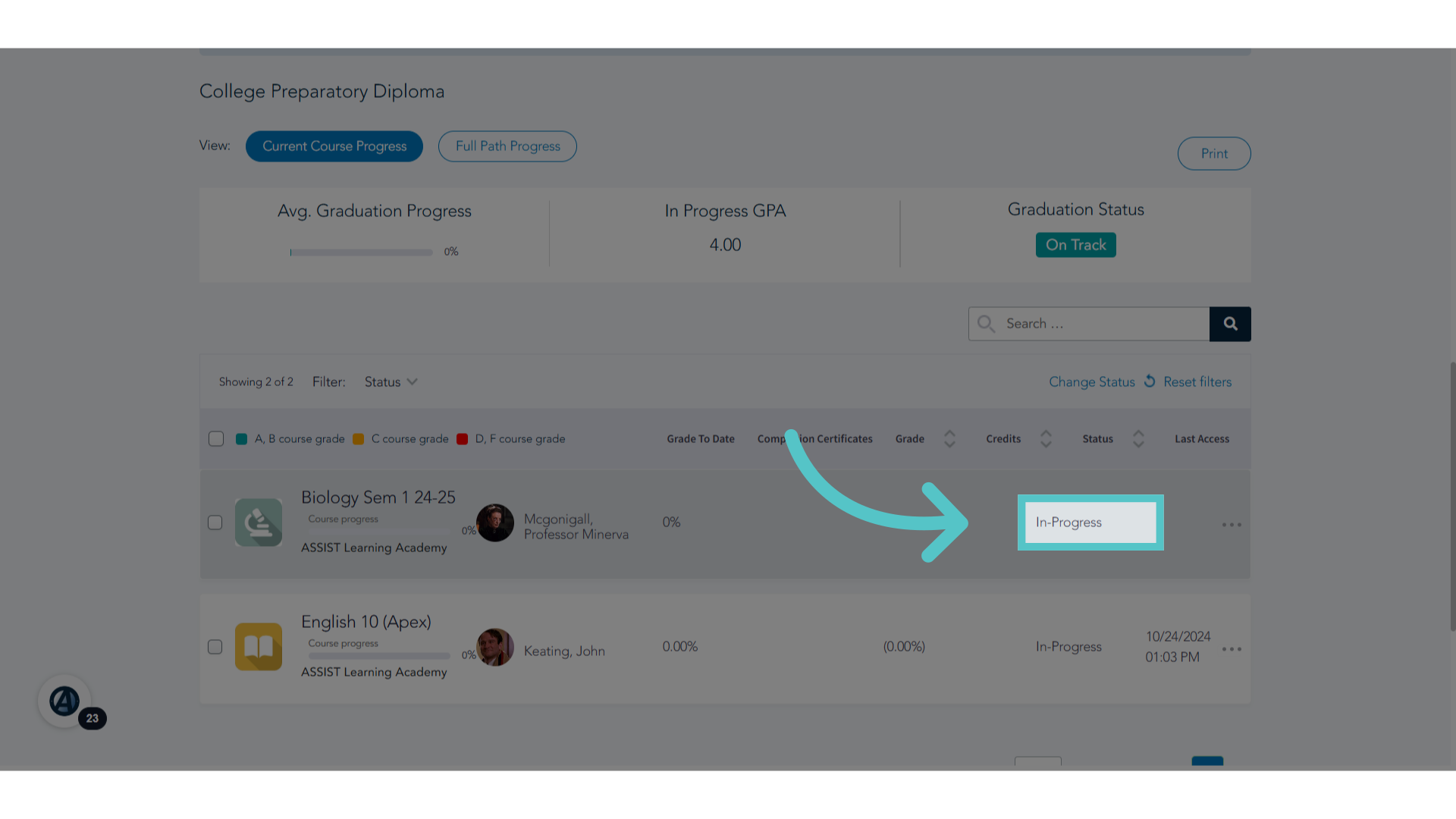
11. In-Progress
The enrollment should still show as "in Progress."
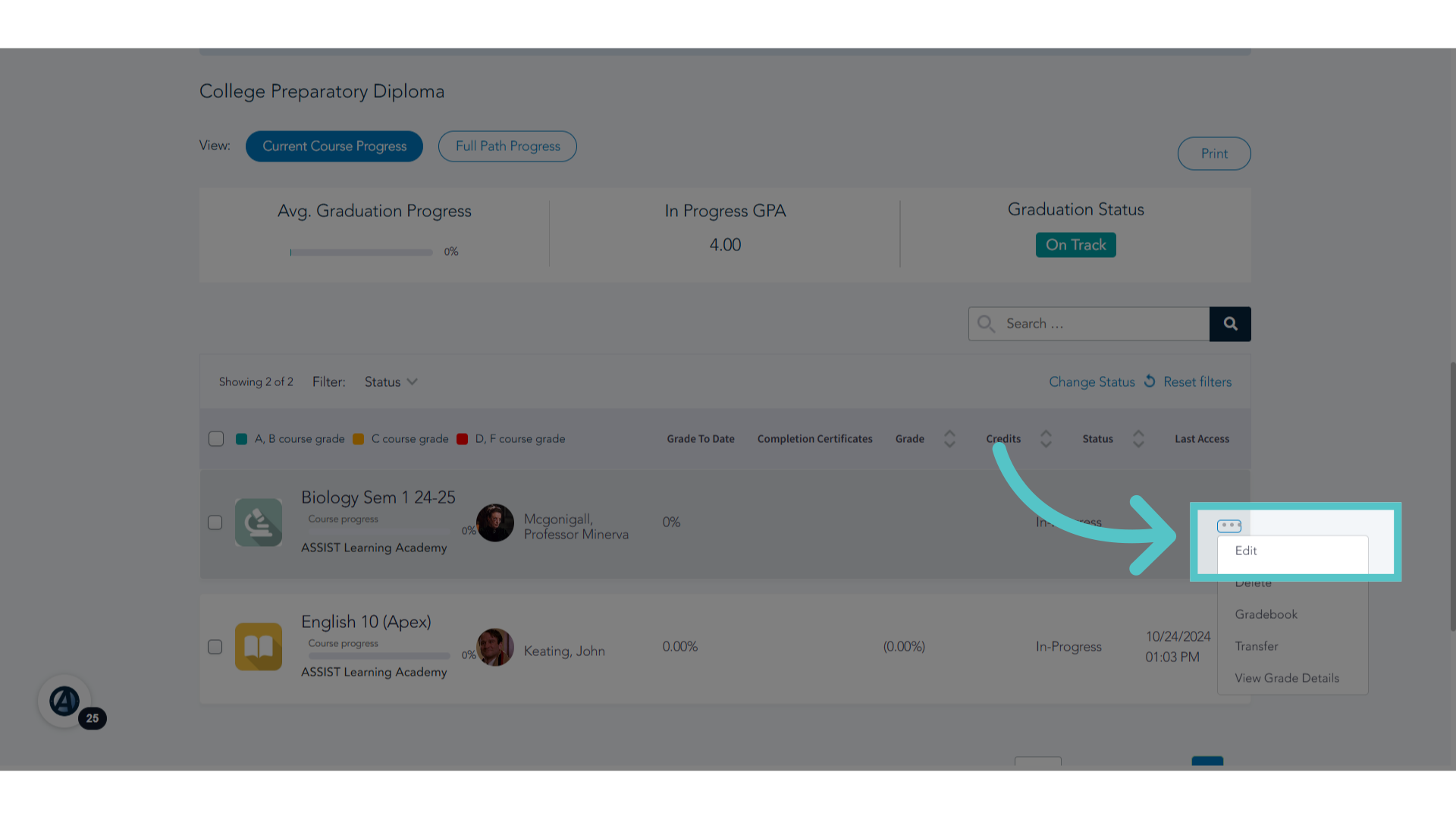
12. Edit
Return to the Edit screen to confirm the credit value change.
13. Credits Possible
The new "Credits Possible" value has been saved.
14. Use Registrar Notes Flag
All course credit value adjustments must be documented for our Registrar. Add this adjustment as a comment to the student's Comments and Documents file. Be sure to add the Registrar Notes flag. Click below to view the guide for this process. Learn more

If you have any questions about the information in this tutorial, please click "Contact Support" to submit a help request. Contact Support