Expand to Full Screen for Best Viewing
This guide will walk you through the process of entering experiential credit for students in ASSIST.
Go to portal.adlsassist.com
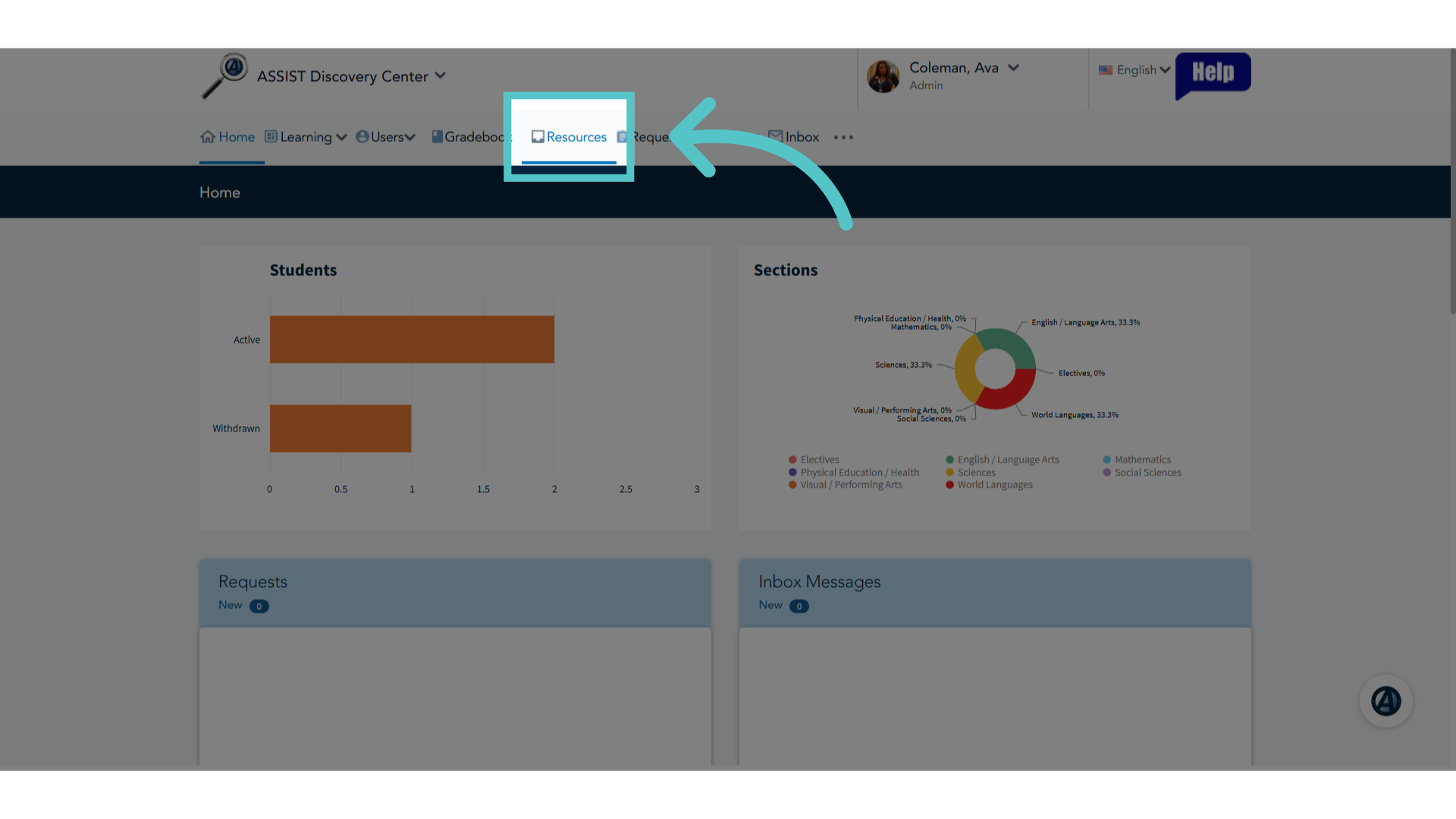
1. Click "Resources"
To access the Activity Log form for Experiential Credit documentation, click the Resources Tab.
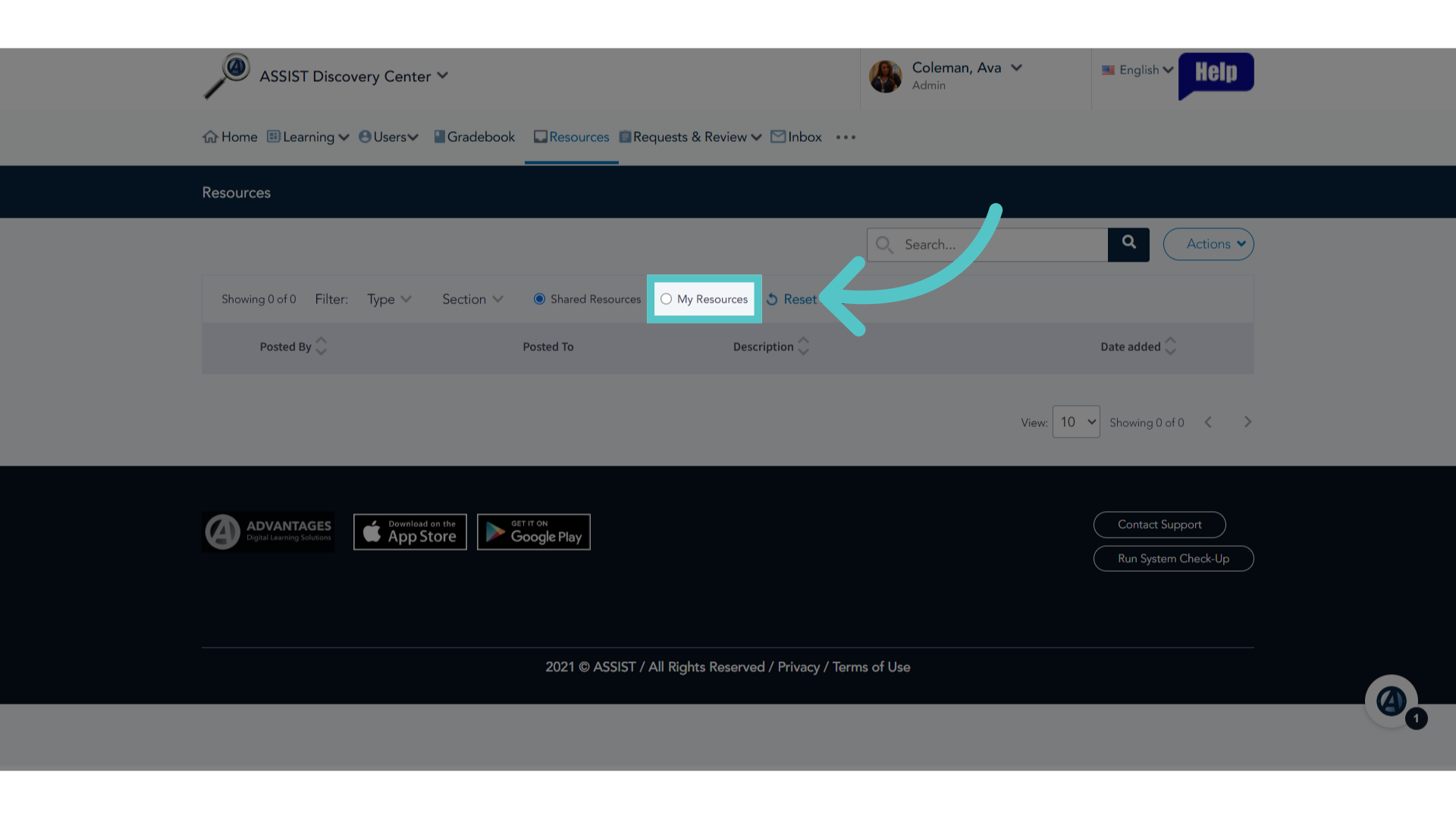
2. Click "My Resources"
Navigate to My Resources.
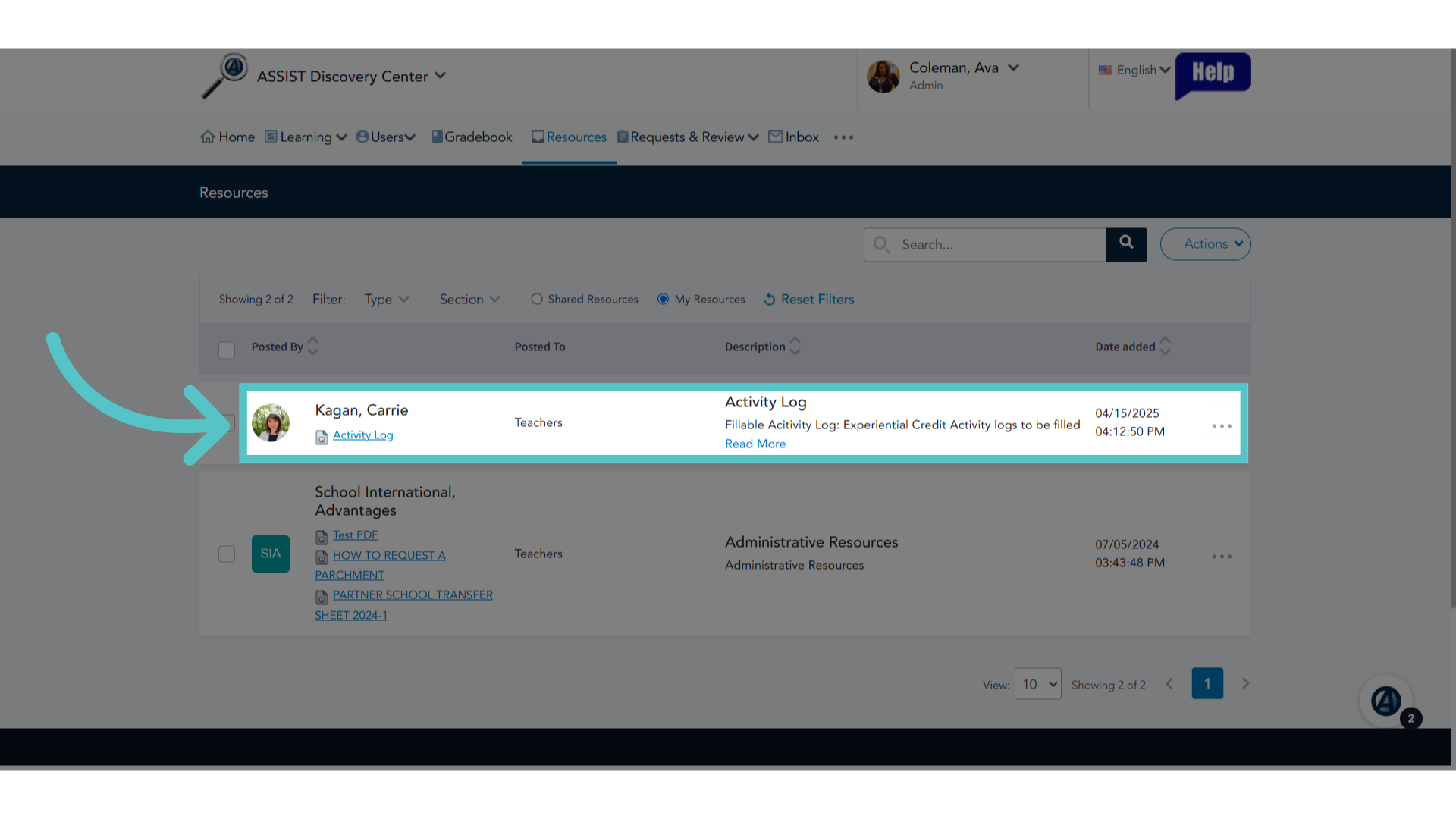
3. Open Activity Log pdf
Select the downloadable Activity Log posted by ADVANTAGES.
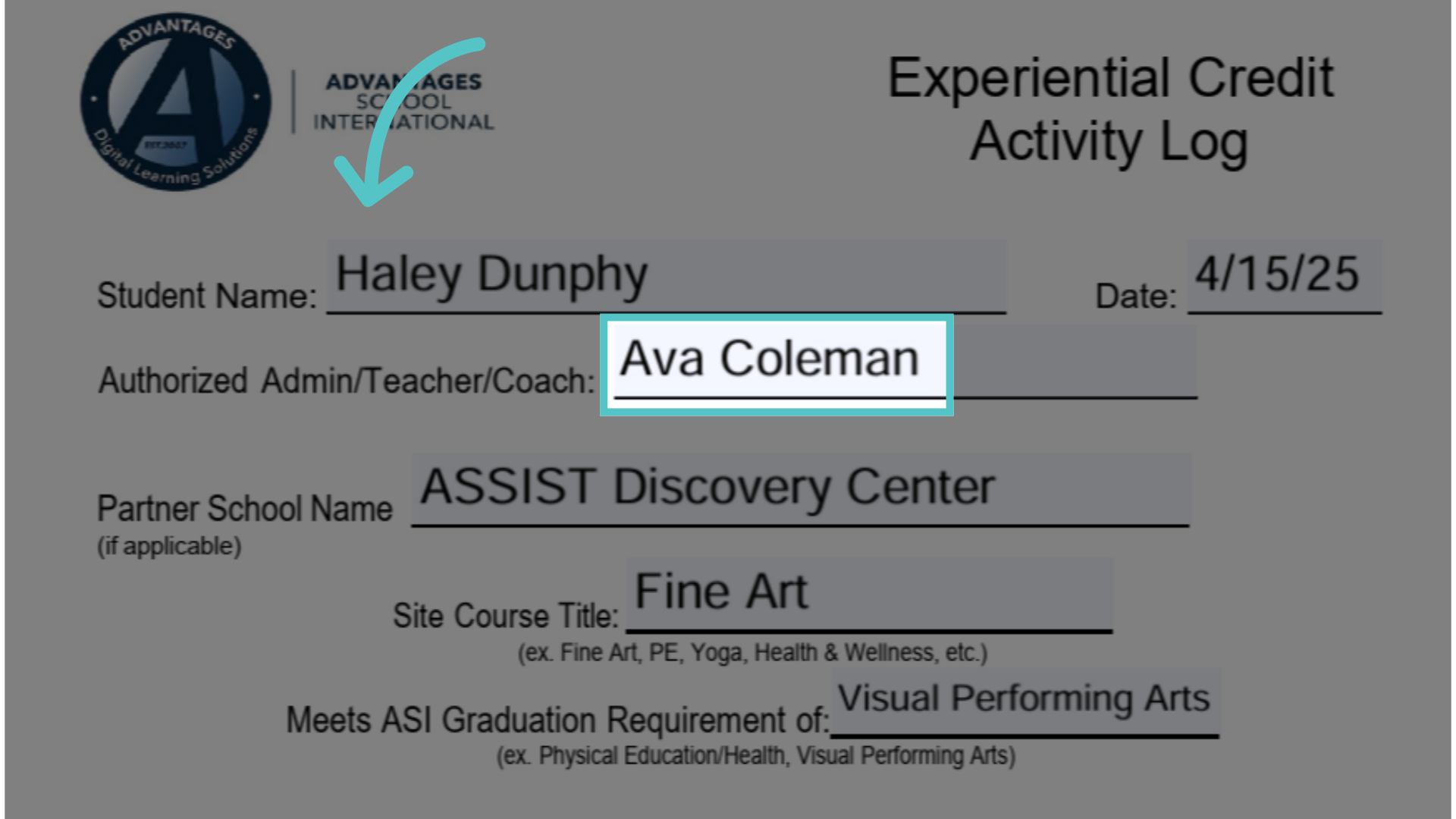
4. Enter Information
Complete each field on the log form with the appropriate information. The Authorized name is the administrator or teacher at the school.
5. Log Data
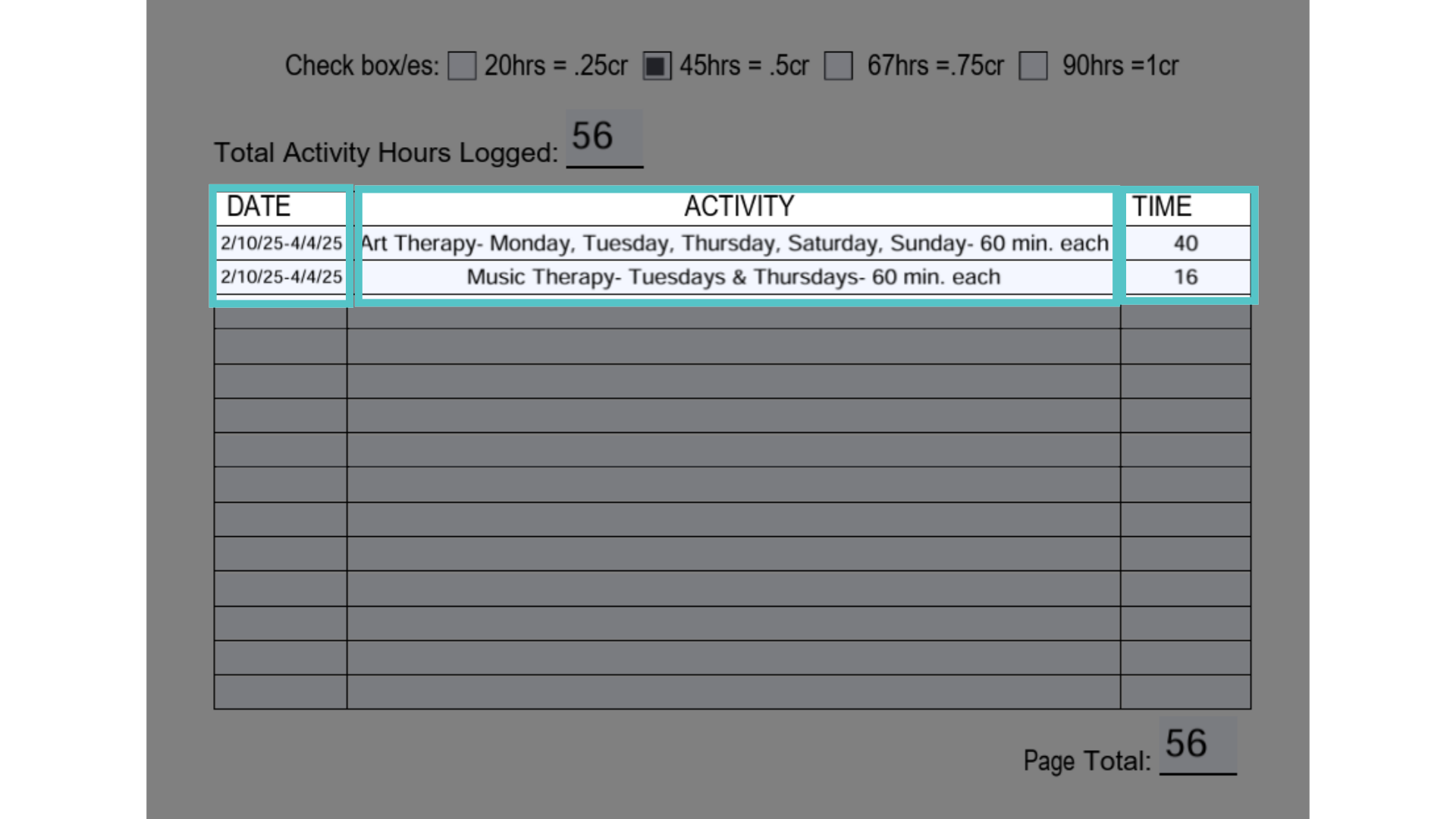
Enter the activity information into the log. For recurring activities, dates can be listed as a range. Note the activity, its frequency, and duration on the activity line. List the total time for each activity, in hours, in the time column.
6. Total Credit
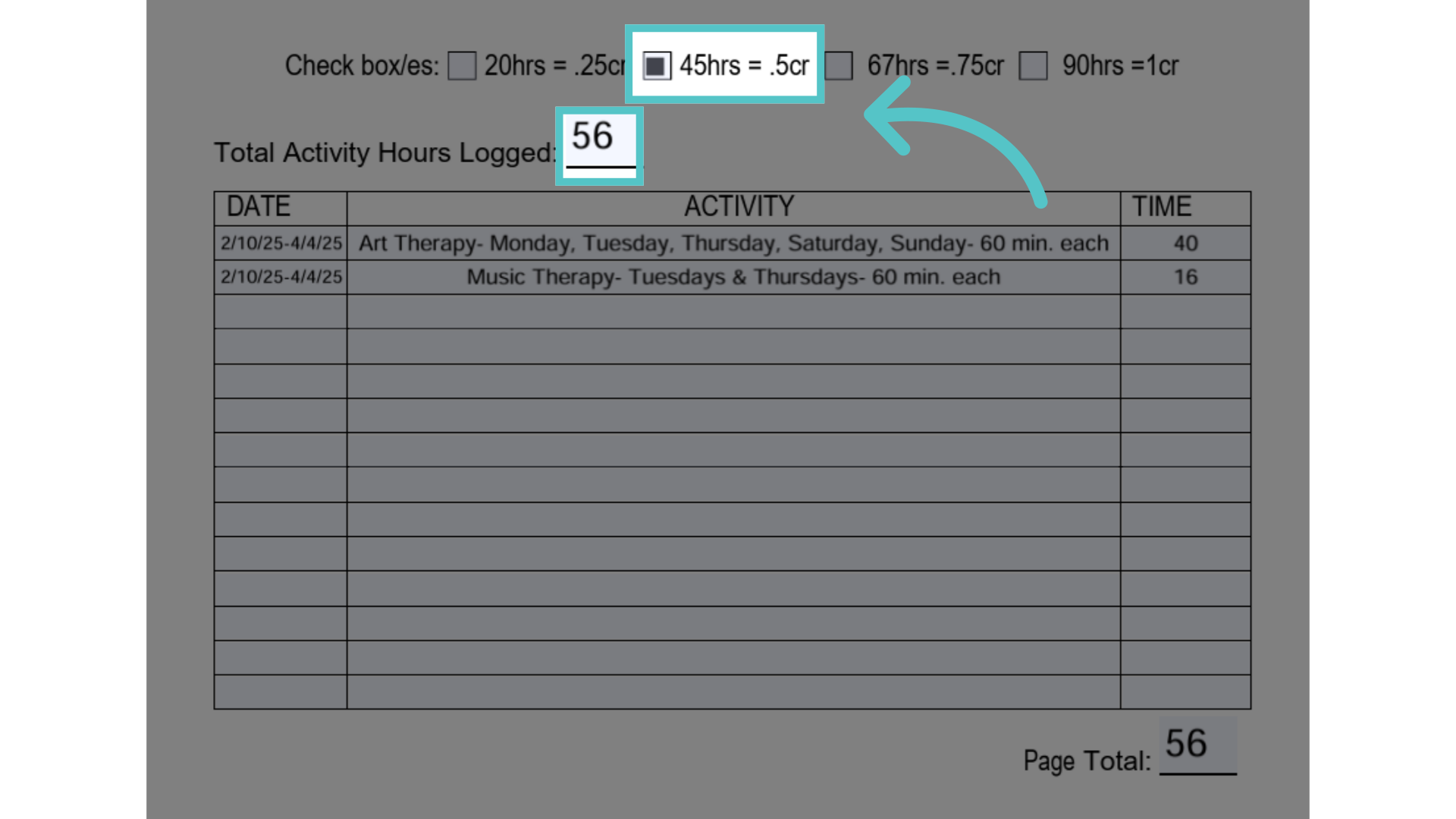
Determine the total number of hours for earned experiential credit. Check the box for the earned credit value. Students must meet the minumum hours listed for the credit value. We cannot round up for experiential credit. For example, 44.5 hours would be .25 credit, not a half credit.
7. Click "Users"
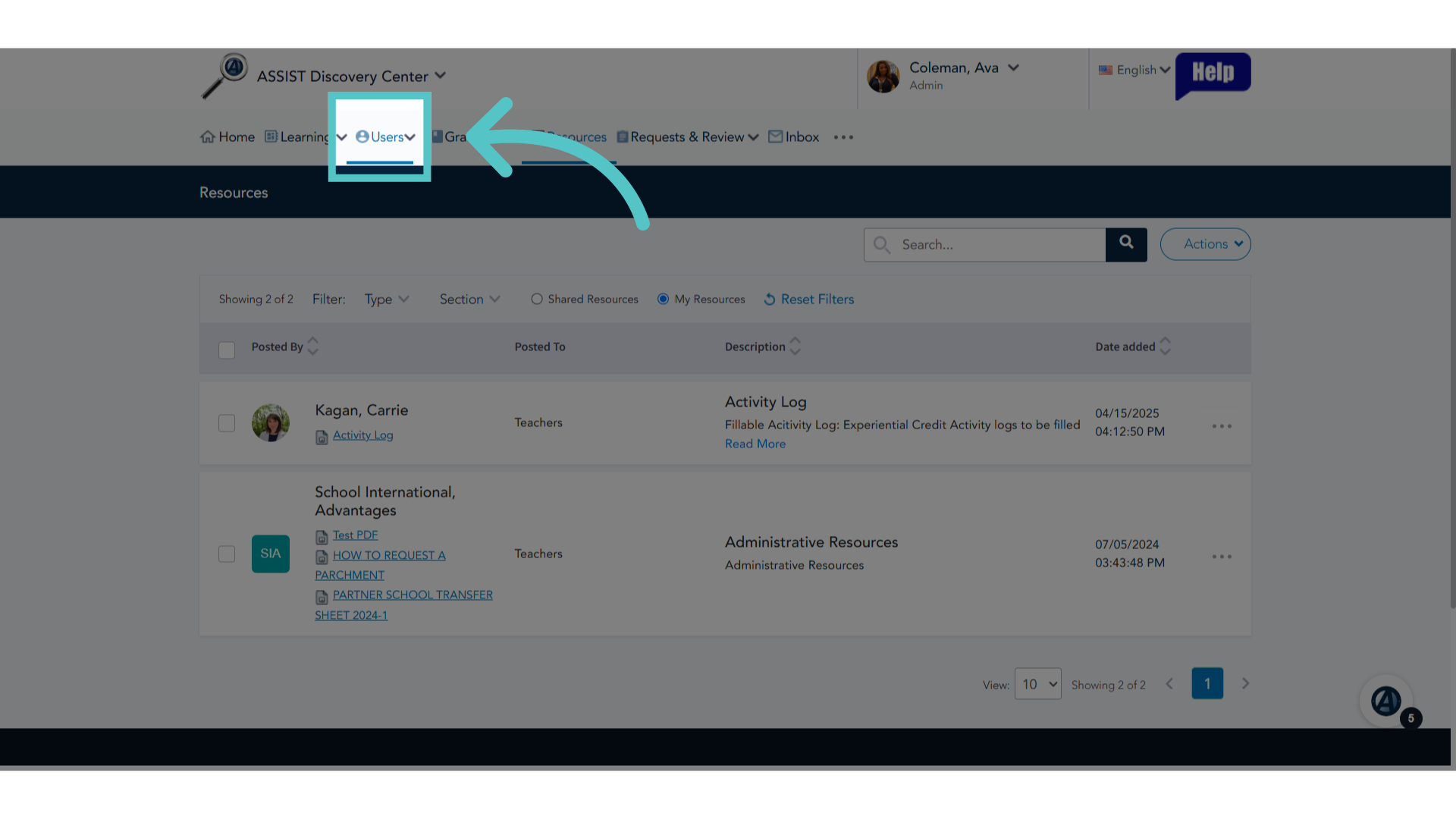
This credit will now be added to the student record in ASSIST to show on their transcript. Click Users.
8. Click "Students"
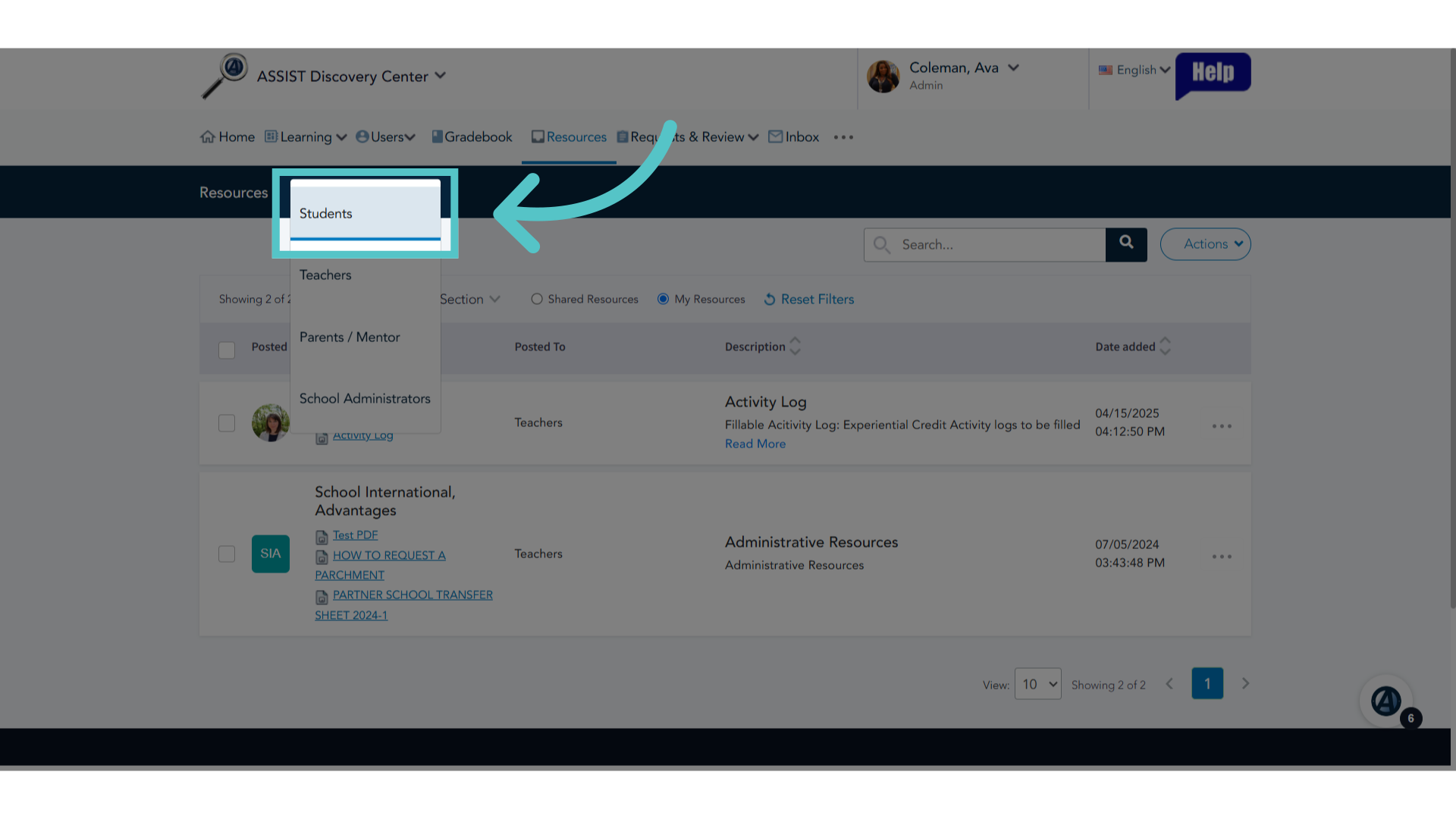
Access the Students tab.
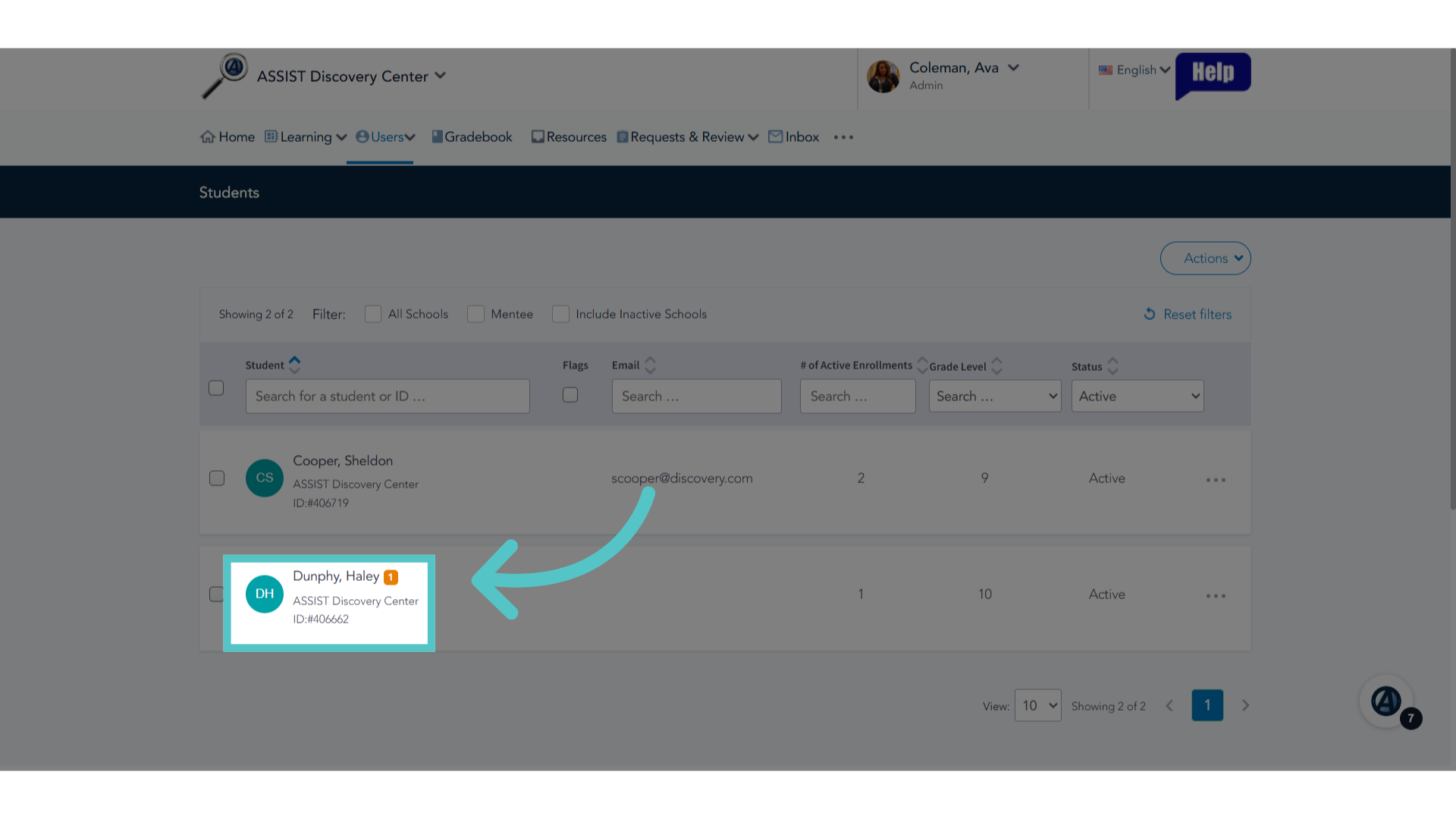
9. Select Student
Select the student from the student list to open their digital file.
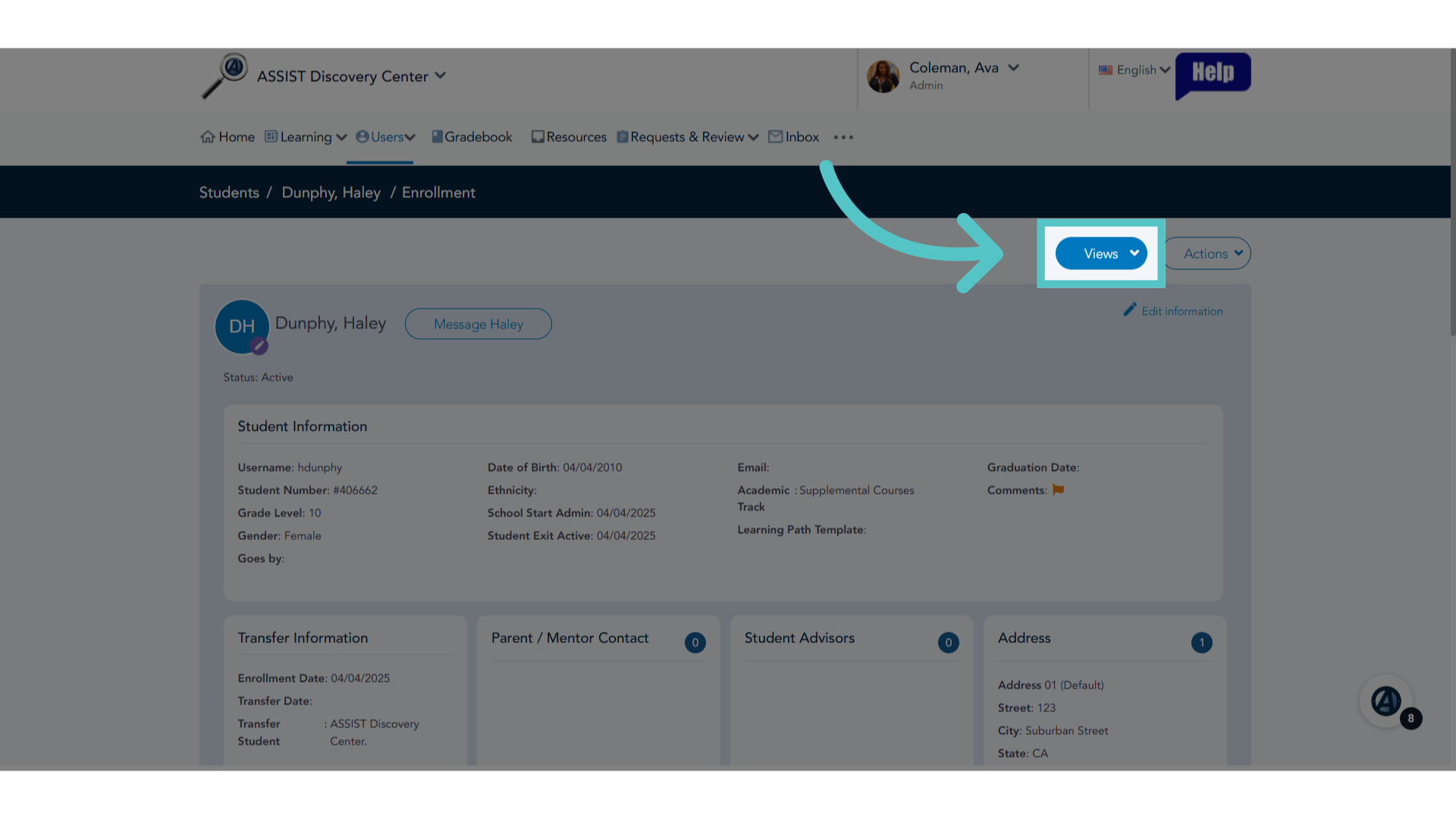
10. Click "Views"
Navigate to Views.
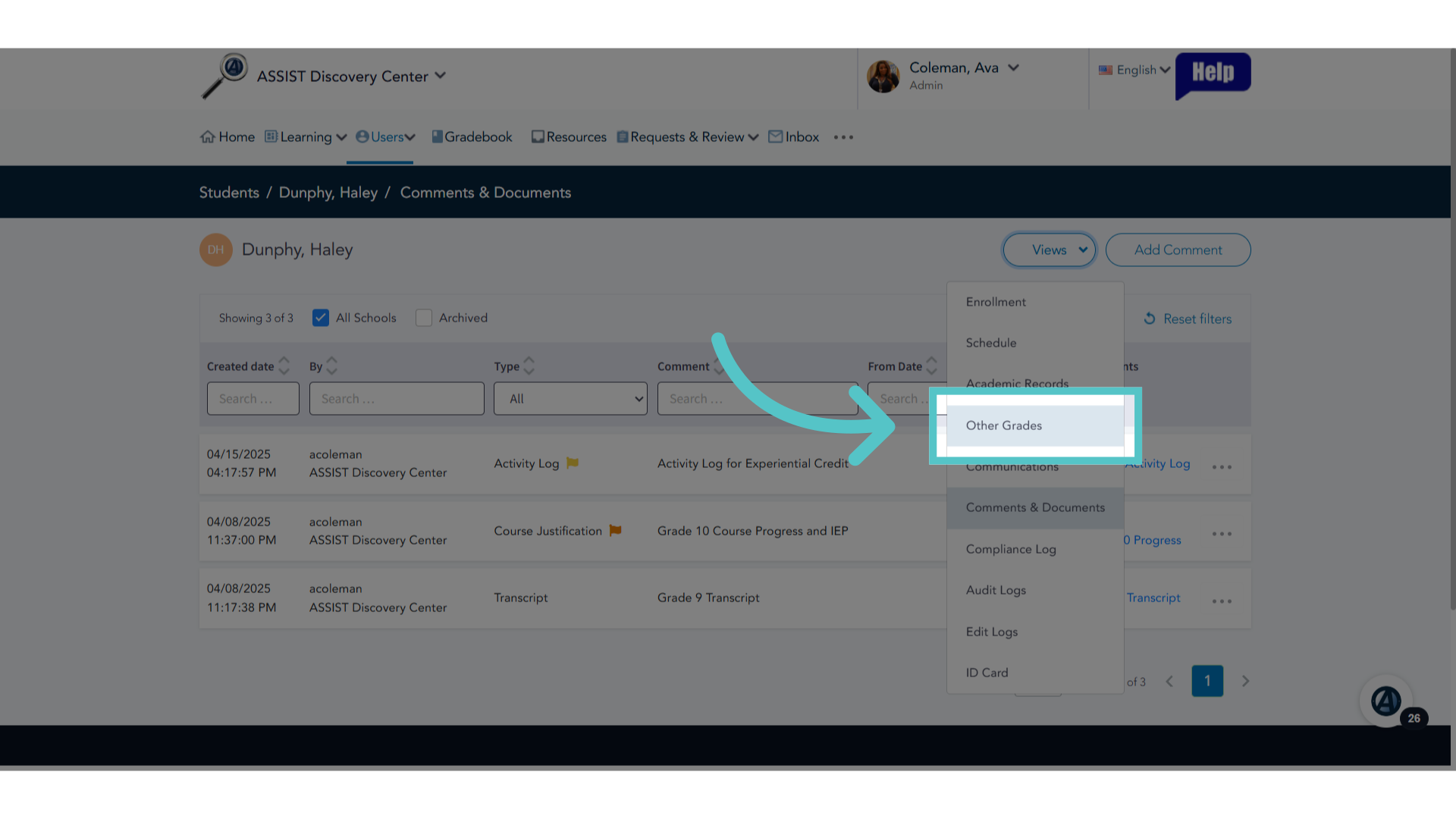
11. Click "Other Grades"
Access Other Grades.
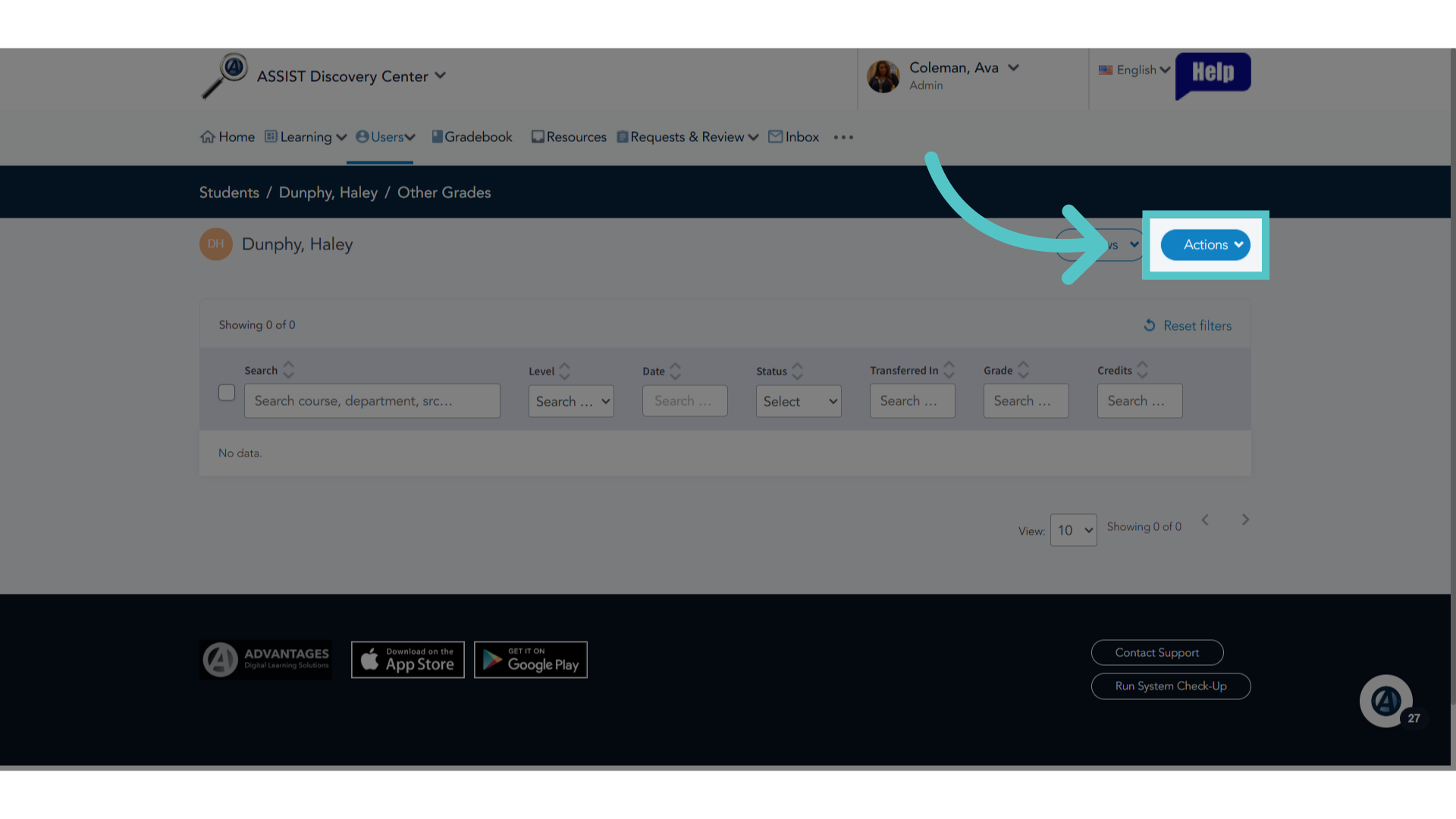
12. Click "Actions"
Select Actions.
13. Click "Add New"
Add a new entry.
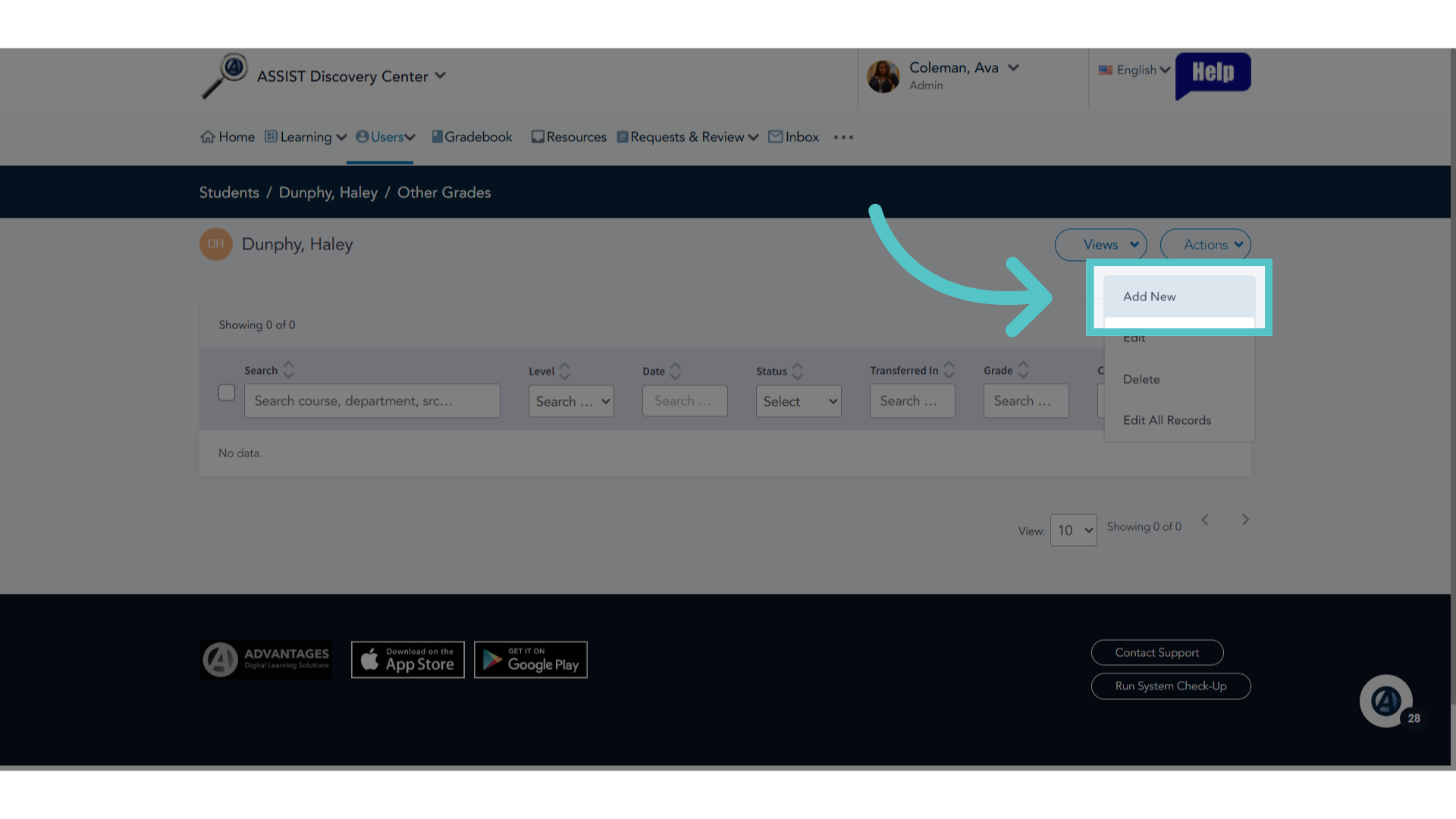
14. Enter Department
Choose a department from the list. Experiential Credit will be in the Visual and Performing Arts department, or in the Physical Education and Health Department.
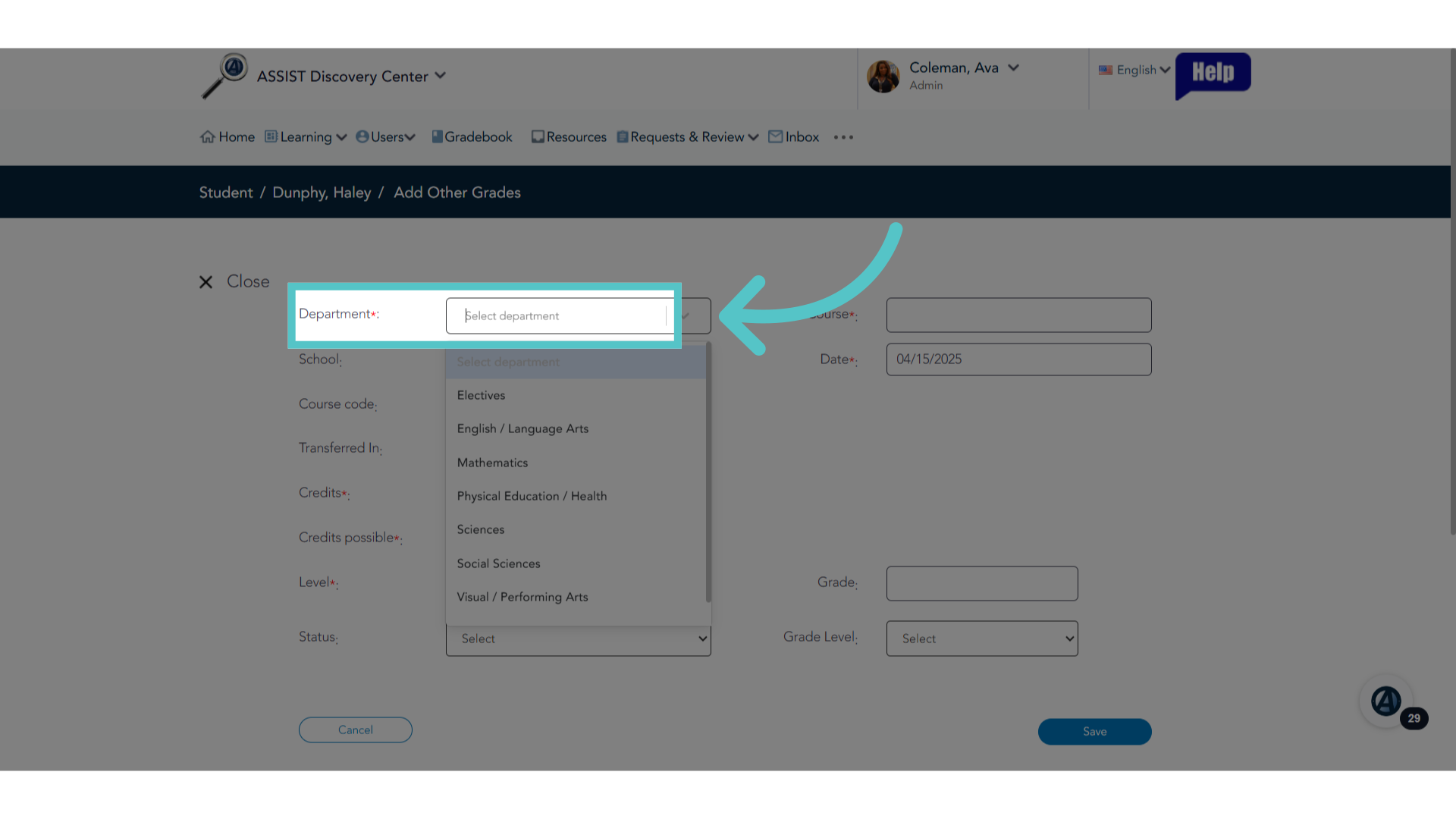
15. Course
The course should be listed as Fine Arts or Health and Wellness.
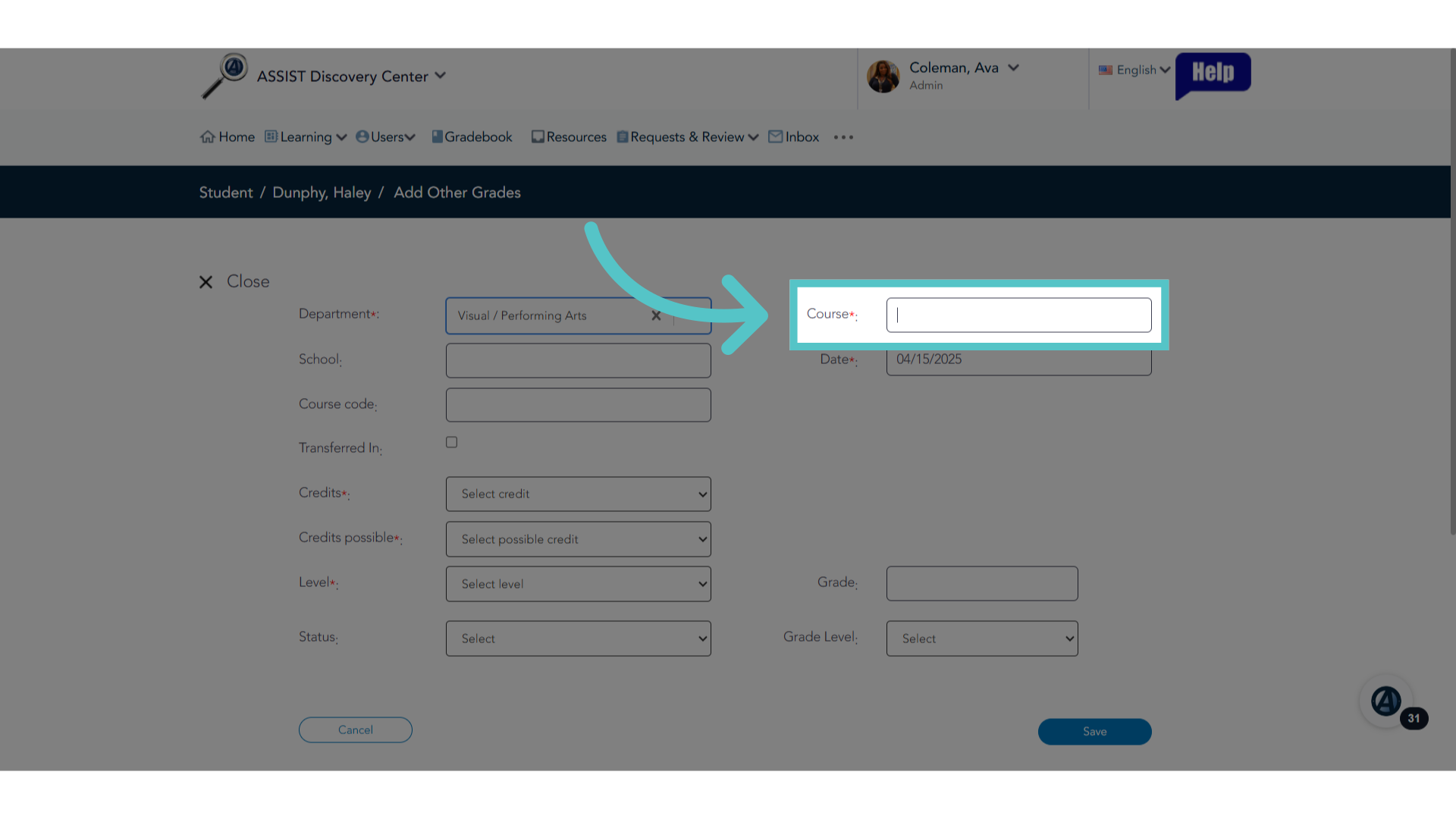
16. School
Indicate the school: your school name in partnership with Advantages. Do not enter a course code. Do not check the box for Transferred In.
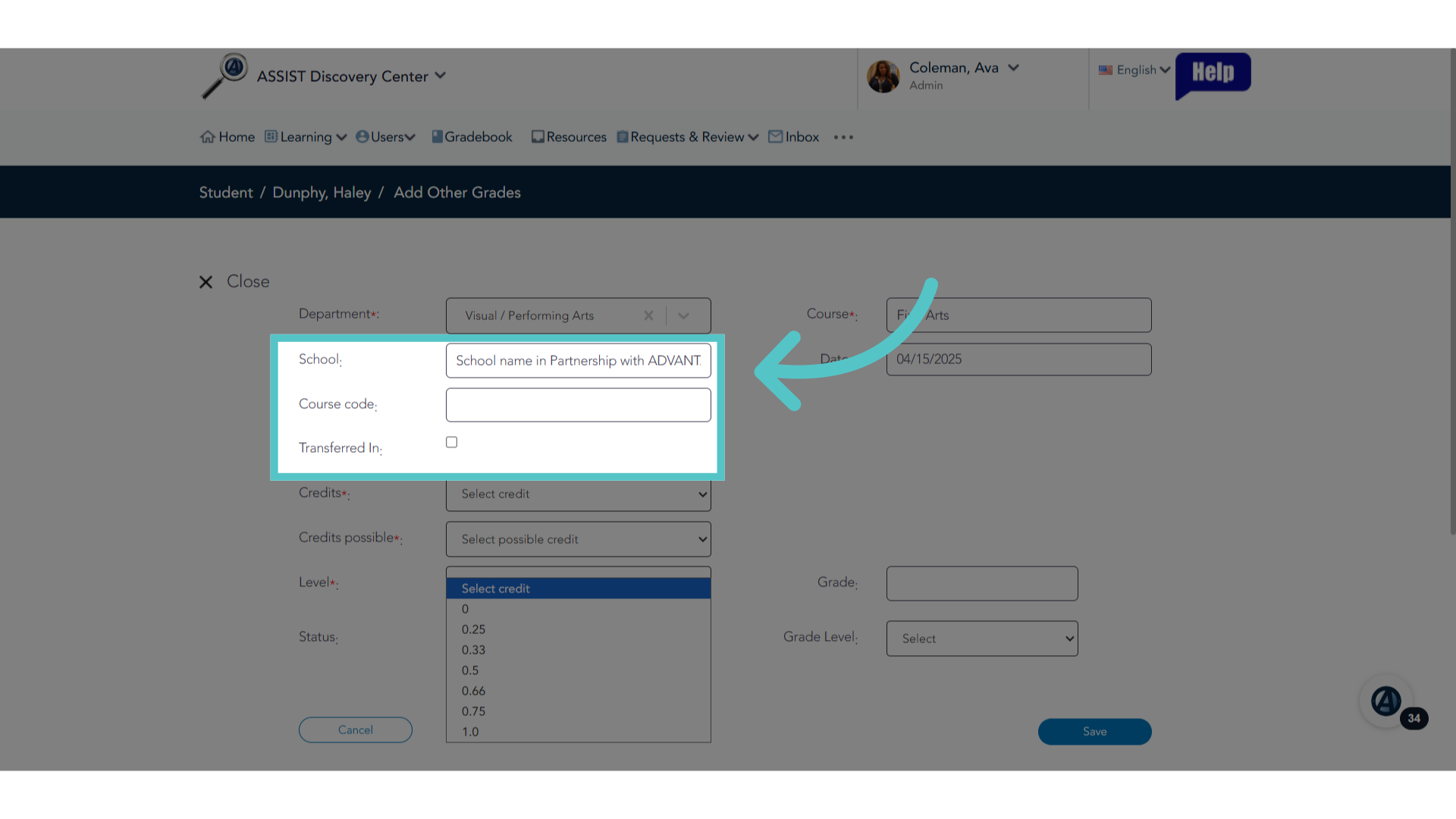
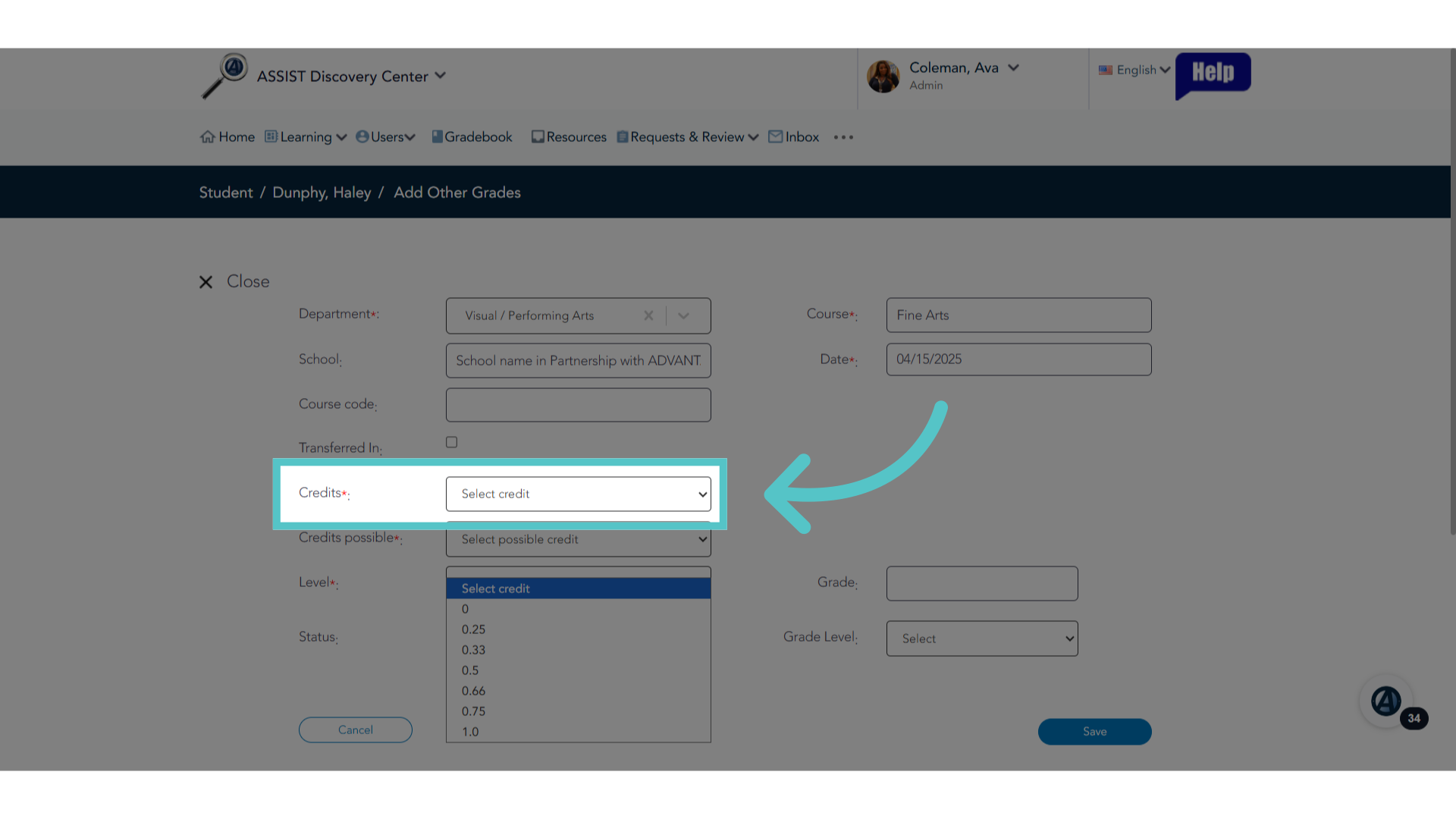
17. Select Credit Value
Enter the credit value the student earned through experiential activities. This can be up to 2 credits, depending on the number of hours spent in the activity.
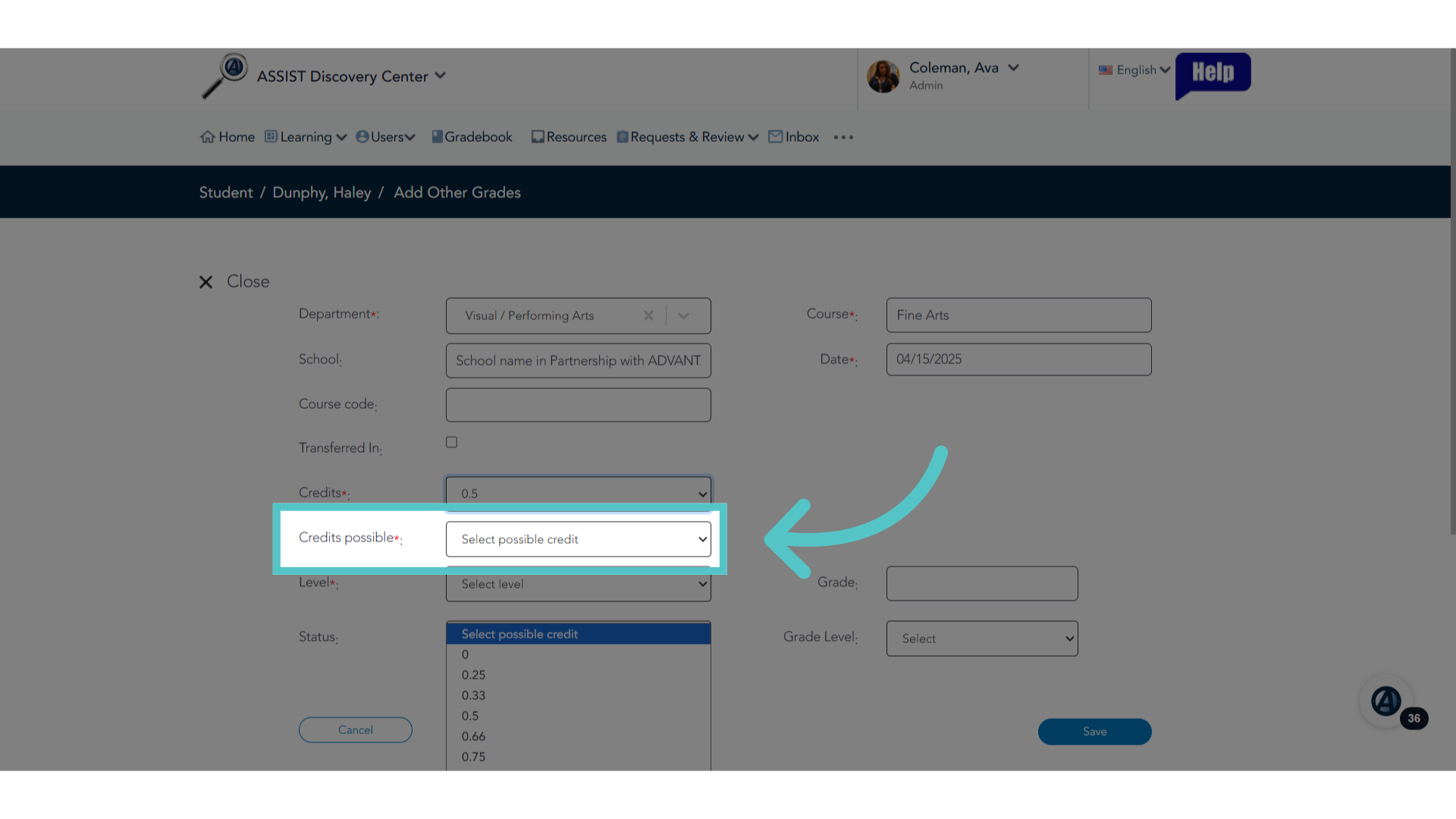
18. Credits possible
The credits possible value should match the credits entered in the previous field.
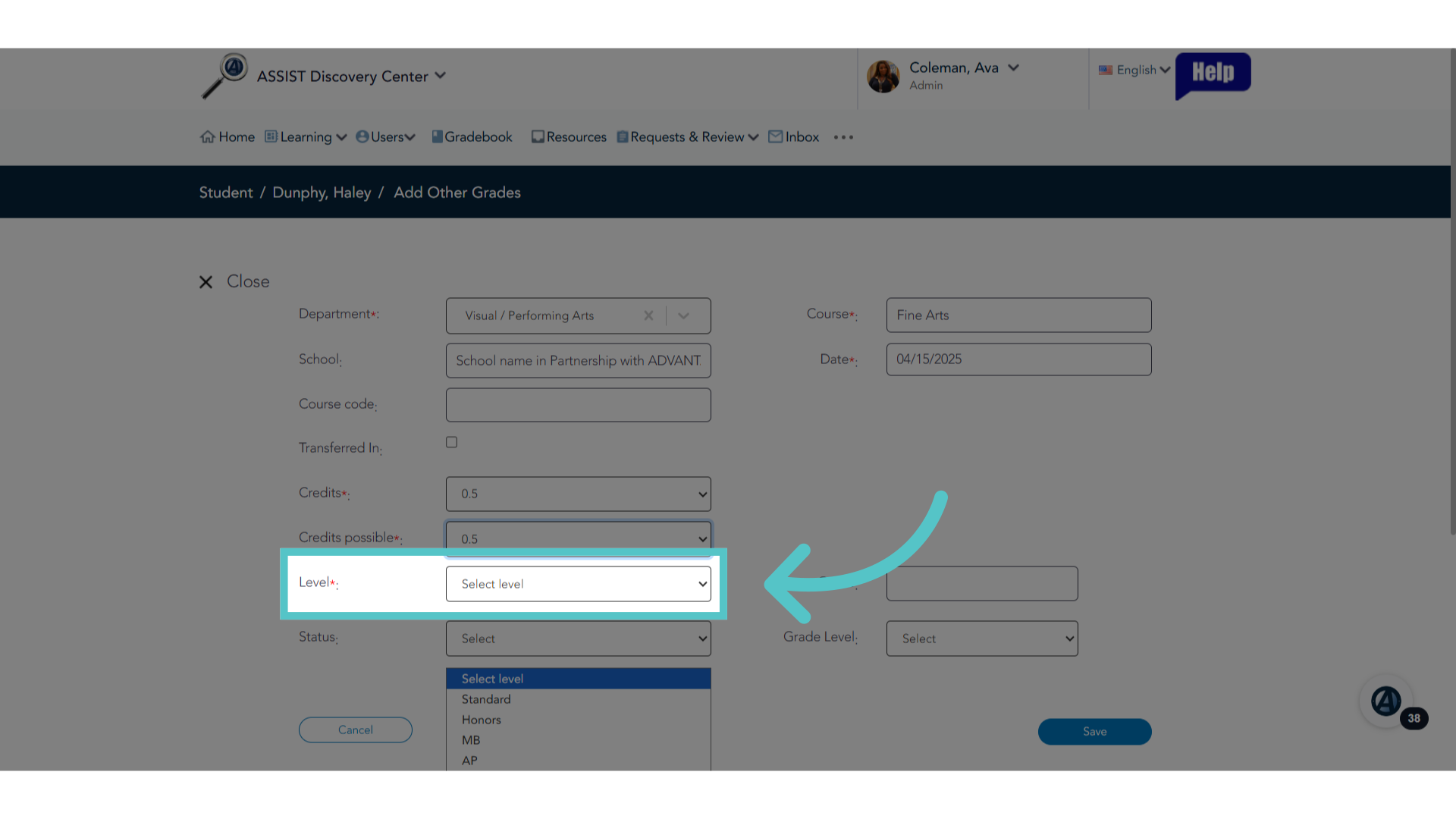
19. Level = Standard
Enter the level as "standard" for all Experiential Credit.
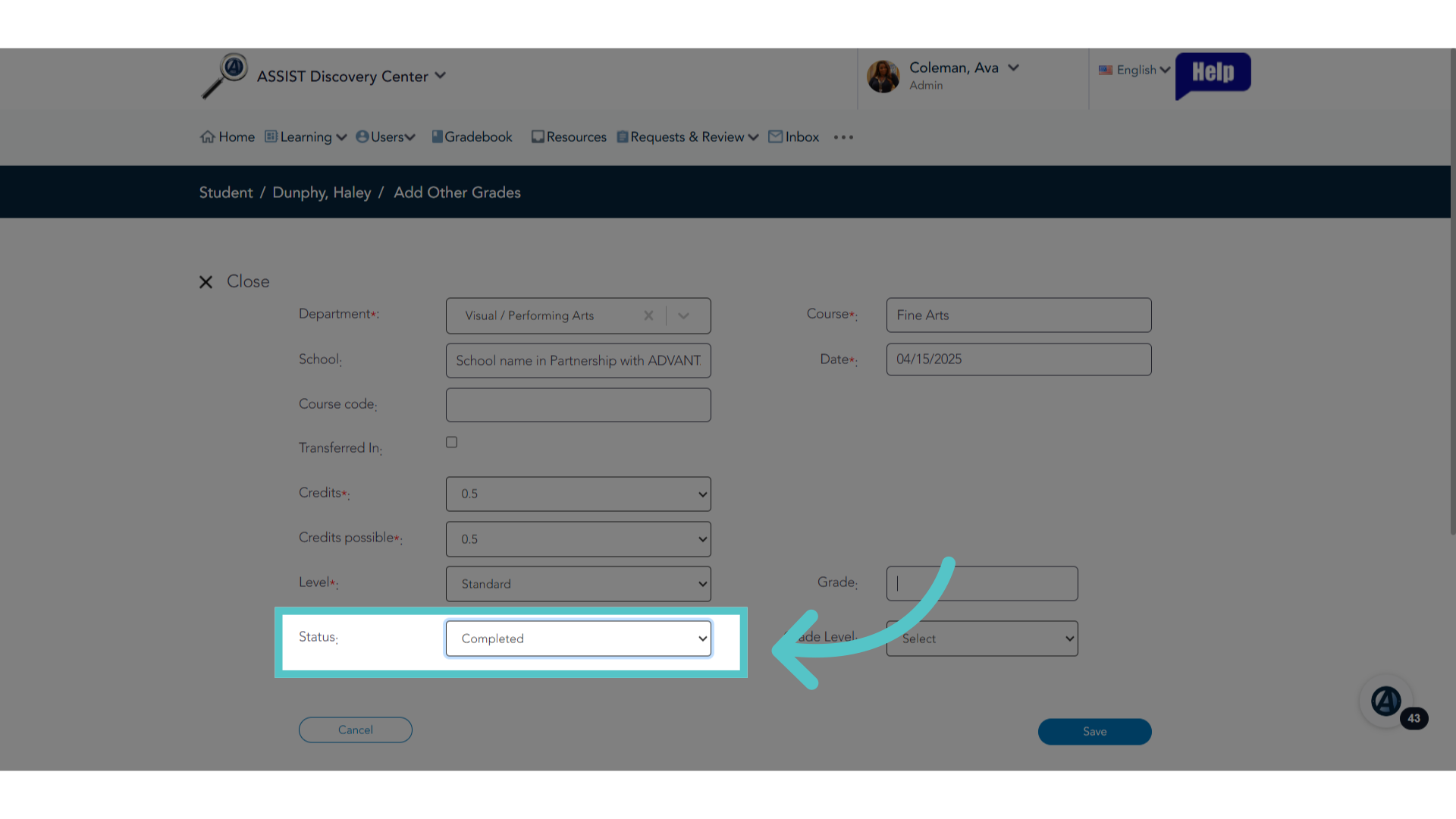
20. Status = Completed
Enter the status as "completed" for all Experiential Credit
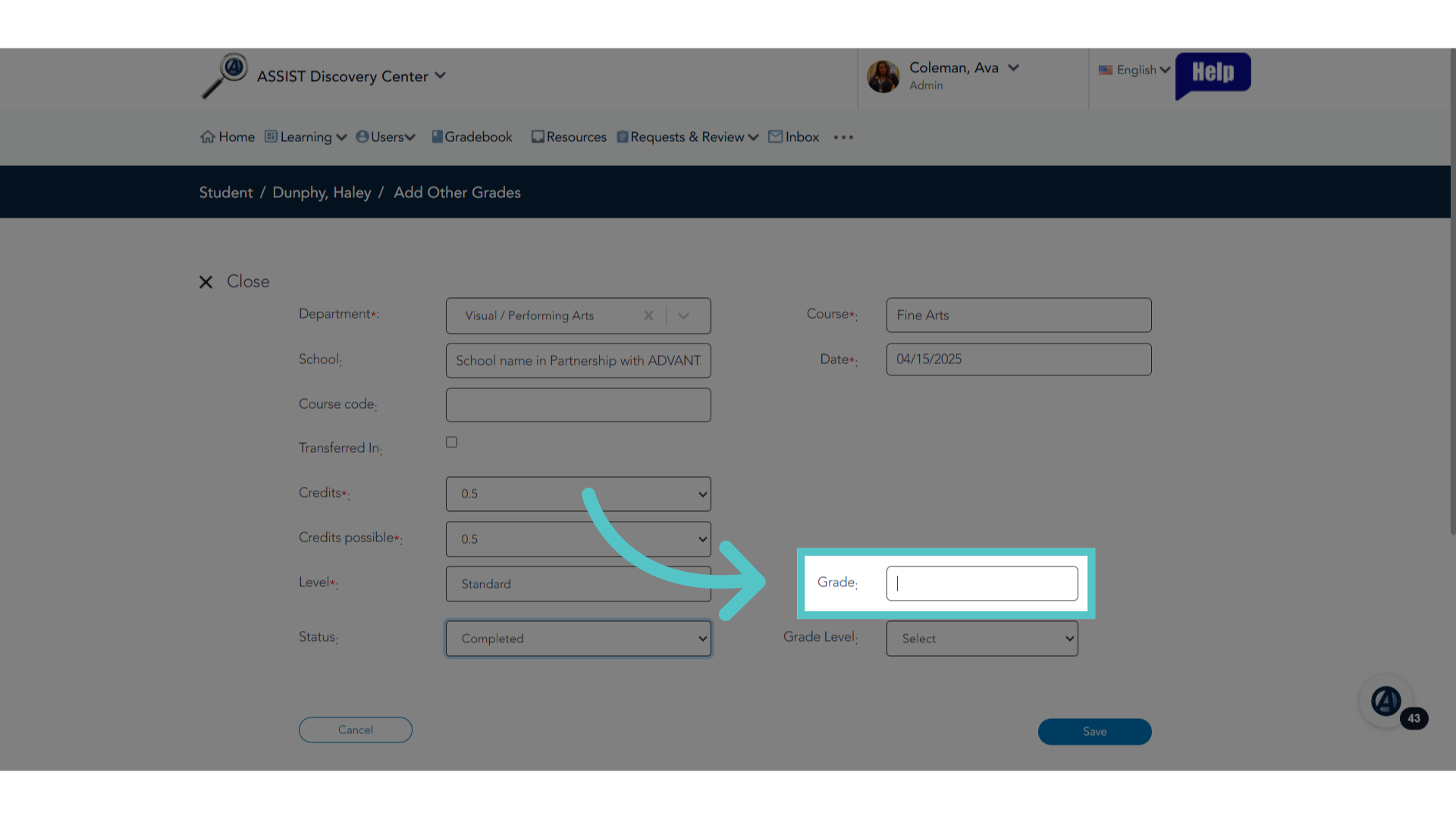
21. Grade
Enter the grade earned as, "A," for all Experiential Credit.
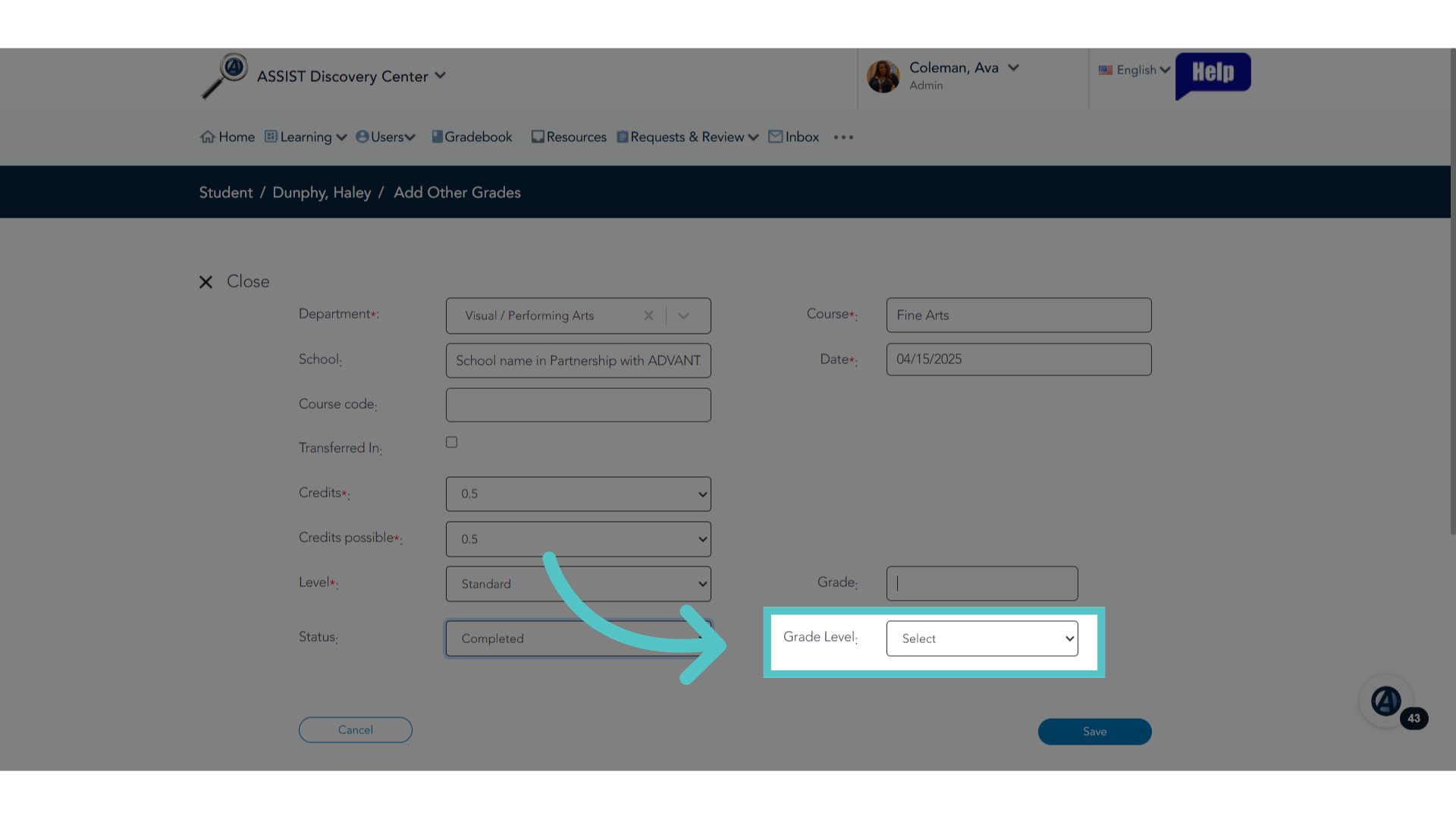
22. Grade Level
Enter the grade level of the student when the experiential credit was earned.
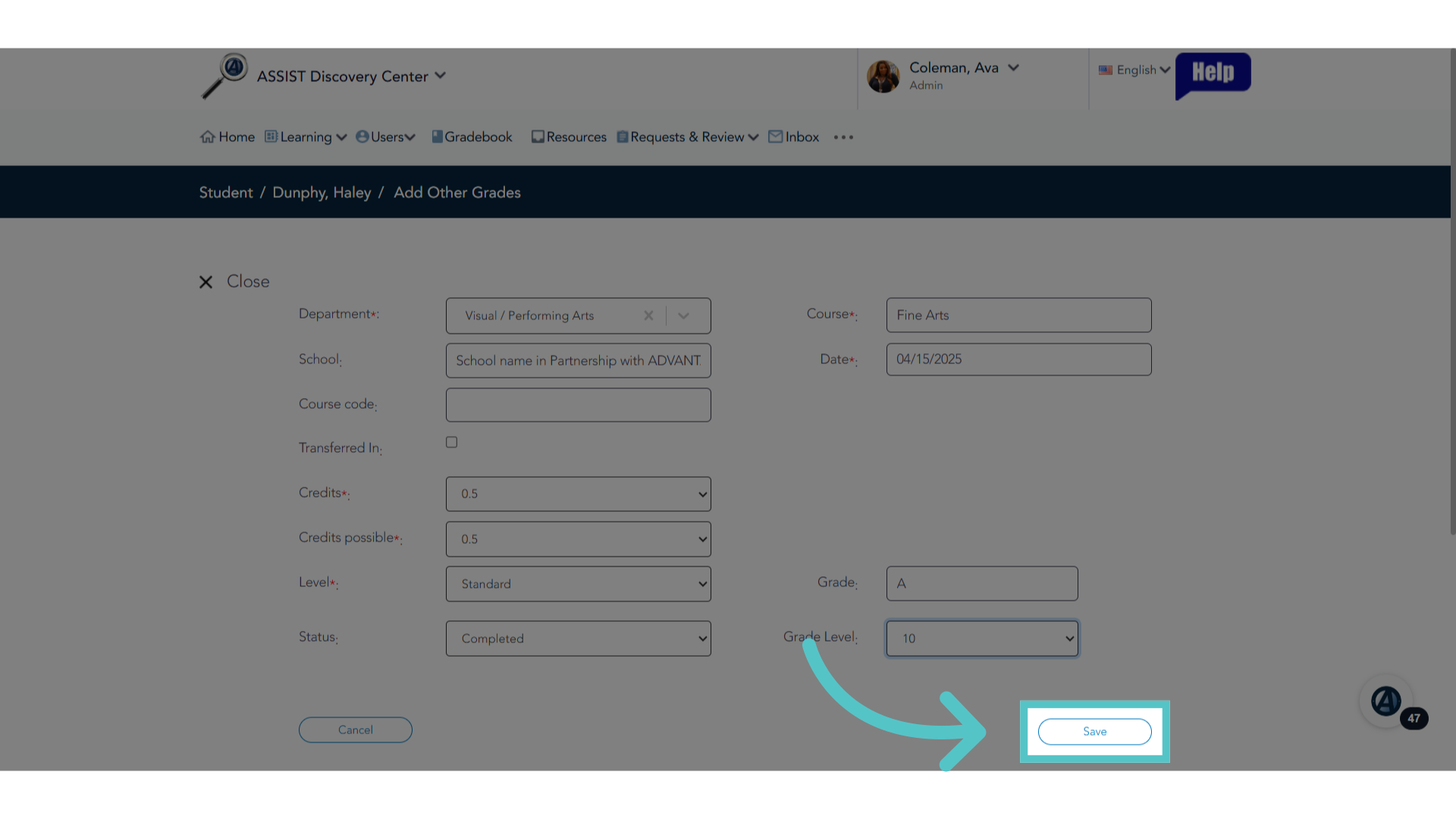
23. Click "Save"
Save the changes.
24. Click "Close"
When the information has been saved successfully, close the window.
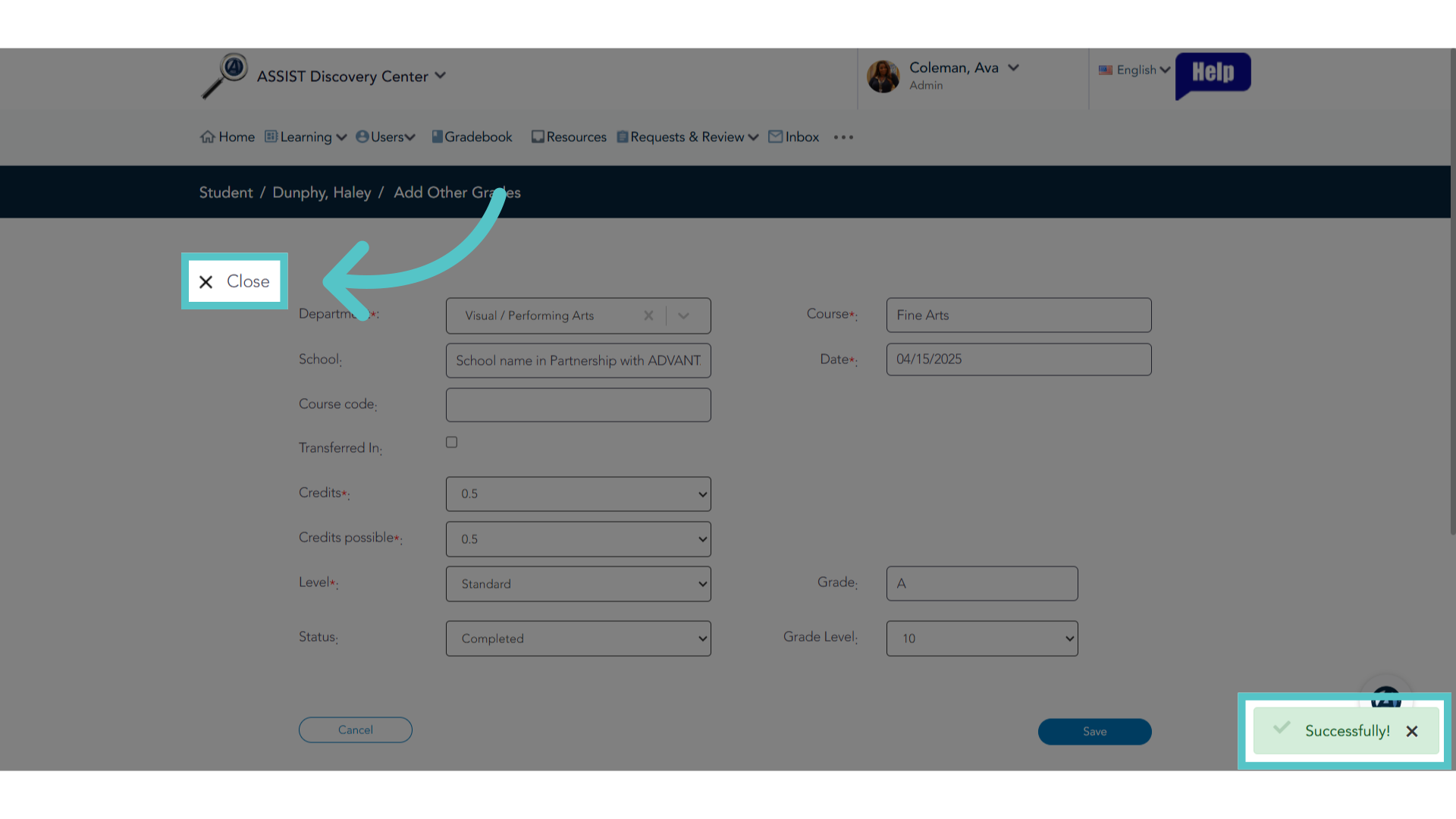
25. Credit Recorded
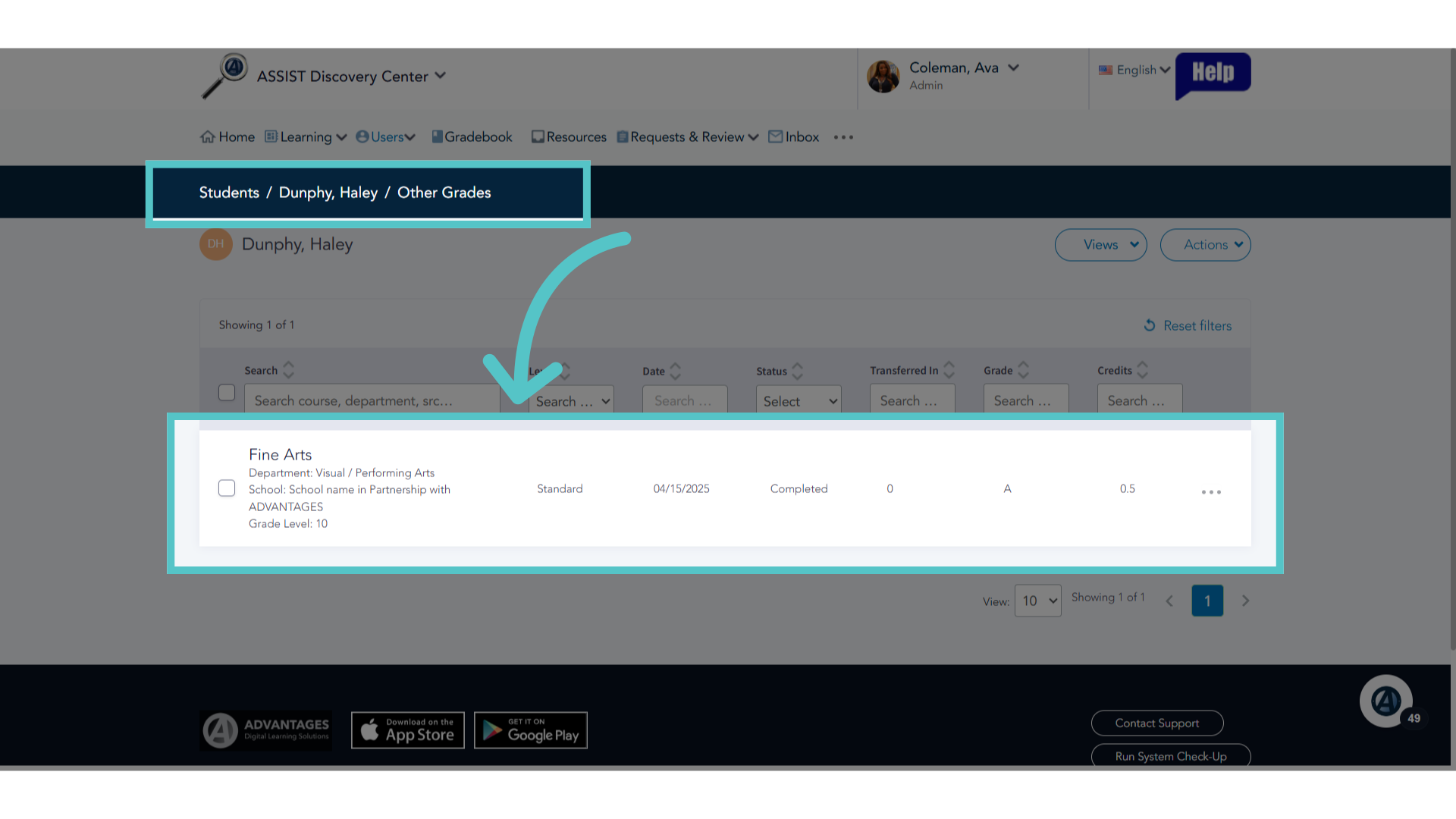
The Experiential Credit has now been recorded in the student's file as Other Grades. This will appear on the student's transcript and credits will be counted towards graduation.
26. Comments and Documents
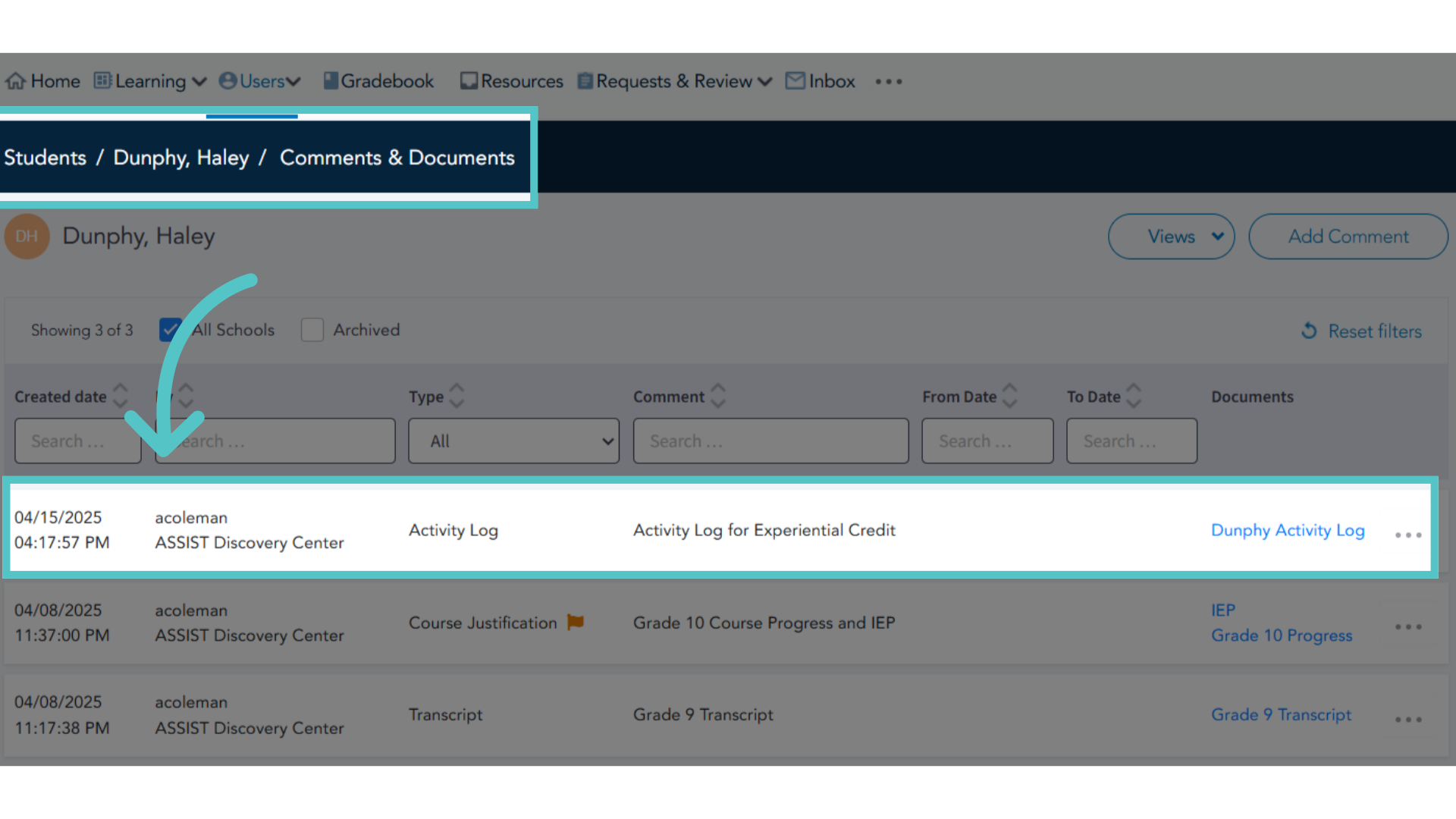
Be sure to upload the completed Activity Log to the student's Comments and Documents File in ASSIST. This is required documentation for the experiential credit.
If you have any questions about the information in this tutorial, please contact your dedicated school success manager for additional support.