Expand to Full Screen for best viewing.
This guide will walk you through the process of uploading student transcripts to ASSIST.
Go to portal.adlsassist.com
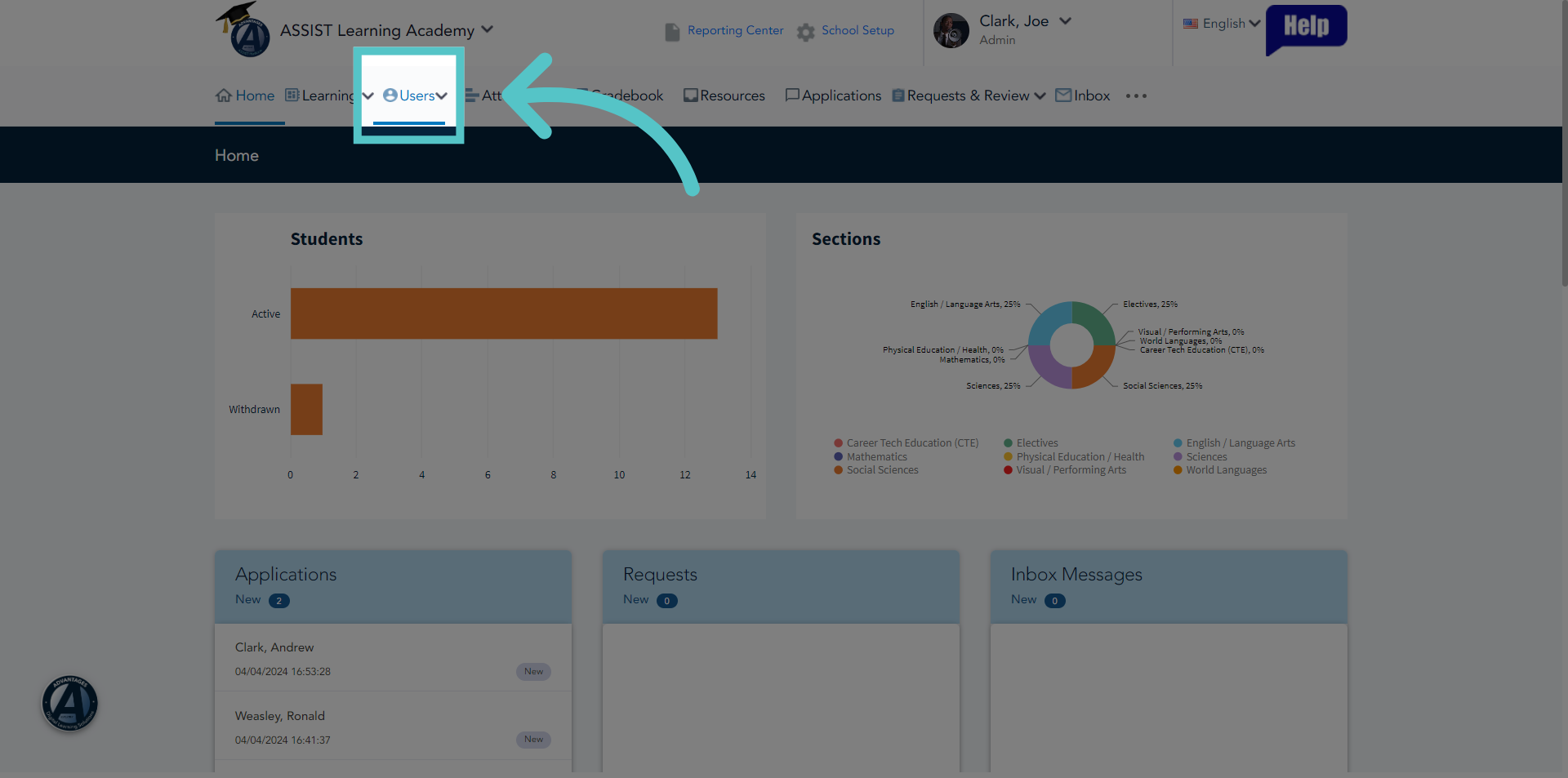
1. Click "Users"
From your administrator homepage, click the "Users" tab.
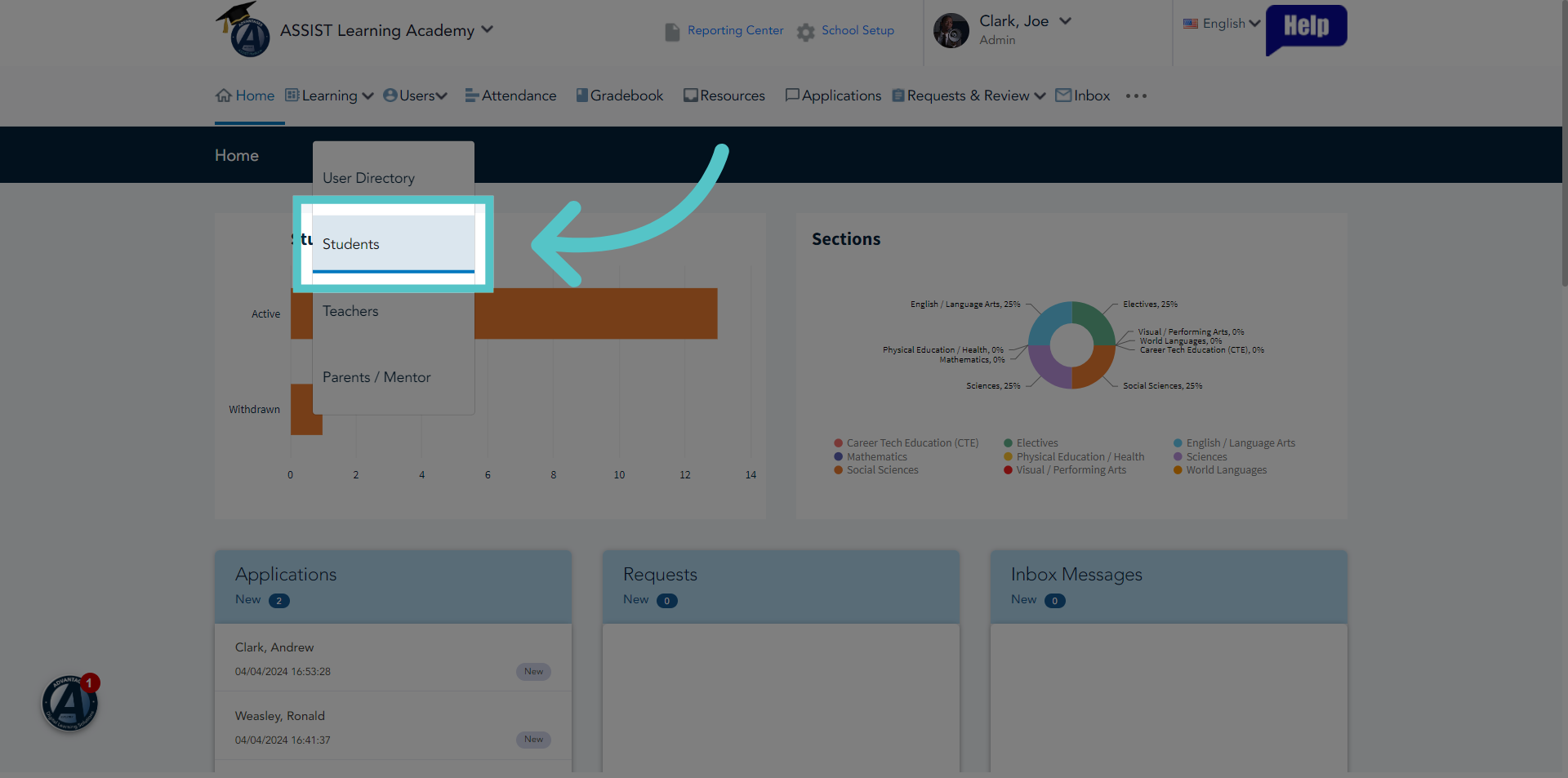
2. Click "Students"
Select "Students" from the menu options.
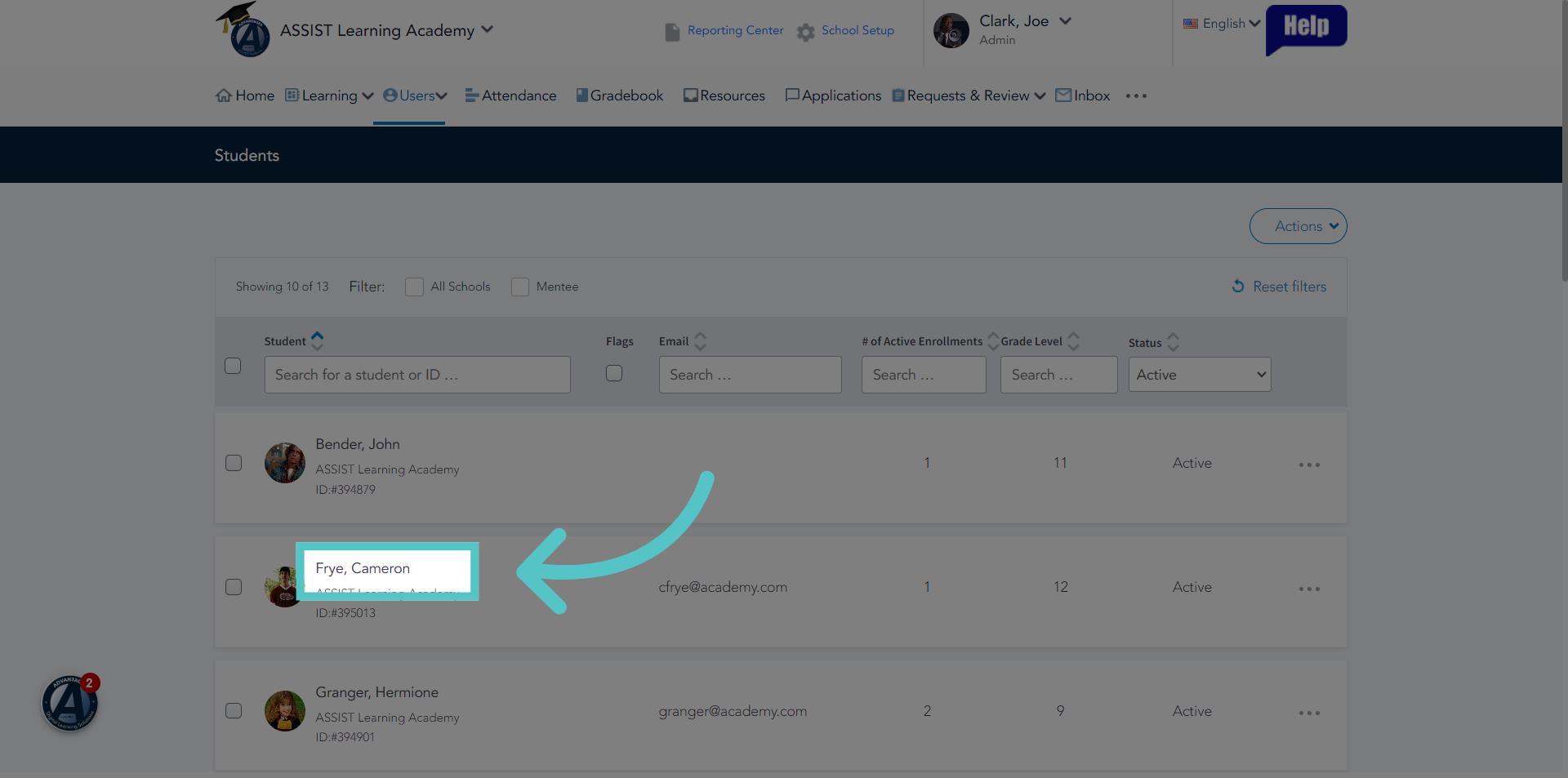
3. Click Student Name
Select a name from the list to open the Student File.
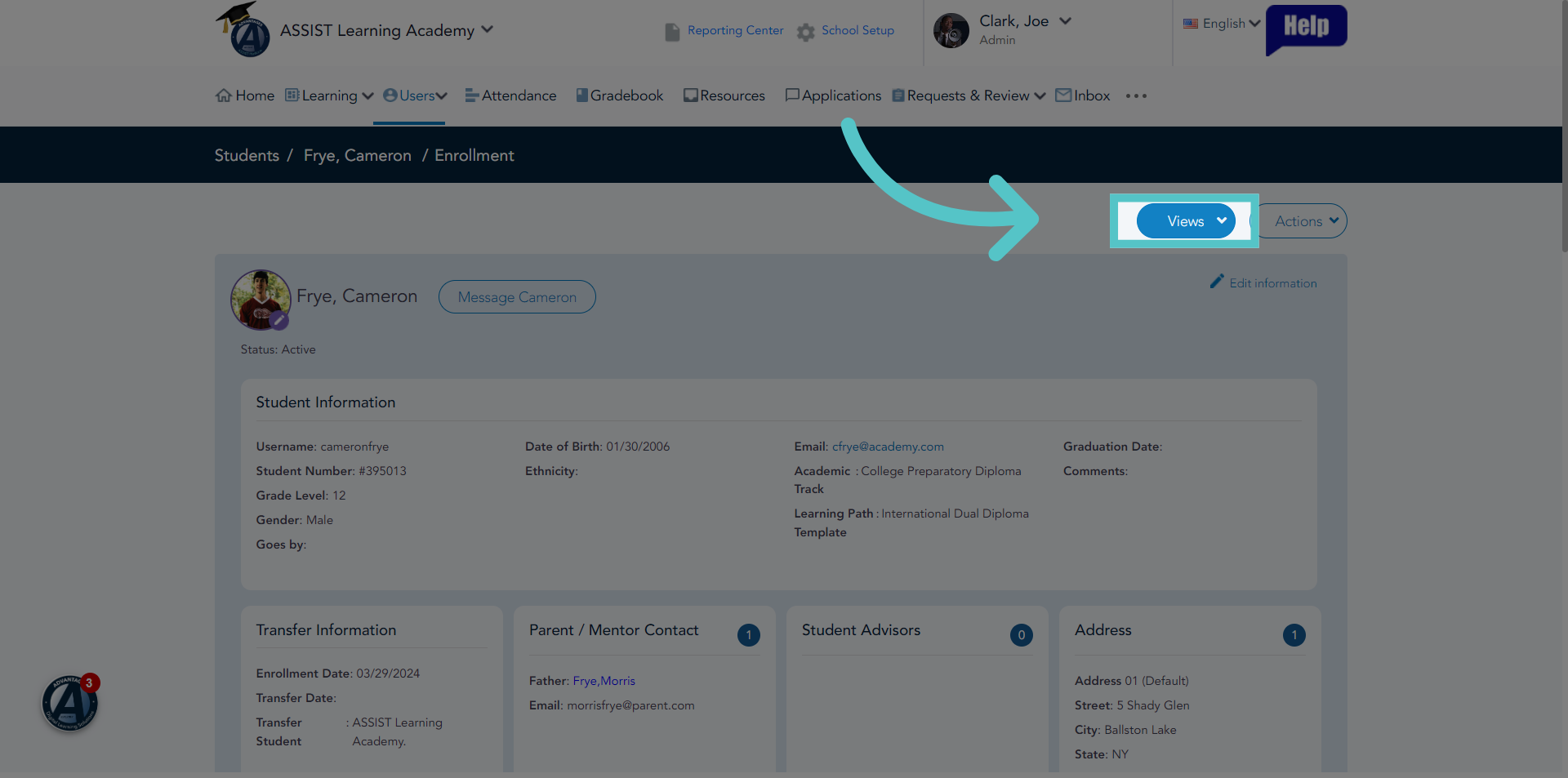
4. Click "Views"
Click the "Views" button.
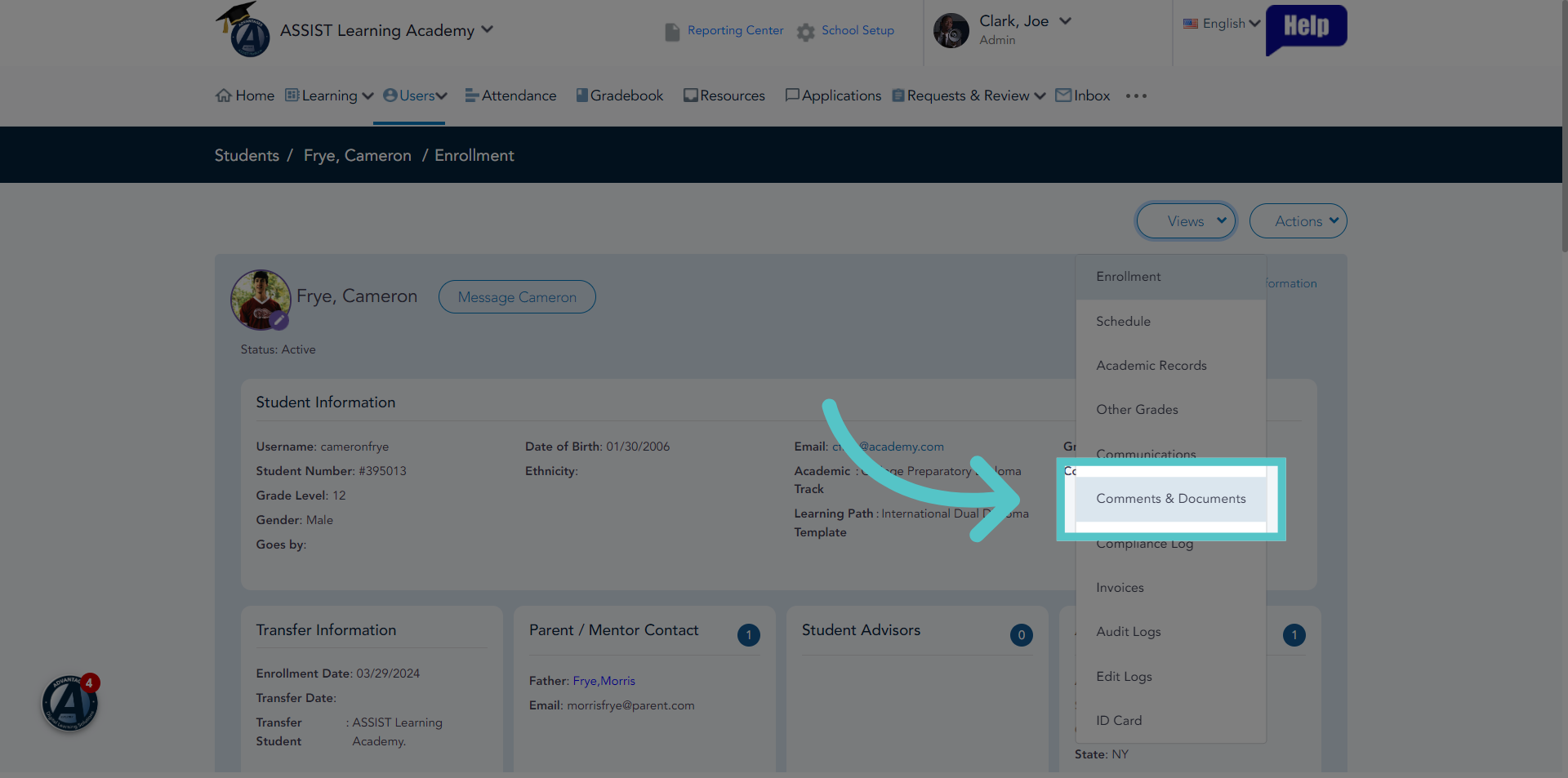
5. Click "Comments & Documents"
Choose the "Comments & Documents" option from the dropdown menu.
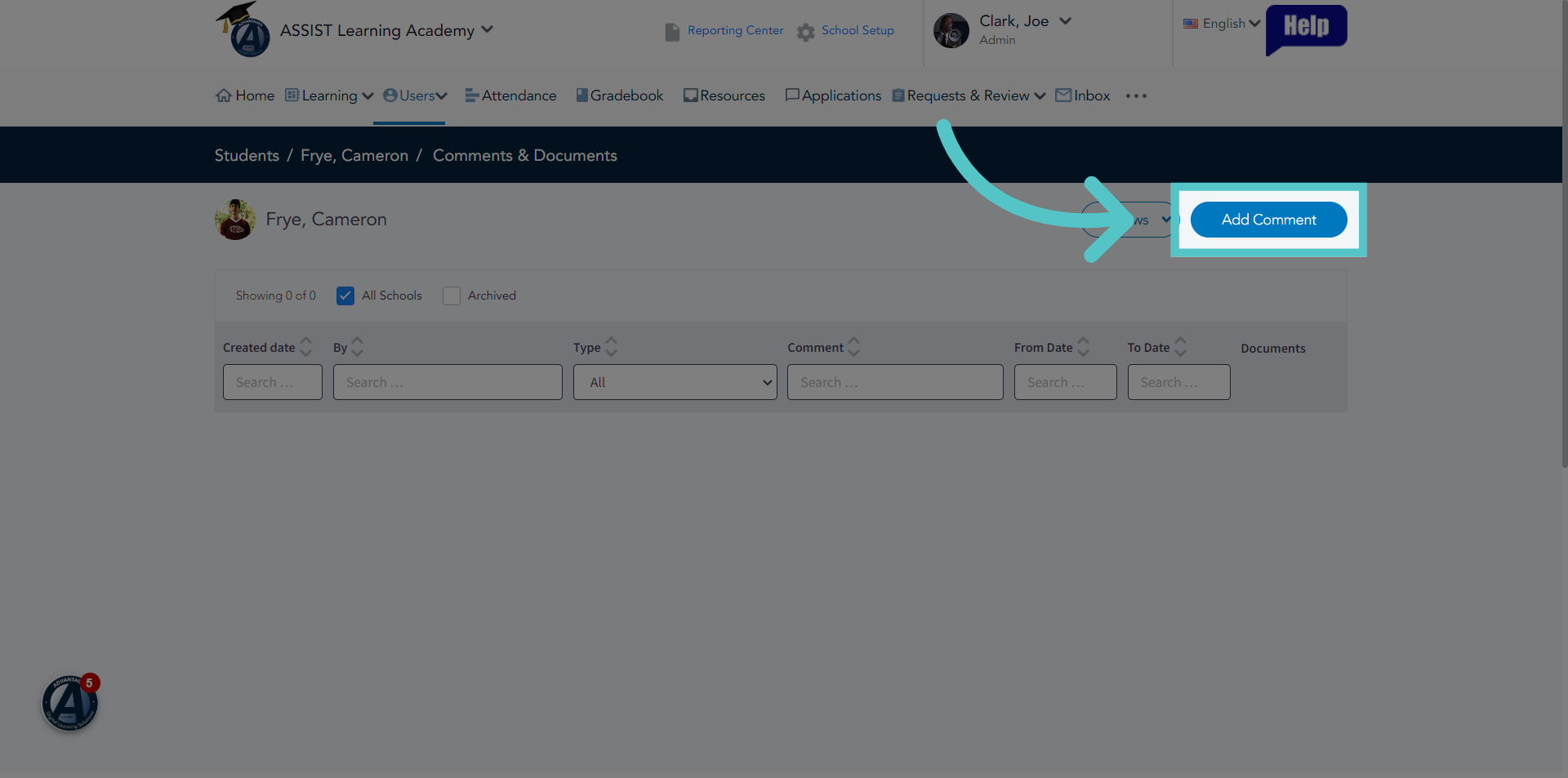
6. Click "Add Comment"
Click on the "Add Comment" button.
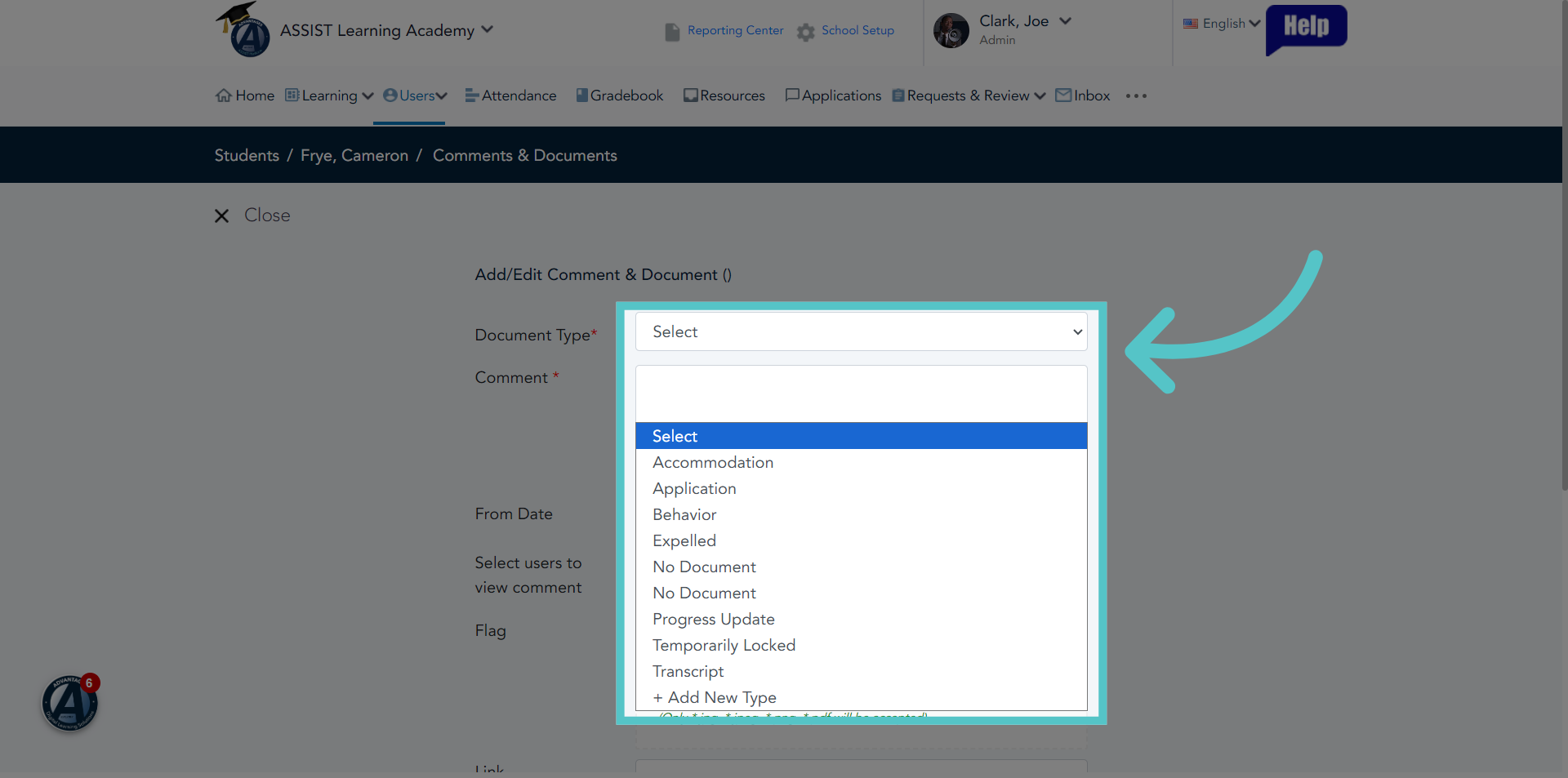
7. Select Document Type
The top field will be to select the document type. Choose "Transcript." If this option is not listed, you can click "Add New Type" to create this label.
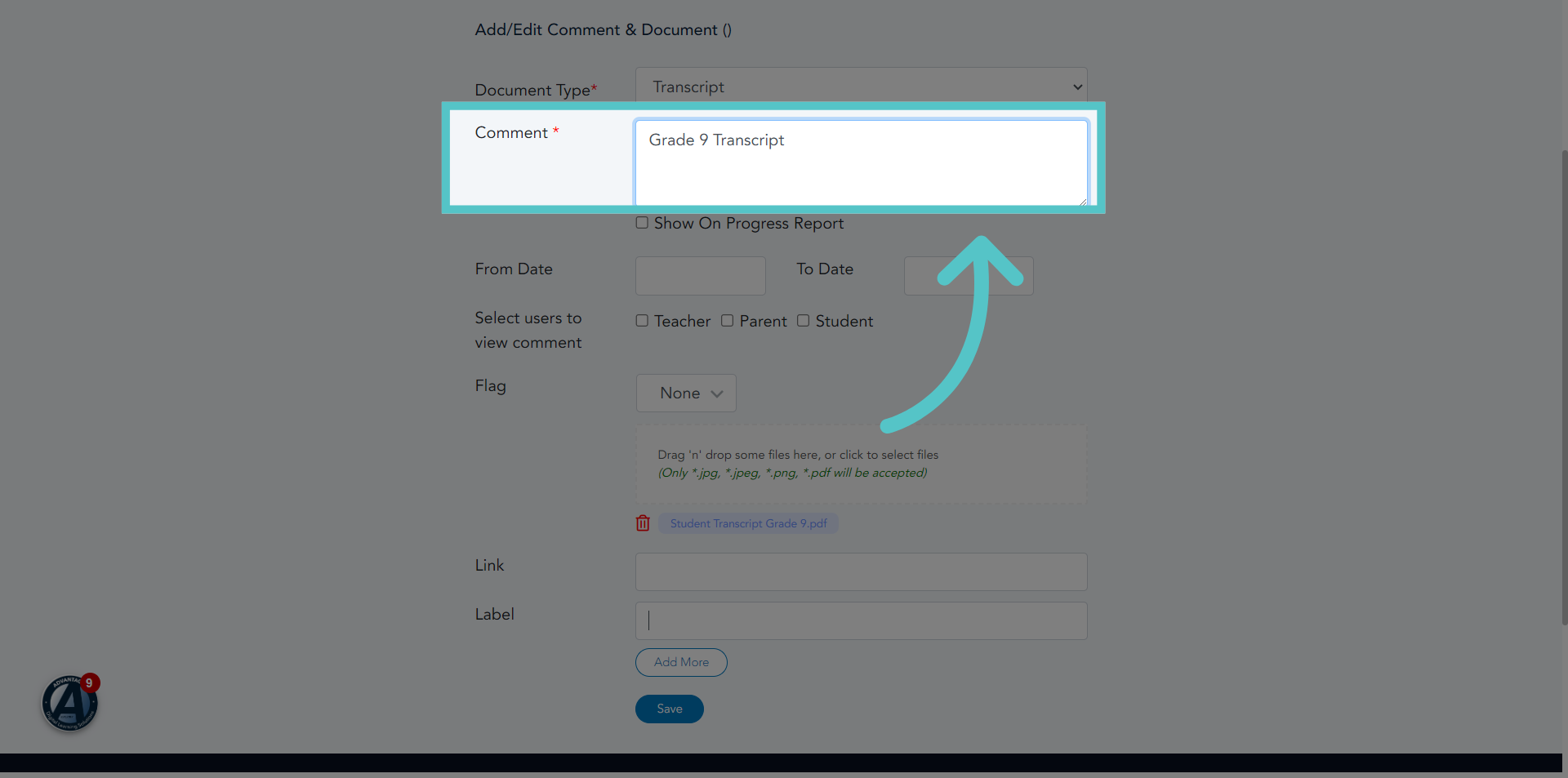
8. Comment
In the Open Comment box, label the transcript you will be uploading. For example, your comment could be "Grade 9 Transcript."
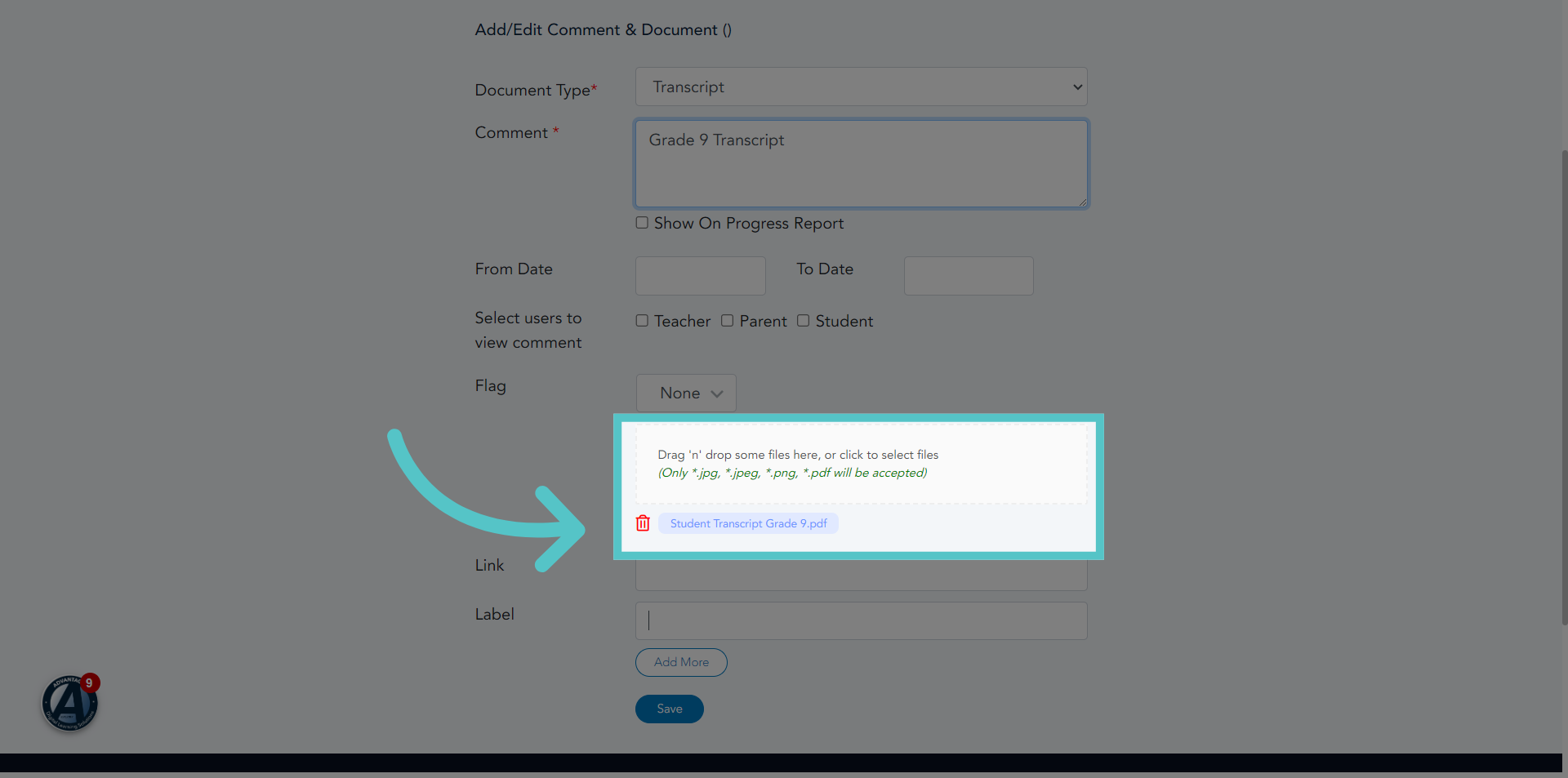
9. Upload File
Drag and drop the transcript file into the upload space.
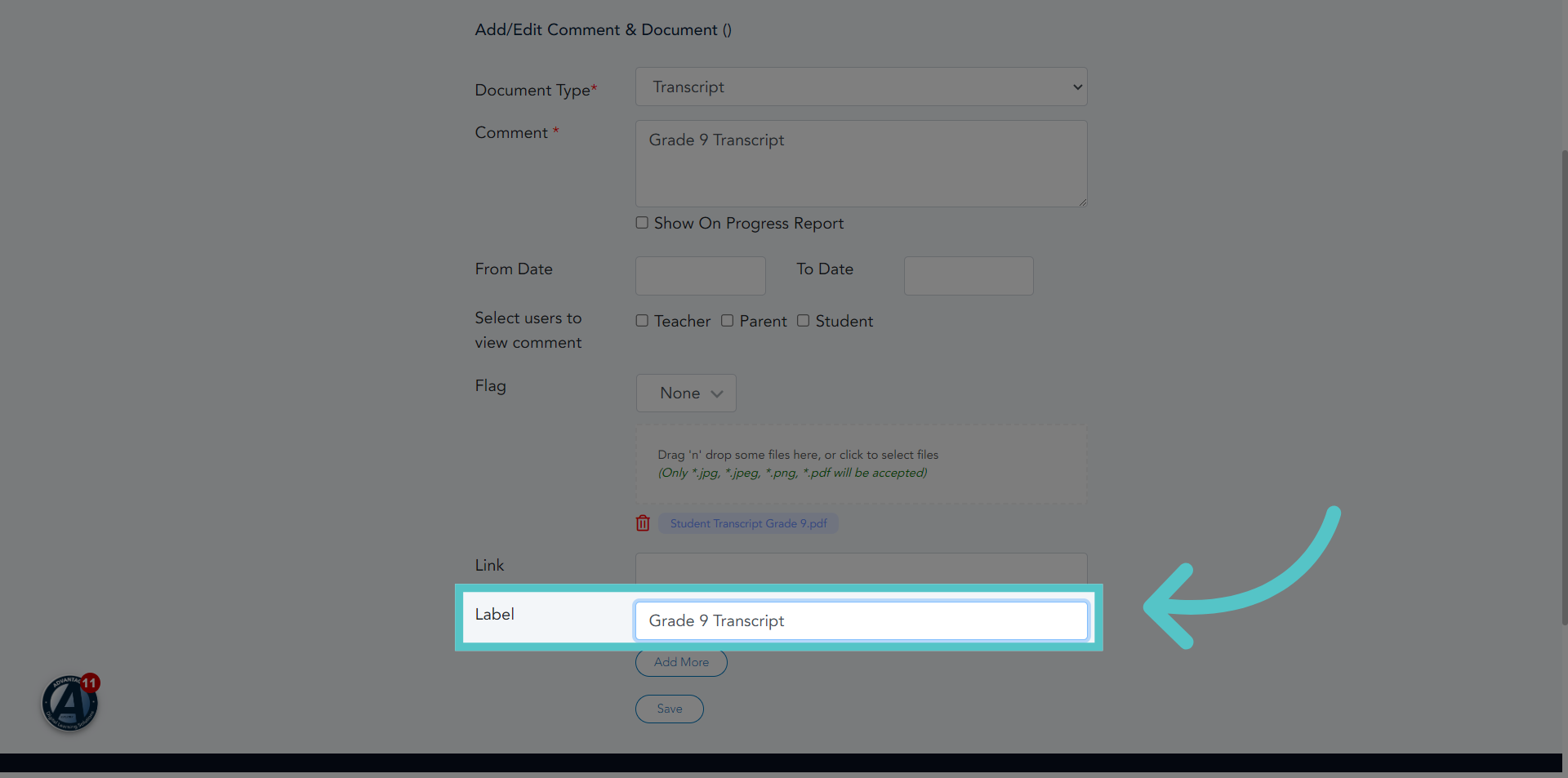
10. Label
Label the Transcript attachment.
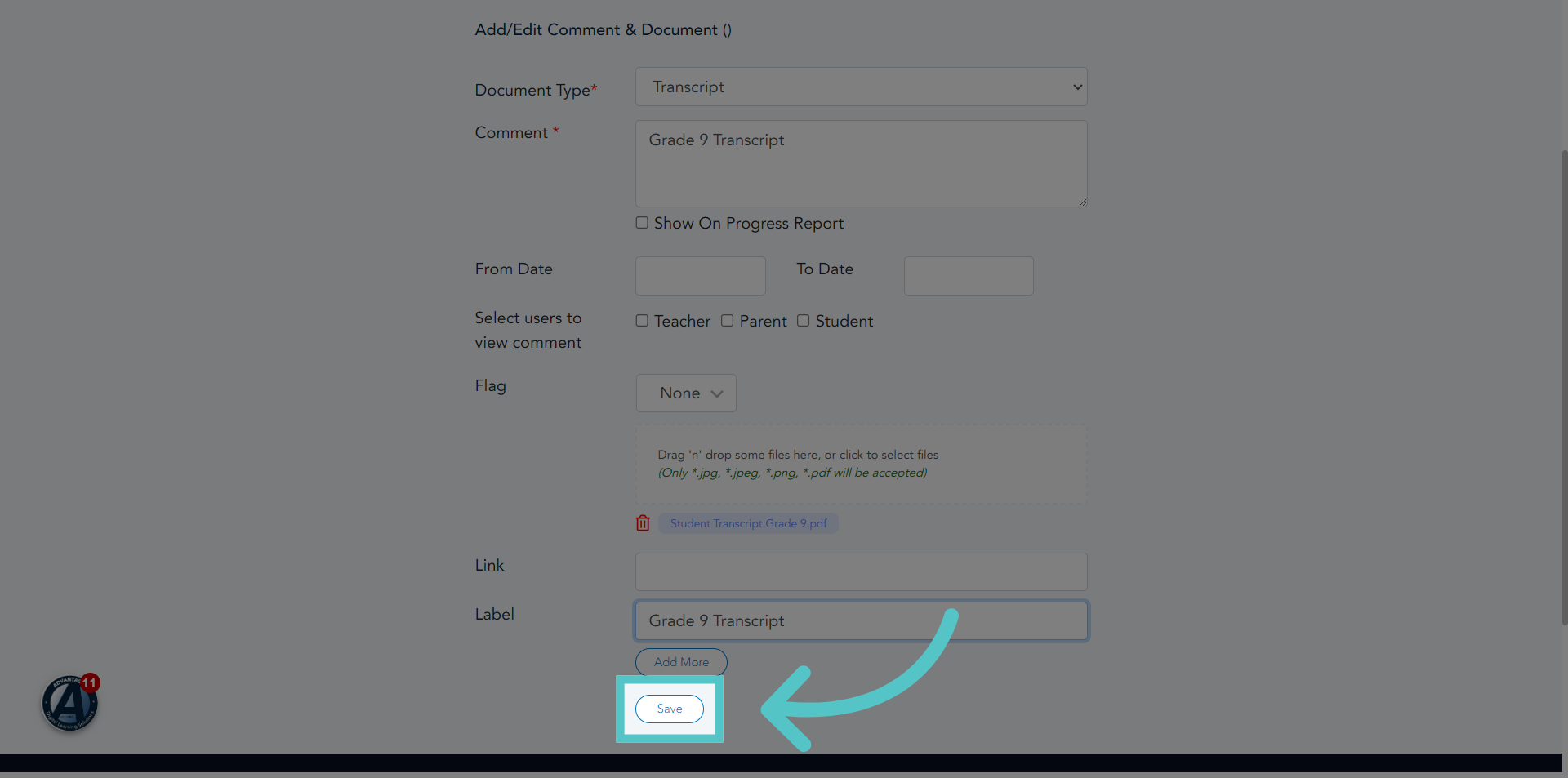
11. Click "Save"
Be sure to Save.
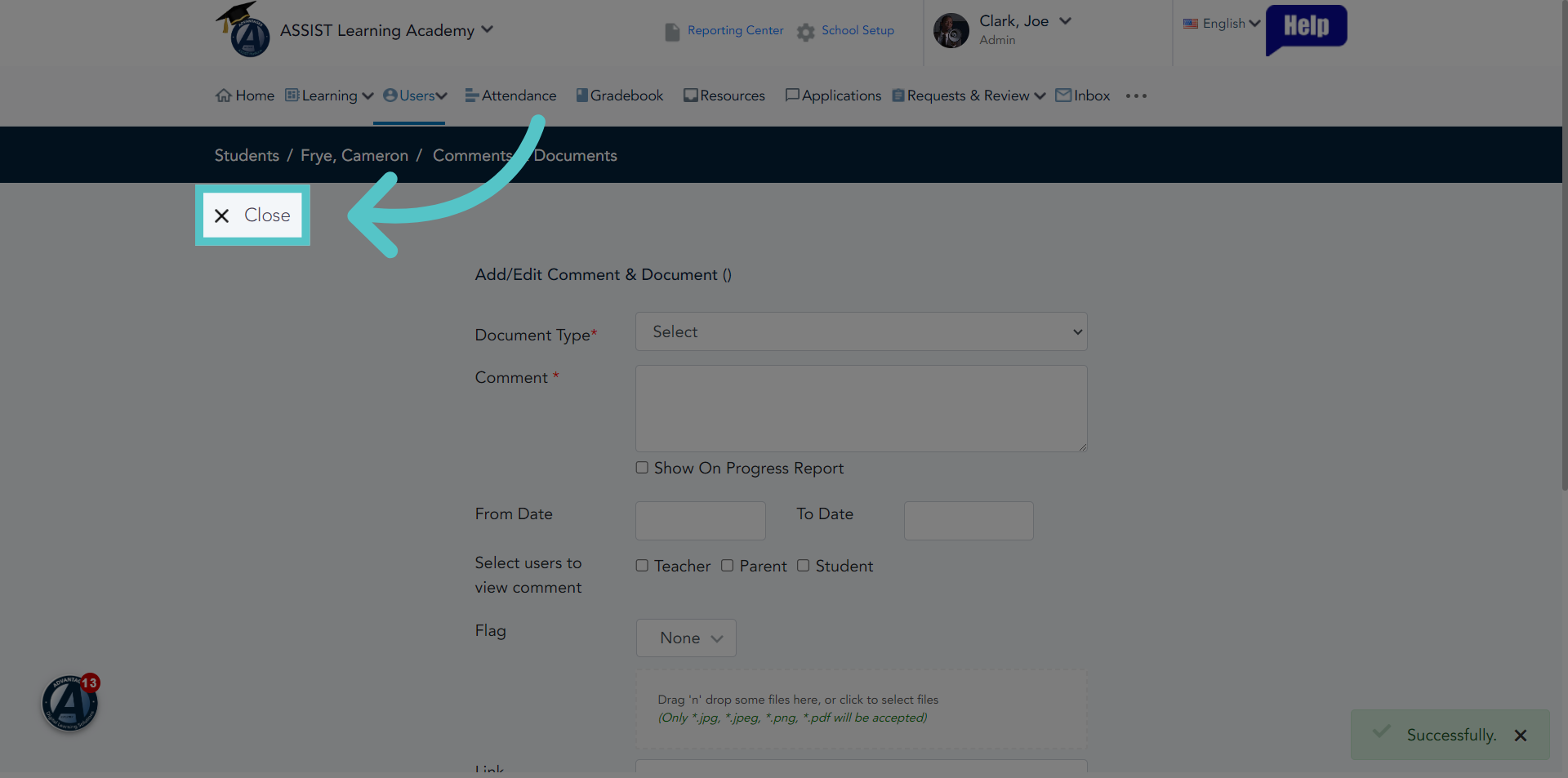
12. Click "Close"
Close the window when your file has successfully saved.
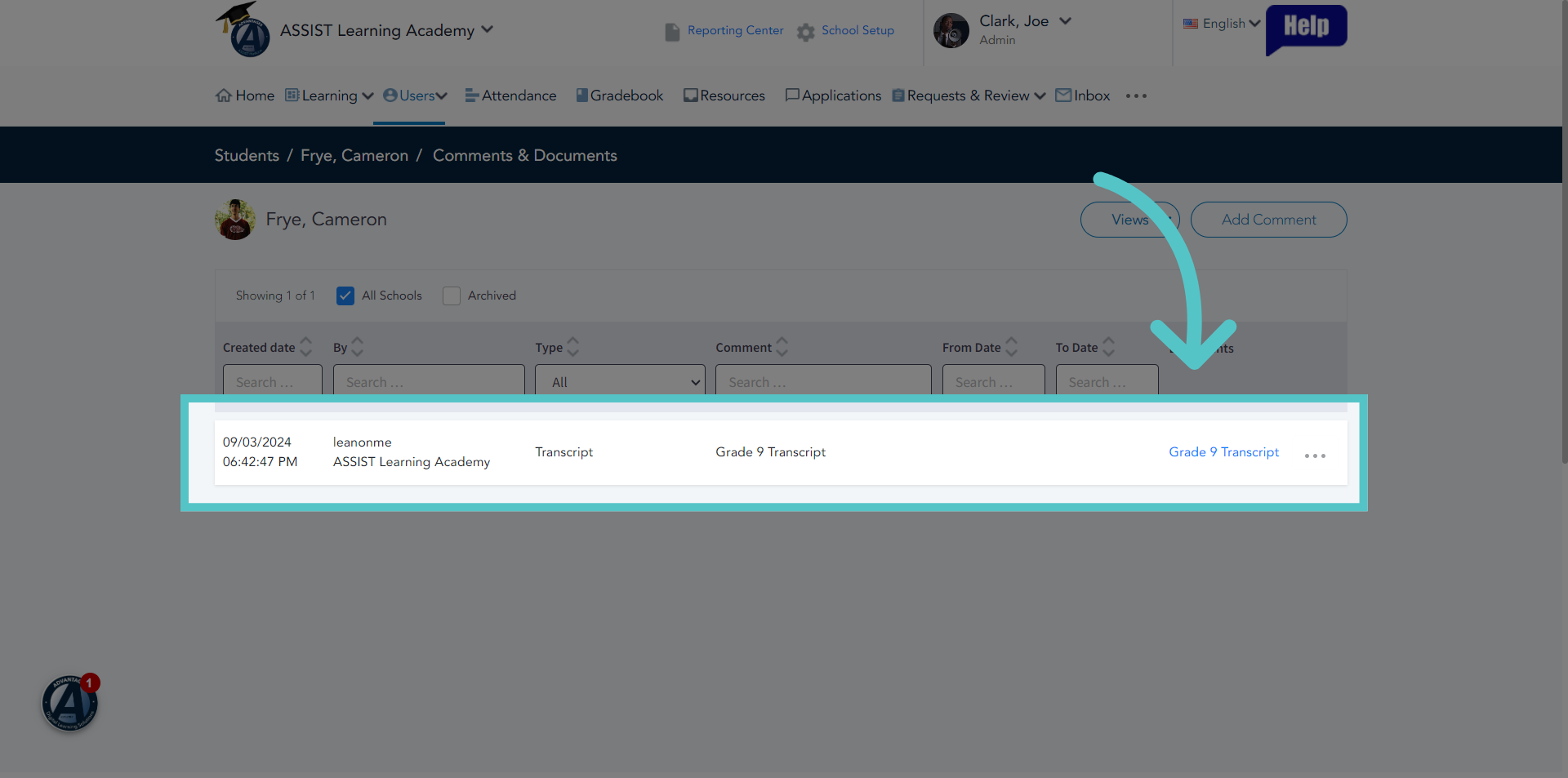
13. Linked Transcript
The transcript is now listed and can be opened from the student Comments and Documents File
If you have any questions about the information in this tutorial, please click "Contact Support" to submit a help request.
Contact Support