Expand to Full Screen for Best Viewing
This tutorial guides you through viewing detailed grade information for a student in Assist.
Go to portal.adlsassist.com
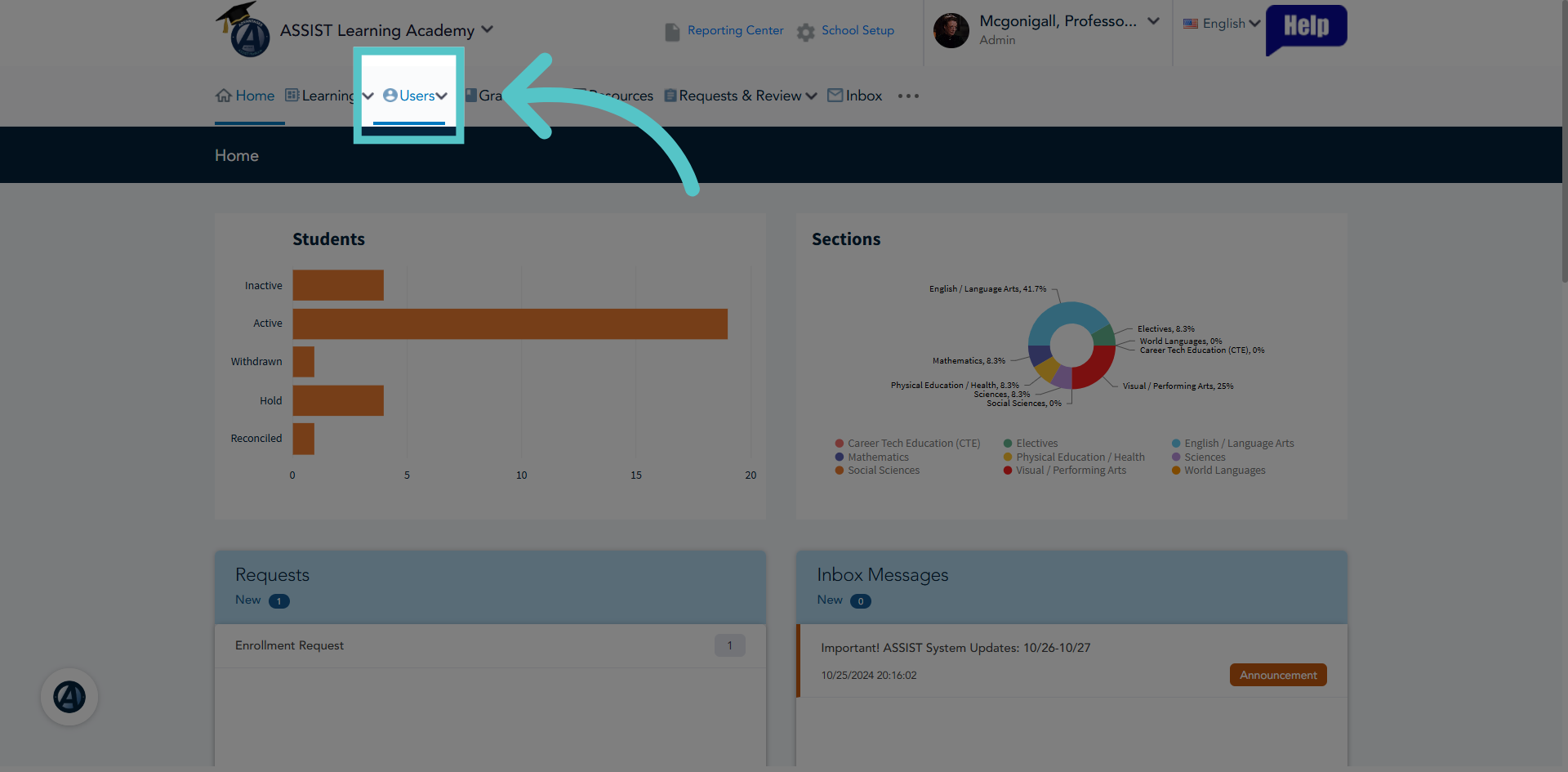
1. Access Users Section
Click "Users" to open the user menu.
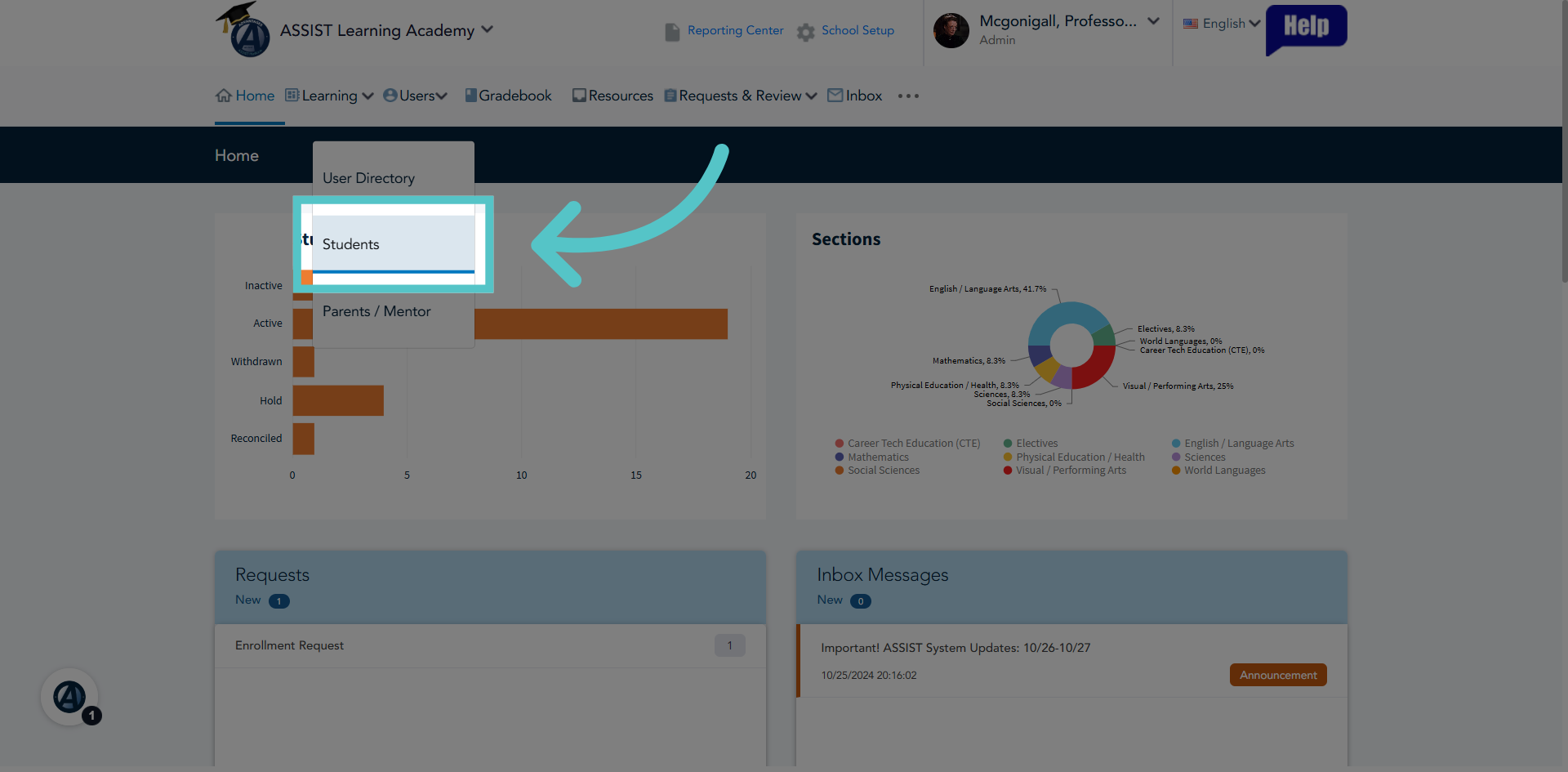
2. Open Students List
Click "Students" to view the list of all students registered in the system.
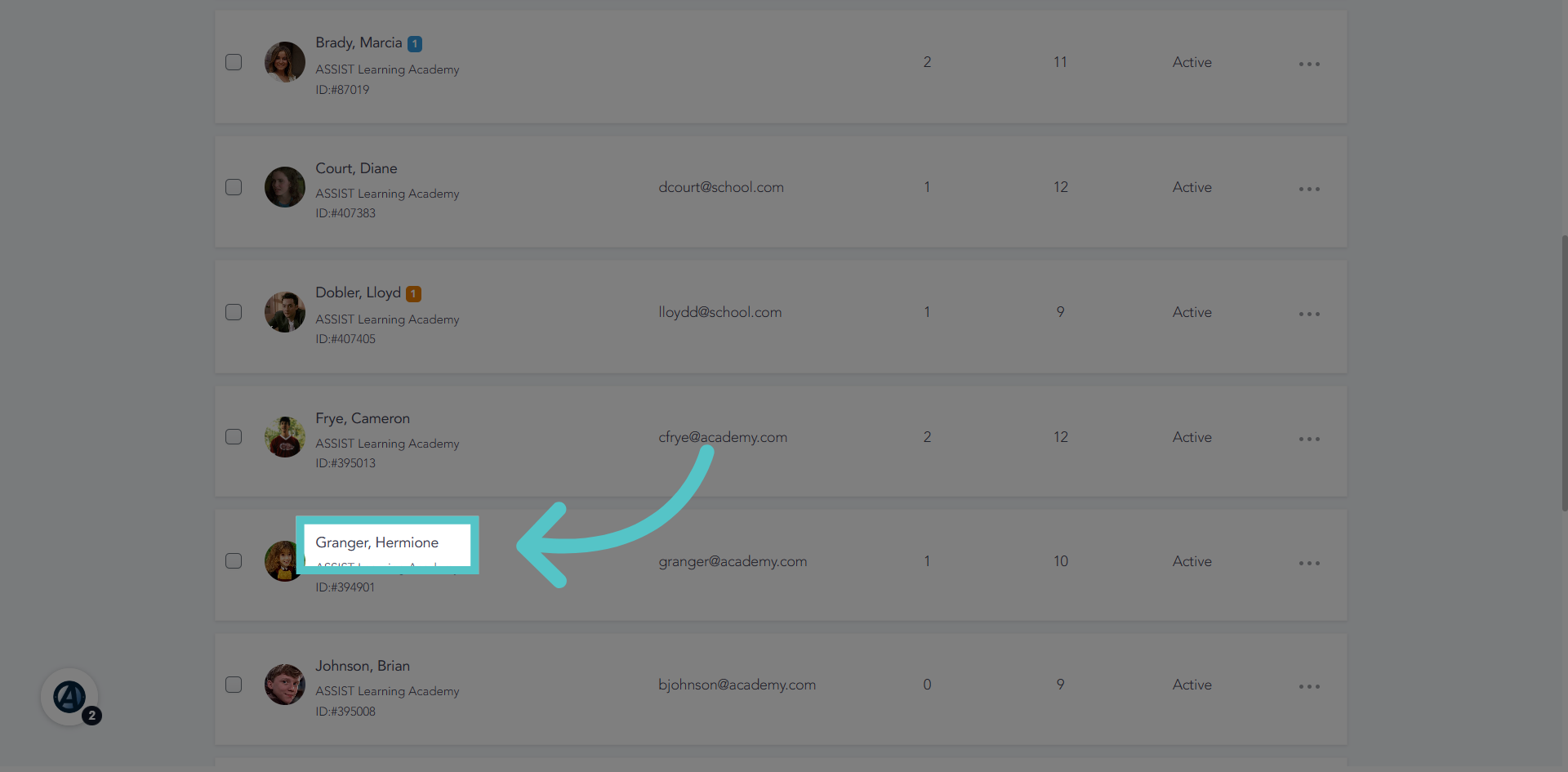
3. Select Student Profile
Select a student name to open the detailed profile of the student.
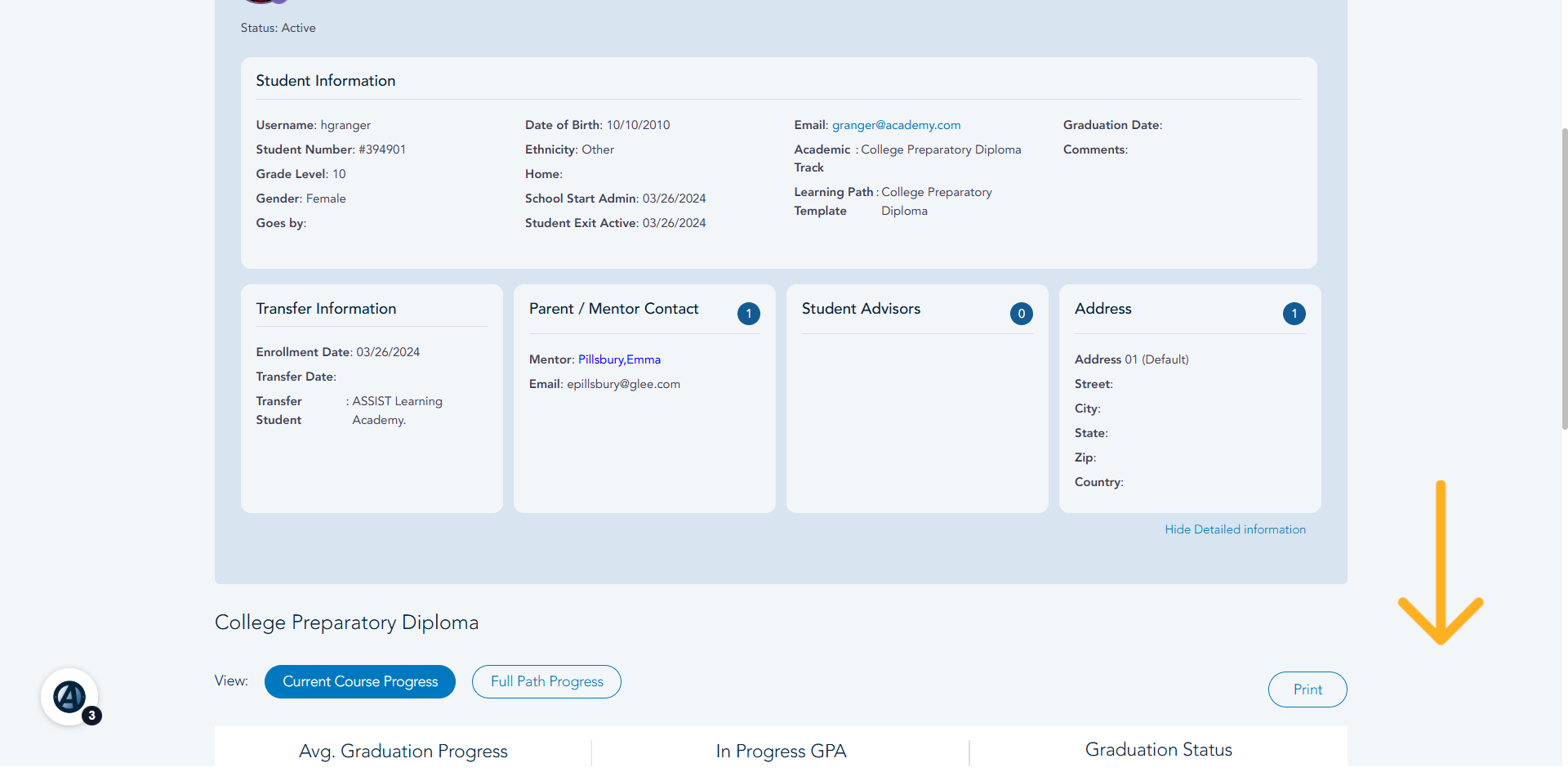
4. Scroll Down
Go to the bottom of the student profile page to find student course enrollments.
5. Access Additional Options
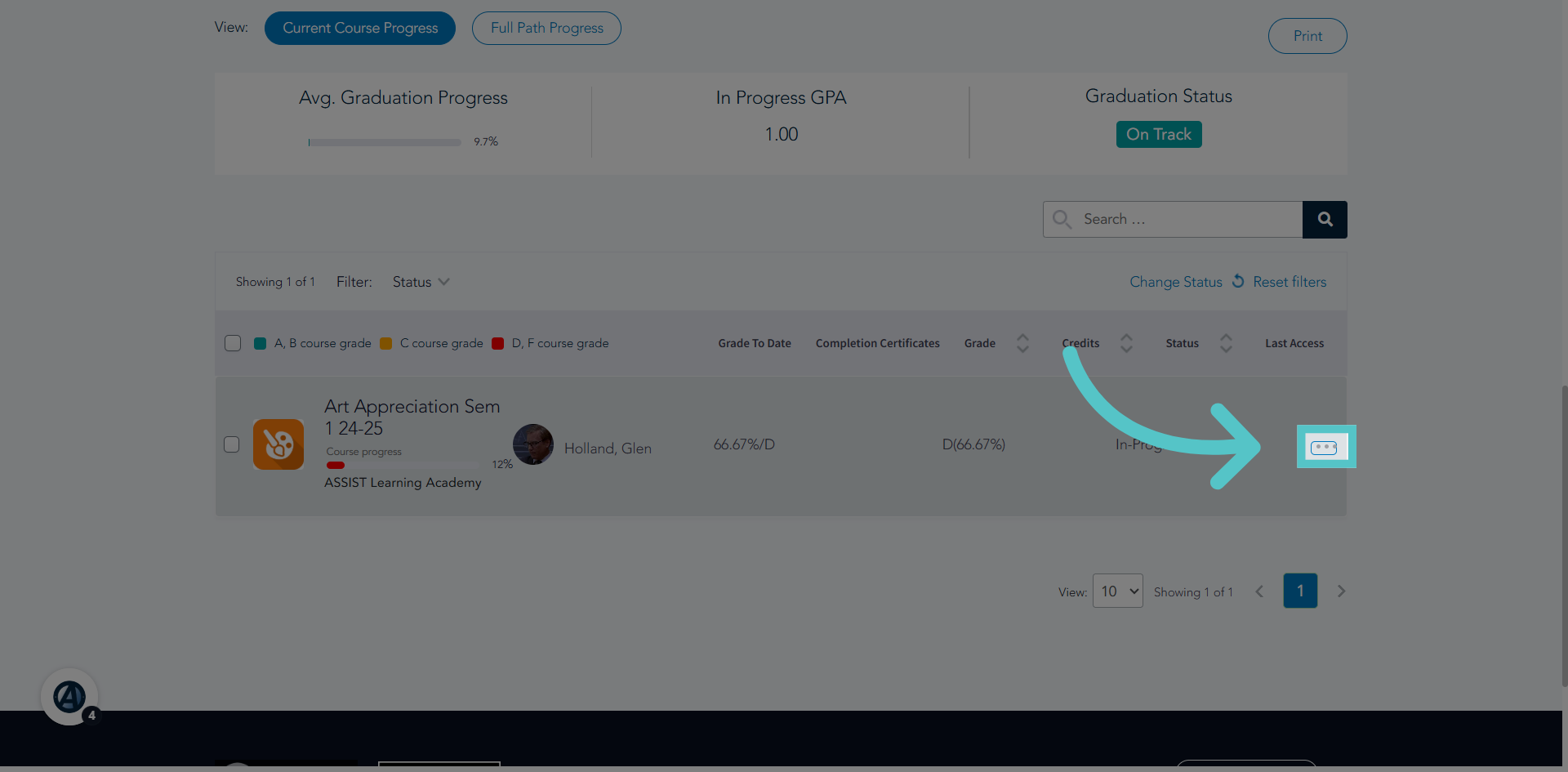
Click the three dots to the far right of any course enrollment to reveal more options.
6. View Grade Details
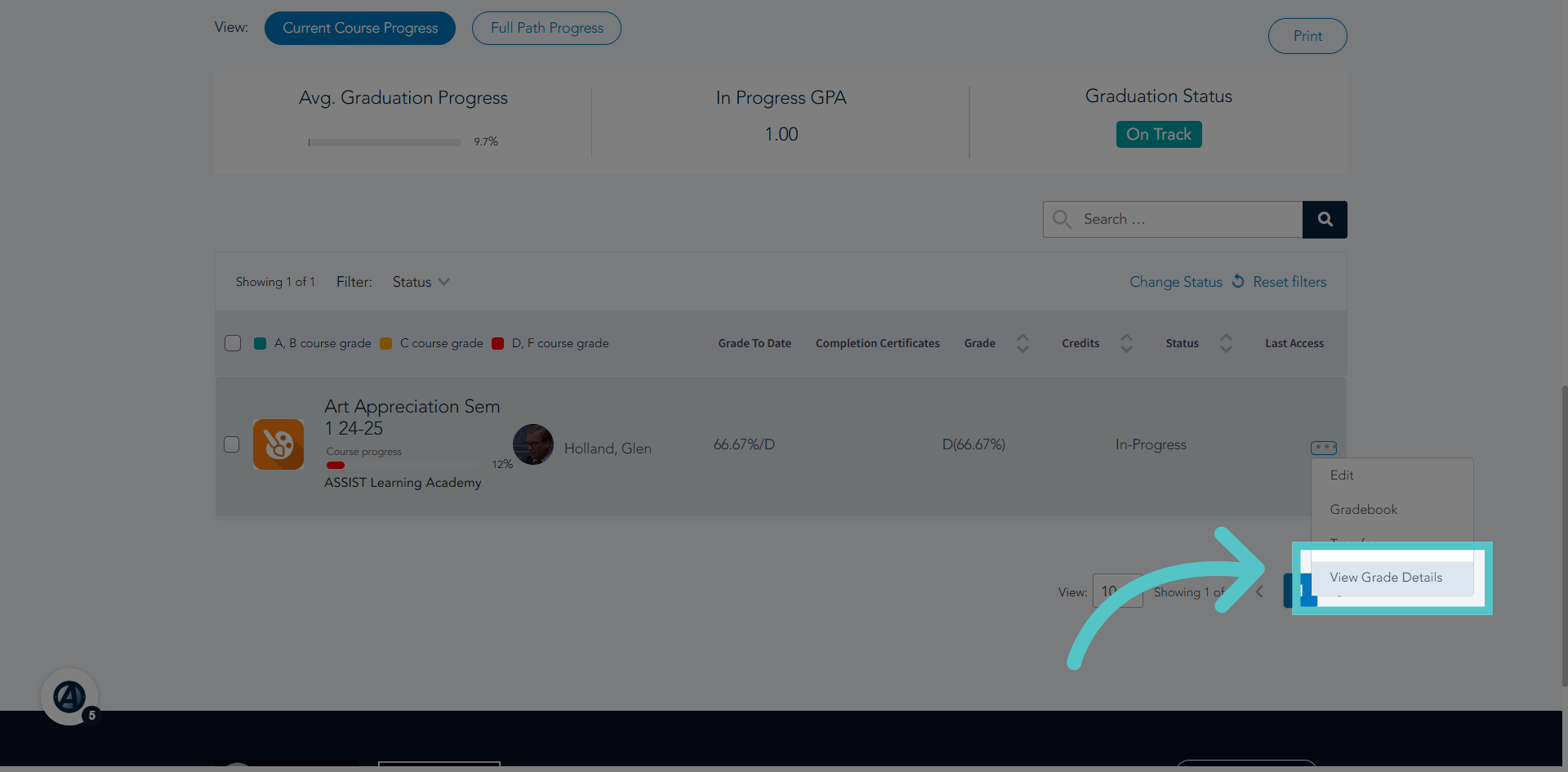
Click "View Grade Details" to access the student's academic performance and specific grades overview.
7. Gradable Course Activities
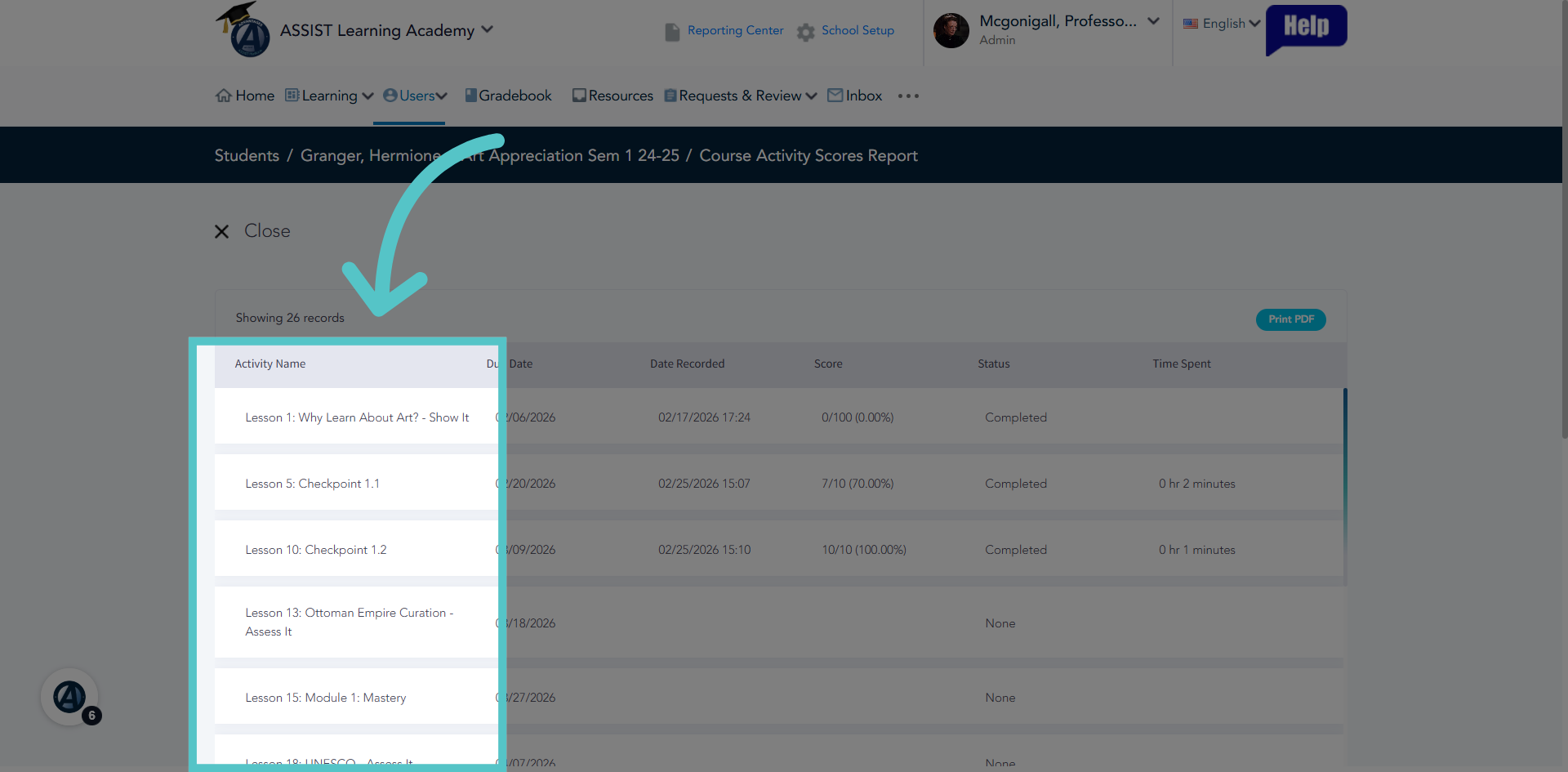
This report will show a list of all gradable activities in the course. These are required for course completion.
8. Scores
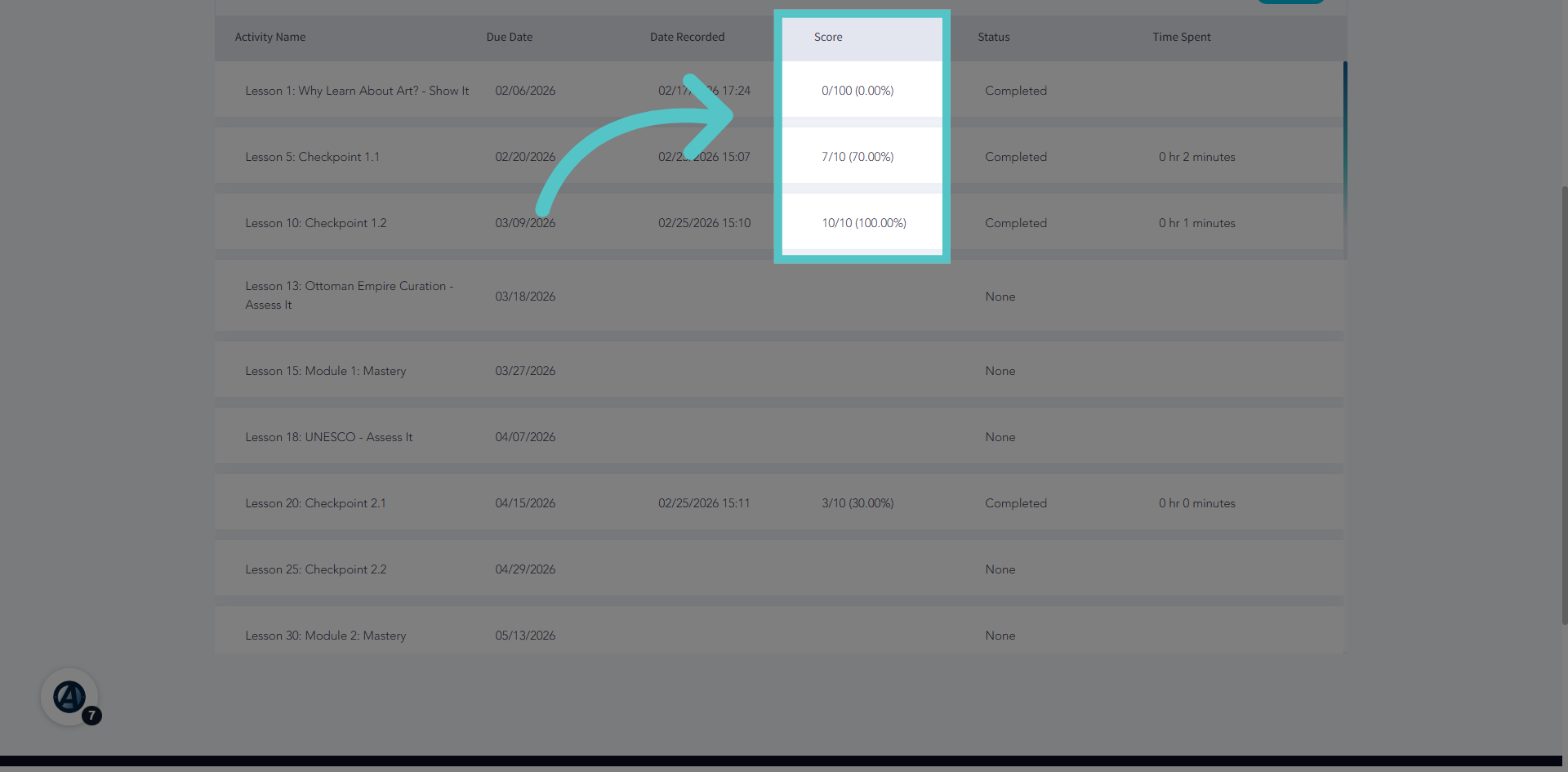
Student scores will be listed for each activity. Scores of 0% may indicate that the activity was not submitted. Overdue activities are automatically completed with a 0% until they are submitted. Students should not have zeros in the gradebook at the end of the course.
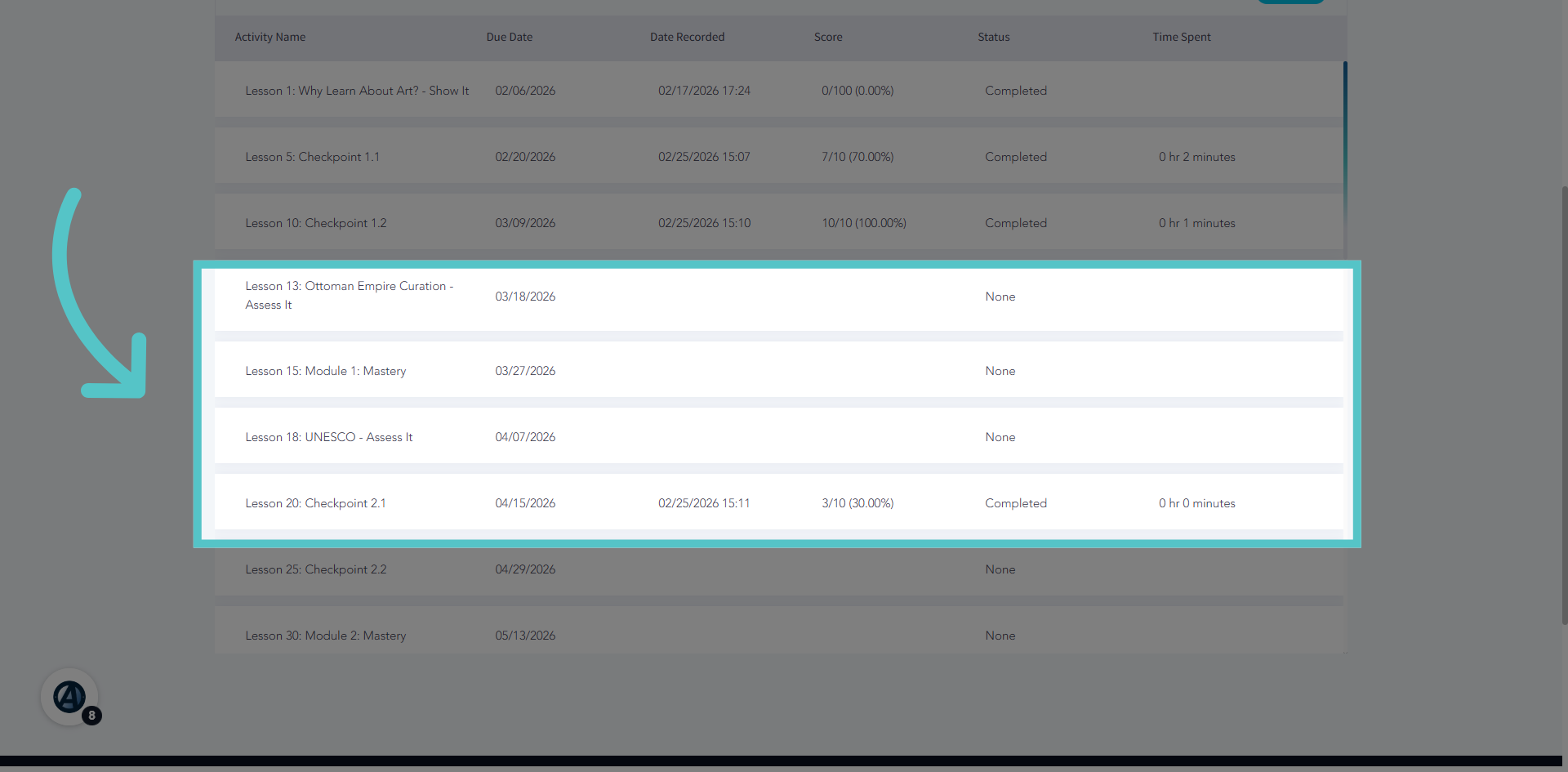
9. Skipped Activiites
View the scores and status columns to find activities that have been skipped. Each activitiy should be completed in order.
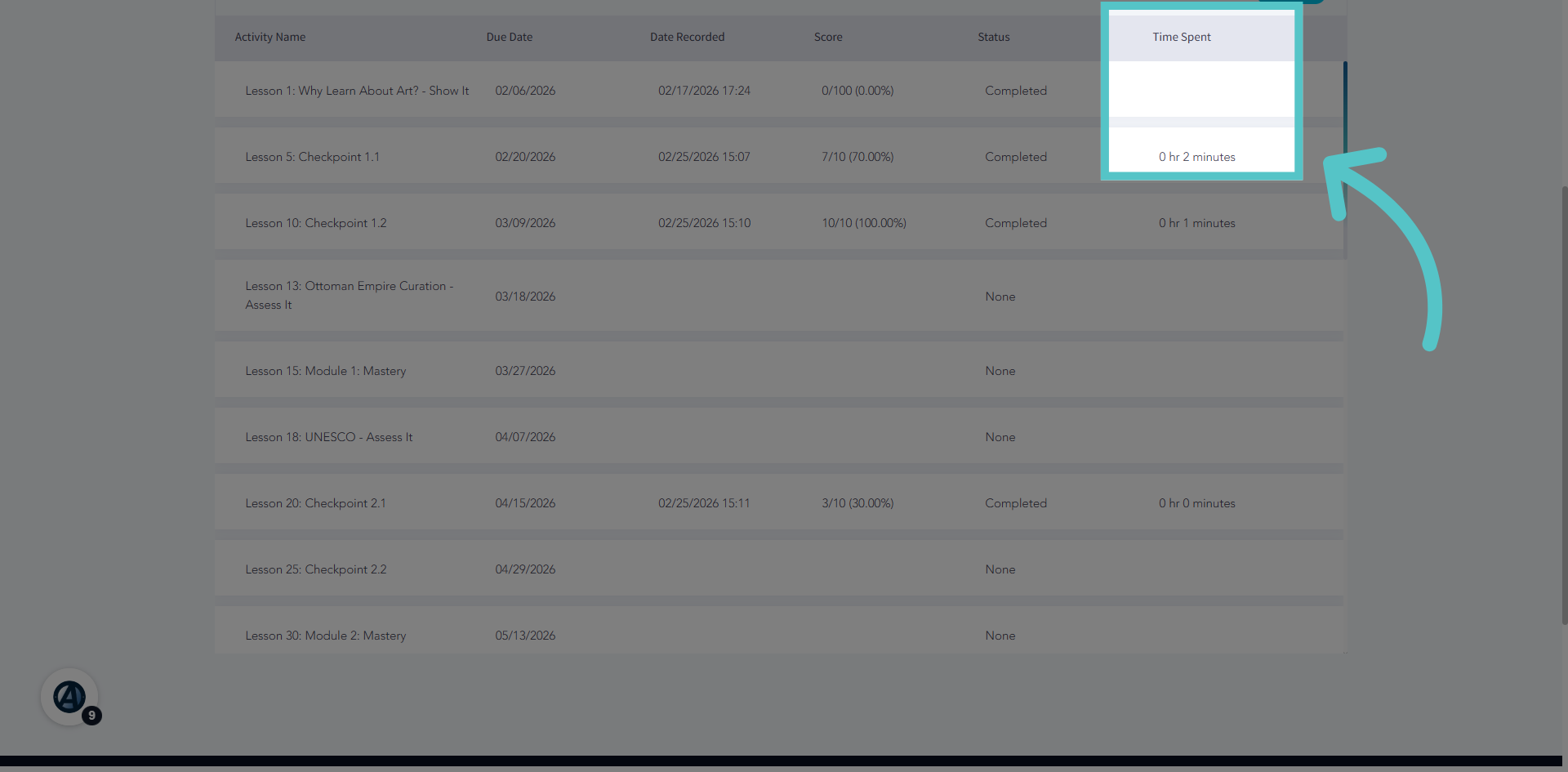
10. Time Spent
The grade details will also show how much time the student spent working on each activity.
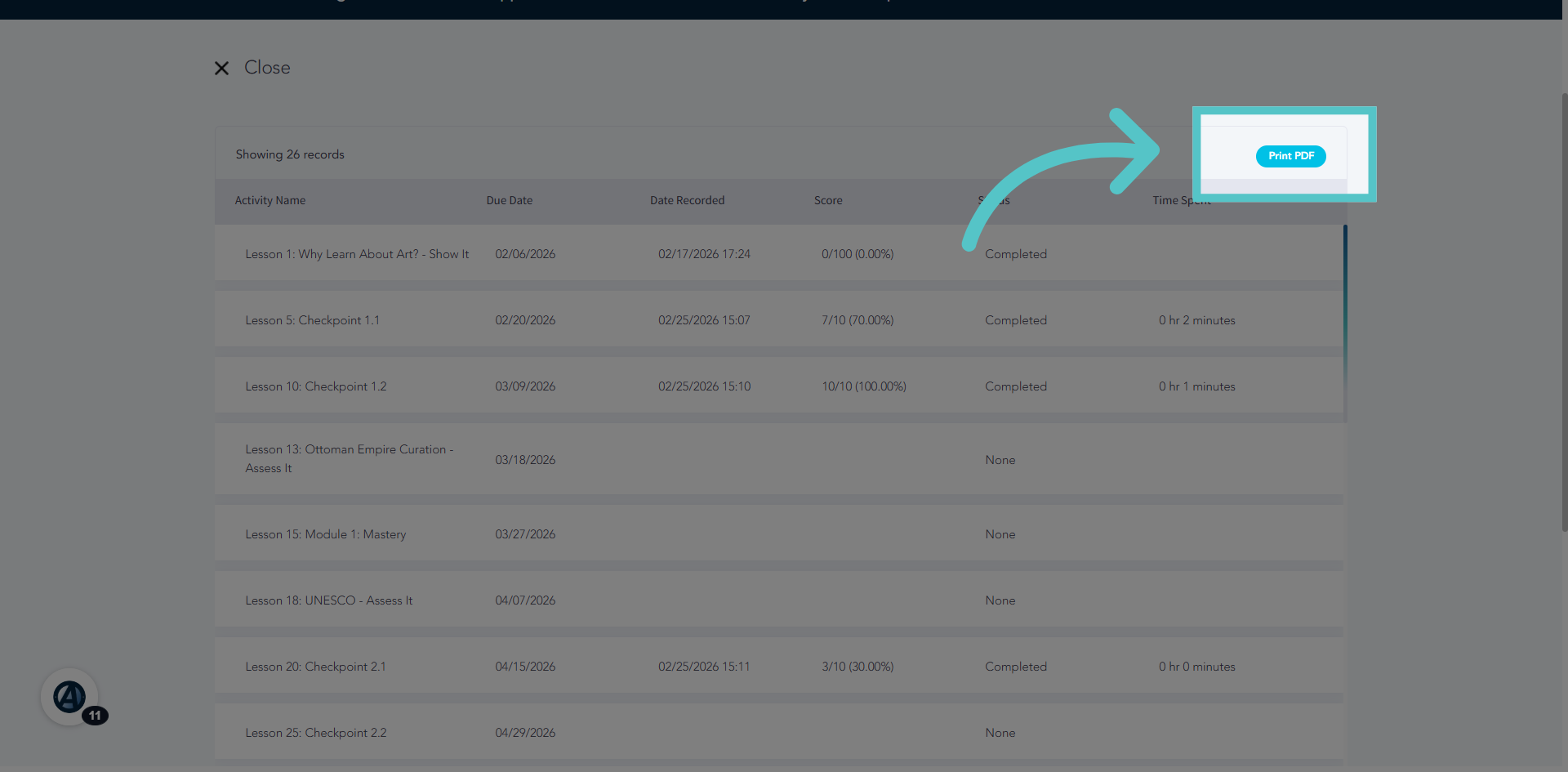
11. Print Grade Records
The full report can be printed to share.
If you have any questions about the information in this tutorial, please contact your dedicated school success manager for additional support.