Expand to Full Screen for best viewing
Finalize and Close a Section in ASSIST.
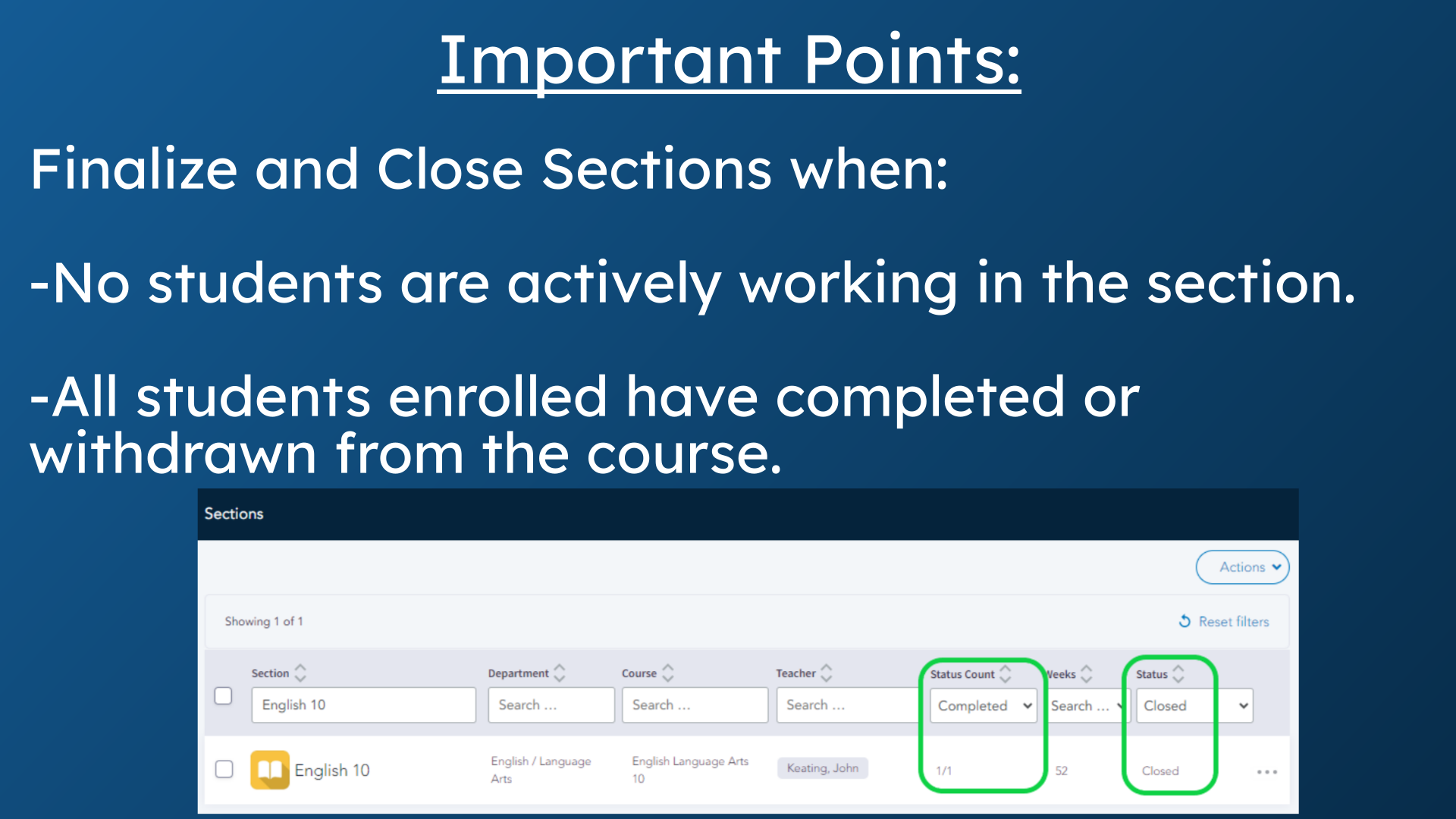
1. Important Points:
Finalize and Close sections when no students are actively working in the section. All students enrolled have completed or withdrawn from the course.
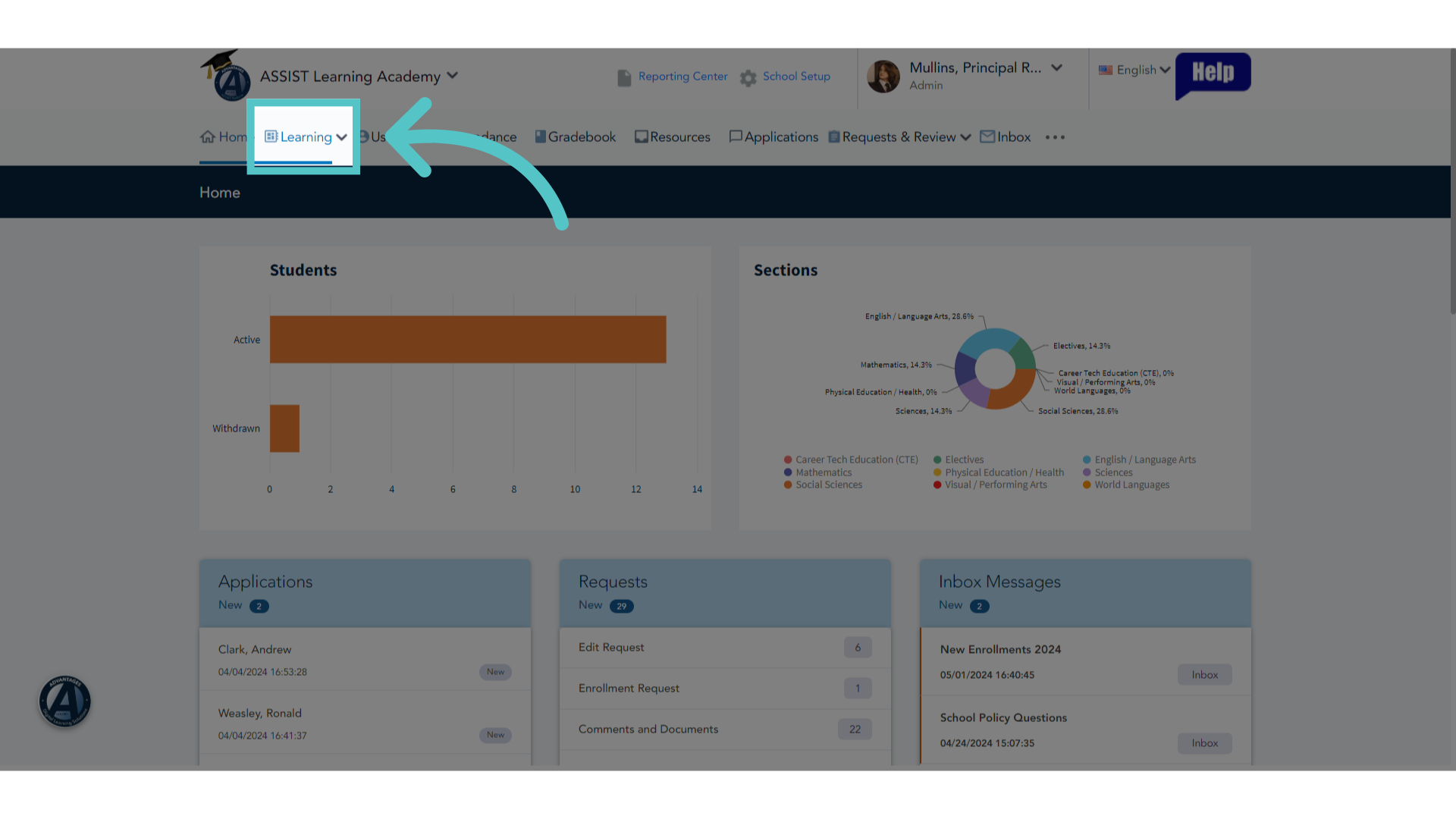
2. Click "Learning"
Go to the "Learning" tab.
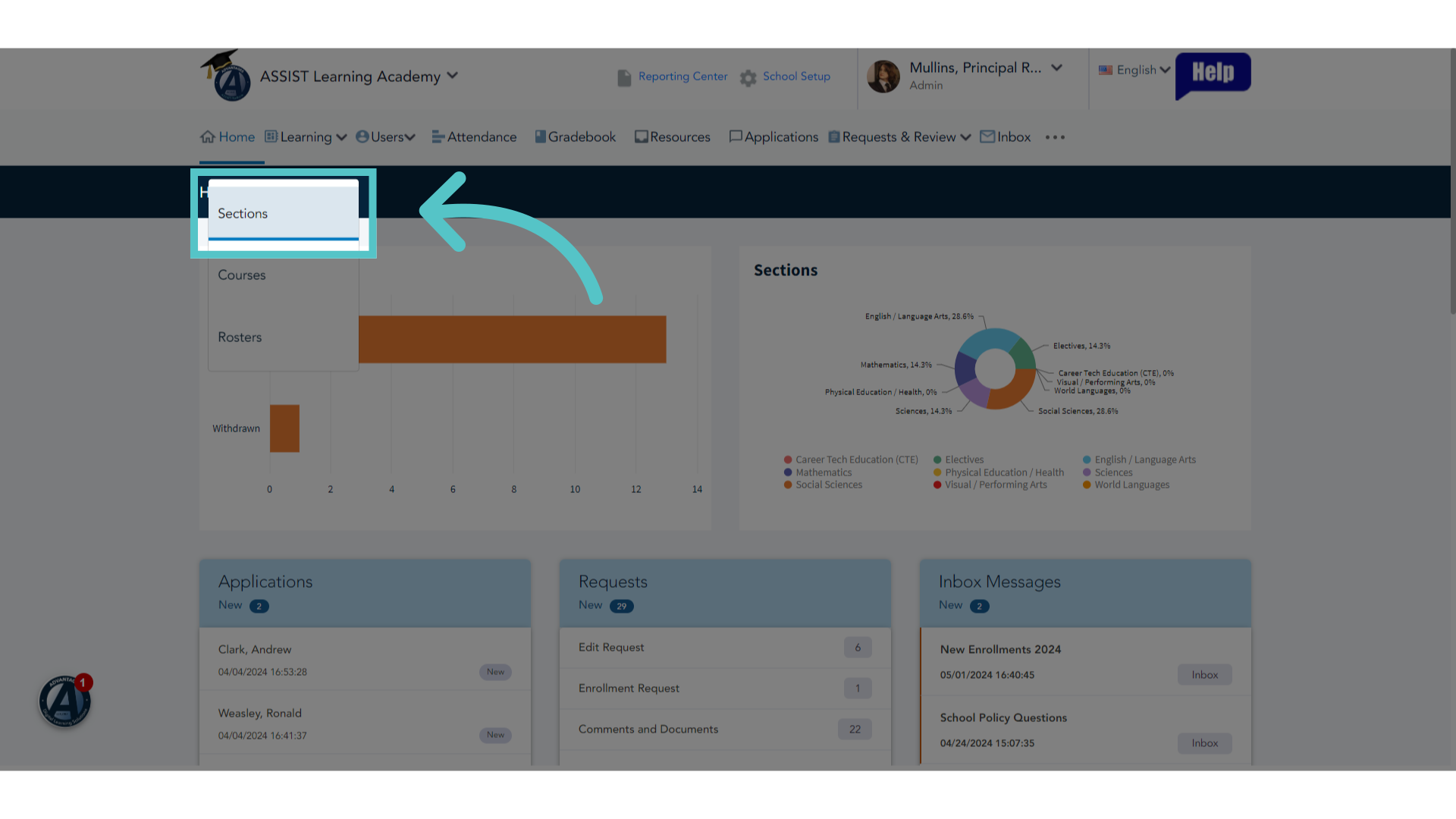
3. Click "Sections"
Access the "Sections" menu.
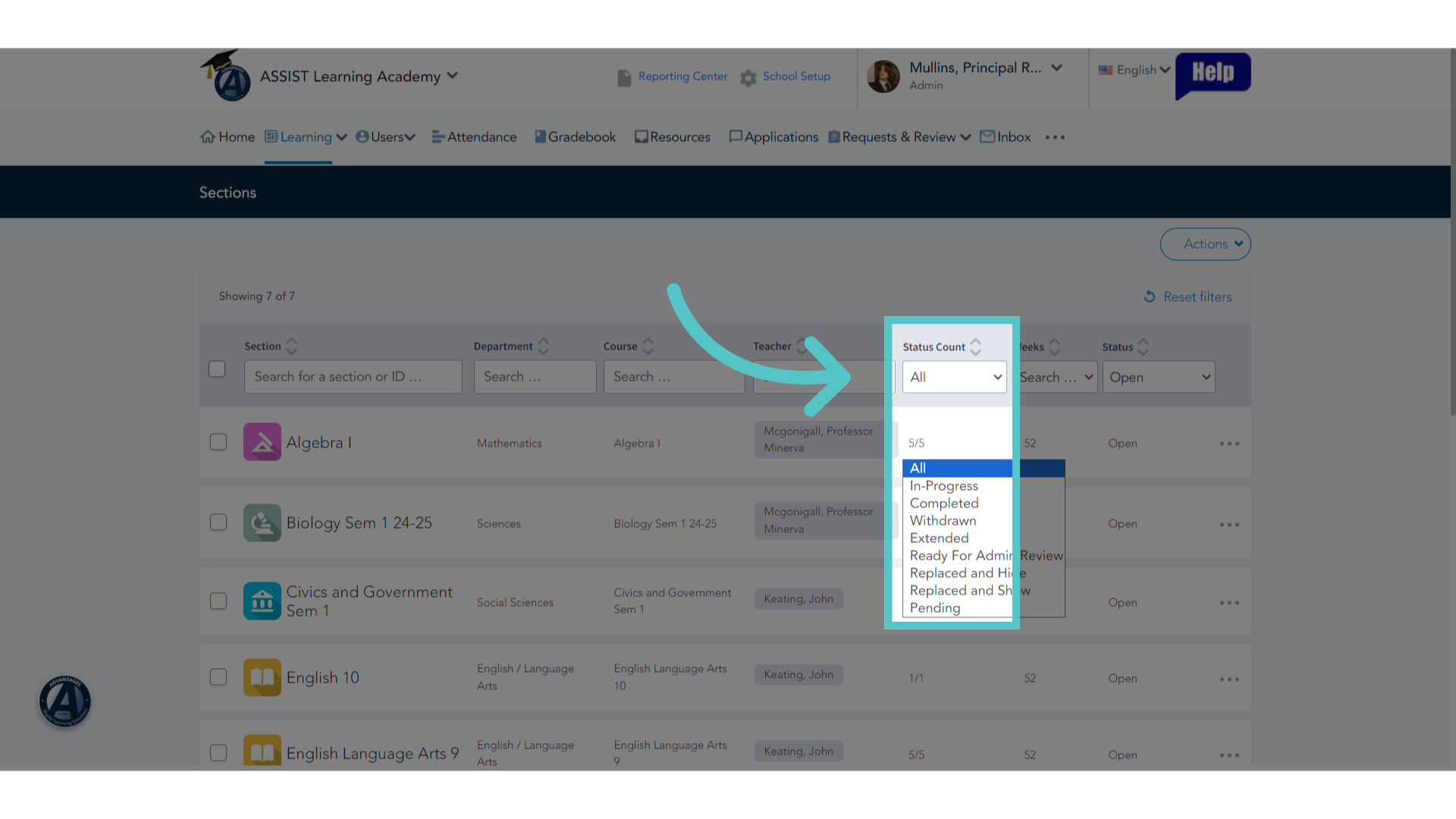
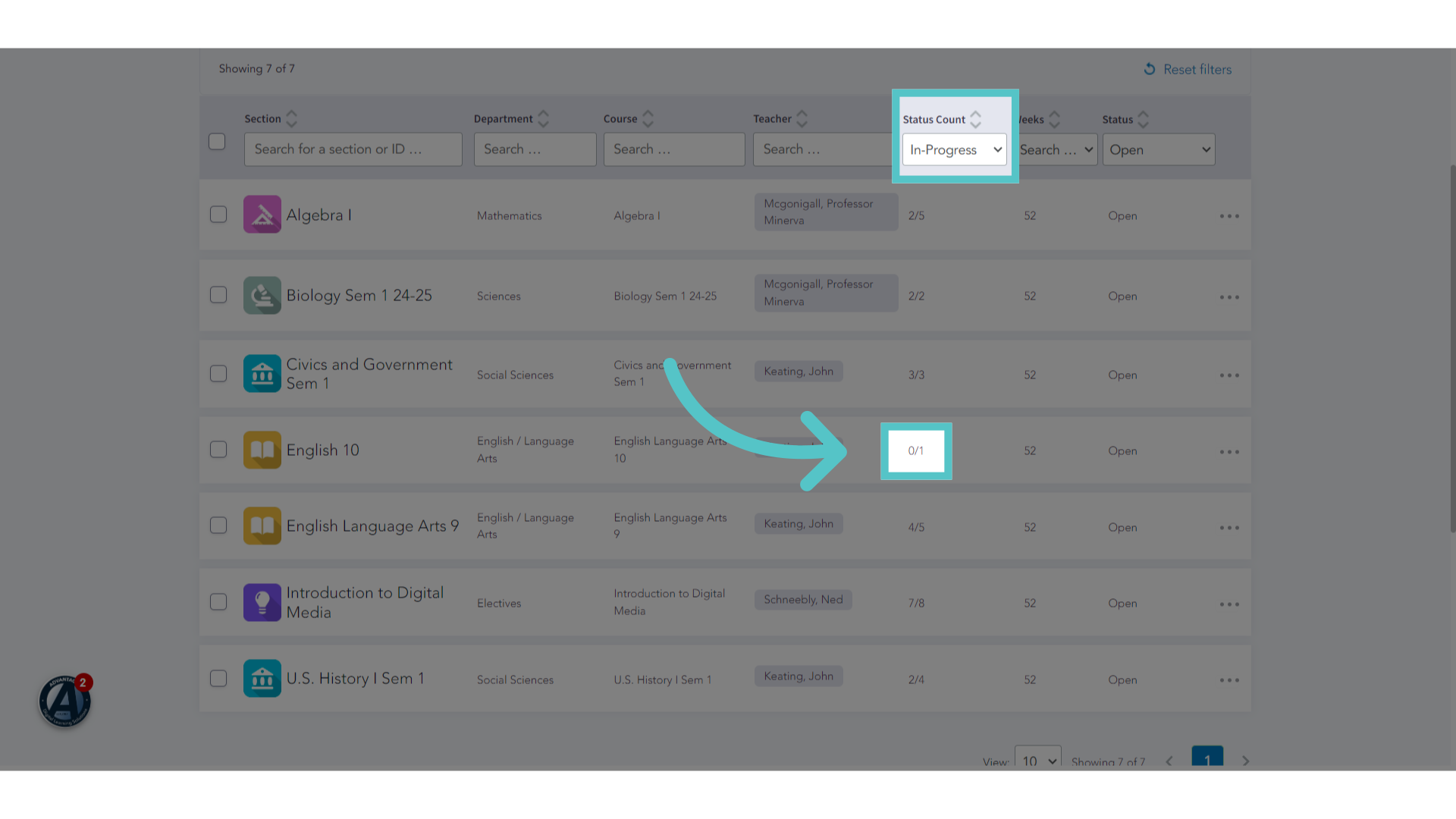
4. Change Status Count
To find sections that can be closed, filter the status count to show the number of "In Progress" Students for each section.
5. No "In Progress" Students
Search for sections that show zero "in progress" students. This English 10 section shows 0 out of 1 students as "in Progress." The section had one student, but none are currently in progress.
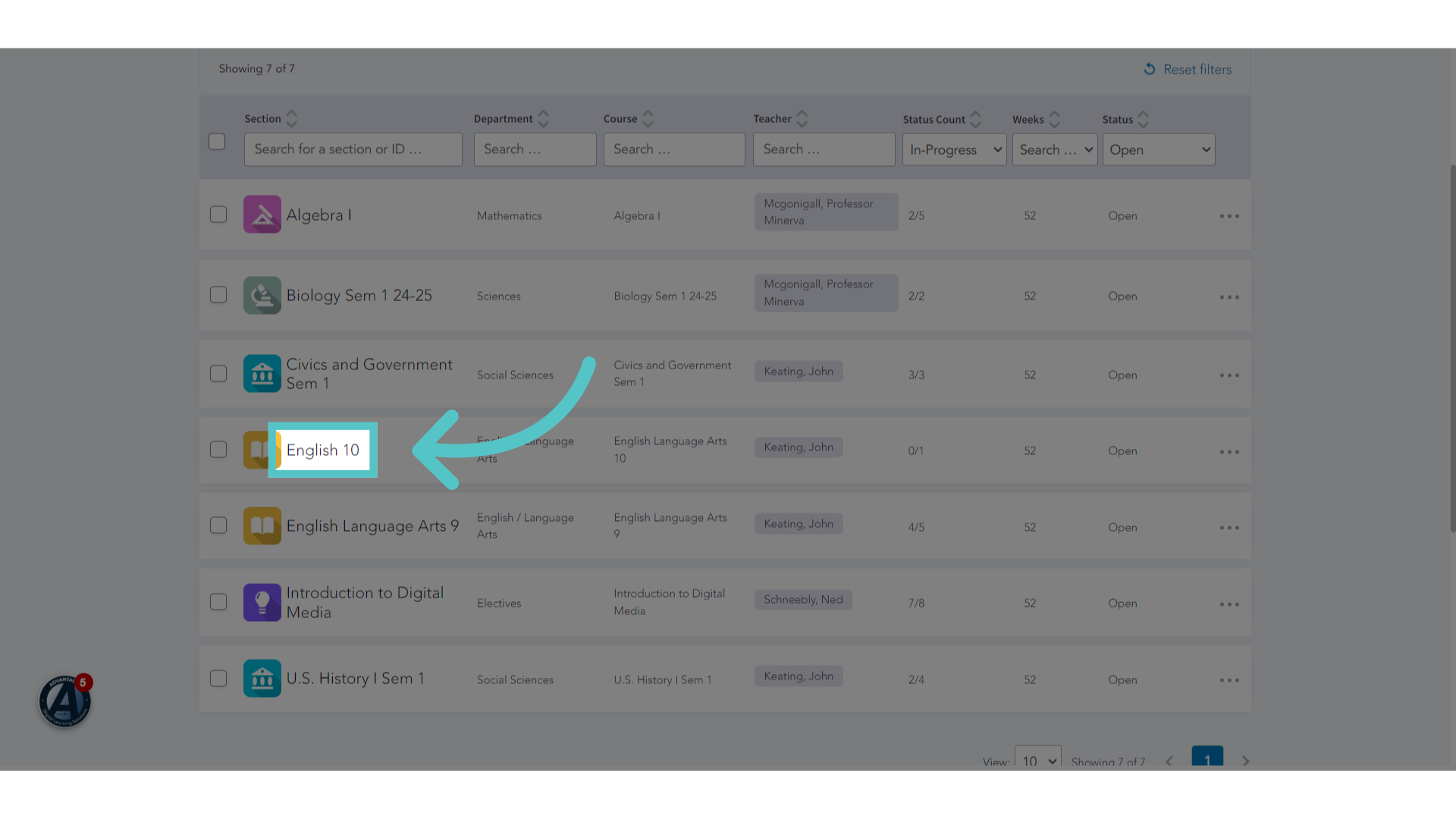
6. Click "Section Name"
Click on the section name if you would like to confirm the student progress in this section.
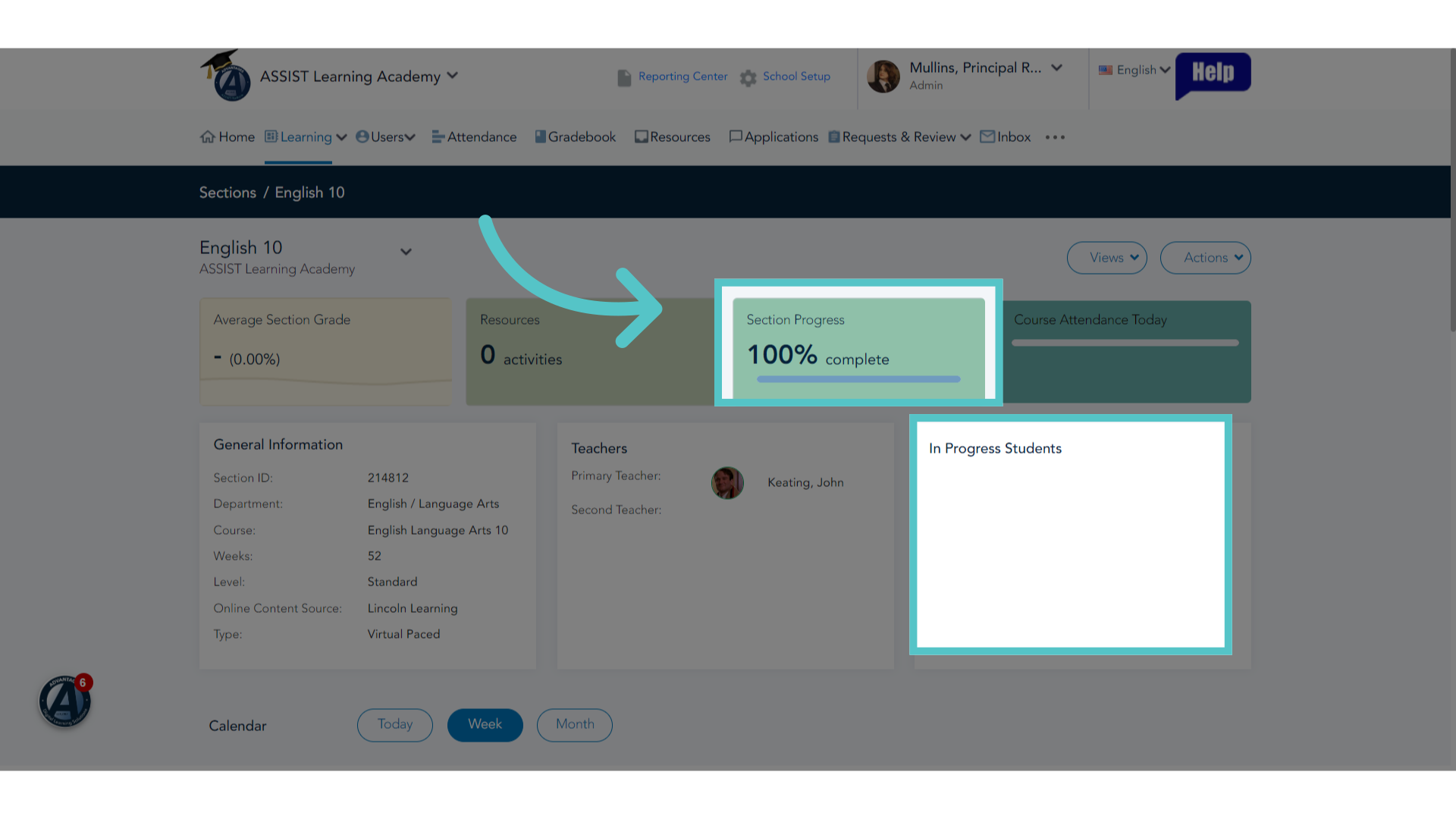
7. Section Progress
The section page should show that 100% of enrolled students have completed the course. No student will show in the box for In Progress Students.
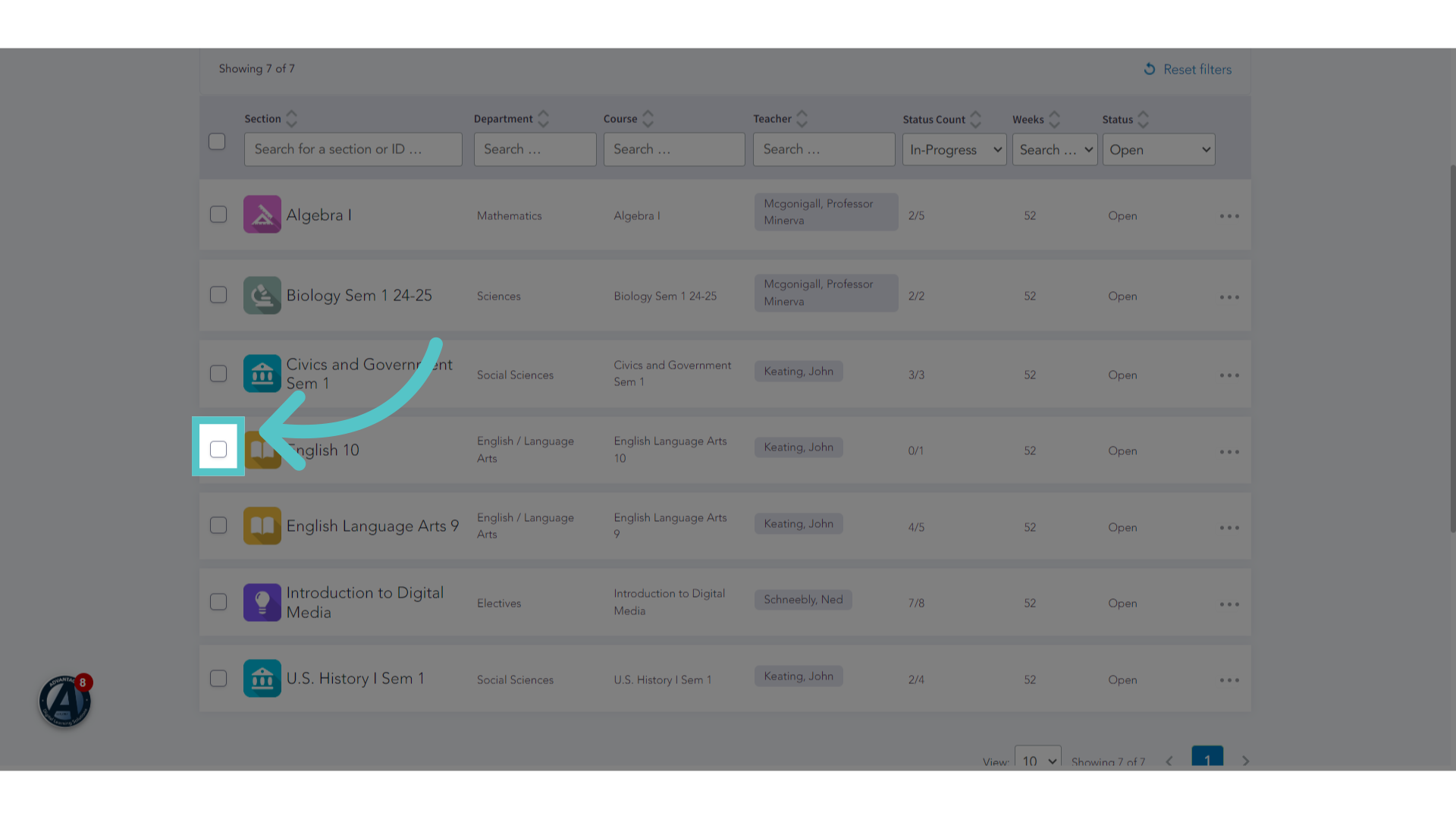
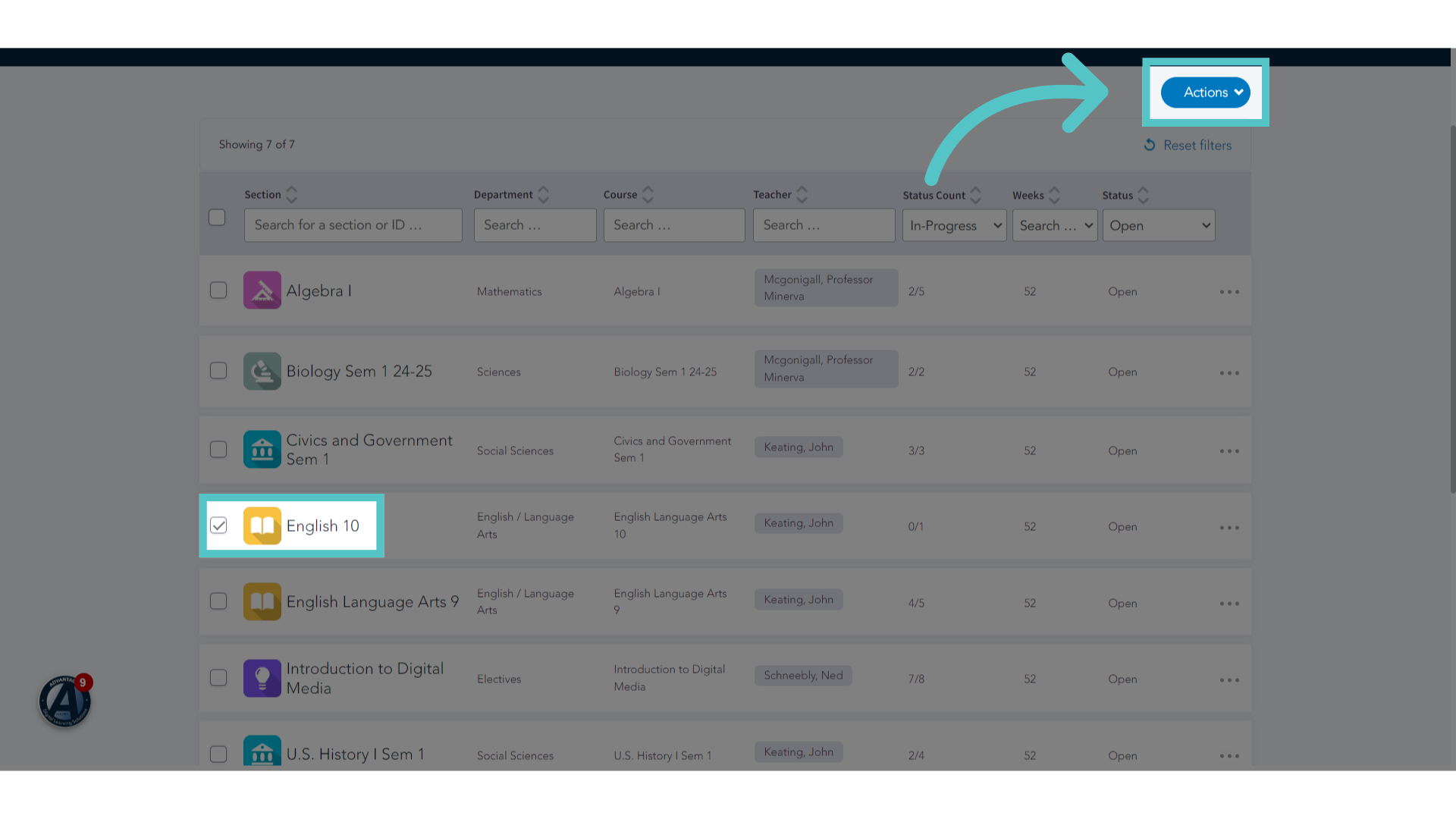
8. Check Box
Return to the Sections list and check the box next to the section name.
9. Click "Actions"
Click the Actions Button.
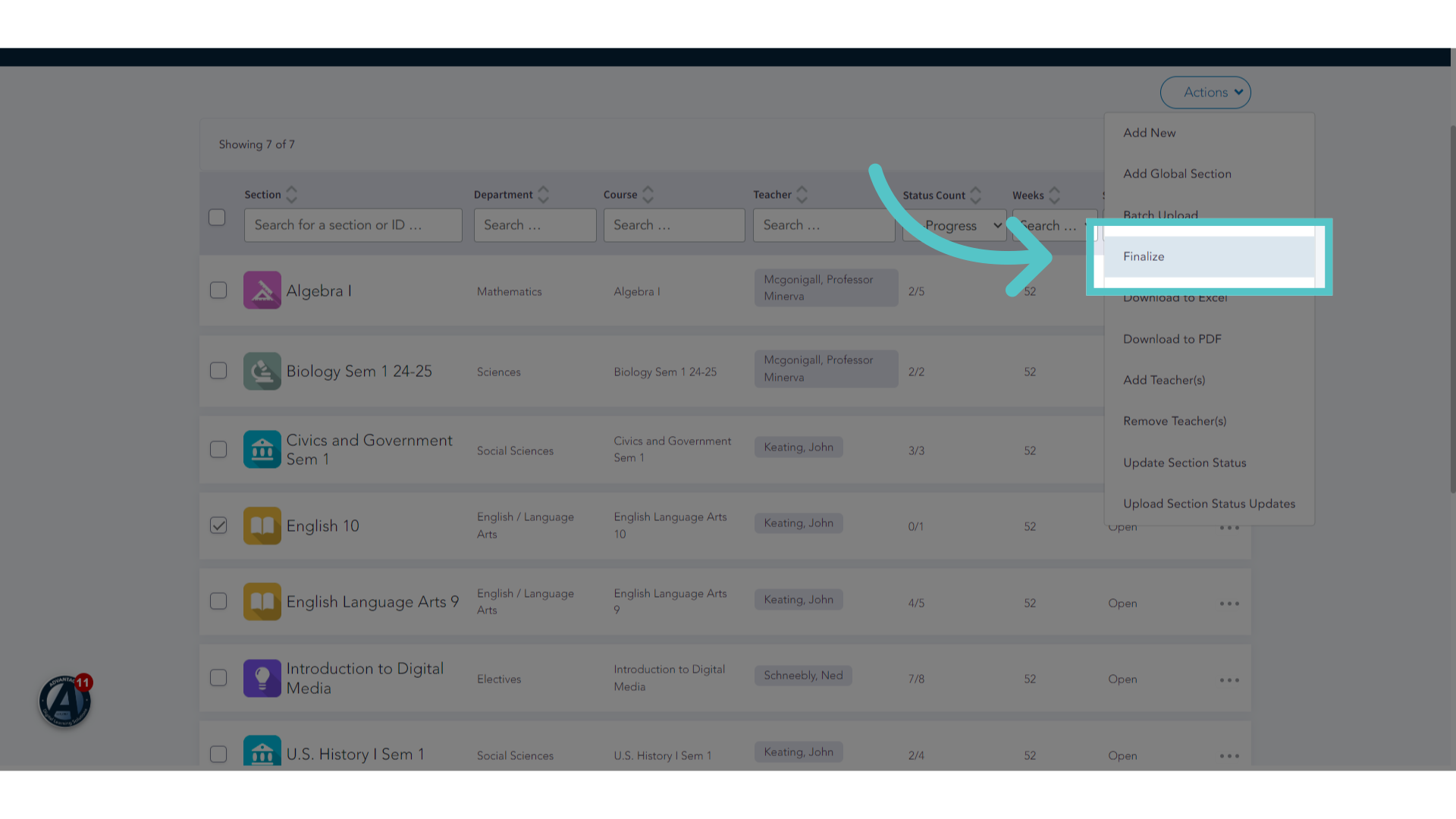
10. Click "Finalize"
Select "Finalize" from the menu options.
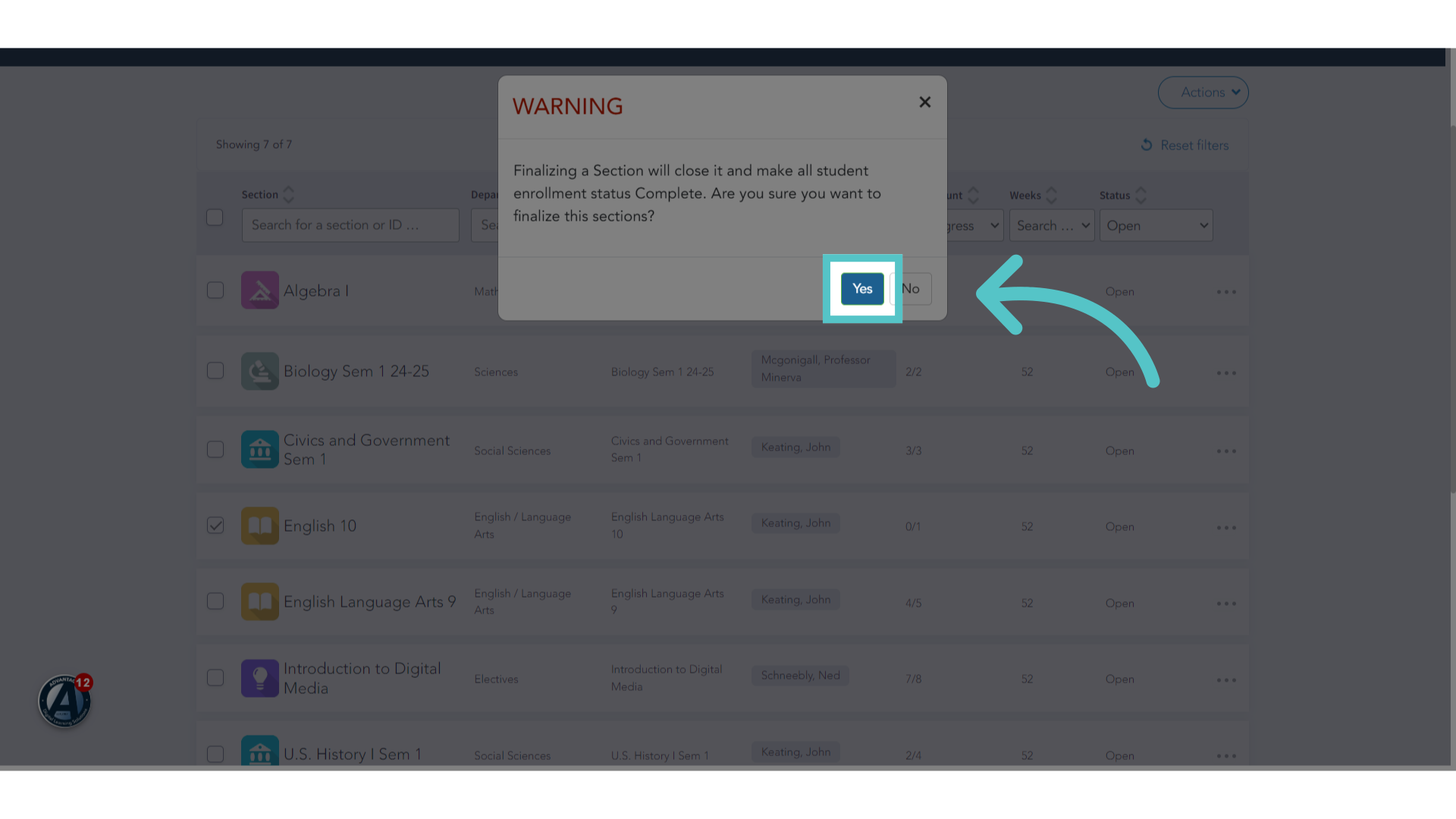
11. Click "Yes"
Confirm that you want to finalize the section. If there are any students still working, their enrollment will automatically be changed to "completed."
12. Section Closed
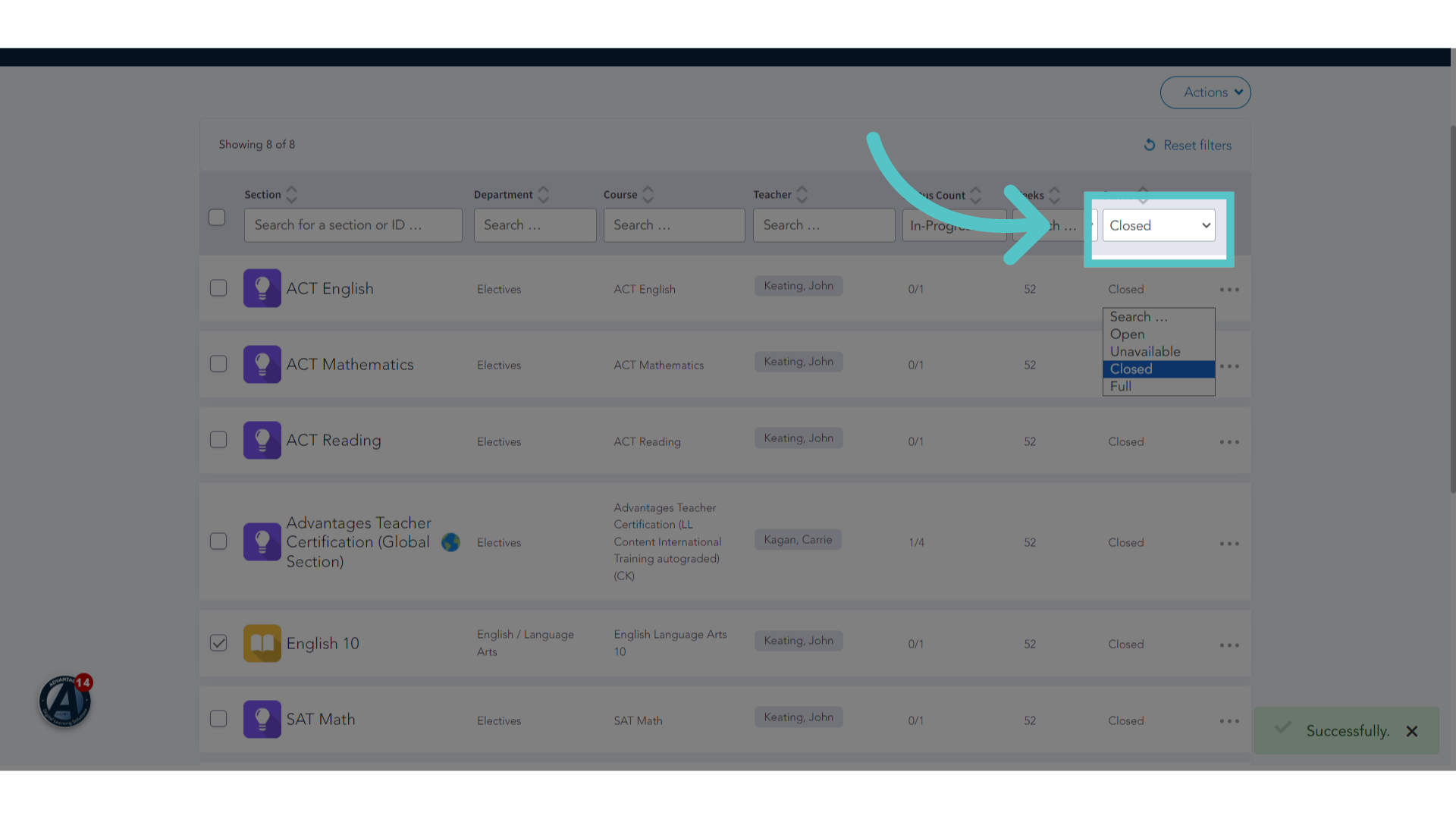
When the section has been closed, ASSIST will indicate "Successfully" in the bottom right corner.
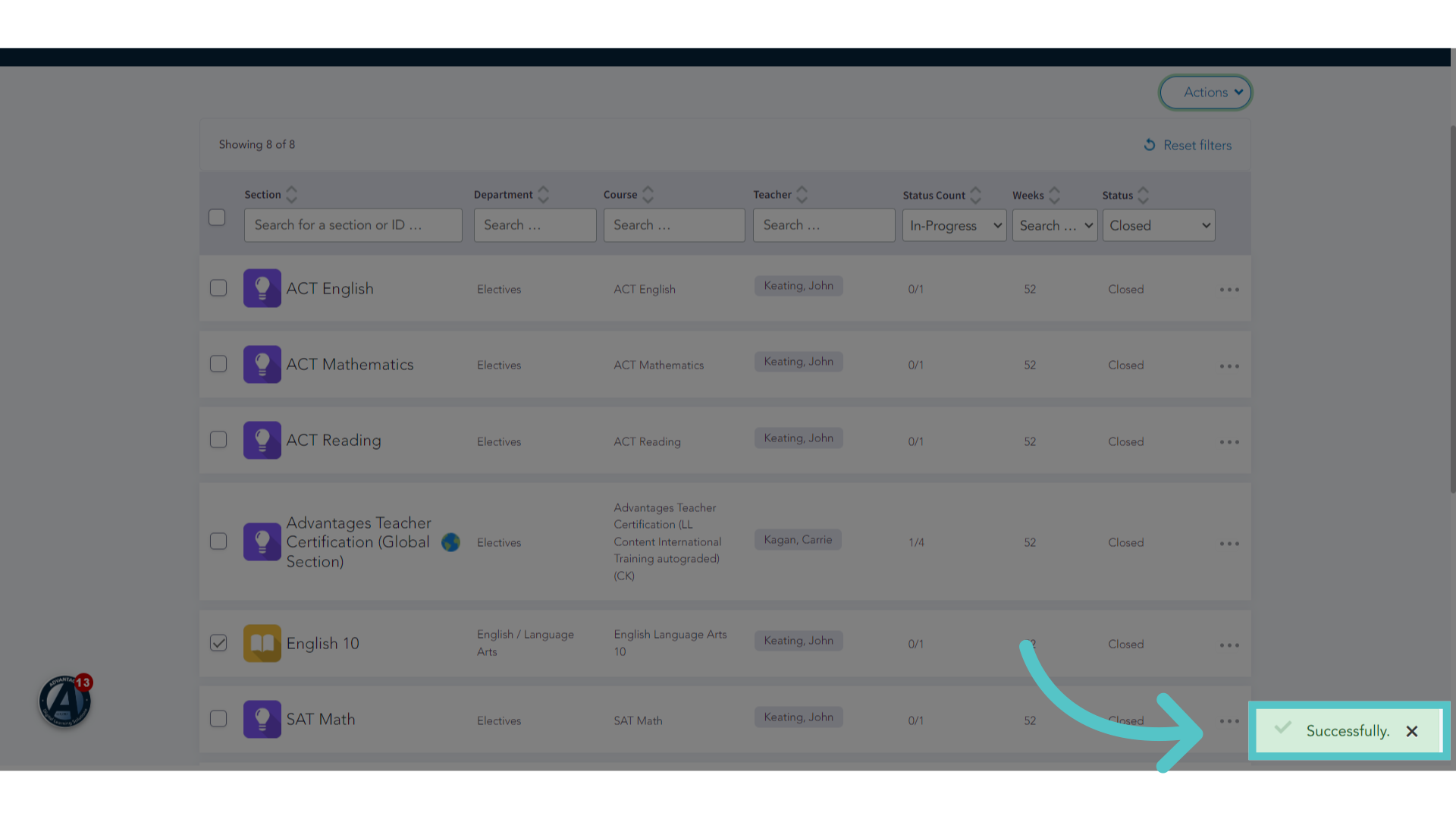
13. Closed Status
The section list will change to show all closed sections. Use the filter to view all "Open" sections. Closed sections will no longer appear for teachers or students.
If you have any questions about the information in this tutorial, please click "Contact Support" to submit a help request.
Contact Support