This tutorial guides you through setting an academic term in the Assist platform. This will be important for enrollment requests and section set up.
Go to portal.adlsassist.com
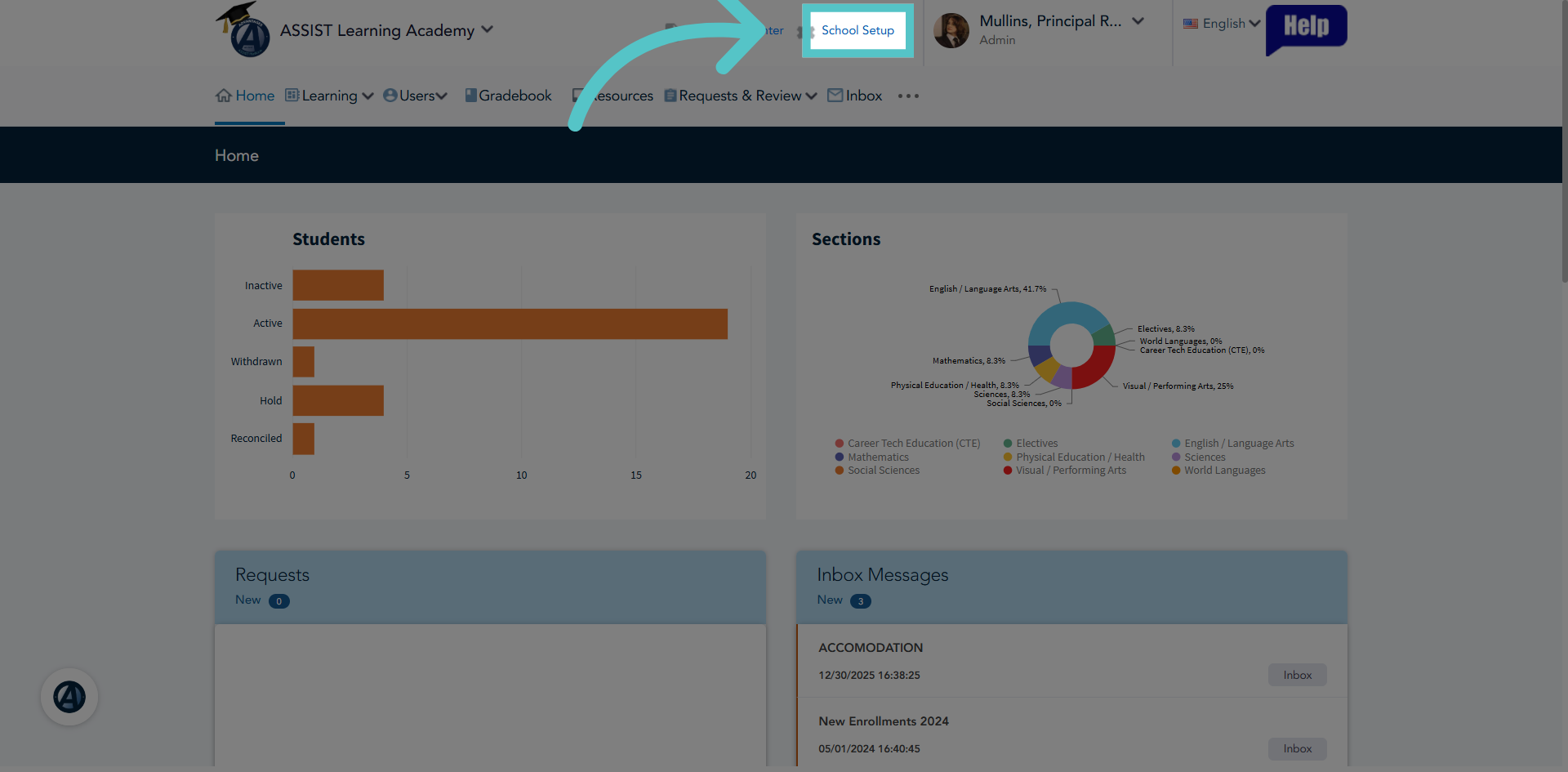
1. Navigate to School Setup
Click the School Setup option to access the Academic Term field.
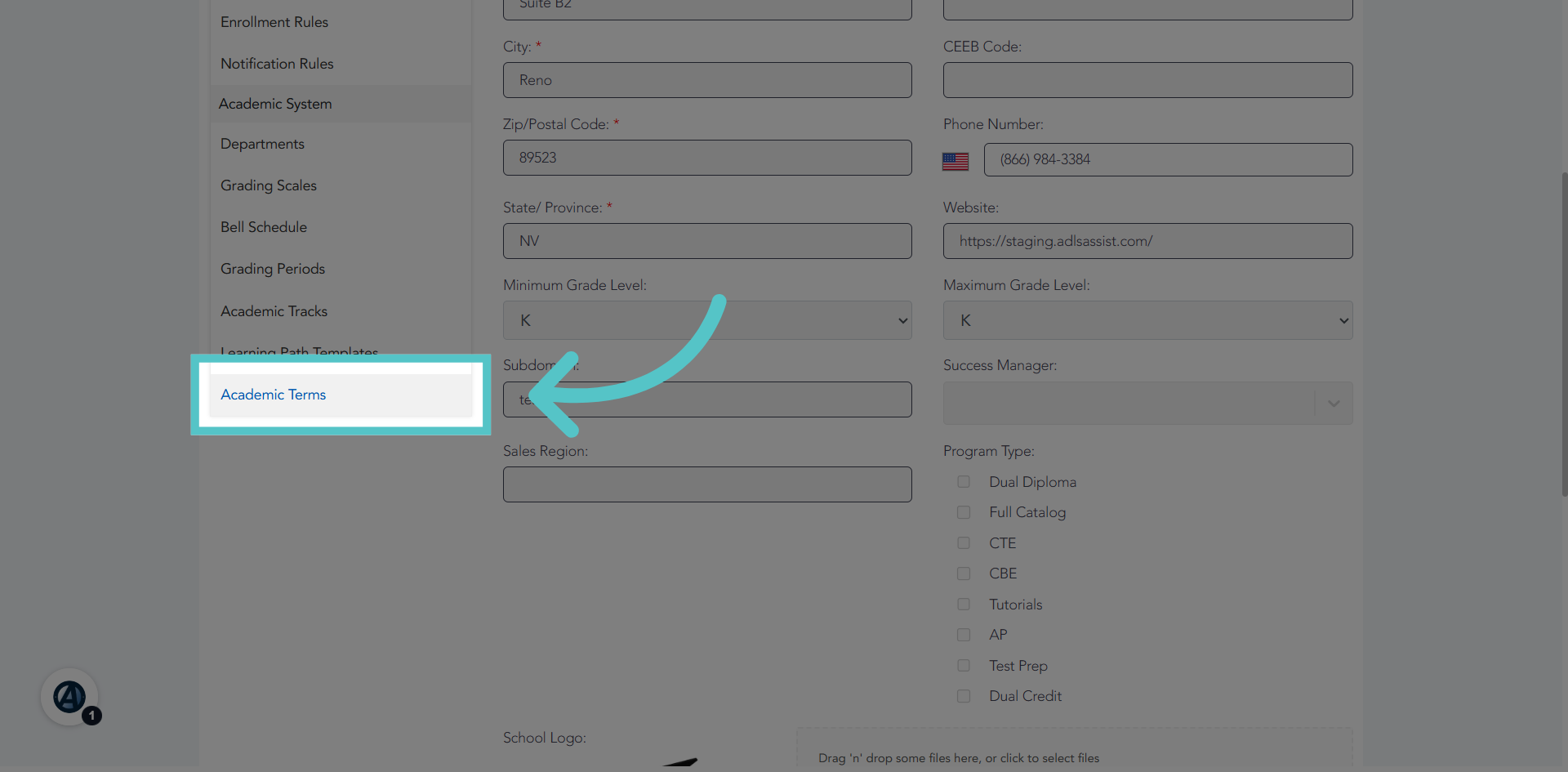
2. Open Academic Terms Section
Scroll down the left side menu to select "Academic Terms" from the list.
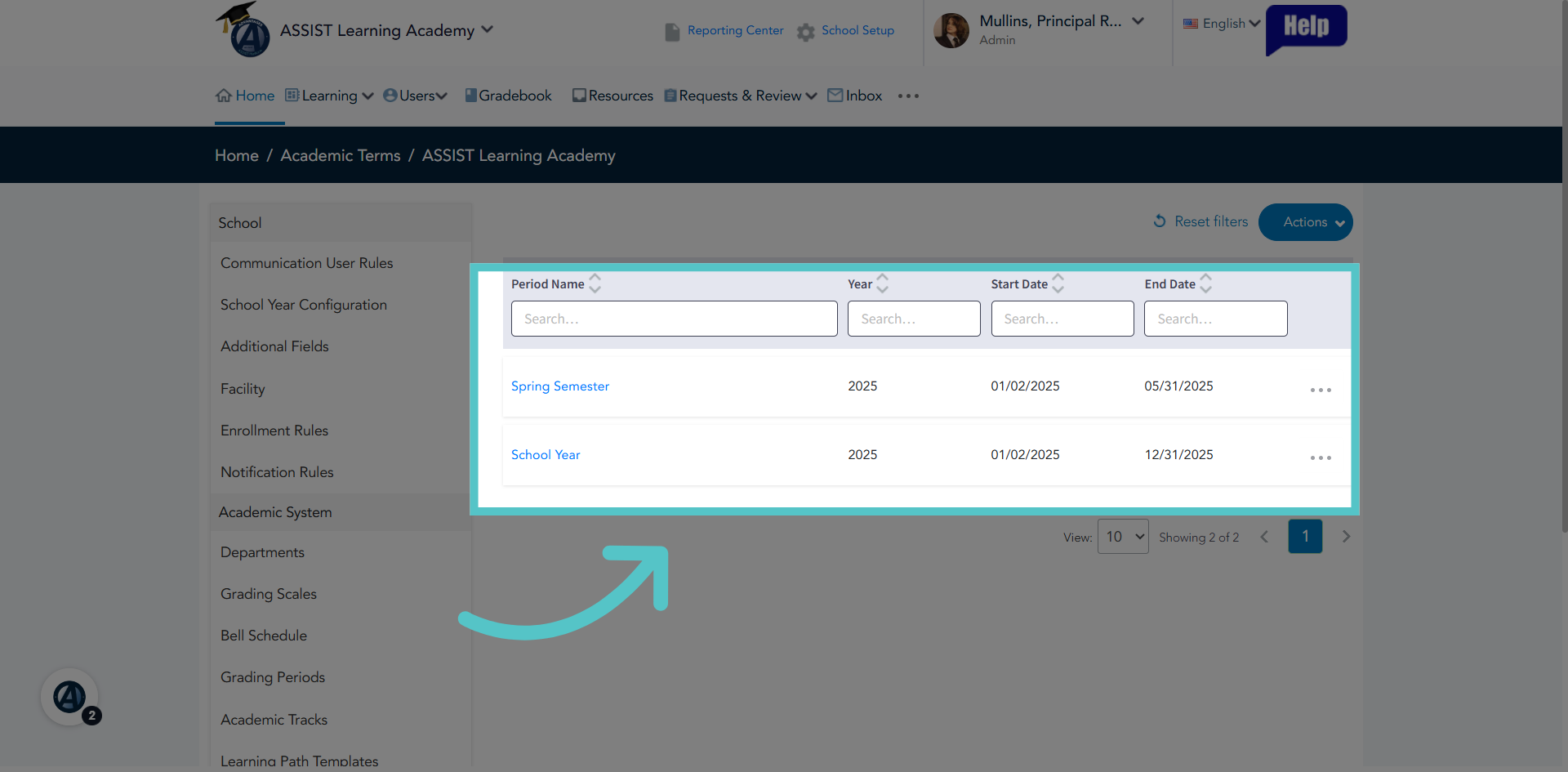
3. Previous Terms
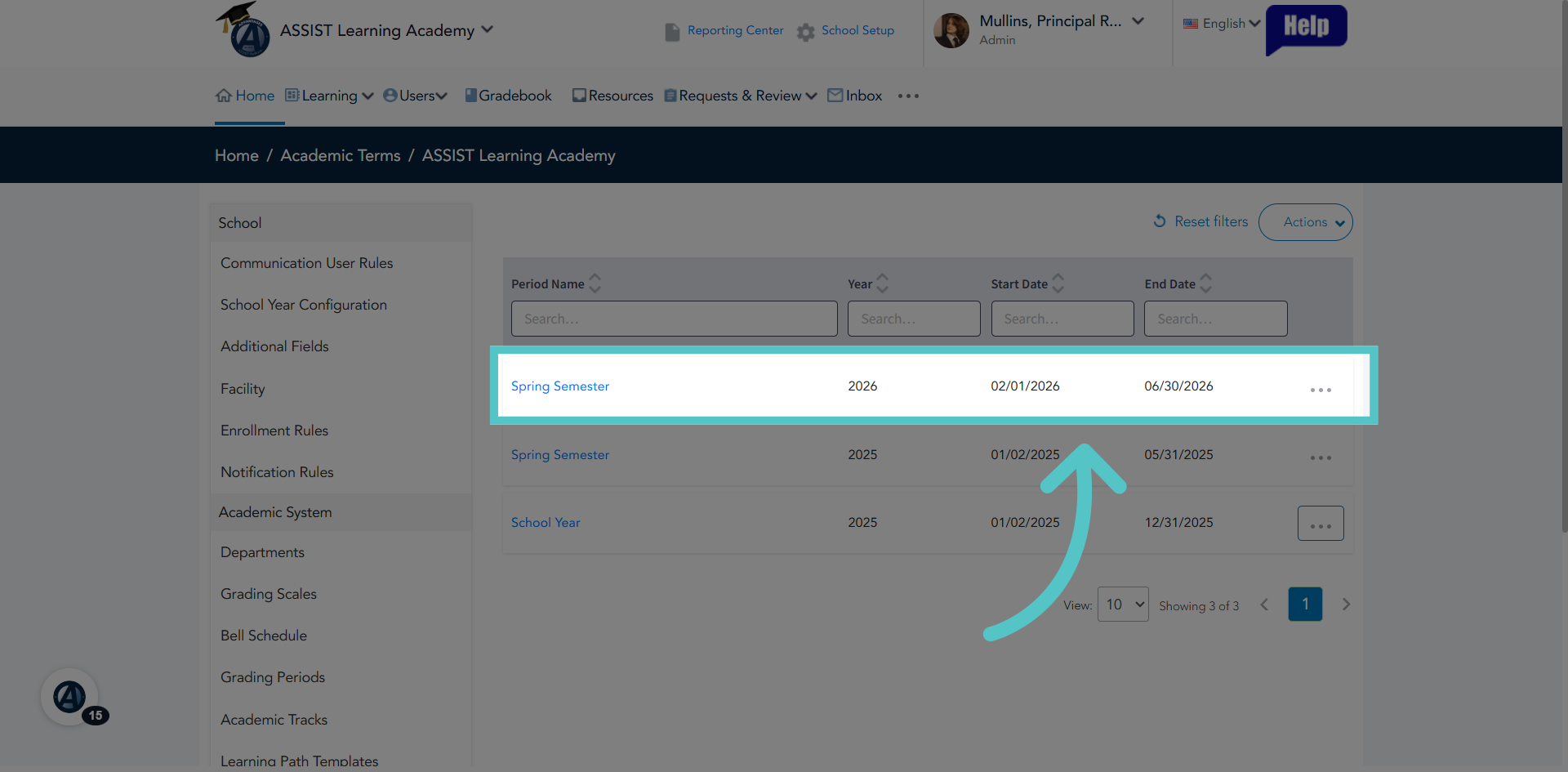
All previous Academic Terms at your school will be listed.
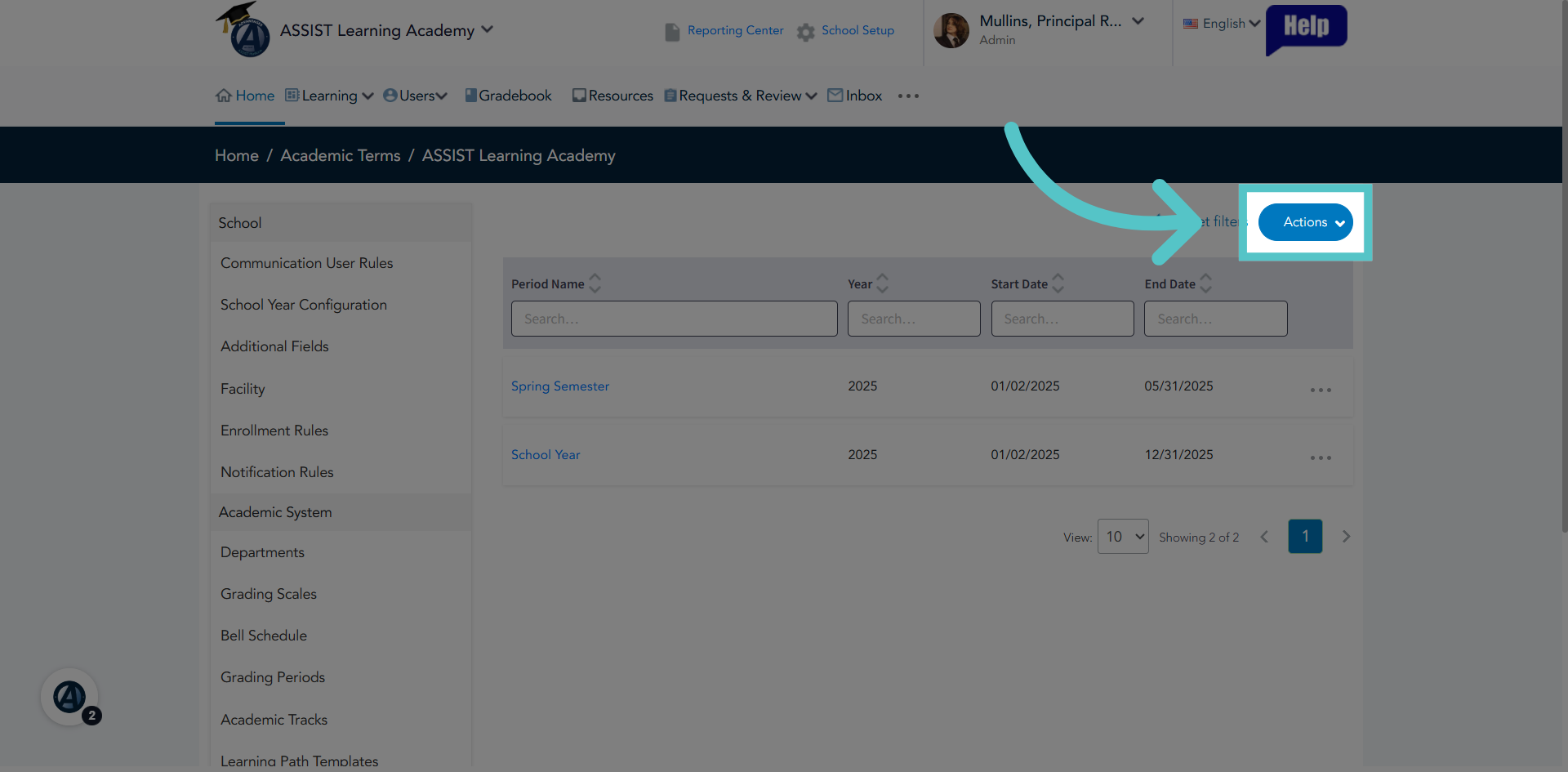
4. Access Actions Menu
Click the Actions button to reveal options for managing academic terms.
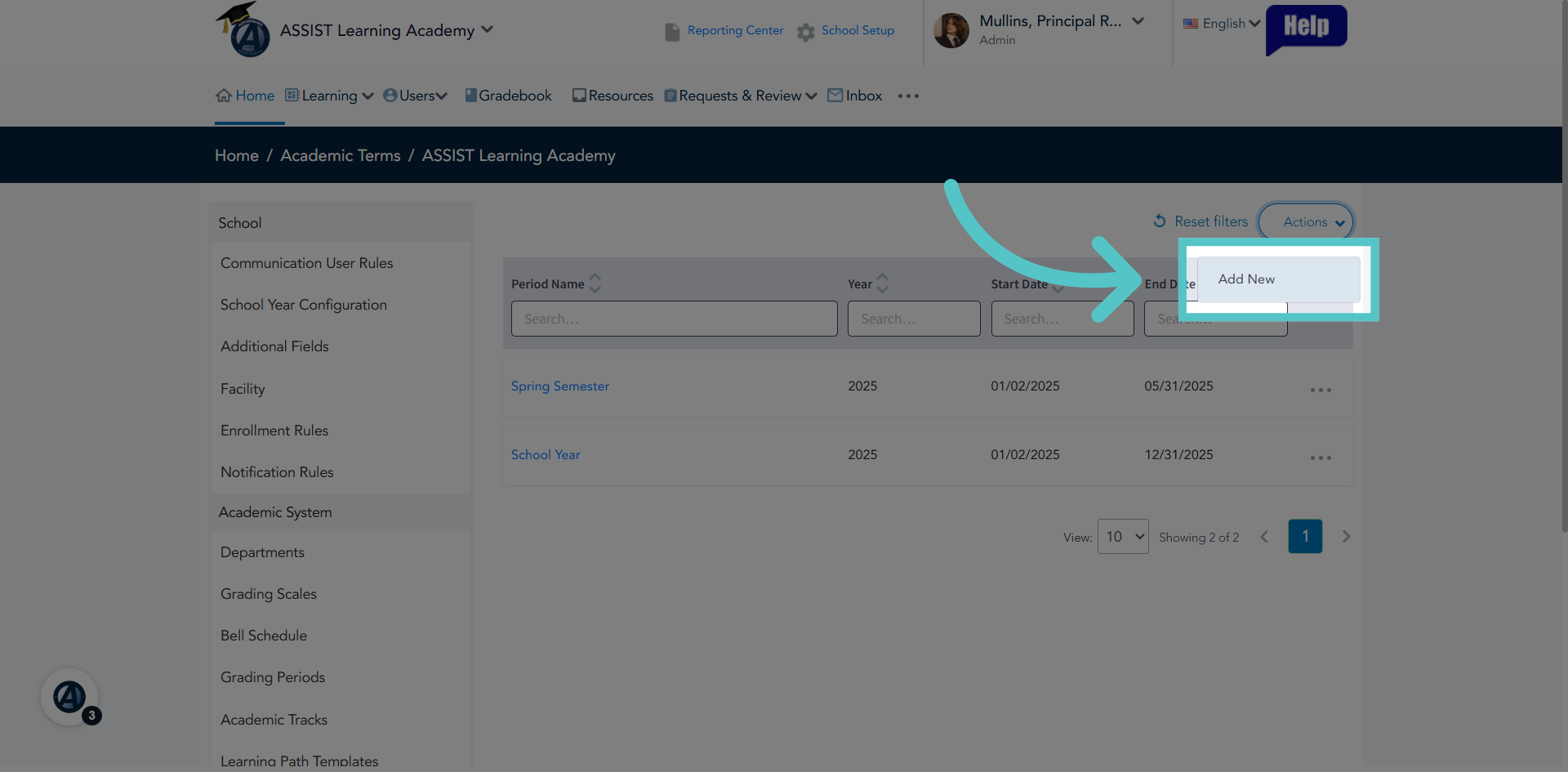
5. Select Add New Term
Click 'Add New' to begin creating a new academic term entry.
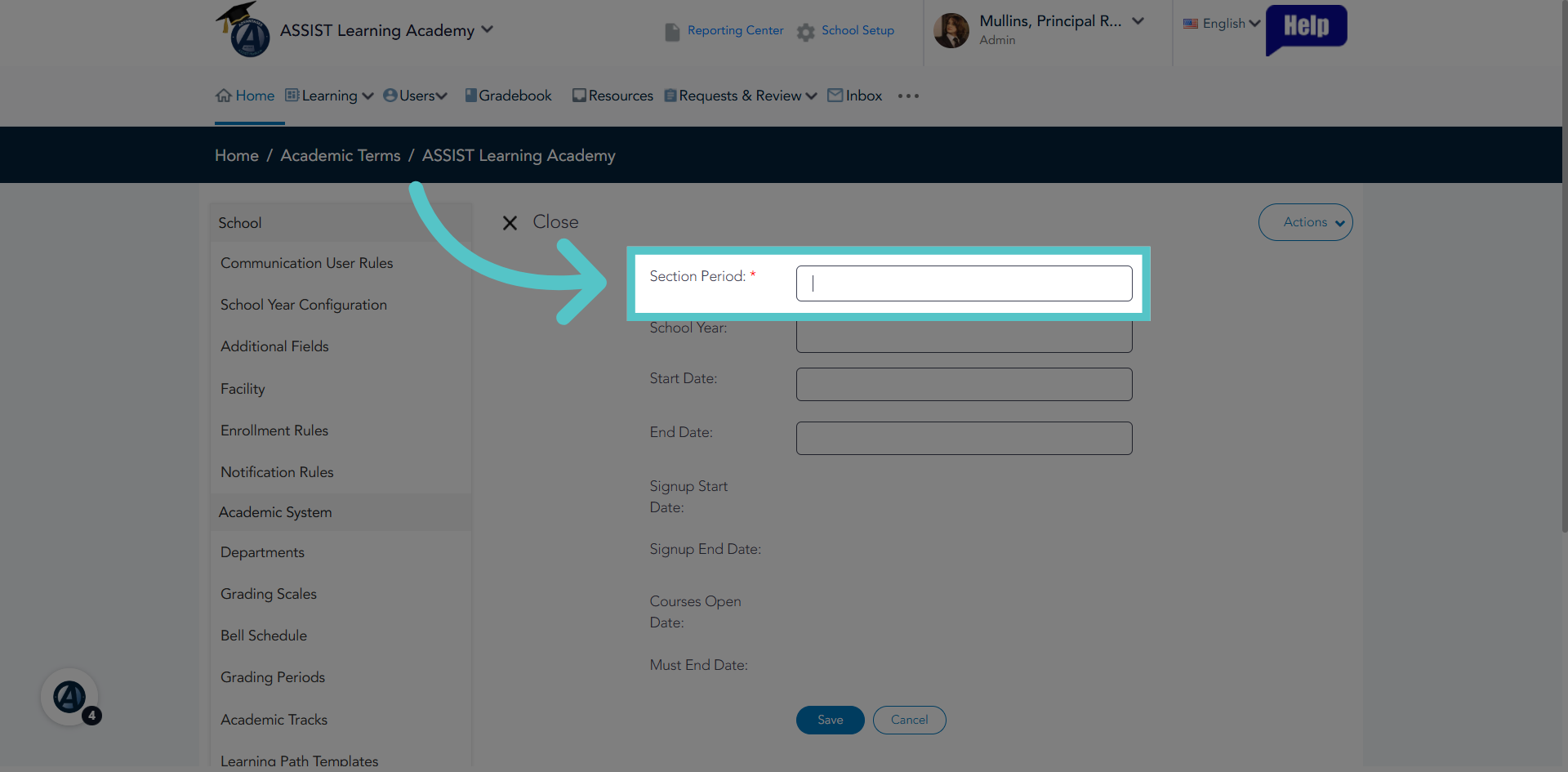
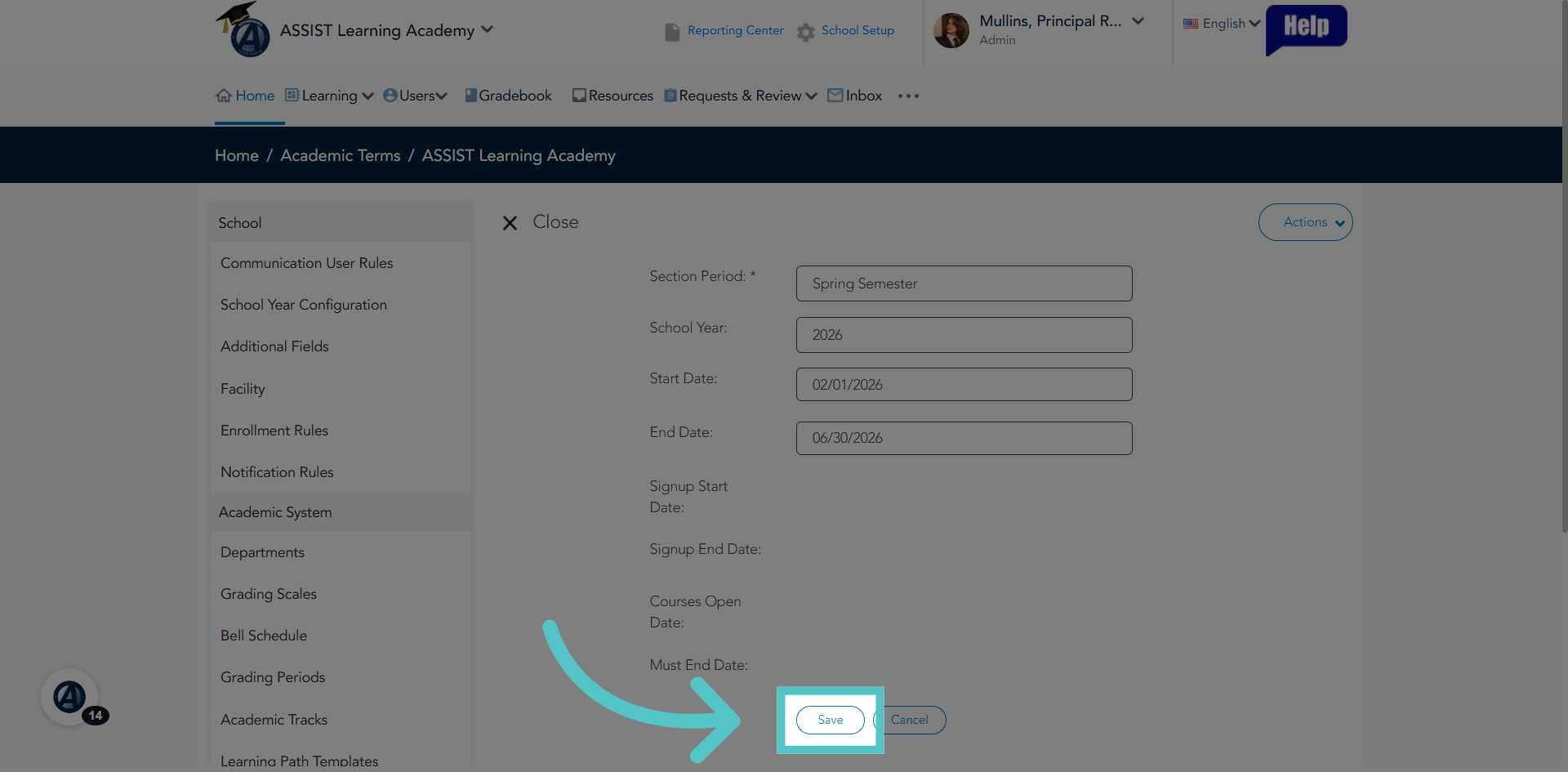
6. Activate Term Name Field
In the Section Period field, you can name your Academic Term. Some schools name it by year, some choose to create semesters. Choose a name that aligns with your school's academic terms.
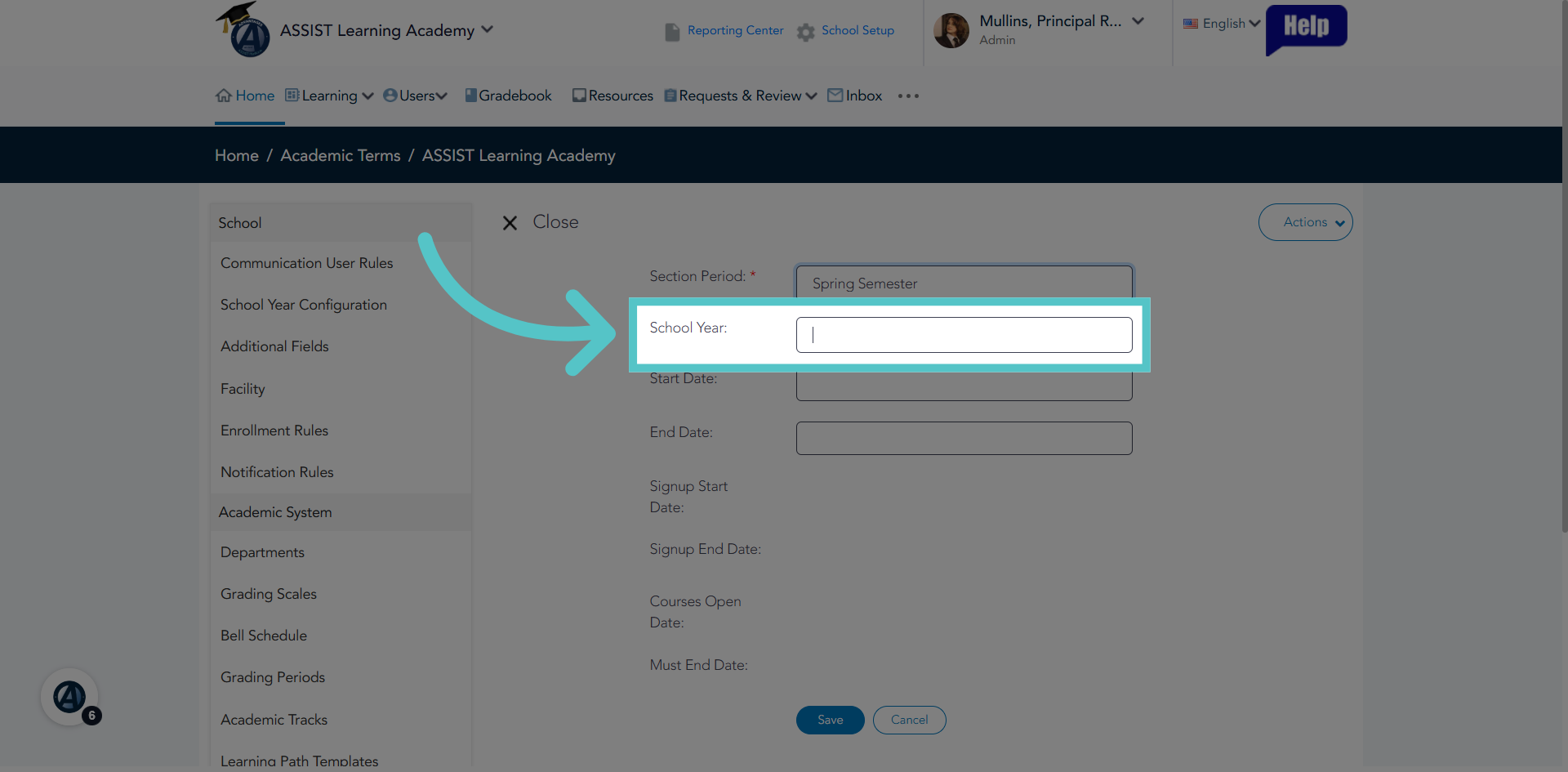
7. Year Field
Enter the year for your academic term.
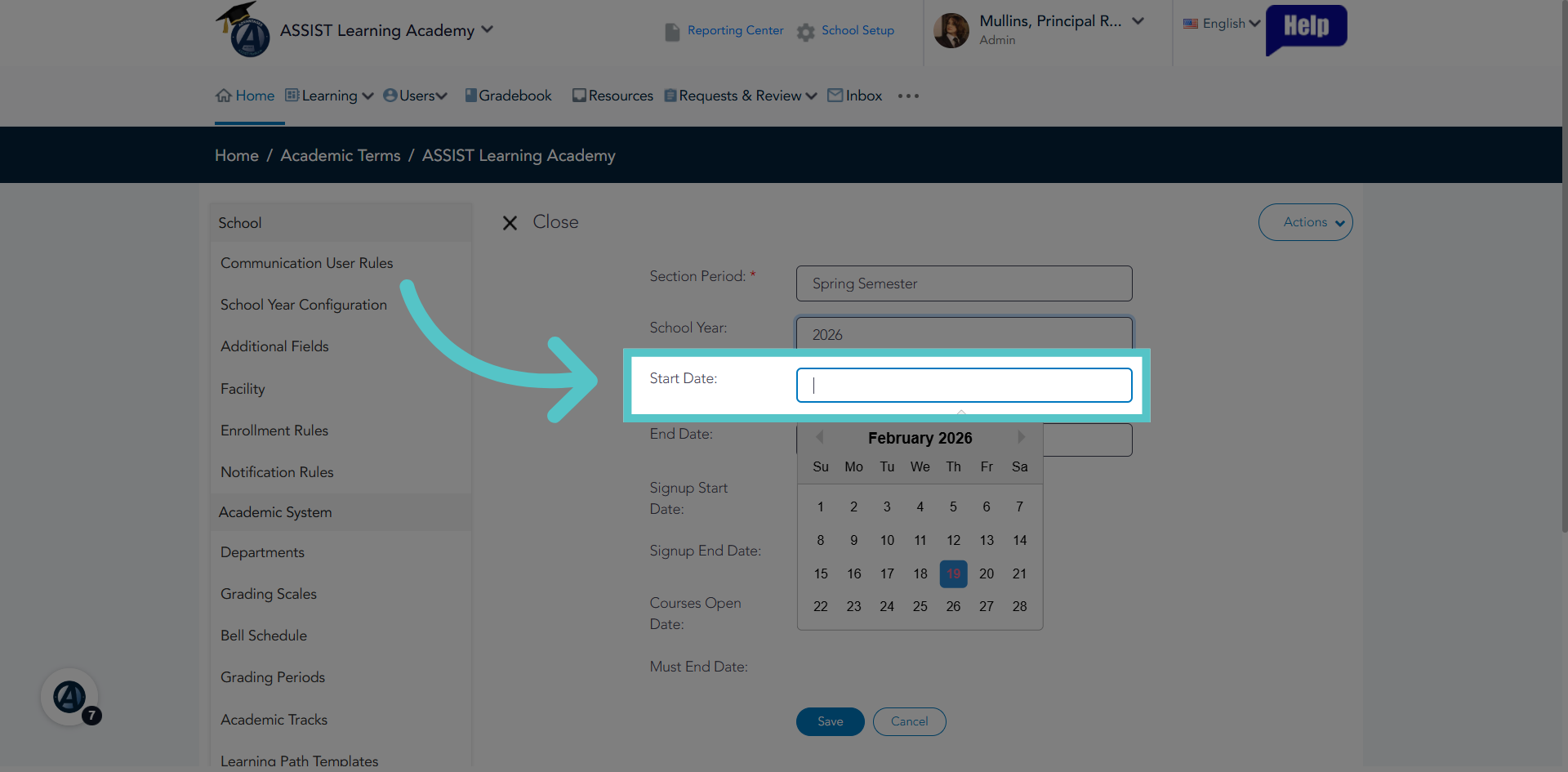
8. Dates
Enter a start date and an end date for the term.
9. Save Academic Term
These are all the required fields. Save the Academic Term
10. Activate Term Options
The new term will now be listed in Academic Terms. This option will appear when setting up sections or when requesting enrollments.
If you have any questions about the information in this tutorial, please contact your dedicated school success manager for additional support.