This guide will walk you through creating sections for courses in ASSIST. Each Section is like a classroom of students.
Go to portal.adlsassist.com
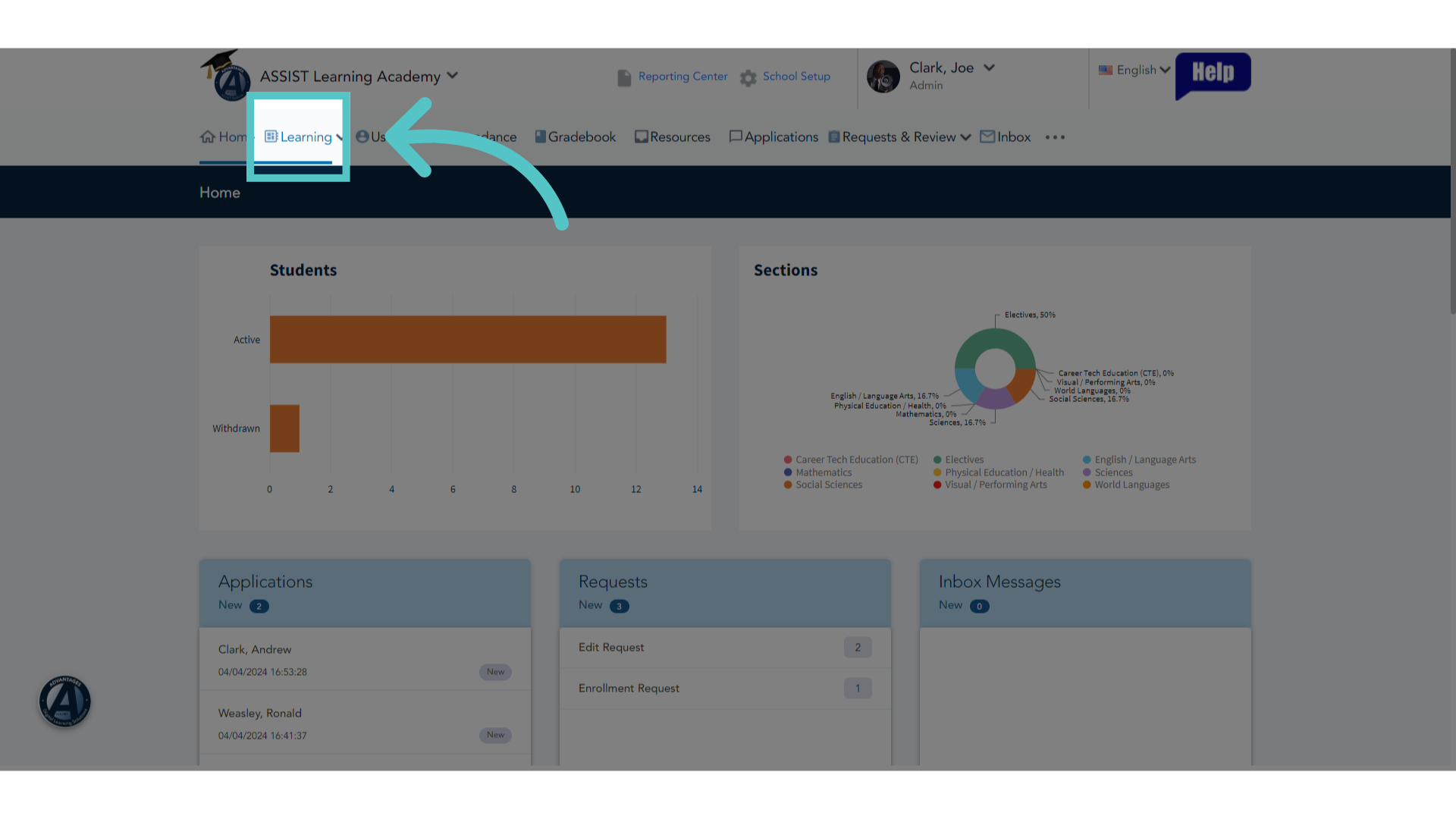
1. Click "Learning"
Access the Learning tab.
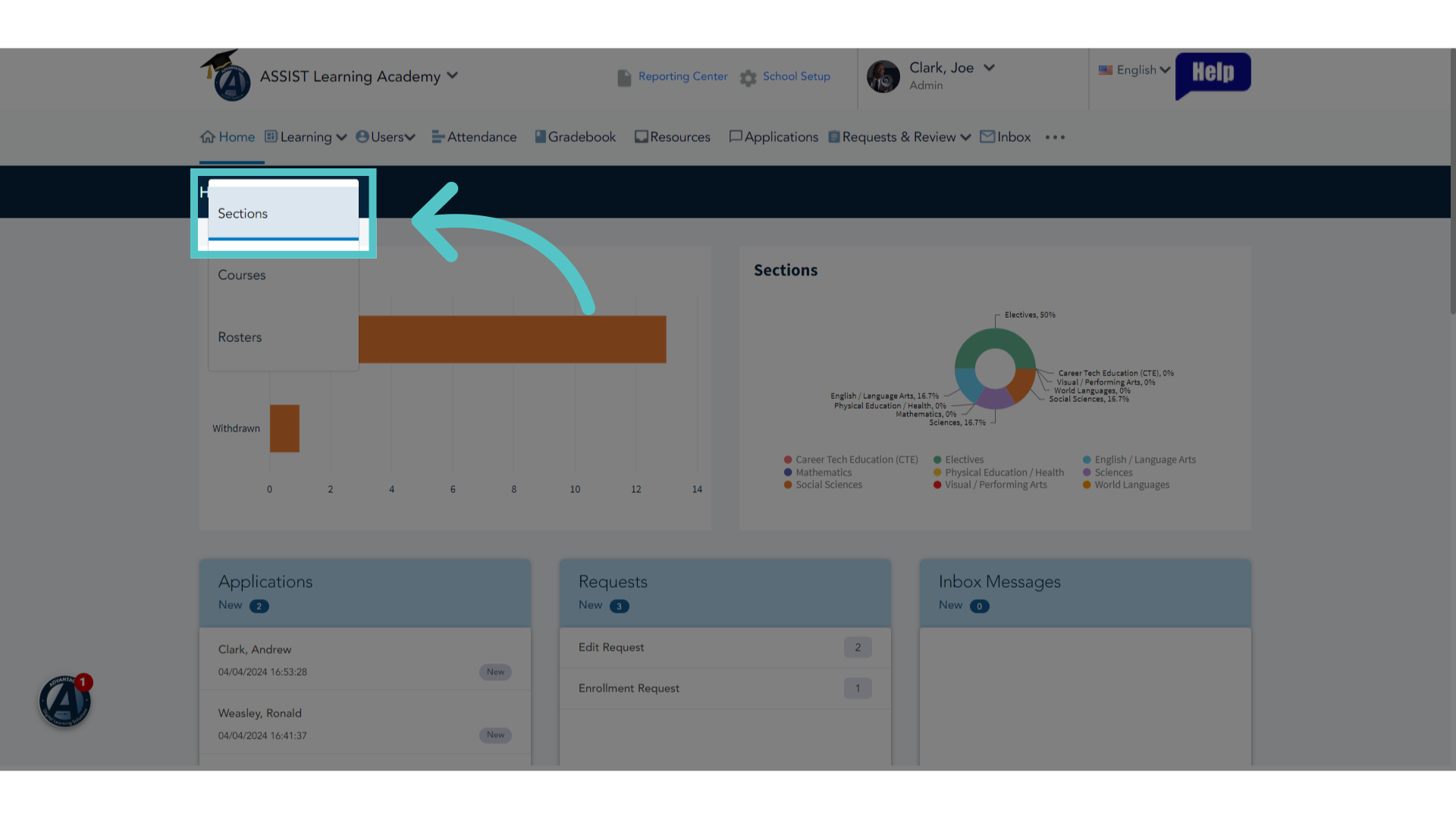
2. Click "Sections"
Select the Sections option.
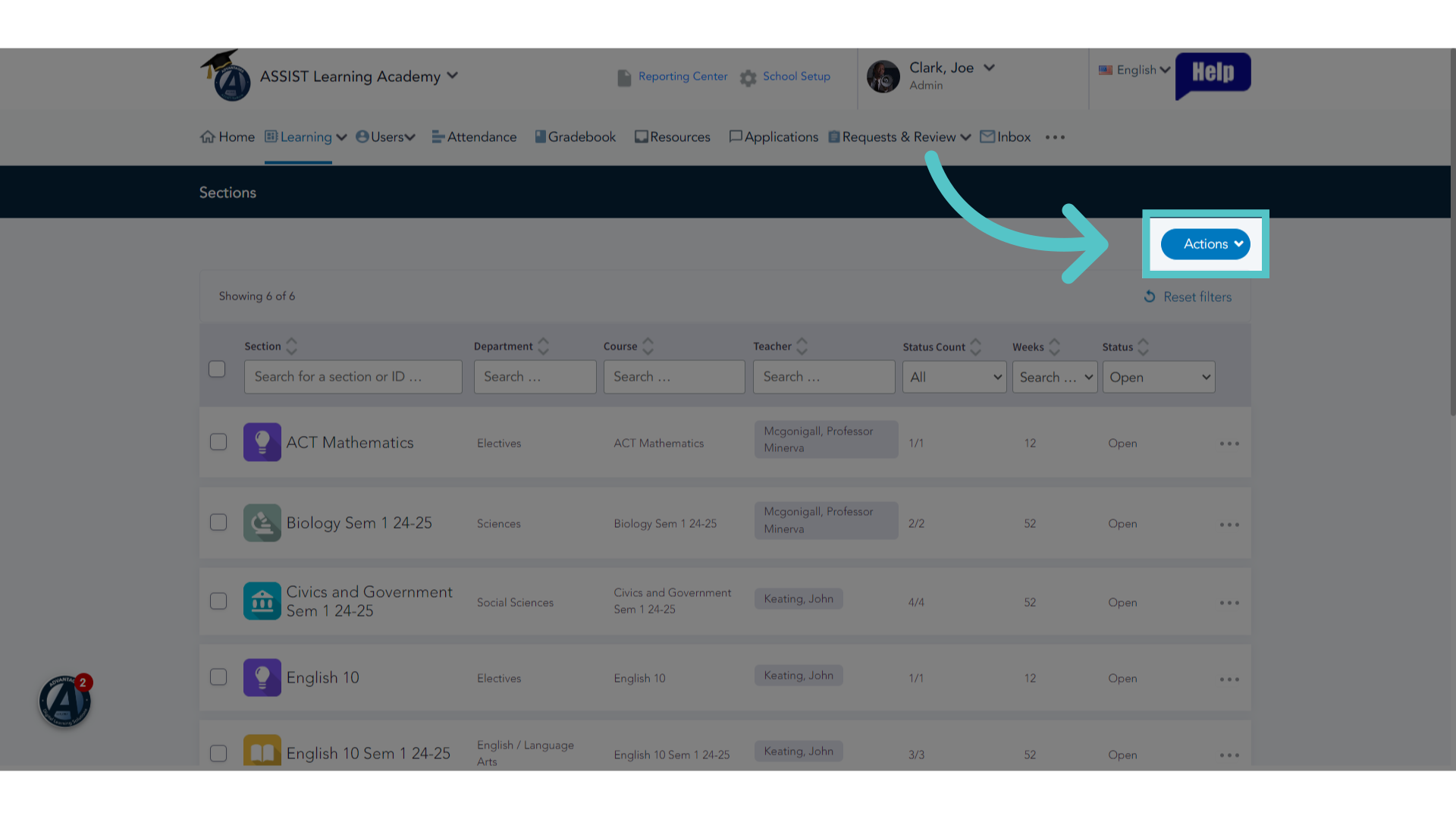
3. Click "Actions"
Click the Actions button.
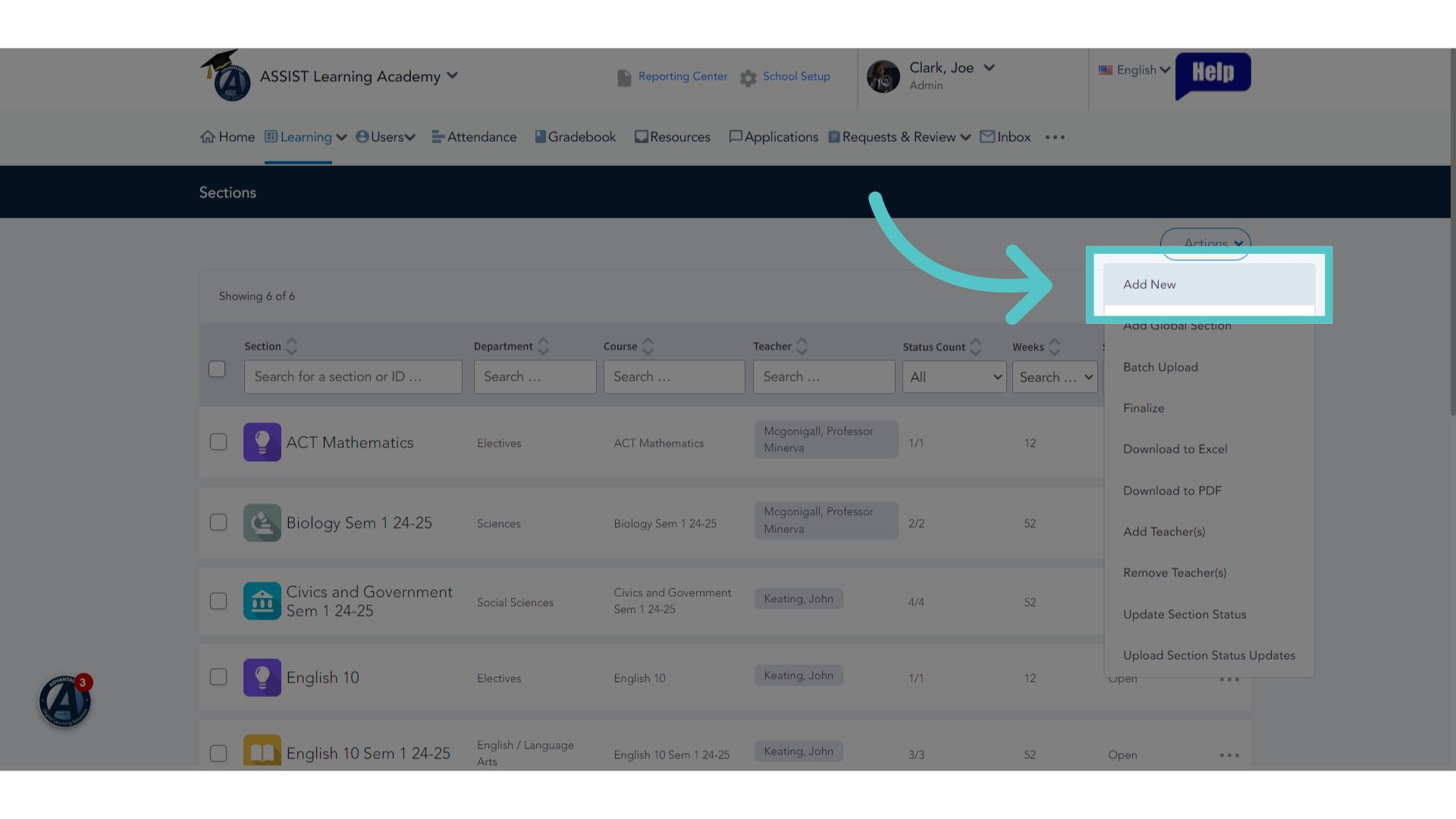
4. Click "Add New"
Choose to Add a New section.
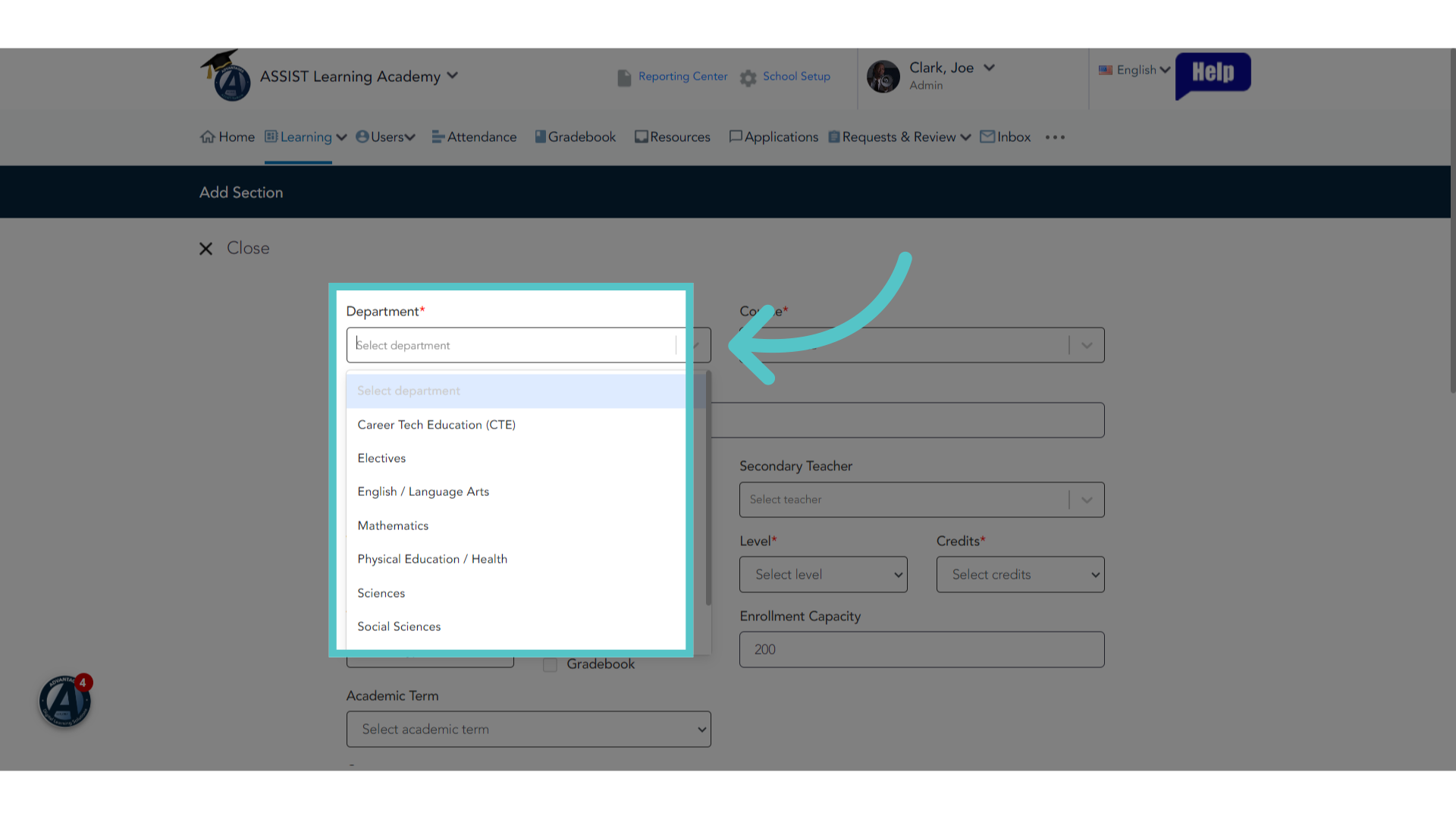
5. Select Department
Pick a department for the class section.
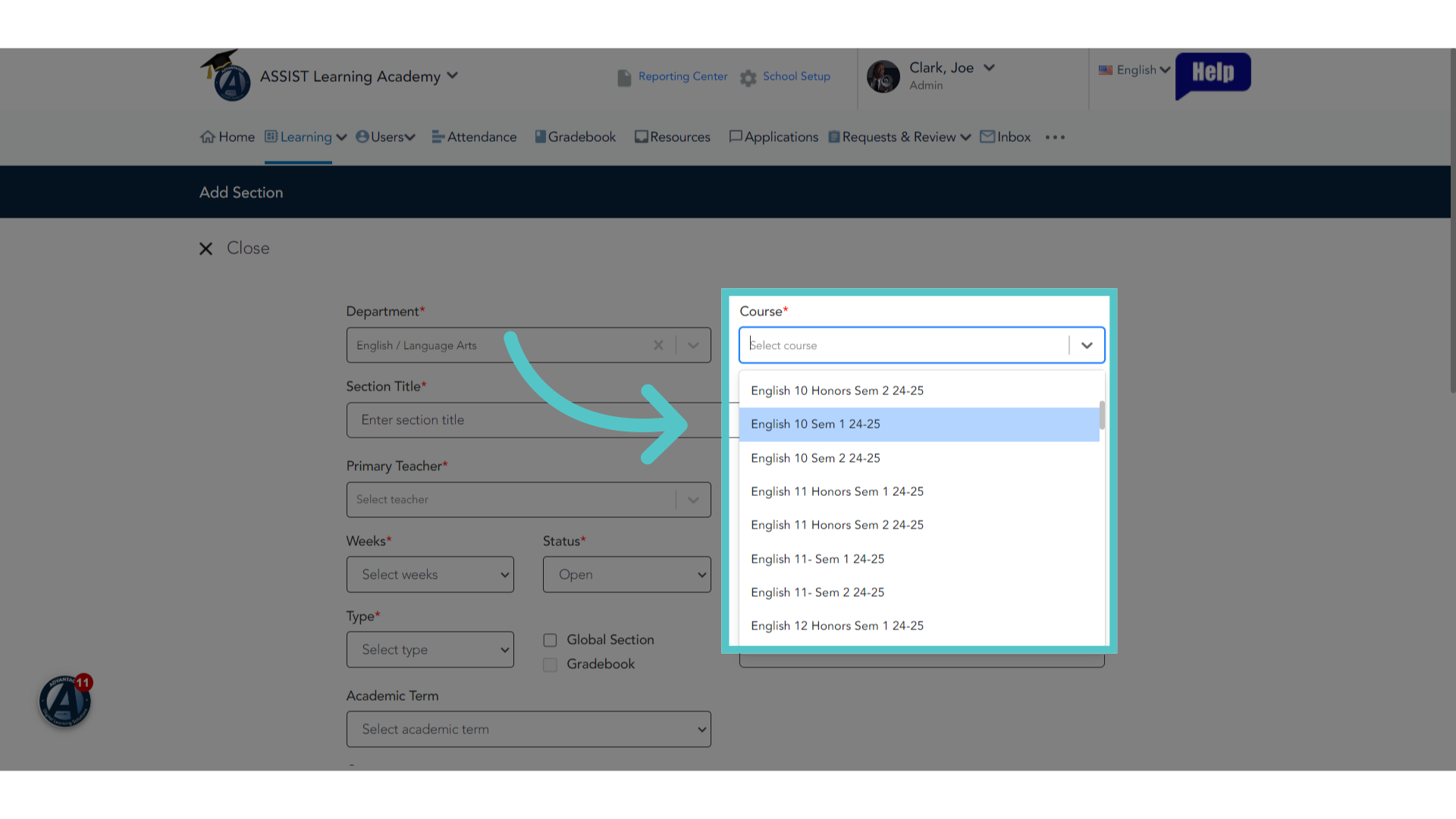
6. Select Course
Select a course from the department. All Lincoln Learning Courses are available by semester.
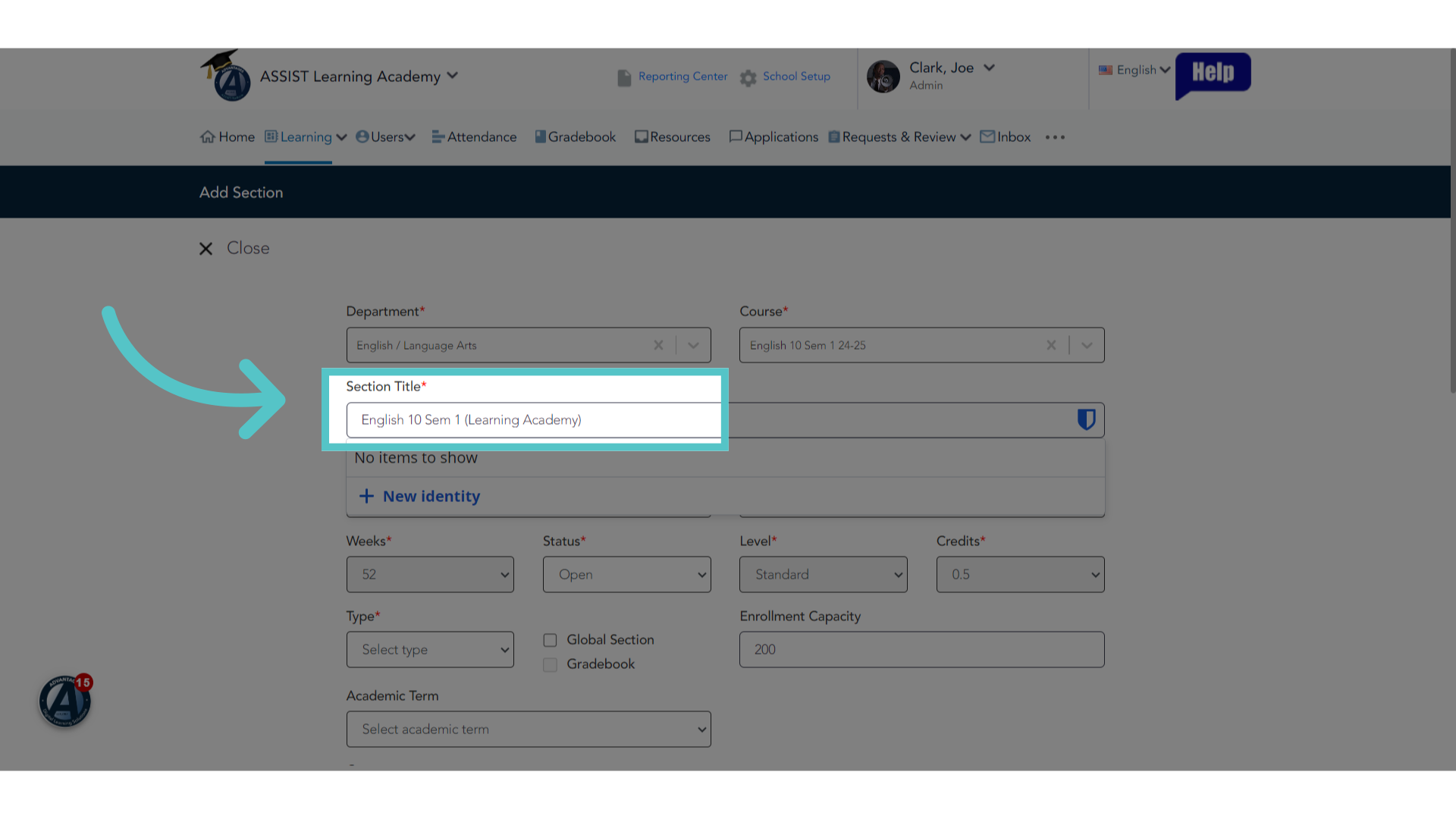
7. Name Section
Name the section. You can keep the course name and add the teacher name, school name, or year. The section can have any name you choose. If this section will be taught by teachers at Advantages, please indicate the school name in the section title.
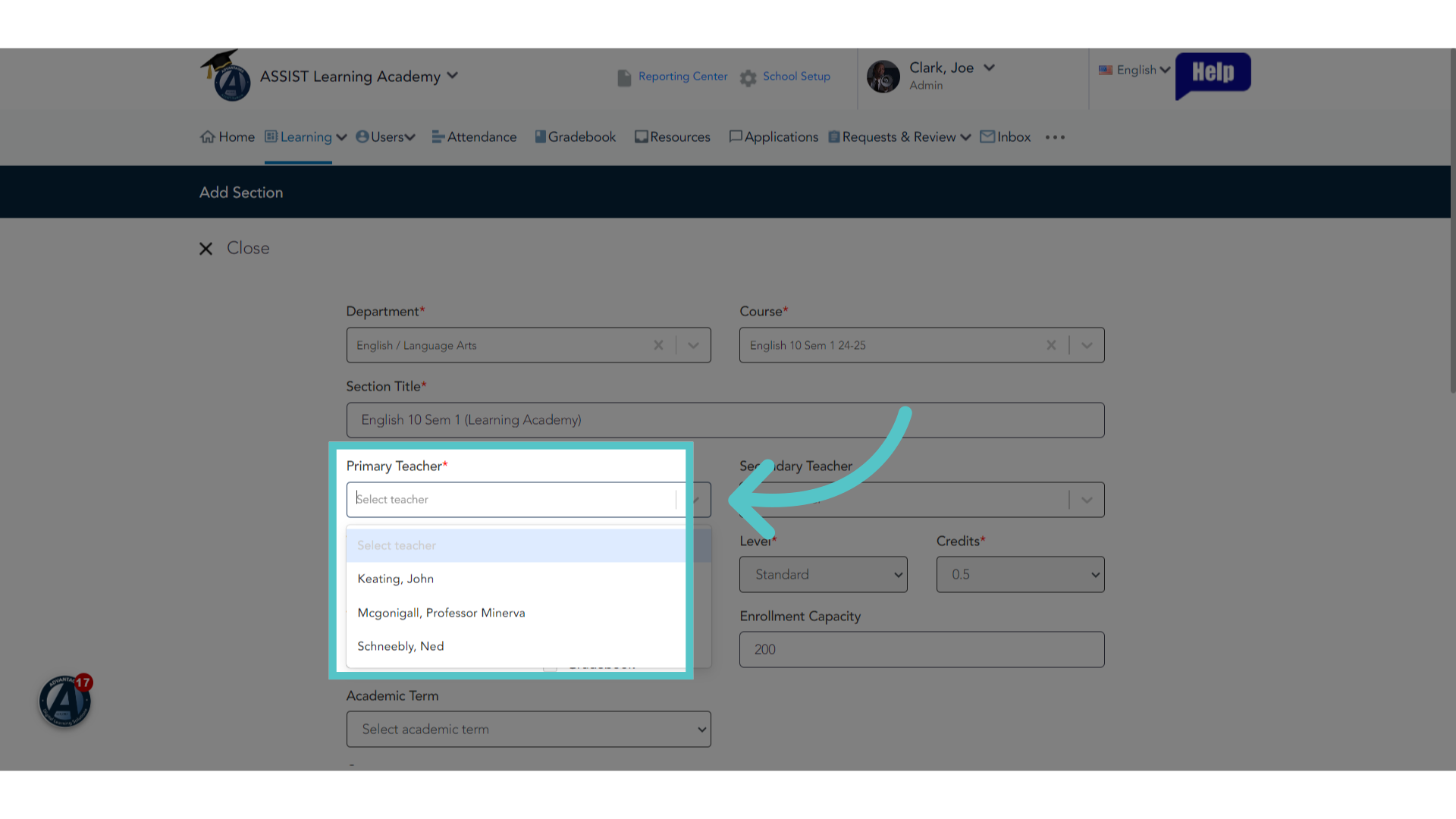
8. Select teacher
Select a primary teacher.
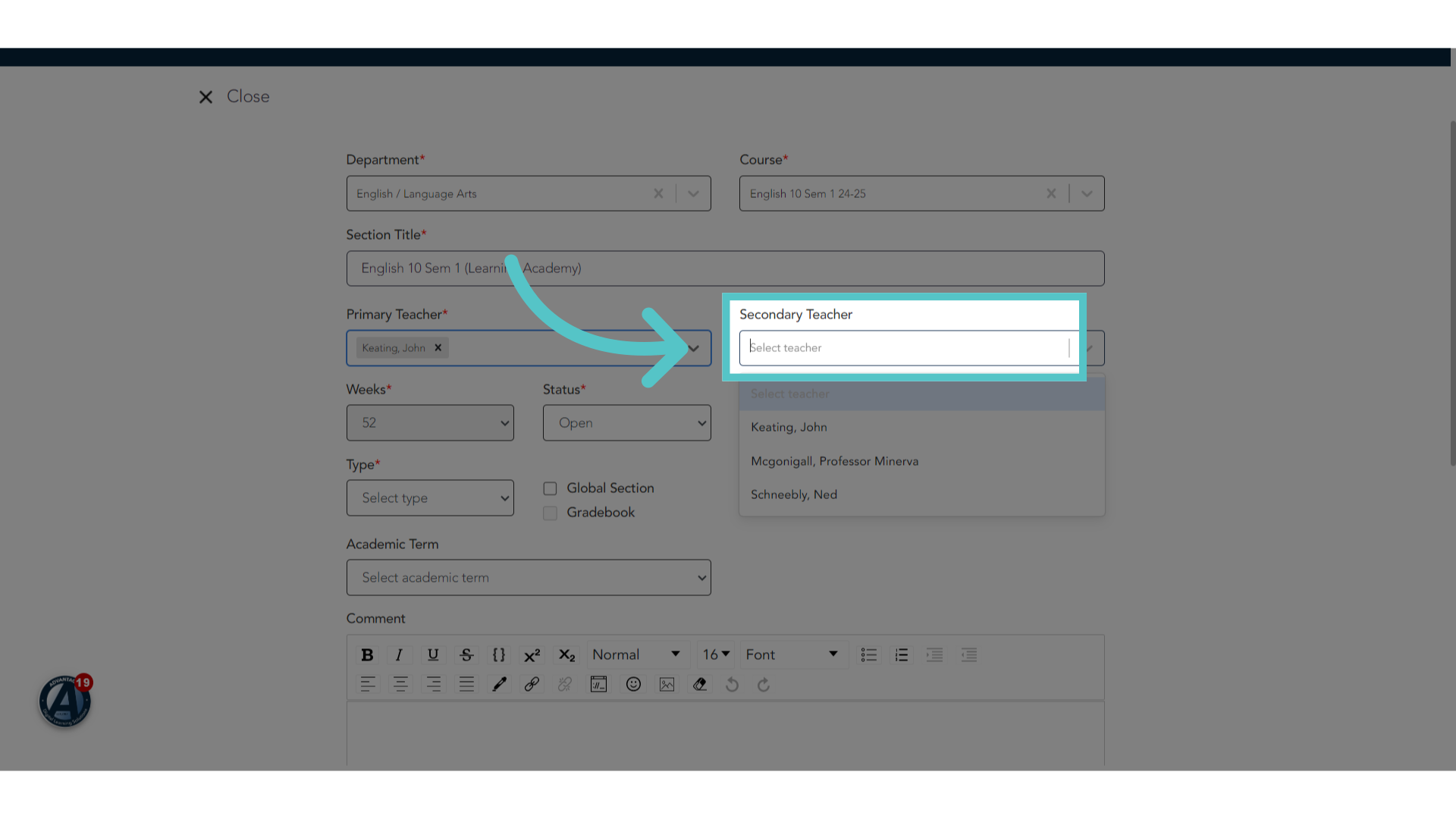
9. Optional: Secondary Teacher
If you would like additional teachers to have access to the section information and gradebook, please indicate a secondary teacher. This is optional.
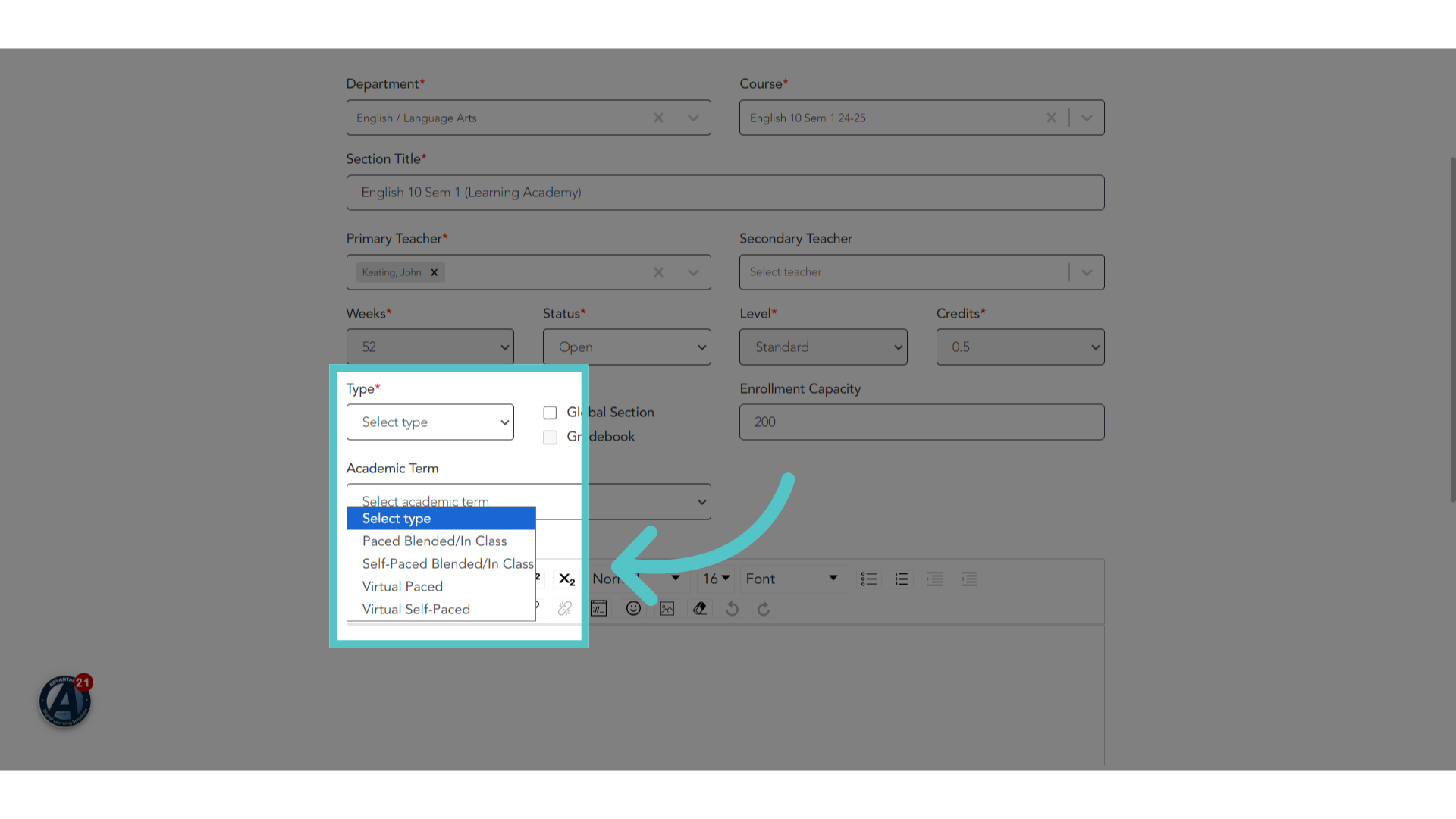
10. Type: Virtual
Choose the section type. For sections that will not be monitoring attendance, select virtual. For sections that require teachers to take attendance, please view the "Creating Sections with Attendance" Tutorial. If you would like due dates to be automatically set for all activities in the course, select "Virtual Paced." If you do not want any due dates to be set for the course assignments, select virtual self-paced.
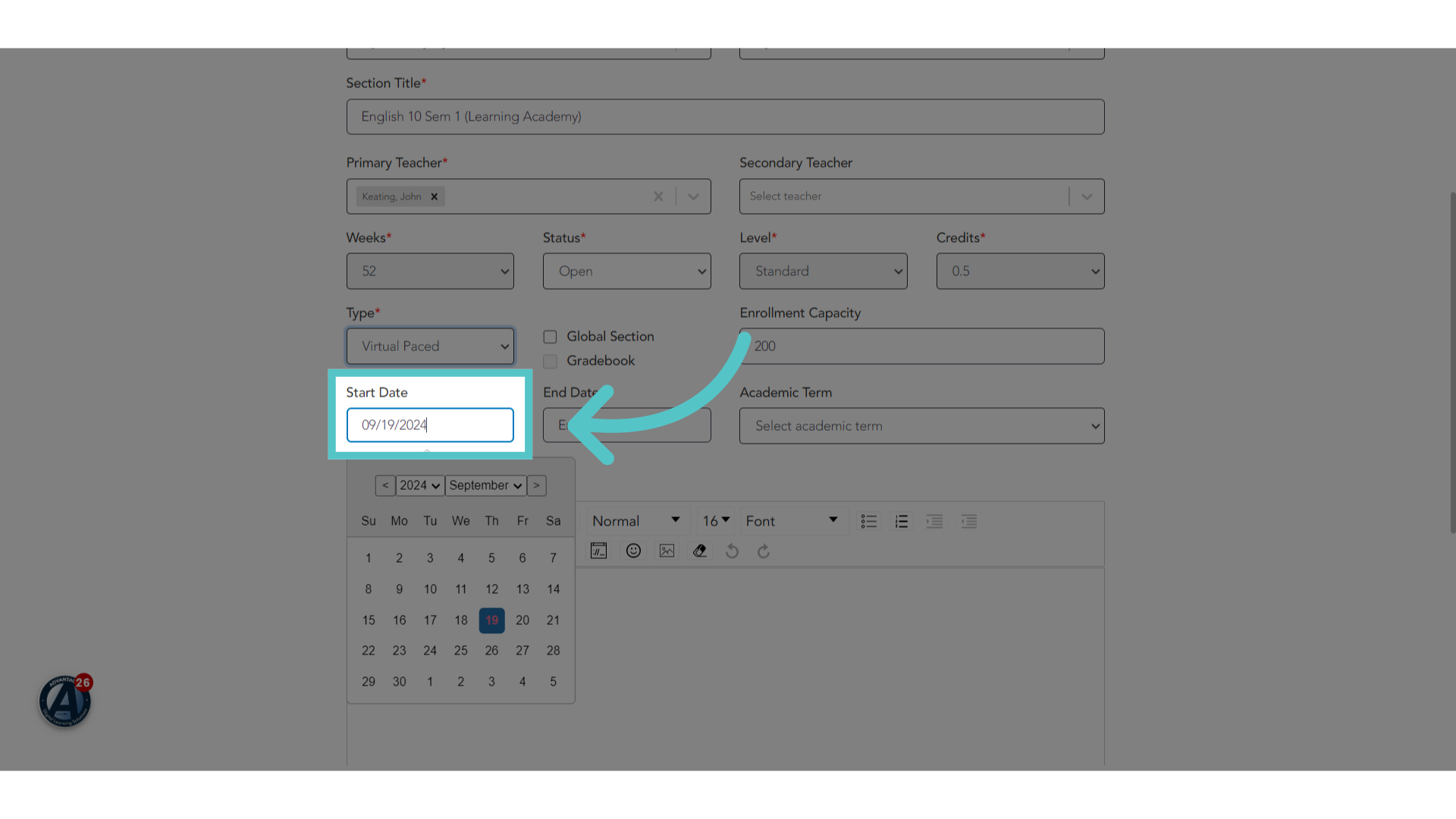
11. Start Date
It is optional to choose a start and end date for the section. This is helpful if you do not want teachers or students to access the section until a certain date.
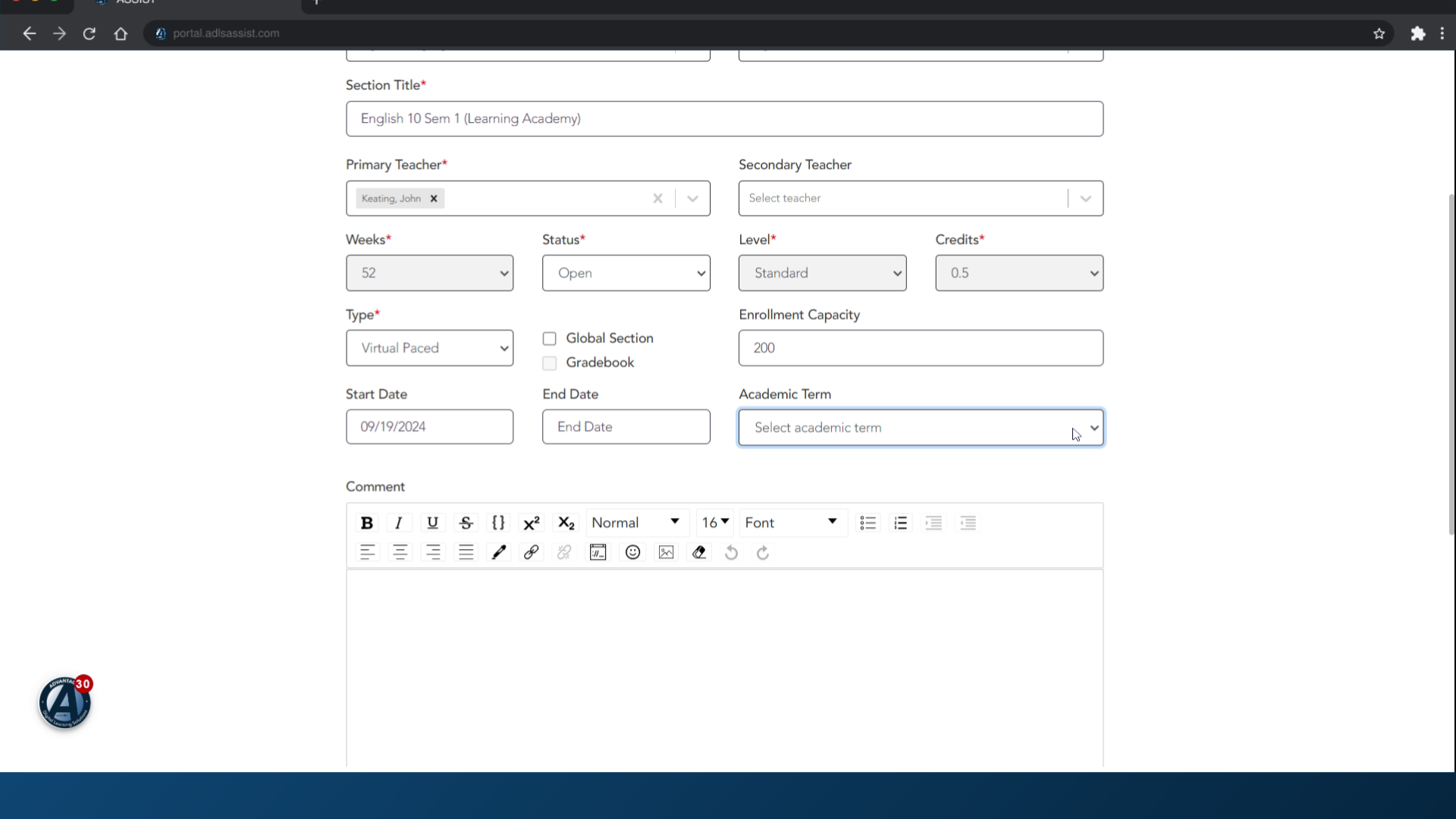
12. Select Academic Term
It is optional to enter an academic term. This will set an automatic start and end date for the section based on the academic term.
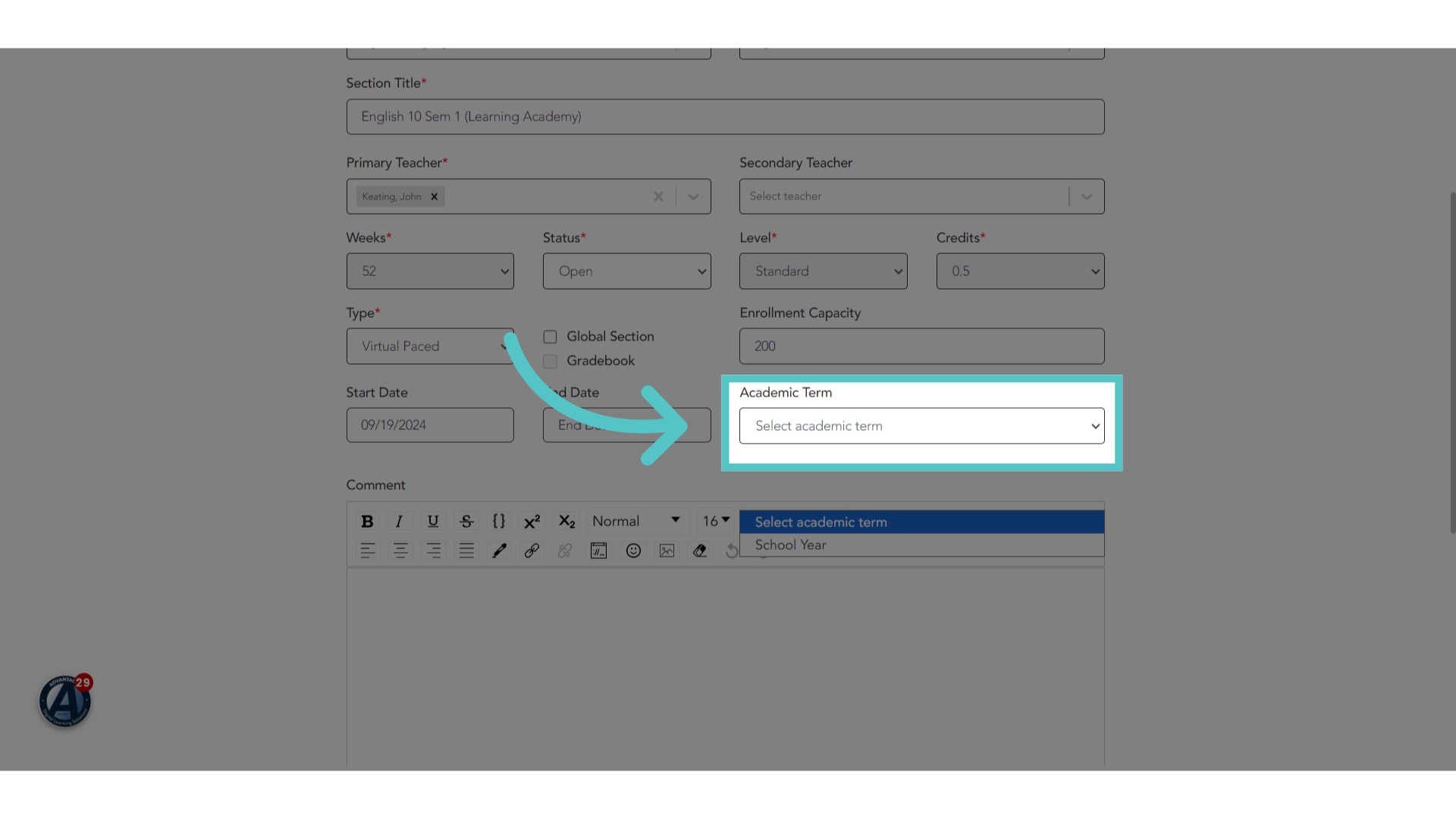
13. Fill "Select academic termSchool Year"
All other information is pre-set for your section.
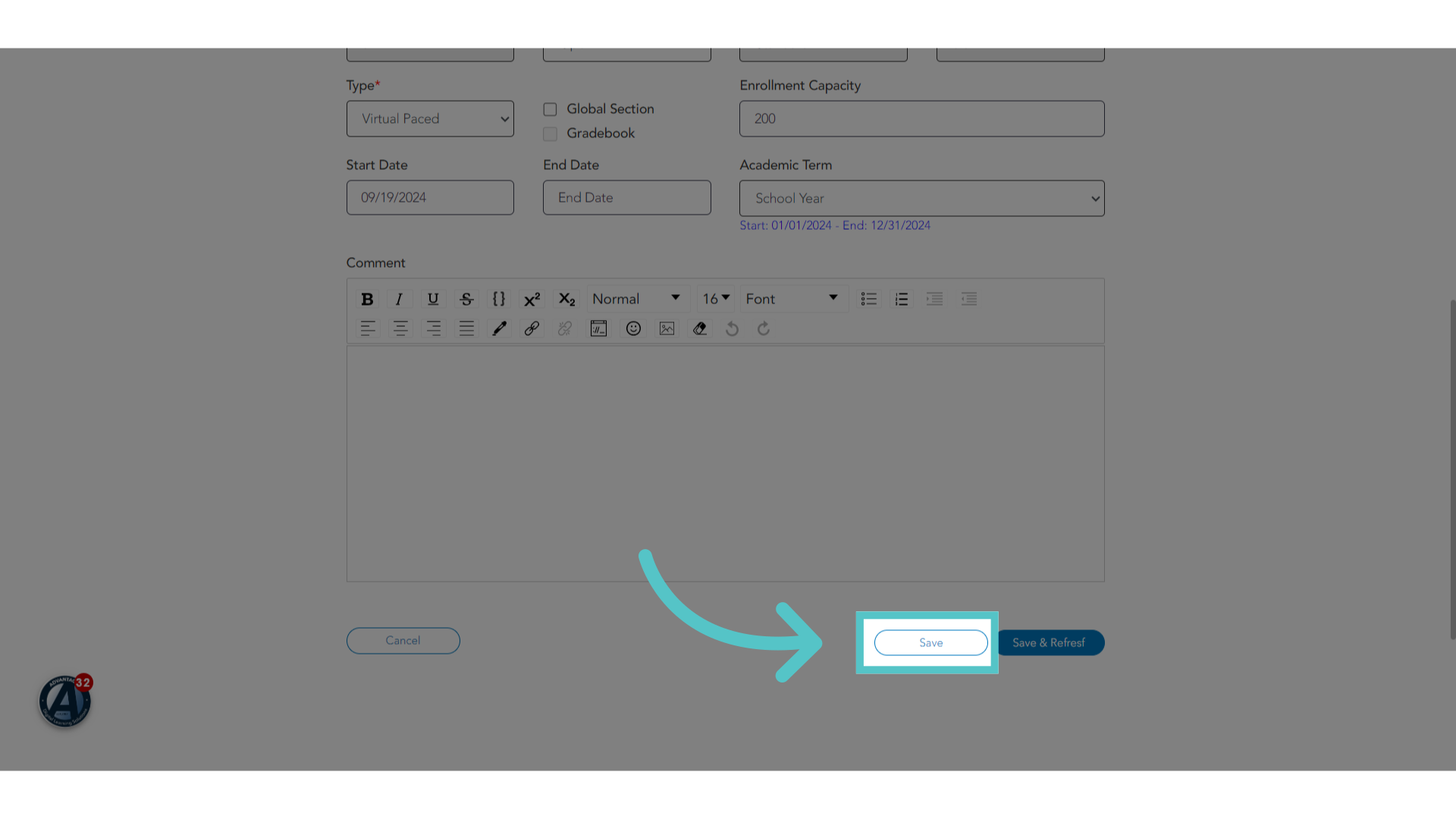
14. Click "Save"
Save the changes made.
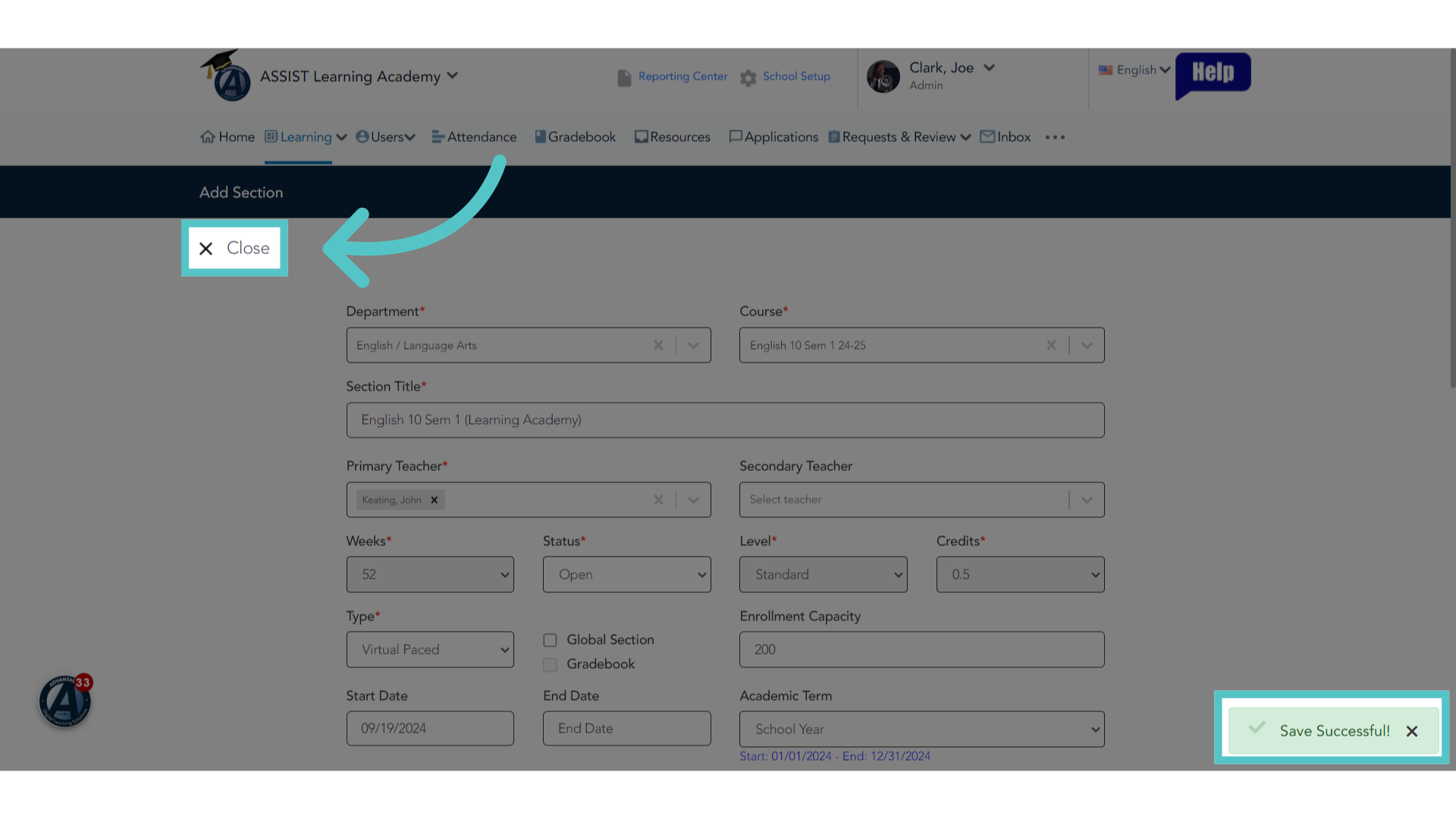
15. Click "Close"
Close the edit screen when your section has been saved successfully..
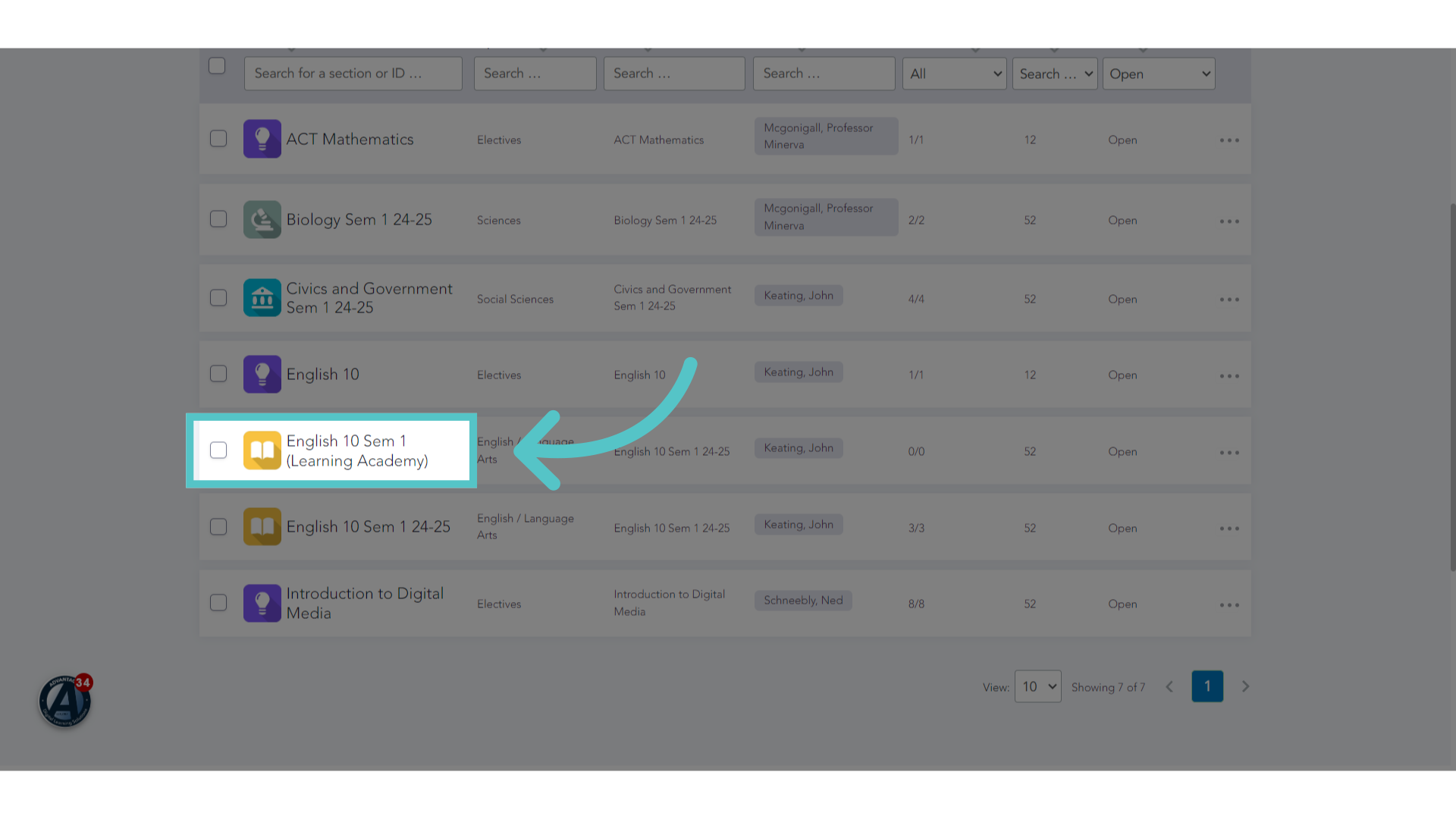
16. Section Listed
The newly created section will now be listed in the open Sections list. Students can be enrolled in this section and teachers now have access to the content.
If you have any questions about the information in this tutorial, please click "Contact Support" to submit a help request.
Contact Support