Expand to Full Screen for best viewing:
This tutorial guides you through downloading student transcripts in bulk from ASSIST
Go to portal.adlsassist.com
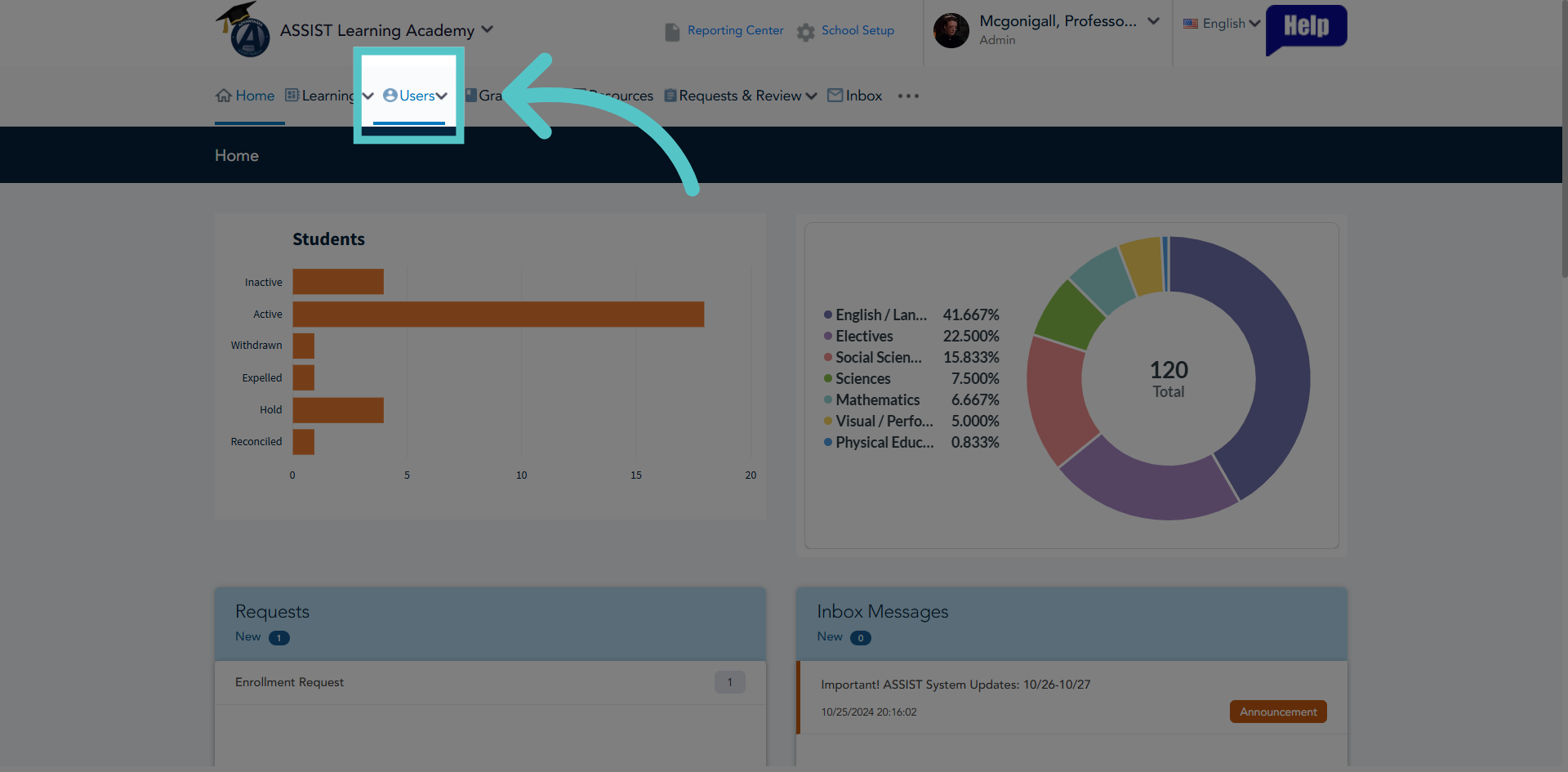
1. Navigate to Users Section
As a school administrator, click the Users tab.
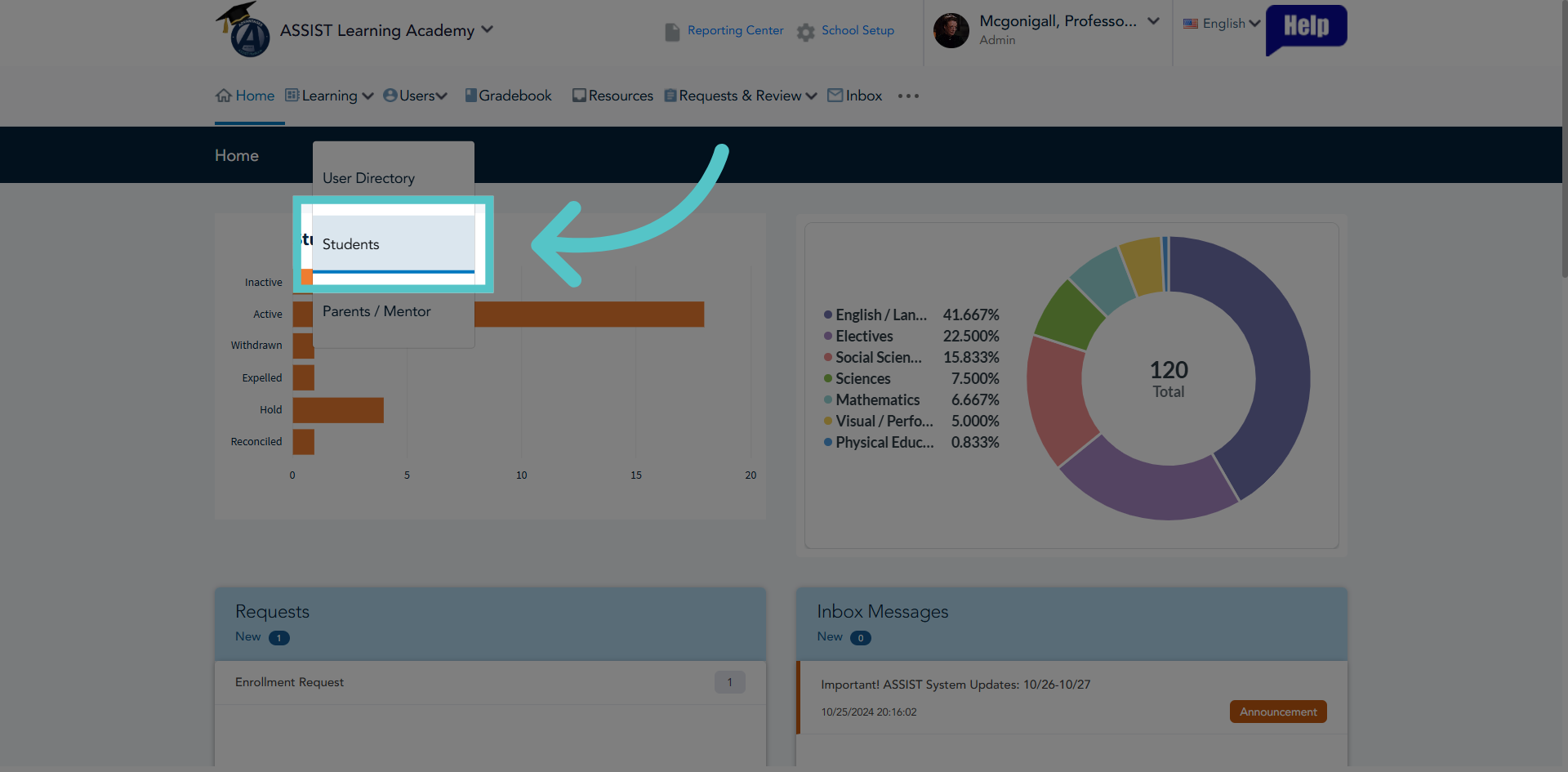
2. Open Students List
Click the Students option to view and manage student records in ASSIST.
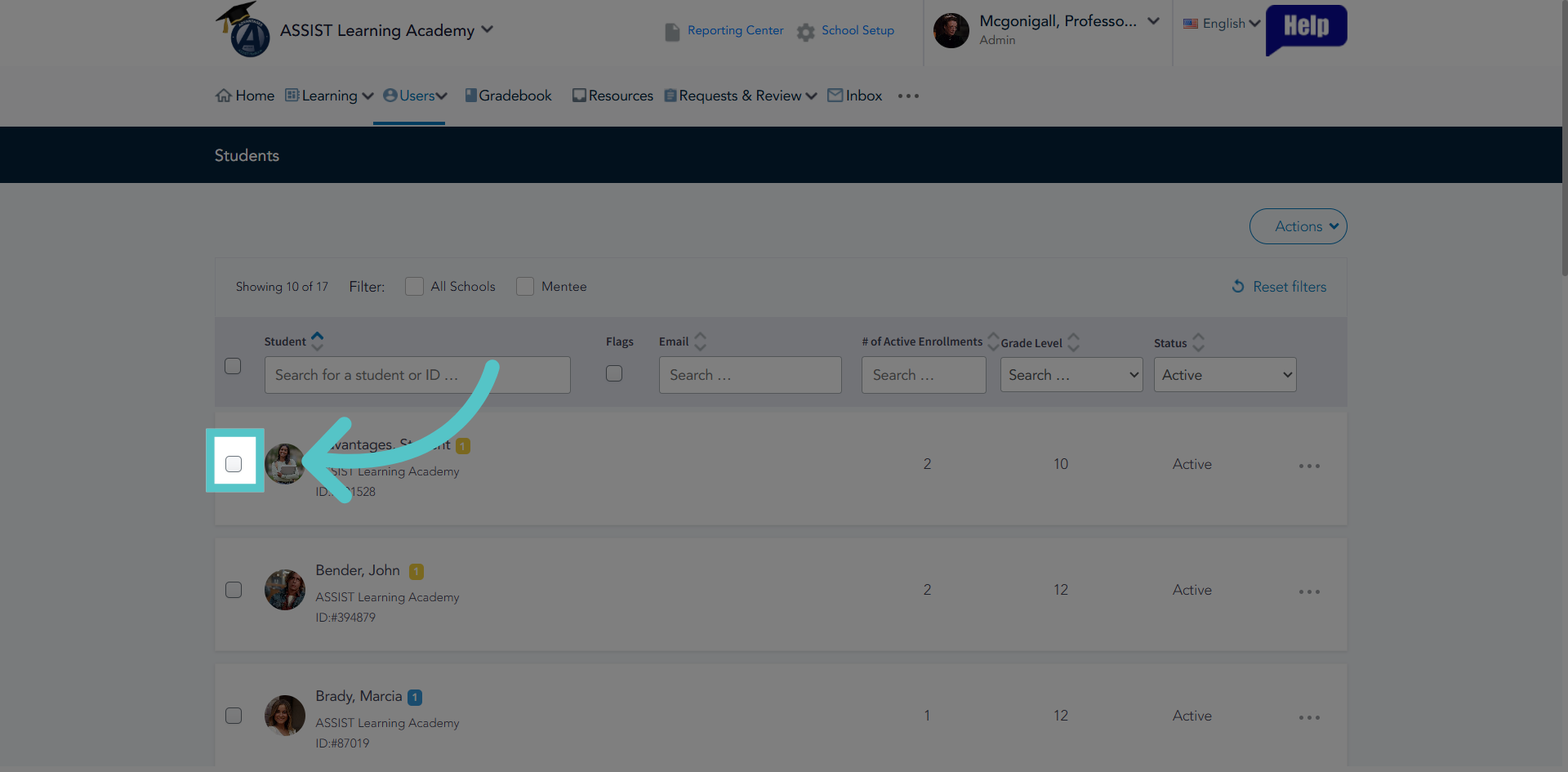
3. Select Specific Item
Use the check box next to listed names to select the student files to access.
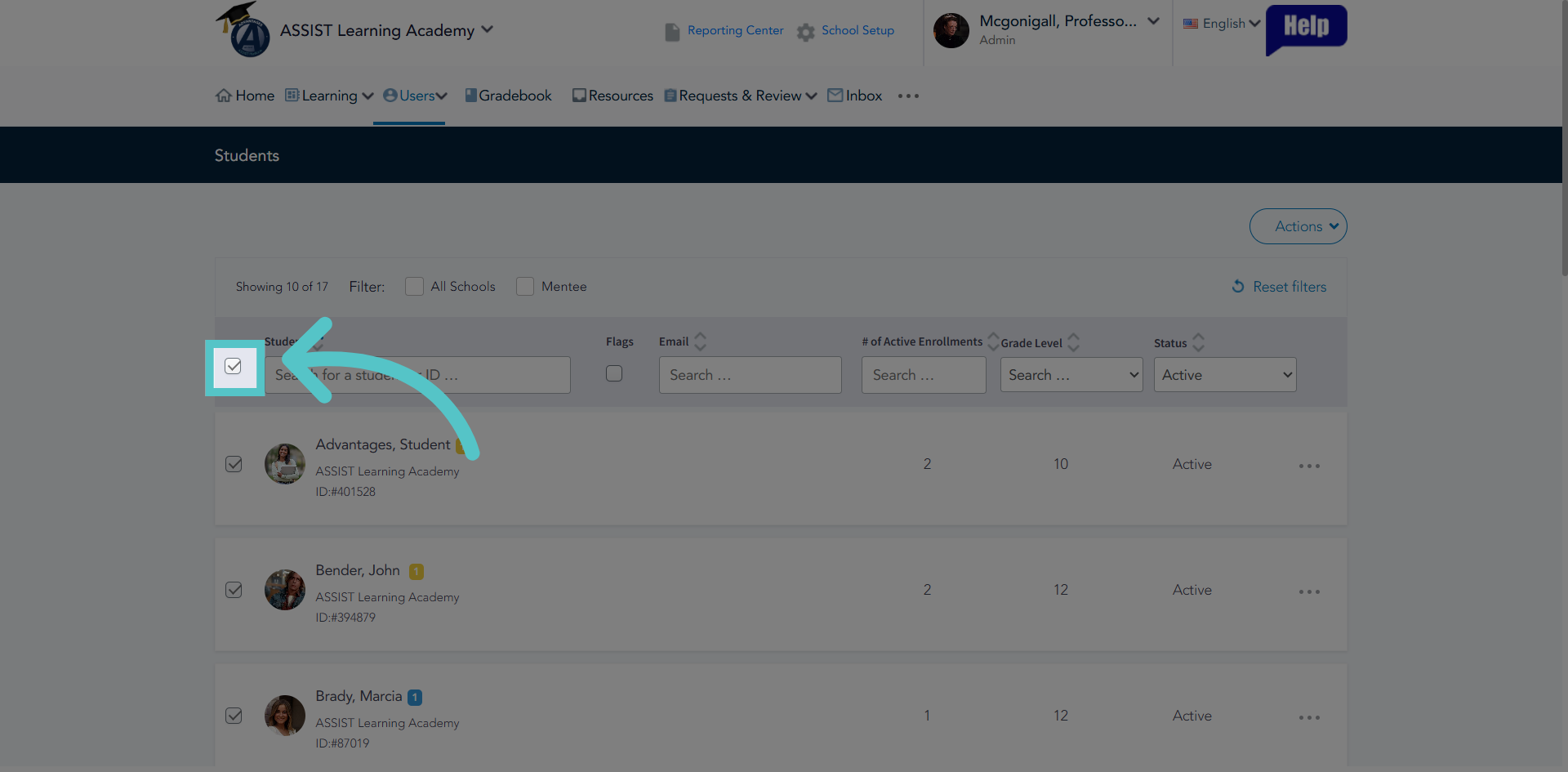
4. Select All
Use the top checkbox to select all listed students.
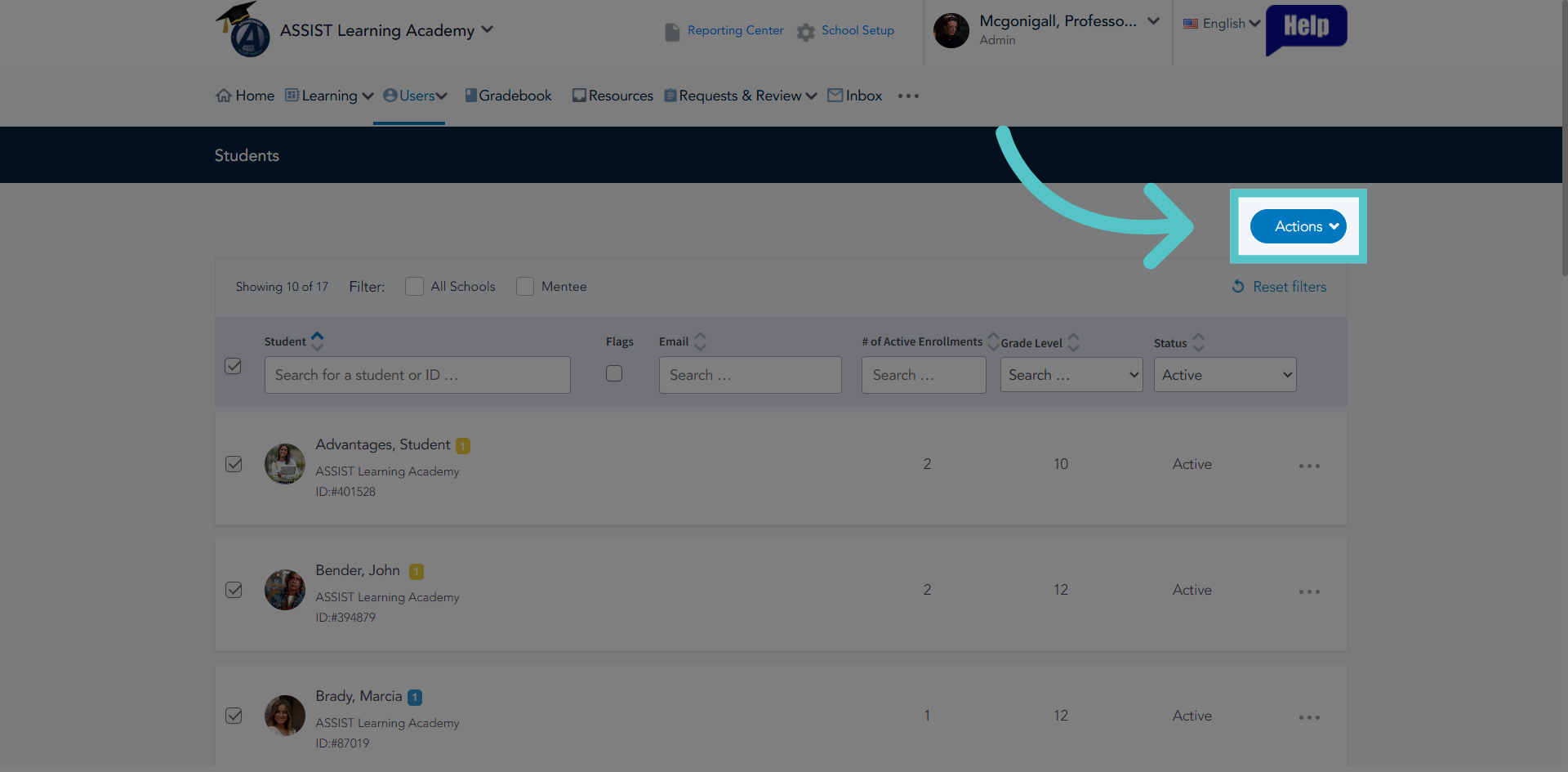
5. Open Actions Menu
Click the Actions button to reveal additional options for managing student data.
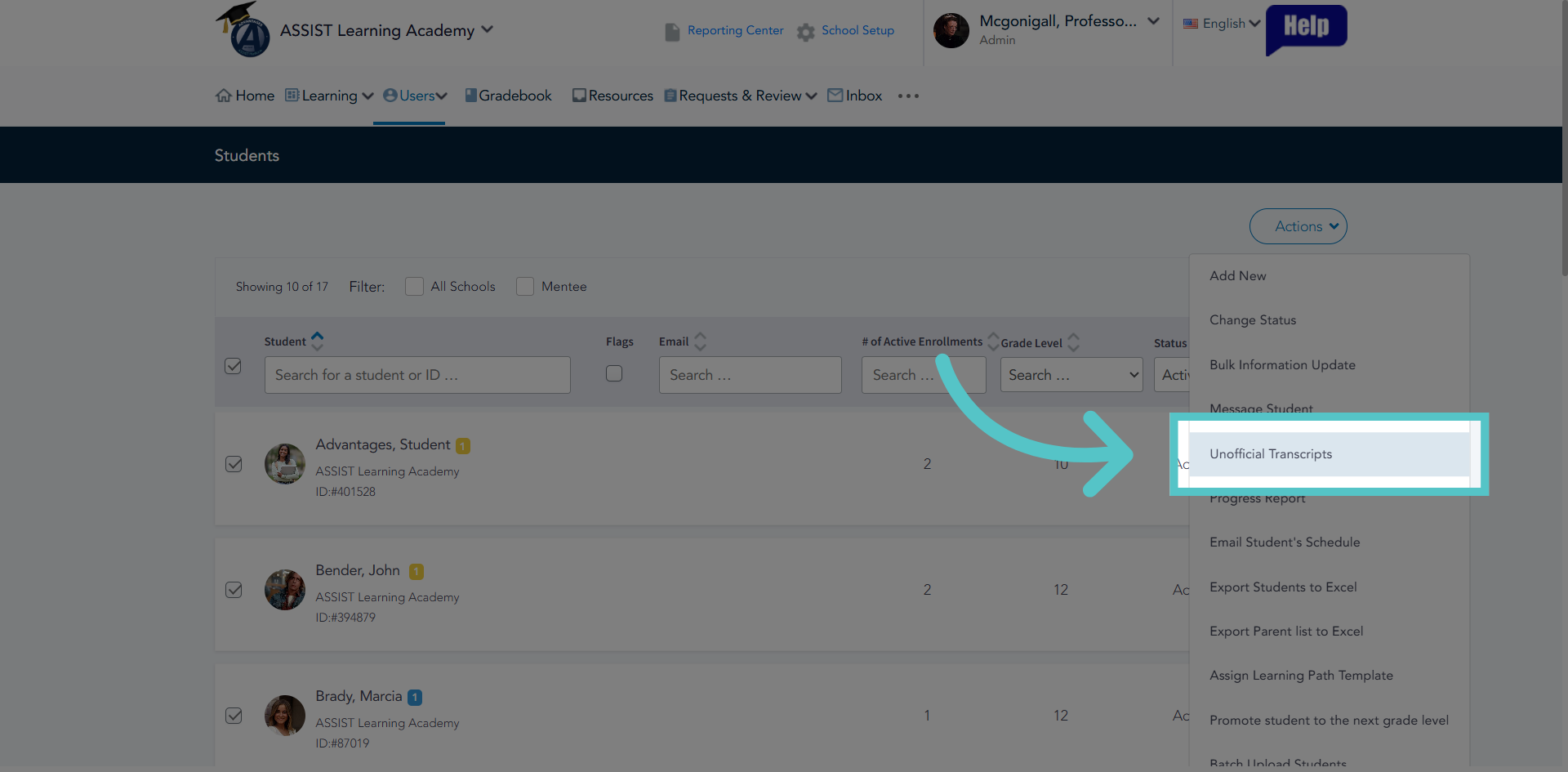
6. Access Unofficial Transcripts
Click Unofficial Transcripts to download transcripts for all selected students.
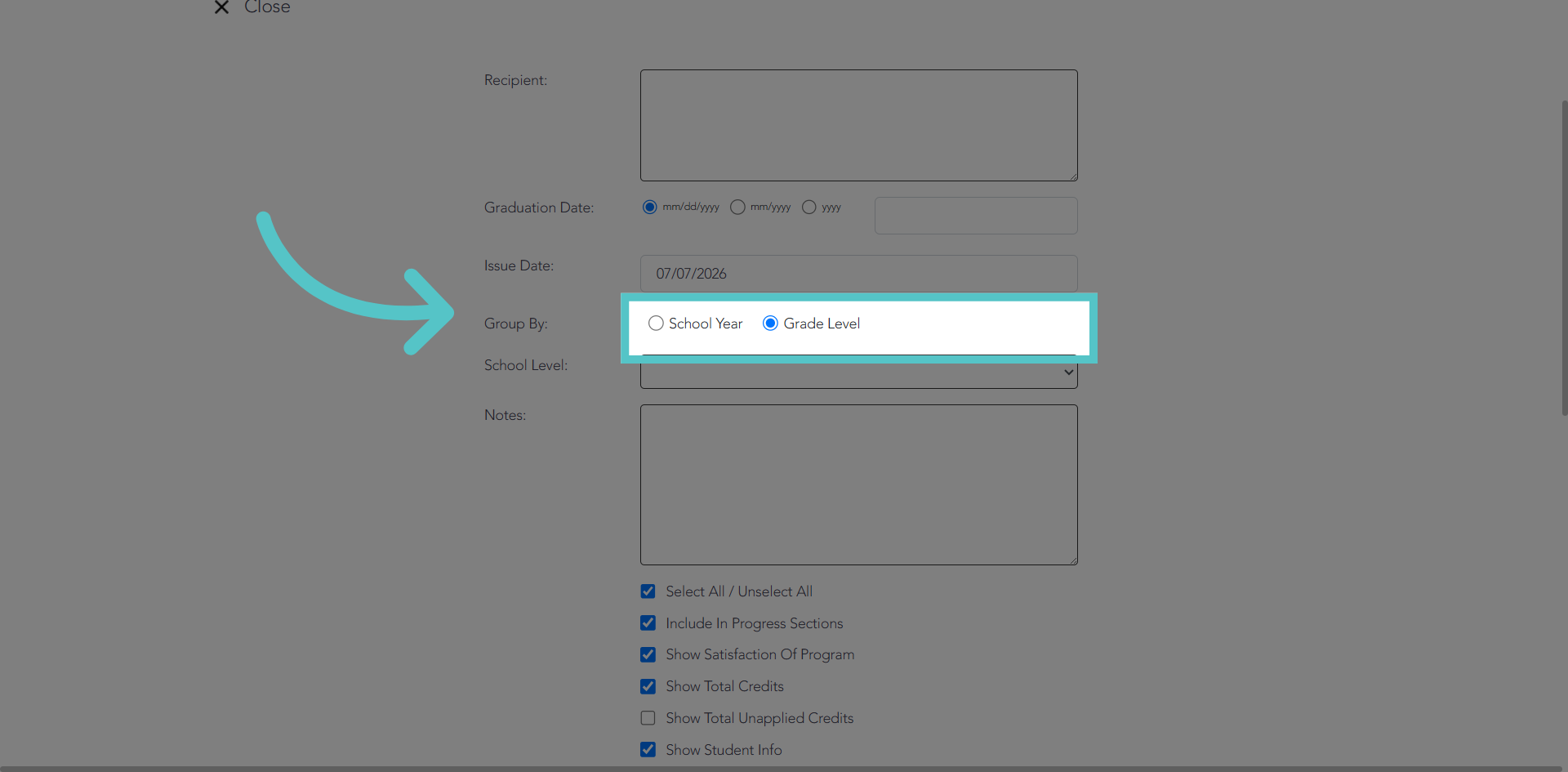
7. Select School Year and Grade
Customize the transcript record as needed. We recommend grouping courses by grade level.
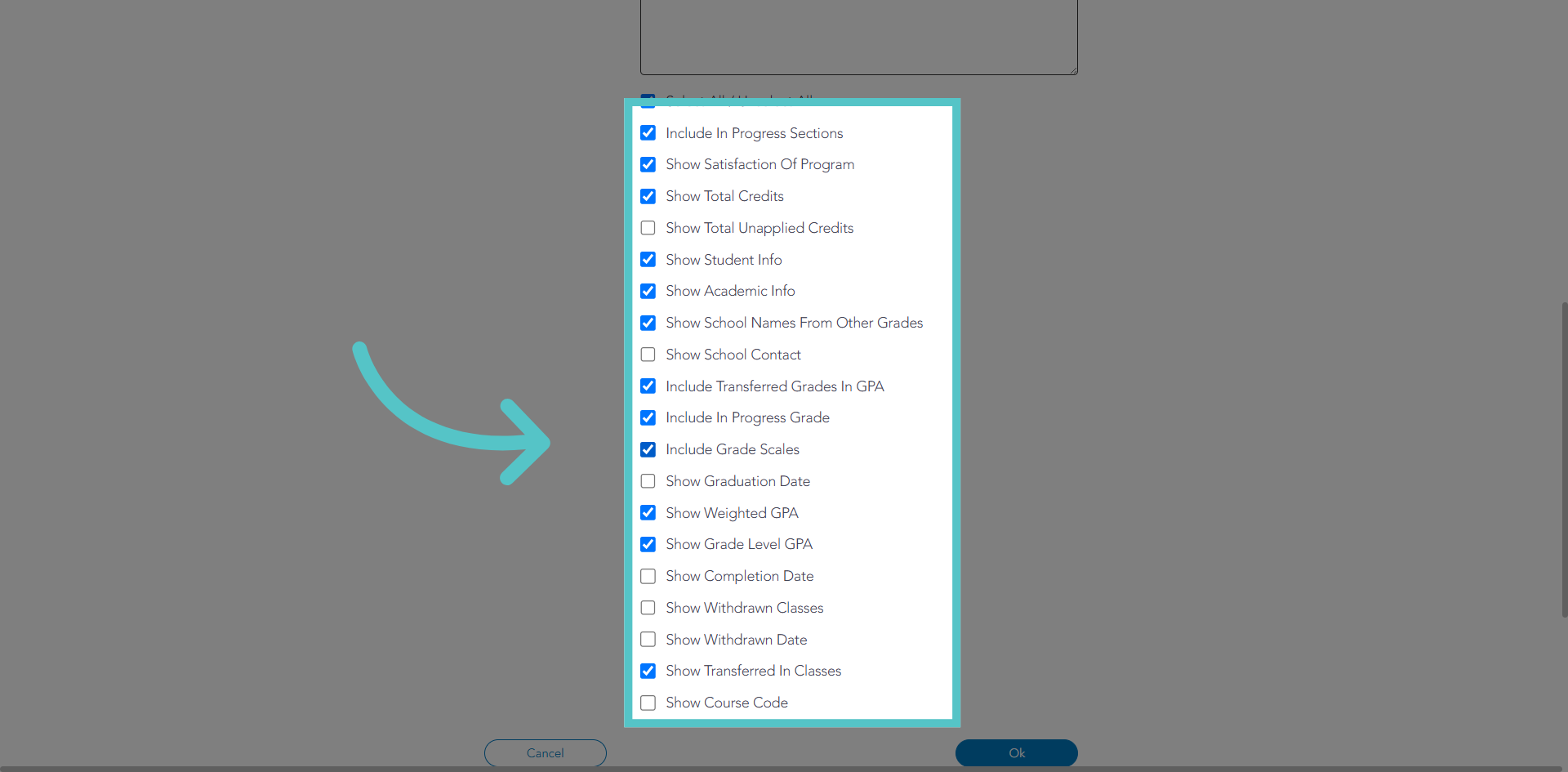
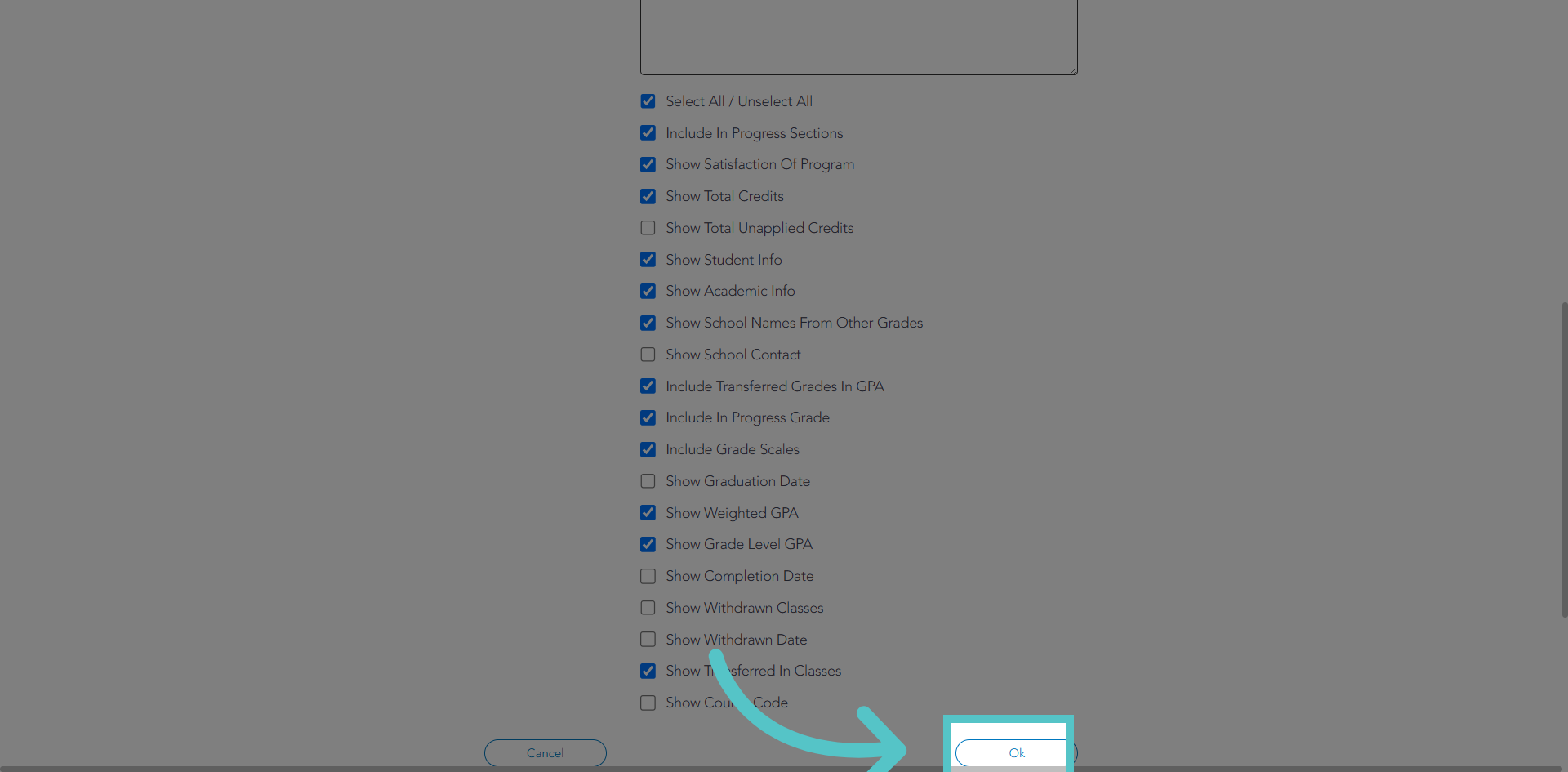
8. Customize Transcripts
Check the box next to each item that should be included on student transcripts. We recommend the shown selections.
9. Confirm Action
Click the Ok button to confirm and finalize your selections.
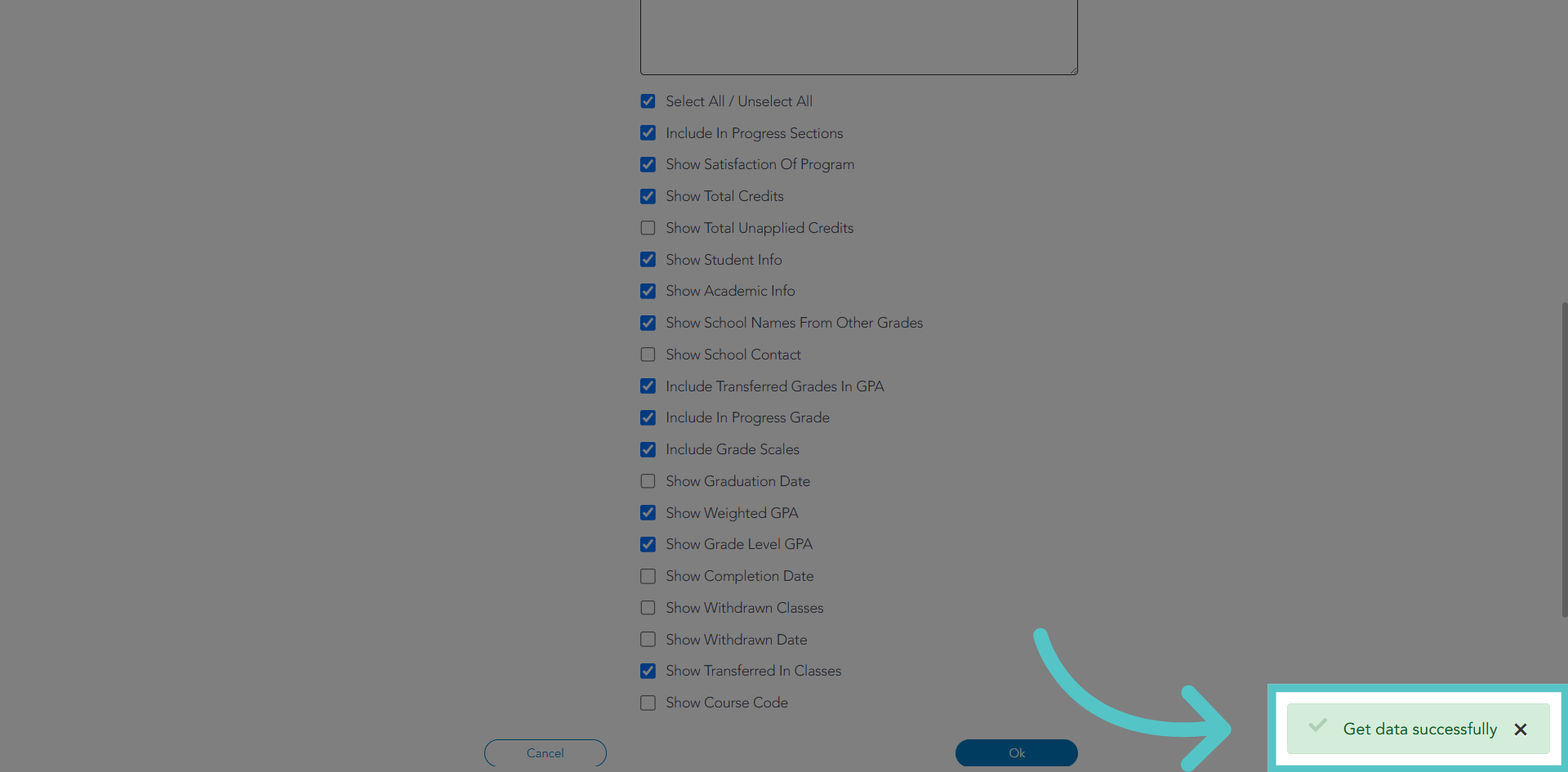
10. Transcripts Downloaded
A "success" message will appear when the records have been downloaded to your device.
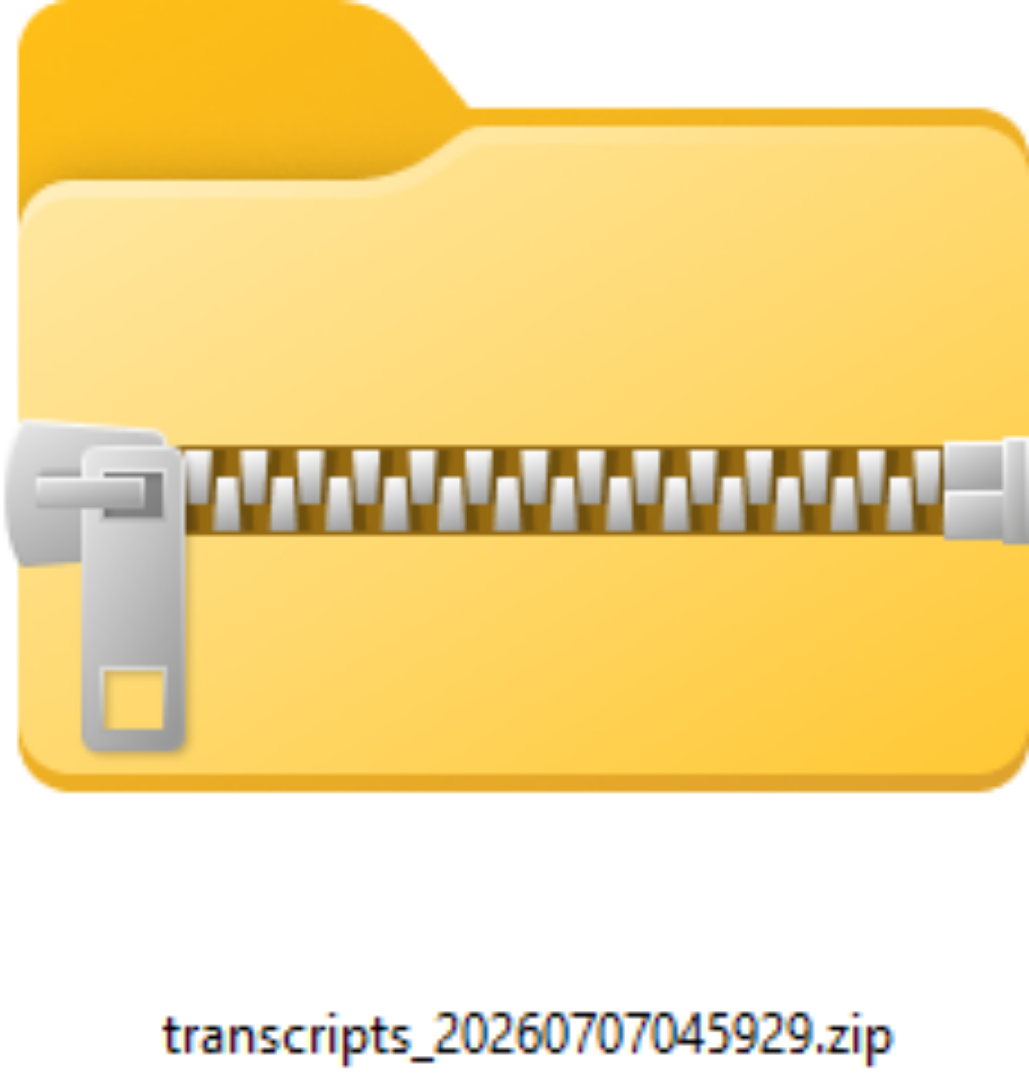
11. Zip File
Transcripts will download in a compressed zip file. Open the zip file to access individual student transcripts.
If you have any questions about the information in this tutorial, please contact your dedicated school success manager for additional support.