Expand to Full Screen for Best Viewing
Course activities in Lincoln Learning can be edited in bulk, rather than one at a time. This guide will demonstrate making activities gradable and hiding answer keys, but there are a variety of edits teachers can choose from.
Go to assist-learning-school.agilixbuzz.com
1. Editor
First, access the editor feature for the course.
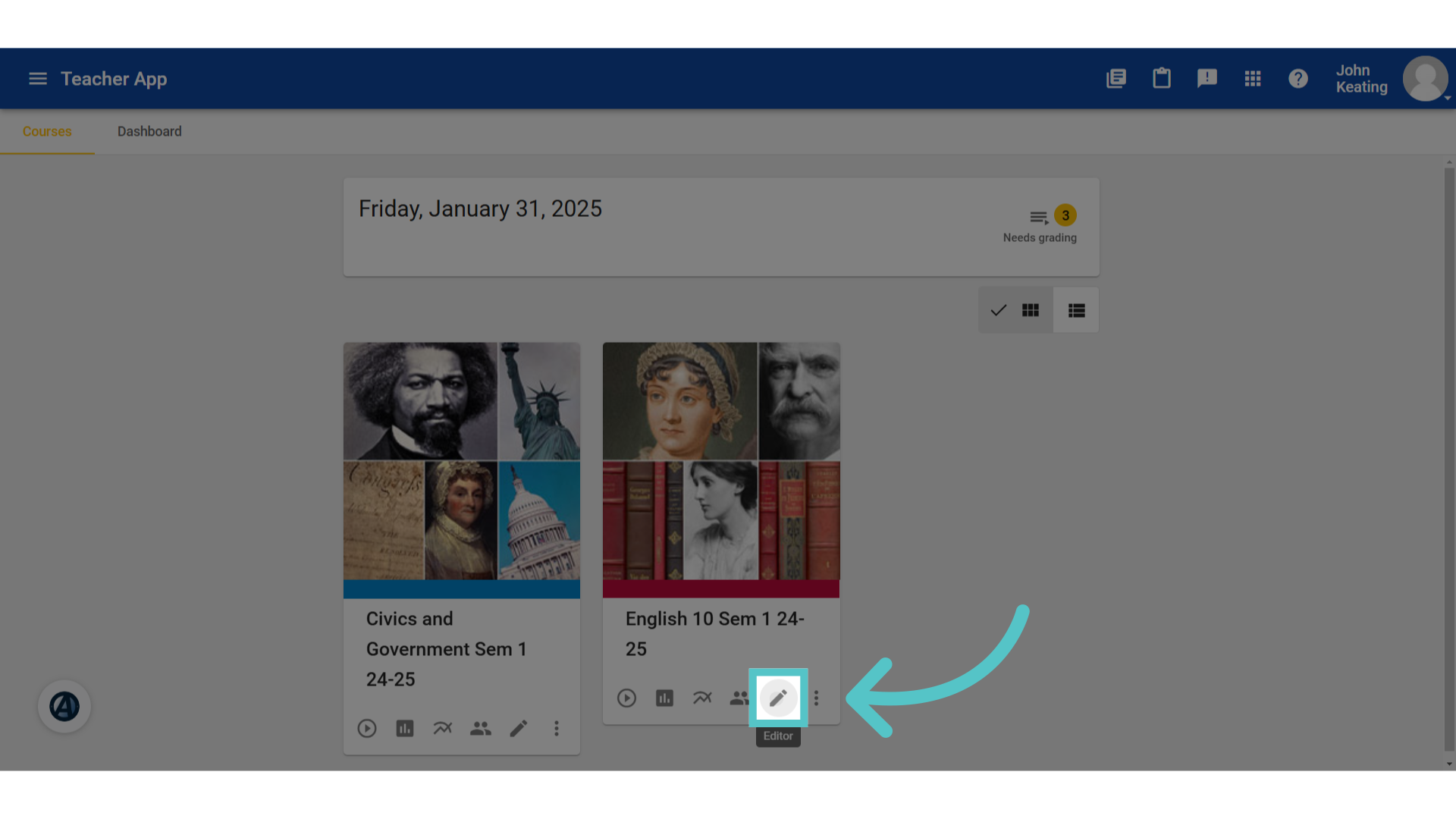
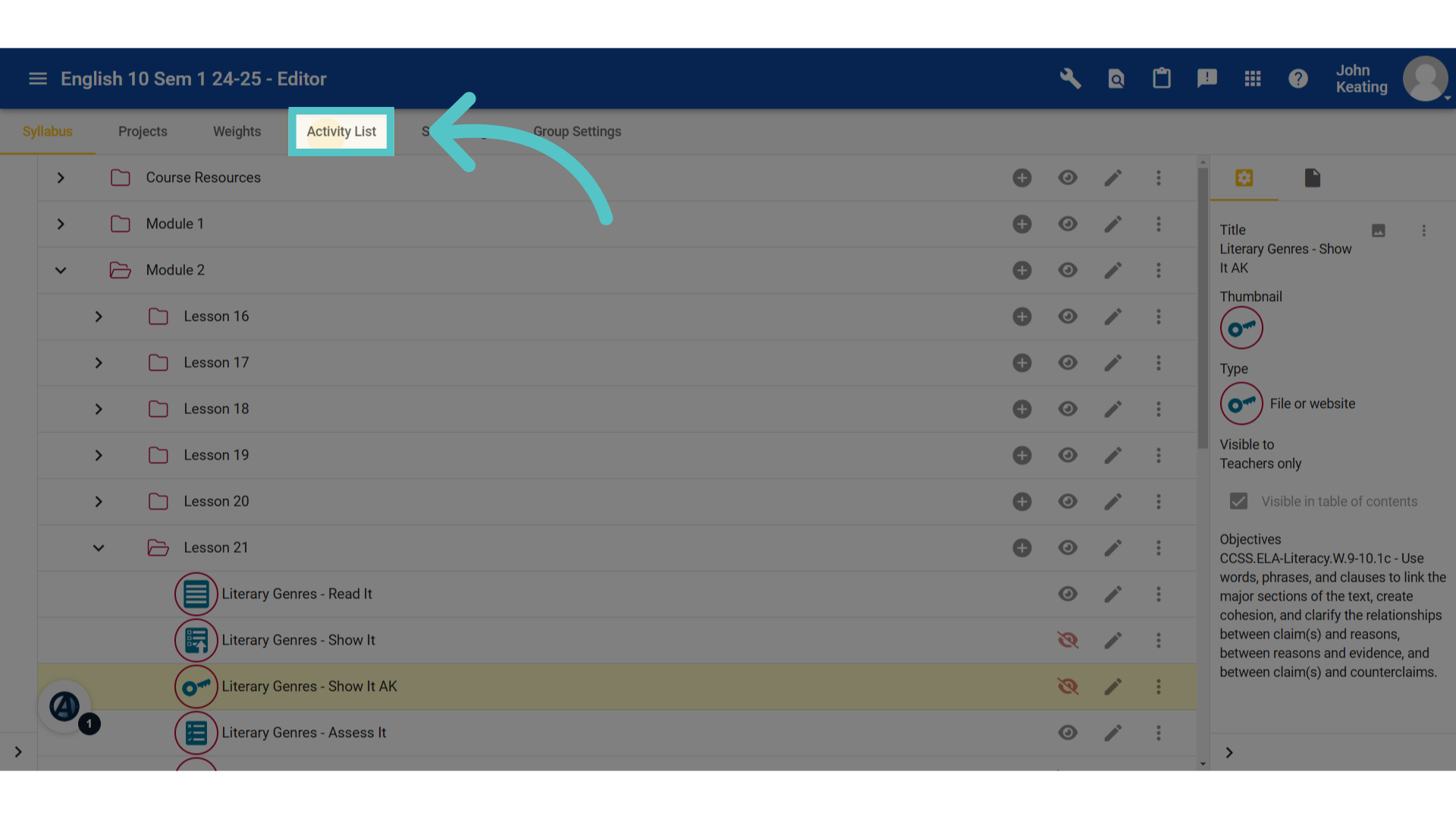
2. Click "Activity List"
Navigate to the "Activity List" section.
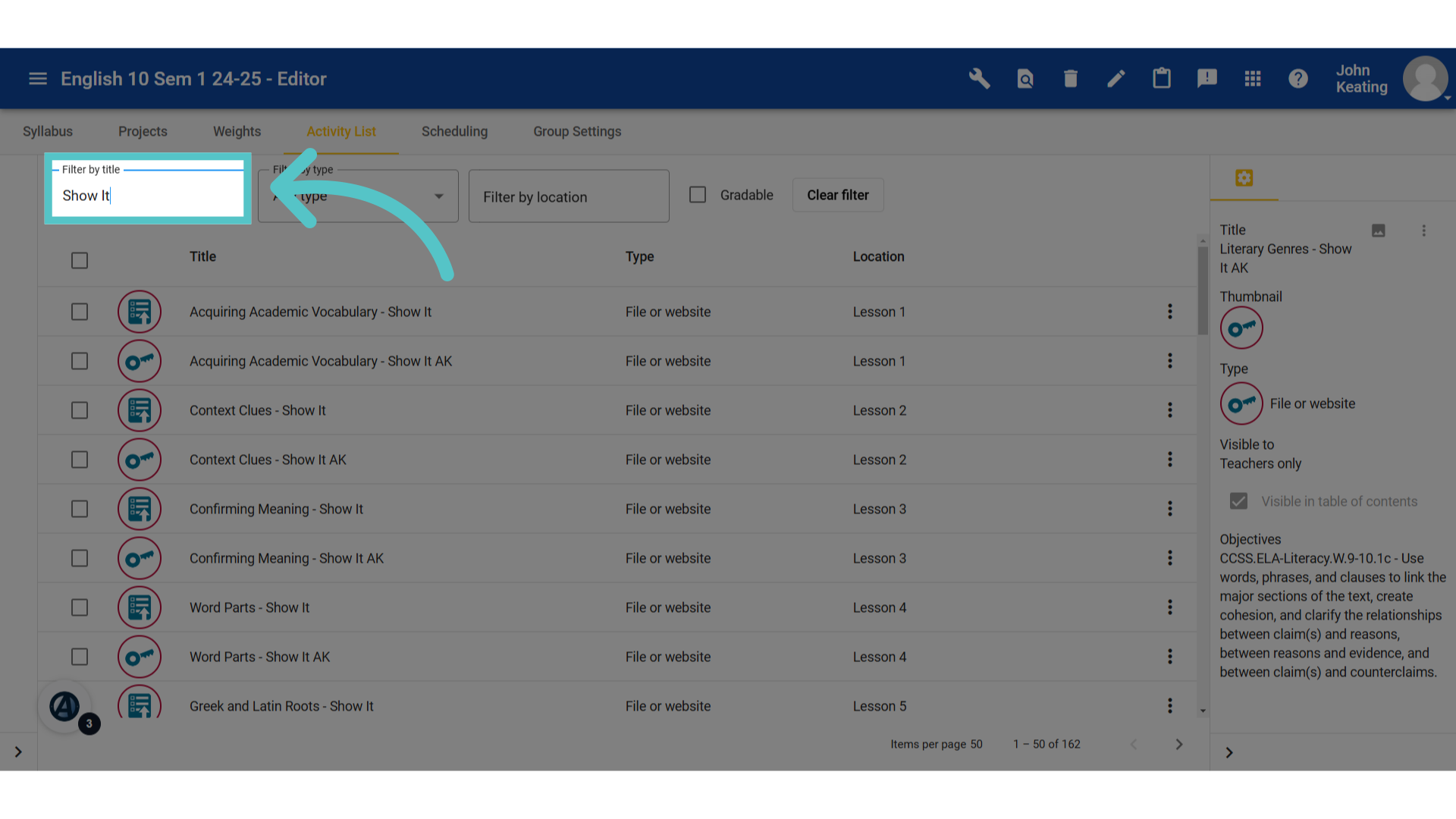
3. Filter
Filter for the type of activity to be made gradable. Show Its are commonly made gradable in Lincoln Learning Courses.
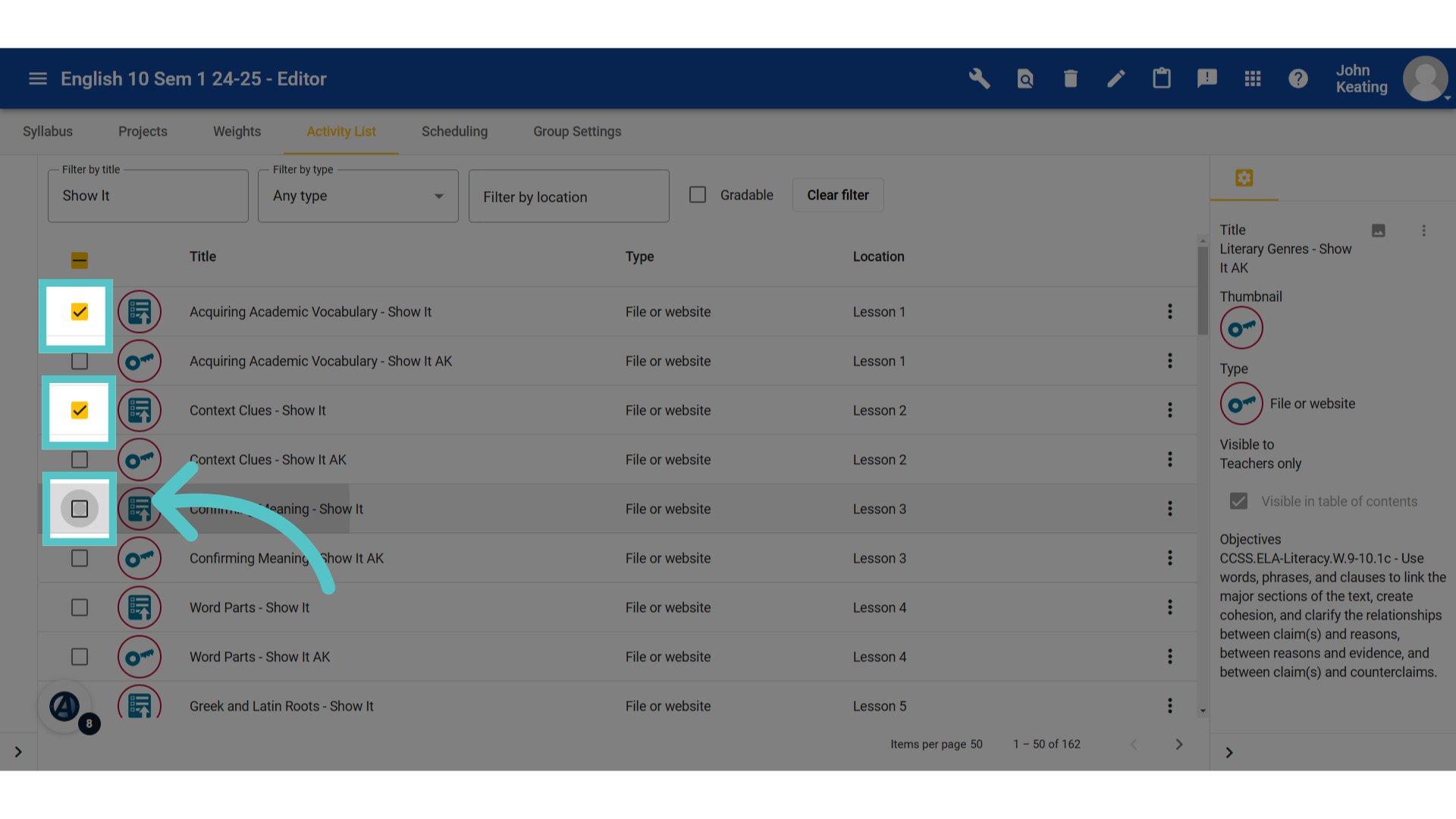
4. Check Box
Check the box to select all activities that will be made gradable. Show Its are always followed by an answer key (A-K). The answer keys should not be made gradable.
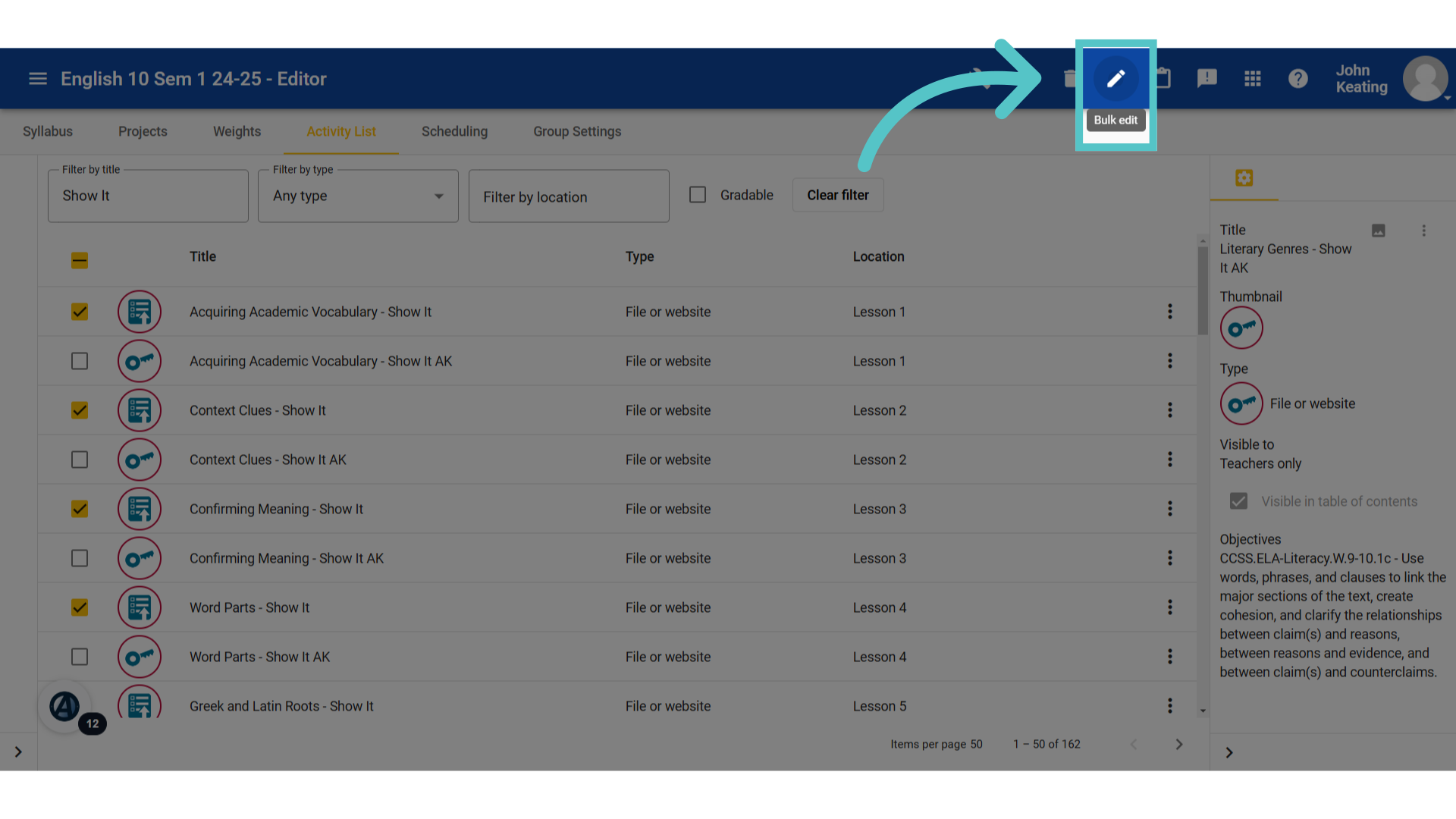
5. Bulk Edit
Once the activities are selected, click the "Bulk Edit" icon in the top blue bar.
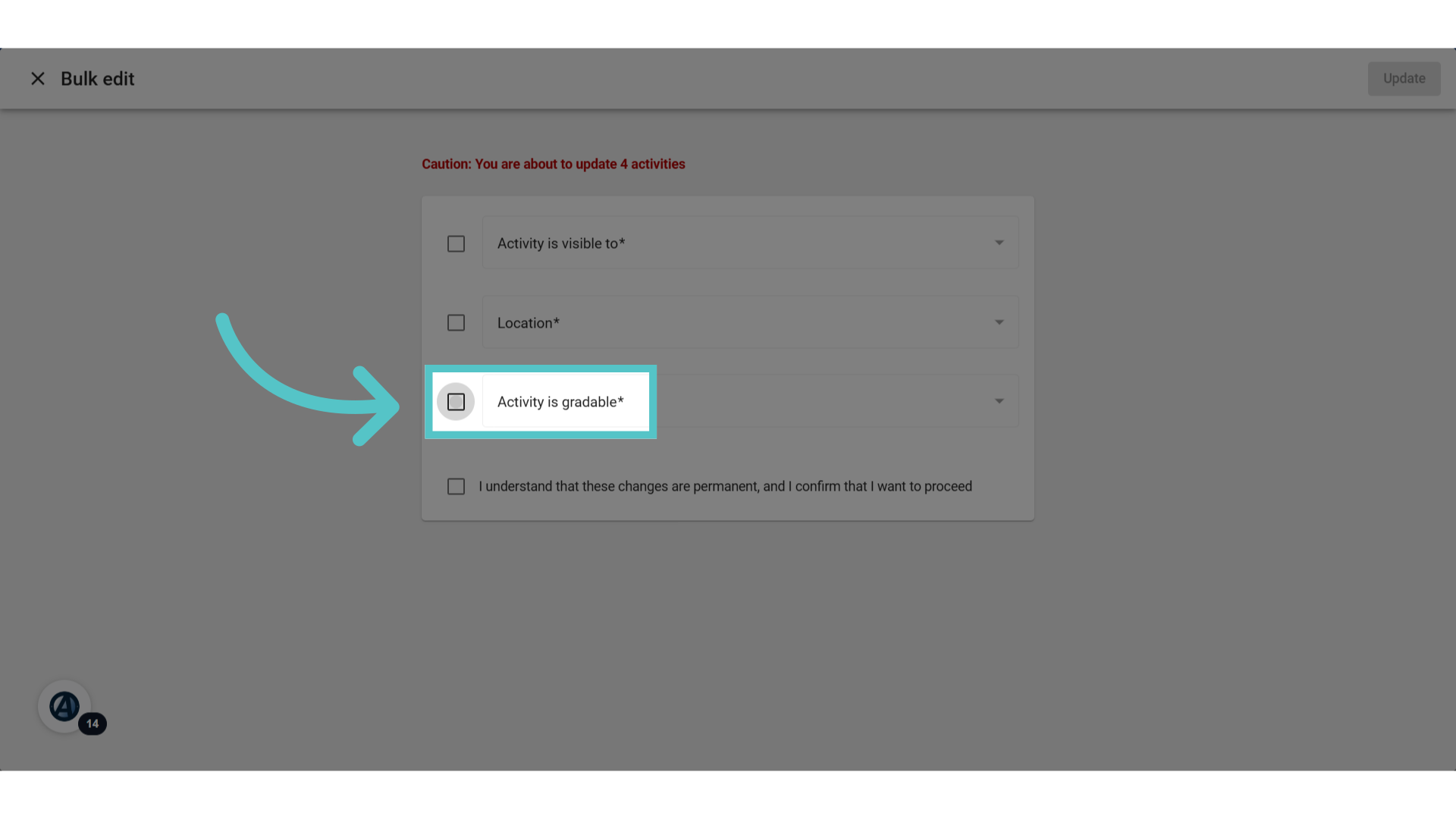
6. Gradable Option
Check the box for "Activity is gradable."
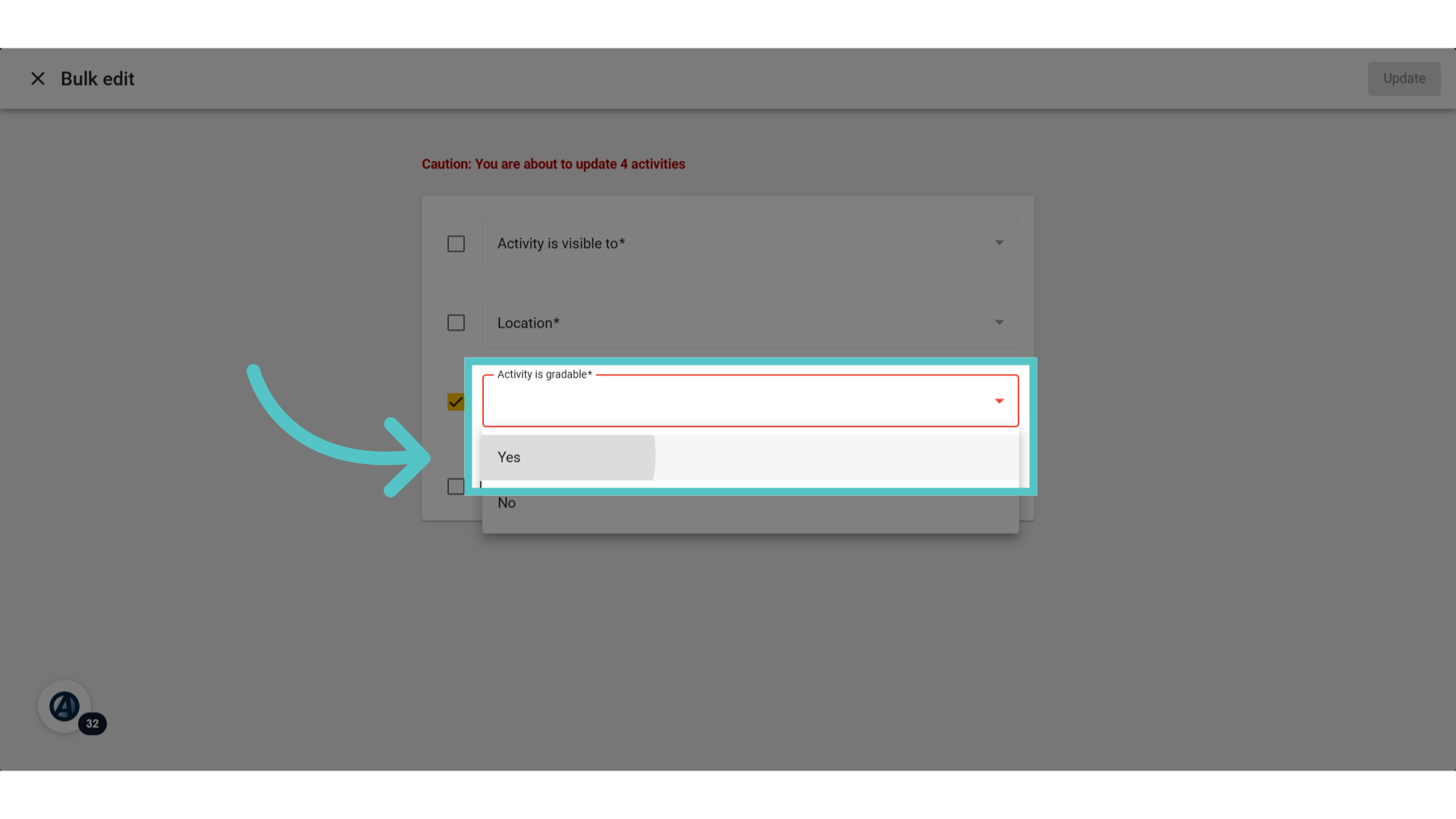
7. Click "Yes"
Use the dropdown arrow in this field to select "Yes," to indicate the activity will be gradable.
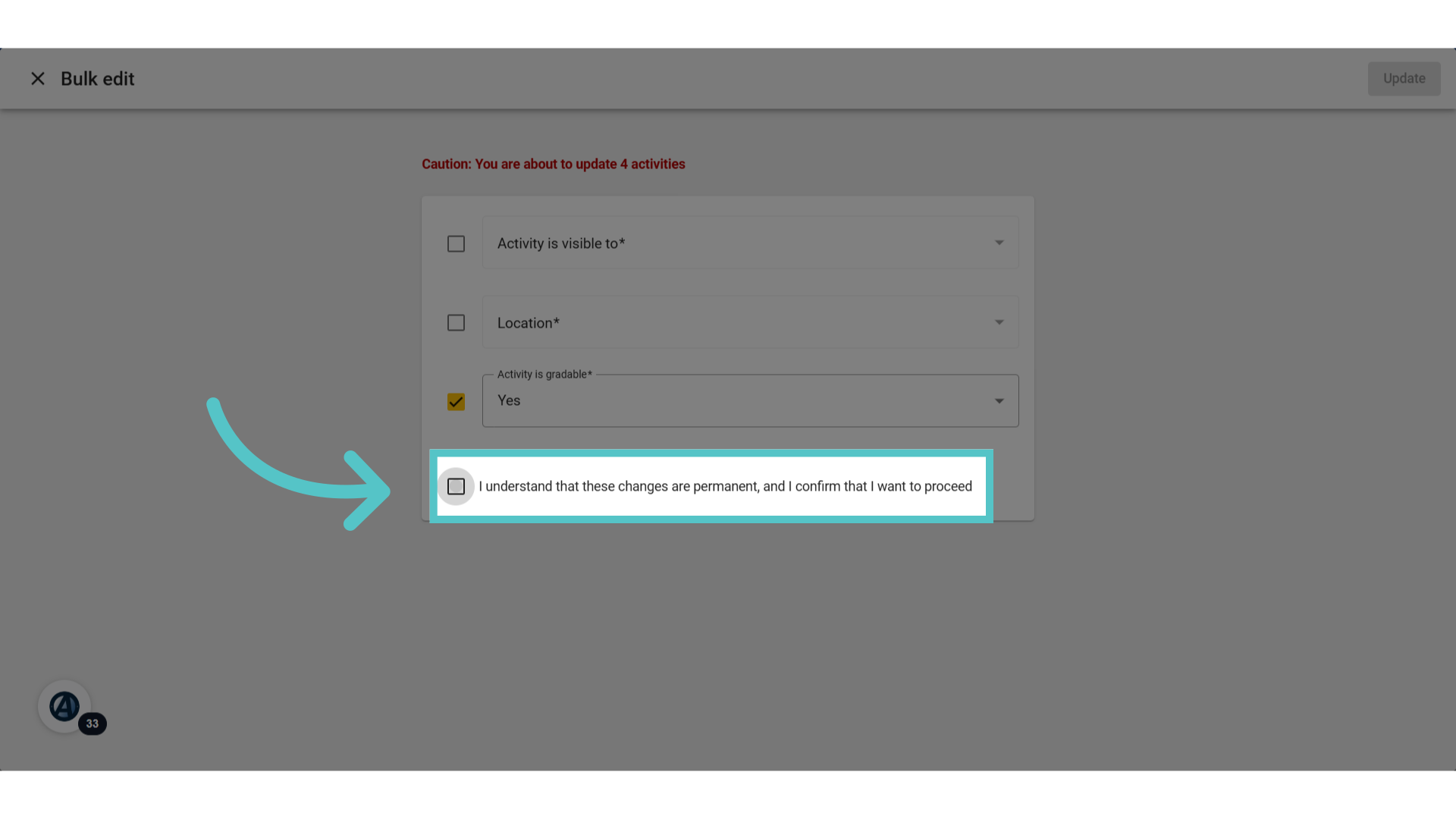
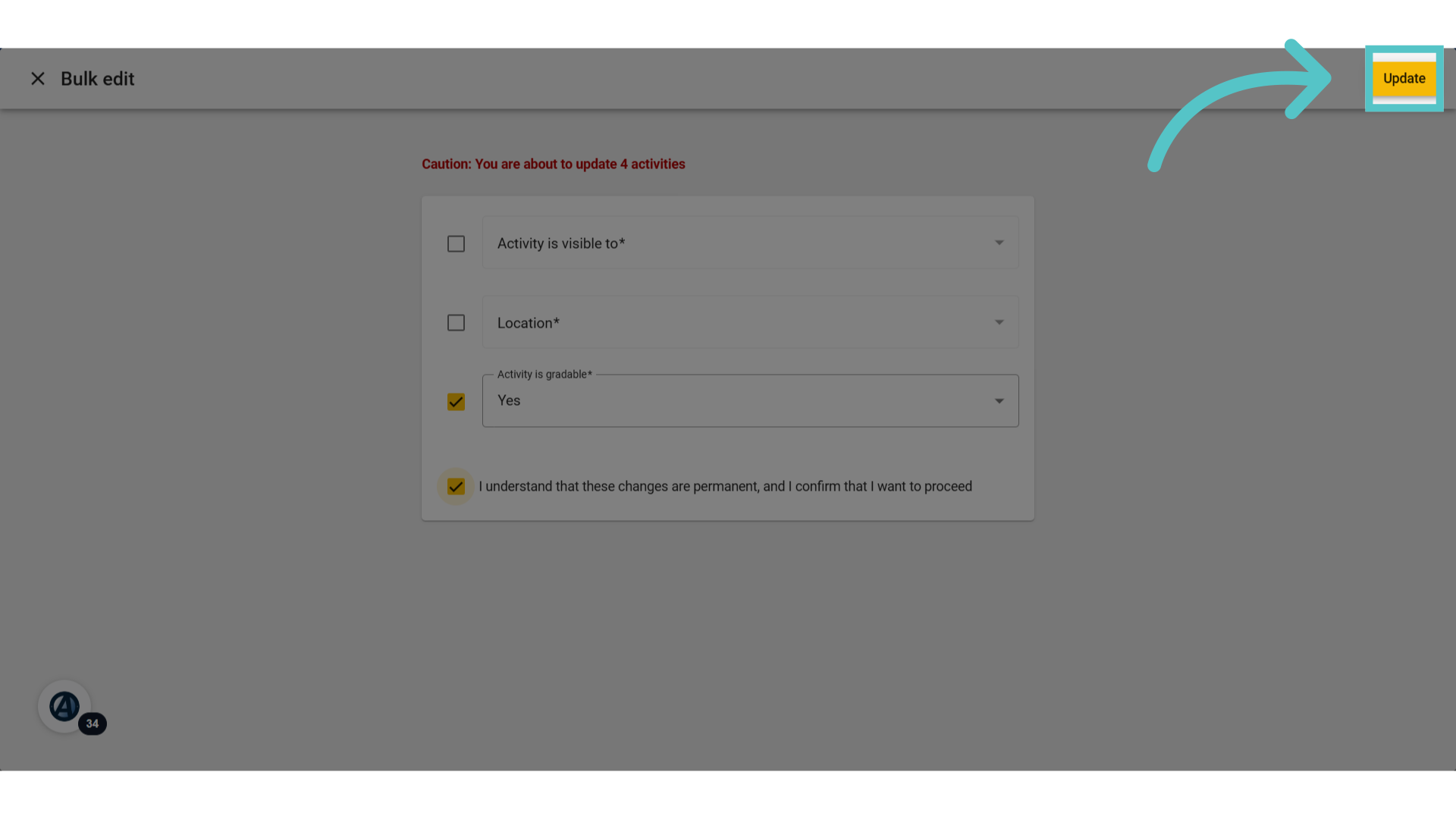
8. Confirm
Check the box to confirm that the edit is correct.
9. Update
Update the course with the new gradable activites.
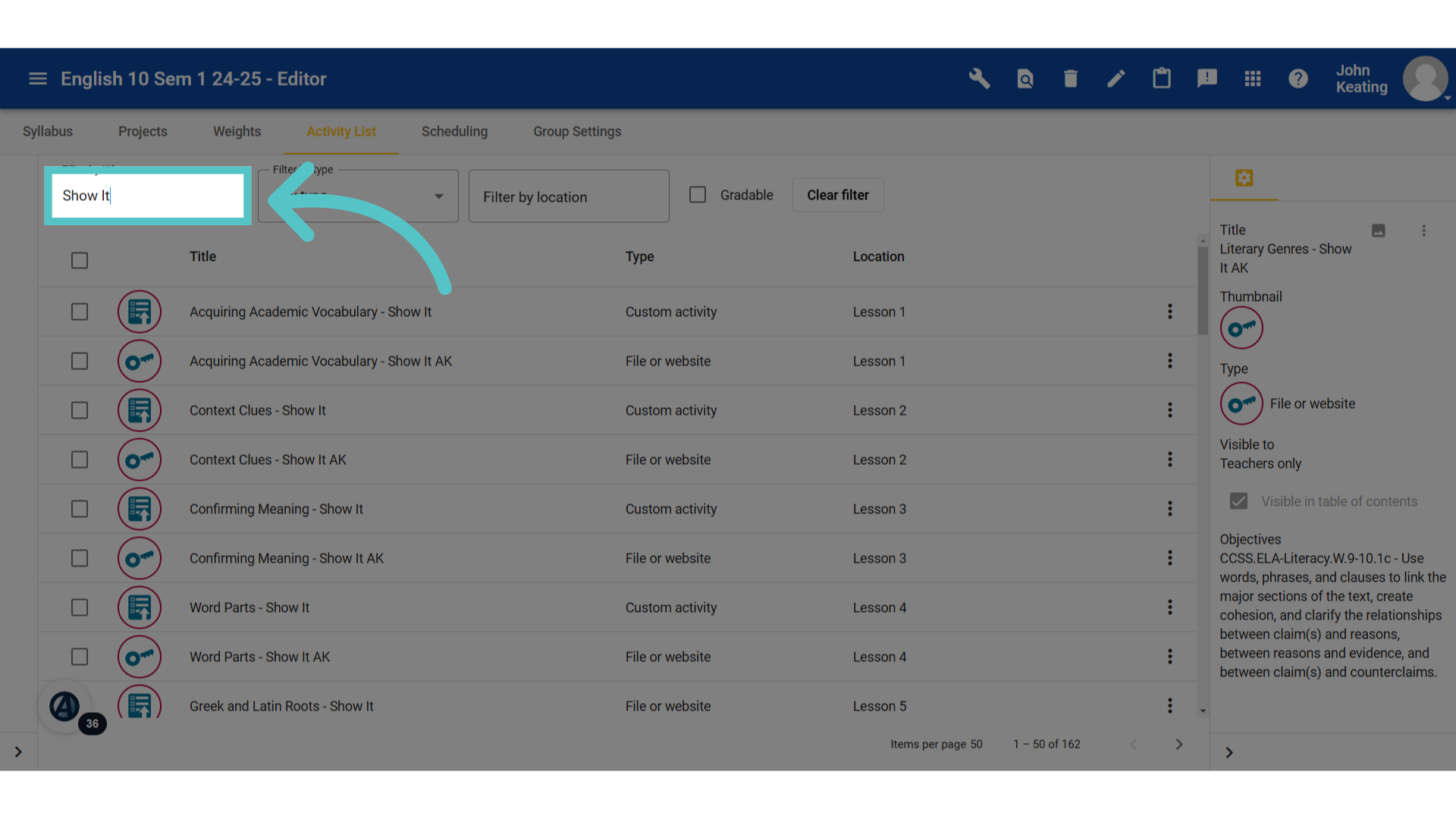
10. Filter
The activities are now gradable. However, the platform does not know how work will be submitted, or the point value to assign in the gradebook. To complete the process, filter again for the activity type.
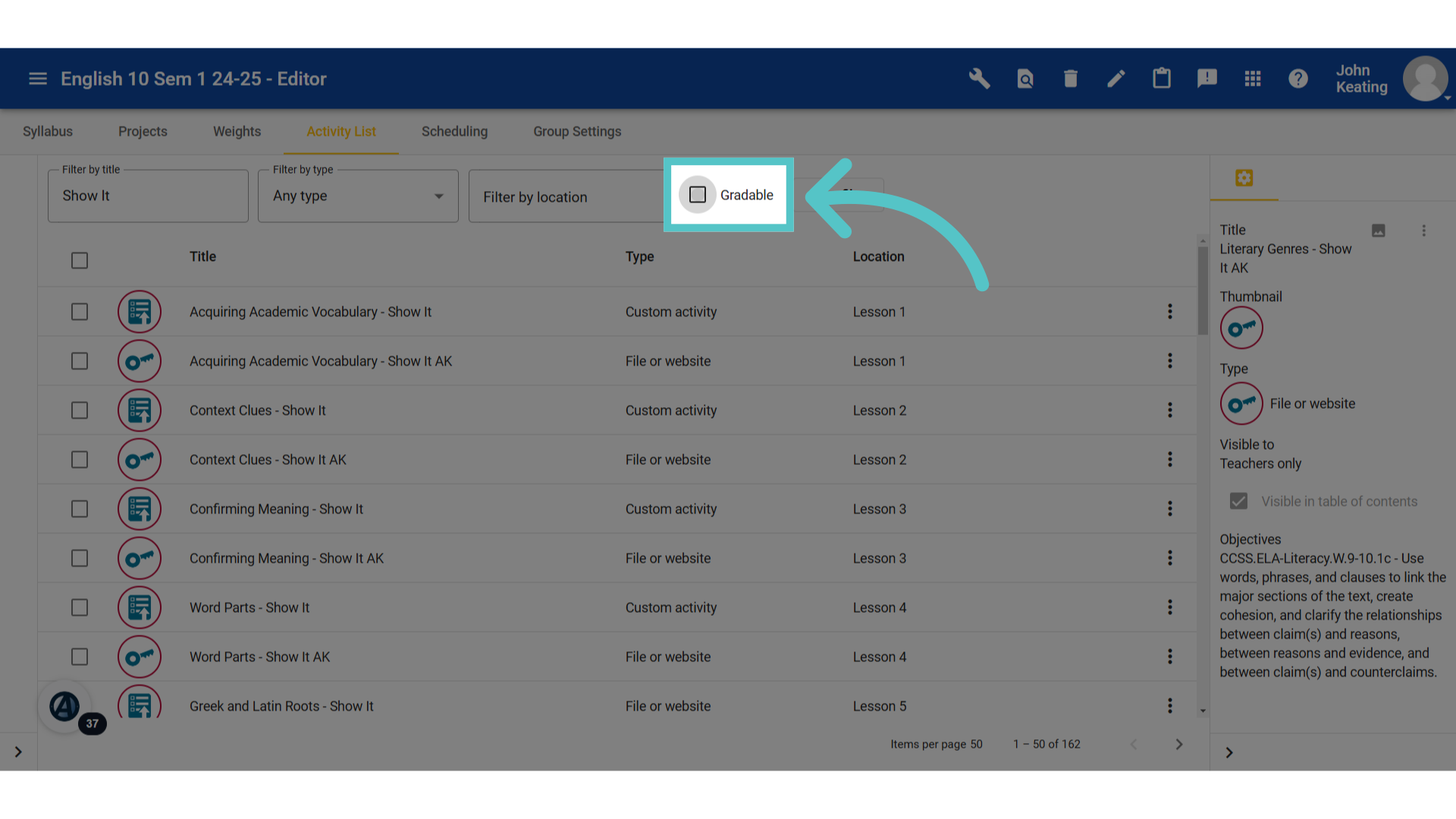
11. Gradable
This time, filter for the activity type and check the box for ones that are gradable.
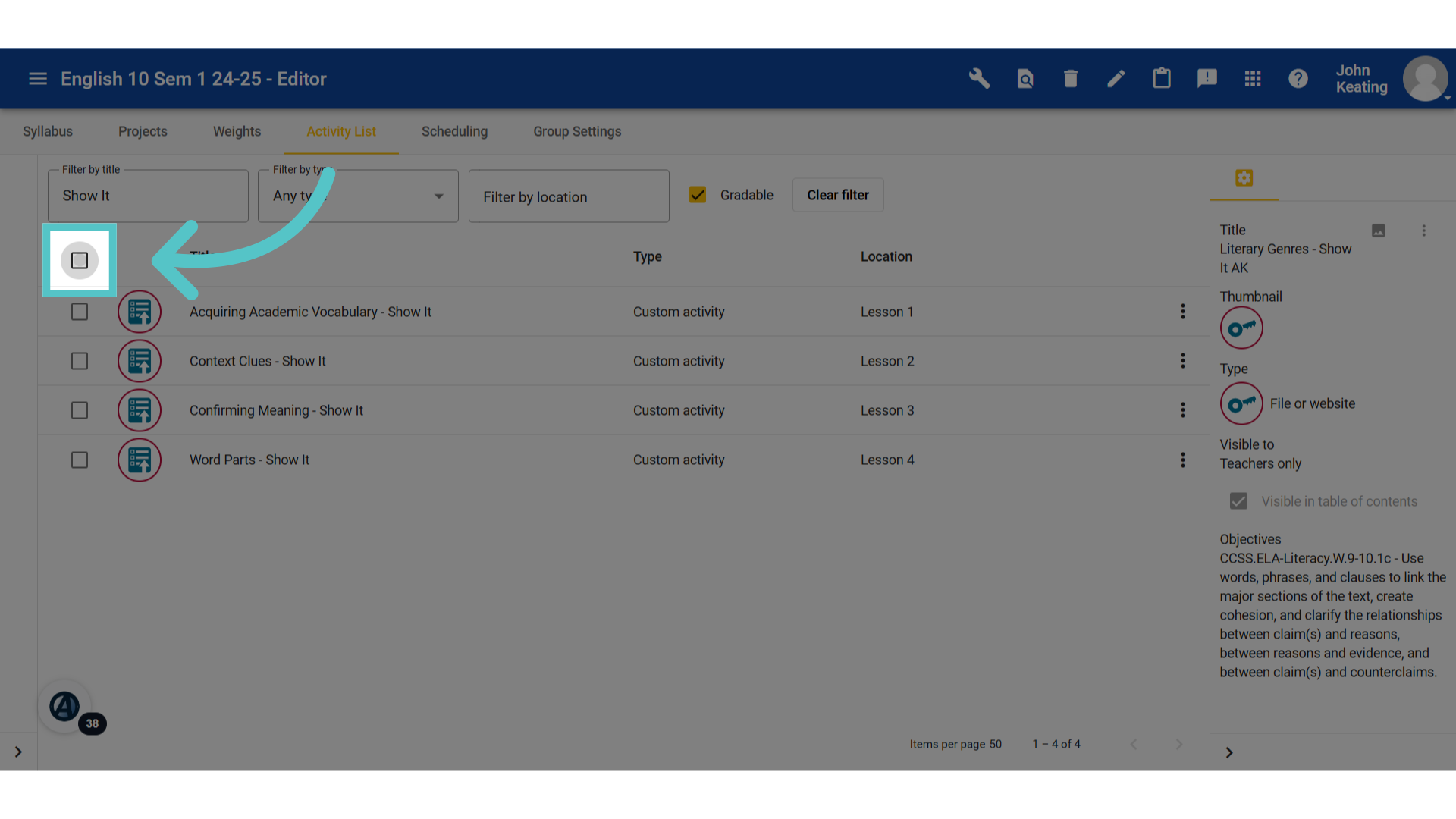
12. Select All
The new list of gradable activites will become available. If they will all be graded the same way, then select them all using the top check box. Teachers can be more selective, if activities will be graded with different point values.
13. Bulk Edit
Again, click the bulk edit icon in the top blue bar.
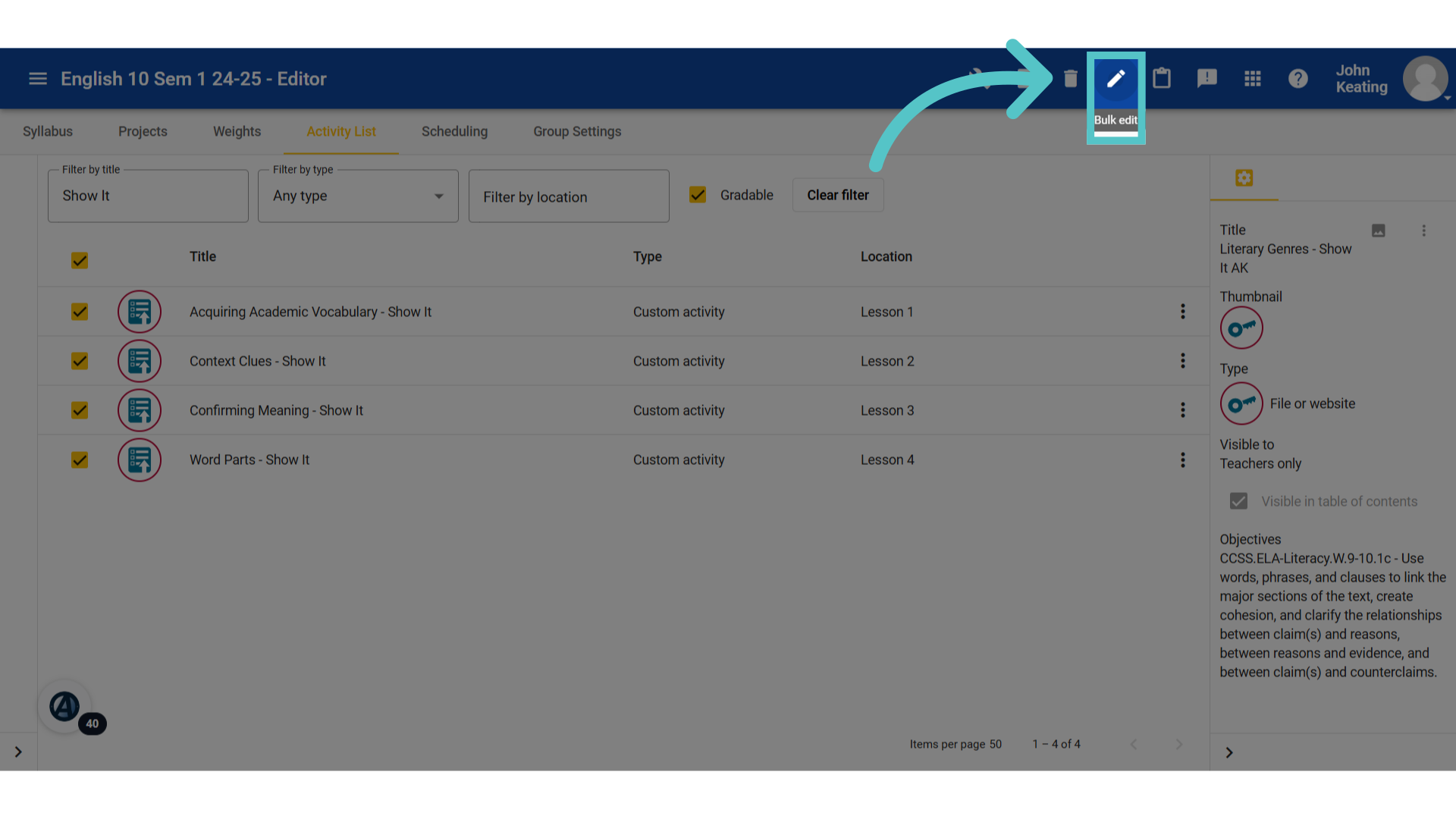
14. Submission Settings
Check the box to indicate how student work will be submitted.
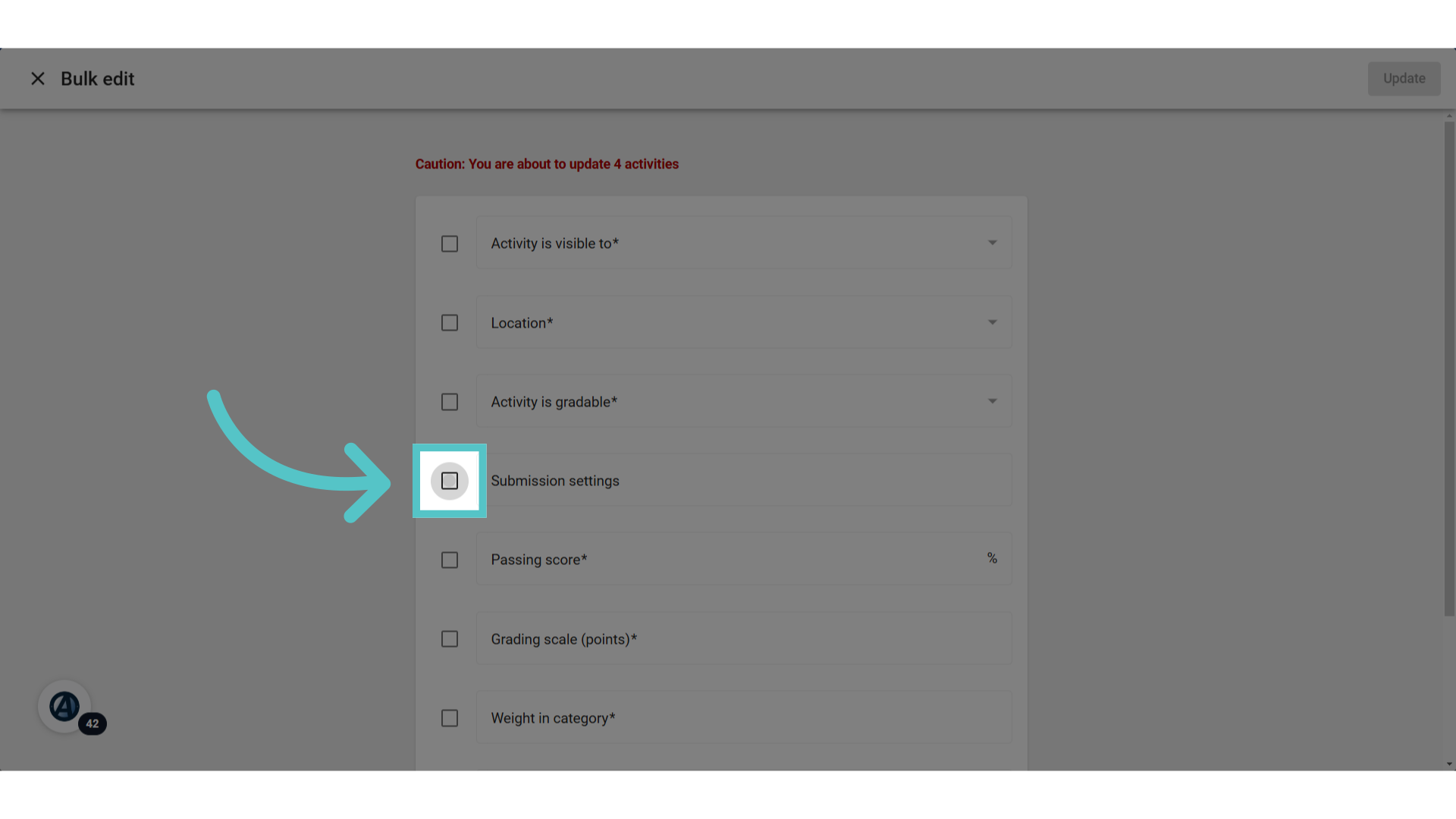
15. Types
Use the dropdown arrow in this field to select options for student submissions. Checking the box to "Allow Comments" will provide a text box at the bottom of the assignment for the students to type in responses. Additionally, teachers can allow for file uploads including videos or images. Teachers can select multiple options to accommodate the variety of work expected.
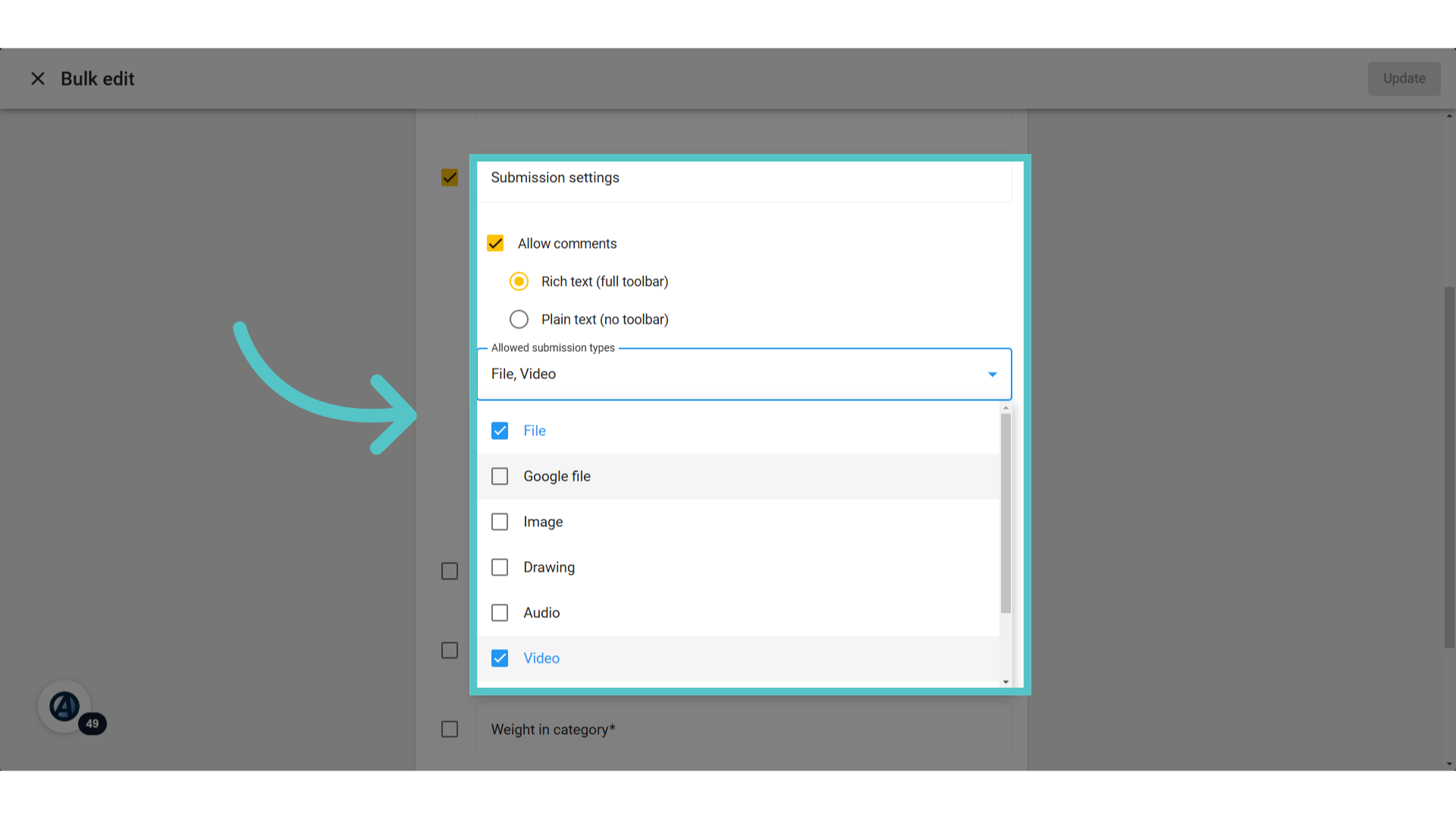
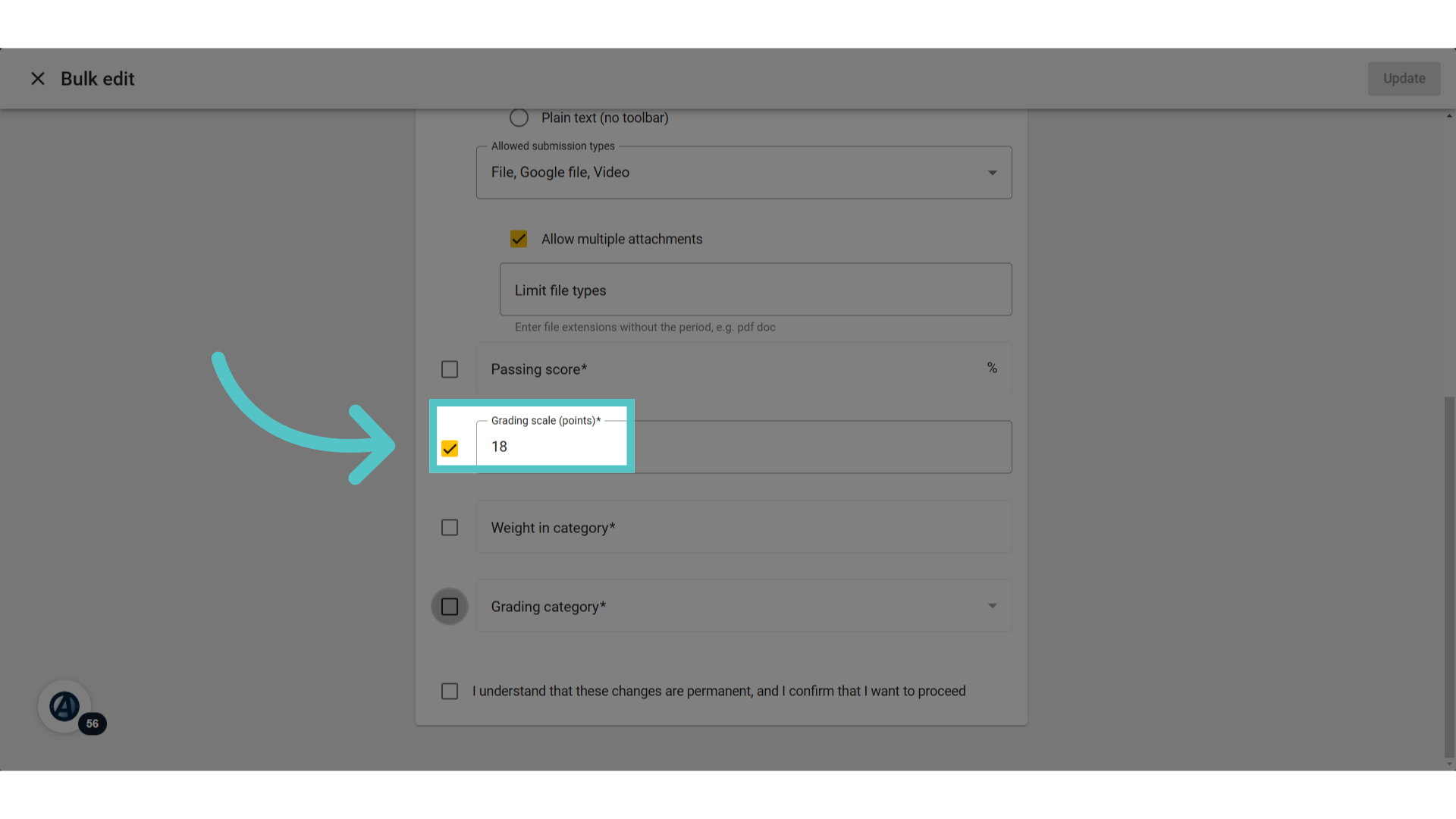
16. Grading Scale
To add a point value for these activites, check the box to set a grading scale.
17. Points
Enter the point value for the activites.
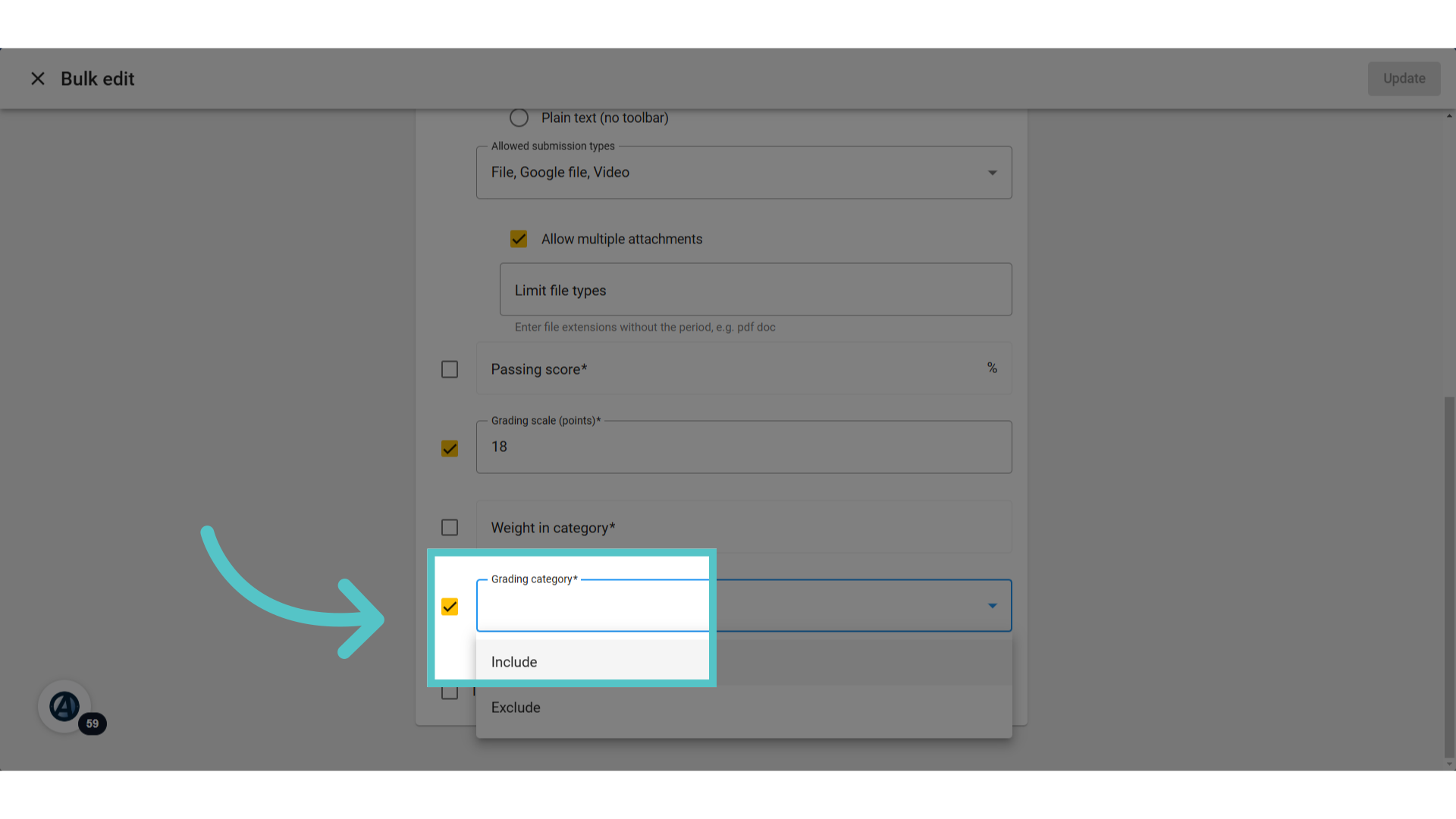
18. Include
Check the box for "Grading Category," and select: "Include." This will add these grades to the course final grade.
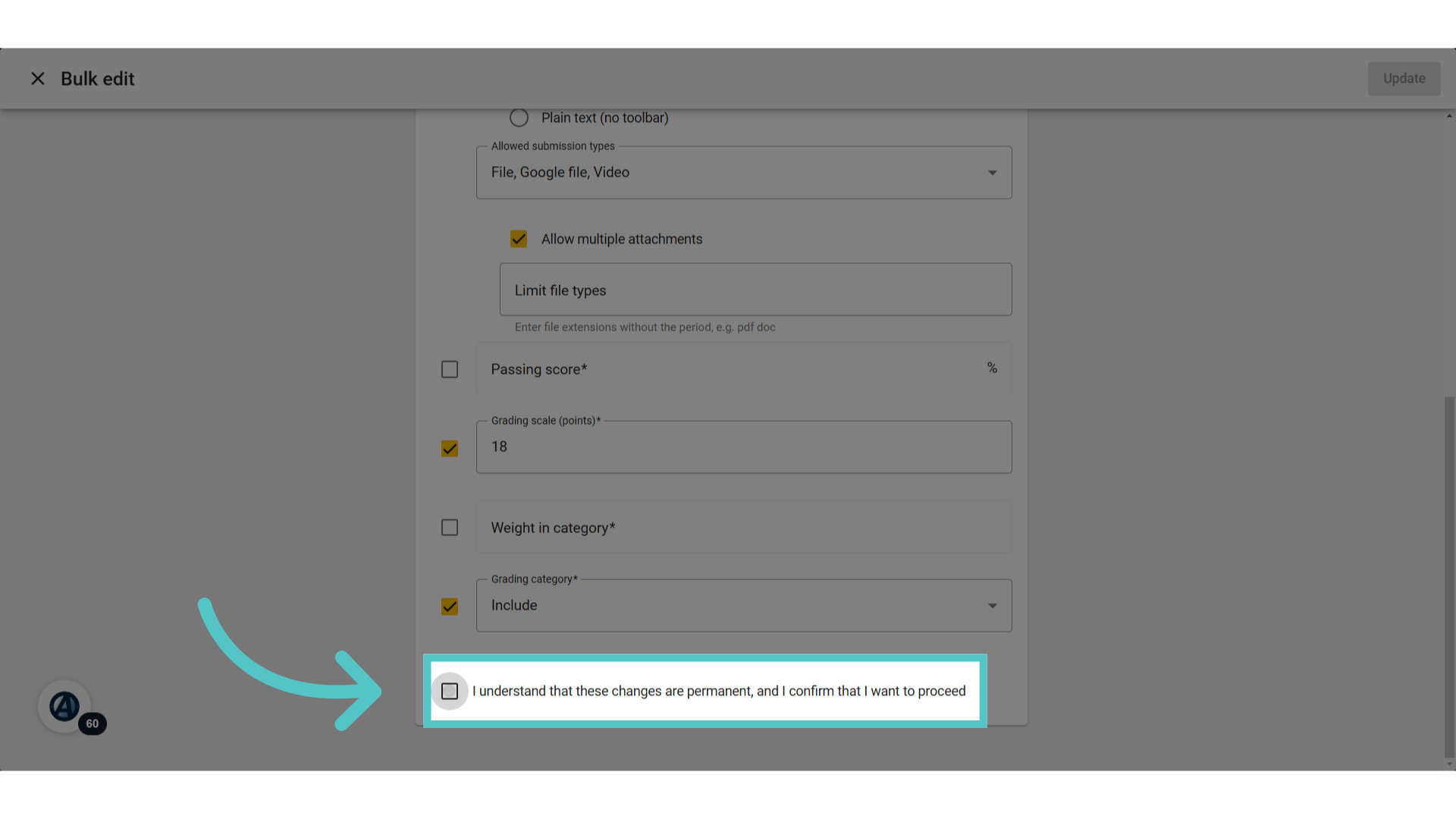
19. Confirm
Again, check the box to confirm these edits.
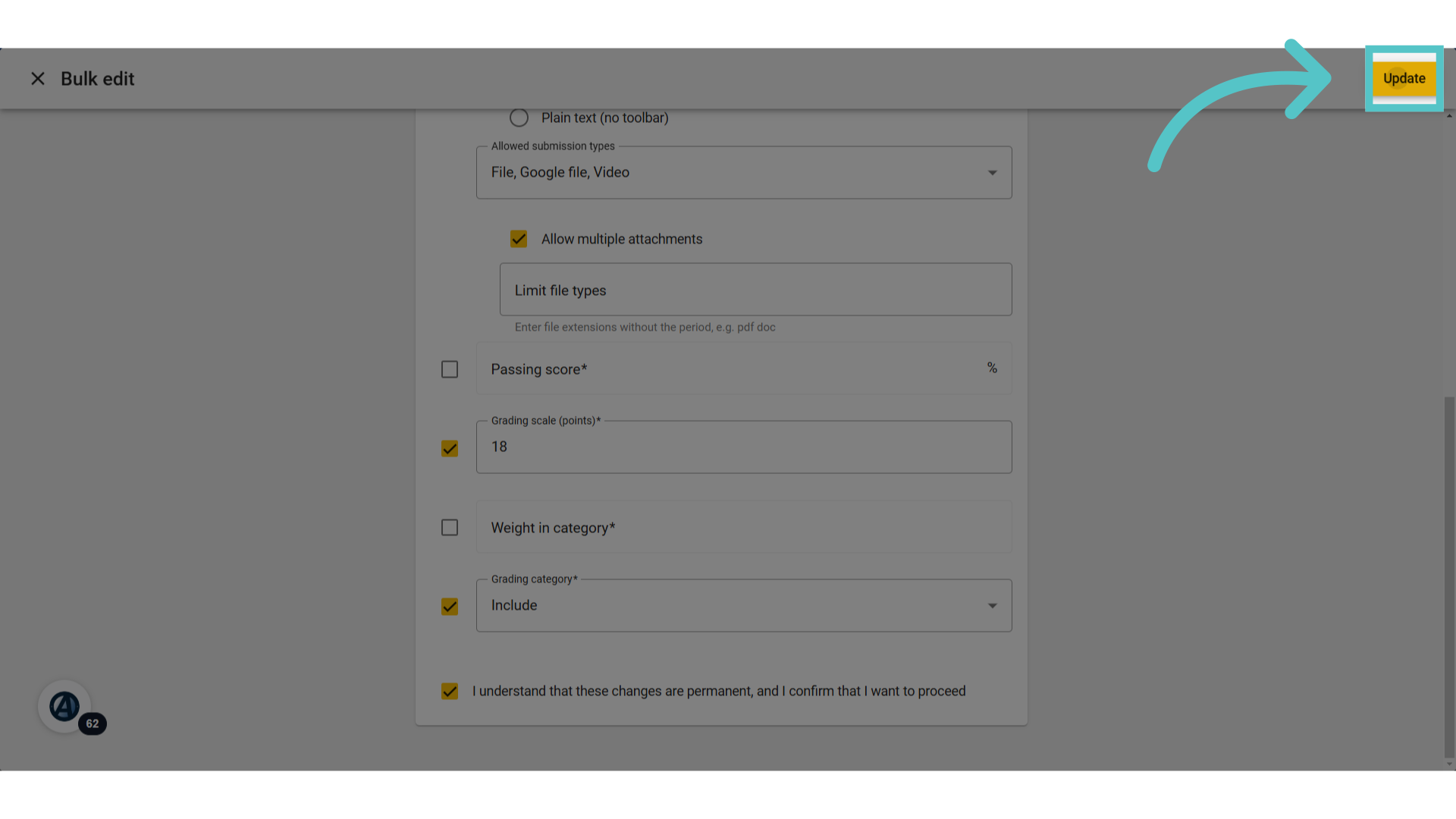
20. Update
Update the course with the new submission and grading details.
21. Hide
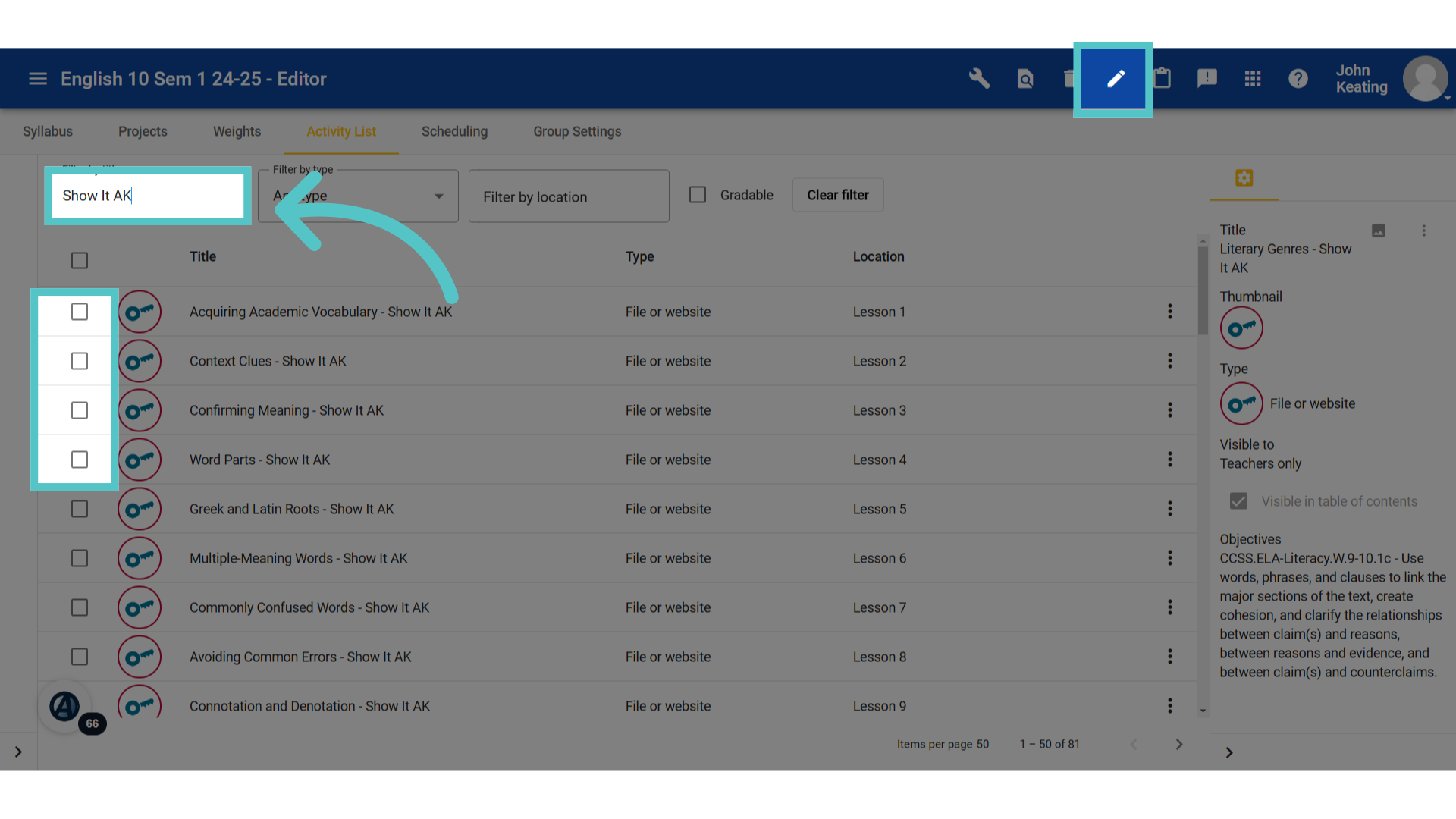
If Show Its have been made gradable, then be sure to use the bulk edit feature one last time to hide the answer keys. Filter for "Show It A-K" to find them quickly. Check the boxes for the items to be hidden. Click the bulk edit icon in the top blue bar.
22. Visibility
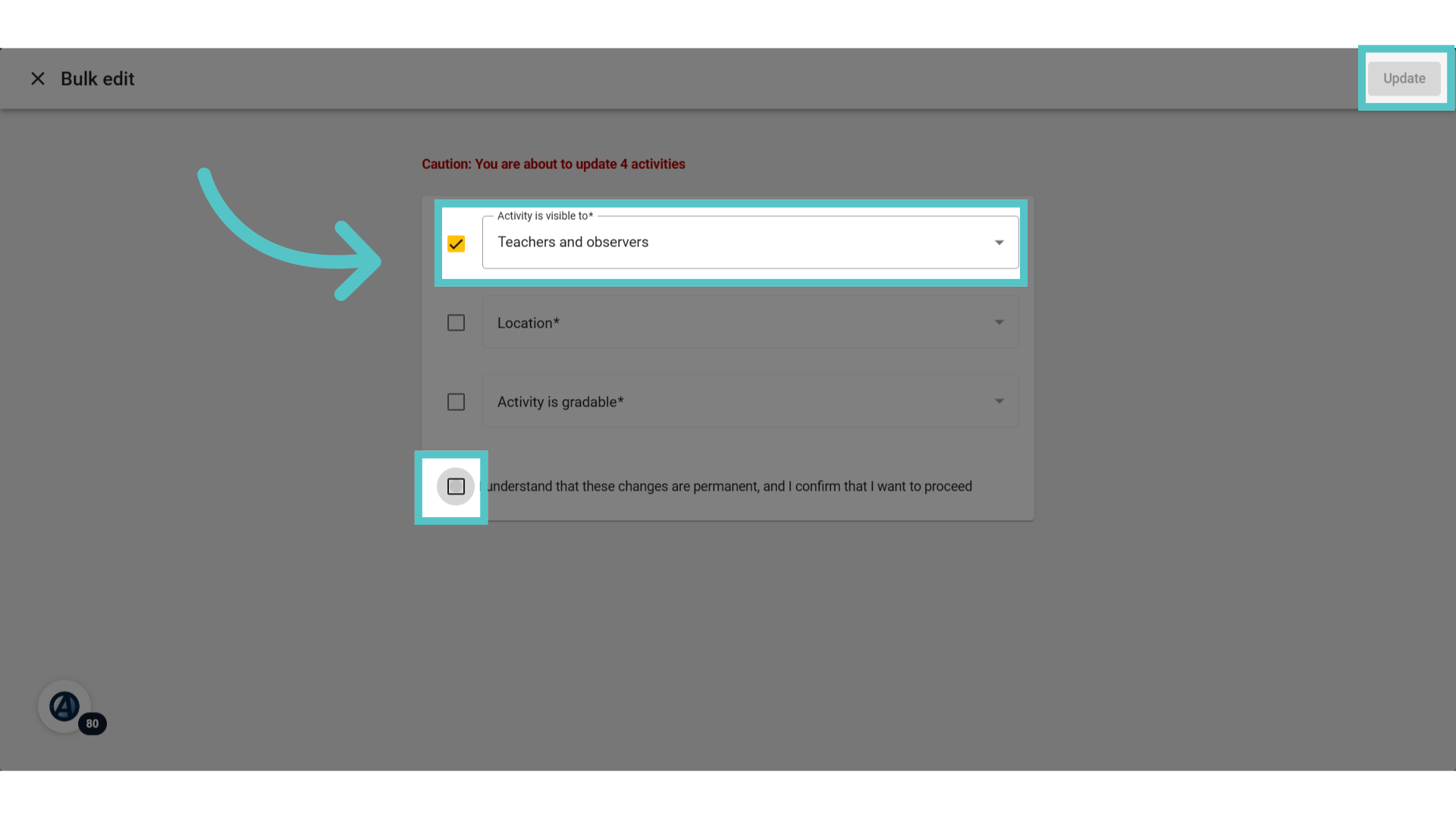
Use the Bulk Edit feature to change the activity visibility to "Teachers," or "Teachers and observers." Confirm the edits and update the course.
23. Gradebook
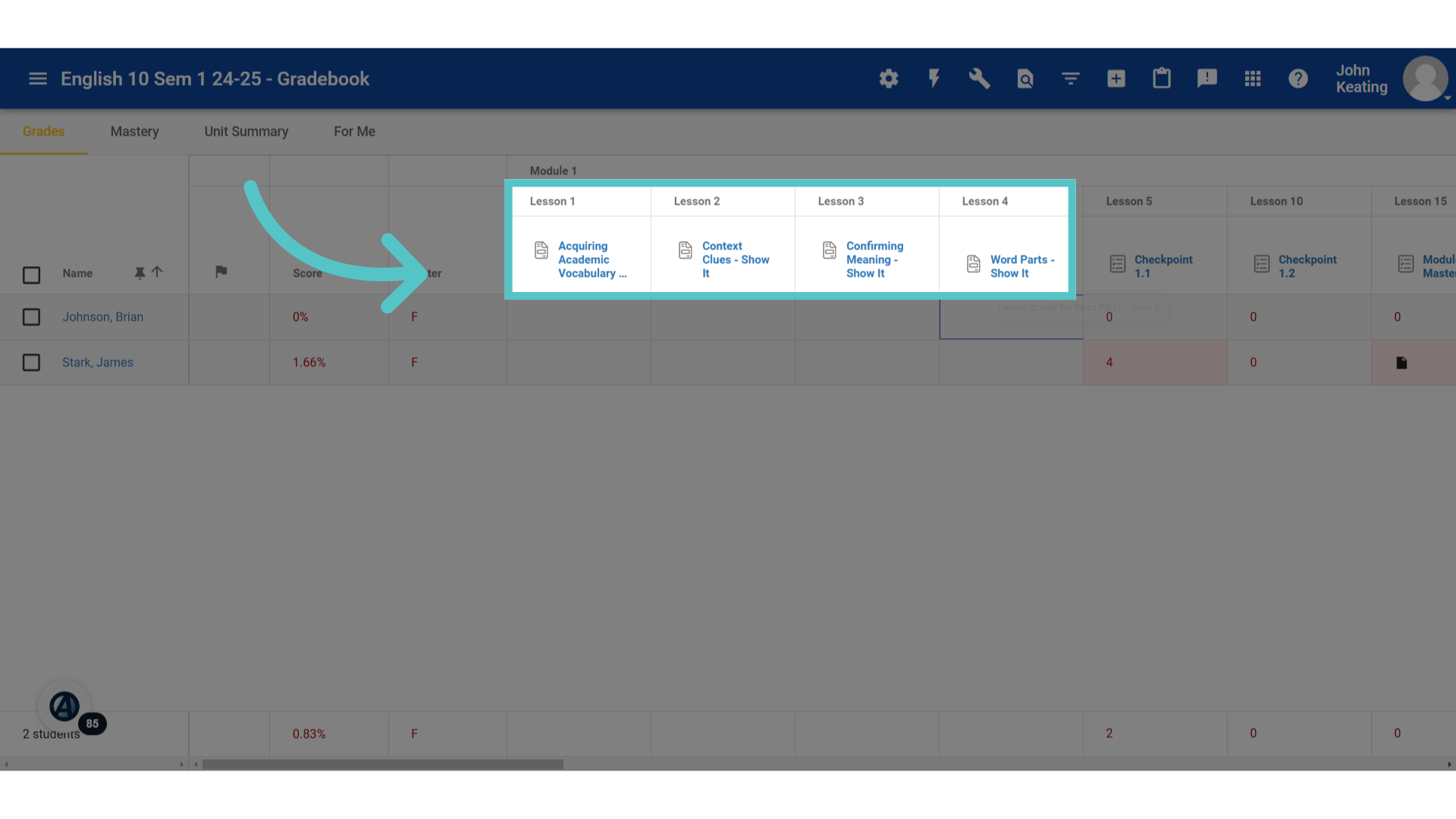
New gradable activites will appear in the gradebook. Students can submit them, and teachers can grade them according to the point value assigned.
If you have any questions about the information in this tutorial, please click "Contact Support" to submit a help request. Contact Support