Expand to Full Screen for Best Viewing
Learn how to set blackout dates in Lincoln Learning to make sure that assignments are not due on certain days. All due dates will be cascaded around sheduled blackout dates.
Go to portal.adlsassist.com
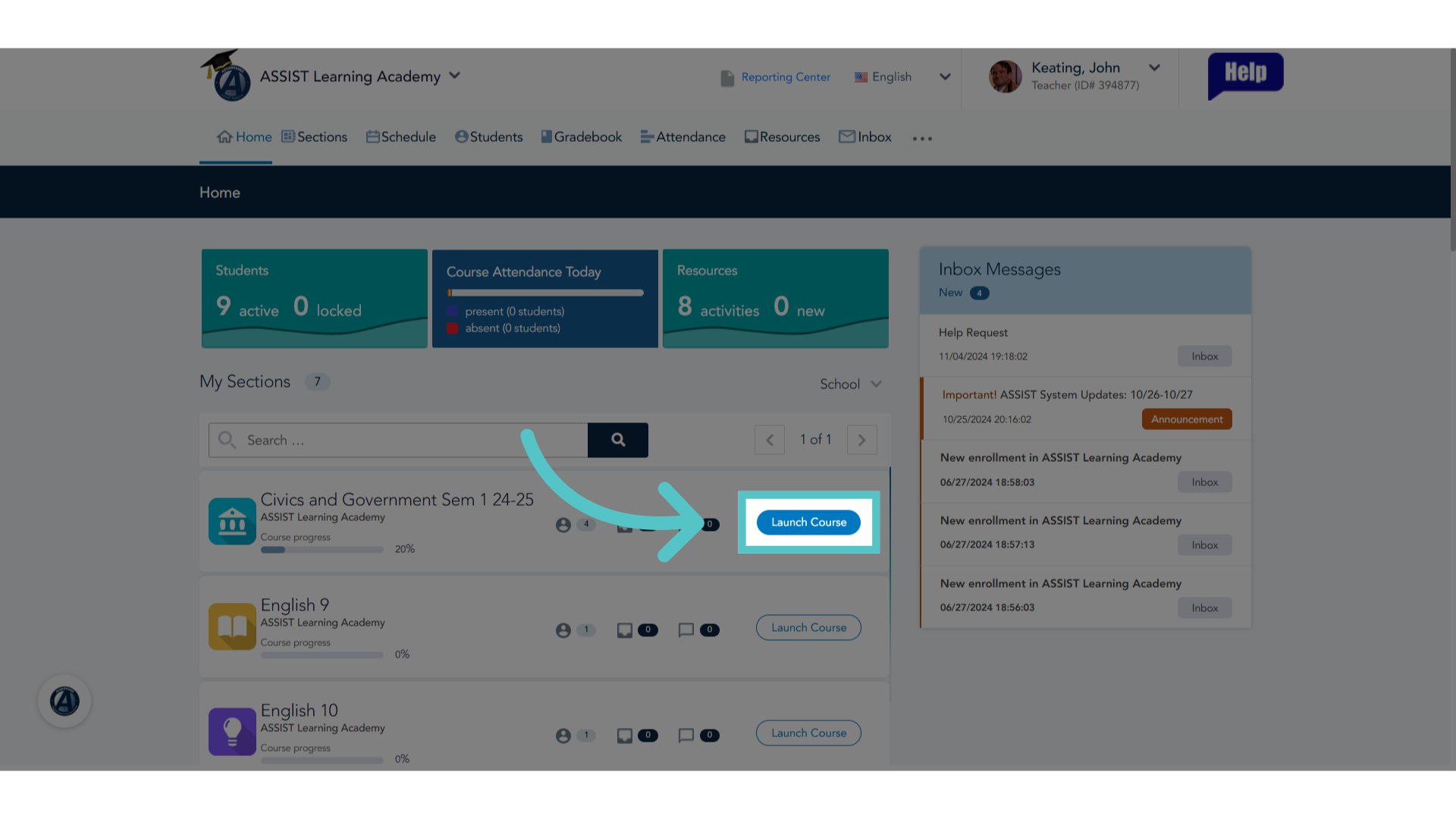
1. Click "Launch Course"
As a teacher, launch the course to open the Buzz platform.
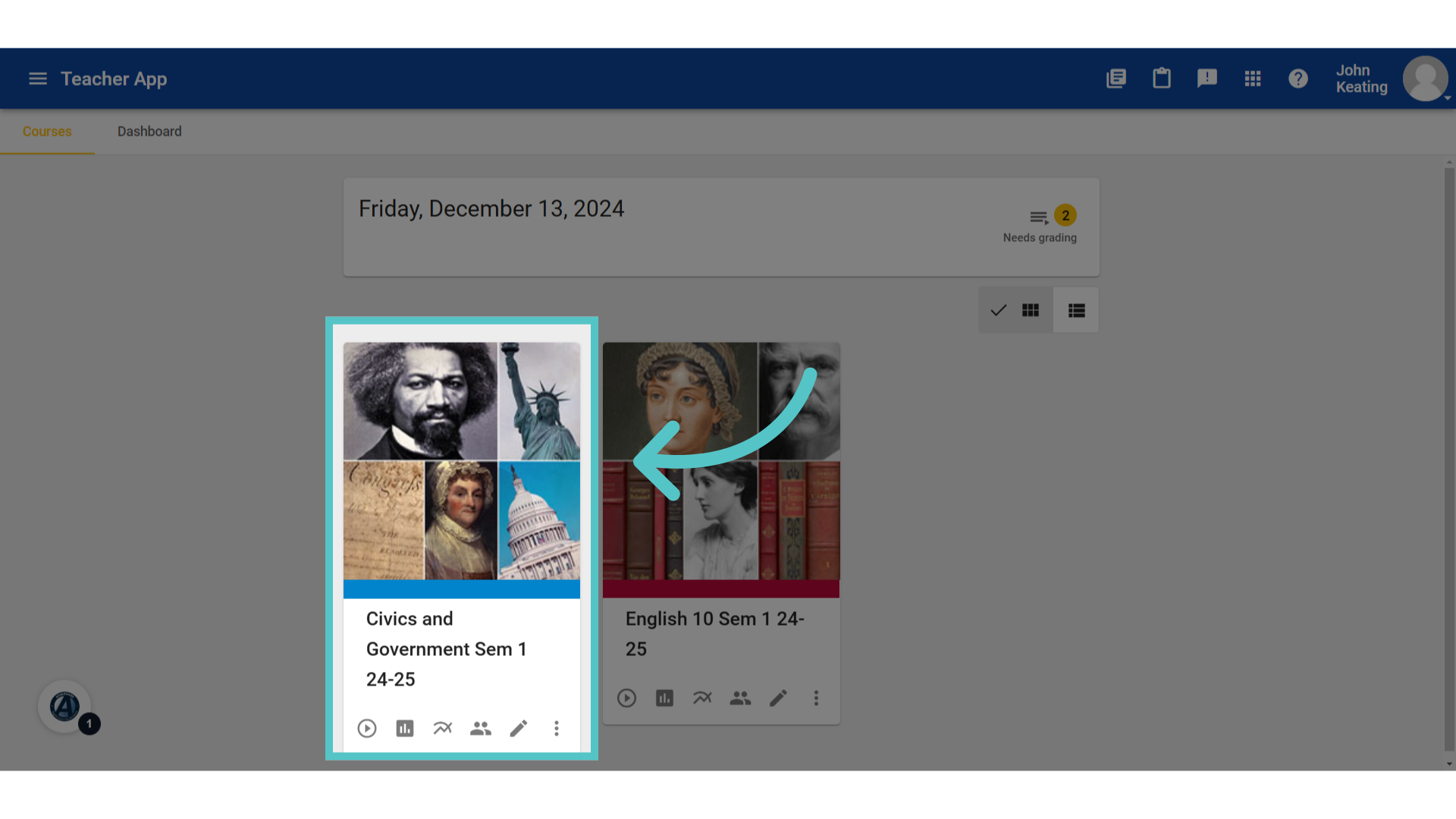
2. Select Course
Blackout dates must be schedueld for each course, individually. Select the course to schedule blacout dates.
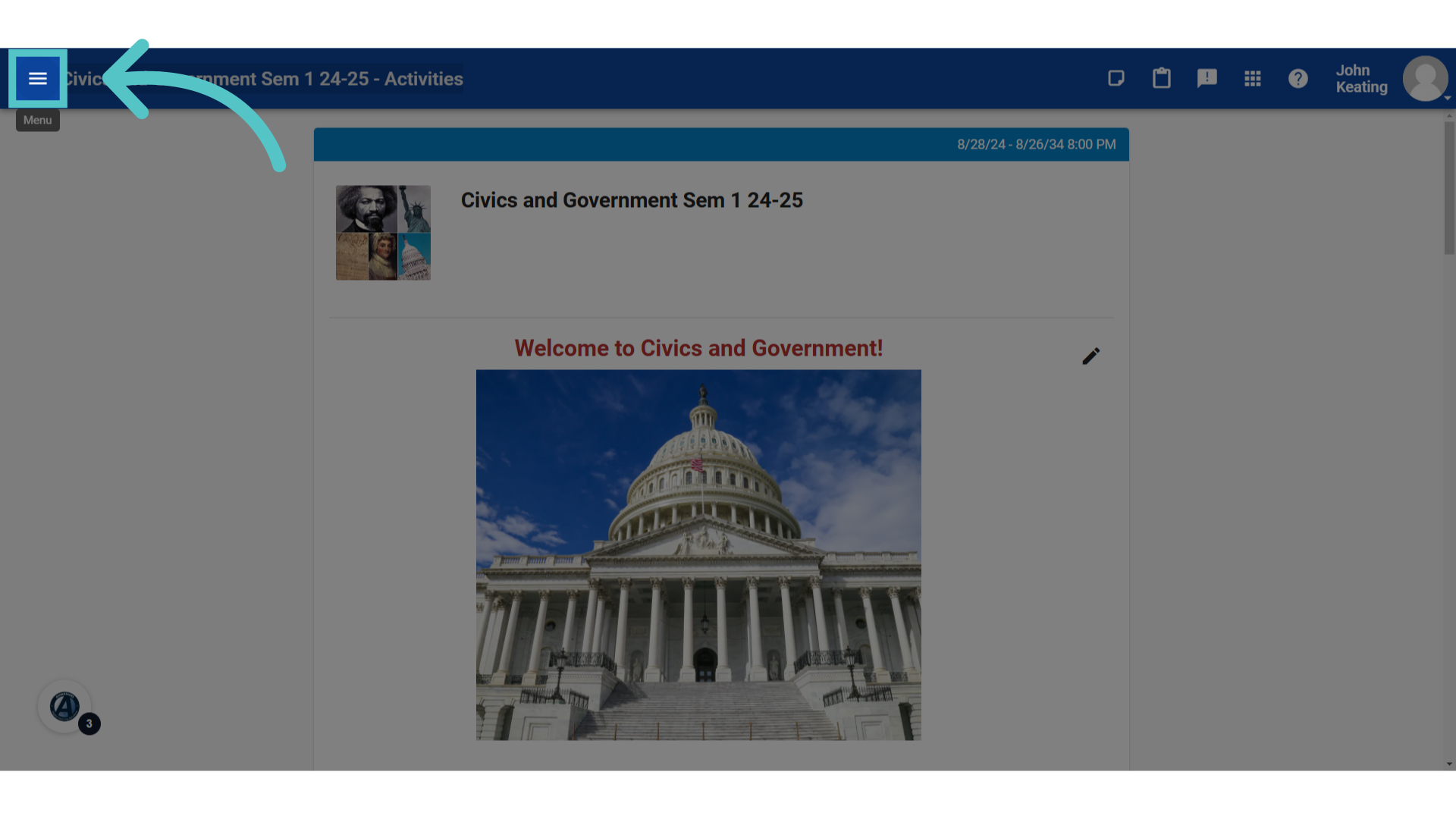
3. Click "menu"
Access the menu options in the top left corner.
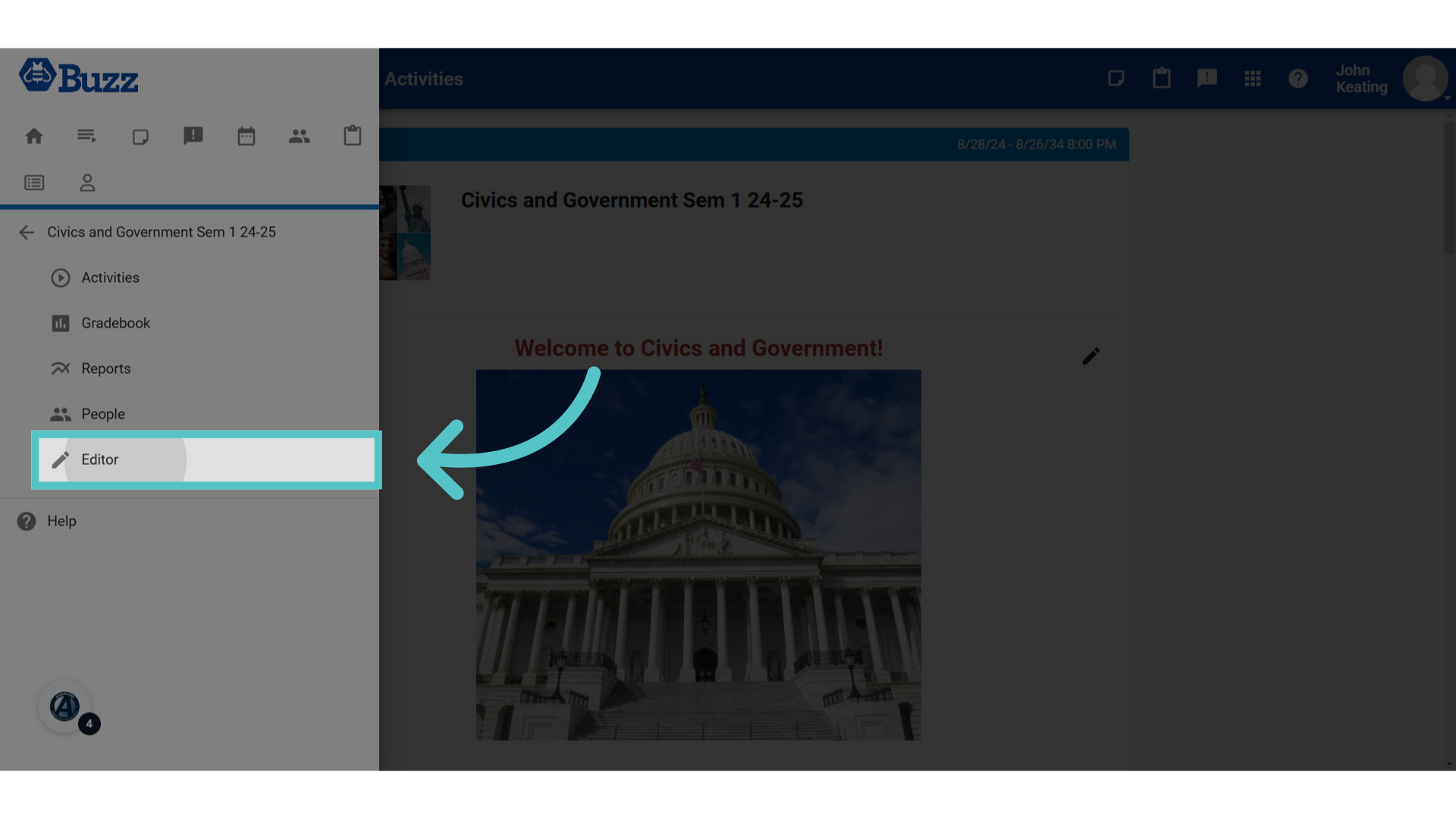
4. Click "Editor"
Select the Editor feature.
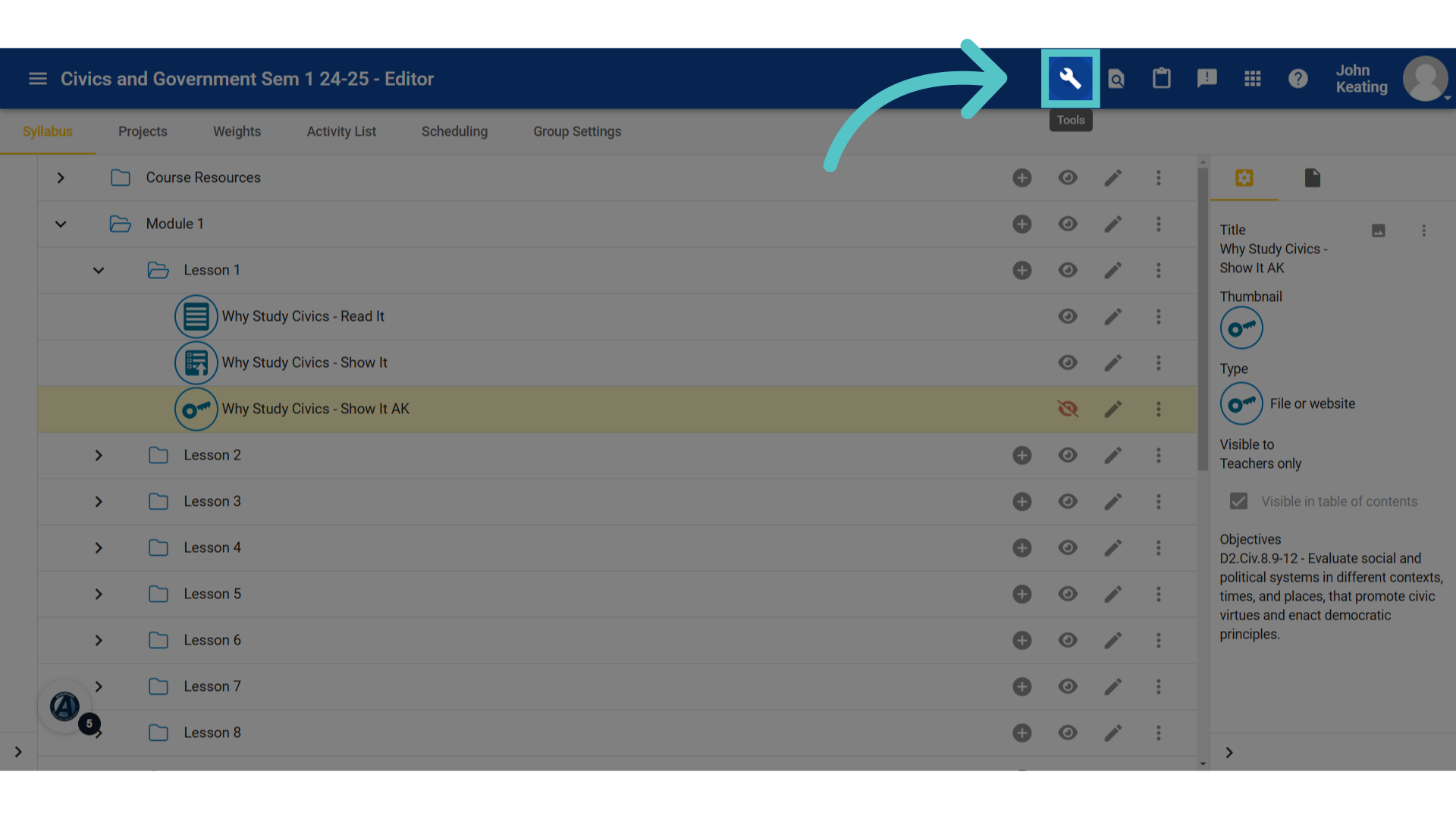
5. Click "Tools"
Click the "tools" icon in the top blue bar.
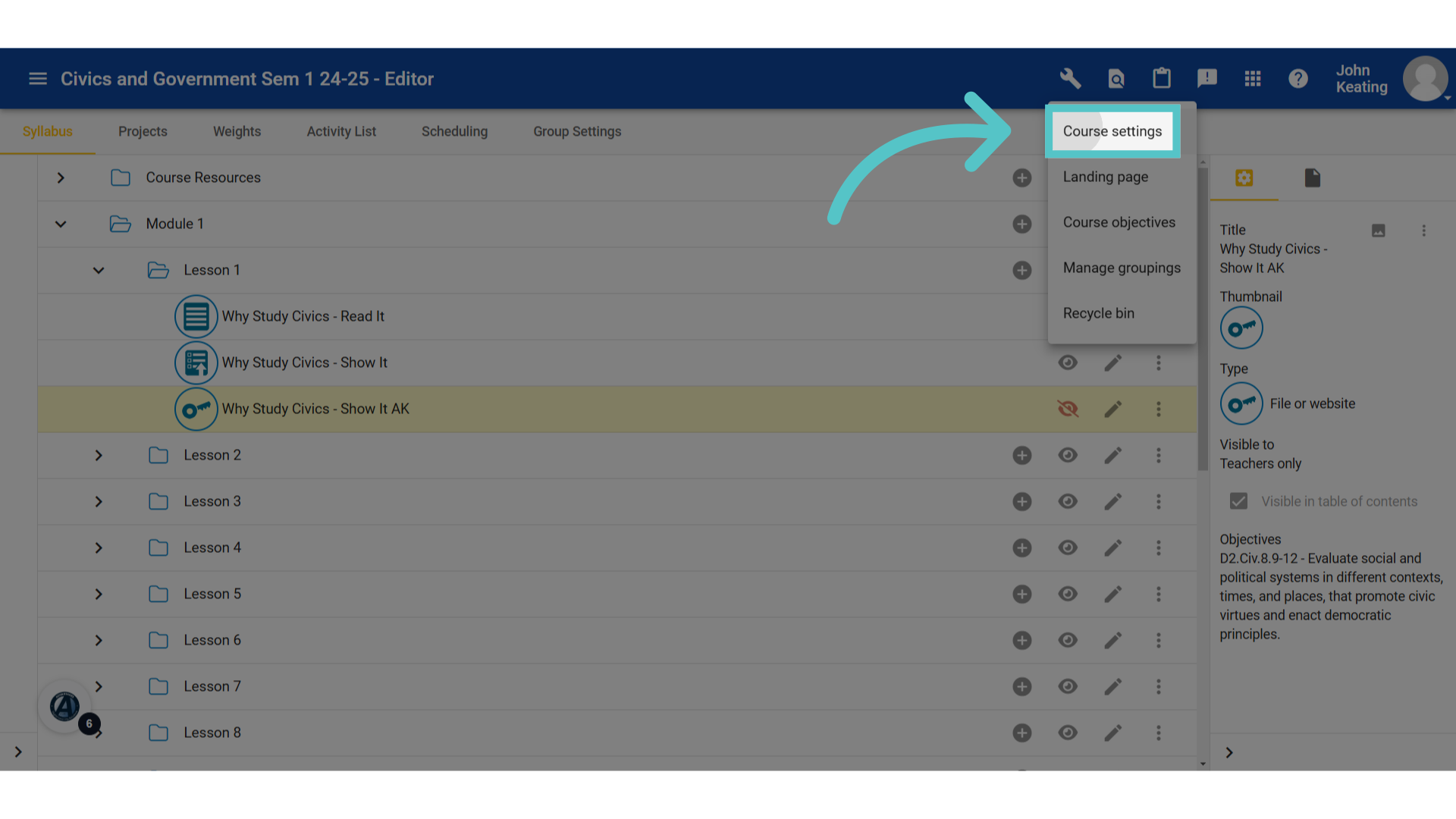
6. Click "Course settings" from the menu options.
Access the Course settings from the menu options.
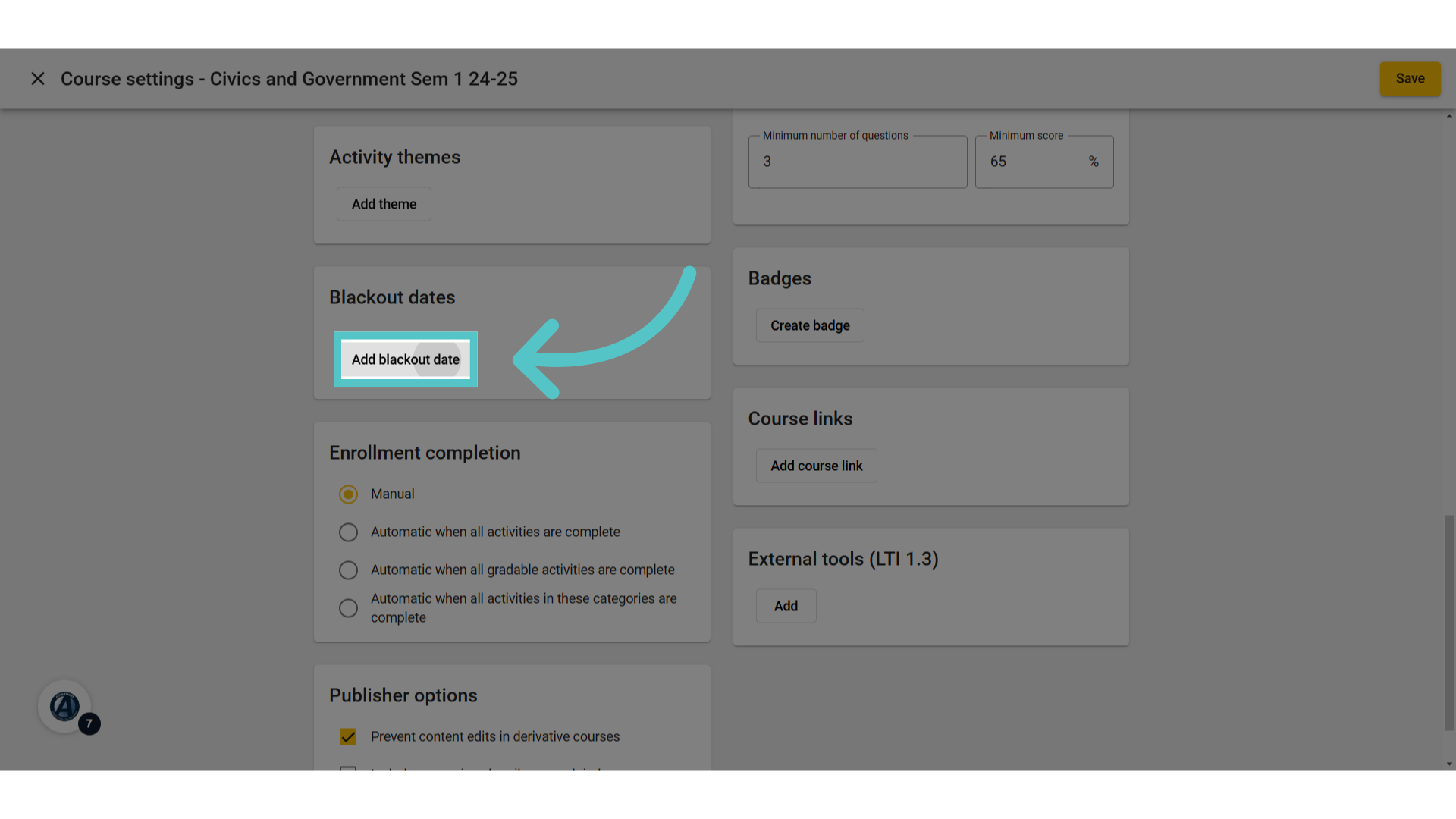
7. Click "Add blackout date"
Scroll down to find the "Blackout Dates" box. Click the button to "Add Blackout Dates."
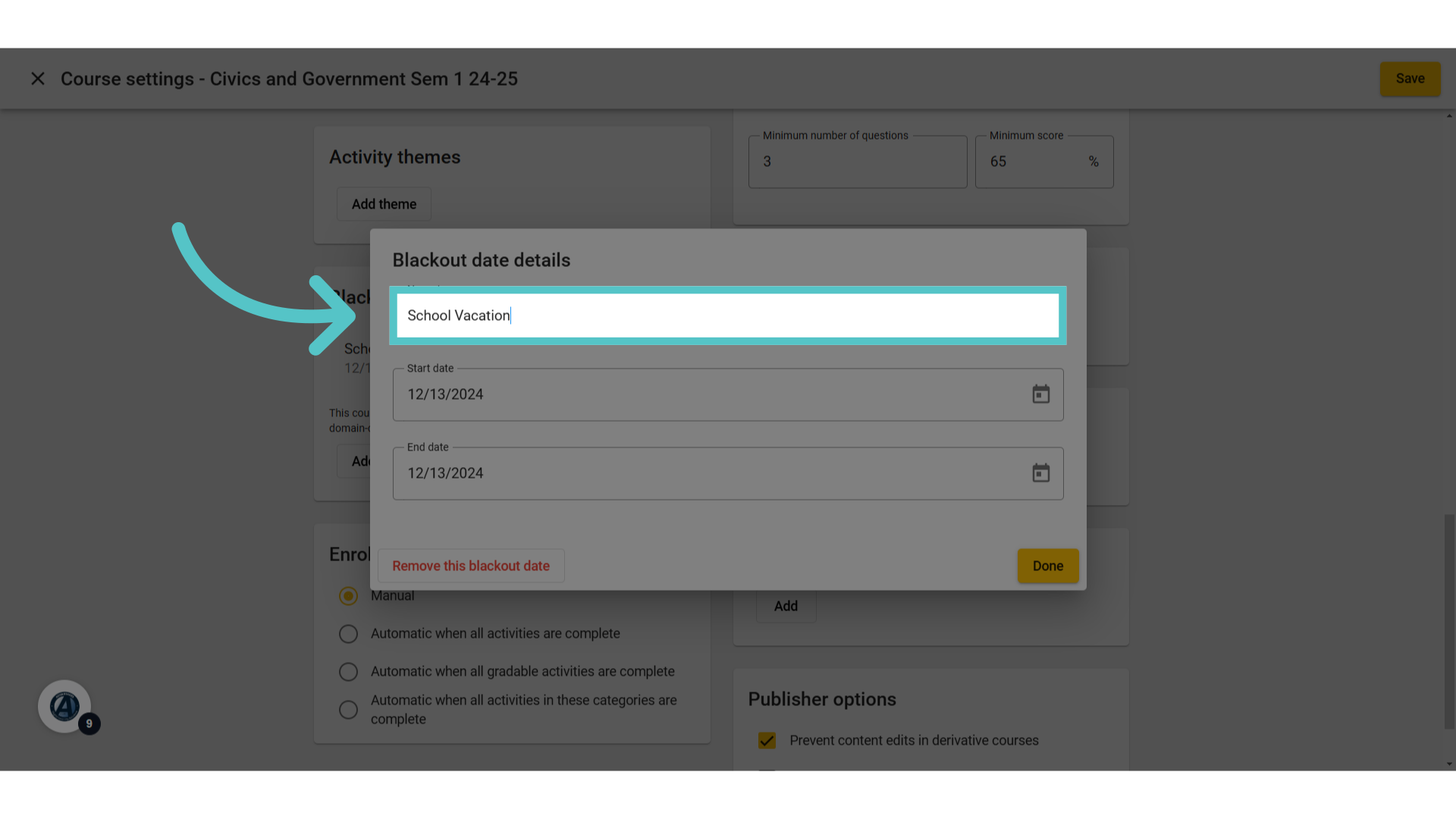
8. Event Name
Enter the event name for the blackout dates. This can be a holiday, school vacation, or other reason for no work due.
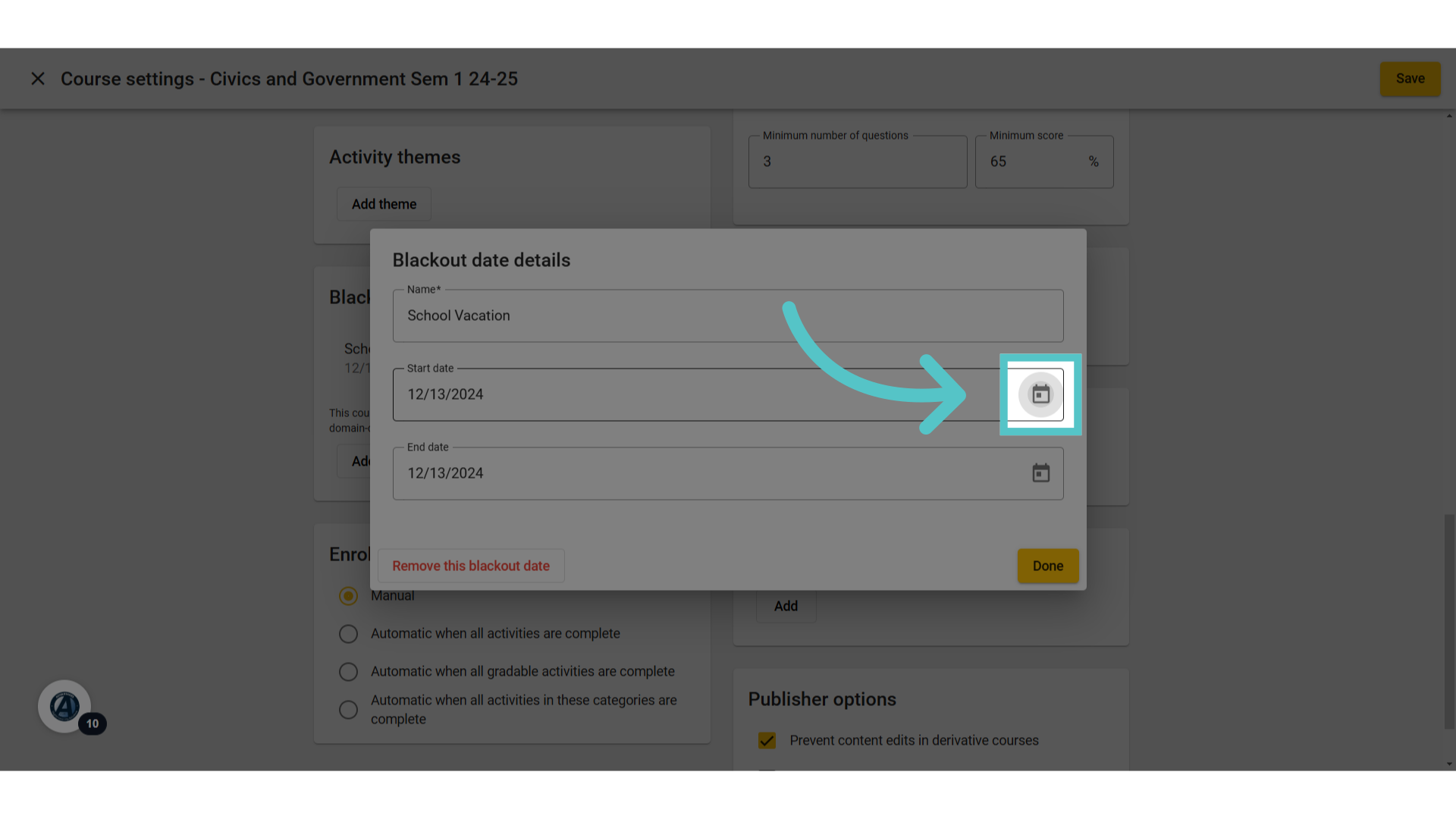
9. Click Calendar
Use the Calendar icons to set beginning and end blackout dates.
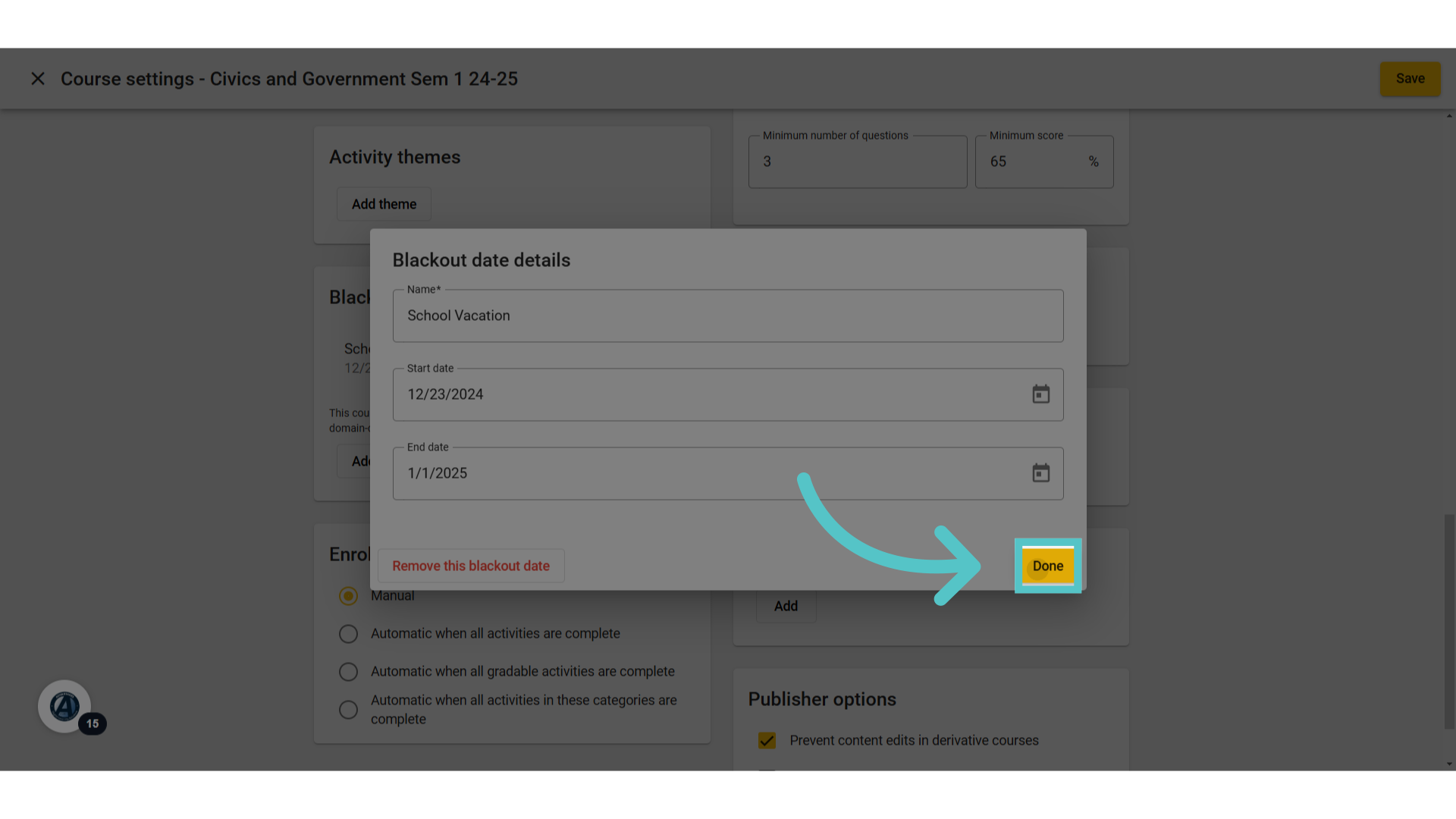
10. Click "Done"
Confirm and complete the date selection
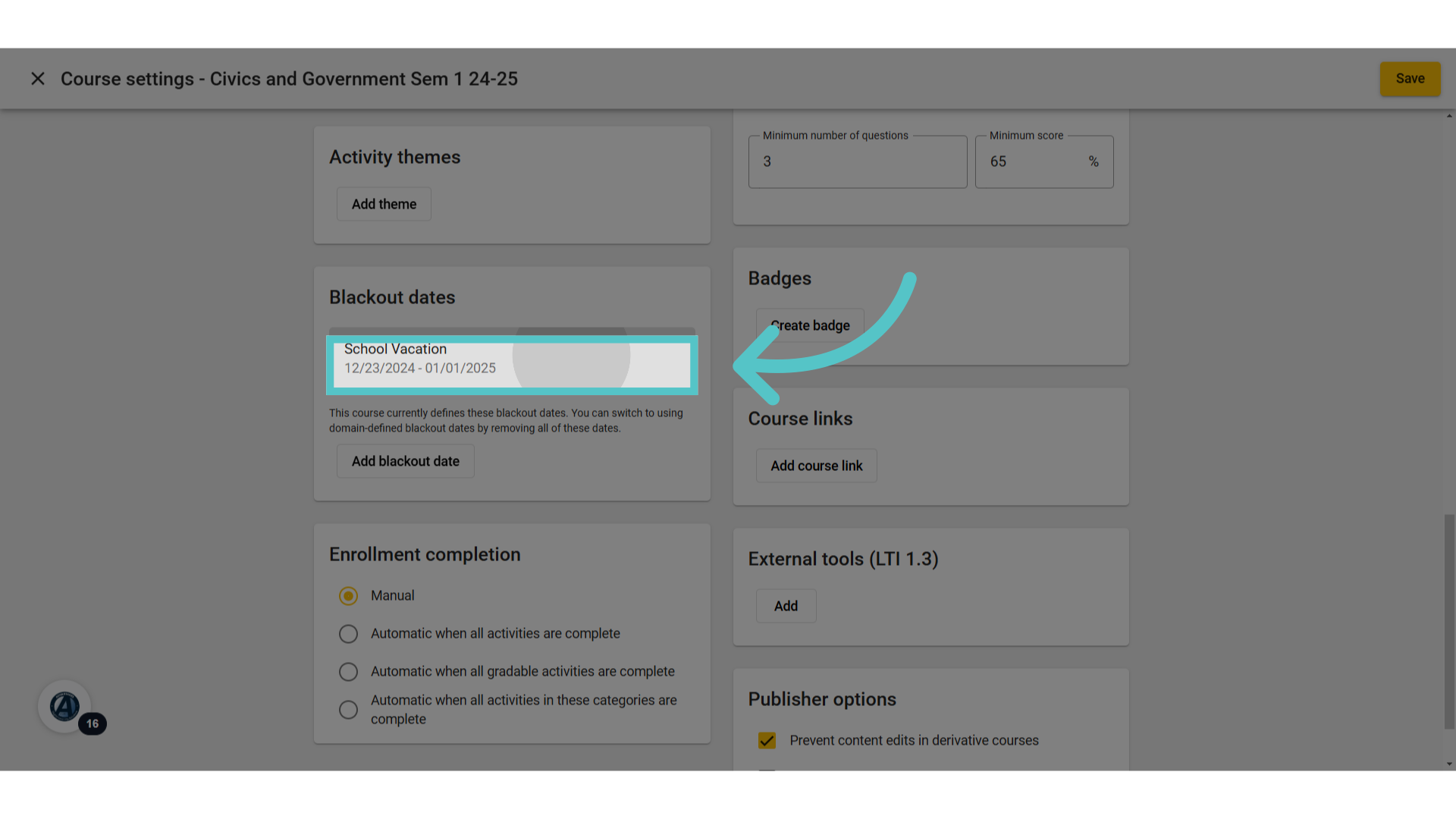
11. Dates shown
Blackout dates will show in the box for reference. No activities will be due on these dates.
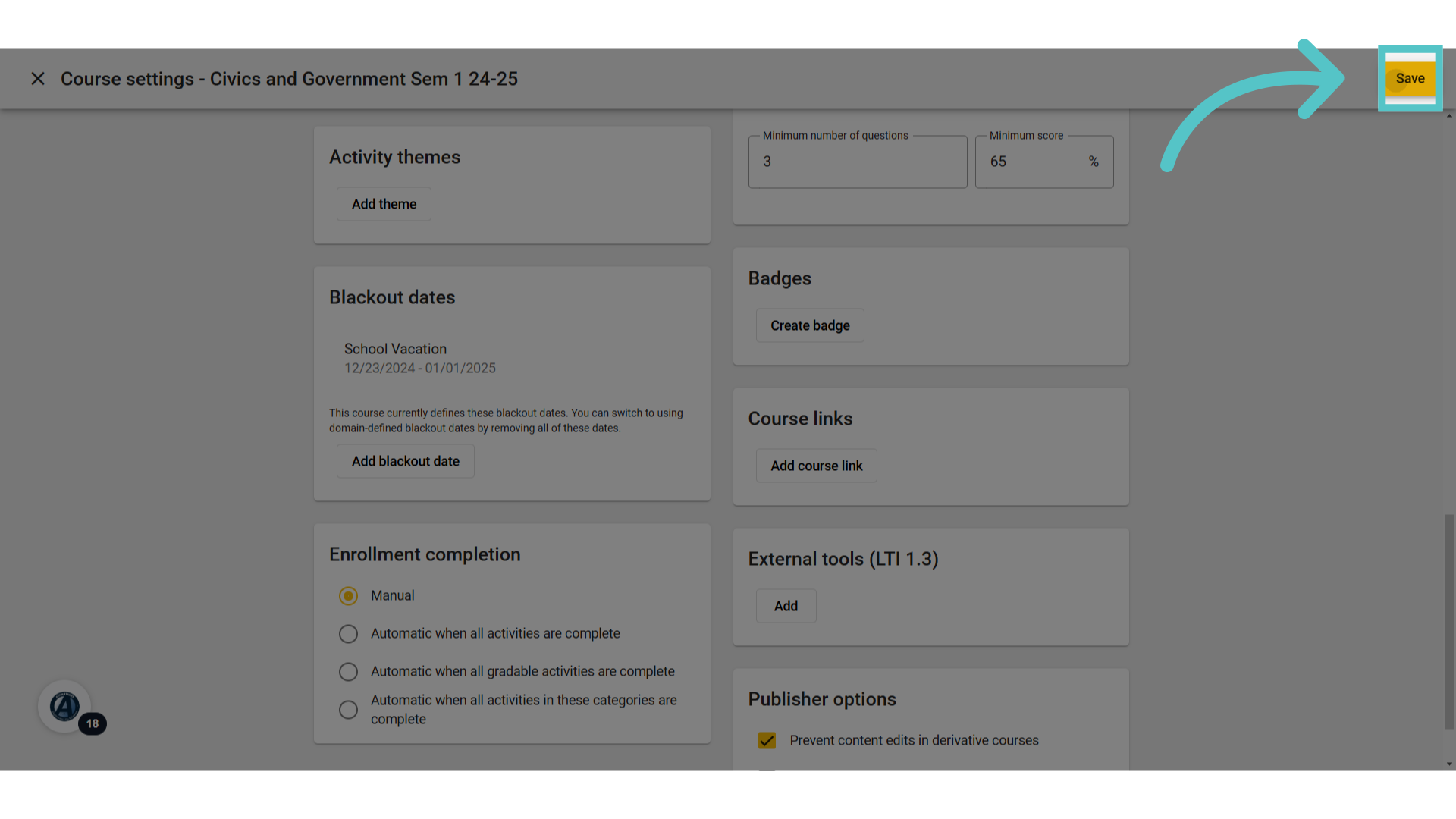
12. Click "Save"
Be sure to save in the top right corner of the course settings page.
If you have any questions about the information in this tutorial, please click "Contact Support" to submit a help request. Contact Support