Expand to Full Screen for Best Viewing
Teachers can allow students to save progress on an assessment to be completed at another time.
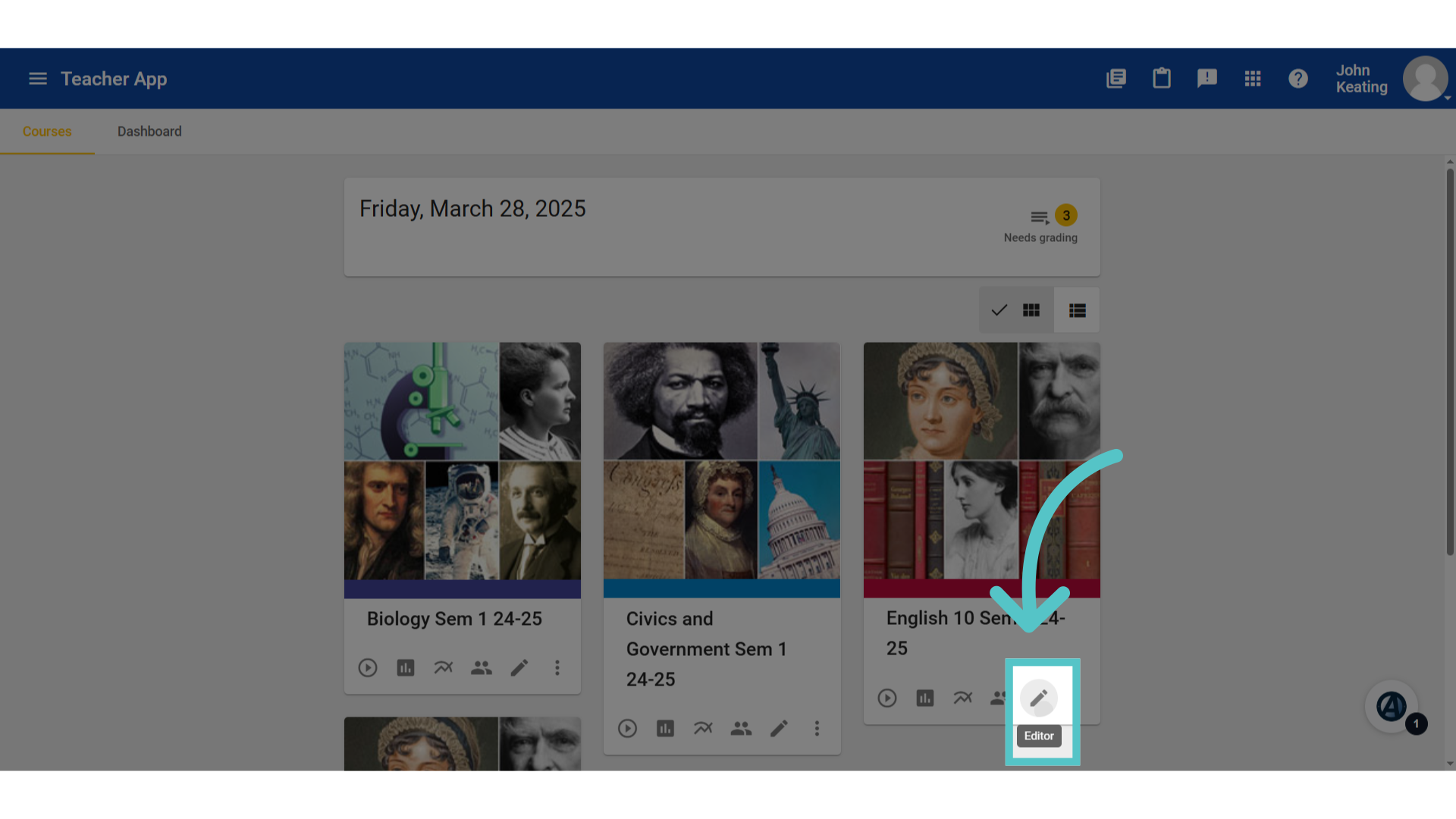
1. Editor
To edit assessment settings, open the course editor.
2. Expand Course Menu
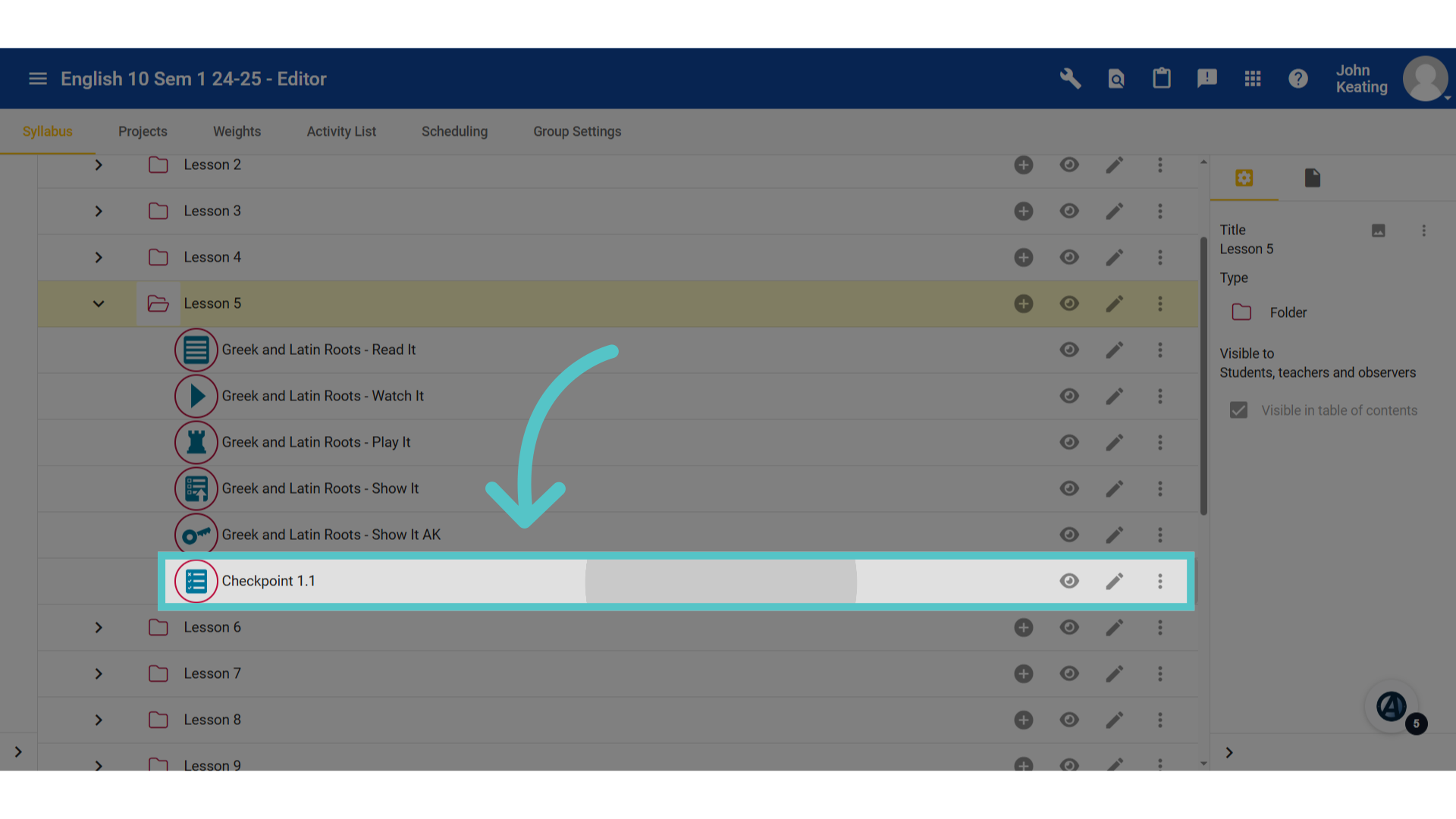
Expand the module and lesson menu folders to reveal the gradable assessment activities. There is a Checkpoint quiz every five lessons and a mastery assessment at the end of each module.
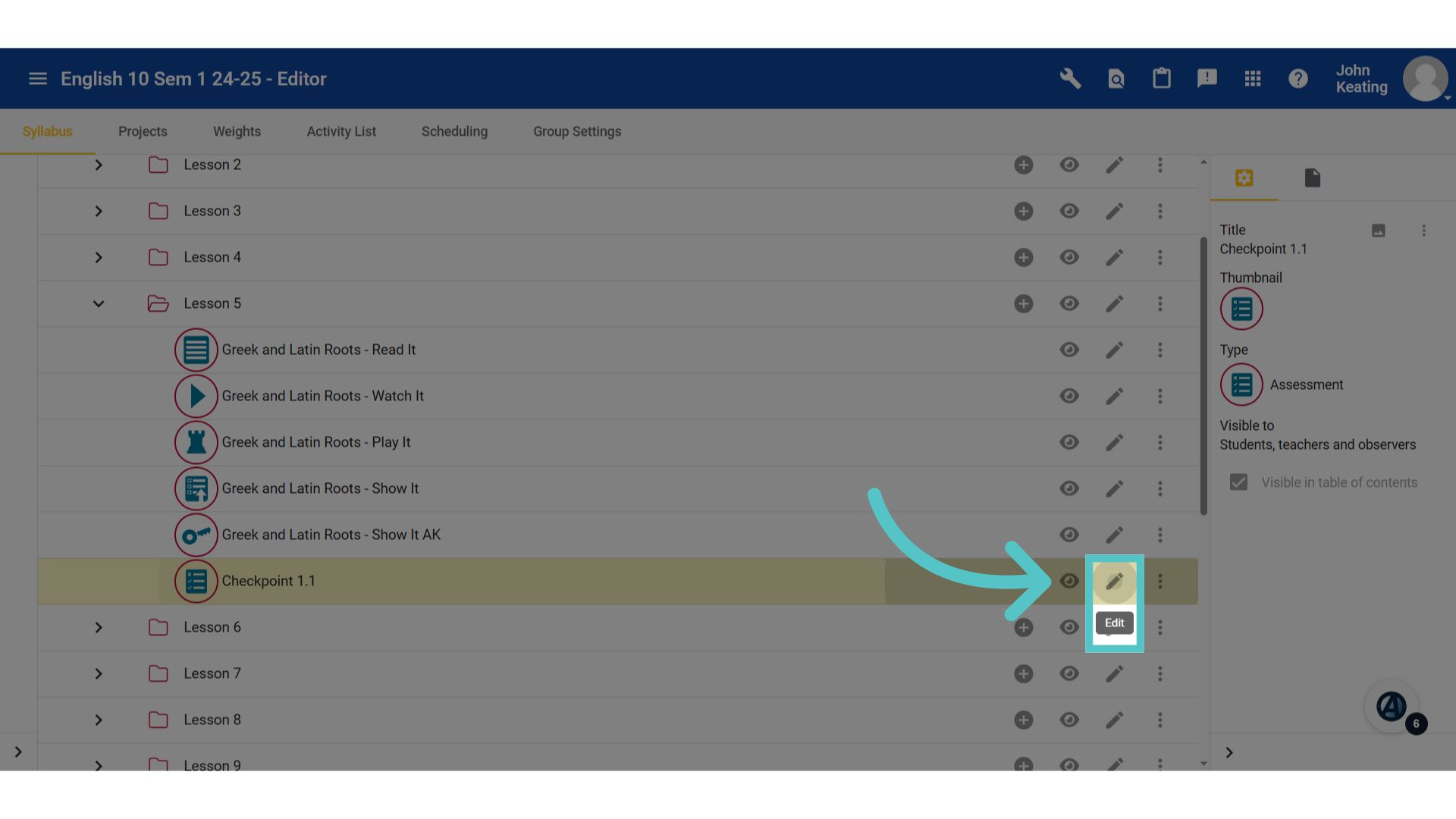
3. Edit
Click the pencil icon to edit the assessment settings.
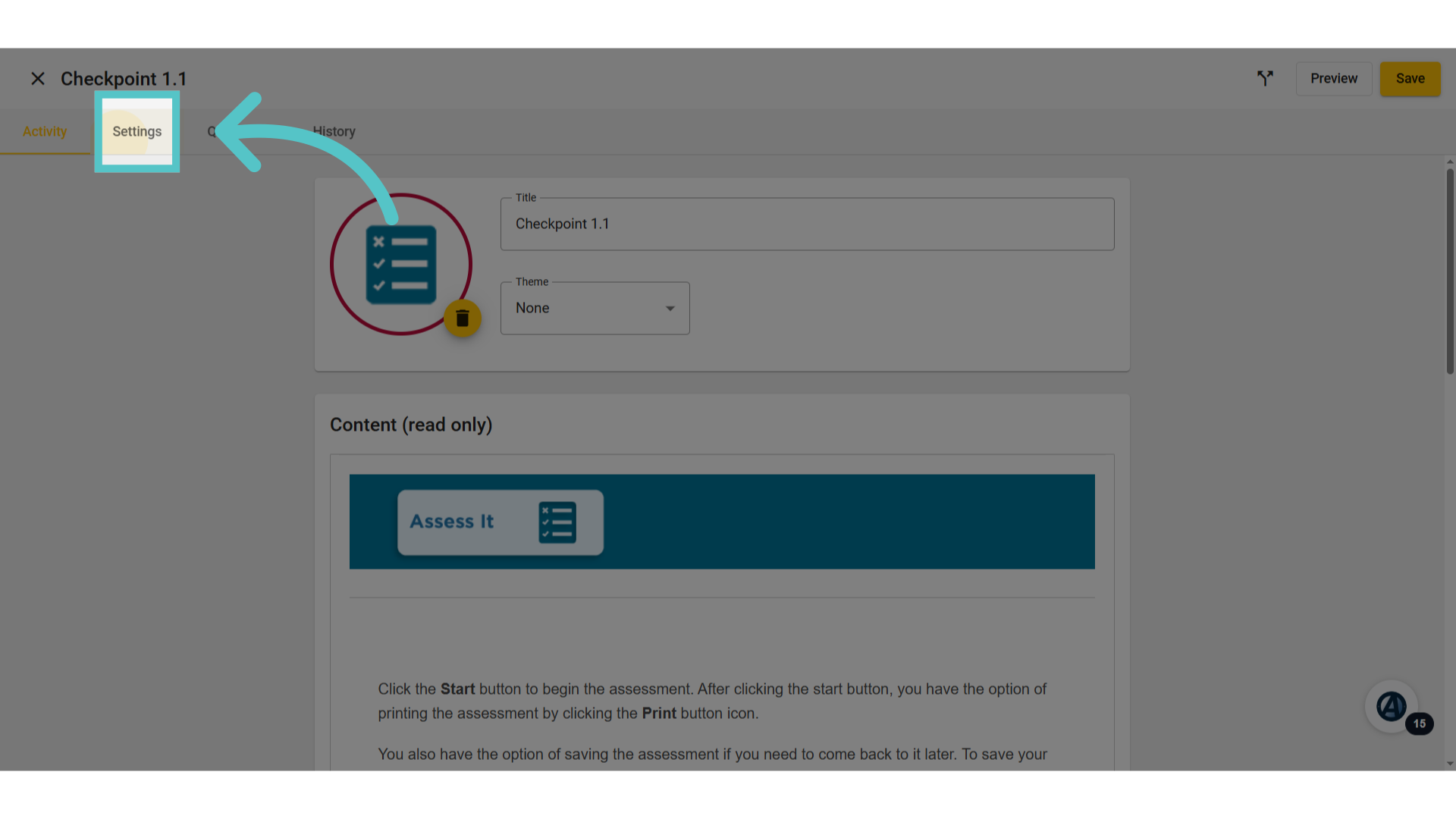
4. Click "Settings"
Access the Settings menu.
5. Save and Continue
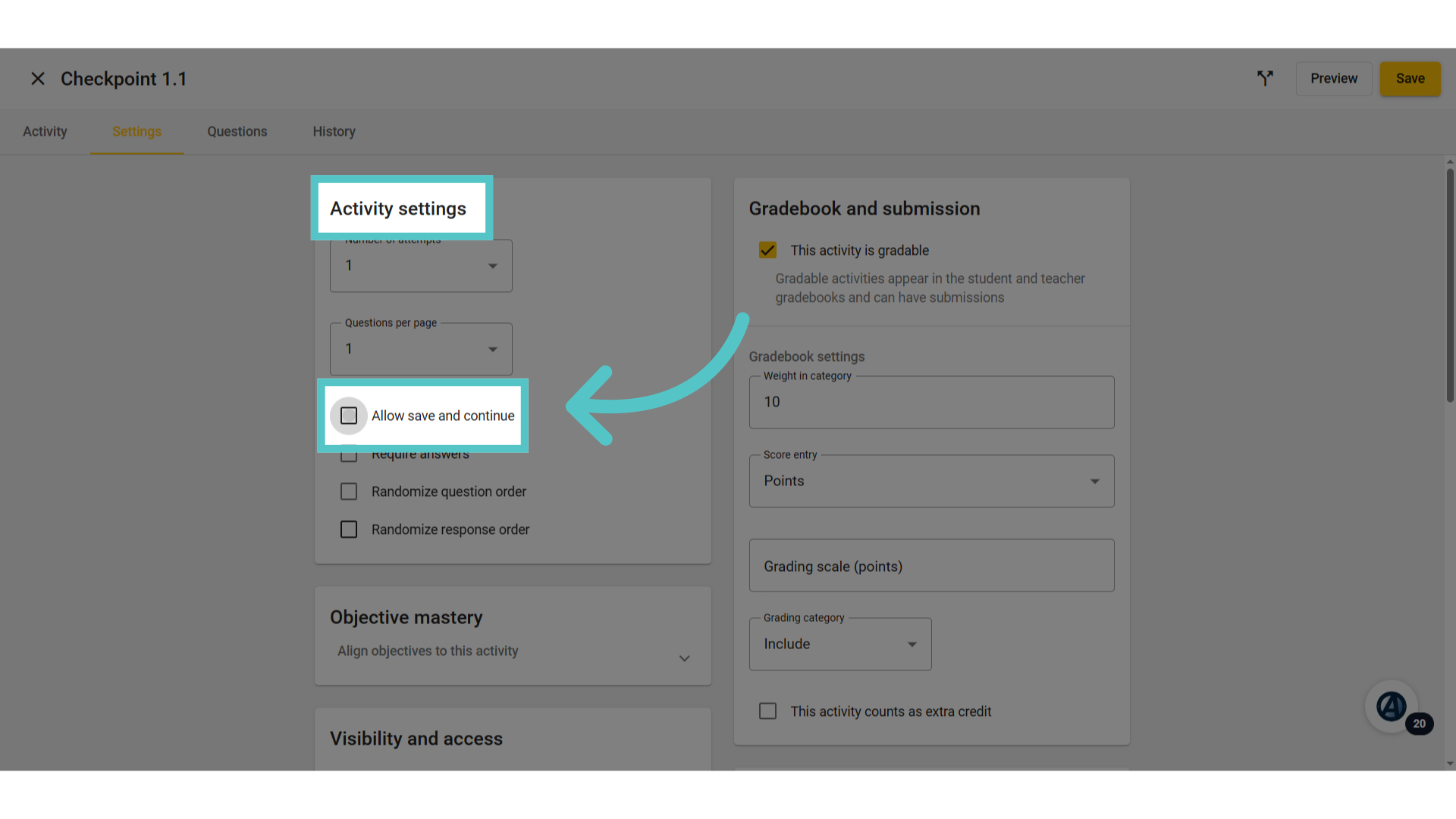
Find the option to "Allow save and continue" in the Activity Settings tile.
6. Select and Save
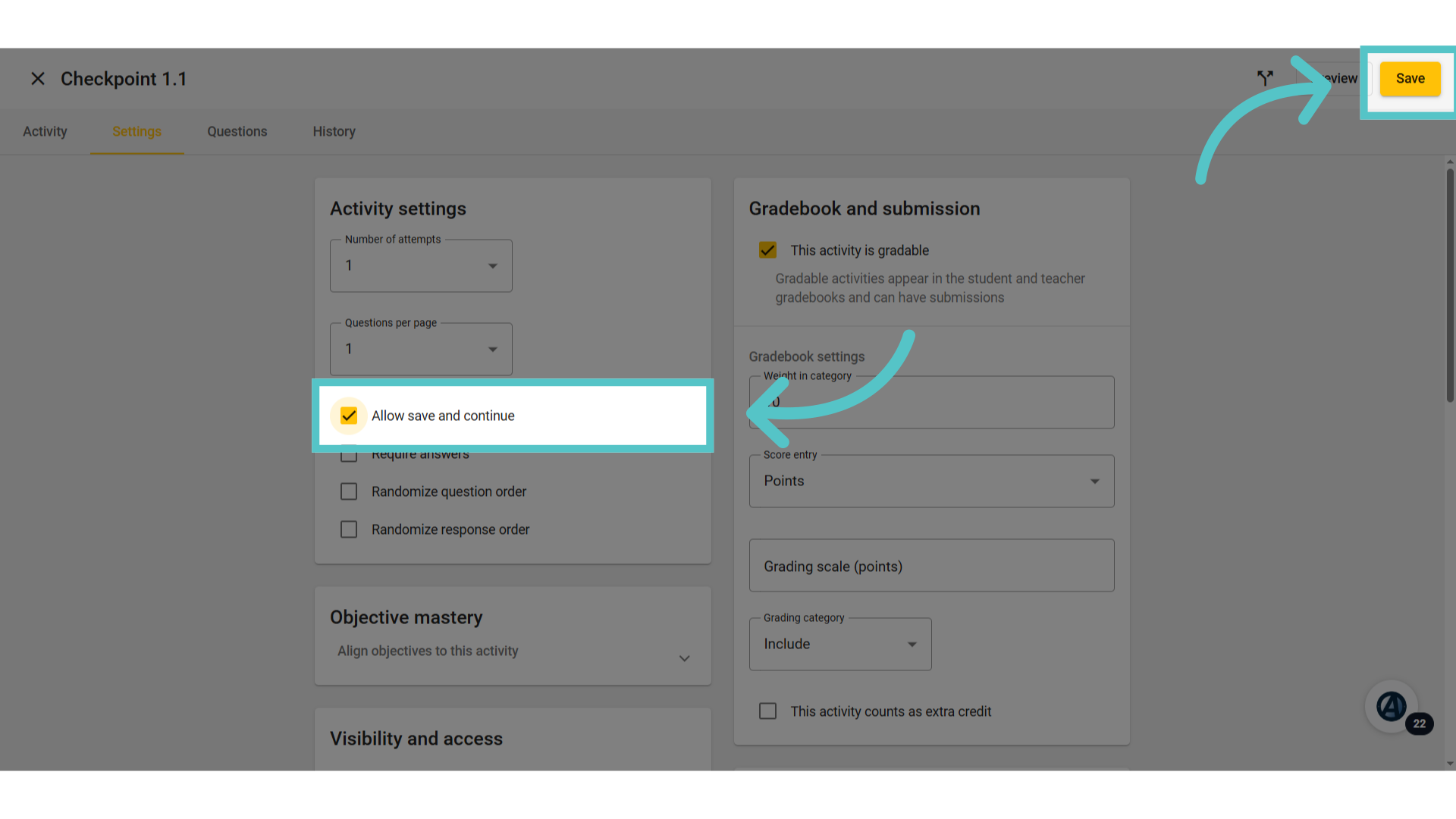
Selecting this option will allow students to save a partially completed assessment and return to continue their progress at another time. Be sure to save the edit.
If you have any questions about the information in this tutorial, please contact your dedicated school success manager for additional support.