Expand to Full Screen for Best Viewing
Teachers can set and edit due dates for each activity in a Lincoln Learning course.
1. Administrator View

2. Section Details
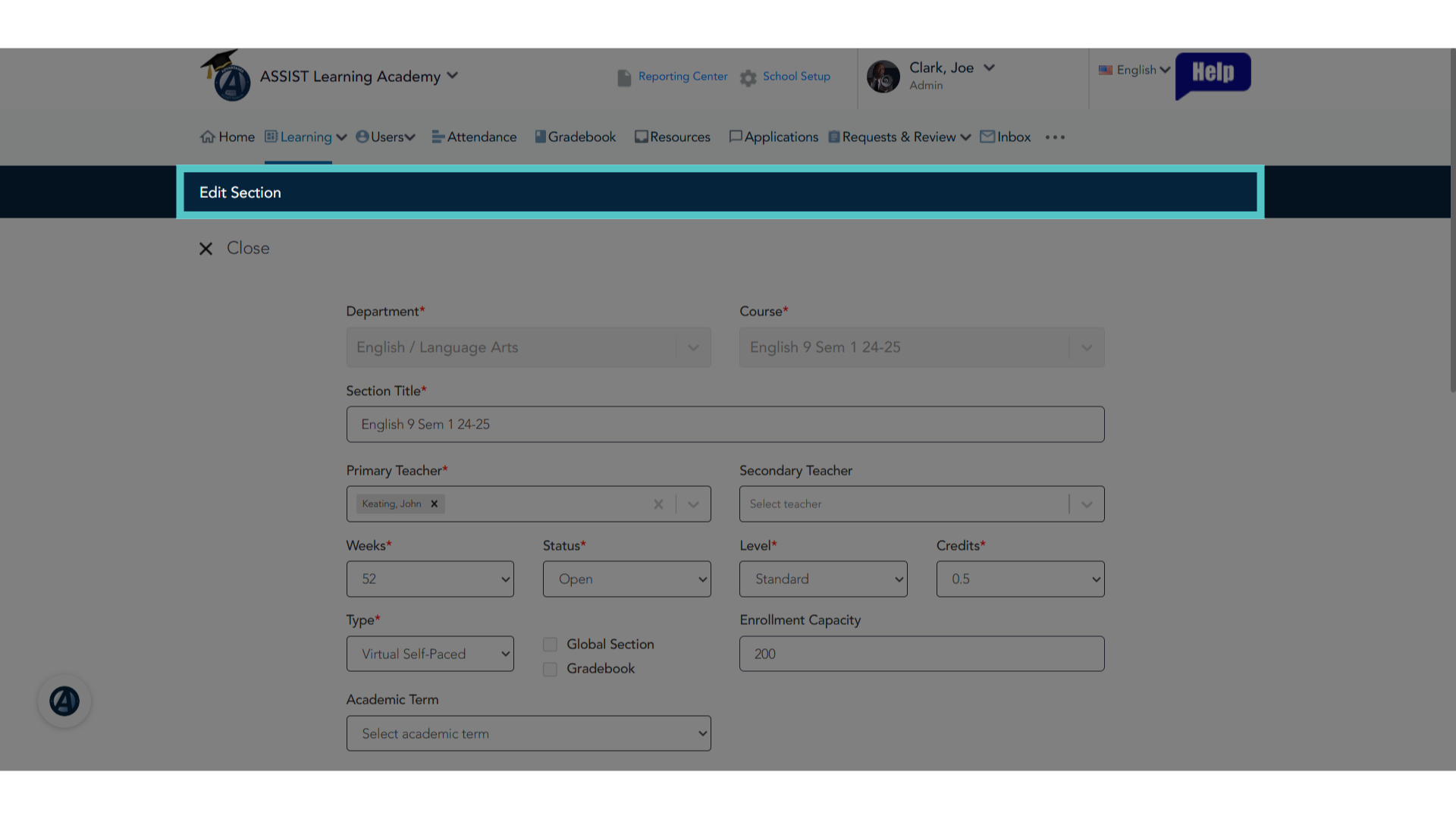
Administrators must first be sure the section is set up for individualized due dates. Administrators can add a new section or select a current section to edit. This will show the section details.
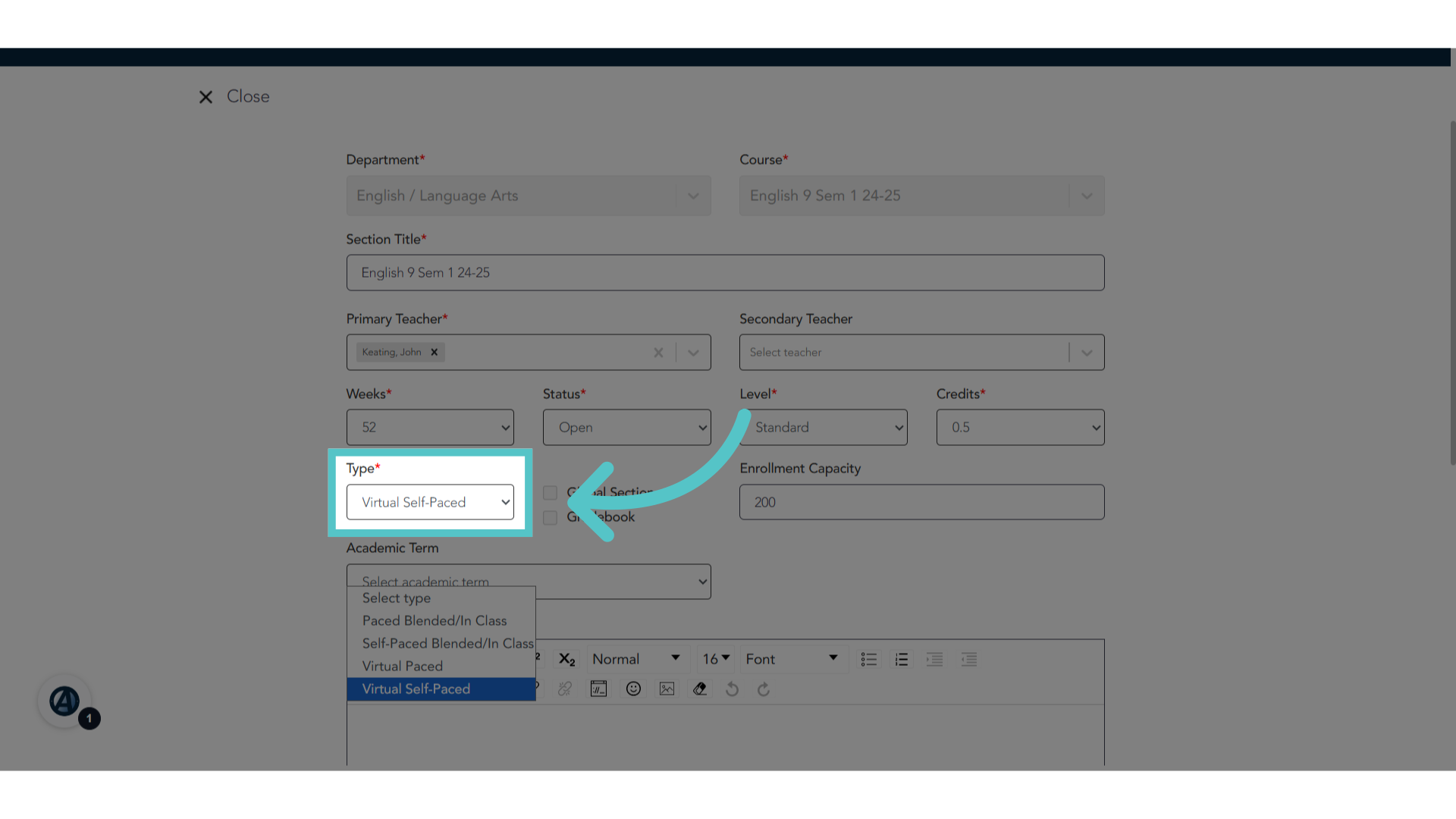
3. Type: Self-Paced
Be sure the section "type" is self-paced: Virtual self paced, or, if taking attendance in ASSIST, Self-Paced Blended/In Class. Due dates are automatically set and cannot be changed for paced sections.
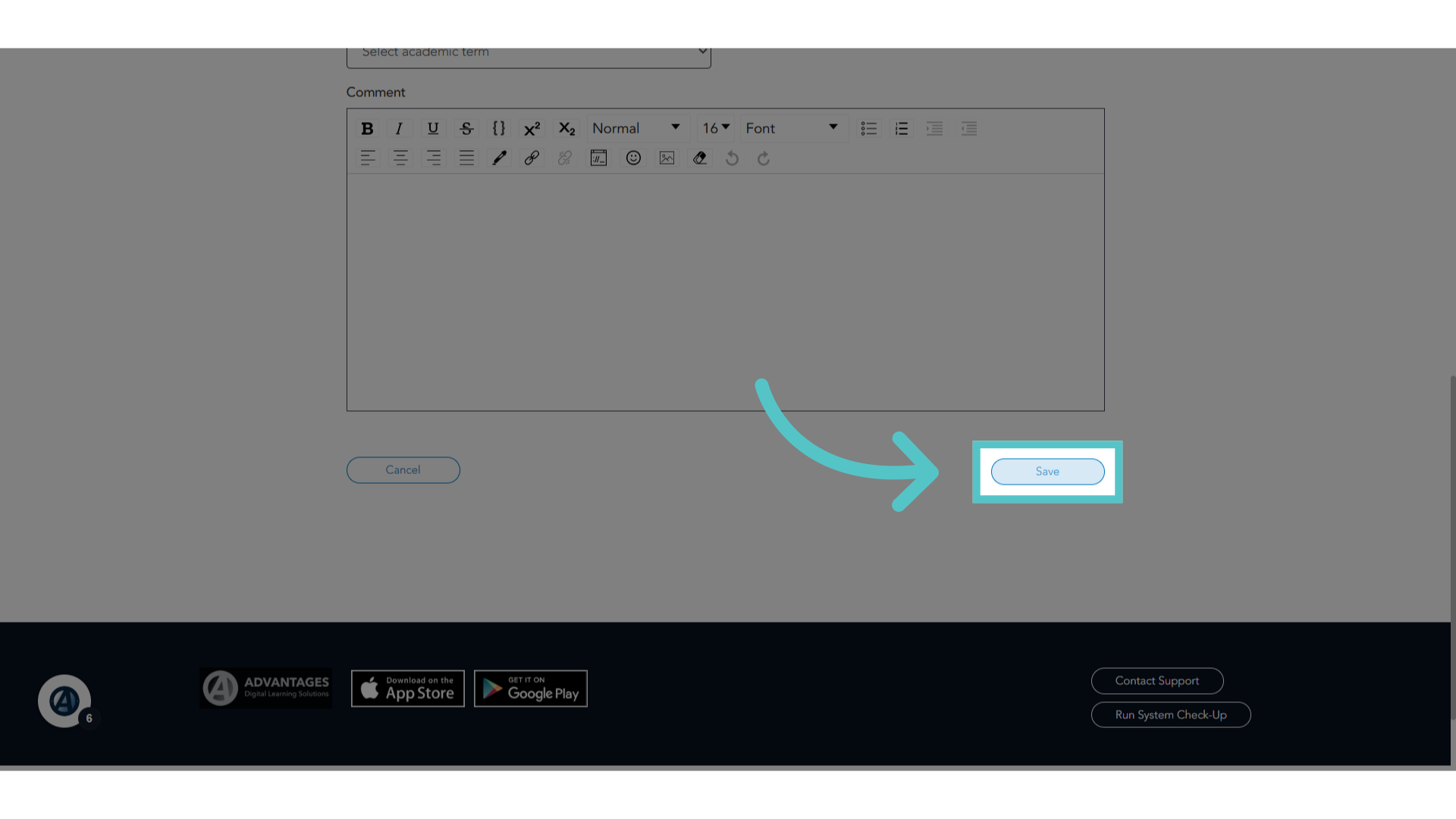
4. Click "Save"
Save the changes made.
5. Teacher View

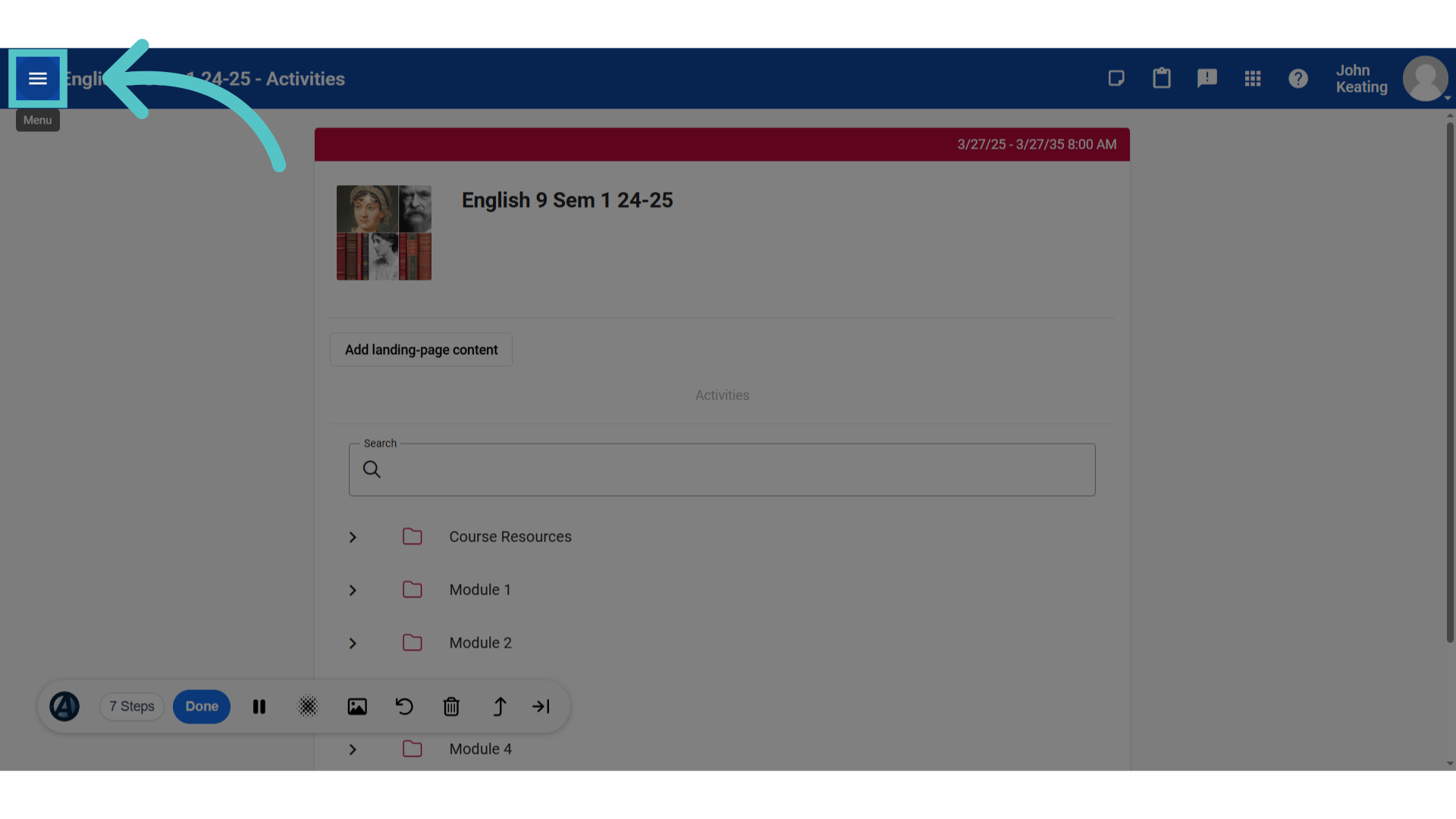
6. Click "Menu"
Teachers will open the course in Buzz and access the course menu.
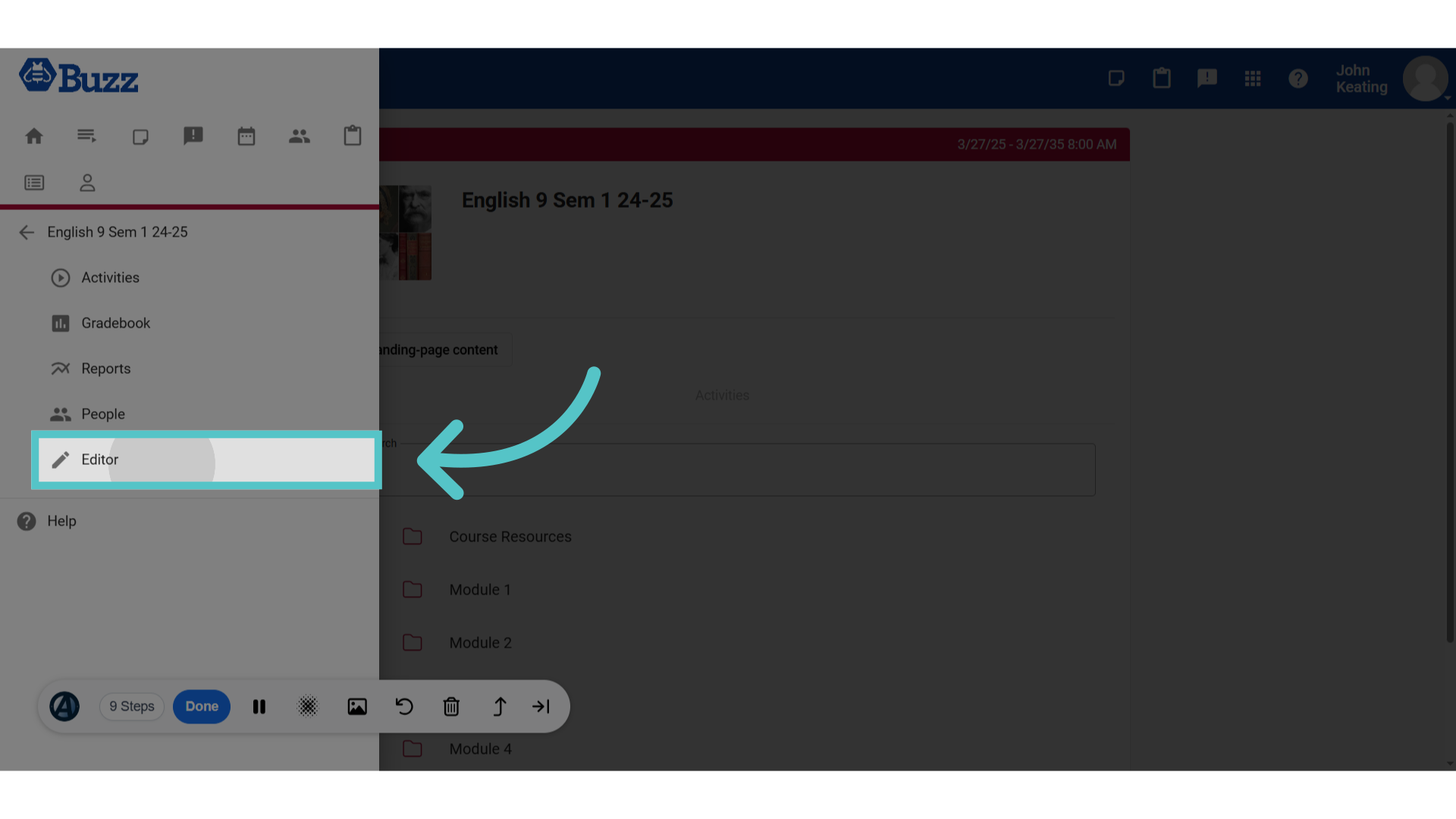
7. Click "Editor"
Open the editor.
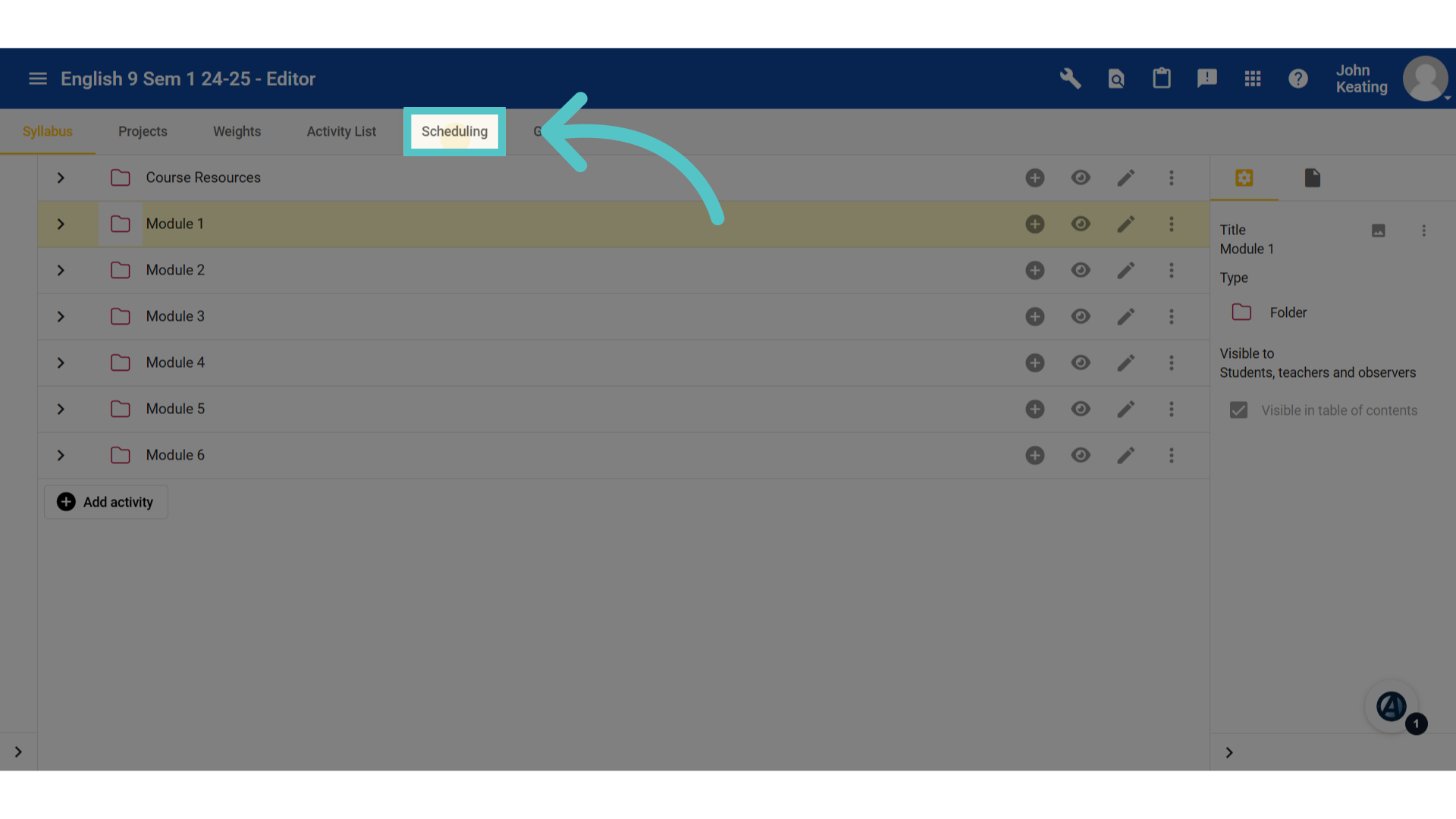
8. Click "Scheduling"
Navigate to the scheduling section.
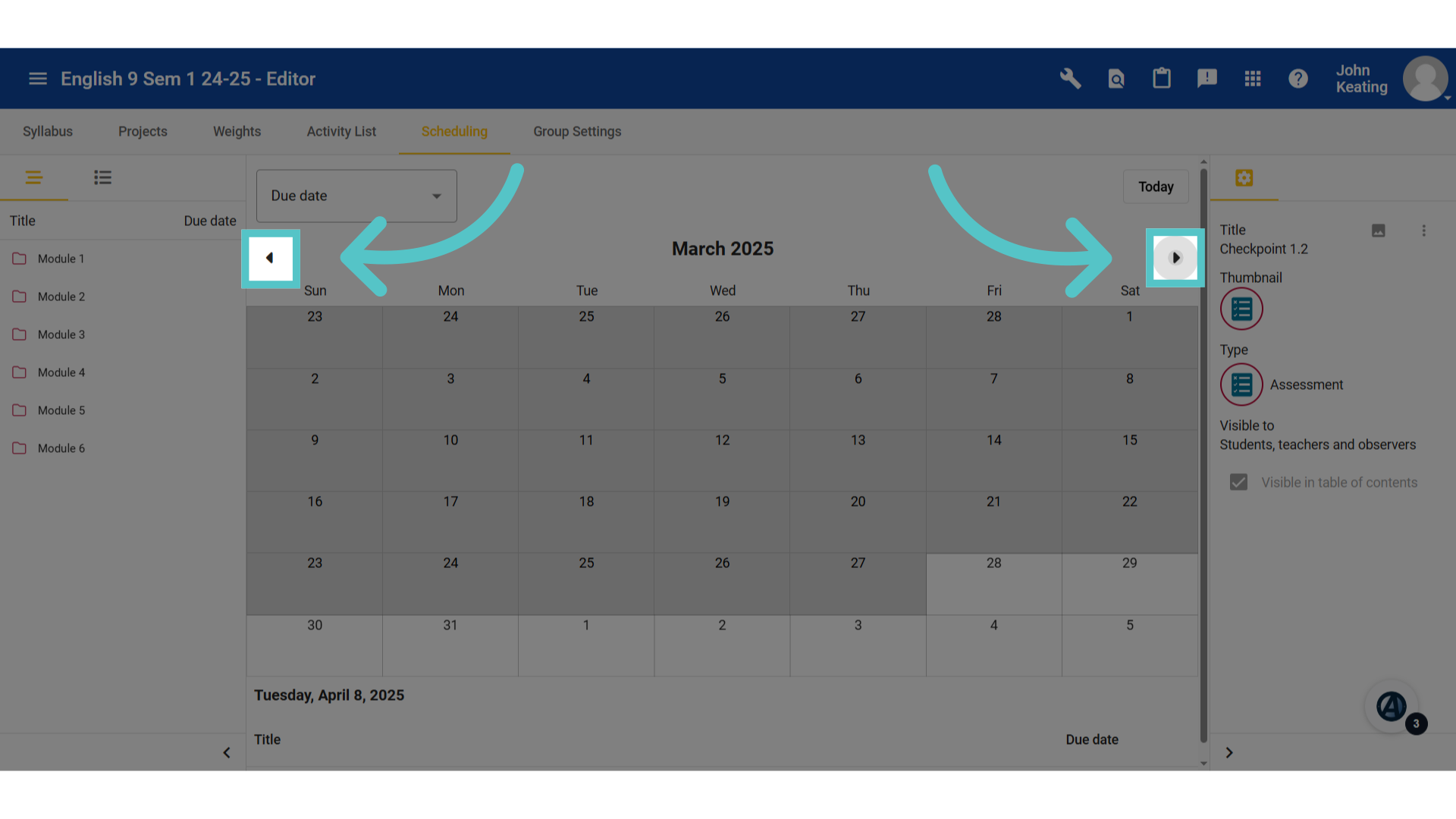
9. Navigate
Move the calendar view forward or bakward using the right and left arrows. Dates in gray have passed.
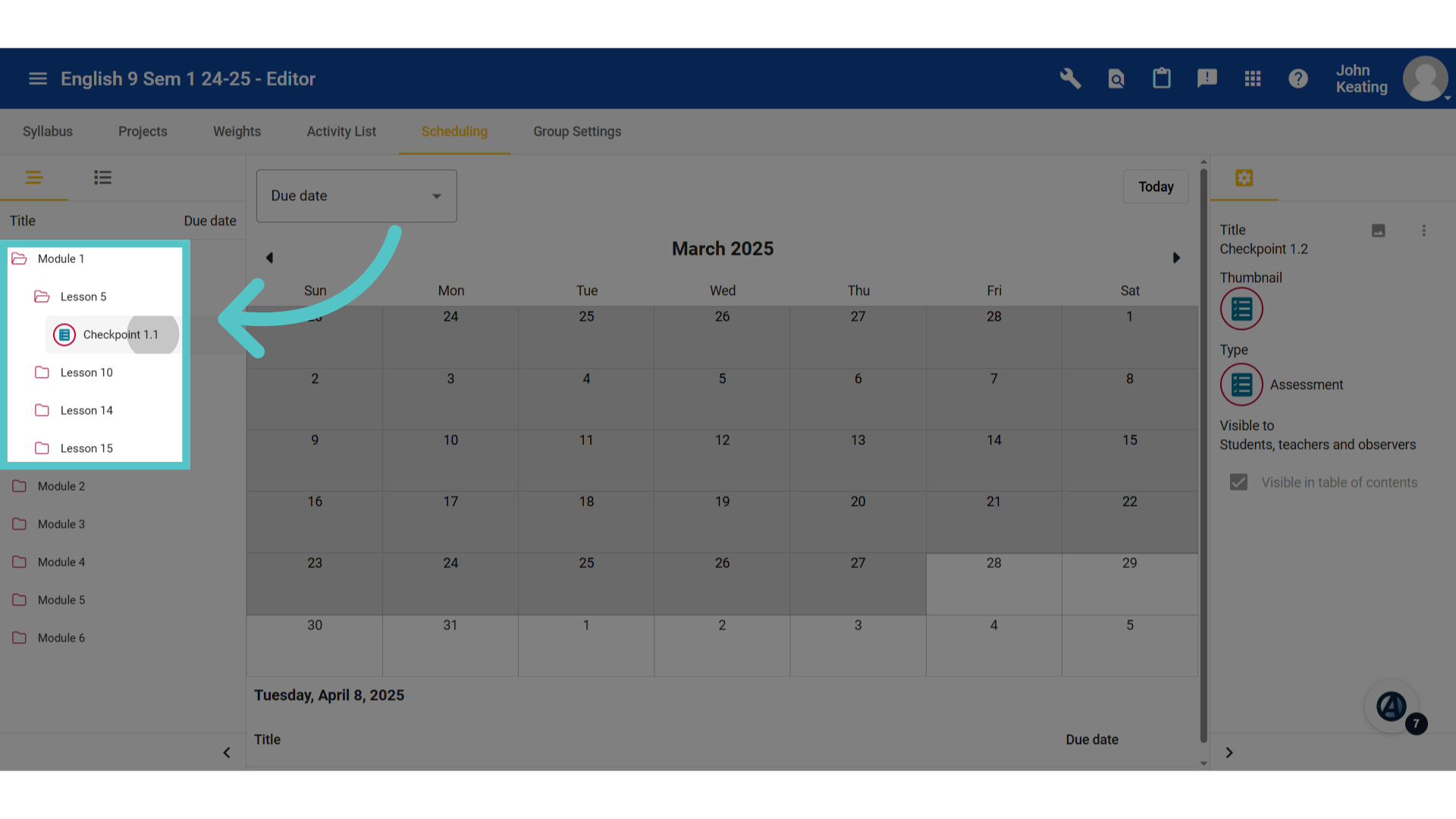
10. Gradable Activities
All gradable activities for the course can be accessed through an expandable menu of file folders on the left. Opening a folder will reveal only gradable activities.
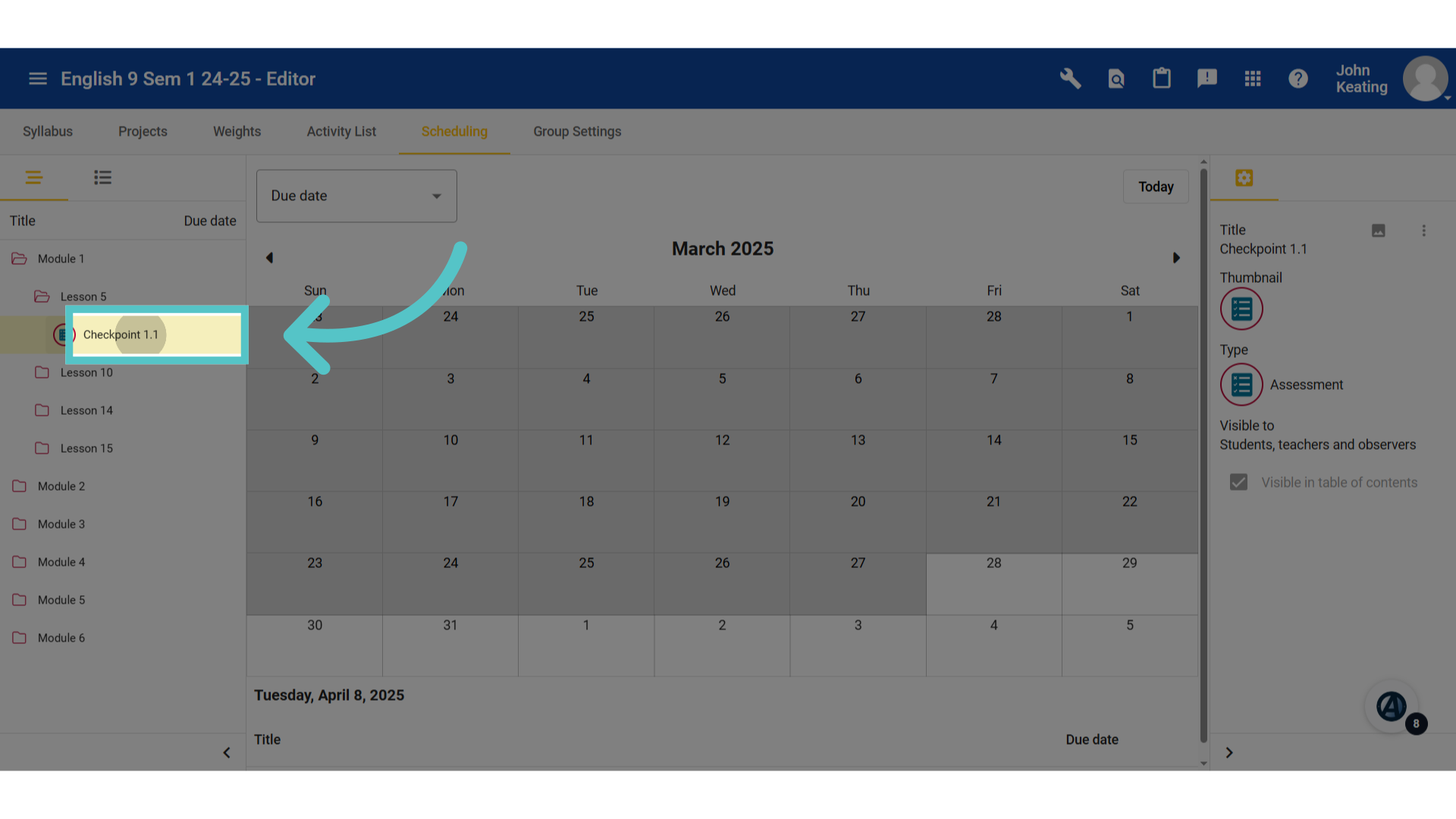
11. Click and Drag
Click and drag the activity title to the desired due date on the calendar.
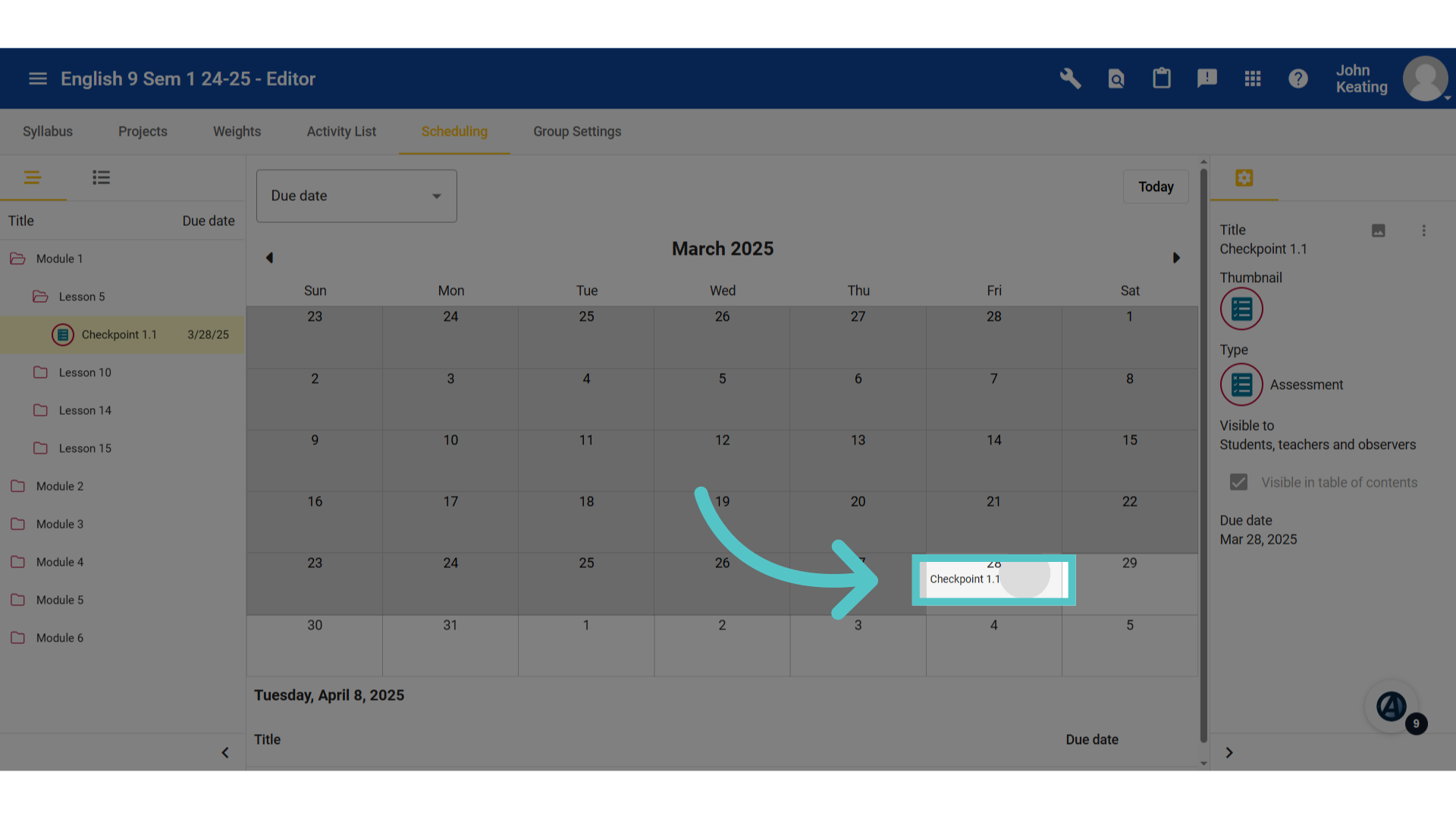
12. Scheduled
Drop the activity on the calendar and it will remain in the due date box.
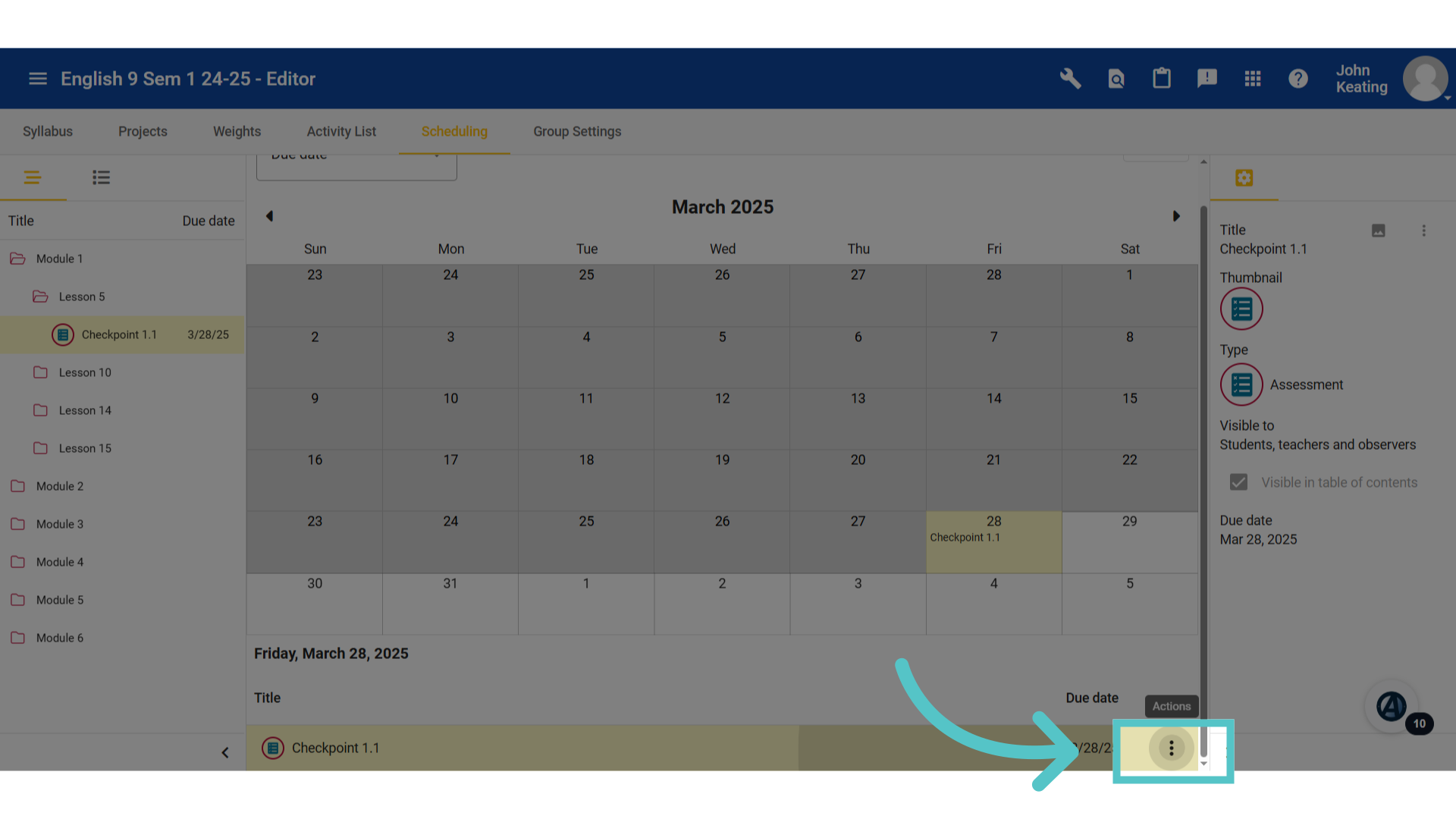
13. Edit
Click the date on the calendar. A list of all activities due that day will show under the calendar view. Be sure to scroll down. Each activity will have a three-dot edit menu.
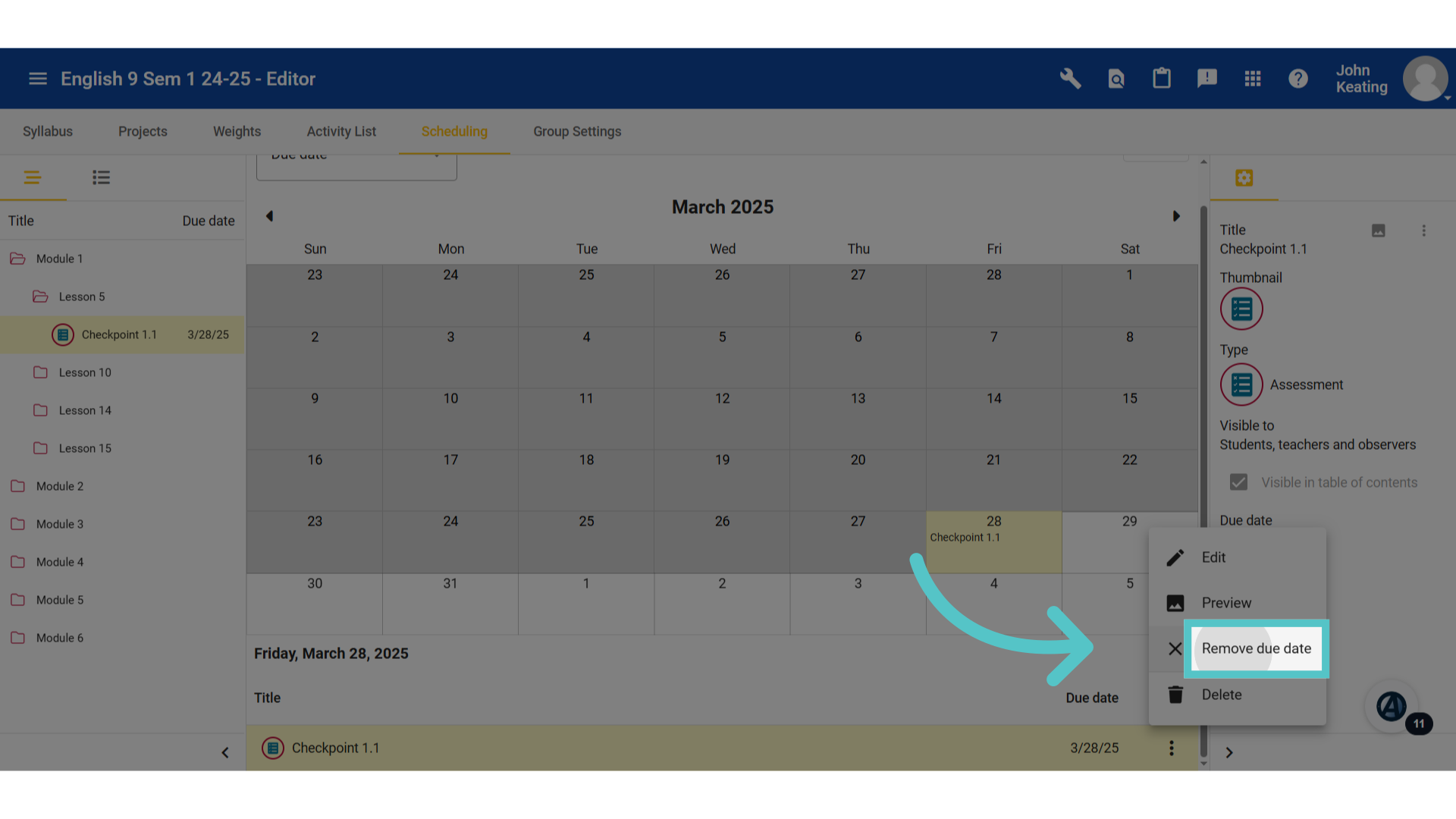
14. Click "Remove due date"
This menu provides the option to remove the due date. Do not select "Delete." This will delete the activity from the content.
15. Reschedule
To reschedule a due date, click the activity on the calendar and drag it to a new date.
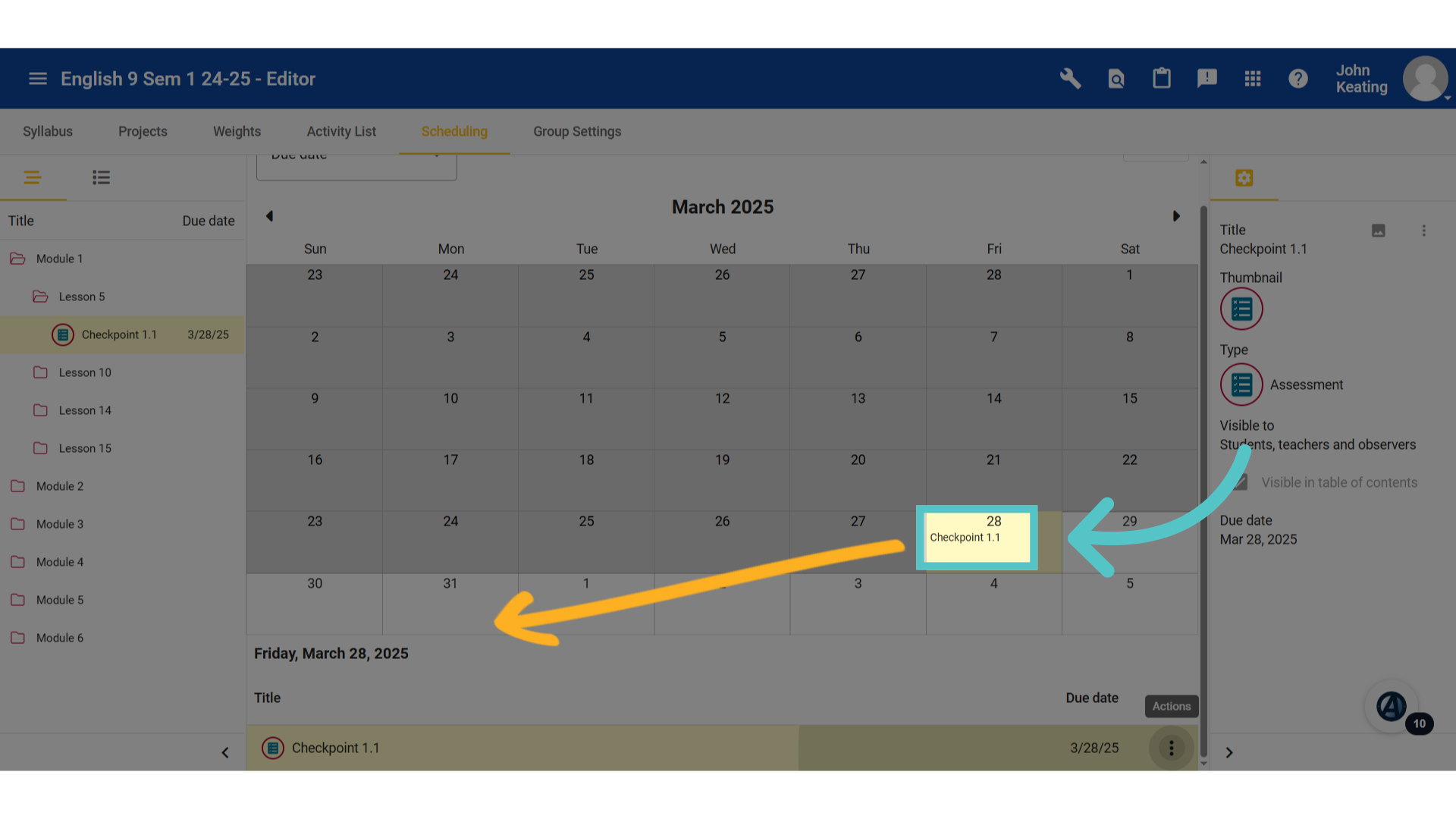
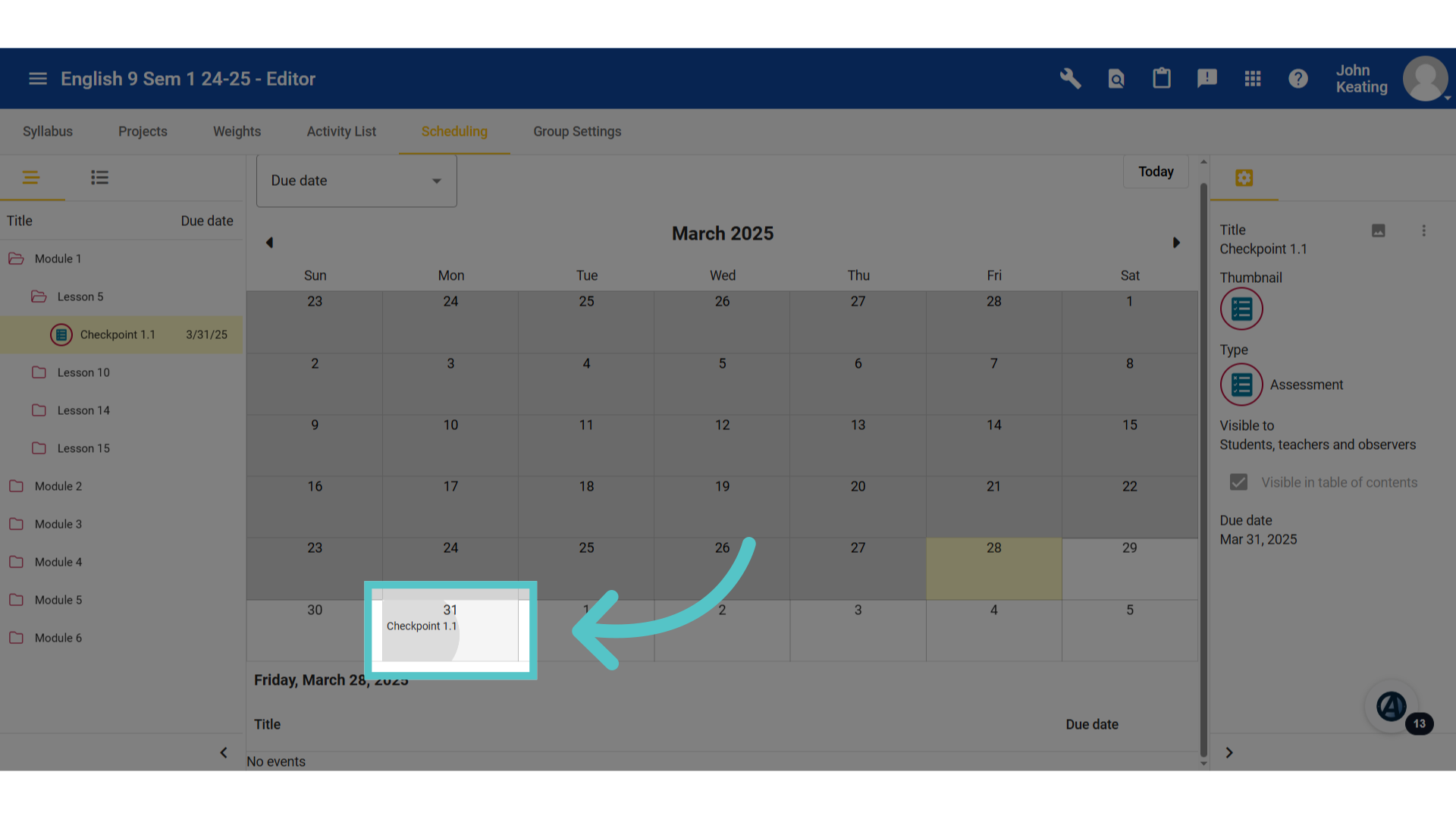
16. New Date
Drop the activity on the preferred due date.
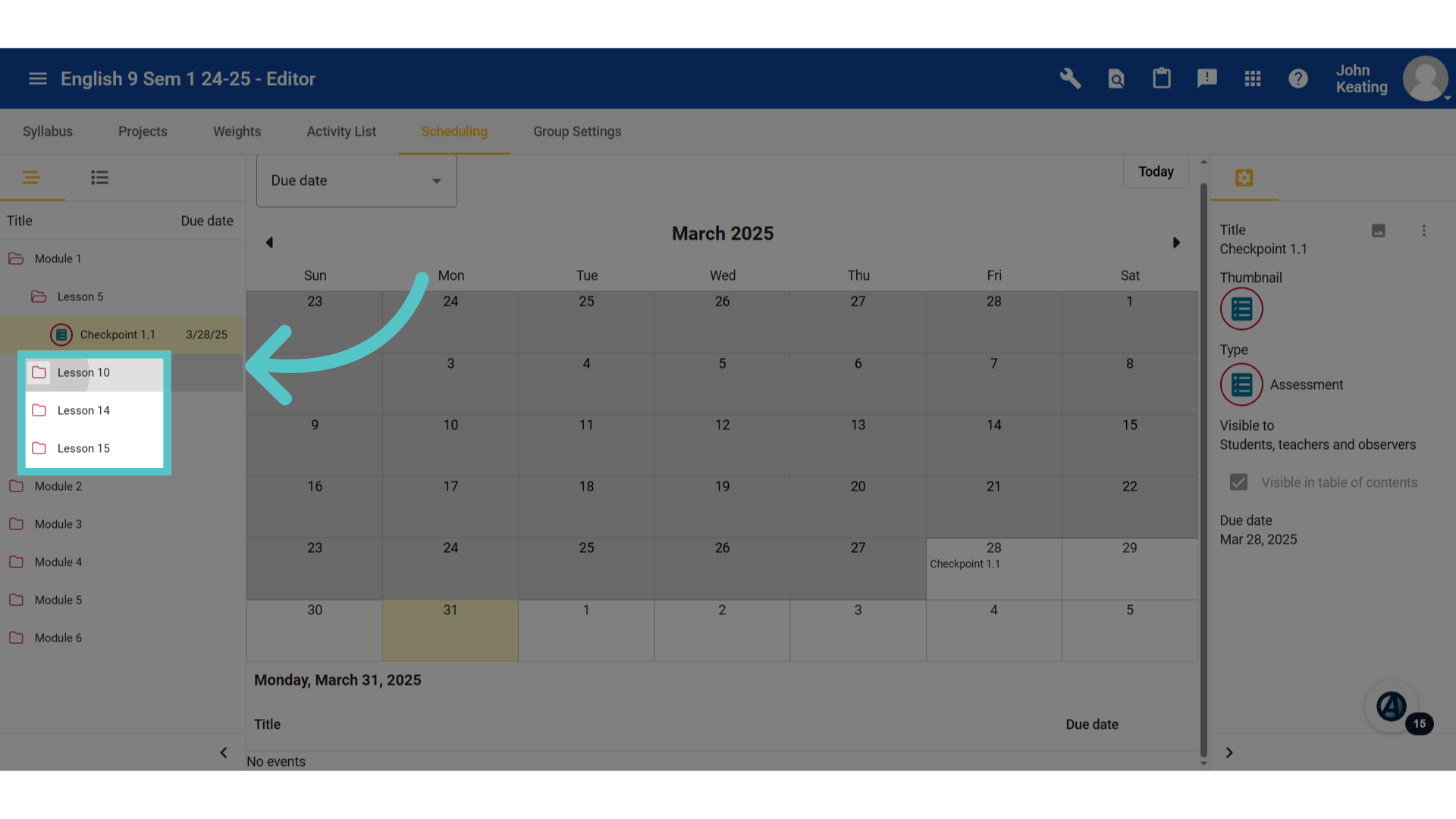
17. Next
Continue to expand the file folders to find the gradable activities. Drag and drop each on the desired due date on the calendar.
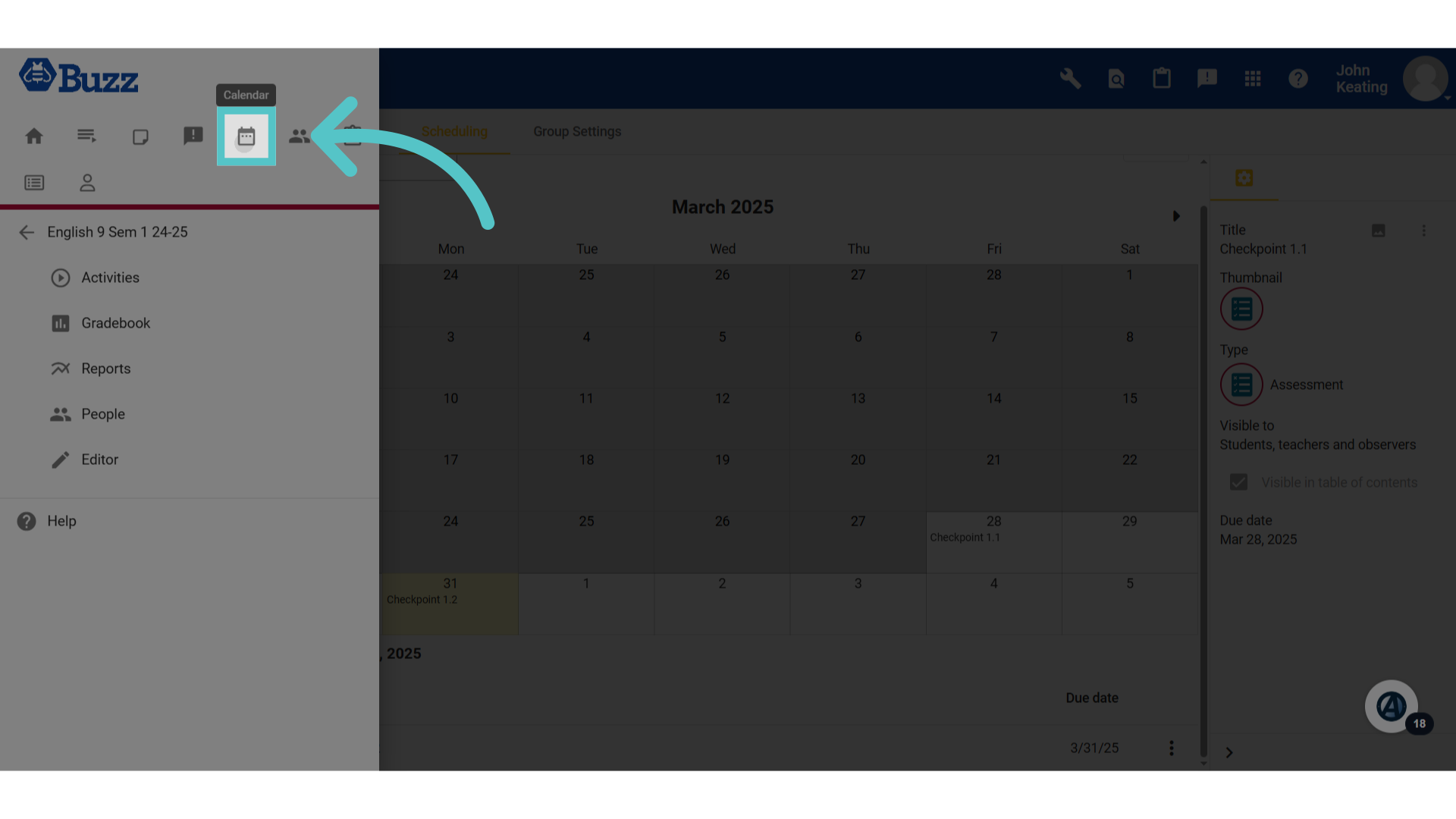
18. Calendar View
Once the dates have been set, they are automatically saved. View the Buzz calendar to see the same view the students will have.
19. Due Date
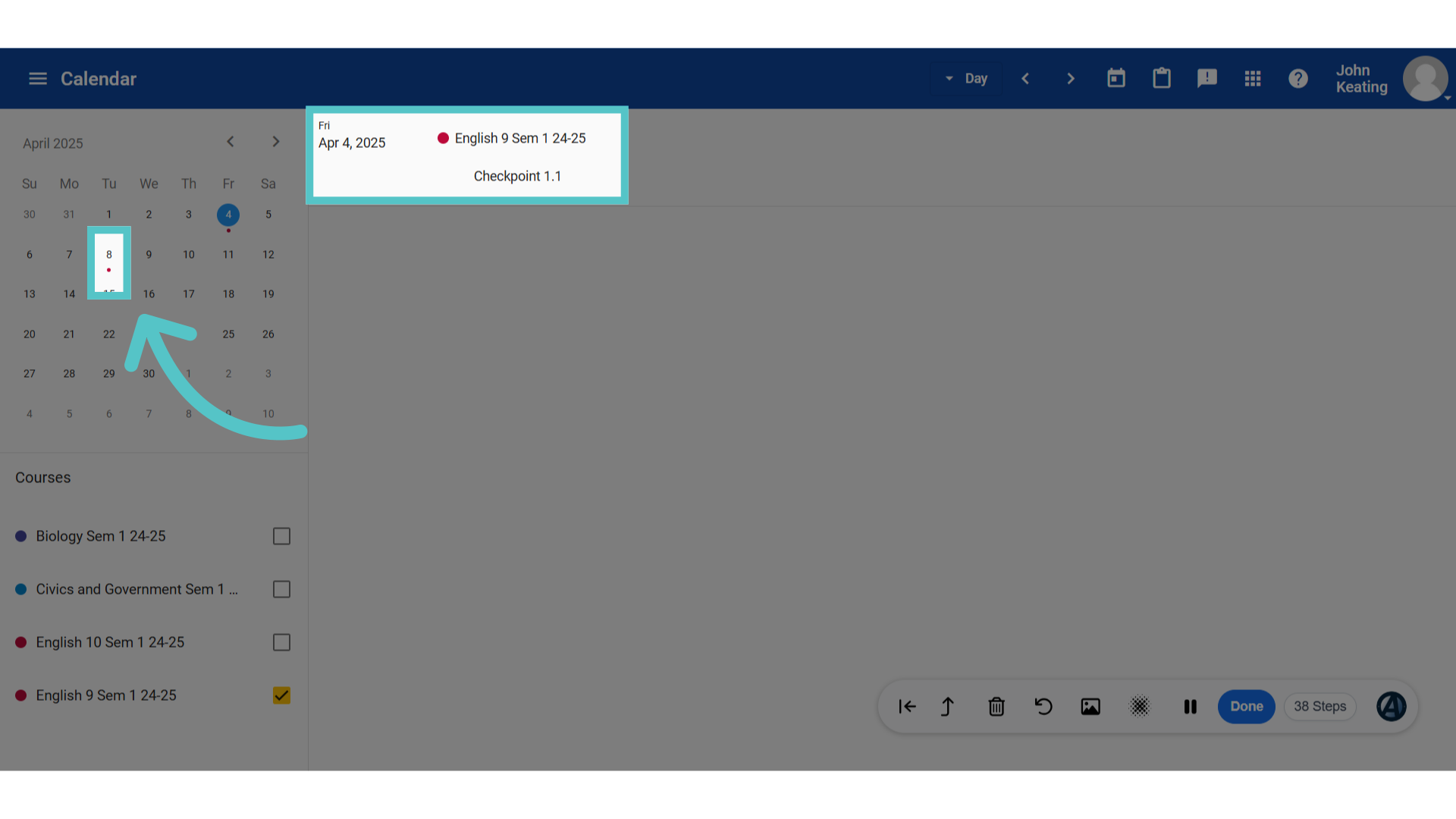
Any date that appears with a dot beneath it has an activity due that day. Click the date to see the activities due. Students have this same view.
20. Student View

21. To-do List
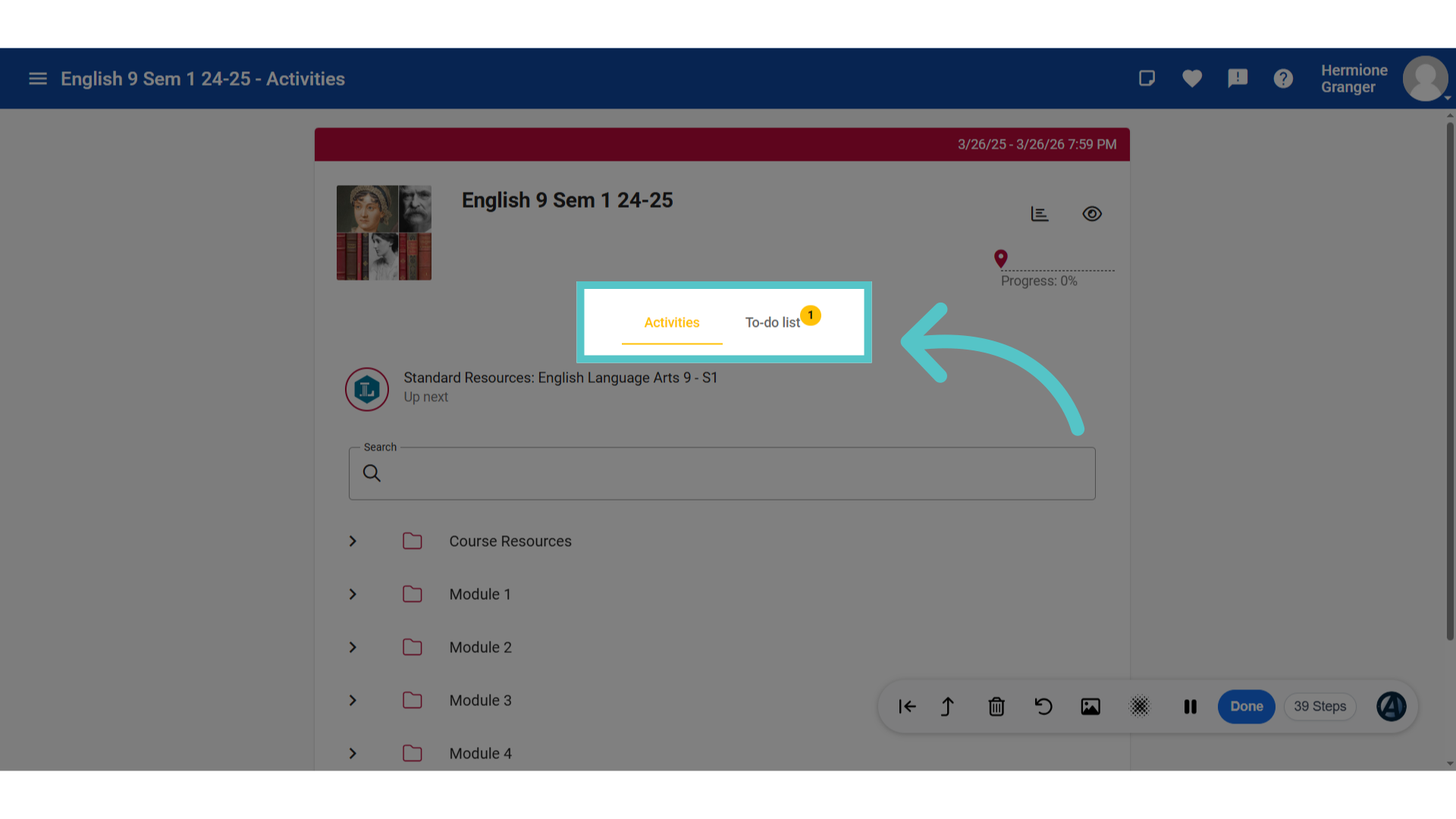
Students will also have a To-Do List on their course homepage. The number indicated in the yellowcircle will alert them to the number of upcoming activities due.
22. Full List
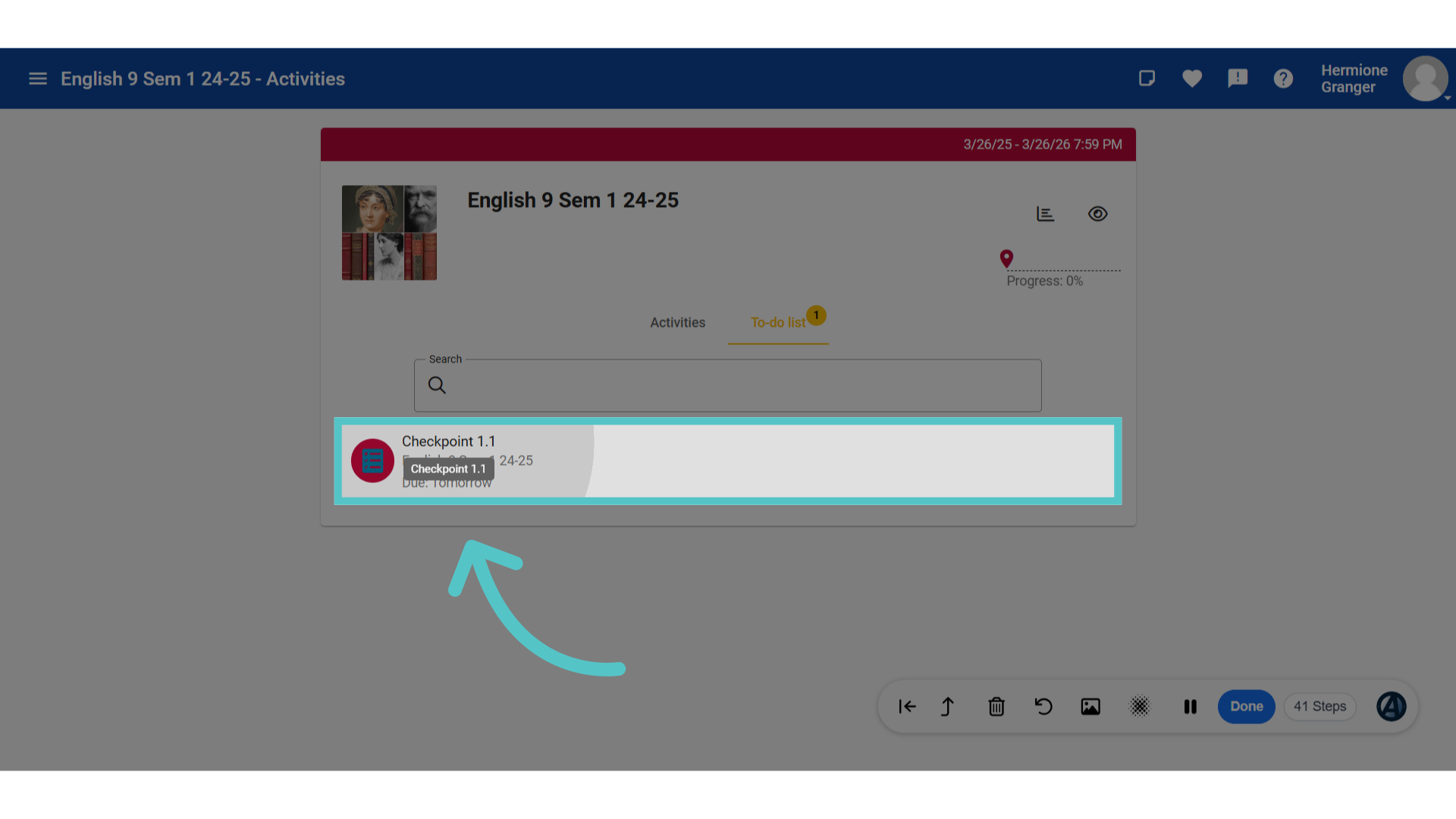
Clicking on the To-Do list will show a detailed list of upcoming activities due. Please note: These due dates will not show on the ASSIST calendar or in ASSIST reporting.
If you have any questions about the information in this tutorial, please click "Contact Support" to submit a help request. Contact Support