Expand to Full Screen for Best Viewing
Activate New Students in ASSIST.
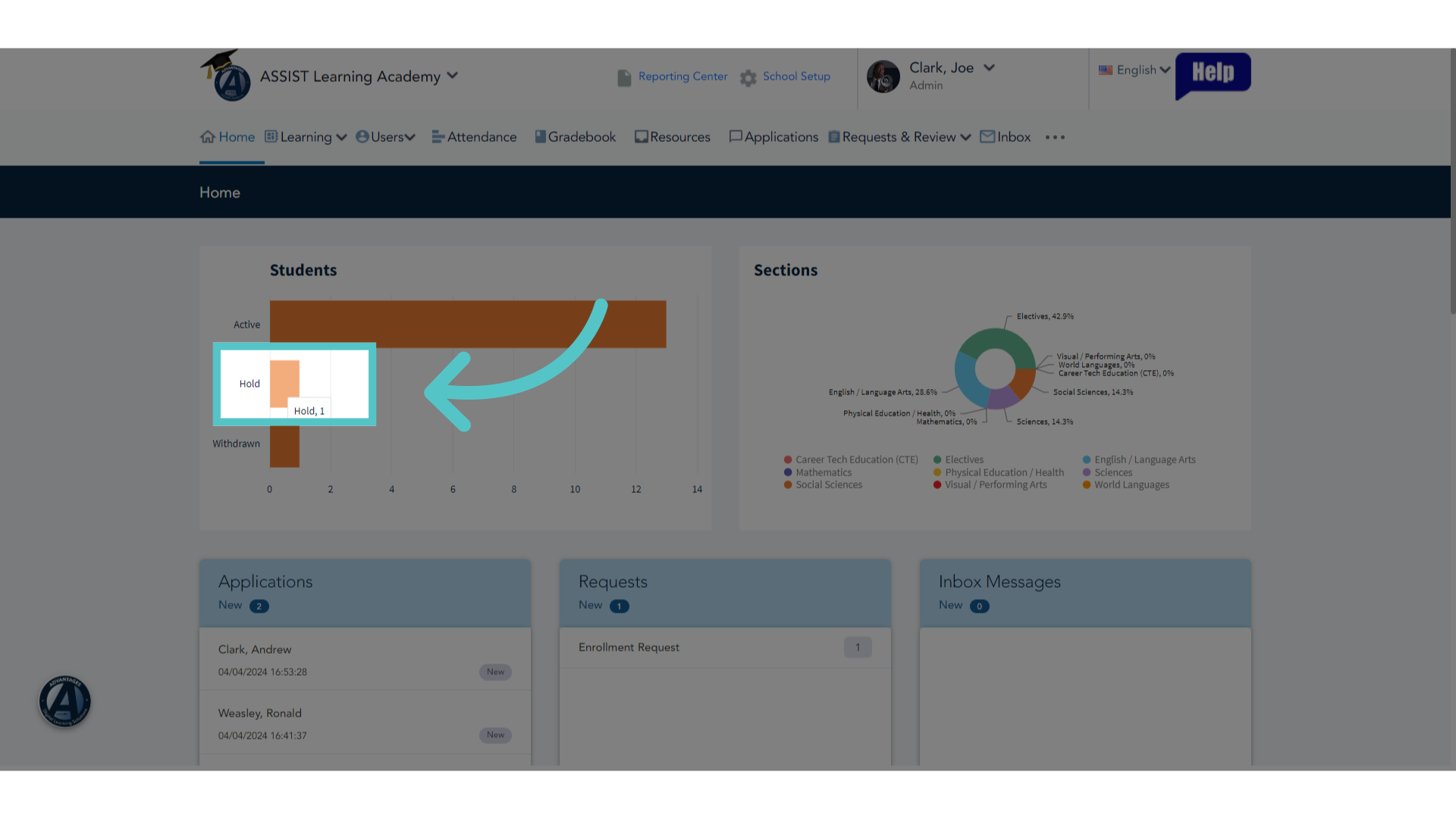
1. Hold Status
When new students are added to your platform, they are automatically placed on "Hold" status. To allow students access to ASSIST and to enroll students in courses, their status must be changed to "Active."
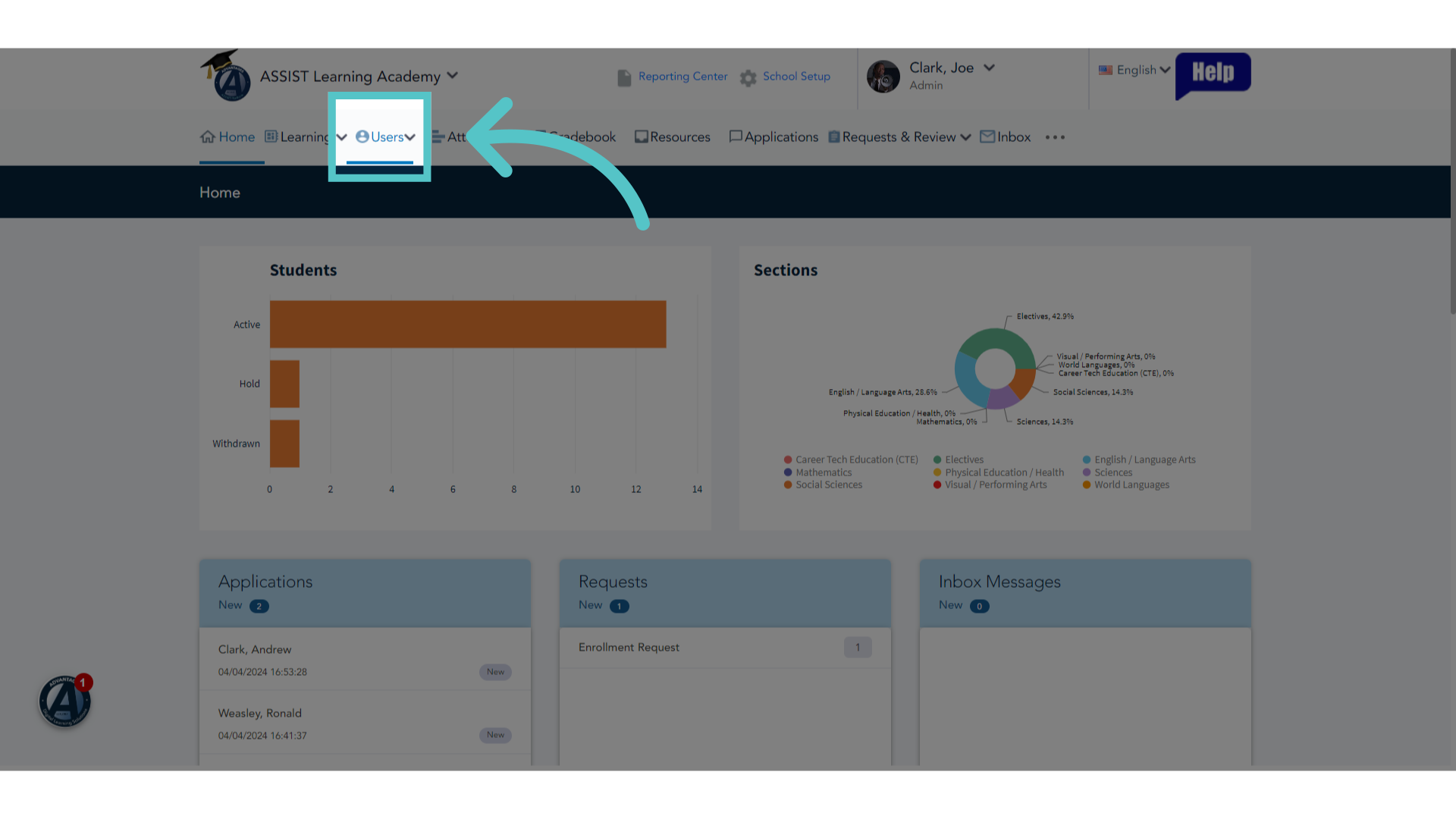
2. Click "Users"
Click on "Users"
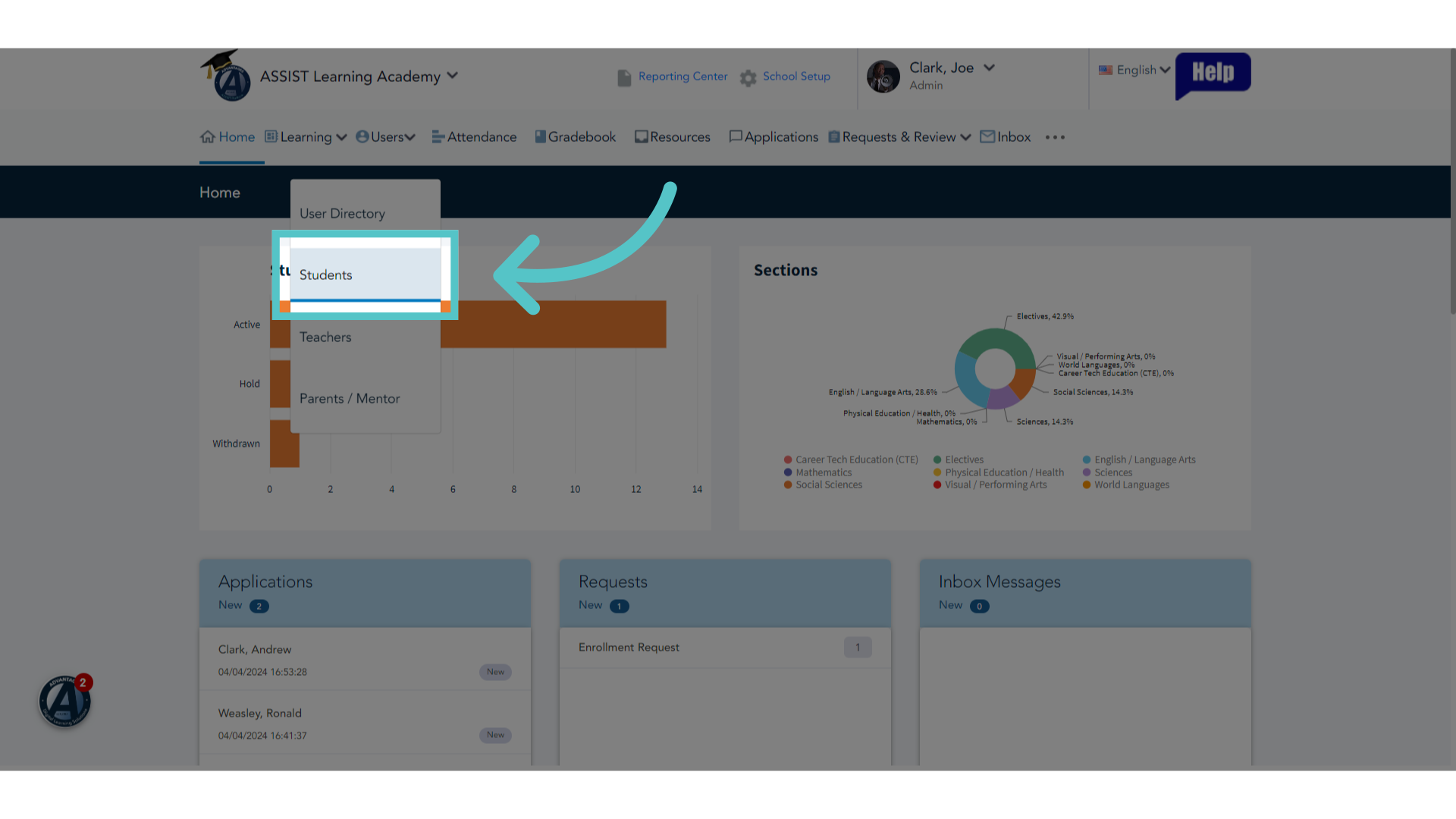
3. Click "Students"
Select the "Students" list.
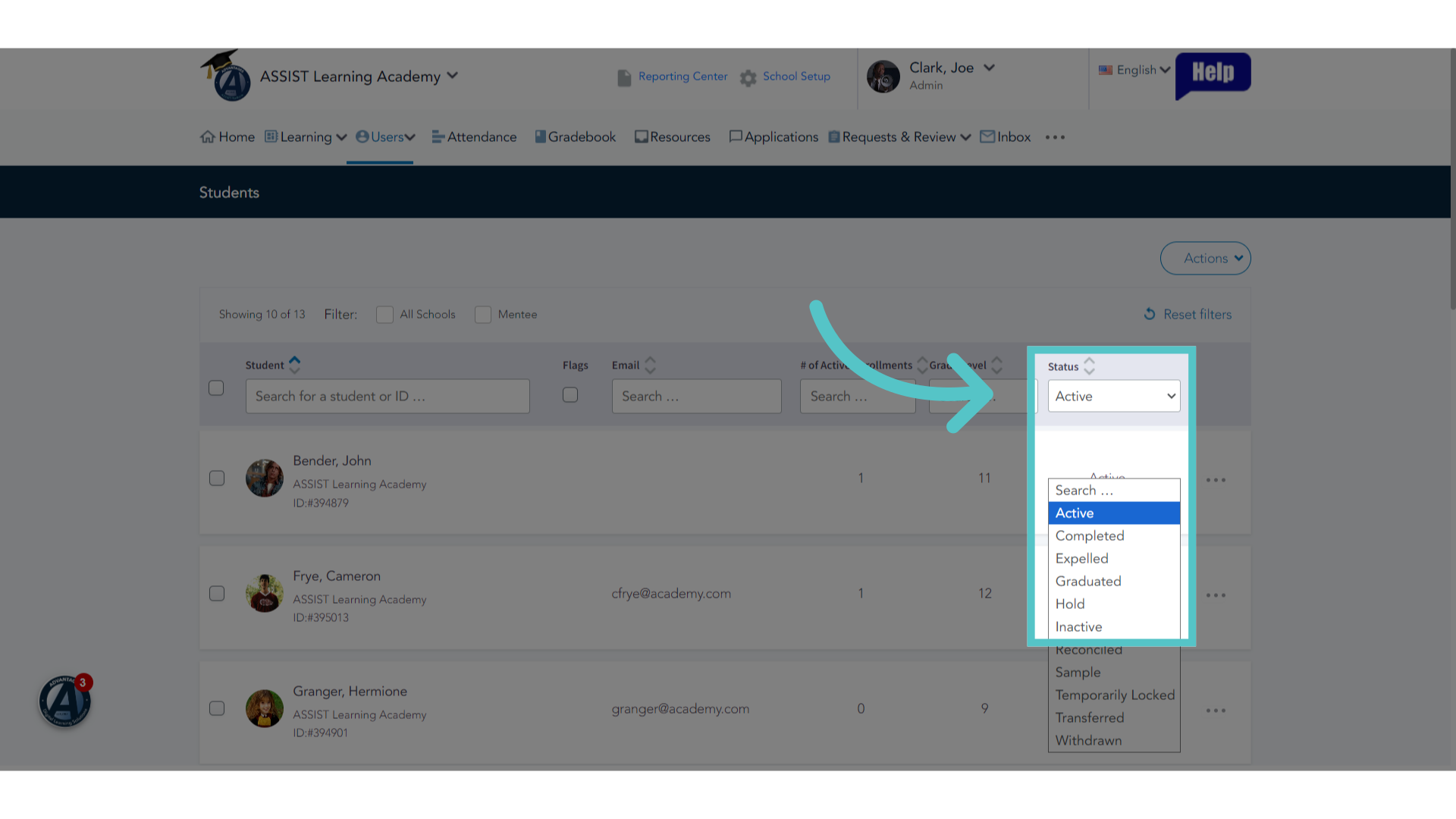
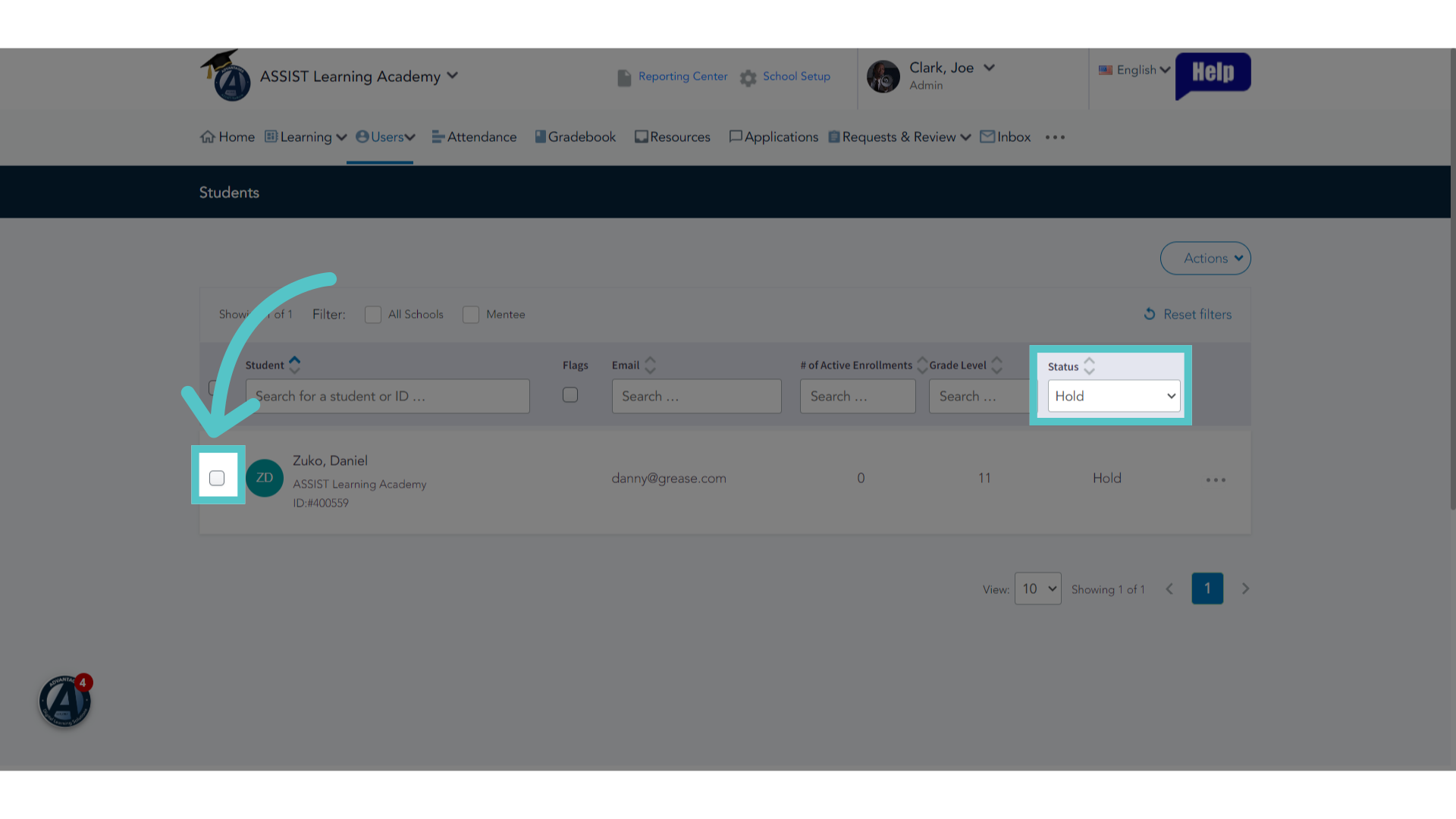
4. Filter for Hold Status
All of the school's active students will be listed. Change the Status filter to show only students who are on "Hold"
5. Check Box
Check the box next to the student names who are ready to be Active.
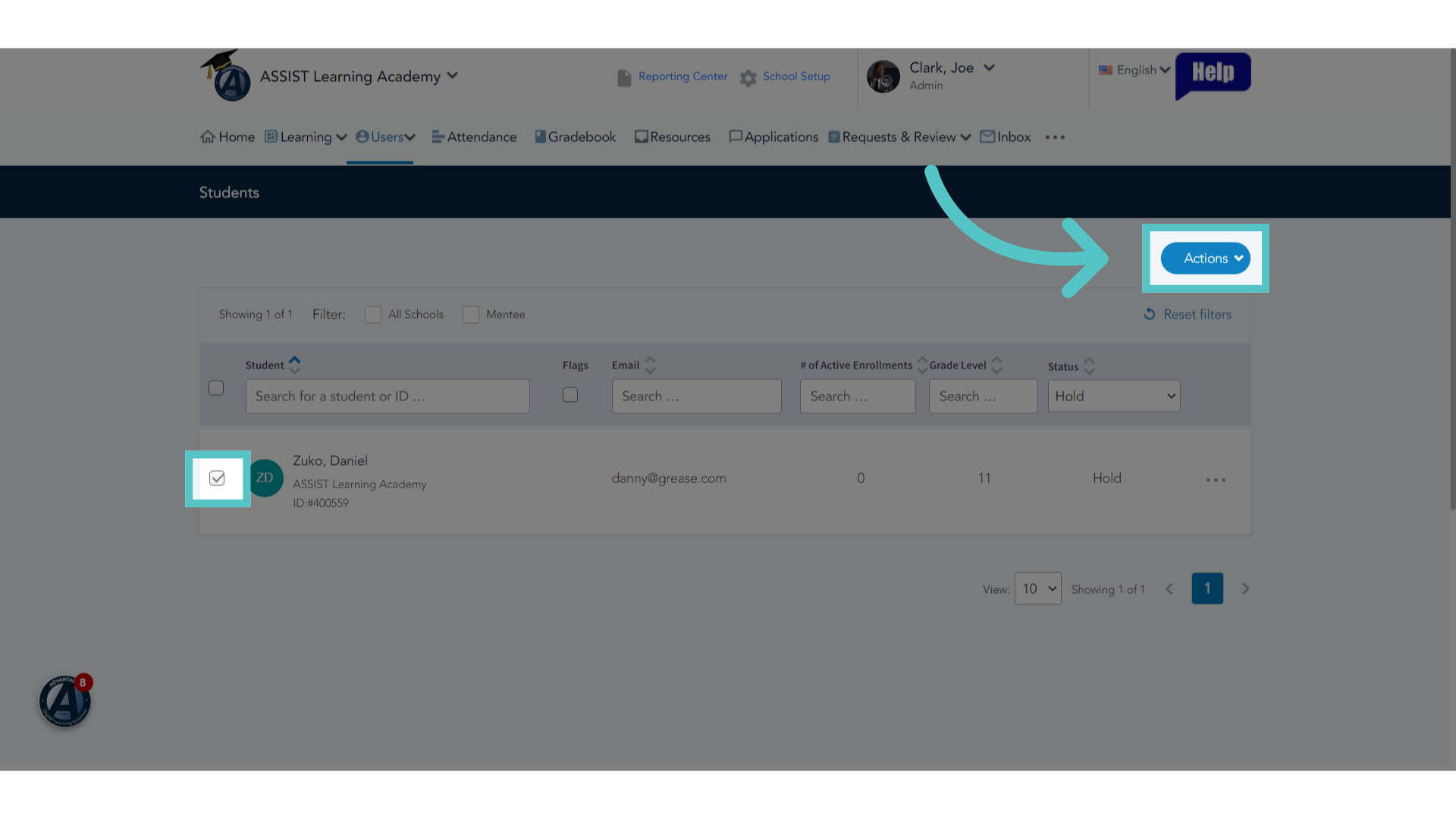
6. Actions
Click on the "Actions" button.
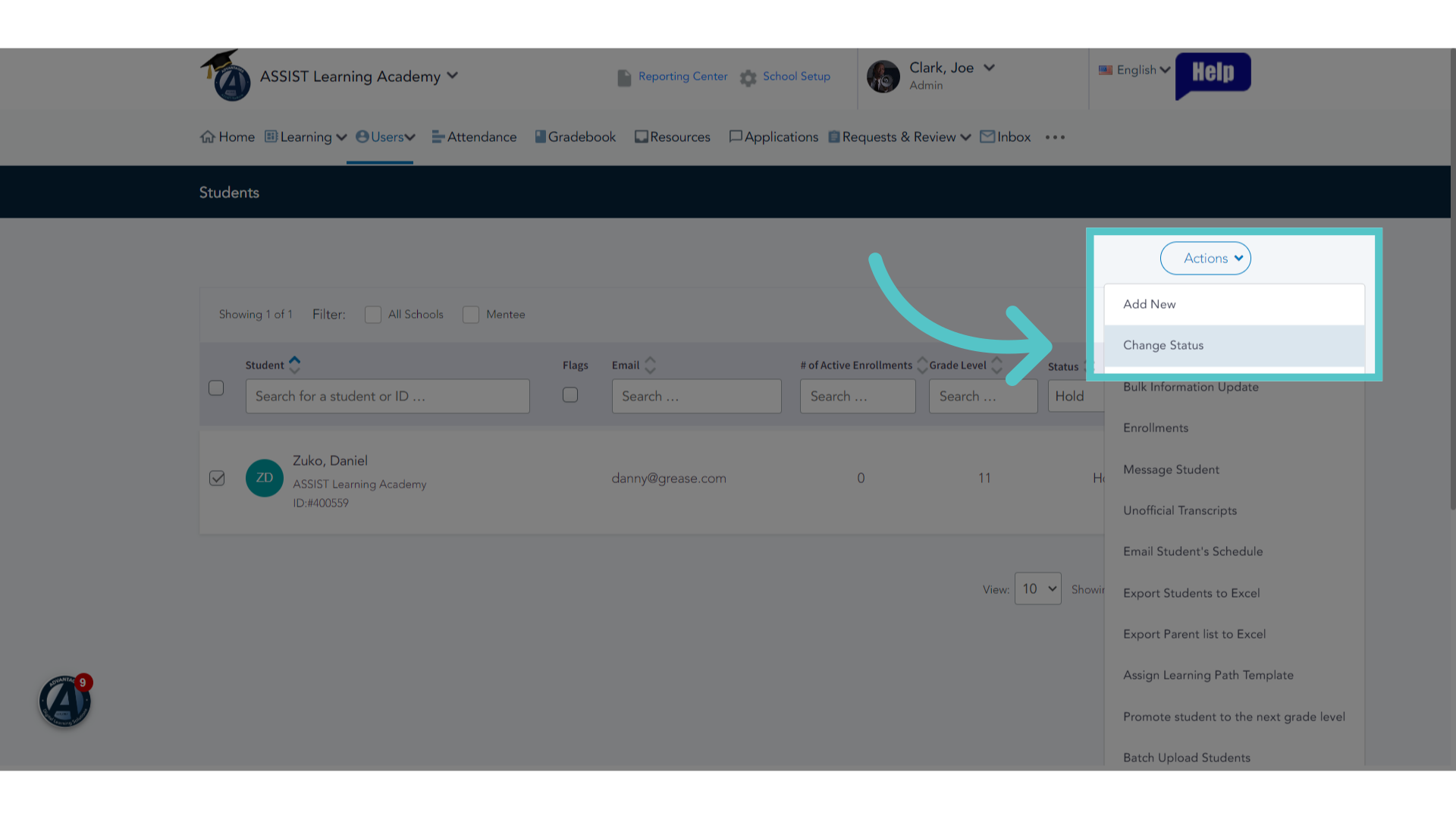
7. Change Status
Select the option to "Change Status"
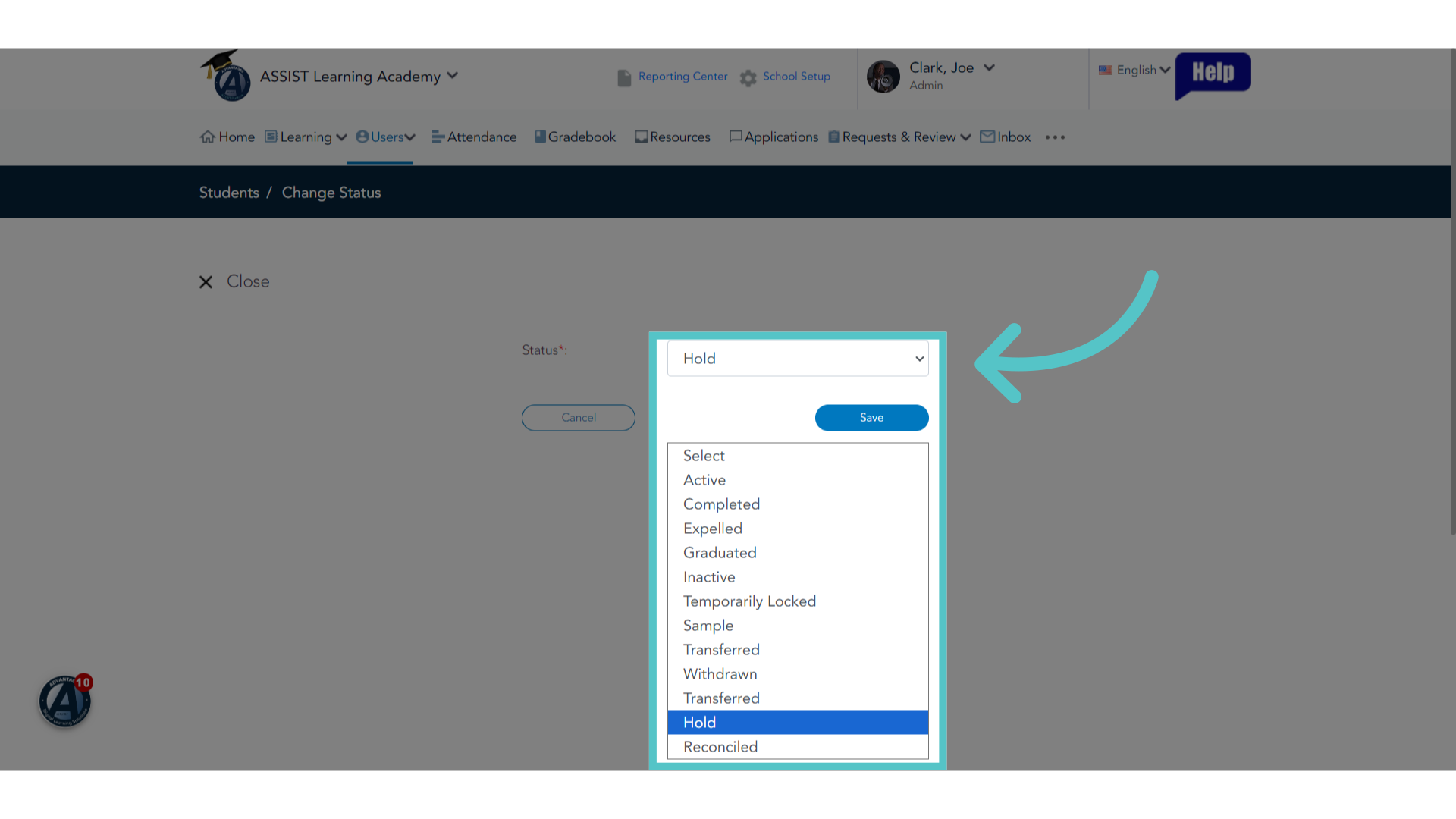
8. Active
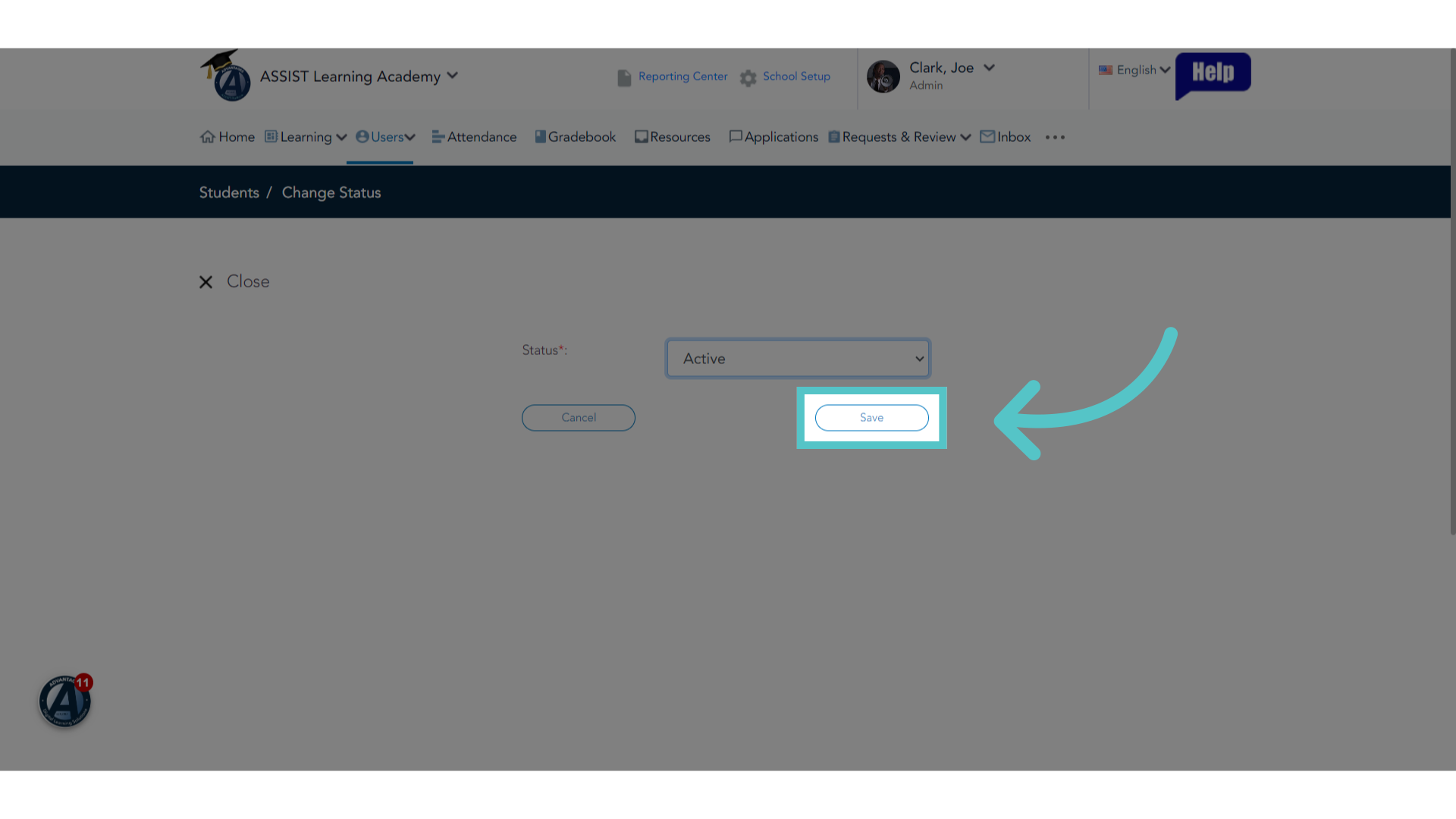
Use the dropdown menu to change the student status to "Active."
9. Save
Be sure to save
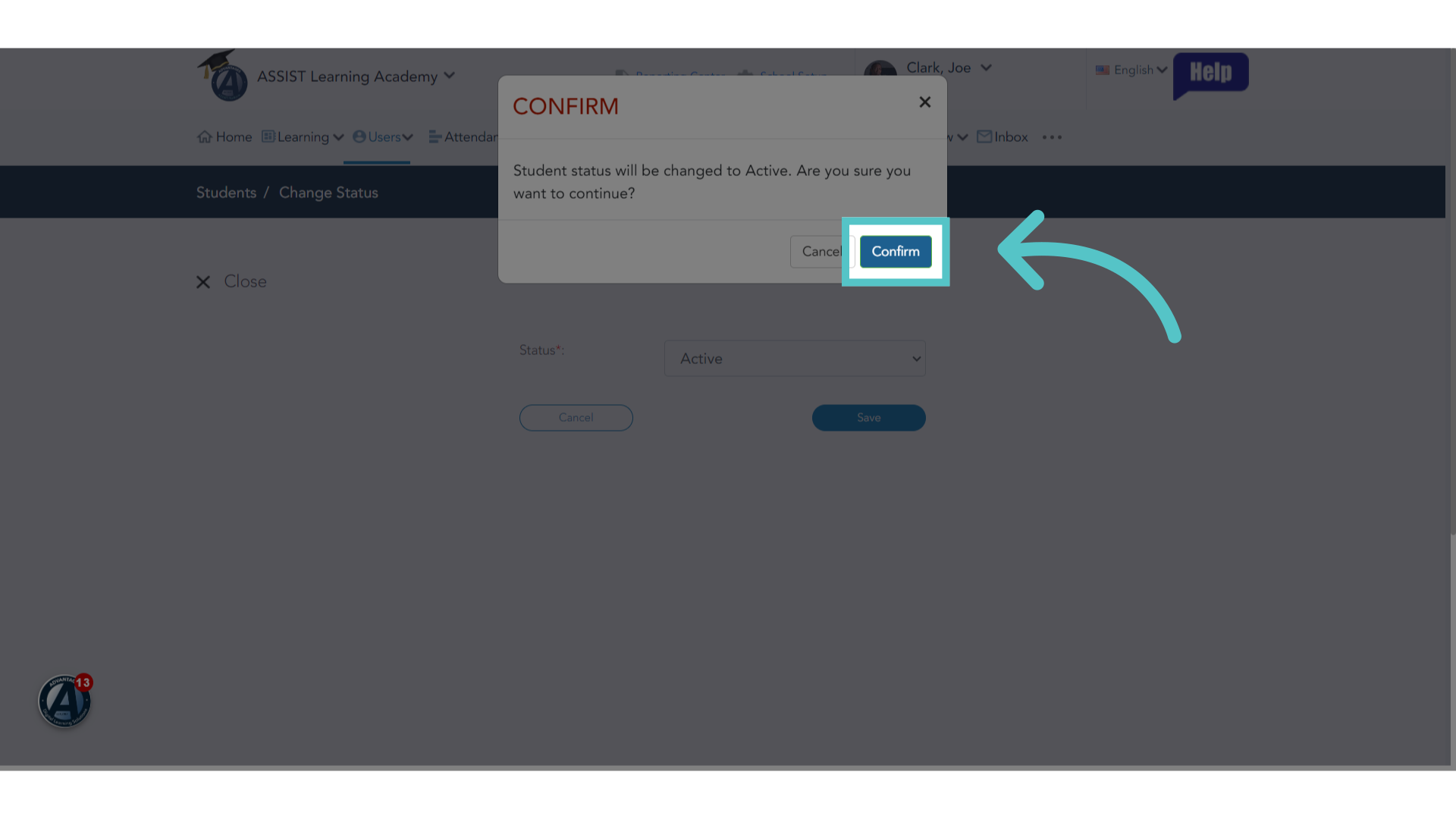
10. Confirm
Confirm the status change.
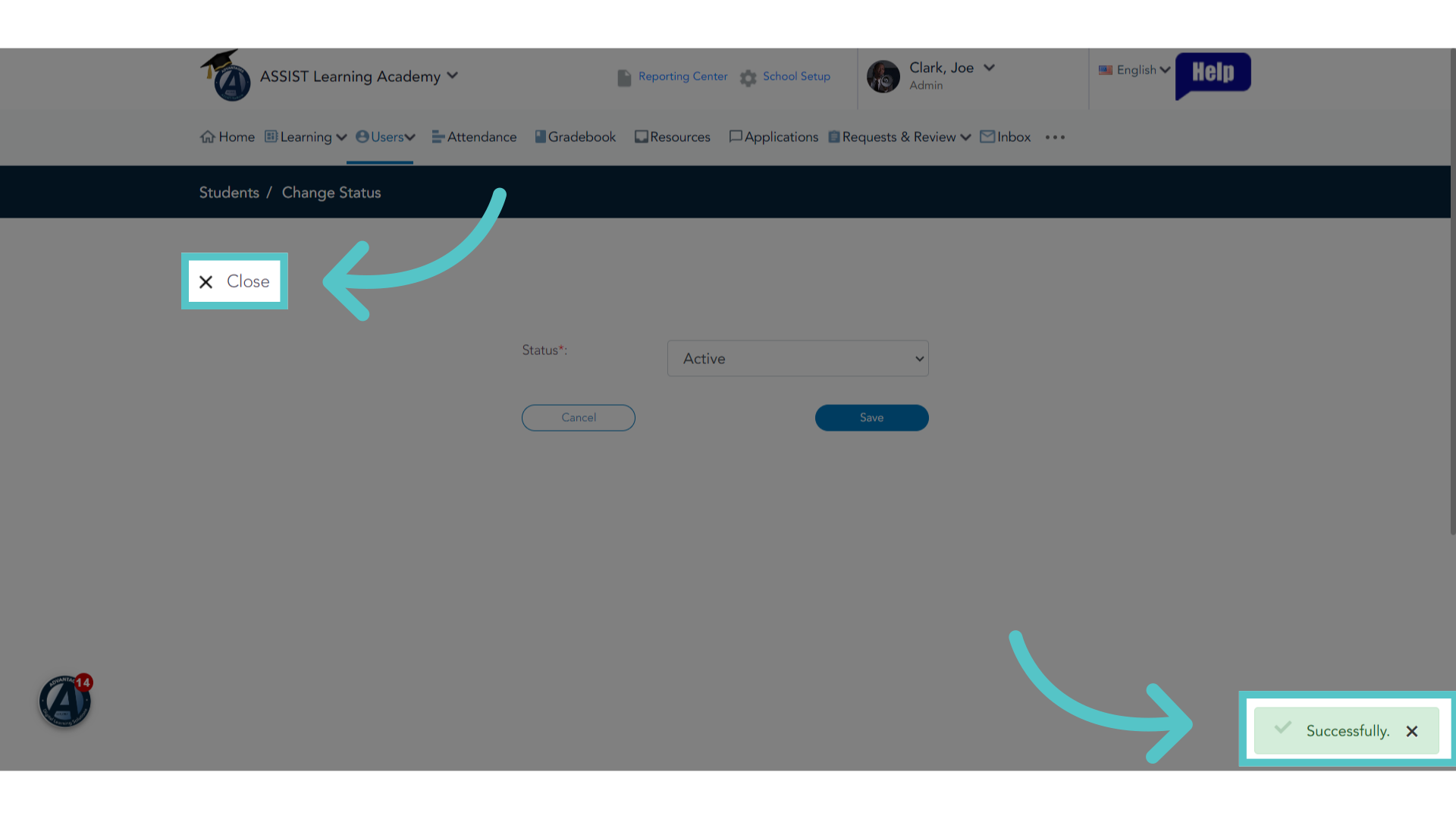
11. Close
When ASSIST indicates that the change has been made successfully, close the editing screen.
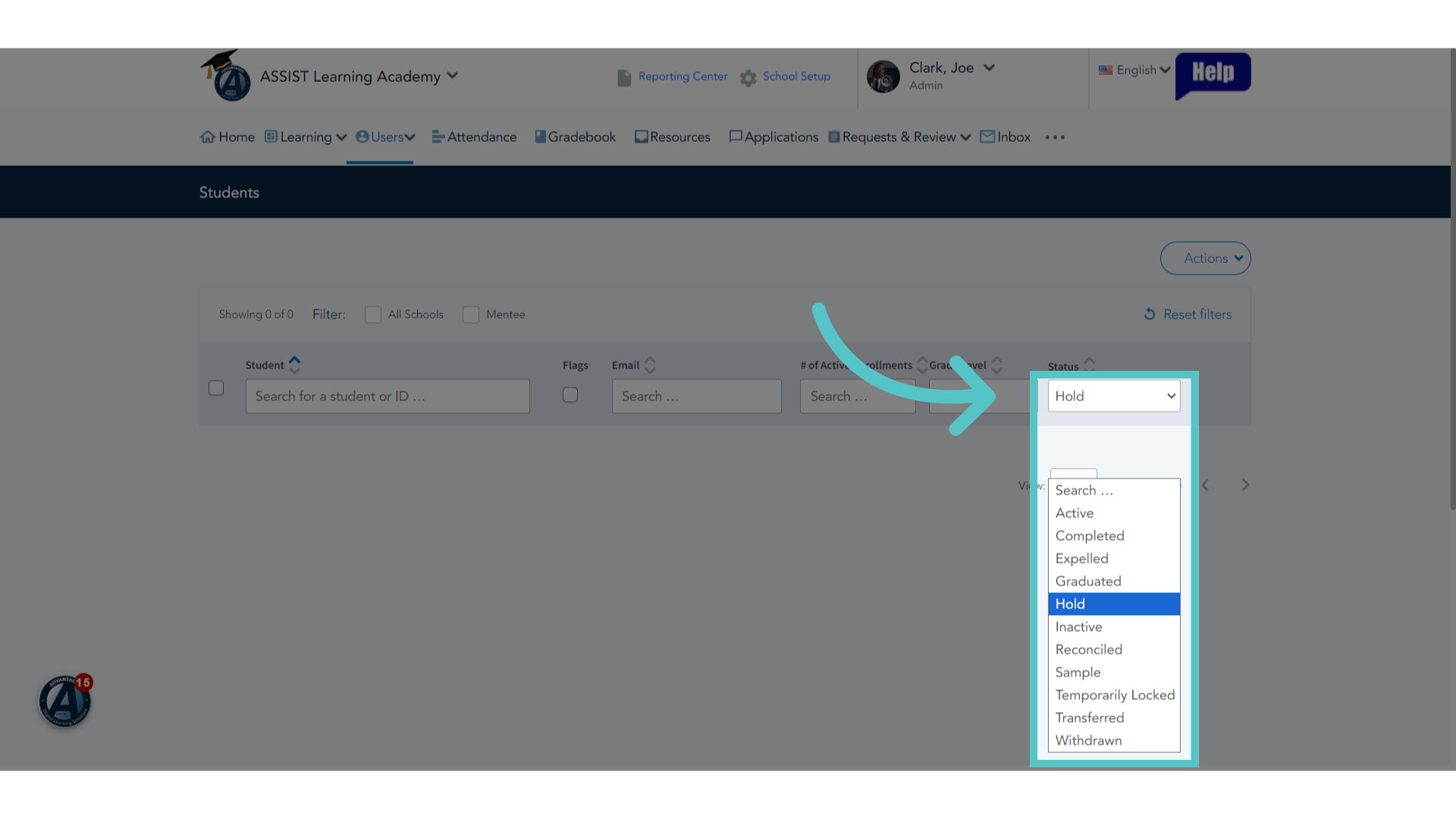
12. Active
Reset your student list filter for "Active" students.
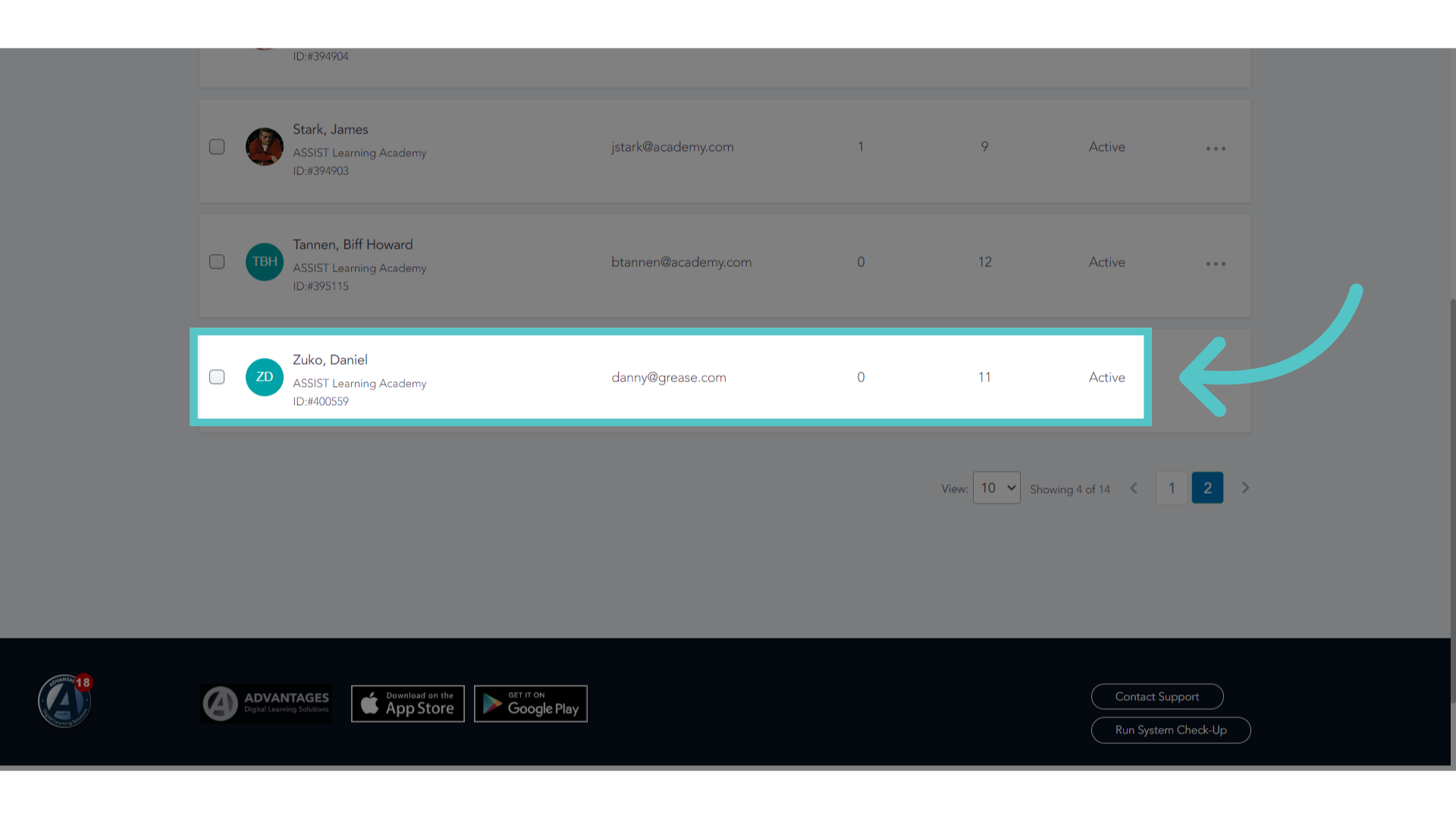
13. New Active Student
The new student will now appear in the active student list. The student may automatically receive a welcome message with their login information if an email address has been added to their record. The student can now access ASSIST and be enrolled in sections.
14. Student Status
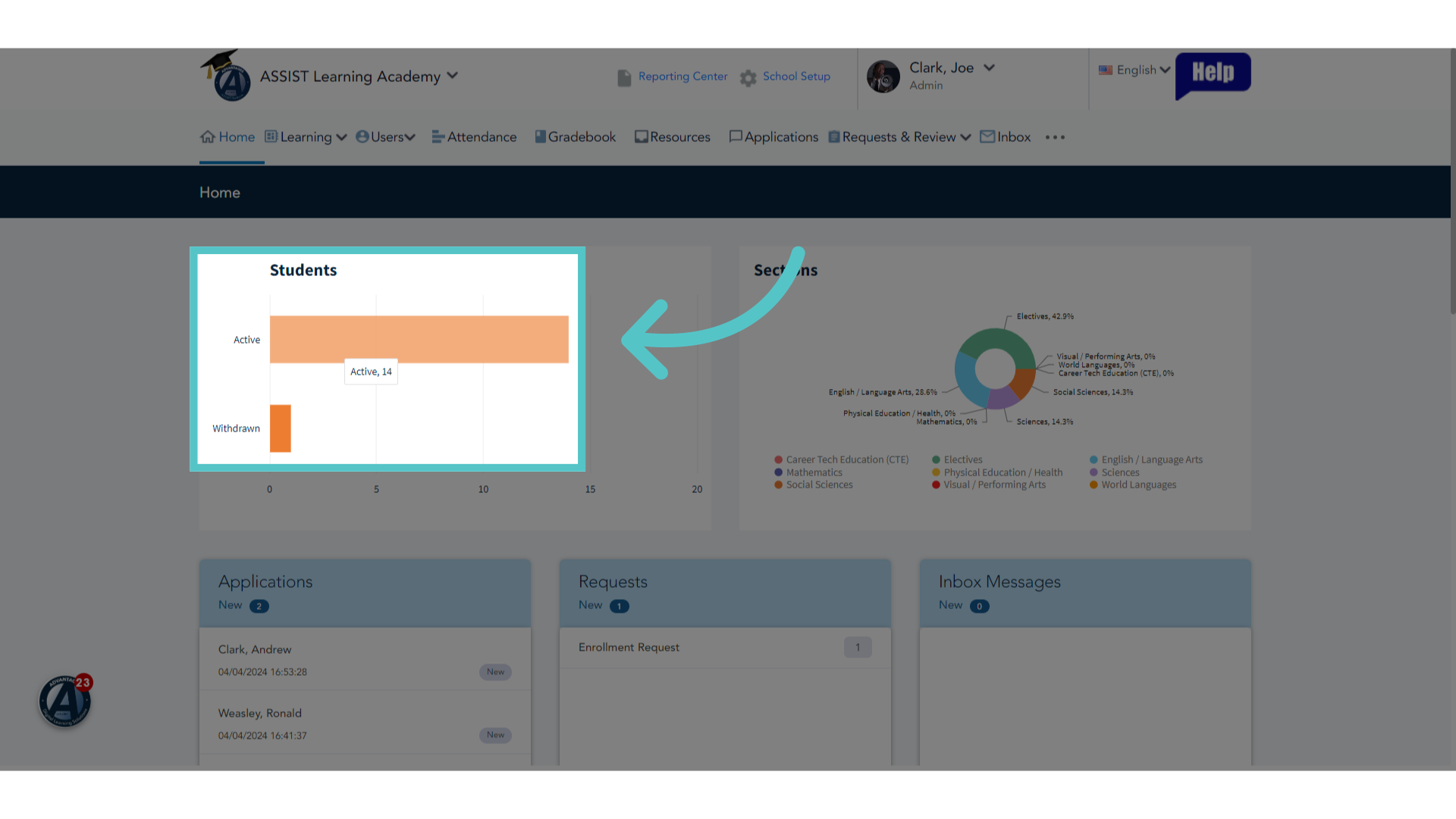
The status change will also show on the "Students Tile" on the ASSIST homepage.
If you have any questions about the information in this tutorial, please click "Contact Support" to submit a help request.
Contact Support