Expand to Full Screen for Best Viewing
This guide will demonstrate how to send ASSIST login credentials to any user on the platform.
Go to portal.adlsassist.com
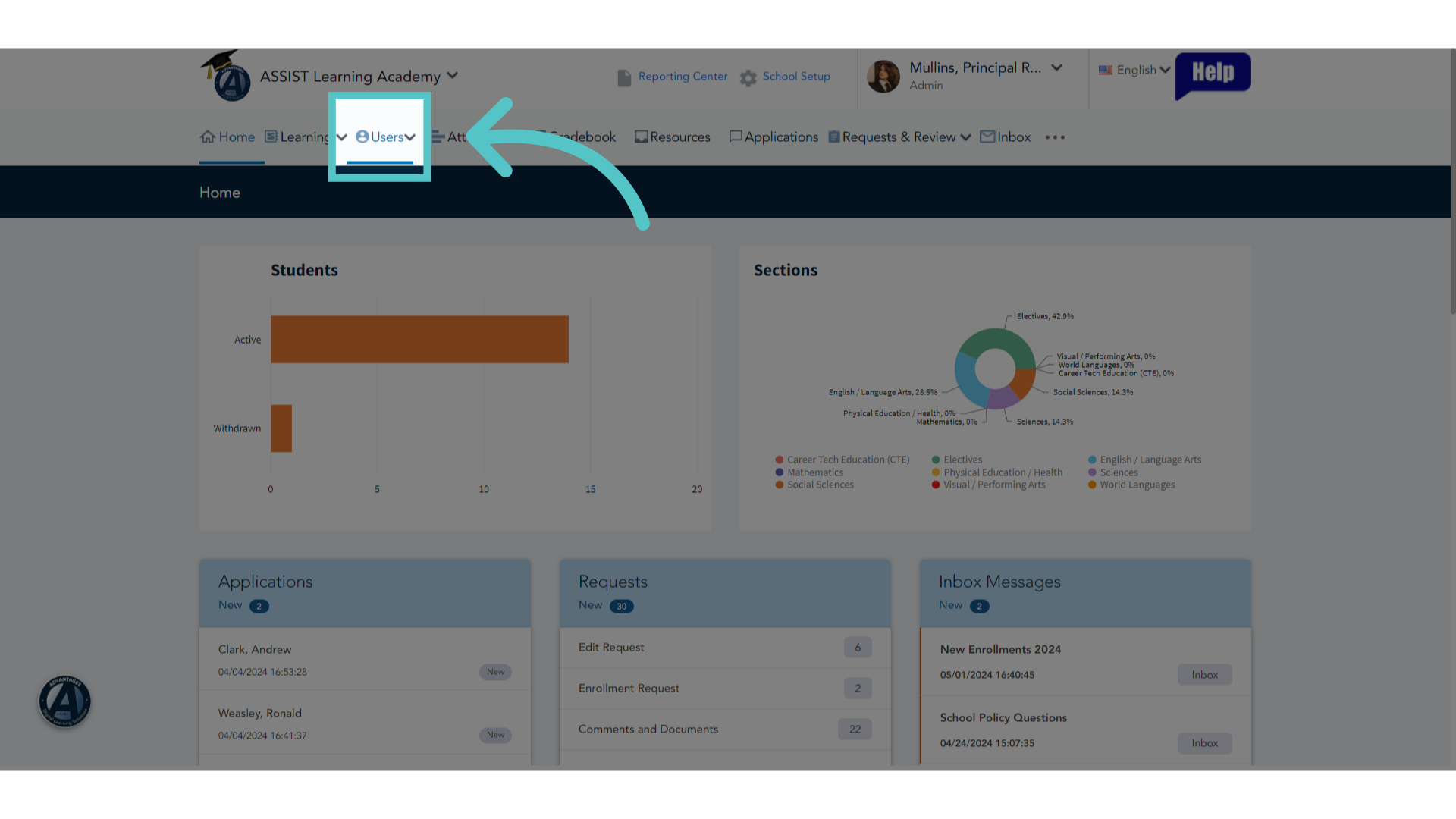
1. Click "Users"
As an administrator, click the "Users" tab.
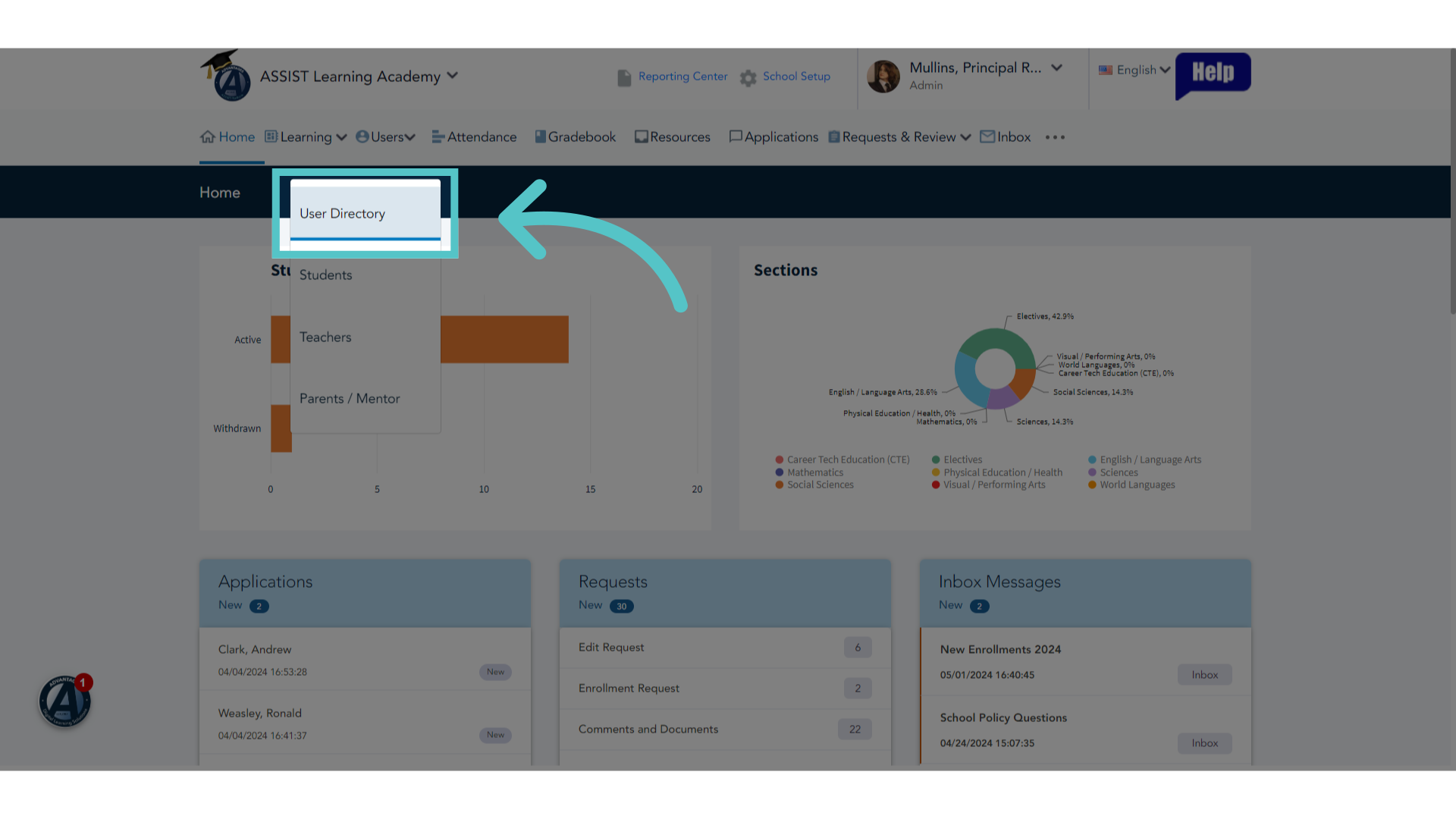
2. Click "User Directory"
Access the User Directory.
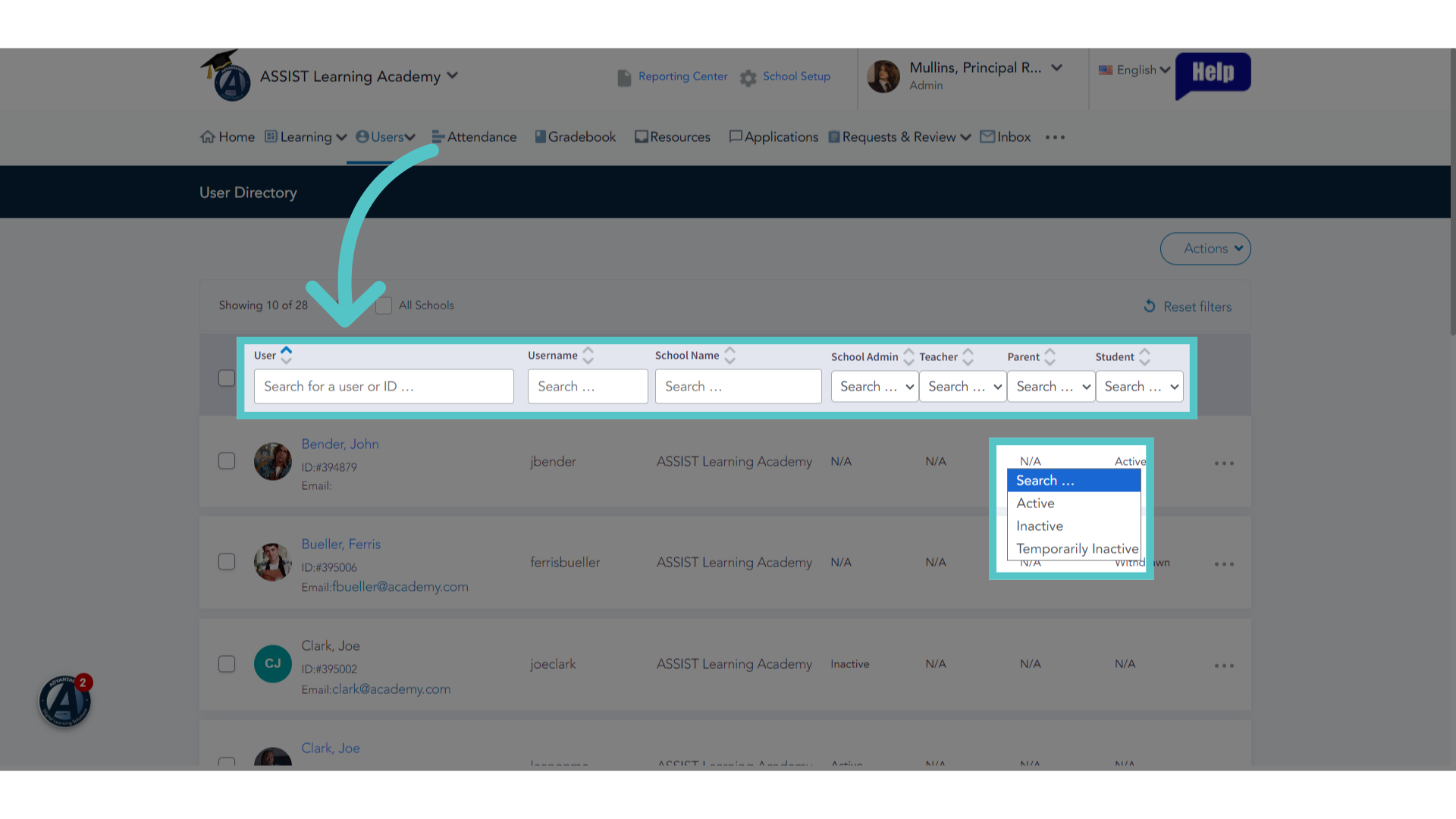
3. Filter for Users
Use the filters to search for the users who need login credentials. You can search for a specific name, or a group of users, such as all active parents.
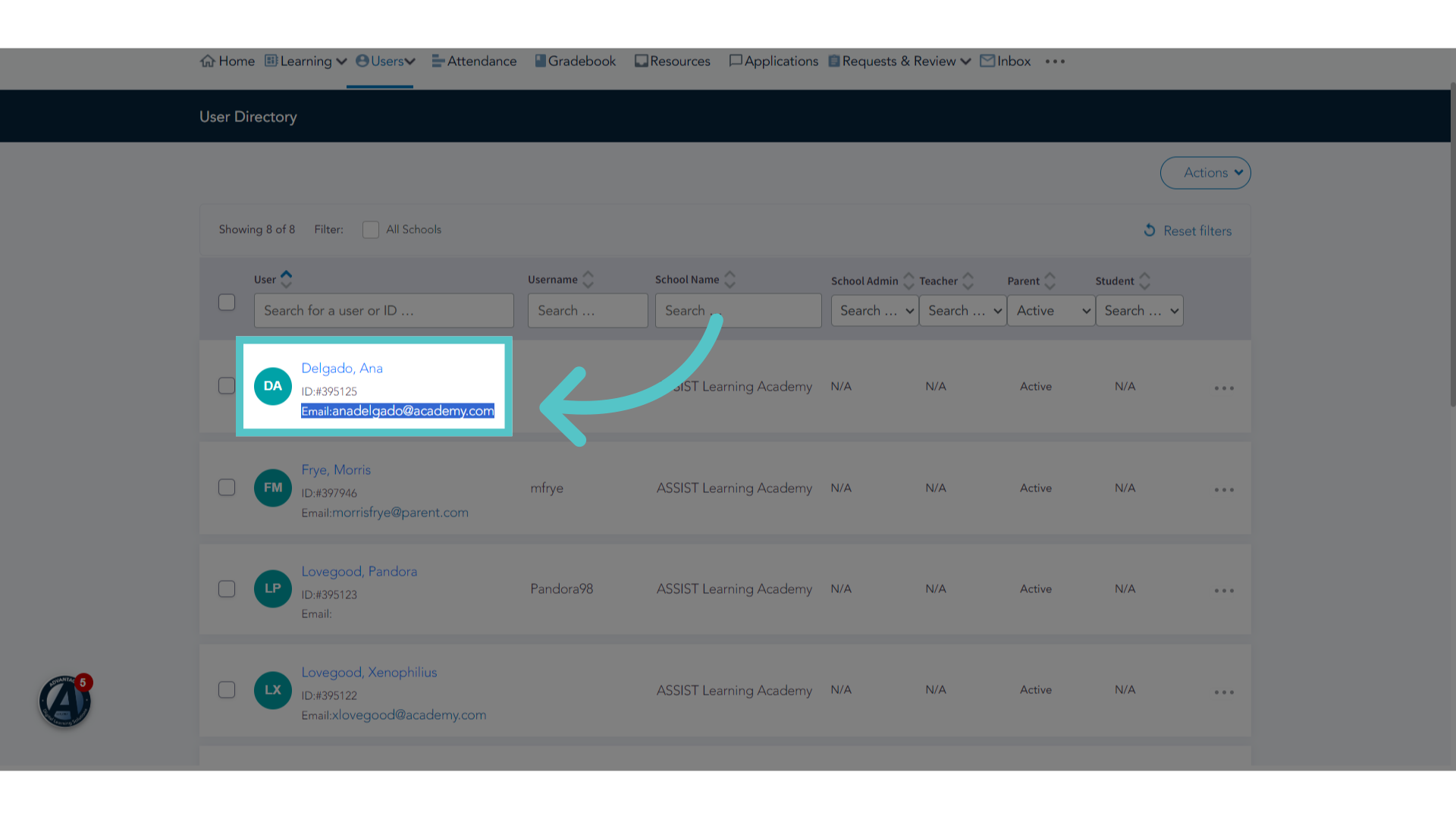
4. Email Address
Users must have an email address recorded in ASSIST to receive their login credentials.
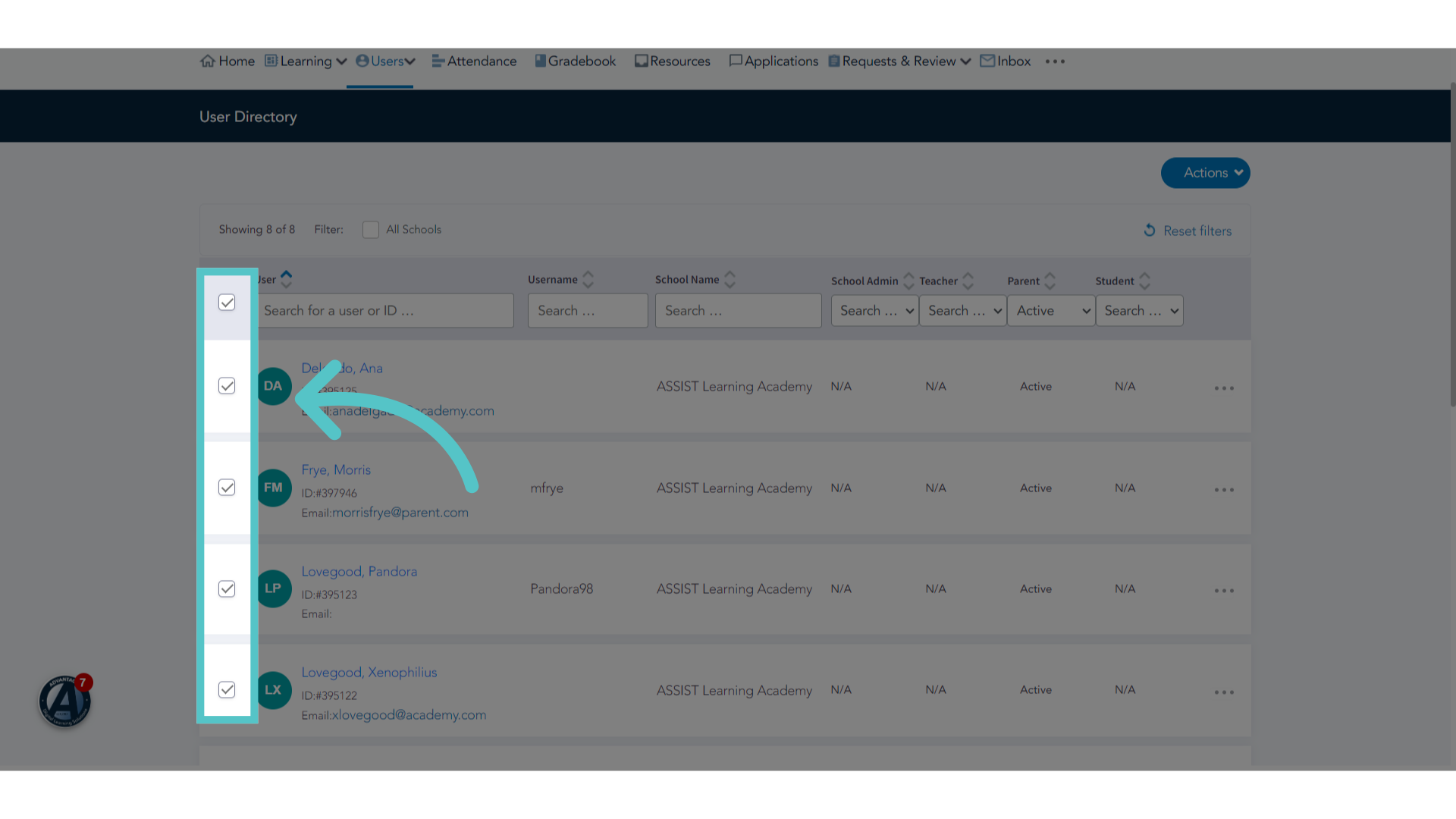
5. Check Users
Check the boxes next to users who will receive login credentials. You can select multiple users one at a time, or all users by checking the top checkbox.
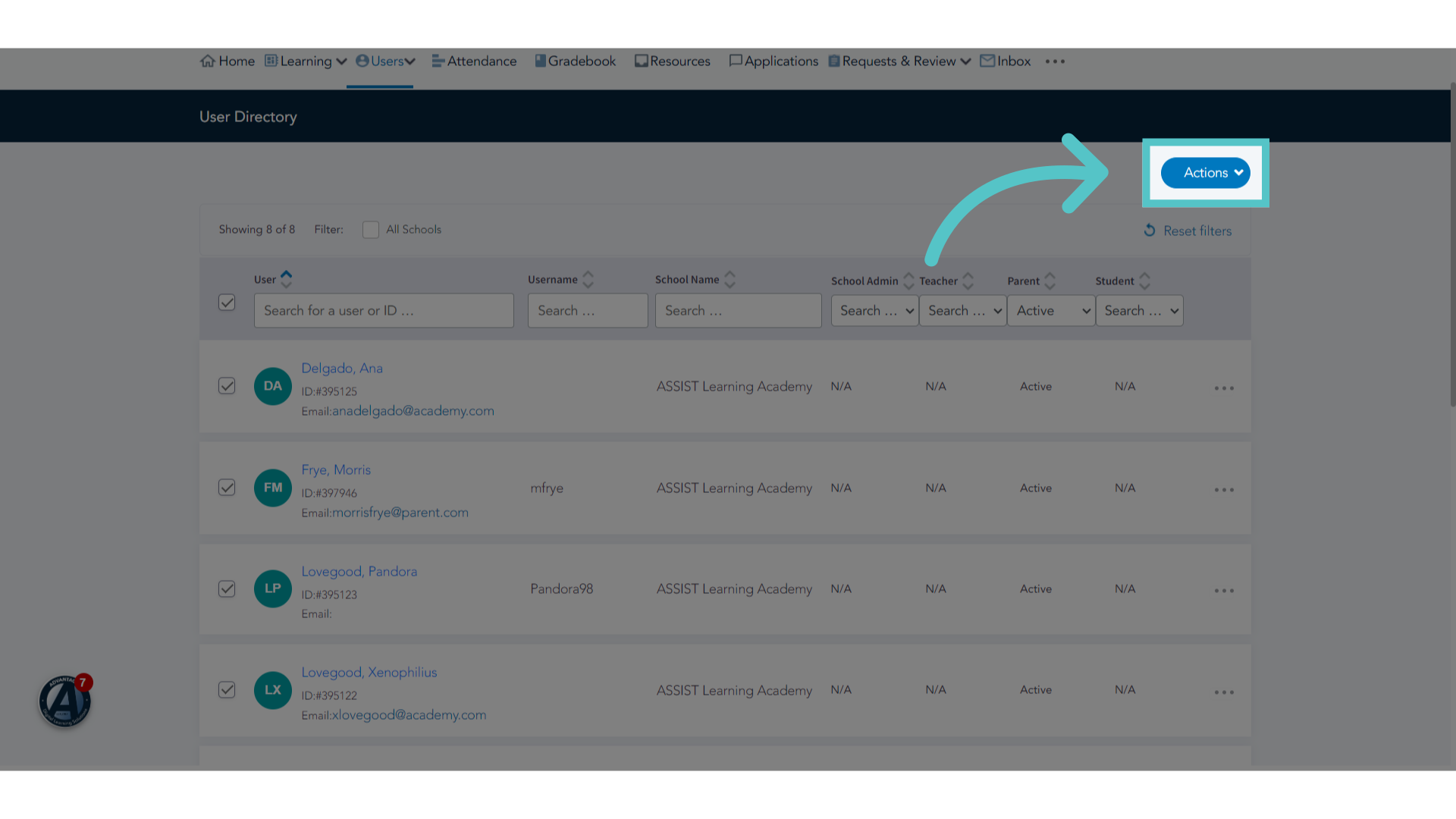
6. Click "Actions"
Access the Actions menu.
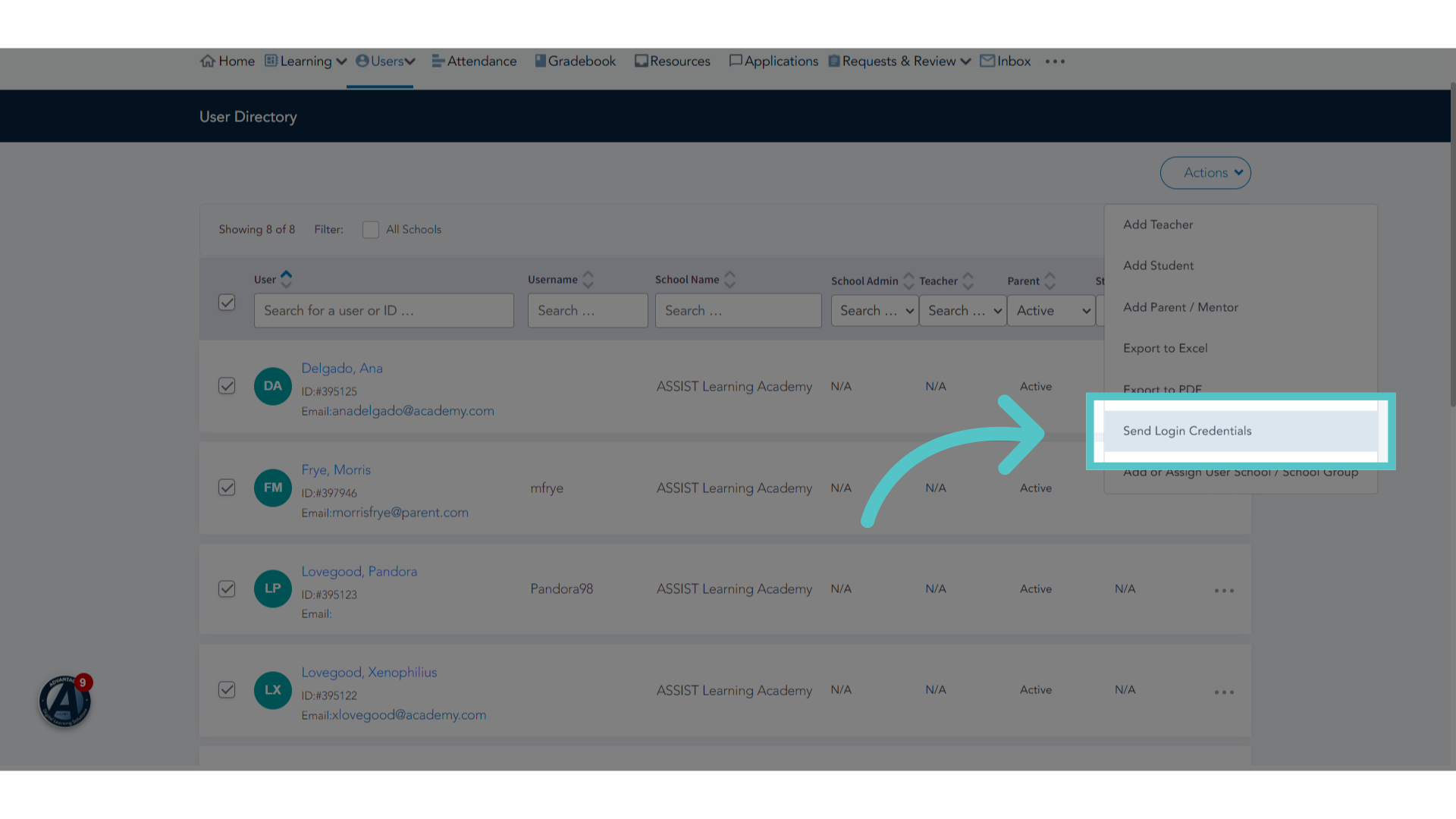
7. Click "Send Login Credentials"
Choose to send login credentials to the users. They will receive the web address for ASSIST, and the username and password to login. This information will be sent to the email address on file, and will appear as an email from "Do Not Reply."
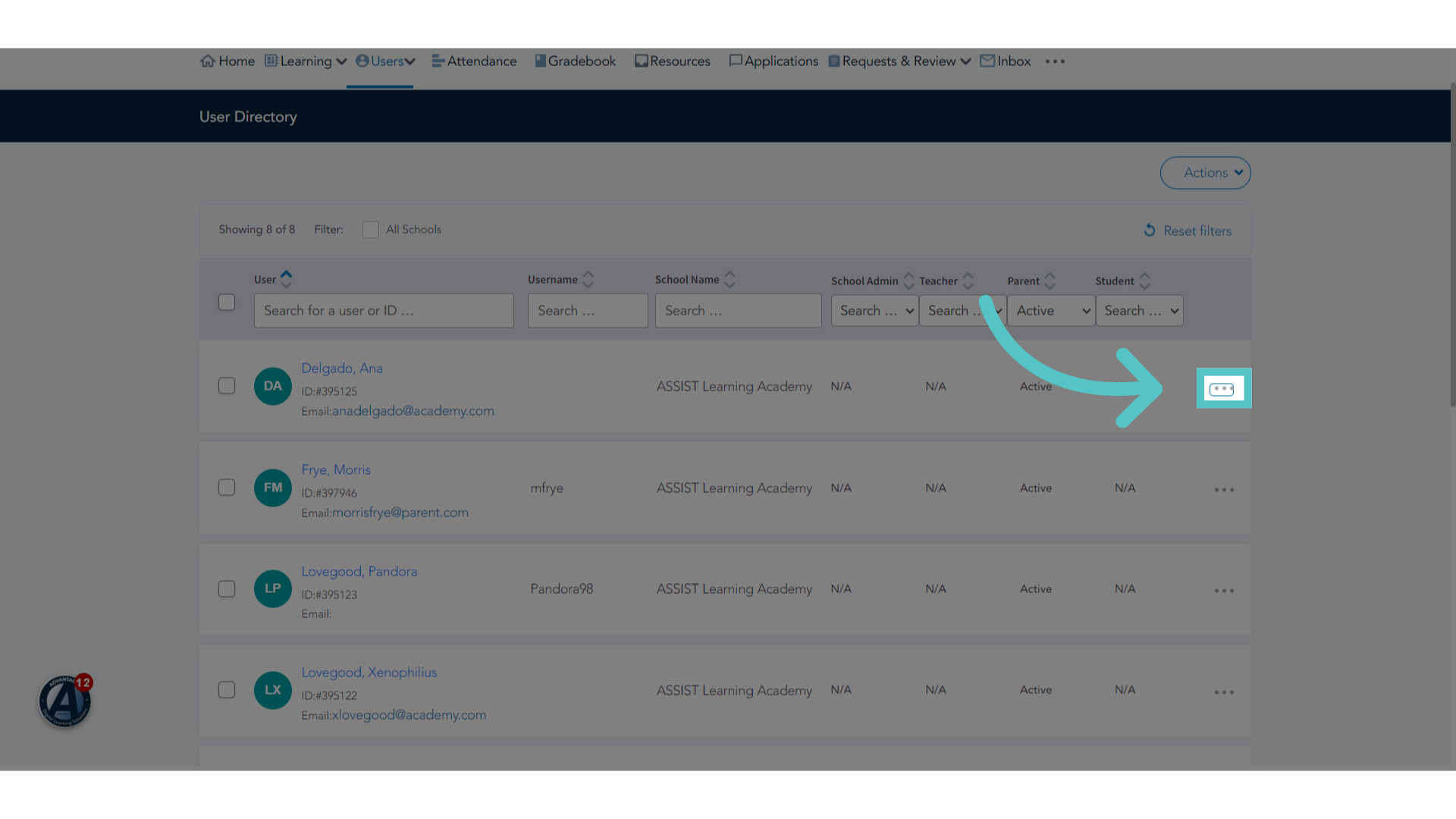
8. Three Dots
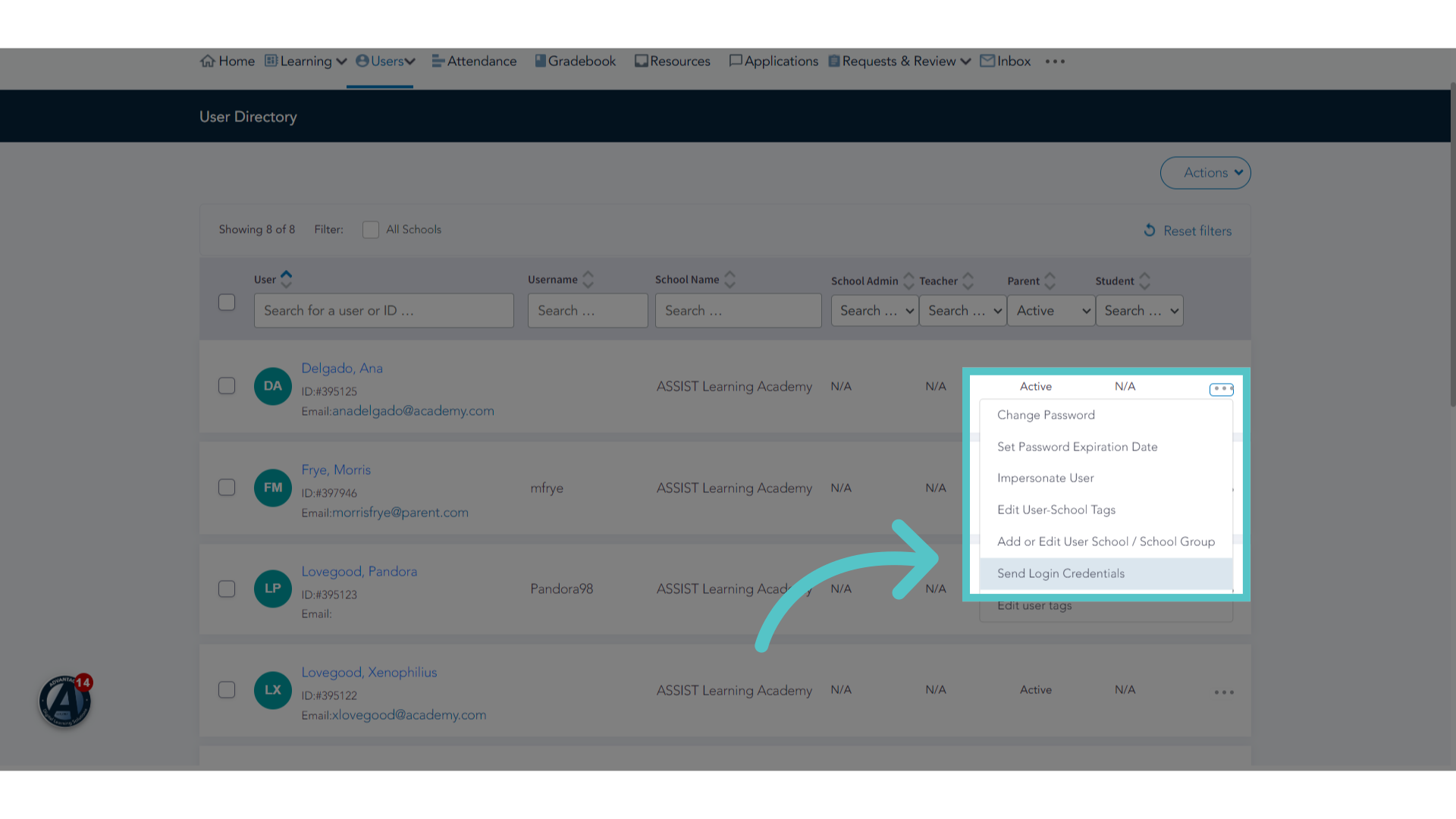
Login credentials can also be sent to users individually by clicking the three dots to the far right of the user's name.
9. Click "Send Login Credentials"
Choose to send login credentials to the user. Please ask users to check their email for a "Do Not Reply" message. This may appear in their Spam folders.
If you have any questions about the information in this tutorial, please click "Contact Support" to submit a help request.
Contact Support