Expand to Full Screen for Best Viewing
This tutorial guides you through managing requests in ASSIST.
Go to portal.adlsassist.com
1. Administrator Role
Log into ASSIST as an Administrator. Only administrators can manage requests.
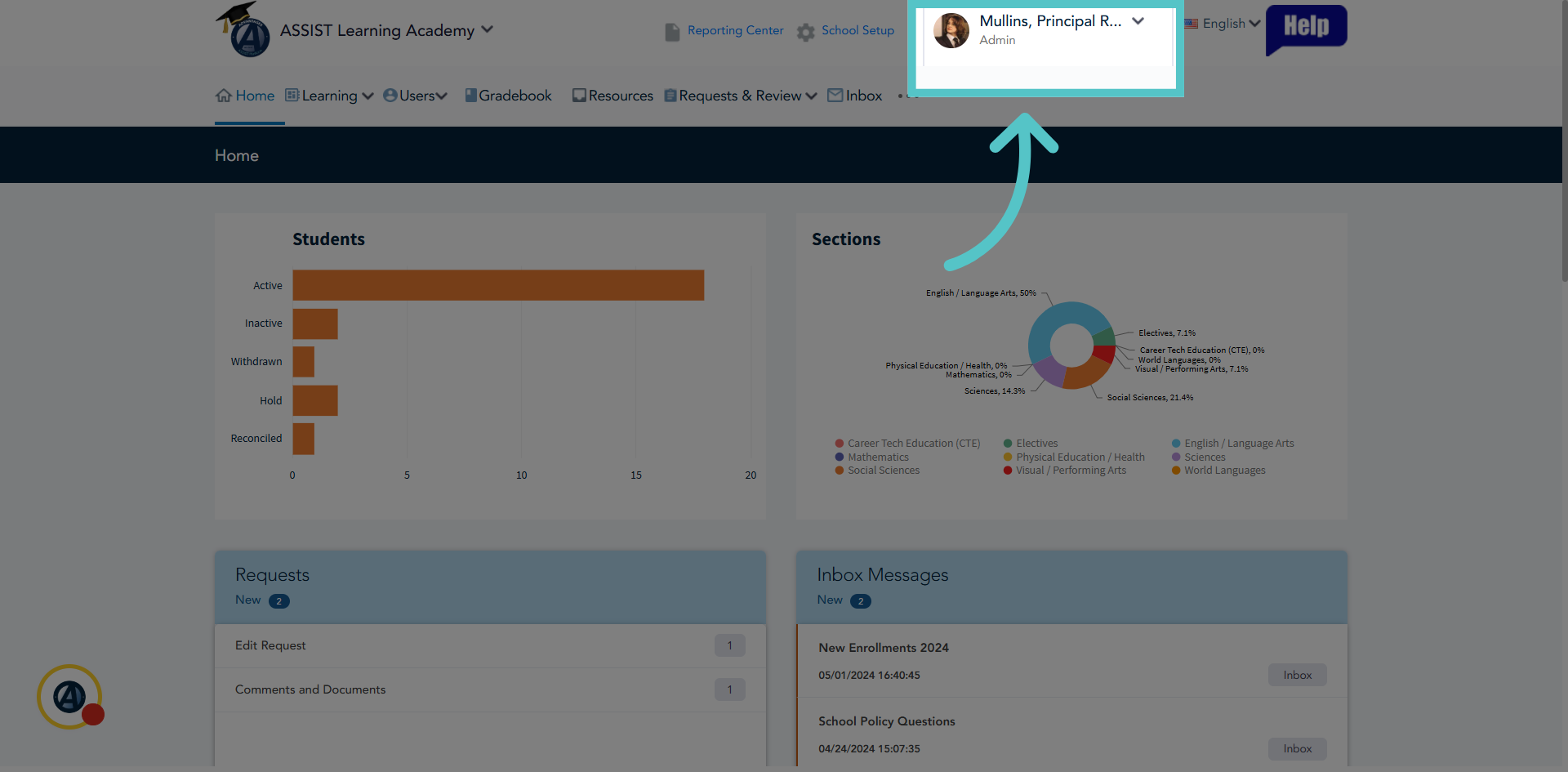
2. Requests Tile
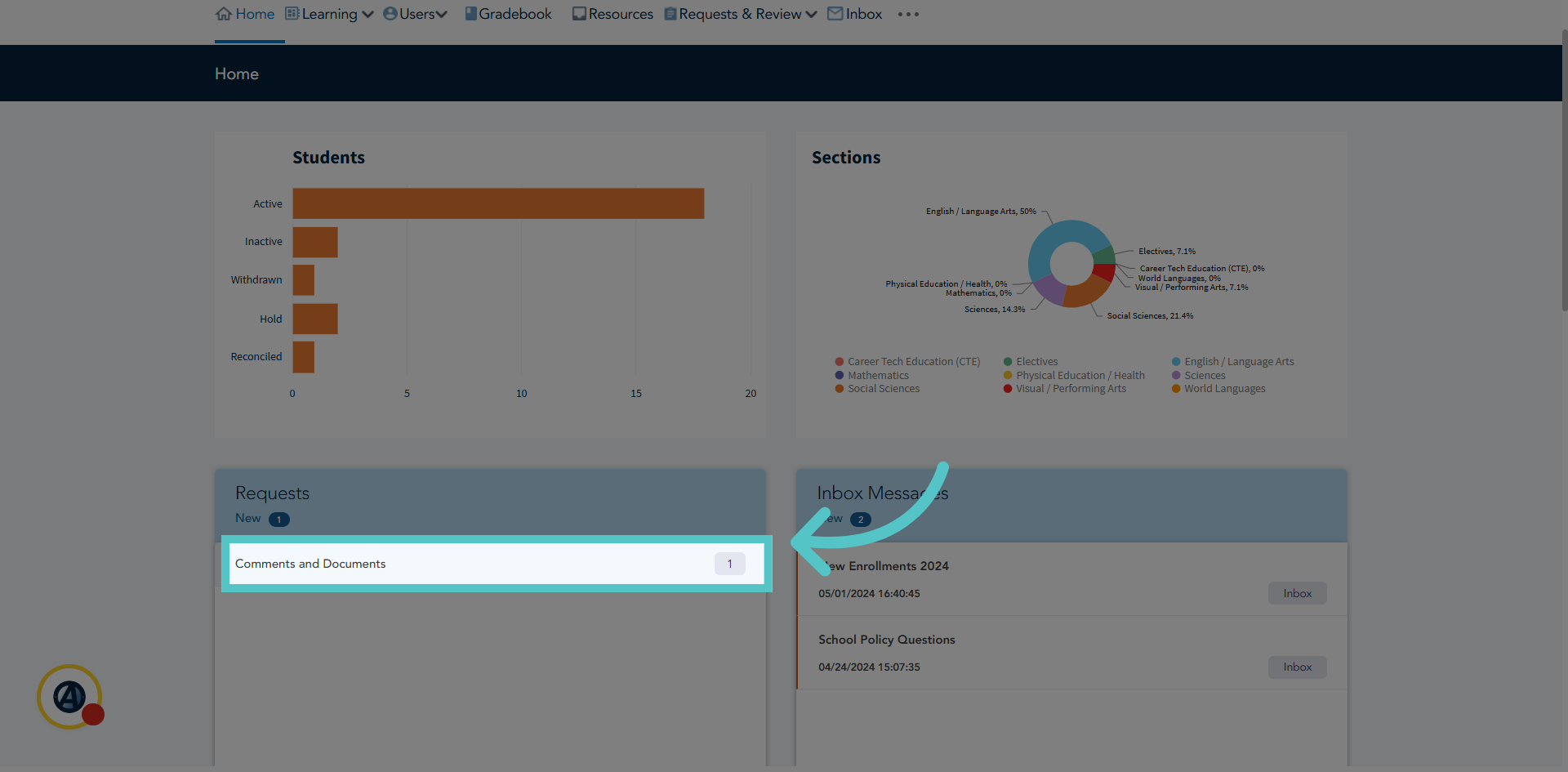
Requests made on the ASSIST platform will show in the Requests Tile on the Homepage. A number notification will indicate new requests.
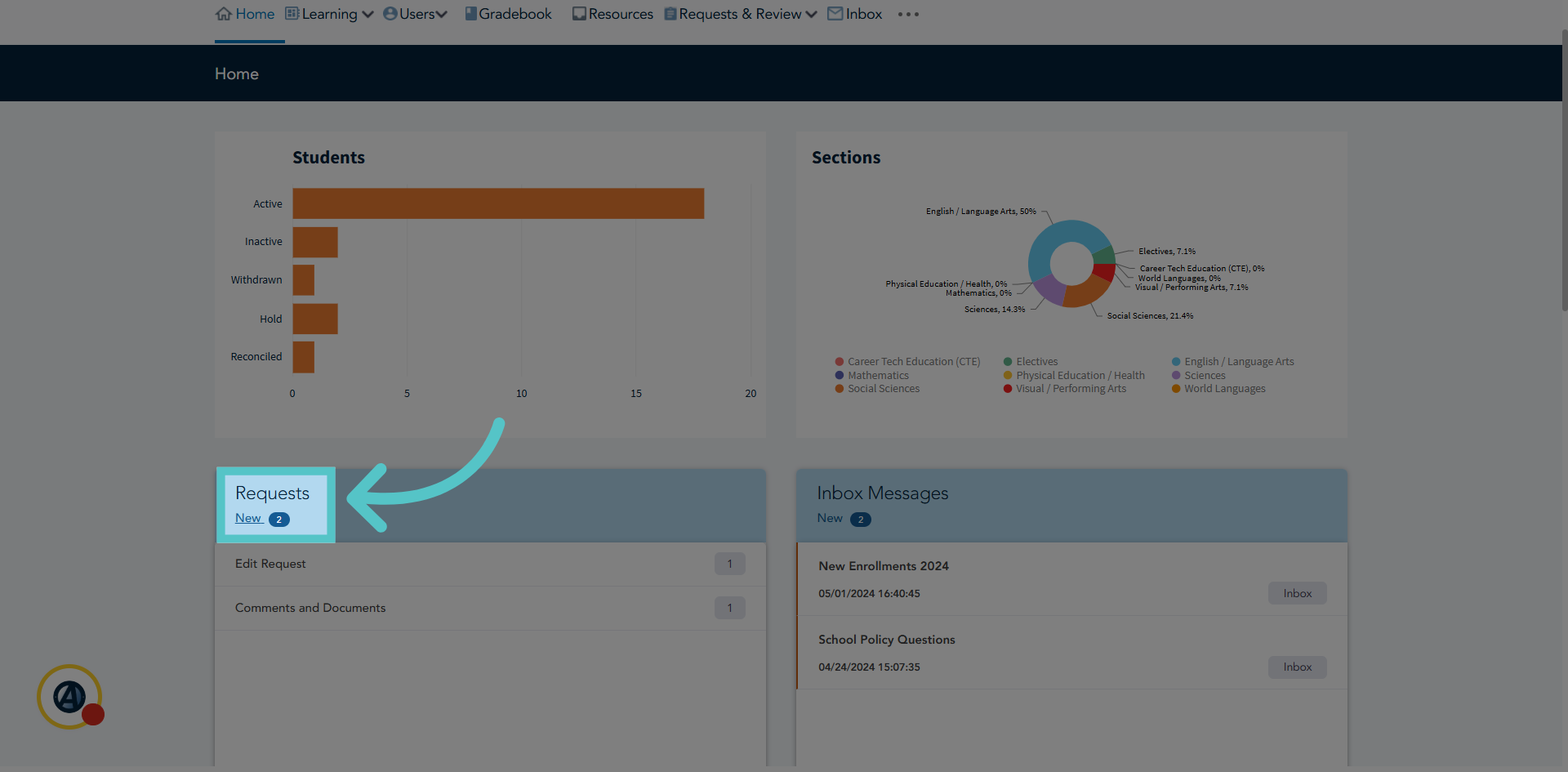
3. Select Type of Request
Click on the type of request to manage. Here there is one edit request. Click 'Edit Request' to view.
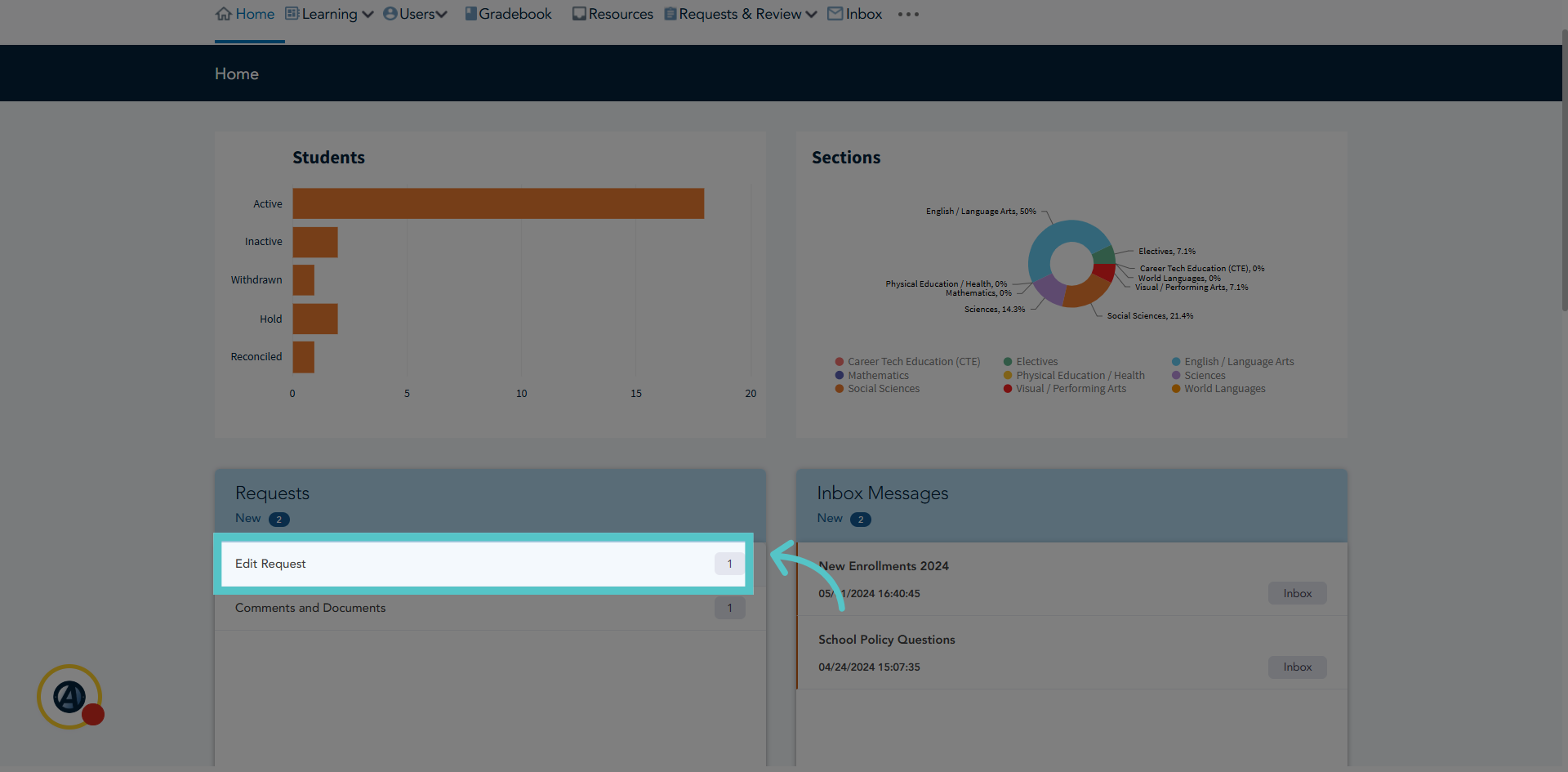
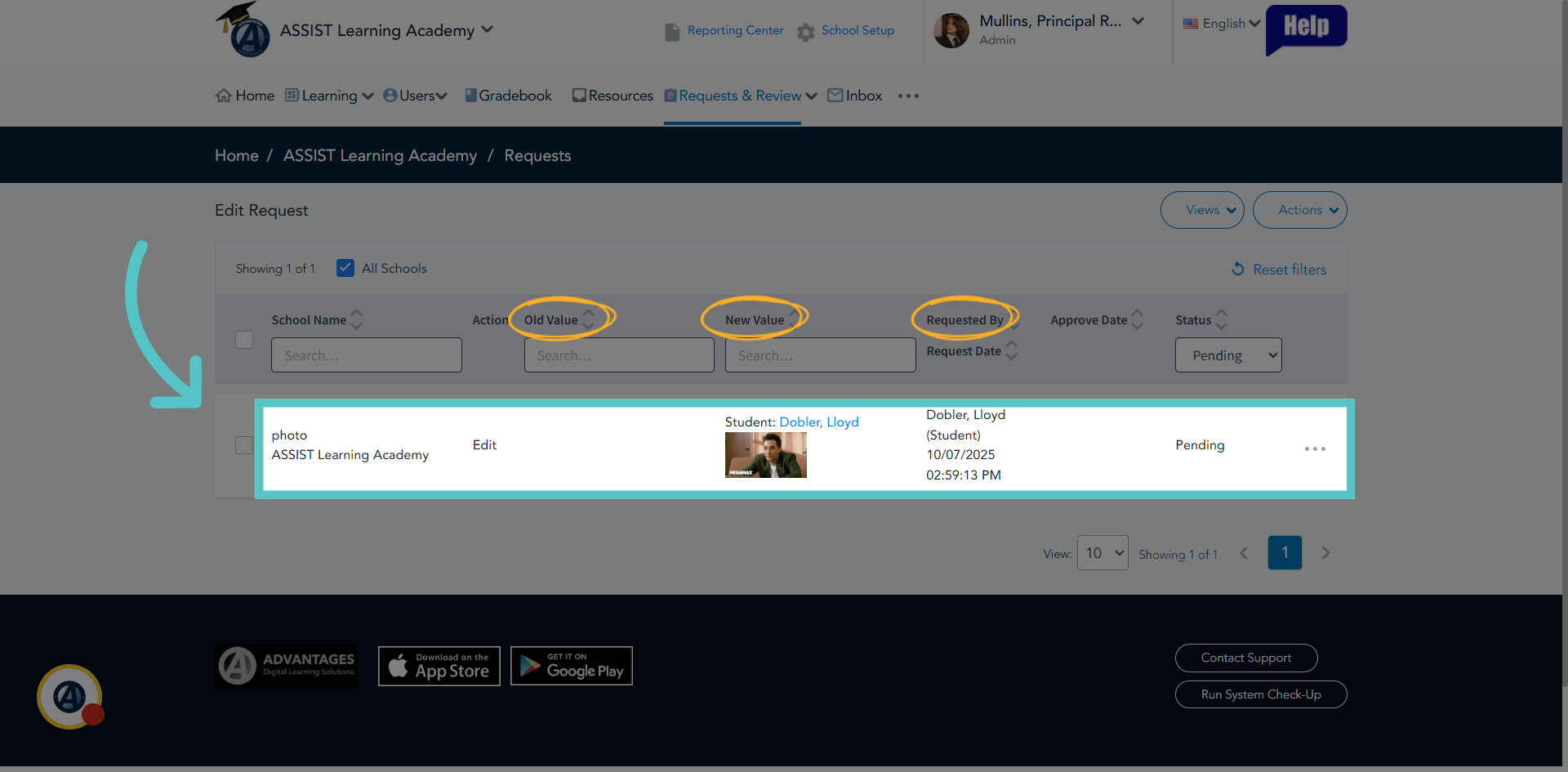
4. View Details
Edit requests are submitted by students who want to change profile information, often it is their picture. Review the old value to see what is currently showing in ASSIST, and then review the new value to see the change the student wants.
5. Three Dots
Click the three dots to the far right of the request to open a menu of options.
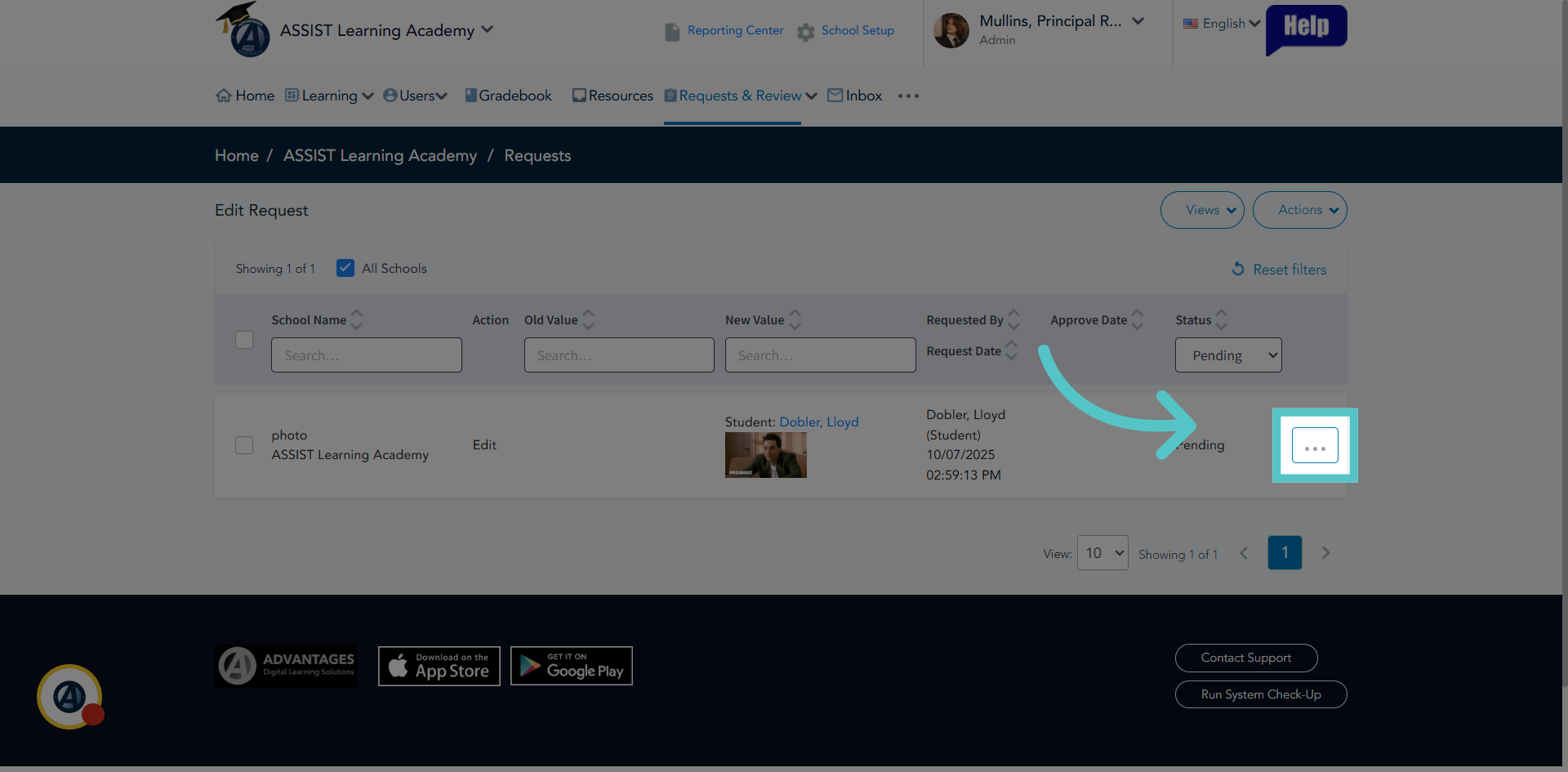
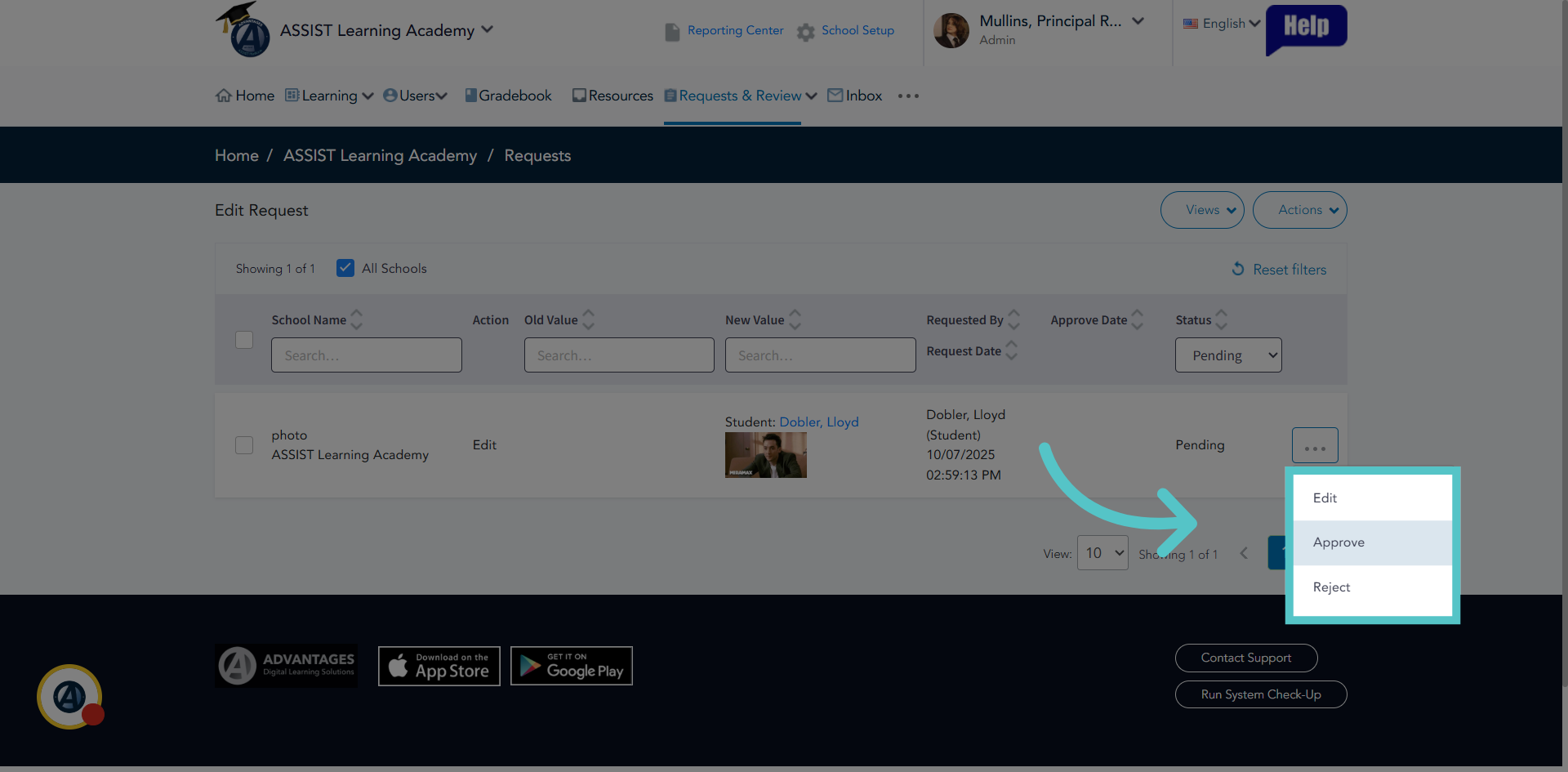
6. Manage Request
Manage the request by choosing to approve it and let it show on the platform, or reject it. Admin can also edit the request before approving it if needed.
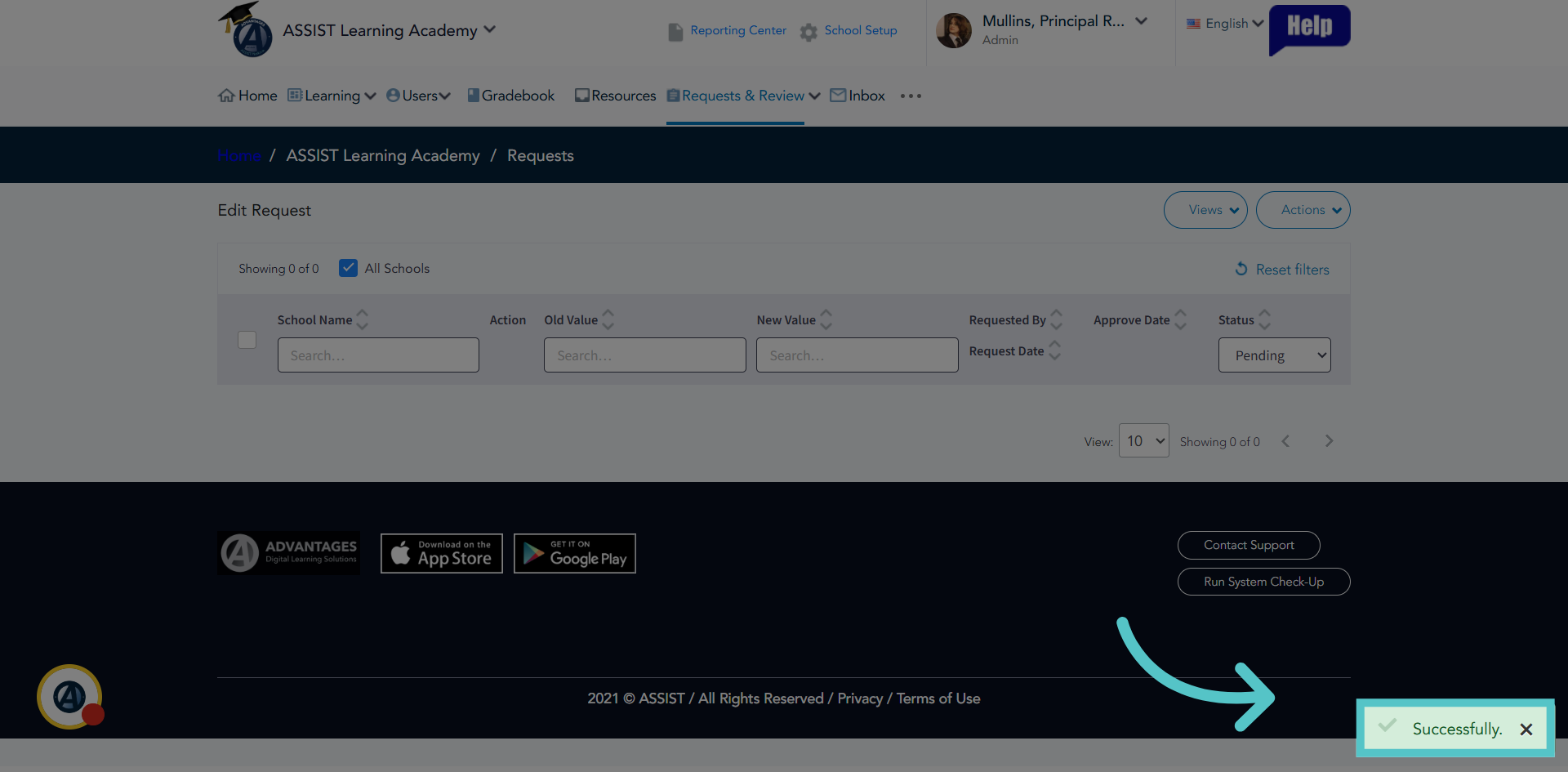
7. Successful
ASSIST will indicate when the request has been managed. It will disappear from the list.
8. Click Comments and Documents
Some Administrators also manage Comments and Documents requests. These are notes that teachers add to student files in ASSIST. There is one new Comment and Document request here. Click to view.
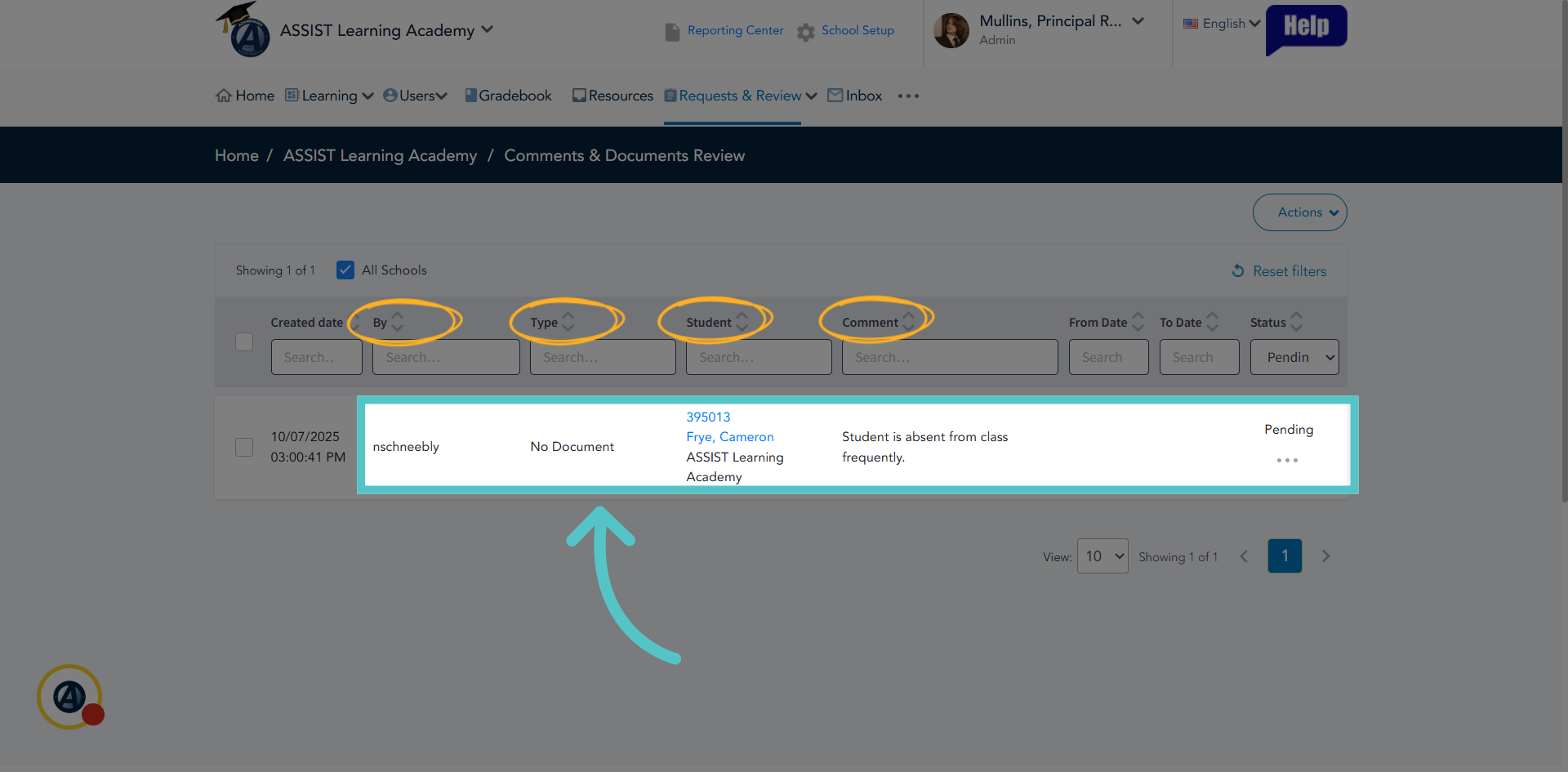
9. View Details
Each line will show the username of the teacher making the request, the student file it is being added to, and what the comment or document is.
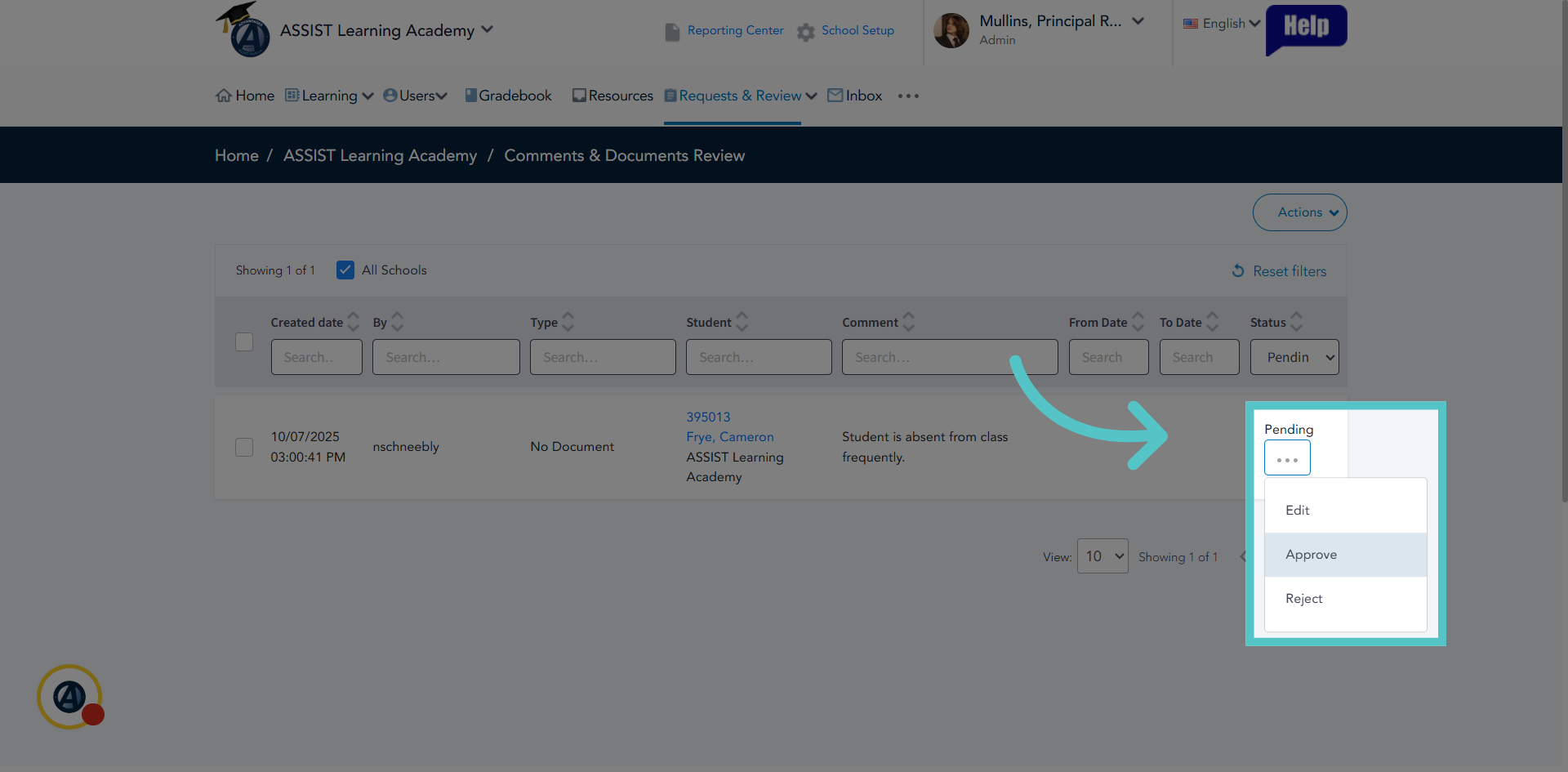
10. Manage Request
Manage the request the same way as the edit request. Click the three dots and choose to approve or reject the comment. Admin can also edit the comment before approving it.
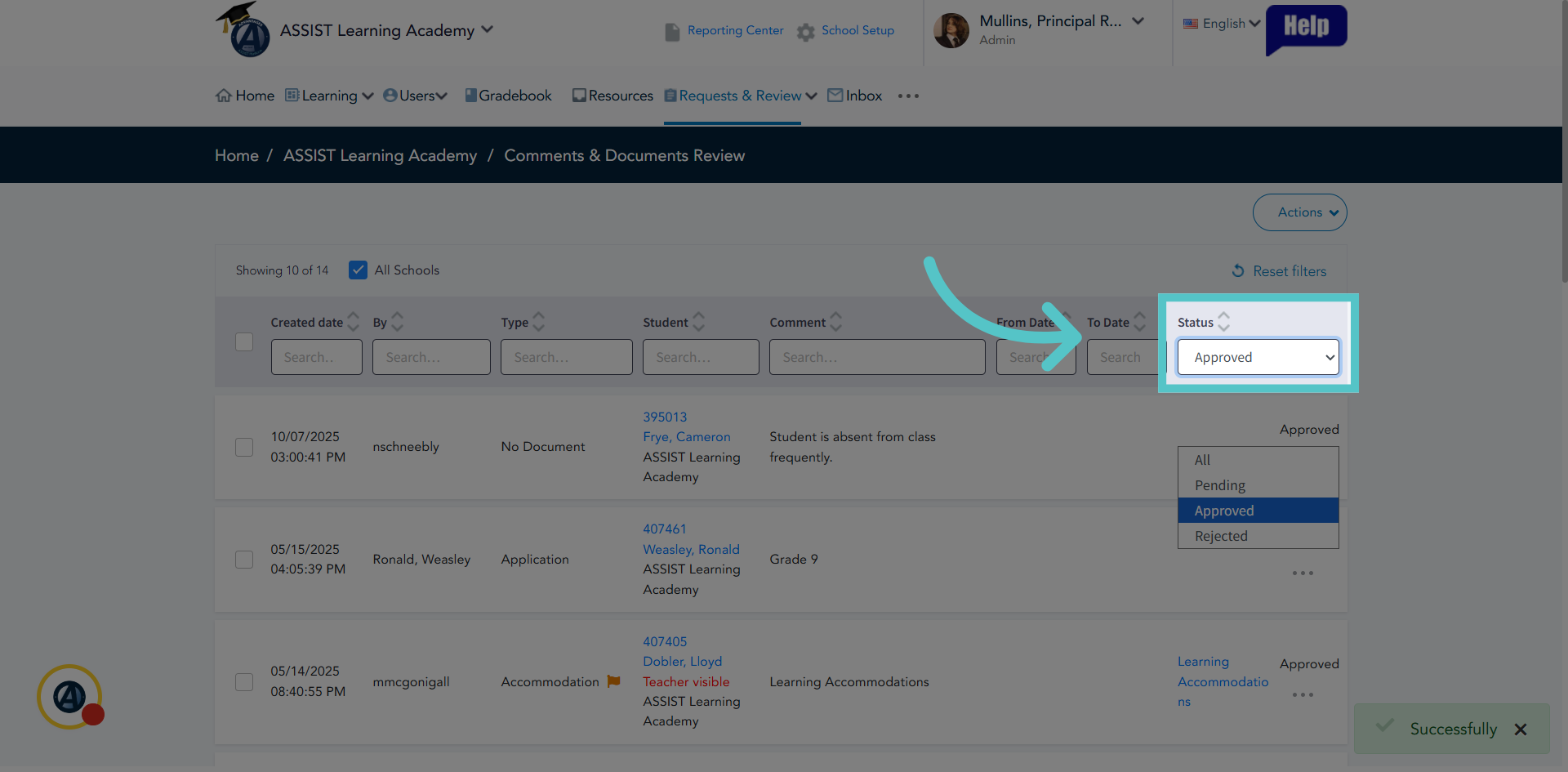
11. Apply Status Filter
Admin can search for requests of a certain status. For example, all comments and documents that have been approved are listed.
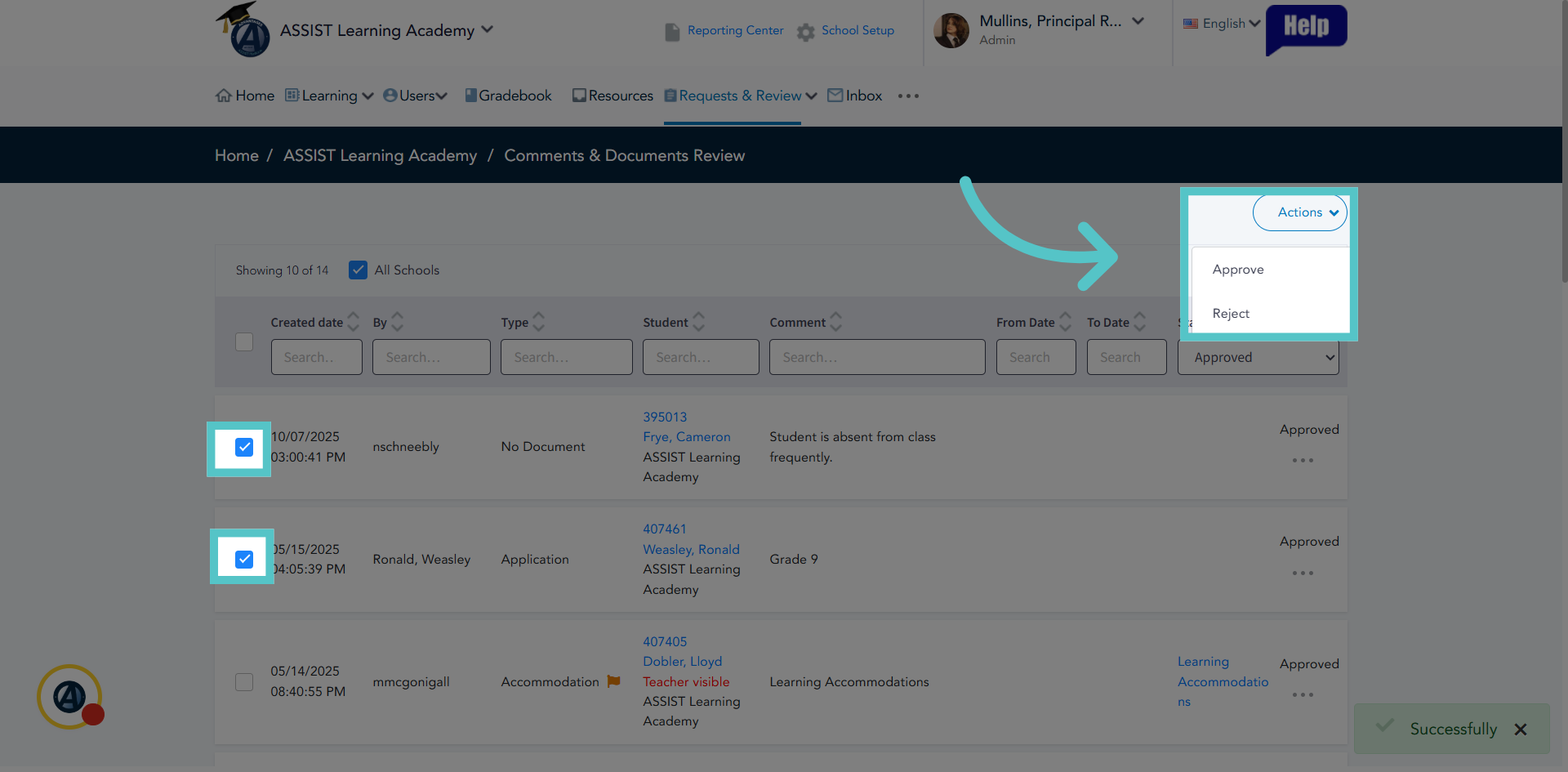
12. Manage in Bulk
Several requests can be managed at once by checking the boxes in the request lines and then using the Actions menu to approve or reject all.
If you have any questions about the information in this tutorial, please contact your dedicated school success manager for additional support.