Expand to Full Screen for Best Viewing
This guide will demonstrate the process to change student status in ASSIST.
Go to portal.adlsassist.com
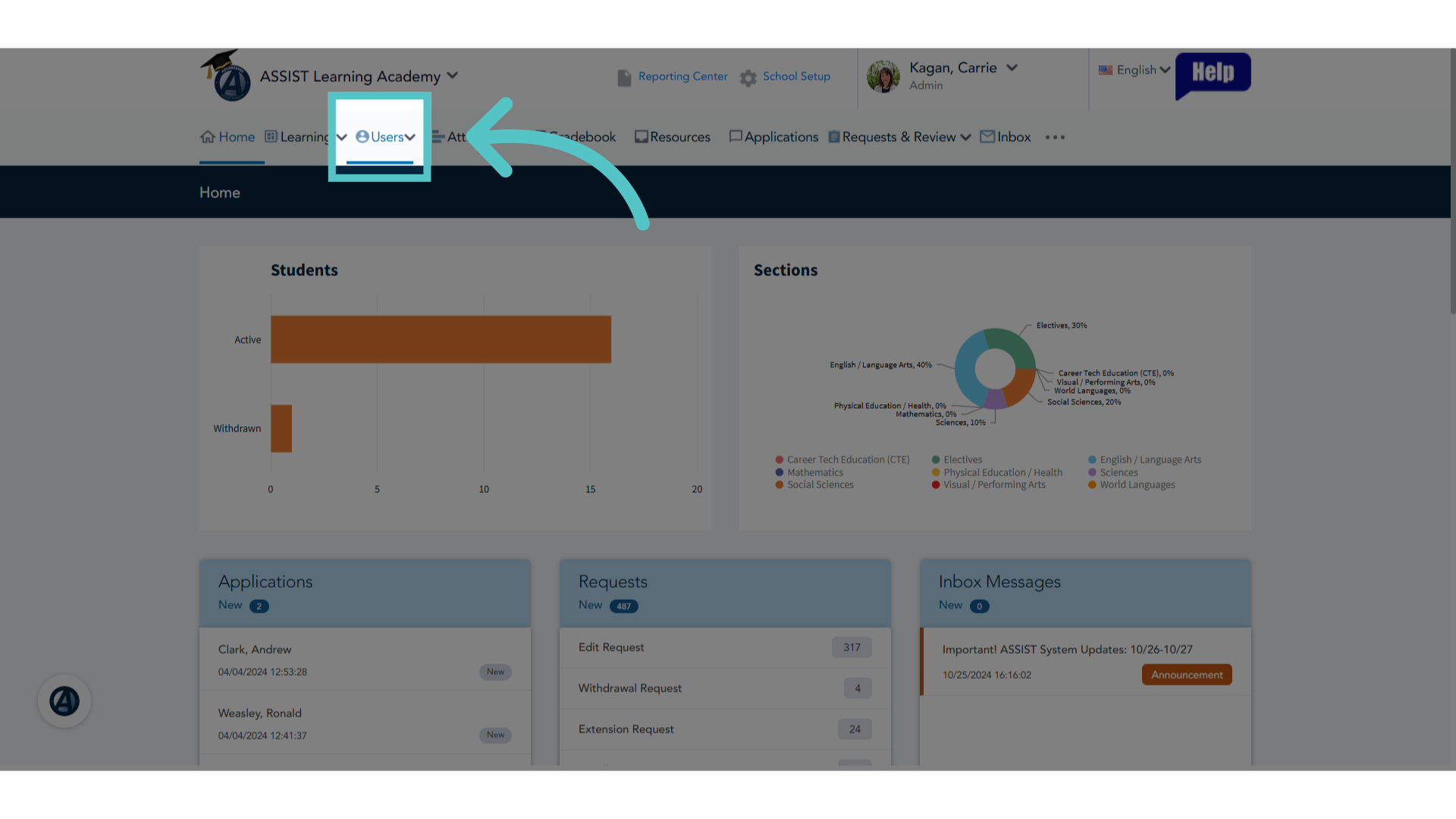
1. Click "Users"
As an Administrator, click the Users Tab.
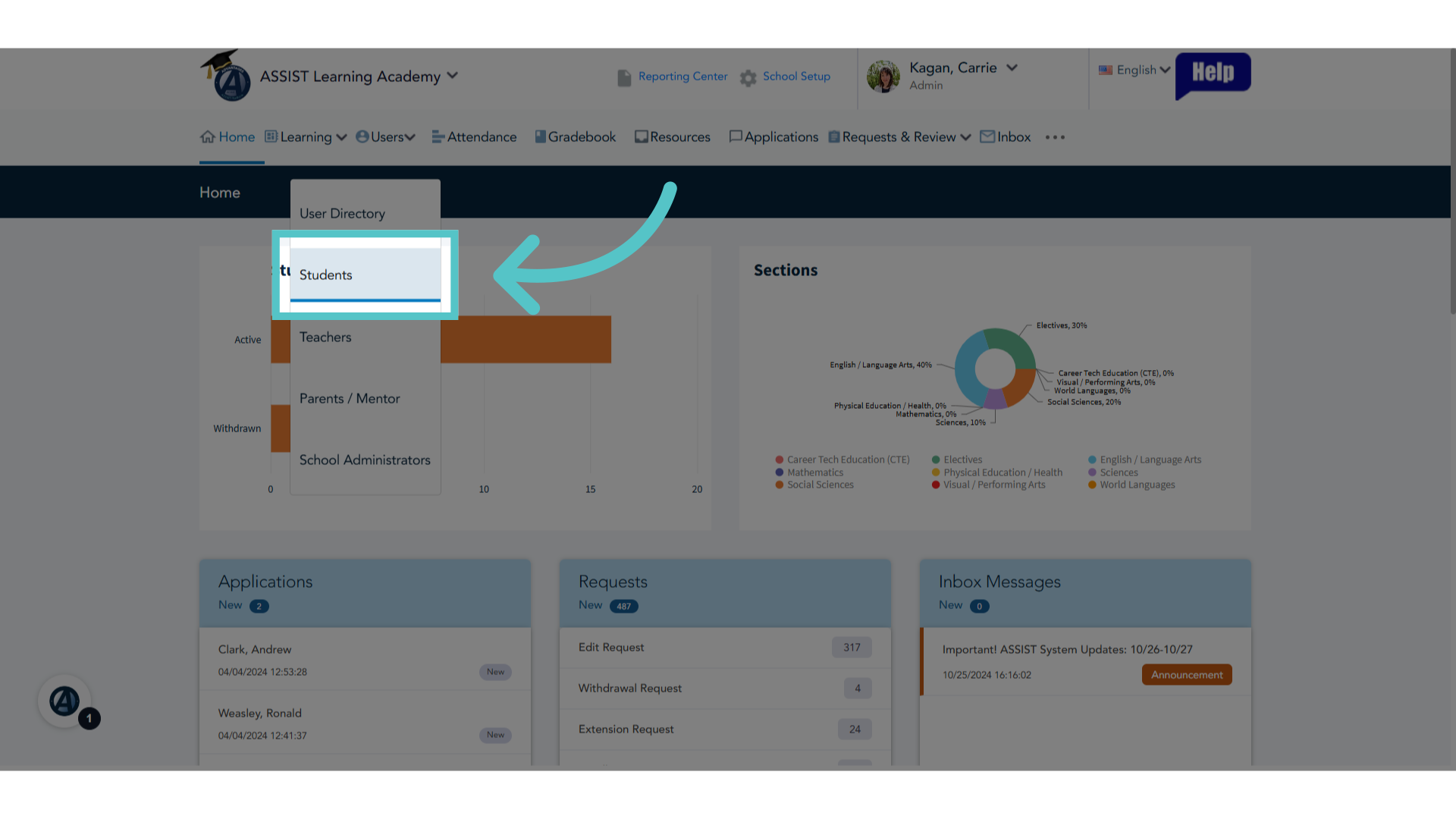
2. Click "Students"
Select "Students."
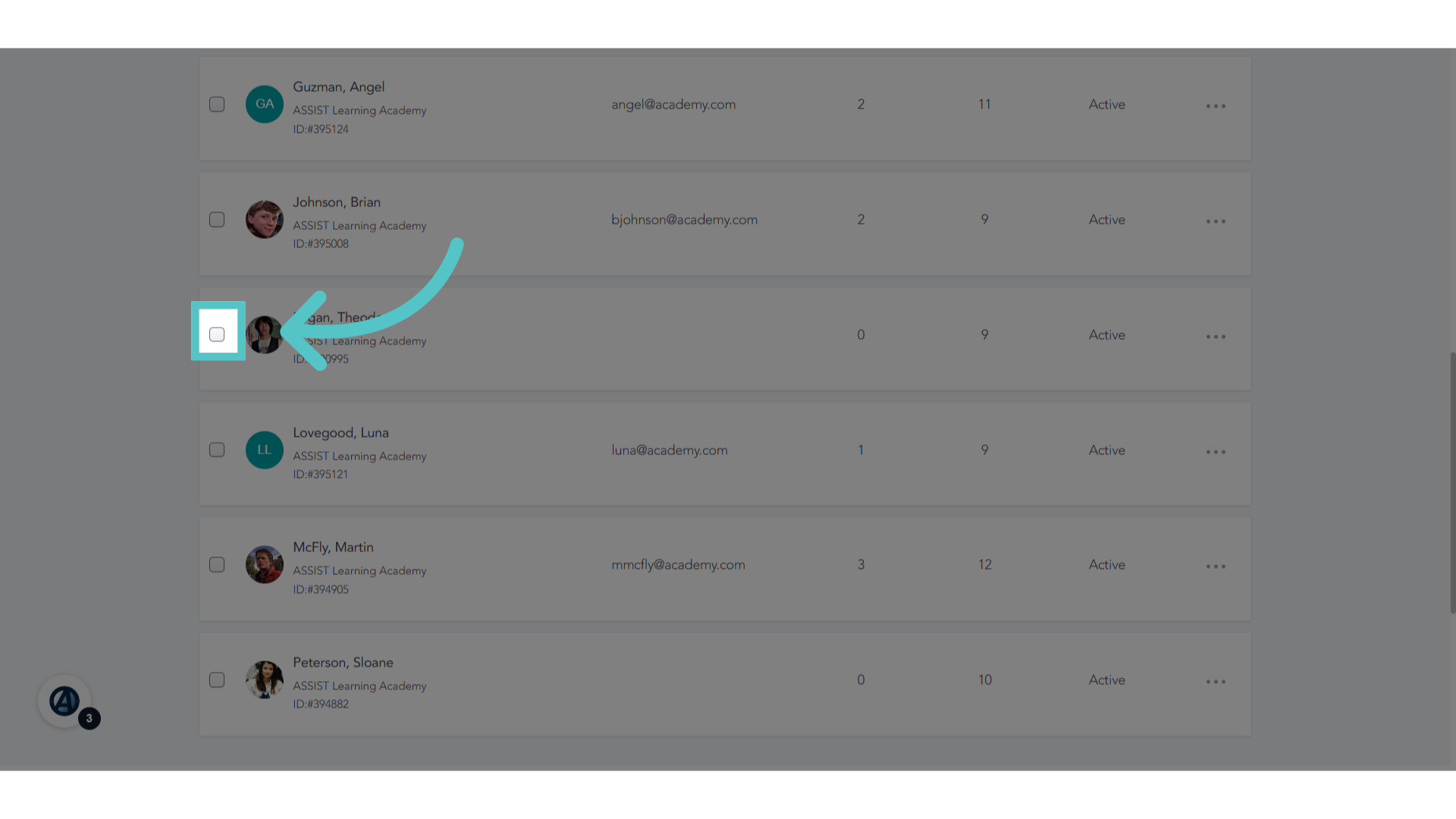
3. Checkbox
Check the box next to students whose status will be changed.
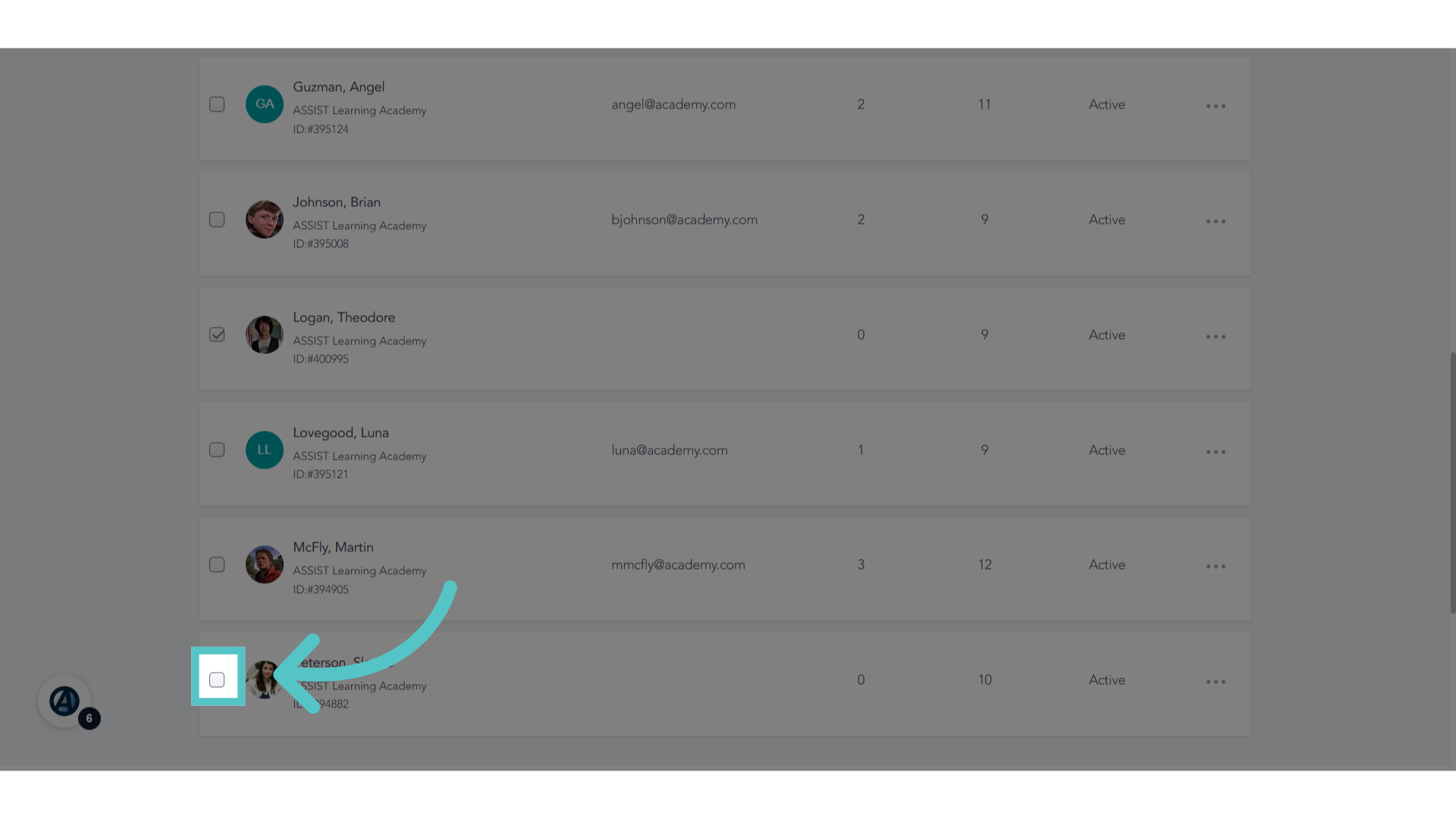
4. More than one
Select one student, or multiple students for a status change.
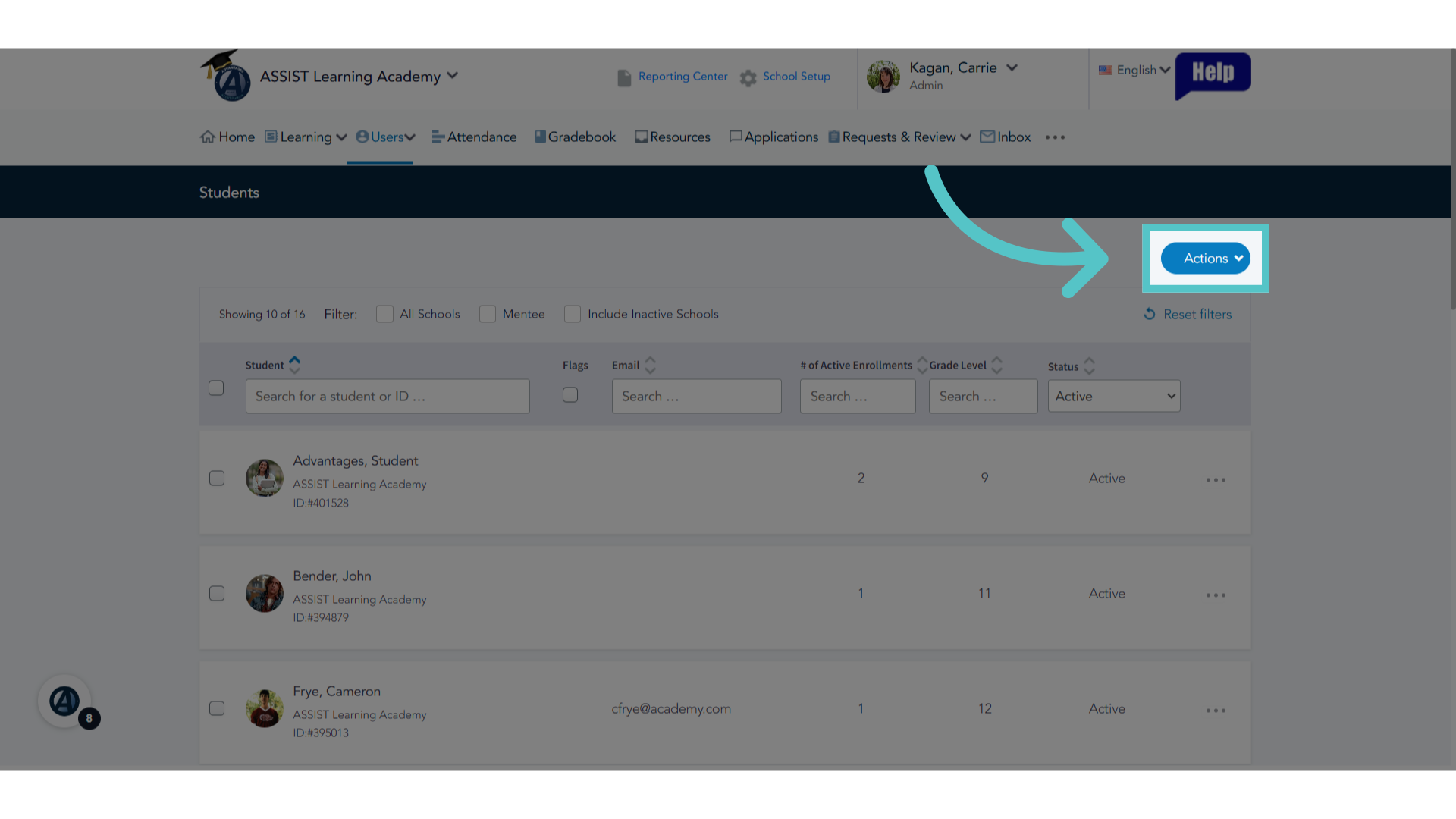
5. Click "Actions"
Click the"Actions" button.
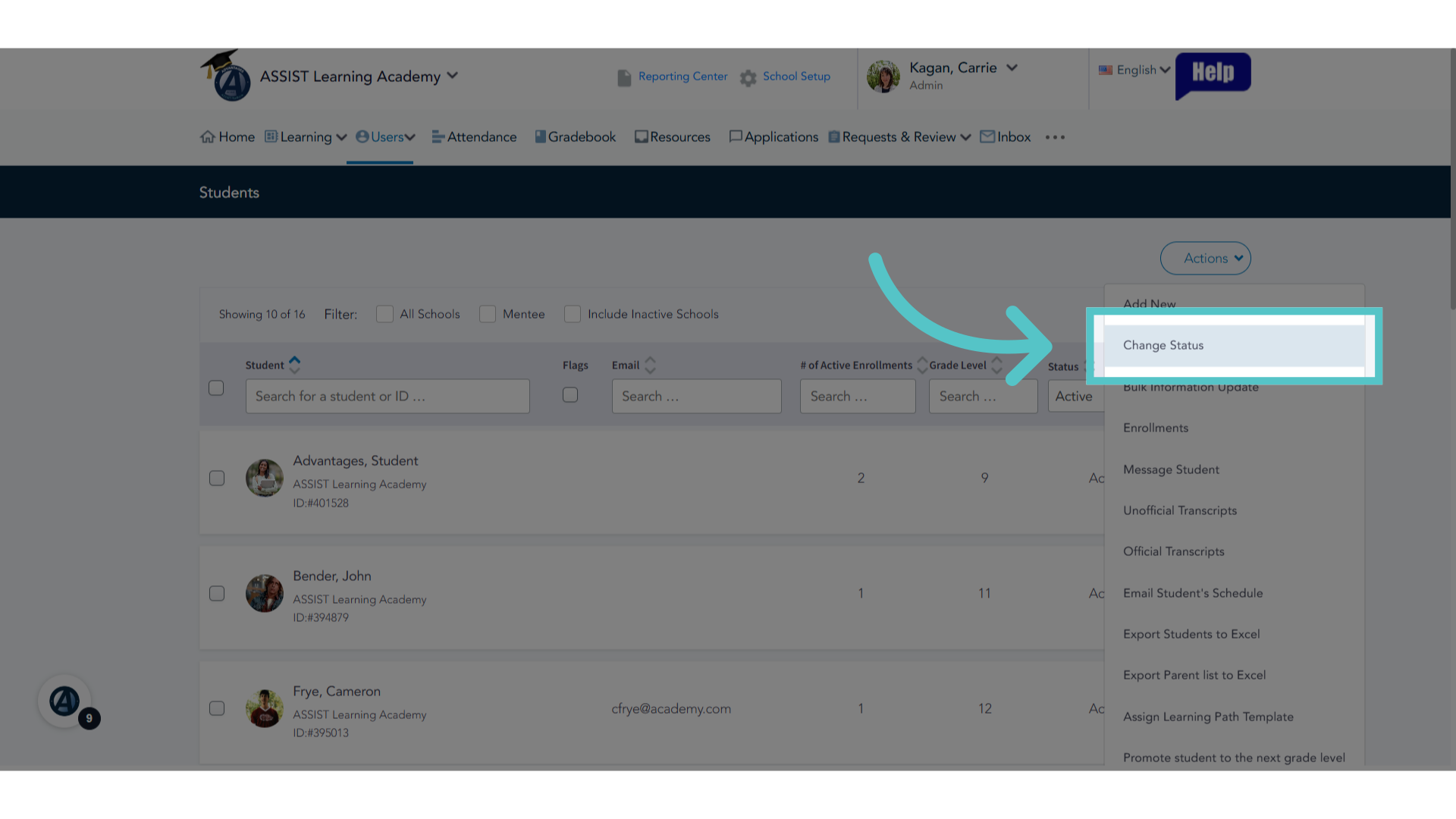
6. Click "Change Status"
Select "Change Status" from the dropdown menu.
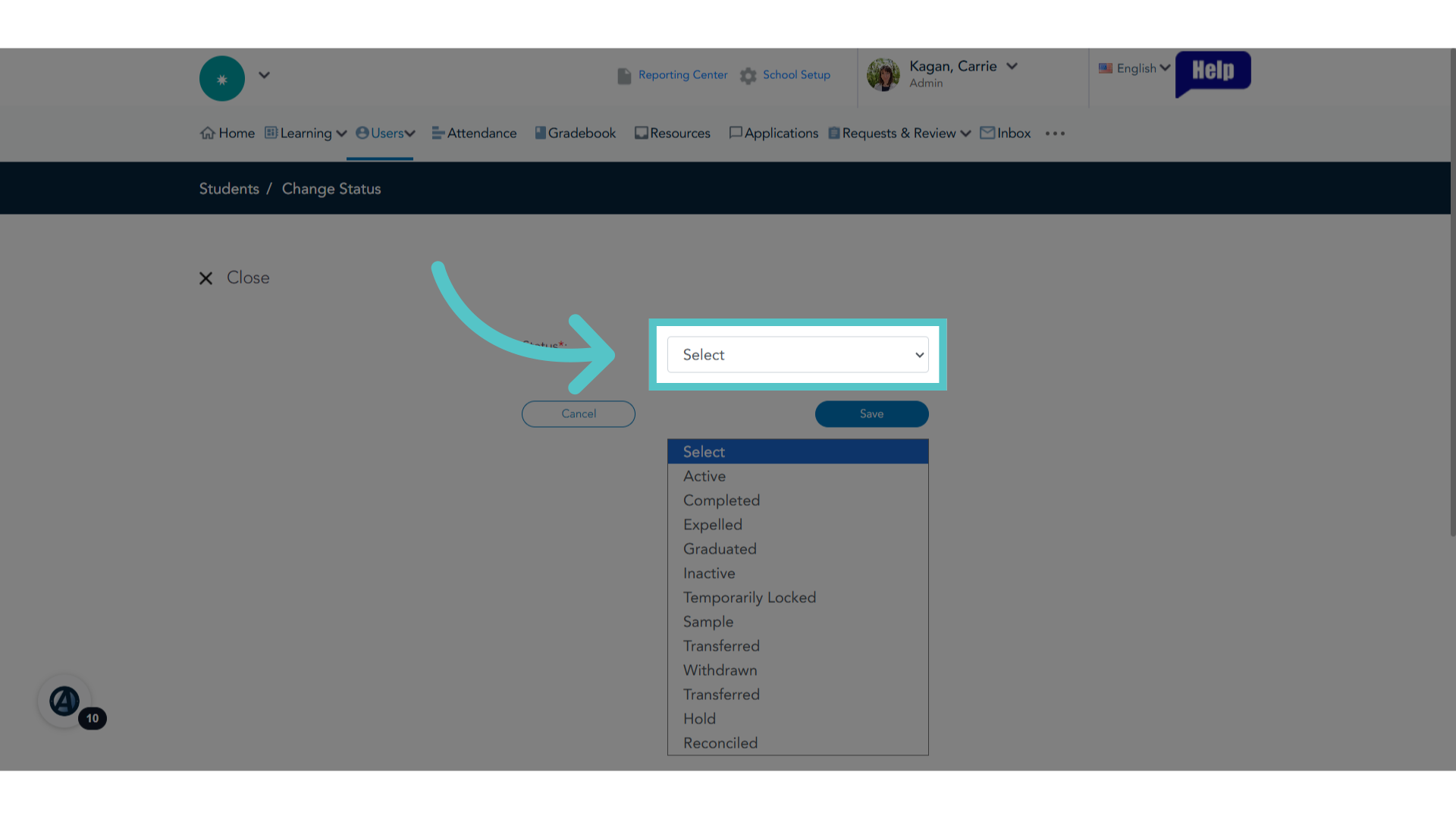
7. New Status
Choose the new status for the selected students.
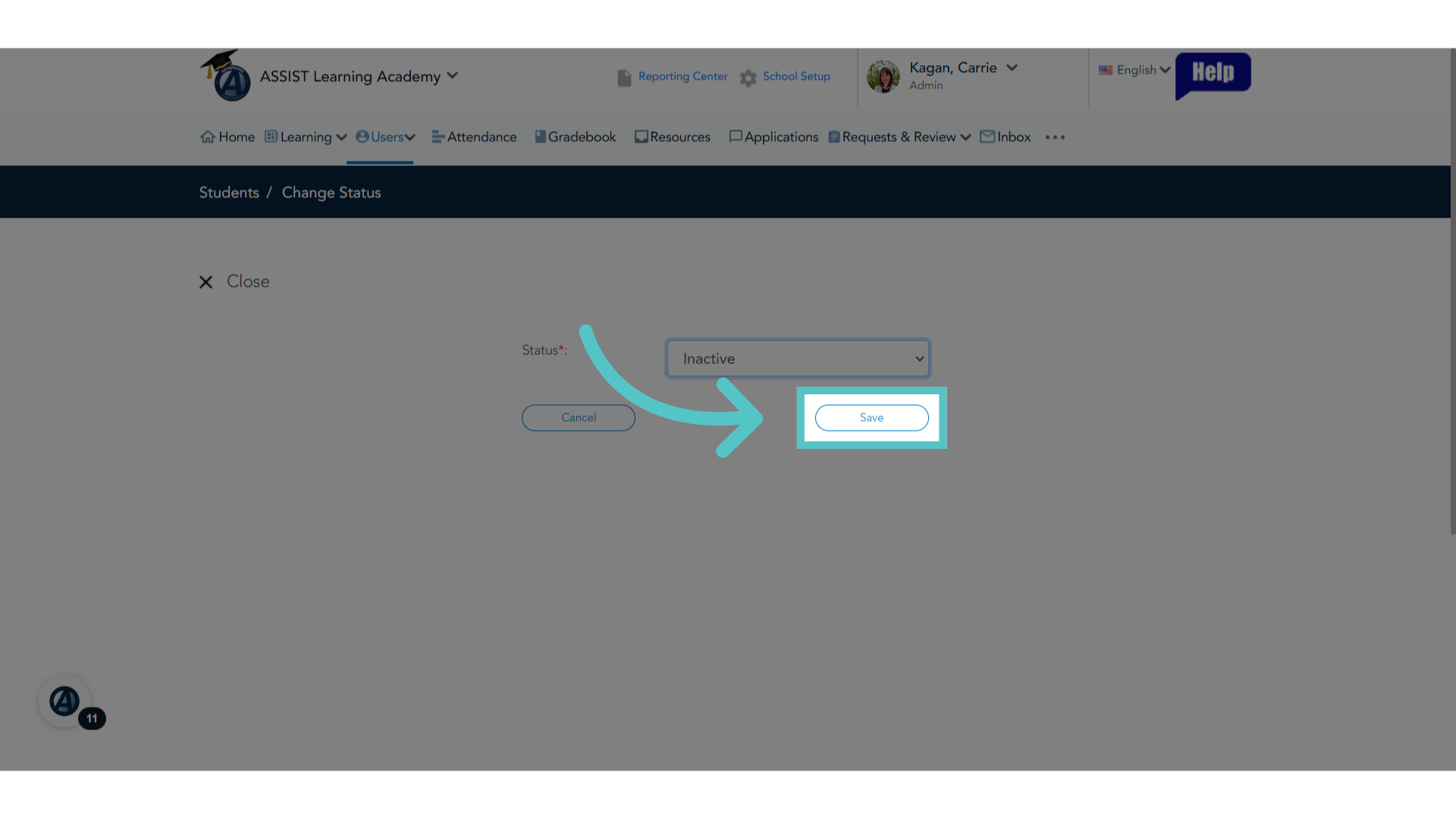
8. Click "Save"
Be sure to save the new status.
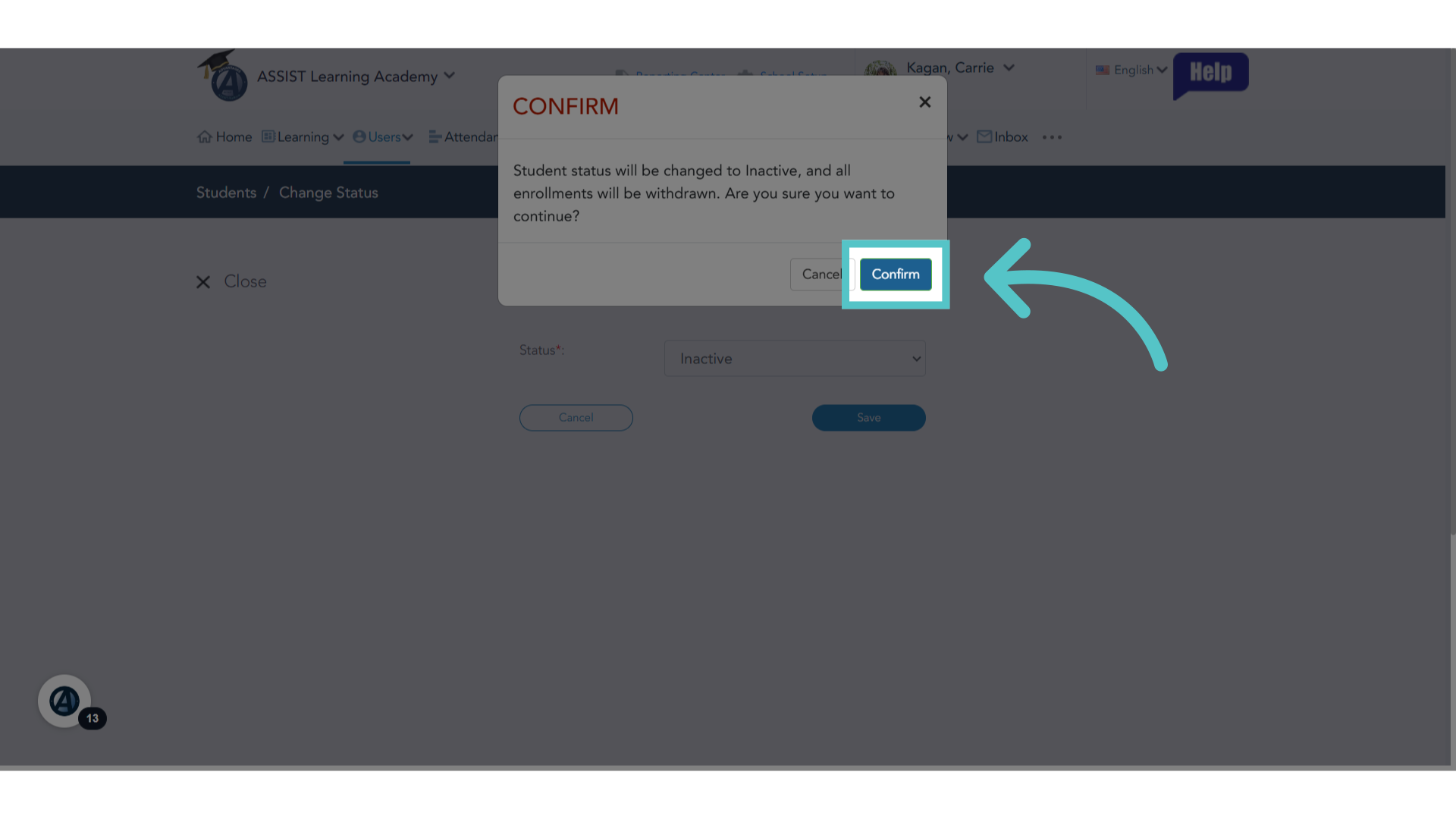
9. Click "Confirm"
Students who will be moving to a status of "withdrawn," "Graduated," "Completed," or other inactive status will be withdrawn from all enrollments. With this in mind, confirm the status change.
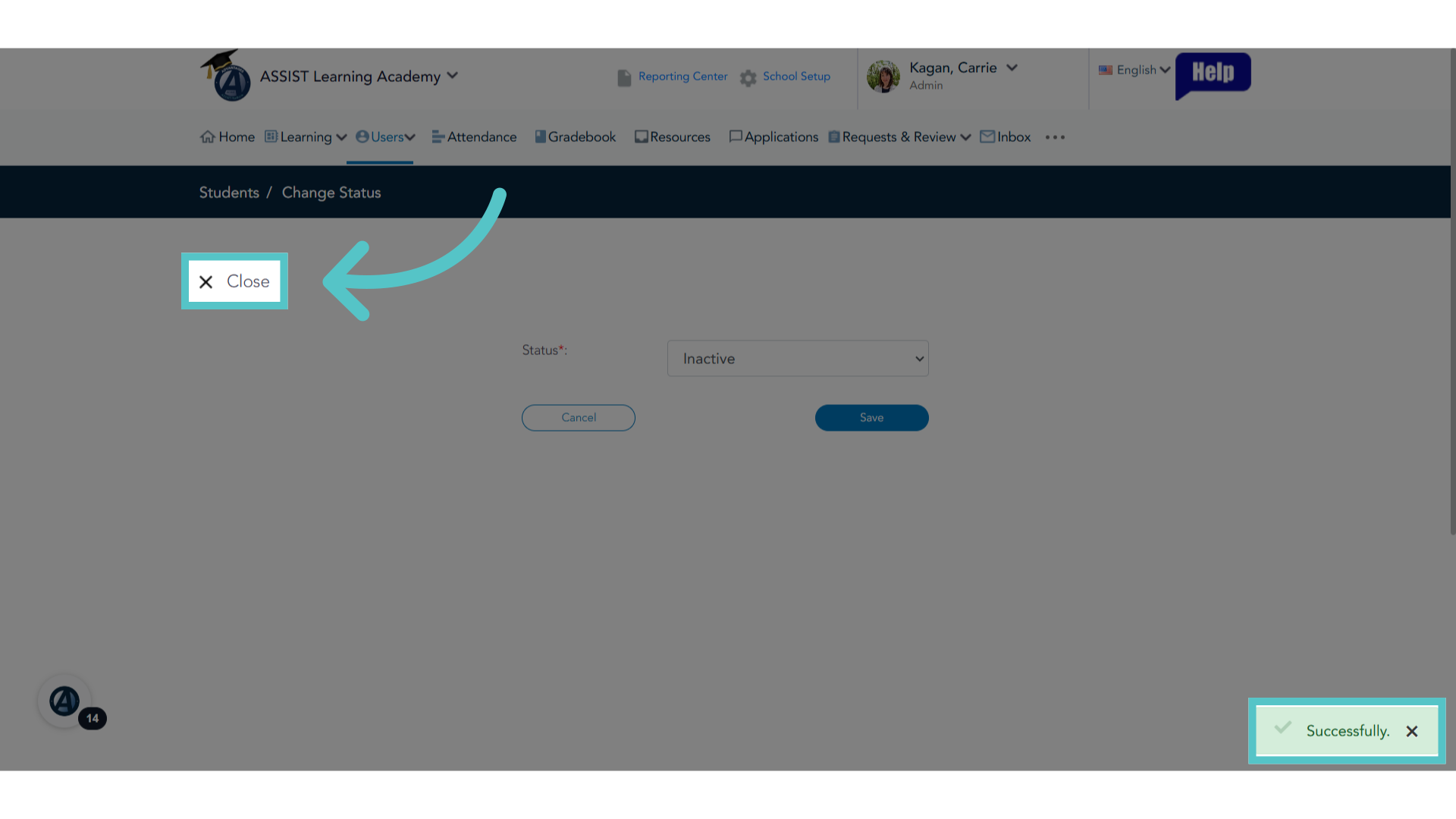
10. Click "Close"
Close the status editor once the change is successfully saved.
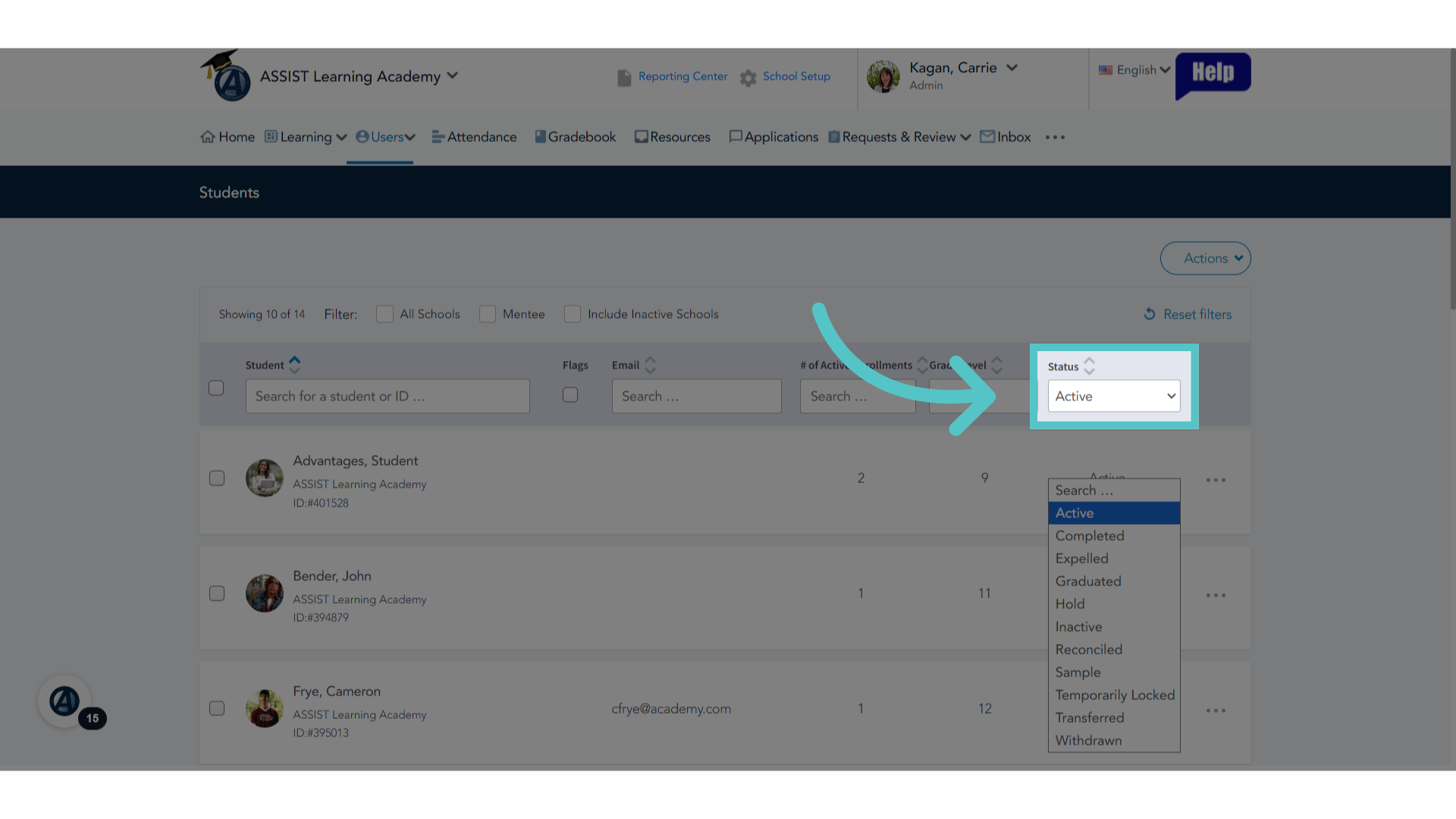
11. Status Search
The students are saved in ASSIST with a different status. To find thee students, use the status filter with the student list.
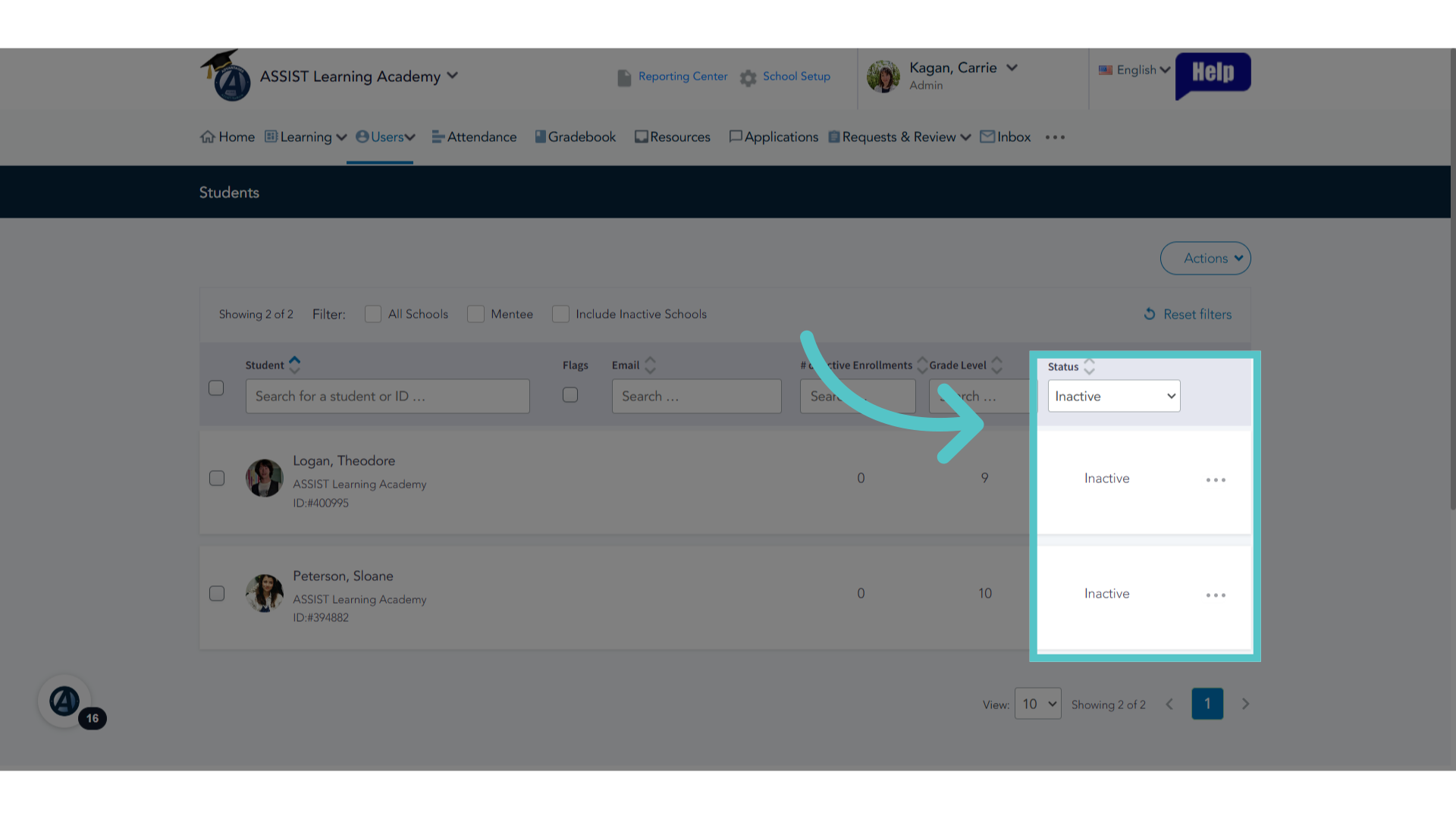
12. Inactive List
Filtering for Inactive students will show all inactive students.
If you have any questions about the information in this tutorial, please click "Contact Support" to submit a help request. Contact Support