This guide will demonstrate how to reconcile duplicate student accounts in ASSIST. Every student should maintain only one account on the platform. Accounts cannot be deleted, but they can be merged.
Go to portal.adlsassist.com
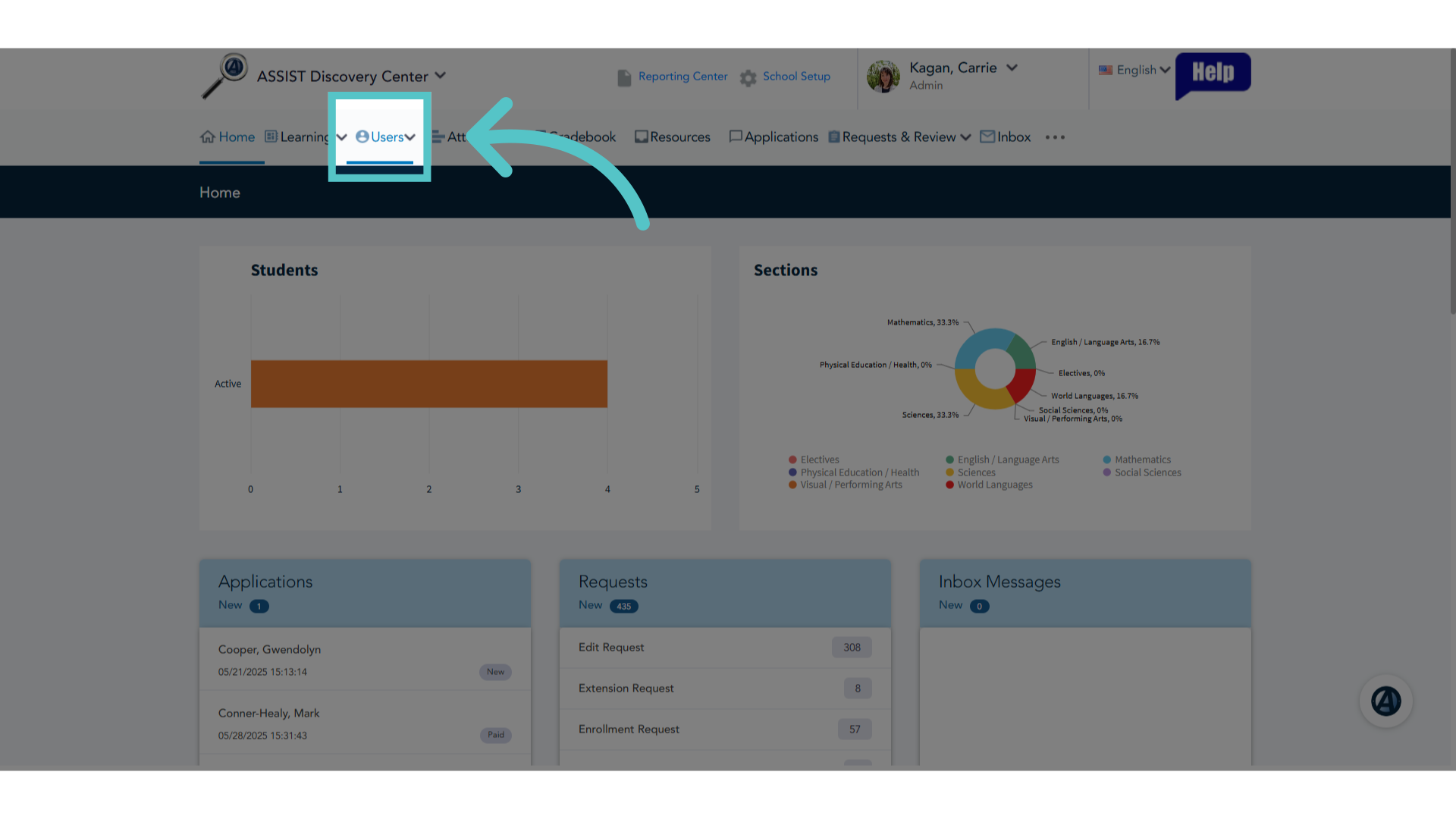
1. Click "Users"
Login as an administrator and click the Users Tab.
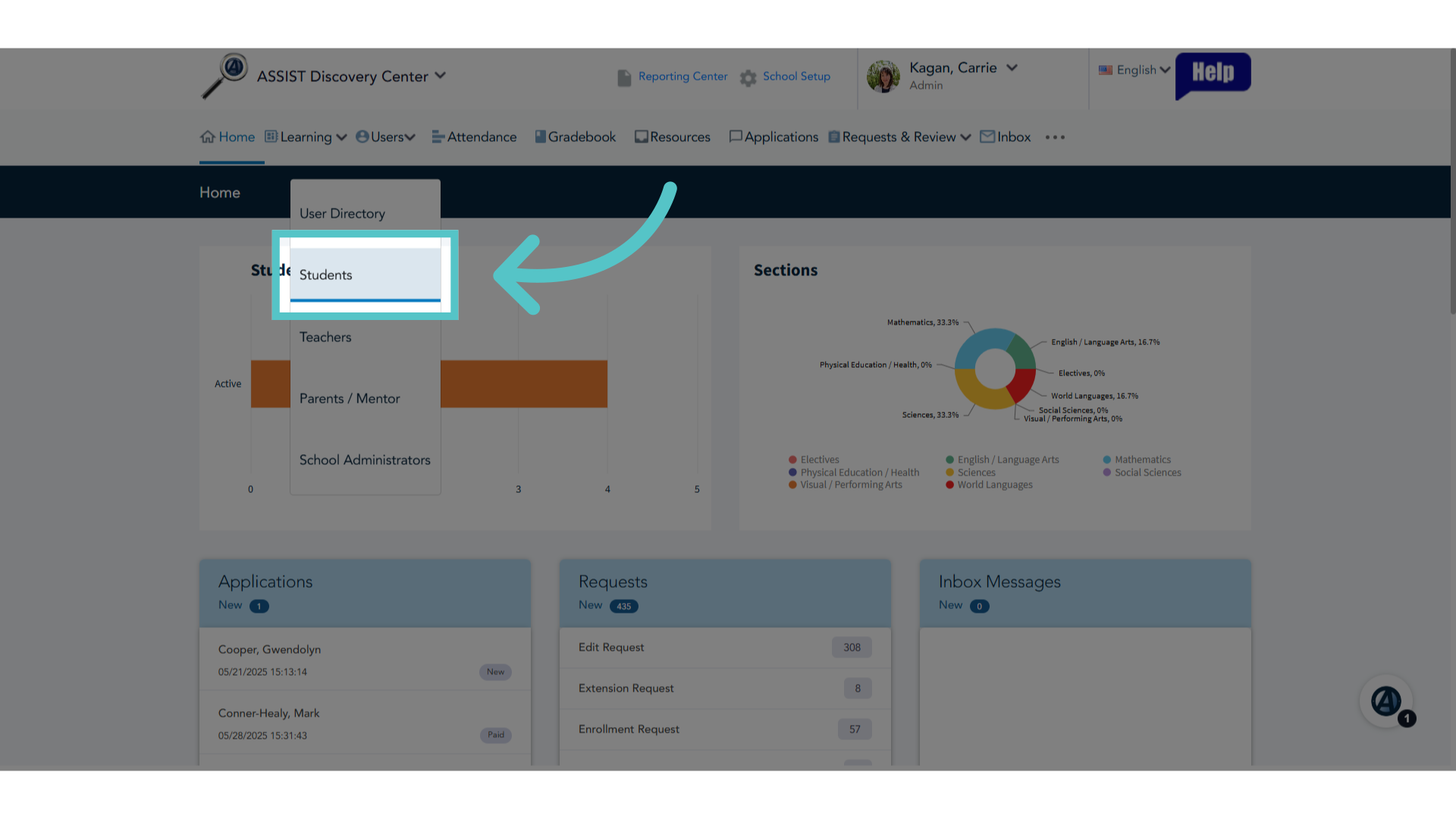
2. Click "Students"
Navigate to the Students section.
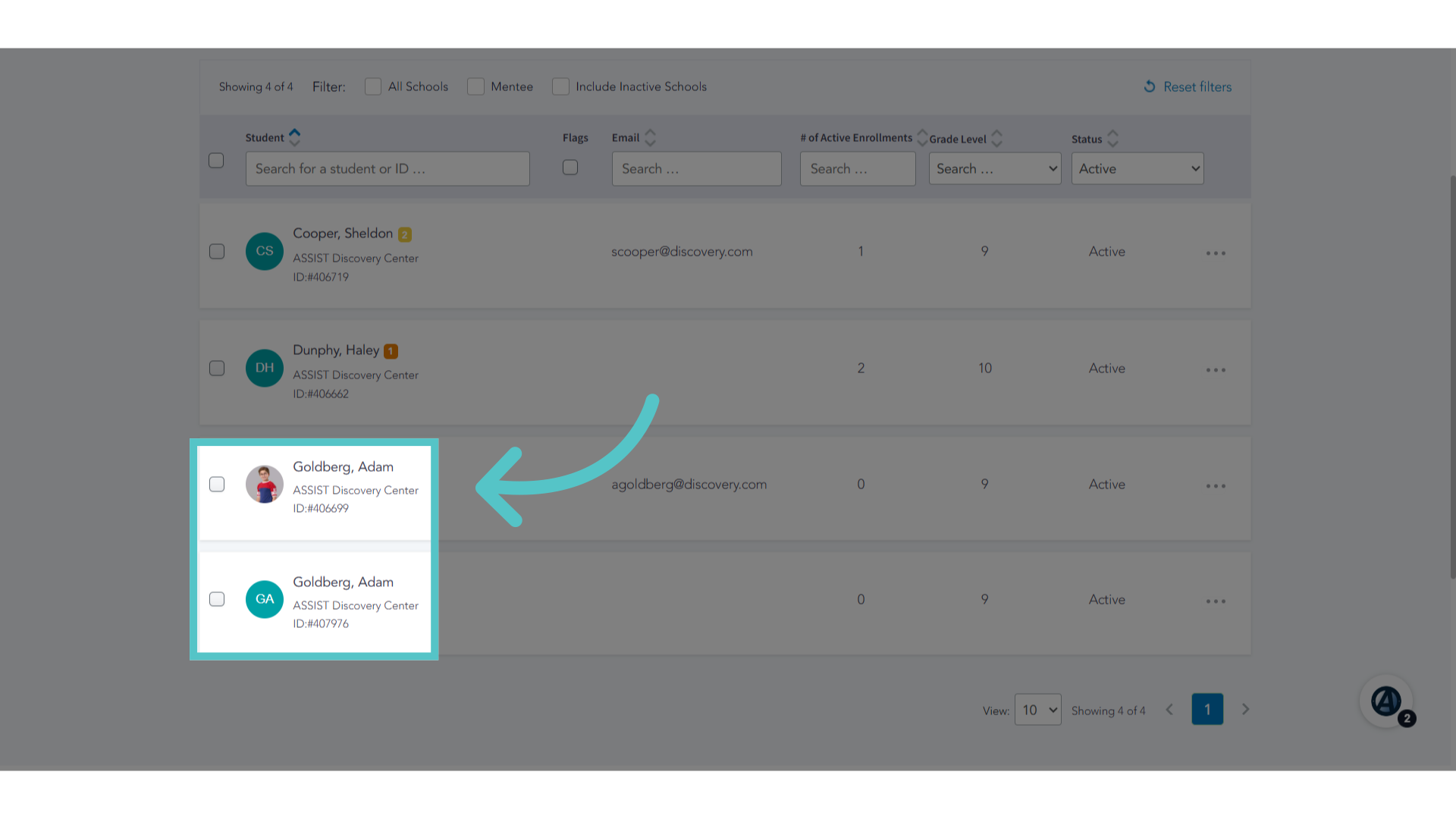
3. Duplicate Record
Identify a duplicated student record. These are both in the Active Student List. It is also possible to reconcile duplicate accounts with different statuses.
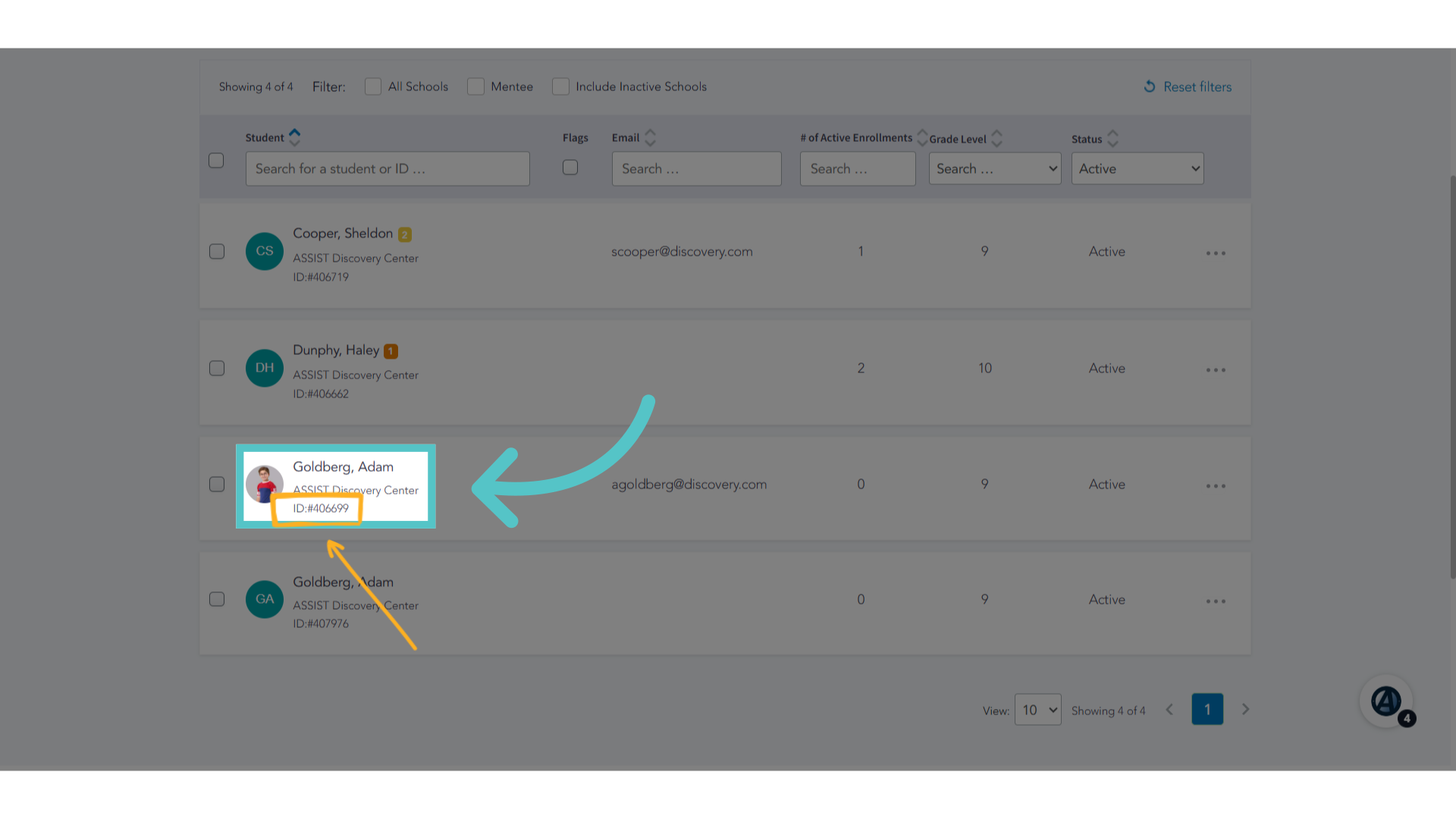
4. Click Student Name
Select the student account with the lower student ID number. Open the student file.
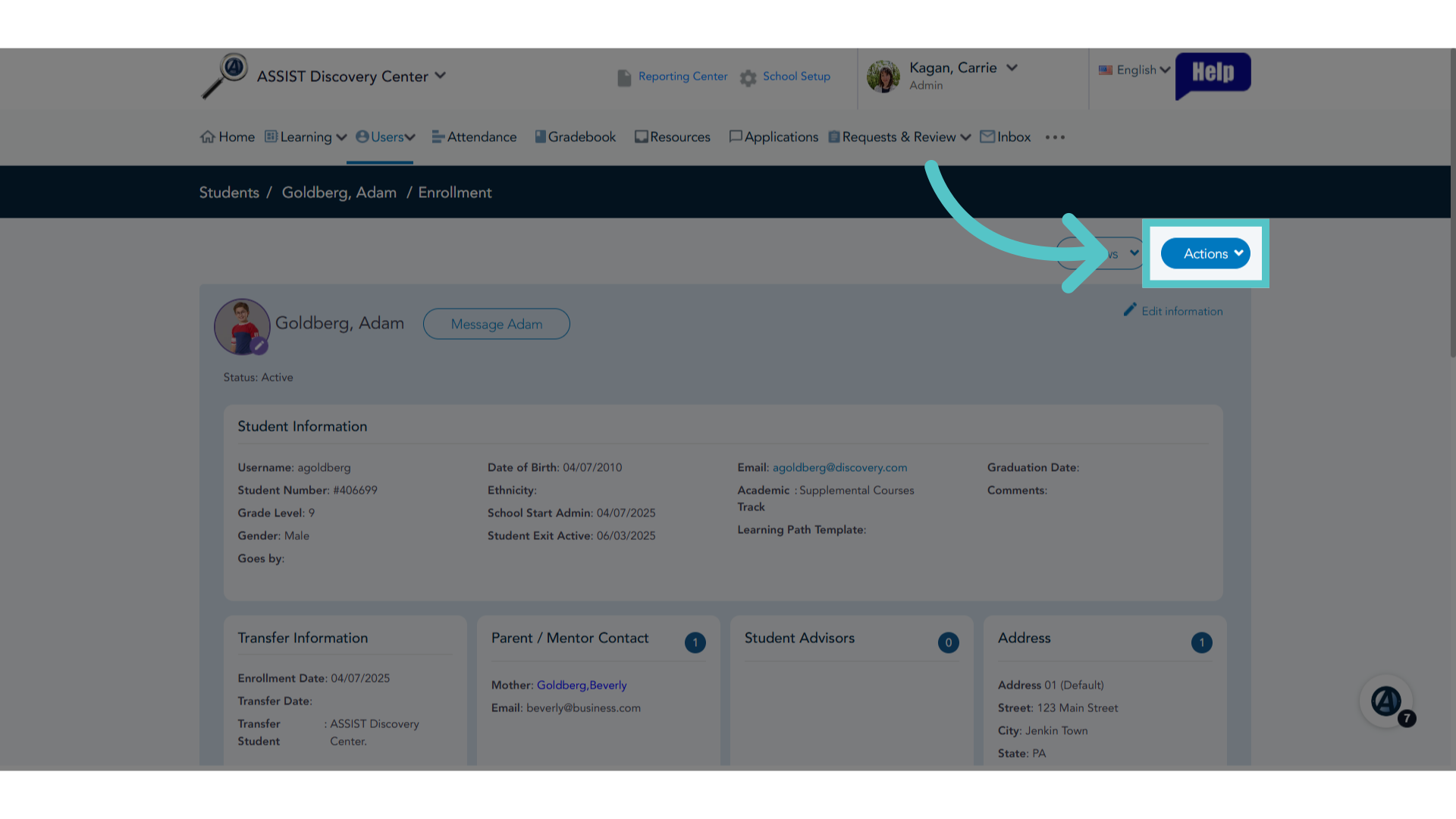
5. Click "Actions"
Select the Actions menu.
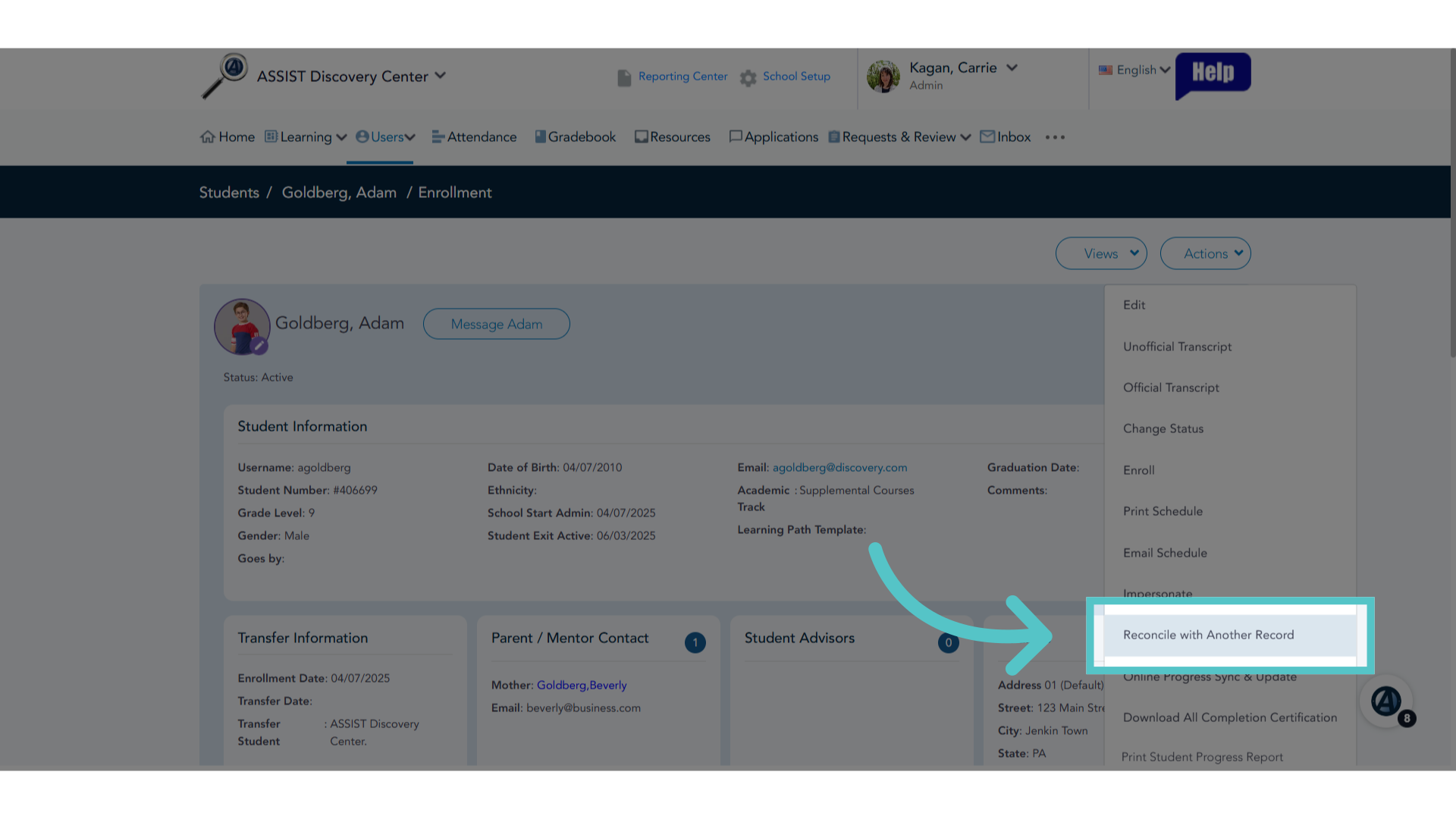
6. Click "Reconcile with Another Record"
Choose to reconcile with another record.
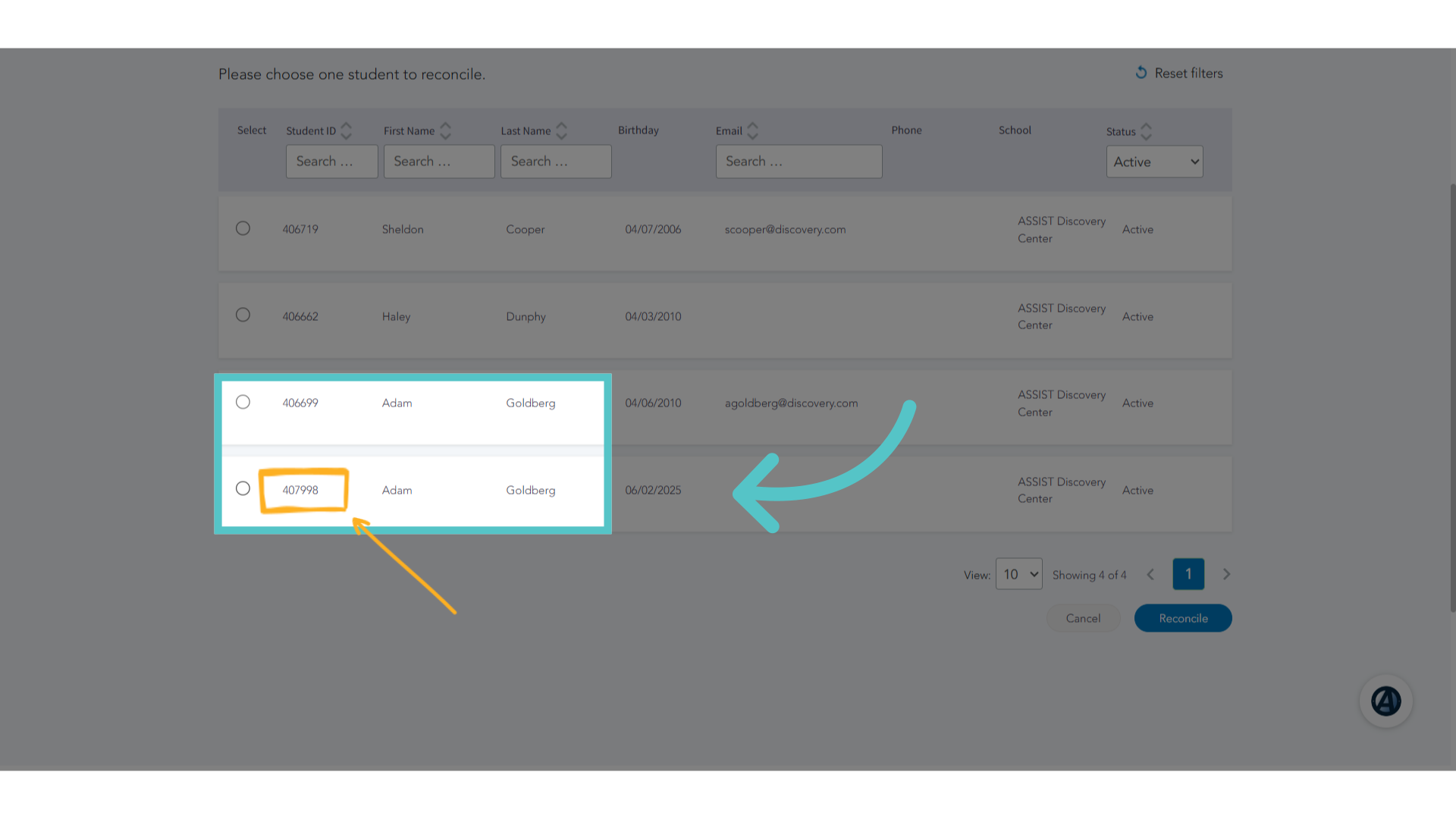
7. Choose Duplicate Account
Select the duplicate record to reconcile with. This will be the student record of the same name, but with the higher student ID number.
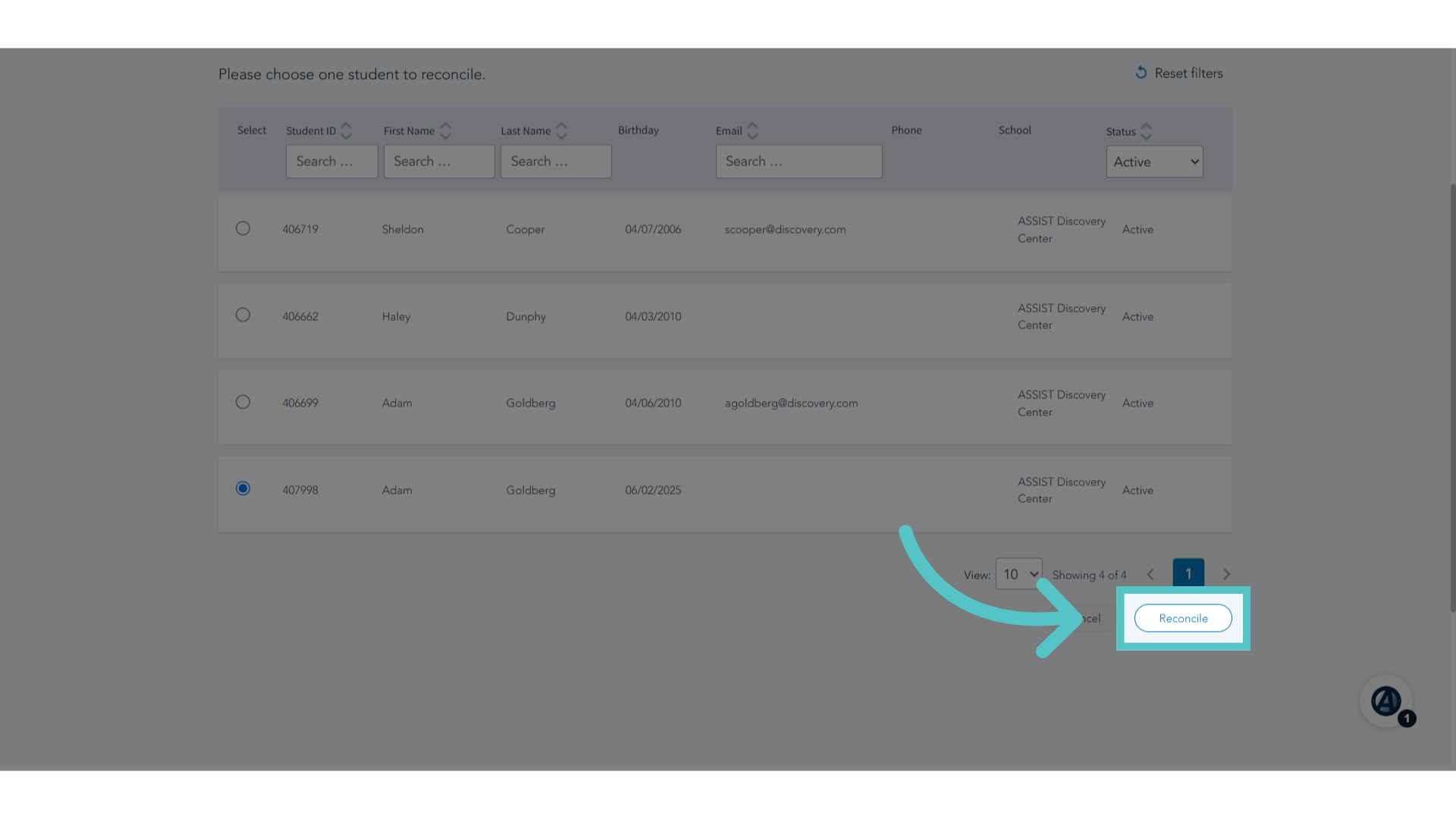
8. Click "Reconcile"
Click the reconcile button.
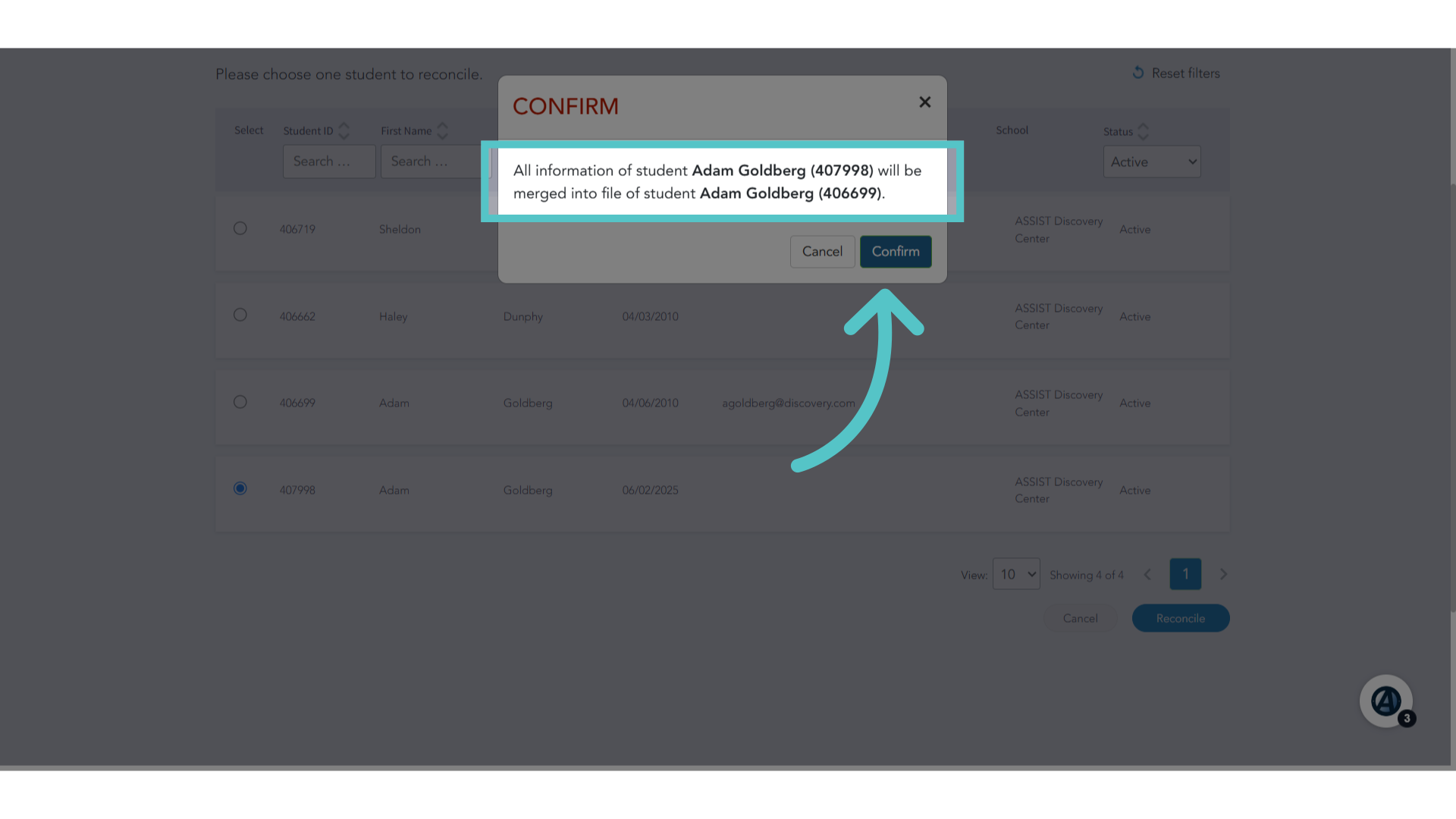
9. Confirm
Be sure that two accounts with the same name and different student ID numbers are being merged. Click confirm.
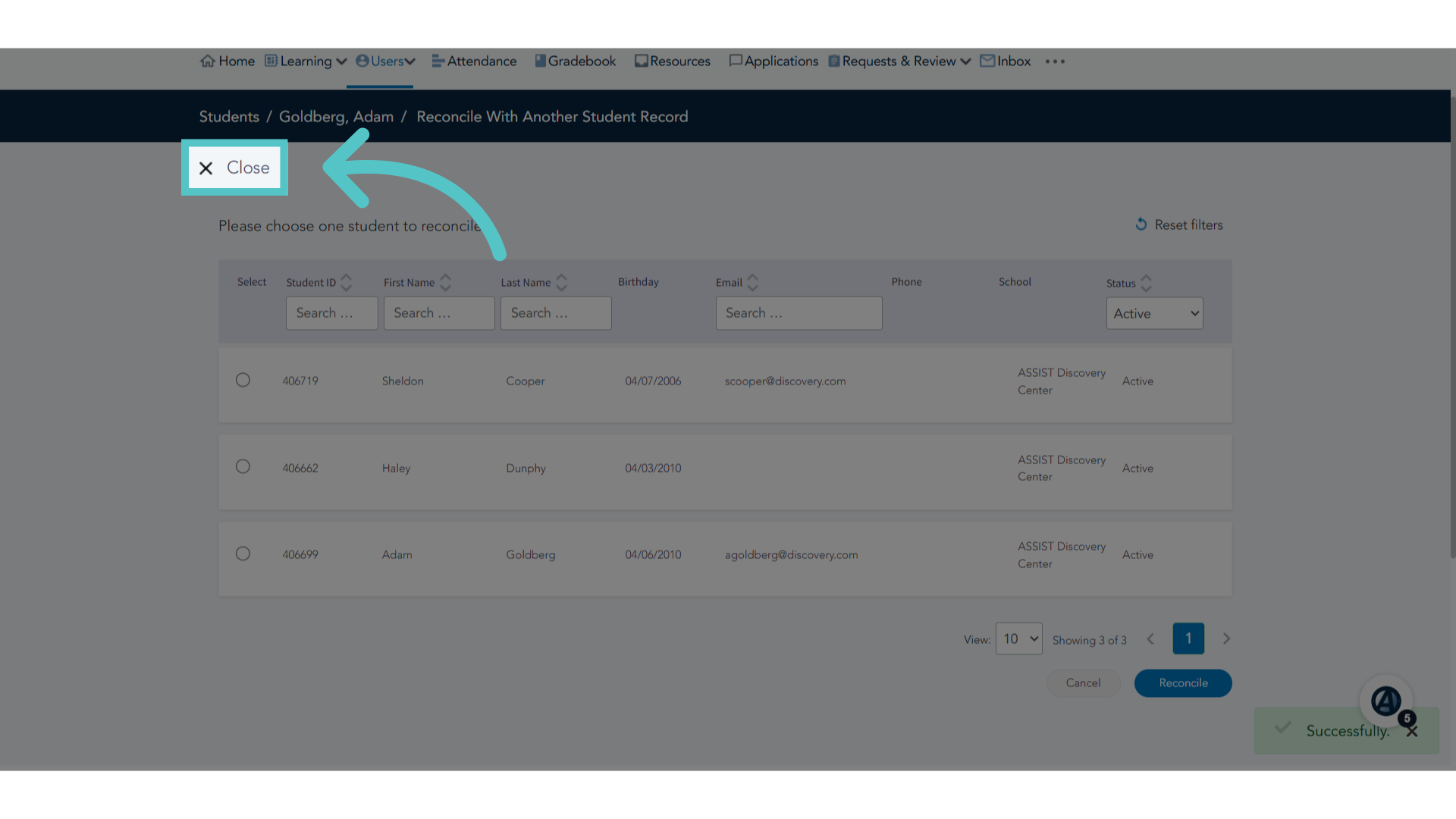
10. Click "Close"
Close the current window.
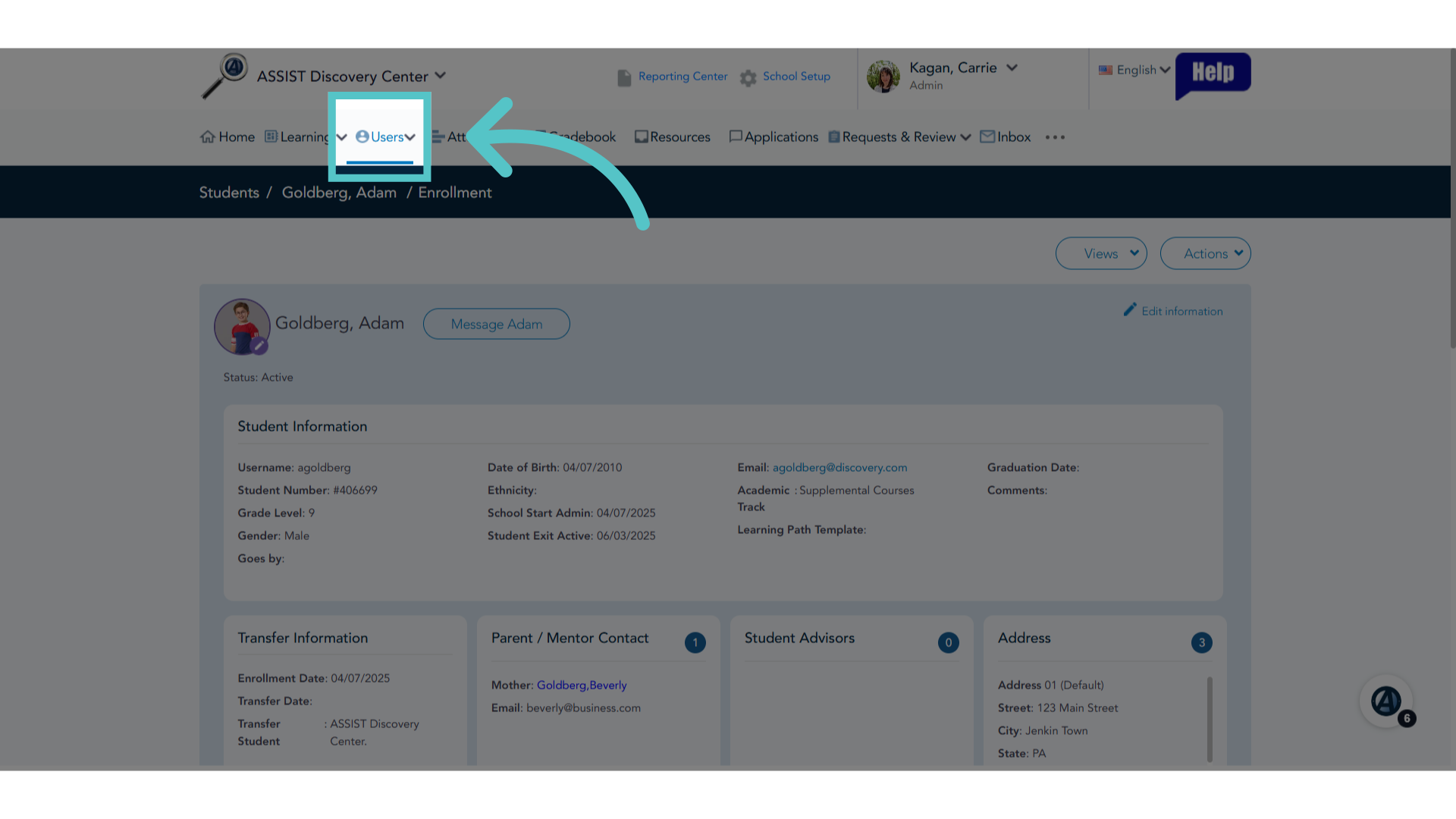
11. Click "Users"
Access the Users Tab.
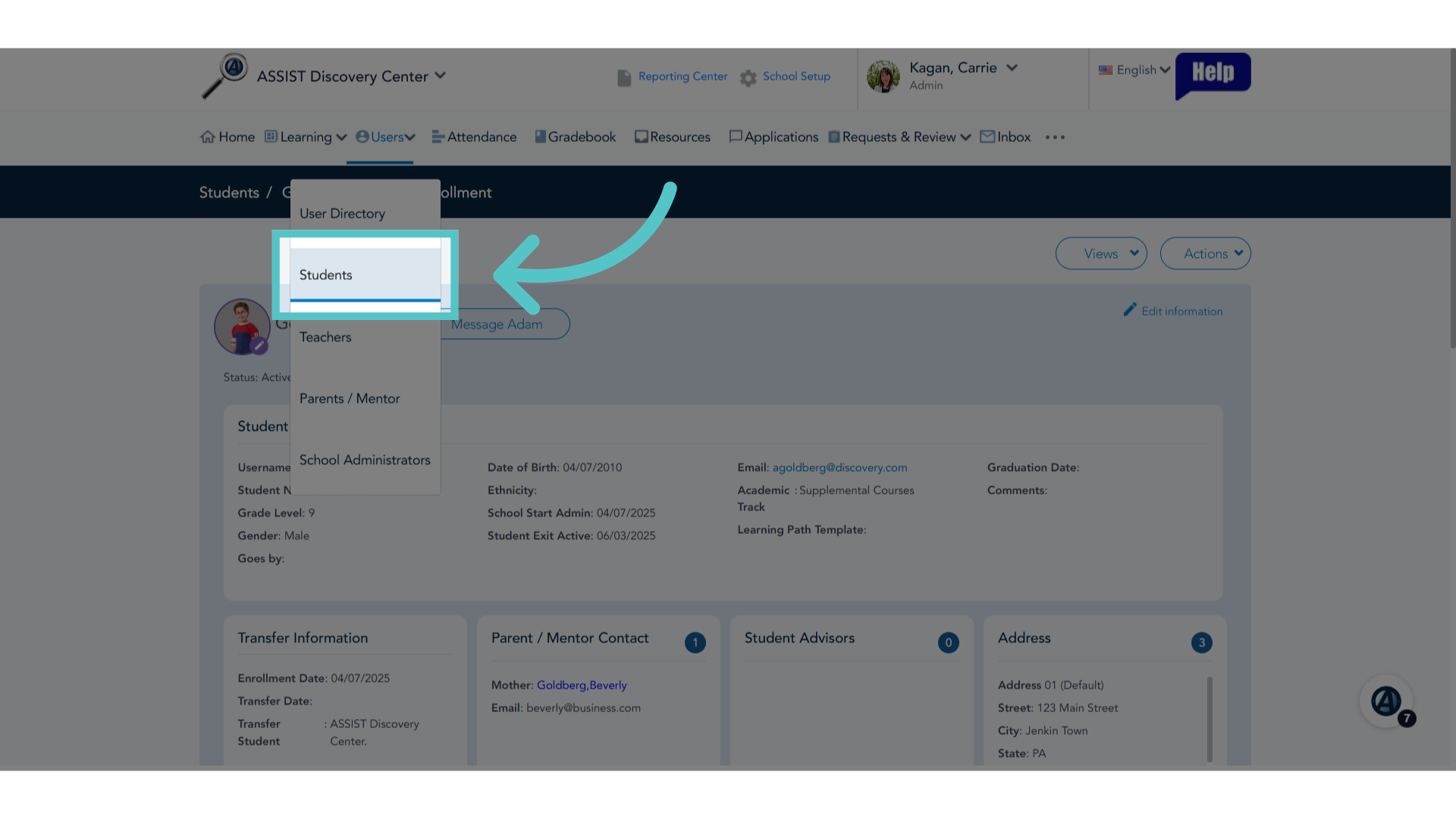
12. Click "Students"
Navigate to the Students list.
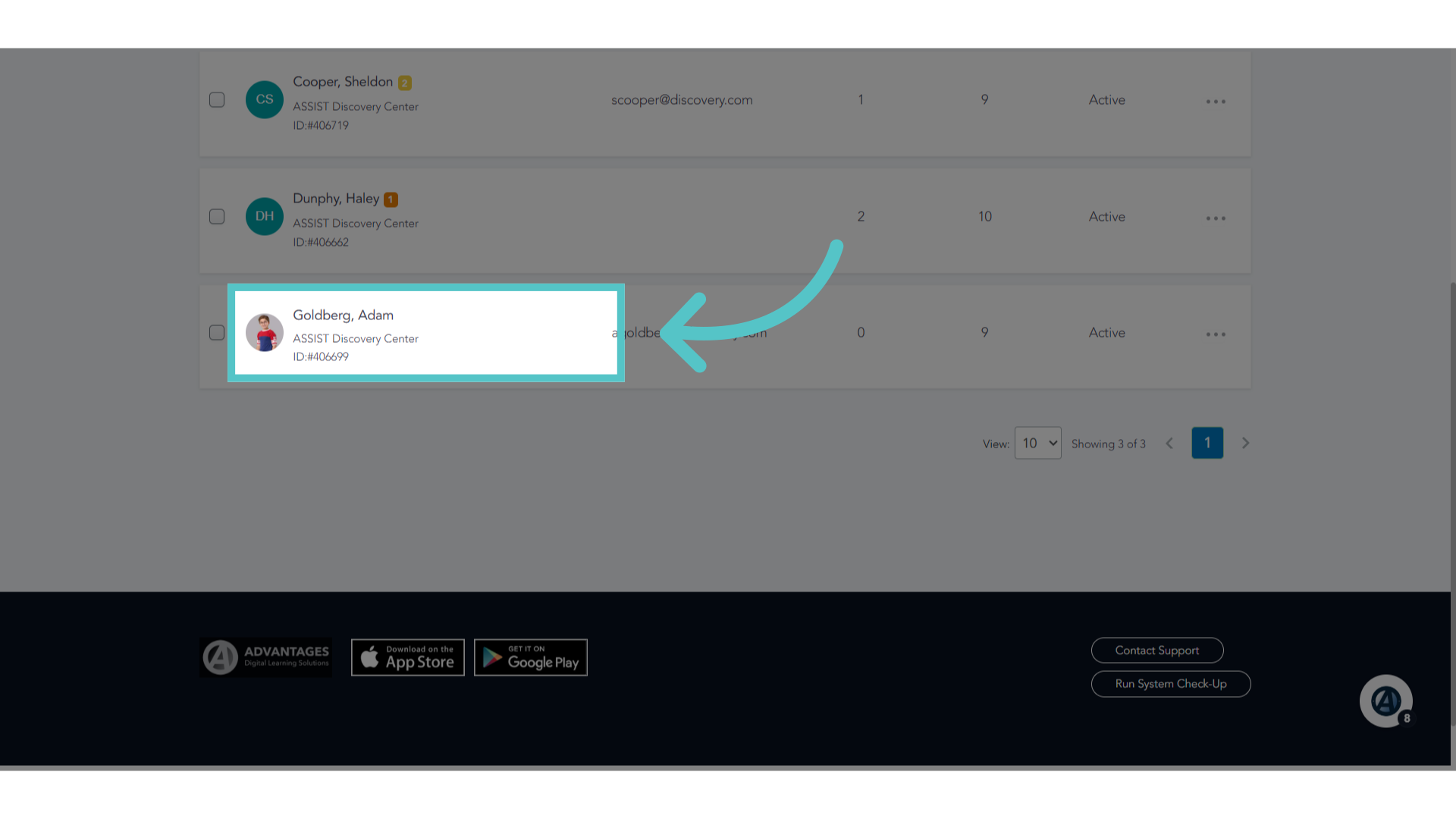
13. Verify Single Account
Verify that only one student with that name is now listed.
If you have any questions about the information in this tutorial, please contact your dedicated school success manager for additional support.